# Freesbe documentation
> Freesbe: Pass it on. Chat, calls and meetings, with AI built in. It is made for support and sales teams first: channels, DMs, threads, huddles and video calls, scheduled meetings with guest links, booking links, a phone line for every person, recordings with AI notes, AI summaries and translations, a punch clock, webhooks and an HTTP API. It runs in the browser and as a desktop app for macOS, Windows and Linux. Free: up to 10 people; Business is $4 per person a month; Corporate is $7 per person a month.
---
# Freesbe Docs
Source: https://freesbe.net/docs/
> Pass it on. Chat, calls and meetings, with AI built in. How to use Freesbe and how to run it for your support or sales team.
Freesbe is where a team that talks to customers passes the work along: a customer handed to a
colleague in a thread, a call picked up on your own phone line, a meeting with a guest who joins
from the browser, and the notes from it written up by AI. It's built for support and sales teams
first.
AI is built in: [summaries of channels and threads, translations and writing
help](https://freesbe.net/docs/ai-summaries/), and [notes and transcripts of your calls](https://freesbe.net/docs/recordings-and-notes/),
which you can share with the customers who joined.
These guides cover everything you can do yourself, from your first sign-in to connecting your own
tools. For a tour of every feature on one page, with a link to the guide for each, see
[all features](https://freesbe.net/features/).
## New to Freesbe
- [Getting started](https://freesbe.net/docs/getting-started/): join a workspace, find your way around and send your first message.
- [The desktop app](https://freesbe.net/docs/desktop-app/): install it on macOS, Windows or Linux.
- [The mobile app](https://freesbe.net/docs/mobile-app/): Freesbe on iPhone and Android, with push notifications.
- [Channels, DMs and messages](https://freesbe.net/docs/channels-and-messages/): threads, reactions, mentions, files and formatting.
- [Getting help](https://freesbe.net/docs/getting-help/): the Help menu, Learn more links and support. See also [What's new](https://freesbe.net/docs/whats-new/).
## Every day
- [Search and shortcuts](https://freesbe.net/docs/search-and-shortcuts/)
- [Status and availability](https://freesbe.net/docs/status-and-availability/)
- [Notifications](https://freesbe.net/docs/notifications/)
- [Huddles](https://freesbe.net/docs/huddles/): voice and video calls in any channel or DM, with screen sharing and recordings.
- [Meetings](https://freesbe.net/docs/meetings/): scheduled calls with a link anyone can open.
- [AI summaries, translations and writing help](https://freesbe.net/docs/ai-summaries/): catch up on a channel or thread, read any message in your language, and polish a reply.
- [Recordings, transcripts and notes](https://freesbe.net/docs/recordings-and-notes/): who said what in a call, and AI notes with decisions and action items.
- [Booking links](https://freesbe.net/docs/booking-links/): a page where people book a call with you, for your email
signature.
- [Punch clock](https://freesbe.net/docs/punch-clock/): clock in, take breaks and clock out.
- [Phone](https://freesbe.net/docs/phone/): use your desk phone or softphone with Freesbe.
## Your account
- [Profile and preferences](https://freesbe.net/docs/profile-and-preferences/)
- [Sign-in and security](https://freesbe.net/docs/sign-in-and-security/): passwords, sign-in codes, Google, Microsoft and passkeys.
## For admins
- [Workspaces and invites](https://freesbe.net/docs/workspaces-and-invites/)
- [Guests](https://freesbe.net/docs/guests/): work with people outside your organization.
- [Workspace settings](https://freesbe.net/docs/admin-settings/)
- [Usage limits](https://freesbe.net/docs/usage-limits/): video and storage each month.
- [Billing](https://freesbe.net/docs/billing/): your plan, people, prices and invoices.
- [Single sign-on](https://freesbe.net/docs/single-sign-on/)
- [Import from Slack](https://freesbe.net/docs/slack-import/)
## For developers
- [API and webhooks](https://freesbe.net/docs/api-and-webhooks/): post into channels, get events, and script Freesbe.
- [API reference](https://freesbe.net/docs/api/): every endpoint.
Stuck? The [knowledge base](https://freesbe.net/knowledge/) has fixes for common problems, step-by-step how-tos
and best practices for running Freesbe. If something stops working for everyone at once,
[freesbe.net/status](https://freesbe.net/status/) says whether it's on our side and when it's fixed.
---
# Getting started
Source: https://freesbe.net/docs/getting-started/
> Sign up your team or join a workspace, find your way around Freesbe and send your first message.
Freesbe works in any modern browser at [app.freesbe.net](https://app.freesbe.net), and as a
[desktop app](https://freesbe.net/docs/desktop-app/) for macOS, Windows and Linux. Your account, messages and
settings are the same everywhere.
## Sign up your team
Anyone can start a workspace for their company at
[app.freesbe.net/signup](https://app.freesbe.net/signup), or from **Start free** on
[freesbe.net](https://freesbe.net). Your first workspace gets a
[free 14-day trial of Business](https://freesbe.net/docs/plans/#free-trial), with no credit card needed. After that it
moves to Free unless you [choose a plan](https://freesbe.net/docs/billing/).
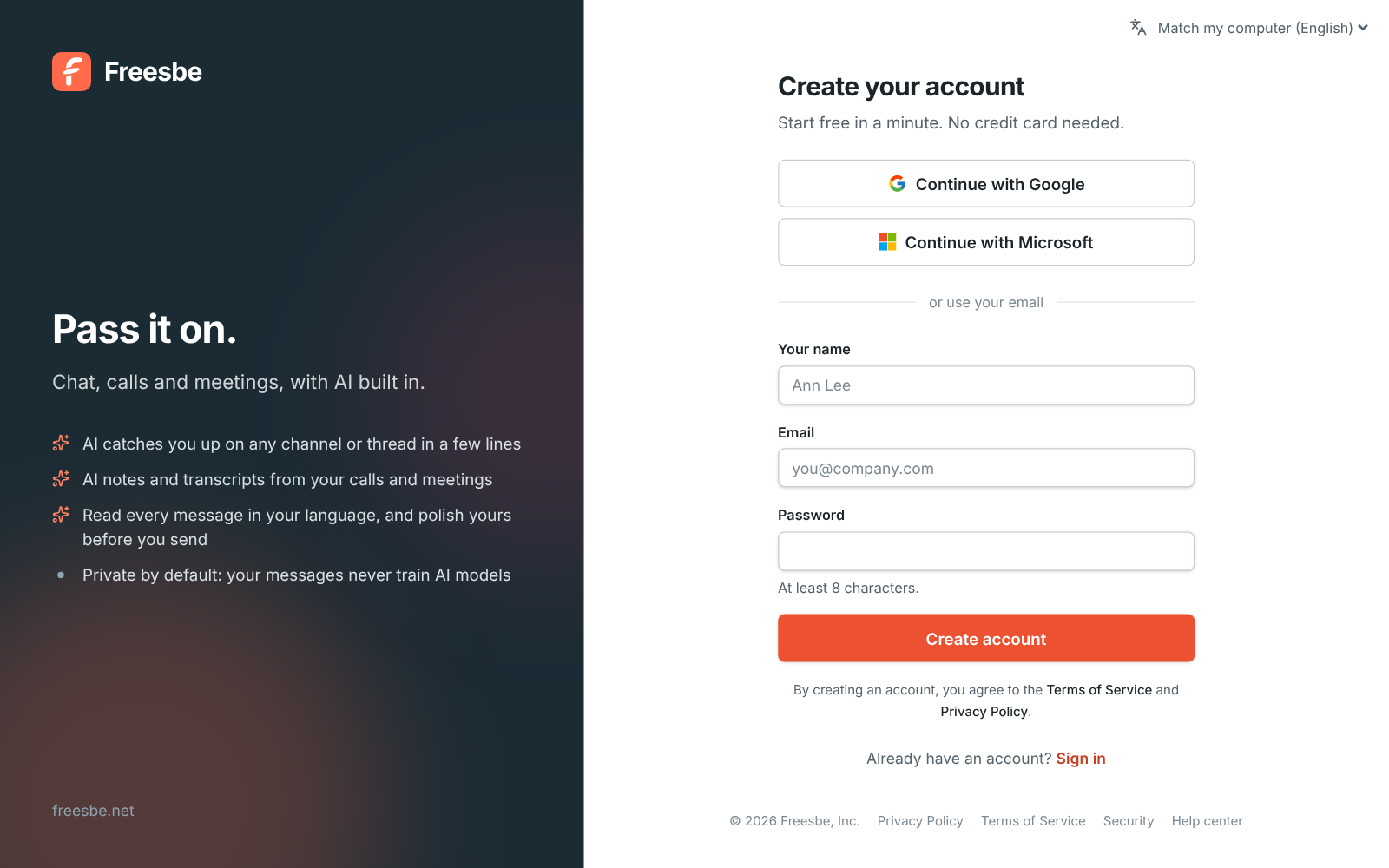
1. Continue with Google or Microsoft, or enter your name, work or personal email and a password.
Temporary inboxes can't sign up. Tick **I agree to the Terms of Service and Privacy Policy**
to create the account: Freesbe won't make it without the tick. The line under the box says
what the terms come down to, with a link to
[the two-minute summary](https://freesbe.net/legal/#summary). Continuing with Google or
Microsoft agrees to them too, as the note under those buttons says. Read them any time at
[freesbe.net/terms](https://freesbe.net/terms/) and
[freesbe.net/privacy](https://freesbe.net/privacy/), linked at the foot of every sign-in screen.

Now and then our automatic checks want a second look at a new account. If we can't create
it, the page says so with a reference: write to support@freesbe.net and quote it. Sometimes
we let you in and ask the owner to [confirm who they are](https://freesbe.net/docs/account-status/#verify-the-owner)
before the new workspace gets going.
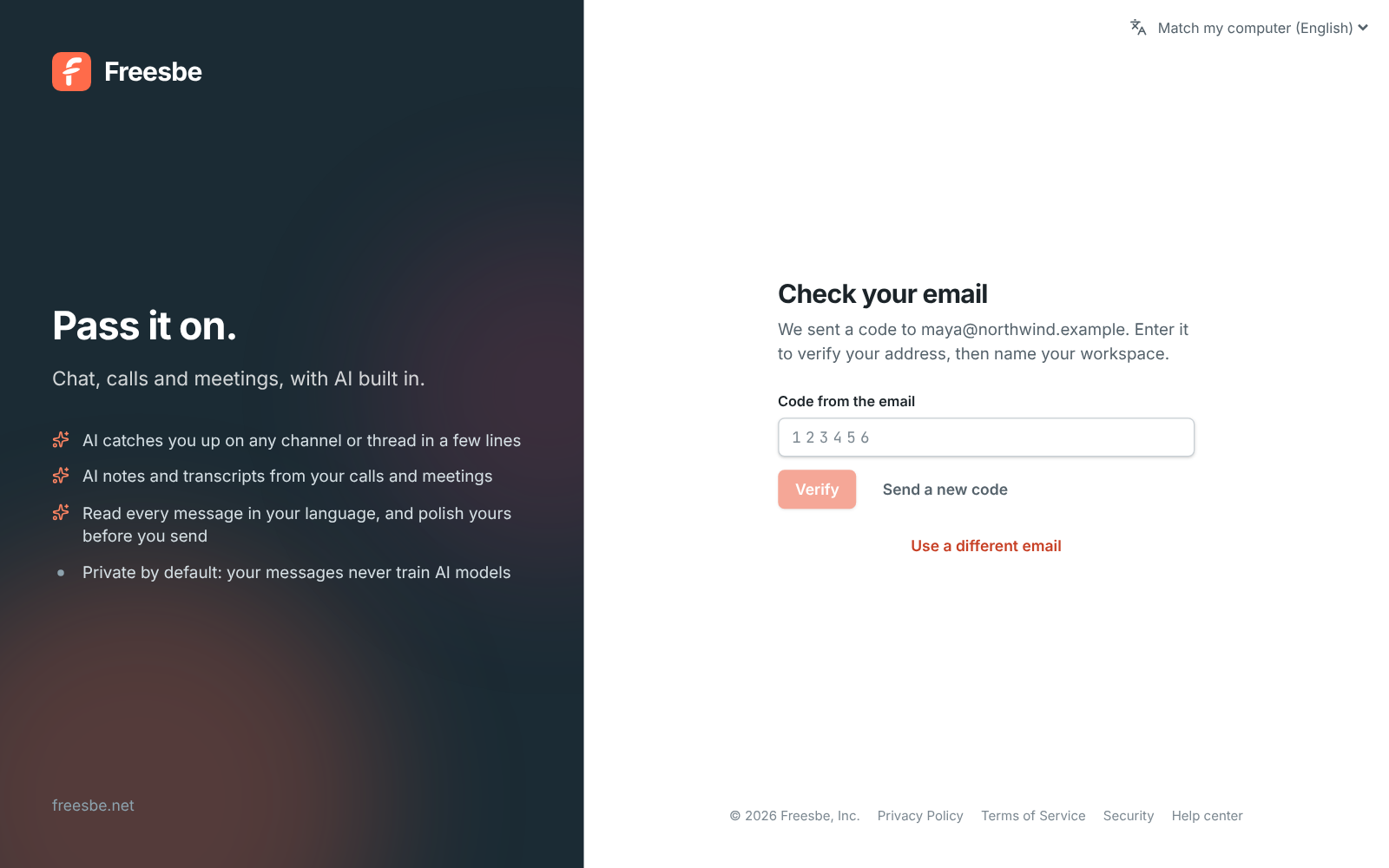
2. If you used a password, Freesbe emails you a 6-digit code. Enter it to confirm your address.
Google and Microsoft accounts are confirmed already.
If your company already has a Freesbe workspace that takes people from your email domain, you
see it here under **Join your team**: click **Join** and you're in, no invite needed. See
[Join by email domain](https://freesbe.net/docs/workspaces-and-invites/#join-by-email-domain).
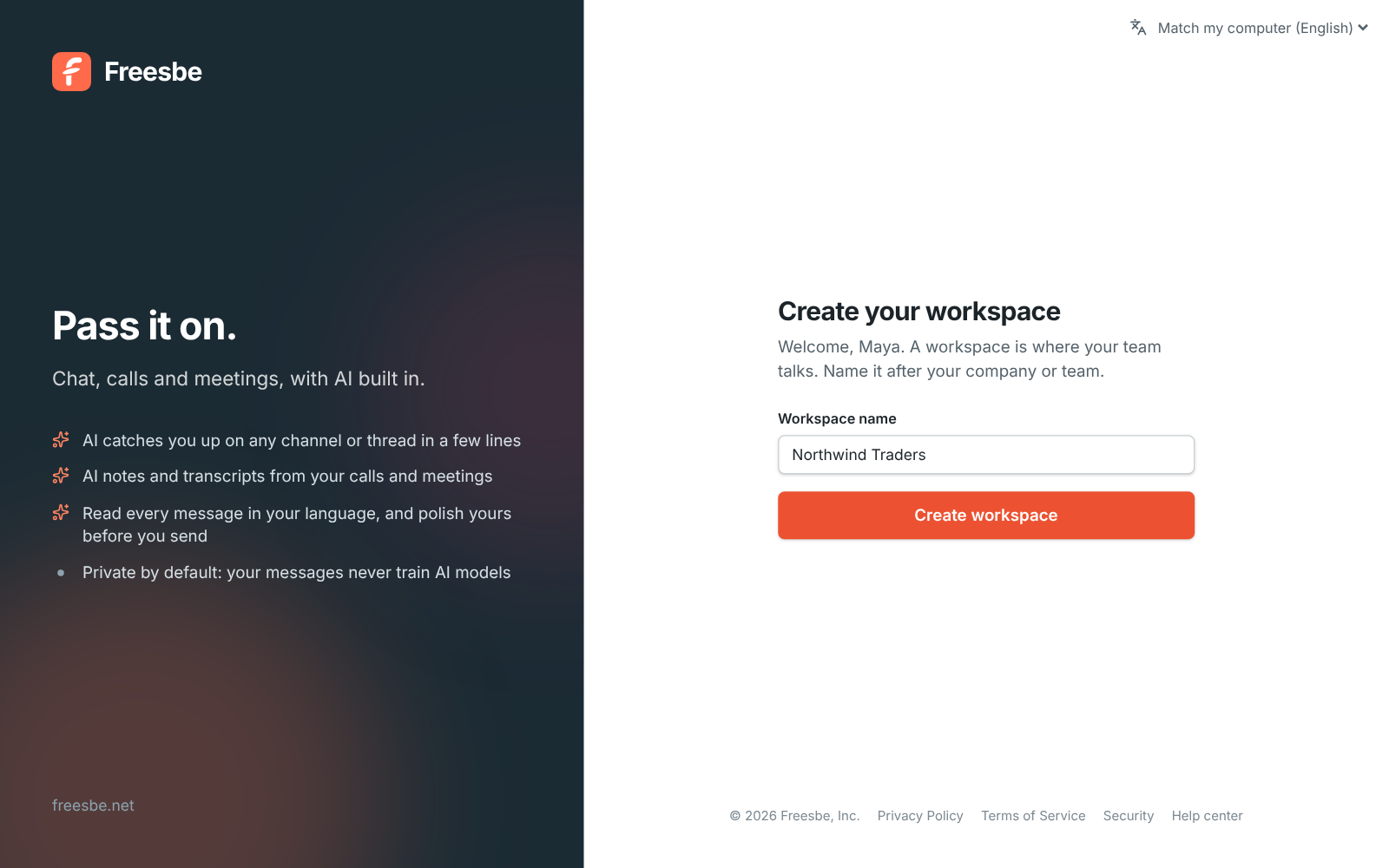
3. Name your workspace after your company or team, and choose where its data is stored: the
European Union or the United States, guaranteed to stay there, or Asia-Pacific or Oceania, close
to your team. The closest one is already picked. See
[Data residency](https://freesbe.net/docs/data-residency/).
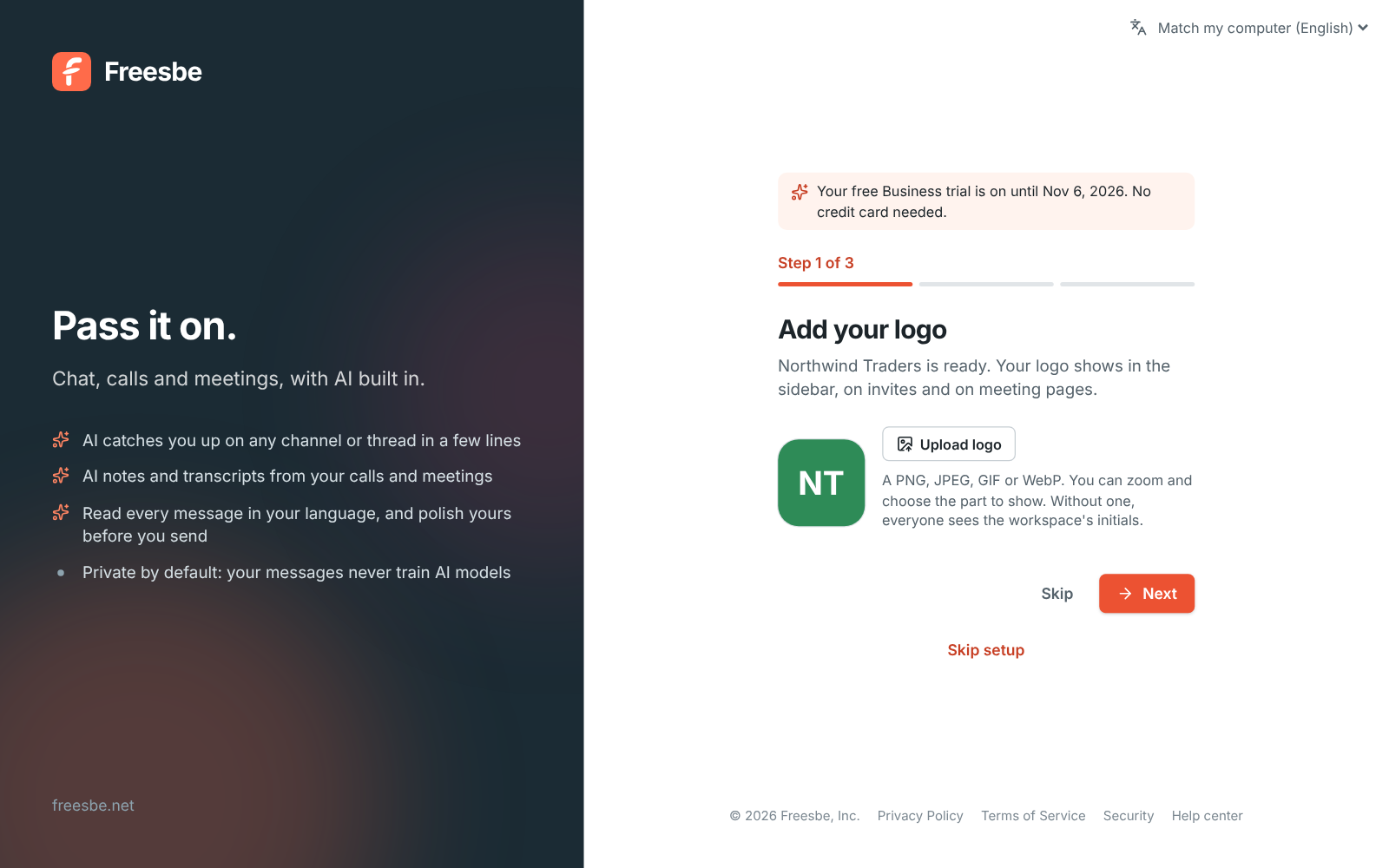
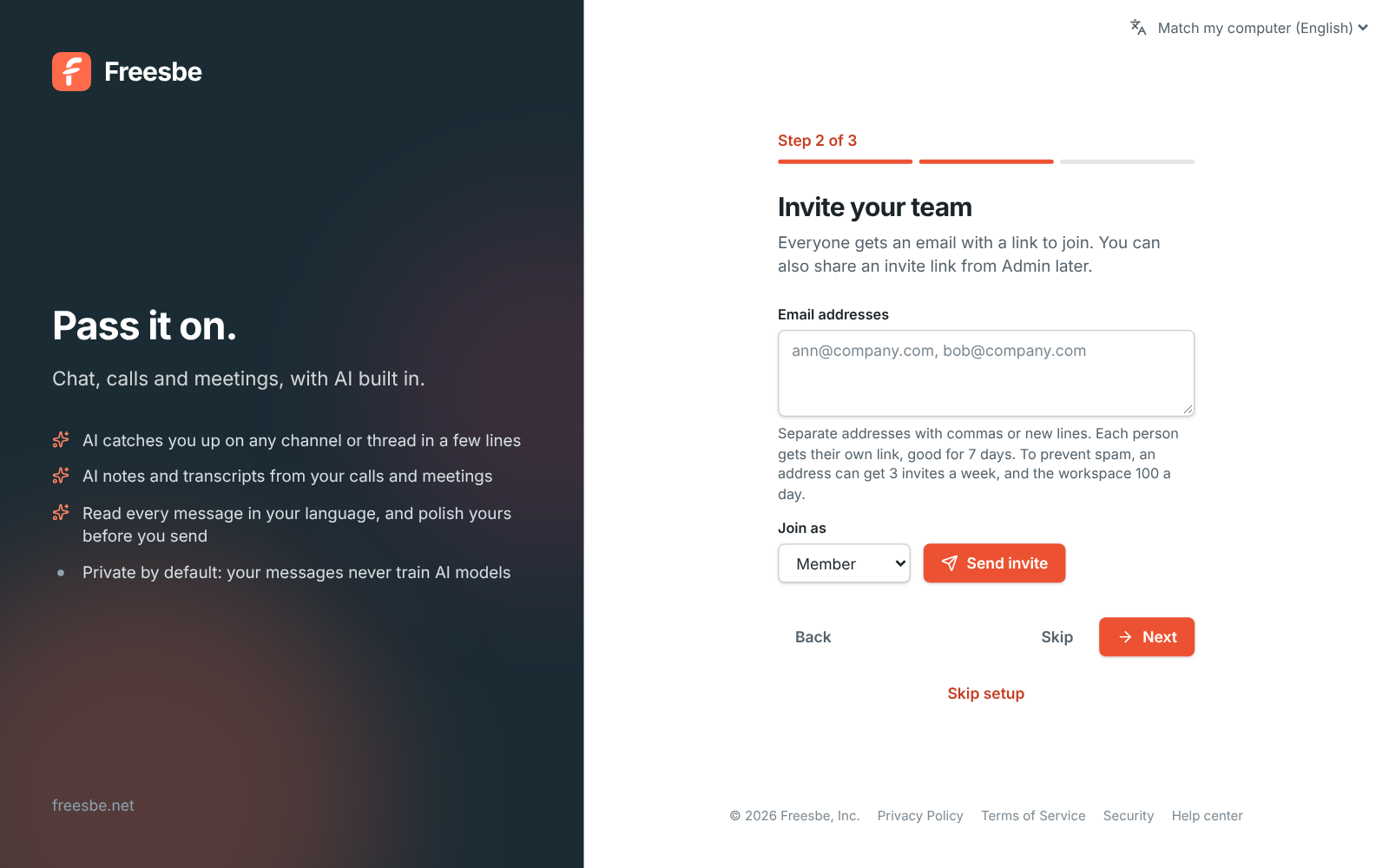
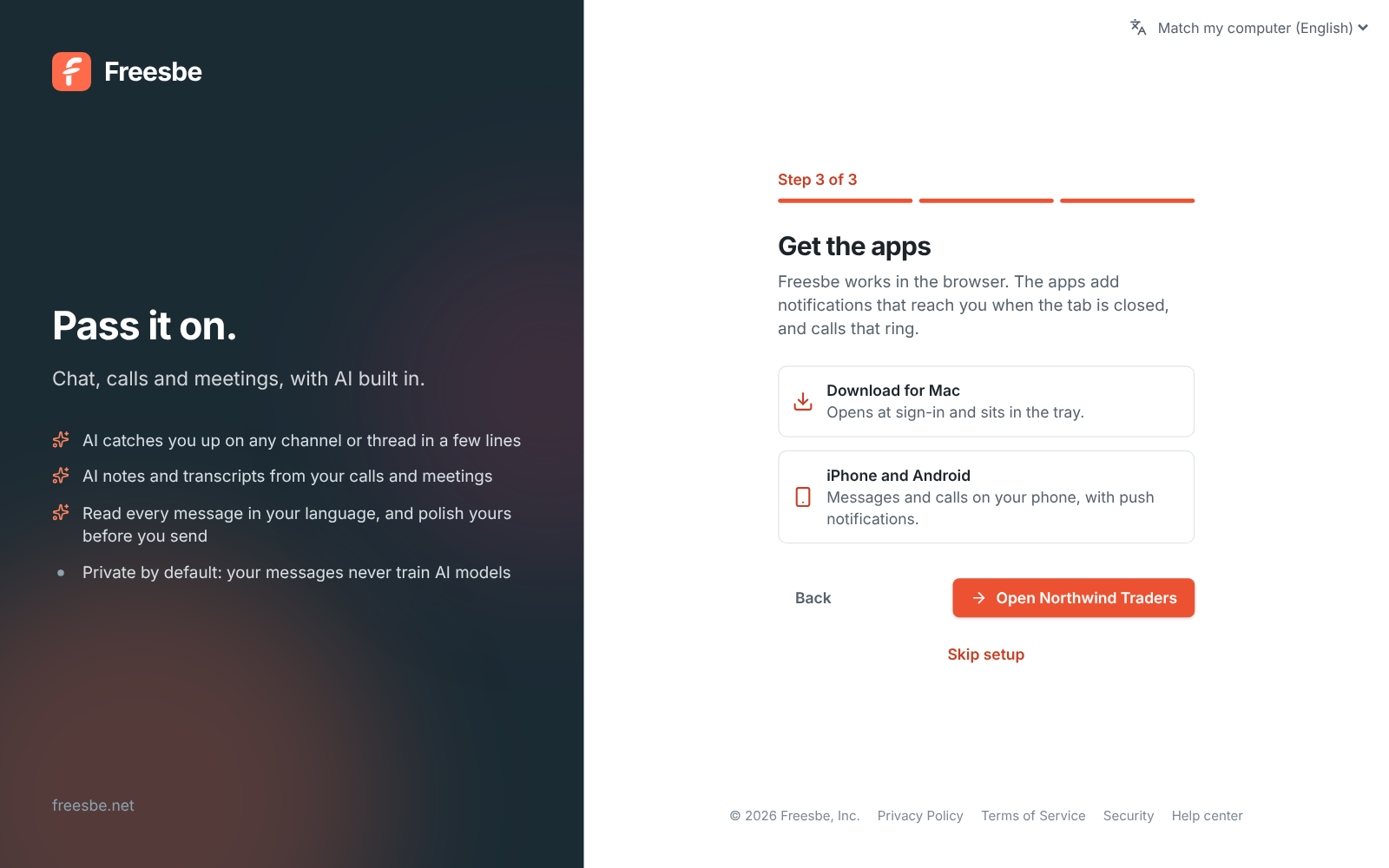
4. Three short steps follow, and you can skip any of them. They're all in
[Admin](https://freesbe.net/docs/admin-settings/) later:
- **Add your logo**, shown in the sidebar, on invites and on meeting pages.
- **Invite your team** by email. Everyone gets a link to join.
- **Get the apps** for your computer and phone.
You can do all of this on your phone too: in the [mobile app](https://freesbe.net/docs/mobile-app/), tap **New to
Freesbe? Create an account** on the sign-in screen. See
[Create an account](https://freesbe.net/docs/mobile-app/#create-an-account).
To keep Freesbe free of spam, each person can create up to two workspaces of their own, and only a
few new accounts can come from the same network each day. If you need more,
[contact support](https://freesbe.net/docs/getting-help/).
## Join your team
To join a workspace that already exists, use an invite from someone in it.
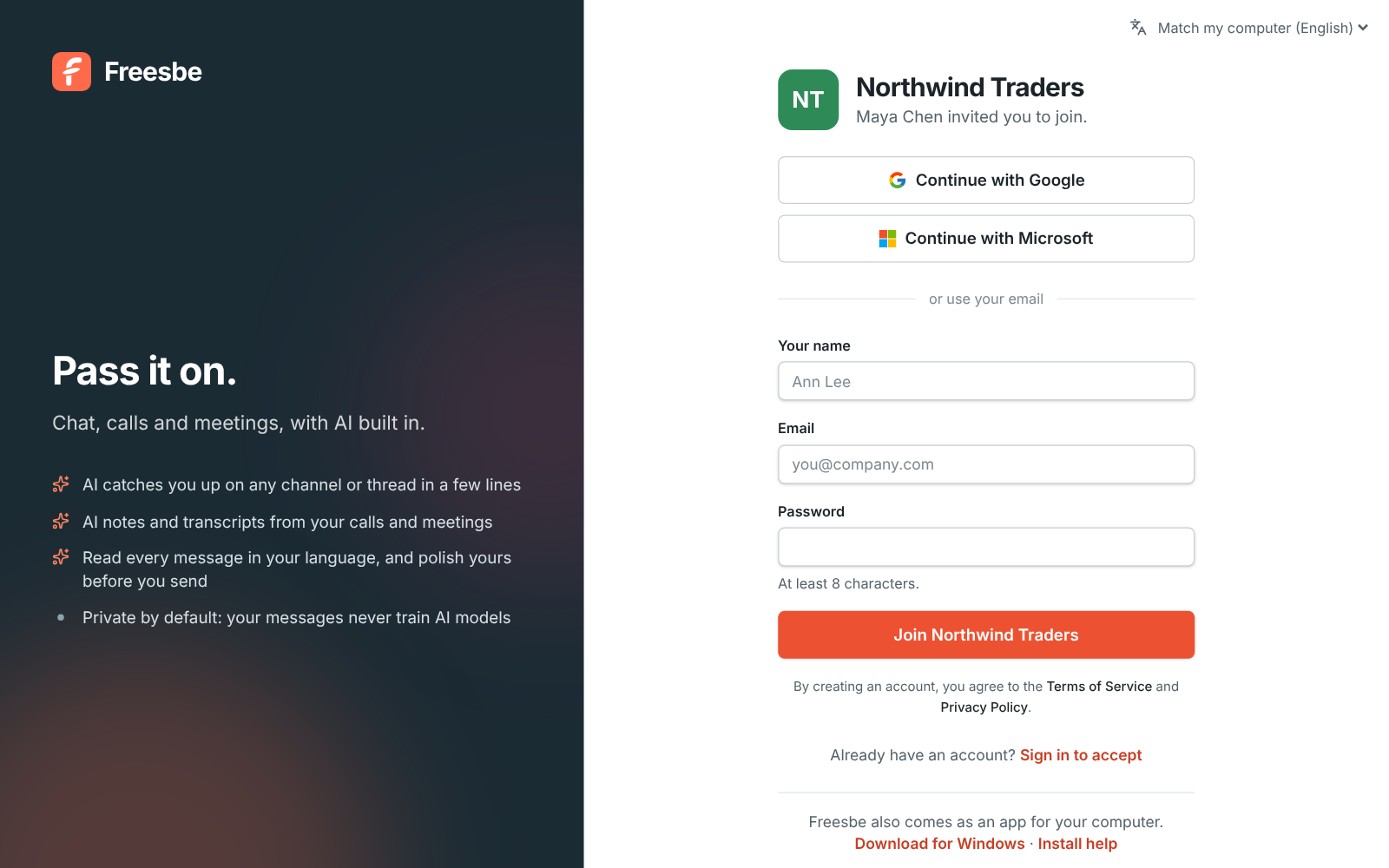
1. Open the invite link you were sent, or the **Join …** button in the invite email.
2. Create your account with your name, email and a password, or continue with Google,
Microsoft or a passkey. See [Sign-in and security](https://freesbe.net/docs/sign-in-and-security/).
3. You land in the workspace, usually in its general channel.
4. Install the [desktop app](https://freesbe.net/docs/desktop-app/) if you like: the invite email and the invite
page link straight to the download for your computer.
If you sign up with a password, Freesbe emails you a 6-digit code to confirm your address. Enter
it in the banner at the top of the app, or click the link in the email. Signing up through an
emailed invite, or with Google or Microsoft, counts as confirmed already.
:::note
Signing up without an invite creates a new workspace of your own. To join your team's workspace
instead, ask a teammate or an admin for an invite link.
:::
## Find your way around
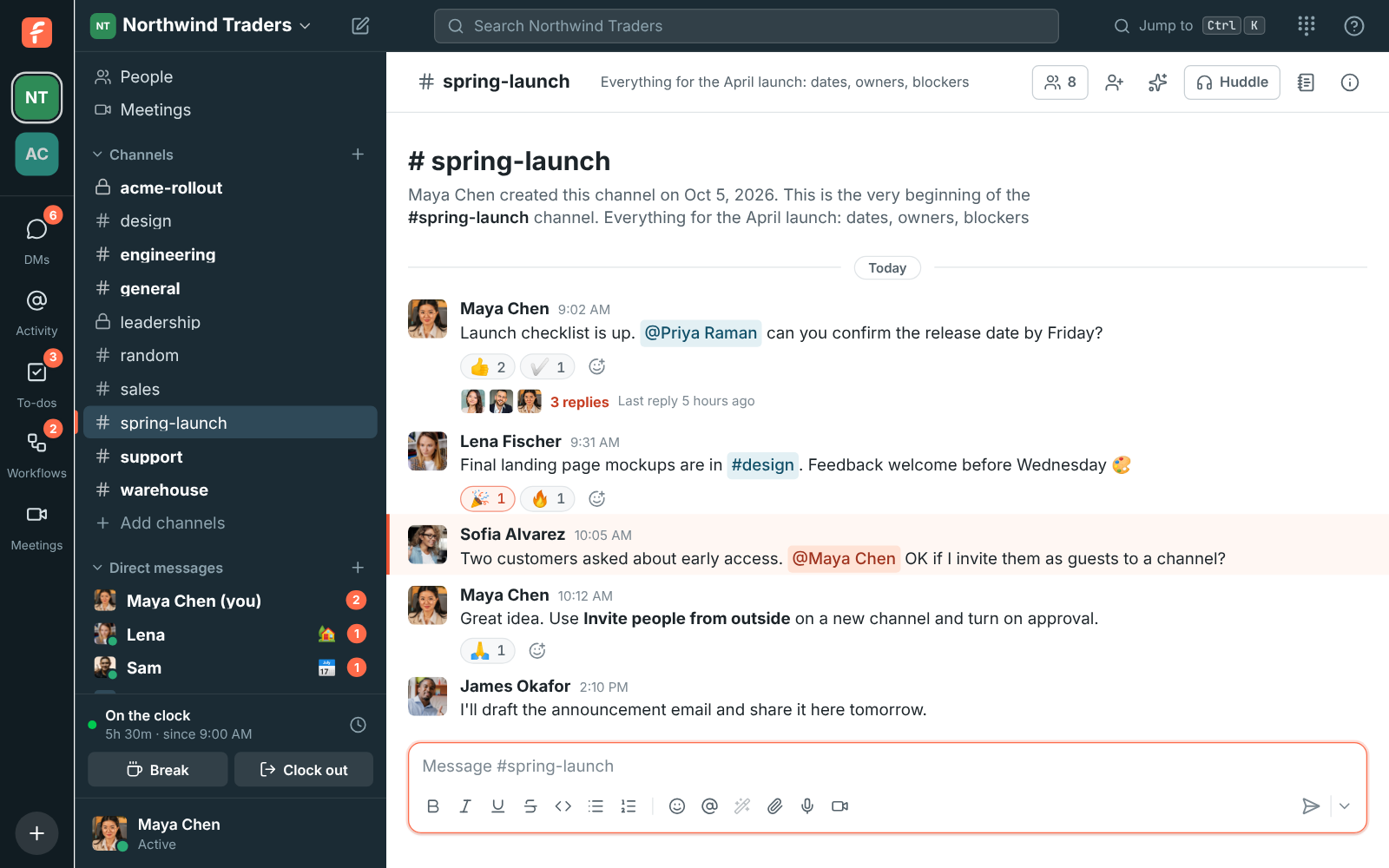
- **The workspace rail** on the far left lists every workspace you're in. Click one to switch.
Under them are **DMs**, **Activity**, **To-dos** and **Meetings**, and the **+** at the bottom
starts a message, channel, meeting or to-do. See [DMs, Activity and to-dos](https://freesbe.net/docs/getting-around/).
- **The sidebar** has your workspace menu at the top, then **People**, **Meetings**, your
**Channels** and your **Direct messages**. Unread conversations are bold, and mentions show a
count.
- **The top bar** has the search box, **Jump to a conversation** (also Ctrl+K,
or ⌘+K on a Mac) and the dialpad if your workspace uses
[Phone](https://freesbe.net/docs/phone/). The **?** at its right end opens [help](https://freesbe.net/docs/getting-help/): these
guides, keyboard shortcuts, what's new and support.
- **Your account menu** at the bottom of the sidebar sets your status, pauses notifications and
opens **Preferences**.
- **The right pane** opens for threads, channel details, profiles and search results.
## Send your first message
1. Pick a channel in the sidebar, or click **Browse channels** to find more.
2. Type in the box at the bottom and press Enter to send. Shift+Enter
starts a new line.
3. Type `@` to mention someone, `#` to link a channel and `:` to add an emoji.
To message someone directly, click **New message** next to **Direct messages** and pick up to 8
people.
## Set yourself up
- Add a photo, your title and your time zone in **Preferences → My account → Profile**.
- Allow desktop notifications when Freesbe asks, so you don't miss direct messages and mentions.
See [Notifications](https://freesbe.net/docs/notifications/).
- Install the [desktop app](https://freesbe.net/docs/desktop-app/) for a tray icon, an unread badge and notifications
that work with the browser closed.
---
# The desktop app
Source: https://freesbe.net/docs/desktop-app/
> Install Freesbe on macOS, Windows or Linux, get past the unsigned-app warnings, pin it to the taskbar or Dock, and use the tray, the taskbar and dock menu, open at login, notifications, updates and freesbe:// links.
The desktop app is Freesbe in its own window, with native notifications, an unread badge, a tray
icon, open at login and automatic updates. It loads the same app as the browser, so new features
arrive without reinstalling.
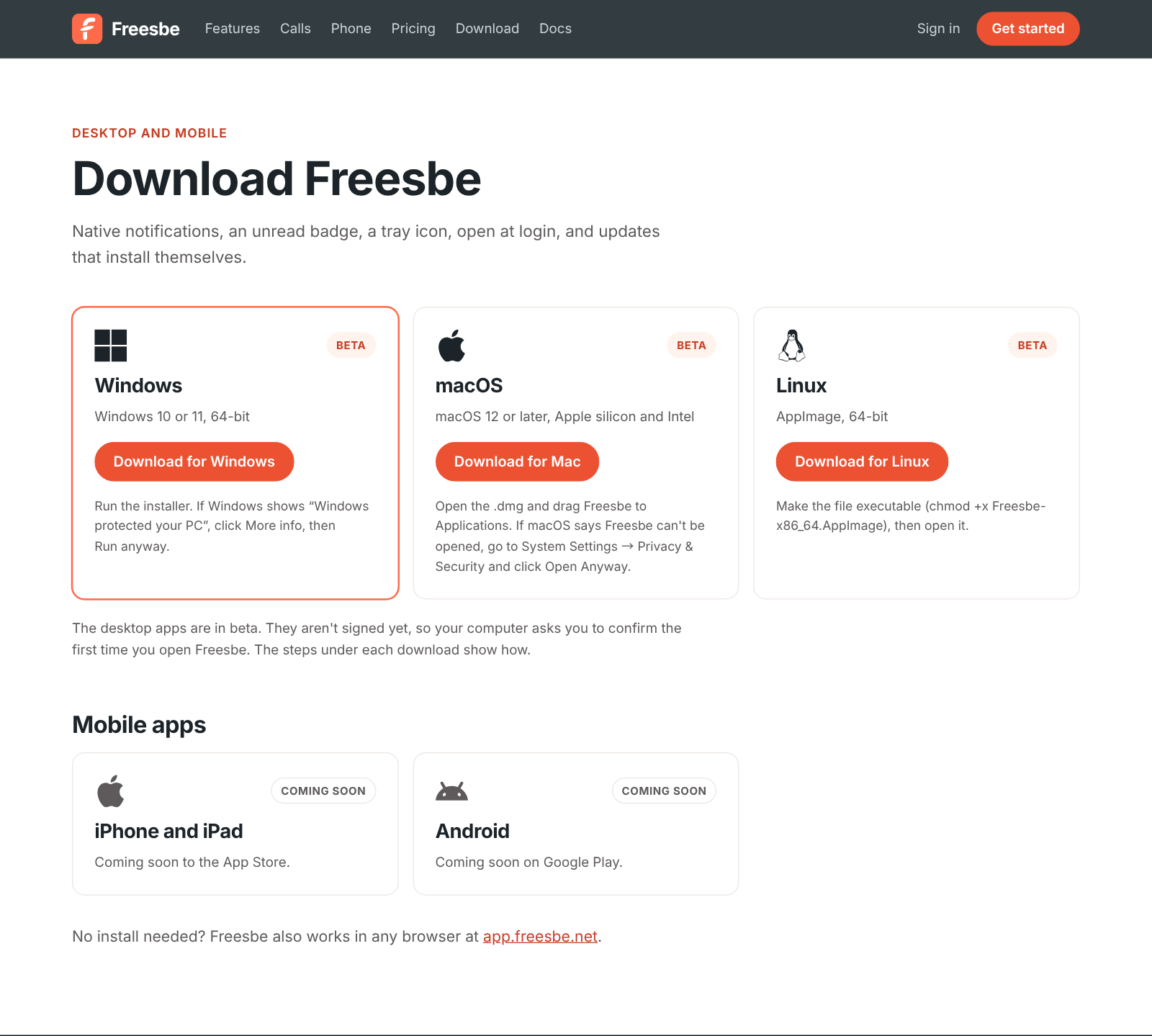
Download it from [freesbe.net/download](https://freesbe.net/download/), which puts your computer's version first.
The desktop app is in beta: each download is marked **Beta** because the builds aren't signed yet,
so your computer asks you to confirm the first time (the steps are below). The same page lists the
iPhone and Android apps as **Coming soon**.
You can also get it from inside Freesbe:
- **Invite emails** link straight to the Mac, Windows and Linux downloads.
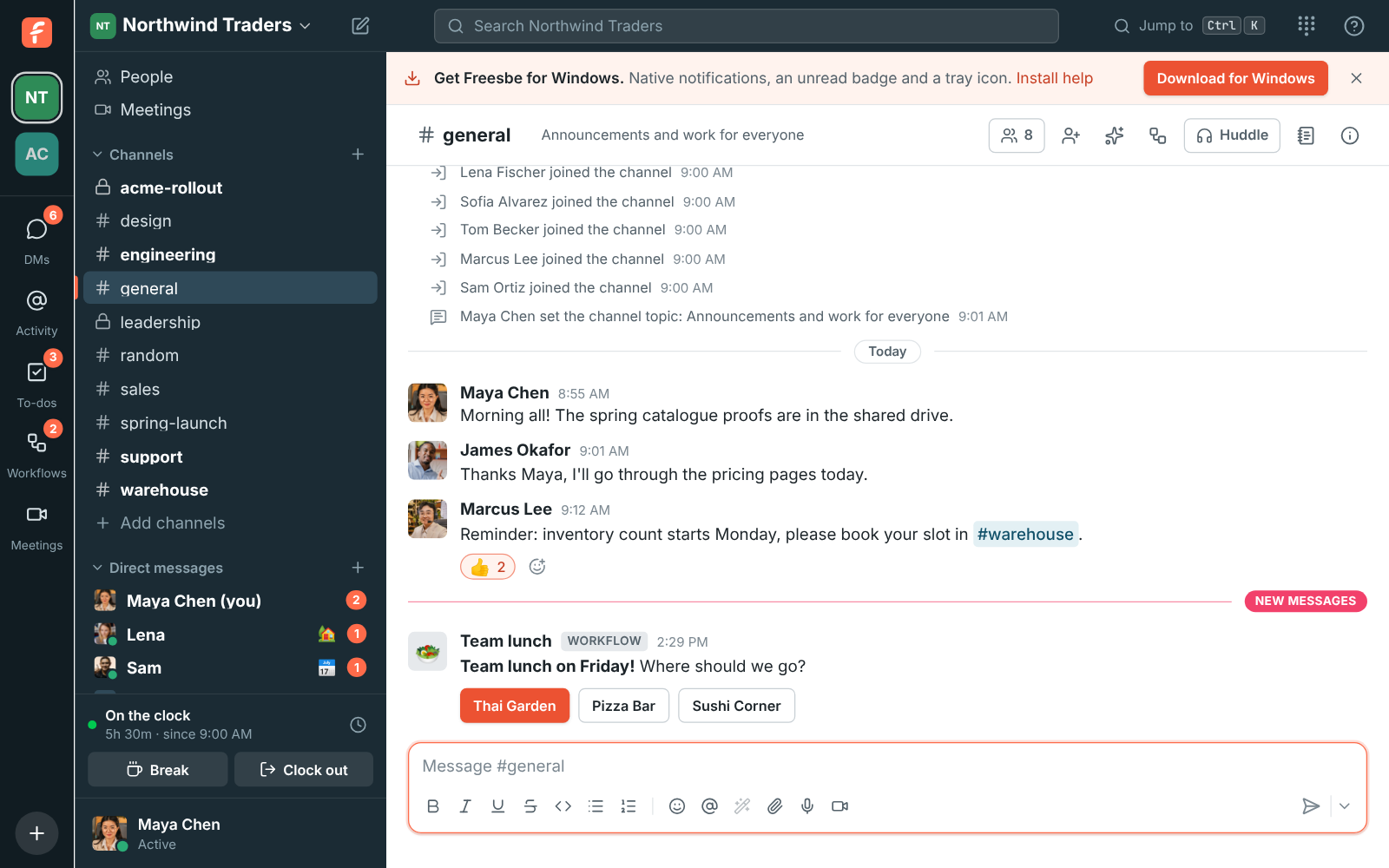
- **In the browser**, a banner at the top offers **Download for …** your computer, with a link
to these install steps. Click **×** to hide it for good; it also goes away once you've used the
desktop app. It waits until you've answered the notifications banner, and doesn't show on
phones or tablets.
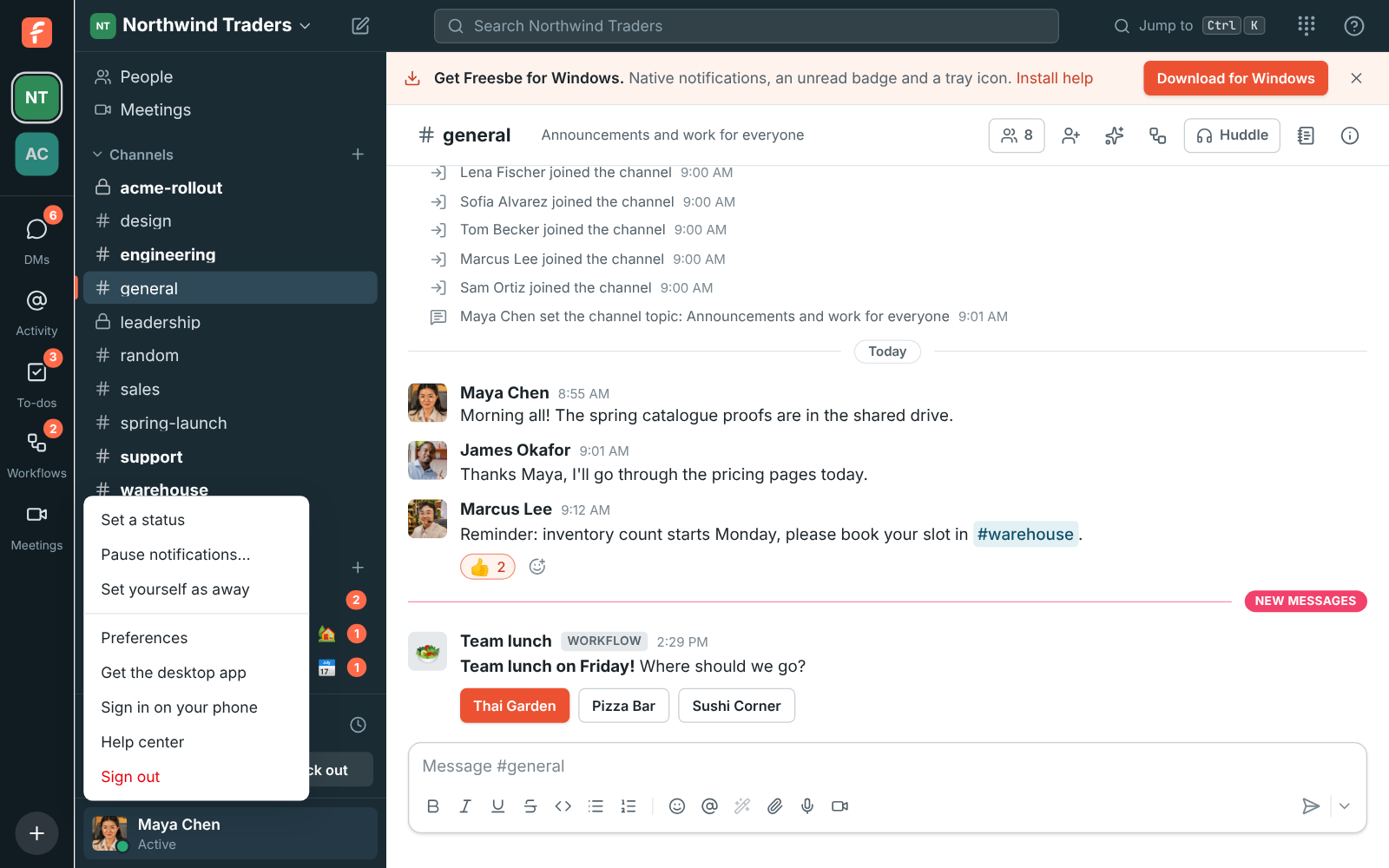
- **Your account menu** (your name at the bottom of the sidebar) has **Get the desktop app** at
any time.
| System | Requirements | File |
| ------- | ----------------------------------------- | ------------------------- |
| macOS | macOS 12 or later, Apple silicon or Intel | `Freesbe-mac.dmg` |
| Windows | Windows 10 or 11, 64-bit | `Freesbe-Setup.exe` |
| Linux | 64-bit, AppImage | `Freesbe-x86_64.AppImage` |
## Install on macOS
The Mac app isn't signed by Apple yet, so macOS warns you the first time.
1. Open `Freesbe-mac.dmg` and drag **Freesbe** to **Applications**.
2. Open Freesbe from Applications. macOS says it can't be opened (or can't check it for malicious
software). Click **Done** or **OK**.
3. Open **System Settings → Privacy & Security**, scroll to the message about Freesbe and click
**Open Anyway**. Confirm with your password or Touch ID.
4. Freesbe opens. You only need to do this once.
Because the Mac app is unsigned, it can't update itself. When a new version is out, it offers to
open the download page; download the new `.dmg` and drag Freesbe to Applications again,
replacing the old one.
## Install on Windows
1. Run `Freesbe-Setup.exe`.
2. If Windows shows **Windows protected your PC**, click **More info**, then **Run anyway**. This
appears once, because the installer isn't signed yet.
3. Freesbe installs and opens. It updates itself from then on.
## Install on Linux
1. Download `Freesbe-x86_64.AppImage`.
2. Make it executable: `chmod +x Freesbe-x86_64.AppImage` (or tick **Allow executing file as
program** in its properties).
3. Open it.
## Pin Freesbe to the taskbar or Dock
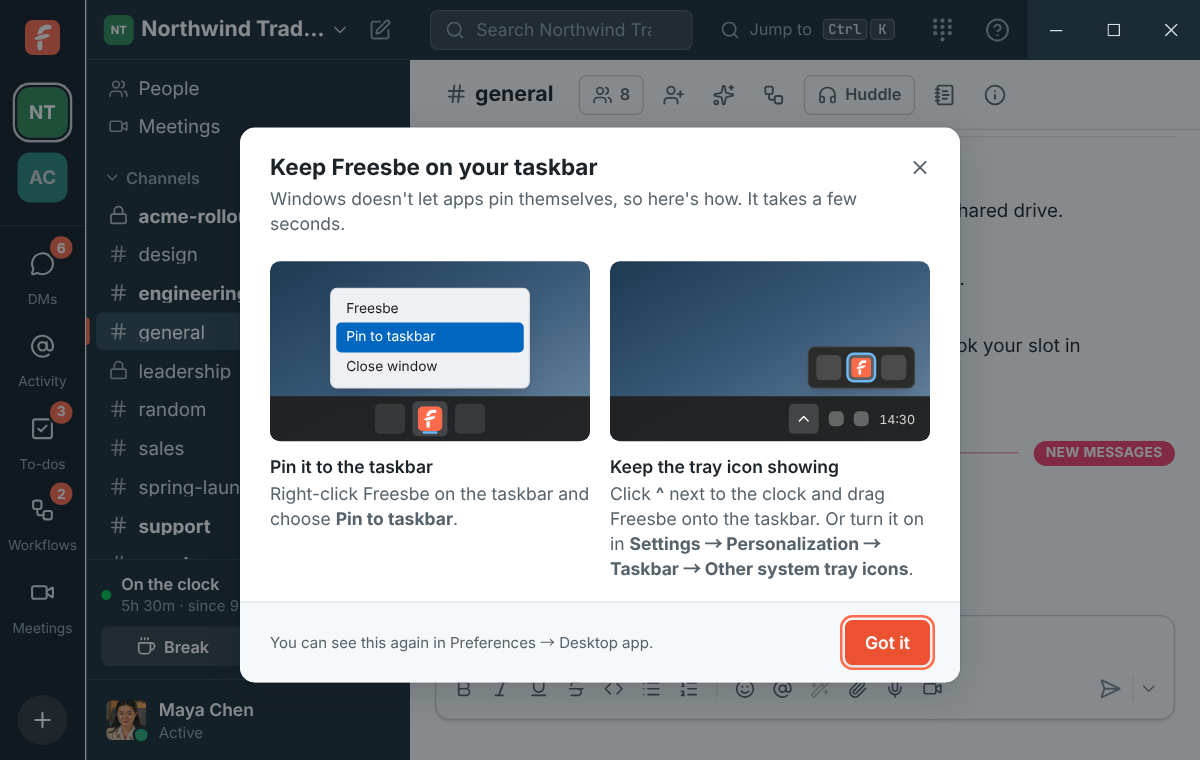
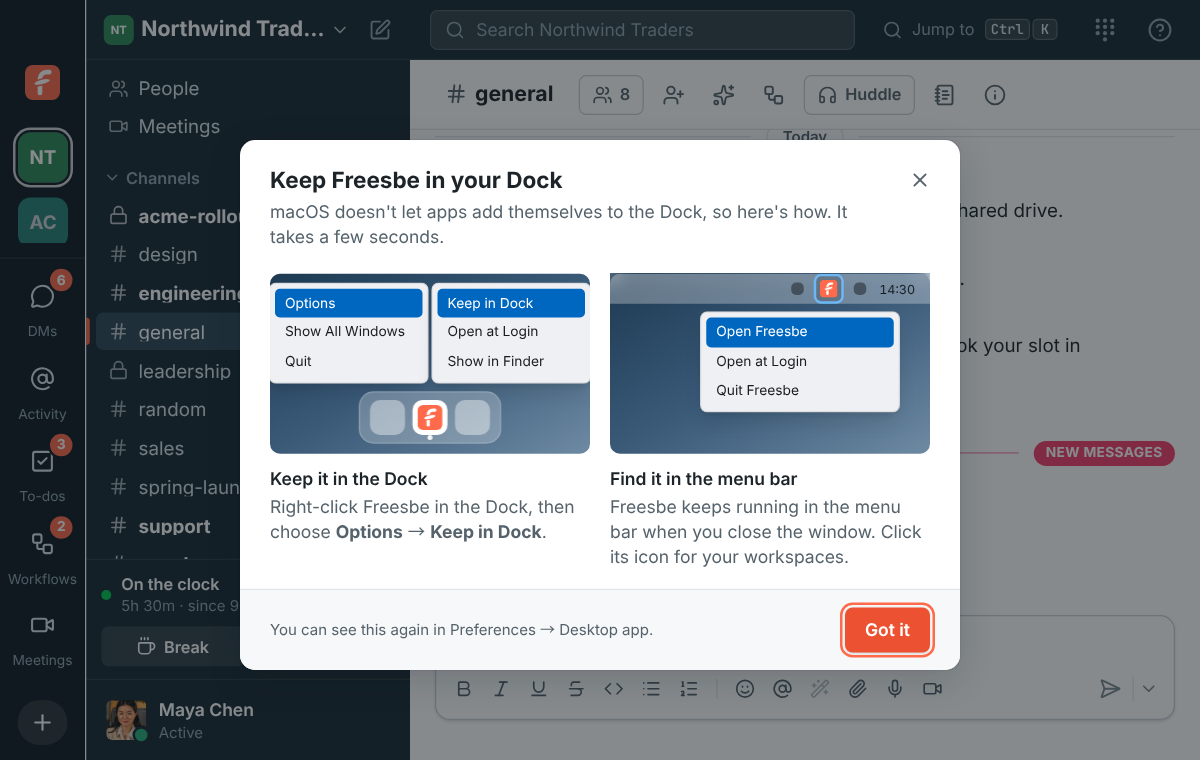
Windows and macOS don't let an app pin itself, so the first time Freesbe opens on your computer it
shows you how. Click **Got it** when you're done; it won't show again on that computer. To see it
again, open **Preferences → Appearance → Desktop app** and click **Show me how**.
The installer already adds Freesbe to the Start menu and the desktop on Windows.
**On Windows:**
1. Right-click Freesbe's button on the taskbar and choose **Pin to taskbar**.
2. Keep the tray icon showing: click the **^** arrow next to the clock and drag the Freesbe icon
onto the taskbar. Or turn Freesbe on in **Settings → Personalization → Taskbar → Other system
tray icons** (on Windows 10, **Select which icons appear on the taskbar**).
**On a Mac:**
1. Right-click (or Control-click) Freesbe in the Dock and choose **Options → Keep in Dock**.
2. Freesbe's icon in the menu bar at the top of the screen stays there when you close the window.
Click it for your workspaces.
## Sign in
The app opens app.freesbe.net. Sign in with your email and password or a sign-in code right in the
app. For Google, Microsoft or a passkey, the app opens your browser; sign in there, then click the
button to go back to the app. See [Sign-in and security](https://freesbe.net/docs/sign-in-and-security/#signing-in-to-the-desktop-app).
If your company runs its own Freesbe server, choose **Change Server…** in the tray menu (or
**File → Change Server…** on a Mac) and enter its address. The app remembers it.
## The window
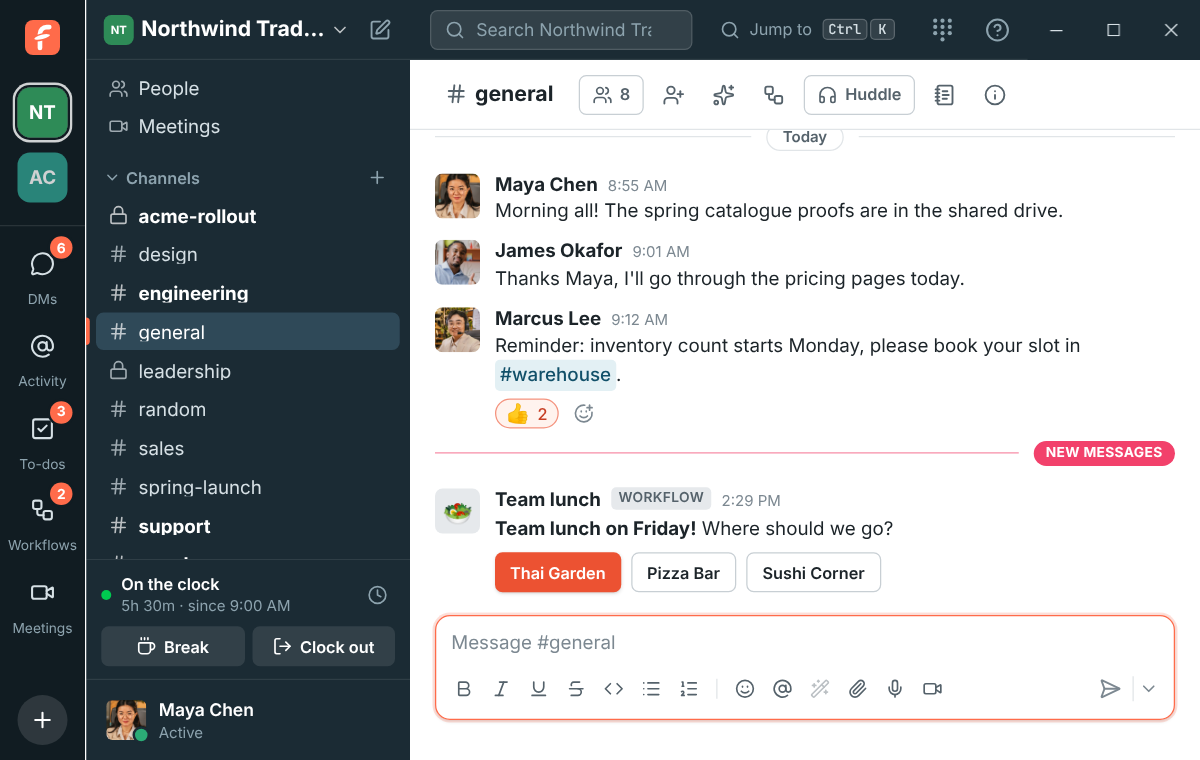
The app has no separate title bar. Its dark bar along the top, with search and **Jump to**, is the
title bar: drag it to move the window, and double-click it to maximize. The minimize, maximize and
close buttons sit at its right end on Windows and Linux, and the traffic lights at the top left on
a Mac.
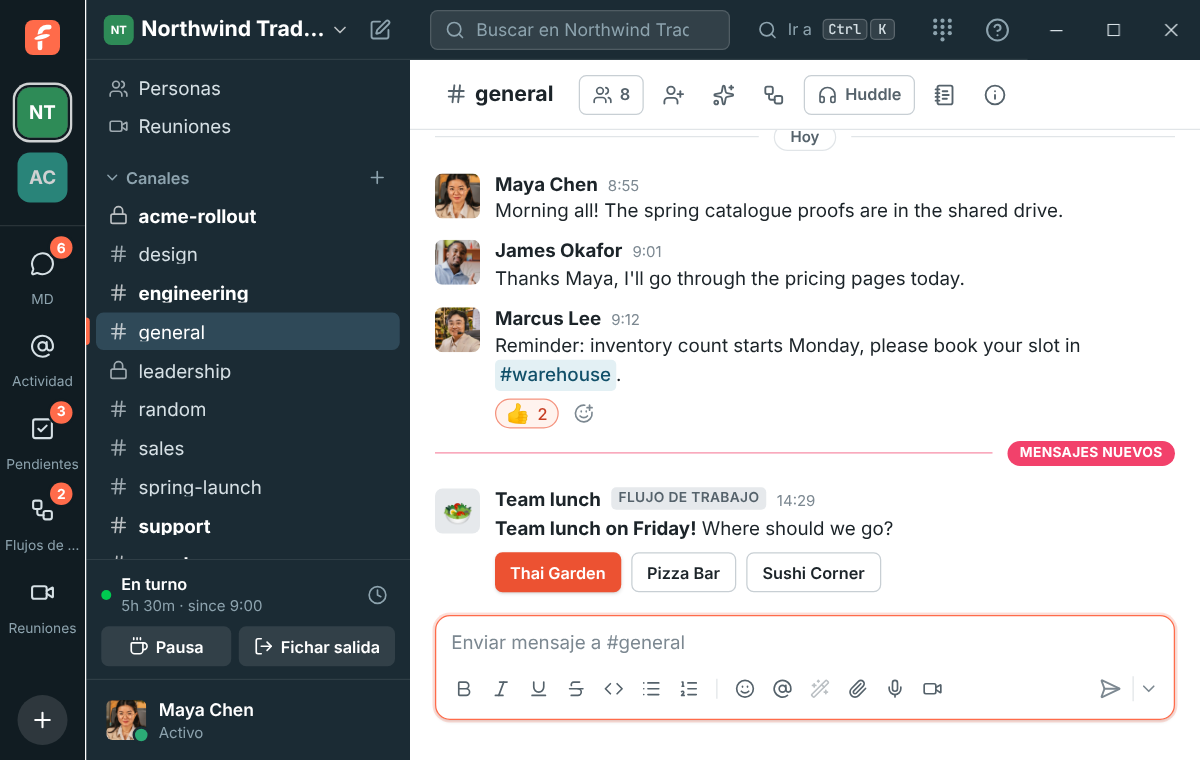
In Hebrew and Arabic the app is laid out right to left, but the window buttons stay where your
computer puts them. On Windows and Linux the workspace rail starts just below them and the sidebar
is a little wider, so the workspace name keeps its full room.
In a narrow window, a profile, channel details, a thread or search results open over the
conversation, just below that bar, so their own close button (✕) never sits under the window
buttons. Press **Esc** to close them too.
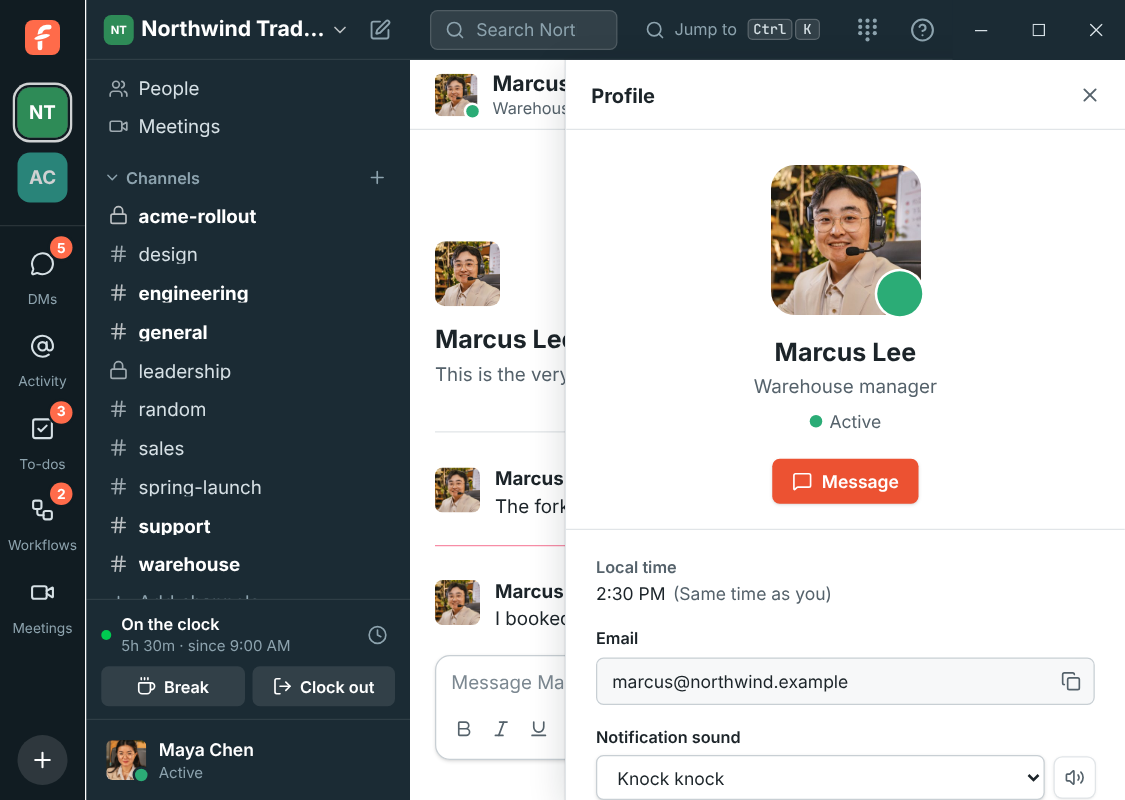
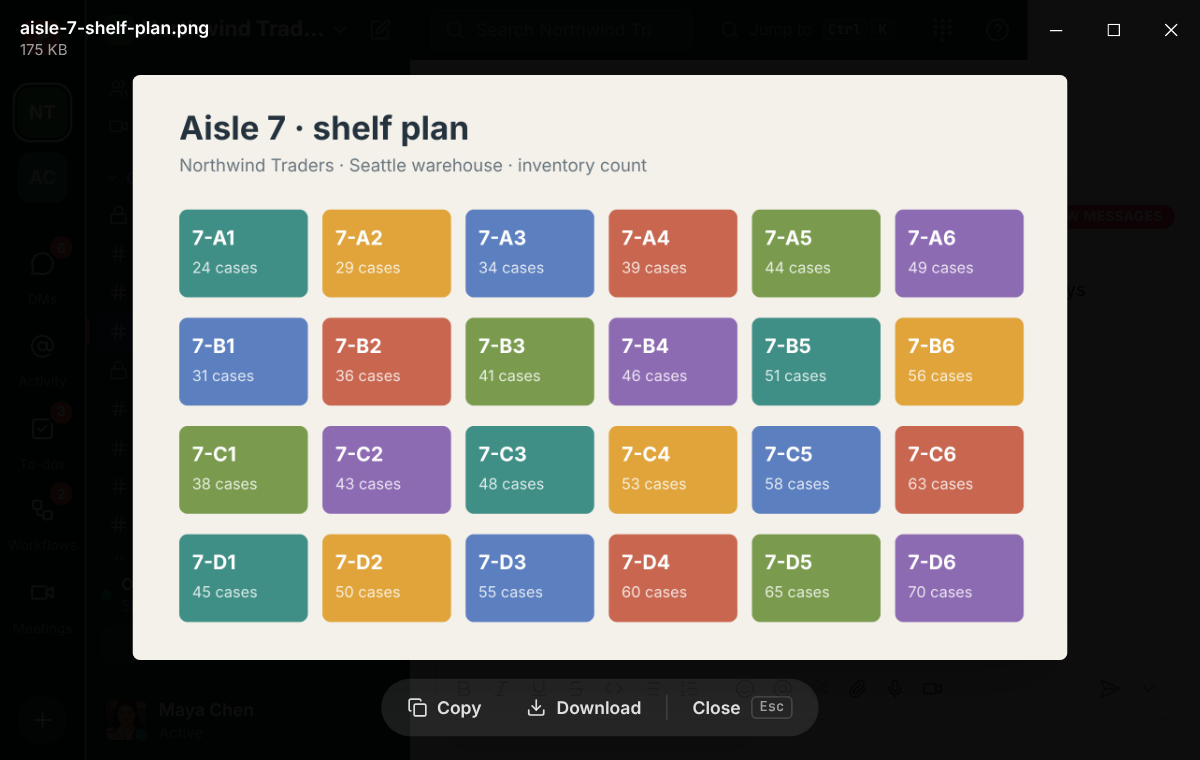
Dialogs open below that bar too. A picture you open full size keeps its **Copy**, **Download**
and **Close** buttons in a bar at the bottom, well away from the window's close button, so closing
a picture never closes the app. Press **Esc** or click beside the picture to close it.
Right-click any picture for **Copy Image**, **Save Image As…** and **Copy Image Address** (desktop
app 0.1.5 and later). **Copy Image** puts the picture itself on the clipboard, ready to paste into
another app.
## Zoom in and out
Make everything in Freesbe bigger or smaller, the way you would in a browser or other chat apps:
- Ctrl++ (⌘++ on a Mac) zooms in. Ctrl+= works too, so you don't need Shift.
- Ctrl+- (⌘+-) zooms out.
- Ctrl+0 (⌘+0) goes back to actual size.
- Hold Ctrl (⌘ on a Mac) and scroll the mouse wheel.
The levels go from 67% to 200%. A message at the bottom says the new level, with **Reset** to go
back to 100%. Freesbe remembers the level, so it opens the same size next time. The window
buttons and the bar along the top grow and shrink with everything else.
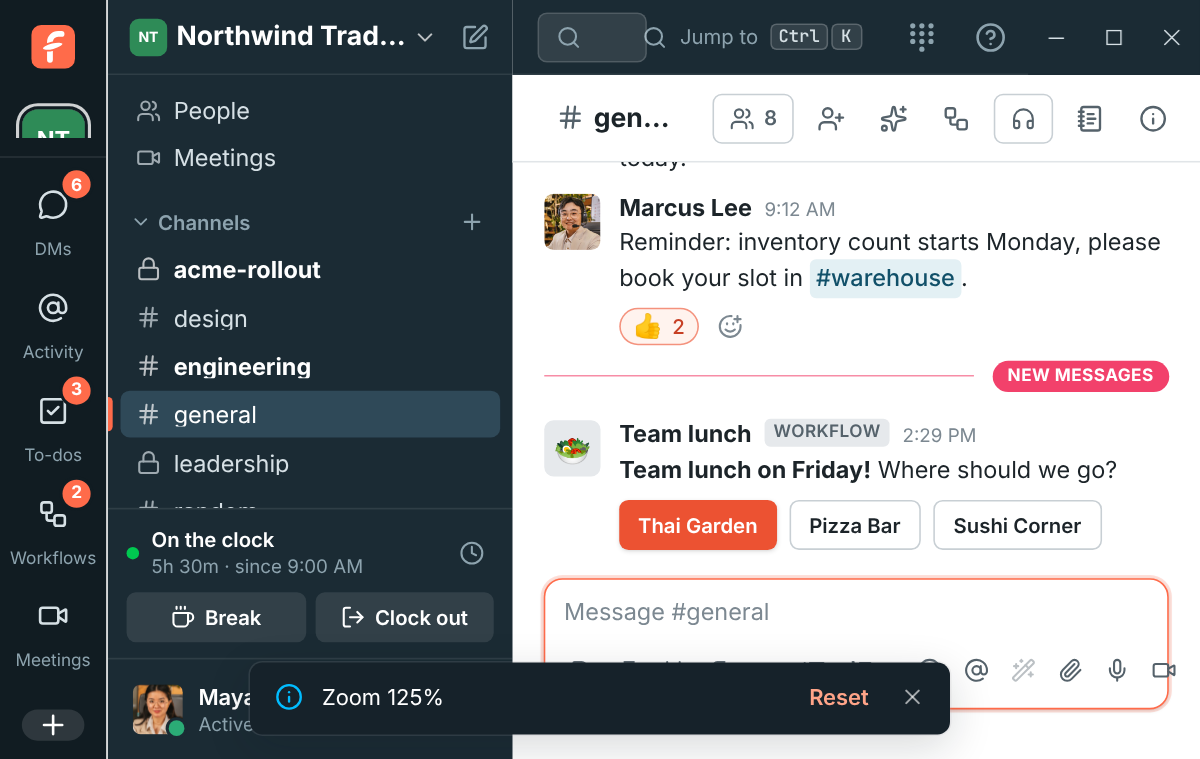
You can also pick the level in **Preferences → Appearance → Desktop app → Zoom**, or use **View → Zoom In**,
**Zoom Out** and **Actual Size** in the menu bar on a Mac.
Ctrl+R (⌘+R) or F5 reloads the app. If
you're in a huddle or something is still uploading, Freesbe asks first.
Zoom needs version 0.1.5 of the desktop app or later. In a browser, use the browser's own zoom.
## Go back
The app has no Back button, but you can still go back a page, as in a browser:
- Alt+← on Windows and Linux, ⌘+[ on a Mac.
- The back button on the side of your mouse, or a swipe to the right with three fingers on a Mac
trackpad (when **Swipe between pages** is set to three fingers in your Mac's settings).
- Alt+→ (⌘+]) goes forward again.
That helps when a link opened a page that fills the window, like a meeting that's already over.
Those pages also have **Back to Freesbe**. Going back needs the desktop app version after 0.1.9.
## What the app adds
- **Notifications** for DMs, mentions and thread replies, even with the window closed.
- **An unread badge** on the dock or taskbar icon.
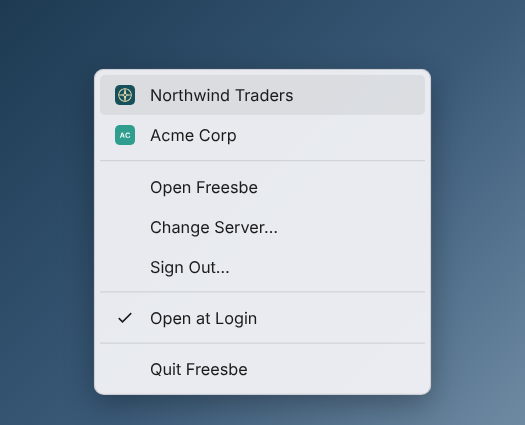
- **A tray icon** (the menu bar on a Mac). Right-click it (click on a Mac) for your workspaces,
**Open Freesbe**, the [punch clock](https://freesbe.net/docs/punch-clock/), **Sign In** or **Sign Out…**, **Open
at Login**, **Check for Updates…** and **Quit Freesbe**. See [below](#tray-menu). It, and the
window icon on Windows and Linux, switch to a
[holiday version](https://freesbe.net/docs/profile-and-preferences/#holiday-icons) for Thanksgiving, Hanukkah,
Christmas, Ramadan and Eid (version 0.1.5 and later).
- **Workspaces and shortcuts on the taskbar or dock icon.** See
[below](#taskbar-and-dock-menu).
- **Open at login**, starting quietly in the tray. Turn it on in the tray menu or in
**Preferences → Appearance → Desktop app**.
- **Closing the window keeps Freesbe running** in the tray, like other chat apps. Use **Quit
Freesbe** to really quit.
- **`freesbe://` links** that open straight in the app, and meeting links that go to the app
instead of your browser (see [Open links in the app](#open-links-in-the-app)).
- **A floating call window** that opens on its own and stays on top of other apps when you
minimize or hide Freesbe during a huddle or meeting, with the call's controls and messages. See
[Keep the call in view](https://freesbe.net/docs/huddles/#keep-the-call-in-view).
- **Meetings in a window of their own**: **Undock** at the top of a meeting moves it to its own
window beside Freesbe's, and **Dock** brings it back. Needs version 0.1.12. See
[Undock the meeting into its own window](https://freesbe.net/docs/meetings/#undock-the-meeting-into-its-own-window).
- **Pictures of each screen and window to share**, so you know which is which before you share.
See [Choose what to share](#choose-what-to-share).
- **A frame around what you share**, so you always know what others see. See
[below](#see-what-youre-sharing).
- **[Remote control](https://freesbe.net/docs/remote-control/)**: let someone in a huddle control your shared screen
to help you, after you allow it. Only the desktop app can be controlled.
## Choose what to share
When you click **Share screen** in a huddle or meeting, the app shows a small picture of each of
your screens and open windows, so you can tell your screens apart before anyone sees them.

- Click a screen or window, then **Share**. Double-clicking shares it straight away.
- **Cancel**, **Esc** or closing the picker shares nothing.
- With more than one screen, they're numbered from left to right, the way they're arranged in
your computer's display settings.
- On a Mac, the pictures stay blank until Freesbe is allowed to record the screen. The picker
then says so, and **Open System Settings** takes you to **Screen & System Audio Recording**.
## See what you're sharing
When you share your screen or a window in a huddle or meeting, the app puts a coral frame around
what everyone sees, and a **You're sharing** bar at the top of the screen.

- **Stop sharing** on the bar stops it, the same as clicking **Share screen** again in the call.
Drag the bar by its background if it's in your way.
- Clicks go through the frame to whatever is underneath.
- On Windows, the frame and the bar are left out of what others see and of recordings. On macOS
and Linux the system may still capture them, so others can see the frame's edge too.
- When people in the call [draw on your screen](https://freesbe.net/docs/meetings/#draw-on-a-shared-screen), their
lines show on your screen itself, inside the frame, and fade away like theirs do. Your clicks
still go through to your apps. Needs desktop app 0.1.11 or later; on macOS and Linux others may
briefly see a line twice when the system captures it.
- **A whole screen** gets the frame around its edges. With more than one screen, it's on the one
you share.
- **A window** gets the frame around it on Windows, and the frame follows the window when you move
or resize it, and hides while it's minimized. When another app is in front of the shared window,
it covers the frame too, so the frame never sits over what you're working on. On macOS and Linux a shared window gets the bar,
which names the window, but no frame.
- In a web browser, Freesbe can't draw outside its own page, so there's no frame. The browser
shows its own sharing bar instead, with a **Stop sharing** button.
## Open links in the app
Links like `meet.freesbe.net/abc-defg-hij` are ordinary web links, so your computer opens them in your
browser. Freesbe then passes them on to the desktop app, like Zoom does. A meeting link, an invite
or a link to a message that you open in the browser shows **Opening Freesbe…** and asks the
computer to open it in the app. If your browser asks first, allow it to open Freesbe.
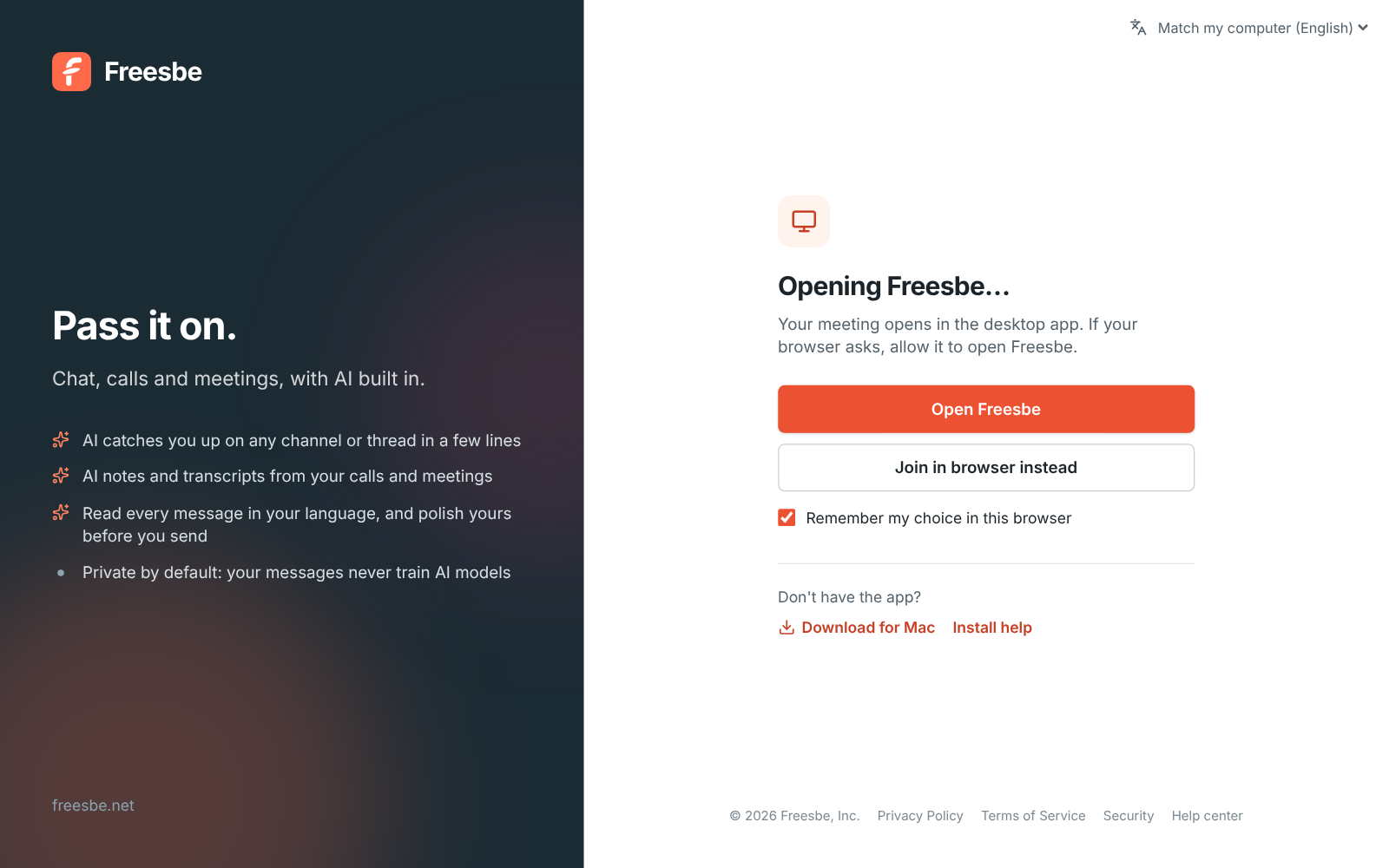
- **Join in browser instead** (or **Continue in browser** for other links) stays in the browser.
- **Don't have the app?** links to the download for your computer.
- **Remember my choice in this browser** is on to start with: next time the browser goes to the
app, or stays put, without asking.
The browser does this once it has seen you use the desktop app, or once you choose **Open in
desktop app** on a meeting page. Guests, and anyone on a phone or tablet, stay on the web page.
Reloading a page doesn't send it to the app again.
To change your choice, open **Preferences → Appearance → Desktop app** in the browser and turn **Open Freesbe
links in the desktop app** on or off.
Links to Freesbe that you click inside the app, such as a meeting link someone shared in a
channel or DM, open right there in the window, without going through the browser. That includes
meeting links on your company's [own domain](https://freesbe.net/docs/custom-domains/).
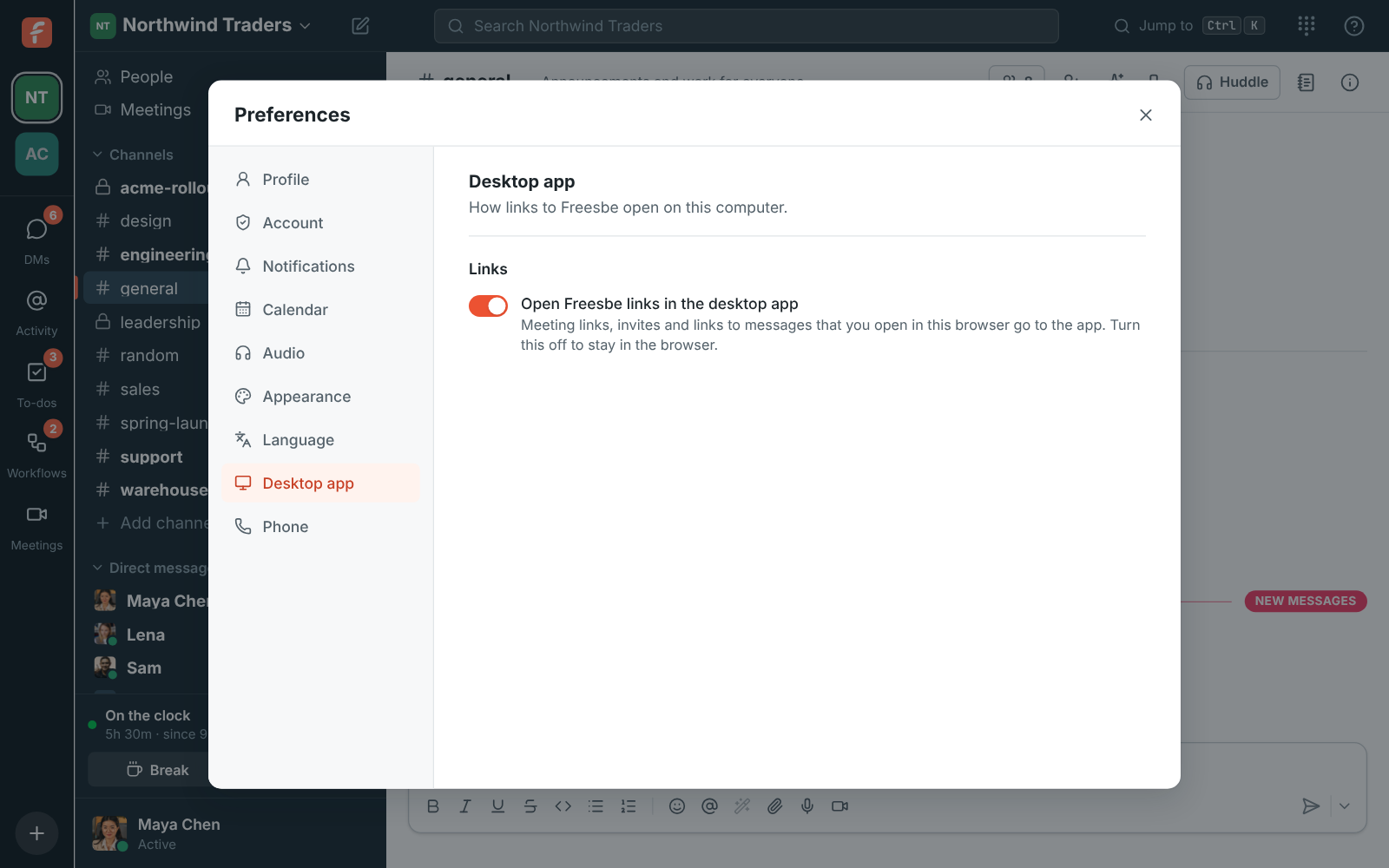
Inside Freesbe, in the app or a browser, a link to a Freesbe meeting, conversation or message that
someone posted opens right there instead of in a new browser window.
## Taskbar and dock menu
Right-click Freesbe's button on the Windows taskbar, or its icon in the Mac dock, to get:
- **Workspaces**: each of your workspaces, with its logo (or its initials on a coloured tile when
it has none). Pick one to switch to it, even if the window is closed.
- **New Message** opens a new direct message.
- **Set Status** opens the status dialog.
- **Sign Out** (it asks first), or **Sign In** when you're signed out.
On Windows, pin Freesbe to the taskbar to keep these there while the app isn't running. Right-click
a workspace in the list and choose **Remove from this list** if you don't want it there.
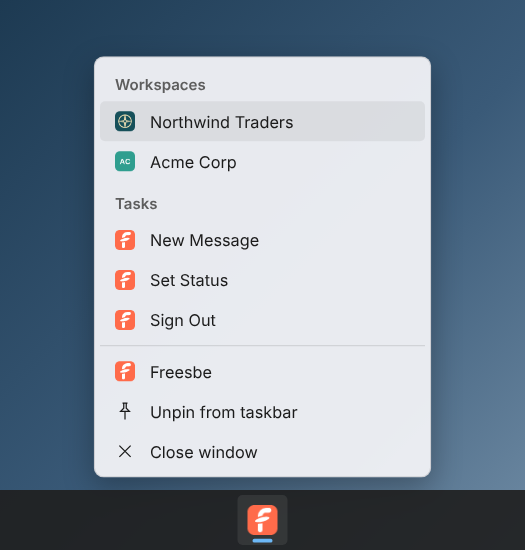
When a workspace admin changes the logo, the menu picks it up the next time the app loads it.
## Tray menu
The tray icon's menu (the menu bar icon on a Mac) starts with the same workspaces and logos, so
you can jump straight to one from there too.
## Open at login
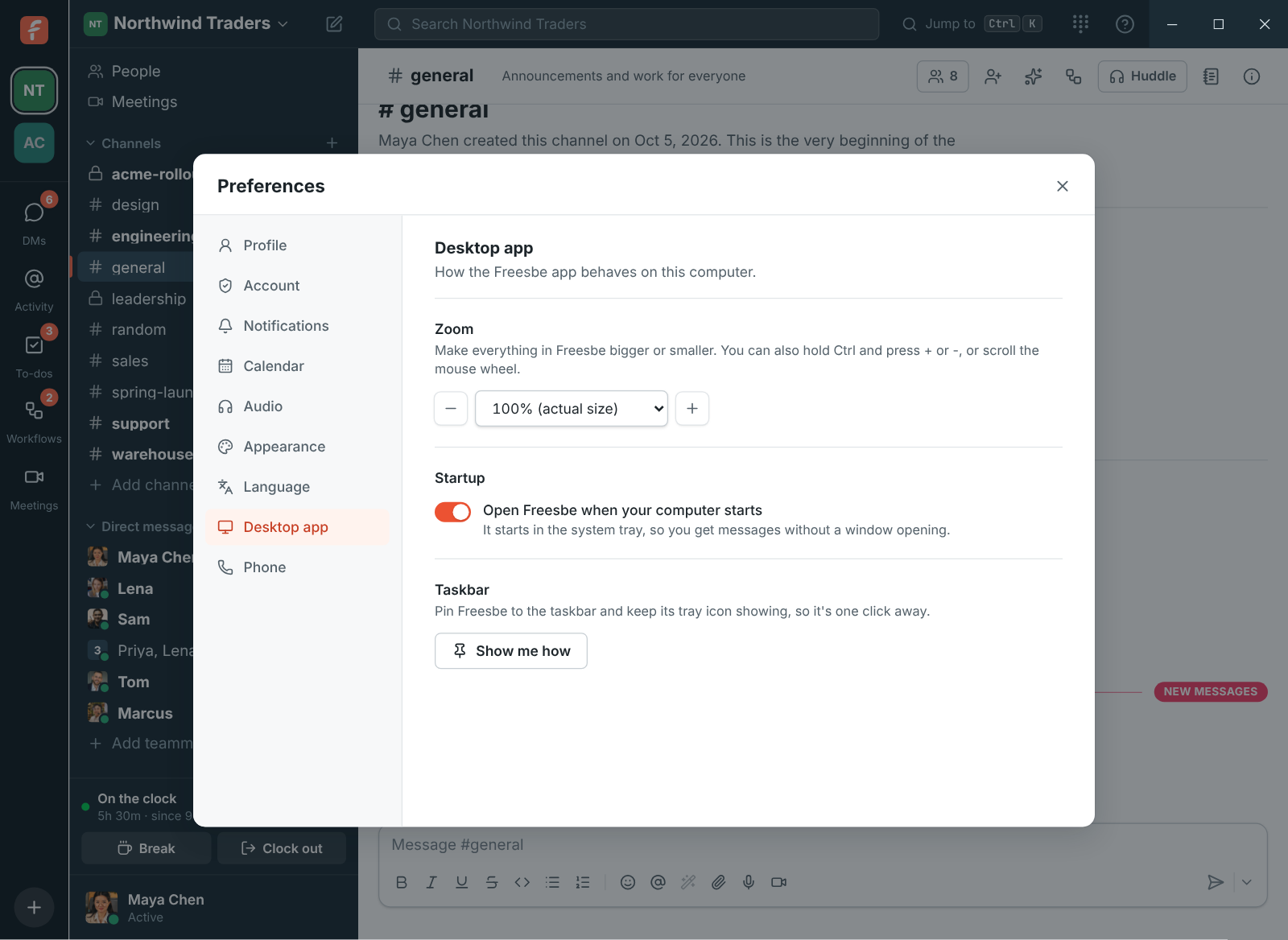
A new install of Freesbe on macOS or Windows opens whenever you sign in to your computer. It
starts quietly in the tray (the menu bar on a Mac) and keeps you signed in, so messages and calls
reach you without a window opening. Turn it off or on in **Preferences → Appearance → Desktop app**, or with
**Open at Login** in the tray menu. Linux desktops have their own autostart settings instead.
The same page has **Show me how** for [pinning Freesbe](#pin-freesbe-to-the-taskbar-or-dock).
If you also have Freesbe open in a browser, both keep working and only one alerts you. A browser
tab on your computer shows **Open in desktop app** while the app is running. A browser on your
phone or tablet doesn't, since the desktop app can't open there.
## Updates
Most of Freesbe updates without a new download: the app inside the window is the same one the
browser loads, and it's updated whenever Freesbe is. When a new version goes live, you see
**Freesbe has been updated** and the window reloads into it after ten seconds. The browser does
the same.
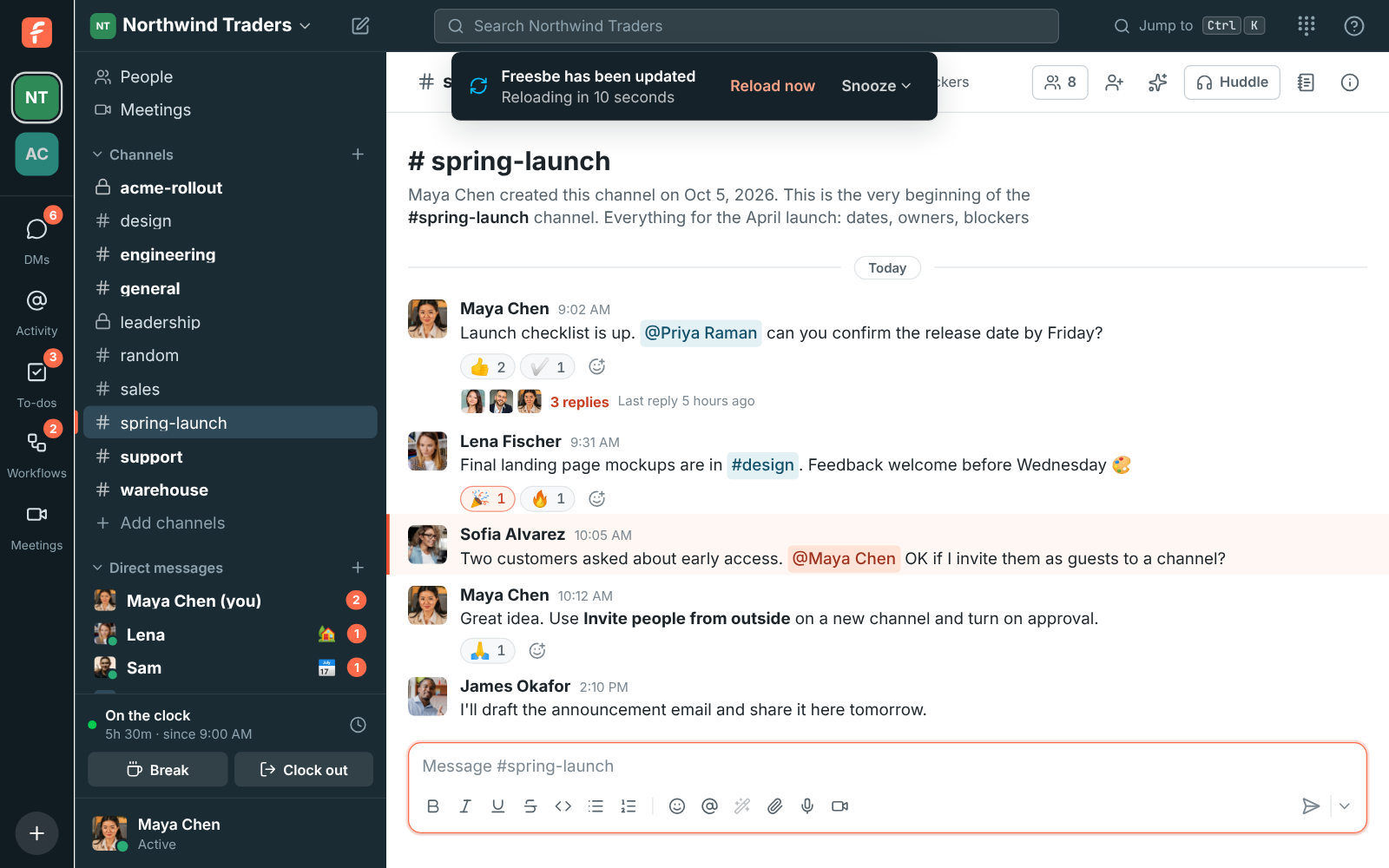
- **Reload now** reloads straight away. **Snooze** waits 15 minutes, an hour or four hours, then
the notice comes back.
- It waits while you're in a huddle or a meeting, while a file uploads or a recording saves, and
while you're typing, then starts counting once you're done. Messages you'd typed but not sent
are still there after the reload.
- A window you've closed to the tray, or a browser tab in the background, reloads without the
notice, since nobody is looking at it.
- Your workspace may also be asked to reload by Freesbe's team, such as after an urgent fix. It
works the same way.
The desktop app itself (the window, tray and menus) updates separately. On Windows and Linux, it
checks for a new version when it starts and every four hours and downloads it in the background.
When it finds one just after starting, it installs it and reopens right away (from version
0.1.5; not during a call). Later on, it asks you to **Restart Now** or **Later** (it installs
when you quit). Choose **Check for Updates…** in the tray menu to check right away.
## Permissions on macOS
For calls, allow Freesbe under **System Settings → Privacy & Security**:
- **Microphone** for huddles and meetings.
- **Camera** for video.
- **Screen & System Audio Recording** to share your screen. macOS asks you to quit and reopen
Freesbe after allowing it.
- **Accessibility** to let someone [control your screen](https://freesbe.net/docs/remote-control/). Freesbe asks the
first time someone requests control.
Freesbe doesn't need **Local Network**. Calls always go through Freesbe's servers, never straight
between computers, so from version 0.1.11 macOS no longer asks whether Freesbe can find devices on
your local network. If an older version asked, either answer is fine: calls work the same.
---
# The mobile app
Source: https://freesbe.net/docs/mobile-app/
> Freesbe on iPhone and Android, with channels, DMs, threads, Catch up, huddles, meetings, Activity, search, your status, push notifications, quiet mode, passkeys and more than one workspace.
The Freesbe app for iPhone and Android keeps you in your channels and DMs when you're away from
your computer. It signs in to the same account and shows the same workspaces, messages and unread
counts as the desktop app and the browser.
:::note
The mobile app is in testing and isn't in the App Store or Google Play yet; the
[download page](https://freesbe.net/download/) lists it as **Coming soon**. This guide shows what it does;
[What's new](https://freesbe.net/docs/whats-new/) will say when you can download it.
:::
## Sign in
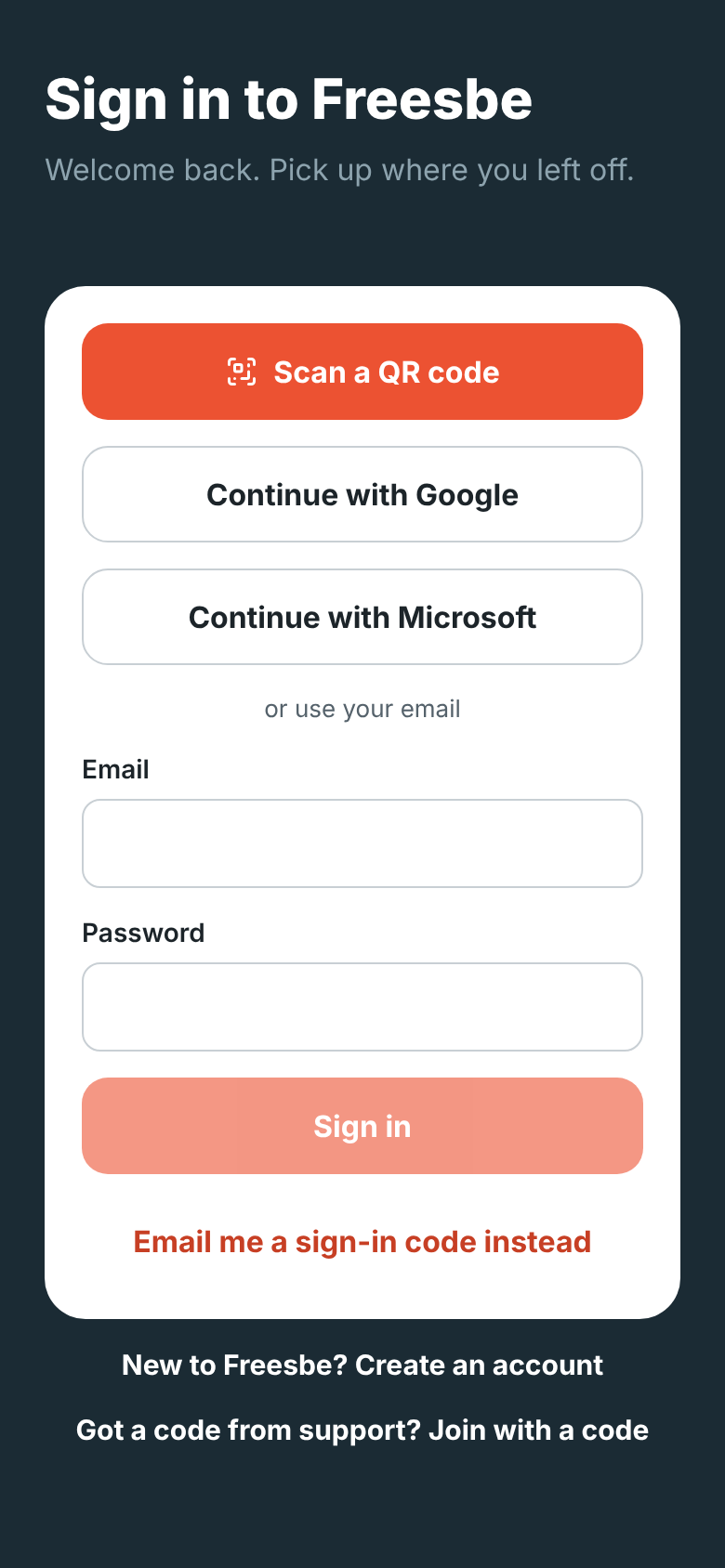
Open the app and sign in the same way you do on your computer:
- **Scan a QR code** signs you in with a code from Freesbe on your computer, with nothing to type.
See [Sign in with a QR code](#sign-in-with-a-qr-code).
- **Continue with Google** or **Continue with Microsoft** opens a sign-in sheet in the app, then
brings you back signed in.
- **Email** and **Password**, or **Email me a sign-in code instead** for a code to type in.
- **Sign in with a passkey** uses your fingerprint, face or phone PIN with a passkey you already
have, such as one saved in iCloud Keychain or Google Password Manager. See
[Passkeys](#passkeys).
If your workspace [requires single sign-on](https://freesbe.net/docs/single-sign-on/), the app sends you through your
company's sign-in page. If it [requires a second step](https://freesbe.net/docs/multi-factor-authentication/), the
app asks for it right after you sign in, with a passkey, your authenticator app or an emailed
code, just as on the web. The same rules apply on every device.
New to Freesbe? Tap **New to Freesbe? Create an account**, or open the invite link a teammate sent
you. See [Create an account](#create-an-account).
### Sign in with a QR code
If you're signed in to Freesbe on your computer, you can sign the app in without typing your
email or password:
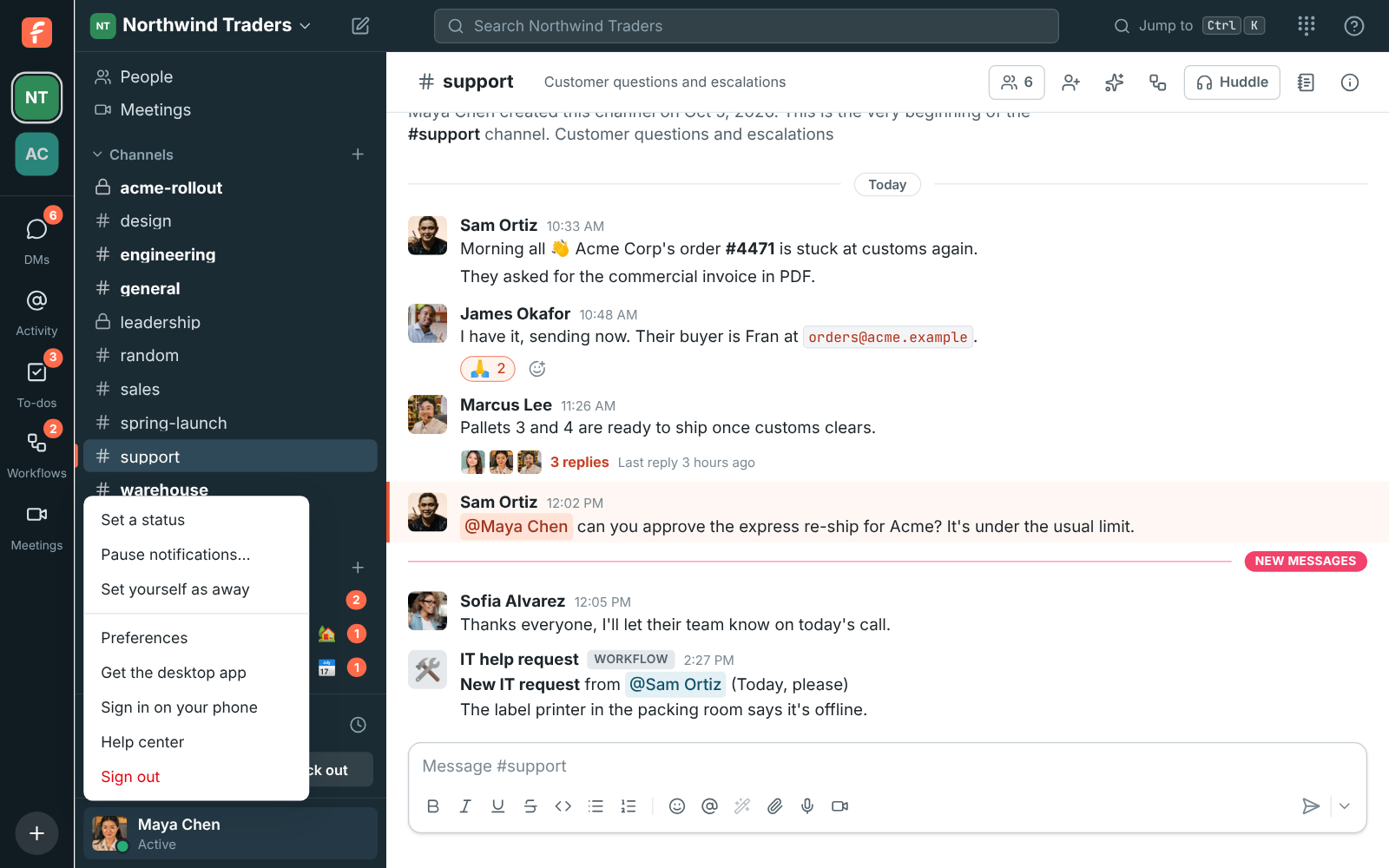
1. On your computer, click your name at the bottom of the sidebar and choose **Sign in on your
phone**. You'll also find it in **Preferences → My account → Sign-in**.
2. In the app on your phone, tap **Scan a QR code** and allow the camera.
3. Point your phone at the code on your computer's screen. The app opens your workspace.
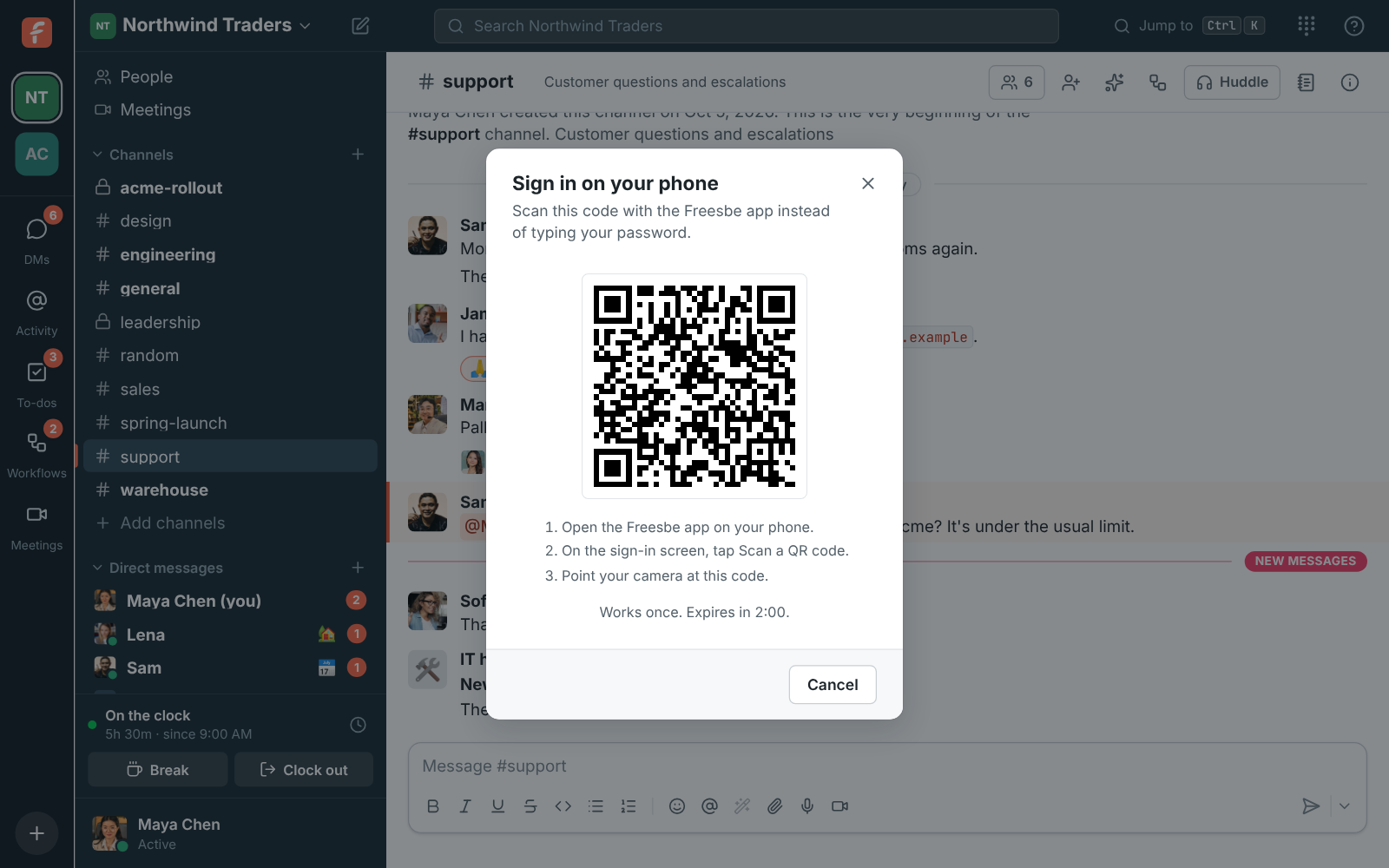
You can also scan the code with your phone's camera app, which opens it in Freesbe.
Each code works once and stops working after two minutes, or as soon as you close the dialog. Your
phone signs in the same way your computer did, so it already counts as verified for workspaces
that [require a second step](https://freesbe.net/docs/multi-factor-authentication/). Your computer confirms when your
phone is signed in, and the phone appears in
[Your sessions](https://freesbe.net/docs/sign-in-and-security/#your-sessions).
:::caution
Only scan a code you opened yourself, and don't share a photo of one: for two minutes, anyone who
scans it is signed in as you.
:::
## Create an account
You can start Freesbe for your team from your phone, with no computer needed. On the sign-in
screen, tap **New to Freesbe? Create an account**:
1. Tap **Continue with Google** or **Continue with Microsoft**, or enter your name, email and a
password. Tick **I agree to the Terms of Service and Privacy Policy**; tap either name to read
it. A quick check that you're a person runs under the box, then tap **Create account**.

2. If you used a password, enter the 6-digit code Freesbe emailed you. Google and Microsoft
accounts are confirmed already. If your company already has a workspace that takes people from
your email domain, it shows under **Join your team**: tap **Join** and you're in.

3. Name your workspace and choose where its data is stored. The region closest to your phone's
time zone is already picked. See [Data residency](https://freesbe.net/docs/data-residency/).

4. Three short steps follow, and you can skip any of them:
- **Add your logo** from your photos.
- **Invite your team**: type their email addresses, or tap **Share an invite link** to send a
link by text message, WhatsApp or any app on your phone.
- **Get Freesbe on your computer**: **Send me the download link** shares the
[download page](https://freesbe.net/download/) so you can open it on your computer later.

Your first workspace gets the same [free 14-day trial of Business](https://freesbe.net/docs/plans/#free-trial) as on
the web, with no credit card needed. To make another workspace later, tap the workspace name at the
top of **Home** and choose **Create a workspace**.
### Join with an invite link
Open the invite link a teammate sent you on your phone. With the app installed, the link opens
the app on the invite: who invited you and to which workspace. Create your account right there,
continue with Google or Microsoft, or tap **Already have an account? Sign in to accept**. If you're
already signed in, tap **Join**.

## Home
At the top of **Home**, a row of tiles shows what needs you, so you can see what's going on
without opening every conversation. Swipe it sideways for more. A coral number means something's
waiting there:
- **Catch up**: conversations with unread messages. See [Catch up](#catch-up).
- **Threads**: new replies in threads you started or replied in. See [Threads](#threads).
- **Huddles**: huddles going on right now in your channels and DMs. See
[Huddles going on now](#huddles-going-on-now).
- **Meetings**: meetings that are on now or about to start. It opens the **Meetings** tab.
- **To-dos**: your to-dos due today or earlier. See [To-dos](#to-dos).
- **Later**: reminders that went off. See [Later](#later).
- **Drafts & sent**: messages you started and didn't send, and scheduled ones, in grey. See
[Drafts](#drafts).
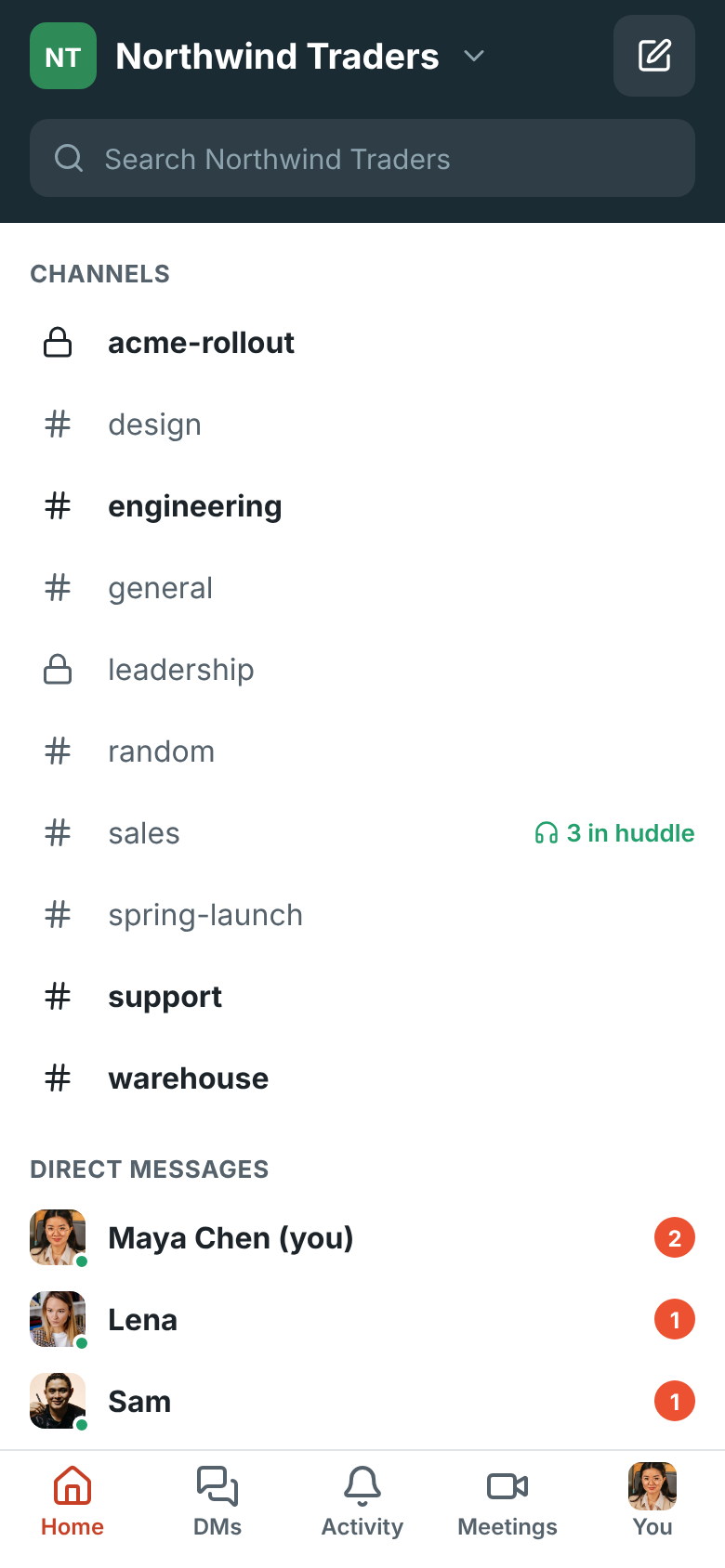
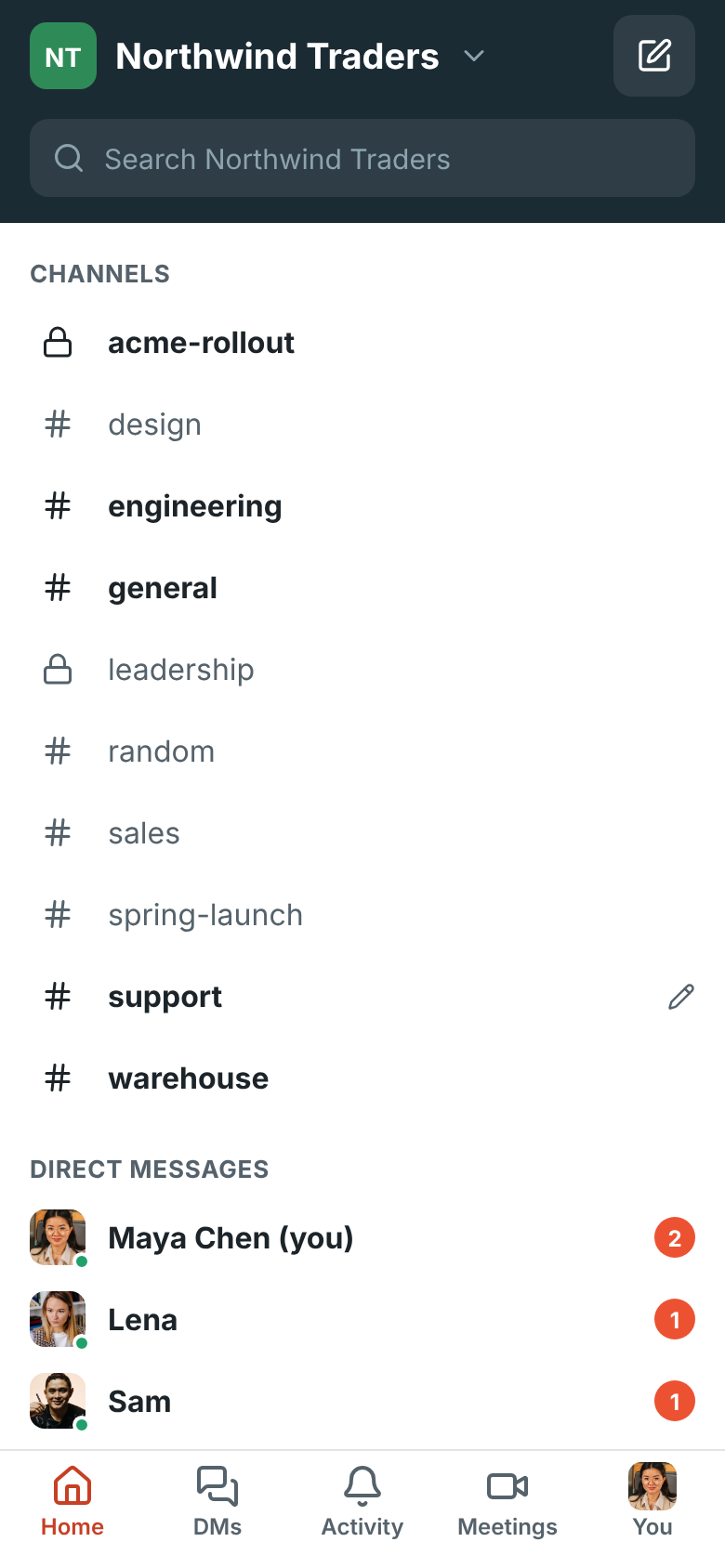
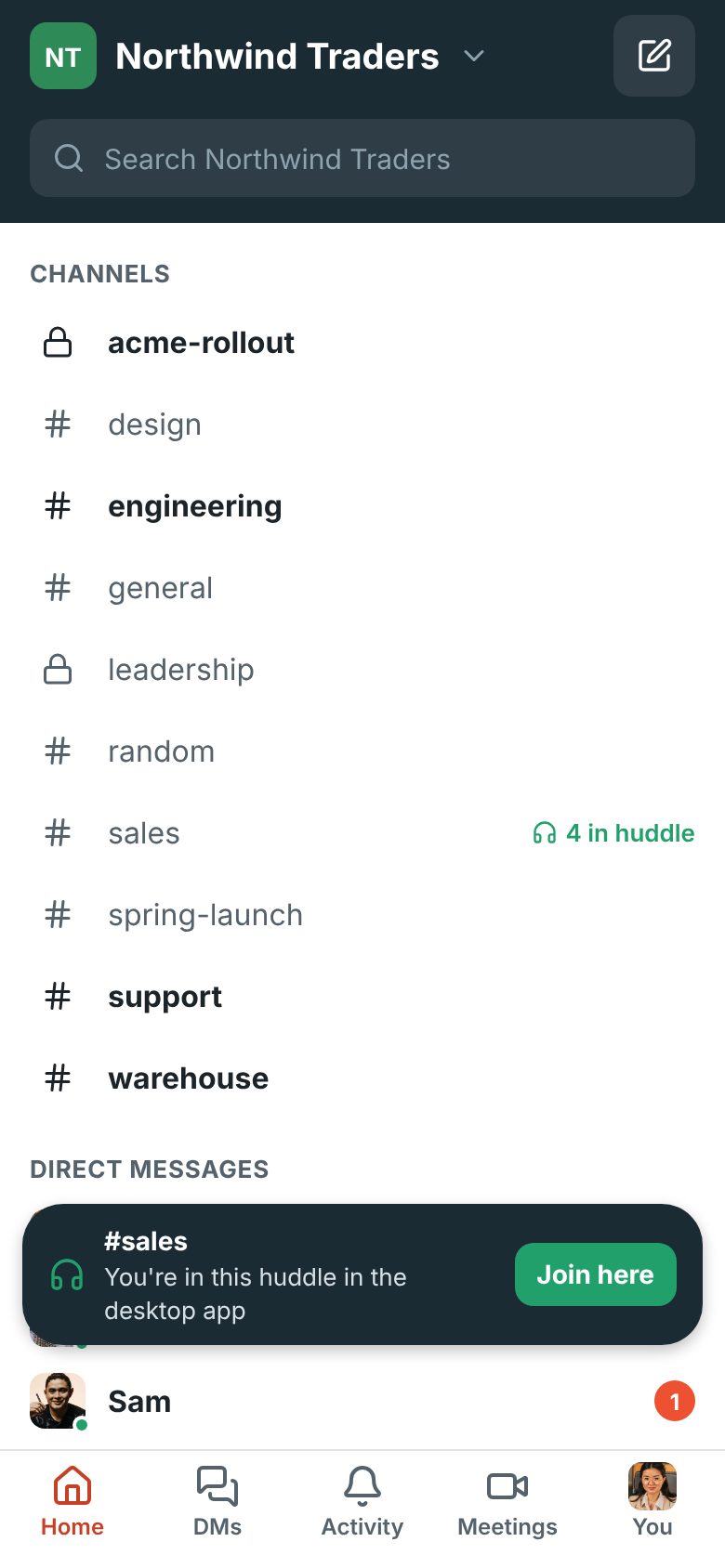
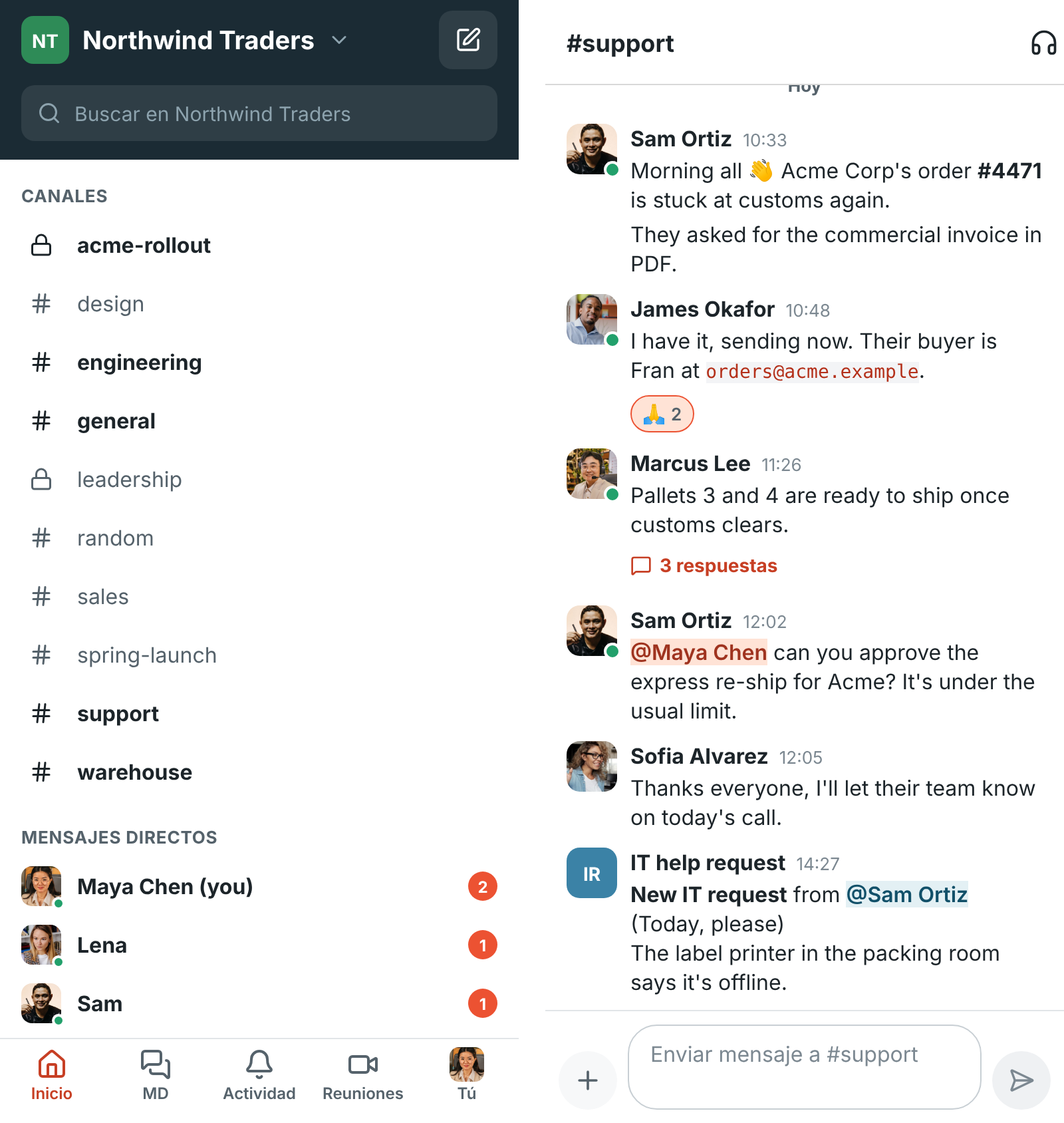
Under the tiles, **Home** lists your channels and direct messages, like the sidebar on your
computer:
- Bold names have unread messages, and a coral badge counts mentions and DMs.
- **3 in huddle** next to a channel means people are talking in it right now.
- Tap the search bar to [search](#search) the workspace.
- Tap the pencil to start a new direct message.
- Tap **Browse channels** under your channels to find and join others, or create one. See
[Browse and create channels](#browse-and-create-channels).
- Tap **People** under your direct messages to find anyone in the workspace. See
[People and profiles](#people-and-profiles).
- Tap the workspace name to [switch workspaces](#more-than-one-workspace).
Pull down on **Home** or **Activity** to refresh it.
### Catch up
**Catch up** goes through your unread conversations one at a time, DMs and the ones that mention
you first. Each shows its newest unread messages:
- **Mark read** marks the conversation read and moves on to the next.
- **Reply** opens the conversation so you can answer; when you come back, Catch up is on the next
one.
- **Skip** leaves it unread for now.
Muted conversations aren't included. When you've been through them all, you're caught up.

### Threads
**Threads** lists the threads you started or replied in that have replies, newest first, with the
latest reply in each. Threads with replies since you last looked are outlined, with how many are
new. Tap one to open the thread. Opening **Threads** clears the count on its tile; the phone
remembers when you last looked, so your computer keeps its own count.

### Huddles going on now
**Huddles** shows the huddles going on in your channels and DMs, who's in each and how long ago it
started. Tap **Join** to jump in, or the conversation's name to read it first. See
[Huddles](#huddles).

## Conversations and threads
Tap a channel or DM to open it. Messages, reactions, mentions, code and links look the same as on
your computer, and the conversation is marked read as you open it.
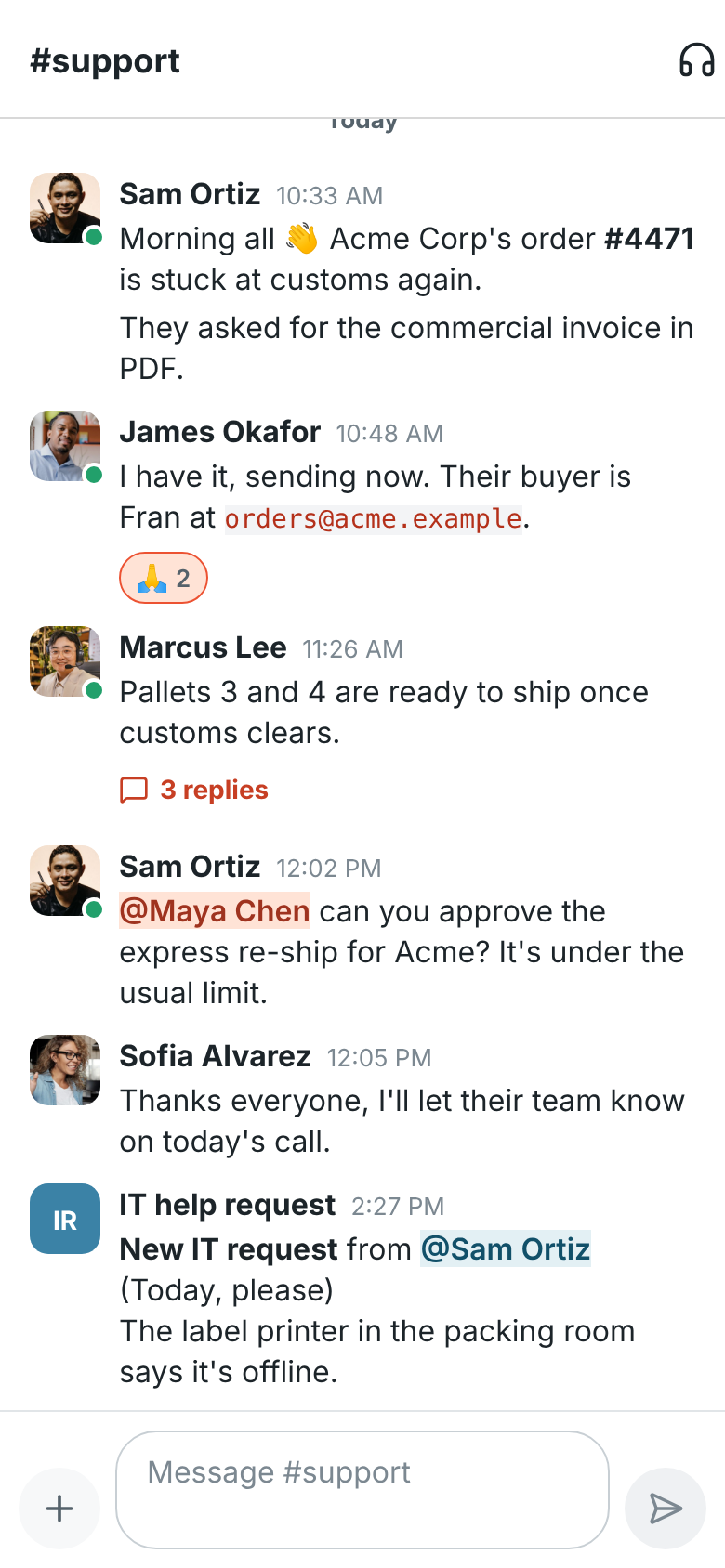
Type in the box at the bottom and tap the send button. Type `@` to mention someone: pick them from
the list that appears. If a message can't be sent, for example because you lost signal, it stays
in the conversation with **Try again**.
Bulleted and numbered lists, underlines and the rest of the [formatting](https://freesbe.net/docs/channels-and-messages/#formatting)
show as they do on your computer. To write a list, start a line with `- ` or `1. `: the dash
becomes a bullet, each new line starts the next item, and a new line on an empty item ends the list. A
list you paste from another app keeps its bullets and numbers.
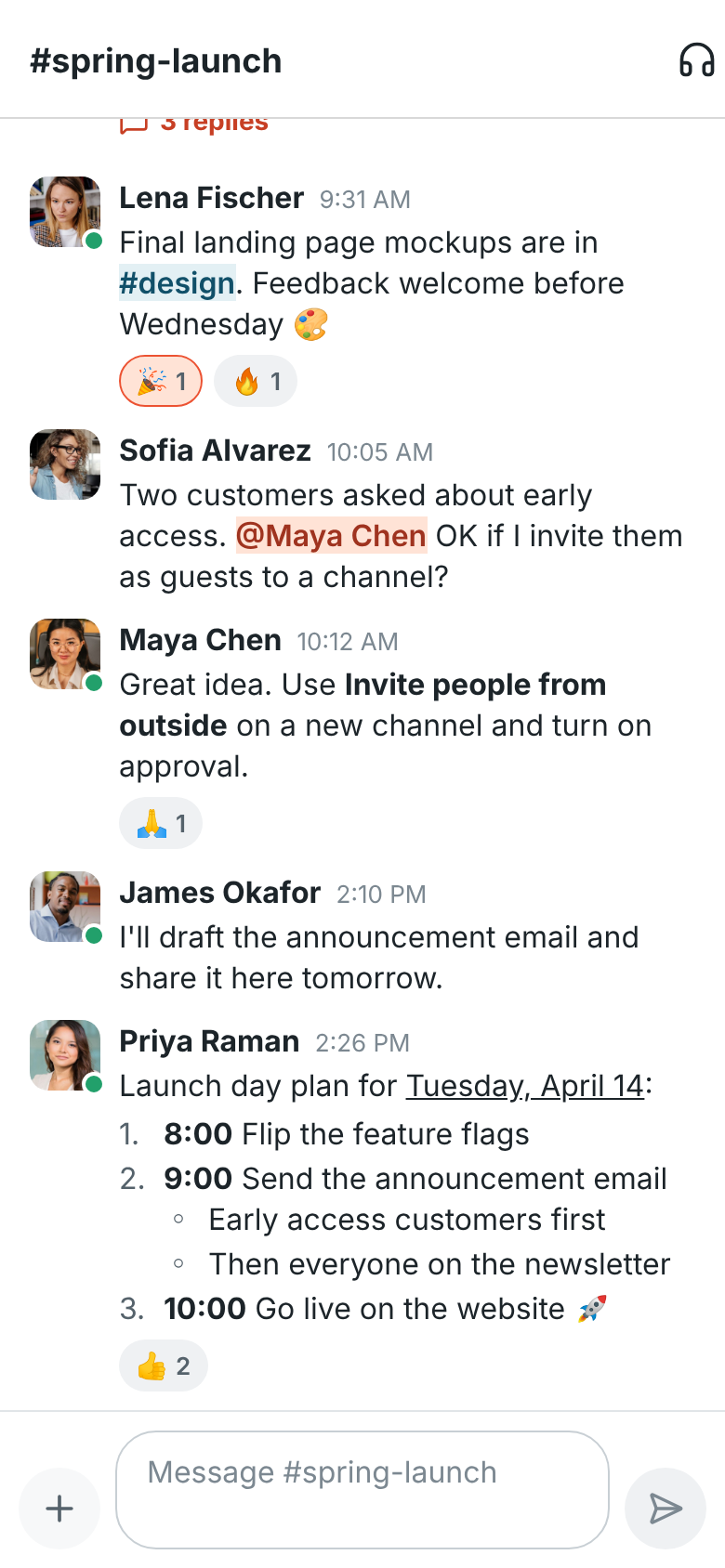
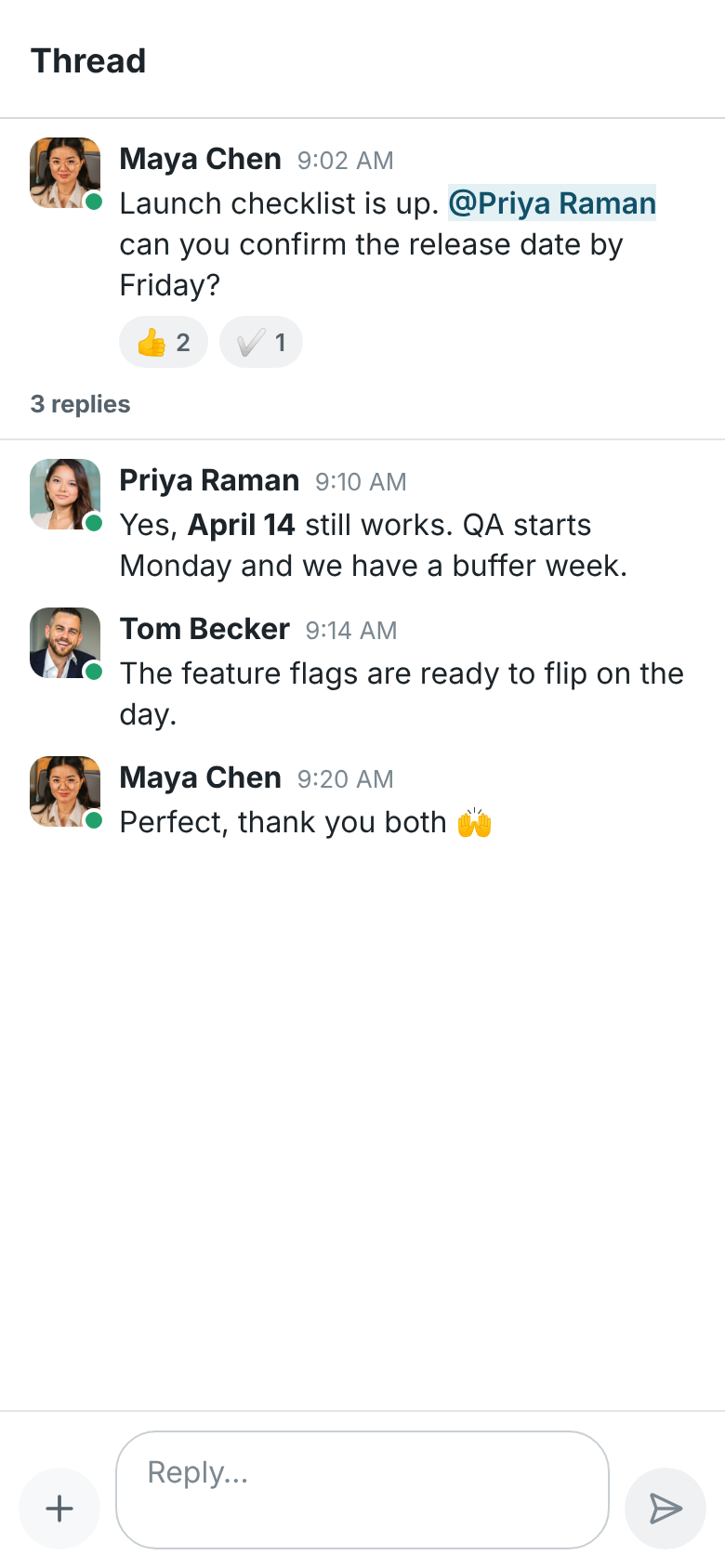
Tap **3 replies** under a message to open its thread, and reply at the bottom.
### Conversation details
Tap the name at the top of a conversation to see its details, the same ones as the
[details panel](https://freesbe.net/docs/channels-and-messages/#channel-details) on your computer:
- The channel's **Topic**. Tap it to change it.
- **Mute this channel** keeps it quiet: no sounds, no notifications, no badge.
- **Notify me about** picks what notifies you here: **Every message**, **Mentions only**,
**Nothing**, or your default.
- **Pinned** lists the messages pinned in the conversation, newest first. Tap one to go to it;
press and hold it to unpin it.
- **Copy link** copies a link to the conversation.
- **Members** (or **People** in a DM) lists who's in it. Tap someone to open their profile, and
tap **Add people** to add more. People who run the channel can press and hold someone to remove
them.
- **Leave channel** at the bottom.


### Browse and create channels
Tap **Browse channels** on **Home** to see every channel you can join, with how many people are
in it and its topic. Search by name or topic, and tap **Join** to join one and open it. Channels
you're already in say **Joined**.
To make a new channel, tap **+** at the top, give it a name and, if you like, a topic, and choose
**Public** (anyone in the workspace can find and join it) or **Private** (only people you add can
see it). Tap **Create**. Guests can't create channels.


### Saved on your phone
Your phone keeps the newest messages of the conversations you opened lately, so they open right
away, even before the app has reconnected or when you have no signal, and catch up a moment later.
Unread conversations and the ones you used most recently load as soon as the app opens, so they're
ready before you tap them.
What's saved is encrypted with a key that only your account can get from Freesbe, kept in your
phone's secure storage. It's deleted when you sign out, and can no longer be read once you leave
the workspace or are removed from it. In a workspace that asks for a second factor each time
Freesbe opens, nothing saved shows until you've confirmed it's you. On Android, nothing Freesbe
keeps on your phone, drafts included, goes into your Google backups.
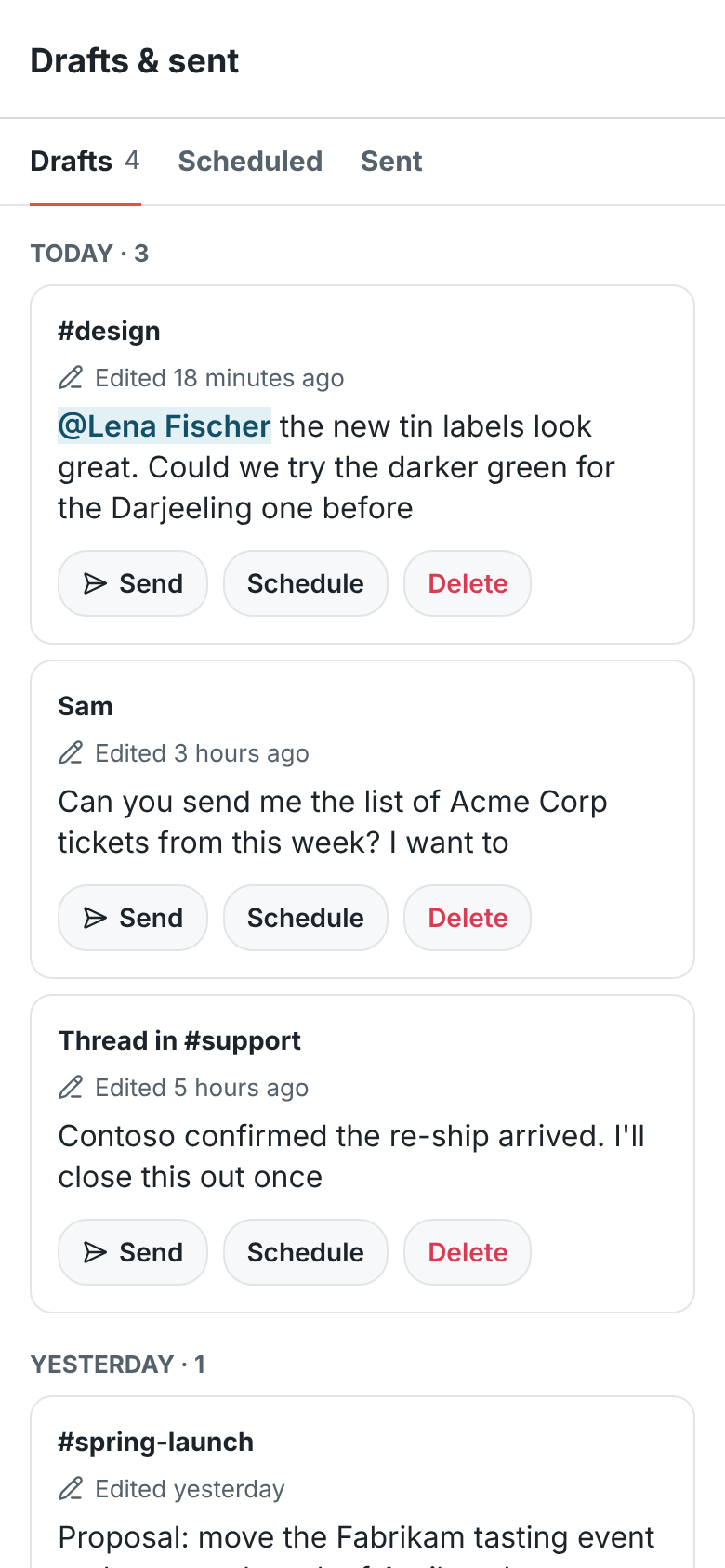
### Drafts
Anything you type and don't send stays as a draft for that conversation or thread, even after you
switch conversations or close the app. Drafts are kept for your account, so one you start on the
phone is waiting on your computer too, and the other way round. Conversations with a draft show a
pencil in your lists.
**You → Drafts & sent** lists them all on its **Drafts** tab, newest first. Tap one to finish it in its conversation, or use
**Send**, **Schedule** or **Delete** right there. See [Drafts](https://freesbe.net/docs/channels-and-messages/#drafts)
for more.
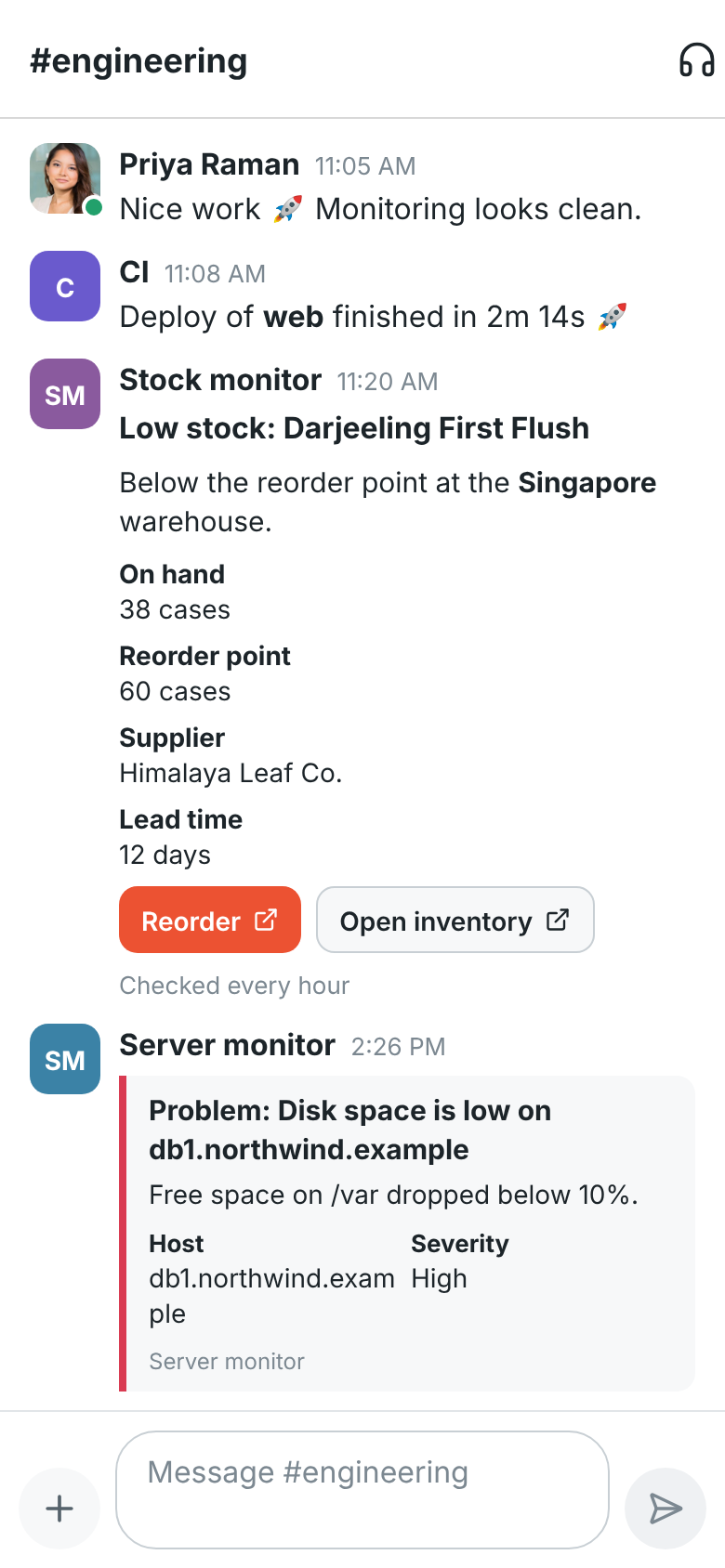
### Alerts and cards from other apps
Messages that other apps post through [webhooks](https://freesbe.net/docs/api-and-webhooks/), such as monitoring alerts, deploy
notices and stock warnings, show the same way as on your computer: headings, facts, coloured
alert boxes, pictures and buttons. Tap a button or a link to open it.
### Read receipts
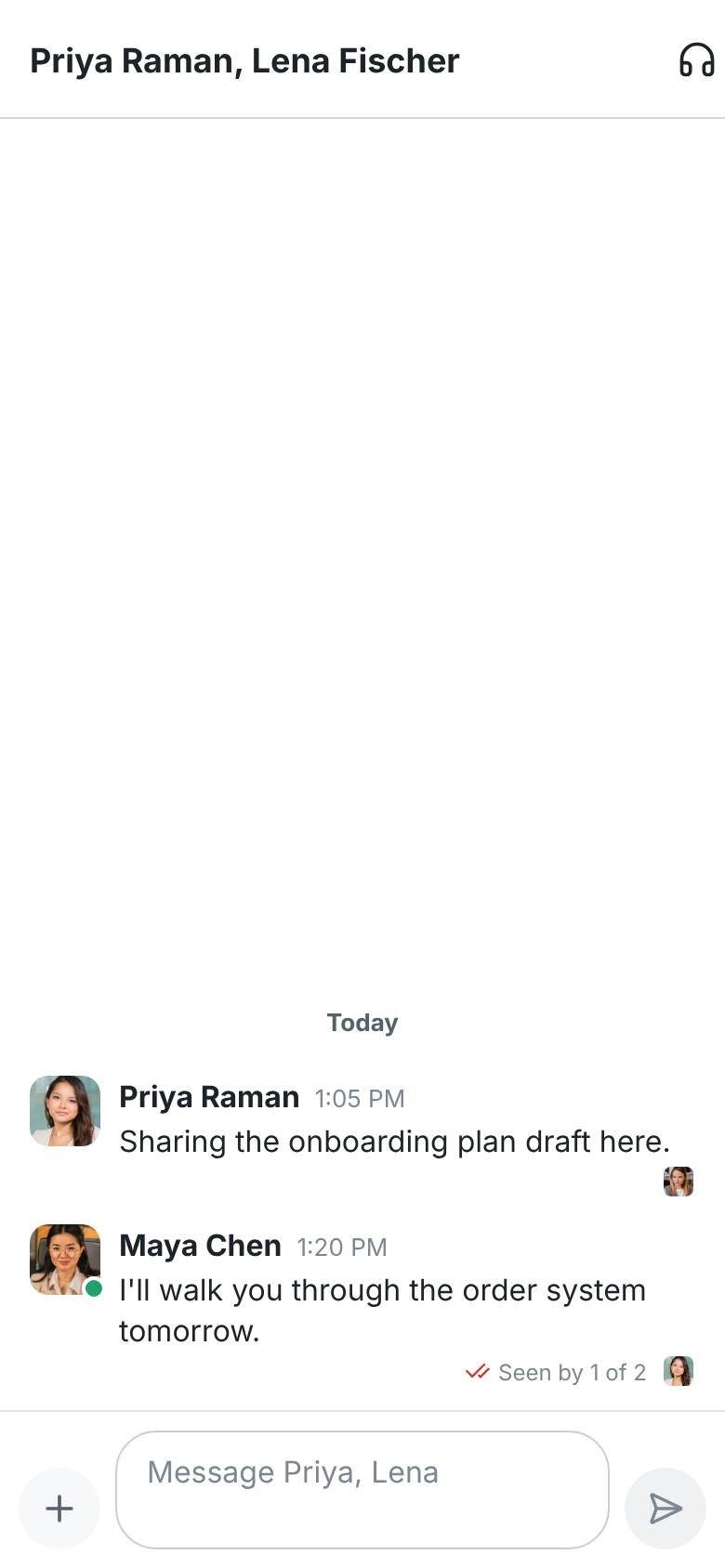
When your workspace shows [read receipts](https://freesbe.net/docs/channels-and-messages/#read-receipts), small
pictures under a message show who has read up to it, and your newest message says **Seen by 1 of
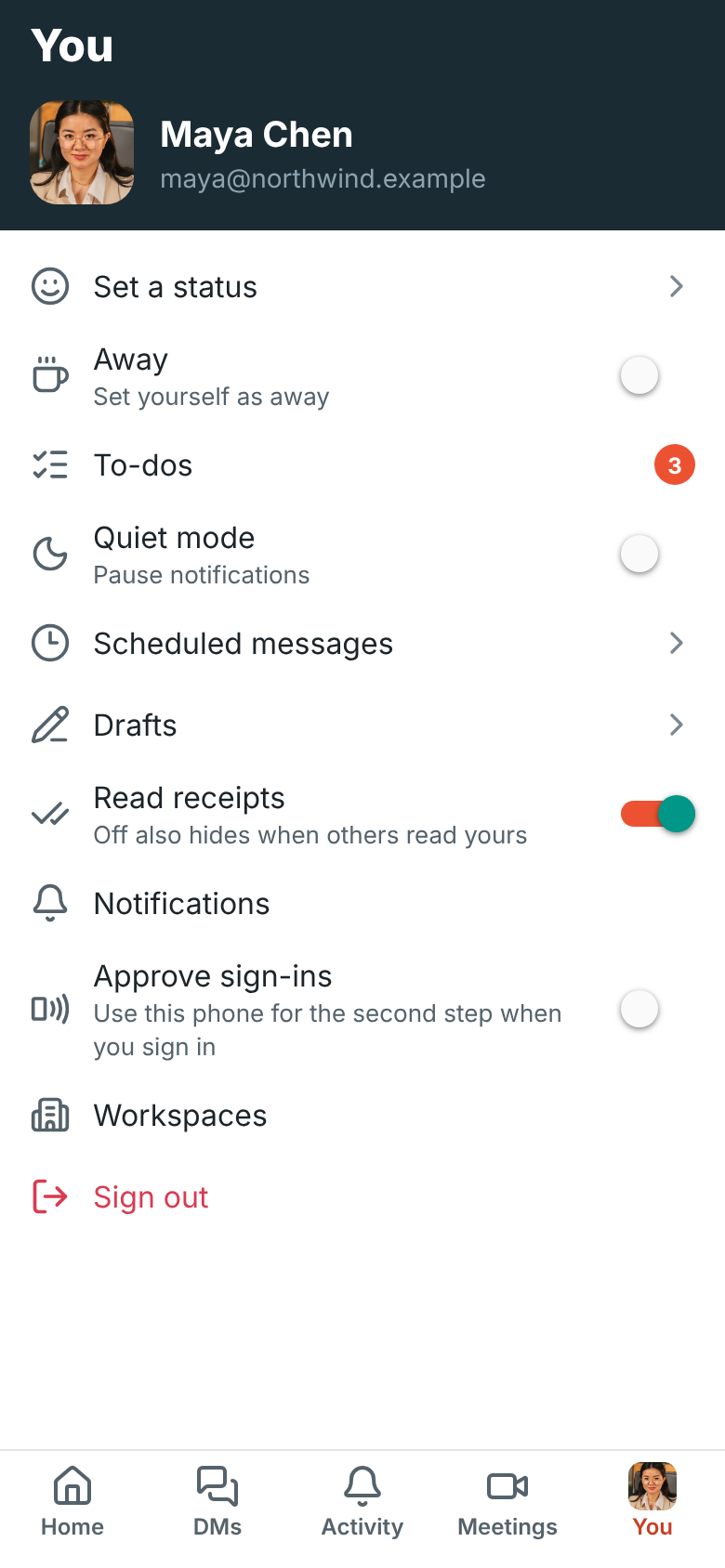
2**. Tap it to see who. To stop sharing them, if your admins let you, turn **Read receipts** off on
the **You** tab. Off works both ways: you won't see who read yours either.
### React, edit and delete
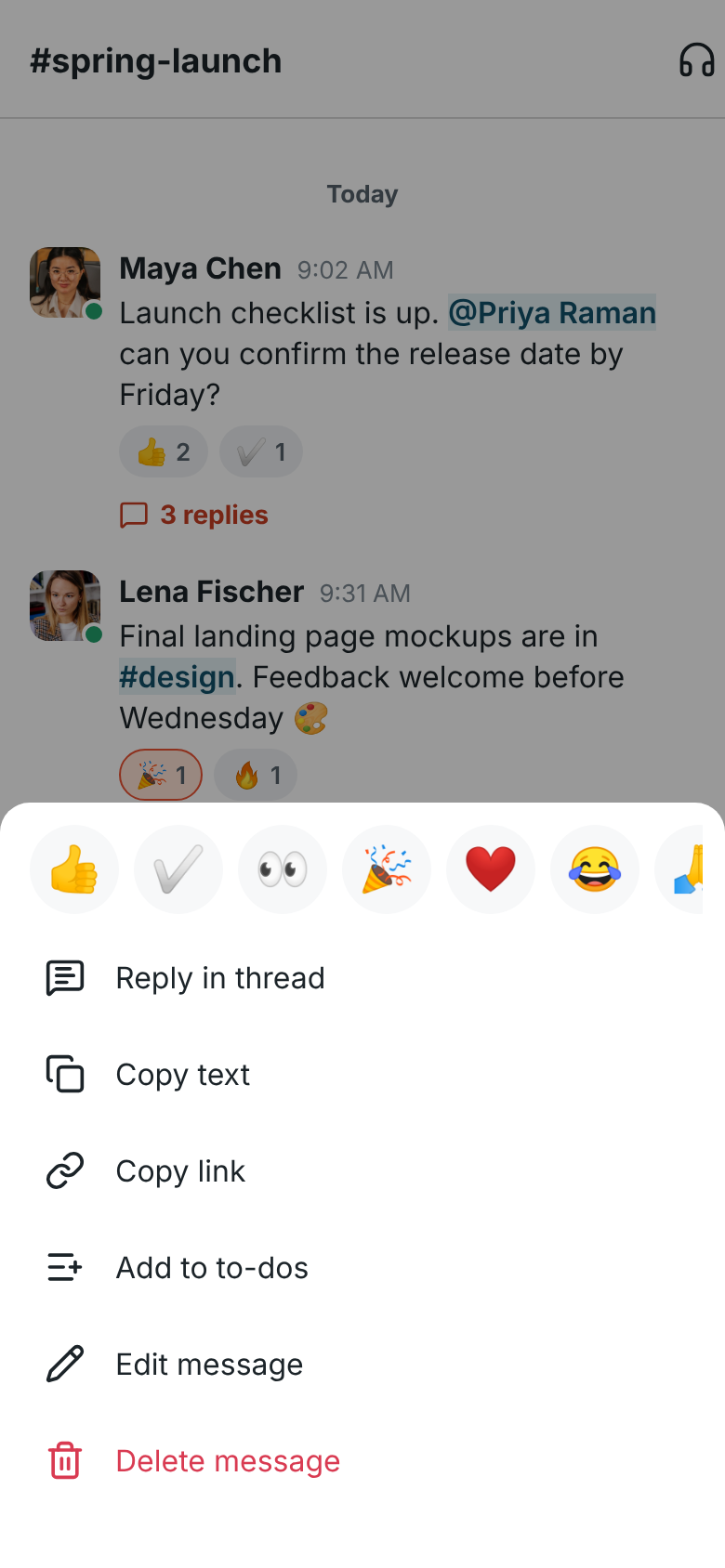
Press and hold a message to see what you can do with it. It's the same list as the
[right-click menu](https://freesbe.net/docs/channels-and-messages/#right-click-menus) on your computer:
- Tap an emoji at the top to react. The menu stays open, so you can tap several; the ones you've
left are highlighted, and tapping one again takes it away. Tap outside the menu when you're done.
You can also tap a reaction under a message to add yours, or tap it again to take yours away.
- For any other emoji, tap the smiley with the **+** at the end of the row. Search by name (try
_tea_ or _rocket_) or scroll, and tap as many as you like, then tap **Done**. The arrow at the
top takes you back to the menu. Your workspace's [own emoji](https://freesbe.net/docs/channels-and-messages/#custom-emoji)
come first, and show as their pictures in messages and reactions.
- **Reply in thread**, **Copy text** and **Copy link**. The link opens the message in the app or a
browser, the same as **Copy link** on your computer.
- **Quote in reply** puts the message in the box at the bottom as a quote, after anything you'd
already typed, ready for your answer.
- **Save for later** and **Remind me about this** (in 20 minutes, in an hour, in 3 hours, later
today, tomorrow or Monday) add it to your [Later](https://freesbe.net/docs/channels-and-messages/#save-for-later-and-reminders)
list, the same one as on your computer. See [Later](#later) below.
- **Pin to this conversation**, **Forward message** (pick the conversation, then tap **Forward**)
and **Mark unread**, which keeps the conversation bold until you leave it and come back.
- **Add to to-dos** makes a to-do from the message. See [To-dos](#to-dos) below.
- **Translate** shows the message in your language under the original, when your workspace has AI
turned on. Tap **Hide** to put it away.
- On your own messages, **Edit message** and **Delete message**, as your workspace's
[message settings](https://freesbe.net/docs/admin-settings/#messages) allow. Workspace owners and admins can delete
anyone's message in a channel, which leaves **Message deleted by an admin** in its place. See
[Deleting someone else's message](https://freesbe.net/docs/channels-and-messages/#deleting-someone-elses-message-admins).


Press and hold other things for their own menus:
- **A conversation** in your lists: **Mark as read**, **Mute channel** (or **Unmute**), **Copy
link** and **Leave channel**.
- **Someone's name or picture** on a message: **View profile**, **Send a message**, **Start a
huddle** and **Copy email address**. Tap a name or picture to go straight to the profile.
Selecting text inside a message works the way it always does on your phone.


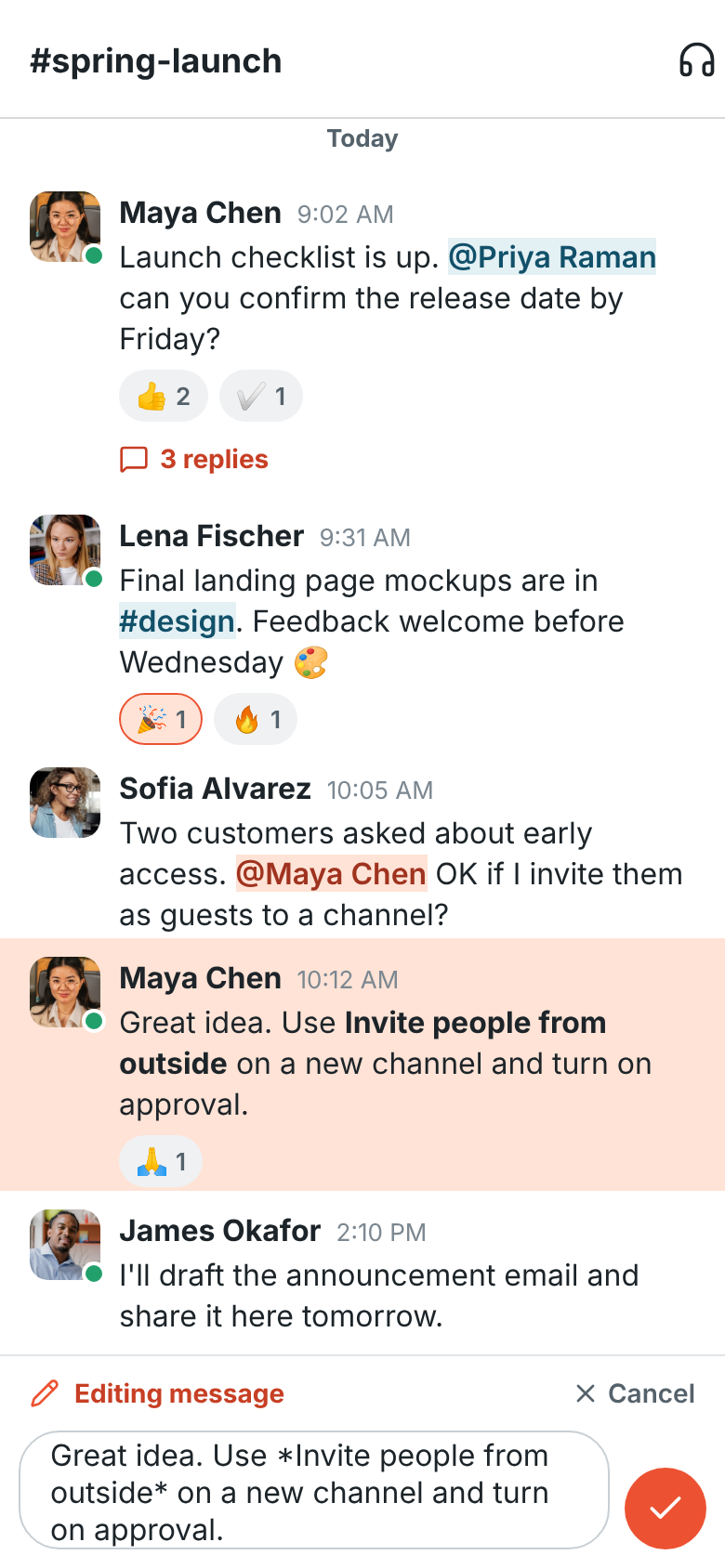
When you edit, the message moves into the box at the bottom. Change it and tap the check mark to
save, or tap **Cancel**. Edited messages show **(edited)**.
### Send photos, files and screenshots
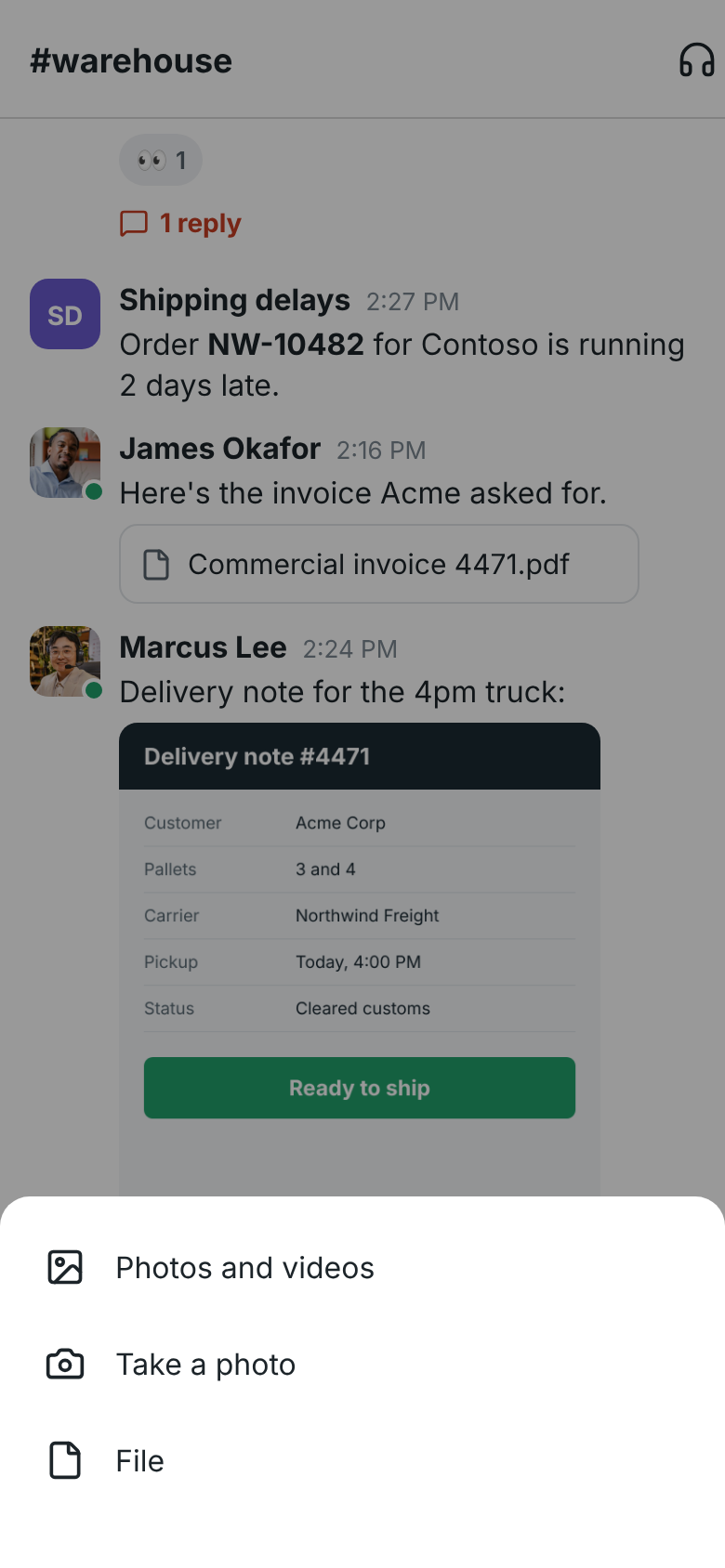
Tap **+** next to the message box and choose:
- **Photos and videos** to pick from your gallery, several at once.
- **Take a photo** to use the camera.
- **File** to pick any file on your phone, such as a PDF.
- **Paste image** to send the picture you just copied, such as a screenshot.
When you've copied a screenshot or another picture, a **Paste image** button also appears above
the message box when you tap into it. Each file shows above the box while it uploads; tap the **X**
to take one out. Add a message if you like, or send the files on their own, up to 10 at a time.
Pictures show in the conversation. Tap a picture or a file to open it in an app on your phone.
To send several photos at once, tap **Photos and videos** and select up to 10 of them in the
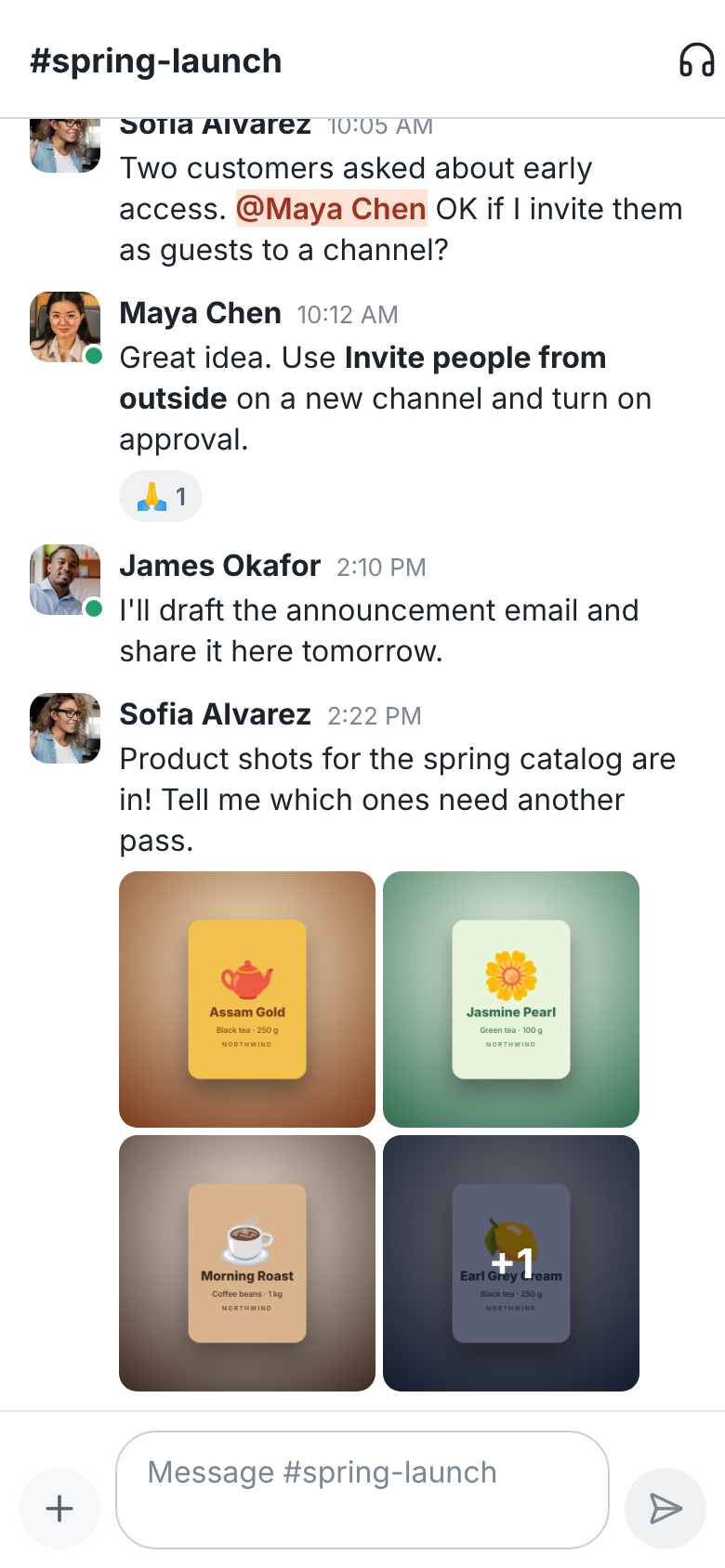
picker. Several pictures in one message show as a gallery; tap **+N** on the last tile to see
them all.
### Schedule a message
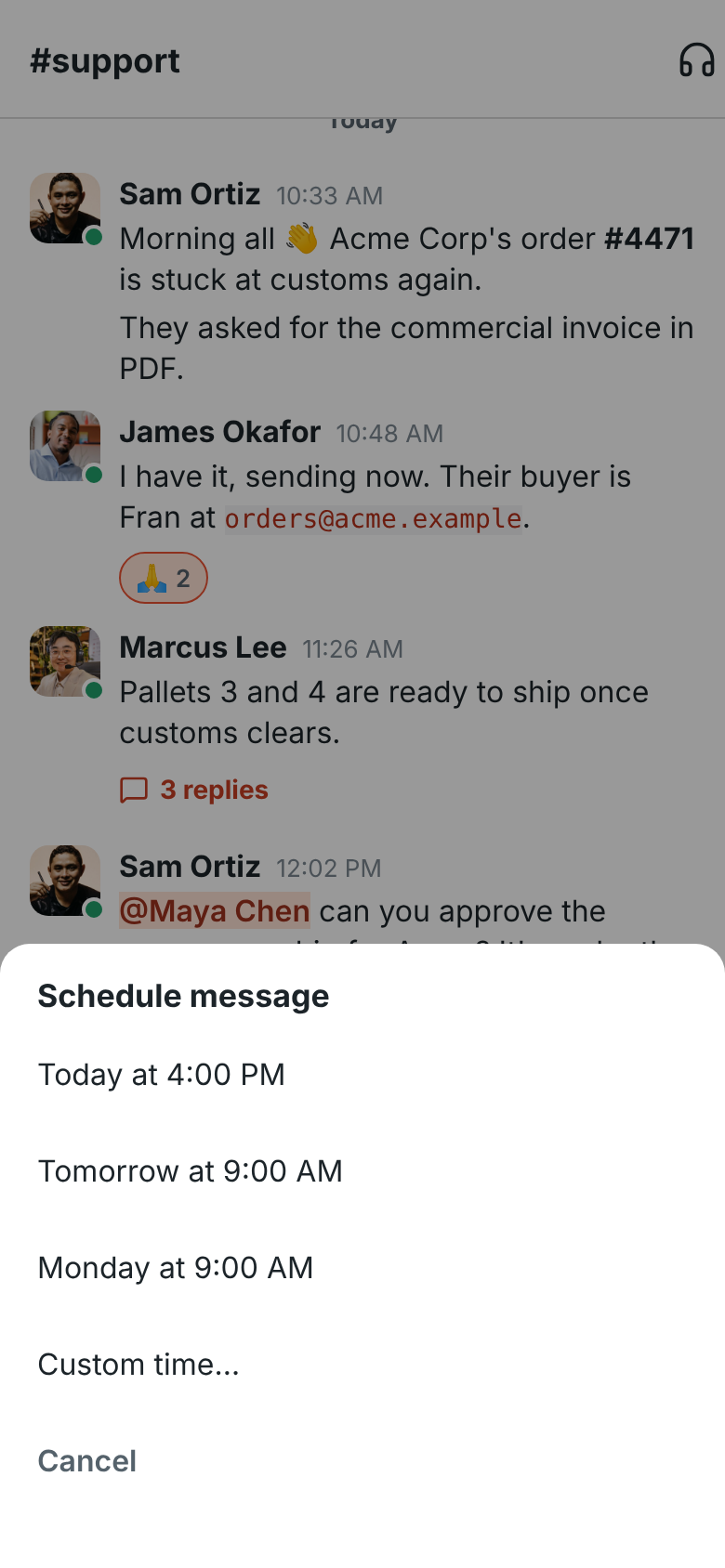
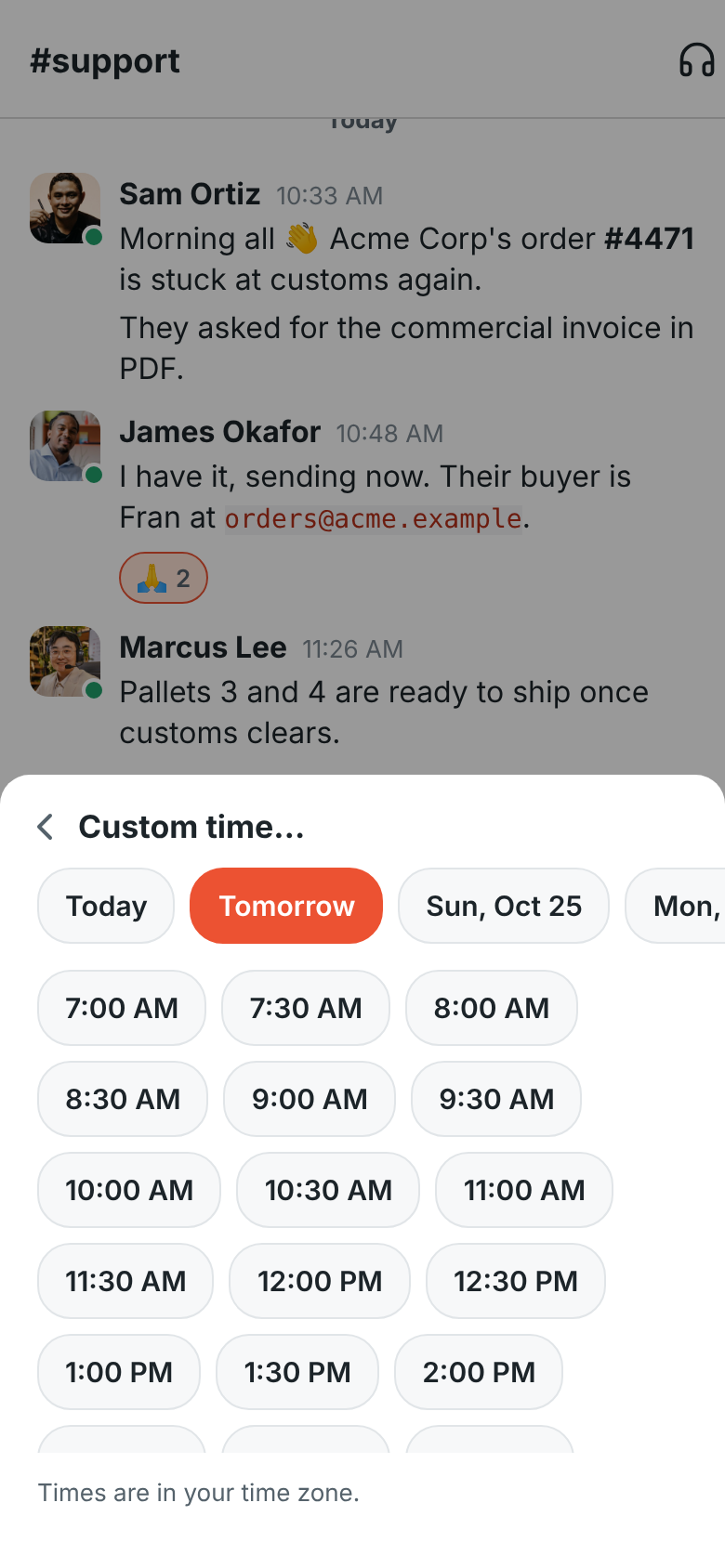
To send a message later, write it, then press and hold **Send**. Pick later today, tomorrow
morning, Monday morning, or **Custom time…** to choose a day in the next two weeks and a time on
the half hour. It works in channels, DMs and threads, with files too.
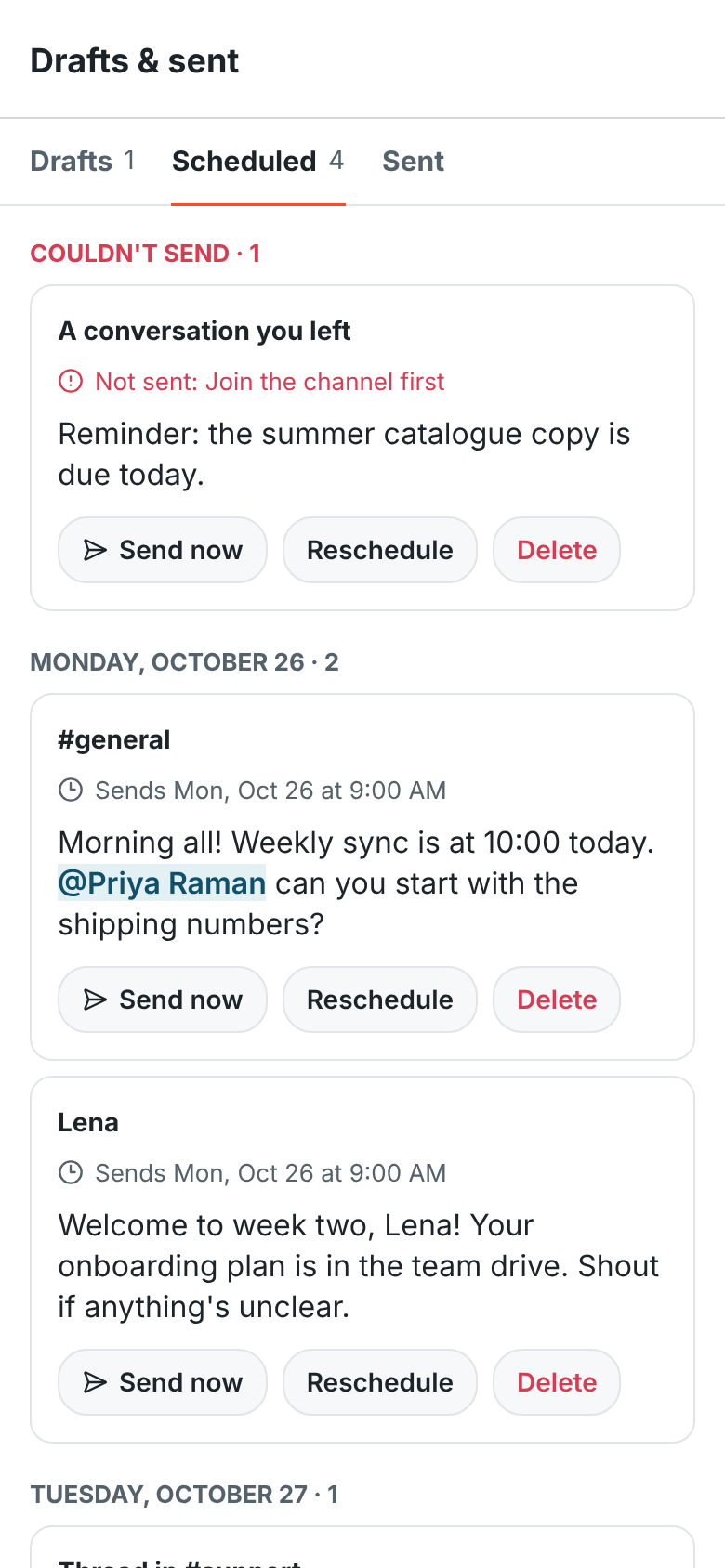
A note above the message box shows when a conversation has a message waiting. Tap it, or
**You → Drafts & sent → Scheduled**, to see them all. Each one can be sent now, rescheduled or deleted.
To change the words, use the [web or desktop app](https://freesbe.net/docs/channels-and-messages/#schedule-a-message).
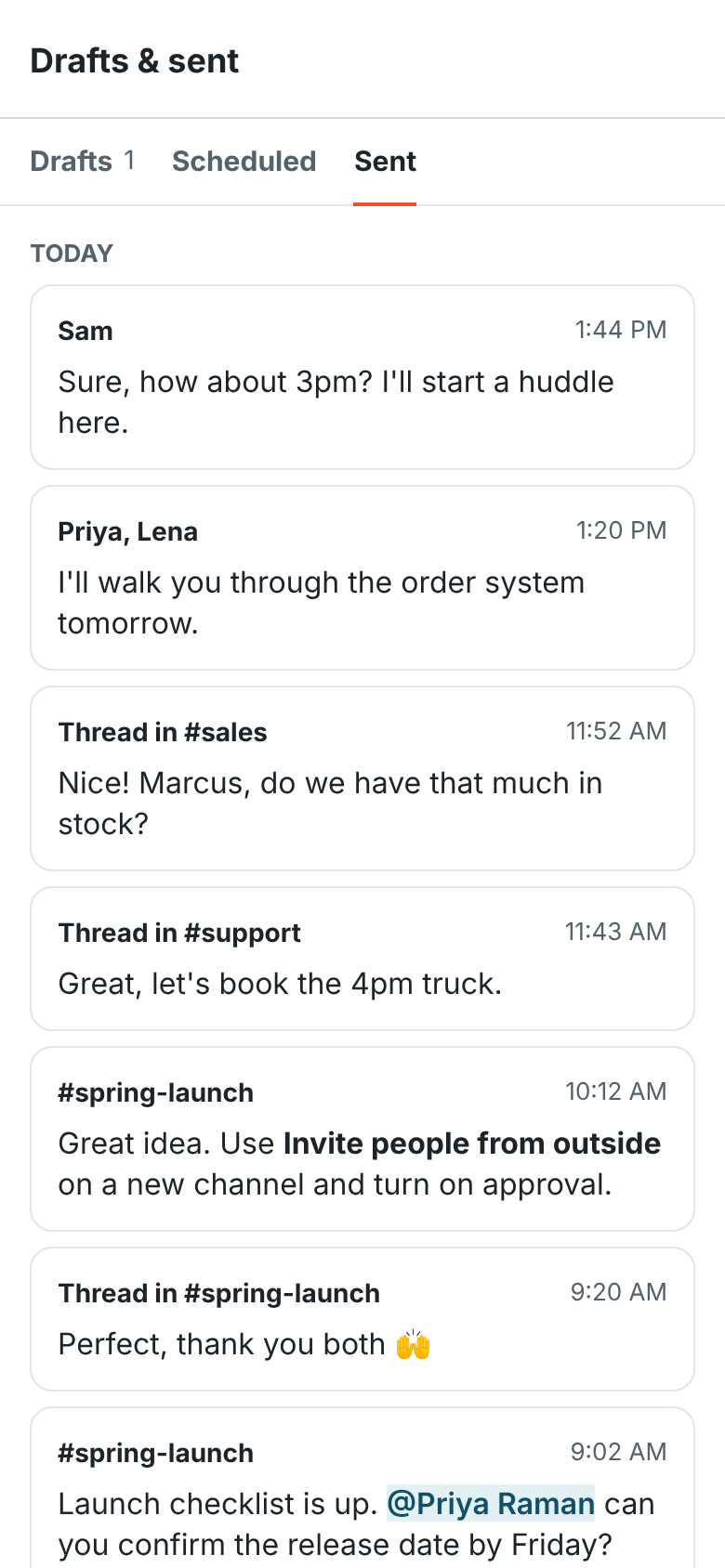
The **Sent** tab of **You → Drafts & sent** lists your own messages and replies, newest first. Tap
one to go back to its conversation or thread.
## Huddles
Talk with people in a channel or DM from your phone, the same [huddles](https://freesbe.net/docs/huddles/) as on your
computer.
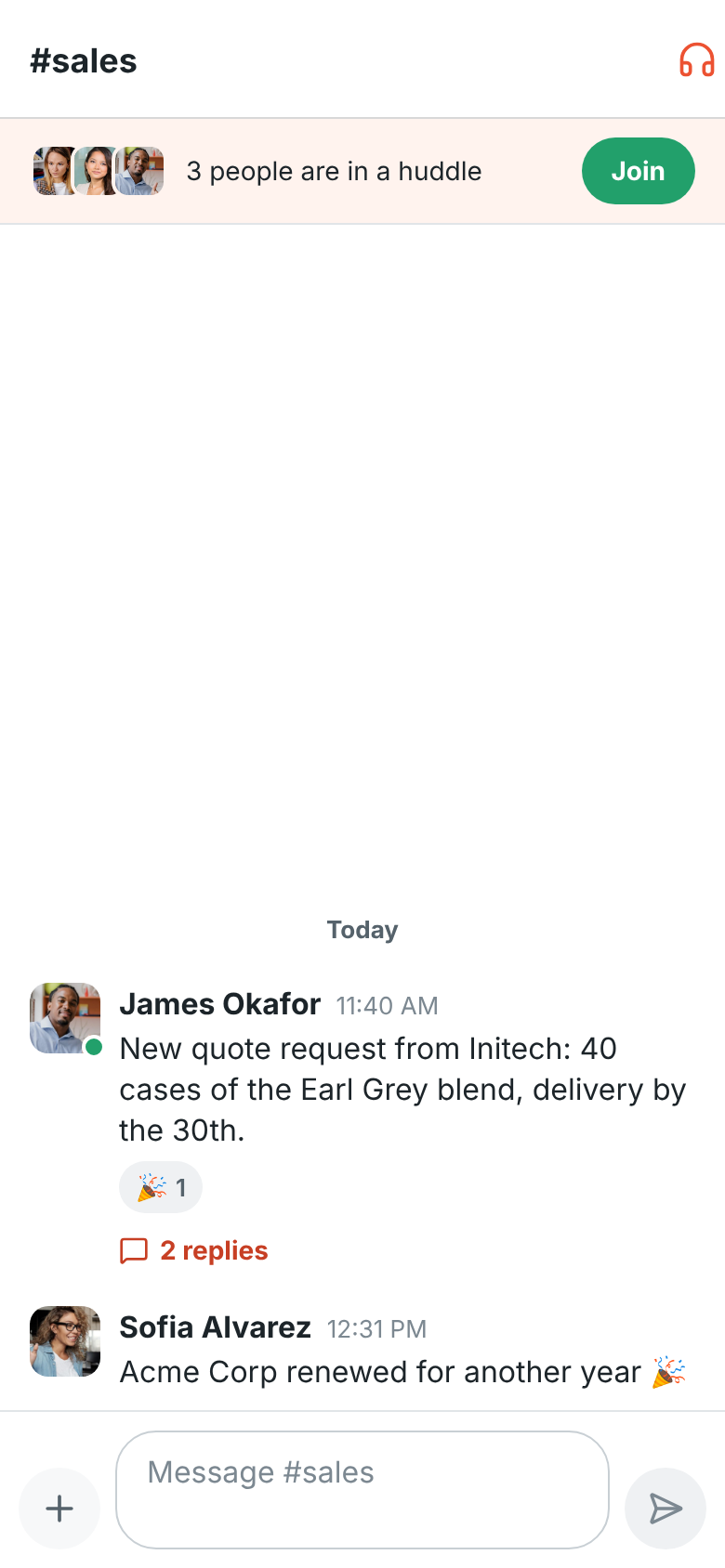
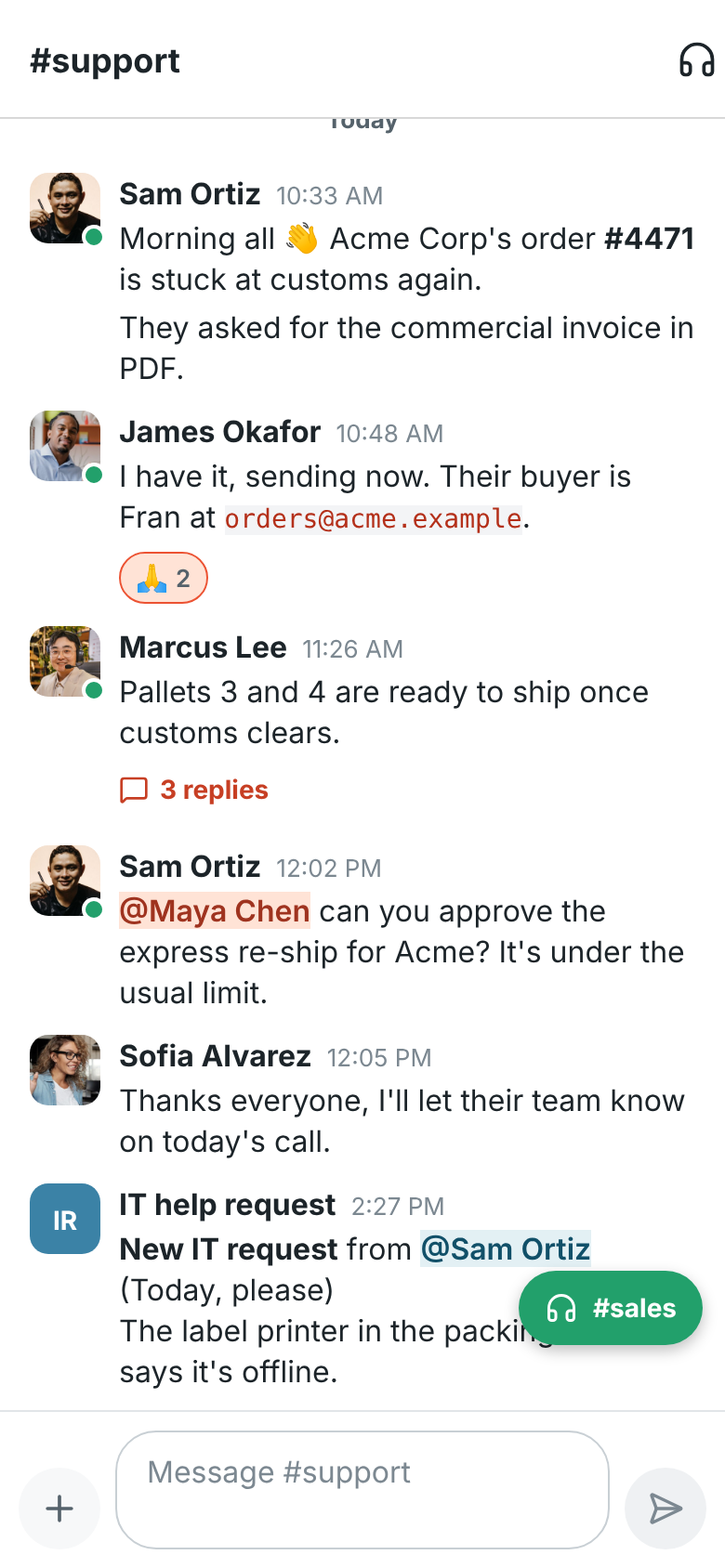
- **Join a huddle:** when people are talking in a conversation, a bar at the top shows who's in it.
Tap **Join**.
- **Start a huddle:** tap the headphones at the top right of a channel or DM. In a DM, the other
person's devices ring.
The app asks to use your microphone the first time you join a huddle or a meeting. If you don't
allow it, you can still listen, and the microphone button stays crossed out. Tap it to be asked
again. On Android, if you picked **Don't allow** more than once, the app offers **Open Settings**
instead: turn on **Permissions → Microphone** for Freesbe there, come back and tap the microphone
button.
### During a huddle
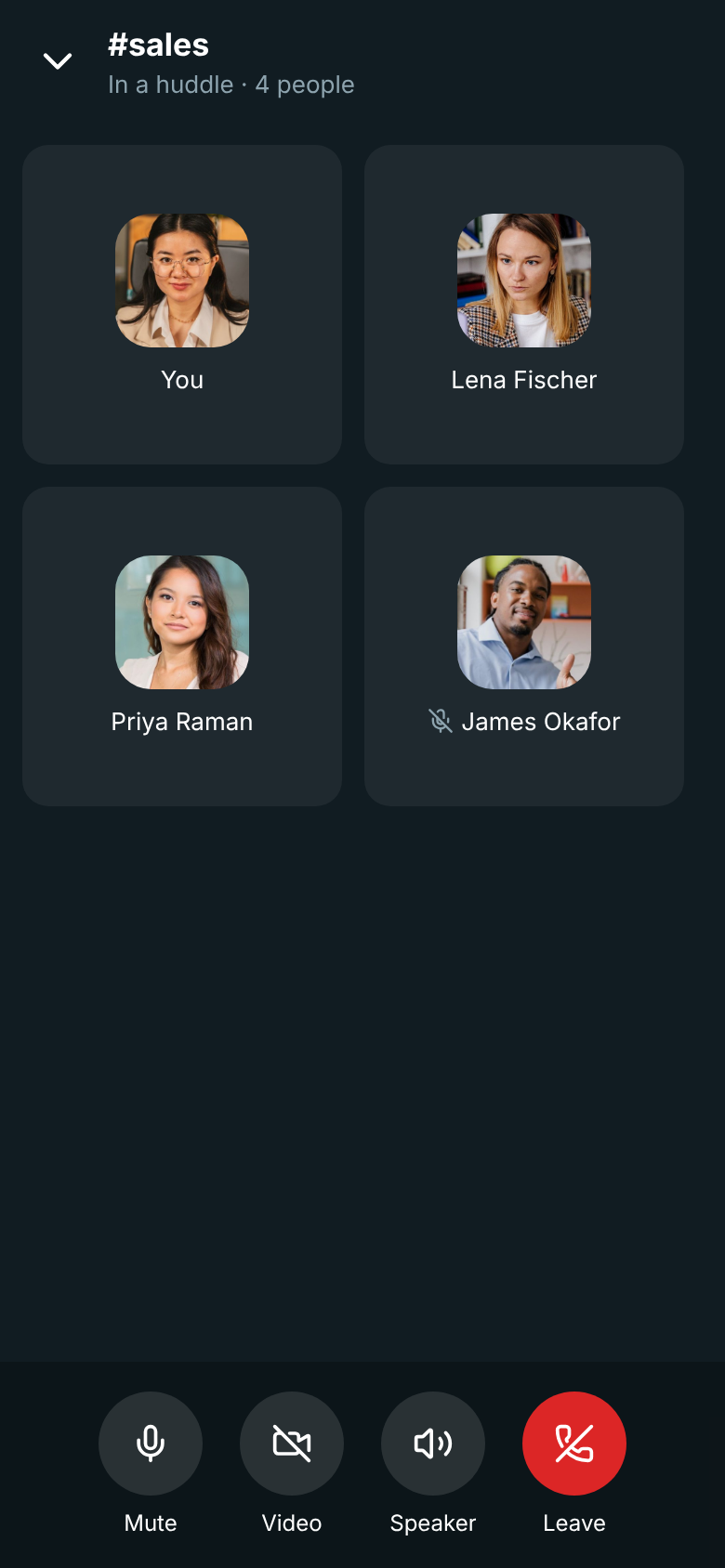
The call screen shows everyone in the huddle, their cameras and shared screens. The buttons at the
bottom:
- **Mute** / **Unmute** your microphone. A crossed-out microphone next to a name means that
person is muted.
- **Video** turns your camera on and off, and **Flip** switches between the front and back camera.
- **Share screen** (Android) shares your whole screen. Your phone asks you to confirm with **Start
now**, and shows that it's sharing until you tap **Stop sharing**.
- **Speaker** picks where you hear the call (Android): the loudspeaker, the phone's earpiece,
wired headphones or a Bluetooth headset. When headphones or a headset are connected, the
huddle uses them.
- **Leave** hangs up.
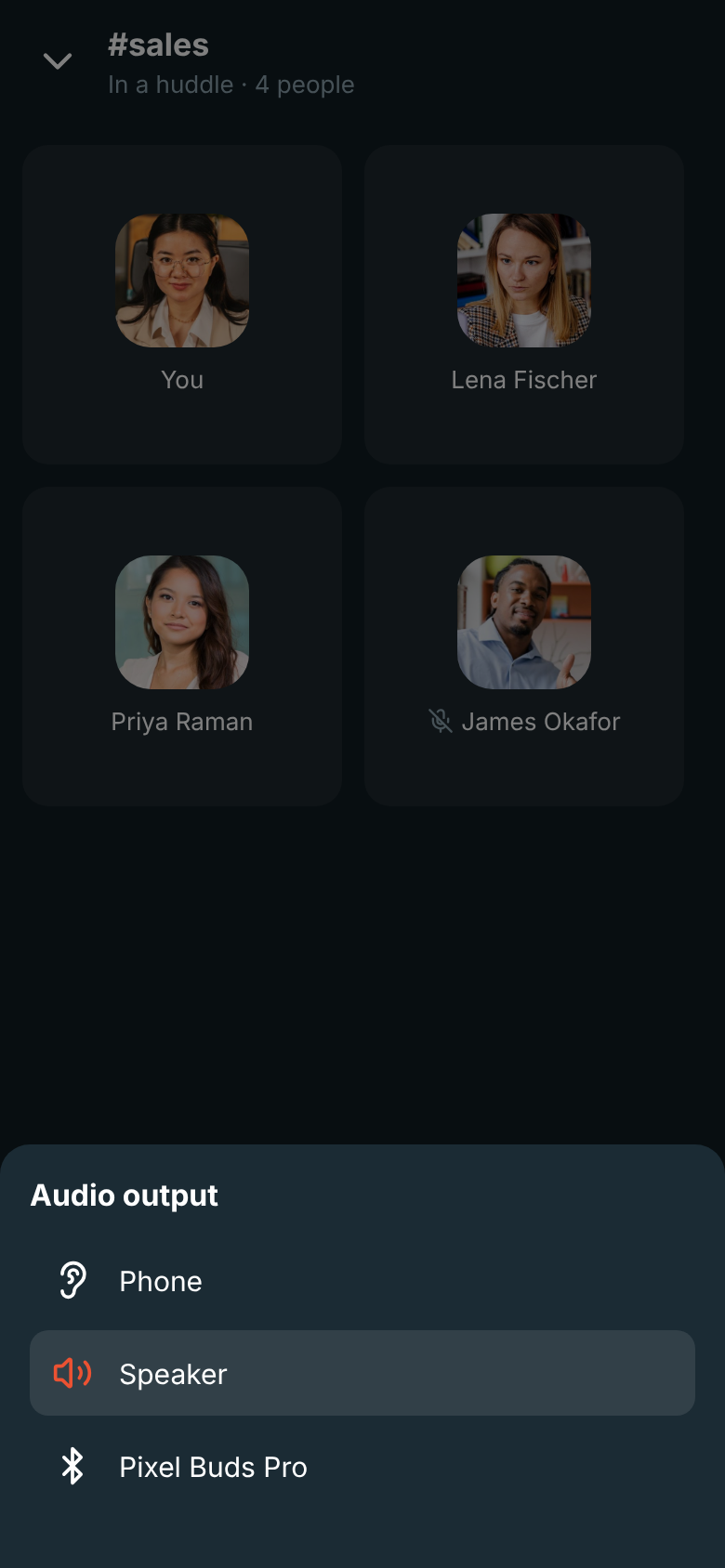
While you're alone in a huddle, waiting music plays until someone joins (Android). It plays where
you hear the call and never goes into it. Tap the music button next to **Waiting for others to
join…** to pick **Lo-fi**, **Drift**, **Sunny**, **Classic**, **Bossa** or **Off**. Your phone
remembers your pick, separately from your computer.


Tap the arrow at the top left to go back to your messages while you keep talking. A green bubble
with the conversation's name takes you back to the call. On Android, a **In a huddle**
notification stays while you're in the call, so you can switch to another app and keep talking;
tap it to come back to Freesbe.
### Answer a call
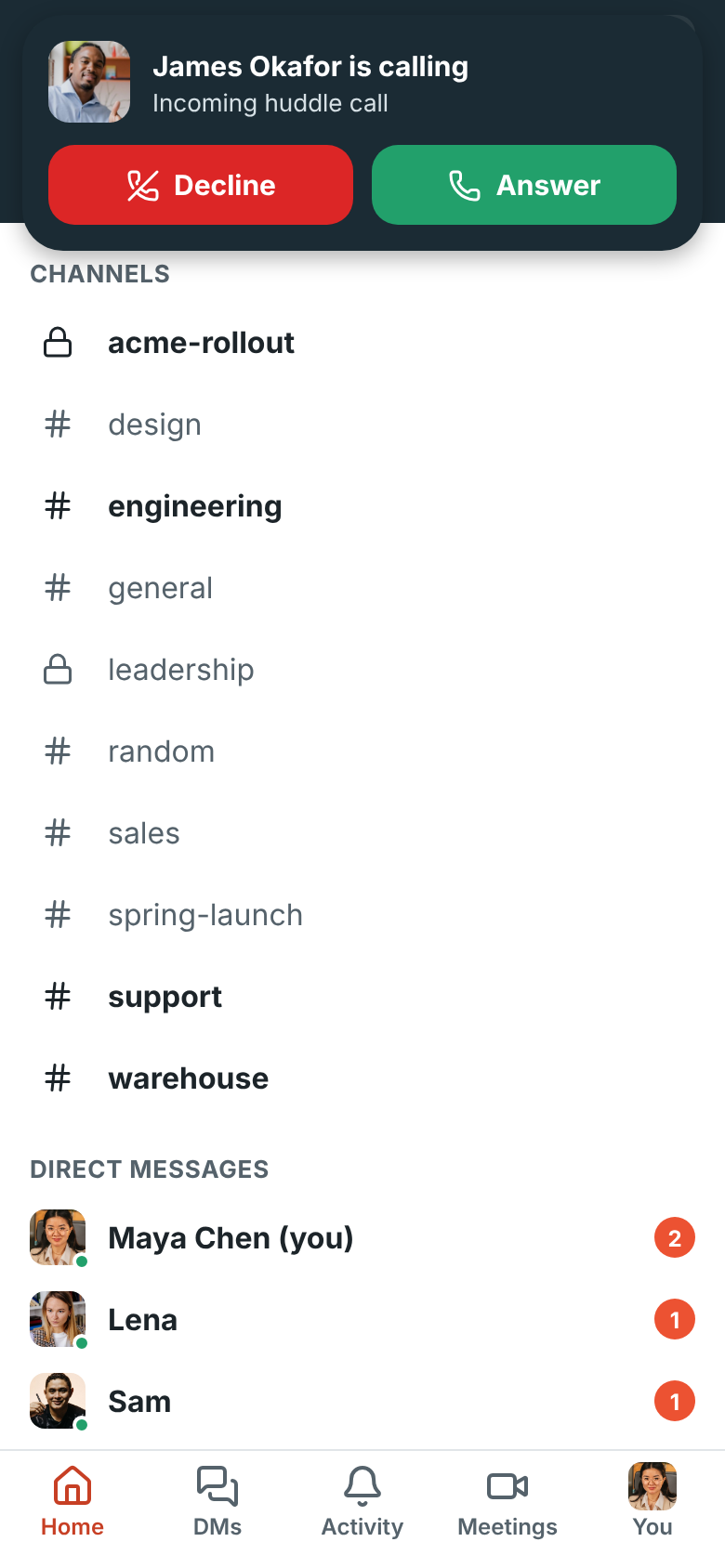
When someone calls you in a DM while the app is open, a card shows who's calling: tap **Answer**
or **Decline**. Your phone rings and vibrates until you do. When the app is closed, the call comes as a
notification: tap it to open the conversation and join the call.
Declining on your phone stops the call ringing on your other devices too. In
[Quiet mode](#quiet-mode), calls don't ring.
A call notification only rings while the call is still ringing. If your phone was offline or
asleep and gets back online after that, you get the **Missed huddle** notification instead of a
late ring.
### Missed calls
If you don't pick up, the DM shows **Missed huddle from …** with **Call back**, and it counts as
unread. When the app is closed, the ringing notification gives way to **Missed huddle** with
**Call back** (it opens the DM and calls them) and **Message**. Missed calls are in
[Activity](#activity) too. See [Missed calls](https://freesbe.net/docs/huddles/#missed-calls).

## Meetings
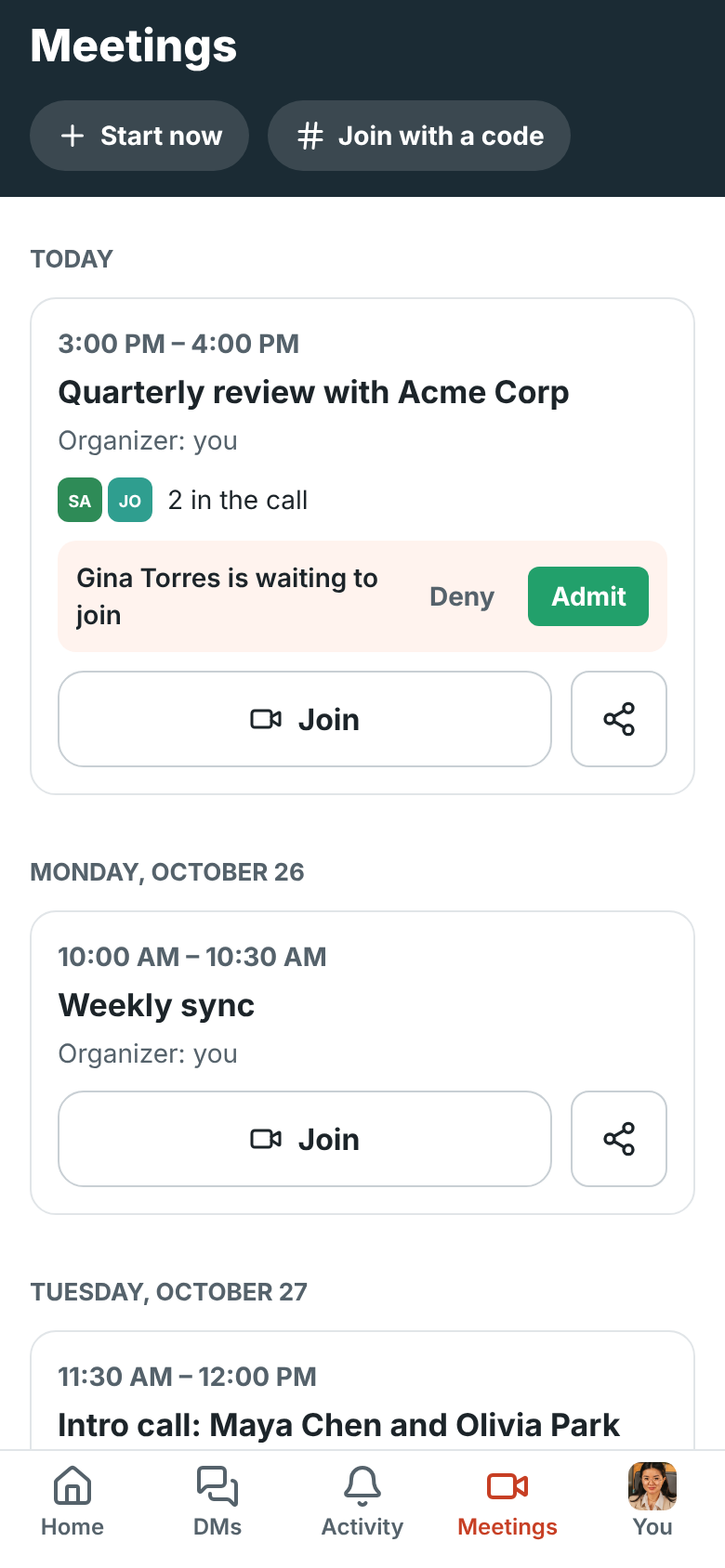
The **Meetings** tab lists the [meetings](https://freesbe.net/docs/meetings/) you organize or are invited to, today's
first and then by day. A meeting that's on, or starts within 15 minutes, shows who's already in the
call and anyone waiting to join.
- **Join** opens the meeting. **Start now** starts a meeting straight away, like on your computer,
and **Join with a code** takes the code from someone's meeting link.
- The share button next to **Join** sends the meeting's link to anyone, by text, email or another
app.
- Someone waiting in the lobby shows on the meeting with **Deny** and **Admit**, so you can let
them in without joining.
To schedule or edit a meeting, use the desktop app or a browser.
### Join a meeting
Tap **Join** on the Meetings tab, or open a meeting link (`meet.freesbe.net/…`) on your phone. On Android the link asks whether to
**Open in the Freesbe app** or **Continue in the browser**.
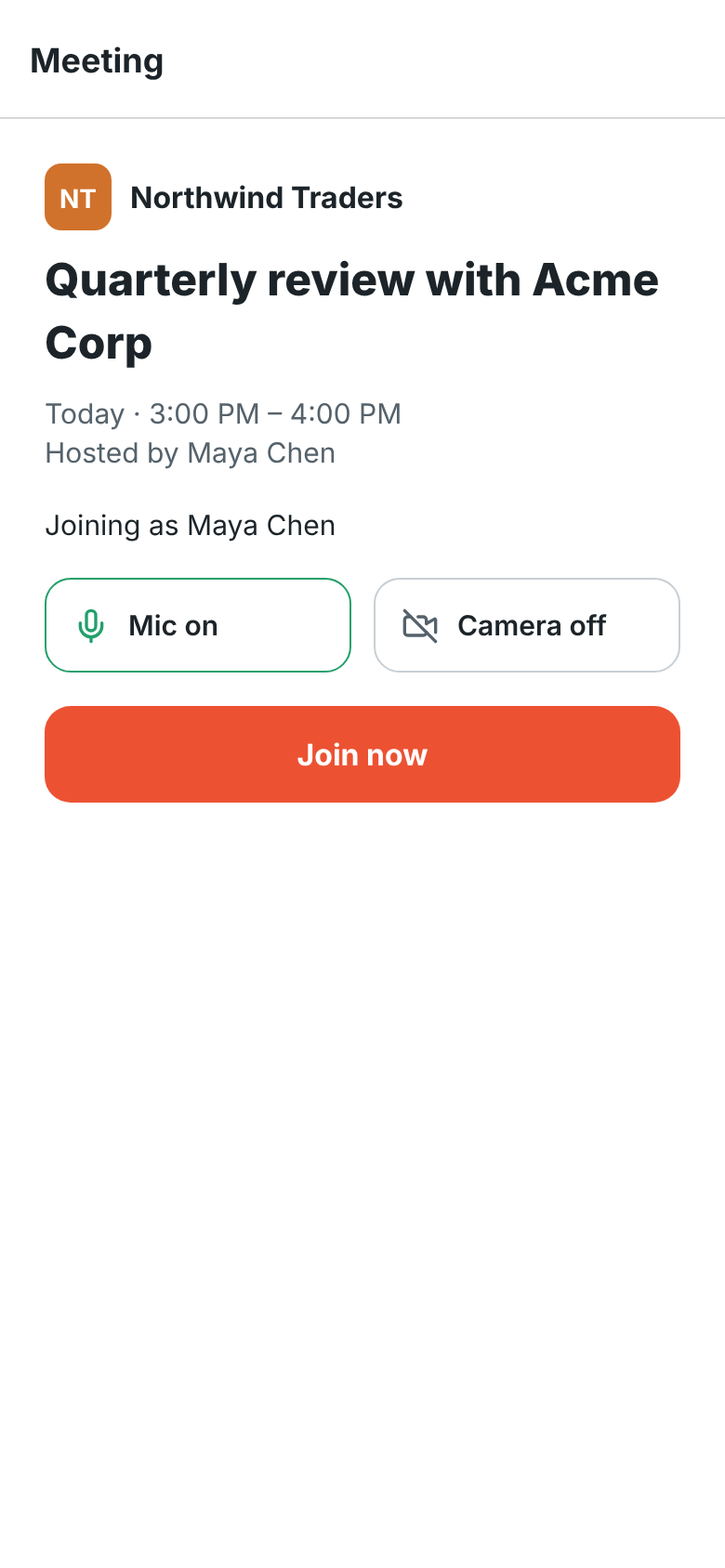
Before you go in, turn your microphone and camera on or off. People in the workspace go straight in
with **Join now**; guests tap **Ask to join** and wait until someone lets them in.
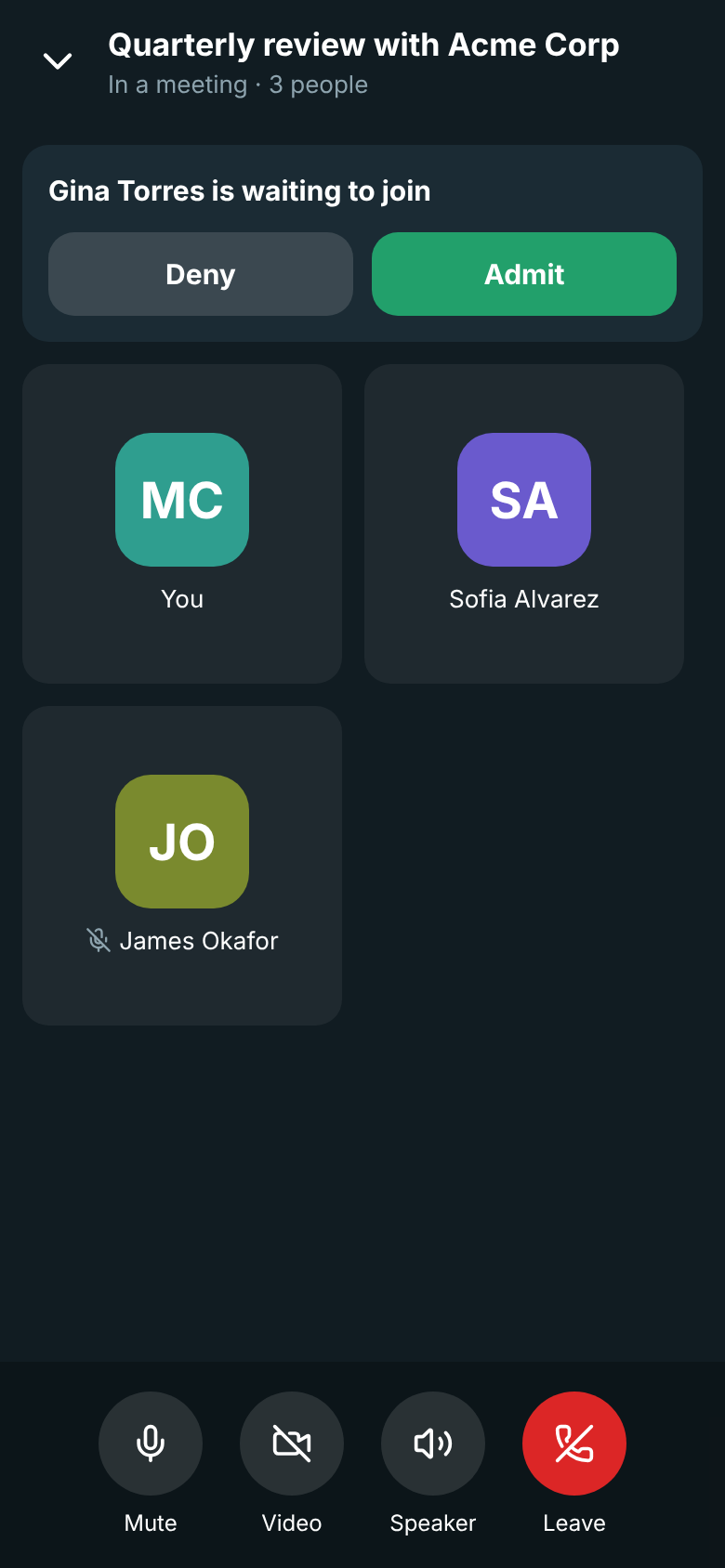
In the call you have the same buttons as in a [huddle](#during-a-huddle): **Mute**, **Video** and
**Flip**, **Share screen** (Android), **Speaker** and **Leave**. Everyone's cameras and shared
screens show above the people in the call.
When someone asks to join, a card at the top says who, with **Deny** and **Admit**.
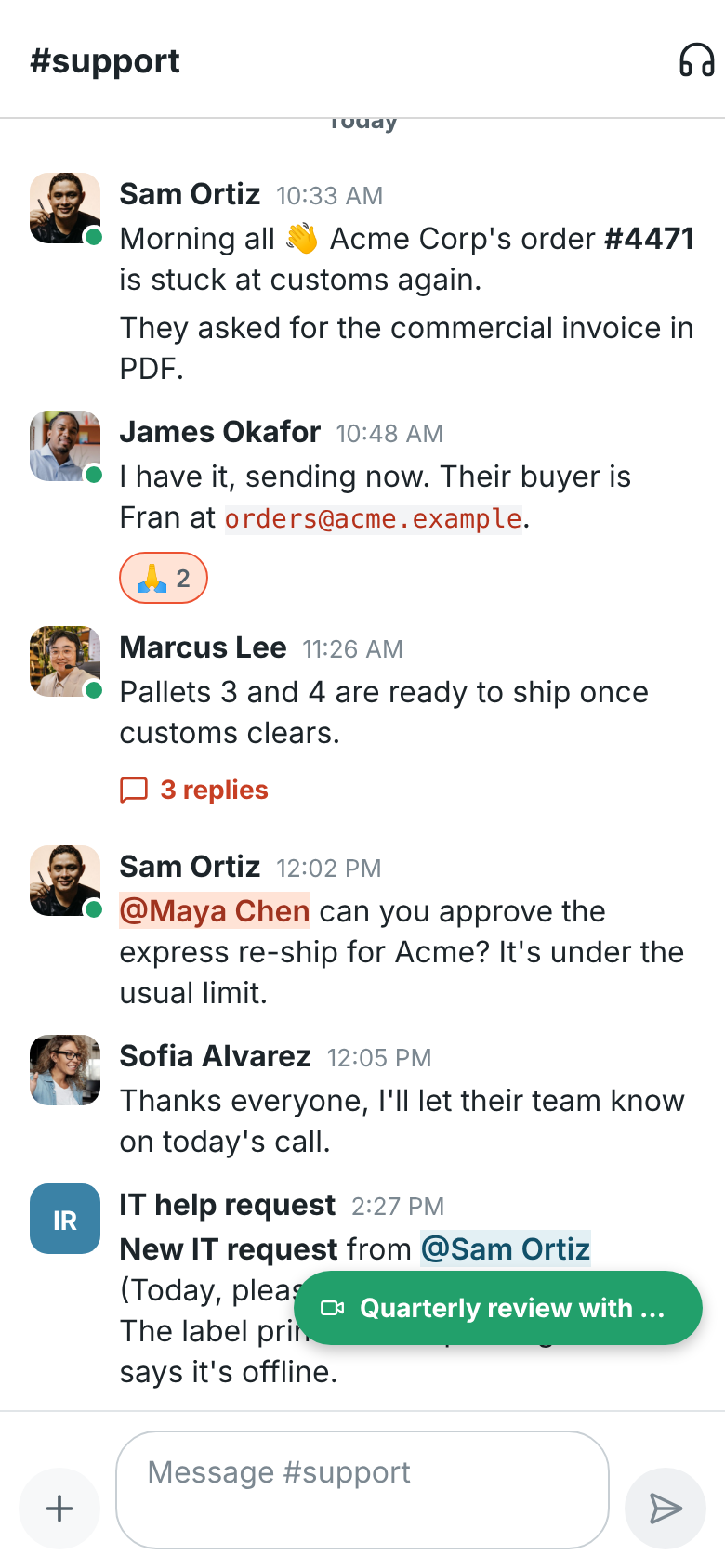
Tap the arrow at the top left to go back to your messages while you keep talking. A green bubble
with the meeting's name takes you back to the call. Starting a huddle leaves the meeting, and
joining a meeting leaves a huddle.
### Someone's waiting to join
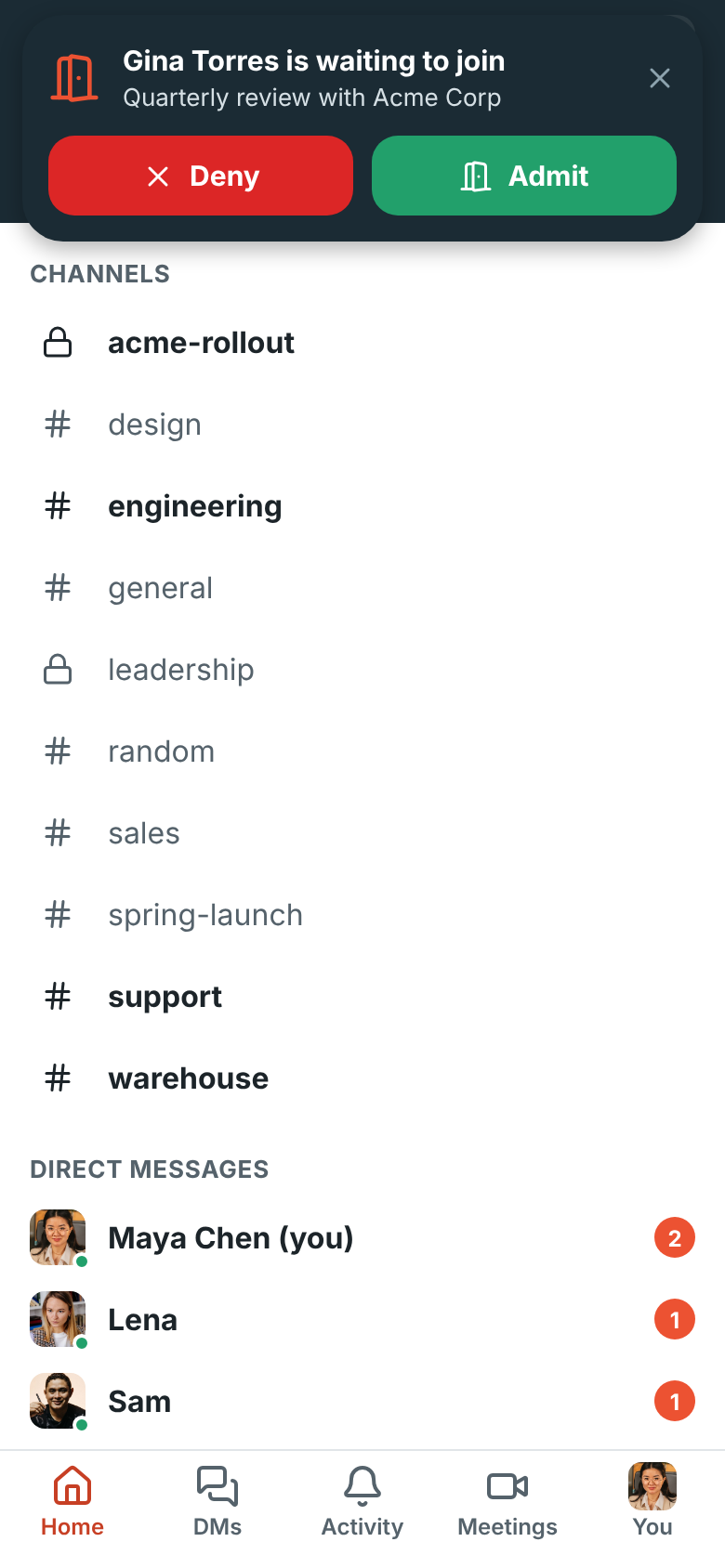
When a guest waits in the lobby of a meeting you host and nobody who can let them in is in the
call, a card shows on any screen of the app, with a knock and a buzz. Tap **Admit** or **Deny**, or
tap the card to open the meeting. After a couple of minutes you also get a
[notification](#notifications). See [Waiting room alerts](https://freesbe.net/docs/meetings/#waiting-room-alerts).
## Move a call to your phone
Need to leave your desk during a huddle or meeting? When you're in a call in the desktop app or a
browser, the app shows a bar with **You're in this huddle in the desktop app** and **Join here**.
Tap it and the call moves to your phone, with no drop for the others. Meetings show the same
**Join here** in the [Meetings](#meetings) tab. To move back, use **Join here** on your computer.
See [Huddles](https://freesbe.net/docs/huddles/#move-a-huddle-to-another-device).
## Direct messages
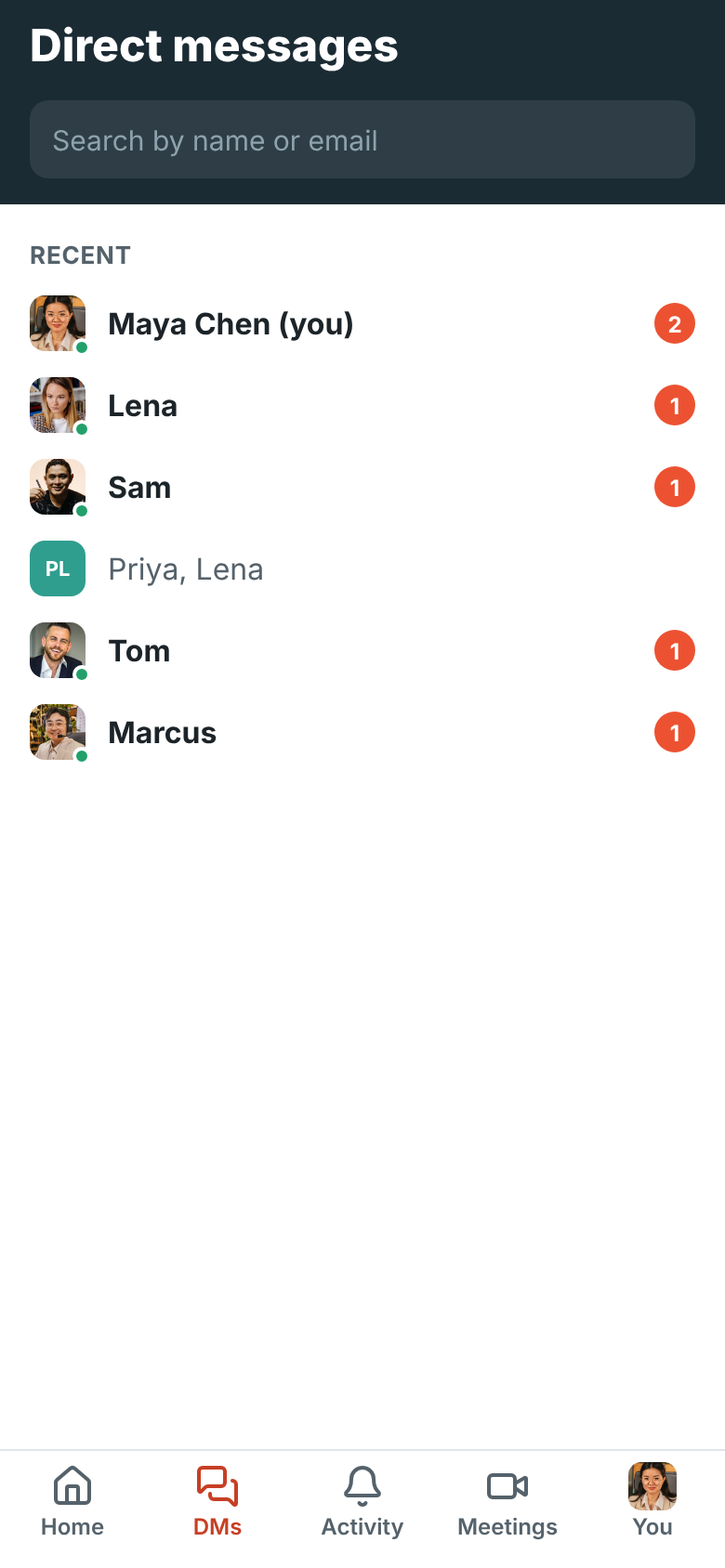
The **DMs** tab lists your recent direct messages, with a badge for unread ones. Search by name or
email to find anyone in the workspace, and tap them to message them.
## Activity
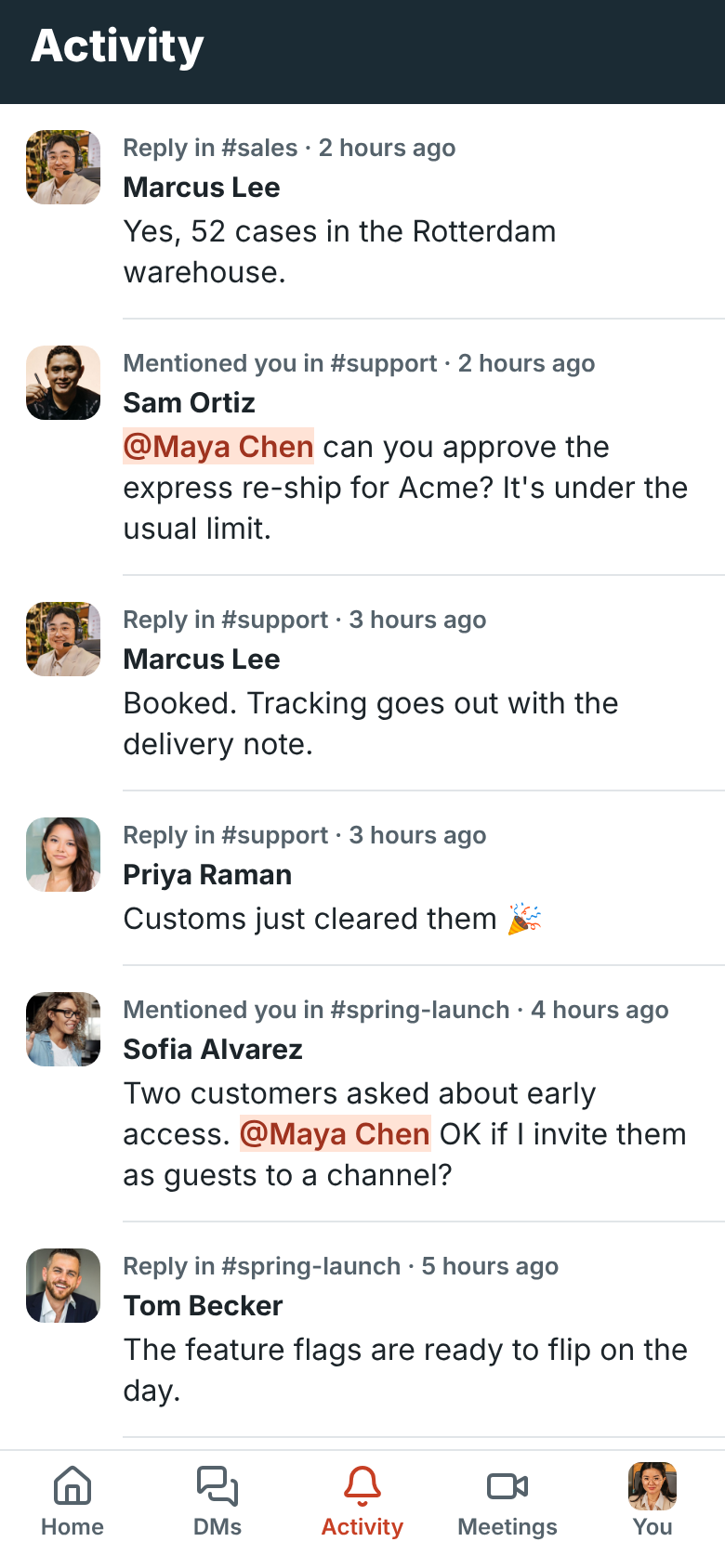
**Activity** collects what's meant for you: mentions of you (including `@channel` and `@here`),
huddles you [missed](#missed-calls) and replies in threads you started or replied in, newest first. Tap one to open the conversation or
thread it's in.
## To-dos
Tap **You → To-dos** to see the same private to-do list you have on your computer. Only you see
it. The number next to **To-dos** counts the ones due today or overdue.
- Type in the box at the top and tap **Add** to add one.
- Tap the circle to mark a to-do as done. **Show done** lists the ones you've finished.
- Tap a to-do to give it a due date (**Today**, **Tomorrow**, **End of this week** or
**Next week**), take the date away, or delete it.
- A to-do made from a message has a **From a message in …** link. Tap it to open that
conversation.
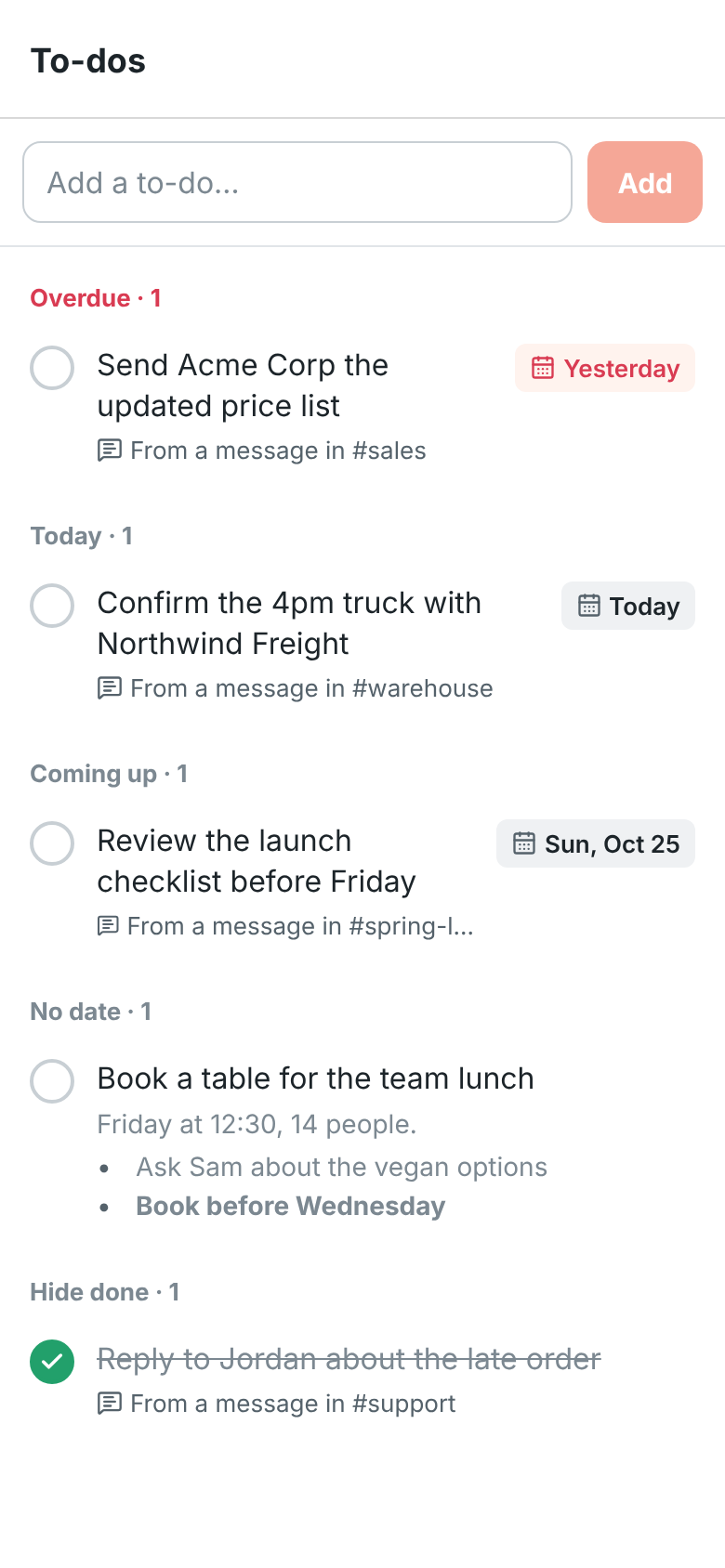
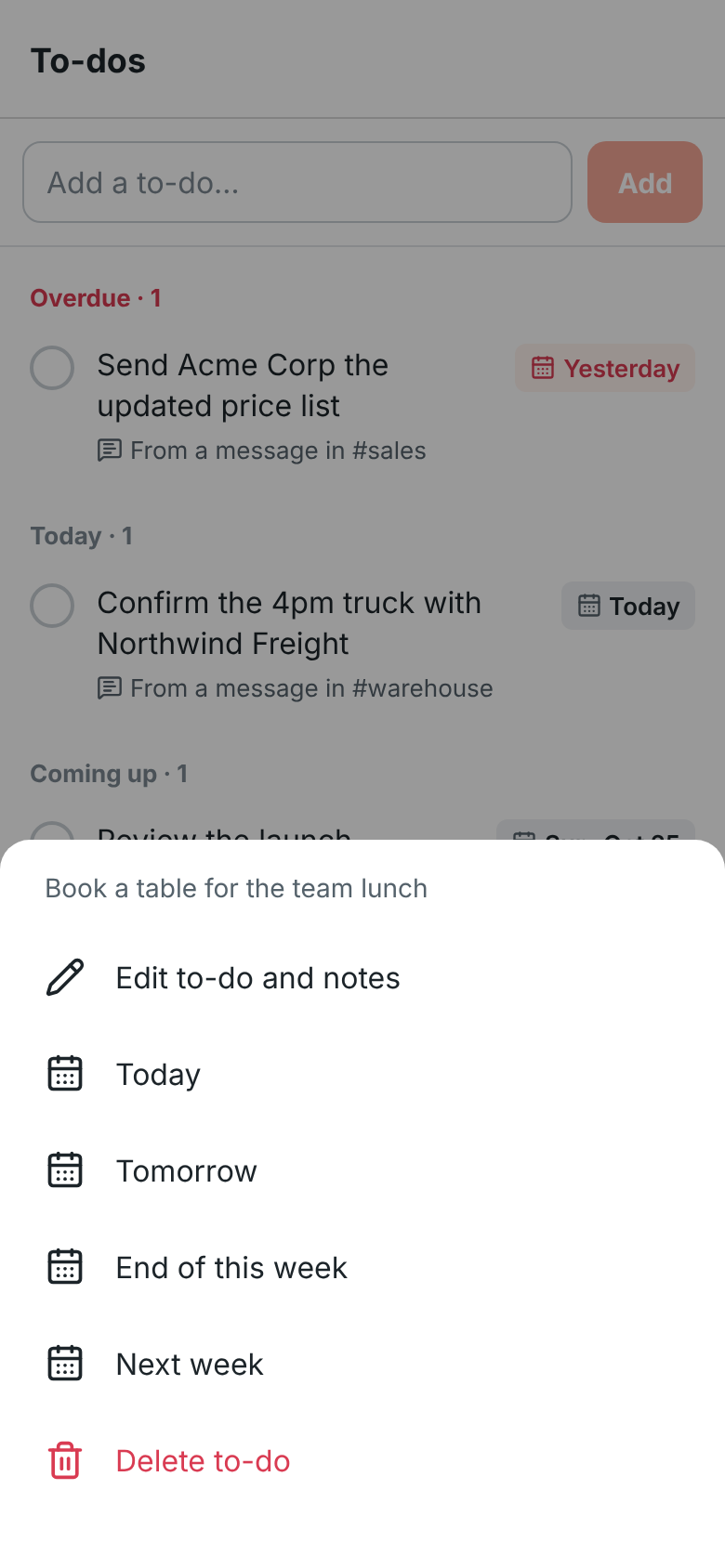
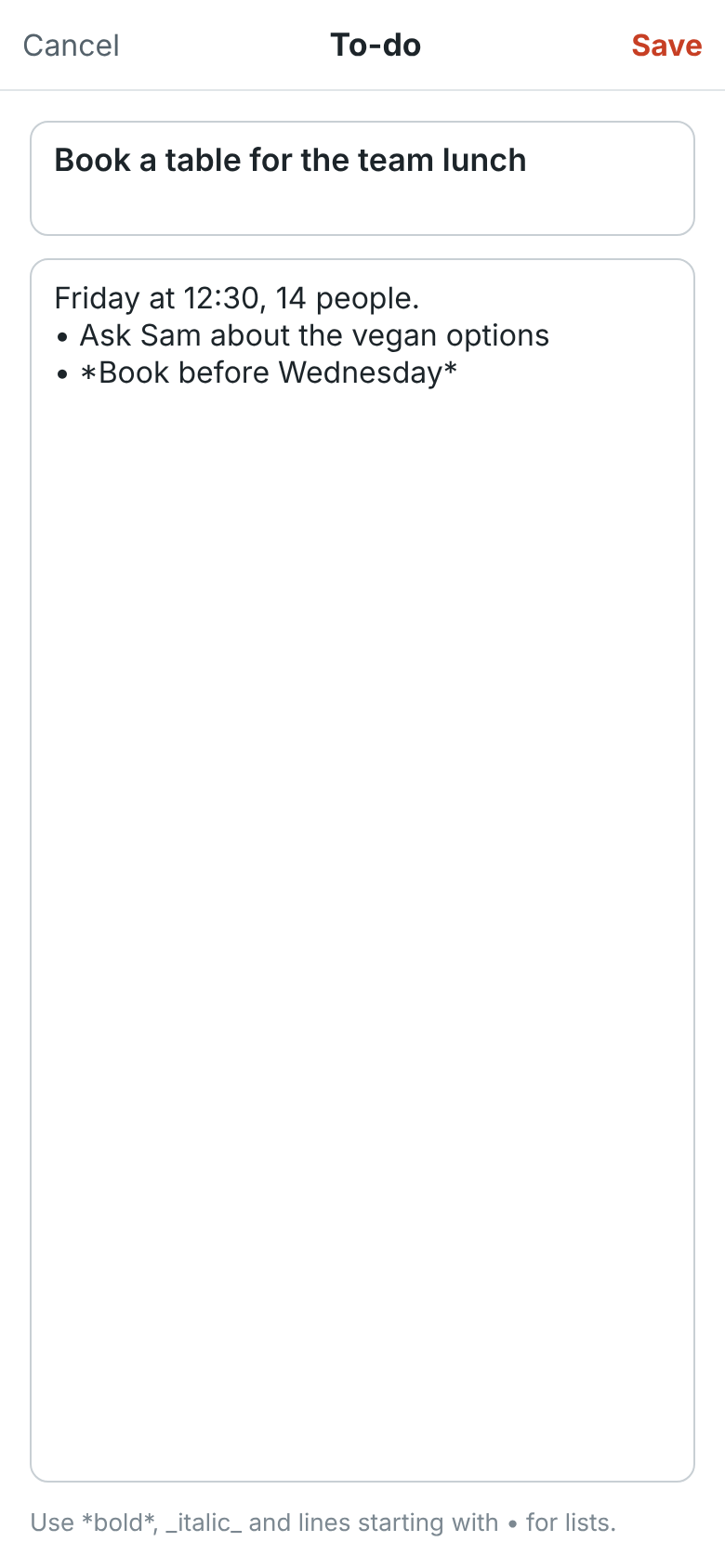
To change a to-do or add notes to it, tap it and tap **Edit to-do and notes** (or **Edit or add
notes**). The title is on top and the notes underneath; tap **Save** when you're done. Notes take
message formatting, such as `*bold*`, `_italic_` and lines starting with • for a list, and show
under the to-do's title in the list.
When your workspace has AI, the editor also has **Help me write**, **Plan it** and, for a to-do
made from a message, **Sum up the conversation**. See
[Help with your to-dos](https://freesbe.net/docs/ai-summaries/#help-with-your-to-dos).
To turn a message into a to-do, press and hold it and tap **Add to to-dos**. The to-do takes the
message's text. On Android a short note says it was added. On iPhone you can tap **View** to open
the list.
## Later
**You → Later** has the messages you saved for later and the ones you asked to be reminded about,
the same [Later](https://freesbe.net/docs/channels-and-messages/#save-for-later-and-reminders) list as on your
computer. The number next to **Later** counts reminders that have gone off.
- **In progress** lists reminders that went off first, then upcoming ones, then the rest. A
reminder that went off has a coral border.
- Tap a message to open it in its conversation or thread.
- Press and hold one for **Mark as done**, **Remind me about this** (pick a new time),
**Remove reminder** and **Remove from Later**.
- **Completed** lists the ones you marked as done. Press and hold one to move it back.
When a reminder goes off and you aren't using Freesbe elsewhere, your phone gets a notification.

## Search
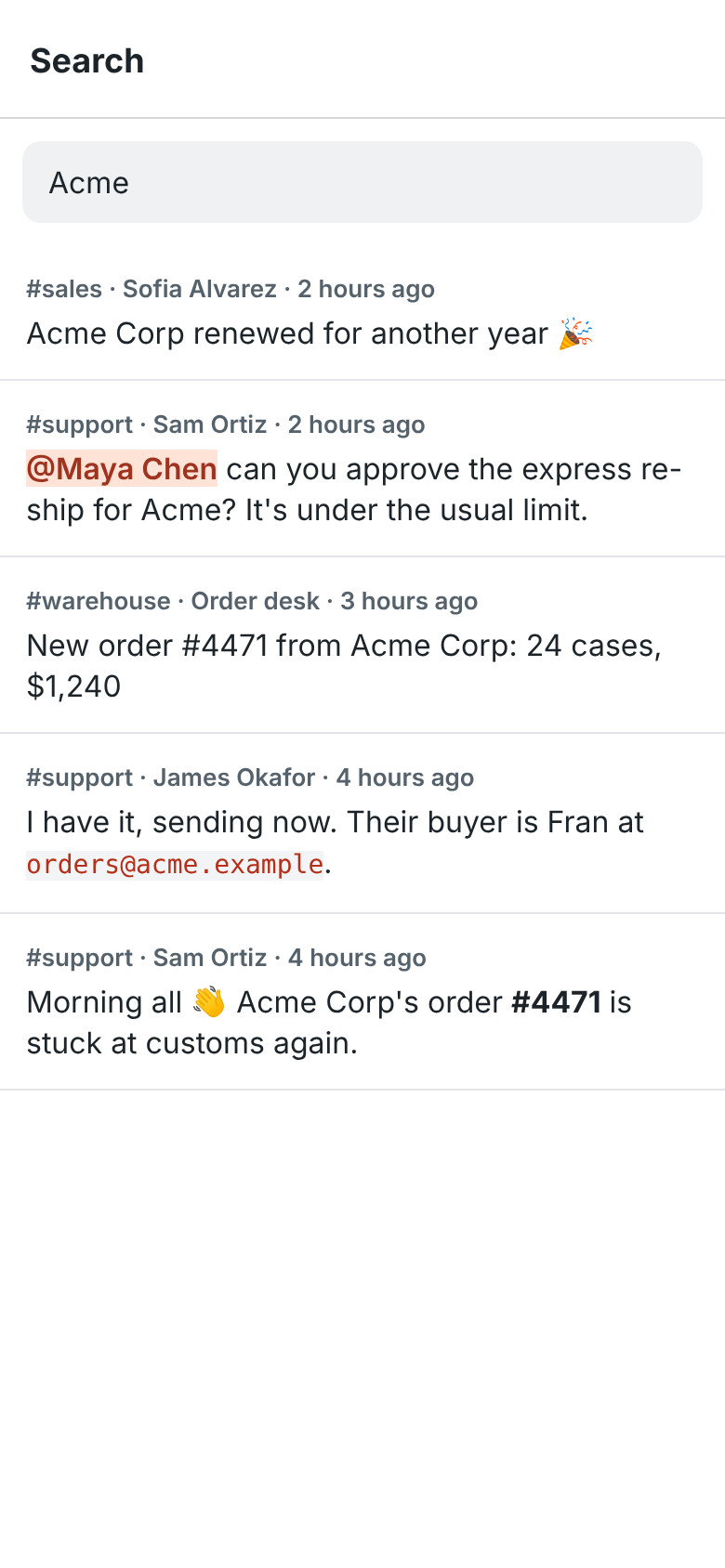
Tap the search bar on **Home** and type at least two letters. Results show the channel or person,
who wrote it and when. Tap a result to open the conversation or thread it's in. Part of a word is
enough, the same as on the computer: see
[What counts as a match](https://freesbe.net/docs/search-and-shortcuts/#what-counts-as-a-match).
## Your status
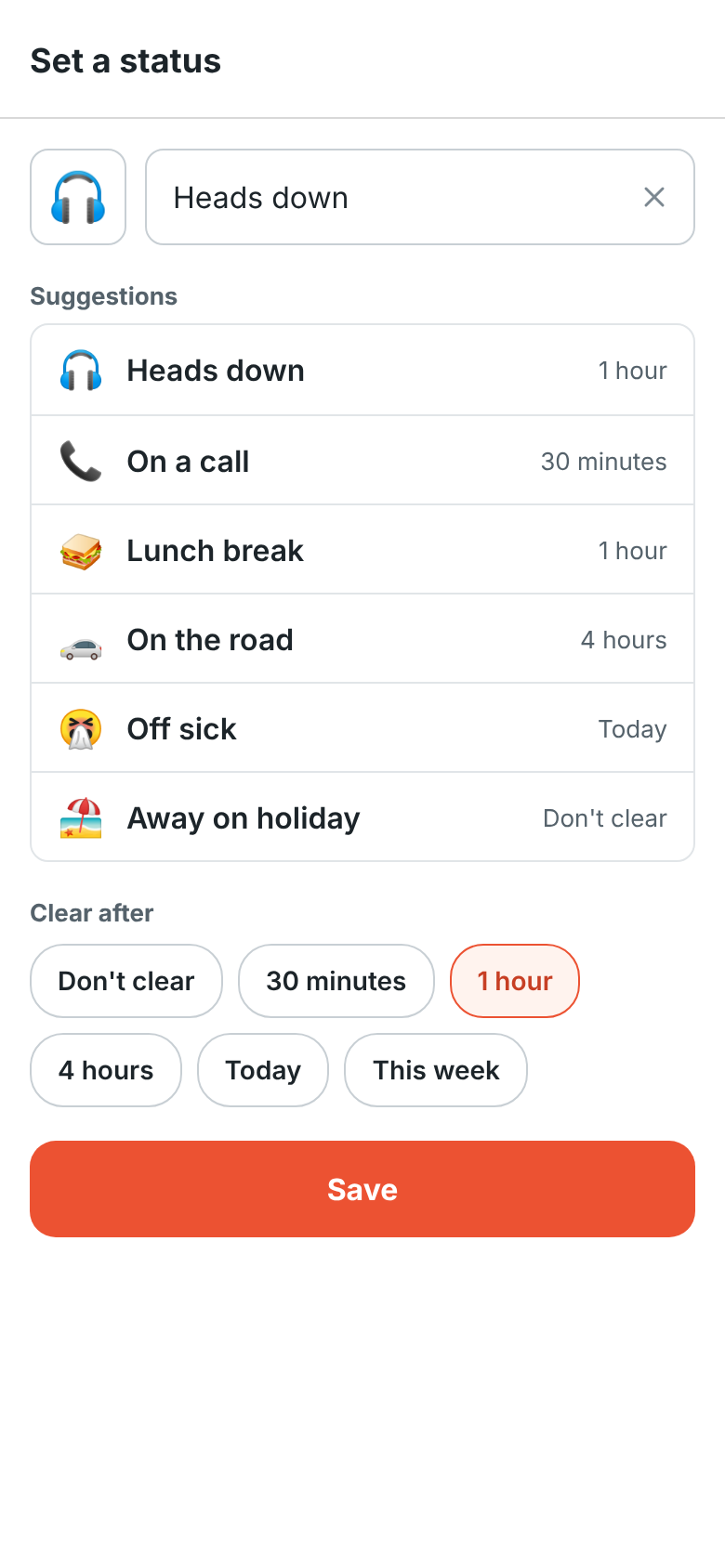
On the **You** tab, tap **Set a status** to tell people what you're up to. Pick a suggestion such
as **Heads down**, or tap the smiley to choose an emoji and type a few words. Under **Clear
after**, choose when it goes away by itself: in 30 minutes, 1 or 4 hours, at the end of today or
this week, or never. Tap **Save**. Your status shows next to your name on every device, the same as
one you set on your computer. To take it off, open it again and tap **Clear status**.
Turn on **Away** to show as away even while you have Freesbe open. Turn it off to show as active
again.
## People and profiles
Tap someone's name or picture on a message, or anyone under **Home → People**, to see their
profile: their picture, title, status, whether they're active, their local time and how far it is
from yours, their email, and the workspace's [profile fields](https://freesbe.net/docs/profile-and-preferences/#profile)
such as phone, department and manager. Tap **Message** or **Huddle** to talk to them, a phone
number to call it, or their manager to open theirs.
**People** lists everyone in the workspace. Search by name, title, department or email.
On your own profile, tap **Edit profile** to change your name, title and the profile fields you
fill in yourself, or **Set a status**. Change your photo, and fields like dates and your manager,
in [Preferences](https://freesbe.net/docs/profile-and-preferences/#profile) on your computer. Tap your name on the
**You** tab to open your profile.


## Notifications
The app asks to send notifications after you sign in. Allow it to get a notification on your phone
for:
- Messages in your DMs and group DMs.
- Mentions of you.
- Replies in threads you started or replied in.
- Channels you've set to **Every message**.
- A guest who has been waiting a couple of minutes in the lobby of a meeting you host. Tap it to
open the meeting. See [Waiting room alerts](https://freesbe.net/docs/meetings/#waiting-room-alerts).
These follow the same rules as [desktop notifications](https://freesbe.net/docs/notifications/), including muted
channels and each channel's own setting. A huddle call to you rings your phone too: see
[Answer a call](#answer-a-call).
Your phone only gets notifications while you aren't using Freesbe somewhere else. While you're
active in the desktop app or a browser, those alert you instead; when you step away from your
computer, your phone takes over.
Tap a notification to open the message, or its thread. Press and hold it (or swipe it down) for
two more choices that don't open the app:
- **Reply**: type an answer and tap **Send**. It goes to the conversation, or to the thread when
the notification was about a thread.
- **Mark as read**: marks the conversation read up to that message, on every device.
On iPhone, the number on Freesbe's icon counts your unread direct messages and mentions, and goes
up with each notification while the app is closed. Android shows Freesbe's notifications on its
icon the way it does for every app.
Links to Freesbe conversations and messages, such as ones a teammate pasted in an email, open
straight in the app.
Alerts and other app messages show their title first; on Android, expand the notification to see
details like the host and severity. See
[What a notification says](https://freesbe.net/docs/notifications/#what-a-notification-says).
While you have the app open, a new message that would notify you plays your phone's notification
sound instead, with a short buzz, and a huddle call rings with your phone's ringtone. Both follow
your phone's volume and silent mode.
On Android, each conversation and thread gets one notification, which shows its newest messages
and how many came. It rings for the first new message, and stays quiet as more arrive in the same
burst. Read the conversation anywhere, on your phone, your computer or in a browser, and its
notification goes away. If your phone was offline for a while, what you missed comes in quietly
when it's back, instead of ringing once for every message.

On Android, Freesbe's notifications come in three kinds: **Messages**, **Earlier and follow-up
messages** (the quiet ones) and **Calls**. To give one a different sound, or turn it off, tap
**Notifications** on the **You** tab and pick the kind.
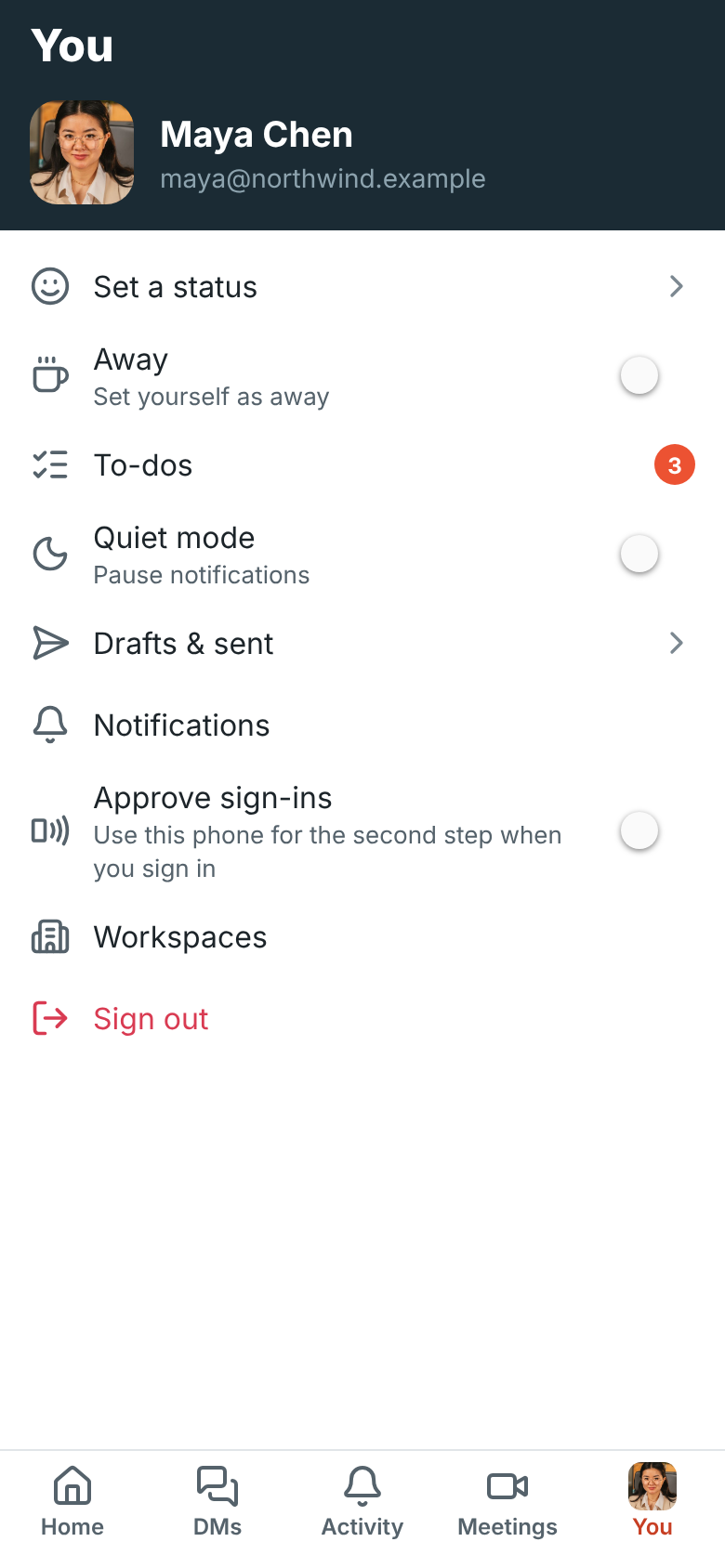
### Quiet mode
On the **You** tab, turn on **Quiet mode** and choose how long to stop notifications, on every
device: 30 minutes, 1 or 2 hours, or until 9 tomorrow morning. Turn it off to get them again
straight away. **Notifications** on the same tab opens your phone's
settings for Freesbe, where you can turn them off or change how they show.
## Passkeys
Sign in faster with a passkey: tap **Add a passkey** on the **You** tab and confirm with your
fingerprint, face or phone PIN. Your phone saves it in iCloud Keychain or Google Password Manager,
so it also works on your other devices signed in to the same account. Next time, tap **Sign in
with a passkey** on the sign-in screen.
Passkeys you add on your phone are listed with your others in **Preferences → My account → Sign-in → Passkeys**. See [Sign-in and security](https://freesbe.net/docs/sign-in-and-security/#passkeys).
## Approve sign-ins
Your phone can give the second step when you sign in on a computer. On the **You** tab, turn on
**Approve sign-ins** and confirm with your fingerprint or face. When a computer asks you to verify
it's you, a notification asks **Is this you signing in?** with where the sign-in is from. Tap the
number your computer shows and confirm. Tap **Deny** if it wasn't you.
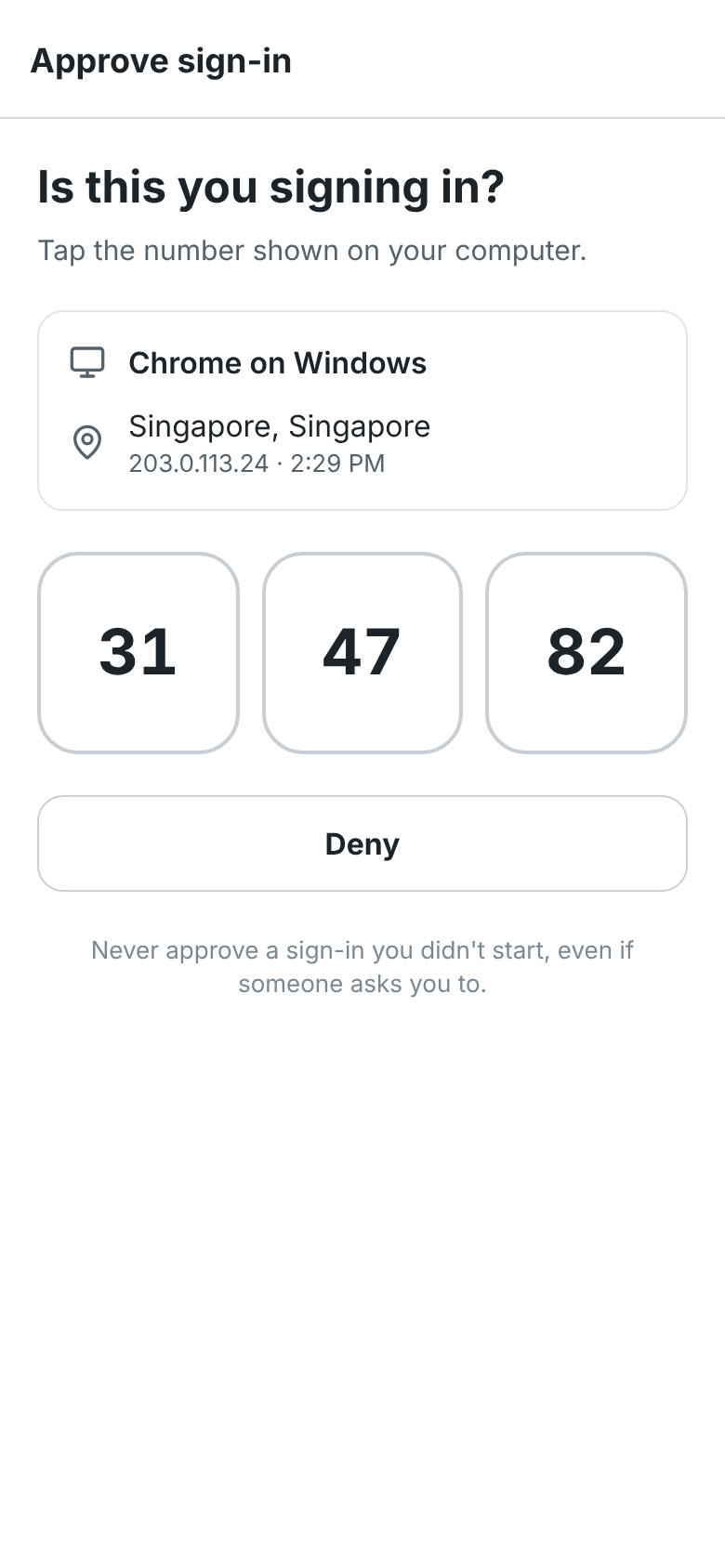
See [Approve sign-ins on your phone](https://freesbe.net/docs/sign-in-and-security/#approve-sign-ins-on-your-phone).
## More than one workspace
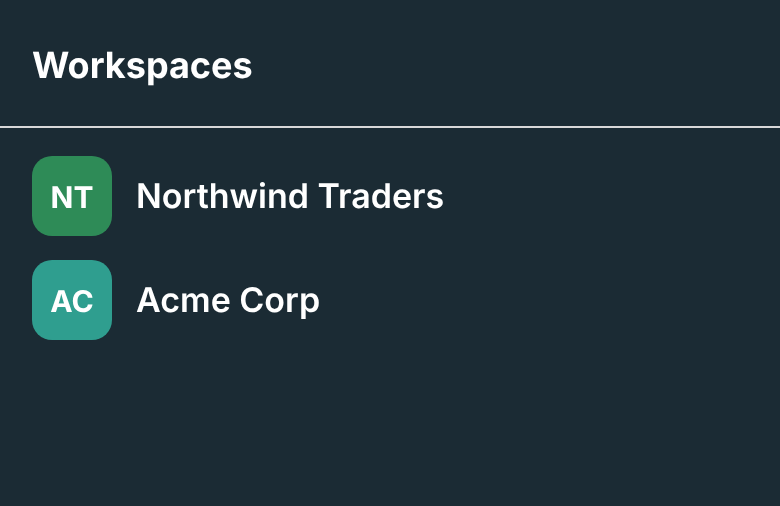
Tap the workspace name on **Home**, or **Workspaces** on the **You** tab, and pick another
workspace. The app opens the one you used last next time.
## Text size
Messages are drawn a little bigger on phones than on a computer, to be easy to read. To make them
bigger or smaller, tap **You → Text size** and pick **Small**, **Default**, **Large** or **Extra
large**. It changes messages, names and the message box right away, on this phone only. Your
phone's own text size setting still applies on top.


## Join and leave sounds
On Android, huddles and meetings play a soft chime when someone joins and a quieter one when
someone leaves, like on your computer, in calls of up to 8 people. It plays with the call, on the
loudspeaker, earpiece or headset you're using. To turn it off on this phone, switch off **You →
Join and leave sounds**.
## Dark mode and your language
The app follows your phone's light or dark setting, and your phone's language. In Hebrew and Arabic
it's laid out right to left. See [Language](https://freesbe.net/docs/profile-and-preferences/#language) for the
languages Freesbe speaks.
## What's new
The first time you open the app after an update, a card slides up with what changed since you
last looked. **You → What's new** shows the latest changes any time. See
[What's new after an update](https://freesbe.net/docs/getting-help/#whats-new-after-an-update).
## Get help from support
A company that uses Freesbe can help you in a [support session](https://freesbe.net/docs/support-sessions/): open
the link they sent on your phone, or tap **Got a code from support? Join with a code** on the
sign-in screen. You don't need an account. On Android you can share your screen, and let them
control the phone once you allow it. See
[On an Android phone](https://freesbe.net/docs/support-sessions/#on-an-android-phone).
## Sign out
Tap **Sign out** on the **You** tab. Your phone stops getting notifications at once.
You can also sign the app out from your computer: it's listed as **Freesbe for iOS** or
**Freesbe for Android** in [Your sessions](https://freesbe.net/docs/sign-in-and-security/#your-sessions). Signing it
out there signs out the app and stops its notifications too.
---
# Channels, DMs and messages
Source: https://freesbe.net/docs/channels-and-messages/
> Create and join channels, send direct messages, reply in threads, react, mention people, share files, record audio and video clips and format text.
## Channels
Channels are where conversations around a topic happen.
- **Public channels** can be found and joined by anyone in the workspace (but not by
[guests](https://freesbe.net/docs/guests/)).
- **Private channels** are only visible to the people in them. A lock icon marks them.
### Find and join a channel
Click **+** next to **Channels** in the sidebar and choose **Browse channels**. Search by name or
topic, then click a channel to look inside or **Join** it. Tick **Include archived channels** to
see old ones.
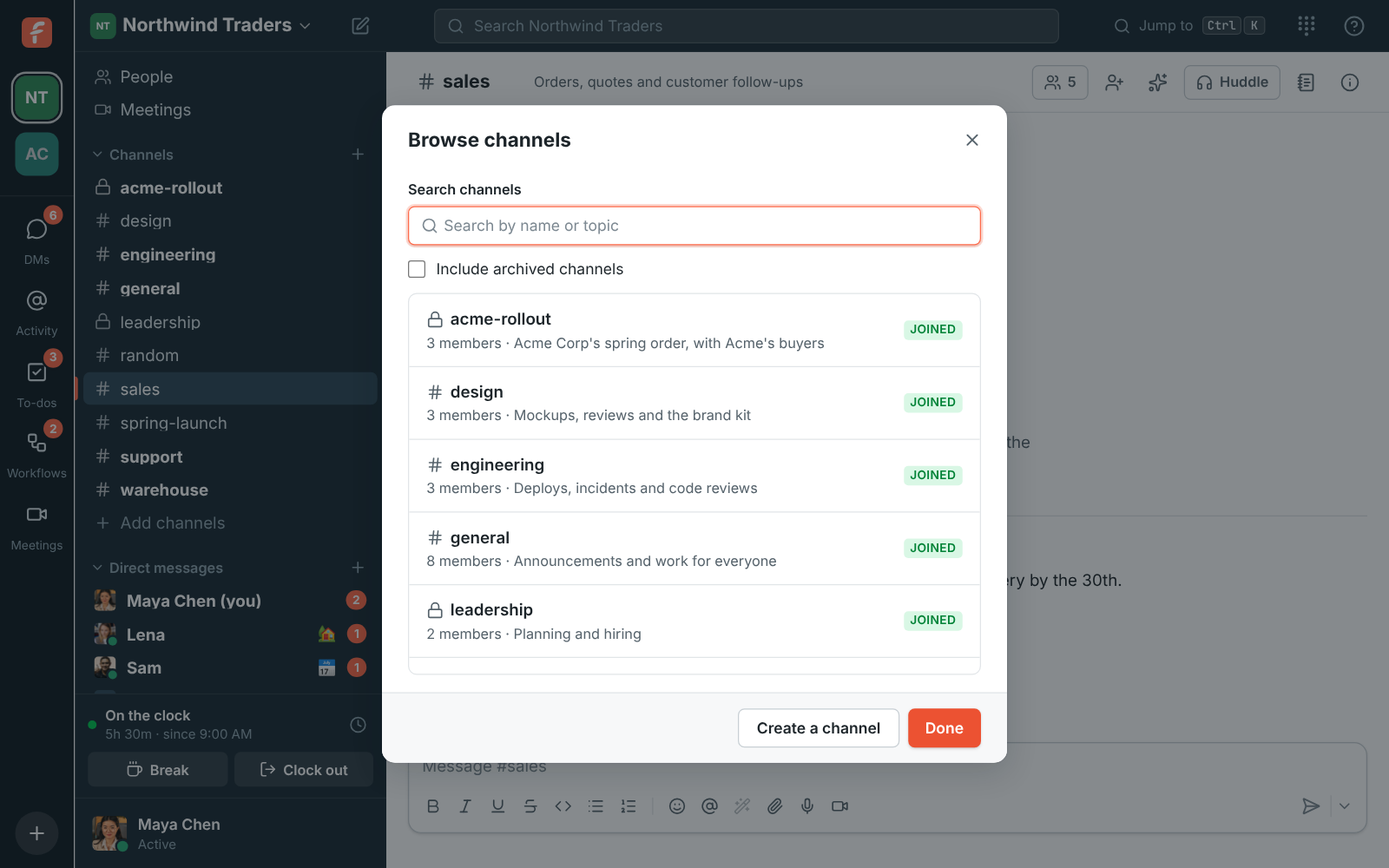
You can also read a public channel without joining it; the message box offers to join when you
want to post.
### Create a channel
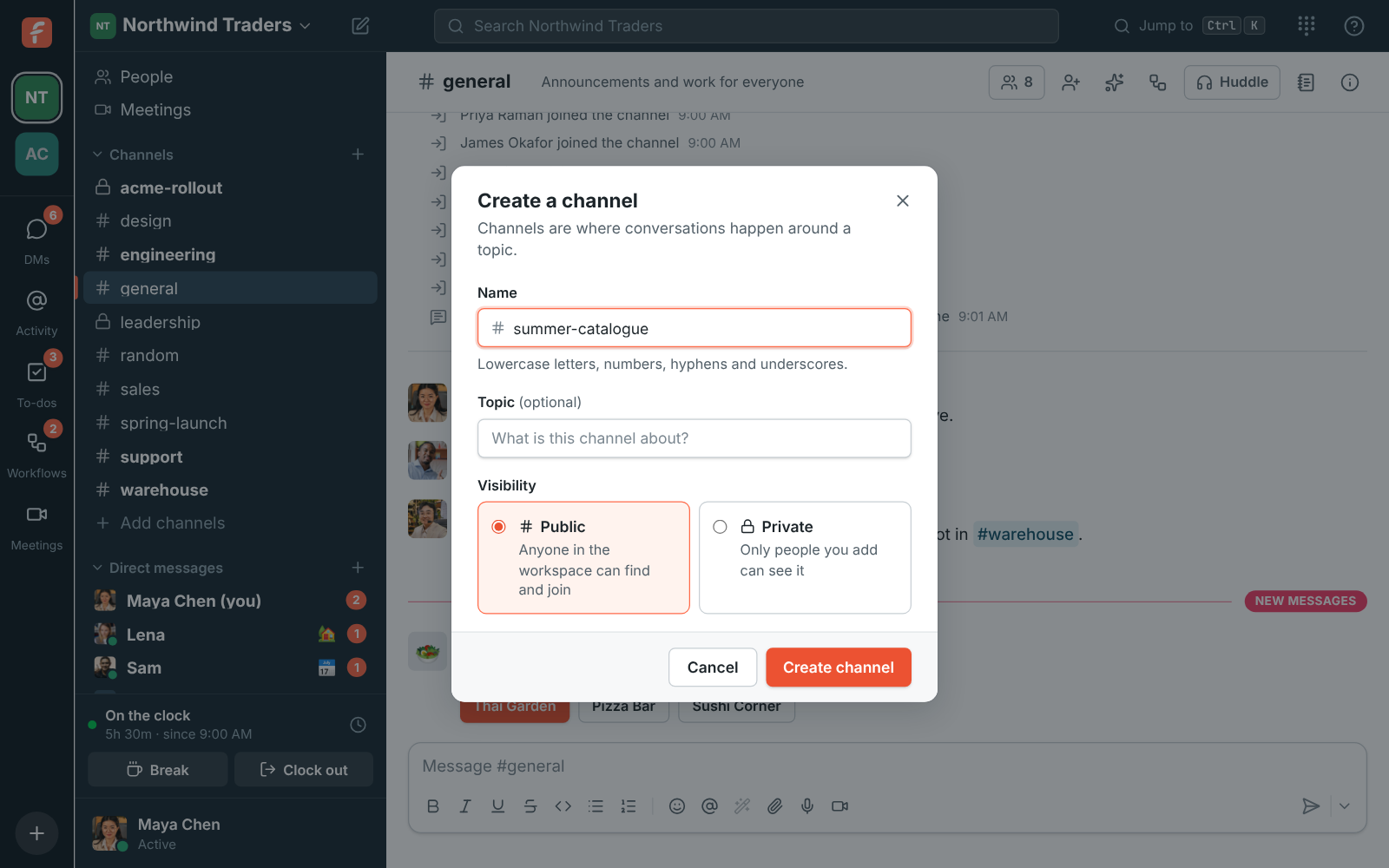
1. Click **+** next to **Channels**, then **Create a channel**.
2. Give it a name. Names use lowercase letters, numbers, hyphens and underscores, up to 80
characters, and must be unique. Freesbe turns "Q3 Launch!" into `q3-launch` for you.
3. Add a topic if you like, and choose **Public** or **Private**.
### Channel details
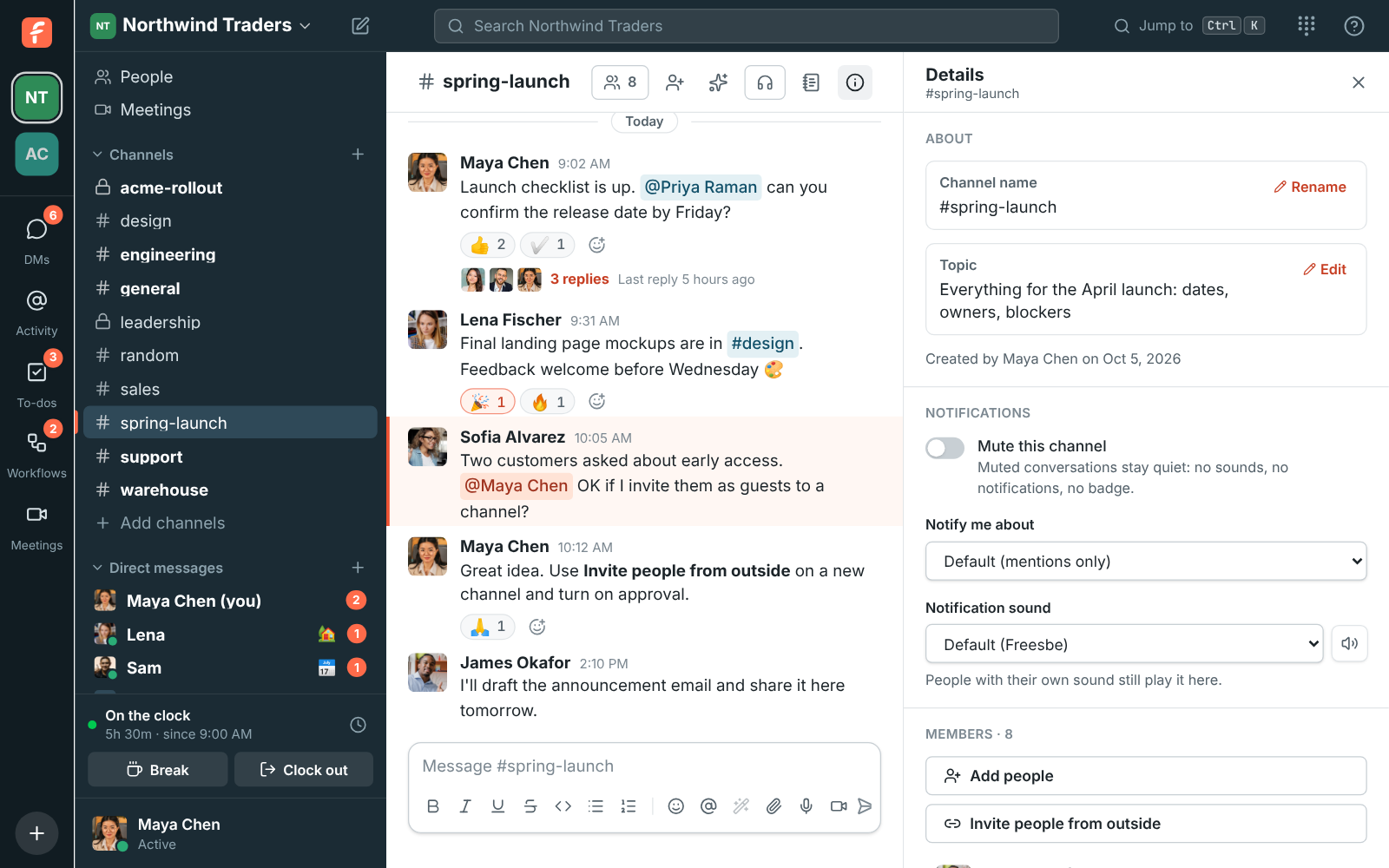
Click the channel name at the top to open its details. There you can:
- Change its **Topic**. Admins and whoever created the channel can also **Rename** it.
- See and add **Members**. Admins and the channel's creator can remove people.
- Choose **Notifications** for this channel, or mute it. See [Notifications](https://freesbe.net/docs/notifications/).
- **Leave channel**. You can rejoin a public channel any time from **Browse channels**; to get back
into a private one, someone in it has to add you again.
- **Archive channel**, if you're an admin or created it. Nobody can post in an archived channel,
and it can be unarchived later.
The workspace's general channel includes everyone, so it can't be left, renamed or archived.
### Sidebar sections
Group channels and direct messages your way, such as **Customers** or **Launch**, in sections of
your own above **Channels** and **Direct messages**. Only you see your sections, and they're the
same on all your devices.
- To make one, click **+** next to **Channels** and choose **Create a section**. Give it a name and,
if you like, an emoji.
- To move a conversation, right-click it in the sidebar or point at it and click **⋯**, then pick a
section under **Move to**. **New section…** makes a section and moves it there in one go. The
same menu marks the conversation read, mutes it, copies a link to it, opens its notification
settings or leaves it. See [Right-click menus](#right-click-menus).
- Click a section's name to fold it; folded sections still show conversations with something new.
- A section's **⋯** menu renames it, moves it up or down, or deletes it. Deleting a section puts
its conversations back under **Channels** and **Direct messages**; you don't leave any of them.

### Resize the sidebar and side panel
Drag the divider between the sidebar and the conversation to make the sidebar wider or narrower,
the same way you would in Slack. The divider on the side panel (a thread, channel details, a
canvas, pins, files, a profile or search results) works the same, so you can give a thread more
room.
- Point at the edge of the sidebar or the side panel: a line shows, and the pointer becomes a
resize arrow. Drag it.
- **Double-click** the divider to go back to the default width.
- With a keyboard, press **Tab** until the divider is focused, then use the **arrow keys** (hold
**Shift** for bigger steps). **Home** and **End** jump to the narrowest and widest, and
**Enter** resets it.
- Freesbe remembers the widths on each computer and browser, in the web app and the desktop app.
A canvas keeps its own width, since a document usually wants more room.
- The conversation always keeps enough room to read, so a divider stops when it gets too close.
On small screens, where the sidebar and side panel slide over the conversation, they keep their
fixed widths.

## Direct messages
Direct messages (DMs) are private conversations outside channels.
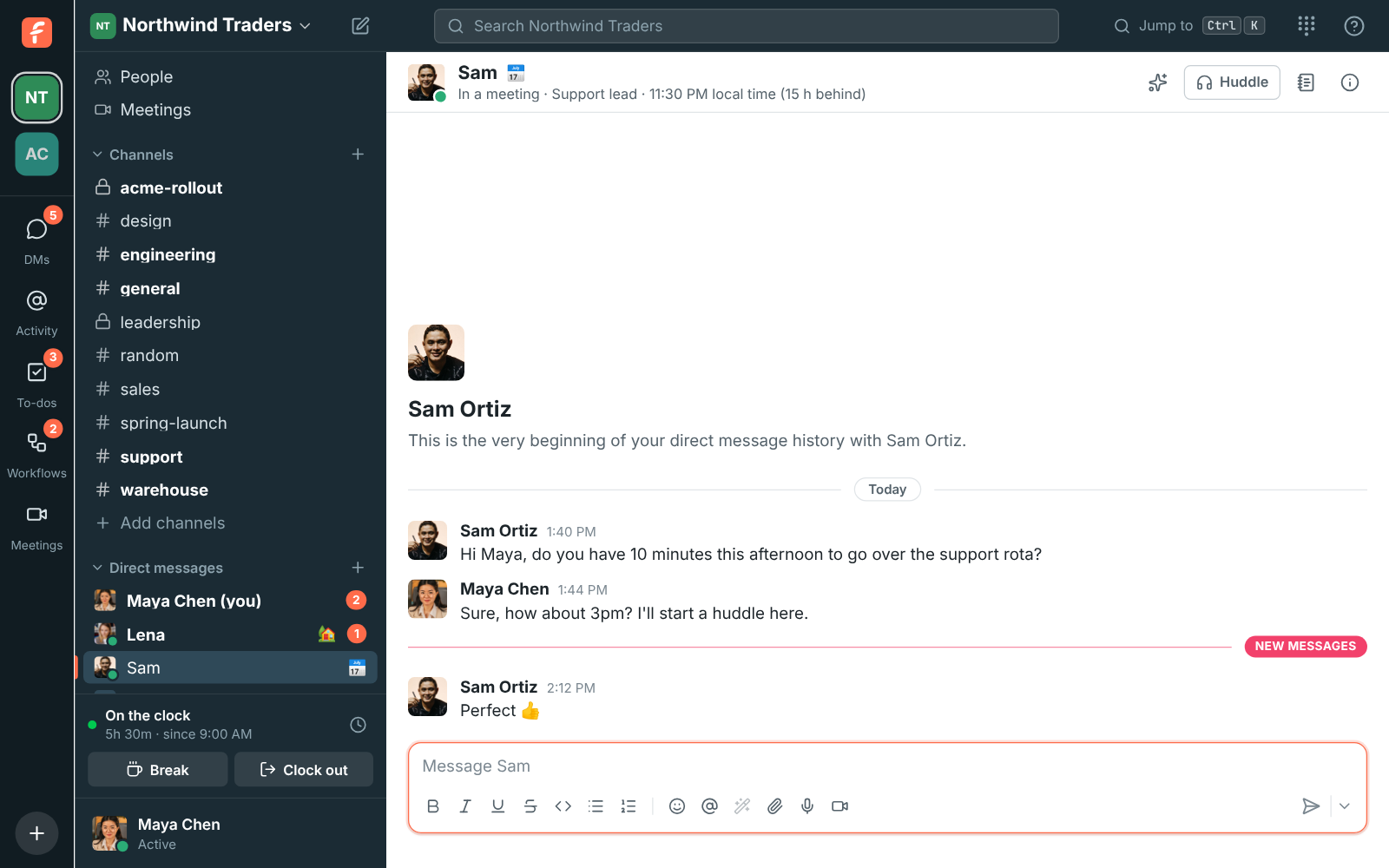
1. Click **New message** next to **Direct messages** (or the pencil icon by the workspace name).
2. Pick up to 8 people. A DM with 2 or more others is a group DM.
3. Click **Start conversation**.
Opening a DM with the same people again takes you back to the same conversation. Pick only
yourself to get a private notes space.
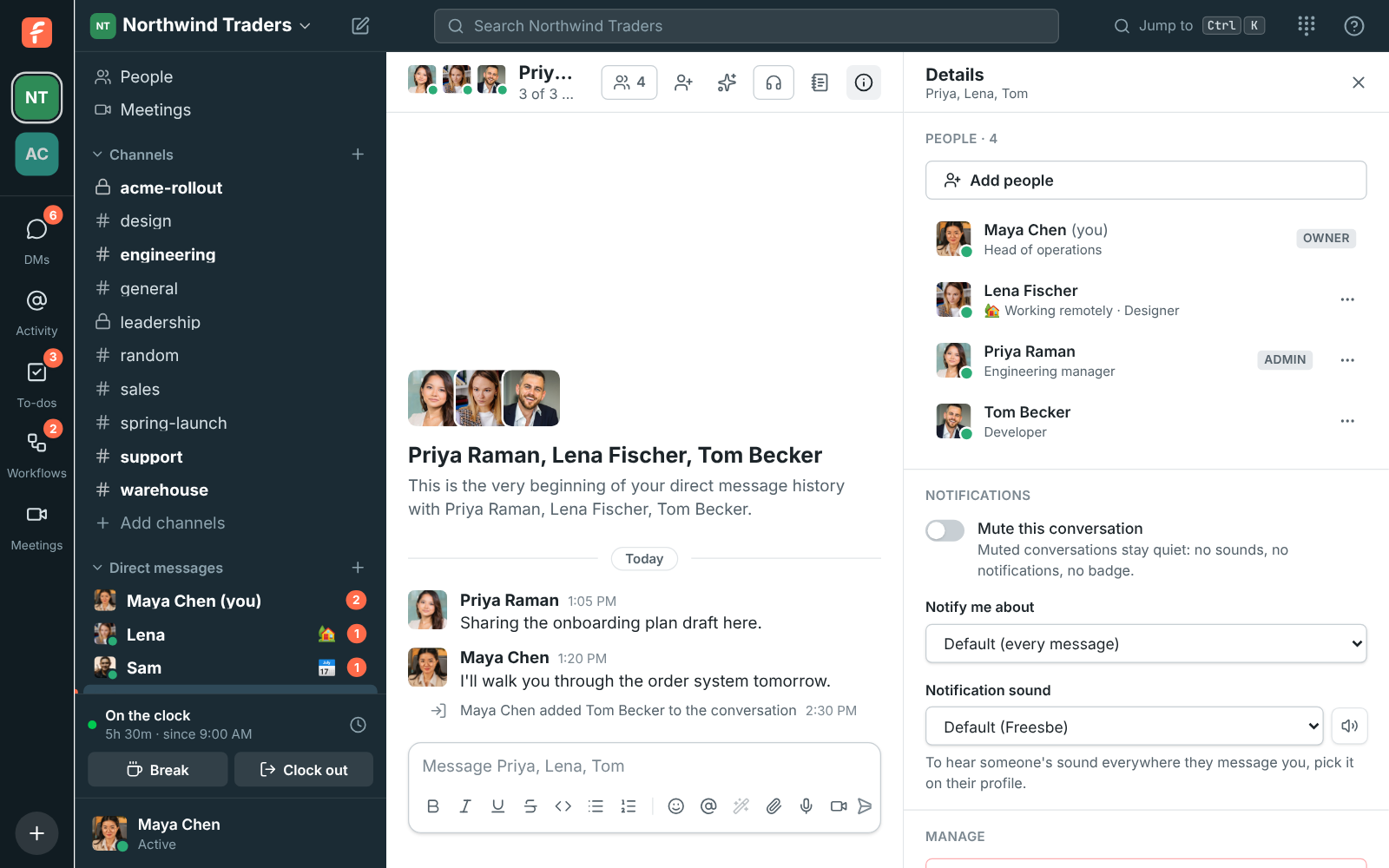
### See who's in a DM
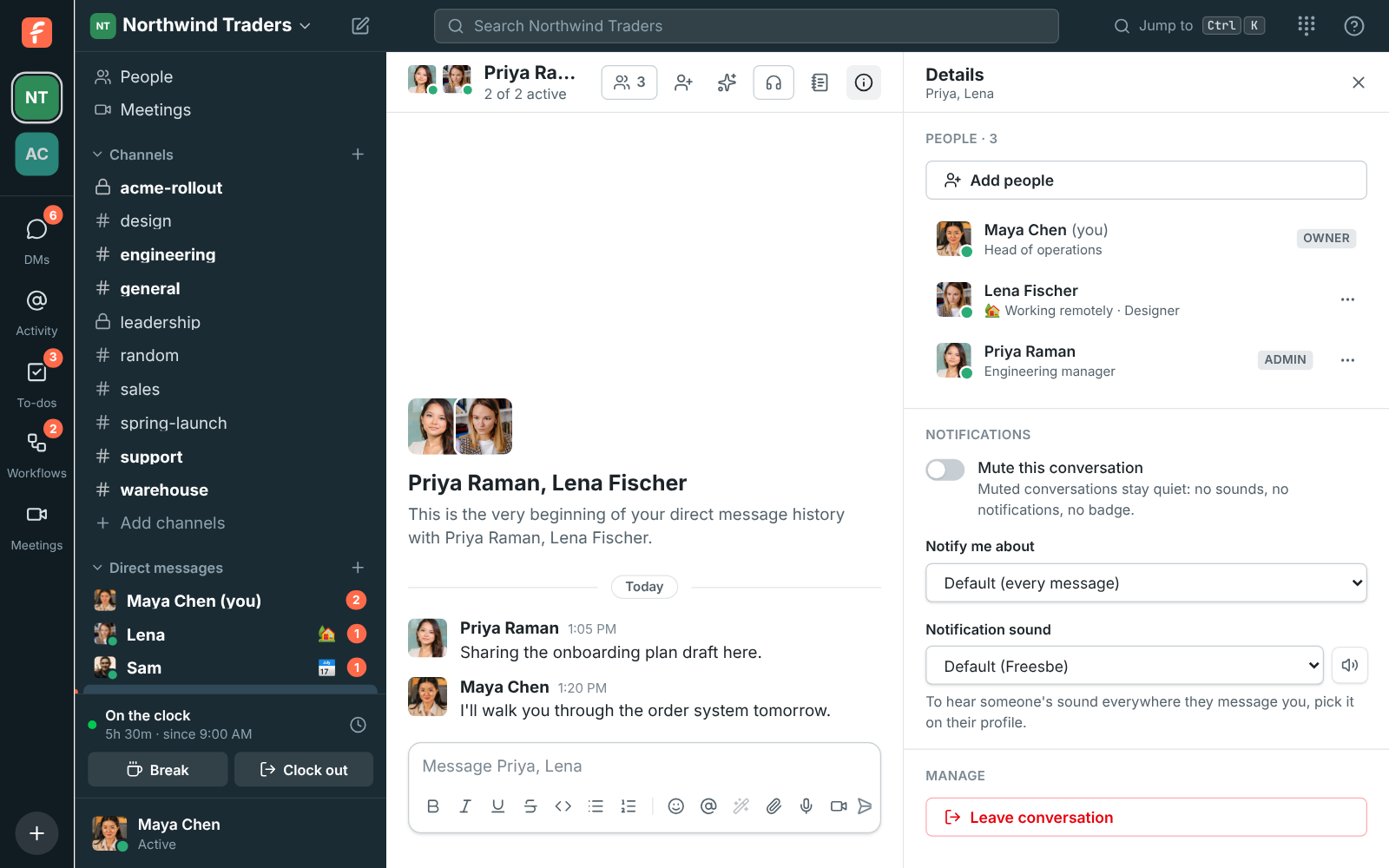
The top of a group DM shows everyone's picture with a green dot for whoever is active, and how many
of them are active right now. In the sidebar, the group's people count gets a green dot while
anyone else in it is active.
Click the names, the people count next to them, or **Show details** (the ⓘ button) to open the
details. **People** lists everyone in the conversation with their status, job title, whether
they're active, and their role in the workspace.
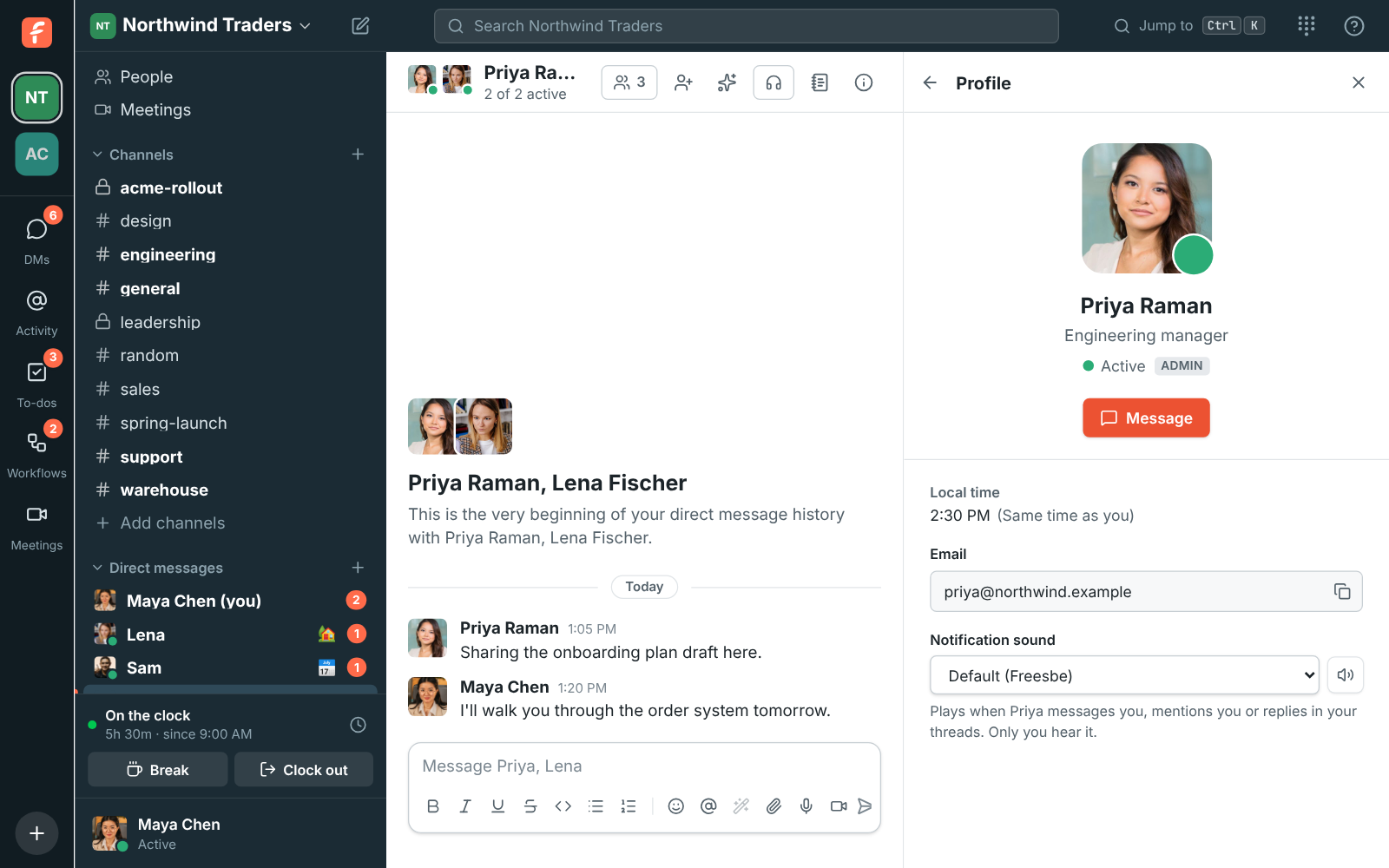
Click anyone to open their full profile: local time, email, status and a button to message them
directly. The back arrow at the top takes you back to the conversation's details.
### Group DMs
A group DM is a DM with three or more people, you included. Anyone in it can change who's in it,
except guests.
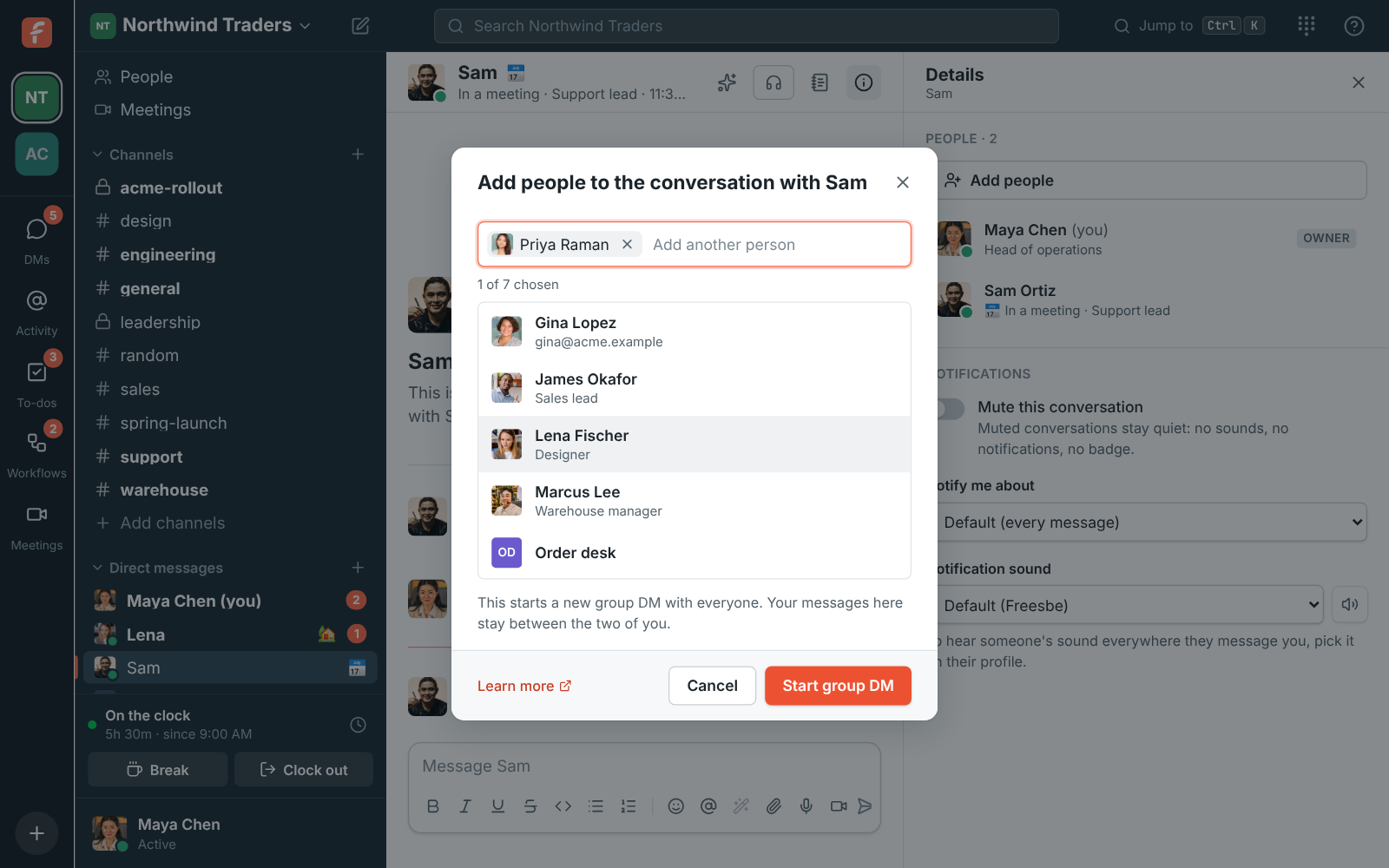
**Add people.** Click the add-person button at the top of the conversation, or **Add people** in
its details, then pick who to add (a DM holds up to 9 people). The people you add see the whole
conversation, including messages sent before they joined. If those earlier messages should stay
private, click **Start a new group DM instead**: Freesbe opens a separate conversation with
everyone, and the original stays as it was.
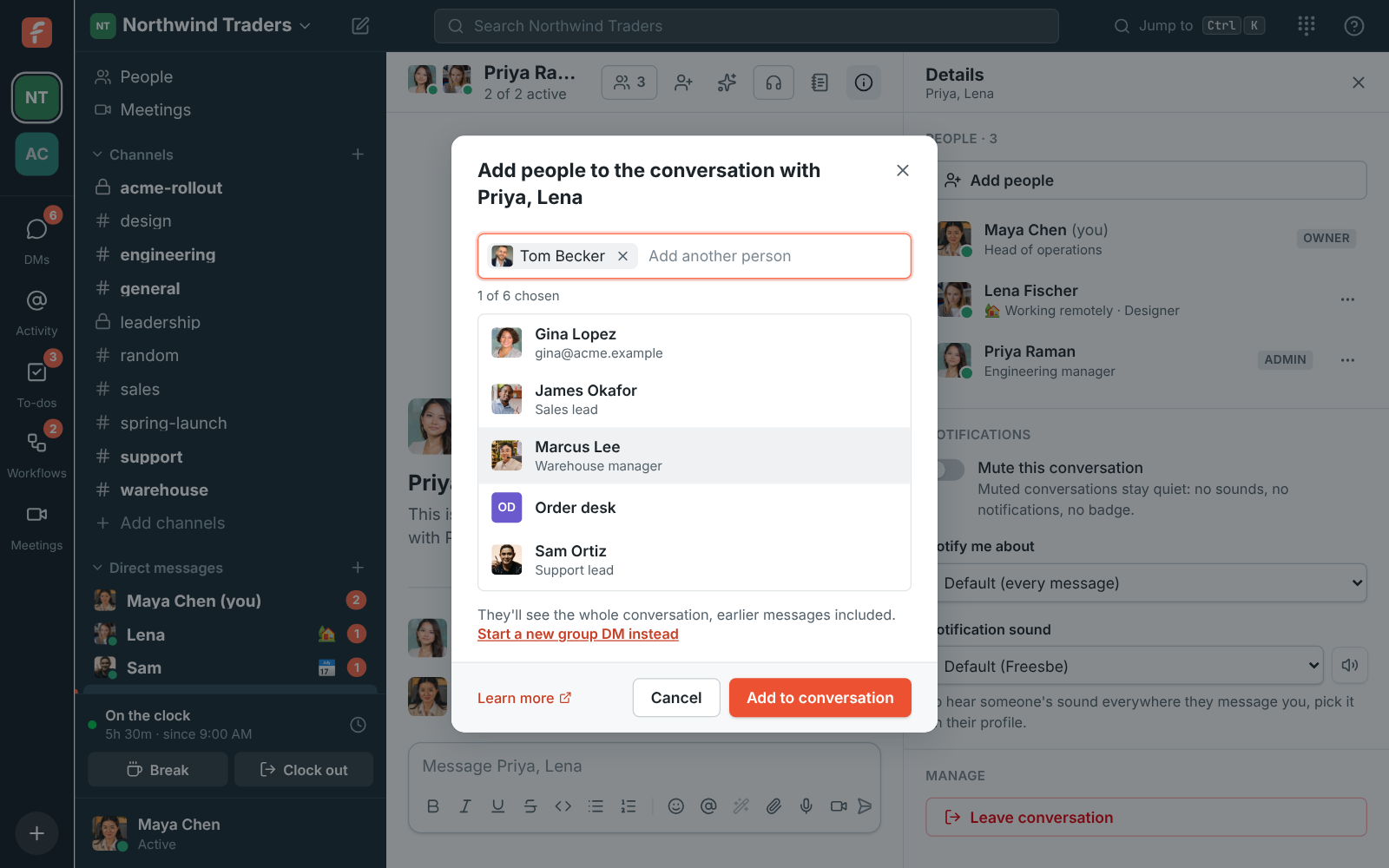
Everyone sees a note in the conversation saying who was added and by whom.
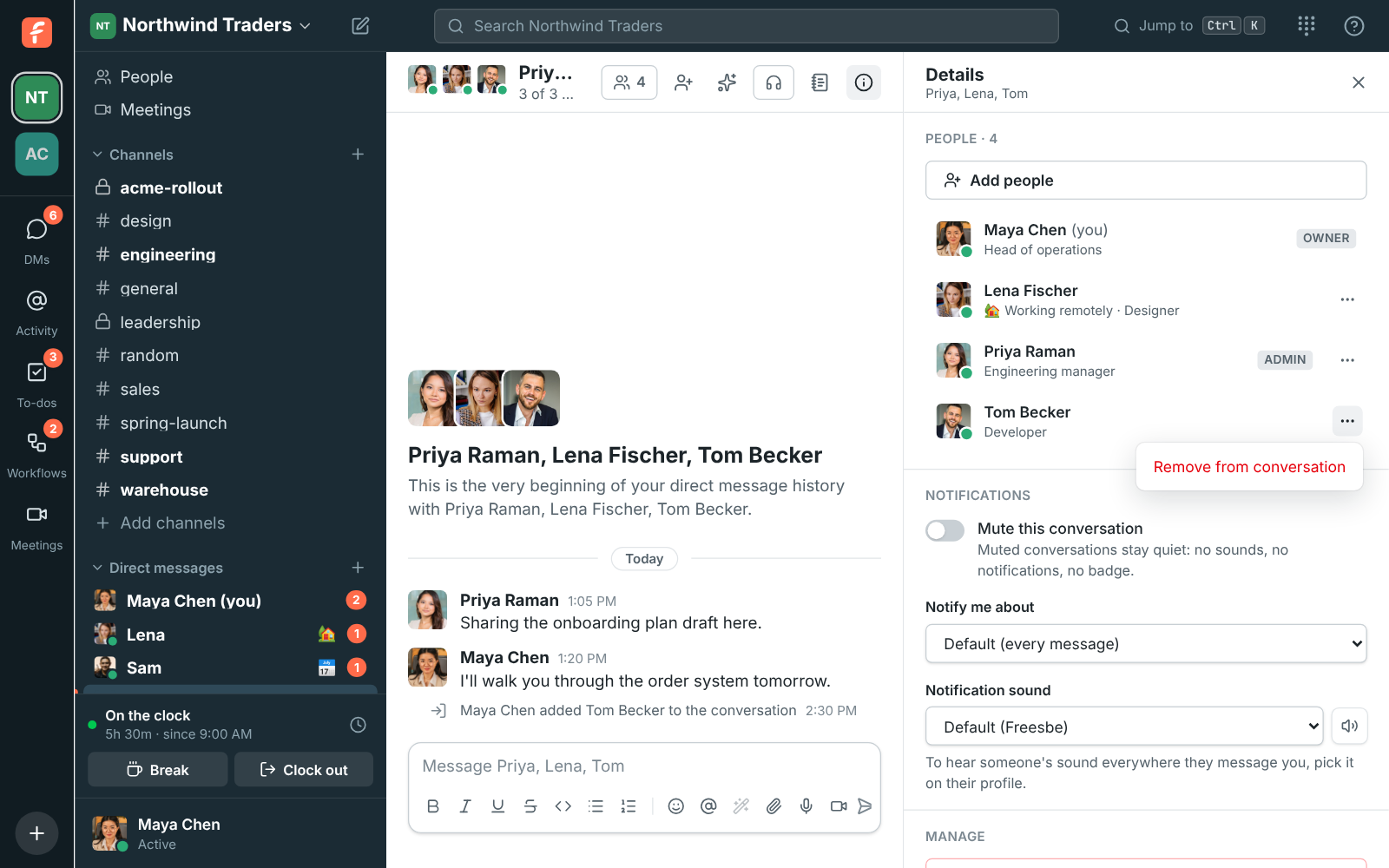
**Remove someone.** In the details, click **…** next to the person and choose **Remove from
conversation**. They lose access to the conversation and its messages right away, and everyone
still in it sees a note.
**Leave.** Click **Leave conversation** at the bottom of the details. You won't see new messages
unless someone in it adds you back.
A 1:1 DM always stays between its two people, so you can't leave it or remove the other person.
Adding someone to a 1:1 DM starts a new group DM with all of you instead, and your 1:1 messages
stay where they are.
Opening a DM with exactly the same people takes you to the group that has them, even after its
people changed.
## Sending messages
Type in the box at the bottom and press Enter. Shift+Enter adds a
new line. A message can be up to 40,000 characters. Anything you type and don't send is kept as a
draft, on all your devices. See [Drafts](#drafts).
### Mentions
- Type `@` and a name to mention someone. They get a notification.
- `@here`, `@channel` and `@everyone` notify everyone in the channel. Use them sparingly.
- Type `#` to link a channel, and `:` to search for an emoji, such as `:tada:`.
### Emoji
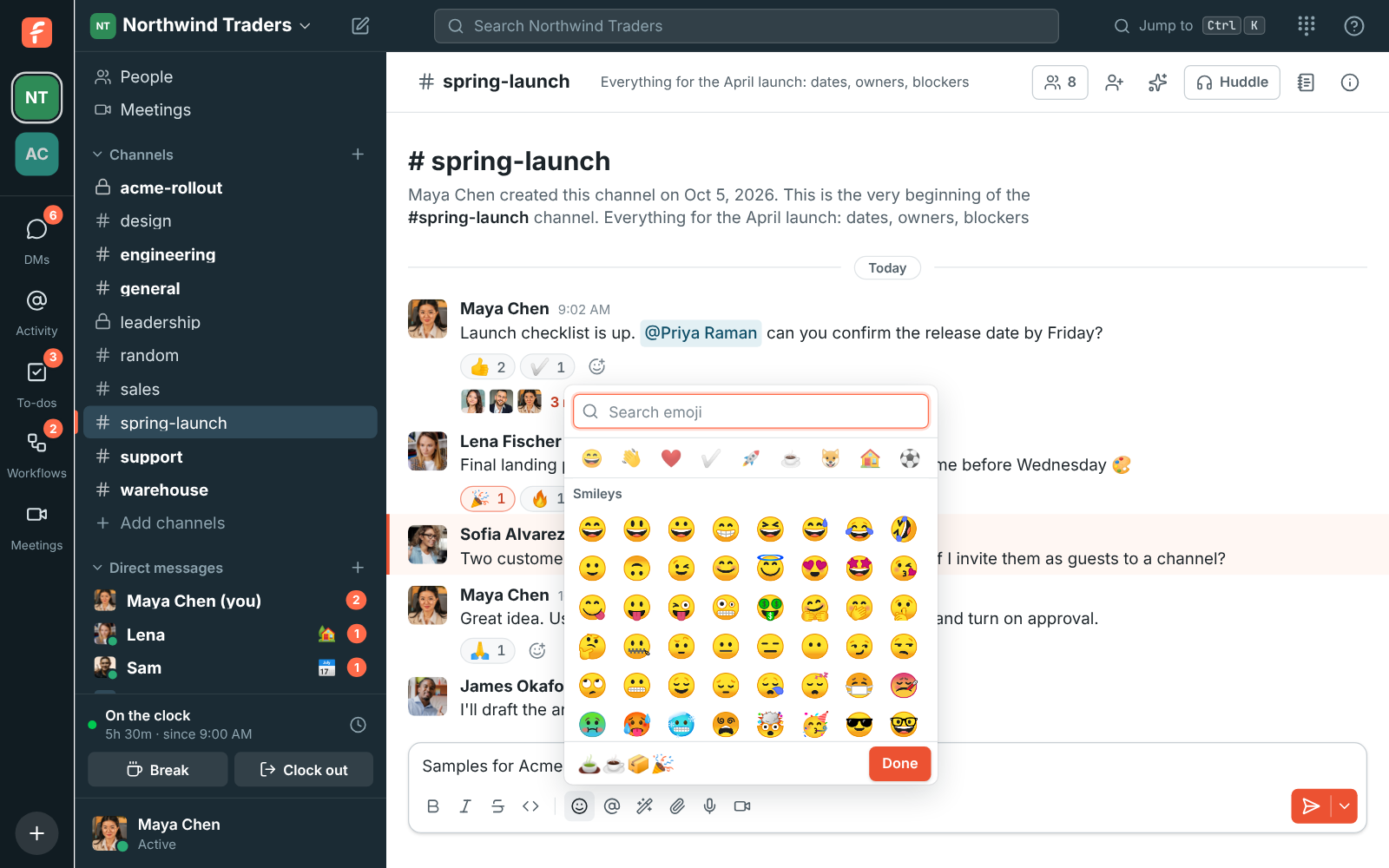
Click the smiley under the message box to open the emoji picker. It stays open, so you can pick as
many emoji as you like in one go: each one goes into your message where the cursor is, and the
bottom of the picker shows what you've added so far. Search, press Enter to add the
first match, and type the next search straight away. Click **Done**, press Esc or click
anywhere outside the picker when you're finished.
### Link previews
When you send a message with a link to a web page, Freesbe shows a preview under it a moment later:
the site, the page's title and description, and its picture. A link straight to a picture shows the
picture. Up to three links in a message get a preview.

To remove a preview from your own message, point at it and click **×**. It stays gone, even if you
edit the message. Links inside `code`, and links an app shows its own way, such as [HubSpot](https://freesbe.net/docs/hubspot/), [Zendesk](https://freesbe.net/docs/zendesk/) or [Zoho Desk](https://freesbe.net/docs/zoho-desk/) links, get no preview.
Freesbe fetches the page and its picture itself, so the site doesn't learn who in your workspace is
reading.
### Custom emoji
Add your logo, your team's faces or an inside joke as an emoji everyone in the workspace can use.
Open the emoji picker and click **Add emoji**, choose a PNG, JPEG, GIF or WebP picture, give it a
name such as `northwind_logo` and click **Add emoji**. Pictures are shrunk to fit; a small animated
GIF keeps moving.
Custom emoji are in the picker under **Custom**, come up first when you type `:` and their name in
a message, and work as reactions. Guests can use them but not add them. A workspace can have up to 500.
You can remove the ones you added from the same window. Owners and admins can remove any of them in
**Workspace settings → General → Messages → Custom emoji**. Messages and reactions that used a removed emoji
show its name instead.

### Formatting
Use the buttons under the message box, or type the markers yourself:
| You type | You get | Shortcut |
| --------------- | ---------------- | --------------------------------------------- |
| `*bold*` | **bold** | Ctrl+B |
| `_italic_` | _italic_ | Ctrl+I |
| `__underline__` | underline | Ctrl+U |
| `~strike~` | ~~strike~~ | Ctrl+Shift+X |
| `` `code` `` | `code` | Ctrl+Shift+C |
On a Mac, use ⌘ instead of Ctrl. Links are detected automatically.
When the message box is narrow, as in a thread, the formatting buttons tuck away so everything
fits on one row: click **Aa** to show them in a bar above what you're typing, and again to hide
them. Freesbe remembers which you chose.

#### Lists
Start a line with `- ` (it turns into a bullet as you type) or `1. ` for a numbered list, or use
the list buttons: Ctrl+Shift+8 for bullets and
Ctrl+Shift+7 for numbers. They work on every line you've
selected, and pressing the same one again turns the list back into plain lines.
- Shift+Enter starts the next item, numbered for you. Enter still
sends the message.
- Tab nests the item under the one above, and Shift+Tab moves it
back out. Nested bullets and numbers get their own style, like in a document.
- Shift+Enter on an empty item ends the list.
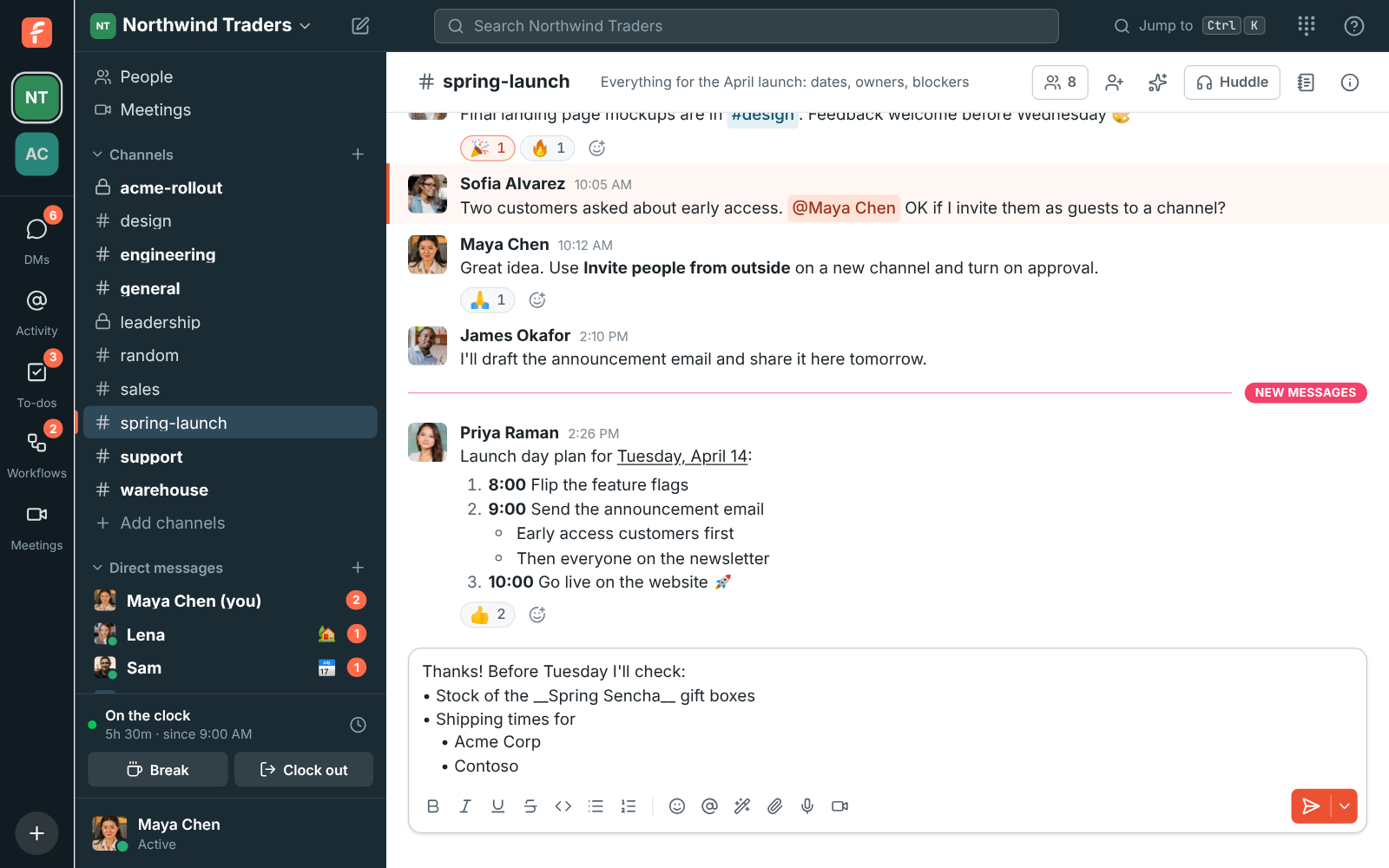
Lists you copy from Word, Google Docs, Outlook, Notion, Slack or a web page paste in as lists,
with their nesting: bullets become `• ` and numbers `1. `, ready to edit like any other list.
Pasting into a code block leaves the text exactly as it was copied.

Lists and underlines show in the desktop app and the [phone app](https://freesbe.net/docs/mobile-app/) too. On a
phone, type `- ` or `1. ` and each new line carries the list on.
### Files
Click the paperclip, drag files onto the conversation, or paste them. You can attach up to 10
files to a message, each up to 50 MB.
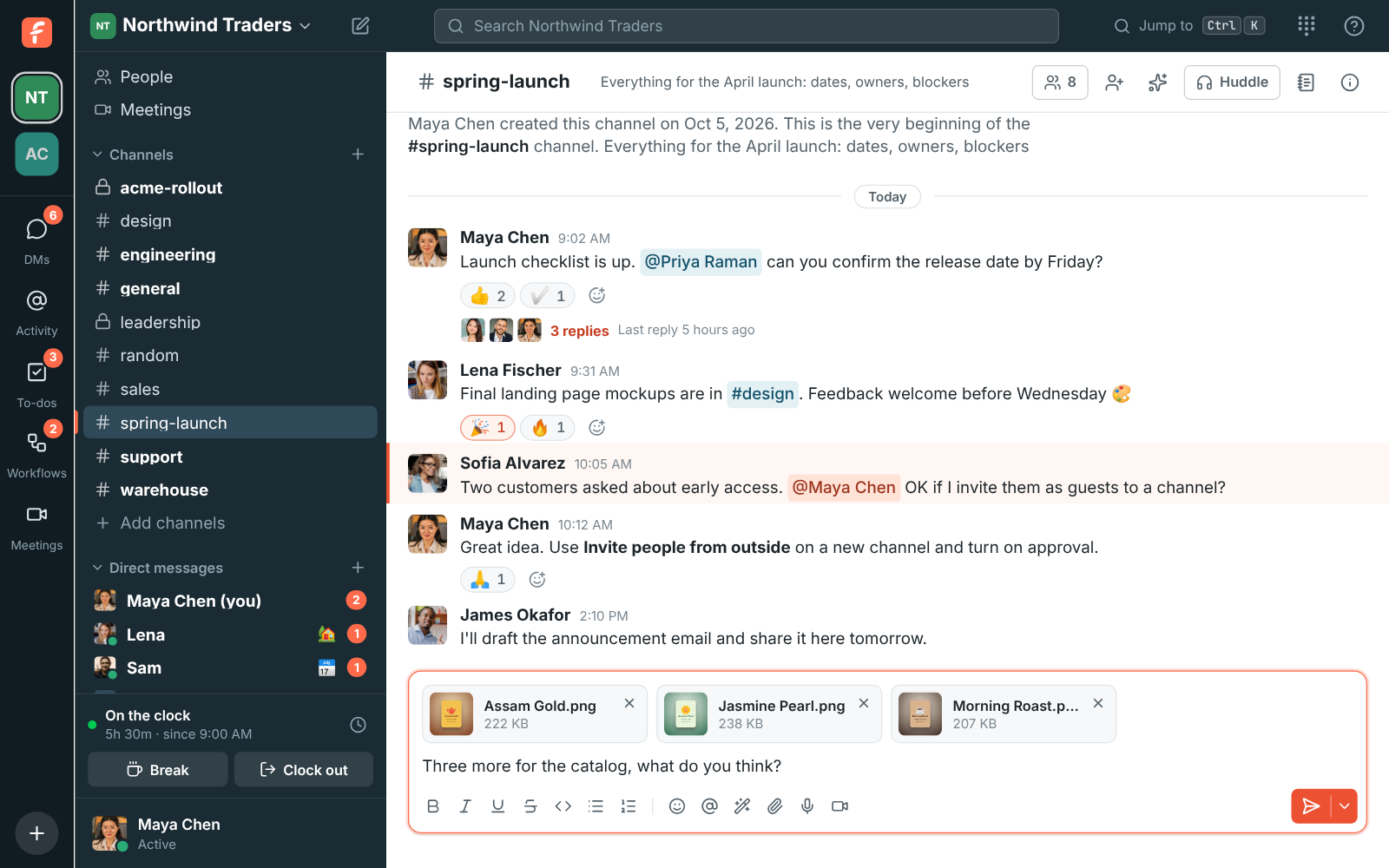
To send several pictures in one message, pick them together in the paperclip's file picker (hold
Ctrl or Shift, or ⌘ on a Mac), drop them all at once, or paste
one after another: each paste adds to what's already waiting above the message box. Pasted
screenshots get a name with the time, like "Pasted image 2026-10-23 14.30.05.png", so you can
tell them apart. You can paste while looking at the conversation too, not just in the message box.
Take one out with its **×** before you send.
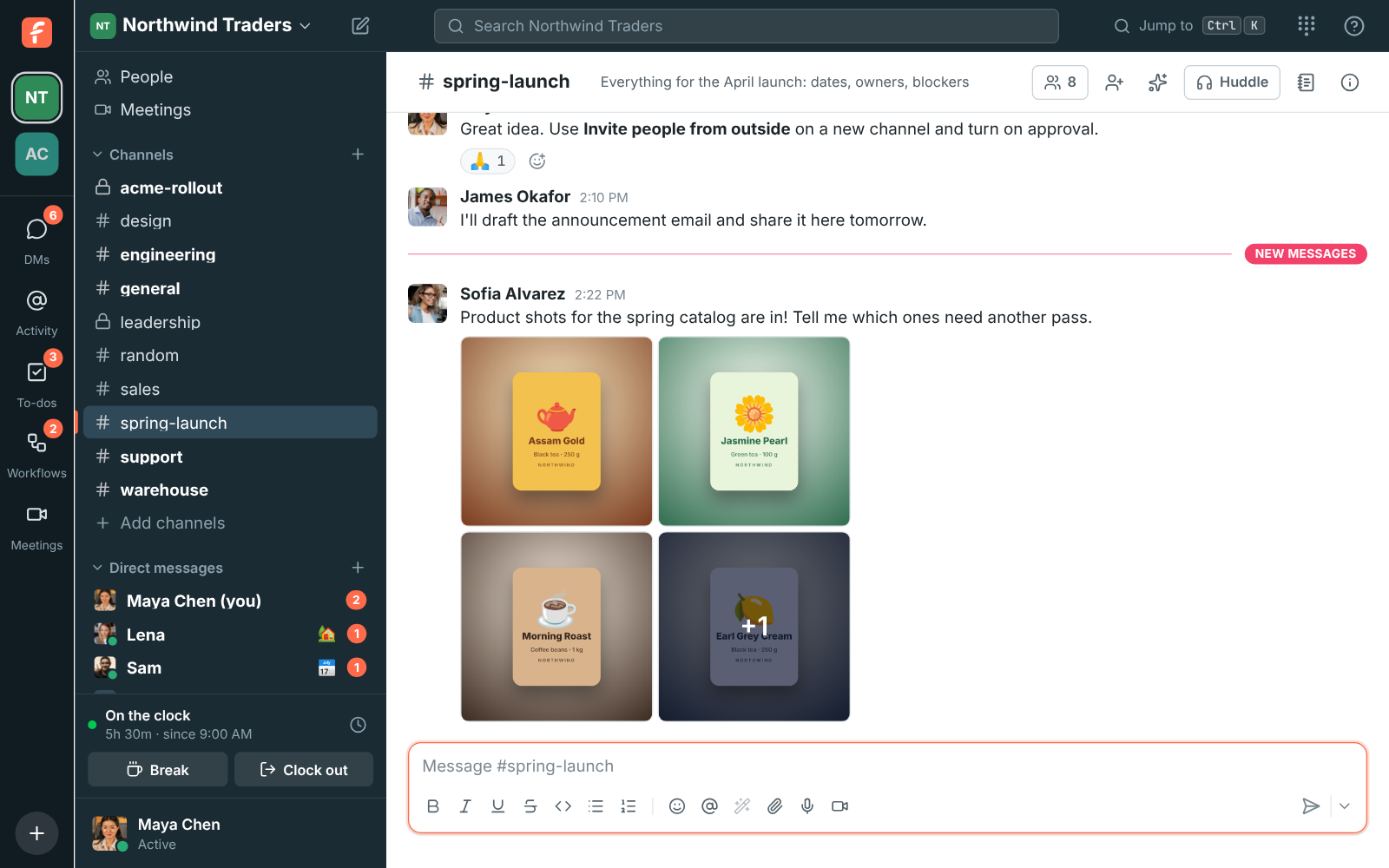
Several pictures in one message show as a gallery of up to four tiles; a **+N** on the last tile
says how many more there are. Click any tile to open the pictures full size.
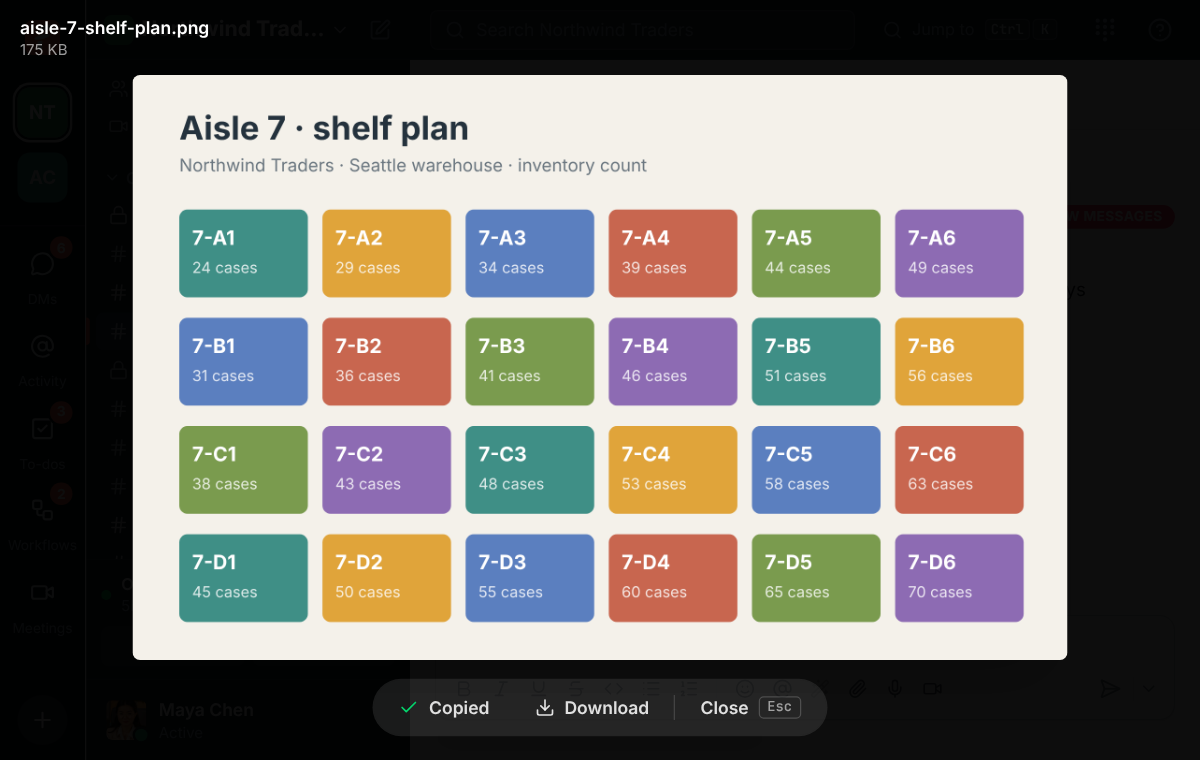
Images show a preview; click one to see it full size, with
**Copy**, **Download** and **Close** in a bar at the bottom. Press **Esc** or click beside the
picture to close it, and use the arrow keys to move between pictures in the same message. Videos
and audio files play right in the conversation.
**Copy** puts the picture itself on your clipboard, so you can paste it into an email, a document
or another app without downloading it first. An animated GIF pastes as its first frame. You can
also right-click a picture or file in a message for **Open**, **Copy image** and **Download** (see
[Right-click menus](#right-click-menus)). Full size, right-click the picture and pick **Copy image**
in the browser or **Copy Image** in the desktop app, which also offers **Save Image As…** and
**Copy Image Address**.
#### Open PDFs, text and spreadsheets without downloading
Click the name of a PDF, a text or code file, or a CSV spreadsheet to open it right in Freesbe,
in the same dark viewer as pictures. PDFs show their pages (the first 30; download the file for
the rest), CSV files show as a table, and text and code show as they are. Very large text files
show their first 512 KB. **Download** and **Close** sit at the bottom; press **Esc** to close.
Other files, like Word or PowerPoint documents and zip files, download when you click them.

### Files tab
Every channel and DM has a **Files** button at the top, next to the canvas. It opens a list of
everything shared in that conversation, in threads too, newest first, with who shared each file,
when and how big it is.
- Type part of a name to find a file, and pick **Images**, **Documents**, **Video and audio** or
**Other** to see just those.
- Click a file to open it: pictures and the files above open in the viewer, the rest download.
- **Show in conversation** jumps to the message the file came with, opening its thread when it
was shared in one. The download button saves the file.
When a message is deleted, its files leave the list too.

### Audio and video clips
Sometimes it's quicker to say it than to type it. Record a short clip straight from the message
box and it's sent like any other file, with a player in the conversation.
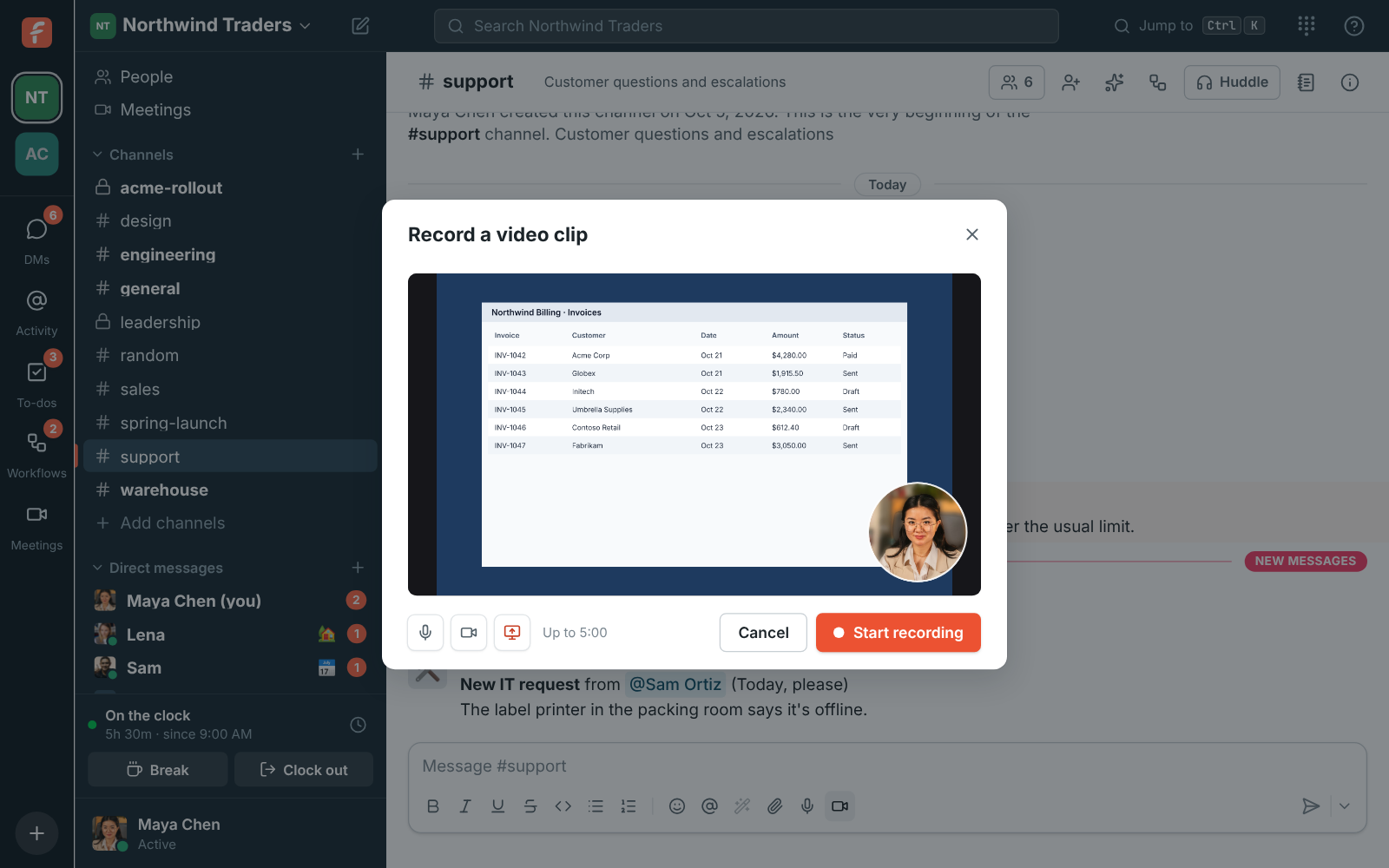
1. Click the **microphone** (audio clip) or the **video camera** (video clip) under the message
box.
2. For a video clip, your camera turns on. Click **Share screen** to record a screen or window
instead, with your camera in a circle in the corner, or turn the camera off to record just the
screen. You can mute the microphone, switch the camera and start or stop sharing while you
record.
3. Click **Start recording**, and **Stop recording** when you're done. A clip can be up to 5
minutes long.
4. Watch or listen to it back. **Record again** throws it away and starts over; **Add to message**
attaches it to the message box, where you can add a note before you send it.
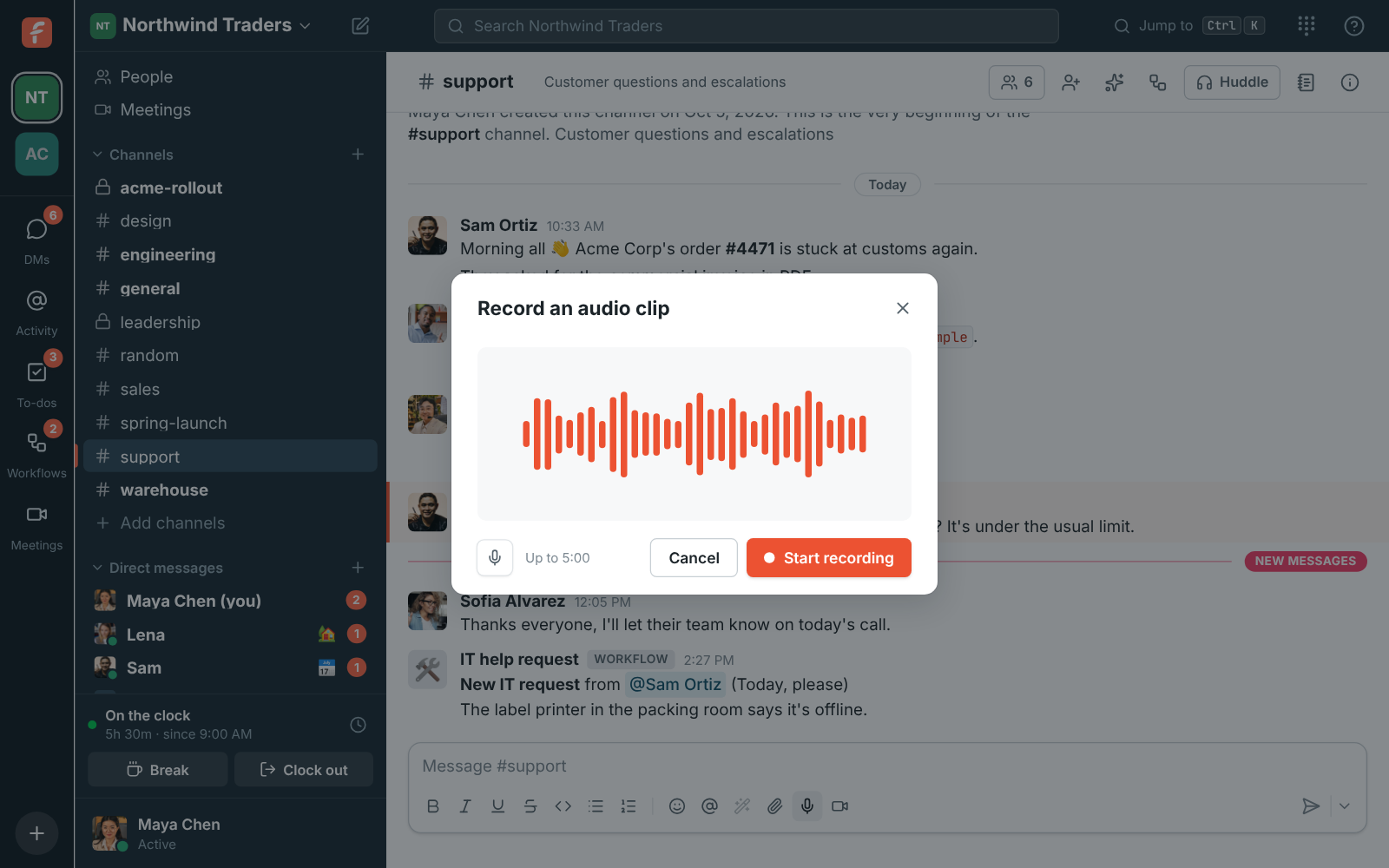
Clips play in the conversation for everyone in it: audio clips with a play button and a bar to
jump around, video clips in a player with full screen. Only one audio clip plays at a time.
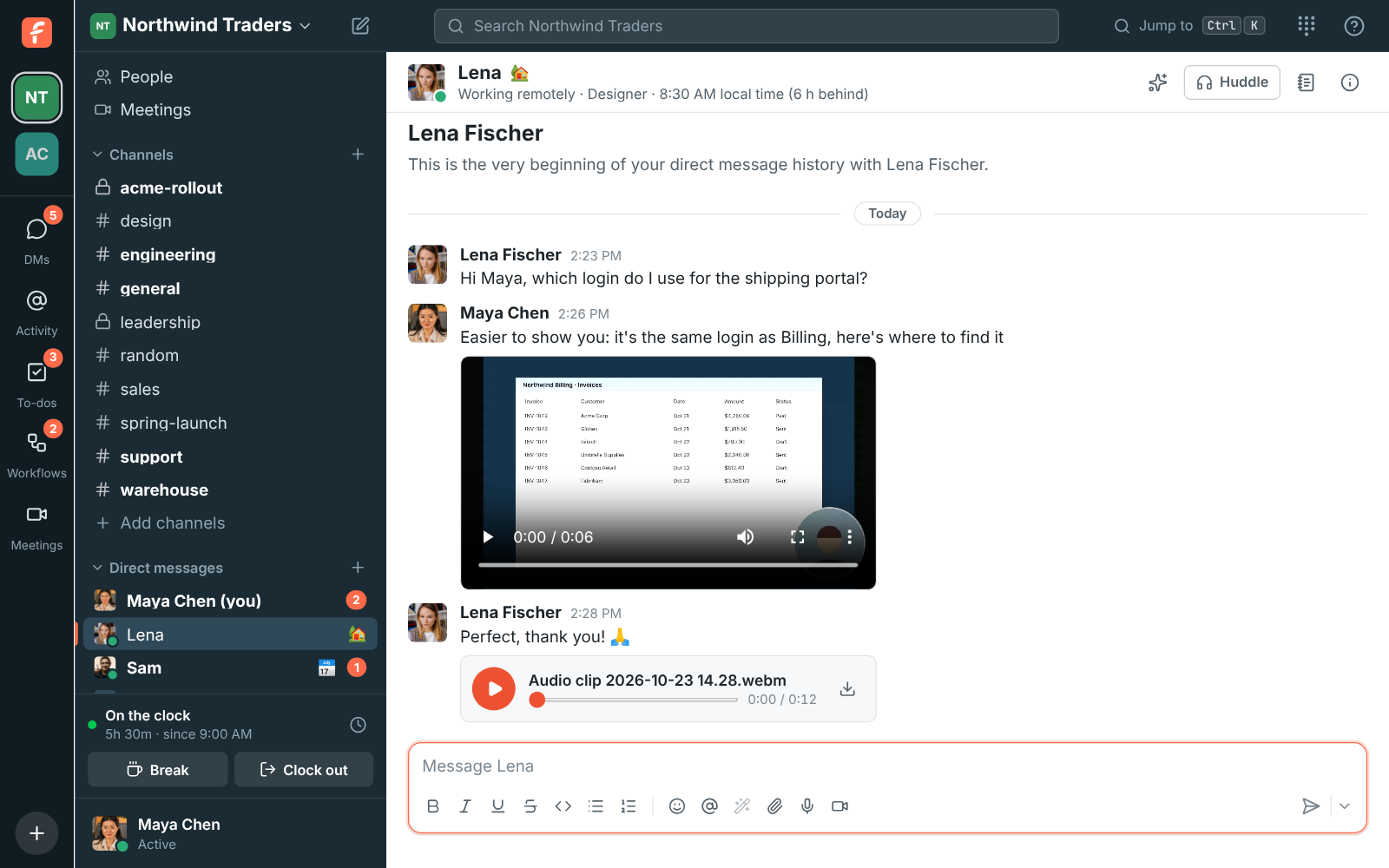
Good to know:
- Clips are recorded in your browser or the desktop app, and nothing is sent until you add the clip
to a message and send it. Closing the dialog throws the recording away.
- Clips are named by when you recorded them, such as `Video clip 2026-10-23 14.05.webm`, and
count towards your workspace's storage like other files.
- The first time, your browser or computer asks to let Freesbe use your microphone and camera. If
you said no, allow it in the browser's site settings (or, on a Mac, **System Settings → Privacy &
Security**) and try again.
- Workspaces that don't allow audio and video files under [File types](https://freesbe.net/docs/file-types/) can't
record clips either.
### Schedule a message
Write a message now and have it go out later, for example at the start of someone's day. Type it
as usual, then click the arrow next to **Send** and pick a time: later today, tomorrow morning,
Monday morning, or **Custom time…** for any date and time up to 120 days ahead. It works in
channels, DMs and threads, with files too.
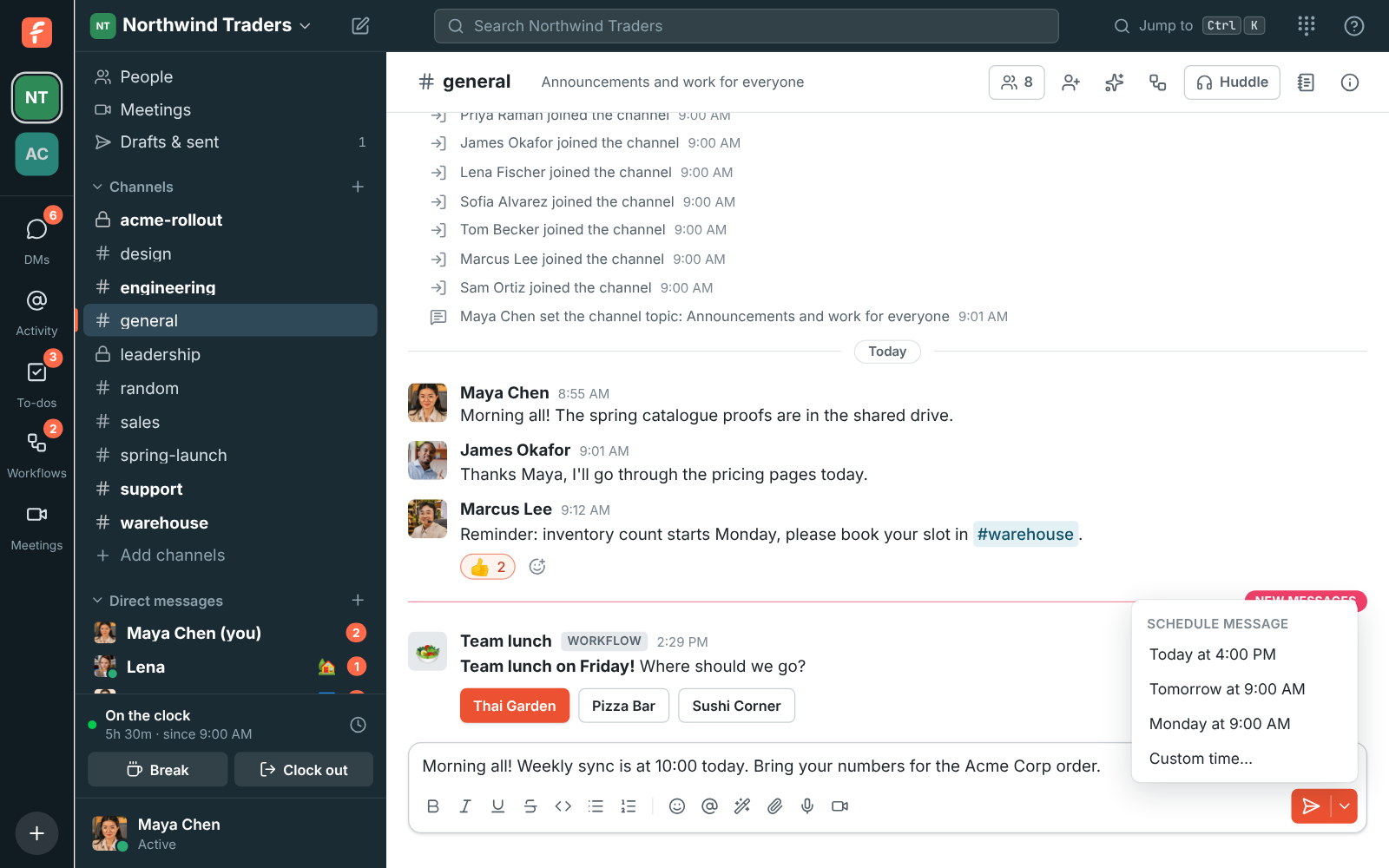
**Custom time…** asks for a date and a time. Times are in your own time zone, shown under the
fields.
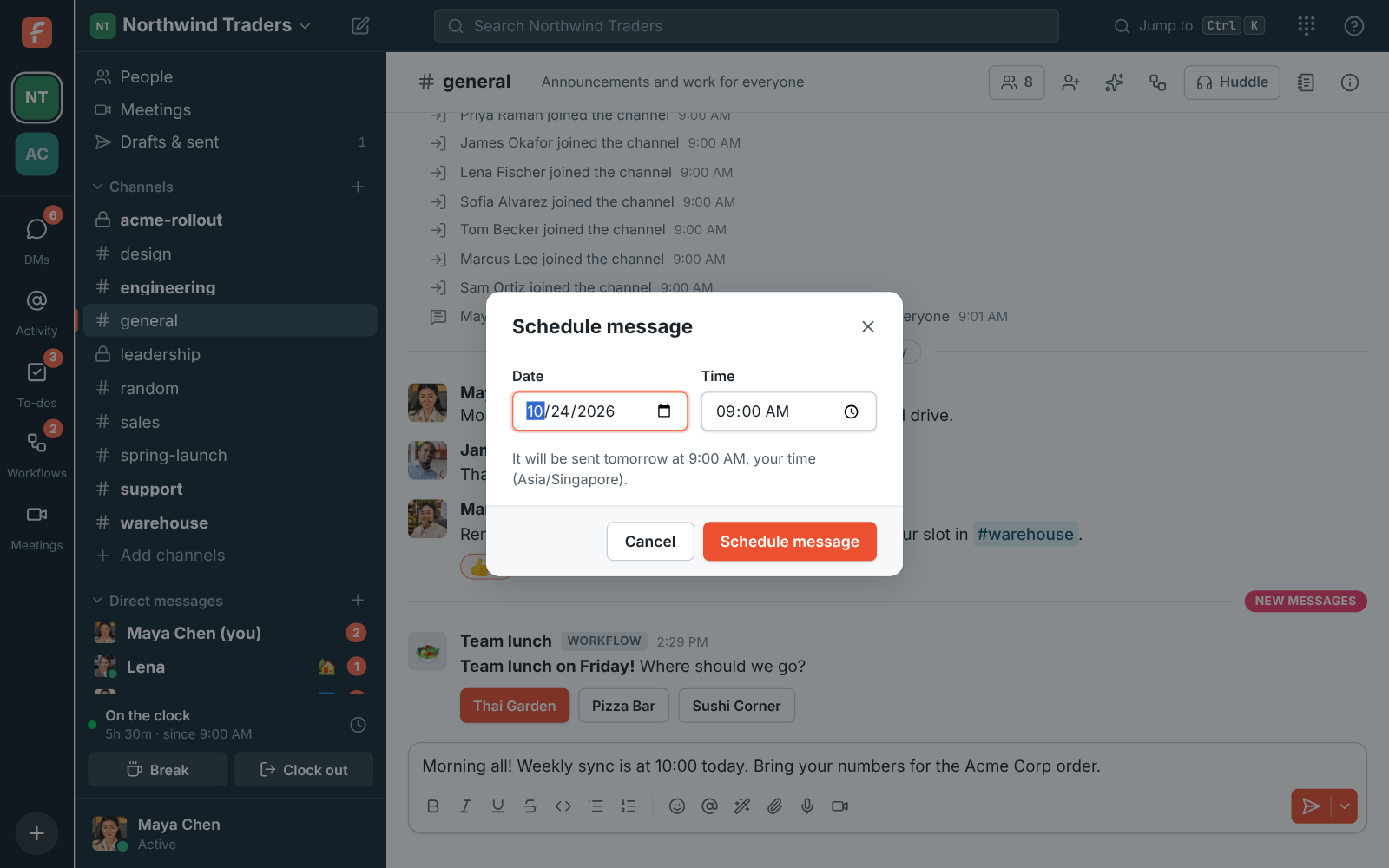
Until it goes out, only you can see a scheduled message. A note above the message box tells you
when a conversation has one waiting, and the **Scheduled** tab of
[Drafts & sent](#drafts--sent) shows how many you have.
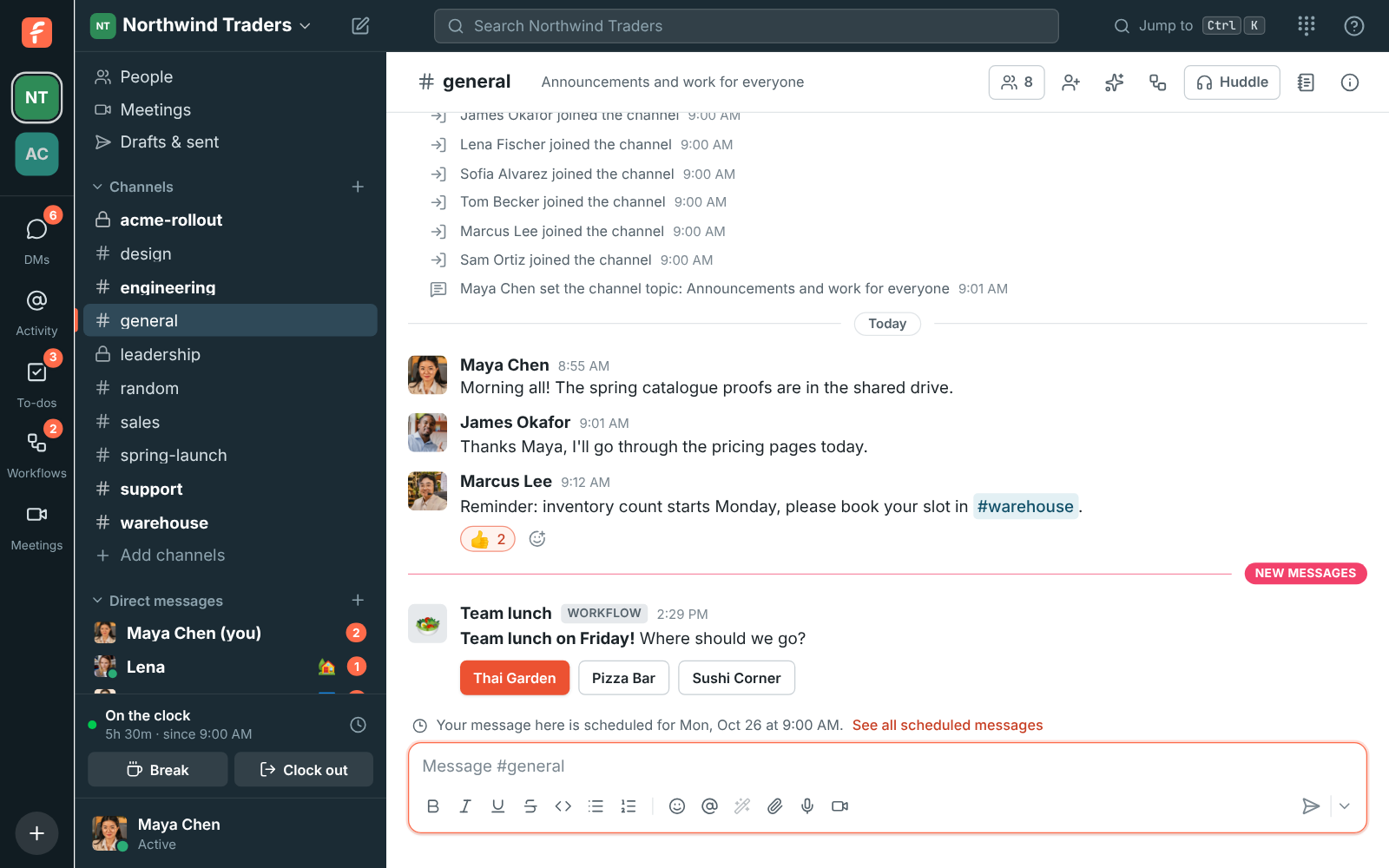
Open **Drafts & sent → Scheduled** to see them all, soonest first. On each one you can:
- **Send now**, to post it straight away.
- **⋯ → Reschedule** to a quick pick or a custom time.
- **⋯ → Edit message** to change the words.
- **⋯ → Open conversation**, or **⋯ → Delete** so it never goes out.
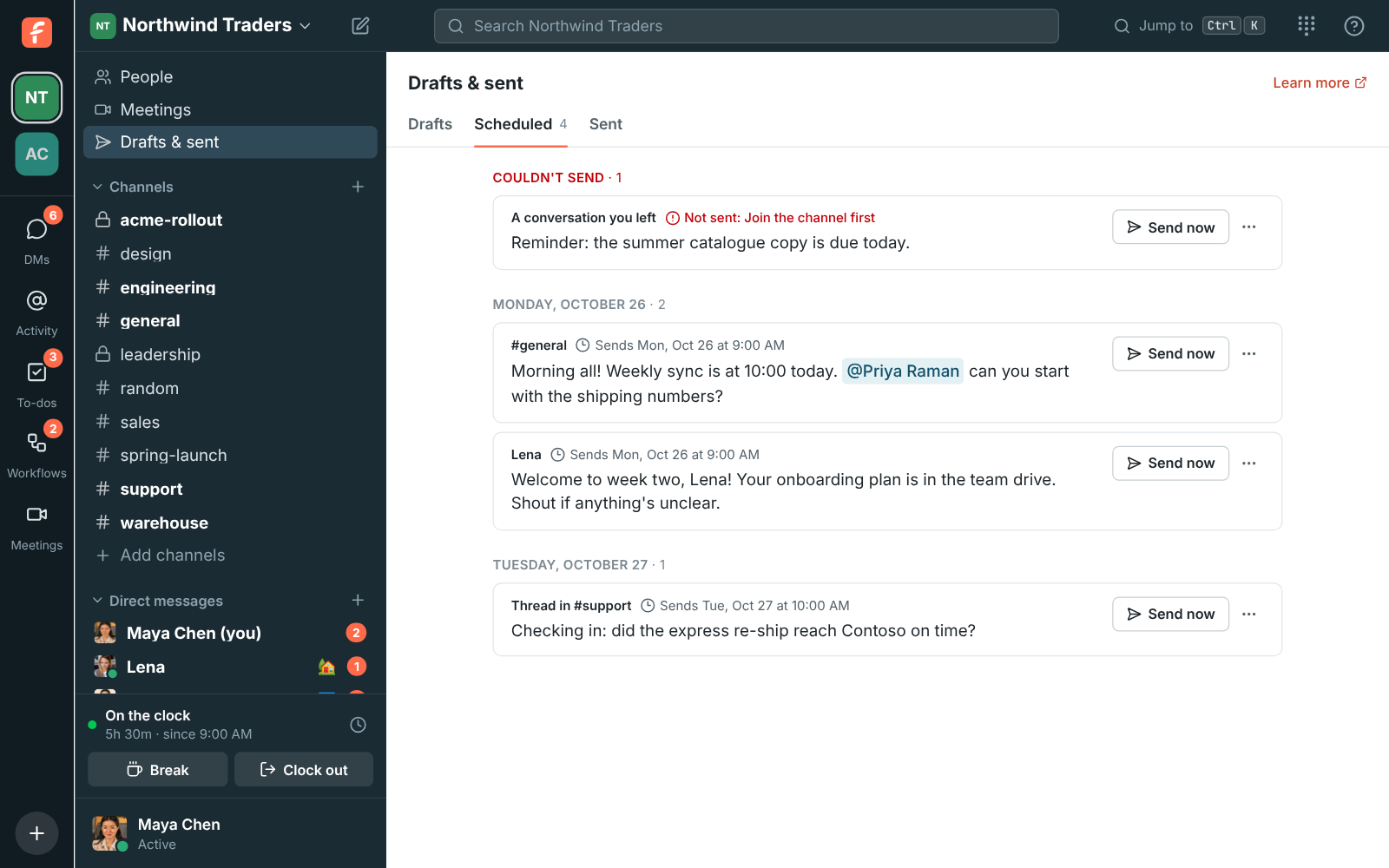
Good to know:
- The message is sent by Freesbe at its time, so your computer can be off. It appears as if you'd
just sent it, and people are notified as usual.
- If it can't be sent, for example because you left the channel or it was archived, it stays on
the page under **Couldn't send** with the reason. Pick a new time to try again, or delete it.
- You can have up to 100 messages scheduled in a workspace.
- In the mobile app, press and hold **Send** to schedule, and find your scheduled messages under
**You → Drafts & sent**. See [The mobile app](https://freesbe.net/docs/mobile-app/#schedule-a-message).
### Drafts
Anything you type and don't send stays as a draft for that conversation or thread. Switch away,
close the tab or quit the app, and it's waiting in the box when you come back. Drafts are kept for
your account, not just the device, so a message you start on your computer is there on your phone
too, and the other way round. Conversations with a draft show a pencil in the sidebar.
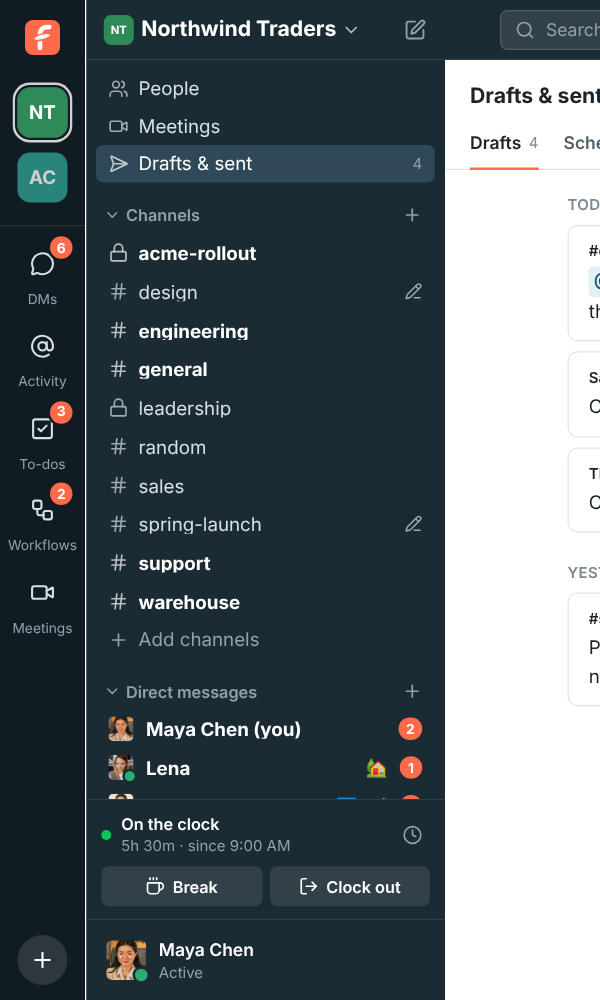
The **Drafts** tab of [Drafts & sent](#drafts--sent) lists them all, newest first, grouped by
the day you last worked on them. On each one you can:
- **Send**, to post it straight away.
- Click it, or **⋯ → Open conversation**, to finish it in the message box.
- **⋯ → Edit draft** to change the words right there.
- **⋯ → Schedule for later**: a quick pick or **Custom time…** turns it into a
[scheduled message](#schedule-a-message).
- **⋯ → Delete** to throw it away on every device.
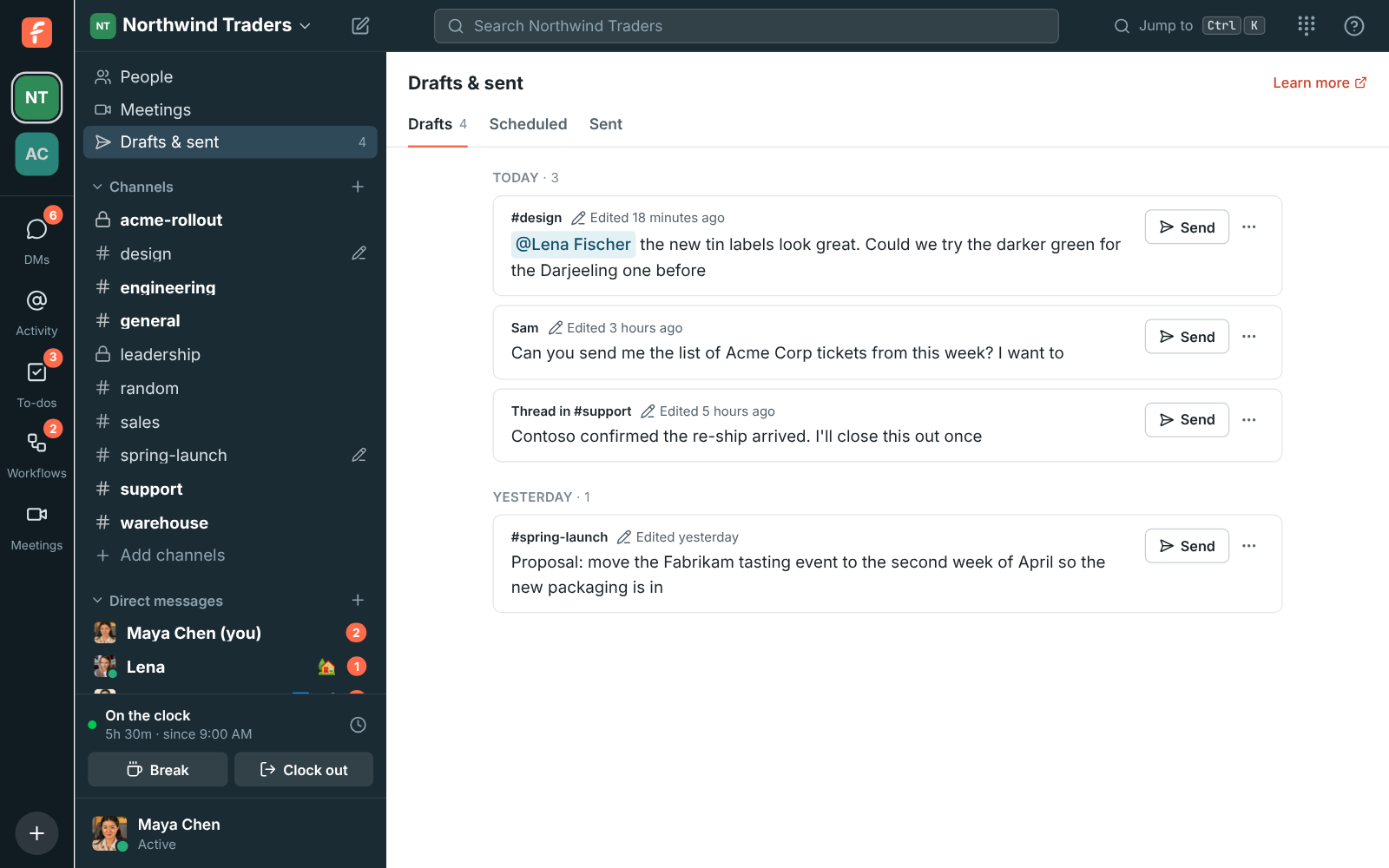
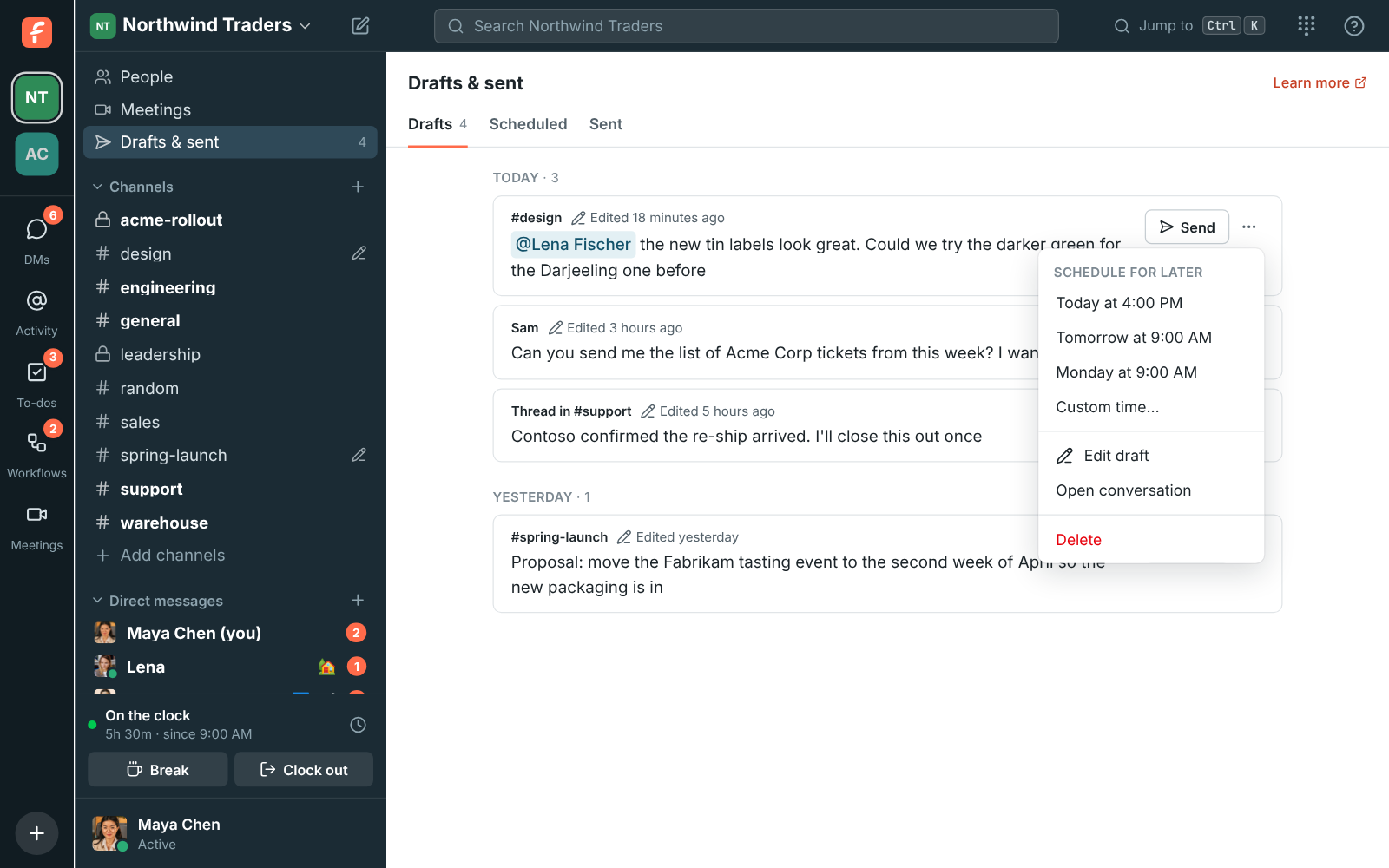
Good to know:
- Only you can see your drafts.
- Drafts sync as you type, a moment after you stop. Typed while offline, they go up when you're
back online.
- Each workspace keeps up to 200 drafts. When there are more, the oldest make room.
- Signing out forgets the drafts on that device; they stay on your account for next time.
- In the mobile app, find them under **You → Drafts & sent**. See
[The mobile app](https://freesbe.net/docs/mobile-app/#drafts).
### Drafts & sent
**Drafts & sent**, under **Meetings** at the top of the sidebar, keeps everything you've written in
one place, with a tab for each:
- **Drafts**: messages you started and haven't sent, on any of your devices. See [Drafts](#drafts).
- **Scheduled**: messages waiting to go out later. See [Schedule a message](#schedule-a-message).
- **Sent**: your own messages and replies, newest first, grouped by day. Click one to jump to it in
its conversation or thread. **Show older** goes further back.
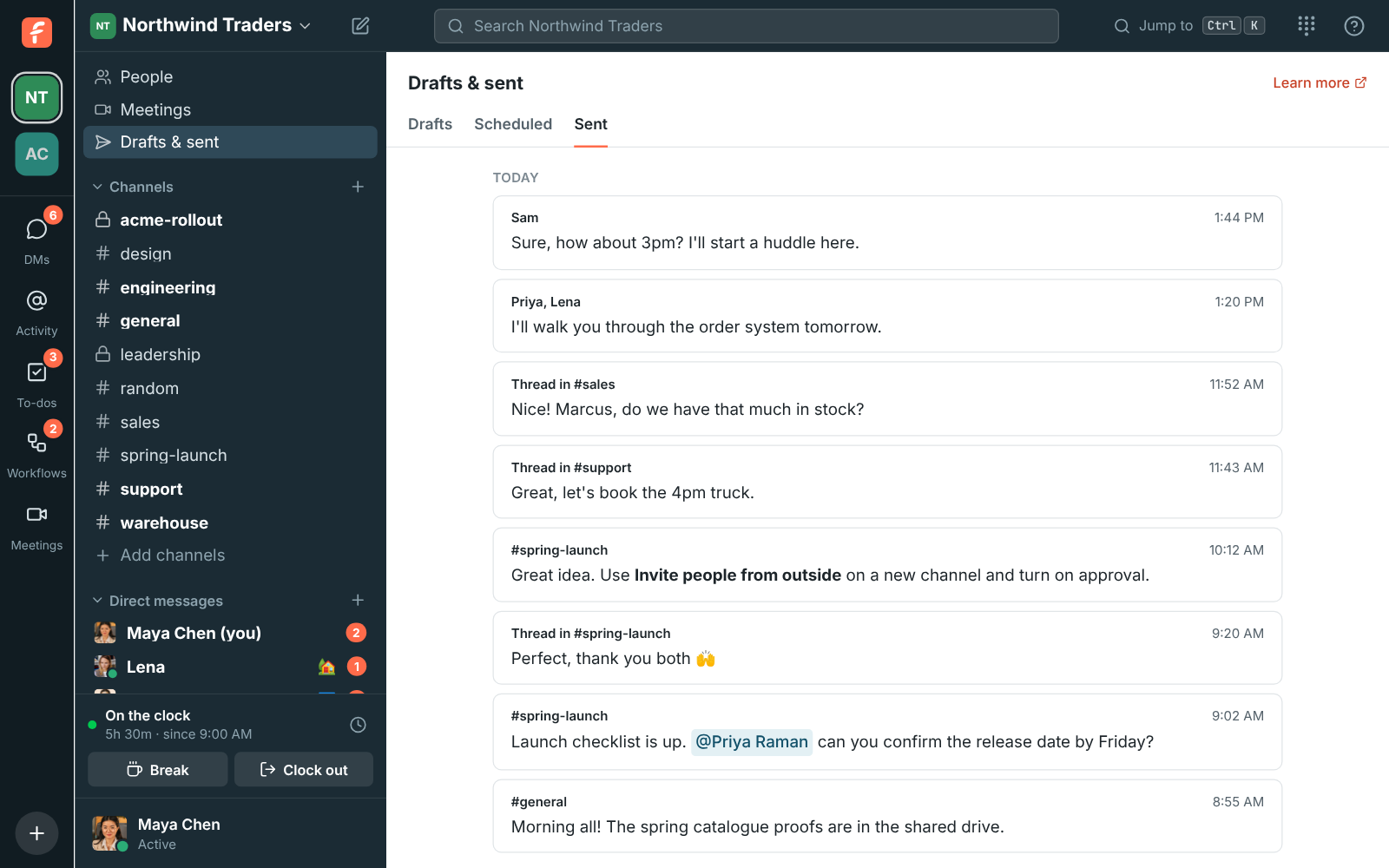
Sent only shows conversations you're still in, and deleted messages drop off it. Old links to the
Scheduled and Drafts pages open the matching tab.
## Threads, reactions, edits and deletes
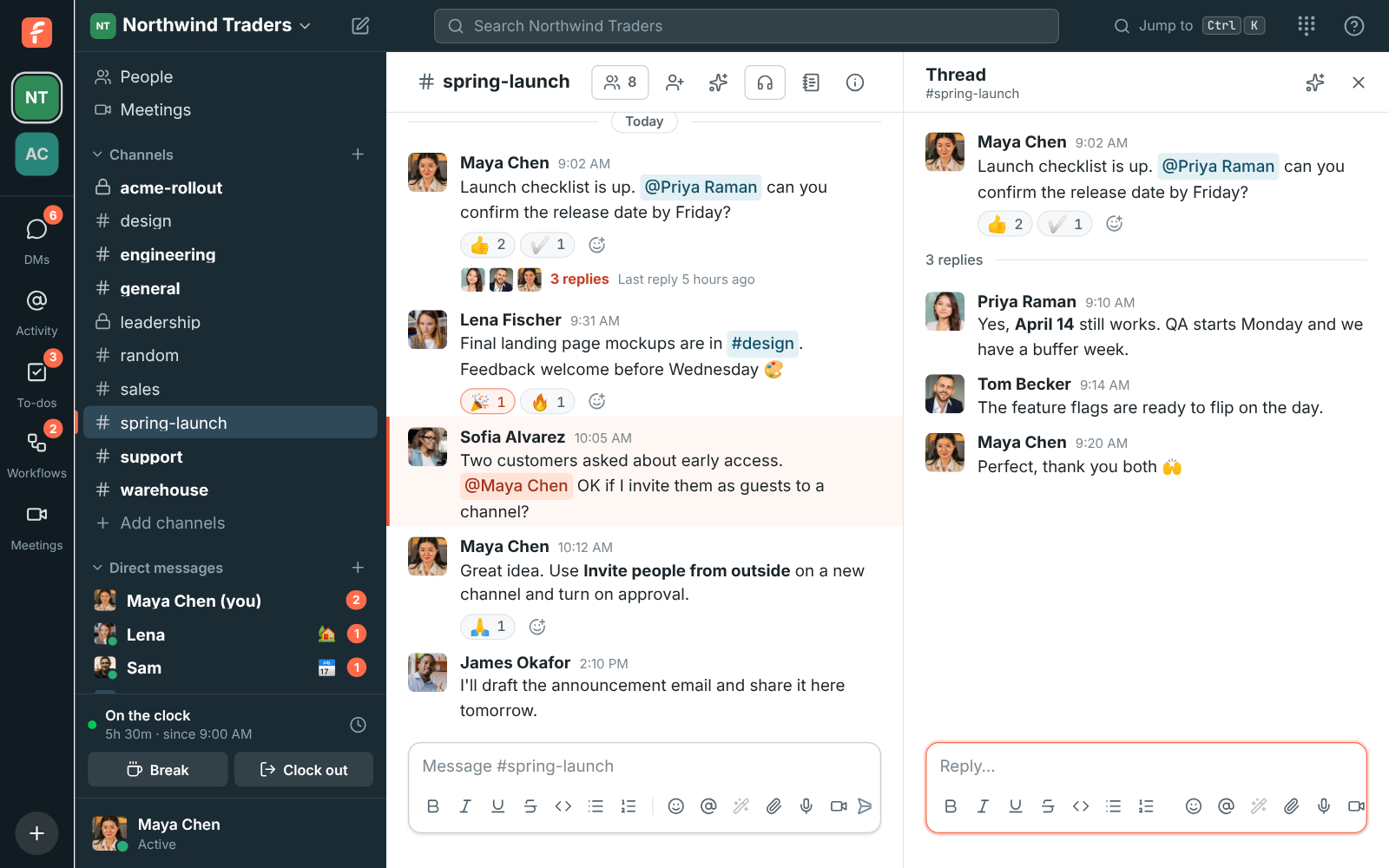
Hover over a message (or tap it) to see its actions:
- **Reply in thread** keeps a side conversation out of the main channel. Threads open in the right
pane, and the message shows how many replies it has. You're notified of replies in threads you
started or replied in.
- **Add reaction** opens the emoji picker. It stays open, so you can leave several reactions in one
go. The ones you've already left are highlighted, and clicking one again takes it away. Click
**Done**, press Esc or click outside when you're finished. Click a reaction under a
message to add yours, click it again to remove it.
- **Edit message** changes your own message. Pressing ↑ in an empty message box edits
your last message. Your admins can limit how long after sending you can edit, or turn editing
off.
- **More actions → Forward message** sends a copy to another channel or person. See
[Forward a message](#forward-a-message).
- **Save for later** (the bookmark) keeps the message in **Later** for you to come back to, and
**More actions → Remind me about this** does the same with a reminder. See
[Save for later and reminders](#save-for-later-and-reminders).
- **More actions → Copy link** copies a link straight to the message.
- **More actions → Pin to this conversation** keeps the message at hand for everyone in it. See
[Pins and bookmarks](#pins-and-bookmarks).
- **More actions → Delete message** removes your own message, after you confirm. If your admins
turned that off, only they can delete messages.
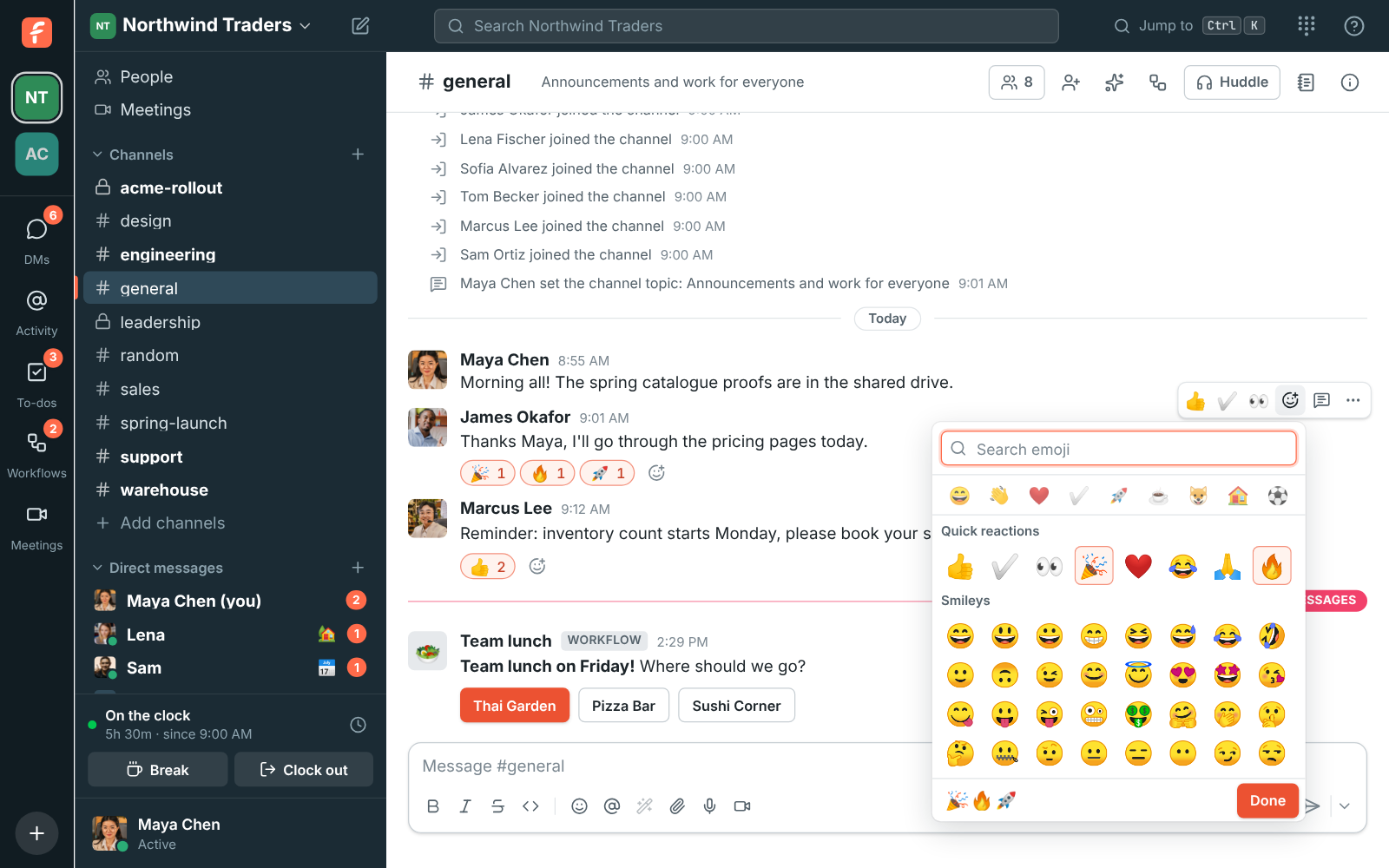
### Right-click menus
Right-click a message for everything you can do with it in one place, in the browser and in the
desktop app. It's the same list as the buttons that show when you point at the message and its
**More actions** menu, so you'll always find an action in both:
- A row of quick reactions, and **+** for the full emoji picker.
- **Reply in thread**, **Quote in reply** (puts the message in your message box as a quote, below
whatever you'd typed), **Copy text** and **Copy link**.
- **Save for later**, **Remind me about this**, **Pin to this conversation**, **Forward message**,
**Mark unread** and **Add to to-dos**.
- **Ask Freesbe about this** and **Translate**, when AI is on, and any actions your apps add.
- **Edit message** and **Delete message** on your own messages.

What's under the pointer comes first:
- **Selected text**: **Copy**, **Quote selection**, **Ask Freesbe about** it and **Search for** it.
- **A link**: **Open link** and **Copy link address**.
- **A picture or file**: **Open**, **Copy image** (pictures) and **Download**.
- **Someone's name, picture or @mention**: **View profile**, **Send a message**, **Start a huddle**
and **Copy email address**.


Right-click a channel or DM in the sidebar for **Mark as read**, **Mute** (or **Unmute**), **Copy
link**, **Notification settings**, **Move to** one of your [sections](#sidebar-sections) and
**Leave**.
The message box keeps your browser's own menu, so spelling suggestions, cut, copy and paste work as
always; in the desktop app that's its spelling and editing menu. Hold Shift while you
right-click anywhere to get the browser's menu instead. Menus open to the left in right-to-left
languages, and the keyboard's menu key or Shift+F10 opens them on the message
you're on.
### Deleting someone else's message (admins)
Workspace owners and admins can delete anyone's message when something needs to go: hover over it,
open **More actions** and choose **Delete message**. It works on messages, thread replies and app
messages, in public channels (even ones you haven't joined) and in private channels you're in. DMs
stay between the people in them, so admins can only delete their own messages there.
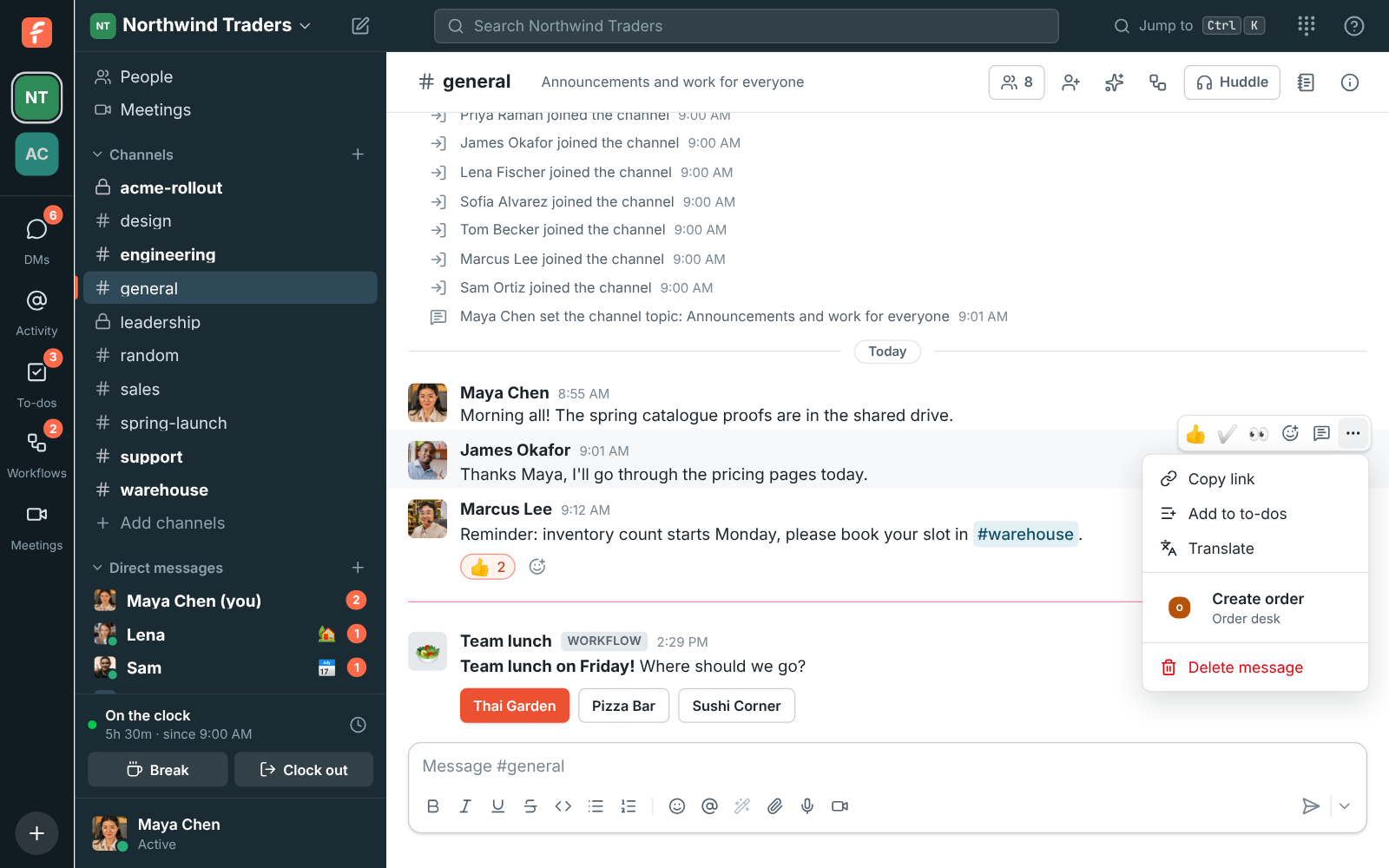
Freesbe asks first. The message, its files and its reactions are deleted for everyone, for good.
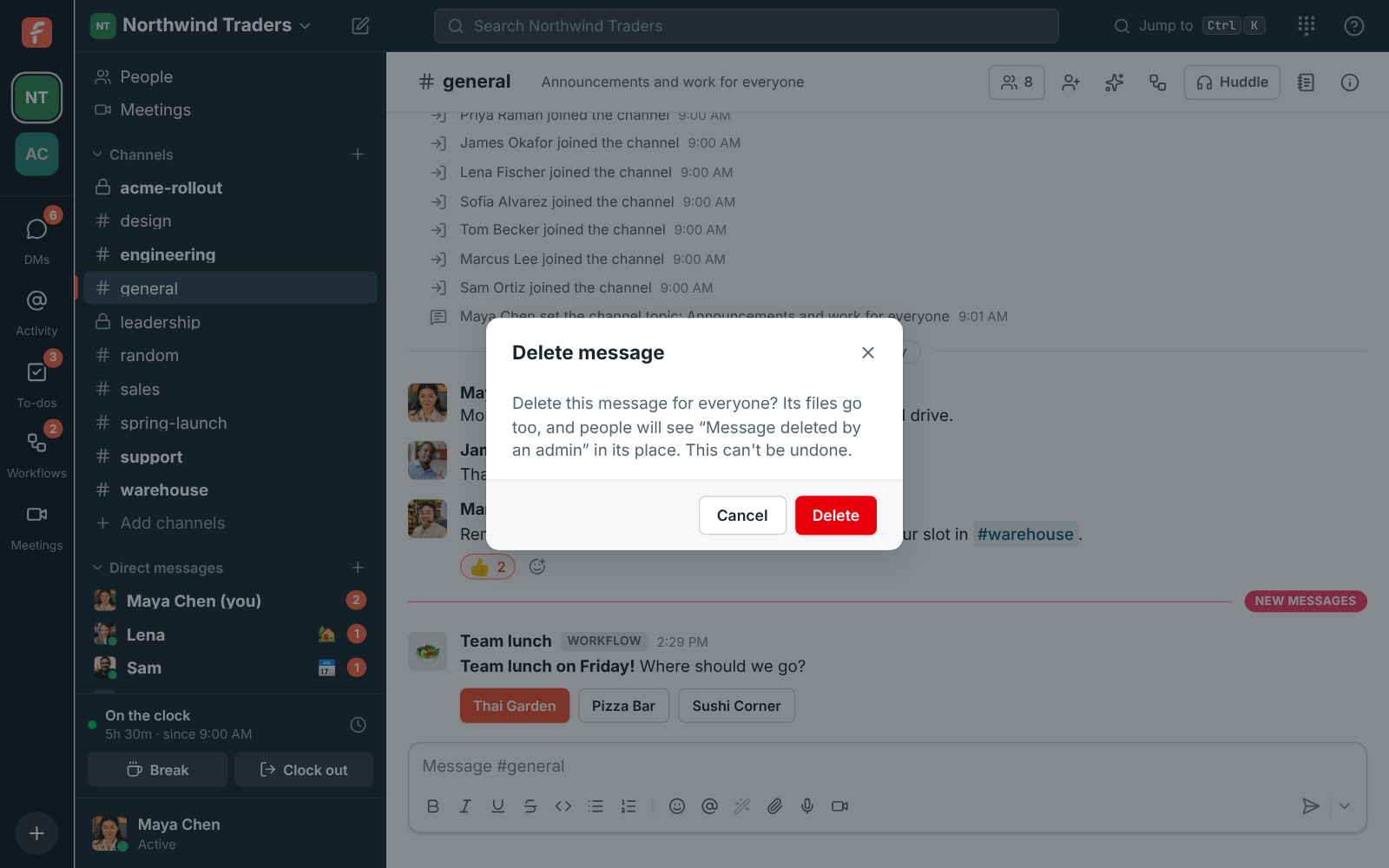
In its place, everyone sees **Message deleted by an admin**, so the conversation around it still
makes sense, and replies to it stay where they are.
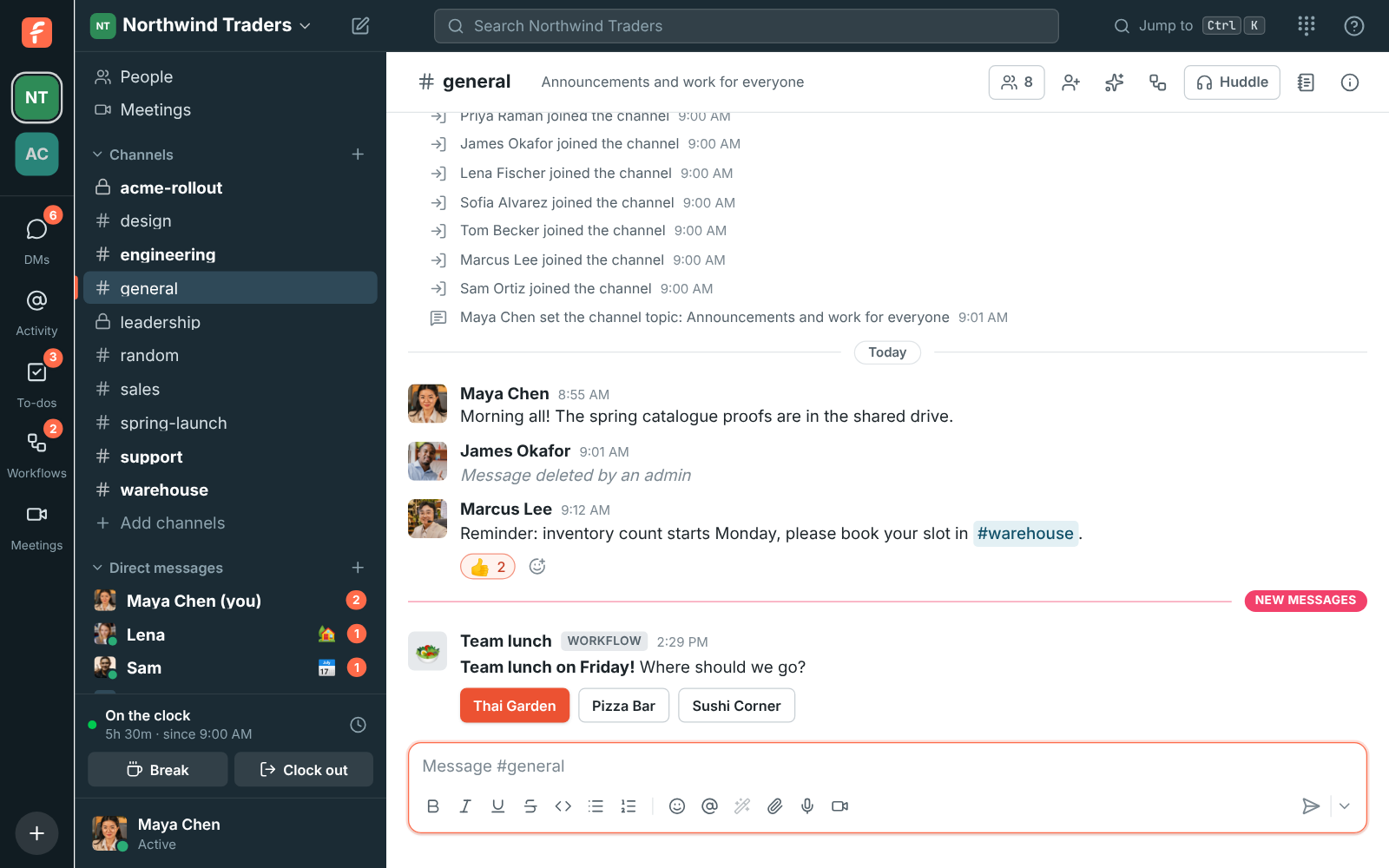
Each deletion is logged in **Workspace settings → General → Messages**, with who deleted it, whose it was,
where and when. Admins can also turn this off there. See
[Messages](https://freesbe.net/docs/admin-settings/#messages).
## Pins and bookmarks
Every channel and DM has a strip under its name for what people come back to: pinned messages and
bookmarked links. Everyone who can read the conversation sees them, and everyone who can write in
it can change them.

### Pin a message
Hover over a message, open **More actions** and choose **Pin to this conversation**. The message
gets a **Pinned by** line, and the strip under the conversation's name counts its pins. Click
**2 pinned** (or however many there are) to see them all beside the conversation, newest first.
Click one to jump to it, or point at it and click the unpin button.
To unpin from the message itself, open **More actions** again and choose **Unpin from this
conversation**. A conversation holds up to 100 pins, and a pin goes when its message is deleted.

### Bookmark a link
Click **Add a bookmark** in the strip, paste a link and, if you like, give it a name. Without one,
the link's address names it. Bookmarks open in your browser. Point at one and click the small arrow
next to it to edit it, move it left or right, or remove it. A conversation holds up to 50
bookmarks.

## Forward a message
To pass a message on, point at it, open **More actions** and choose **Forward message**. Search
for a channel, a group DM or a person, add a few words of your own if you like, and click
**Forward**. You can forward to conversations you're in, and to anyone in the workspace.

The copy shows who wrote the original, where and when, with **View original** to jump to it.
People who can't see the original conversation still see the copy, but not the conversation it
came from. Files stay in the original conversation: the copy lists their names. Forwarding a
forwarded message without adding anything passes the original on.

## Save for later and reminders
**Later**, in the sidebar under **Drafts & sent**, keeps the messages you want to come back to.
Only you see it, on all your devices.

- **Save a message**: point at it and click the bookmark. It shows **Saved for later** above it.
Click the bookmark again to take it out.
- **Get a reminder**: open **More actions → Remind me about this** and pick **In 20 minutes**,
**In 1 hour**, **In 3 hours**, later today, tomorrow or Monday, or **Custom…** for any date and time.
The message goes into Later with its reminder.
- **When the reminder goes off**, Freesbe shows it in the app with a **View** button, plays a
chime and sends a desktop notification, or a notification on your phone when you aren't using
Freesbe. **Later** in the sidebar shows how many reminders are waiting.

In **Later**, reminders that went off come first, then upcoming ones, then everything else, newest
first. Click a message to jump to it. Point at one to mark it done (it moves to **Completed**),
change its reminder, or remove it. Later holds up to 500 messages in progress. A message that was
deleted, or that's in a conversation you left, stays in the list without its text until you remove
it.
## Read receipts
When your workspace's admins turn read receipts on, you can see who has read what, like **Seen**
in WhatsApp or Teams. They're off until an admin turns them on in
[Workspace settings → General → Messages](https://freesbe.net/docs/admin-settings/#read-receipts), either in DMs and groups of up
to 20 people, or everywhere.
- A small picture of each person sits under the last message they've read. Hover over the pictures
to see who they are.
- Under your newest message, **Seen**, **Seen by everyone** or **Seen by 2 of 5** says how many of
the others have seen it. Hover over it for their names.
- In a channel of more than 20 people (when receipts are on everywhere), you only see how many
people saw your message, not who.
- It updates live, as people read. Posting a message counts as having read everything before it.
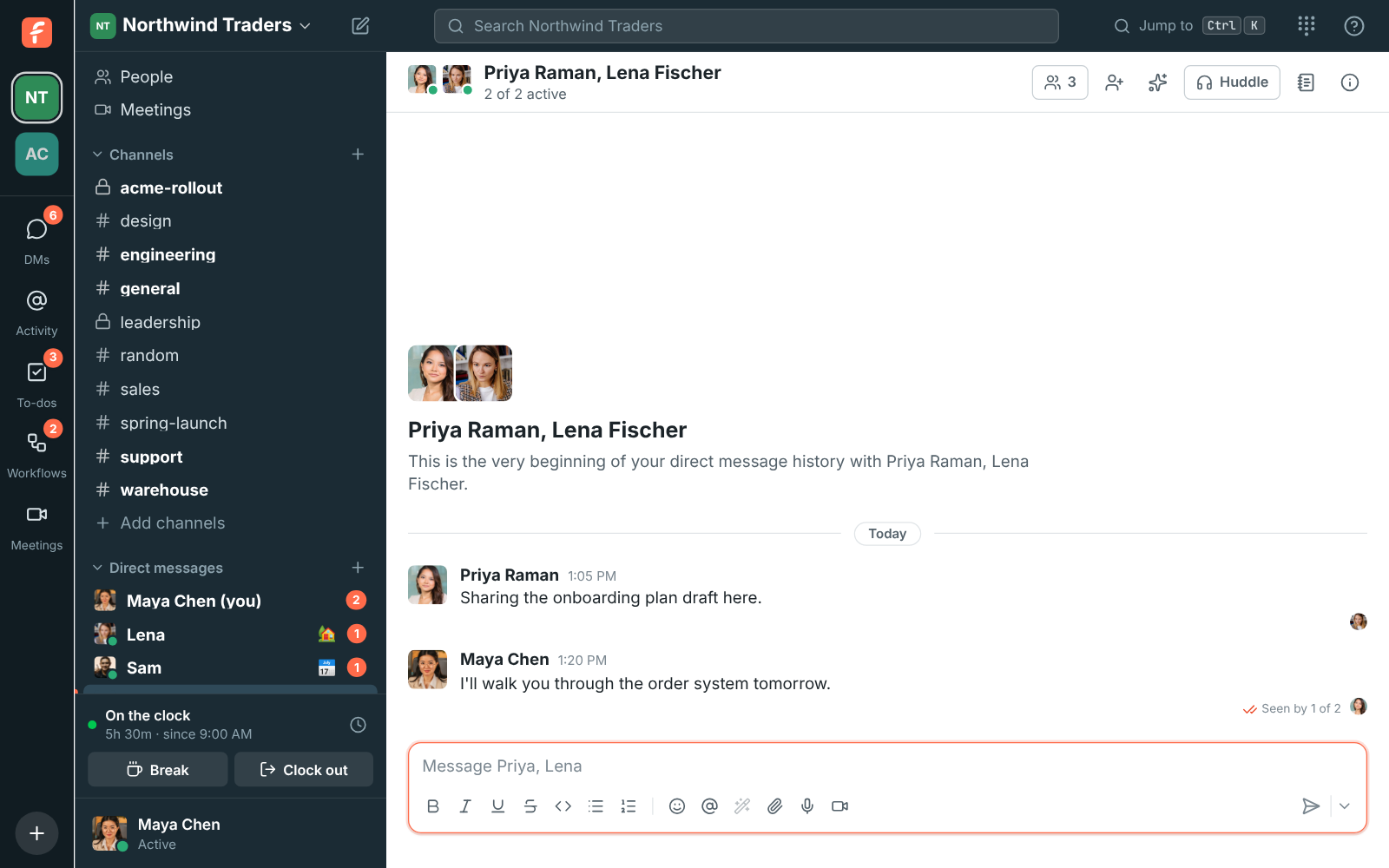
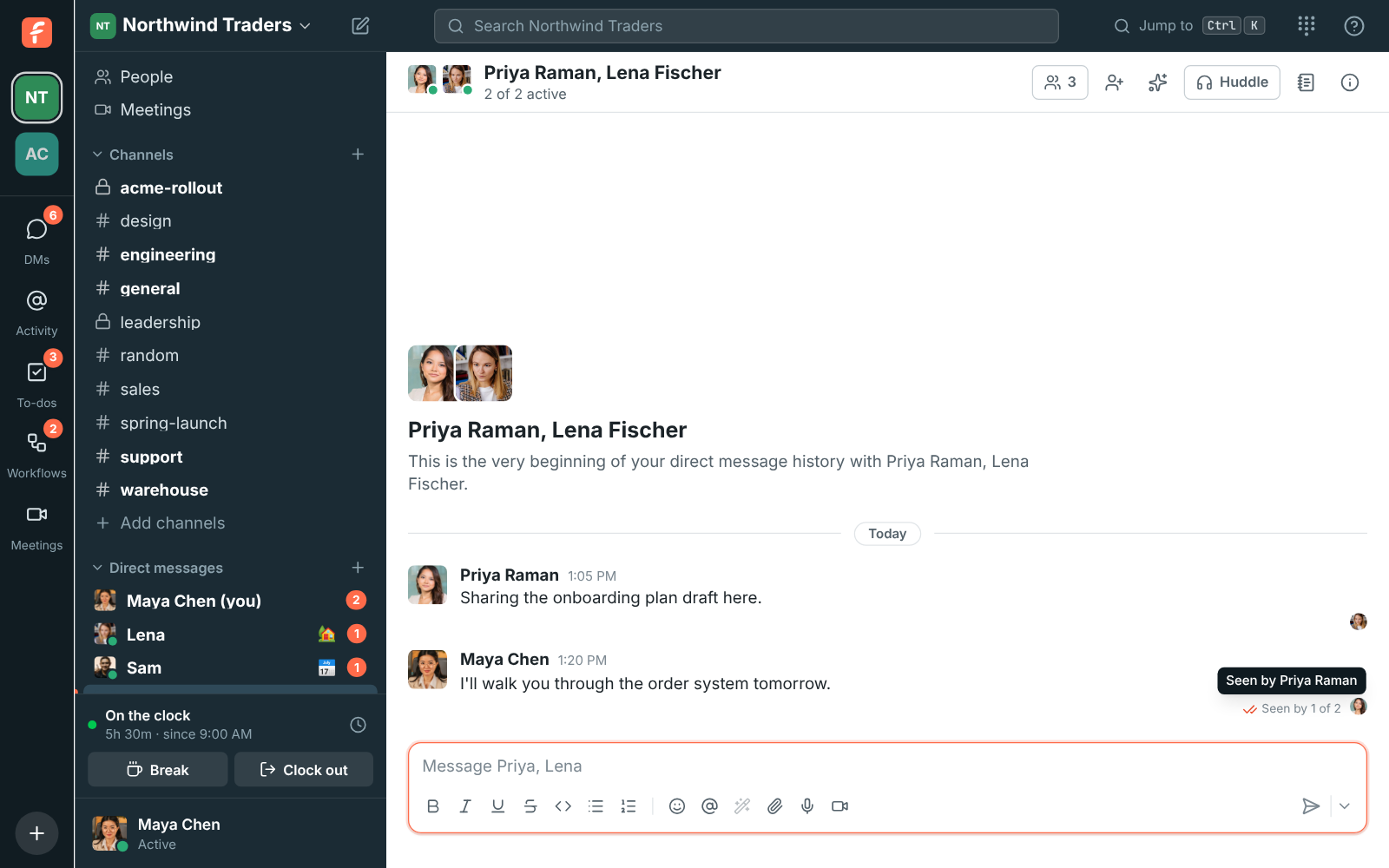
### Turn your read receipts off
If your admins let you choose, turn **Share and see read receipts** off in **Preferences →
Notifications**, or **Read receipts** on the **You** tab of the
[mobile app](https://freesbe.net/docs/mobile-app/#read-receipts). It works both ways: others no longer see how far
you've read, and you no longer see who read your messages. Apps' bots never show up in receipts.
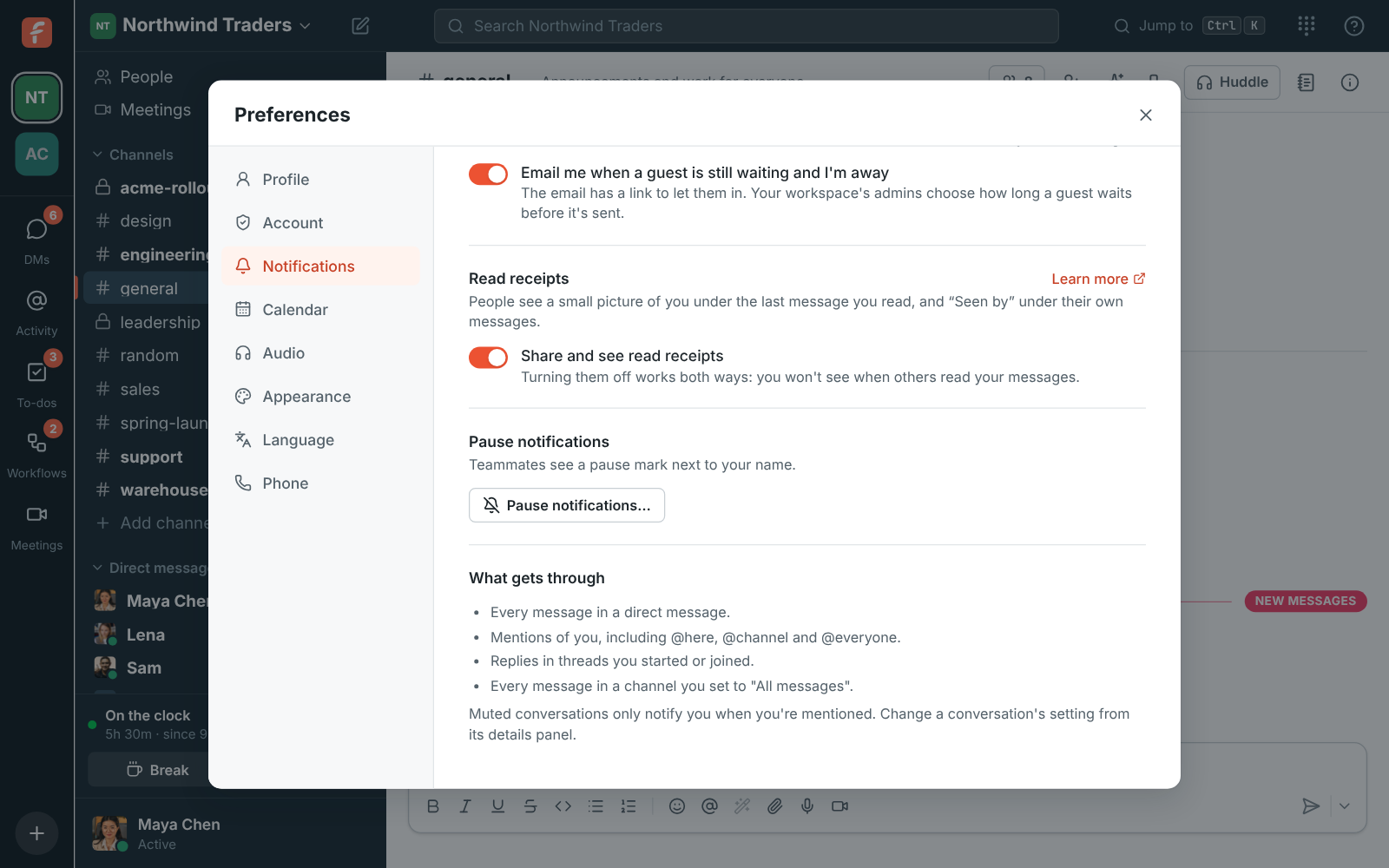
## Unread messages
Conversations with new messages are bold in the sidebar, and a badge counts your mentions and DMs.
A **New messages** line marks where you left off. What you've read is kept in step across all your
devices.
To come back to something later, right-click a message (or open **More actions**) and choose
**Mark unread**. The conversation turns bold again from that message on, on all your devices, and
stays unread while you're still looking at it. Right-click a conversation in the sidebar and choose
**Mark as read** to clear it without opening it.
---
# DMs, Activity and to-dos
Source: https://freesbe.net/docs/getting-around/
> Use the buttons on the left of the window to see every direct message, catch up on mentions and replies, keep a to-do list, and start anything from the + button.
The narrow column on the far left of the window is the **rail**. Your workspaces are at the top.
Under them are five buttons, each with a count when something needs you:
- **DMs** shows all your direct messages, and how many are unread.
- **Activity** collects mentions of you and replies in your threads.
- **To-dos** is your own list of things to do. Its count shows what's due today or overdue.
- **Workflows** opens your [workflows](https://freesbe.net/docs/workflows/). Its count shows forms that workflows
sent you and that are waiting for your answer.
- **Meetings** opens your [meetings](https://freesbe.net/docs/meetings/). Guests don't see this button.
The **+** at the bottom of the rail starts anything new.
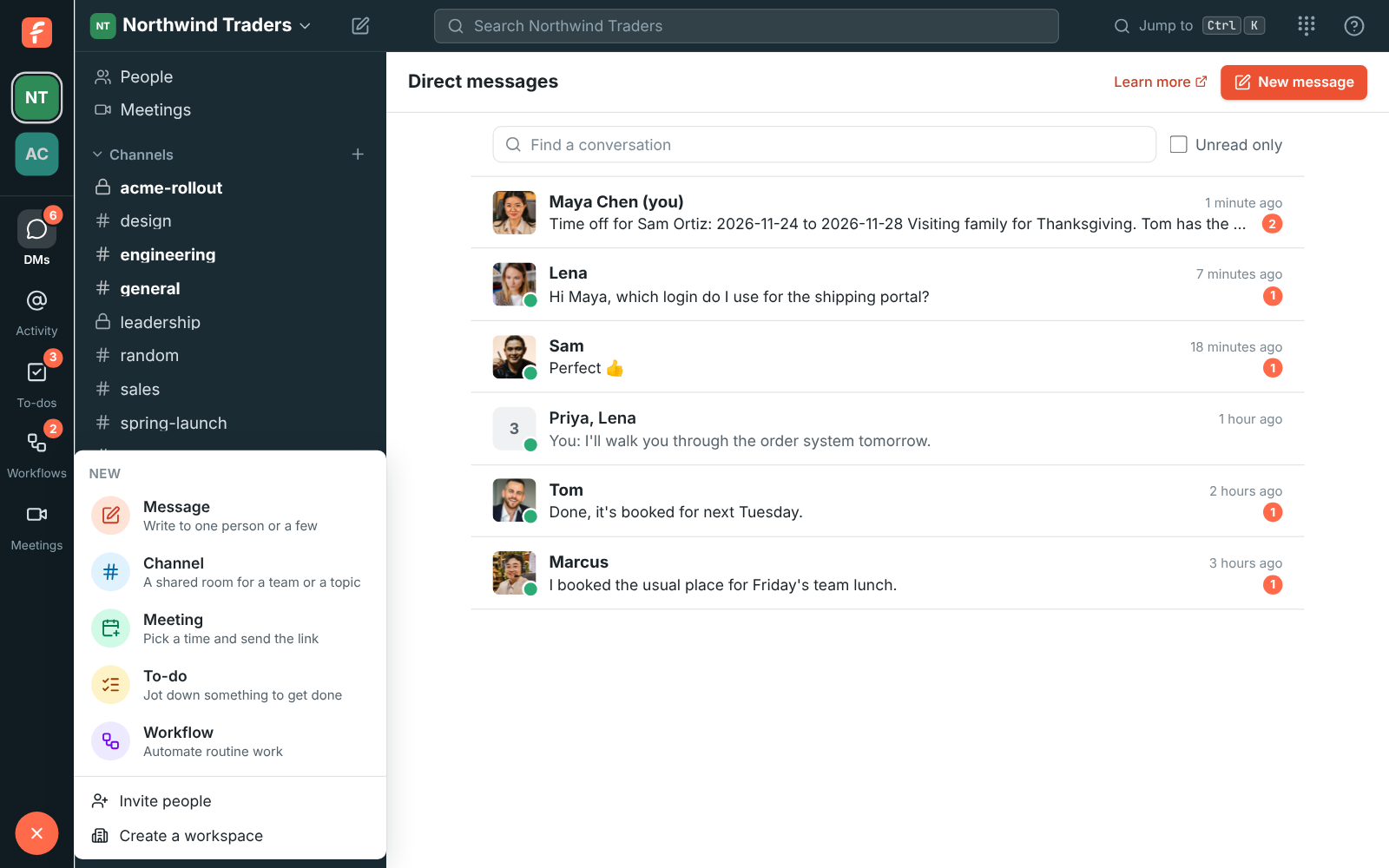
## Create anything from the + button
Click **+** at the bottom of the rail and pick what to start:
- **Message** opens a new direct message to one person or a few.
- **Channel** creates a channel. It isn't offered to guests.
- **Meeting** opens **Meetings** with the scheduler ready. See
[Schedule a meeting](https://freesbe.net/docs/meetings/#schedule-a-meeting). It isn't offered to guests.
- **To-do** opens your to-dos with the cursor in the box, ready to type.
- **Workflow** opens a new workflow. It's offered to people who can
[make workflows](https://freesbe.net/docs/workflows/#who-can-make-workflows).
- **Invite people** (owners and admins) and **Create a workspace** sit under a line at the end.
## DMs
**DMs** lists every direct message in the workspace, newest first. Each one shows the last
message and how many are unread. Type in **Find a conversation** to filter by name, or tick
**Unread only**. **New message** starts another one.
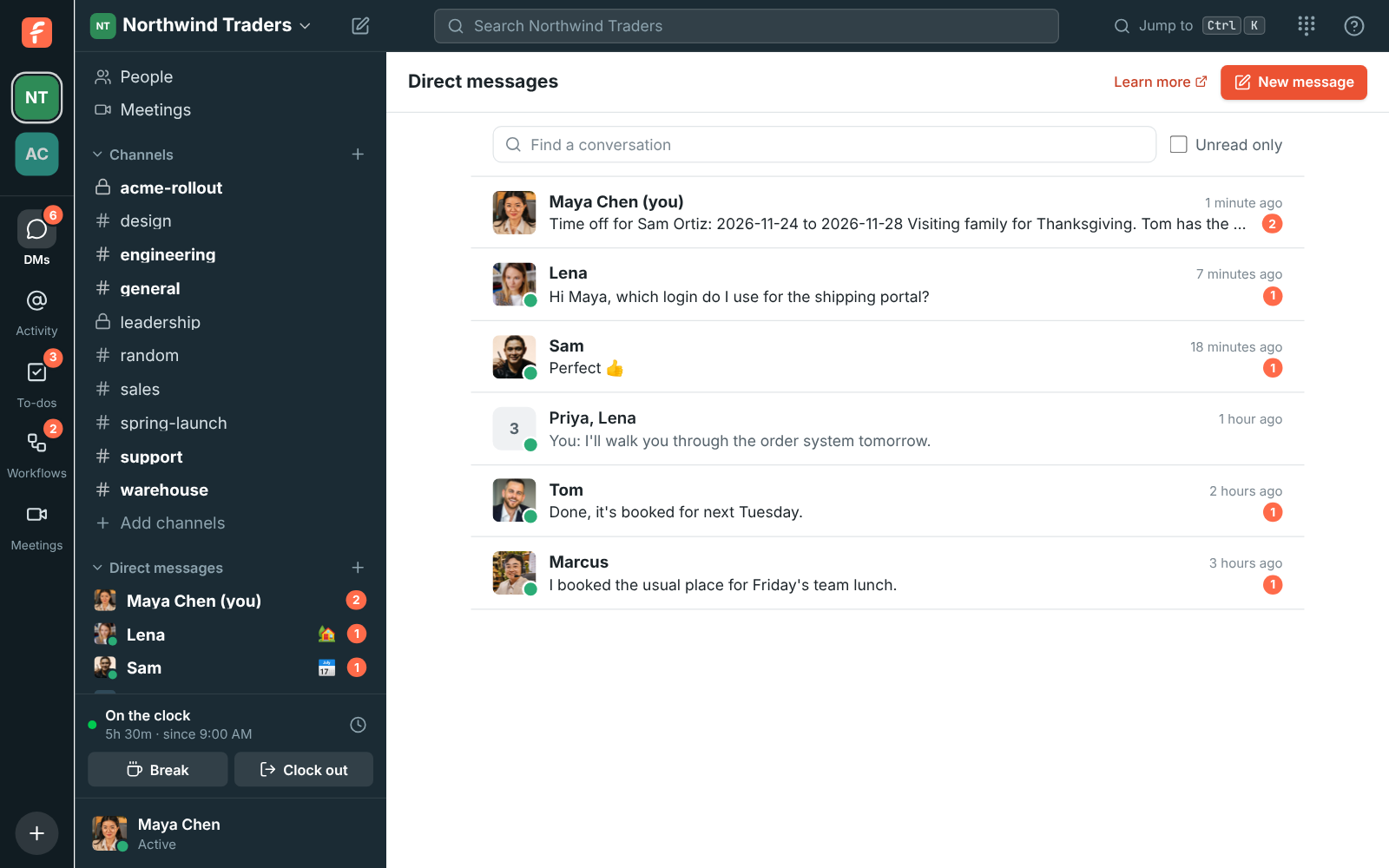
## Activity
**Activity** gathers, newest first:
- messages that mention you, `@channel` or `@here`;
- huddles in your DMs that you [missed](https://freesbe.net/docs/huddles/#missed-calls), with **Call back**;
- replies in threads you started or replied in.
Use **All**, **Mentions** or **Thread replies** at the top to narrow it down. **Calls** lists the
huddles in your DMs, missed, taken and made, with your phone system calls if you have them (see
[Your calls](https://freesbe.net/docs/huddles/#your-calls)). Click an item to open the message, or the thread it's in. The count on the button is how many unread mentions you
have in channels. Unread direct messages are counted on **DMs** instead. New items show up as
they arrive.
A mention only reaches people who are in the conversation. If you mention someone who isn't in the
channel, Freesbe tells you they weren't notified, and **Add them** adds them to the channel.
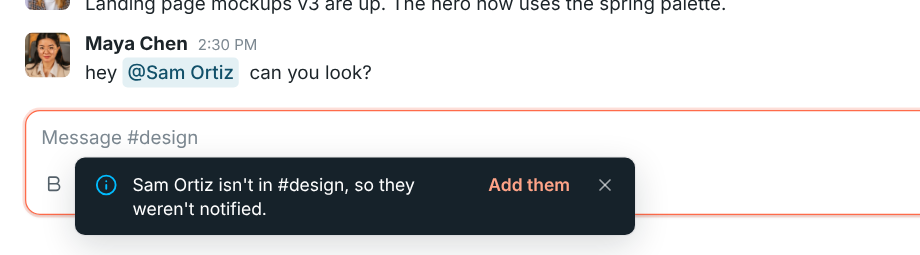
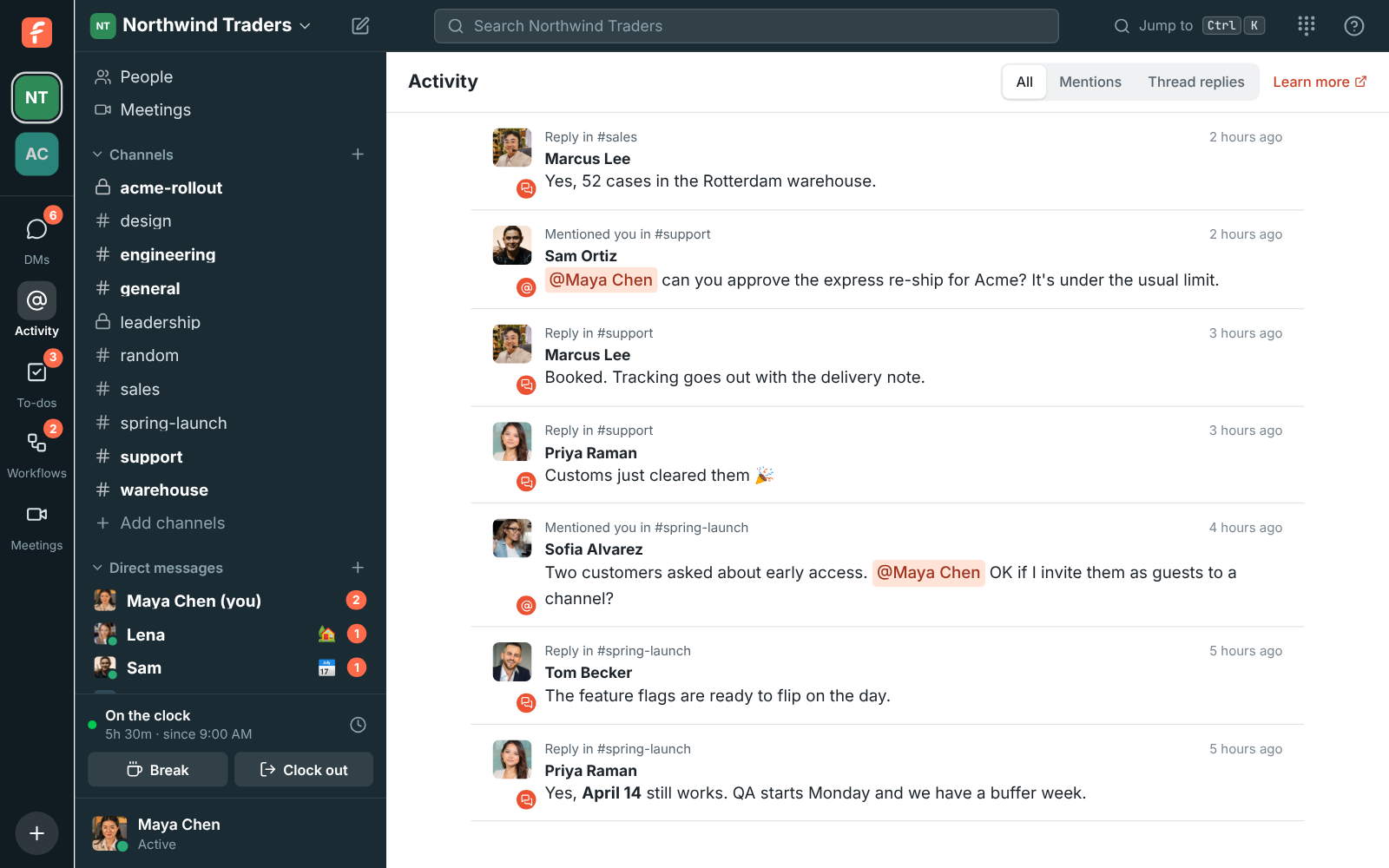
## To-dos
**To-dos** is a list only you can see, one per workspace. Nobody else can see it, admins
included.
1. Type in **Add a to-do…**. Long titles wrap onto more lines as you type.
2. Optionally click the notes button to add notes under it (see [Notes](#notes) below).
3. Optionally click **Due date** and pick **Today**, **Tomorrow**, **End of this week**,
**Next week** or **Pick a date…**.
4. Press Enter or click **Add**.
Your list is grouped into **Overdue**, **Today**, **Coming up** and **No date**:
- Click the circle to tick a to-do off. Ticked-off to-dos go under **Show done**, and clicking the
circle again brings one back.
- Click a to-do's title to change it and its notes, or its date to change or clear the date.
- Point at a to-do and click the bin to delete it.
The **To-dos** button counts the to-dos that are due today or overdue. Freesbe doesn't send
reminders for them.
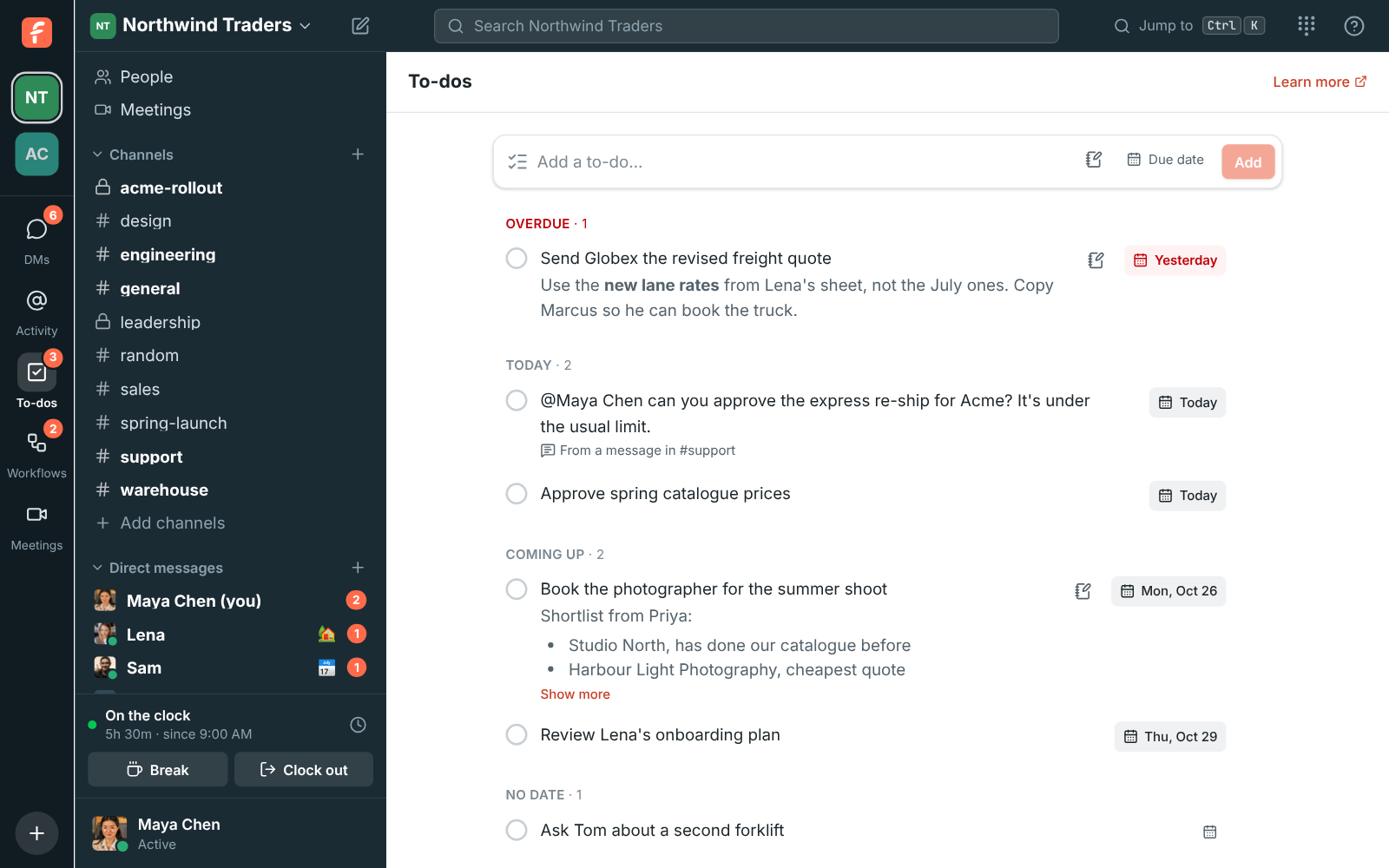
### Notes
Every to-do has a short title and can have notes under it, for the details: links, steps, who to
ask, or a whole checklist.
- Click a to-do's title, or point at it and click the notes button, to open the editor. The
title is on top and the notes box is underneath.
- Notes take the same formatting as messages: **bold** (Ctrl+B),
_italic_ (Ctrl+I), underline (Ctrl+U),
~~strikethrough~~, `code`, bulleted and numbered lists, links, @mentions and emoji. The buttons
under the box do the same.
- Enter starts a new line in the notes, or the next item when you're in a list. Press Ctrl+Enter
(⌘+Enter on a Mac) or click **Save** to save, and Esc to
cancel.
- Notes can be up to 10,000 characters.
- When your workspace has AI, click **AI** under the notes box to have it write the notes, plan
the to-do as steps with a due date, or sum up the conversation it came from. See
[Help with your to-dos](https://freesbe.net/docs/ai-summaries/#help-with-your-to-dos).
In the list, notes show under the title, formatted. Long notes are cut to a few lines; click
**Show more** to read the rest.
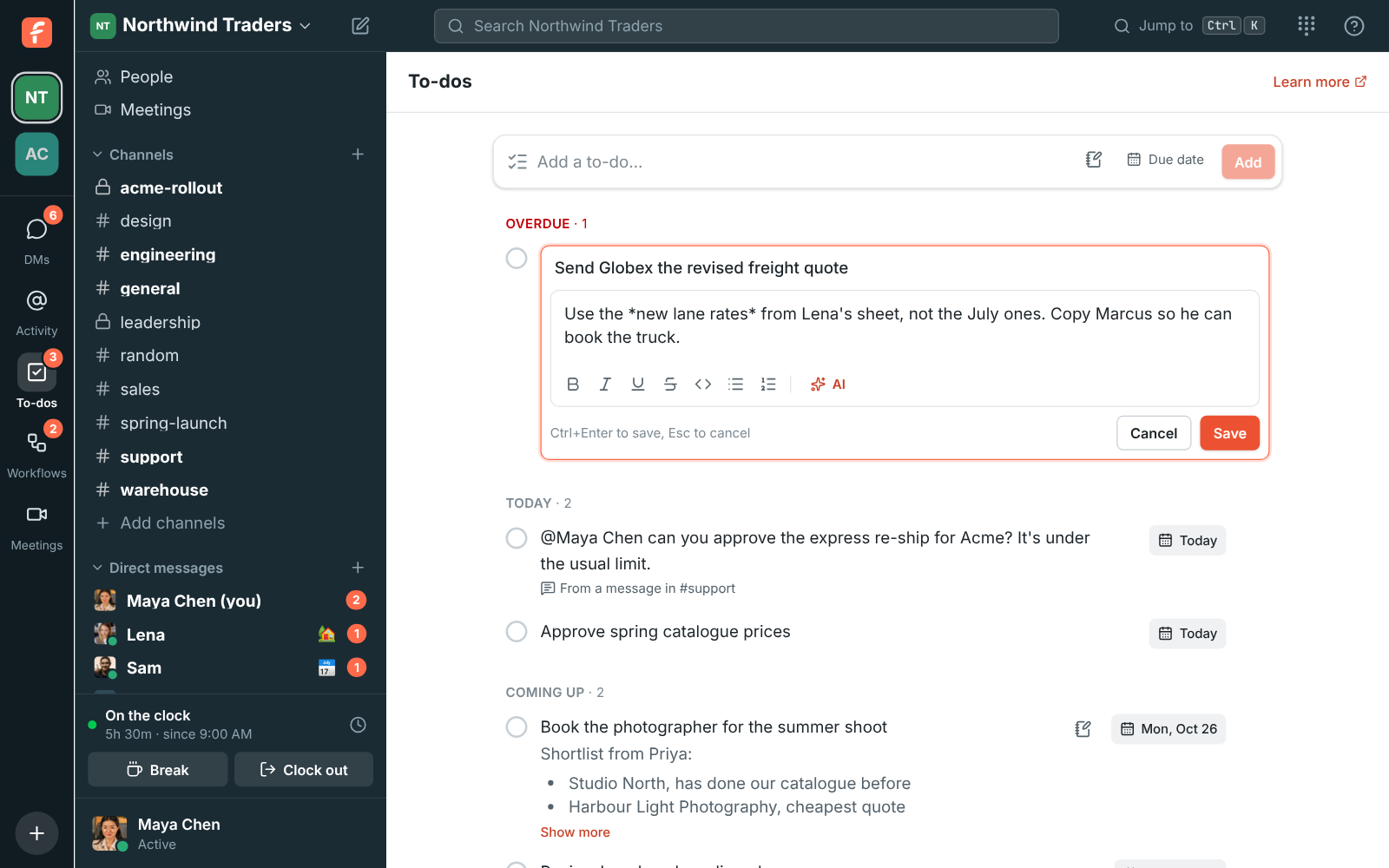
### Turn a message into a to-do
Point at any message, click **⋯** and choose **Add to to-dos**. The to-do takes the message's
text and has a **From a message in …** link that jumps back to it. When the message is long or
has more than one line, the title is its first part and the whole message, formatting and all,
goes in the notes. Edit the text or add a date like any other to-do.
In the mobile app, press and hold a message and tap **Add to to-dos**. Your list is under
**You → To-dos** there. See [The mobile app](https://freesbe.net/docs/mobile-app/#to-dos).
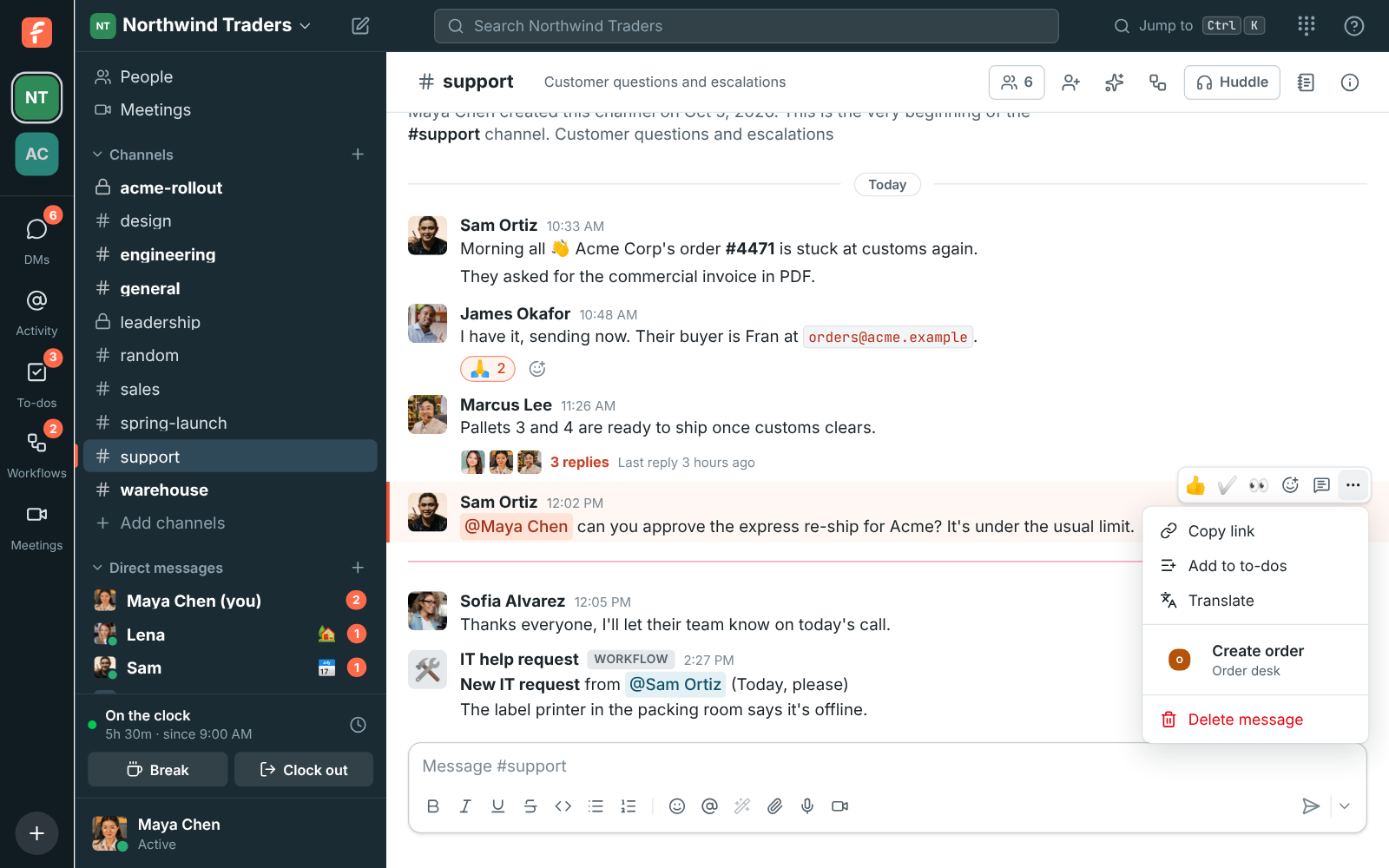
To-dos work in every language Freesbe speaks, right-to-left ones included.
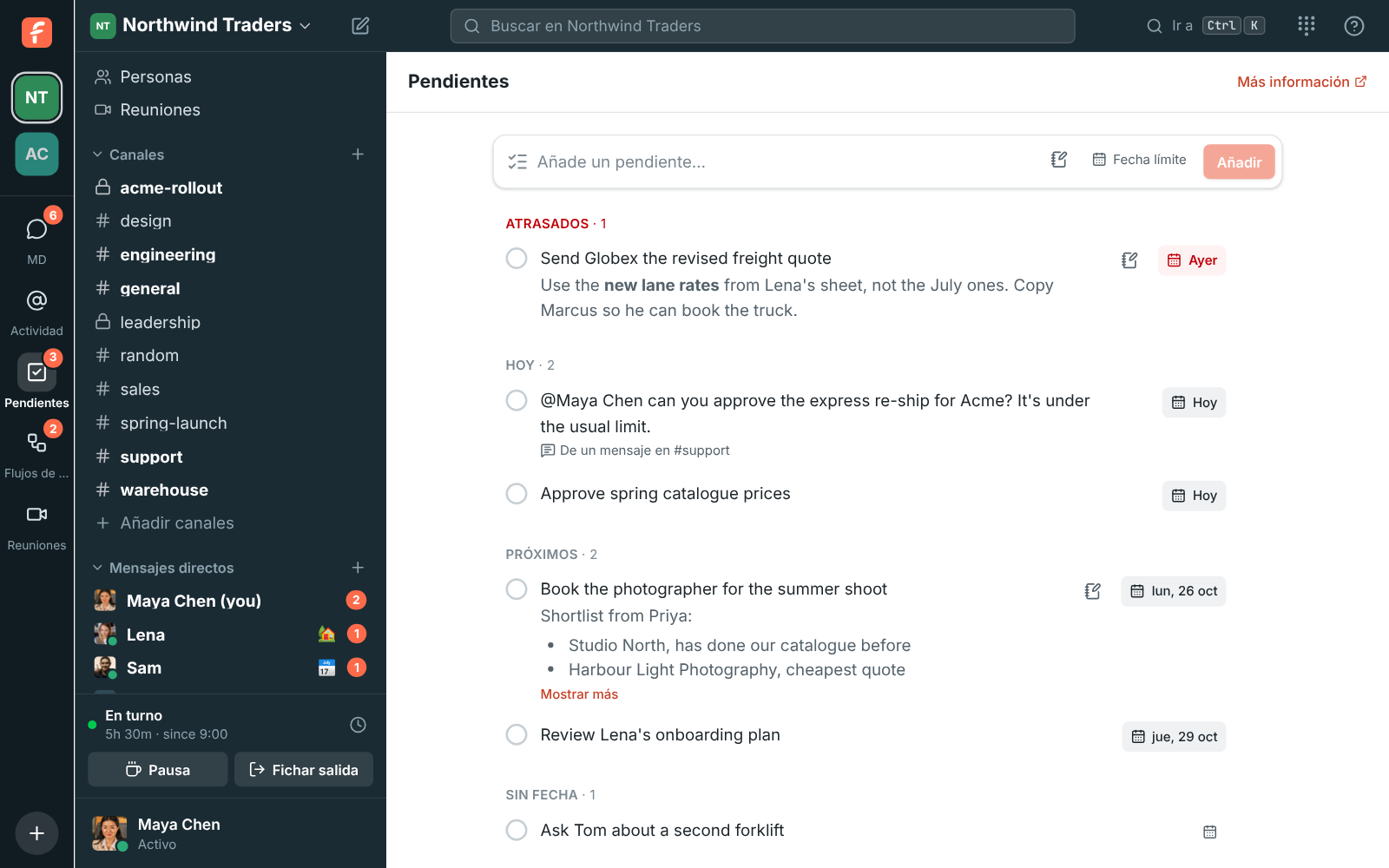
---
# Canvases
Source: https://freesbe.net/docs/canvases/
> Keep a shared document in every channel and DM, for notes, playbooks and FAQs, and edit it together with your team as you chat.
Every channel and direct message can have a **canvas**: one document that sits beside the
conversation. Use it for what people keep asking about, such as a support playbook, a price list,
the agenda for this week or a customer's account plan. Everyone in the conversation can edit it at
the same time and sees the others' changes as they type.
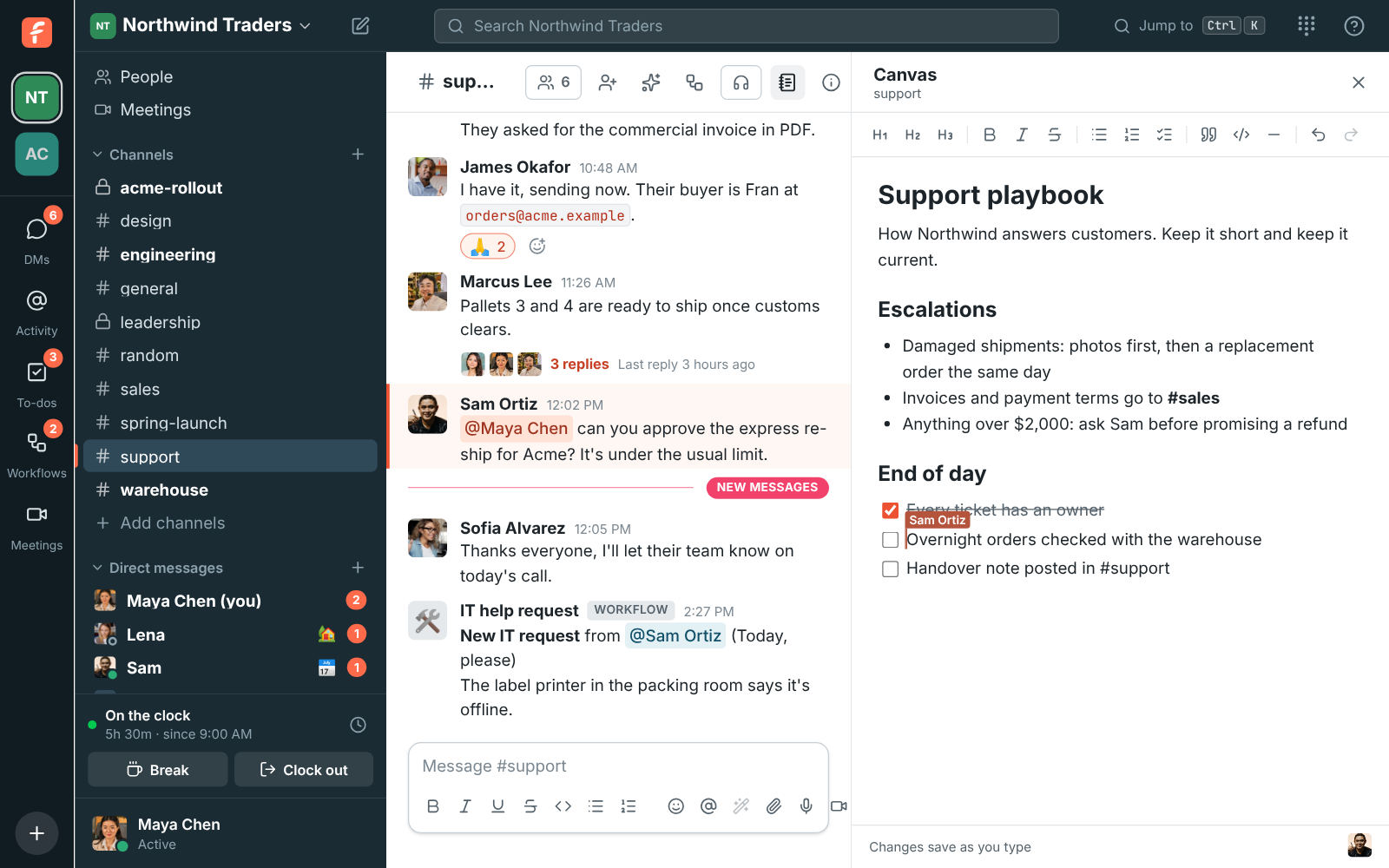
## Open a conversation's canvas
Click the **canvas** button at the top of a channel or DM, next to the huddle button. The canvas
opens on the right, beside the messages. Click the button again, or the **×**, to close it.
The first time a member opens it, the canvas is empty and ready to write in, or to
[start from a template](#start-from-a-template). There's nothing to set up or save: changes are
kept as you type, and **Changes save as you type** shows at the bottom.
## Start from a template
While a canvas is empty, a few ready-made starts show under the first line. Click one to fill the
canvas with its headings, lists and checklists, then replace the prompts with your own details.
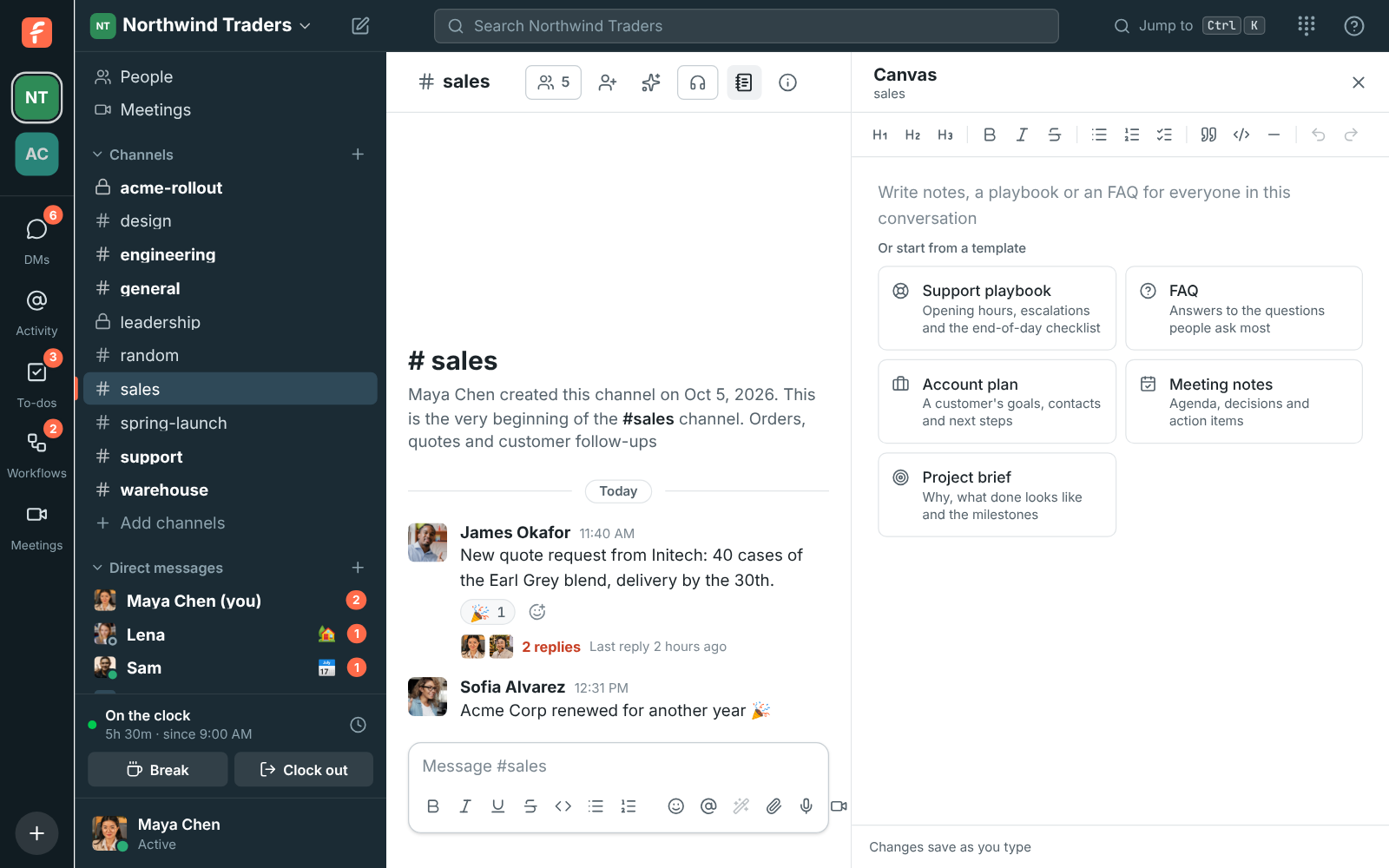
| Template | What's in it |
| -------------------- | ------------------------------------------------------------------------------ |
| **Support playbook** | Opening hours and response times, who to escalate to, an end-of-day checklist |
| **FAQ** | Questions grouped by topic, each with its answer |
| **Account plan** | The customer, owner and renewal date, their goals, key contacts and next steps |
| **Meeting notes** | Date and attendees, the agenda, decisions and action items |
| **Project brief** | Why you're doing it, what done looks like, and the milestones |
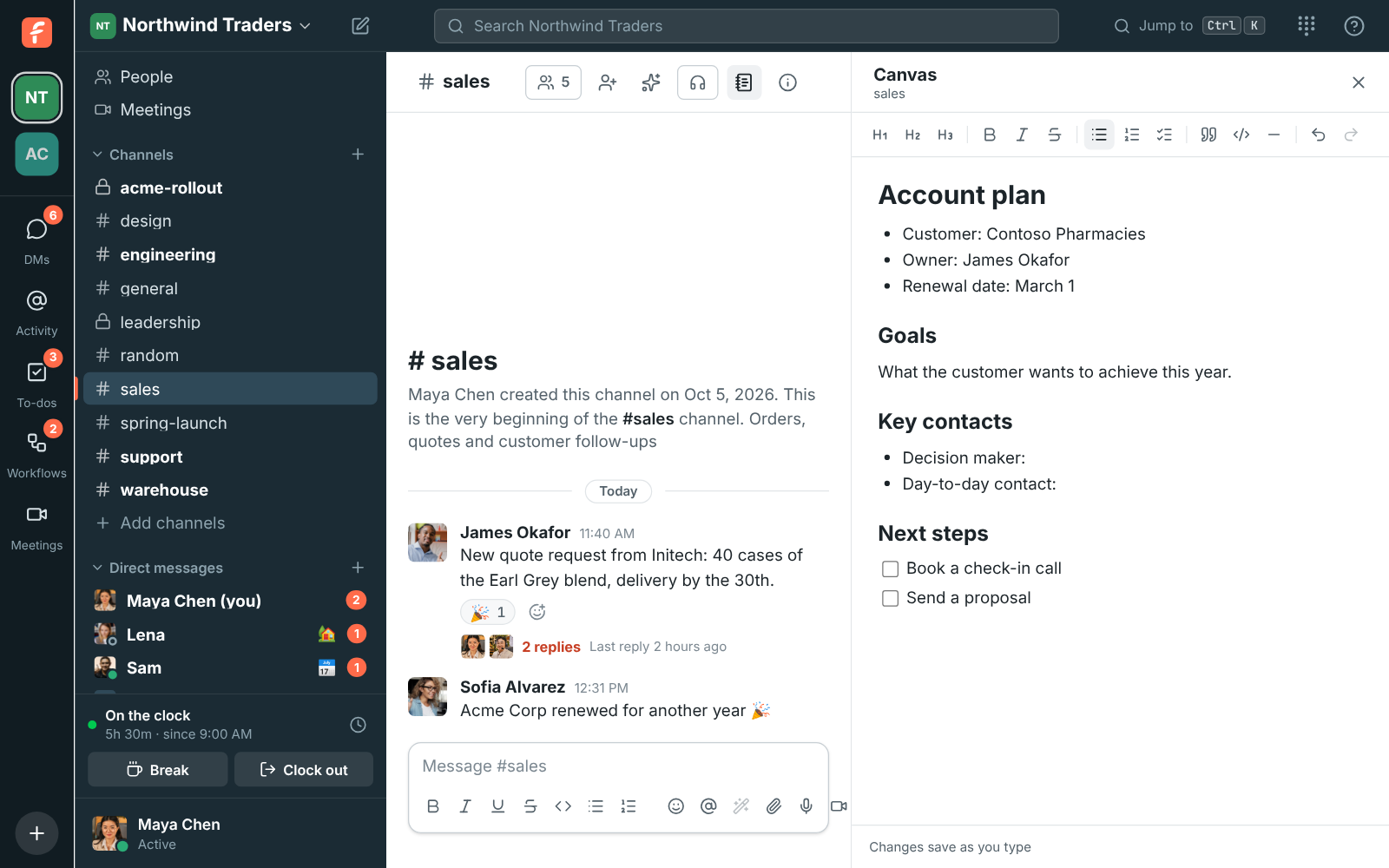
Templates are written in the language you use Freesbe in. Once the canvas has anything in it, the
templates go away, so they never replace someone's work. Changed your mind straight after picking
one? **Undo** takes the canvas back to empty.
## Write and format
Type straight into the canvas. The bar at the top formats the text:
- **Headings** in three sizes, **bold**, _italic_ and ~~strikethrough~~.
- **Bulleted** and **numbered lists**, and **checklists** you can tick off.
- **Quotes**, **code blocks** and a **divider** line.
- **Undo** and **Redo** undo your own changes, never someone else's.
You can also type shortcuts at the start of a line:
| Type | To get |
| --------------- | ---------------- |
| `#` + space | A large heading |
| `##`, `###` | Smaller headings |
| `-` + space | A bulleted list |
| `1.` + space | A numbered list |
| `[ ]` + space | A checklist item |
| `>` + space | A quote |
| ` ``` ` + space | A code block |
**Ctrl+B**, **Ctrl+I** and **Ctrl+Shift+S** (**⌘** on a Mac) make text bold, italic or struck
through. Pasted links become clickable. Hebrew and Arabic lines are written right to left on their
own.
## Edit together
When someone else has the same canvas open, their cursor shows with their name, and their picture
appears at the bottom of the canvas. Everyone's changes merge as they type, even in the same
paragraph, so nobody has to wait their turn.
If your connection drops, keep writing. The bottom of the canvas says you're offline, and your
changes are sent as soon as you're back.
## Who can see and edit a canvas
A canvas follows its conversation:
- **Members** of a channel or DM can edit its canvas.
- People who can read a channel without being in it, such as anyone browsing a public channel, can
read the canvas but not change it. **Join the channel** to edit.
- A private channel's or DM's canvas is only visible to the people in it.
- An **archived** channel's canvas is read-only.
A canvas can hold a long document, about a book's worth of text. If one is ever full, start a new
channel or move part of it elsewhere.
## Coming next
Canvases are new. Next come canvases you can create on their own and share with anyone, embedded
messages, files and meetings, version history, more templates, your own templates, and answers
from your canvases in search.
---
# Search and shortcuts
Source: https://freesbe.net/docs/search-and-shortcuts/
> Search every message you can see, narrow it down with filters, ask Freesbe a question and get an answer with sources, jump to any conversation, and the keyboard shortcuts that save time.
## Search messages
Type at least two characters into the **Search** box at the top. Results open in the right pane,
newest first, with the matching words highlighted.
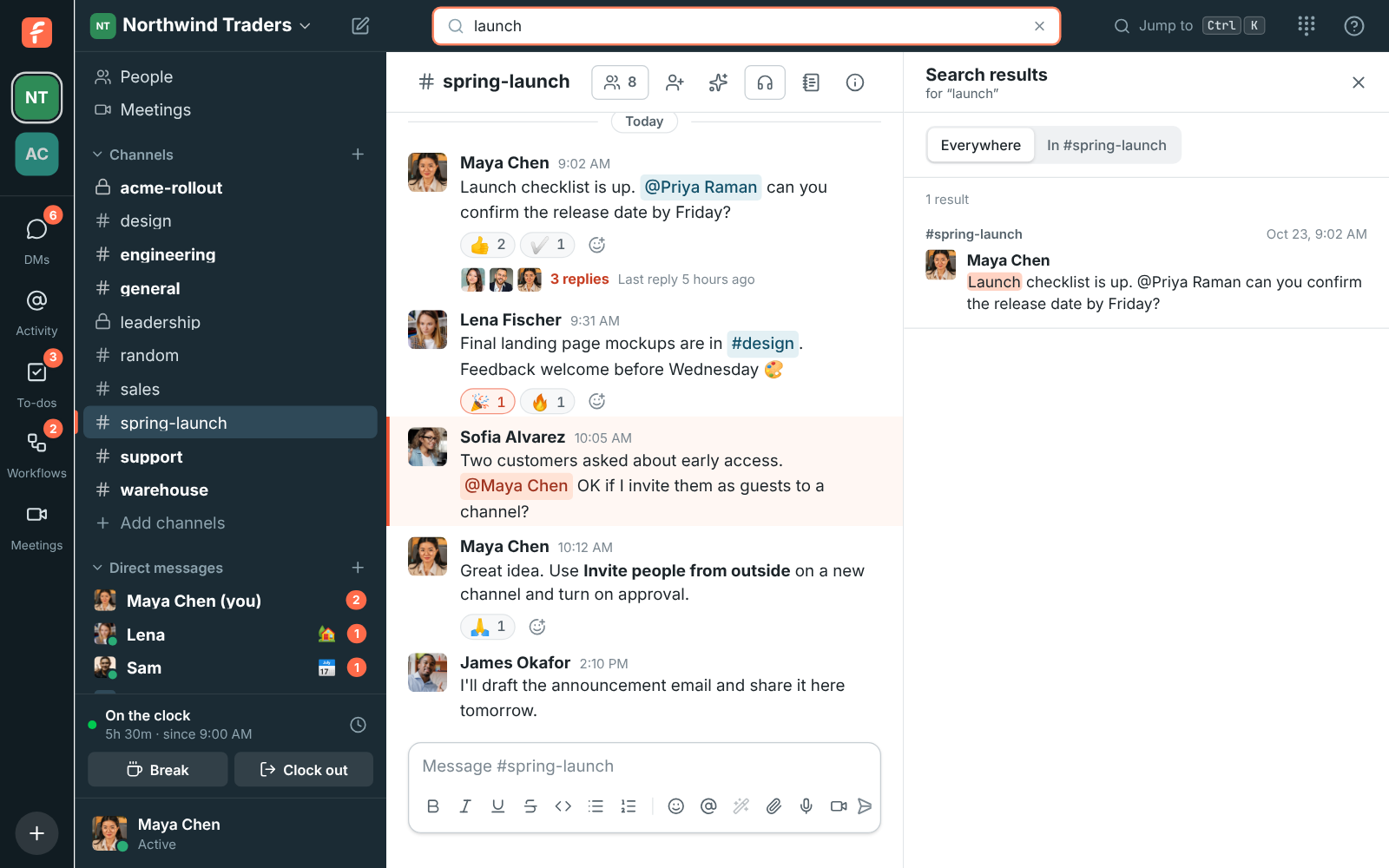
- Choose **Everywhere**, or **In #channel** to search only the conversation you have open.
- Click a result to jump to that message in its conversation.
- Search covers every message you can see: public channels, your private channels and your DMs.
You see the 50 newest matches.
- Press Esc in the search box to clear it.
### What counts as a match
You don't need to type whole words. Search finds what you type anywhere in a message, in any
case, so **list** finds "Shortlist" and "Launch checklist", and **voice** finds "invoice".
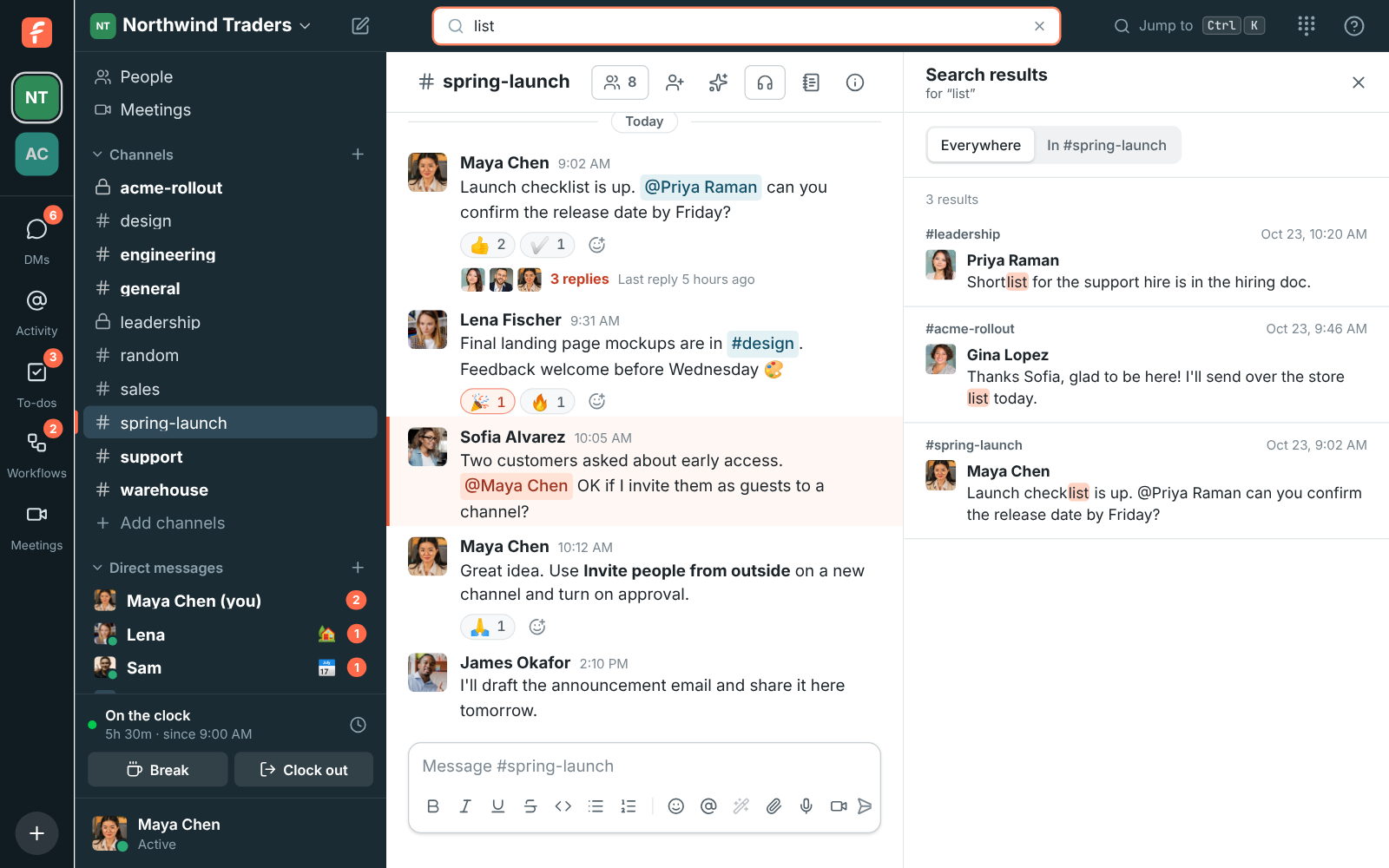
- Type several words to narrow it down: a message has to contain every one of them, in any order.
- Words of one or two letters, like **q3** or **ac**, match the start of a word.
- Search also looks at the names of shared files, so **report** finds a message with
_Quarterly-Report.pdf_ attached, and at the text of app and webhook messages.
- Punctuation is ignored: **q3-report** searches for "q3" and "report".
### Filters
Add filters to what you type to narrow the results down. Use them on their own, or with words:
| Filter | Finds messages |
| ------------------- | --------------------------------------------------- |
| `from:@maya` | Written by Maya. `from:me` finds your own. |
| `in:#sales` | In #sales |
| `after:2026-10-01` | From October 2 on (the day you type isn't included) |
| `before:2026-10-31` | Up to October 30 |
| `on:2026-10-20` | Written on October 20 |
| `has:file` | With a file attached |
Put a name with spaces in quotes: `from:"Maya Chen"`. A first name is enough when only one person
has it. The filters you used show as chips above the results, so you can check what was searched,
and a name that matches nobody is crossed out.

## Ask Freesbe
Type a question into the search box, like _When is the spring launch?_ or _What did Priya say
about pricing?_, and **Ask Freesbe** answers it at the top of the results. It reads the messages
you can see, writes a short answer, and puts a numbered link after each sentence. Click a number,
or a source under the answer, to jump to the message it came from.

- A question gets an answer straight away: anything ending in a question mark, or starting with
_who_, _what_, _when_, _where_, _why_, _how_ and the like. For anything else, click **Ask** in
the Ask Freesbe box.
- You can ask in your own language. Freesbe also searches for the words in English, so a question
in Spanish finds an answer written in English, and the other way round.
- Plain words work as filters. _Files Dana shared in #sales last week_ looks in #sales, for
messages from Dana with files, last week. Ask Freesbe shows what it understood as chips, and
**Search with these filters** runs the same search with the [filters](#filters) typed out, so you
can see every match.
- Choose **In #channel** above the results to ask about the conversation you have open only.
### What it can and can't see
- Ask Freesbe only reads messages you can already see: public channels, your private channels and
your DMs. Someone else asking the same question can get a different answer.
- Every sentence has to come from a message. When the messages it finds don't answer the question,
it says so and shows what came closest, instead of guessing.
- The answer is only for you. Nobody sees that you asked, and nothing is posted.
- It can still get things wrong, or miss that something changed later. Check the sources before
you act on an answer.
- Each question counts as one AI request toward your workspace's monthly allowance (see
[AI summaries, translations and writing help](https://freesbe.net/docs/ai-summaries/)). Guests can search, but
can't use Ask Freesbe. If an admin turns AI features off, the Ask Freesbe box goes away and
search works as before.
## Jump to a conversation
Press Ctrl+K (⌘+K on a Mac), or click **Jump to a
conversation** in the top bar. Start typing a channel or person's name, move with
↑ ↓, and press Enter to open it. Unread conversations show a dot.
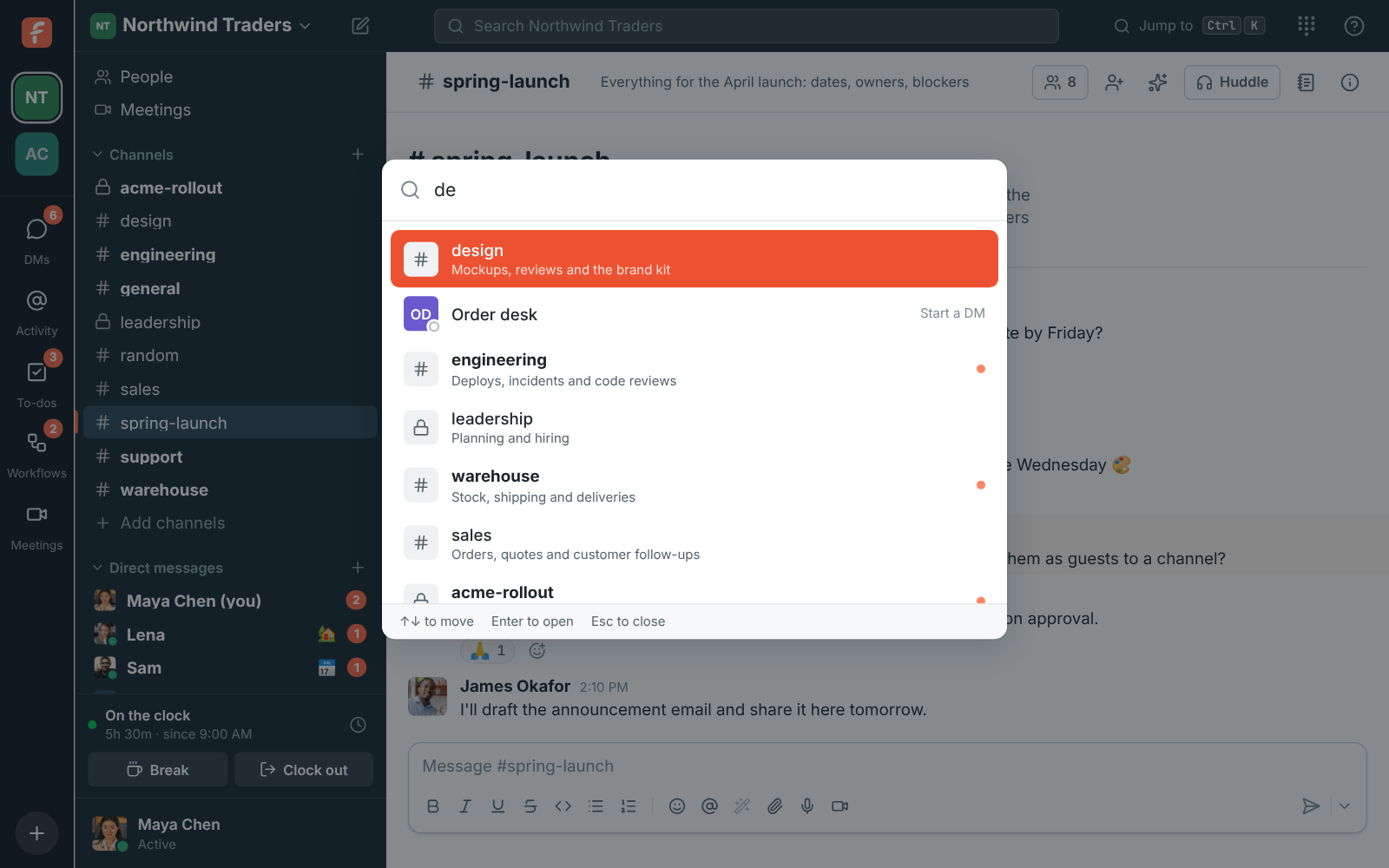
## Keyboard shortcuts
Press Ctrl+/ (⌘+/ on a Mac), or choose
**? → Keyboard shortcuts** in the top bar, to see this list inside the app.
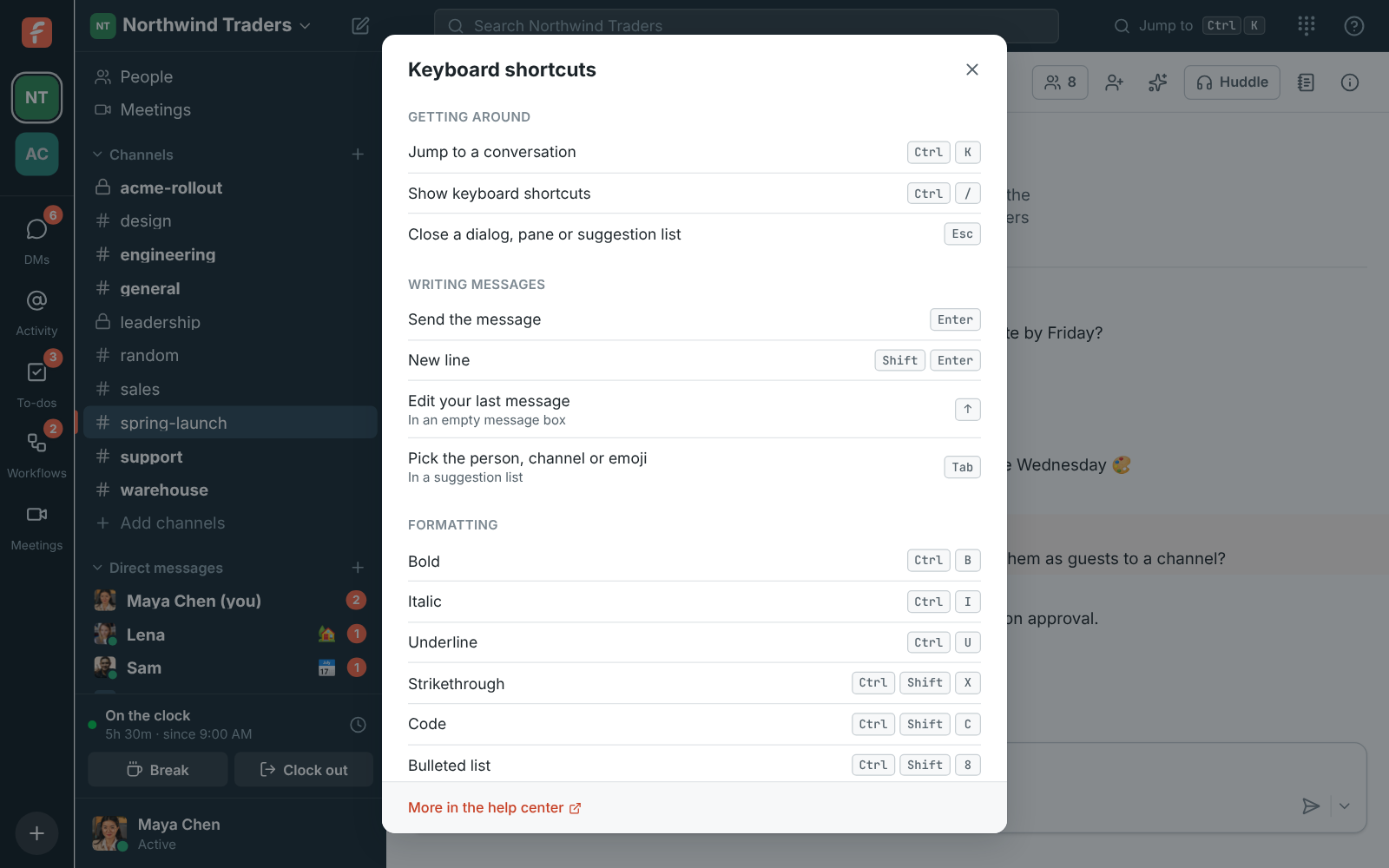
| Shortcut | What it does |
| ---------------------------------------------------------- | --------------------------------------------- |
| Ctrl/⌘+K | Jump to a conversation |
| Ctrl/⌘+/ | Show keyboard shortcuts |
| Ctrl/⌘+F in settings | Search Workspace settings or Preferences |
| Enter | Send the message |
| Shift+Enter | New line |
| ↑ in an empty message box | Edit your last message |
| Ctrl/⌘+B | Bold |
| Ctrl/⌘+I | Italic |
| Ctrl/⌘+U | Underline |
| Ctrl/⌘+Shift+X | Strikethrough |
| Ctrl/⌘+Shift+C | Code |
| Ctrl/⌘+Shift+8 | Bulleted list |
| Ctrl/⌘+Shift+7 | Numbered list |
| Tab / Shift+Tab in a list | Indent the item, or move it back out |
| Shift+Enter in a list | Start the next item |
| Tab or Enter in a suggestion list | Pick the highlighted person, channel or emoji |
| Esc | Close a dialog, pane or suggestion list |
### In the desktop app
The [desktop app](https://freesbe.net/docs/desktop-app/) adds its own keys, and lists them at the end of the
shortcuts dialog. In a browser, the browser's own zoom and reload keys do the same.
| Shortcut | What it does |
| ---------------------------------------------------------- | -------------- |
| Ctrl/⌘++ or = | Zoom in |
| Ctrl/⌘+- | Zoom out |
| Ctrl/⌘+0 | Actual size |
| Ctrl/⌘+mouse wheel | Zoom in or out |
| Ctrl/⌘+R or F5 | Reload |
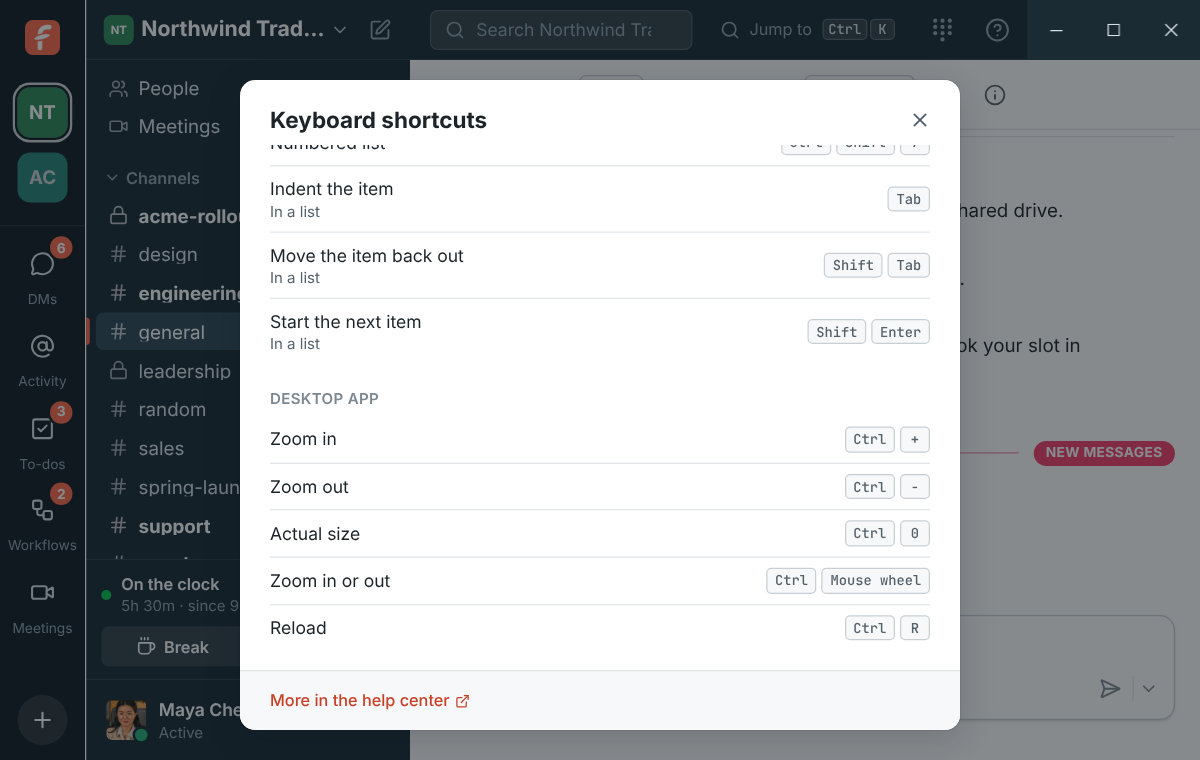
See [Zoom in and out](https://freesbe.net/docs/desktop-app/#zoom-in-and-out) for more.
## The People directory
**People** in the sidebar lists everyone in the workspace with their title, department, location
and status. Filter by **Everyone**, **Active now** or **Admins**, pick a **Department**, search by
name, title, department, location or email, and click someone to see their profile or send them a
message.
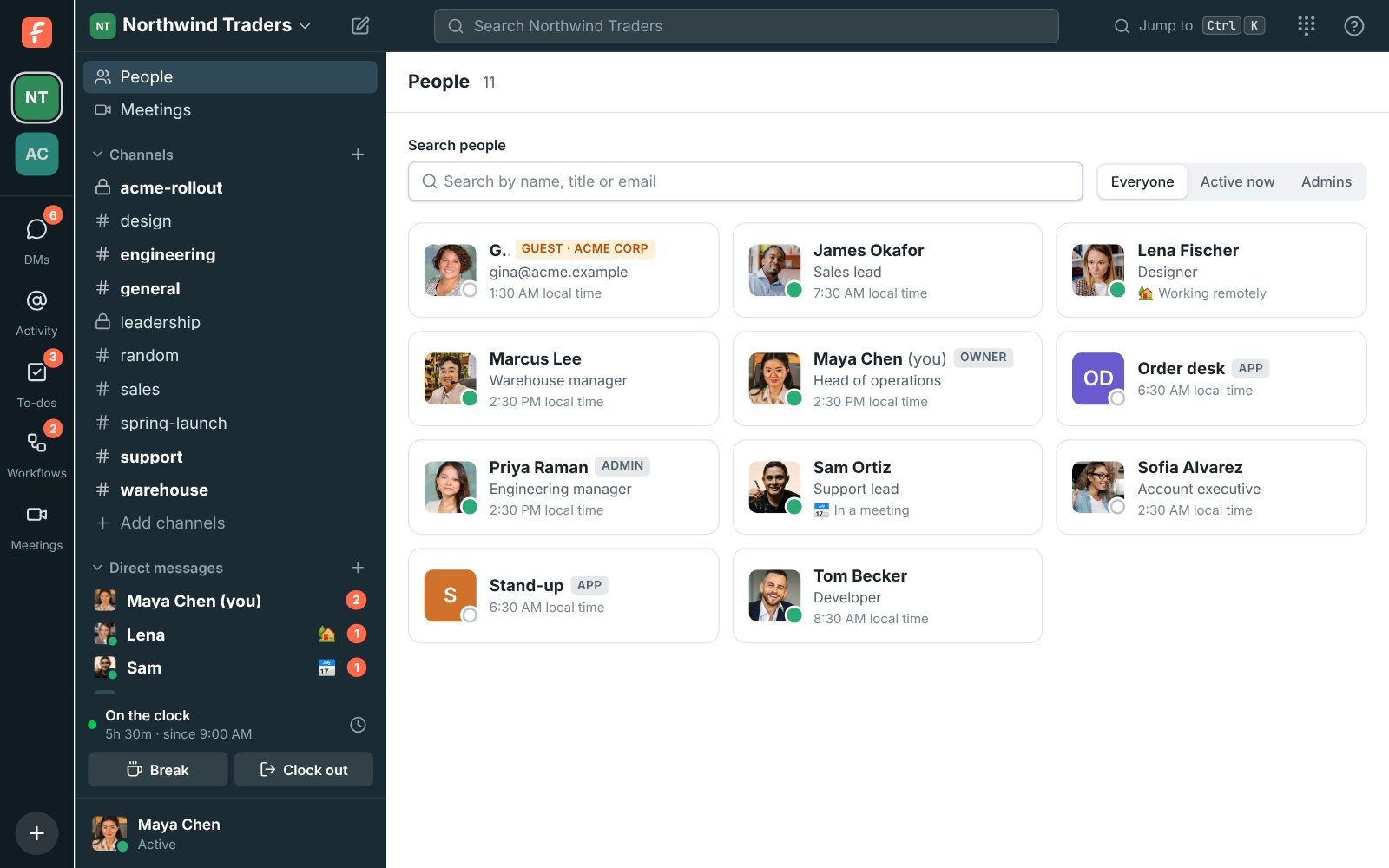

---
# Status and availability
Source: https://freesbe.net/docs/status-and-availability/
> Show when you're active or away, set a status with an emoji, connect your calendar, pause notifications, and know when someone won't see your DM yet.
## Active, away and offline
A green dot next to someone's name means they're active. Freesbe sets you to **away** after ten
minutes without using it on any of your devices, and back to **active** as soon as you do.
People who aren't connected at all show as offline.
To stay away regardless, open your account menu at the bottom of the sidebar and choose **Set
yourself as away**. Choose **Set yourself as active** to undo it.
## Set a status
A status tells people what you're up to, such as "Heads down" or "Off sick".
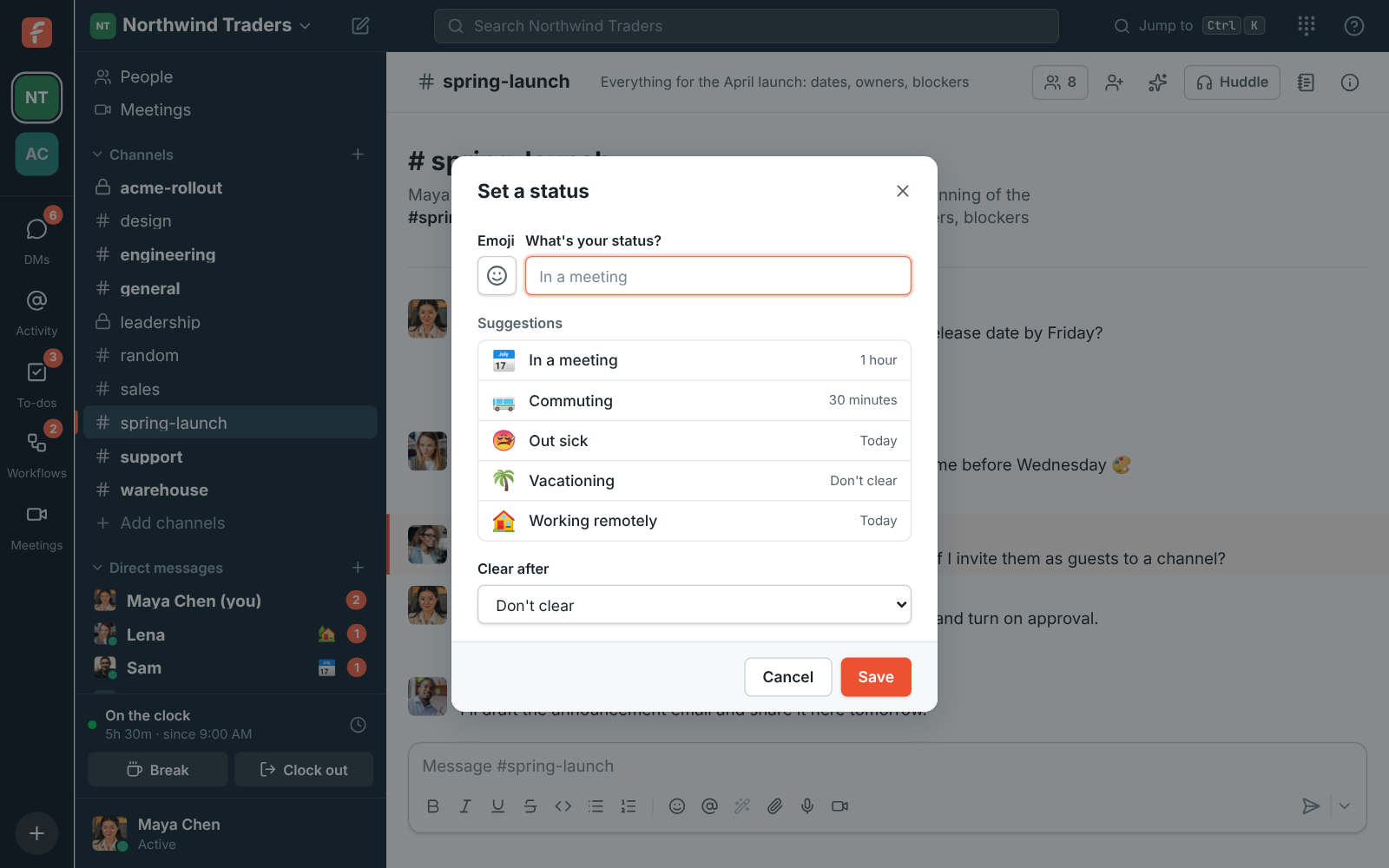
1. Open your account menu at the bottom of the sidebar and choose **Set a status**.
2. Pick an emoji and type what you're doing, or choose a suggestion: Heads down, On a call,
Lunch break, On the road, Off sick or Away on holiday.
3. Under **Clear after**, choose when it should go away: Don't clear, 30 minutes, 1 hour,
4 hours, Today or This week.
Your status shows next to your name in the sidebar, in DMs and on your profile. To remove it,
choose **Clear status** in the same menu.
## Connect your calendar
Connect your Google, Microsoft or [Zoho](https://freesbe.net/docs/zoho-calendar/) calendar so teammates can see when you're busy while they
[schedule a meeting](https://freesbe.net/docs/meetings/#find-a-time-that-works), and so your status says you're in a
meeting while you are.
1. Open **Preferences** from your account menu and choose **Calendar**.
2. Click **Connect Google Calendar**, **Connect Microsoft Calendar** or **Connect Zoho Calendar**,
and sign in to that account.
It can be a different account from the one you sign in to Freesbe with.
3. Allow Freesbe to see when you're busy. If you untick that permission, Freesbe can't connect.
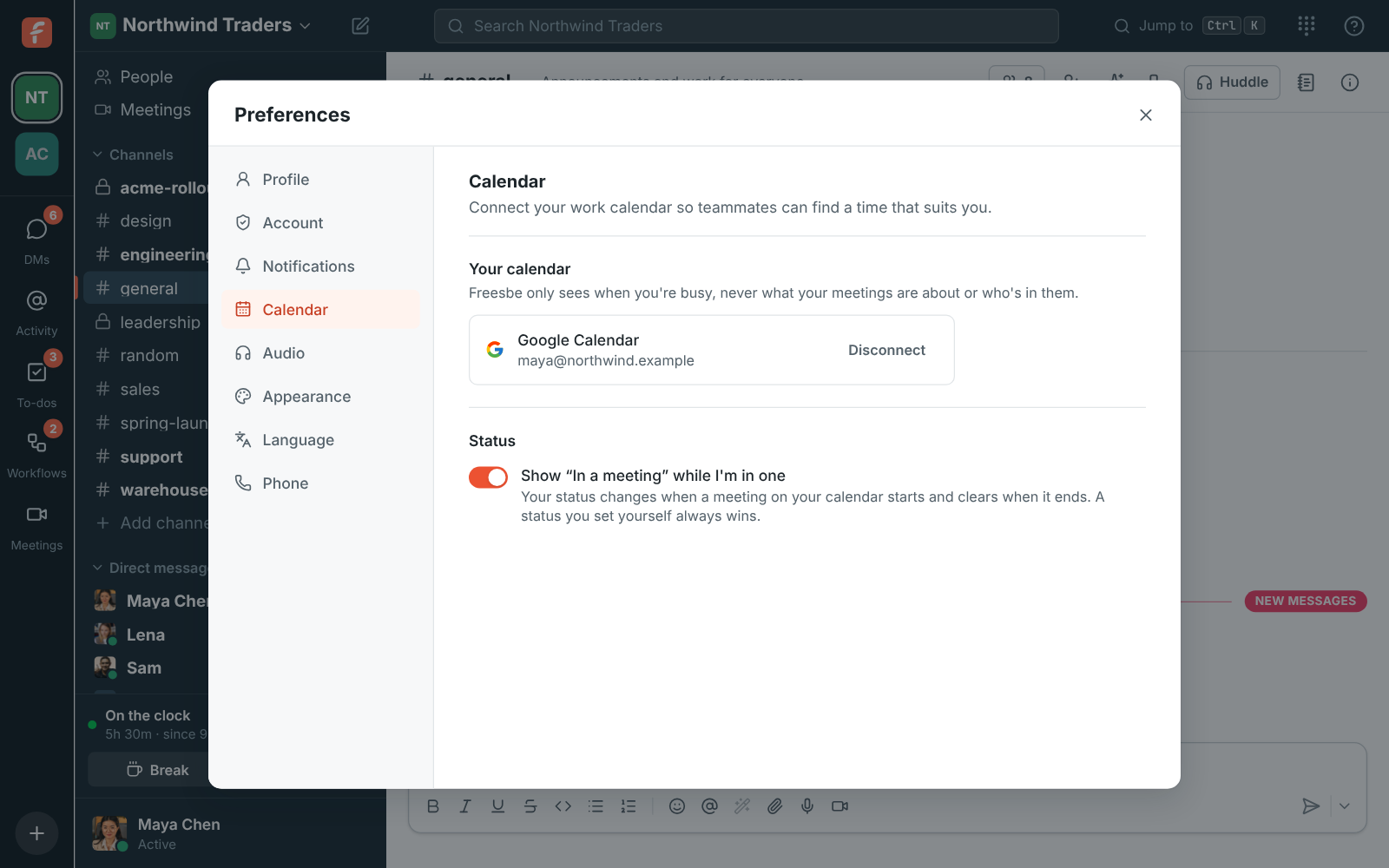
Freesbe only sees when you're busy, never your meetings' titles, places or who's in them,
unless you turn on the [Calendar app](https://freesbe.net/docs/calendar-app/) for a daily agenda, reminders and
invitations you can answer in Freesbe. Events
marked free or cancelled don't count. In the desktop app, **Connect** opens Freesbe in your web
browser at Preferences → Notifications → Calendar; connect there and the app picks it up. **Disconnect** removes Freesbe's access.
If your work account says it needs an admin's approval, ask your IT admin to approve Freesbe for
your organization.
### "In a meeting" automatically
With a calendar connected, **Show "In a meeting" while I'm in one** sets your status to 📅 In a
meeting when a meeting on your calendar starts, and clears it when it ends. Back-to-back meetings
keep it on until the last one ends. It can take up to five minutes to change.
- A status you set yourself always wins: Freesbe doesn't replace it.
- If you clear the automatic status, it stays off until that meeting ends.
- Turn the setting off to stop it, which clears it straight away.
## Pause notifications
Pausing notifications (Do Not Disturb) stops sounds and desktop notifications until the pause
ends. Teammates see a pause mark next to your name, so they know you may not answer.
1. Open your account menu and choose **Pause notifications…**.
2. Pick 30 minutes, 1 hour, 2 hours, or until 9 the next morning.
Choose **Resume notifications** to end it early. Messages still arrive while you're paused; you'll
see them, unread, when you look. While you're paused, people
[finding a time for a meeting](https://freesbe.net/docs/meetings/#find-a-time-that-works) see it, and Freesbe doesn't
suggest times before the pause ends.
People who send you a direct message while you're paused can still choose **Notify anyway** when
it can't wait. Then you get that one notification, and the pause carries on for everything else.
## When the person you message is away
After you send a direct message, Freesbe tells you above the message box if the other person
won't see it right away:
- **They've paused notifications**: "They'll see your message when they're back." Click
**Notify anyway?** to alert them about your message all the same. They get a notification on
their computer, or on their phone if they're not using Freesbe. You can do it once for each
message.
- **They're away or offline**: they still get notified as usual, so there's nothing to do. The
line is there so you don't expect an answer straight away.

The line goes away when they're back, or when you close it with **×**. It shows for one-to-one
DMs only, not for group DMs or channels.
## Your local time
Set your time zone in **Preferences → My account → Profile**. Other people see your local time next to your name in
direct messages, so they know if it's late where you are. Set your
[working hours](https://freesbe.net/docs/profile-and-preferences/#working-hours) there too, so meetings land when
you're working.
---
# Notifications
Source: https://freesbe.net/docs/notifications/
> Choose which messages notify you, turn on desktop notifications, pick sounds for channels and people, mute conversations, and how Freesbe picks one device to alert.
## What notifies you
By default, Freesbe notifies you about:
- Every message in a direct message or group DM.
- Mentions of you, including `@here`, `@channel` and `@everyone`.
- Messages with one of [your keywords](#keyword-alerts) in your channels.
- Replies in threads you started or replied in.
- Huddles in your DMs that you [missed](https://freesbe.net/docs/huddles/#missed-calls). The notification stays
until you deal with it.
- Every message in a channel you've set to **Every message**.
Other channel messages just make the channel bold in the sidebar.
## What a notification says
A notification shows where the message is and who sent it, then the message itself. When a message
has more than one line, such as an alert with its details, you see the first line straight away
and the rest when you expand the notification on your phone, or in your computer's notification.
Messages from apps and [incoming webhooks](https://freesbe.net/docs/api-and-webhooks/) say what they're about too:
- **Cards**, like the ones Zabbix, Freshdesk or your CRM post, lead with the card's text, followed
by its fields on a line each, such as **Host: web-02**.
- **Alerts with only a coloured box**, the way many monitoring tools post to Slack, lead with the
box's title, followed by its text and fields. A dot shows the box's colour: 🔴 red, 🟠 orange,
🟡 yellow, 🔵 blue, or ✅ green for something resolved.
- When an app has the same name as its channel, such as **ops-alerts** in **#ops-alerts**, its name
isn't repeated in front of each message.

## Turn on desktop notifications
1. Open **Preferences → Notifications**.
2. Turn on **Show notifications for new messages**. Your browser asks for permission; click
**Allow**.
3. Click **Send a test notification** to see what one looks like.
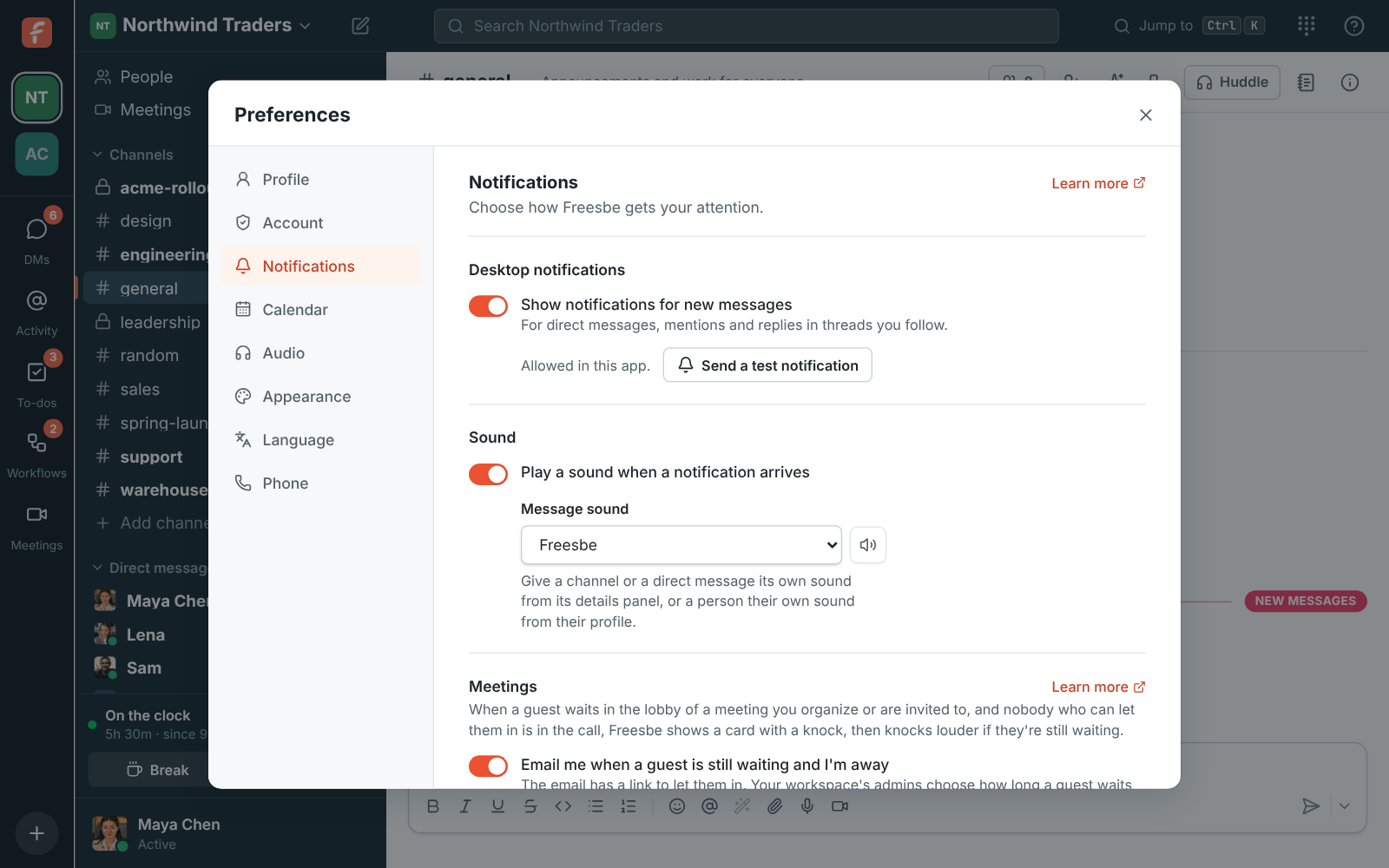
Turn **Play a sound when a notification arrives** on or off in the same place, and pick your
**Message sound**. To play the ringtone and message sounds on a different speaker than your calls,
see [Audio](https://freesbe.net/docs/profile-and-preferences/#audio).
If notifications are blocked, Freesbe says so. Allow them in your browser's site settings for
app.freesbe.net, or in your computer's notification settings for the desktop app.
:::note
In a browser, notifications only arrive while a Freesbe tab is open. The
[desktop app](https://freesbe.net/docs/desktop-app/) keeps running in the tray, so notifications keep coming after you
close its window. On your phone, the [mobile app](https://freesbe.net/docs/mobile-app/#notifications) gets
notifications while you're away from your computer.
:::
## Keyword alerts
Hear about the words you care about, like your product, a customer or your team's name, even when
nobody mentions you. Open **Preferences → Notifications**, type them under **My keywords**,
separated by commas, and click **Save keywords**.

A message in one of your channels with a keyword counts as a mention: it notifies you (on your
phone too), adds to the channel's mention badge, shows in **Activity**, and is tinted like a
mention. Keywords match whole words and phrases, and capital letters don't matter: `launch` matches
"Launch day" but not "relaunched". Only you see your keywords. You can have up to 50 in each
workspace.
## Per-channel settings
Open a channel's details (click its name at the top) and go to **Notifications**:
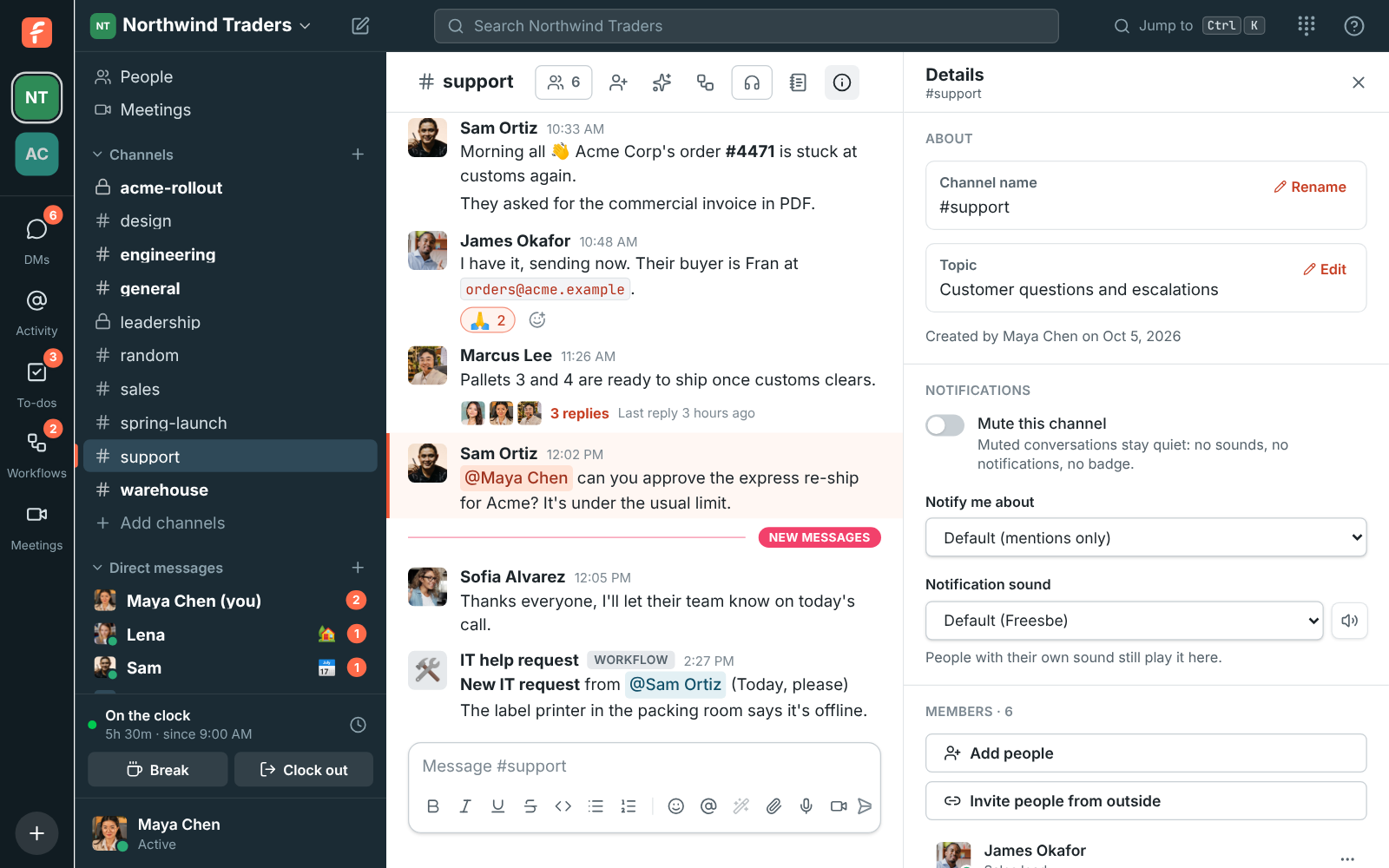
- **Notify me about**: Default, Every message, Mentions only or Nothing. The default is mentions
only for channels and every message for DMs.
- **Notification sound**: a sound of its own for this conversation, so you can tell
`#support-escalations` apart without looking. **Default** plays your message sound.
- **Mute this channel** keeps it quiet: no sounds, no notifications and no badge. You'll still
see it in bold when there's something new.
DMs have the same settings.
## Notification sounds
Freesbe has eight built-in sounds: Freesbe, Ding, Pop, Knock knock, Bell, Bubble, Chord and
Marimba, plus **No sound** for a conversation you want to see but not hear. Click the speaker
button next to any sound picker to hear it.
You can pick a sound in three places:
1. **Your message sound**, in **Preferences → Notifications**. Everything plays it unless you've
picked something more specific.
2. **A conversation's sound**, in a channel's or DM's details, as above.
3. **A person's sound**, on their profile. Click someone's name or picture, then pick a
**Notification sound**. It plays whenever they message you, mention you or reply in a thread
you follow, in any channel.
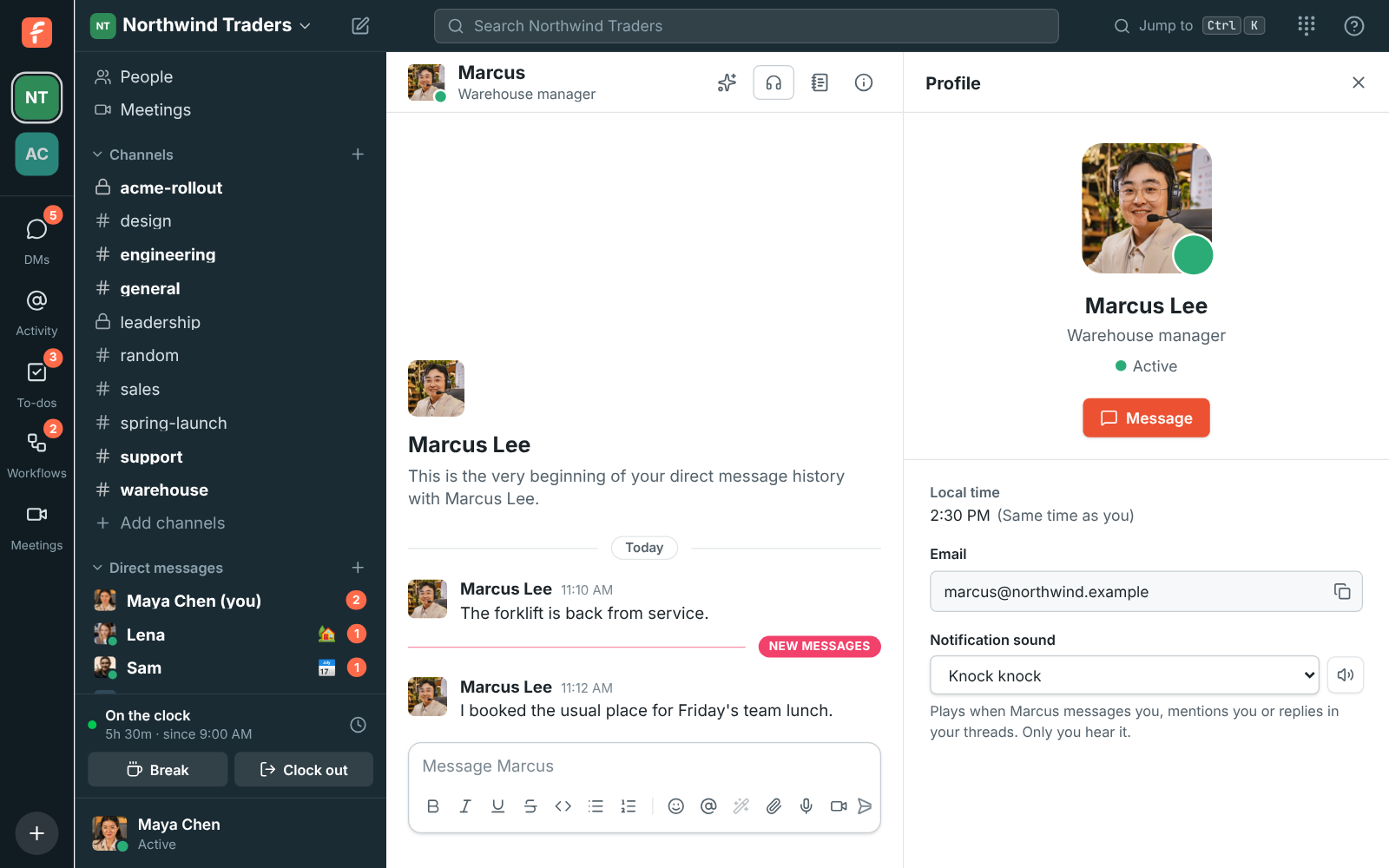
When more than one applies, the person's sound wins, then the conversation's, then your message
sound. So if you give your manager **Knock knock** and `#sales` **Marimba**, a mention from your
manager in `#sales` knocks.
Sounds only change what you hear: nobody else is told which sounds you picked. Conversation and
person sounds follow you to every device you sign in on; your message sound is set on each device. Only the device that's alerting you plays the sound (see
[Using several devices](#using-several-devices)), through your alerts speaker.
## Guests waiting in your meetings
When a guest waits in the lobby of a meeting you organize or are invited to, and nobody from the
workspace is in the call, Freesbe shows a card with **Admit**, **Deny** and **Join** and plays a
knock. If they're still waiting a couple of minutes later, it knocks on every device until someone
answers, and if you're away you get an email with a link to let them in. Turn the email off in
**Preferences → Notifications → Meetings**. See
[Waiting room alerts](https://freesbe.net/docs/meetings/#waiting-room-alerts).
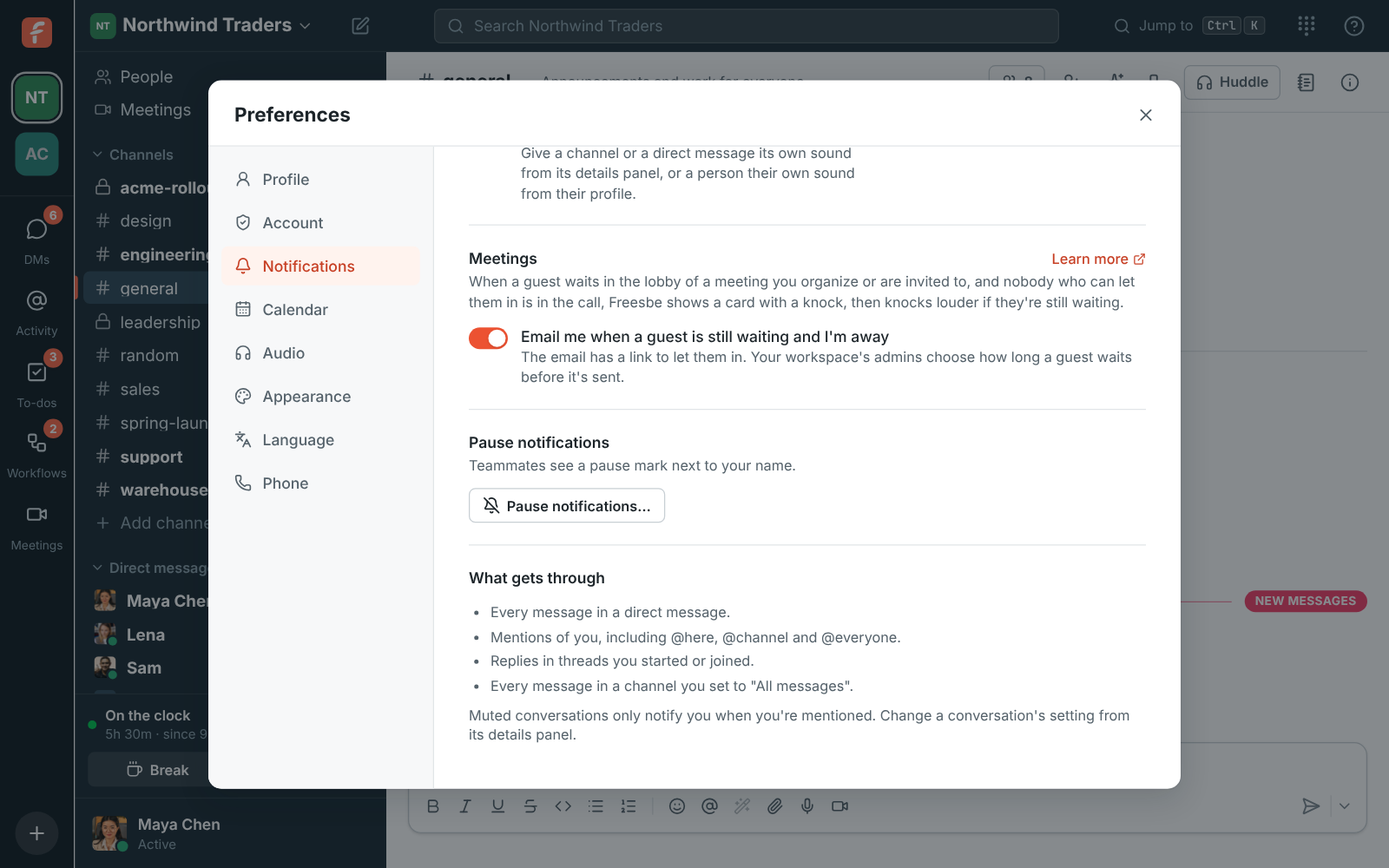
## Pausing notifications
To go quiet for a while, choose **Pause notifications…** from your account menu. See
[Status and availability](https://freesbe.net/docs/status-and-availability/#pause-notifications).
## Read receipts
When your workspace shows read receipts, **Preferences → Notifications** has **Share and see read
receipts**, which you can turn off if your admins allow it. See
[Read receipts](https://freesbe.net/docs/channels-and-messages/#read-receipts).
## Using several devices
If you have Freesbe open in more than one place, such as the desktop app and a browser tab, only
one of them alerts you for new messages: the one you used last, or the desktop app once you've
been idle everywhere. You won't get the same notification twice.
Freesbe in your phone's browser is the exception: a phone browser can't alert you once you switch
away from it, so while Freesbe is open anywhere else, that's where your alerts go, even if you last
used your phone. The phone tab still plays its sound while you're looking at it.
The [mobile app](https://freesbe.net/docs/mobile-app/#notifications) works the same way: your phone gets a
notification only while you aren't active in Freesbe anywhere else, so it takes over when you step
away from your computer.
Incoming huddle calls are different: they ring on every device, and stop everywhere as soon as you
answer or decline on one. If you don't, a missed call notification takes their place.
## Unread badge
The desktop app shows the number of unread mentions and DMs on its dock or taskbar icon.
---
# Huddles
Source: https://freesbe.net/docs/huddles/
> Start voice and video calls in any channel or DM, share your screen, record, and keep the call in view while you work.
A huddle is a call that lives in a channel or DM. Anyone in the conversation can start one or
drop in, with up to 20 people at once.
## Start or join a huddle
- In a channel or DM, click **Huddle** at the top right. Your browser asks to use your microphone
the first time; click **Allow**.
- If a huddle is already going, the button says **Join**, and the conversation shows a huddle
icon in the sidebar.
- In a DM, starting a huddle rings the other people for 30 seconds. They see **is calling you**
with **Join** and **Decline**, on every device they're signed in on.
- In a channel, nobody is rung. People see the huddle icon and the **Join** button instead.
You need to be a member of a channel to start a huddle in it.
On your phone, join and start huddles in the Freesbe app. See
[Huddles in the mobile app](https://freesbe.net/docs/mobile-app/#huddles).
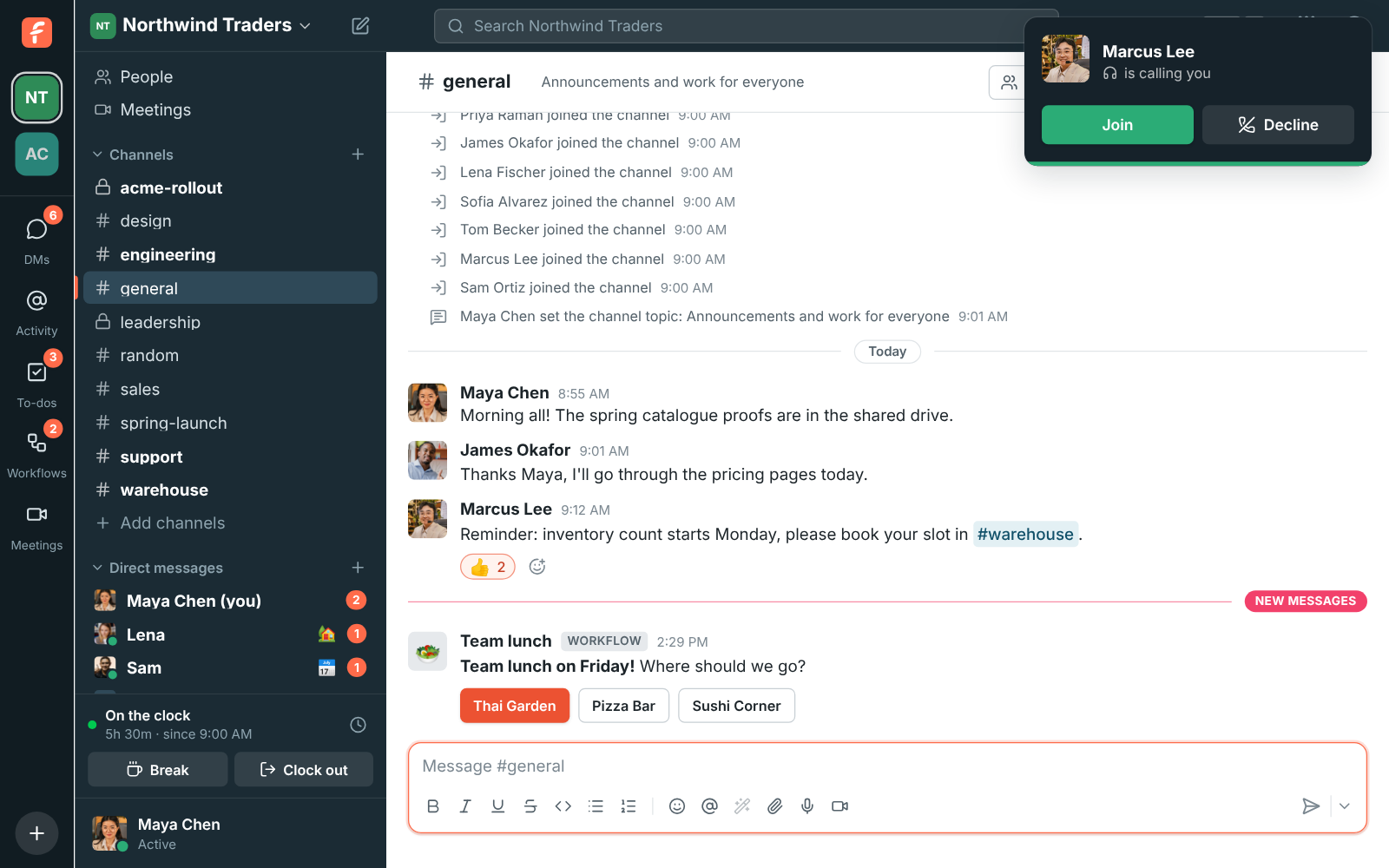
## Missed calls
When a huddle in a DM rings you and you don't pick up, Freesbe makes sure you know:
- **In the DM**, a red **Missed huddle from …** card with **Call back** takes the place of the
call. It makes the DM unread and counts on your badge, like a mention.
- **A notification** says **Missed huddle from …** once the ringing stops, and stays until you
deal with it. In Chrome and Edge it has **Call back** and **Message**; elsewhere, click it to
open the DM. On your phone, the ringing notification turns into a missed one, with
**Call back** and **Message** (see [the mobile app](https://freesbe.net/docs/mobile-app/#missed-calls)).
- **Activity** lists it with your mentions, and **Activity → Calls** keeps your call history.
The ringing stops after 30 seconds, or sooner when the caller hangs up. If you click **Decline**,
the call isn't missed: the DM just says you declined. The person who called sees
**You called … · no answer** with **Call again**. In a group DM, only the people who didn't join
get the missed call.
Paused notifications and a DM set to **Nothing** keep the notification quiet, but the card is
still there when you look.

### Your calls
**Activity → Calls** lists the huddles in your DMs, newest first: the ones you missed in red, the
ones you took with how long they lasted, and the ones you made, with **No answer** when nobody
picked up. If you call from Freesbe with the [phone system](https://freesbe.net/docs/phone/), its calls are in the
same list. Click **Call back** or **Call** to call again, or a call to open the DM.

## During a huddle
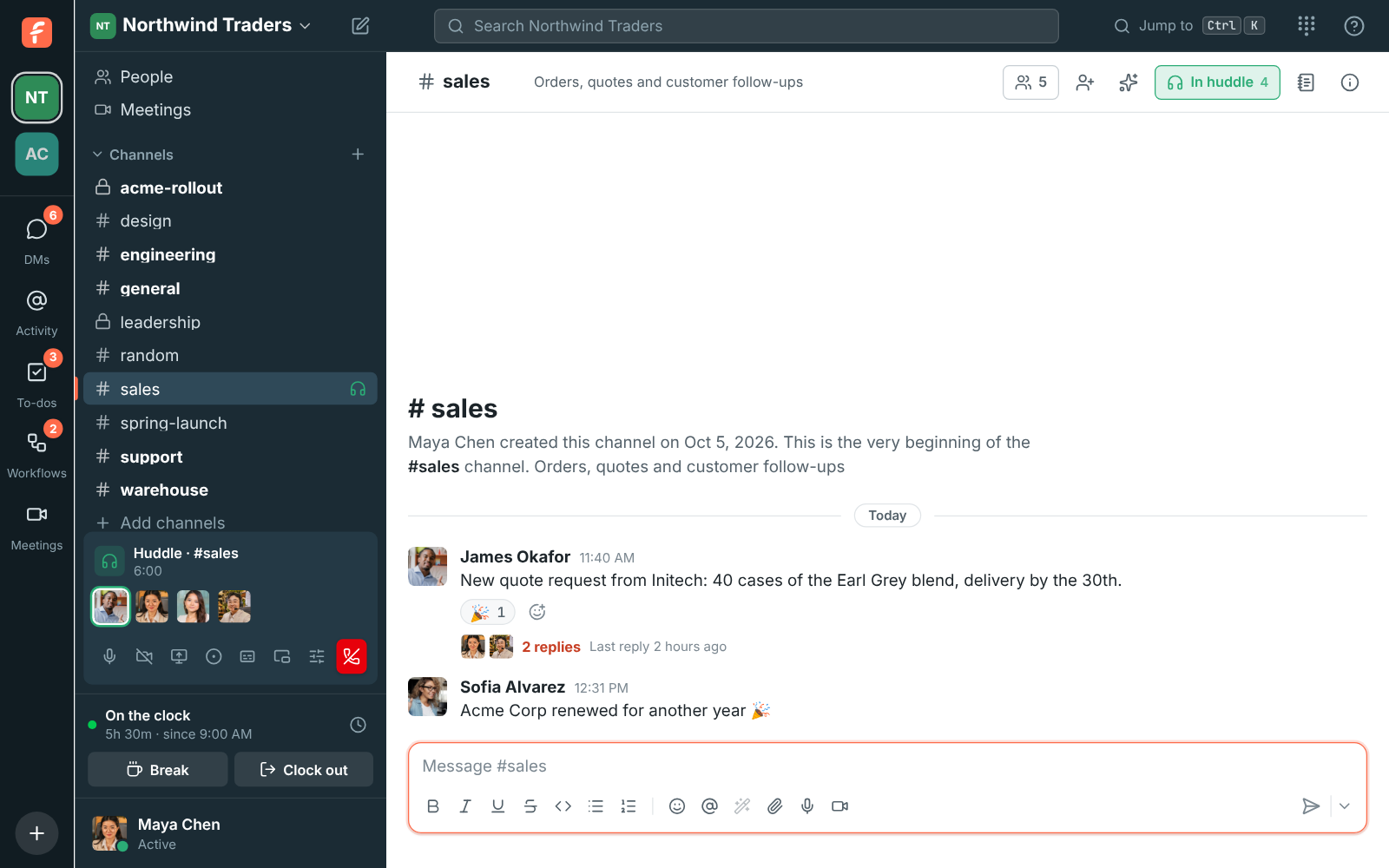
The huddle bar in the sidebar shows who's talking and how long the call has run. When someone
joins, everyone else hears a soft chime, and a quieter one when someone leaves, in huddles of up
to 8 people. To turn it off, use **Play a sound when someone joins or leaves** in
[Preferences → Calls & audio → Audio](https://freesbe.net/docs/profile-and-preferences/#audio).
Its buttons:
- **Mute** / **Unmute** your microphone.
- **Turn on camera** to add video. People's cameras show in the huddle window; click one to show it
large.
- **Share screen** to show a window, tab or your whole screen. A shared screen takes the main spot. The
button stays lit while you share; click it again to stop. In the desktop app, a frame goes around
what you share so you can see what others see ([details](https://freesbe.net/docs/desktop-app/#see-what-youre-sharing)).
Others can [draw on it](#draw-on-a-shared-screen), and ask to
[control it](https://freesbe.net/docs/remote-control/) if your admin allows remote control.
- **Record the huddle**. See [Recordings](#recordings).
- **Transcribe** to get a transcript and notes without recording. See
[Transcribe a huddle](https://freesbe.net/docs/recordings-and-notes/#transcribe-a-huddle-without-recording-it).
- **Audio and video devices** picks the microphone, camera, your camera's
[background](https://freesbe.net/docs/profile-and-preferences/#video) (blur or a picture; also in the huddle
video's header, see [Keep the call in view](#keep-the-call-in-view)),
[noise cancellation](https://freesbe.net/docs/profile-and-preferences/#audio), the speaker for the call, and where
the ringtone and chimes play. **More audio settings** opens
[Preferences → Calls & audio → Audio](https://freesbe.net/docs/profile-and-preferences/#audio).
- **Reactions and raise hand** opens the reaction bar. See
[Reactions and raised hands](#reactions-and-raised-hands).
- **Pop out the huddle** (in a browser) opens the call in its own small window. The desktop app
does this on its own, so it has no such button. See [Keep the call in view](#keep-the-call-in-view).
- **Leave huddle** is the red hang-up button at the end of the row. The huddle ends when the last
person leaves.
### Everyone at the same volume
Voices are evened out, so a quiet microphone is turned up and a loud one down, and recordings get
the same even levels. To hear one person louder or quieter, click their face in the huddle bar
(hosts choose **Volume…**), or right-click their video, and drag the slider from 0% to 200%. Freesbe remembers it for that
person on this device. See [Everyone at the same volume](https://freesbe.net/docs/meetings/#everyone-at-the-same-volume)
in meetings.
### Reactions and raised hands
Click **Reactions and raise hand** in the huddle bar and tap an emoji: it floats up over your
face in the huddle bar for everyone in the huddle. When someone has their camera or screen on, it
also rises from the bottom corner of the huddle video with your name under it, and pops up on your
camera if it's on. Each emoji moves its own way, as [in meetings](https://freesbe.net/docs/meetings/#reactions-and-raised-hands). The round
button beside the emoji picks your skin tone for 👍 👏 and 👎. **Raise hand** puts a ✋ on your
face and tells the others you'd like to speak, with a soft chime; click **Lower hand** when you're
done. It works the
same as [in meetings](https://freesbe.net/docs/meetings/#reactions-and-raised-hands).

While you're alone in a huddle, waiting music plays just for you (it never goes into the call).
Pick **Lo-fi**, **Drift**, **Sunny**, **Classic**, **Bossa** or **Off** from the music button in the huddle
bar. The Android app plays it too: see [During a huddle](https://freesbe.net/docs/mobile-app/#during-a-huddle).
### Draw on a shared screen
While someone shares their screen, click **Draw** under it in the huddle video and draw over the
screen to point something out. Everyone in the huddle sees the line as you draw it, in your own
colour with your name next to it, and it fades away about 2 seconds after you let go. Click
**Stop drawing**, or press **Esc**, to use the screen as usual. It works the same as
[in meetings](https://freesbe.net/docs/meetings/#draw-on-a-shared-screen): everyone keeps their colour for the whole
huddle, several people can draw at once, and nothing is saved.
Whoever started the huddle, its co-hosts, and workspace owners and admins can click **Turn drawing
off for everyone** under the screen, and **Let everyone draw** to turn it back on. The next huddle
starts with drawing on.

## Keep the call in view
When you switch to another browser tab during a call, Freesbe opens a small floating window with
the call, so you can keep an eye on it. In the desktop app, the floating window stays on top of
your other apps when you minimize or hide Freesbe. Some browsers (Safari and Firefox, or Chrome
when automatic picture-in-picture is off for Freesbe) only open it from **Pop out the huddle**.
While the call floats, the huddle video inside Freesbe steps aside, so there's only ever one.
The floating window has the call's own controls: **Mute**, **Turn on camera**, **Share screen**,
**Reactions**, **Raise hand**, **Leave call**, and **More options** (⋯) with:
- **In-call messages**: the huddle's conversation beside the video. The video shrinks to one
small tile so the messages get the room, and what you send goes to the channel or DM the huddle
is in.
- **Backgrounds and effects**: blur or a picture behind you, as in
[Preferences → Video](https://freesbe.net/docs/profile-and-preferences/#video).
- **Transcribe the call**, when your workspace allows
[transcripts](https://freesbe.net/docs/recordings-and-notes/#transcribe-a-huddle-without-recording-it).
- **Back to the call** returns to Freesbe and closes the window.


You can also drag the huddle video around inside Freesbe, make it bigger or smaller, or hide it.
Made bigger, the video covers only the conversation, so the sidebar stays free: pick any channel
or DM and the video shrinks back to its corner while you read and reply. Press Esc or
**Make smaller** to shrink it yourself.
With your camera on, **Backgrounds and effects** in the huddle video's header changes your
[background](https://freesbe.net/docs/profile-and-preferences/#video) while the huddle goes on: pick a blur, a picture
or **No effect** and your camera changes straight away.

Made bigger with someone sharing, the huddle lays out like a meeting: the screen fills the space
and cameras sit beside it. **Layout** in the huddle video's header, **Hide people** and full screen
(F) work as in [meetings](https://freesbe.net/docs/meetings/#make-the-shared-screen-bigger). When two
people share, each screen gets a tab above it, and **Show both** puts them side by side.

## Move a huddle to another device
Started a huddle on your phone and just sat down at your computer? Open Freesbe there and the
sidebar shows **You're in this huddle on your phone** with **Join here**. Click it and the call
moves over without anyone noticing a drop: the others keep hearing you, and your phone hangs up on
its own. It works the same in any direction between the desktop app, a browser and the
[mobile app](https://freesbe.net/docs/mobile-app/#move-a-call-to-your-phone).
You're only ever in a huddle on one device at a time, so joining from a second device always moves
the call rather than adding you twice.
## Recordings
Anyone from the workspace in a huddle can record it, unless an admin has turned recording off or
allows only hosts and co-hosts. Whoever started the huddle is its host, and can make others
co-hosts from the menu on their face. See
[Who can start and stop recordings](https://freesbe.net/docs/recordings-and-notes/#who-can-start-and-stop-recordings).
- Everyone in the huddle hears a tone and sees a **REC** indicator, and the channel gets a line
saying who started recording. People who haven't joined see a red dot on the huddle button.
- The recording mixes everyone's audio and combines cameras and screen shares into one video.
- By default, the person recording, the huddle's host and co-hosts, and owners and admins can stop
it. It also stops when the person recording leaves, and after 4 hours.
- When it stops, the recording is posted in the conversation by the person who recorded it. They
and admins can delete it.
- A minute or two later, notes follow as a reply in the recording's thread: a summary, decisions
and action items. **Notes and transcript** under the video opens the full transcript, with who
said what. See [Recordings, transcripts and notes](https://freesbe.net/docs/recordings-and-notes/).
Recordings are uploaded every few seconds while they run, so a crash or a dropped connection keeps
what was already recorded. Admins can also have recordings deleted automatically after 30, 90 or
365 days. See [Workspace settings](https://freesbe.net/docs/admin-settings/#recordings).
## When video is off
If the workspace has used its monthly video allowance, **Turn on camera** and **Share screen**
are off until the 1st, and anyone sharing at the time sees why. Voice keeps working. See
[Usage limits](https://freesbe.net/docs/usage-limits/).
## Call quality
Freesbe keeps an eye on how well everyone's sound gets through during a call.
- **A weak connection shows on someone's face.** If someone's audio reaches you choppy or with
gaps, a small signal icon shows next to their name on their video, or on their face in the
huddle bar. Point at it to read what it means. When the icon is on your own face, the call is
losing some of your sound on the way out, so others may hear you cut out. Moving closer to
your Wi-Fi, plugging in a cable or closing big downloads usually helps. The icon goes away by
itself once the sound gets through cleanly again.
- **A weak connection keeps the sound first.** If your connection stays weak for more than a few
seconds, Freesbe stops bringing in other people's cameras (their pictures show instead), sends
your own camera smaller and your sound a little leaner, so voices keep getting through. Shared
screens keep showing. A note in the huddle bar says so; click **Show video anyway** to bring the
cameras back for the rest of the call. Once your connection has been fine for half a minute,
everything comes back by itself.
- **Sometimes we ask how the call sounded.** After about one call in five that lasted a minute
or more, a small card asks **How did the call sound?** Click **Good**, or **Not great** and pick
what was wrong: **Echo**, **Background noise**, **Choppy or cut out**, **Too quiet** or
**Delay**. It goes away by itself if you ignore it.

When you leave a call, your app sends Freesbe a short note about how the sound travelled: how
much audio went missing or had to be patched over, how long it took to arrive, and which app and
kind of connection you used. It never includes anything that was said or shown. We use it to
find and fix what makes calls sound bad.
## If you can't hear or be heard
- Check the microphone and speaker in **Audio and video devices**, or test them in
[Preferences → Calls & audio → Audio](https://freesbe.net/docs/profile-and-preferences/#audio).
- If Freesbe shows **There's a problem with your microphone**, allow microphone access in your
browser or system settings, then click **Try again**.
- On a Mac using the desktop app, allow Freesbe under **System Settings → Privacy & Security →
Microphone** (and **Camera** and **Screen & System Audio Recording** for video and screen sharing).
- On strict office networks, calls go through a relay automatically. If you still can't connect,
ask your IT team to allow WebRTC traffic.
- Calls fix themselves when they can. If someone's sound stops reaching you, Freesbe asks for it
again after a few seconds. If you're talking but your microphone sends the others silence,
Freesbe notices within about 10 seconds and repairs it: with Advanced AI noise cancellation on, it
switches to **Standard** for the rest of the call and tells you so (your setting stays as you
chose it). If someone's sound arrives but doesn't play, Freesbe plays it the plain way instead. If your network changes in the middle of a call, for example a VPN
turning on or off, the call reconnects and makes sure the others get your new audio. The
Freesbe app on your phone does the same when it moves between Wi-Fi and mobile data. A camera
or shared screen that doesn't come through is asked for again too, a little later each time,
until it shows.
- If the connection drops for a moment, the call shows **Reconnecting** and keeps trying for up to
30 seconds, so you stay in the meeting without having to leave and join again. If the
connection to the call server stops working, a meeting starts it over by itself within about
20 seconds. A camera or shared screen stops then: turn it on again.
- A signal icon on someone's face or video means their connection is weak, not that something
is wrong on your side. See [Call quality](#call-quality).
- Still stuck? Open **Audio and video devices** and click **Copy call details**. It copies what
your app is sending and receiving: whose audio arrives, how much, how much sound your
microphone sent, which noise cancellation is on, and any errors from the call server. It also
lists the cameras and screens showing on your device, any it's still waiting for, and whether
your device is the one recording. Paste it into a message to whoever is helping you, ideally from the person who can't
hear and the person who isn't heard.
- Freesbe support can also see these details without anyone copying them: your app saves them
when you leave a huddle or meeting, and when it repairs your sound, with people shown by an id
rather than their name and nothing about what was said. They're kept for 90 days.

See also [People can't hear me, or I can't hear them](https://freesbe.net/knowledge/cant-hear-or-be-heard/) in the knowledge base.
---
# Remote control
Source: https://freesbe.net/docs/remote-control/
> Take over a teammate's or customer's shared screen during a huddle or support session to fix things for them, with their permission every time.
During a huddle, you can ask to control a screen someone is sharing. Once they allow it, your
mouse and keyboard work their computer: you can click, type, scroll and drag as if you were
sitting at it. It's made for support, onboarding and showing someone where a setting is.
Remote control is off until a workspace admin turns it on, and the person sharing has to allow it
every single time.
## What you need
- **The person being helped** shares their screen from the
[Freesbe desktop app](https://freesbe.net/docs/desktop-app/) for Mac, Windows or Linux, and shares their **entire
screen**, not a single window. A web browser can show its screen but can't let anyone control
it.
- **The person helping** can use the desktop app or a browser.
- An admin has turned on **Remote control** in
[Workspace settings → Security & compliance → Remote control](https://freesbe.net/docs/admin-settings/#remote-control).
- Guests can be helped, but can't control anyone else's screen.
## Ask to control a screen
1. Join the huddle. When someone shares their screen, it takes the big spot in the huddle video.
2. Click **Request control** under their screen.
3. Wait for them to answer. The bar under the screen says **Waiting for … to allow control**, and
**Cancel** takes the request back. A request nobody answers goes away after a minute.
When they allow it, the huddle video gets bigger and a red bar says **You're controlling …'s
screen**. Click their screen once so it gets your keyboard, then work as usual.
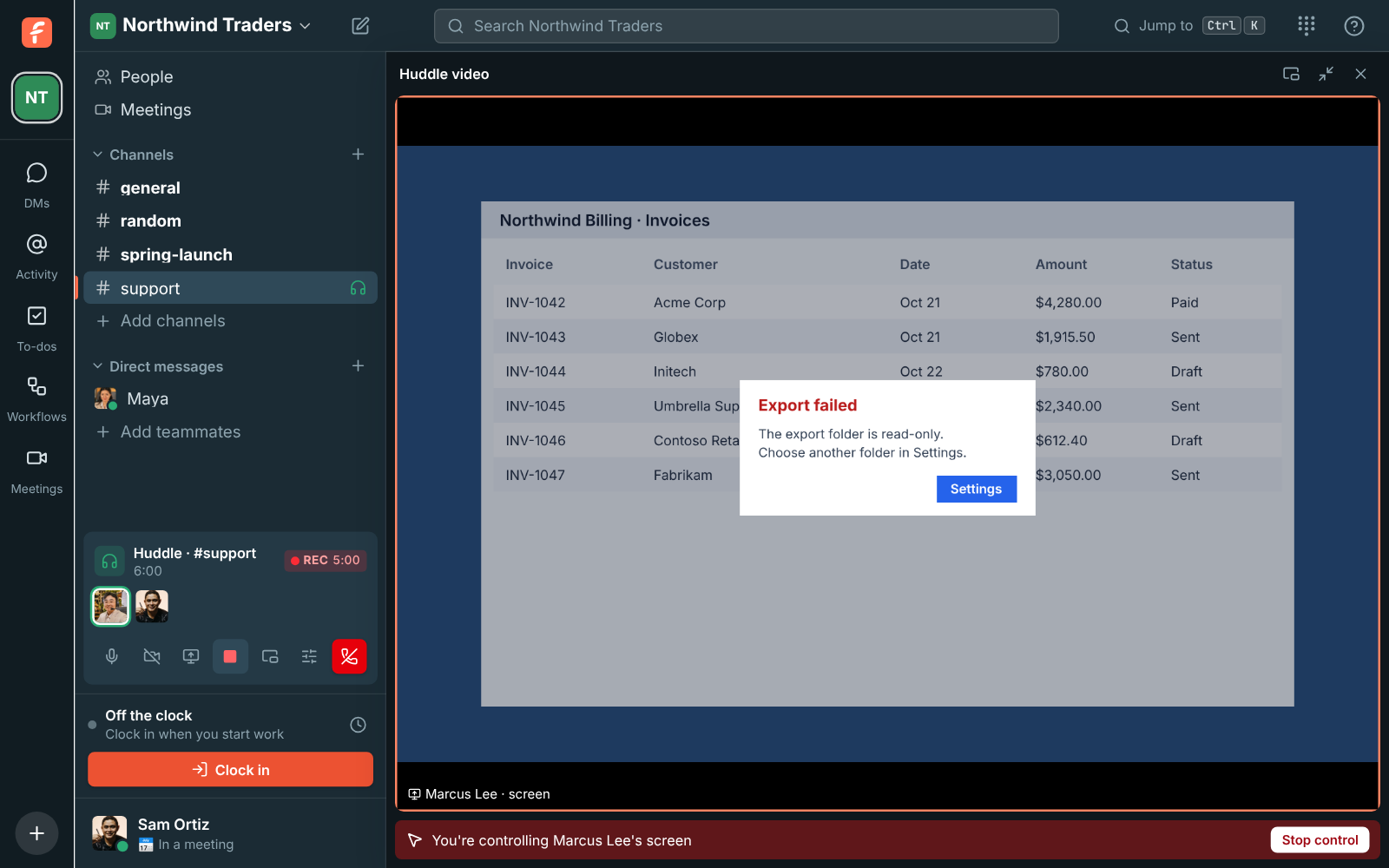
- Everything you type goes to their computer, including Esc and shortcuts. Shortcuts are
translated between Mac and PC: **Cmd+C** on your Mac is **Ctrl+C** on their Windows computer,
and the other way round.
- Typing works with any keyboard layout, and shortcuts work even when your layout isn't Latin
(Hebrew, Arabic, Russian…).
- Click **Stop control** when you're done.
## When someone asks to control your screen
Freesbe asks you in a window of its own: **Sam Ortiz wants to control your screen**. It's a
system window, so the person asking can't click it for you. Click **Allow** to let them in, or
**Don't allow**. While they're in control:
- A red bar at the top of your screen says who is controlling it.
- **Press Esc** to take back control at once, or click **Stop** on the bar or under the huddle
video. Stopping your screen share or leaving the huddle ends it too.
- You can still use your own mouse and keyboard.

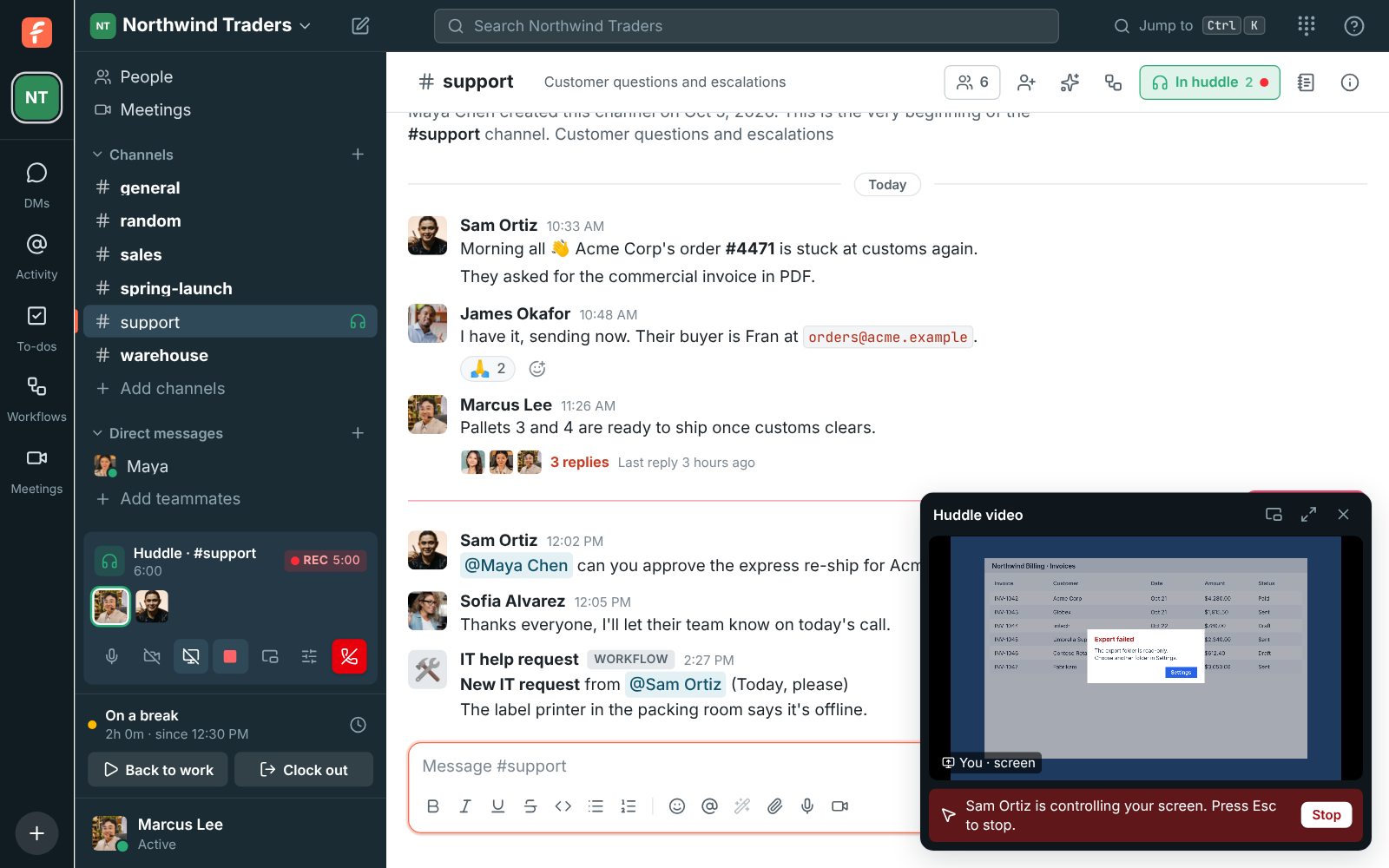
### On a Mac: allow Accessibility once
macOS only lets an app use the mouse and keyboard for someone else with **Accessibility**
permission. The first time someone asks, Freesbe opens **System Settings → Privacy & Security →
Accessibility**. Turn on **Freesbe**, then ask them to request control again. (Sharing your screen
already needed **Screen Recording** permission.)
### What it can't do
- **Admin prompts on Windows.** Windows doesn't let any app click the "Do you want to allow this
app to make changes?" (UAC) prompt or type into the sign-in screen. The person being helped
clicks those themselves.
- **Linux.** Control works on X11 desktops; on Wayland, it only reaches apps running through
XWayland. Typing letters other than English ones isn't supported on Linux yet.
- **Phones and tablets.** In huddles, only computers with the desktop app can be controlled.
Android phones can be controlled in [support sessions](https://freesbe.net/docs/support-sessions/#help-someone-on-an-android-phone).
## Who sees what
- Everyone in the huddle sees who is controlling whose screen.
- The conversation gets a line saying who started controlling whose screen.
- **Recording**: if your workspace allows [huddle recordings](https://freesbe.net/docs/huddles/#recordings), Freesbe
starts recording when control begins (unless the huddle is already being recorded), so every
session can be reviewed later. Everyone hears the recording tone as usual.
- Admins see a log of every request: who asked, whose screen, whether it was allowed, how long it
lasted, who stopped it, and whether it was recorded.
## Helping customers
To help a customer, start a [support session](https://freesbe.net/docs/support-sessions/): one click gives you a
one-hour link and a code they can type in. They join without an account, and the page they open
explains how to share their screen and allow control from the desktop app.
In a support session the customer's app names you and your company before they allow it, warns
them to allow it only if they asked you for help, and the log keeps the exact words they agreed
to. See [What the customer is asked](https://freesbe.net/docs/support-sessions/#what-the-customer-is-asked).
You can also [invite a customer as a guest](https://freesbe.net/docs/guests/) to a support channel and help them in
a huddle there.
## For admins
Turn it on in **Workspace settings → Security & compliance → Remote control**. Turning it off ends any session
that is running. The same section shows the 100 most recent sessions.
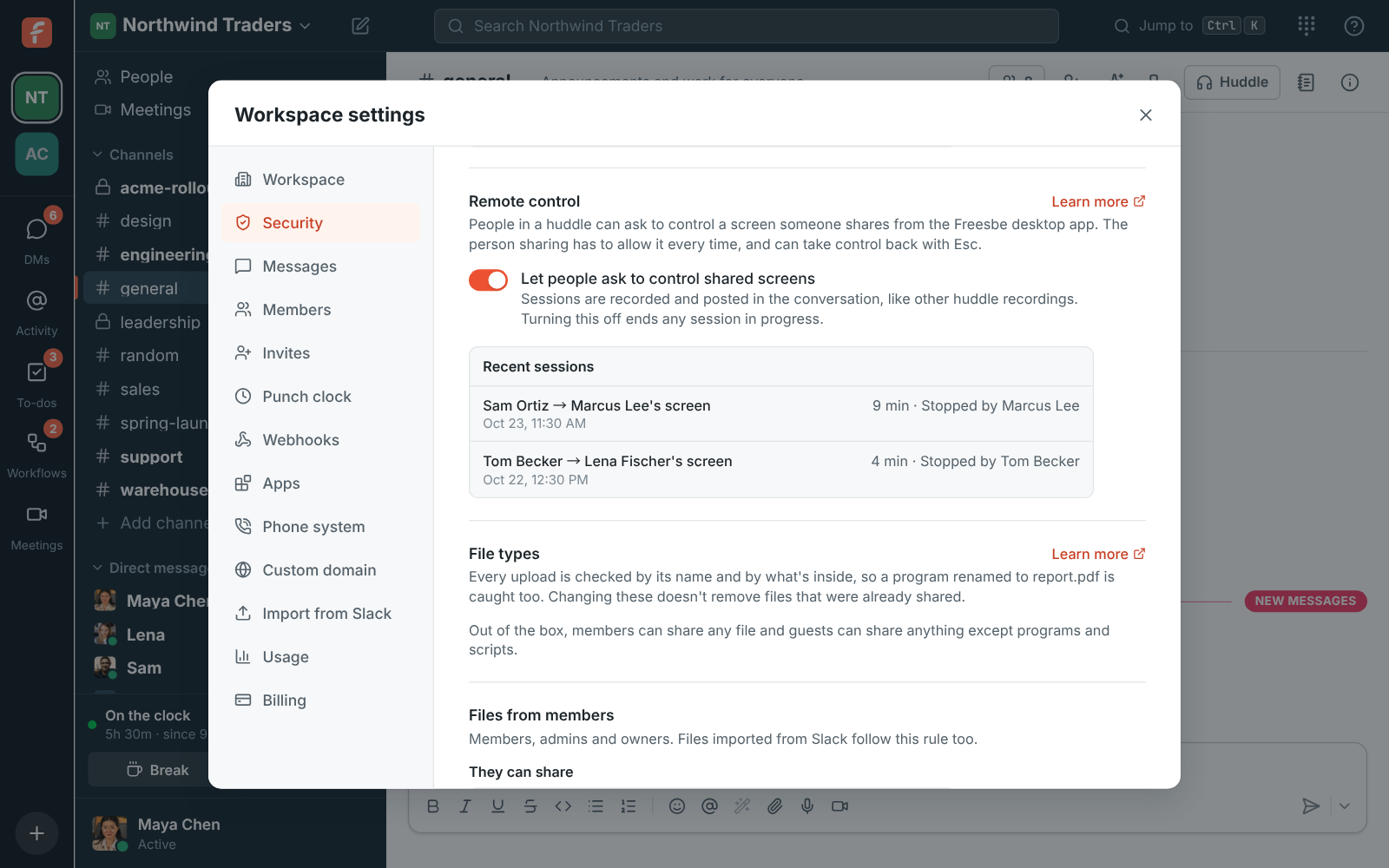
Remote control is part of the [Corporate and Enterprise plans](https://freesbe.net/docs/plans/). On other plans the
switch is greyed out and says it requires the Corporate plan, with a link to upgrade.
---
# Support sessions
Source: https://freesbe.net/docs/support-sessions/
> Help a customer from a one-hour link or a code they type in. They show their screen, and with the desktop app you can control it, with their permission every time.
A support session is a call made for helping someone outside your workspace, like a customer.
You start it in one click and send them a link, or read out a short code over the phone. They
join from their browser without an account, show you their screen, and if they join from the
[Freesbe desktop app](https://freesbe.net/docs/desktop-app/) you can [control their computer](https://freesbe.net/docs/remote-control/)
once they allow it.
## Start a support session
1. Open **Meetings** in the sidebar and click **Support session**.
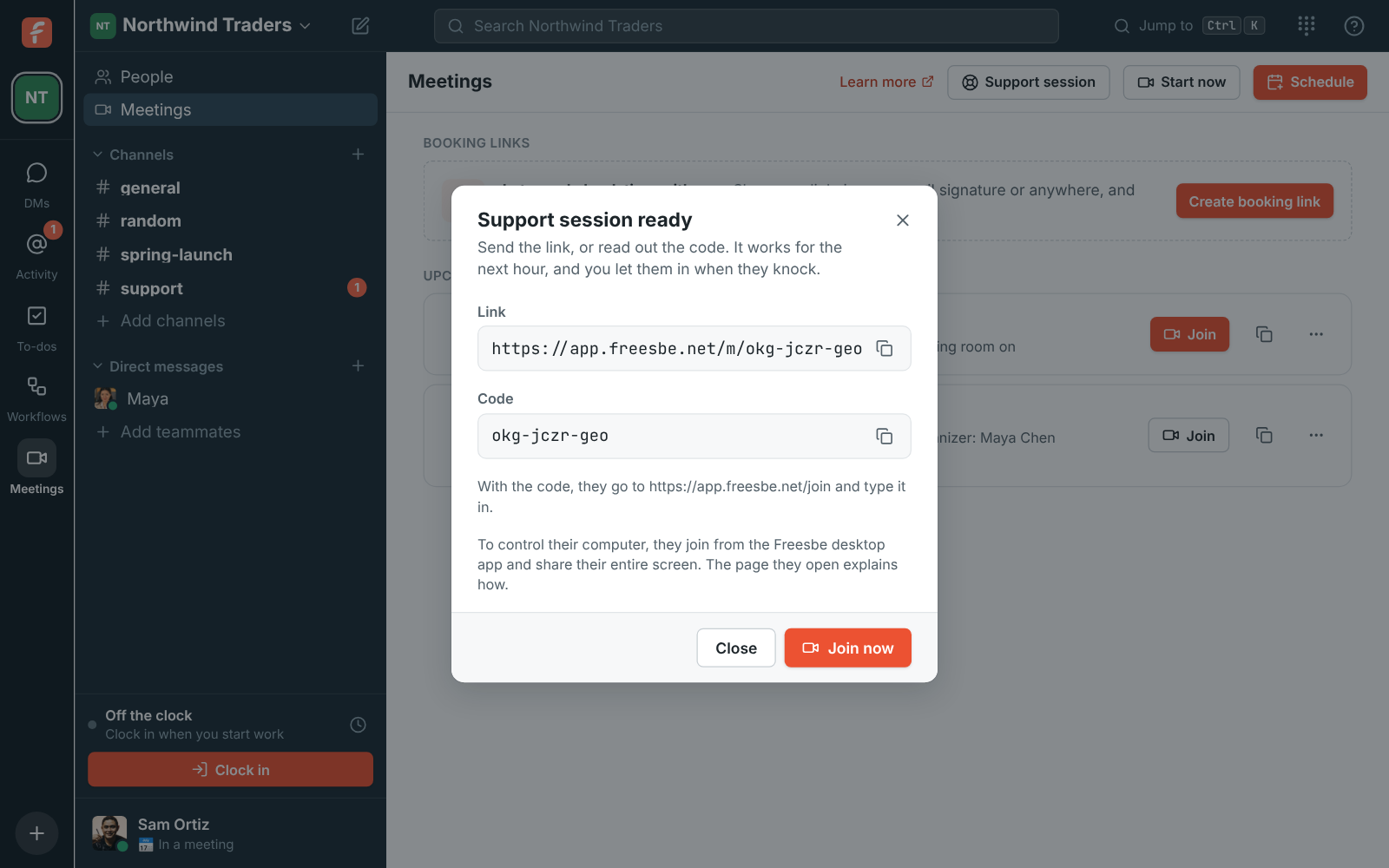
2. Send the **Link** in an email or chat, or read out the **Code**. Each has a copy button.
3. Click **Join now** to wait in the call for them.
The session works for an hour from when you start it, and it has a waiting room: the customer
knocks, and you click **Admit** in the call. Nobody gets in without you letting them in. The
session also shows in your meetings list with a **Support** badge.
## What the customer sees
The link opens a page with your workspace's name and logo, who is helping them, and the steps.
They type their name and click **Ask to join**.
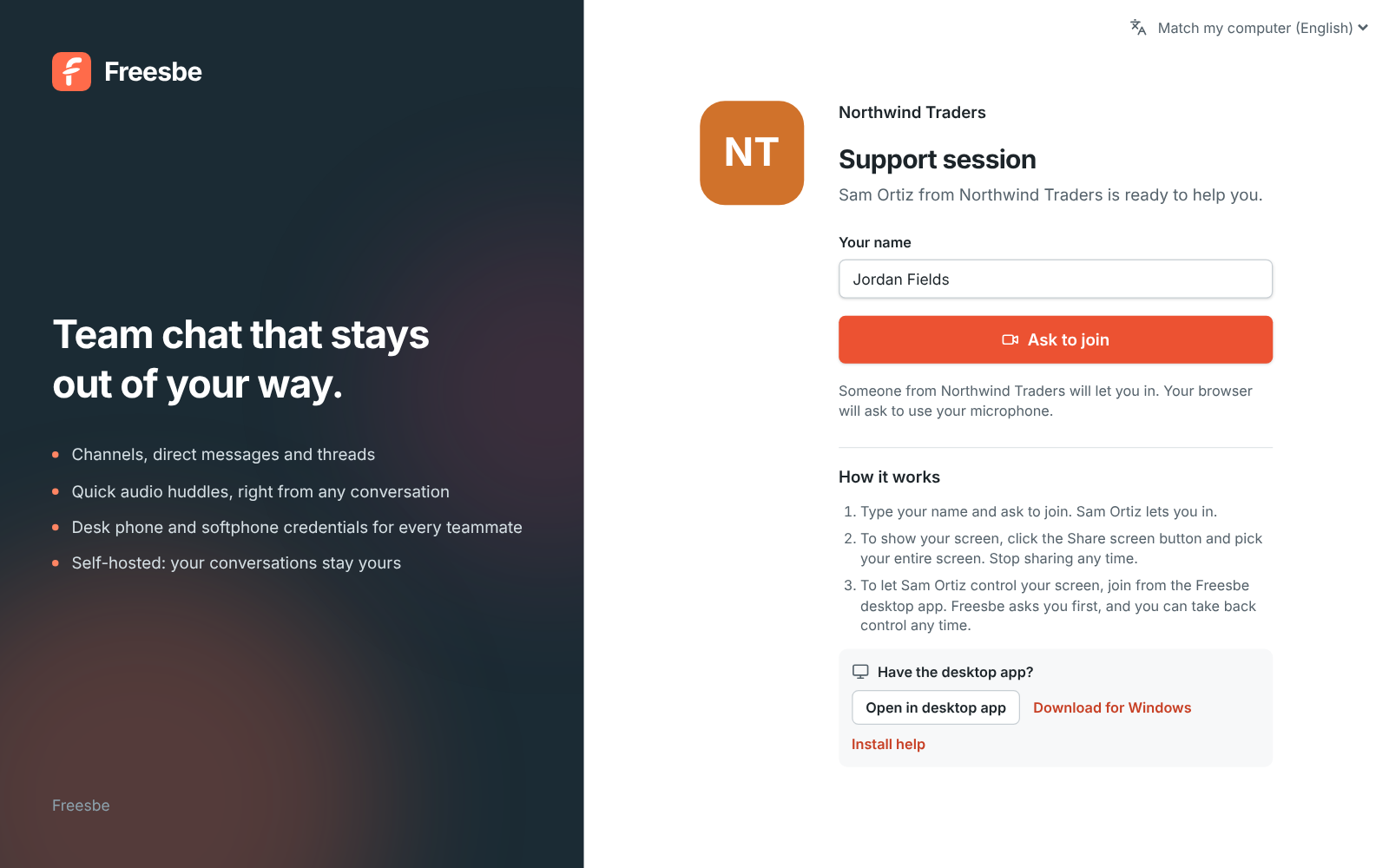
With the code instead of the link, they go to **app.freesbe.net/join** and type it in. Capitals
and dashes don't matter.
Send customers the link to this section so they know what to expect, or
[Get help from support](#get-help-from-support) below.
## See and control their screen
Once they're in, ask them to click **Share screen** and pick their **entire screen**. Their
screen takes the big spot in the call.
To control it, they have to have joined from the desktop app (the page has **Open in desktop app**
and a download link). Then click **Request control** under their screen.
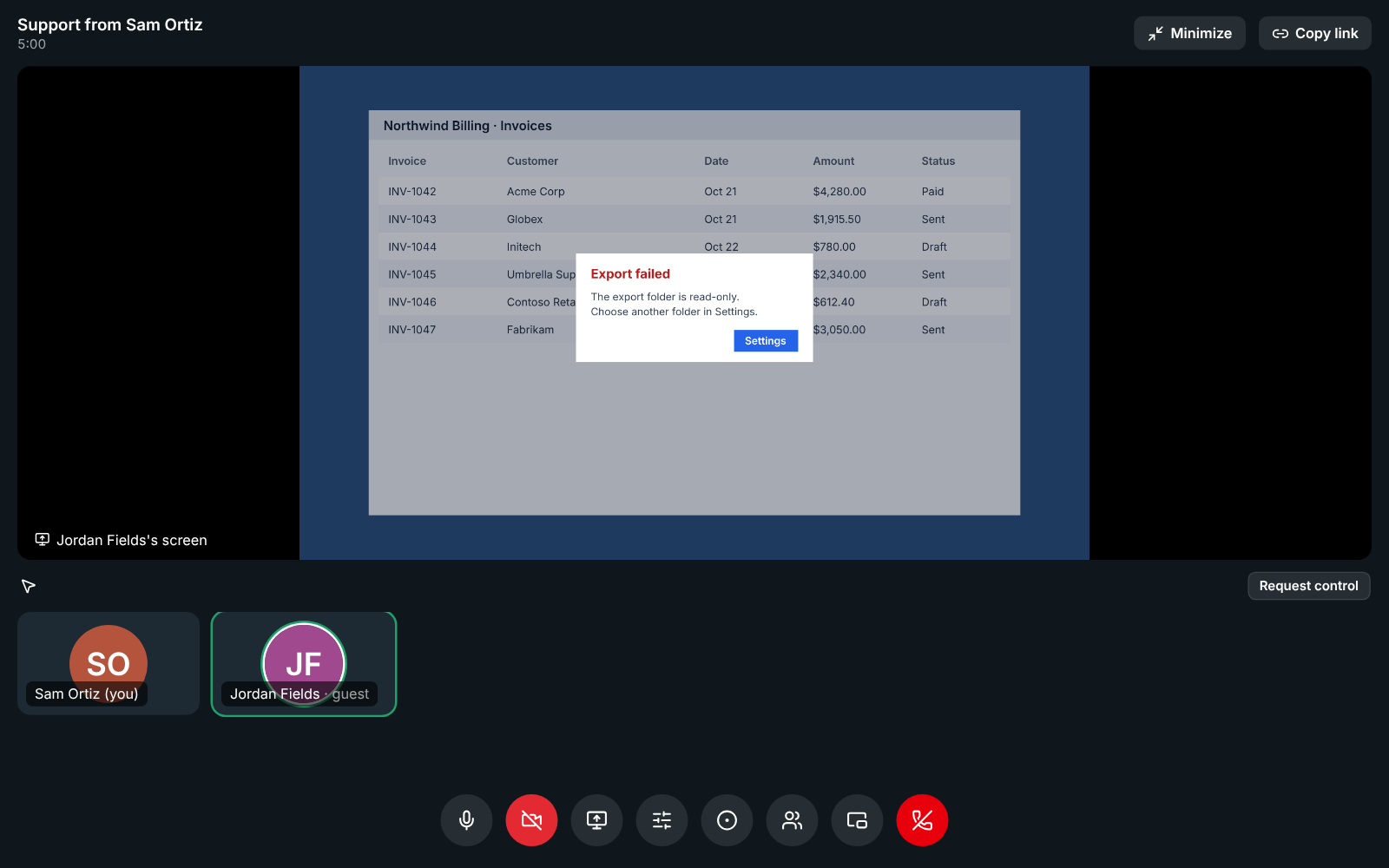
Their desktop app asks them in a window of its own, naming you and your company (see
[What the customer is asked](#what-the-customer-is-asked)). When they click **Allow**, a red bar says
**You're controlling …'s screen**. Click their screen once so it gets your keyboard, then work as
usual. Click **Stop control** when you're done.
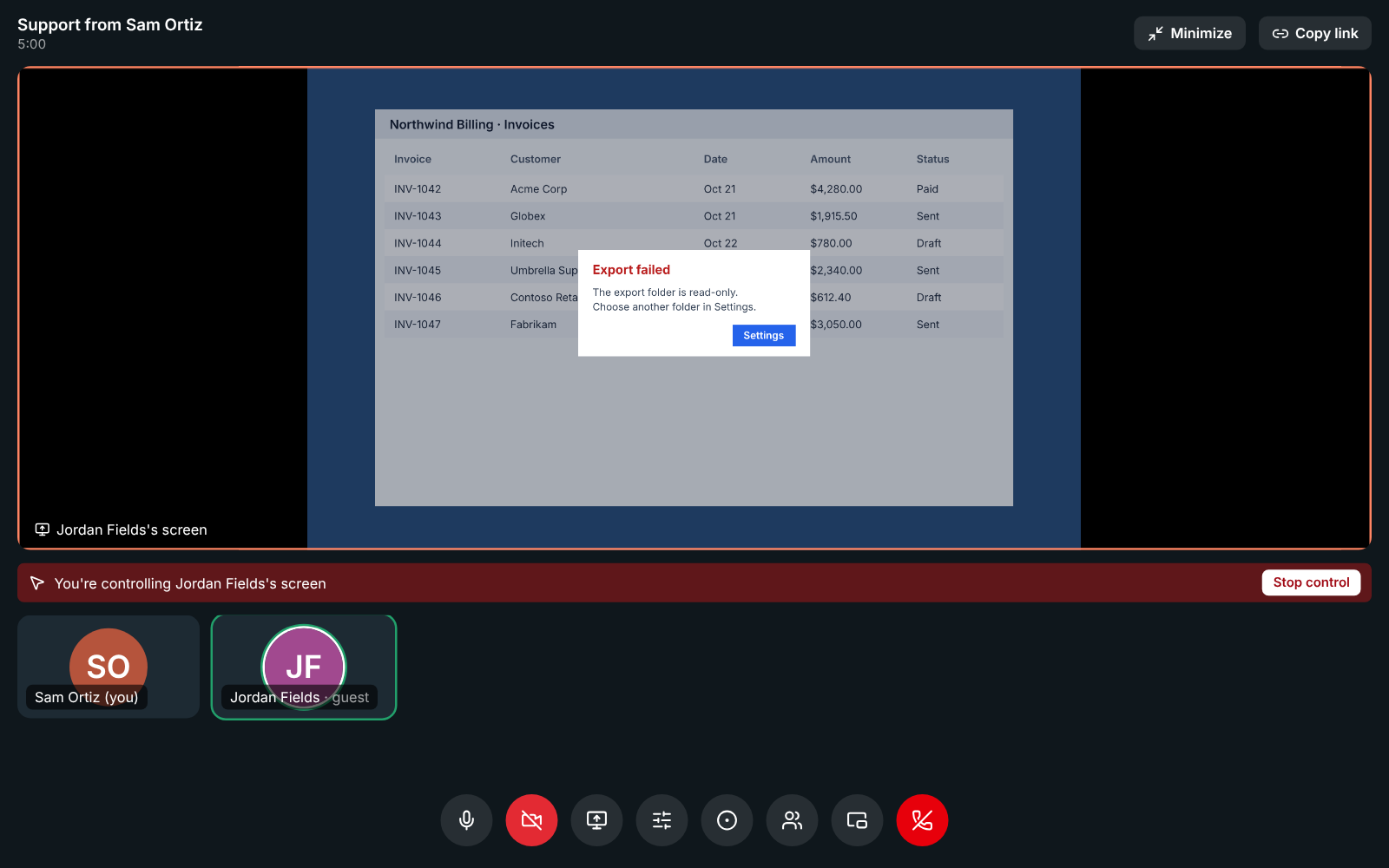
If they joined from a browser, the bar under their screen says so. Ask them to click
**Open in desktop app** on their page (or install it first), and to share their screen again from
there.
Everything else works as in [Remote control](https://freesbe.net/docs/remote-control/): shortcuts are translated
between Mac and PC, the customer presses **Esc** to take back control at once, and stopping the
screen share or leaving ends it.
## What the customer is asked
Before anyone controls their computer, the customer's desktop app asks them in a window of its
own that a web page can't draw or click. It names the person asking and your workspace, plus
your [custom domain](https://freesbe.net/docs/custom-domains/) once it's active, since a name alone could be anyone:

- It says what you'll be able to do: move their mouse, type, and open apps and files until they
stop.
- It tells them to allow it only if they asked your company for help, and that Freesbe never asks
for control. That's the warning that stops support scams.
- It says how to stop (**Esc**, or **Stop** on the red bar), that the session is recorded (when it
is), and that your company keeps a record.
- **Don't allow** is the default button, so pressing Enter or closing the window says no. They're
asked again for every request.
While you're in control, the bar at the top of their screen names you and your company:

When it ends, they're told who had control and for how long, for example **Sam Ortiz from
Northwind Traders no longer controls your screen. Control lasted 6 min.** The page they joined
from also reminds them to share their screen or give control only to a company they asked for
help.
The company name and the stronger warning need version 0.1.9 of the desktop app. Older versions
still ask every time, with the shorter **… wants to control your screen**.
## Help someone on an Android phone
Customers on an Android phone join from the Freesbe app, without signing in. Once they share
their screen and allow it, you can control the phone too.
- Their screen shows up in the call like a computer's. Click to tap, drag to swipe, hold the
button down to long-press, and scroll with the mouse wheel.
- Typing goes into the text field that's selected on the phone. **Ctrl+V** pastes, **Ctrl+A**
selects everything.
- The bar under their screen has **Back**, **Home** and **Recent apps**, the phone's own
buttons. **Esc** works as **Back**.
- The phone asks them the same way a computer does: **You're about to give Sam Ortiz from
Northwind Traders control of your phone**, with the same warning, and the red bar names your
company.
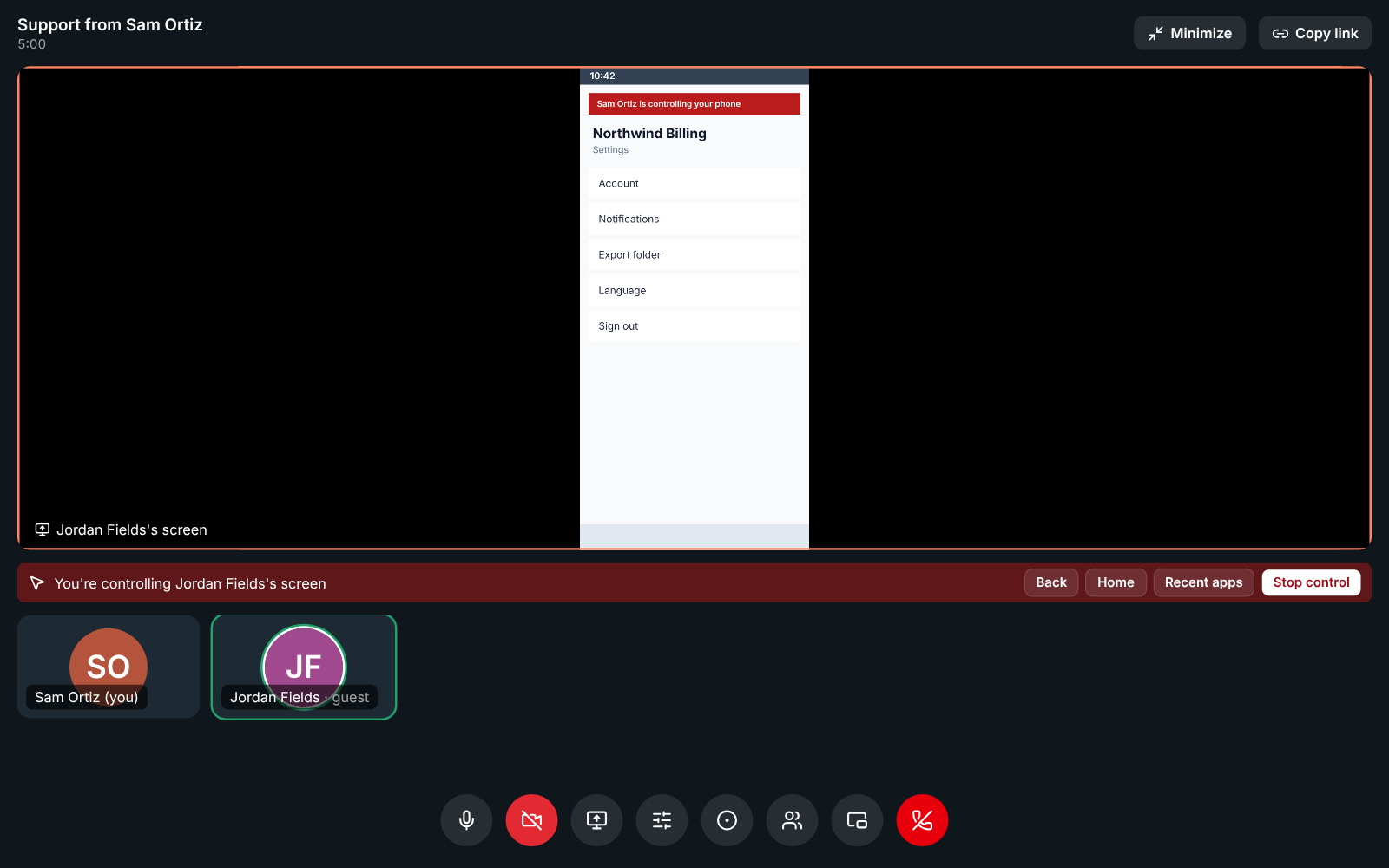
What can't be done from afar: unlocking the phone, typing a PIN or password on the lock screen,
and screens Android protects, such as some banking apps, which show up black.
## Get help from support
If a company that uses Freesbe sent you a support link or code:
1. Open the link, or go to **app.freesbe.net/join** and type the code. On an Android phone, see
[On an Android phone](#on-an-android-phone) below.
2. Type your name and click **Ask to join**. The person helping you lets you in.
3. To show your screen, click **Share screen** at the bottom of the call and pick your **entire
screen**. You can stop sharing at any time.
4. To let them control your computer, join from the Freesbe desktop app:
[download it](https://freesbe.net/download), then click **Open in desktop app** on the page.
You don't need an account.
5. When they ask for control, Freesbe shows **You're about to give … from … control of your
screen**, with the name of the person and their company. Only click **Allow** if you asked that
company for help; Freesbe itself never asks you for control. While they're in control, a red bar
at the top of your screen says who it is. **Press Esc** or click **Stop** to take back control at
any time, and Freesbe tells you how long it lasted.
On a Mac, Freesbe asks for **Accessibility** permission the first time. See
[On a Mac: allow Accessibility once](https://freesbe.net/docs/remote-control/#on-a-mac-allow-accessibility-once).
### On an Android phone
1. Install the [Freesbe app](https://freesbe.net/docs/mobile-app/). You don't need an account.
2. Open the support link on the phone, or open the app and tap **Got a code from support? Join
with a code** on the sign-in screen.
3. Type your name and tap **Ask to join**.
4. Tap **Share screen**, then **Start now** in the window Android shows. A screen-sharing
notification stays on while you share.
5. To let them control the phone, the first time only: tap **Open Settings** on the call screen,
go to **Accessibility → Freesbe remote support** (on some phones under **Installed apps** or
**Downloaded apps**) and turn it on. Then go back to Freesbe.
6. When they ask, Freesbe shows **You're about to give … from … control of your phone**. Tap
**Allow** only if you asked that company for help, or **Don't allow**. While they're in control, a red bar at the top of the screen says so. Tap **Stop** on
it, or **Stop sharing** in Freesbe, to take back control at any time.
You can turn **Freesbe remote support** off again in Settings whenever you like. It only works
during a support session you joined, and Freesbe asks you every time.
On an iPhone, you can join with the code and talk with them; sharing your screen from an iPhone
isn't available yet.
## Who can start one
- Members of a workspace on the [Corporate or Enterprise plan](https://freesbe.net/docs/plans/), once an admin has
turned on **Remote control** in
[Workspace settings → Security & compliance → Remote control](https://freesbe.net/docs/admin-settings/#remote-control). Guests can't start
support sessions.
- Support sessions are recorded whenever your workspace allows
[recordings](https://freesbe.net/docs/recordings-and-notes/). Recording starts by itself as soon as the customer is
let in, from the app of the member who has been in the call longest (or from whoever gets
control, if that app couldn't). Everyone in the call sees the red **REC** badge and hears the
tone, and the customer's consent window says **The session is recorded.** Nobody can stop the
recording while the call goes on, hosts and admins included: it ends when the call ends, or when
the member recording it leaves (then the next member in the call picks it up). The recording and
its notes show up under **Meetings** like any other meeting's.
- Support sessions, and so their recordings, are part of the Corporate and Enterprise plans.
- Admins see every control request in the remote control log, with the customer's name and
**Support session** next to the date.
- For each session the customer allowed, **What they agreed to** shows the exact words their app
showed them when they clicked **Allow**, in their language. Keep it as your record of consent.

---
# Meetings
Source: https://freesbe.net/docs/meetings/
> Schedule calls with a link anyone can open in a browser, invite people outside your workspace, and let guests in from the lobby.
Meetings are scheduled calls with their own short link, like
`https://meet.freesbe.net/abc-defg-hij`. Anyone can join from a browser without a Freesbe account.
They're Freesbe's replacement for Google Meet or Zoom links.
The link takes people to the meeting's page in Freesbe, where members of your workspace are
already signed in and guests ask to join. Older links like `https://app.freesbe.net/m/abc-defg-hij`
keep working, and so does `meet.freesbe.net/m/abc-defg-hij`. Someone who types the code by hand
can leave out the dashes.

## Start a meeting now
Open **Meetings** in the sidebar and click **Start now**. Freesbe opens the call and copies its
link so you can paste it to anyone. The link works again whenever you come back to it, until 30
days after its last call.
Pasted into a chat app, a meeting link [previews](https://freesbe.net/docs/workspaces-and-invites/#link-previews) as
a card with your workspace's name and logo. The meeting's title and time stay out of the preview.
Helping a customer? **Support session** next to **Start now** gives you a one-hour link and a
code they can type in, made for showing and controlling their screen. See
[Support sessions](https://freesbe.net/docs/support-sessions/).
## Schedule a meeting
1. Open **Meetings** and click **Schedule**. Or, from any DM, group DM or channel, click the
calendar button (**Schedule a meeting**) at the top: everyone in the conversation is invited to
start with.
2. Enter a **Title**, when it **Starts** (in your time zone) and its **Length**, from 15 minutes to
4 hours.
3. Under **People in this workspace**, pick teammates. Under **Guests**, add the email addresses
of people outside the workspace, one per line or separated by commas.
4. Add a description if you like. Leave **Waiting room for guests** on to let each guest in
yourself, and leave **Email the invites** on.
5. Click **Schedule**.
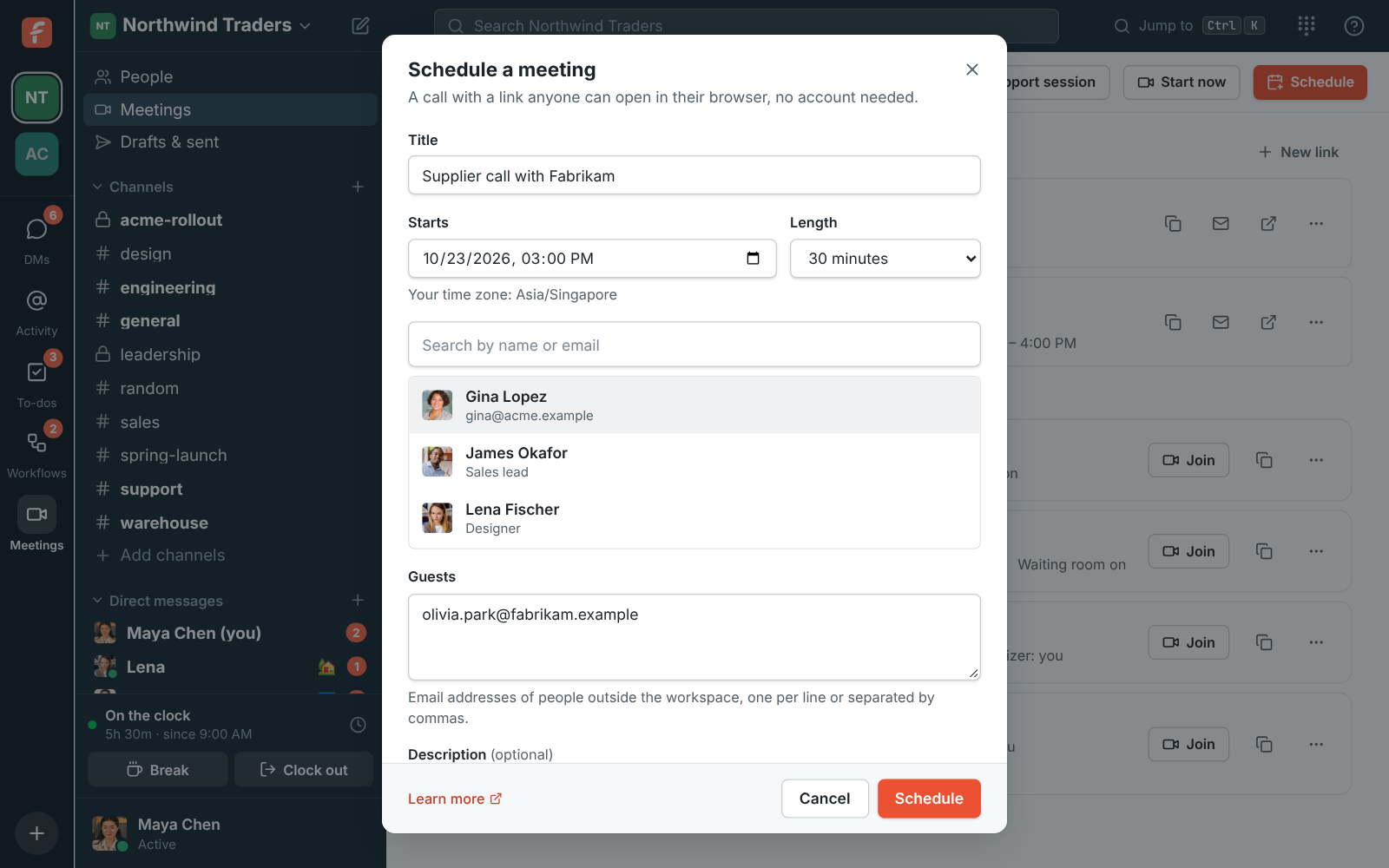
### Schedule from Outlook
Your team lives in Outlook? With the Freesbe add-in, **Freesbe meeting** sits where Teams usually
does in Outlook's events, and can be your default for every meeting. Outlook puts the link in the
invitation, and the meeting shows up here marked **From Outlook**. See
[Freesbe meetings in Outlook](https://freesbe.net/docs/outlook/).
### Schedule from Google Calendar
The Freesbe add-on puts **Freesbe meeting** next to Google Meet in Google Calendar's video
conferencing menu. The event gets a **Join with Freesbe** button, and the meeting shows up here
marked **From Google Calendar**. See
[Freesbe meetings in Google Calendar](https://freesbe.net/docs/google-calendar/).
## Find a time that works
When you invite people from the workspace, **Find a time** lines up everyone's day side by side:
- **Working hours**, in each person's own time zone. Outside them the row is shaded. Everyone works
Monday to Friday, 9 to 5 until they [set their own](https://freesbe.net/docs/profile-and-preferences/#working-hours).
- **Freesbe meetings** they organize or are invited to, in any workspace.
- **Calendar** busy times from the Google, Microsoft or Zoho calendar they connected.
- **Do Not Disturb**, while their notifications are paused.
Each row also says what the chosen time is for them when they're in another time zone, like
"10:00 AM there". Use the arrows next to the date to look at other days.
Your chosen time is outlined in green when it works, in red when a required person can't make it,
and in amber when only optional people can't. Under **Times that work**, Freesbe suggests up to six
times over the next week that fit every required person's working hours and busy times. It prefers
times the optional people can make too, and shows **−1 optional** on a time one of them can't.
Click a suggestion to move the meeting there.
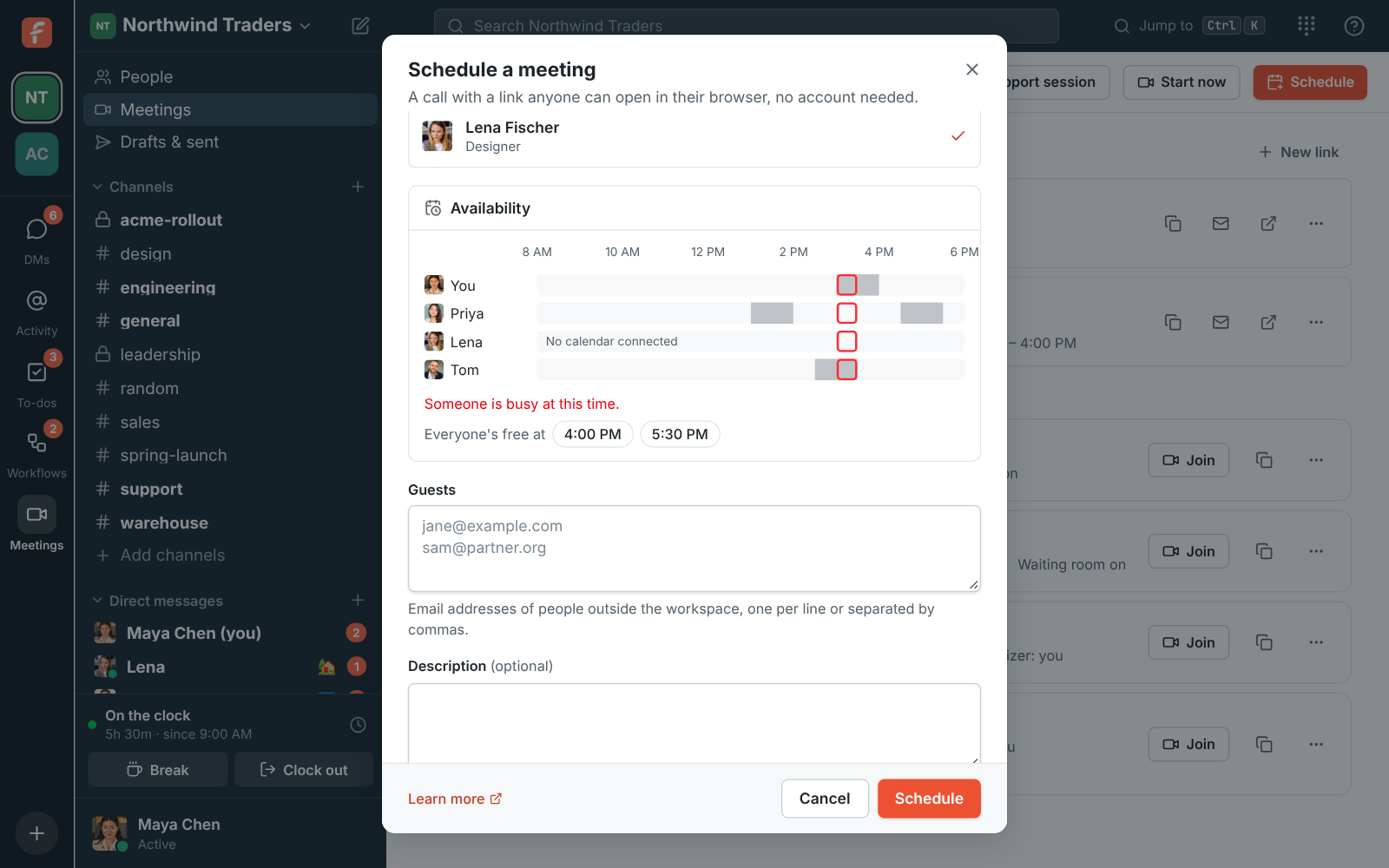
### Required and optional people
Everyone you invite is **Required** at first. Click **Required** next to someone to make them
**Optional**: they're still invited, but a time doesn't have to suit them. Their calendar invite
marks them as optional, and their email says they can join if they can.
### When nothing fits
If no time in the next week works, make someone optional, or turn on **Include times outside
working hours**. Busy times and Do Not Disturb still count.
### Schedule from a conversation
The **Schedule a meeting** button at the top of a DM, group DM or channel opens the same dialog
with the conversation's people already invited (in channels of up to 20 people; in bigger ones,
pick who to invite). Leave **Post it in #channel** on and Freesbe posts the meeting's time and link
in the conversation once it's scheduled, so everyone there sees it.

Only busy times show, never what anyone's meetings are about. People who haven't connected a
calendar show **No calendar**: their Freesbe meetings, working hours and Do Not Disturb
still count, but meetings elsewhere don't. To connect yours, see
[Connect your calendar](https://freesbe.net/docs/status-and-availability/#connect-your-calendar).
Everyone invited gets an email with their own link and a calendar invite that works with Google
Calendar, Outlook and Apple Calendar, plus a reminder about 10 minutes before the start. If you
turn emails off, copy the **Meeting link** and share it yourself.
Your upcoming and recent meetings are listed under **Meetings**. Use the **Meeting options** menu
to:
- **Copy link**.
- **Edit** the meeting. Leave **Email everyone the update** on and their calendars update too.
- **Make a new link**. The old link stops working, anyone in the call is disconnected, and invited
people get the new link by email.
- **End for everyone**, which disconnects everyone and closes the link.
- **Cancel meeting**, which removes it and sends a cancellation to everyone's calendar.
## Let people book time with you
Instead of finding a time yourself, share a [booking link](https://freesbe.net/docs/booking-links/). People outside
the workspace pick a free 15, 30 or 60 minute slot inside the hours you set, and the booking shows
up here as a meeting. Your booking links are listed at the top of **Meetings**.
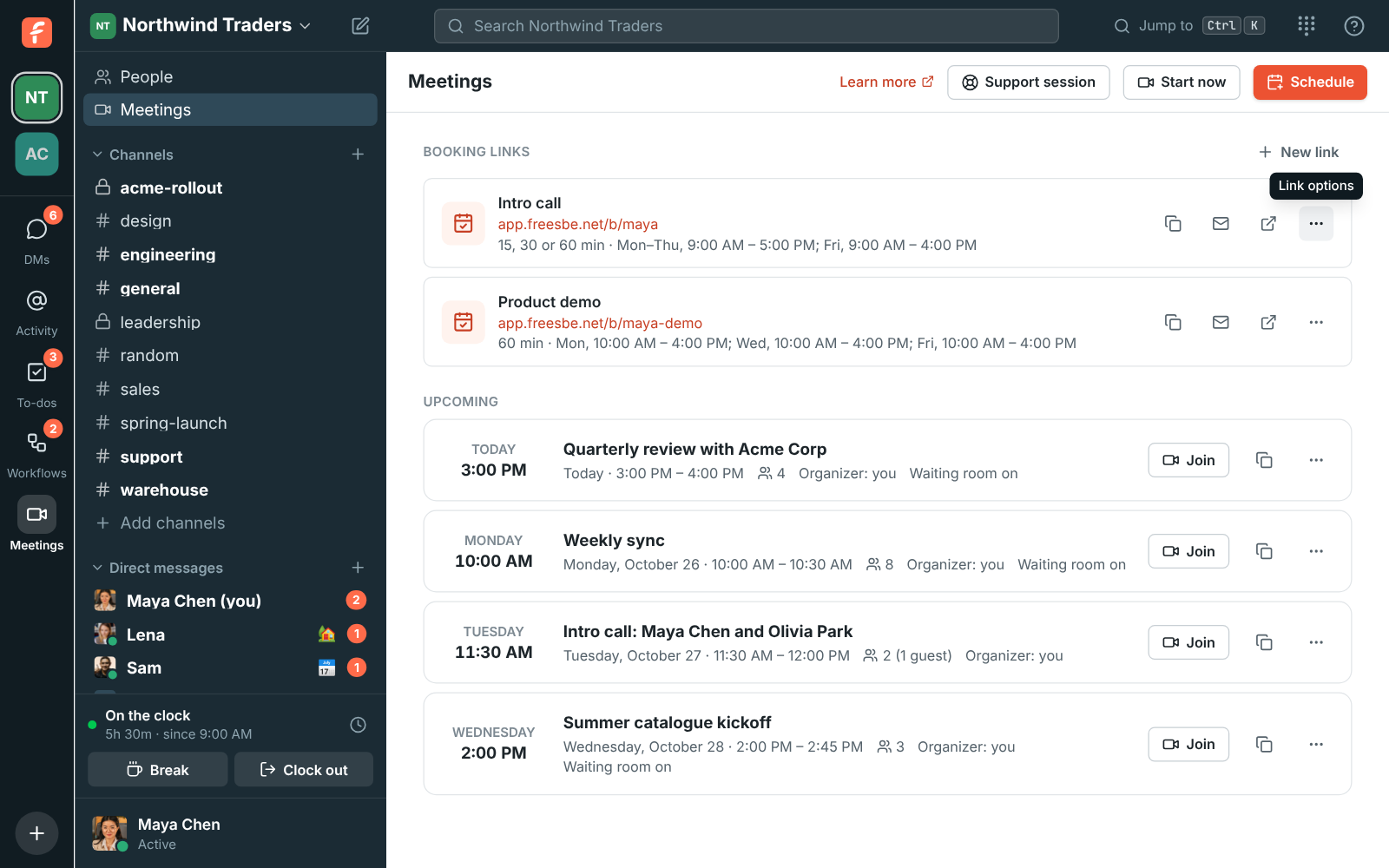
## Joining
The meeting link opens a page with your workspace's logo next to the meeting's title, time and
organizer, so guests know right away who they're meeting. A workspace without a logo shows its
initials instead. Set the logo in [Workspace settings](https://freesbe.net/docs/admin-settings/#workspace).
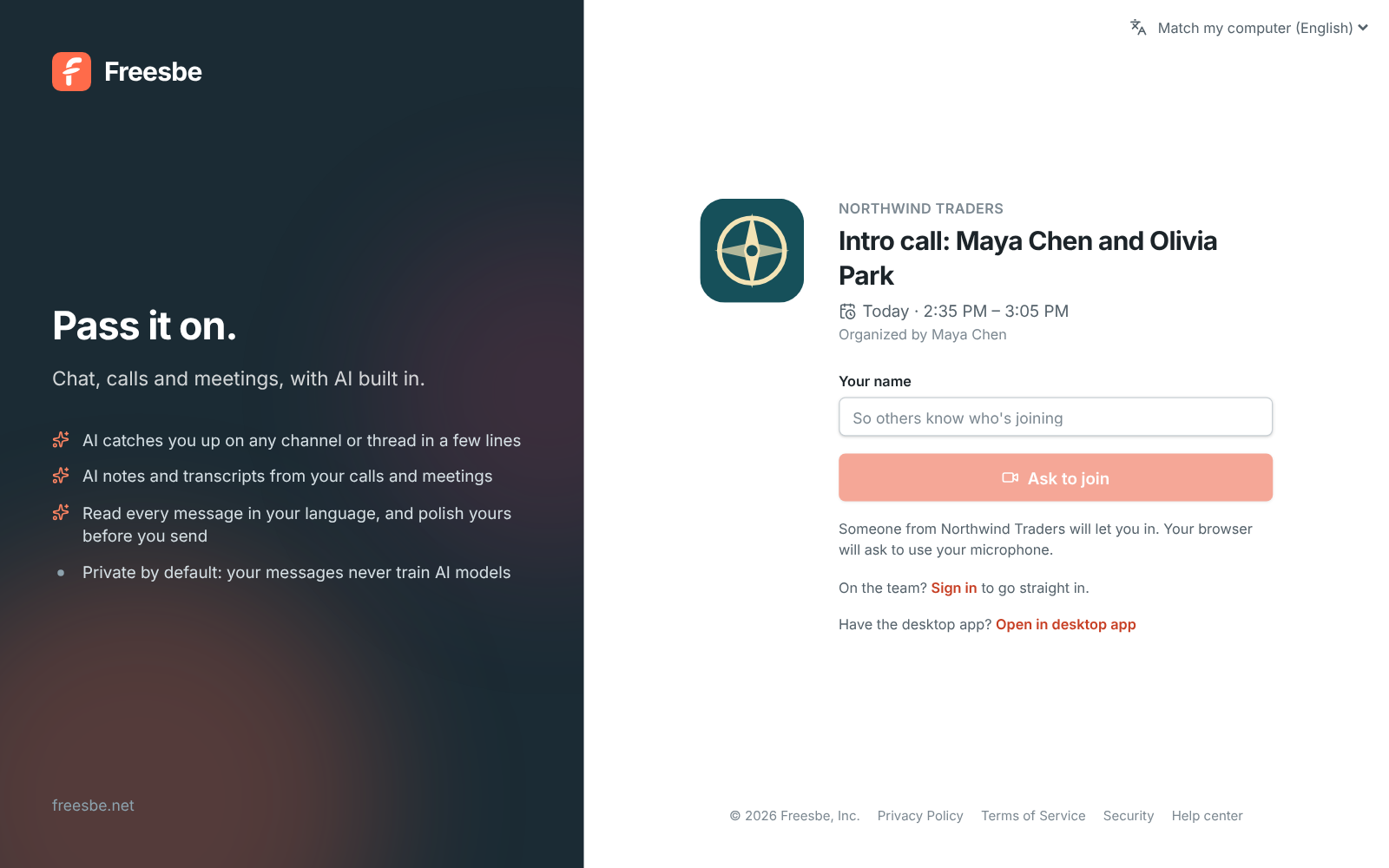
- **People in the workspace** go straight in.
- **Guests** click **Ask to join** and wait in a lobby until someone from the workspace lets them
in. Their personal link from the email fills in their name.
- With **Waiting room for guests** turned off, invited guests go straight in with their personal
link. Anyone else with the link still asks to join.
Before joining, **Check your camera and background** shows your camera as others will see it,
with the [backgrounds](https://freesbe.net/docs/profile-and-preferences/#video) to pick from: a blur or a picture.
With the preview open, your camera is on when you join; **Join with my camera off** closes it.

Guests can join from 15 minutes before the start. The link keeps working until 30 days after
its last call, like Zoom's and Teams' links, or 2 hours after the scheduled end if nobody has used
it. It stops working sooner when the organizer ends the meeting or makes a new link. A meeting
holds up to 20 people.
When everyone leaves a call with two or more people, the meeting moves from **Upcoming** to
**Recent** right away, along with its recording if it was recorded. **Recent** says who else was
in the call, like **With James Okafor, Sofia Alvarez +1**, so you can tell one instant meeting from
another. A meeting you joined by its link is in your **Recent** too, even if you weren't invited.
- **Rejoin** within 5 minutes carries on the same call, and the 5 minutes start again when the
last person leaves it.
- **Join** later, or opening the same link, starts a new call of the same meeting. **Recent**
lists each call under the meeting, with when it was, who was in it and its **Recording**.
- Once the link has stopped working, the meeting is marked **Ended**.
If you're alone in a call, or someone is still waiting in the lobby, the call goes on until the
scheduled end.


While a guest waits to be let in, the page keeps the logo and the meeting's title in view.
Without a logo, the initials take its place. On a phone, a small logo sits by the workspace's
name, and in right-to-left languages like Hebrew the logo moves to the right.
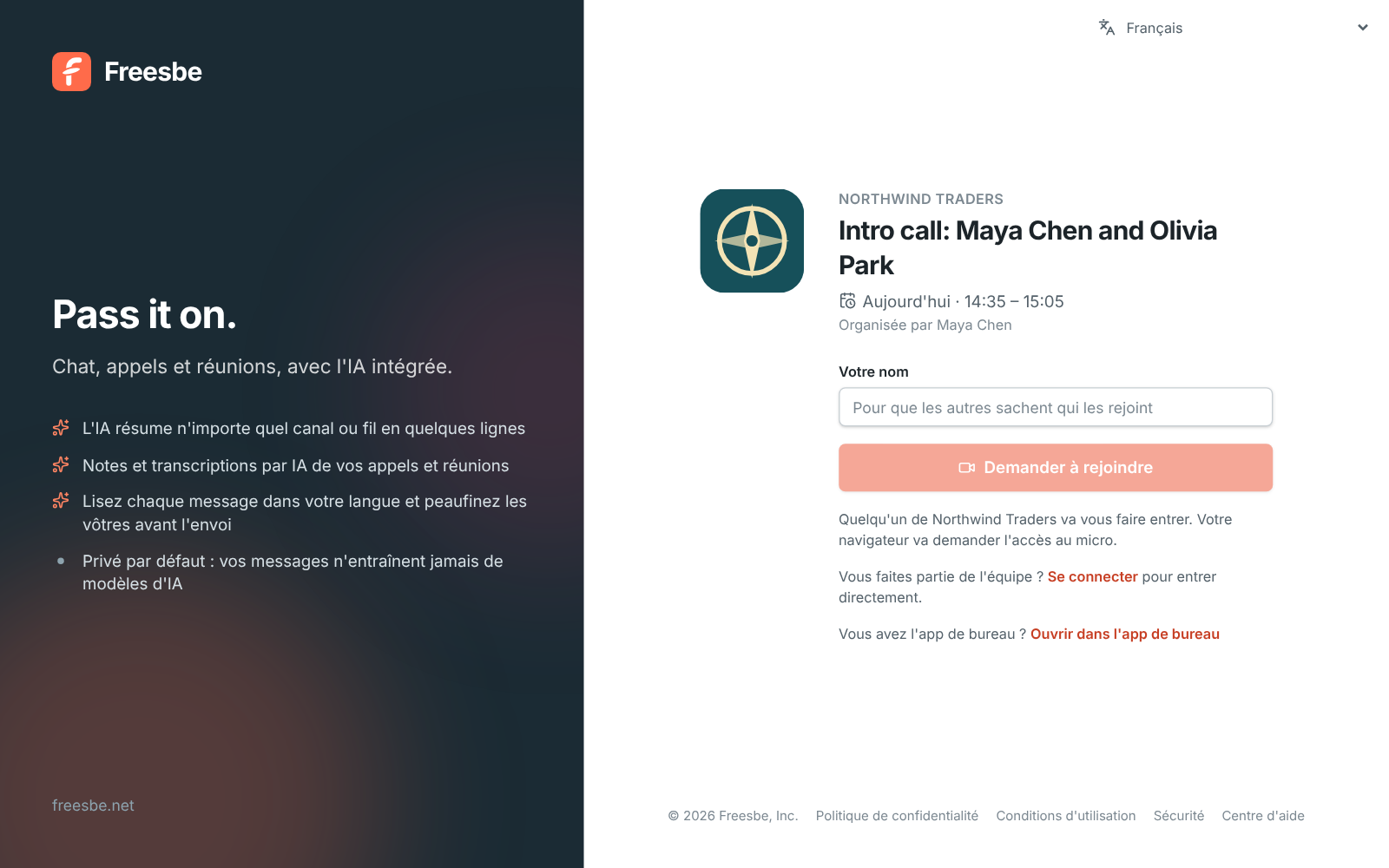
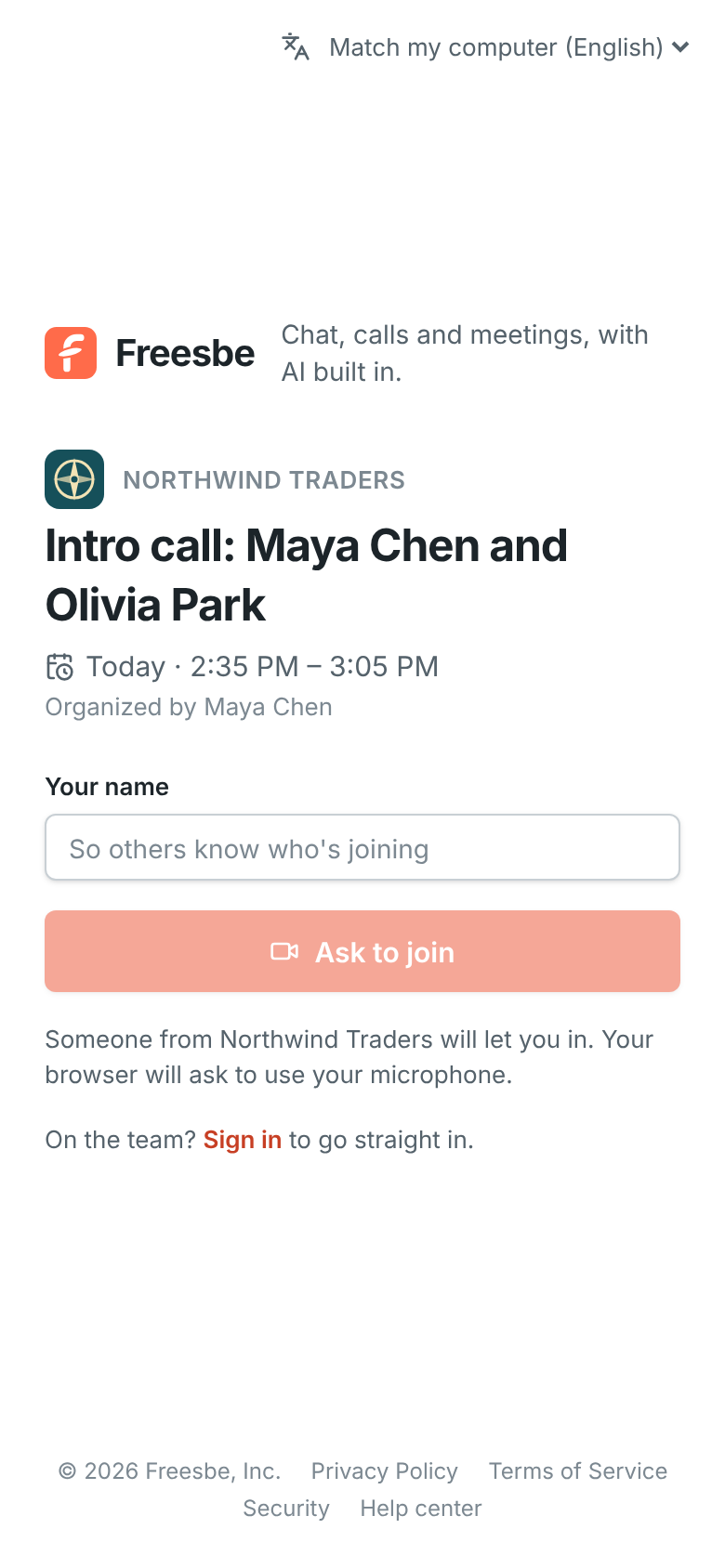
On a computer with the [desktop app](https://freesbe.net/docs/desktop-app/#open-links-in-the-app), the meeting link
opens there once your browser has seen you use the app. You can also click **Open in desktop app**
under the join button; **Join in browser instead** keeps you on the web page.
On a phone with the [Freesbe app](https://freesbe.net/docs/mobile-app/#meetings), the app's **Meetings** tab lists
your meetings with a **Join** button. On Android, a `meet.freesbe.net` link asks first: **Open in
the Freesbe app** or **Continue in the browser**.
On the Corporate and Enterprise plans, guests' links can use your company's own address, like
`https://meetme.acme.com/m/…`. See [Custom domains](https://freesbe.net/docs/custom-domains/).
When someone shares a meeting link in a channel or a DM, clicking it opens the meeting right where
you are, in the desktop app or in the browser tab you have Freesbe open in, and you join as
yourself. That works for `meet.freesbe.net` links, older `app.freesbe.net/m/…` links and links on
your company's own address.
If that meeting has already ended, was canceled or can't be found, the page says so with **Back to
Freesbe** under it, which takes you to the meeting's workspace. The same link sits under the join
button when you'd rather not join after all. In the desktop app, which has no Back button, you can
also press Alt+← (see [Go back](https://freesbe.net/docs/desktop-app/#go-back)).

## Music on hold
Guests hear soft music while they wait in the lobby, so they know the page is still working. The
music stops the moment they're let in.
- It starts by itself. If the browser holds it back until the guest clicks something, they press
**Play music**.
- Guests can pause it, or pick another track from the music button. Their browser remembers the
choice next time.
- There are five tracks: **Lo-fi**, **Drift**, **Sunny**, **Classic** and **Bossa**. They're
composed in Freesbe itself, the same music that plays while you're alone in a huddle.
- Admins pick the track guests hear first, or turn the music off, in
[Workspace settings](https://freesbe.net/docs/admin-settings/#music-on-hold).
### While you're alone in a meeting
The same music plays when you're the only one in the call: before anyone else joins, or after
everyone else has left. It starts after a couple of seconds on your own and stops the moment
someone joins. It plays only on your speakers, so it never goes into the call or a recording.
- Under your tile it says **Waiting for others to join…** and which track is playing. Press
**Pause music** to stop it, and **Play music** to start it again.
- Pick another track, or **Off**, from the music button next to it. Your browser remembers the
choice, for the lobby too.
- It plays the track your admins picked for the lobby, and not at all when they turned the music
off. Huddles do the same while you wait alone ([Huddles](https://freesbe.net/docs/huddles/)); calls with one
person don't, since they ring until the other person answers.
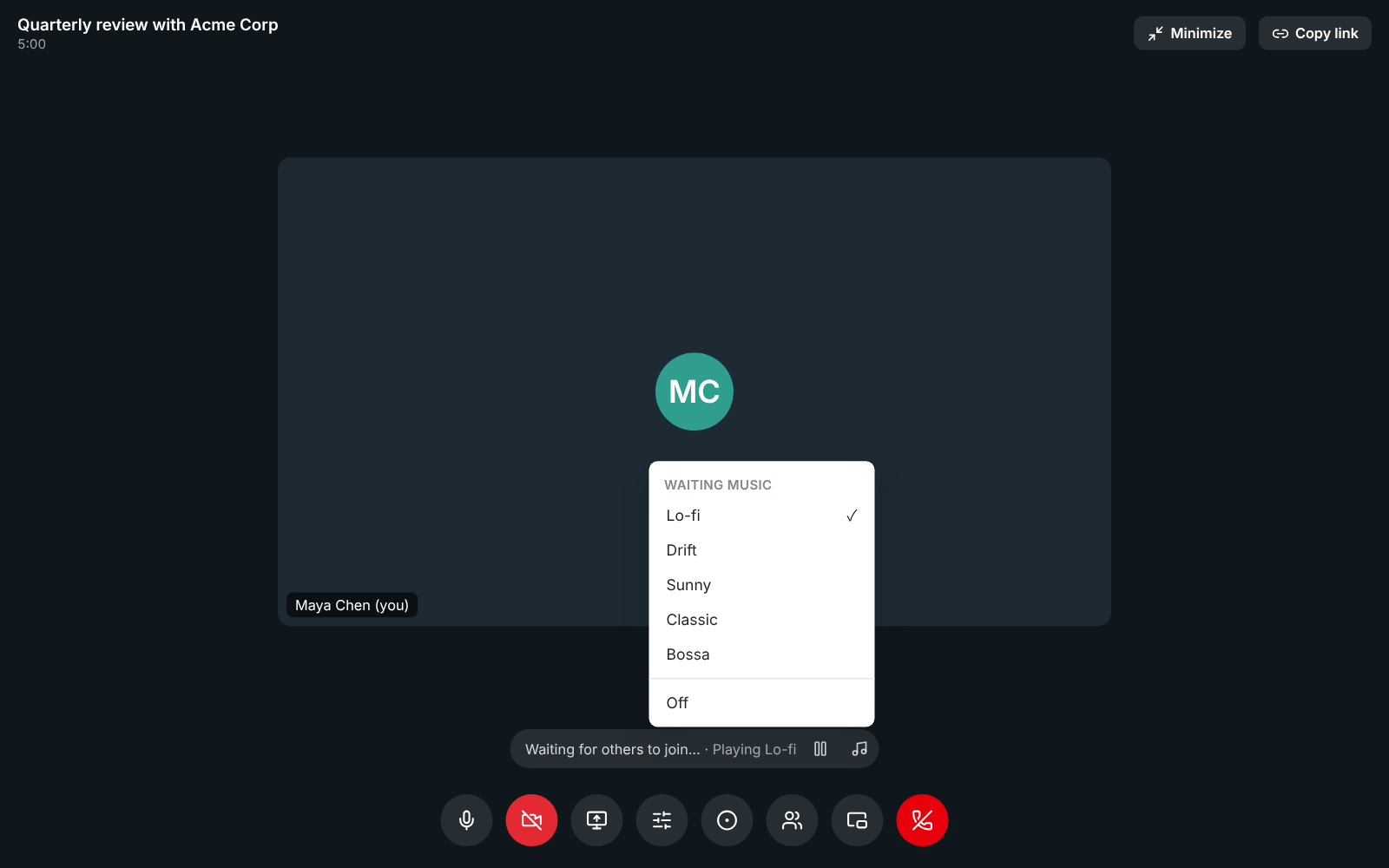
## Letting people in
When someone asks to join, everyone from the workspace in the call sees a banner with **Admit**
and **Deny**. Open **People** to see everyone who's waiting and everyone in the call.
You don't have to be in the call. While a meeting is open, its row under **Meetings** shows who is
in the call and who is waiting, with **Admit** and **Deny** next to each person waiting. The
organizer, the teammates the meeting invites and workspace admins can let people in this way.
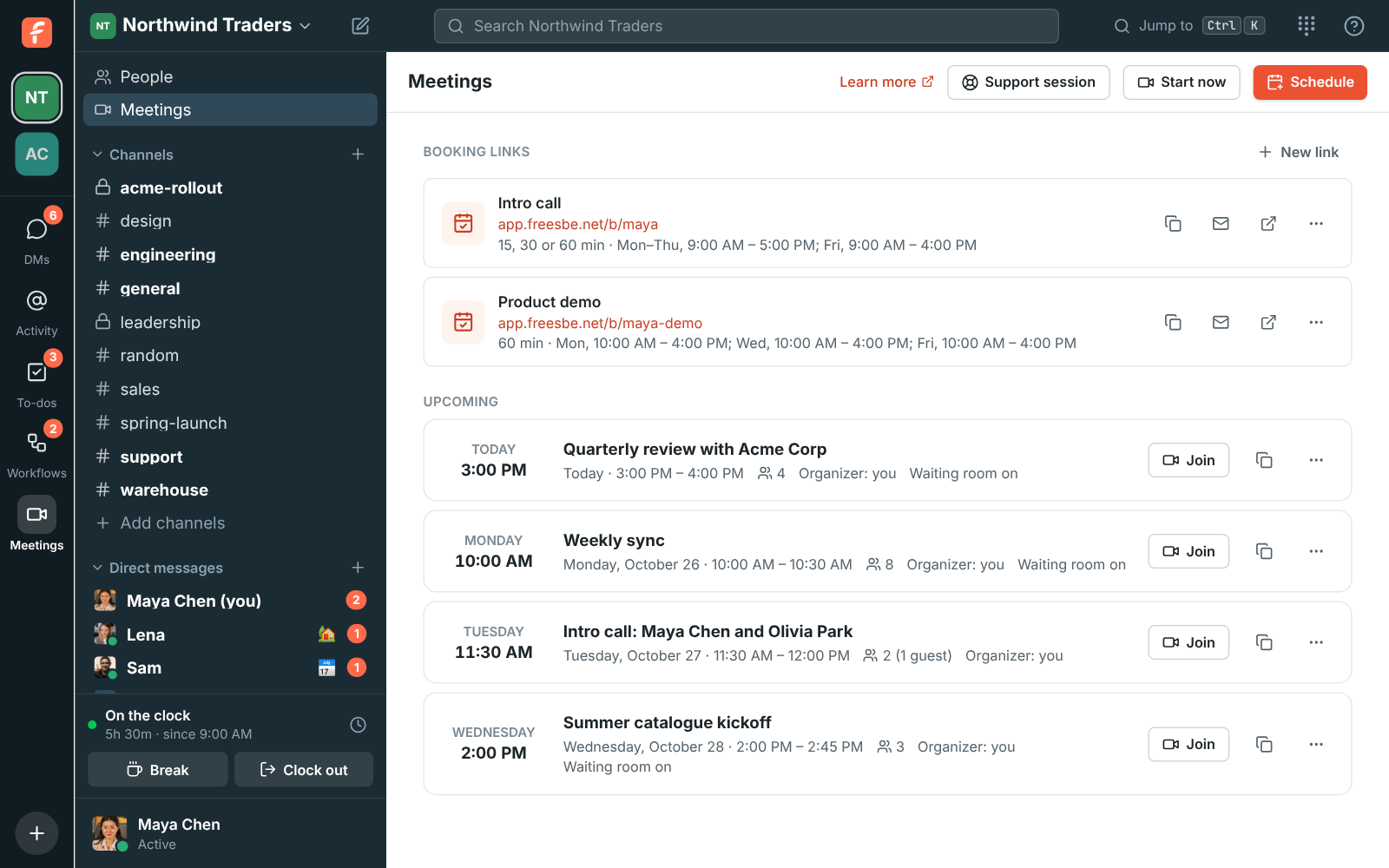
## Waiting room alerts
You don't have to watch the Meetings page to know someone is waiting. When a guest asks to join and
nobody from the workspace is in the call, the meeting's organizer and the teammates it invites
hear about it:
1. **Right away**, a card appears in the corner of Freesbe with the guest's name, the meeting and
how long they've waited, with **Admit**, **Deny** and **Join**. The app you're using plays a
knock, and shows a desktop notification if Freesbe is in the background.
2. **After 2 minutes**, if they're still waiting, every Freesbe app you have open knocks again
every few seconds and shows a notification, and the [mobile app](https://freesbe.net/docs/mobile-app/) gets a push
notification if you aren't at your computer.
3. **After 5 minutes**, hosts who are away or don't have Freesbe open get an email. **Let them in**
opens your meetings list, where you click **Admit**; **Join** takes you into the call, where you
see who's waiting.
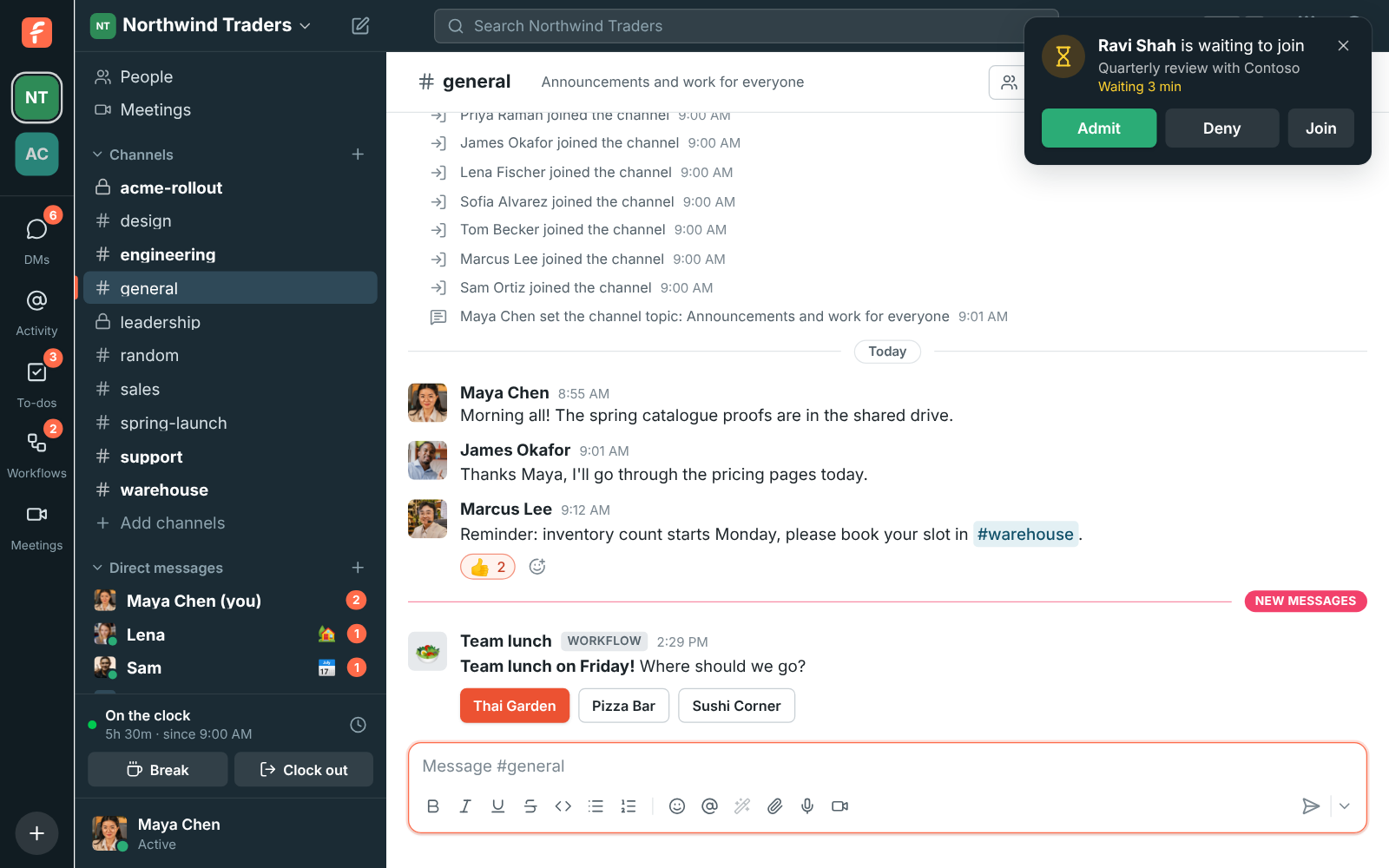
The alerts stop for everyone as soon as one person lets the guest in or turns them away, when the
guest gives up, or when someone from the workspace joins the call (they see the lobby there).
Closing the card with **×** only hides it on that device. While you've
[paused notifications](https://freesbe.net/docs/status-and-availability/#pause-notifications), the card shows up
without a sound and you don't get the push or the email.
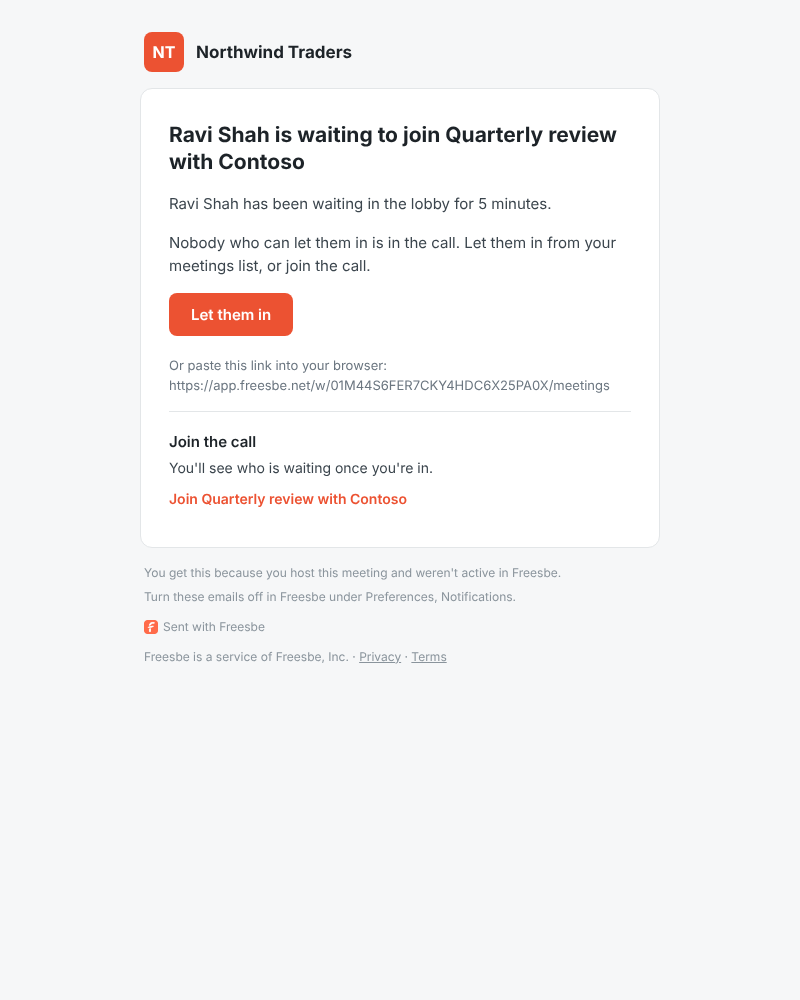
Admins choose the timing for the whole workspace in **Workspace settings → Calls & meetings → Waiting room → Waiting room alerts**: the louder alert after 1, 2, 3, 5 or 10 minutes, and the email after 5, 10, 15 or 30
minutes, or either one **Off**. Anyone can turn the email off for themselves in
**Preferences → Notifications → Meetings**.
## In the call
The controls are the same as in a huddle: **Mute**, **Turn on camera**, **Backgrounds and
effects**, **Share screen**, **Microphone and camera settings**, **Record the meeting**, **Send a
reaction**, **Raise hand**, **People**, **Chat**, **Pop out** (in a browser) and **Leave call**. While
someone shares their screen, a pencil lets you [draw on it](#draw-on-a-shared-screen).
Your camera stays off until you turn it on, unless you previewed it before joining. The settings
button also picks the speaker the call plays through and
[noise cancellation](https://freesbe.net/docs/profile-and-preferences/#audio). See
[Huddles](https://freesbe.net/docs/huddles/#keep-the-call-in-view) for the floating call window. In a meeting, its
**More options** menu also has **Copy joining info**, and **In-call messages** opens the meeting's
chat.
**Backgrounds and effects** opens a panel beside the tiles with the
[backgrounds](https://freesbe.net/docs/profile-and-preferences/#video): no effect, a slight blur, a blur, or a
picture. Your camera changes as soon as you pick, so you can turn a blur off or swap the picture
without leaving the call. Hover over your own tile for the same button there.

Everyone's tile fits in the window without scrolling. The tiles grow or shrink with the window
and with how many people are in the meeting: two people sit side by side, four make a 2×2 grid,
and six or nine share the space in rows. Only in a very large meeting in a small window do the
tiles stop shrinking and the grid scrolls.

**Share screen** lights up while you're sharing; click the same button again to stop. Everyone
sees a screen icon next to the name of whoever is sharing, and the shared screen fills the stage,
with everyone's tiles in a narrow column beside it. In the desktop app, a frame goes around the
screen or window you share, with a **Stop sharing** bar at the top: see
[See what you're sharing](https://freesbe.net/docs/desktop-app/#see-what-youre-sharing).

#### Make the shared screen bigger
While someone shares, **Layout** at the top of the call picks where everyone else goes:
- **Screen and people**: the screen fills the stage and people sit in a column beside it. This is
where every call starts.
- **Screen and a strip**: people in a row under the screen.
- **Screen only**: everyone's tiles are hidden, so the screen gets the whole stage. Whoever is
talking stays small in a corner, so you still see who's speaking.
**People size** in the same menu makes everyone's tiles smaller or bigger. You can also drag the
edge of the column, or click the arrows at its top to hide it. **Hide people** and the full-screen
button sit right on the shared screen too, and F puts the screen on your whole monitor
(Esc brings it back). Your layout is kept for your next calls in this browser or app;
turn off **Remember for my next calls** to have each call start beside the screen again.


#### When two people share
More than one person can share at the same time. Each shared screen gets a tab above the stage,
with a live picture of it, and the newest share comes up front with a **New** badge. Click a tab
to see that screen big. When someone starts sharing while you're watching another screen, a note
at the top says so, with a button to go back to the one you were watching. A meeting recording
shows the newest share big.

**Show both** puts every shared screen side by side, so you can compare them; click a tab to go
back to one screen.

### Draw on a shared screen
Anyone in the call can point at something on a shared screen by drawing on it, guests included.
While someone shares, click **Draw on the shared screen** (the pencil under the call) and draw
over the screen with your mouse, trackpad or pen. Everyone sees the line as you draw it, with your
name next to it, and it fades away about 2 seconds after you let go. Click the pencil again, or
press **Esc**, to stop drawing and use the screen as usual.
Each person draws in a colour of their own, shown as a dot on the pencil, and keeps it for the
whole call, so you can always tell who drew what. Several people can draw at once. Lines stay on
the right part of the shared screen whatever size each person's window is, and the person sharing
sees them too: on their own screen in the [desktop app](https://freesbe.net/docs/desktop-app/#see-what-youre-sharing),
and over their preview of the share in a browser. Nothing drawn is saved or recorded, and the lines
go away when the screen stops being shared.

Drawing is on in every meeting. Hosts and co-hosts can click **Turn drawing off for everyone**
next to the pencil to stop it for the rest of the call: lines being drawn disappear, the pencil is
greyed out for everyone else, and they see a short note that you turned drawing off. Click it
again (**Let everyone draw on shared screens**) to turn drawing back on. The next call on the same
meeting link starts with drawing on again.

The first time you join a call on a new device or browser, it asks to use your microphone.
Allow it and your microphone works straight away; there's no need to reload the page.
Whoever is talking gets a green frame around their tile, drawn just inside its edge so it shows in
full on every tile, at any window size.
While their camera is off, members of your workspace show their profile picture on their tile and
in **People**. Guests, and members without a picture, show their initials.
If someone's sound reaches you choppy, a small signal icon shows next to their name on their tile.
On your own tile, it means the call is losing some of your sound on the way out. See
[Call quality](https://freesbe.net/docs/huddles/#call-quality), which works the same in meetings, guests included.

When your own connection stays weak, the meeting keeps the sound first: other people's cameras
pause and their pictures show instead, your camera is sent smaller and your sound a little leaner.
Shared screens keep showing. A note above the controls says why; click **Show video anyway** to
bring the cameras back for the rest of the meeting. Once your connection has been fine for half a
minute, everything comes back by itself.

### Everyone at the same volume
Freesbe evens out voices: someone on a quiet laptop microphone is turned up and someone close to
their headset turned down, so everyone sounds about as loud. Recordings and transcripts get the
same even levels. To hear one person louder or quieter, right-click their tile and drag the slider,
from 0% to 200%. Freesbe remembers it for that person on this device, in meetings and huddles.
Turn the leveling off with **Even out voices** in
[Preferences → Calls & audio → Audio](https://freesbe.net/docs/profile-and-preferences/#audio).

If someone can't be heard, open **Microphone and camera settings** and click **Copy call details**.
See [If you can't hear or be heard](https://freesbe.net/docs/huddles/#if-you-cant-hear-or-be-heard).
## Reactions and raised hands
Click **Send a reaction** (the smiley under the call) to open the reaction bar, and tap an emoji.
The bar floats just above the call buttons, so the video stays where it is. The emoji are
💖 👍 🎉 👏 😂 😮 😢 🤔 and 👎. Everyone in the call sees it, guests included: it rises from the
bottom corner of the call with your name under it, and pops up on your tile for a few seconds so
people can see whose it was. When the window is narrow, the bar scrolls: use the arrows at its
ends. Click the smiley again to put the bar away.
Each emoji moves its own way while it rises: the heart beats, the thumbs up pumps, the party popper
bursts open, the hands clap, the laughing face shakes, the surprised face gasps, the crying face
droops, the thinking face tilts its head and the thumbs down dips. If you've turned on reduced
motion on your computer or phone, reactions don't move: they line up in the corner, then fade.

The round button beside the bar picks your skin tone for 👍 👏 and 👎. Freesbe remembers it on
this device, for meetings and huddles.

Reactions aren't saved or recorded, and a burst of taps is spaced out: after a handful in a few
seconds, the rest are dropped until you slow down.
When someone joins the meeting, member or guest, everyone else hears a soft chime, and a quieter
one when someone leaves. Meetings of more than 8 people stay quiet, and a few people arriving
together make one chime. To turn it off, use **Play a sound when someone joins or leaves** in
[Preferences → Calls & audio → Audio](https://freesbe.net/docs/profile-and-preferences/#audio).
**Raise hand** puts a ✋ on your tile and tells the others that you'd like to speak, without
interrupting. Everyone else hears a soft chime, at most once every 10 seconds however many hands
go up, and you never hear one for your own. Raised hands go to the top of **People**, in the order
they went up. Click it again (**Lower hand**) when you're done. To stop the chime, turn off **Play
a sound when someone raises a hand** in
[Preferences → Calls & audio → Audio](https://freesbe.net/docs/profile-and-preferences/#audio). Hosts and co-hosts can lower anyone's hand from **People** by
clicking the ✋ next to them.
## Meeting chat
Click **Chat** in the call to write to everyone in it and share files. Guests from outside the
workspace can use it too, as soon as they're let in.
- Type a message and press Enter to send it (Shift+Enter starts
a new line). Links open in a new tab.
- To share a file, click the paperclip, drop files on the chat, or paste a picture. Files can be up
to the same size as in channels. Guests follow the workspace's
[file type rules](https://freesbe.net/docs/file-types/) for guests, and people in the workspace
follow the rules for members.
- Anyone who joins later, or reloads the page, sees everything written so far.
- While the chat is closed, new messages show up briefly at the bottom of the screen and as a count
on **Chat**. When you've [minimized the meeting](#chat-while-youre-in-a-meeting), the chat button
on the corner card shows the count and opens the meeting with the chat showing.

### Read the chat after the meeting
The chat is kept with the meeting. Under **Meetings**, a meeting whose chat has messages shows
**Chat** with how many there are: click it to read what was said and open the files. If the meeting
was recorded, the recording's page shows the chat under the notes too.

People in the workspace can read it afterwards if they organized the meeting, were invited to it,
were in the call, or can see its recording. Owners and admins can read every meeting's chat.
Guests from outside see the chat only while they're in the call.
## Move a meeting to another device
You can switch devices in the middle of a meeting. Open the meeting's link, or **Meetings**, on
the other device: it says **You're in this meeting on your phone** (or in the desktop app, or in a
browser) and the button reads **Join here**. Join and the call moves to this device, and the one
you left shows **You moved this meeting to another device**, with a button to bring it back.
The others see you in the call once, not twice. Moving works for people in the workspace who
are signed in on both devices.
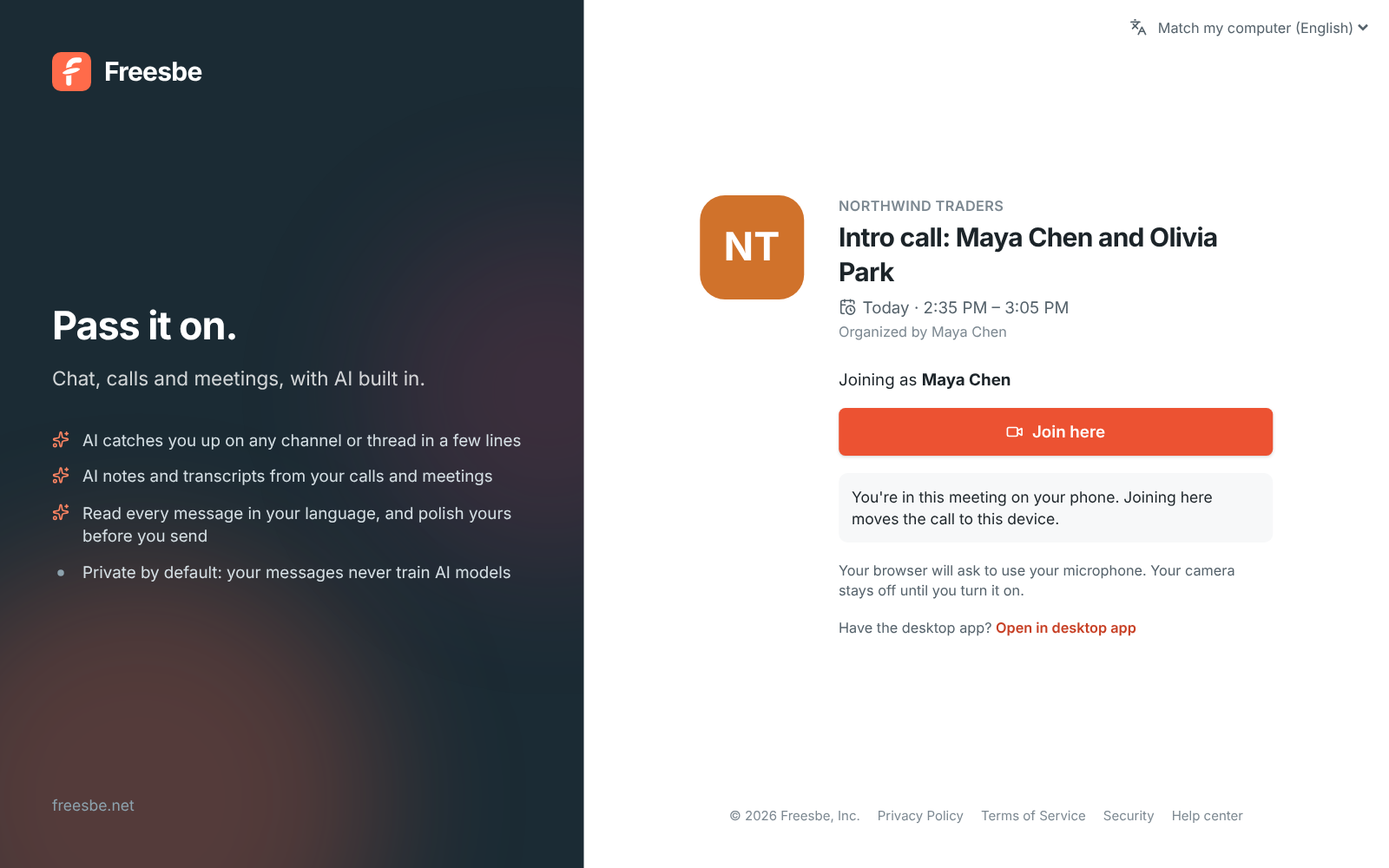
## Record a meeting
Anyone from the workspace in the call can click **Record the meeting**, unless an admin allows only
hosts and co-hosts. Everyone hears a tone and sees a red **REC** badge. By default, the person
recording, the meeting's hosts (its organizer and the people it invites), co-hosts, and owners and
admins can stop it. Hosts make someone a co-host from **People**: click **…** next to them and choose
**Make co-host**. See
[Who can start and stop recordings](https://freesbe.net/docs/recordings-and-notes/#who-can-start-and-stop-recordings). The recording is kept with the meeting, under
**Meetings → Recordings**, with a transcript and AI notes: a summary, decisions and action items.
See [Recordings, transcripts and notes](https://freesbe.net/docs/recordings-and-notes/). **Share** on the recording
sends it to teammates who weren't there and, if an admin allows it, to people outside the workspace
by a private link; guests who joined with their invite link can be emailed theirs automatically.
See [Share a recording](https://freesbe.net/docs/recordings-and-notes/#share-a-recording).
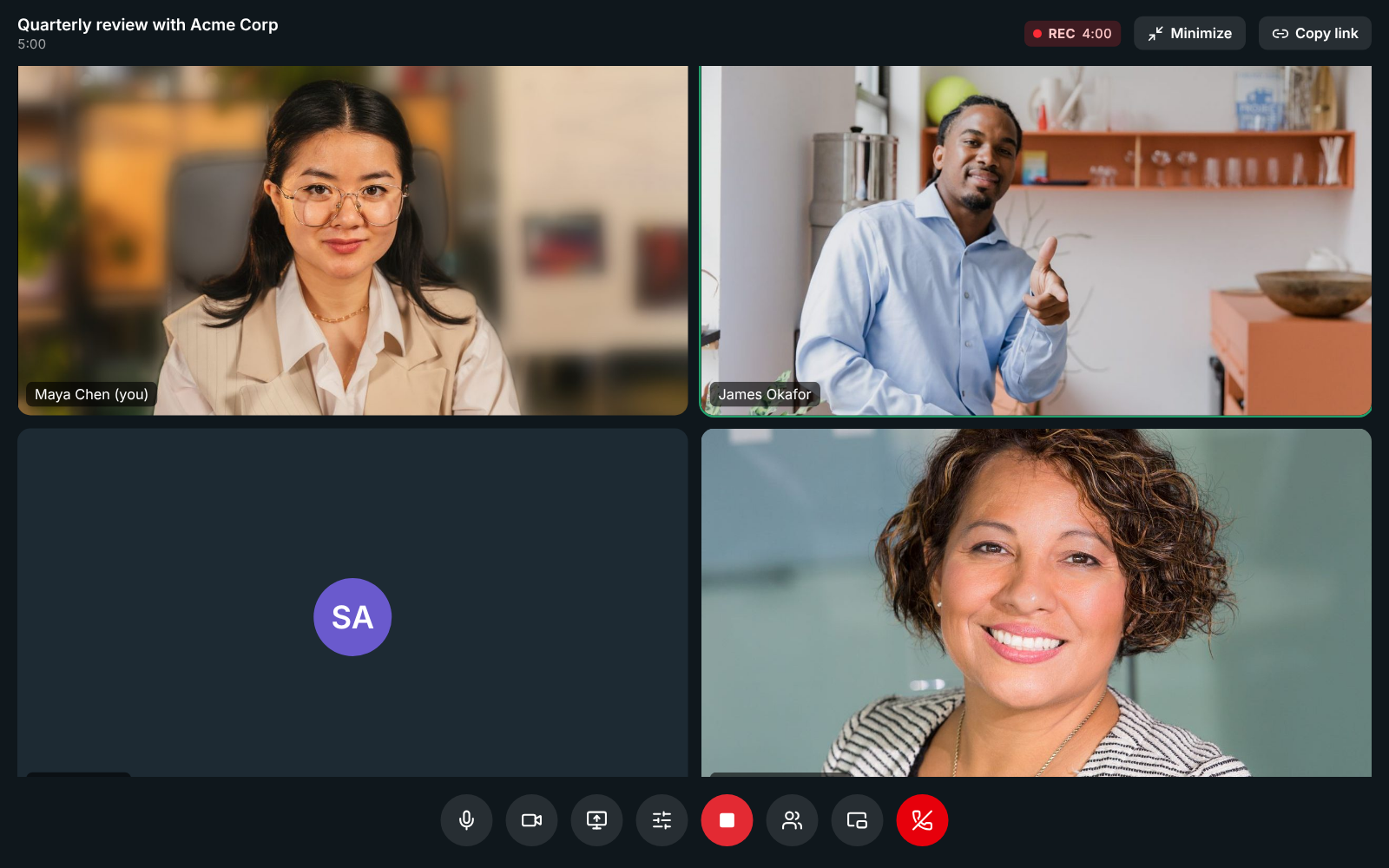
## Chat while you're in a meeting
If you're on the team, you can keep using Freesbe during a meeting. Click **Minimize** at the top
of the call: the meeting shrinks to a small card in the corner and you're back in your channels
and DMs, still in the call. Going back in your browser or picking a channel does the same.
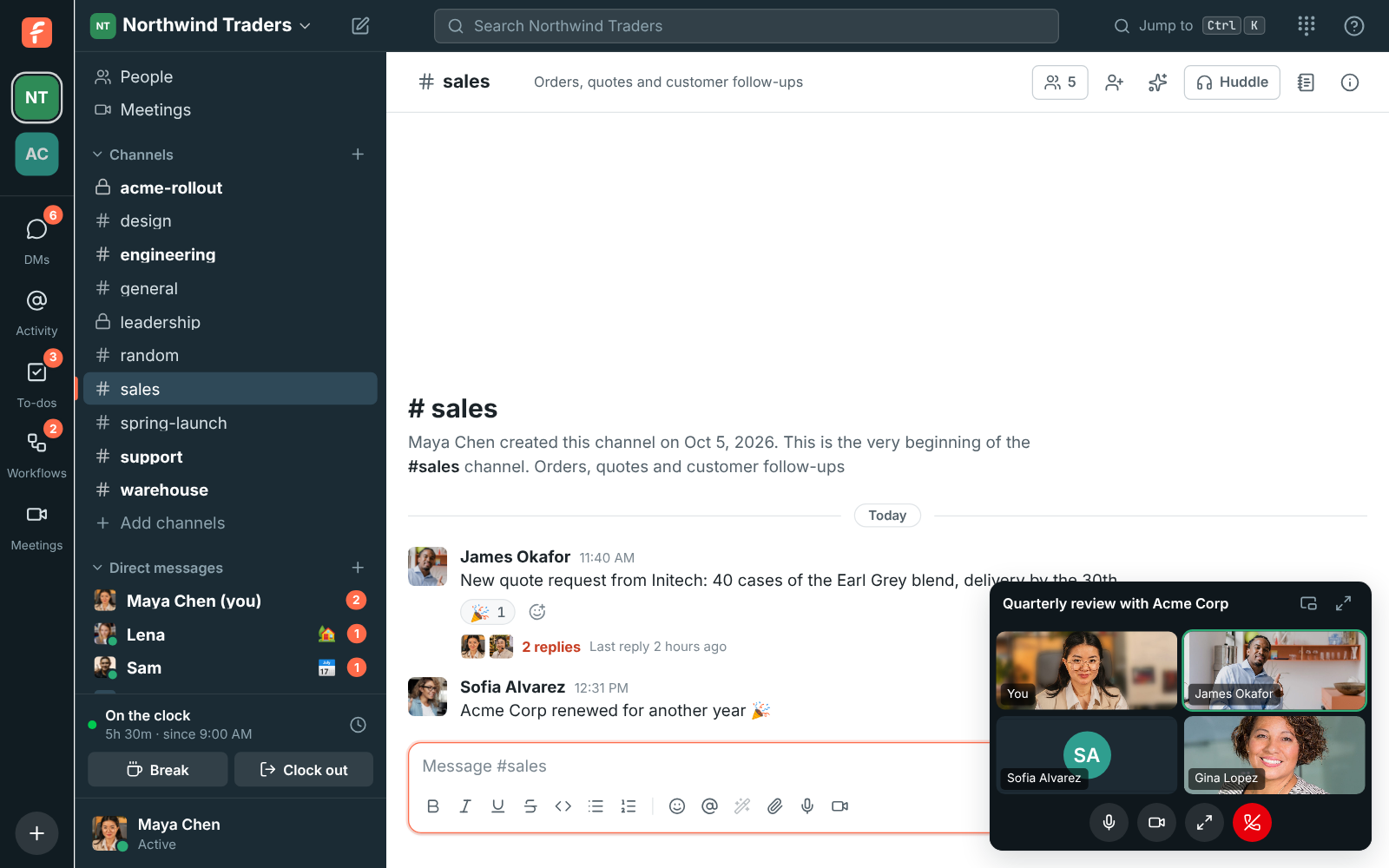
The card shows who's talking and has **Mute**, **Turn on camera**, **Back to the call** and
**Leave call**. Drag it by its title to move it. To see the whole meeting again, click
**Maximize**: the meeting fills the window again, as it was before you minimized it. The card's
**Chat** button does the same with the meeting's chat open.
### Undock the meeting into its own window
To watch the meeting and work in Freesbe side by side, click **Undock** at the top of the call.
The meeting moves to a window of its own that you can resize, maximize, or put on another screen,
and Freesbe's window goes back to your channels and DMs. You stay in the call the whole time.

In the meeting's window, **Dock** puts the meeting back in Freesbe's window, filling it, and
**Minimize** shrinks it to the card in the corner. Closing the window does the same as
**Minimize**: it doesn't take you out of the call. In a browser, allow pop-ups for Freesbe if the
window doesn't open. In the [desktop app](https://freesbe.net/docs/desktop-app/), undocking needs version 0.1.12 or
later.
Guests don't have the rest of the app, so for them the meeting stays a full page. Closing or
reloading the tab still asks first, because it takes you out of the call.
---
# Recordings, transcripts and notes
Source: https://freesbe.net/docs/recordings-and-notes/
> Record or transcribe huddles and meetings, then read a transcript of who said what and AI notes with a summary, decisions and action items.
Record a huddle or a meeting, or just transcribe a huddle, and Freesbe writes up the call for you
once it ends: a transcript that says who said what, and notes with a summary, the decisions made
and the action items, with who they're for.
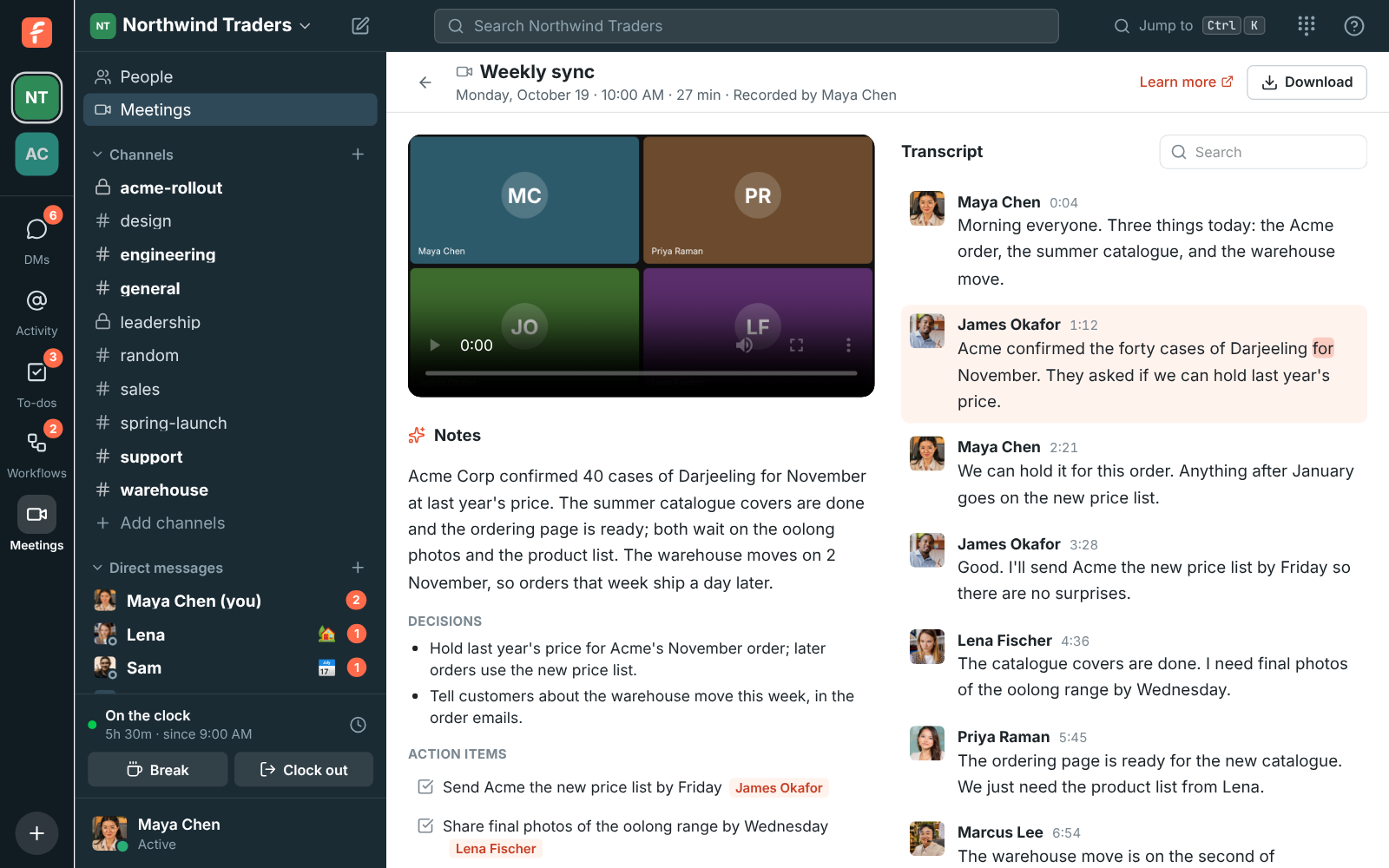
## Record a call
- **In a huddle**, click **Record the huddle** in the huddle's controls. See
[Huddles](https://freesbe.net/docs/huddles/#recordings).
- **In a meeting**, click **Record the meeting** at the bottom of the call. Anyone from the
workspace in the meeting can start it; guests can't.
The record button keeps the same icon and lights up red while the call is being recorded; click it
again to stop. Your workspace decides who can start and stop recordings. See
[Who can start and stop recordings](#who-can-start-and-stop-recordings).

Everyone in the call hears a tone and sees a red **REC** badge with who is recording. By default,
the person recording, the call's hosts and co-hosts, and owners and admins can click **Stop
recording**. A recording also stops when the person recording leaves, when the call ends, and after
4 hours.
The recording is made by the app of the person who started it, in the
[desktop app](https://freesbe.net/docs/desktop-app/) or a browser, and uploaded every few seconds, so a crash or a
dropped connection keeps what was already recorded.
## Transcribe a huddle without recording it
When you want the notes but not a video, click **Transcribe** (the captions button) in the
huddle's controls. Only the call's audio is captured, to write the transcript and notes; nothing is
recorded or posted as a video.
Everyone in the huddle hears a tone, sees a captions badge with the time, and gets a line in the
conversation saying who started transcribing. The same people who can stop a recording can click
**Stop the transcript**. When it stops, the notes are posted in the channel or DM a minute or two later, with
a link to the full transcript.
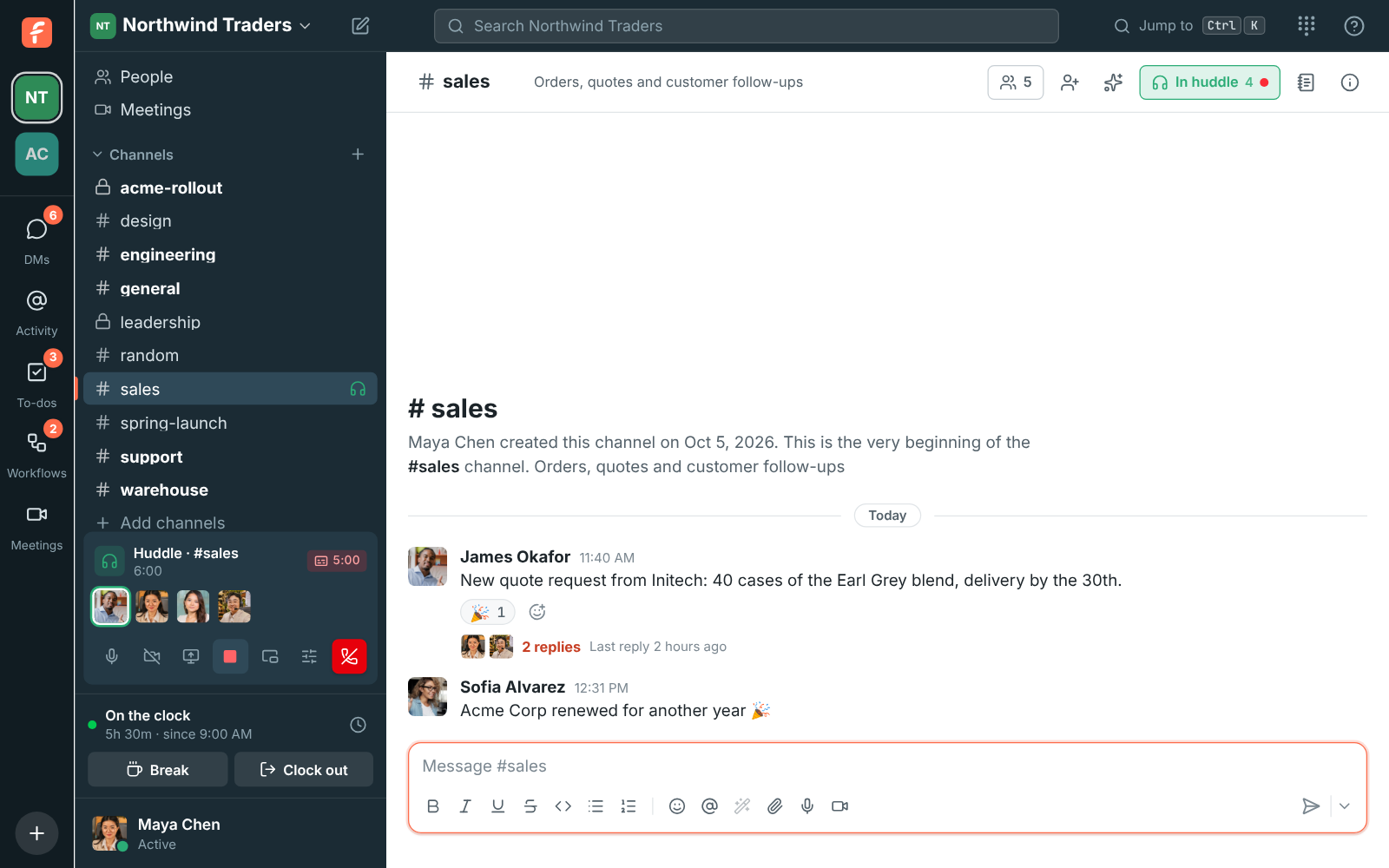
## Transcribe every huddle
Admins can have every huddle transcribed without anyone asking: turn on **Transcribe every
huddle** in [Workspace settings → Calls & meetings → Recordings](https://freesbe.net/docs/admin-settings/#recordings). Once a second
person joins a huddle, the app of the person who's been in it longest starts a transcript.
Everyone is told as usual, and the people who can stop a recording can stop it; a transcript
someone stopped isn't started again in that huddle. These transcripts start whoever's app it is,
whatever the rule for who can record. If the person transcribing leaves, another person's app takes over and the
rest of the call gets its own notes.
Transcripts are made by the desktop app or a browser. Someone in a huddle only from the phone app
can't transcribe it, so another person's app does.
## Who can start and stop recordings
An admin picks who controls recordings and transcripts under **Who can start and stop recordings**
in [Workspace settings → Calls & meetings → Recordings](https://freesbe.net/docs/admin-settings/#recordings).
| Choice | Who can start | Who can stop |
| ---------------------------------------------------- | ------------------------------- | -------------------------------------------------------- |
| **Everyone in the call** | Anyone from the workspace | Anyone from the workspace |
| **Whoever started it, hosts and co-hosts** (default) | Anyone from the workspace | The person recording, hosts, co-hosts, owners and admins |
| **Only hosts and co-hosts** | Hosts, co-hosts, owners, admins | The person recording, hosts, co-hosts, owners and admins |
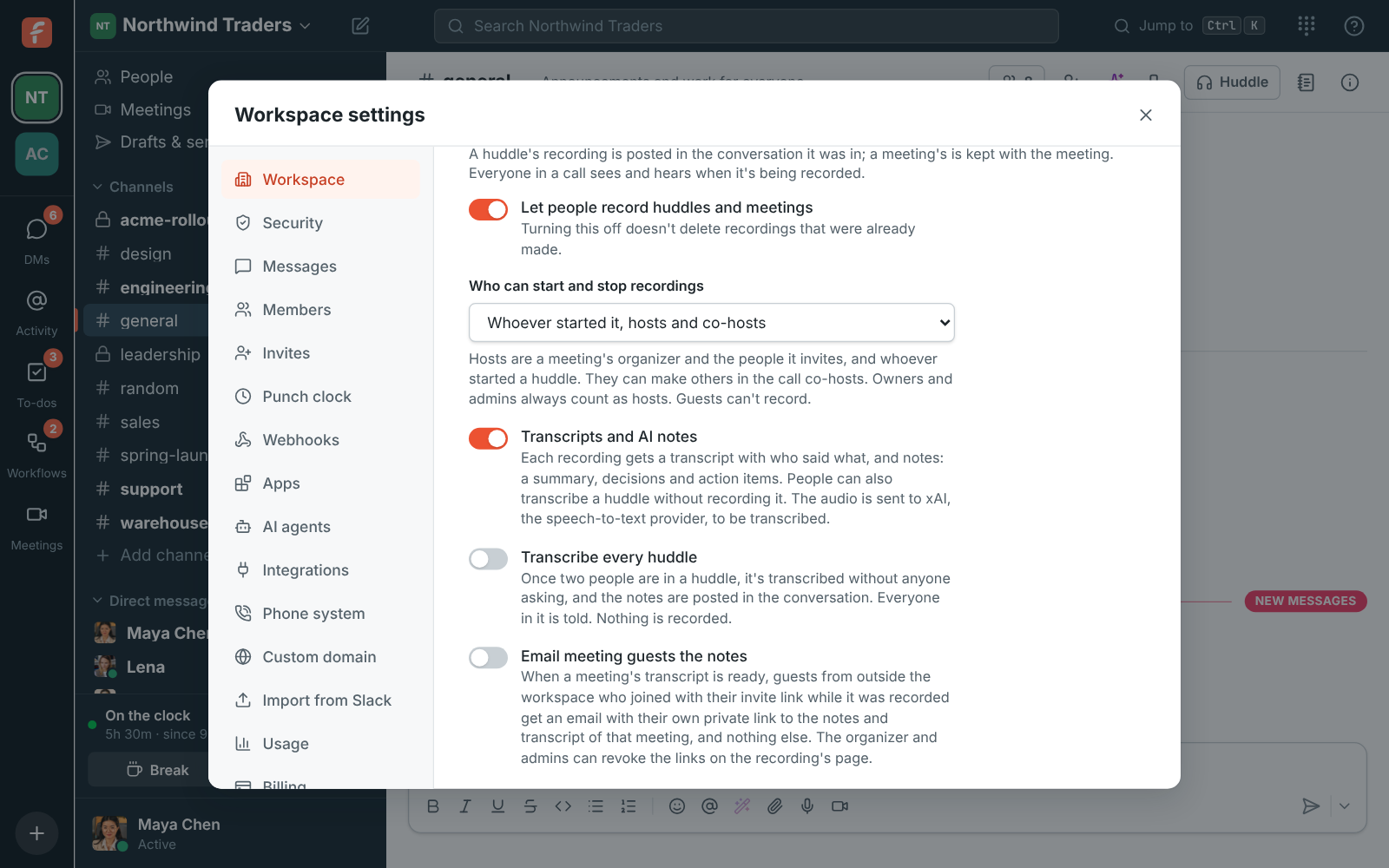
- **Hosts** are a meeting's organizer and the people from the workspace it invites. In a huddle,
the host is whoever started it. Owners and admins always count as hosts.
- **Guests** never start or stop recordings, whatever the choice, in huddles or in meetings.
- The person recording can always stop their own recording.
If you can't stop the recording, the **Stop recording** button is greyed out, and hovering it
says who can.
### Make someone a co-host
A host can make someone else in the call a co-host. Co-hosts can start and stop recordings like a
host, and make more co-hosts, until the call ends.
- **In a huddle**, click the person's face on the huddle card and choose **Make co-host**. A star
shows on co-hosts' faces.
- **In a meeting**, open **People**, click **…** next to the person and choose **Make co-host**.
Co-hosts are marked **co-host** in the list.
Choose **Remove as co-host** to undo it. Guests can't be co-hosts.
## Where recordings go
- **A huddle's recording** is posted in the channel or DM the huddle was in. The notes follow as
a reply in the recording's thread, and **Notes and transcript** under the video opens the
recording page.
- **A meeting's recording** is kept with the meeting. Find it under **Meetings → Recordings**.
- **A huddle you only transcribed** has its notes posted in the channel or DM, and is listed under
**Meetings → Recordings** too, with no video.
The **Recordings** list on the **Meetings** page shows every recording you can see, huddles and
meetings, newest first. A recording shows up there as soon as it stops:
- **Saving…**: the recording is being put together. It plays a minute or so later, and the list
updates by itself.
- **Transcribing**: it's saved, and the transcript and notes are on the way.
- **Notes**: the notes are ready.
- **Couldn't save**: nothing usable reached Freesbe, for example because the recording app lost
its connection the whole time. If part of an upload fails while you're recording, Freesbe tells
you then, and keeps what arrived.
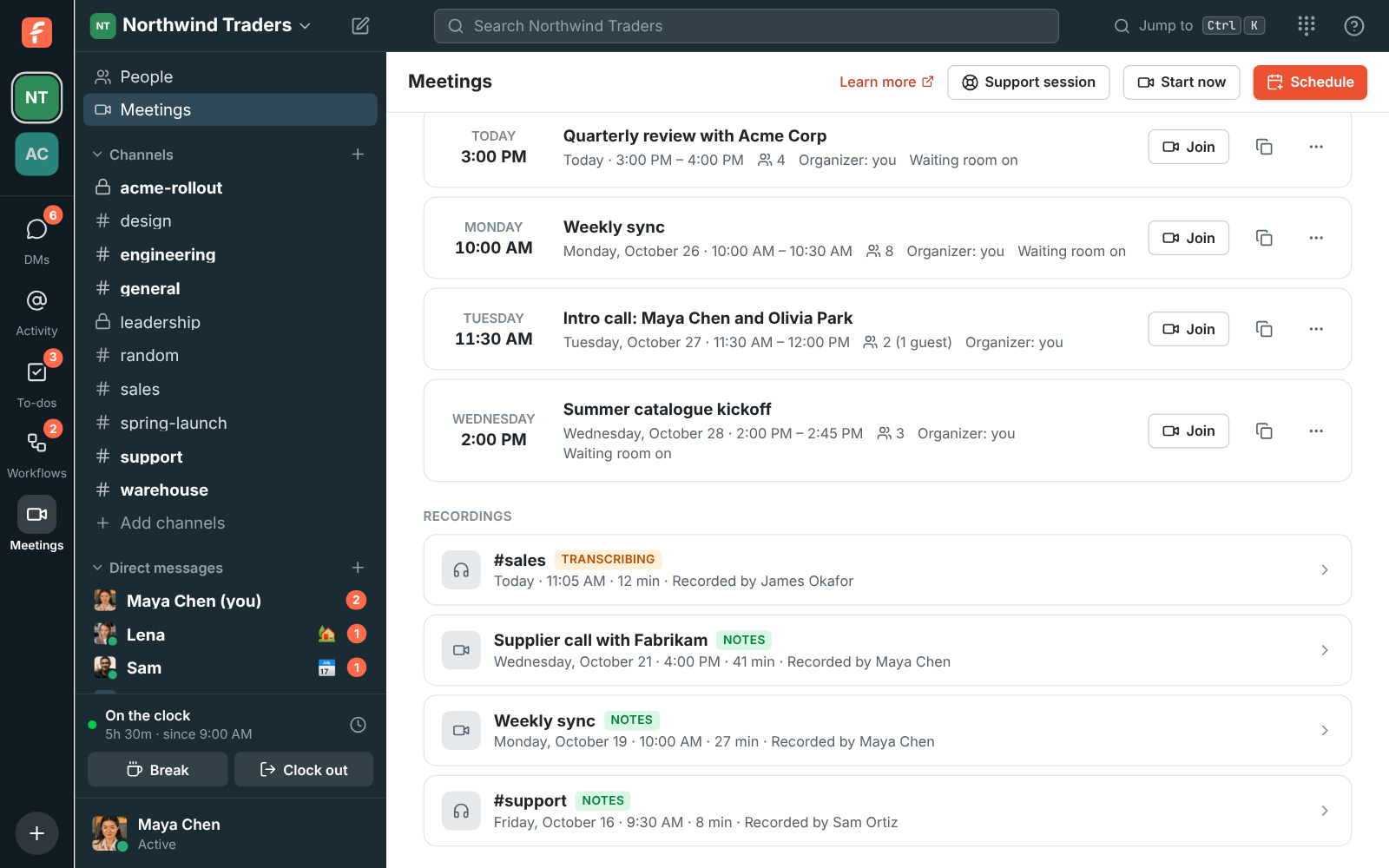
Who can see a recording:
- A huddle's recording: the people in the channel or DM it was in.
- A meeting's recording: the organizer, the teammates the meeting invited, everyone from the
workspace who was in the call, and workspace admins.
- Either: the people and channels it was [shared with](#share-a-recording). People from outside
the workspace only ever see a meeting's notes and transcript, on a page of their own, when
someone [shares it outside the workspace](#share-a-meeting-outside-the-workspace).
## Notes and transcript
The notes and transcript are usually ready a minute or two after the call ends. You can leave the
page while they're written.
- **Notes**: a short summary, the decisions, and the action items with who they're for. Click
**Add to my to-dos** next to an action item to put it on your [to-do list](https://freesbe.net/docs/getting-around/).
- **Transcript**: who said what, with times. Click any line to play the recording from there, or
click a word to start from that word. While it plays, the line being spoken is highlighted, the
word being said is marked, and the transcript scrolls along with it. Scroll it yourself and it
stops following for a few seconds. Search the transcript from the box at its top.
- **Download** saves the notes and the transcript as a text file.
- **Meeting chat**: for a meeting, what people wrote in the call's chat and the files they sent,
under the notes. See [Meeting chat](https://freesbe.net/docs/meetings/#meeting-chat).
Before you play it, the video shows a frame from its first second rather than a black screen.
The full screen button in the video's corner fills the screen with it; press Esc to
come back. In the desktop app it needs version 0.1.6 or later.
Names come from who was talking in the call at the time. A voice Freesbe couldn't match to a
person is shown as **Speaker 1**, **Speaker 2** and so on. Transcripts work in many languages; the
notes are written in the language of the call.
### Say who a speaker is
Click a name in the transcript, such as **Speaker 2**, to say who it is: pick someone from your
workspace, or type a name for someone who isn't in it, like a customer, and click **Call them
“…”**. Every line that voice said gets the new name, and so do the action items that were for
it. Anyone in the workspace who can see the recording can do this; you can change a name again
the same way if you picked the wrong person.

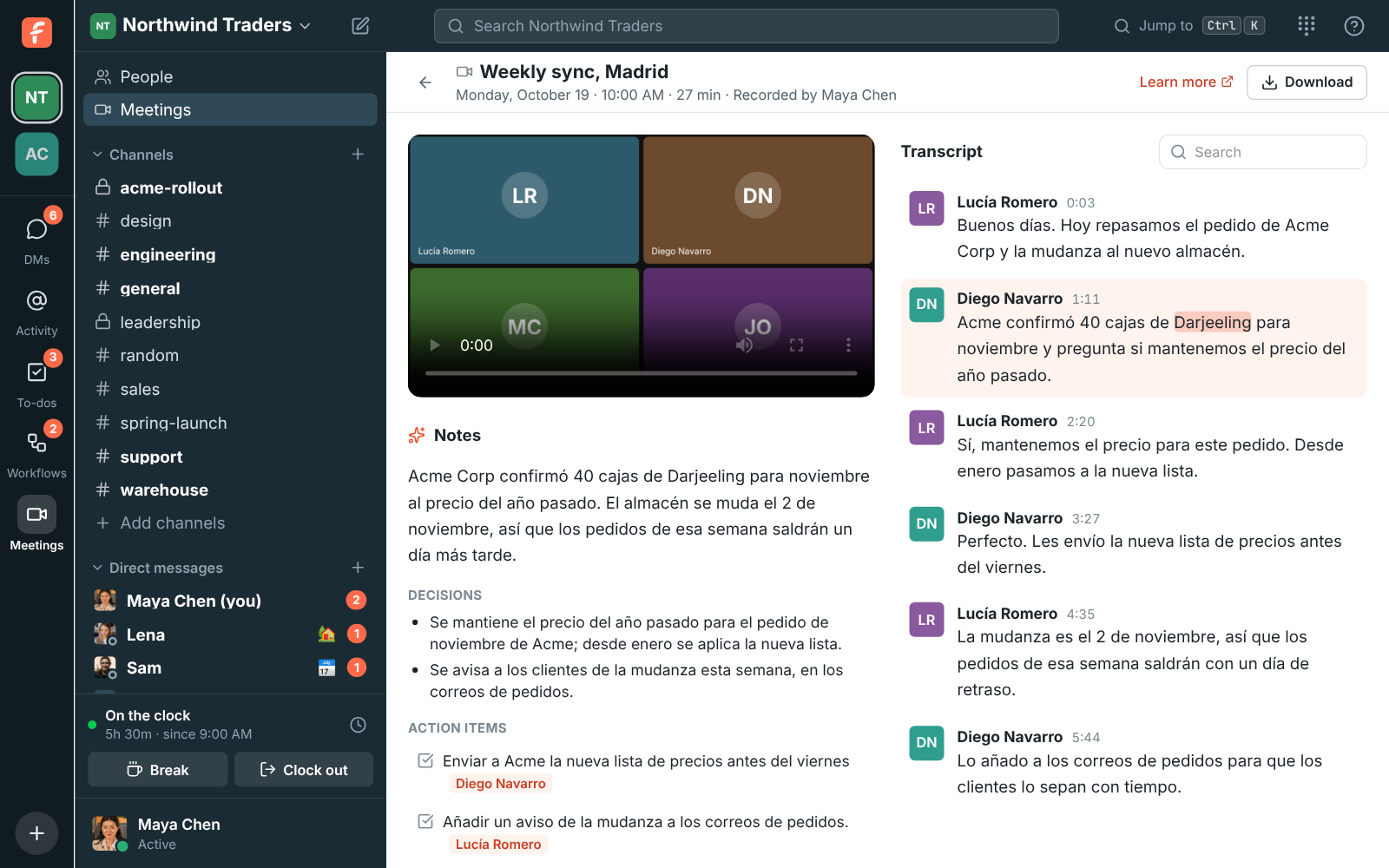
Hebrew and Arabic read right to left: each line of the transcript, the summary, every decision
and every action item takes the direction of its own text, so a Hebrew sentence that mentions
an English name still lines up on the right. A call that mixes languages shows each line its own
way.
Transcripts made before word times were kept highlight the whole line rather than each word.
If a transcript didn't work, the recording page says so and anyone who can see the recording can
click **Try again**.
If the page says **Nobody could be heard in this recording** but you know people talked, click
**Try again**: the recording's audio is kept for 30 days for that. A recording still gets its
transcript when the recorder closed the app right after stopping it, and keeps the speakers'
names: the recorder's app sends who was talking every 30 seconds while it records. If a name
is still missing, [say who the speaker is](#say-who-a-speaker-is).

## Share a recording
Click **Share** at the top of a recording's page to send it to someone who wasn't in the call:
a teammate who missed the meeting, or the channel for the project it was about.

1. Under **In the workspace**, type a name or a channel, and pick as many as you like.
2. Add a message if you want, and click **Share**.
Each person gets it in your DM with them, and a channel gets it as a message everyone in it can
see, people who join later too. The card in the message shows the title, when it was, how long
it ran and the start of the summary; **Watch** or **Notes and transcript** opens the recording's
page, with the video, notes and transcript.

**Who can see it** in the dialog lists who has the recording: the people from the call, and each
person and channel it was shared with, with who shared it. Whoever shared it, the meeting's
organizer, whoever recorded it and admins can **Remove** a share. Removing it doesn't delete the
message, but the people it reached can't open the recording any more, unless they could anyway.
Anyone in the workspace who can see a recording can share it; guests can't.
### Share a meeting outside the workspace
A meeting's notes and transcript can go to people outside the workspace too, such as a customer
who joined on the plain meeting link or a colleague of theirs who wasn't there. An admin turns
this on first, with **Share meetings outside the workspace** in
[Workspace settings → Calls & meetings → Recordings](https://freesbe.net/docs/admin-settings/#recordings); it's off
until then.
Then the meeting's organizer, whoever recorded it and admins can switch the Share dialog to
**Outside the workspace**:
- **Anyone with the link** makes a link you paste wherever you like. It's copied as soon as it's
made.
- **Email it to someone** sends the link to an address, with a short note saying you shared it.
- **Works for** sets how long it works, up to the workspace's limit (7 days unless an admin
changed it).
- **Include the video** lets the link play the recording too, when the admin allows it. Leave it
off to share only the notes and transcript.

The link opens a page with that meeting's notes and transcript, read only, and the recording if
you included it. Nothing else from the workspace is on it: no channels, no people besides the
speakers' names, no other meetings. Teammates can't be sent an outside link: share it with them in
the workspace instead.
**Links** in the dialog lists every outside link: who it's for, whether and how often it was
opened, and until when it works. Copy a link you made again with the copy button, or **Revoke**
one so it stops working at once.
### Share the notes with meeting guests
With outside sharing on, **Email meeting guests the notes** sends the notes to the meeting's
guests on its own (it's on unless an admin turns it off). When a meeting's transcript is ready,
each guest who joined with their own invite link while the meeting was recorded gets an email, in
the language their browser uses, with a private link of their own. Guests who came in on the plain
meeting link didn't give an address, so they don't get one: share it with them by hand. People
from the workspace see the recording in Freesbe as usual.
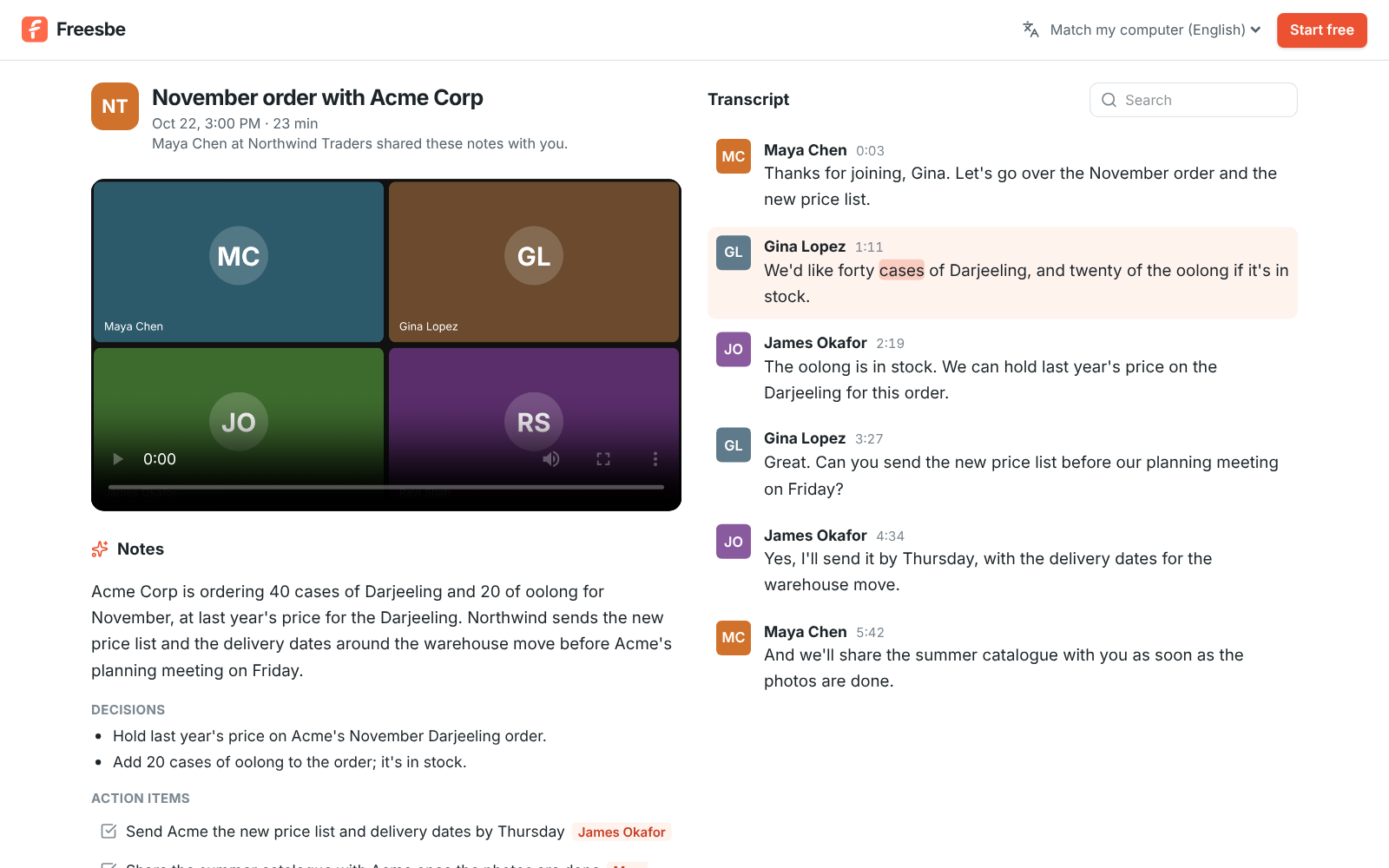
Guests' links include the recording when the admin allows it.
### When outside links stop working
Each link works for the days it was made for, and stops working sooner when:
- the meeting's organizer, whoever recorded it or an admin revokes it,
- the recording is deleted, by hand or by the workspace's
[rule for deleting recordings](https://freesbe.net/docs/admin-settings/#recordings),
- or an admin turns **Share meetings outside the workspace** off. Turning off **Allow the
recording** stops the links playing it, too.
On the recording's page, **Shared outside the workspace** lists the same links as the dialog.
The organizer, the recorder and admins can **Revoke** one, or **Revoke all**.
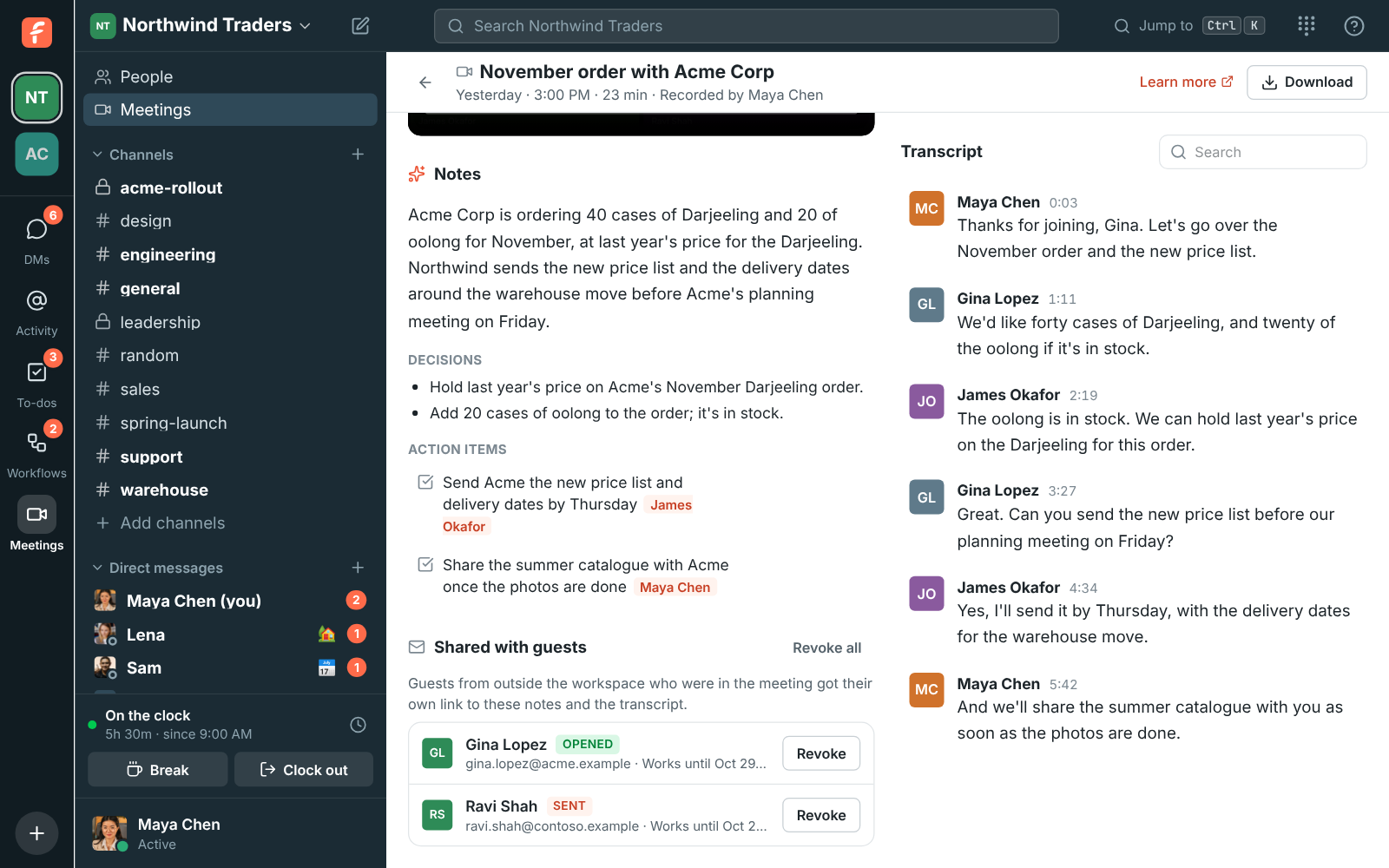
Each link is long and can't be guessed, and search engines are told not to list the page. Anyone
a link is passed on to can open it, though, so revoke a link when that's a worry.
## Privacy
The call's audio is sent to xAI, our speech-to-text provider, to be transcribed, and the
transcript to xAI's model to write the notes. The audio is kept for 30 days so a transcript can be
tried again, then deleted. The transcript and notes are deleted with the recording, including when
an admin's [rule deletes recordings](https://freesbe.net/docs/admin-settings/#recordings) after a number of days.
Admins can turn transcripts and notes off, or turn recording off altogether, in
[Workspace settings → Calls & meetings → Recordings](https://freesbe.net/docs/admin-settings/#recordings). With recording off, people
can still transcribe huddles; with transcripts off, they can't. Recordings made while transcripts
are off don't get them later.
## What each plan includes
| Plan | Transcripts and notes |
| ------------------------ | -------------------------------------------------------- |
| Free | 3 transcripts a month |
| Business | 10 hours per person a month, shared across the workspace |
| Corporate and Enterprise | No set limit |
When a workspace has used its transcripts for the month, recordings are still saved; they just
don't get a transcript, and the recording page says why. **Transcribe** doesn't start, and says
why. Once there's room again, after an
upgrade or next month, click **Try again** on the recording. See [Plans](https://freesbe.net/docs/plans/).
---
# AI summaries, translations and writing help
Source: https://freesbe.net/docs/ai-summaries/
> Catch up on a busy channel or a long thread in a few lines, read any message in your own language, polish what you write before you send it, and plan your to-dos.
Back from a day off, or dropped into a thread with 40 replies? Ask Freesbe for a summary. It reads
the conversation for you and gives you the gist in a few lines: what was decided, what's still
open, and who's waiting on whom. Each point links to the message it came from.
Someone wrote in a language you don't read? Translate the message in place. Writing to a customer
in a hurry? Let Freesbe tidy up your message before you send it.
Summaries, translations and suggested rewrites are only for you. Nobody else sees that you asked, and nothing is
posted to the conversation.
Every AI button in Freesbe has purple-to-pink sparkles (or a purple-to-pink magic wand), so you can
tell at a glance which buttons use AI.
## Summarize a channel
1. Open the channel and click the **Summarize channel** button (the purple sparkles) at the top.
2. Pick how far back to read:
- **Since I last read**: everything new since you were last here.
- **Last 24 hours**
- **Last 7 days**
The summary starts with a sentence or two on where things stand, followed by the main points.
Click the arrow after a point to jump to the message it came from, even when that message is a
reply in a thread.
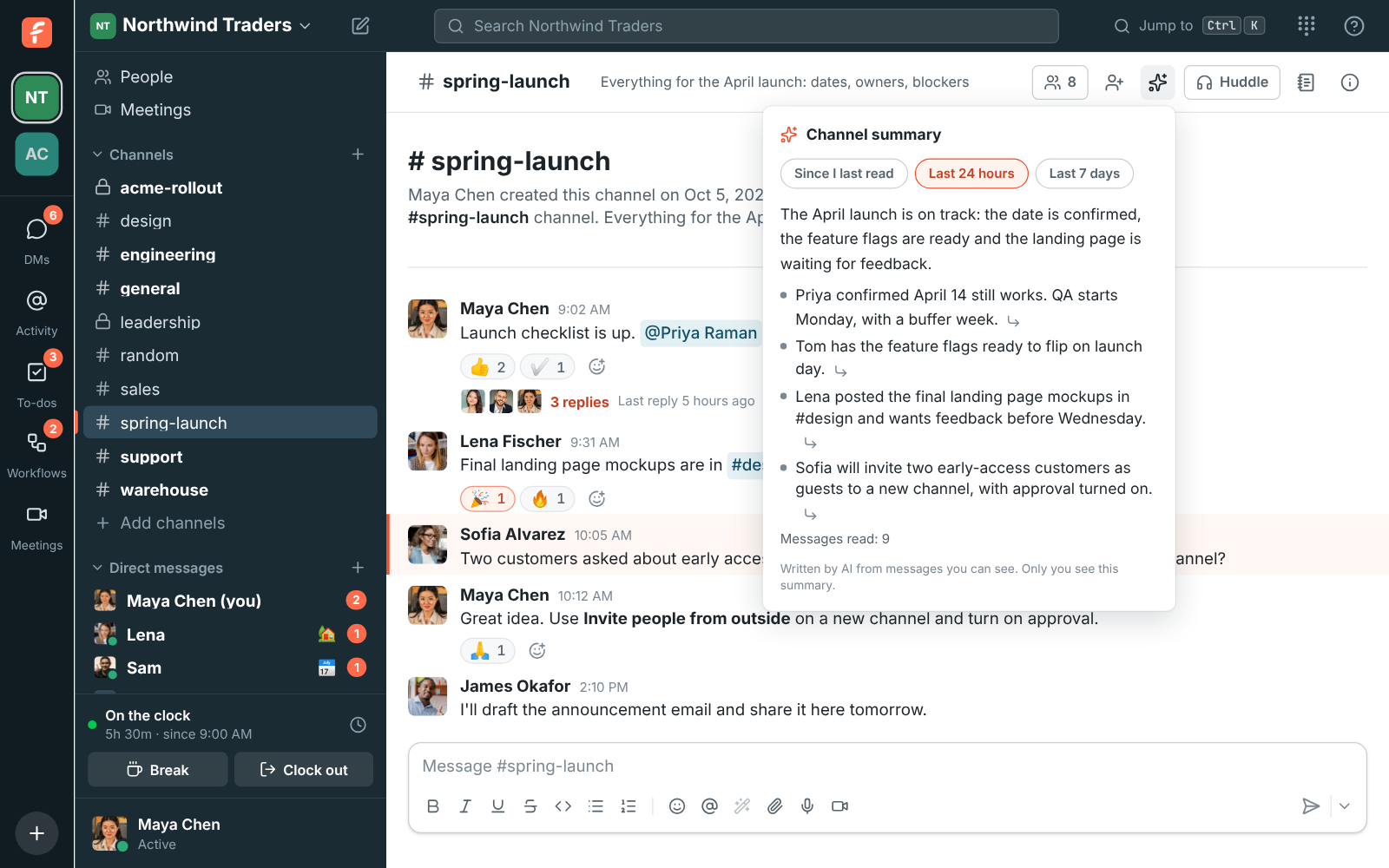
The summary works in direct messages and group DMs too.
### While it's written
You see what Freesbe is doing as it works. First, how many messages it's reading:
Then the summary itself, as it's written. You can start reading before it's done.
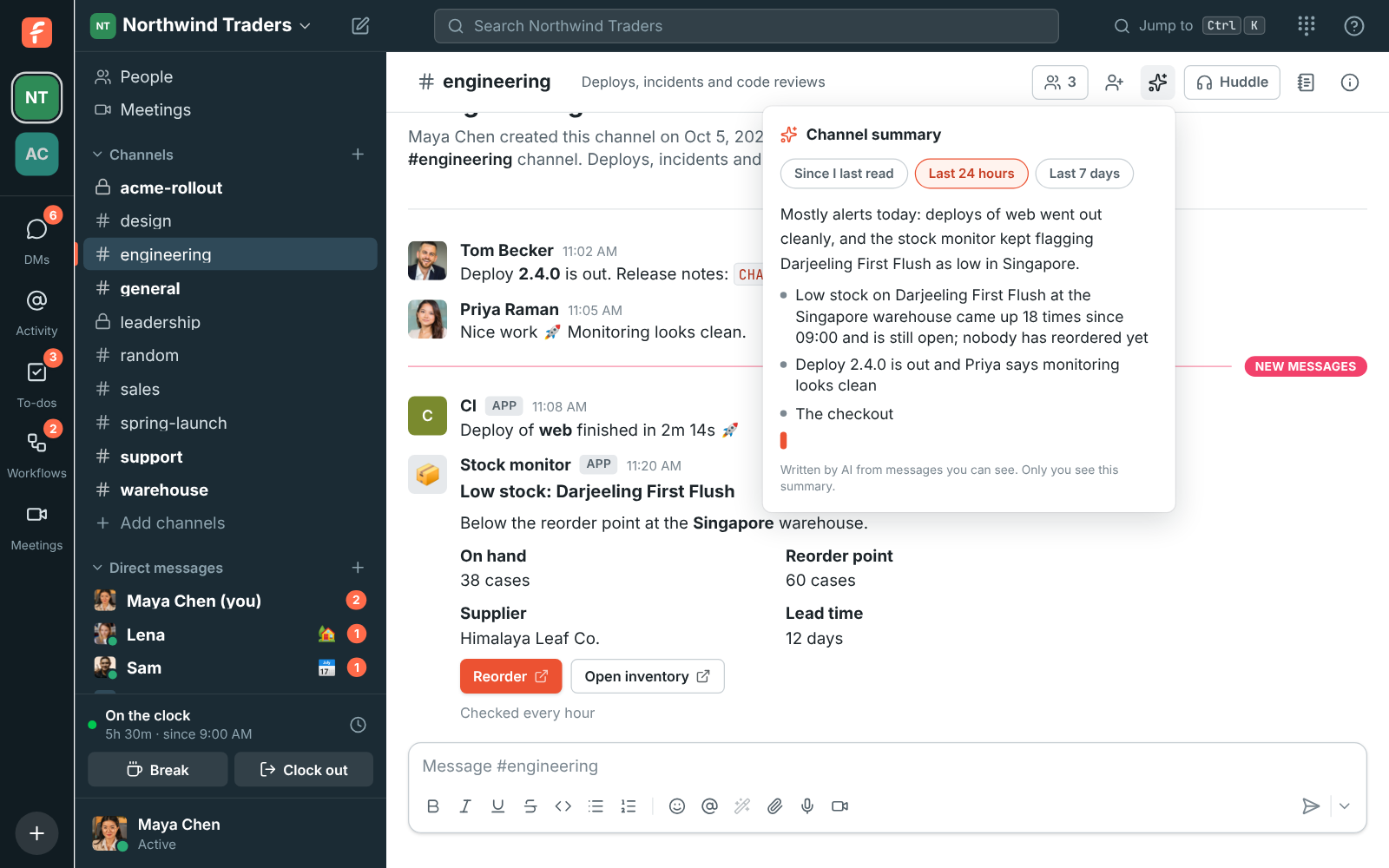
### Busy channels and alerts
Channels where monitoring tools and bots post the same alert again and again are quick to
summarize too. Freesbe reads a message that's posted over and over, with only numbers or times
changing, once, and notes how many times it came and for how long. The summary says which
problems are still open and which were resolved.
### Asking again
Freesbe keeps the summary. Ask again with nothing new in the channel and you get it at once,
marked **Up to date**. When there are new messages, Freesbe reads only those and adds them to the
summary, which is much quicker than reading everything again. A summary that's kept doesn't
count as another AI request.
If a message the summary read is edited or deleted, Freesbe reads the conversation again the next
time you ask.
## Summarize a thread
Open the thread and click **Summarize thread** (the sparkles at the top of the thread), then
**Summarize**. The summary covers the message that started the thread and every reply.
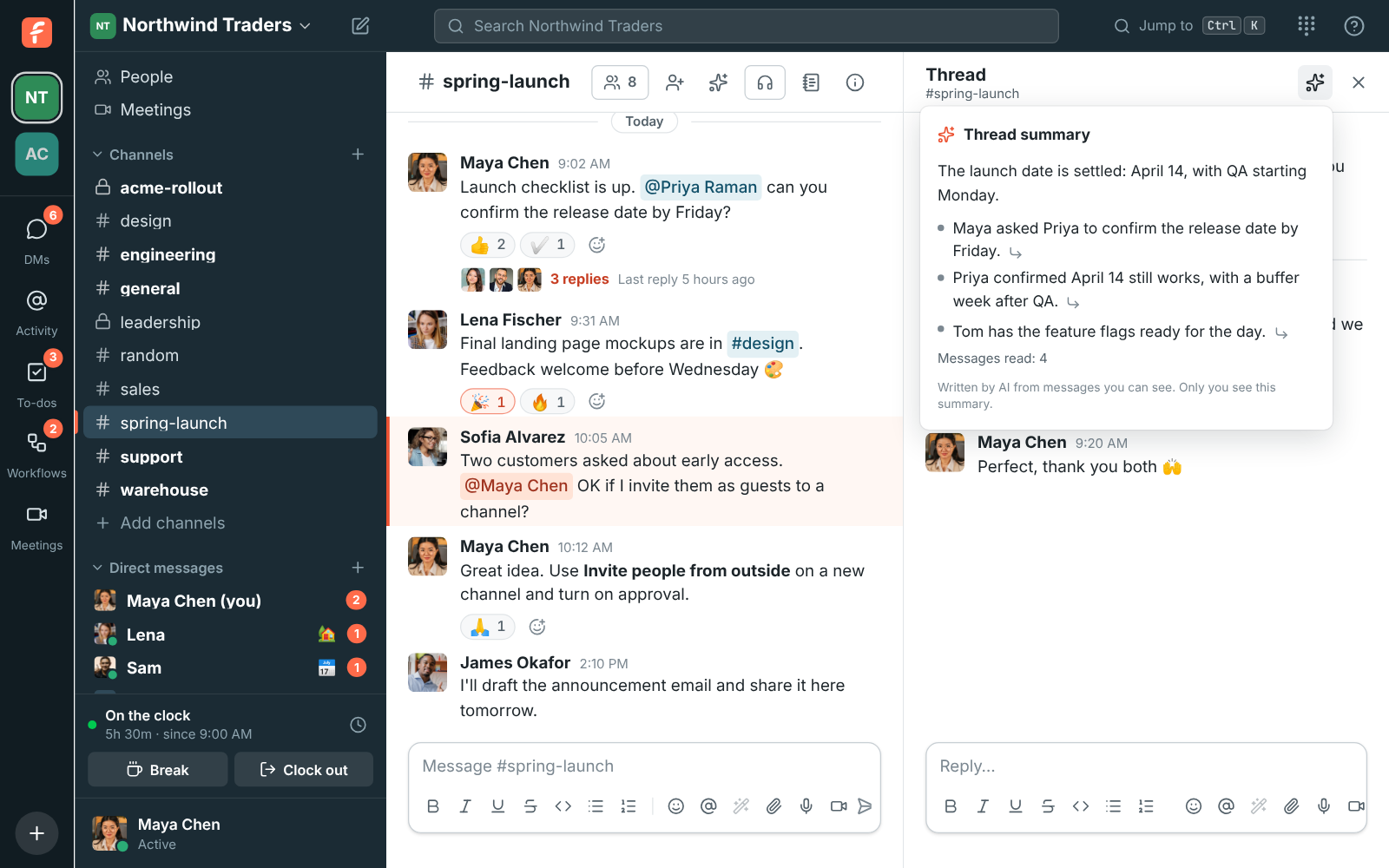
## Translate a message
Point at the message, click **More actions** (**⋯**) and choose **Translate**. The translation
shows under the message, in the language you use Freesbe in (see
[Profile and preferences](https://freesbe.net/docs/profile-and-preferences/)). Click **Hide** to put it away.
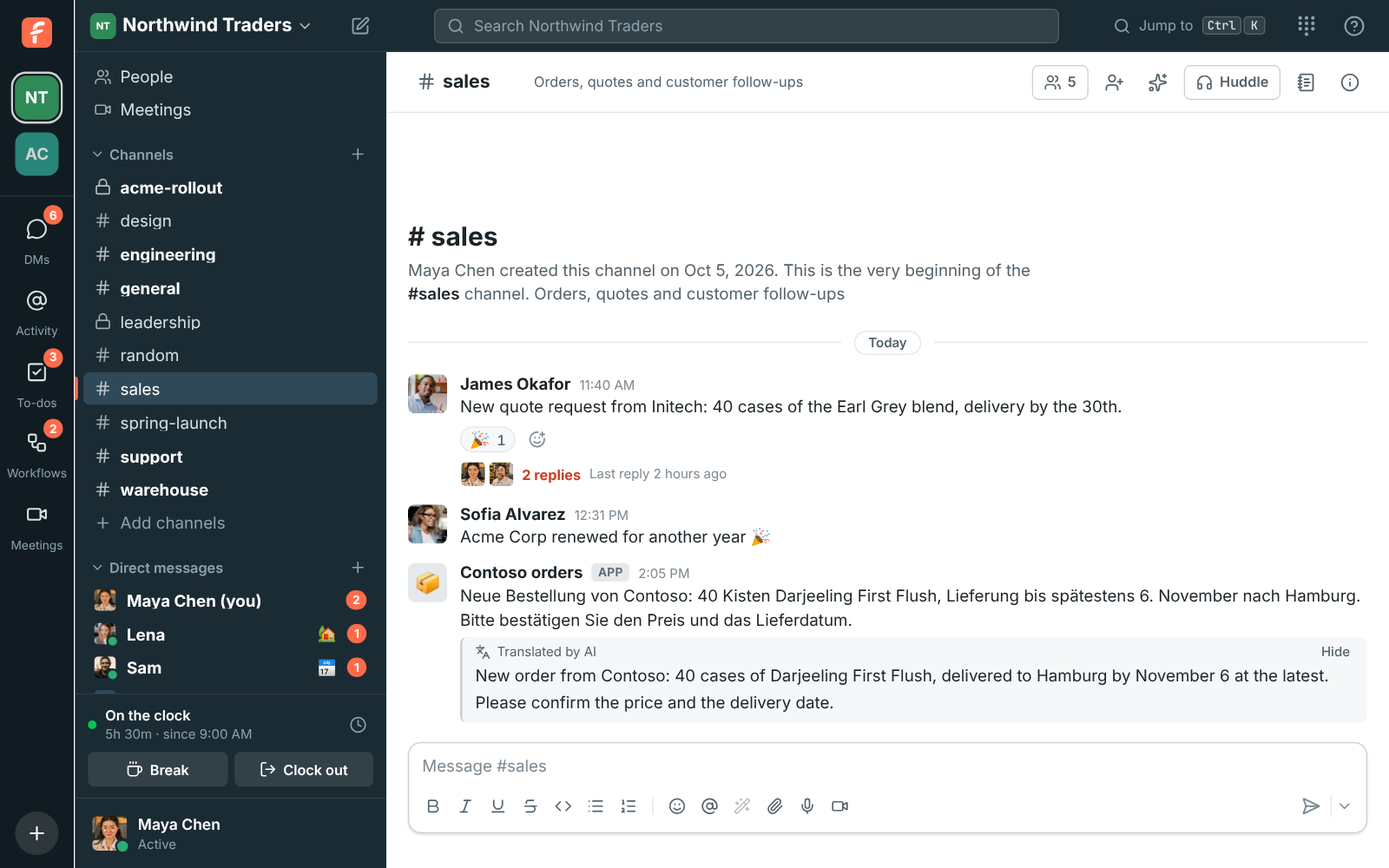
Names, @mentions, #channels, links and emoji stay as they were. If the message is already in your
language, Freesbe says so.
## Improve what you write
Type your message, then click **Improve writing** (the purple magic wand under the message box) and pick
what you want:
- **Fix spelling and grammar**: keeps your words, fixes the mistakes.
- **Make it clearer**
- **Make it shorter**
- **Make it friendlier**
- **Make it more formal**: for customers and partners.
You see the suggested version first. Click **Replace** to put it in the message box, where you can
still change it before sending, or **Keep mine** to leave your message as it was. Nothing is sent
until you send it.
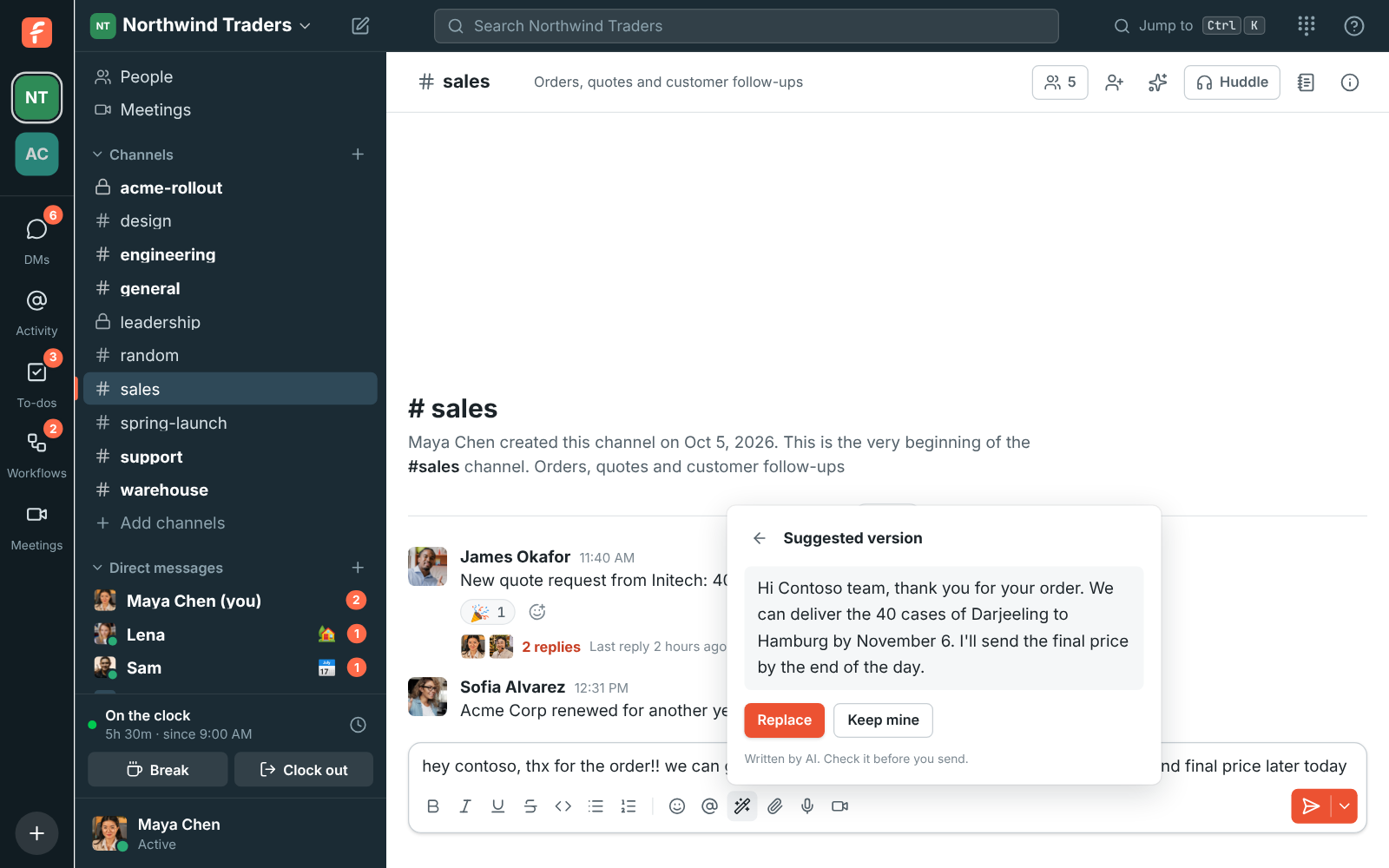
Writing help keeps @mentions, #channels, links, emoji and code as they are, and answers in the
language you wrote in. It works on messages up to 4,000 characters.
## Help with your to-dos
When you write a to-do's notes, click **AI** under the notes box:
- **Help me write** turns the title into notes: what done looks like, what to remember, and the
questions to answer first. Anything it doesn't know becomes a question, such as "Which
supplier?", instead of a guess.
- **Plan it** breaks the to-do into numbered steps. If the to-do or its notes say when it's
needed, such as "before the budget meeting Thursday", it offers **Set due** with that date.
- **Sum up the conversation**, on a to-do made from a message, adds what that message and its
thread say you need to know.
- **Make it clearer**, **Make it shorter** and **Fix spelling and grammar** work on the notes
you've written.
The answer appears in the notes as it's written, so you can change it, and **Undo** puts back
what was there. Nothing is saved until you click **Save**. See [To-dos](https://freesbe.net/docs/getting-around/#notes).
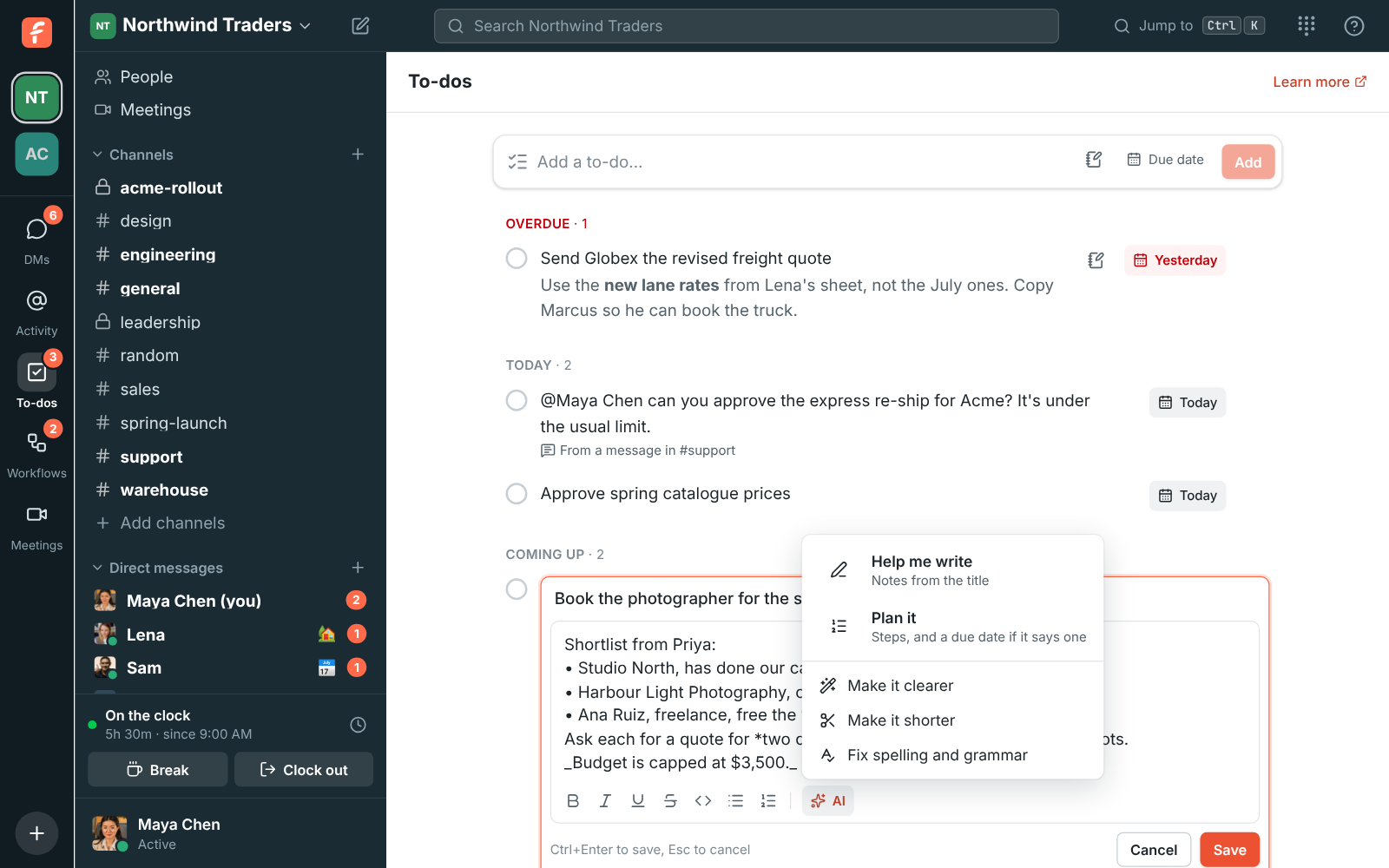
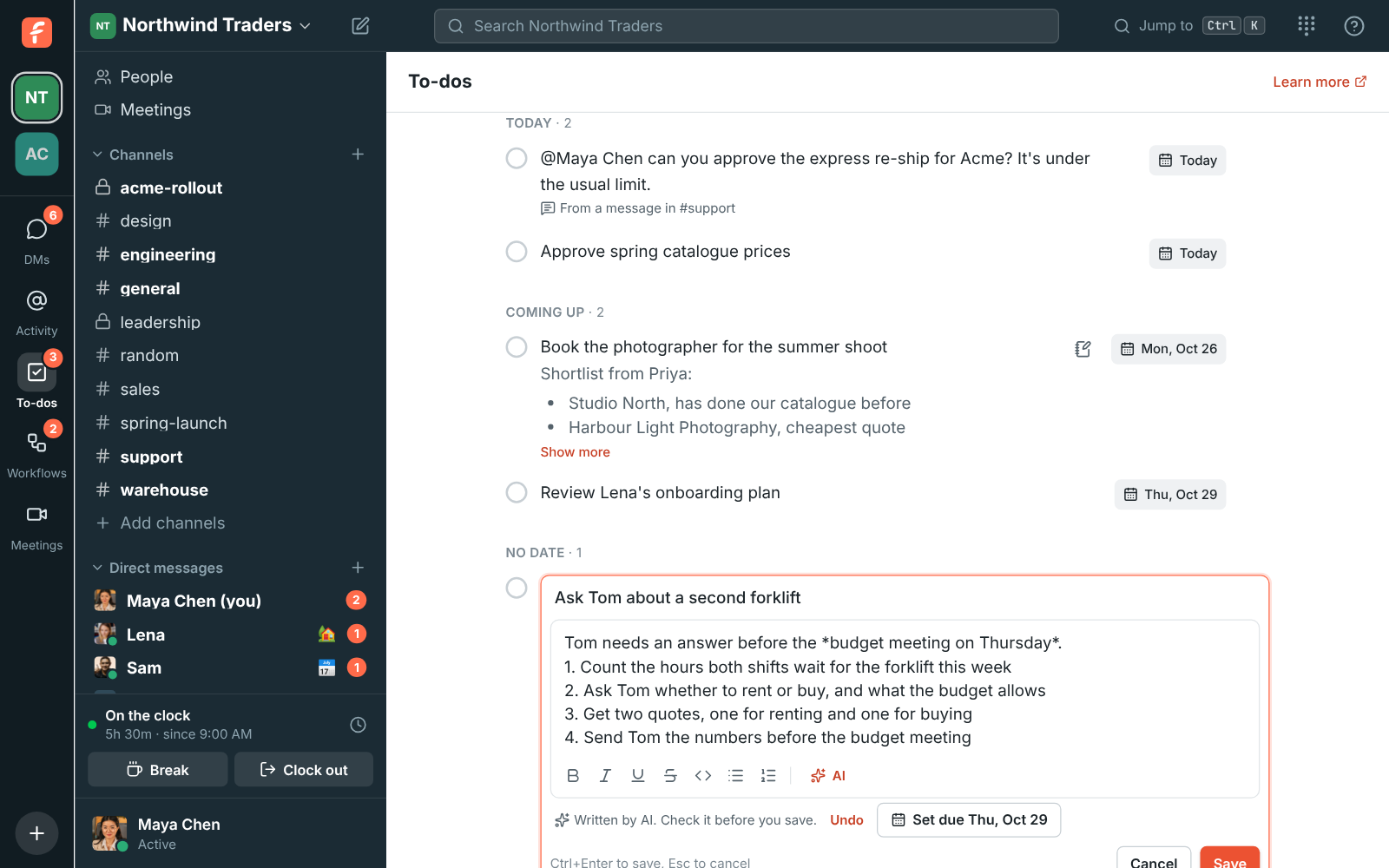
## Touch up your profile photo
When you set a profile picture, **Improve with AI** centres your face and fixes the light and
colour, without redrawing anything. You compare before and after and pick one. It works only on a
photo of a person with their face showing, 3 times a day per person. See
[Your profile picture](https://freesbe.net/docs/profile-and-preferences/#improve-with-ai).
## Ask Freesbe a question
Type a question into the search box, such as _What did Priya say about pricing?_, and Freesbe
answers it from the messages you can see, with a numbered link to each message it used. See
[Ask Freesbe](https://freesbe.net/docs/search-and-shortcuts/#ask-freesbe).
## What AI can see
- **Only what you can already read.** Writing help reads only the message you're writing, and
to-do help only the to-do you're editing (and, to sum one up, the conversation it came from). A summary reads the channel or thread you asked about, and
only if you can open it yourself. It never reads other channels, private channels you're not in,
or other people's DMs. Ask Freesbe searches only the conversations you can search yourself, and
reads each message again as it is now before answering, so a deleted message is never used.
- **Only you see the result.** Summaries, translations and suggestions appear on your screen and
nobody sees that you asked. Freesbe keeps a channel's or thread's summary so the next person who
can read that conversation and asks for the same summary gets it at once. It's made only from
messages they can read too. "Since I last read" summaries are kept for you alone.
- **Not used for training.** The AI provider processes the messages to answer your request and
doesn't use them to train its models.
- **Instructions in messages are ignored.** If a message tells the AI to do something, the
summary reports it as something that person wrote and doesn't act on it. Writing help rewrites a
question or request in your draft; it doesn't answer it.
AI can get things wrong. Use the arrows to check the original messages before acting on something
important.
## Who can use it
Everyone in the workspace except [guests](https://freesbe.net/docs/guests/). Admins can turn AI features
off for the whole workspace in **Workspace settings → General → AI & workflows → AI features** (see
[Admin settings](https://freesbe.net/docs/admin-settings/#ai-features)).
Each summary, translation, suggested rewrite, photo touch-up or Ask Freesbe answer counts as one AI request. A kept summary with
nothing new to read doesn't count. Every [plan](https://freesbe.net/docs/plans/) comes with
requests each month, shared by the whole workspace:
| Plan | AI requests a month |
| -------------- | ----------------------- |
| **Free** | 30 for the workspace |
| **Business** | 100 per person, pooled |
| **Corporate** | 300 per person, pooled |
| **Enterprise** | No set limit (fair use) |
When the workspace has used them, AI features stop until the 1st of the next
month. Admins see how many are left under **AI features** in Workspace settings.
---
# Booking links
Source: https://freesbe.net/docs/booking-links/
> Share one link, in your email signature or anywhere, and let people book a 15, 30 or 60 minute call with you when you're free.
A booking link is your own scheduling page, like Calendly or cal.com, at an address such as
`https://app.freesbe.net/b/dana`. Anyone who opens it picks a length, a day and a free time, then
gets a calendar invite and a link to the call. Nobody needs a Freesbe account to book.
Everyone in a workspace can make their own booking links. Guests can't. Booking links come with
every paid [plan](https://freesbe.net/docs/plans/). The page shows your workspace's logo and name at the top, or its
initials when it has no logo. On Corporate and Enterprise you'll also be able to use your own
domain, like `meetme.acme.com/dana` (coming soon).
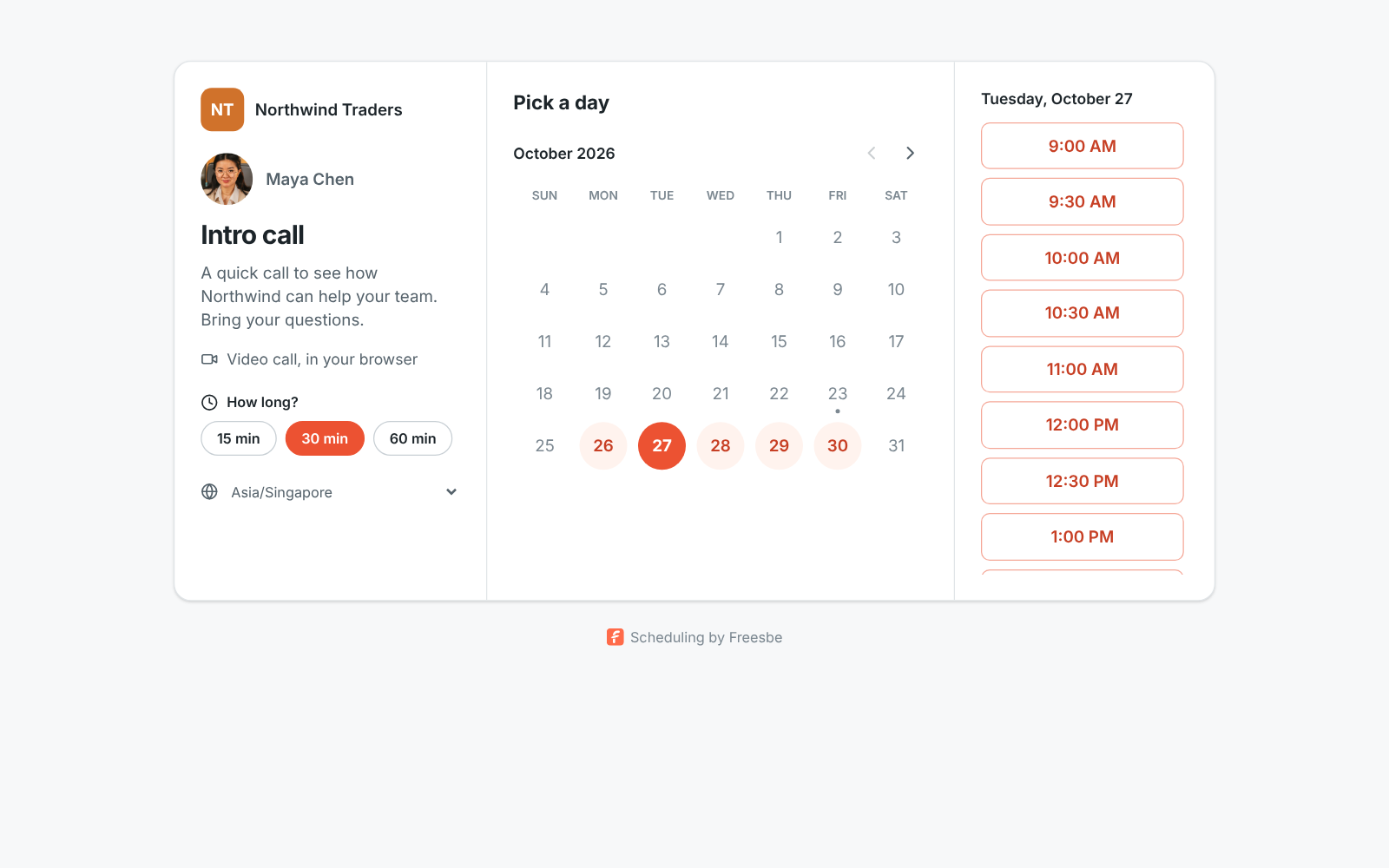
## Make a booking link
1. Open **Meetings** in the sidebar. Under **Booking links**, click **Create booking link** (or
**New link** once you have one).
2. Give it a **Title**, like _Intro call_ or _Product demo_. It's the heading on the page.
3. Pick the **Link**. Freesbe suggests one from your name. Use 3 to 40 lowercase letters, digits
and dashes; each name can only be used once across Freesbe.
4. Add a **Description** if you like. It shows under the title.
5. Under **Meeting lengths**, tick 15, 30 and 60 minutes, or just the ones you want to offer.
6. Under **Available hours**, tick the days you take calls and set the hours for each. Pick the
**Time zone** those hours are in; it starts as yours.
7. Set the rest, or keep the defaults:
- **Minimum notice**: how soon someone can book. The default is 4 hours.
- **Book up to**: how far ahead people can book, from 7 to 90 days. The default is 60.
- **Gap between meetings**: free time kept before and after every meeting, so calls don't run
back to back.
- **Show my profile photo**: shows your picture on the page. Turn it off to show your initials.
8. Click **Create link**.
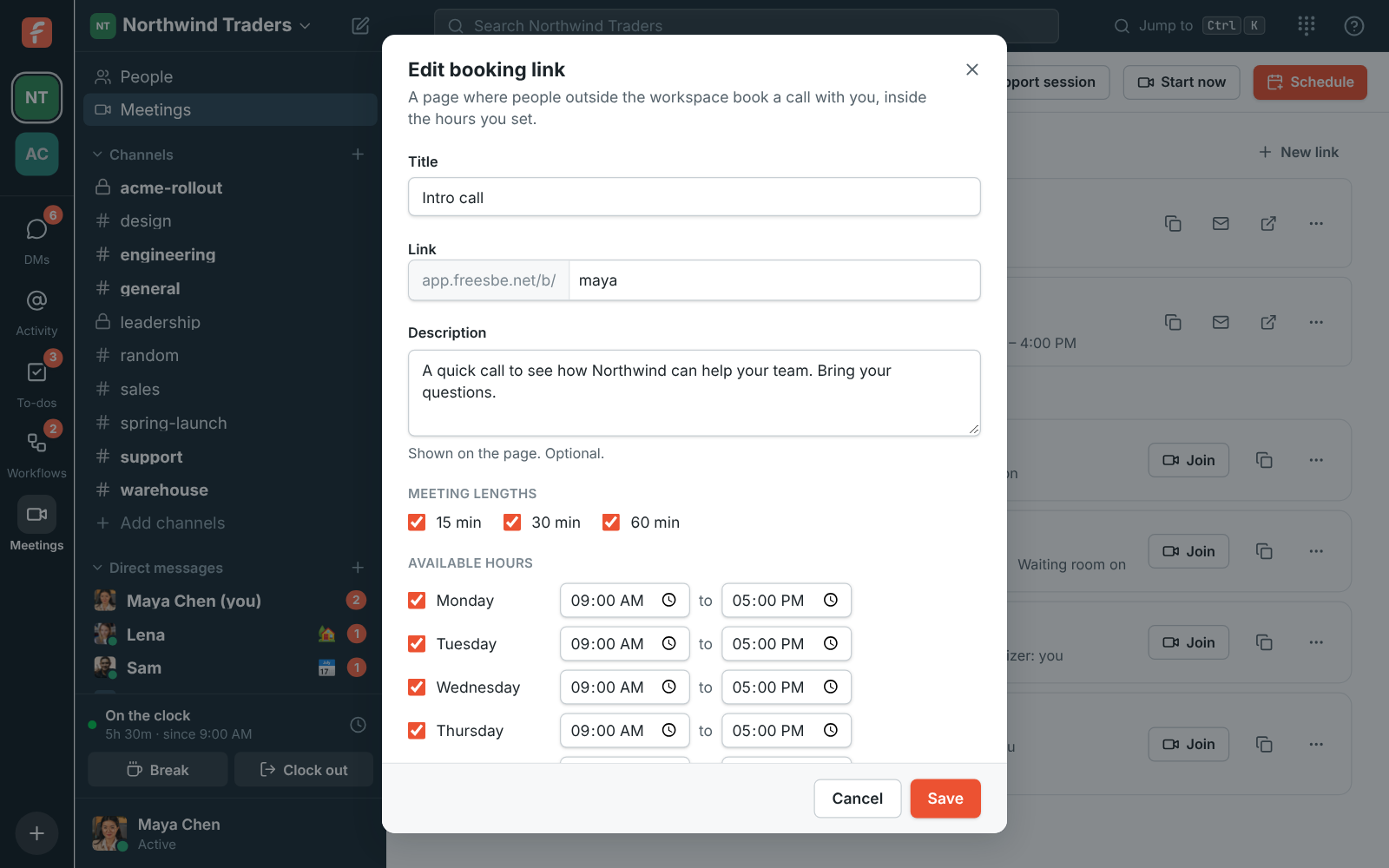
## Share it
When the link is ready, Freesbe shows it with a line for your email signature.
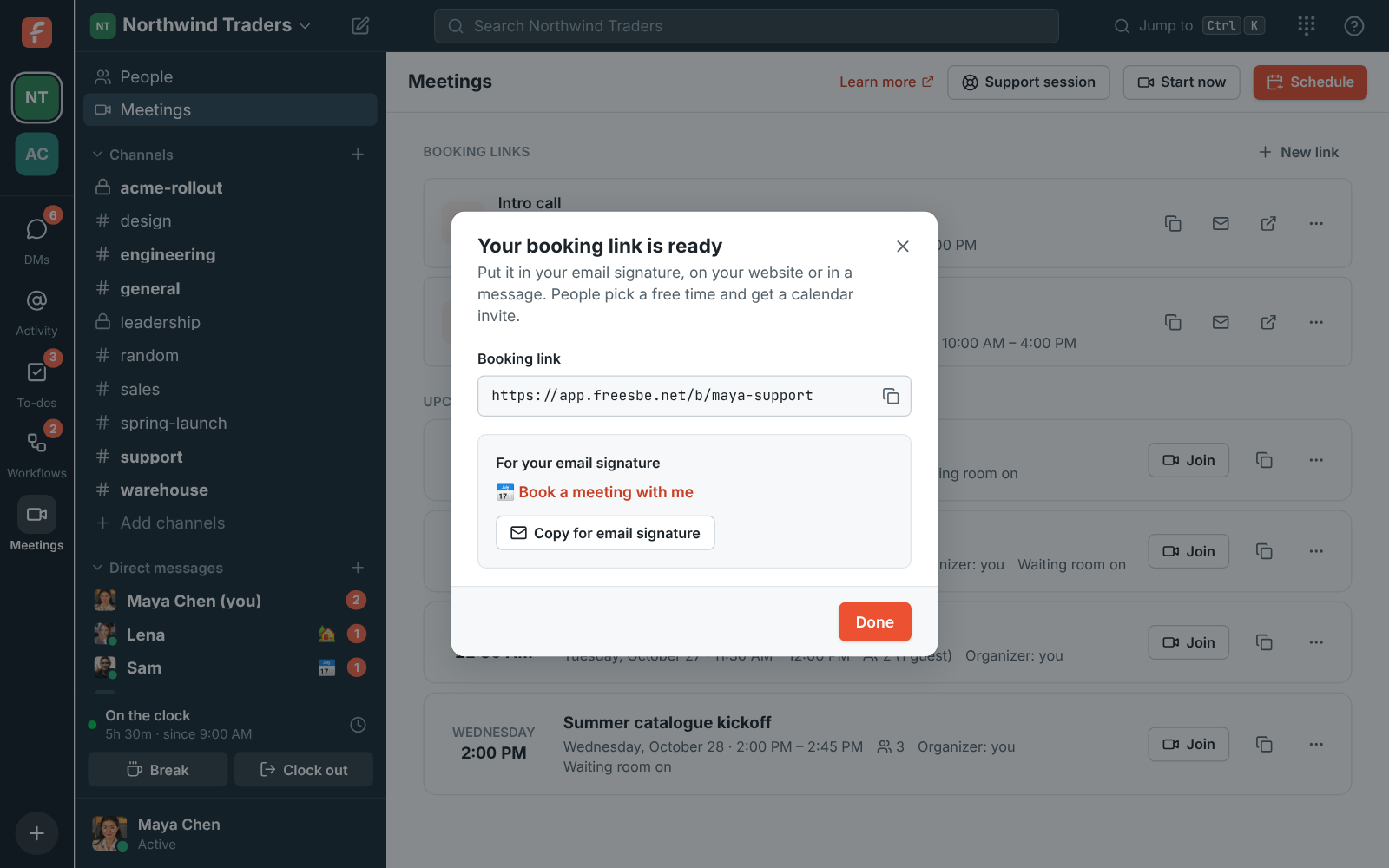
- **Copy** copies the link, for a message or your website.
- **Copy for email signature** copies a _📅 Book a meeting with me_ line that links to your page.
Paste it into the signature settings of Gmail, Outlook or Apple Mail and it stays a link.
You can do both later from the list under **Booking links**, with the copy and envelope buttons
next to each link.
### On your company's own domain
On the Corporate and Enterprise plans, an admin can move everyone's links to your company's own
address, such as `https://meetme.acme.com/dana`. The old `app.freesbe.net/b/` address keeps
working. See [Custom domains](https://freesbe.net/docs/custom-domains/).
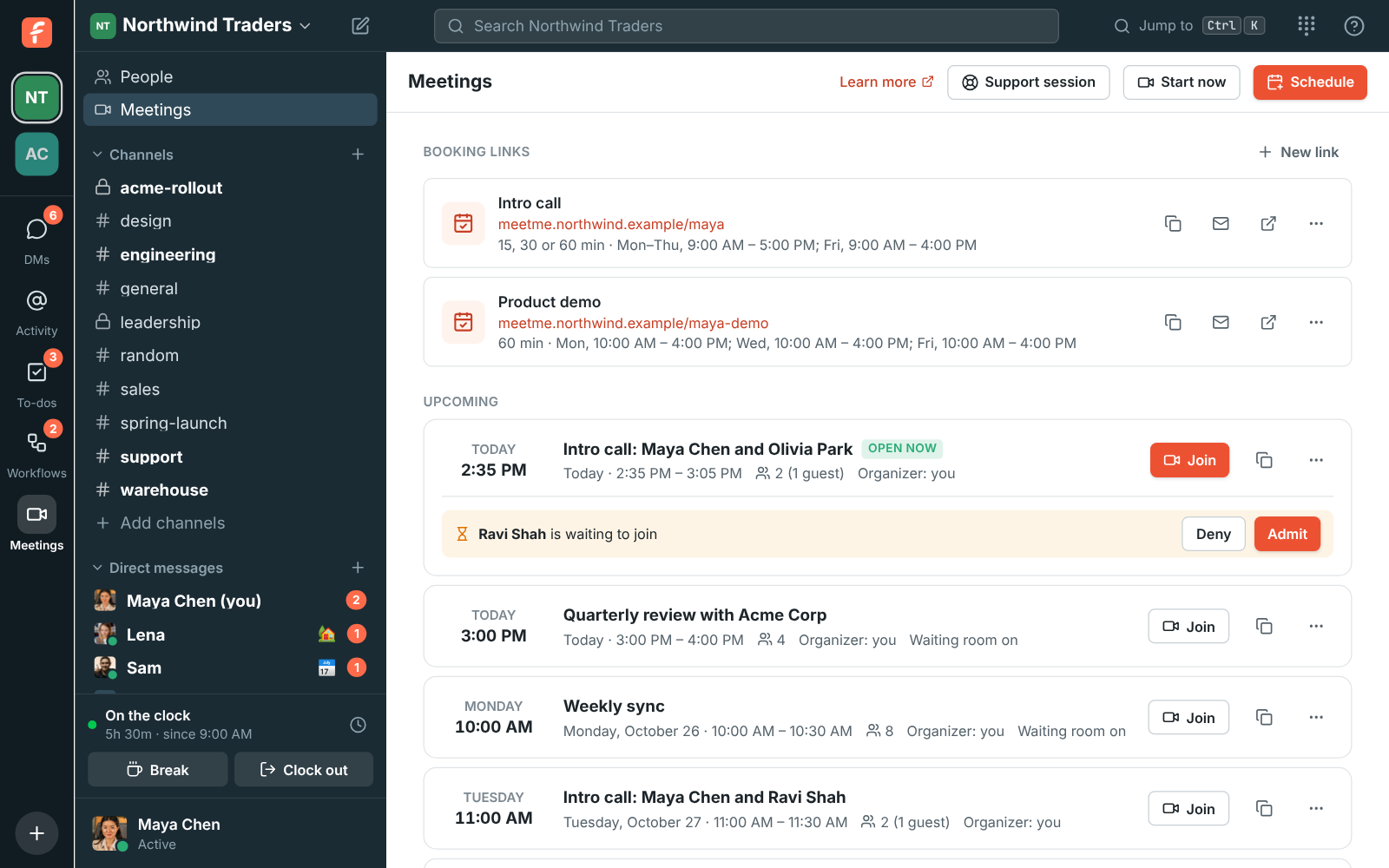
Pasted into Slack, Teams, iMessage or Freesbe, the link unfurls into a card with your name and
your workspace's logo:
## Which times people see
The page only offers times that are inside your available hours and free in all of these:
- **Your Freesbe meetings**, in every workspace you're in: ones you organize and ones you're
invited to.
- **Your connected calendar**. Busy times from the Google, Microsoft or Zoho calendar you connected in
**Preferences** are left out too. See
[Connect your calendar](https://freesbe.net/docs/status-and-availability/#connect-your-calendar). Without a
calendar, only your hours and Freesbe meetings count, so connect one if you keep meetings
elsewhere.
- Your **minimum notice**, **booking window** and **gap between meetings**.
Starts are offered every 15 minutes for 15-minute calls and every half hour for longer ones. The
page shows times in the visitor's own time zone, and they can change it under the calendar.
## Booking a call
This is what the person booking sees:
1. They pick a length, then a highlighted day, then a time.
2. They enter their name and email, and optionally a note for you.
3. They click **Book meeting**.
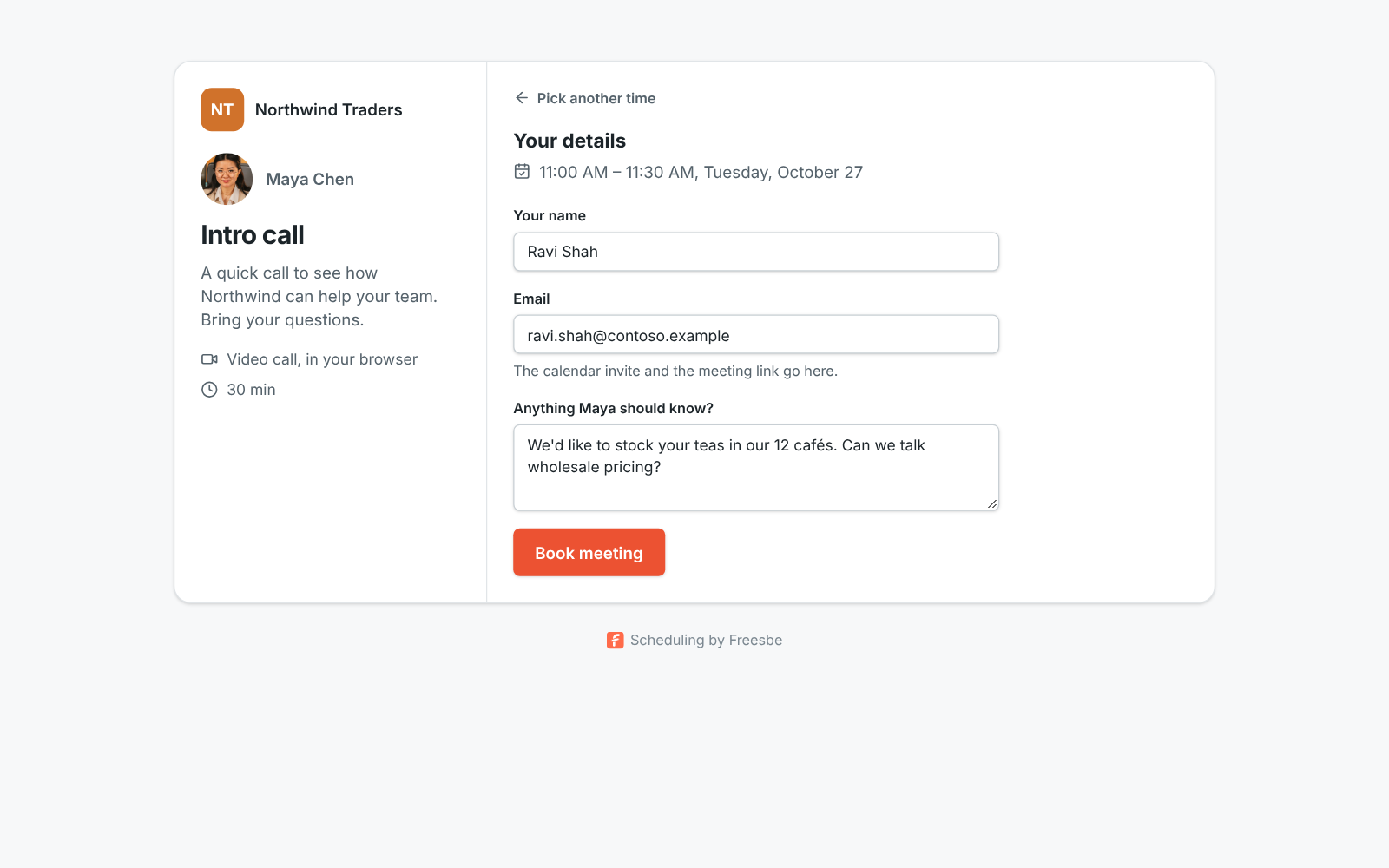
If someone else took that time a moment earlier, they're asked to pick another one.
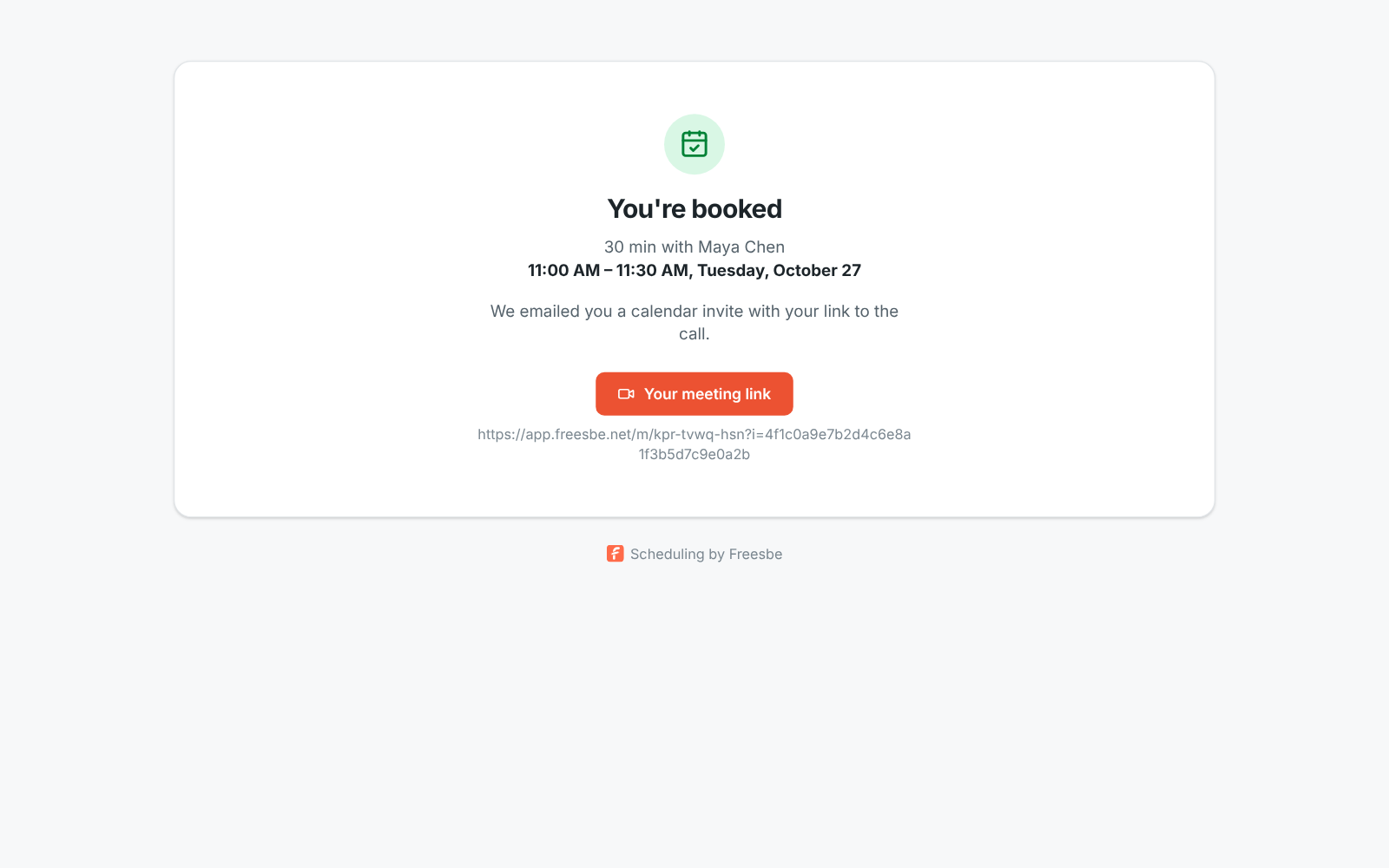
The booking becomes a normal [meeting](https://freesbe.net/docs/meetings/) organized by you, titled like _Intro
call: Maya Chen and Ravi Shah_:
- **You** get an email with a calendar invite saying who booked, with their note.
- **The person who booked** gets a calendar invite with the times in their own time zone, their
personal link that goes straight into the call without waiting in the lobby, and a
**Reschedule or cancel** link.
- Both of you get a reminder about 10 minutes before the start.
It's listed under **Upcoming** in **Meetings**, where you can edit, move or cancel it like any
other meeting. Canceling it sends a cancellation to their calendar.
## When they need another time
People who booked can move or cancel the meeting themselves, without an account. The **Reschedule
or cancel** link is in their invite email and on the _You're booked_ page. It opens their booking
on your page:
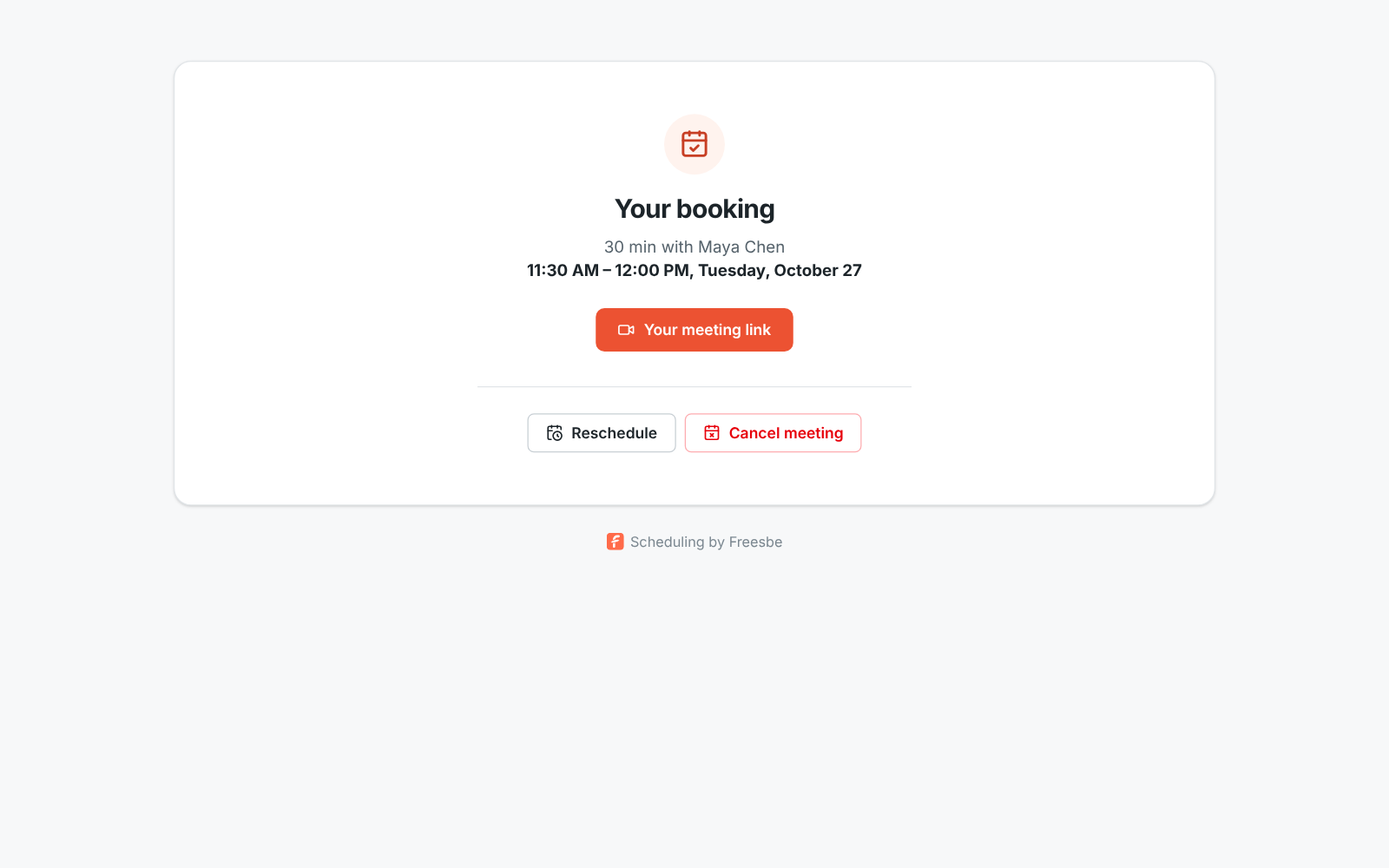
- **Reschedule** shows the same calendar, with the free times from the same link: your hours,
notice, booking window and busy times all still apply. Their current time stays on offer. They
pick a new time and click **Confirm new time**.
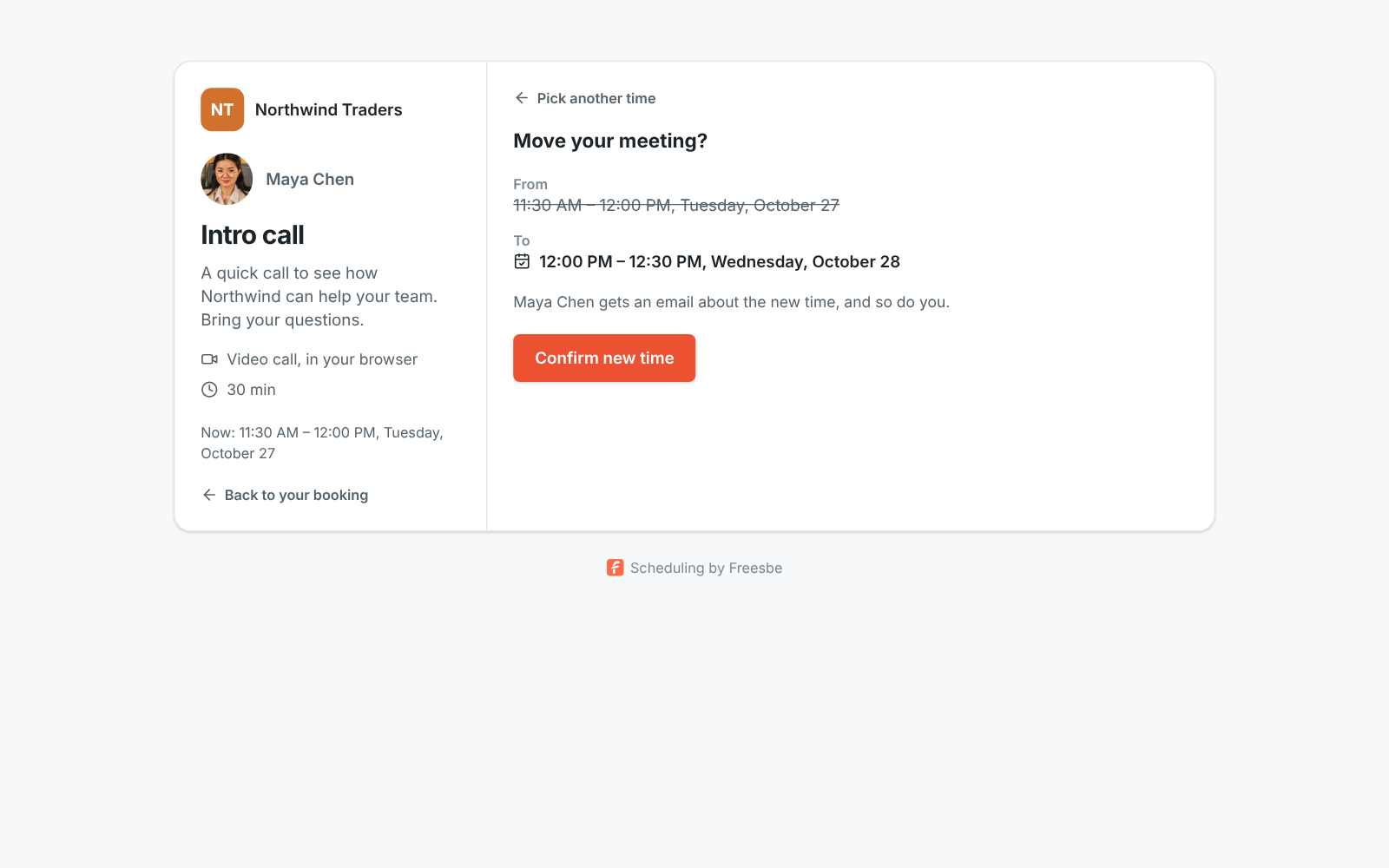
- **Cancel meeting** asks them to confirm, with an optional note for you.
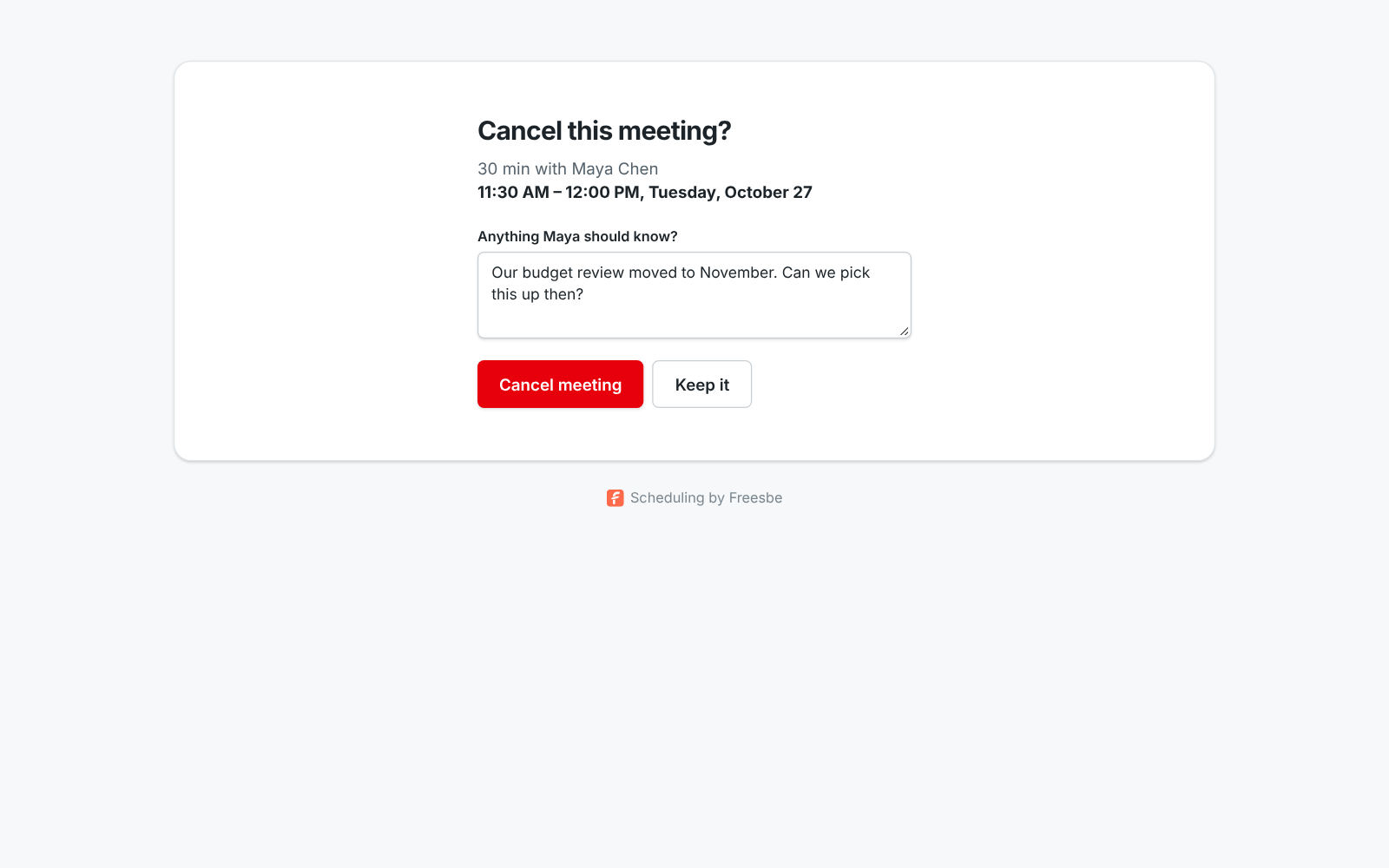
Either way, **you get an email** right away, and the meeting changes in **Meetings** and in both
calendars:
- A move sends both of you an updated calendar invite. Yours says who moved it and the time it
used to be.
- A cancellation sends both of you a cancellation. Yours includes their note, if they wrote one.
The time becomes free on your page again.
They can change a booking until it starts. Moving it needs the link to still take bookings: if you
paused or deleted it, they can still cancel, and the page asks them to contact you for another
time. The link only works for the person who booked, and stops working if you take them off the
meeting.
## Change, pause or delete a link
Use the **Link options** menu next to a link:
- **Edit** changes anything about it. If you rename the link, the old address stops working.
- To pause a link without deleting it, **Edit** it and turn off **Taking bookings**. The page shows
that the link doesn't work until you turn it back on.
- **Delete** removes the link. Meetings already booked through it stay on the calendar.
You can have up to 10 booking links in each workspace, for example a short _Quick question_ link
and a longer _Product demo_ link with different hours. A link also stops working if you leave the
workspace or an admin deactivates you.
## Limits
- Each link takes up to 30 bookings a day, so nobody can flood your calendar.
- The page doesn't ask the visitor to sign in or confirm their email address.
- A booking can be changed up to 10 times, counting your edits. After that, the person who booked
has to contact you to move it.
---
# Calendar app
Source: https://freesbe.net/docs/calendar-app/
> Get your day's agenda, a reminder with the join link before each meeting, and calendar invitations you can answer Yes, Maybe or No, all inside Freesbe. Works with Google Calendar, Outlook and Zoho Calendar.
The Calendar app brings your Google Calendar, Outlook or [Zoho Calendar](https://freesbe.net/docs/zoho-calendar/)
into Freesbe. It sends you three kinds of messages:
- **Your day**, each morning: the day's meetings in order, with a **Join** button for each video
call and Yes, Maybe and No buttons for invitations you haven't answered.
- **Starting soon**: a reminder a few minutes before each meeting, with its join link.
- **New invitation**: a message when someone invites you, with Yes, Maybe and No buttons. You
also hear when a meeting you're in moves to a new time or the organizer cancels it.


The messages come from **📅 Calendar** and arrive in your DM with yourself, in one workspace you
pick. Only you see them.
## Turn it on
1. Open **Preferences** from your account menu and choose **Calendar**.
2. If you haven't connected a calendar yet, connect your Google, Microsoft or Zoho calendar first. See
[Connect your calendar](https://freesbe.net/docs/status-and-availability/#connect-your-calendar).
3. Under **Calendar app**, click **Turn on the Calendar app**.
4. Google or Microsoft asks you to let Freesbe see your events and answer invitations (Zoho asks
to read your calendars and events). Allow it. If you untick that permission, your calendar
stays connected for free/busy, but the Calendar app stays off.
Your messages go to the workspace you were in when you turned it on. To move them, open
Preferences → Notifications → Calendar in the other workspace and click **Send them to … instead**.

In the desktop app, **Turn on the Calendar app** opens Freesbe in your web browser to ask Google,
Microsoft or Zoho; the app picks it up from there.
## Choose what you get
- **Daily agenda**: on or off, the time it comes (8:00 AM to start with) and whether it comes on
weekends. The time is in your own time zone, from your profile. Days with nothing on your
calendar get no message.
- **Remind me before meetings**: 1, 5, 10, 15 or 30 minutes before, or not at all. Reminders
skip all-day events and meetings you declined. They can arrive up to a few minutes early.
- **Invitations and changes**: a message for each new invitation, and when a meeting you're in
moves or is canceled.
**Send today's agenda now** sends the day's agenda straight away, so you can see what it looks
like. **Turn off the Calendar app** stops all three; your calendar stays connected.
## Answer an invitation
Click **Yes**, **Maybe** or **No** on an invitation or on the agenda. Freesbe answers in your own
calendar, the organizer gets your answer as usual, and the button you picked stays highlighted.
You can change your answer the same way. **Open in calendar** opens the event in Google Calendar,
Outlook or Zoho Calendar.
Zoho Calendar doesn't let other apps answer invitations, so with a Zoho calendar its invitations
have **Open in calendar** instead of Yes, Maybe and No: answer them in Zoho Calendar. See
[Zoho Calendar](https://freesbe.net/docs/zoho-calendar/#invitations).
**Join** appears when the event has a video call link: a Freesbe meeting, Google Meet, Microsoft
Teams, Zoom or Webex.
## Privacy
The Calendar app reads your events when a message is due: their titles, times, places, organizers
and join links. Freesbe doesn't keep your events. It remembers only each upcoming event's id and
times, so a reminder or an invitation goes out once, and forgets those after the event is over.
The messages themselves stay in your DM until you delete them.
**Disconnect** in Preferences → Notifications → Calendar removes Freesbe's access and everything it remembered.
## For admins
The Calendar app is on in every workspace to start with. Owners and admins can turn it off in
**Workspace settings → Integrations & apps → Integrations → Calendar**, which stops its messages in the workspace
straight away. The same page shows how many people get Calendar app messages there.
Guests can't use the Calendar app.
If your organization's Microsoft 365 or Google Workspace needs an admin to approve apps, approve
Freesbe there so people can allow it to see and answer their events.
---
# Freesbe meetings in Outlook
Source: https://freesbe.net/docs/outlook/
> Add a Freesbe meeting to Outlook events instead of Teams, make it the default for every meeting, and roll it out to everyone from the Microsoft 365 admin center.
With the Freesbe add-in for Outlook, **Freesbe meeting** sits where Teams usually does when you
create an event. Turn it on and Outlook puts a Freesbe link in the invitation. Guests open it in
any browser, with nothing to install, and the meeting shows up in Freesbe as well, under
**Meetings**.
It works in Outlook on the web, the new and classic Outlook for Windows, Outlook for Mac, and
Outlook on iPhone and Android, with a Microsoft 365 work or school account.

## Add a Freesbe meeting to an event
1. In Outlook, create an event as usual: a title, a time and the people to invite.
2. Turn on **Freesbe meeting** where the Teams meeting switch usually is. In classic Outlook for
Windows it's a **Freesbe meeting** button on the event's ribbon.
3. The first time, a Freesbe window asks you to sign in and pick the workspace your meetings go
in. Click **Connect Outlook**. Outlook remembers it on all your devices.
4. The invitation now ends with **Join the Freesbe meeting**, the link and the meeting code. Send
the invitation as usual.

You're the meeting's organizer in Freesbe, everyone you invited is on its list, and members of
your workspace can join from Freesbe too. Outlook sends the invitation and the reminders, so
Freesbe doesn't email anyone about it.
Turning **Freesbe meeting** on again in the same event keeps its link: the meeting just takes the
event's new title, time and people. If you move the event in Outlook later without opening the
add-in, the link keeps working anyway: a meeting made from Outlook opens whenever someone comes,
until 30 days after its scheduled end. Guests wait in the lobby until someone from your workspace
lets them in.
## Make Freesbe your default
To get a Freesbe meeting in every event you create, without turning it on each time:
1. In Outlook, open **Settings**, then **Calendar**, then **Events and invitations**.
2. Turn on **Add online meeting to all meetings**.
3. Choose **Freesbe** as the meeting provider.
You pick it once; Outlook uses it on all your devices. Preferences → Calendar in Freesbe shows the
same steps.
## See and disconnect the add-in
**Preferences → Calendar → Freesbe meetings in Outlook** lists the workspace Outlook is connected
to, how many meetings it made and when it was last used. **Disconnect** stops it at once; meetings
it already made keep working. The next time you turn on Freesbe meeting in Outlook, it asks you to
sign in again.
To schedule in another workspace, disconnect and connect again from Outlook, picking the other
workspace.
## Add Freesbe to Outlook for everyone
Outlook only shows meeting add-ins that a Microsoft 365 admin added for the organization, so an
admin does this once. Freesbe's own admins find the steps and the link in the
[Admin Center](https://freesbe.net/docs/admin-center/) under **Integrations → Calendar → Outlook add-in**.

1. In the [Microsoft 365 admin center](https://admin.microsoft.com), open **Settings**, then
**Integrated apps**, and choose **Upload custom apps**.
2. Choose **Office Add-in**, then **Provide link to the manifest file**, and paste the
**Manifest link** from Freesbe's Outlook add-in page.
3. Assign it to everyone or to some groups, and deploy. It can take up to a day to show in Outlook.
Freesbe asks each person to sign in the first time they use it, so nobody gets access to a
workspace they aren't in. Guests can't connect it.
Where Teams isn't set up, Outlook uses Freesbe on its own. Where it is, each person picks Freesbe
once, as in [Make Freesbe your default](#make-freesbe-your-default).
### Turn it off
Turn off **Let people add Freesbe meetings from Outlook and Google Calendar** to stop it in your
workspace straight away: Outlook then tells people the add-in is off. Meetings already made keep working. The page also
shows how many people connected Outlook.
## What the add-in can see
The add-in reads the event you turned it on in (its title, time and the people invited) and writes
the Freesbe link into that invitation. It doesn't read your mail or other events, and its sign-in
can only schedule your own meetings in the workspace you picked. It can't read or send messages in
Freesbe.
## Google Calendar
Freesbe works the same way in Google Calendar, where it sits next to Google Meet. See
[Freesbe meetings in Google Calendar](https://freesbe.net/docs/google-calendar/).
---
# Freesbe meetings in Google Calendar
Source: https://freesbe.net/docs/google-calendar/
> Add a Freesbe meeting to Google Calendar events instead of Google Meet, install the Freesbe add-on, and make Freesbe the default for your organization.
With the Freesbe add-on for Google Calendar, **Freesbe meeting** sits next to Google Meet in an
event's video conferencing menu. Pick it and the event gets a **Join with Freesbe** button, the
link and the meeting code. Guests open it in any browser, with nothing to install, and the meeting
shows up in Freesbe as well, under **Meetings**.
It works in Google Calendar on the web and in the Calendar apps for iPhone and Android, with a
Google Workspace account.

## Add a Freesbe meeting to an event
1. In Google Calendar, create an event as usual: a title, a time and the people to invite.
2. Open the menu next to **Add Google Meet video conferencing** and choose **Freesbe meeting**.
3. The first time, Calendar asks you to sign in to Freesbe. Sign in, pick the workspace your
meetings go in and click **Connect Google Calendar**. Then choose **Freesbe meeting** again.
4. Save the event. Everyone you invited gets the Freesbe link with the invitation.

You're the meeting's organizer in Freesbe, everyone you invited is on its list, and members of
your workspace can join from Freesbe too. Google Calendar sends the invitation and the reminders,
so Freesbe doesn't email anyone about it.
When you change the event's title, time or guests in Google Calendar, the Freesbe meeting follows
within a few minutes. The link keeps working anyway: a meeting made from Google Calendar opens
whenever someone comes, until 30 days after its scheduled end. Guests wait in the lobby until
someone from your workspace lets them in.
## Make Freesbe the default
Google Calendar adds Google Meet to new events unless a Google Workspace admin turns Meet off for
the organization, so only an admin can make Freesbe everyone's default:
1. In the [Google Admin console](https://admin.google.com), open **Apps**, then
**Google Workspace**, then **Google Meet**, and turn the service off for everyone (or for some
groups).
2. Open **Apps**, then **Google Workspace**, then **Calendar**, then **Sharing settings**, then
**Video conferencing**, and turn on **Automatically add video calls to events users create**.
Every new event then gets a Freesbe meeting. Without those changes, people choose
**Freesbe meeting** in each event.
## See and disconnect the add-on
**Preferences → Calendar → Freesbe meetings in Google Calendar** lists the workspace Google
Calendar is connected to, how many meetings it made and when it was last used. **Disconnect**
stops it at once; meetings it already made keep working. The next time you choose Freesbe meeting,
Calendar asks you to sign in again. The add-on's own panel in Google Calendar (the Freesbe icon on
the right) has **Disconnect** too.
## Install the add-on
Freesbe's listing in the Google Workspace Marketplace is on its way. Until it's there, install
the add-on from its two files, which Freesbe's admins find in the
[Admin Center](https://freesbe.net/docs/admin-center/) under **Integrations → Calendar → Google Calendar add-on**:

1. Open [script.google.com](https://script.google.com) with your Google Workspace account and
create a project.
2. In **Project settings**, turn on **Show "appsscript.json" manifest file in editor**.
3. Back in the editor, replace the text of `appsscript.json` and `Code.gs` with the two files from
the Admin Center (open each link and copy all of it).
4. Choose **Deploy**, then **Test deployments**, then **Install**. Freesbe meeting shows in Google
Calendar for your account straight away; reload Calendar if it's open.
Google asks you to allow the add-on the first time you use it. It reads the event you add Freesbe
to, and changes to events in your calendar so their Freesbe meetings stay up to date.
### Turn it off
Turn off **Let people add Freesbe meetings from Outlook and Google Calendar** to stop the add-ons
in your workspace straight away: Calendar can then no longer add Freesbe meetings. Meetings already
made keep working.
## What the add-on can see
The add-on reads the events in your calendar that have a Freesbe meeting (title, time and the
people invited) and sends those to Freesbe. It doesn't read your mail, and its sign-in can only
schedule your own meetings in the workspace you picked. It can't read or send messages in
Freesbe.
## Outlook
Freesbe works the same way in Outlook, where it replaces Teams. See
[Freesbe meetings in Outlook](https://freesbe.net/docs/outlook/).
---
# Zoho Calendar
Source: https://freesbe.net/docs/zoho-calendar/
> Connect your Zoho Calendar to Freesbe to show teammates when you're busy, set "In a meeting" for you, and get a daily agenda, meeting reminders and invitations in Freesbe.
If your company uses Zoho, you can connect your Zoho Calendar to Freesbe just like a Google or
Microsoft calendar. Everyone connects their own, and it does the same things:
- **Free/busy.** Teammates see when you're busy while they
[find a time for a meeting](https://freesbe.net/docs/meetings/#find-a-time-that-works) or book you through a
[booking link](https://freesbe.net/docs/booking-links/), and your status says 📅 In a meeting while you're in one.
- **The Calendar app**, if you turn it on: your day's agenda each morning, a reminder with the
join link before each meeting, and a message for each new invitation. See
[Calendar app](https://freesbe.net/docs/calendar-app/).

It works with every Zoho data center: the United States, Europe, the United Kingdom, India,
Australia, Japan, Canada, Saudi Arabia and China. Freesbe talks to Zoho in your own data center
only.
## Connect your Zoho Calendar
1. Open **Preferences** from your account menu and choose **Calendar**.
2. Click **Connect Zoho Calendar**. Zoho asks you to sign in. It finds your account's data center
on its own, so sign in as you usually do. It can be a different account from the one you sign
in to Freesbe with.
3. Zoho lists what Freesbe asks for: your name and email address, and when you're busy. Click
**Accept**.
4. You're back in Preferences with **Zoho Calendar** and your Zoho email address.
Leave **Show "In a meeting" while I'm in one** on if you want your status set for you. A status you
set yourself always wins.
In the desktop app, **Connect Zoho Calendar** opens Freesbe in your web browser; connect there and
the app picks it up.
You have one calendar connected at a time. Connecting Zoho Calendar replaces a Google or Microsoft
calendar you connected before, and the other way round.
## Turn on the Calendar app
1. In **Preferences → Notifications → Calendar**, under **Calendar app**, click **Turn on the
Calendar app**.
2. Zoho asks again, this time to let Freesbe read your calendars and events. Click **Accept**.
3. Pick what you get: the **Daily agenda** and when it comes, **Remind me before meetings** and
**Invitations and changes**.
Messages come from **📅 Calendar** in your DM with yourself, in the workspace you were in when you
turned it on. The Calendar app reads your default Zoho calendar.
### Invitations
You get a message when someone invites you, and when a meeting you're in moves to a new time. Zoho
Calendar doesn't let other apps answer invitations for you, so instead of Yes, Maybe and No the
message has **Open in calendar**, which opens the event in Zoho Calendar to answer it there.
When the organizer cancels a meeting, Zoho takes it off your calendar, so it just drops off your
agenda; there's no separate message.
## Disconnect
In **Preferences → Notifications → Calendar**, click **Disconnect**. Freesbe gives its access back
to Zoho straight away, and forgets what the Calendar app remembered.
If you remove Freesbe in Zoho first (**My Account → Connected Apps**), Preferences shows **Connect
your calendar again**: click **Reconnect** to bring it back.
## Privacy and security
- Without the Calendar app, Freesbe only asks for your name, email address and free/busy times. It
never sees your meetings' titles, places or who's in them.
- With the Calendar app on, it reads your events when a message is due, and doesn't keep them. It
remembers only each upcoming event's id and times, so a reminder or an invitation goes out once.
- Freesbe keeps Zoho's access encrypted, and only reads: it never makes, changes or deletes
anything in your Zoho Calendar.
For admins: the Calendar app can be turned off for a workspace in **Workspace settings →
Integrations & apps → Integrations → Calendar**. Guests can't use it.
Setting it up? See [Connect Zoho Calendar](https://freesbe.net/knowledge/connect-zoho-calendar/). If it won't
connect, see [Zoho Calendar won't connect](https://freesbe.net/knowledge/zoho-calendar-wont-connect/).
Your company's CRM, help desk or invoicing on Zoho? See [Zoho CRM](https://freesbe.net/docs/zoho-crm/),
[Zoho Desk](https://freesbe.net/docs/zoho-desk/) and [Zoho Books and Zoho Invoice](https://freesbe.net/docs/zoho-books/).
---
# Workflows
Source: https://freesbe.net/docs/workflows/
> Automate routine work in Freesbe without code. Welcome new people, post reminders on a schedule, collect requests with forms, and start workflows from other apps with a webhook.
A workflow does routine work for you. It starts from something that happens, like someone joining
a channel, a time on the clock, or a click on a button, and then runs its steps one after another:
post a message, send someone a form, add a person to a channel, give someone a to-do, or wait.
Some things people build with workflows:
- Welcome everyone who joins **#general** with a direct message and a to-do to introduce themselves.
- Ask the team for a stand-up every weekday at 9:30.
- Give people a form to ask IT for help, and post each request in **#support**.
- Tell **#warehouse** when the carrier's system reports a late order.
## The Workflows page
Click **Workflows** in the rail on the left. The page shows:
- **Waiting on you**: forms a workflow sent you that you haven't filled in yet. The number on the
**Workflows** button counts them.
- **Yours to manage**: workflows you made, and every workflow if you're an admin.
- **You can run**: workflows other people made that start from a button. Click **Run**.
- **Start from a template**: ready-made workflows to change and turn on.
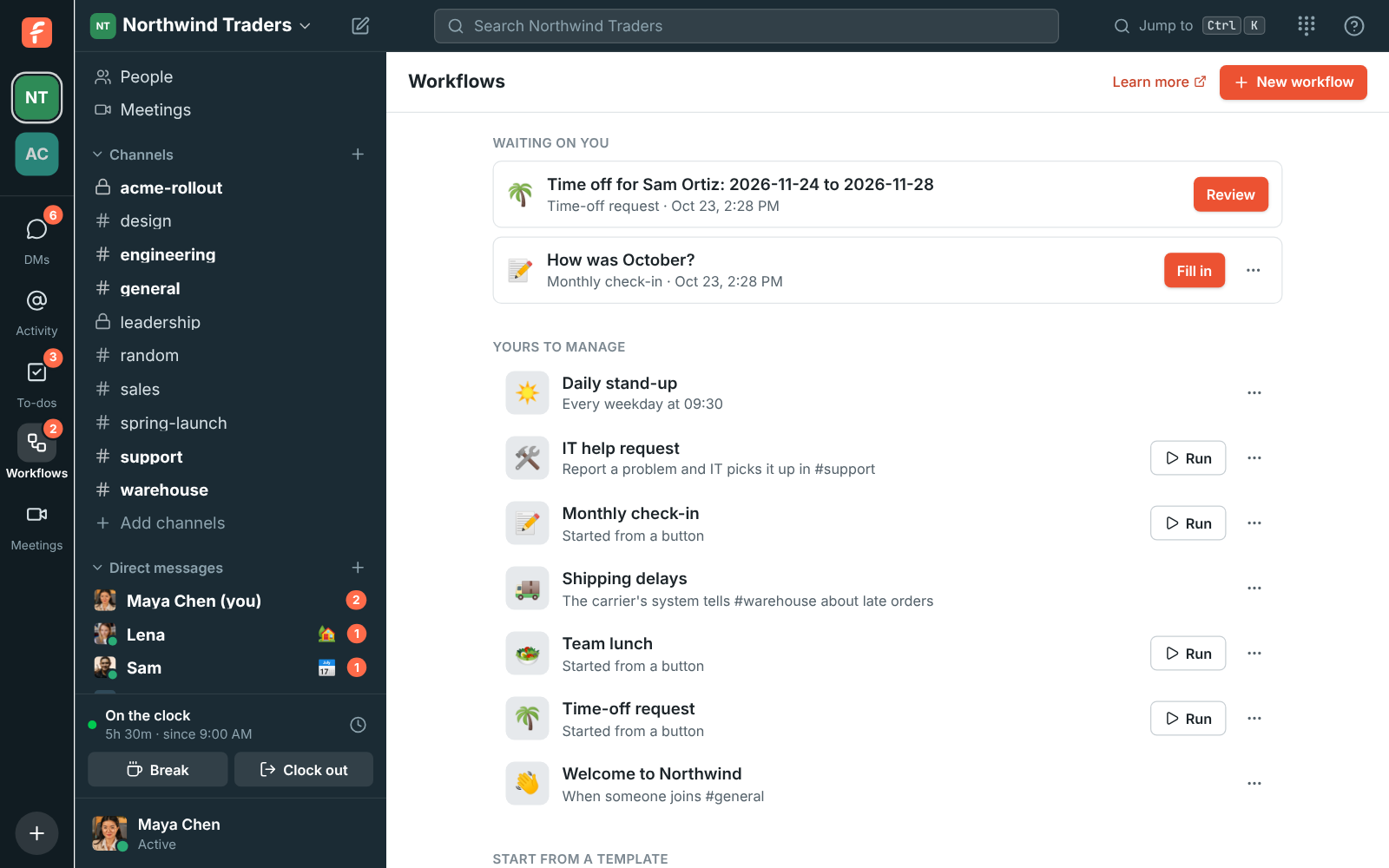
## Build a workflow
1. On the Workflows page, click **New workflow**, or pick a template. You can also use **+ →
Workflow** in the rail.
2. Give it a name and an emoji. The emoji is its picture on the messages it posts.
3. Choose what **Starts** it (see [Triggers](#triggers)).
4. Click **Add a step** for each thing it should do, in order. Use the arrows to move a step up or
down.
5. Click **Save**. Then turn on the **On** switch at the bottom.
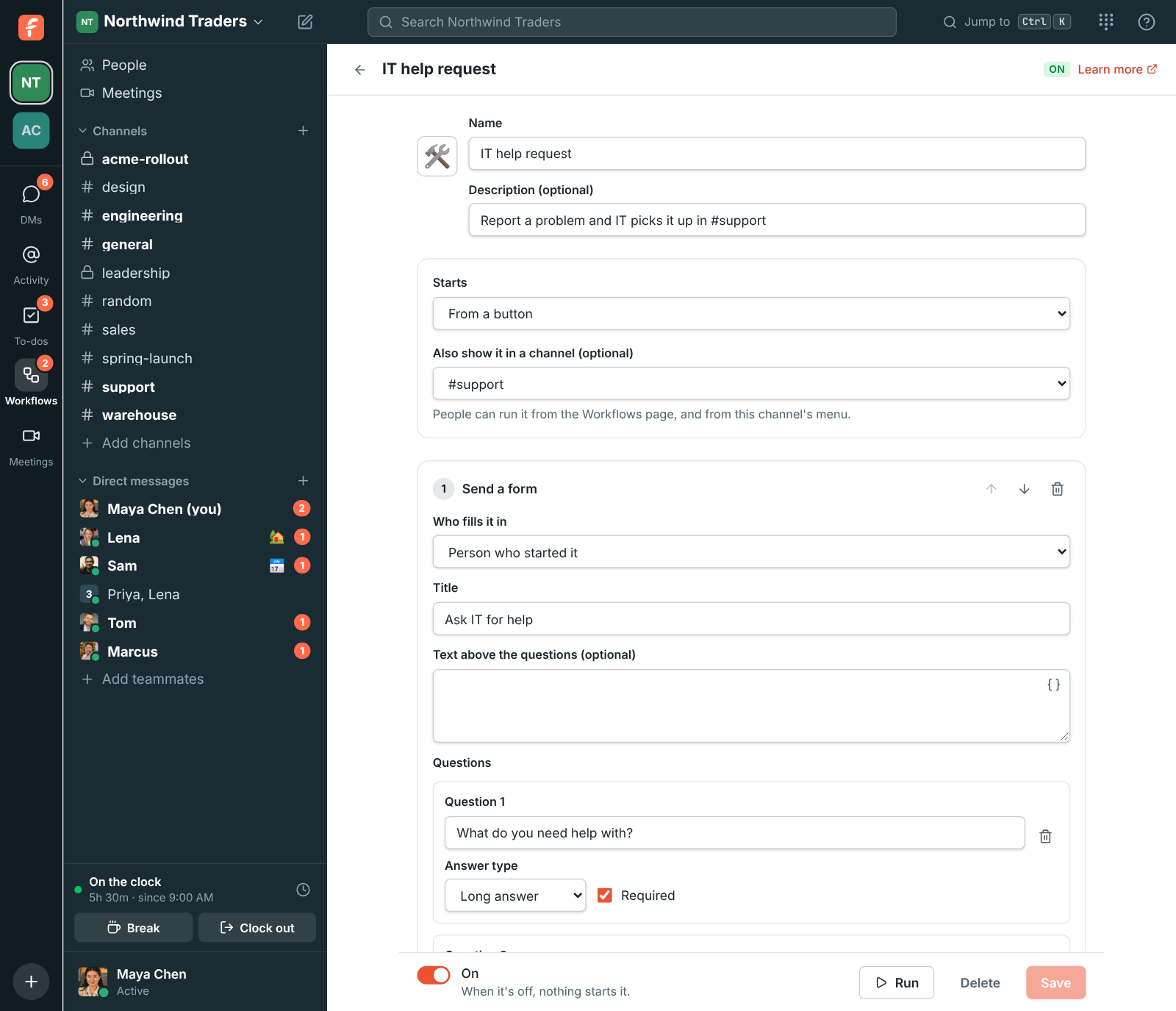
A workflow can't be turned on while something is missing, such as a step without a channel. The
builder points out each problem under the step it's about.
Messages a workflow posts show its name and emoji, with a **Workflow** label, so nobody mistakes
them for a person.
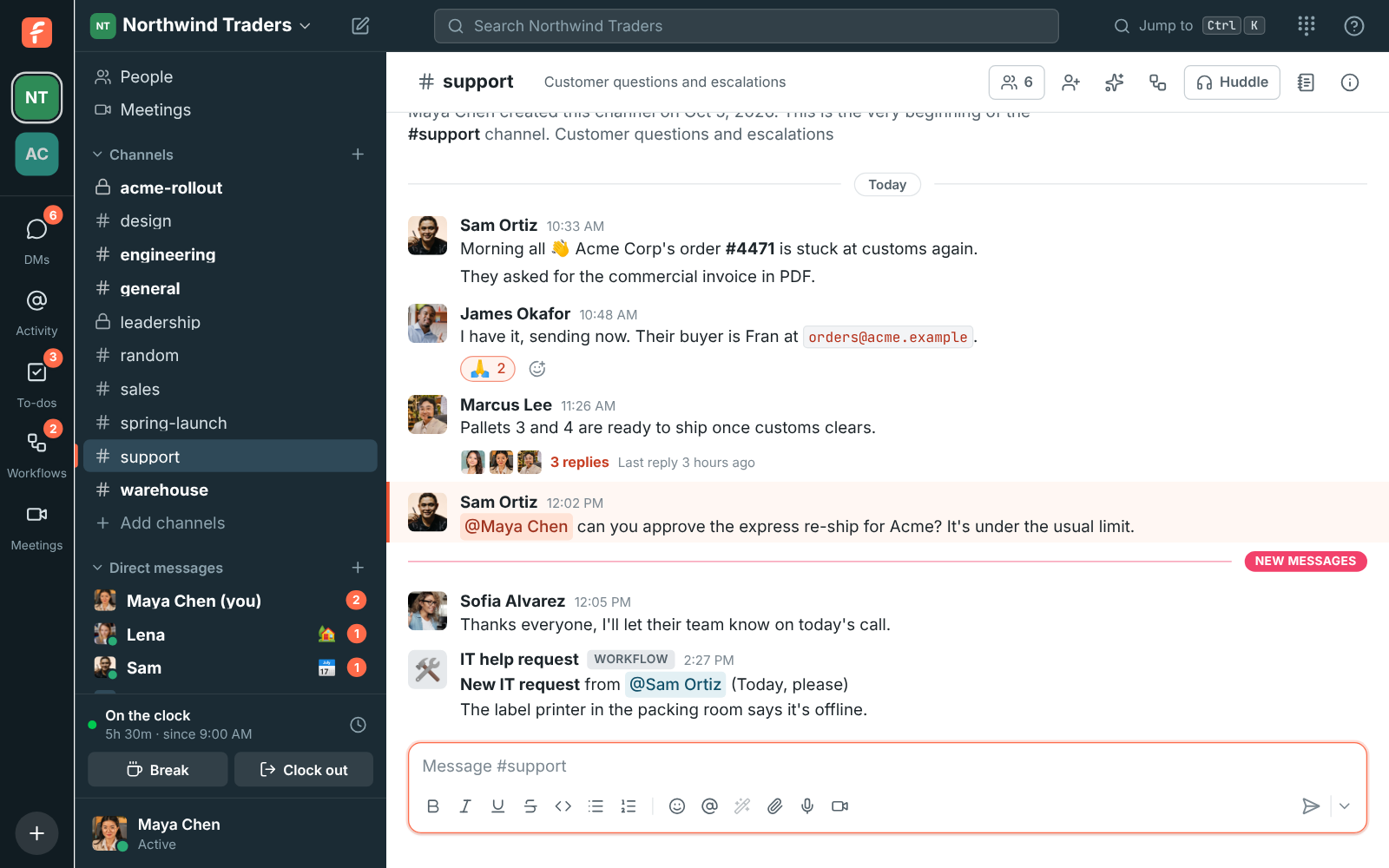
### Triggers
| Starts | When |
| ------------------------------------- | ---------------------------------------------------------------------------------------------------------------------------------------------------------------- |
| **From a button** | Someone clicks **Run** on the Workflows page, or picks it from the **Workflows** button at the top of a channel you chose. |
| **On a schedule** | At a time on a date, once or every day, every weekday, every week or every month. Times are in the time zone you pick, and stay put when clocks change. |
| **When someone reacts with an emoji** | Anyone reacts with that emoji to a message in the channel. |
| **When someone joins a channel** | Anyone joins the channel or is added to it. |
| **When a message has certain words** | A new message in the channel has any of the words you list, as whole words, ignoring case. With no words, every new message starts it. Replies in threads don't. |
| **From a webhook** | Another app sends a request to the workflow's own URL. See [Start a workflow from another app](#start-a-workflow-from-another-app). |
Workflows can also start from things that happen in Freesbe:
| Starts | When |
| ---------------------------------------- | ------------------------------------------------------------------------------------------------------------------------------------------- |
| **When someone clocks in or out** | You clock in or out with [time tracking](https://freesbe.net/docs/punch-clock/). Admins can pick **Anyone** to start it for everyone's clock. |
| **When someone books time with you** | A guest books one of your [booking links](https://freesbe.net/docs/booking-links/). It knows their name and email, when, and the meeting link. |
| **When a meeting you organized ends** | The last person leaves a meeting you organized. It knows the title and how many minutes it ran. |
| **When a huddle in a channel ends** | A huddle in the channel you pick ends. It knows who started it and how many minutes it ran. |
| **When you miss a call** | Someone calls you in a direct message and you don't pick up. |
| **When a to-do from a workflow is done** | Someone ticks off a to-do that another workflow you manage gave them. Use it to carry on once a checklist item is done, like in onboarding. |
These start for the person who made the workflow: your clock, your bookings, your meetings and your
missed calls.
### Steps
| Step | What it does |
| ------------------------------- | ------------------------------------------------------------------------------------------------------------------------------------------------------------------------------ |
| **Send a message** | Posts in a channel, sends a person a direct message, or replies in the thread of the message that started the workflow. |
| **Send a form** | Asks a person questions and waits until they send their answers. See [Forms](#forms). |
| **Add to a channel** | Adds a person to a channel. Guests can't be added this way. |
| **Create a to-do** | Adds a to-do to a person's [to-do list](https://freesbe.net/docs/getting-around/#to-dos), due the same day, the next day or later, at 5 PM their time. |
| **Wait** | Waits minutes, hours or days (up to 30) before the next step. |
| **Ask for approval** | Asks one or more people to approve or reject something, and waits. See [Approvals](#approvals). |
| **Ask a question with buttons** | Posts a question with up to five buttons in a channel, a thread or a direct message, and waits for someone to pick one. See [Questions with buttons](#questions-with-buttons). |
| **Set a status** | Sets an emoji and a status for the person who started the workflow, or someone it asked, for up to 7 days. |
| **If… otherwise…** | Checks something the workflow knows and runs one list of steps or the other. See [If… otherwise…](#if-otherwise). |
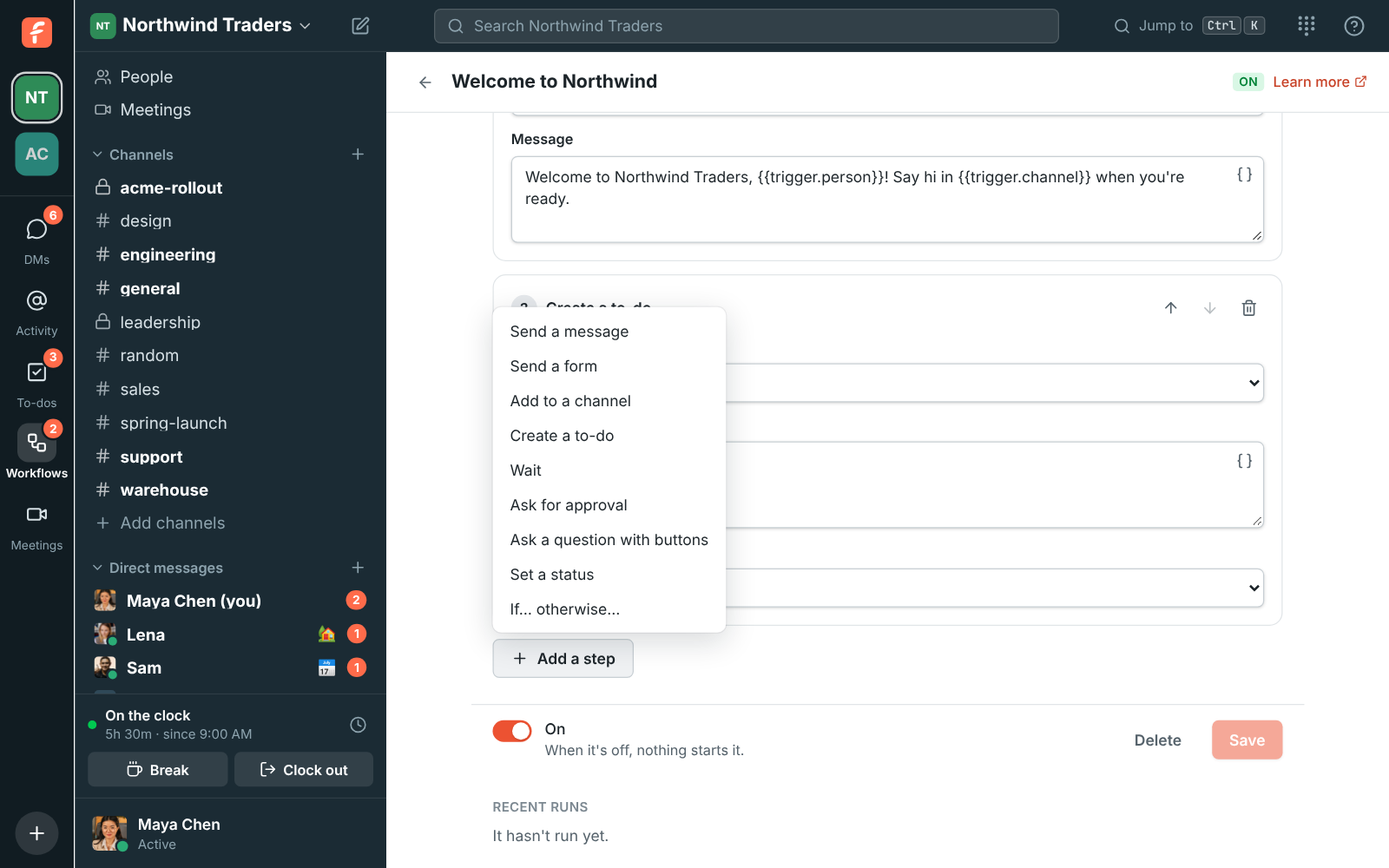
Direct messages from a workflow arrive in the person's own notes DM, from the workflow.
### Variables
Steps can use what the workflow knows so far: who started it, the channel, the message that
started it, and every answer from an earlier form. Click the **{ }** button beside a text box and
pick one. It goes in as `{{name}}`, and each run fills it in.
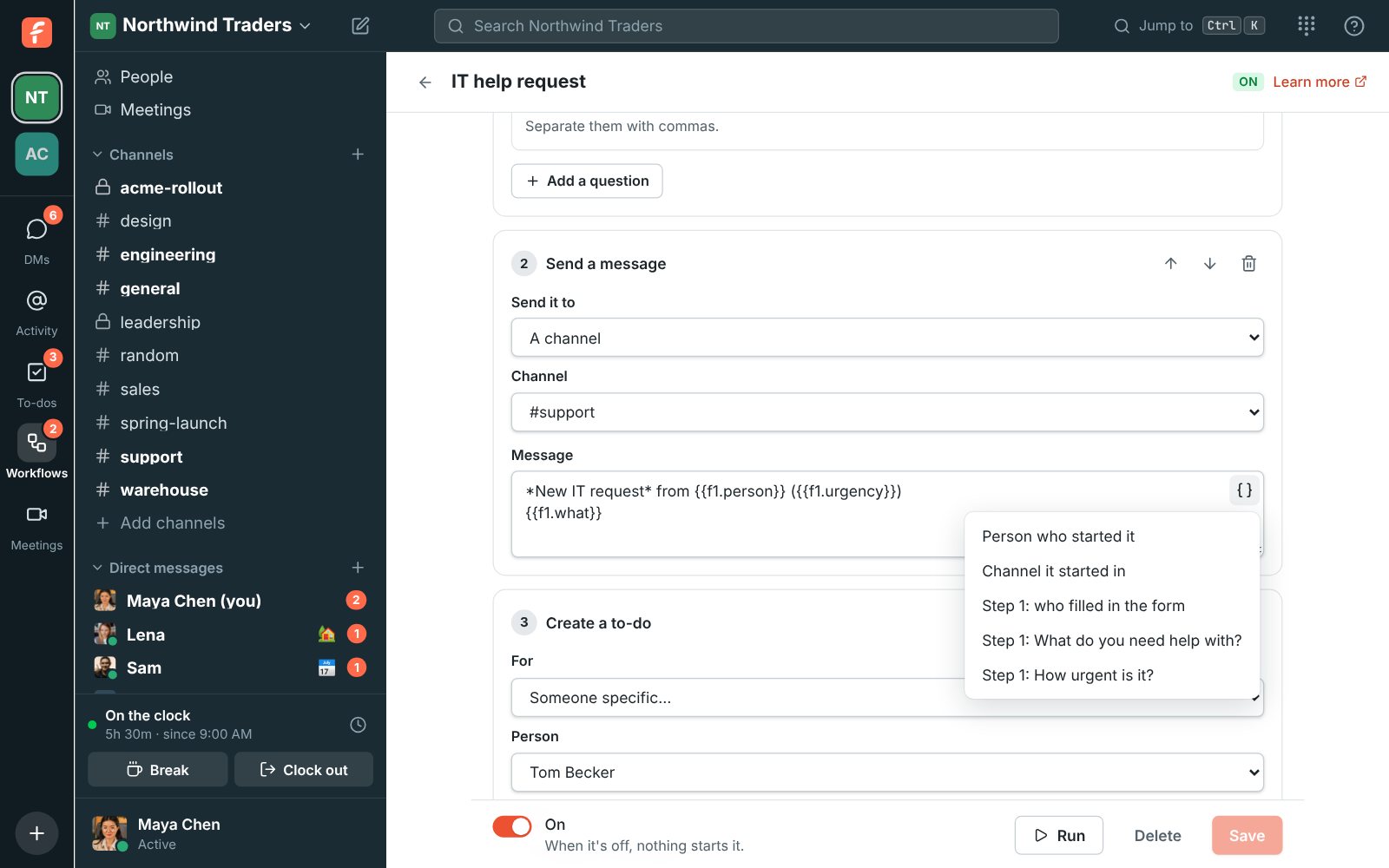
People and channels come out as mentions, like @Sam Ortiz and #support. Anything someone typed is
shown as plain text, so an answer can't mention @channel.
Steps that are for a person, such as a form or a to-do, can be for someone the workflow knows,
like **Person who started it**, or **Someone specific** you pick.
## Forms
A **Send a form** step asks one person a few questions: short or long answers, a number, a date, a
choice from a list, or a person. The workflow waits until they send it, then carries on with their
answers.
- When the person who clicked **Run** fills in the form, it opens for them right away.
- Anyone else gets a direct message from the workflow with an **Open form** button. It also shows
under **Waiting on you** on the Workflows page.
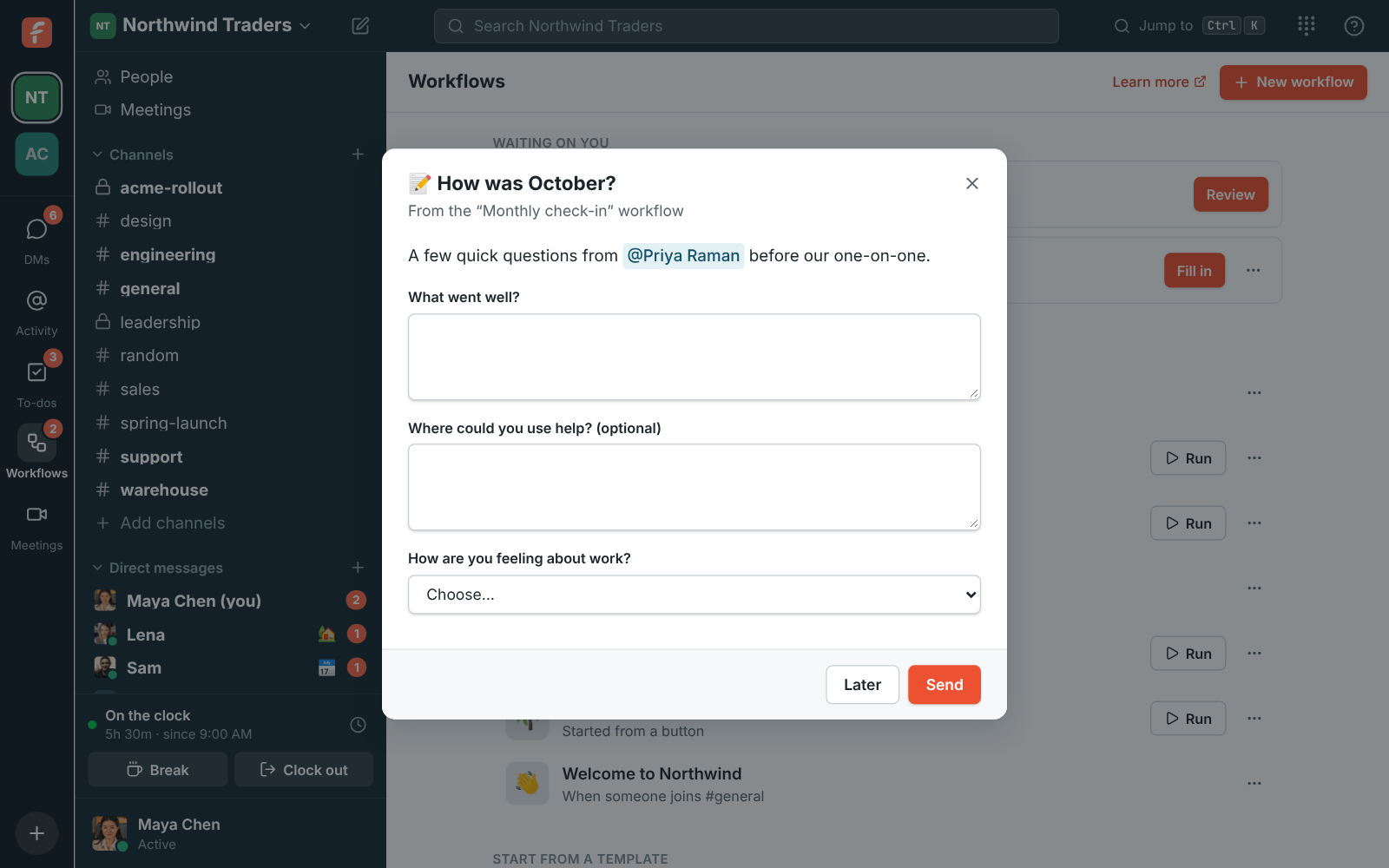
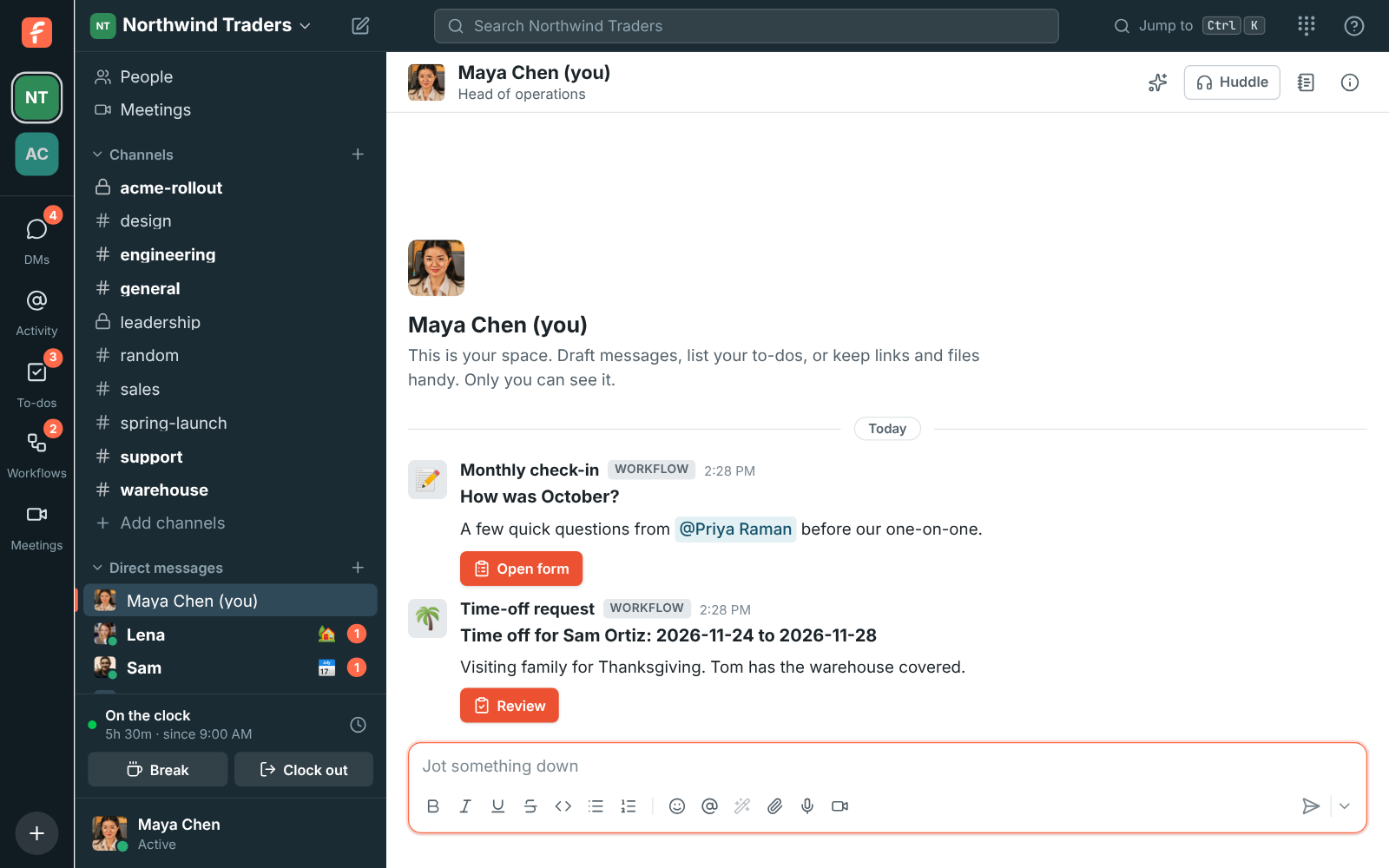
Click **Later** to leave a form for now. To say no to a form, use **⋯ → Close without sending** on
the Workflows page; the workflow that sent it stops there.
## Approvals
An **Ask for approval** step sends each approver a direct message with the request and a
**Review** button. They read it, add a comment if they like, and click **Approve** or **Reject**.
It also shows under **Waiting on you** on the Workflows page.
- **Who has to approve**: up to 10 people. With **Any one of them**, the first answer decides. With
**All of them**, everyone has to approve, and one rejection rejects.
- **Remind them after**: sends the request again to anyone who hasn't answered.
- **Stop waiting after**: from 1 hour to 30 days. **Then** rejects it, approves it, or sends it to
someone else, who gets the same choice with no time limit.
Later steps can use the result: `{{a1.decision}}` is **Approved** or **Rejected**, `{{a1.person}}`
is who decided and `{{a1.comment}}` is what they wrote. Most approvals are followed by an
[If… otherwise…](#if-otherwise) that checks the decision.
Once someone decides, the card says who approved or rejected it, so nobody answers twice.
## Questions with buttons
An **Ask a question with buttons** step posts a question with two to five buttons. In a channel or
a thread anyone there can answer; in a direct message only that person can. The first click
answers it, the card shows who picked what, and the workflow carries on with `{{q1.choice}}` and
`{{q1.person}}`.
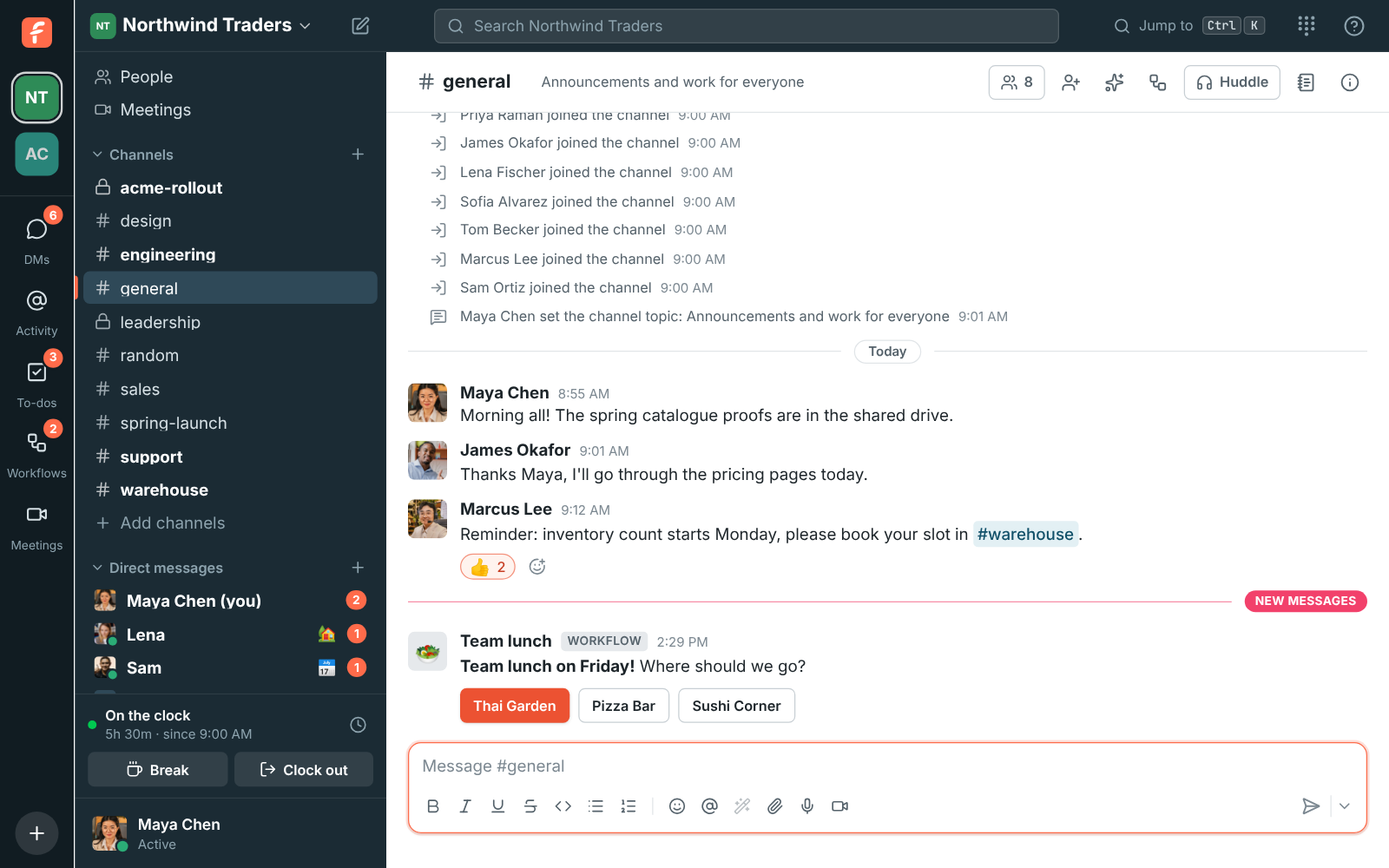
## If… otherwise…
An **If… otherwise…** step checks what the workflow knows so far: a form answer, a decision, a
choice, who started it. Each check picks a variable, a test such as **is**, **contains**, **is more
than** or **is empty**, and a value. With more than one check, pick whether **every check** or
**any check** has to pass.
The steps under **If it passes** run when it does, and the steps under **Otherwise** run when it
doesn't. Then the workflow carries on after the If. Steps inside are numbered 3.1, 3.2 and so on,
and an If can't go inside another If.
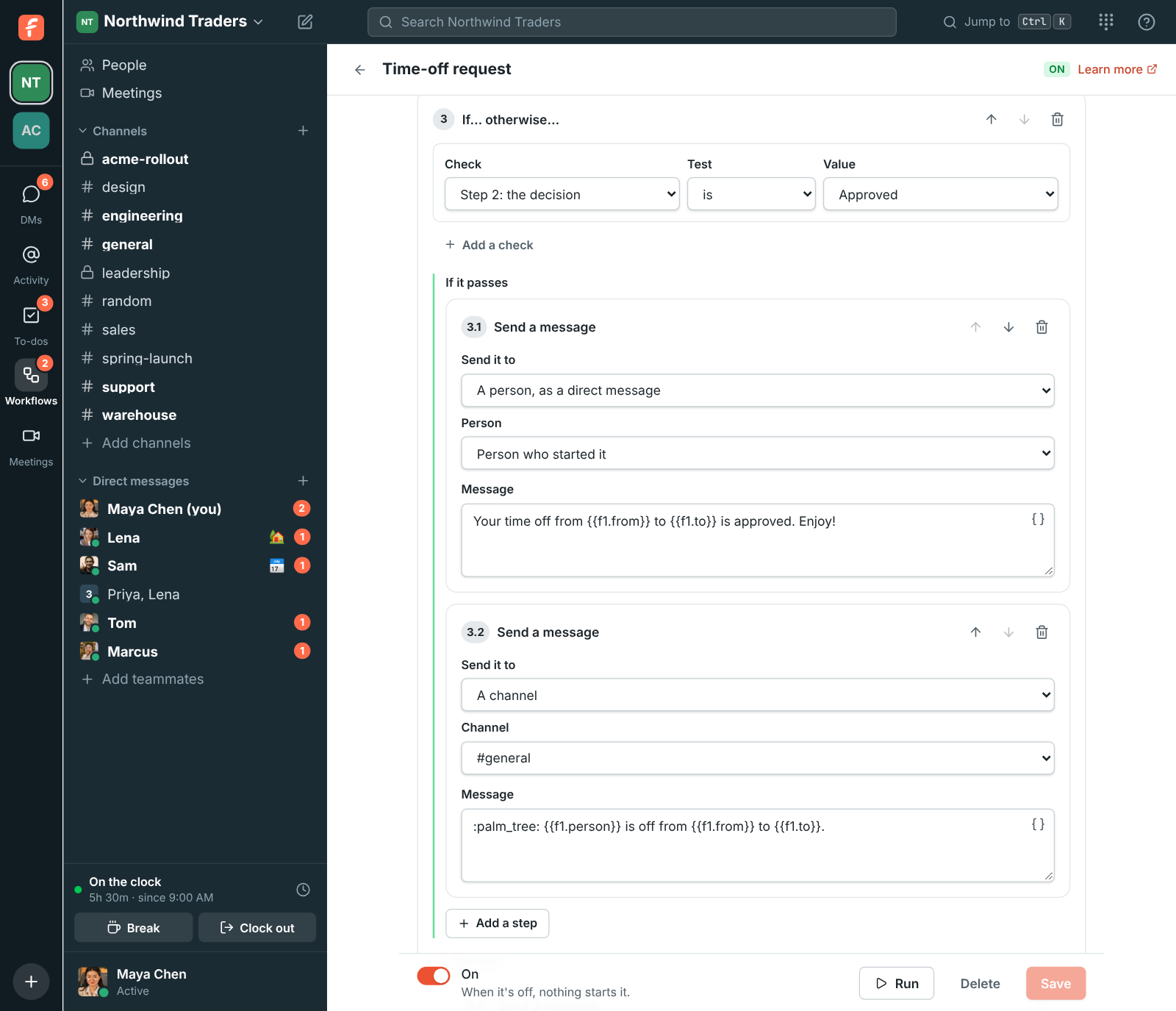
Numbers and dates compare as numbers and dates, so **is more than 500** works on an amount from a
form. Text compares ignoring case.
## Templates
The Workflows page lists templates under **Start from a template**. Each one opens in the builder for you to change
before you save it.
| Template | What it does |
| ---------------------- | --------------------------------------------------------------------------------------------------- |
| **Welcome new people** | Greets everyone who joins a channel and gives them a to-do. |
| **Daily stand-up** | Asks the channel what everyone is working on, every weekday morning. |
| **IT help request** | A form for reporting a problem, posted to the channel where IT can pick it up. |
| **Incident kickoff** | A form that collects the basics of an incident and alerts the channel. |
| **Weekly reminder** | Posts the same reminder in a channel every week. |
| **Time-off request** | A form for the dates, an approval from the manager you pick, then a message to the person and team. |
| **Expense approval** | A form for the amount, an approval, then a message for whoever pays it. |
| **New booking alert** | A message and a to-do to prepare when someone books time with you. |
| **Missed call to-do** | A to-do to call someone back when you miss their call. |
## Start a workflow from another app
Pick **From a webhook** as the trigger and list the **Variables** the other app sends, such as
`order, customer, days`. Save, and the builder shows the workflow's **Webhook URL**.
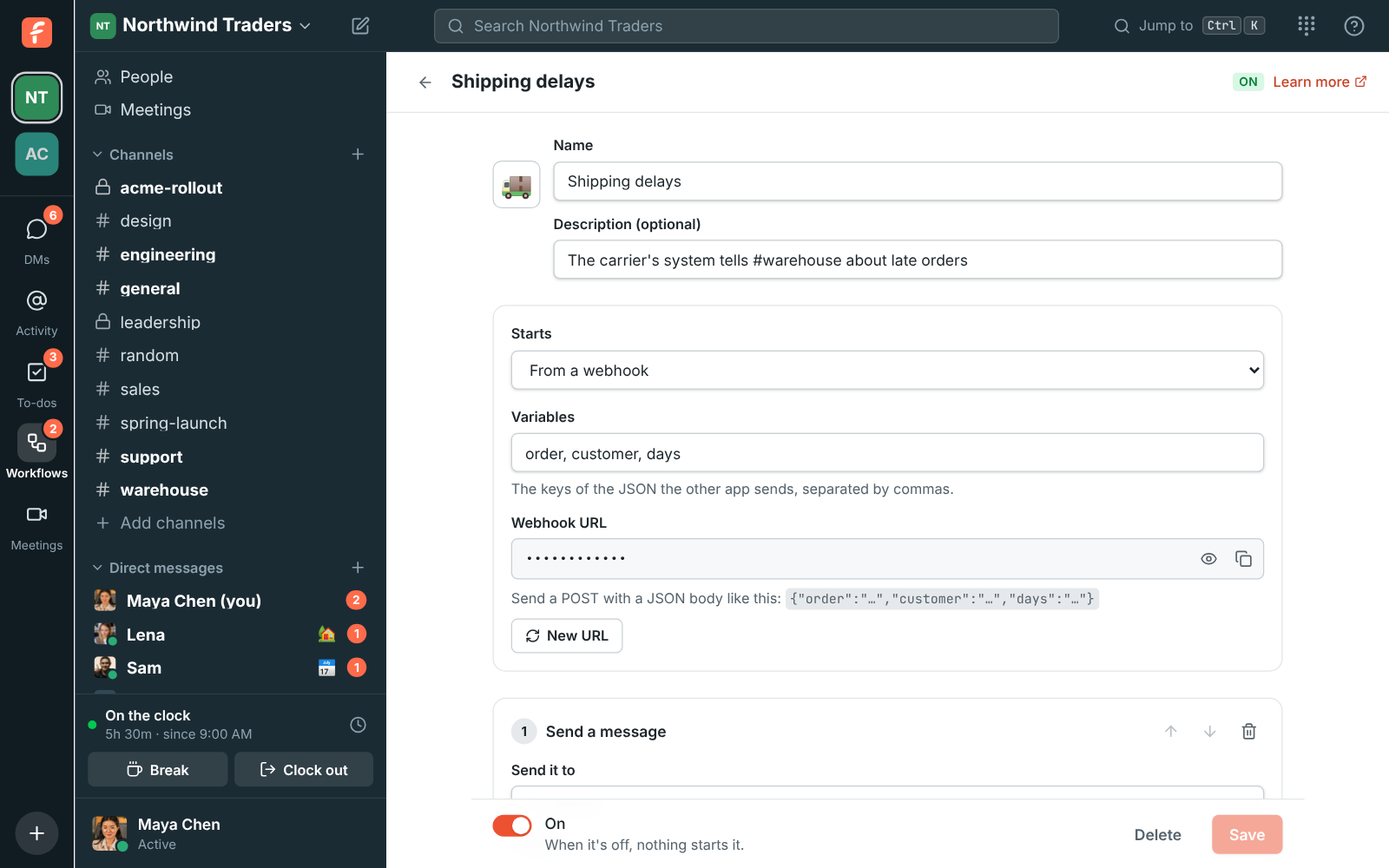
The other app sends a POST with a JSON body:
```sh
curl -X POST -H 'Content-Type: application/json' \
-d '{"order": "NW-10482", "customer": "Contoso", "days": 2}' \
https://api.freesbe.net/hooks/workflows/
```
Each variable becomes `{{webhook.order}}` and so on. Keys you didn't list are ignored. Freesbe
answers `{"ok": true}`. Zapier, Make, n8n and most other tools can send this from a "webhook" or
"HTTP request" action. Anyone with the URL can start the workflow, so keep it secret; **New URL**
makes a new one and the old one stops working.
To post into a channel without any steps, an [incoming webhook](https://freesbe.net/docs/api-and-webhooks/#incoming-webhooks)
is simpler.
## Runs
Each time a workflow starts is a run. The bottom of the builder lists the last 50, newest first.
Click one to see each step: what it sent, who filled in a form, and where it stopped.
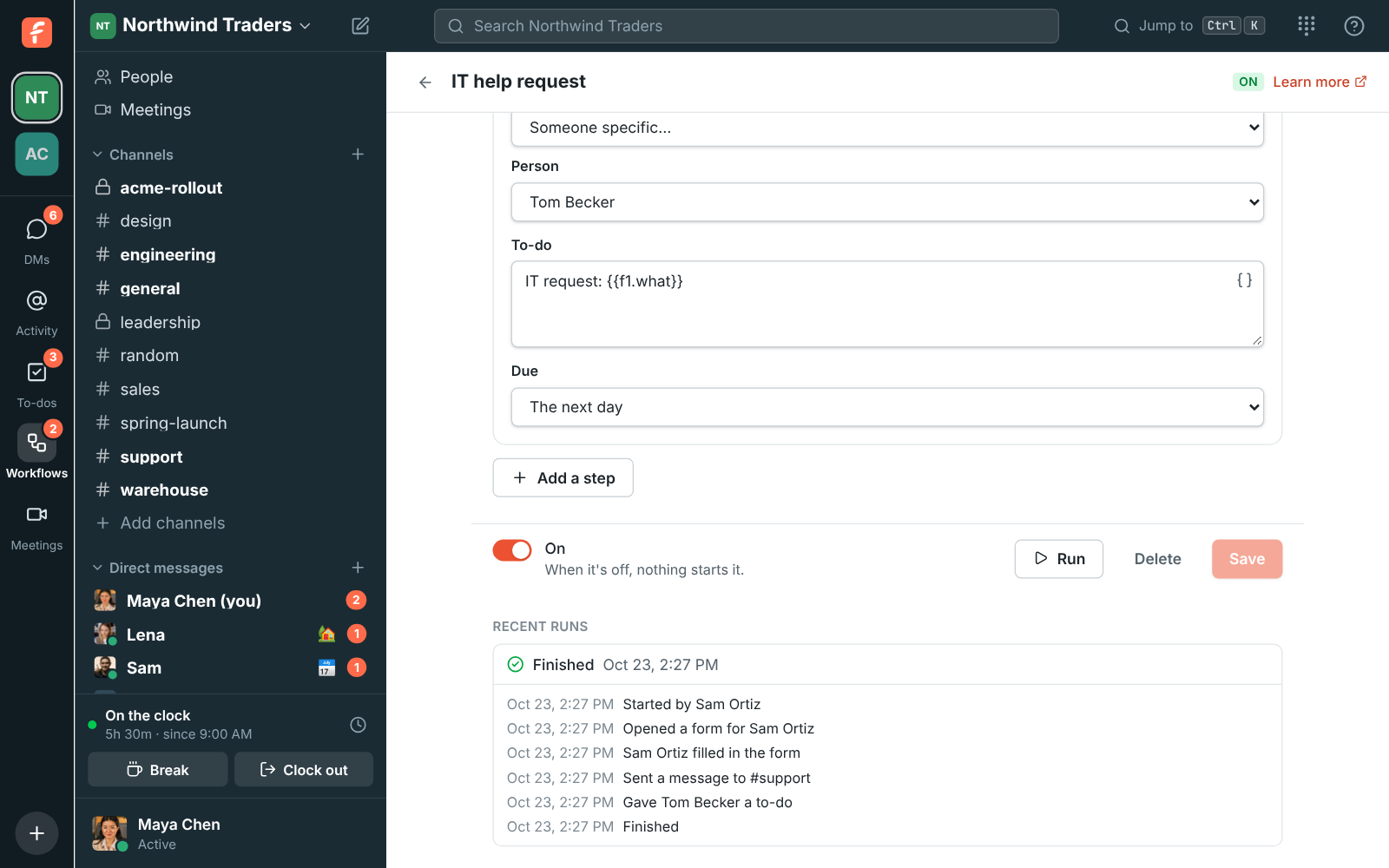
- A run that's **Waiting** is waiting for a form, an approval, a question or a **Wait** step. **Stop this run** ends it.
- A run that **Stopped with a problem** says why, for example that a channel was archived or a
person left the workspace. Fix the workflow, and the next run uses the new version. Runs already
going keep the steps they started with.
- A workflow can start at most 200 runs an hour, so a loop or a flood can't run away.
## Workflows in channels
When a workflow starts from a button, you can also show it in one channel. People in that channel
find it under the **Workflows** button at the top, and the run knows which channel it started in.
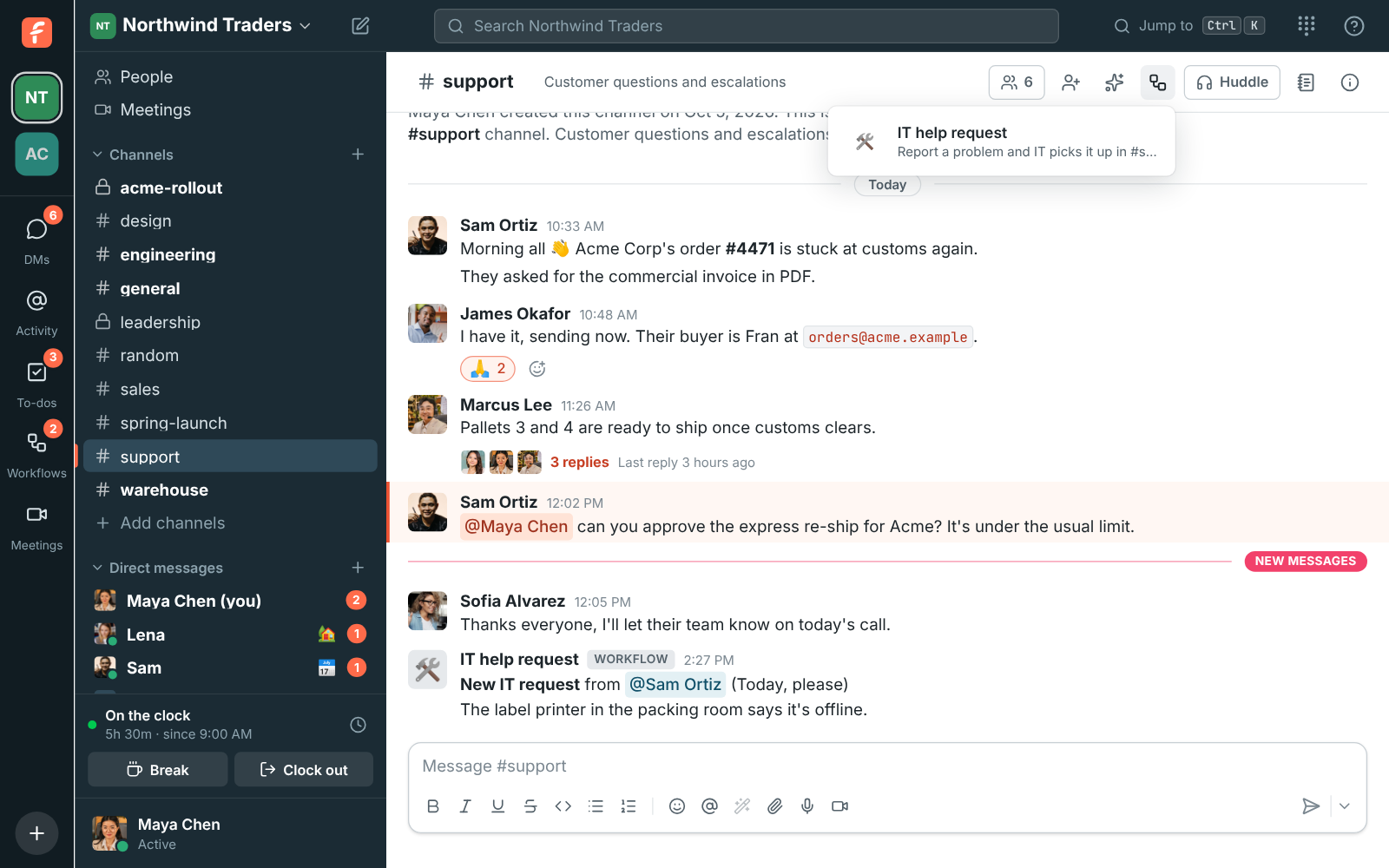
## Who can make workflows
- Members can make workflows, and change or delete their own.
- Admins can change, turn off or delete any workflow, and see every workflow's runs.
- Other people only see workflows that start from a button and are on, and only what starts them,
not their steps.
- Guests can't make or run workflows.
- A workflow can only use a private channel when the person who saves it is in that channel.
- Only admins can make a workflow that starts when **anyone** clocks in or out.
- **Set a status** only works on the person who started the workflow or someone it asked, never
someone picked by name.
To let only admins make workflows, an admin opens **Workspace settings → General → AI & workflows → Workflows**
and sets **Who can make workflows** to **Only admins**. Workflows members already made keep
working.
## Good to know
- Workflows run as themselves, not as the person who made them. If the maker leaves the
workspace, their workflows keep running; an admin can change or delete them.
- A workflow that posts in a private channel stops with a problem if its maker is no longer in that
channel.
---
# Punch clock
Source: https://freesbe.net/docs/punch-clock/
> Clock in, take breaks and clock out from Freesbe, fix your own timesheet, and how admins review hours, overtime and export CSV for payroll.
The punch clock is a simple time clock built into Freesbe. It records only when people clock in,
start and end breaks, and clock out, plus any notes they type. It never tracks activity, apps or
screens.
An admin turns it on and picks who it covers. See [For admins](#for-admins) below.
## Clocking in and out
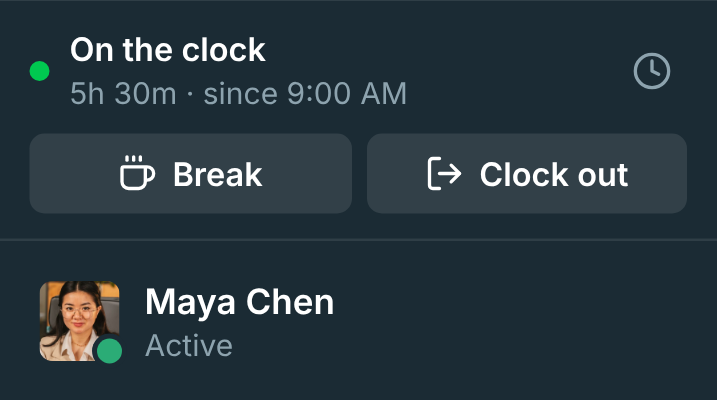
If the punch clock covers you, a clock card sits in the sidebar above your name:
- **Clock in** when you start work.
- **Break** when you step away, and **Back to work** when you return.
- **Clock out** when you're done.
The desktop app has the same buttons in its tray menu (**Clock In**, **Start Break**, **End
Break**, **Clock Out**), and the tray icon's tooltip shows whether you're on the clock.
## Your timesheet
Click the clock icon on the clock card to open **Your time**. It shows your week day by day. Use the
arrows to move between weeks. Only you and workspace admins can see it.
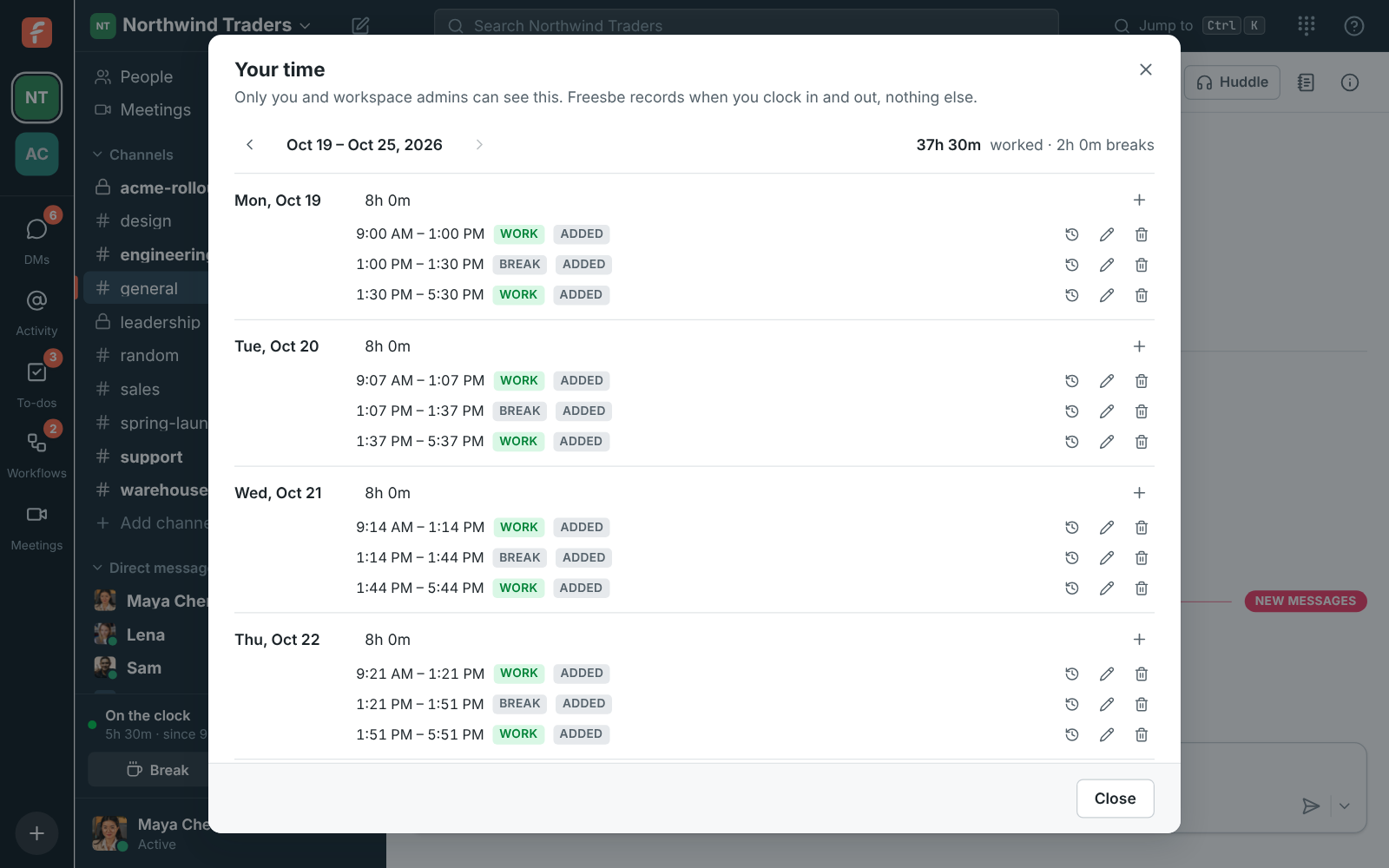
### Fix a mistake
Forgot to clock out, or clocked in twice? You can fix your own time:
- **Add time** on a day to add a shift or break you missed.
- **Change** an entry's start, end or note.
- **Delete** an entry that shouldn't be there.
Every change asks **Why**, such as "forgot to clock out". The reason, who made the change and what
changed are kept in the entry's **History**, and the entry is marked **Edited** (or **Added**), so
whoever reviews the timesheet can see it.
## How hours are counted
- Days are cut in each person's time zone, unless an admin sets one time zone for the workspace.
- A shift that runs past midnight counts toward the day it started.
- By default weeks start on Monday, breaks are unpaid, overtime starts after 8 hours a day or 40 a
week, and shifts longer than 12 hours are flagged as a likely **Missing clock-out?**.
## For admins
### Turn it on
1. Open the workspace menu → **Workspace settings → People → Punch clock**.
2. Turn on **Use the punch clock**.
3. Under **Who it covers**, choose **Everyone** or **People you pick**, and pick them.
Only the people covered see the clock.
### Settings
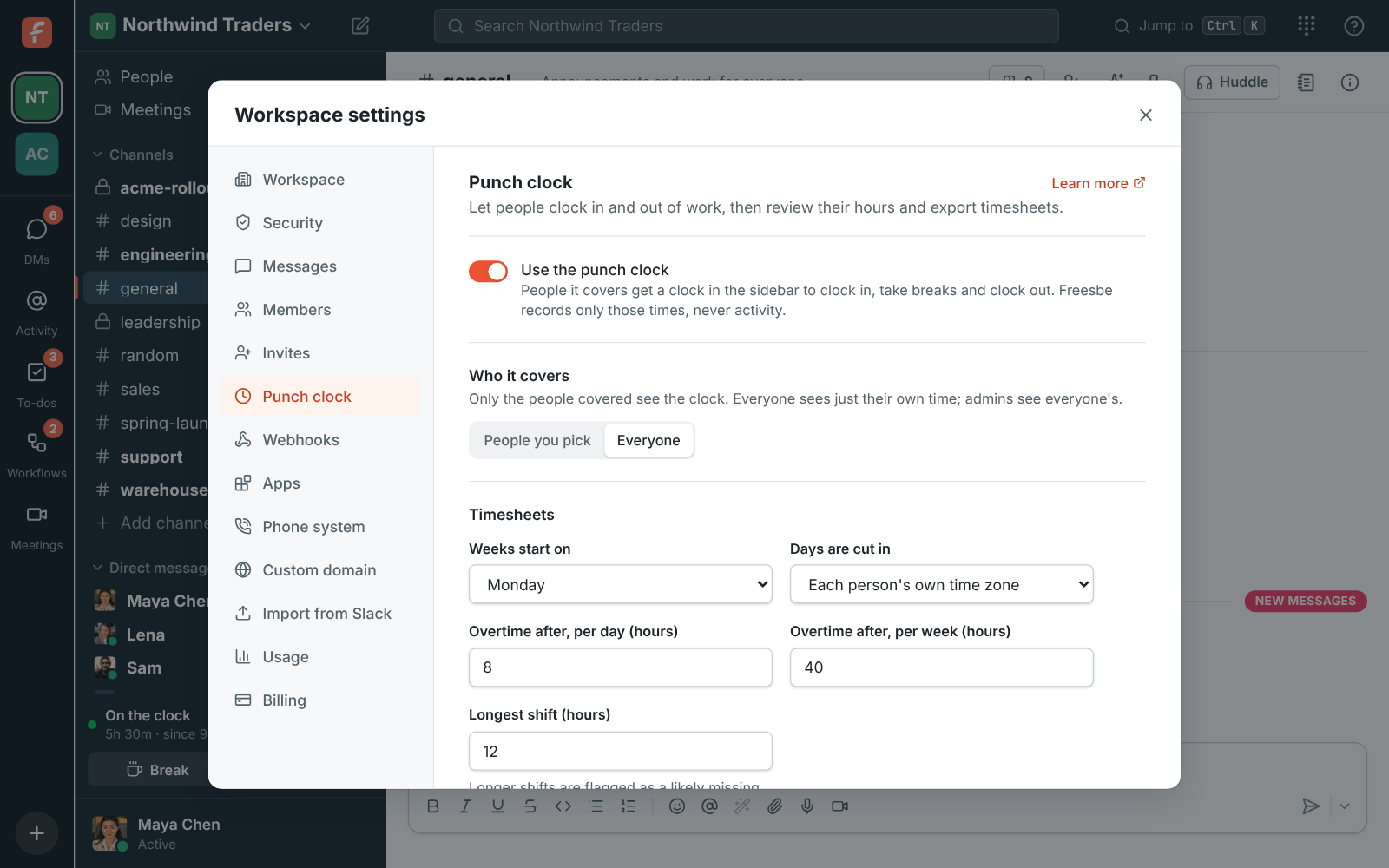
Under **Timesheets** you can change:
- **Weeks start on**: any day of the week.
- **Days are cut in**: each person's own time zone, or one time zone for everyone.
- **Overtime after, per day (hours)** and **per week (hours)**.
- **Longest shift (hours)**: longer shifts are flagged as a likely missing clock-out.
- **Breaks are paid**: paid breaks count toward hours worked and overtime.
### Review and export
The **Punch clock** settings page also shows who is **Working** or **On break** right now, and a
weekly table of everyone's hours with **On now**, **Overtime**, **Check** (a shift that's too long)
and **Edited** flags. Click a person to see and fix their week. Admins can change anyone's time;
every change needs a reason and is kept in the history.
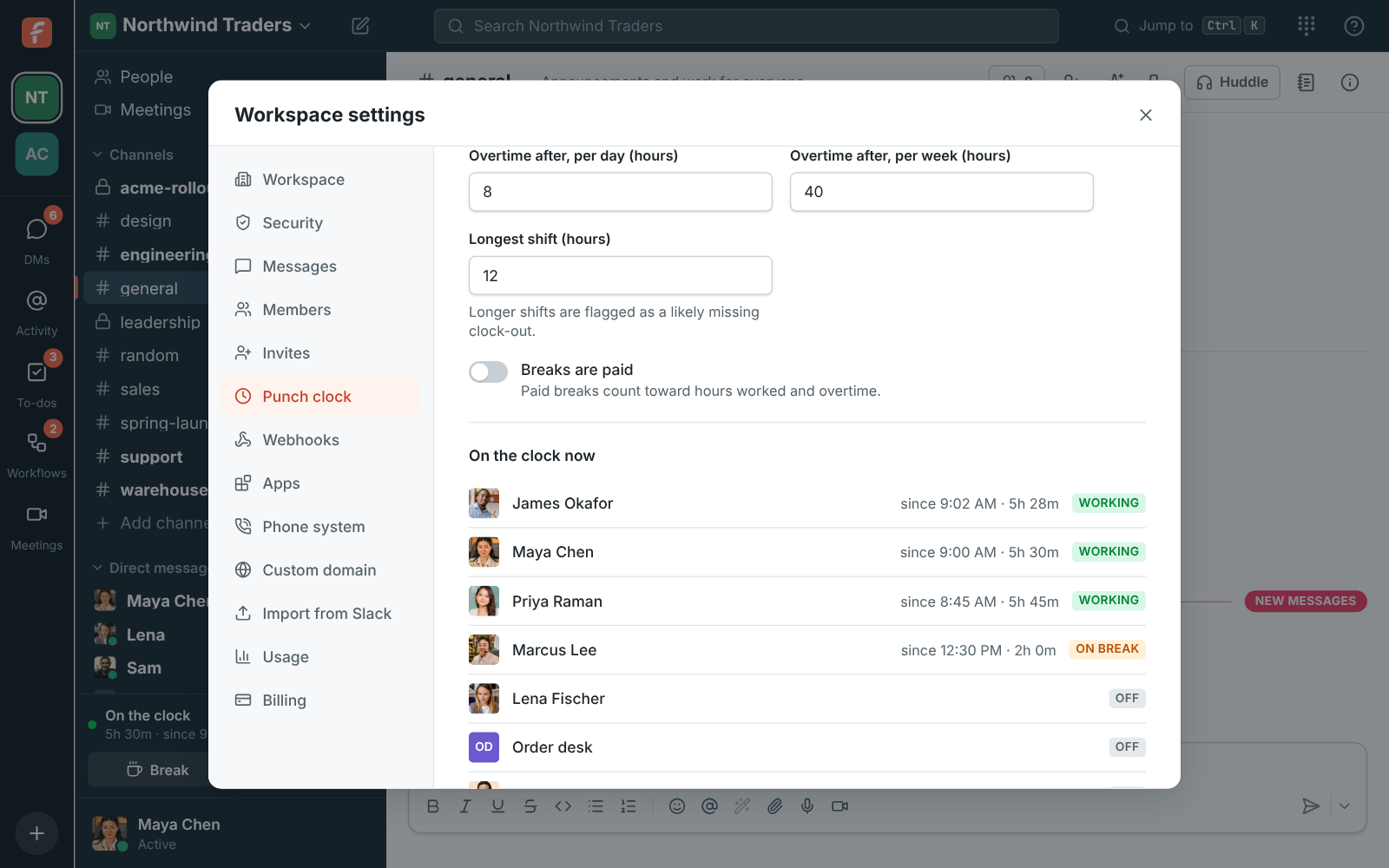
To export for payroll, use **Download CSV** under **Export**. Pick a date range and either
**One row per shift** or **One row per day**.
For totals over any dates, filtered by people and grouped by person, day or week, open
[Reports → Hours](https://freesbe.net/docs/reports/#hours) in the Admin Center.
Approvals, reminders and automatic clock-out aren't available yet.
---
# Phone
Source: https://freesbe.net/docs/phone/
> Make and take phone calls in Freesbe, get SIP credentials for your desk phone or softphone, use the phone in the top bar, and how admins turn on a phone system from Freesbe or connect a sip.io account.
Freesbe gives each person SIP credentials (a server, username and password) for a desk phone or a
softphone app. Your phone registers directly with your company's phone system, sip.io, so calls
don't go through Freesbe.
## Set up your phone
1. Open **Preferences → Calls & audio → Phone**.
2. Click **Set up my phone**. Freesbe shows your **SIP server**, **Username**
and **Password**. Click the eye icon to reveal the password, and copy each value.
3. On your desk phone or softphone, add a new SIP account and enter those three values.
4. Save it and wait for the phone to show as registered.
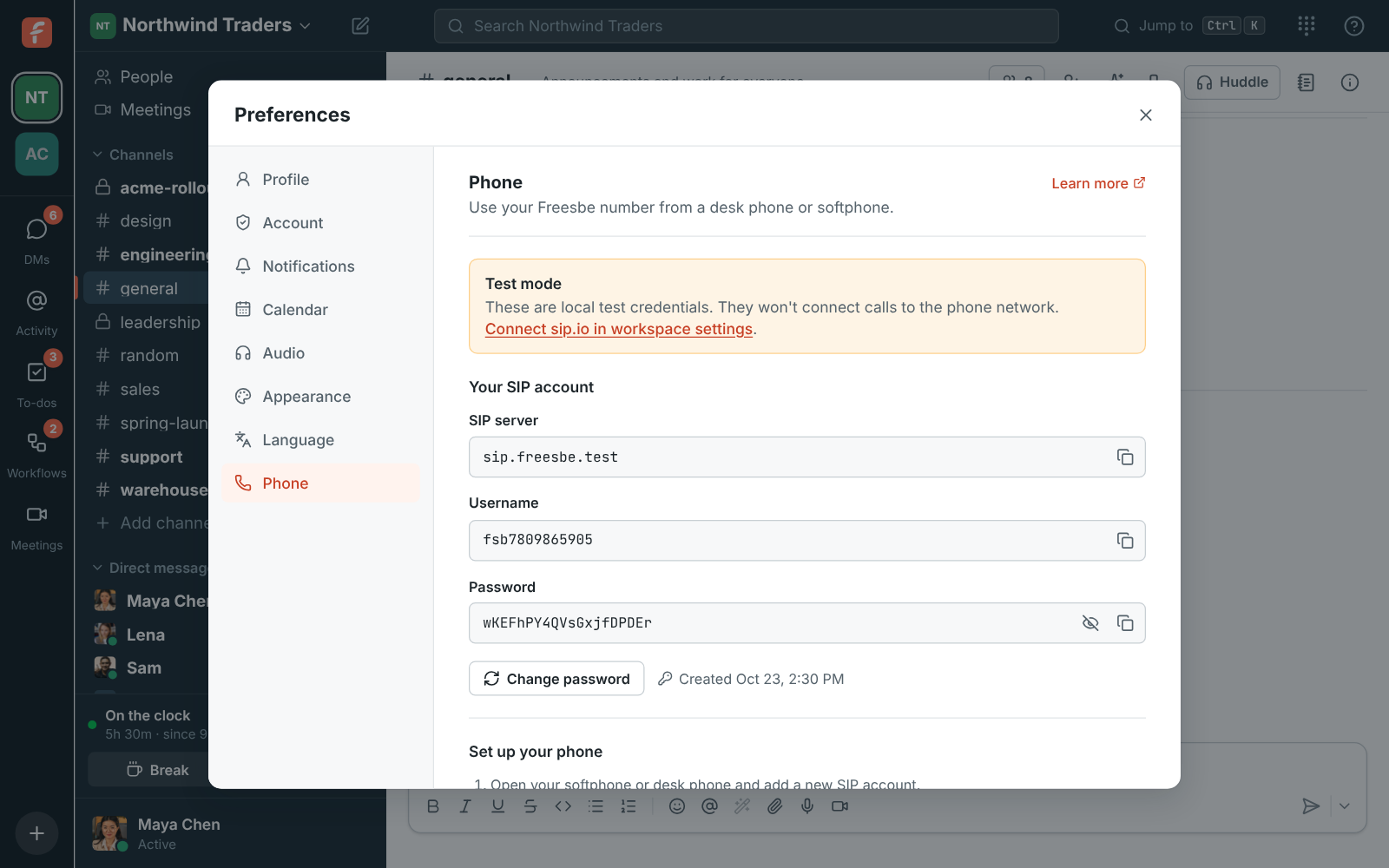
If **Test mode** shows at the top, your workspace hasn't connected its sip.io account yet. The
credentials are placeholders for trying the setup; ask your admin to connect sip.io before you
rely on them.
### Change your phone password
Click **Change password** in **Preferences → Calls & audio → Phone**. The new password works at once, and any phone
using the old one stops working until you enter the new one.
## The phone
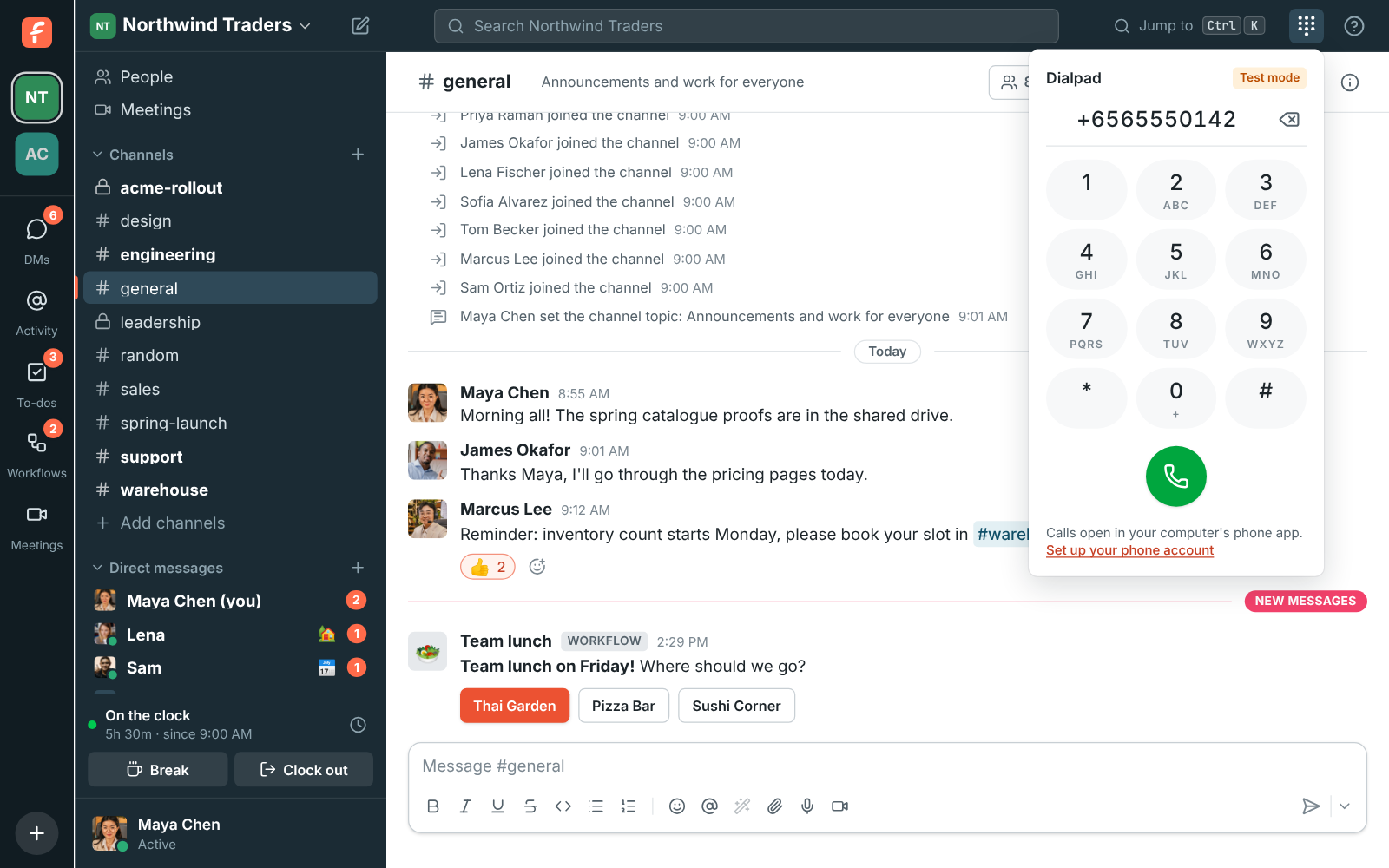
Click the phone button (a phone keypad) in the top bar to open the phone and dial a number. When
your workspace's phone system is from Freesbe, the call goes out from Freesbe itself (see
[Calls in Freesbe](#calls-in-freesbe)). Otherwise pressing call hands the number to your
computer's phone app (any app registered for `tel:` links, such as your softphone). The tabs at
the bottom switch between the **Keypad** and your **Recent** calls. With a phone system from
Freesbe there are two more: **People** and **Voicemail** (see [Your colleagues](#your-colleagues)
and [Voicemail](#voicemail)).
If you don't have a phone account yet, the phone links to **Set up your phone account**.
### Keep the phone open
The phone opens under the top bar and closes when you click elsewhere. If you're on the phone a
lot, keep it open:
- **Pin it to the side:** click the pin button at the top of the phone. It stays beside the
conversation, and chat keeps working next to it. Freesbe remembers this on each computer. Click
it again, or the phone button, to put it away.
- **Pop it out:** click the pop-out button. In the desktop app the phone gets a small window of
its own that stays on top of your other apps, where you put it. Make it short during a call and
it shrinks to one line with mute, hold and hang up. In Chrome and Edge it floats the same way;
other browsers open it in a small window. Your calls keep going if you close it; click the
button at its top to put the phone back in Freesbe.

## Calls in Freesbe
When your workspace has a [phone system from Freesbe](#for-admins-a-phone-system-from-freesbe),
you make and take phone calls right in Freesbe, in the browser or the desktop app, with no phone
or softphone to set up. Your browser asks once to use your microphone.
- **Taking a call:** when one of your numbers rings, a card shows who's calling, with
**Answer** and **Decline**, and your ringtone plays. If Freesbe is in the background, you also
get a notification. A call that comes in while you're already on one isn't put through, so it
goes on as if you didn't answer.
- **Making a call:** open the phone, type a number or a colleague's extension, and press call.
The call says **Calling…** until their phone starts to ring, then **Ringing…**.
Or click a phone number on someone's profile, or a phone link in a message: it calls from
Freesbe instead of opening another app. (Hold Ctrl or ⌘ while clicking to
hand it to your computer's phone app.)
- **During a call:** the phone shows the call, with **Mute**, **Hold**, **Keypad** (for menus that
say "press 1"), **Transfer** (see [Passing a call on](#passing-a-call-on)), **Add call** (see
[Two calls at once](#two-calls-at-once)) and **Hang up**. The top bar shows who you're
talking to and for how long, from anywhere in Freesbe: click it to open the call. The microphone and speakers are the ones you chose
in **Preferences → Calls & audio → Audio**.

### Passing a call on
Click **Transfer** during a call and type a colleague's name, an extension, a call queue or a
phone number. Each match has two buttons:
- **Transfer:** the caller waits on hold while their phone rings, and goes to them when they
answer. Your side of the call ends then. If nobody answers, the caller stays with you. Changed
your mind while it rings? **Cancel** stops it and keeps the caller with you.
- **Talk first:** you talk to them while the caller waits on hold, to say who's calling and why.
Then choose **Complete** to hand the caller over and leave, **Merge** to bring the caller in
for a 3-way call (the phone lists both people; hang up to leave the two of them talking), or
**Go back** to hang up on them and go back to the caller.
A call queue always takes the call straight away: its next free agent answers it. Some calls
can't be passed on yet, such as one that's already a 3-way call; the phone says so.


### Two calls at once
Click **Add call** during a call to call someone else: type a colleague's name, an extension or
a number. The first call waits on hold at the top of the phone; click it to switch to it, which
puts the other one on hold. Switch as often as you like. With two calls up, the phone offers:
- **Transfer:** connects the two people to each other, and you leave.
- **Merge:** a 3-way call, where all three of you hear each other. Each person has their own hang
up button, to drop just them. **Transfer** leaves the two of them talking; hanging up ends the
call for both.


### Your colleagues
The phone's **People** tab lists your colleagues who have a phone, with their extension and
whether they're around. Type a name or an extension to find someone, and click the phone next to
them to call.

### Your calls
The phone's **Recent** tab lists your calls from the last 30 days, newest first. Missed calls
are in red, and each call shows when it was and how long you talked. Click the phone next to a
number to call it back, and **Show older calls** for more. Calls with colleagues show their name.
Click **Missed** at the top to see only the calls you missed, and **All** to see everything again.

### Voicemail
When you don't answer, callers can leave you a voicemail. The phone's **Voicemail** tab lists
yours, newest first, with a count of the ones you haven't played on the tab. Play one right there
(that marks it heard), call the person back, or delete it.

Each voicemail also comes to you in Freesbe as a message
from **Phone** in your own DM, **Voicemail from (415) 555-0142 (0:42)**, with the recording to
play right there. Under it is what the caller said, written out, so you can read it without
playing it. You get a notification like for any message, and the recording stays with your files.
Voicemails are written out by the same speech to text as meeting transcripts. When an admin turns
transcripts off in **Workspace settings → Calls & meetings → Recordings**, voicemails come with the recording
only.

### Queue calls
When you're in a [call queue](#call-queues), the top bar shows whether you take the queue's calls
right now, next to the dialpad button:
- **Taking calls** (green): calls from your queues ring you. You're signed in to a queue when an
admin adds you to it.
- **A break** (amber): click the pill and pick the reason, like **Lunch** or **Training**, or
**Break, no reason**. Queue calls stop until you click **I'm back**. The pill shows the reason
and how long you've been away.
- **Signed out** (gray): click the pill, then **Sign out of queues**, for example at the end of your
day. Pick **Take queue calls** to come back.
Calls straight to your number keep ringing you either way. When an admin gave a break reason a
time limit, it shows next to the reason, and Freesbe tells you when your break runs over: a
notification on your computer, and the pill turns red until you're back. The pill also turns red
when you're taking calls but your Freesbe phone isn't open anywhere, so queue calls can't reach
you.


### Where you work from (911)
If you call 911 from Freesbe, emergency services are sent to the address you work from. Pick it
in **Preferences → Calls & audio → Phone → Working from**: one of your workspace's offices, or
**Add a place, like home** for an address only you see. Change it when you work somewhere else,
because Freesbe's phone goes wherever your computer goes. Until you pick one, your calls use the
workspace's default address.

### One window at a time
Calls ring in one Freesbe window at a time: the last one you opened. With several tabs open in
the same browser, the first one rings, and another takes over when you close it. If you open
Freesbe on another computer, calls ring there instead, and the phone here says **Calls ring in
another Freesbe window** with **Ring here** to bring them back. Your desk phone or softphone, if
you set one up, keeps ringing as well.
## For admins: a phone system from Freesbe
Instead of bringing your own phone provider, you can get phone numbers and calling straight from
Freesbe. There's nothing to sign up for elsewhere: people's phone accounts are made for them.
Admins set it up in the [Admin Center](https://freesbe.net/docs/admin-center/), under **Phone**: the phone system,
numbers, business hours, 911 and texts. In the app, those tabs of Workspace settings show **Open
in the Admin Center**.

1. Open the [Admin Center](https://freesbe.net/docs/admin-center/), then **Phone → Phone system**.
2. Under **Phone system from Freesbe**, pick the **Country** (the United States or Canada for now)
and click **Turn on phone system**.

3. Open the **Numbers** tab and click **Buy a number**. The first time, you'll verify your identity, which phone regulations
require (see [identity verification for phone numbers](https://freesbe.net/docs/phone-number-verification/)). Numbers for sale show right away. Change the **Country**, choose
**Local** or **Toll-free**, or type an **Area code** (like `415`) to narrow them down. **Show
other numbers** brings up a fresh set.
4. Pick a number, choose **Who should it ring?**, and click **Get** with the number on it.
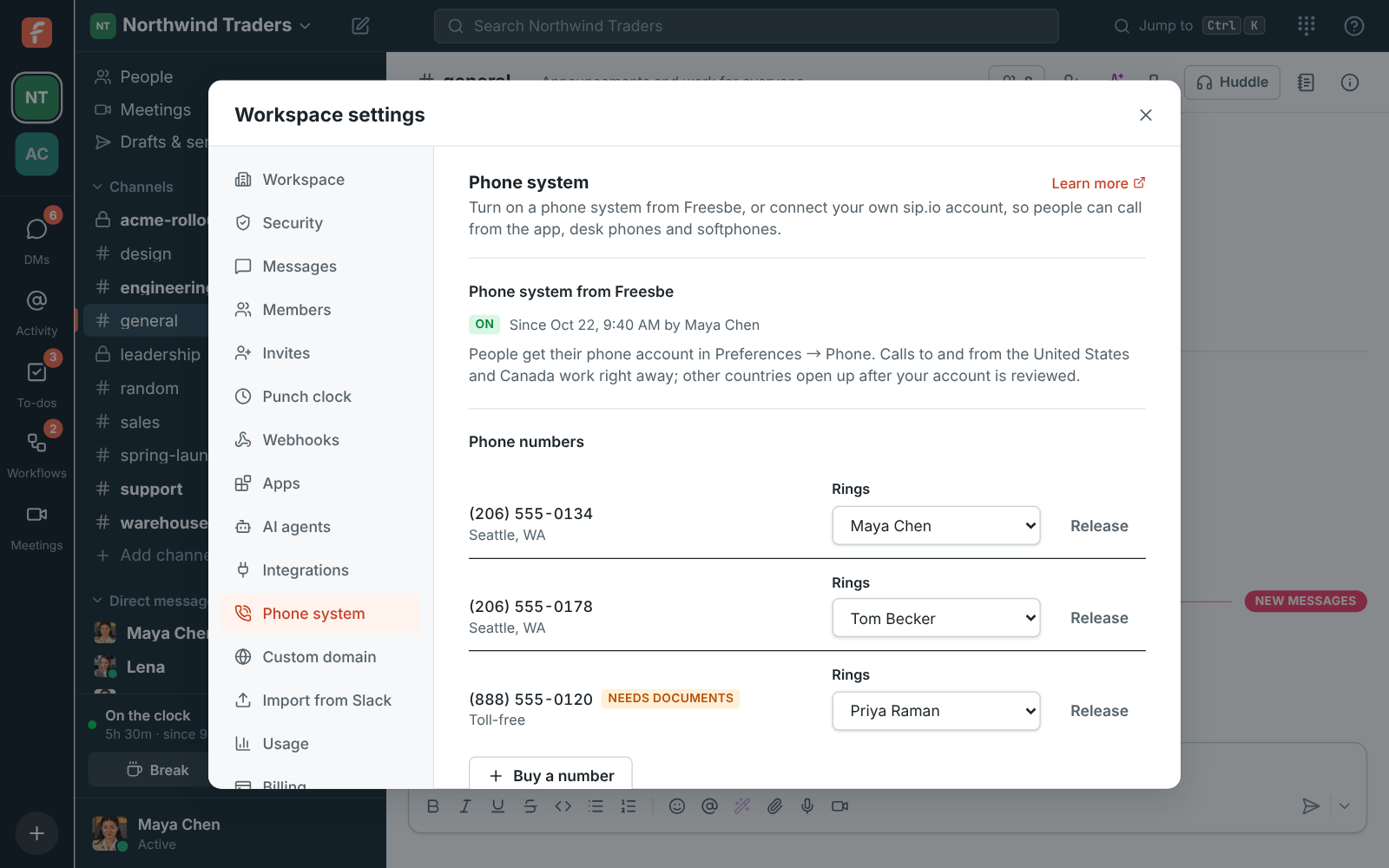
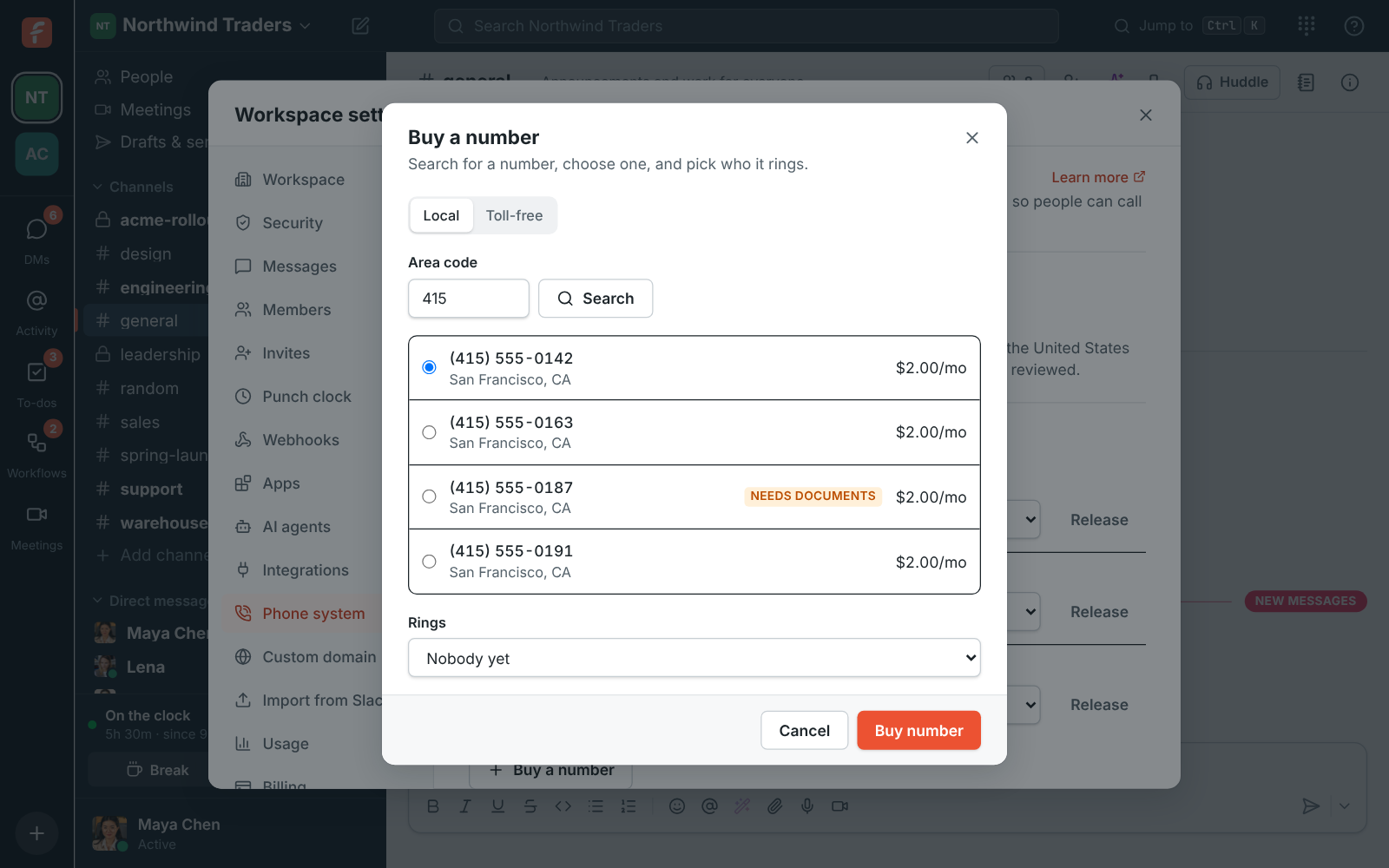
One local number comes with each person on the **Phone system** add-on, so while the workspace has
some left, local numbers show **Included** instead of a price. Past that, and for toll-free
numbers, each number shows its monthly price before you buy it. Some numbers need documents before the
carrier turns them on; they're marked **Needs documents** and stay that way in the list until
they're approved. To send a number's calls to someone else, change **Rings** next to it. The first
time a number rings someone, Freesbe makes their phone account, which they find in
**Preferences → Calls & audio → Phone**.
A number can ring up to 20 people at once, like a sales or support line: choose the first person
in **Rings**, then **Also ring** to add more. Everyone's phone rings together and the first to
answer takes the call. The **×** next to a name stops ringing them; down to one person, it's back
to the **Rings** list.
### Phone menus
A phone menu answers a number with a greeting, then lets callers press a key to reach the right
people: "For orders, press 1. For deliveries, press 2." It's also called an IVR or auto attendant.
Phone menus are built in the [Admin Center](https://freesbe.net/docs/admin-center/), where there's room for the
greeting and every key.
1. Open the [Admin Center](https://freesbe.net/docs/admin-center/), then **Phone → Phone menus**, and click **Add a
menu**. Give it a **Name**.
2. Set the **Greeting**:
- **Type it** and pick a **Voice** to have it read out. **Listen** plays it for you first.
- **Record it**: click **Start recording**, say the greeting into your microphone, and click
**Stop**. Play it back below, or record it again.
- **Upload a file**: an MP3, M4A or WAV file.
- **None** skips straight to waiting for a key.
Recordings and files can be up to 5 minutes. New greetings count toward a
[daily limit](https://freesbe.net/docs/usage-limits/#phone-greetings).
3. Under **Keys**, choose what each key does. **Ring people** rings one person or several at once,
**Voicemail** takes a message for someone, **Another menu** plays a second menu (like a
Deliveries menu under key 2), **Call queue** puts the caller on hold in a
[call queue](#call-queues), and **Hang up** ends the call. **Add a key** adds up to 12: the
digits, **\*** and **#**.
4. Under **If nobody presses a key**, choose how long to **Wait for a key**. The greeting plays
twice, then the call goes where you choose.
5. Click **Try it** to hear the menu as a caller would, then **Save menu**.
### Try a menu
**Try it**, next to a menu in the list or at the bottom of the editor, calls the menu without
a phone. The greeting plays, and the keypad presses keys as a caller would: you see each step
and where the call ends up, like **The call rings Priya Raman.** Nobody's phone rings. It works
like a real call: when nobody presses a key, the greeting plays a second time before the call
goes where **If nobody presses a key** says, and so does a third key that isn't a choice.
**Start over** calls again, and **Sound off** follows the steps without playing the greeting.


Then point a number at the menu: in **Phone → Numbers**, in the Admin Center or in the app's
Workspace settings, change **Answers with** next to the number from **Ringing people** to the
menu. Callers to that number hear the menu from then on, and **Voicemail after hours** doesn't
apply to it. To go back, choose **Ringing people** and pick who it rings. A menu can't be deleted
while a number answers with it or another menu sends calls to it.

### Call queues
A call queue holds callers on the line until someone is free, instead of ringing out or going to
voicemail when everyone's busy: callers hear a greeting, then hold music and their place in line.
It's for a sales or support line that gets more calls than people. Call queues come with the
**Call center** add-on and are set up in the [Admin Center](https://freesbe.net/docs/admin-center/).
1. Open the [Admin Center](https://freesbe.net/docs/admin-center/), then **Phone → Call queues**, and click **Add a
queue**. Give it a **Name**.
2. Under **Who takes its calls**, **Add someone** for each person who answers. They're signed in
to the queue when you save it, and its calls ring their Freesbe phone.
3. Under **Who gets the next call**, choose how calls are shared out:
- **Whoever's been free longest** spreads calls evenly.
- **Everyone at once** rings every free person, and the first to answer takes the call.
- **Take turns** goes round the list.
- **In order, from the top** rings the first free person in the list. Use the arrows to put
the main people at the top.
- **Whoever took the fewest calls** and **Anyone, at random** do what they say.
**Ring each phone for** is how long one person's phone rings before the call tries the next,
and **Time for notes after a call** gives people a moment before their next queue call.
4. Set the **Greeting** callers hear when they join, typed, recorded or uploaded like a
[menu's](#phone-menus), or **None**.
5. Under **Hold music**, keep **Standard music** or upload your own file.
6. **Tell callers their place in line** announces it every 30 seconds to 5 minutes, when it
changes.
7. Under **If the wait runs long**, choose the **Longest wait** and the **Most callers waiting**.
Past either, callers go where **Then** says: voicemail, other people, a menu, another queue, or
hanging up.
8. Under **If nobody is signed in**, choose where calls go straight away when no one in the queue
can take them. Click **Save queue**.


Then send calls to the queue: choose it under **Answers with** next to a number in
**Phone → Numbers**, or pick **Call queue** for a key in a [phone menu](#phone-menus). A queue
can't be deleted while a number, a menu or another queue sends calls to it.
### Breaks
People in a queue take a break or sign out from the status pill in their top bar (see
[Queue calls](#queue-calls)). Under **Break reasons** on the **Call queues** page, add the reasons
they pick from, like Lunch, Training or Meeting. Click **Add a break reason**, type its **Name**,
choose a **Time limit** if the break shouldn't run longer than that, pick a color, and click
**Save**. When a break runs over its limit, Freesbe tells the person and their pill turns red.
People can take a break without a reason too.

### Call center board
The **Call center** page in the app shows your queues as they happen: callers waiting and for how
long, each queue's numbers for today, and what everyone in a queue is doing, whether that's taking
calls, on a call, wrapping up, on a break, or signed out. It comes with the **Call center** add-on.
Admins see it, and so do the **Supervisors** they choose.
To choose supervisors, open the [Admin Center](https://freesbe.net/docs/admin-center/), then **Phone → Call
queues**, and under **Supervisors** pick each person from **Add a supervisor**. Take someone off
with the **×** next to their name.

Admins and supervisors open it from **Call center** in the bar on the far left.
- **Callers waiting** lists everyone on hold, longest wait first, with their queue and place in
line. A wait past two minutes turns red.
- Each queue's card shows how many are waiting, the longest wait, how many calls today were
answered in time, and who's free, on calls or on a break. **Nobody free** means callers are
waiting and nobody can answer; **Long waits** means waits are running long.
- **People** shows each person's status and how long they've been in it. A break past its
reason's [time limit](#breaks) turns red.
- With more than one queue, pick one at the top to see only its callers and people.

To nudge someone, click **Nudge** next to them, pick or type a message, and choose whether it
comes **From me** or **From the Call center bot**. They get it as a direct message, with a
notification.

For a TV on the wall, click **Wall mode**: the board fills the screen in large type, and keeps up
on its own. Click **Leave wall mode** or press Esc to go back.
For numbers over days or weeks, such as calls answered, waits and each person's breaks, see
[Reports → Call center](https://freesbe.net/docs/reports/#call-center) in the Admin Center.

### Call log
Every call on your phone system is listed in the [Admin Center](https://freesbe.net/docs/admin-center/) under
**Phone → Call log**, newest first: calls in from outside, calls out, and calls between
colleagues. Each line says when the call started, who called (a colleague, the caller ID or the
number), the number or person it rang, **who answered**, and how long they talked. Missed calls are
marked in red.
- **Search:** type any number, or part of one (three digits or more), to find calls from or to it
on either end, or a colleague's or caller's name.
- **Dates:** pick a range on the calendar, or this week, last week, this month or last month, up
to 90 days at a time. Calls are kept for 90 days.
- **Direction:** calls in, calls out or calls between colleagues, each with its own icon.
- **Result:** only answered calls, or only missed ones. **Length** keeps calls over 1, 5 or 10
minutes.
- **People:** only the calls those people made, took or were rung for. **Clear filters** starts
over.
- **Show older** loads more, and **Download CSV** saves every call the filters show, up to the
newest 5,000, with times in UTC and talk time in seconds.

#### Play a recorded call
A call that was recorded has a **play** button. It opens a player under the call: play, pause,
jump anywhere, play faster (1.5× or 2×) or download the recording. **Transcript** opens what was
said, line by line, with a summary of the call, the caller's mood, the key points and what to do
next. Click a line to hear it, or search the transcript for a word.
A recording without a transcript yet has **Make a transcript**, which writes one and the summary in
a minute or so. It needs transcripts turned on under **Phone → Call recording**, where you also
choose which calls are recorded and how long recordings are kept.


Calls show up a few minutes after they end. Each person still sees their own calls in the phone's
**Calls** tab (see [Your calls](#your-calls)). For totals per queue and per person, see
[Reports → Call center](https://freesbe.net/docs/reports/#call-center).

### Business hours
Under the numbers, **Business hours** sets when your phones are answered: the time zone, the
hours for each day of the week, and **Closed days** like holidays, when nobody answers all day.
Then turn on **Voicemail after hours** next to a number. During business hours it rings as usual.
The rest of the time, and on closed days, callers go straight to voicemail: the voicemail of the
first person the number rings, which comes to them in Freesbe like any other
[voicemail](#voicemail). Numbers with it off ring at any hour.

**Release** gives a number back to the carrier. Calls and texts to it stop, and you may not get
the same number again.
The phone system comes with the **Phone system** add-on, which includes one local number for each
person. Local numbers past those are billed as the **Phone number** add-on, and every toll-free
number as the **Toll-free number** add-on, counted when you buy or release one; a number being
released isn't billed.
A new phone system can call the United States and Canada right away. Other countries open up once
your account has been reviewed.
### Texts to your numbers
The **Messaging** tab brings texts customers send to your numbers into a channel, one thread per
customer, and your team's replies go back as texts. Your WhatsApp Business number can go there
too, with replies on WhatsApp. Each number starts in test mode. See
[texts to your Freesbe numbers](https://freesbe.net/docs/customer-inbox/#texts-to-your-freesbe-numbers) and
[WhatsApp](https://freesbe.net/docs/customer-inbox/#whatsapp).
### Emergency calling (E911)
Under the numbers, **Emergency calling (E911)** keeps the addresses emergency services are sent to
when someone calls 911: add your offices, with the street number and suite or floor. The first one
is the **Default address**, used for everyone who hasn't picked a place; with more than one, you
can pick another default. Each address shows whether the carrier **Confirmed** it, or that it
**Needs fixing**. An address people work from, or the default, can't be removed until they pick
another.
**When someone calls 911, tell** picks who hears about it right away, as US law asks: a channel
like #front-desk, or every admin in a message from **Phone**. The message says who called, from
which address, and the number to call them back on.
Emergency addresses can be in the United States and Canada. Addresses are saved now and sent to
the carrier as soon as emergency registration turns on; until then they show as **Saved**.

### Click-to-call from your CRM
A Call button in your CRM, help desk or your own app can call through Freesbe. The person's
Freesbe phone rings first, in the app on their computer or phone; once they answer, Freesbe dials
the customer from your workspace's number, so the call shows up in their calls like any other.
- **From the other system's server:** make an [app](https://freesbe.net/docs/apps/) with the **phone:call**
permission and send `POST /api/workspaces/{w}/phone/calls` with its token, the number in `to`,
and whose phone rings in `userId` or `email`.
- **As a person:** an [AI agent](https://freesbe.net/docs/ai-agents/) you connect with the **phone:call** permission
can call for you with its **call_phone_number** tool. It never gets that permission unless it
asks for it.
- **How it went:** the `phone.call_ended` event says whether the customer answered and how long
you talked, with the `leadId` and `vars` the call was started with, so the CRM can log it. Apps
with **phone:call** and [outgoing webhooks](https://freesbe.net/docs/api-and-webhooks/#outgoing-webhooks) can subscribe to it.
The person has to be signed in to Freesbe's phone somewhere; if not, or if they're on another
call, the call isn't started and the answer says why. The details are in the
[API reference](https://freesbe.net/docs/api/#ref-phone).
### Turning the phone system off
**Turn off phone system** stops calls, texts and everyone's phone logins right away. Your numbers
aren't released yet: they're kept for 30 days. Click **Turn phone system back on** before then and
everything comes back as it was: numbers, who they ring and people's phones.
While it's off, the **Phone system** add-on (and **Call center**, if you have it) isn't charged
from your next renewal; what's already paid isn't refunded (see
[Adding and removing](https://freesbe.net/docs/billing/#adding-and-removing)). The numbers you keep are still billed,
and none are included, so each local number counts as a **Phone number** add-on. Turning it back
on before the renewal costs nothing extra; after it, the add-on is charged again for the rest of
the period.

Admins get an email when it turns off, nine days before the numbers are released and again two
days before. On the release date the numbers go back to the carrier, and you may not get them
again. To keep a number with another provider, contact
[support@freesbe.net](mailto:support@freesbe.net) to port it out before then.
When the numbers are released, the Phone system add-on ends with them, so there's nothing to remove
on the **Billing** page.
### When the Phone system add-on ends
You can remove the **Phone system** add-on on the **Billing** page while you still have numbers.
Freesbe tells you first what happens to them, and nothing is released by surprise:

- Until the end of the period you've paid for, the phone system keeps working. **Phone system**
shows the date it ends, with **Open Billing** to keep the add-on.
- On that date the phone system turns off, like turning it off yourself, and admins get an email.
The numbers are kept for 30 days, billed as usual with none included, then released.
- Add the **Phone system** add-on again before then and the phone system comes back on by itself,
as it was.

The same happens when you cancel and the workspace moves to Free, which has no phone system: the
**Move to Free** button says so first. On Free there's no bill, so the 30 days cost nothing. To
keep a number with another provider, contact [support@freesbe.net](mailto:support@freesbe.net) to
port it out before the release date.
A plan that doesn't come with the phone system can't be chosen while the workspace has one. Turn
the phone system off and let its numbers go first, or stay on your plan.
**Deactivating someone** lowers the number of local numbers that come included. If the workspace
then has more local numbers than people, Freesbe says what the extra numbers add a month before
you confirm. See [Who counts as a person](https://freesbe.net/docs/billing/#who-counts-as-a-person).
### If a payment is overdue
- **After 7 days**, outgoing calls and texts pause. Incoming calls still ring, so customers can
still reach you.
- **After 14 days**, the phone system turns off, and the 30 days before the numbers are released
start.
- **Once you pay**, everything turns back on by itself.
If you don't see **Phone system from Freesbe**, your workspace doesn't have the Phone system
add-on, or it isn't offered on your server yet. A workspace
uses either Freesbe's phone system or its own sip.io account, not both: disconnect sip.io before
turning Freesbe's on.
## For admins: connect sip.io
1. Open the [Admin Center](https://freesbe.net/docs/admin-center/), then **Phone → Phone system**.
2. Enter the sip.io **API address** (like `https://example.sip.io/api`), your **Account ID** and
your **API key**. The key is stored encrypted and never shown again.
3. Click **Connect sip.io**.
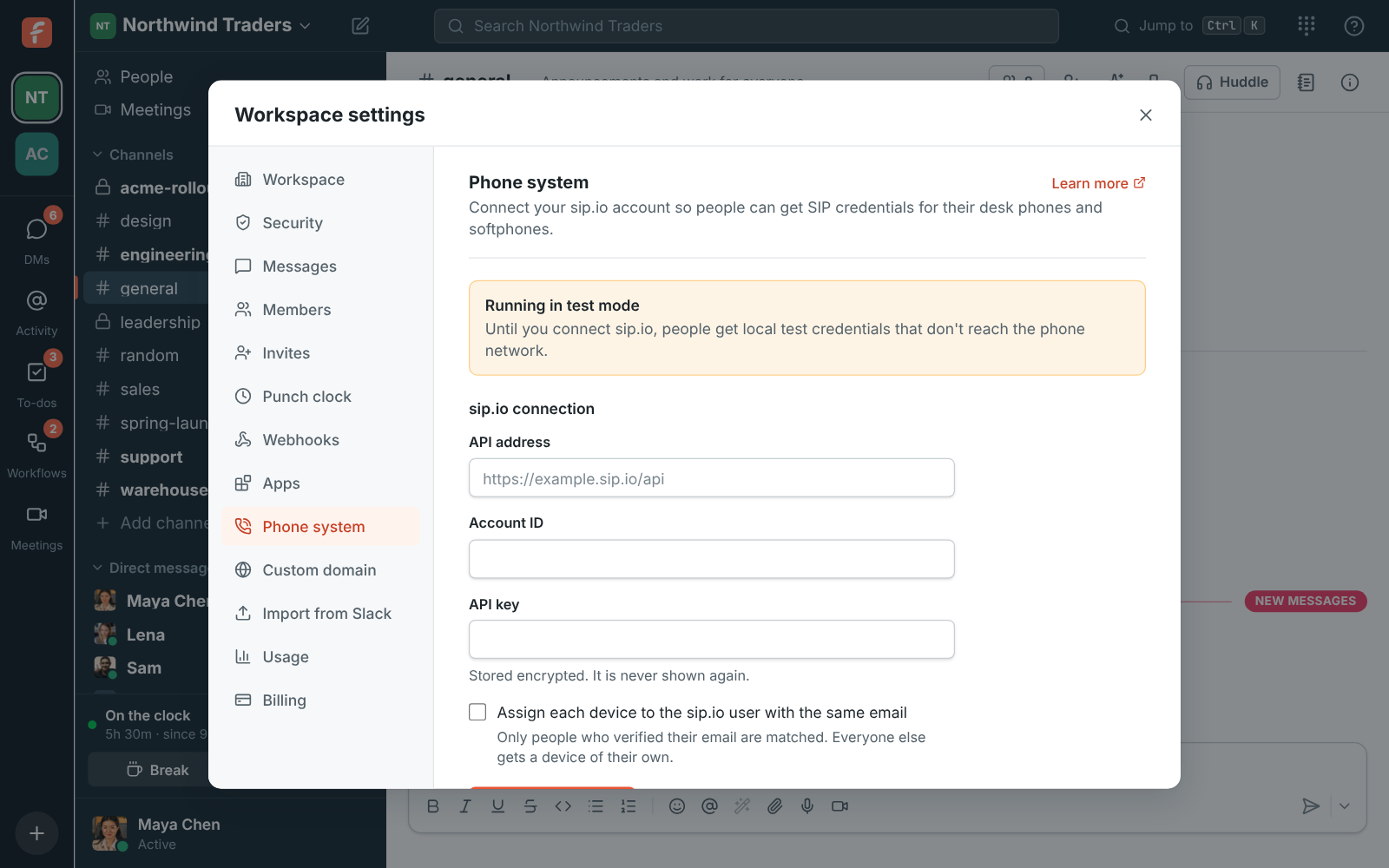
From then on, Freesbe creates one sip.io device for each person who sets up their phone. Passwords
are read from sip.io when someone asks to see theirs; Freesbe never stores them.
**Assign each device to the sip.io user with the same email** links each device to the matching
PBX user (and extension). Only addresses people have verified are matched, but only tick it if you
trust that every account's email belongs to that person.
When someone leaves the workspace, their device is turned off and its password scrambled.
**Disconnect** turns off every device Freesbe made on sip.io and scrambles their passwords, so
nobody keeps a working line by accident; new phone accounts go back to test credentials.
Connecting a different sip.io account does the same to the old account's devices. Connecting the
same account again with a new key keeps everyone's devices.
If your workspace doesn't use phones, the Phone section says **Phone calling is off**.
---
# Identity verification for phone numbers
Source: https://freesbe.net/docs/phone-number-verification/
> Why Freesbe verifies who you are before your workspace gets phone numbers, what it asks for, and how your information is used.
Before your workspace gets its first phone number, Freesbe asks the admin buying it to verify
their identity. This applies to every number, local and toll-free, in every country, including
the United States and Canada.
## Why we verify
Phone numbers can reach anyone, which also makes them a tool for fraud: robocalls, spoofed caller
ID, spam texts and scams. Telecom regulators and carriers require the companies that hand out
numbers to know who their customers are, and to be able to show it.
- **Know your customer.** Regulators such as the FCC in the United States and the CRTC in Canada
expect phone providers to check who they give numbers to, and to stop service that's used for
illegal calls.
- **Caller ID you can trust.** Calls from your numbers are signed under STIR/SHAKEN, the system
that tells the person you call that the number really is yours. Carriers only give calls the
best rating when the provider has verified the customer behind the number.
- **Texting rules.** Carriers only deliver business texts from senders they can identify. Unverified
senders get filtered or blocked.
- **Protecting you.** Verification keeps your numbers from being taken over, ported away or used by
someone pretending to be your business.
### The rules that apply
- **United States.** The FCC requires voice providers to take effective steps to know their
customers, so they don't originate illegal robocalls, and to answer traceback requests that ask
who placed a call. The TRACED Act and STIR/SHAKEN tie each call to a provider that vouches for
the caller. Business texting needs registered, verified senders (10DLC for local numbers,
toll-free verification for toll-free ones).
- **Canada.** The CRTC requires caller ID authentication (STIR/SHAKEN) and enforces the
Unsolicited Telecommunications Rules. Commercial texts also fall under Canada's anti-spam law,
CASL.
- **Emergency calls.** 911 calls have to reach help at a real place, so a number has to belong to a
real, reachable person or business.
This explains our reasons; it isn't legal advice.
Verifying once also keeps the whole service cleaner, so calls and texts from every Freesbe
customer, yours included, are more likely to be answered and delivered.
## What we ask for
It takes about two minutes, with your phone and a government photo ID.
1. In the [Admin Center](https://freesbe.net/docs/admin-center/), under **Phone → Numbers**, click **Buy a number**. If nobody in your workspace has
verified yet, Freesbe asks you to do it first. Click **Verify my identity**.

2. Scan the QR code with your phone's camera and open the link. No phone handy? Click
**Open the link on this device** and use your computer's camera instead.

3. On your phone, take a picture of your driver's license, passport or ID card, then a quick selfie
(you'll turn your head a little, so we know it's really you and not a photo).
4. Keep the Freesbe window open. It moves on by itself: **Waiting for your phone**, then
**Checking your ID**. Most checks take a minute or two, and as soon as yours is approved you
can pick your number.

Sometimes a person at our verification partner looks at the pictures too. Freesbe then says
**A person is reviewing your ID**. That can take up to a business day; you can close the window
and come back to **Buy a number** later. We email you either way: **Your identity is verified** with a link straight to
**Phone system**, or, if it didn't pass, what to do differently and how to try again.
You verify once for the whole workspace: after that, any admin can buy numbers. Next to
**Buy a number** you'll see who verified and when. The link on the QR code works for 24 hours. If
another admin already started, Freesbe says so, and you can wait for them or verify yourself.
Some numbers and countries also need documents about your business, like a business registration
or proof of address. Those numbers are marked **Needs documents** when you pick them.
## How your information is used
Your ID and selfie go to our identity verification partner over an encrypted connection. They're
used to verify you and to meet the rules above, and nothing else. They're never shown to other
people in your workspace. See our [privacy policy](https://freesbe.net/privacy/) for how long we
keep them.
Freesbe itself doesn't keep a copy of your ID or selfie, or what was read from them. It only
records that the check passed, who did it and when.
## If the check doesn't pass
Freesbe says **Your ID didn't pass**. Click **Try again** and take the pictures again in good
light, with the whole ID in the frame, or use a different ID. If the link ran out before you
finished, **Try again** gives you a new one. A workspace can start a few checks a day; if it still
doesn't pass, contact [support@freesbe.net](mailto:support@freesbe.net) and we'll help you finish
it another way.
---
# Profile and preferences
Source: https://freesbe.net/docs/profile-and-preferences/
> Change your name, photo, title, work details (department, location, manager, phone, pronouns), time zone, theme, language, email address, microphone and speakers, camera background, and whether the desktop app opens at login.
Open **Preferences** from your account menu at the bottom of the sidebar, or from the workspace
menu. The list on the left has four groups, each with tabs across the top:
| Group | Tabs |
| ----------------- | ------------------------------------------------------------------------------------------- |
| **My account** | **Profile**, **Account** (email, password, sign out), **Sign-in** and **Sessions and apps** |
| **Notifications** | **Notifications** and **Calendar** |
| **Calls & audio** | **Audio**, **Video** and **Phone** |
| **Appearance** | **Theme**, **Language**, and **Desktop app** in the desktop app |
To find something, type in **Search settings** at the top of the list: **sound** finds your
notification sound and ringtone, **dark** finds the theme and **passkey** finds passkeys. Pick a
result and Freesbe opens its group and tab and highlights the setting. Search works in your language and
in English, and Ctrl+F (⌘+F on a Mac) jumps to the box.

## Profile
- **Picture**: click your picture (marked **Change**, or **Add** when you have none) to upload a new one, or use the buttons next to it: **Take
photo** with your computer's camera, **Use phone** to take it with your phone, or **Import from
Google** (or **Import from Microsoft**) when you signed in that way. **Remove** goes back to
your initials. Then drag and zoom to crop it and
click **Save**. **Use without cropping** keeps an image (such as an animated GIF) as it is. See
[Your profile picture](#your-profile-picture) for the camera, the phone and **Improve with AI**.
- **Full name**: how you appear everywhere in Freesbe.
- **Title**: what you do, such as "Support lead". It's shown on your profile in this workspace, and
you can have a different title in each workspace.
- **Work details**: the fields your workspace uses, such as **Pronouns**, **Department**,
**Location**, **Manager** and **Phone**, plus any your admins added (like **Region** or
**Start date**). For **Manager**, type a name and pick the person. A field with a lock is filled
in by your admins, so you can see it but not change it.
- **Time zone**: others see your local time next to your name in DMs. Freesbe suggests your
device's time zone if it differs.
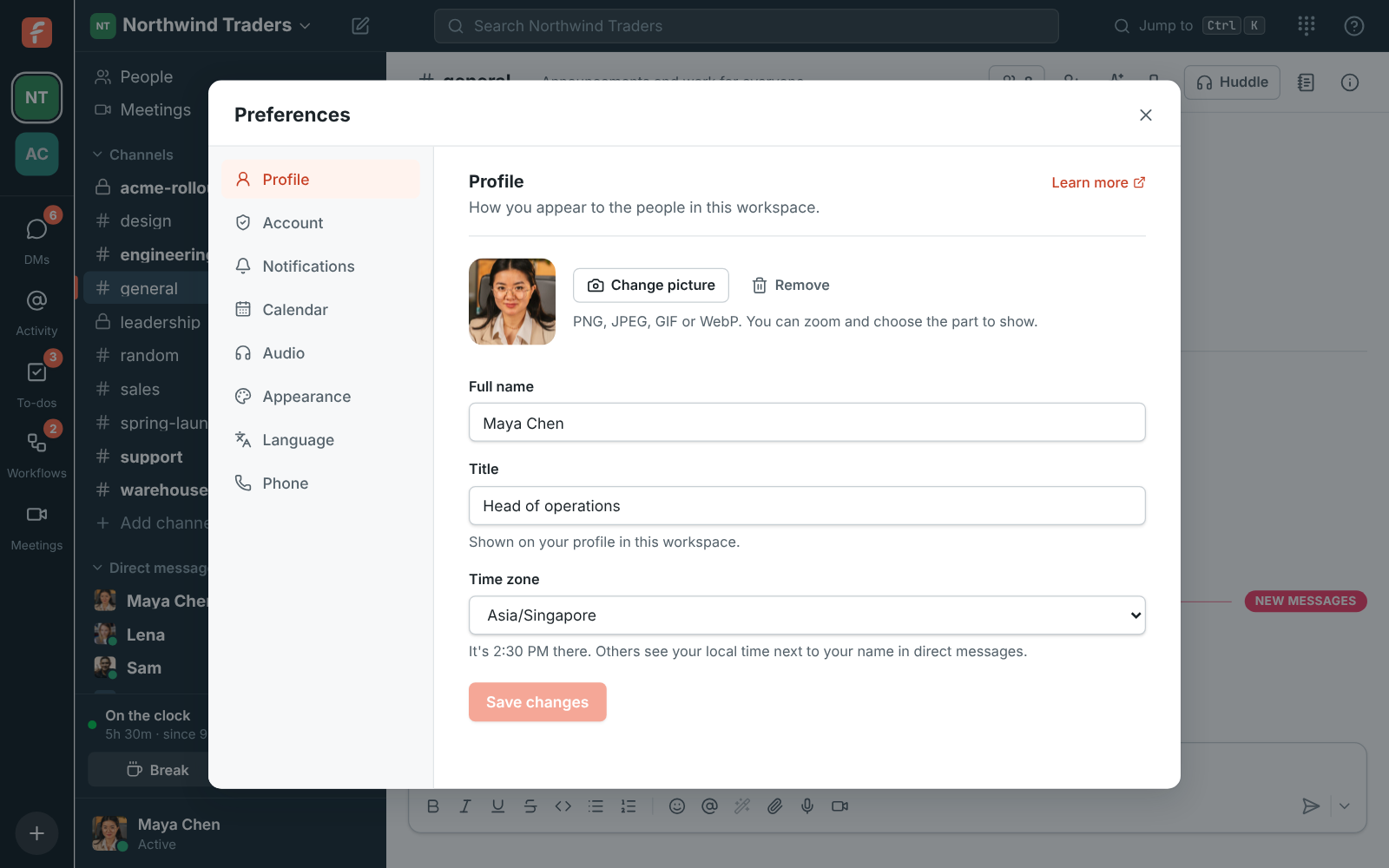
Click **Save changes** when you're done.
### Working hours
Under **Working hours**, tick the days you work and set when you start and finish, in your time
zone. Everyone starts with Monday to Friday, 9 to 5. Teammates scheduling a meeting with you see
your working hours, and the times Freesbe suggests stay inside them (see
[Find a time that works](https://freesbe.net/docs/meetings/#find-a-time-that-works)). Click **Save working hours**.

### Your profile picture
If you joined with Google or Microsoft, or connected one of them to your account, Freesbe uses
that account's photo when you don't have a picture yet. Each time you sign in that way, Freesbe
picks up a newer photo if you changed it there. Once you upload or take a picture of your own,
Freesbe keeps it and stops using the photo from Google or Microsoft.
You can upload a picture, take one right away, or bring in your Google or Microsoft photo:
- **Import from Google** (or **Import from Microsoft**) shows up when you signed in with Google
(or Microsoft). It opens the photo that account shared at sign-in, ready to crop, even if you
use another picture now. If Freesbe doesn't have that photo yet (say you signed in before this
button came along), it takes you through Google or Microsoft for it, usually without asking
anything, and back to the crop step. In the desktop app that happens in your web browser. If the
account still sends no photo, Freesbe tells you why.

- **Take photo** opens your computer's camera. Allow Freesbe to use it when your browser or
computer asks. Line your face up with the oval, click **Take photo**, then **Use photo** (or
**Retake**). If you have more than one camera, pick it at the bottom left.

- **Use phone** shows a QR code. Point your phone's camera at it and tap the link: a page opens in
your phone's browser, with no app or sign-in needed. Tap **Take a photo** (or **Choose from your
photos**), then **Send to computer**. The photo shows up on your computer, ready to crop. The
code works once, for 10 minutes, and stops working when you close the dialog.


Whichever way you pick a picture, you crop it next and click **Save**.
#### Improve with AI
In the crop step, click **Improve with AI** to let AI touch up your photo. It finds your face,
centres it in the frame, fixes the light and colour (a dark or backlit face, a washed out or
too-blue photo), and can soften a busy background a little. It doesn't redraw your face or invent
anything: the changes are made to your own photo, so you still look like you.
Drag the slider to compare before and after, then click **Use improved** or **Keep original**.
**Back** returns to cropping. Nothing changes on your profile until you choose.

- It only works on a photo of a person with their face showing. A logo, a drawing, a pet or a
photo without a clear face is turned away, and you can still keep it as it is.
- Each person can use it **3 times a day** (the count starts again at midnight UTC), and each
workspace **20 times a day** on the Free plan or **200** on paid plans. A photo that was turned
away counts too.
- It's there when AI features are on for your workspace, and like other AI features, it counts
toward your workspace's monthly AI allowance. Guests don't have it.
- Your photo is sent to the AI provider only so it can look at it. Freesbe doesn't keep that copy,
and the provider doesn't use it to train its models.
### See who someone is
Click anyone's name or picture to open their profile. Under their name and title you see their
pronouns, then their work details: department, location, manager (click to open the manager's
profile), phone (click to call), any fields your workspace added, and the people who report to
them. So when someone you don't know messages you, one click tells you who they are and where they
sit.

Guests from other companies see your name, title and pronouns, but not your department, location,
manager or phone, unless your admins chose to show a field to guests.
## Account
- **Email**: the address you sign in with, marked **Verified** or **Not verified**. If it isn't
verified, you can send yourself a new code here.
- **Change email**: enter the new address and your current password, then the code Freesbe
emails to the new address. Your old address is told about the change.
- **Password**: change it, or set one if you signed up with Google, Microsoft or a passkey.
Changing your password signs you out on your other devices.
- **Sign out**.
The **Sign-in** tab has **Google and Microsoft**, **Passkeys**, an **Authenticator app** and
**Approve sign-ins on your phone**; **Sessions and apps** lists where you're signed in and the apps
and AI agents you've allowed. See [Sign-in and security](https://freesbe.net/docs/sign-in-and-security/).
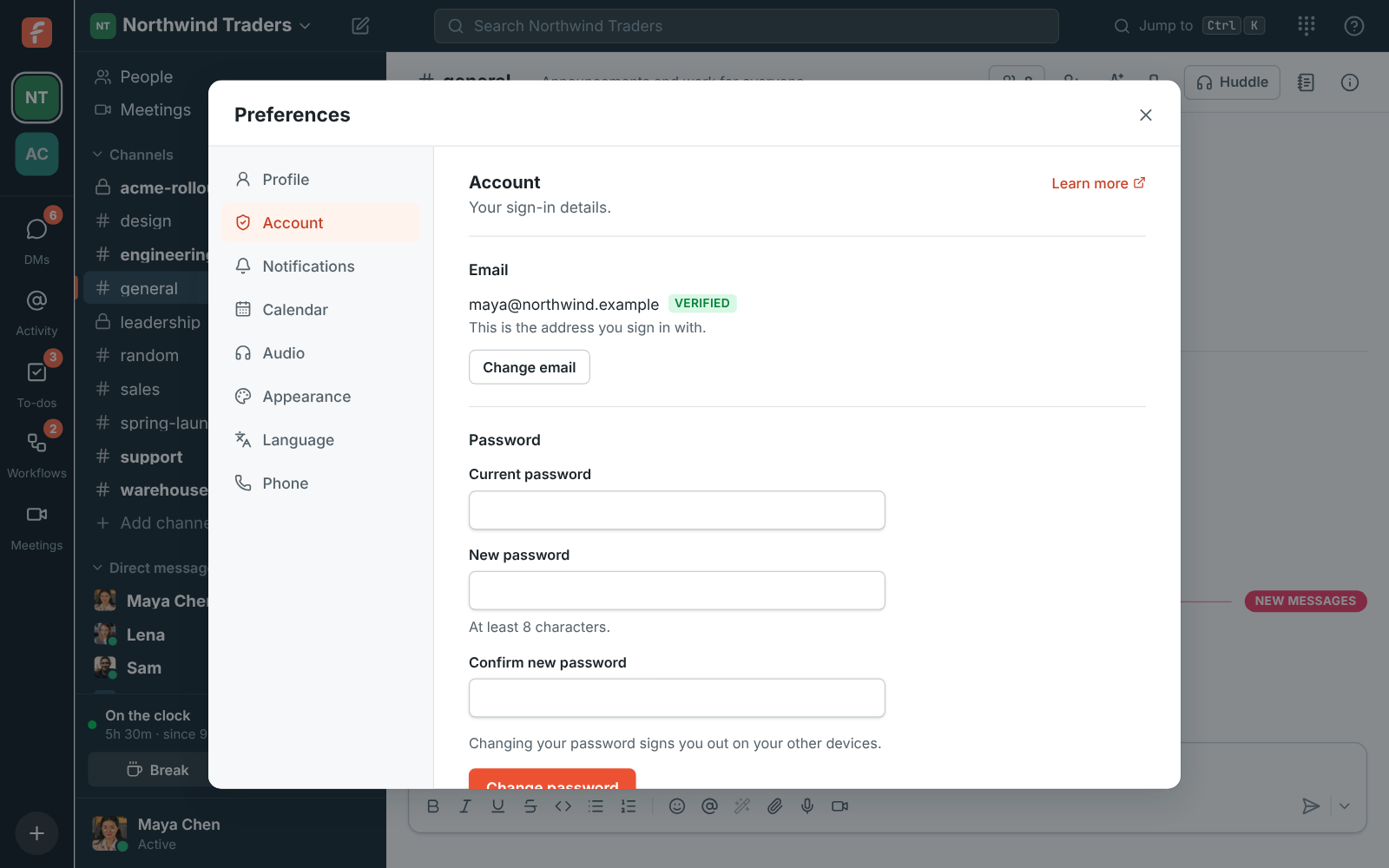
## Notifications
Desktop notifications, sounds and pausing. See [Notifications](https://freesbe.net/docs/notifications/).
## Calendar
Connect your Google or Microsoft calendar, and choose whether your status shows "In a meeting"
during meetings. See [Connect your calendar](https://freesbe.net/docs/status-and-availability/#connect-your-calendar).
Here you also turn on the [Calendar app](https://freesbe.net/docs/calendar-app/): your day's agenda, reminders
before meetings and invitations you can answer.
## Audio
Choose the microphone and speakers Freesbe uses on this device:
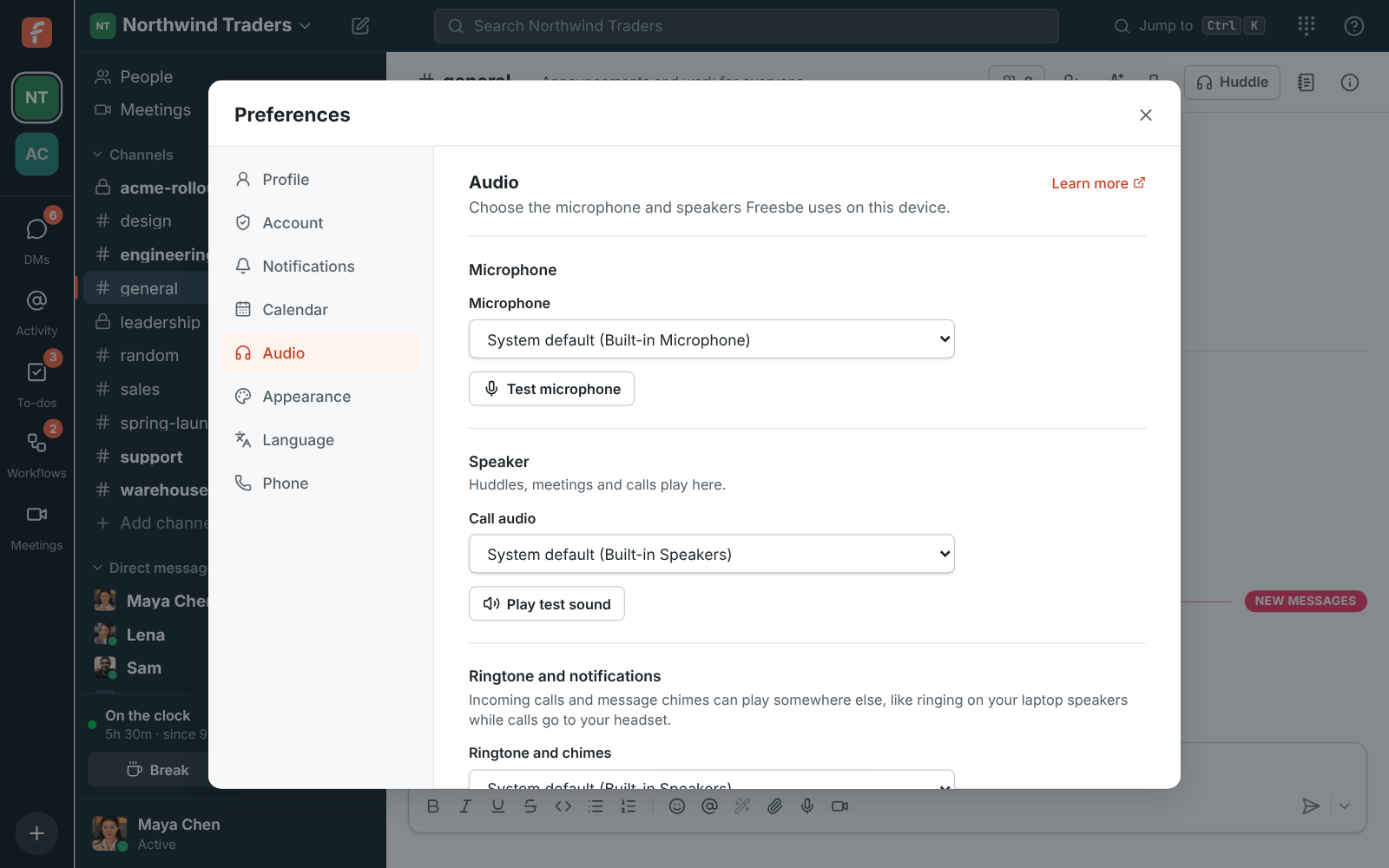
- **Microphone**: the input device people hear you through in huddles, meetings and calls, with
**Test microphone** beside it. While the test runs, a level bar under
the picker moves as you talk: normal speech fills about half of it, and it drops back to
nearly empty when you stop, even with a fan or other background hum in the room. If it stays
empty while you talk, pick another microphone or check that it isn't muted on the device.
The test hears your microphone the way calls send it: with echo cancellation, automatic volume
and the noise cancellation chosen below, in every browser and the desktop app.
- **Noise cancellation**, under the microphone, for huddles and meetings:
- **Off** sends your microphone as it is, for music or a studio microphone in a quiet room.
- **Standard** is your browser's own filter, good for steady hum like a fan.
- **Advanced AI** removes keyboards, fans, dogs and traffic before your sound leaves your
computer. It's a small neural network trained to tell a voice from noise, and it runs on your
device, so nothing extra is sent anywhere. It uses a little more battery.
The microphone test hears it too: with **Advanced AI** on, the bar stays down while you type. You can
also change it during a call from **Audio and video devices**. If **Advanced AI** ever sends the others
silence while you talk, the call switches to **Standard** by itself and tells you.

- **Call audio**: the speaker or headset for huddles, meetings and calls. **Play test sound**,
beside the picker, checks it.
- **Even out voices**, on unless you turn it off: quiet people in a call are turned up and loud
ones down, so everyone sounds about as loud. Turning it off also limits each person's own
volume, which you change by right-clicking them in a call, to 100%.
- **Ringtone and chimes**: where incoming calls ring and message sounds play. Pick your laptop
speakers here and your headset for calls, and you'll hear the ring even with the headset off.
**Play ringtone**, beside the picker, checks it.
- **In calls → Play a sound when someone joins or leaves**: a soft rising chime in huddles and
meetings when someone else joins, member or guest, and a quieter falling one when they leave.
You don't hear it for yourself, for the people already there when you join, or for someone
coming straight back after a dropped connection. Calls of more than 8 people stay quiet, and a
few people joining together make one chime. It's on to start with; turning it on plays the
chime.
- **In calls → Play a sound when someone raises a hand**: a soft chime in huddles and meetings
when someone else raises their hand, at most once every 10 seconds. It's on to start with;
turning it on plays the chime so you know what it sounds like.

If your browser hasn't shown your devices' names yet, click **Allow microphone access** first.
Choices are saved on each device. If a chosen device is unplugged, Freesbe uses your system's
default and switches back when it's plugged in again. Picking a separate ringtone speaker works in
Chrome, Edge and the desktop app; other browsers ring on the default speaker.
## Video
Change what's behind you on camera in huddles and meetings: blur the room, or put a picture there.

Click **Preview my camera** to see yourself as others will, then pick under it:
- **No effect** sends your camera as it is.
- **Slight blur** softens the room behind you; **Blur** hides it more.
- A moving background, marked ▶ on its tile, that plays on a loop behind you: **Rain** on a
window, **Snow**, **Forest** or a **Busy office**. If the motion distracts you, click **Pause
the background** under the tiles to hold it still; **Play the background** starts it again.
- A photo of a place to sit in front of: **Open office**, **Coworking space**, **Meeting room**,
**Home office**, **Kitchen**, **Living room**, **Bookshelf**, **Café**, **Loft**, **Library**,
**Lobby** or **Winter cabin**.
- **Add your own picture** (the last tile) uses a JPEG, PNG or WebP from your computer. Freesbe keeps
your last three on this device; hover over one and click **×** to remove it.

It all happens on your device: a small AI model finds you in each frame, and the call sends the
finished video, so nothing extra goes anywhere, it takes no more bandwidth, and nobody else needs
anything to see it. The model runs on your computer's graphics card, on every frame, and the edge
it finds is then matched to the real edges in the picture, so your hair, ears and shoulders stay
sharp and a bright window beside you stays behind you instead of showing through. The blur leaves
you out of it, so there's no glow of you around you. The first time you pick an effect, Freesbe
downloads the model (a few megabytes, kept for next time), which takes a moment.
Where the browser has WebGPU (current Chrome, Edge, Safari and Firefox on most computers from the
last few years), a second, larger model looks at the whole frame a few times a second and corrects
the first: a chair, shelf, plant or window right behind your head that the first took for part of
you goes back into the room, and your hair, hands and headset stay in. It downloads about 20 MB the
first time, kept for next time; until then, or without WebGPU, the first model works alone. In the
Mac app, the Mac's own person detection does this instead, on nearly every frame, with nothing to
download. It uses more of
your computer's power than a plain camera, and **No effect** is the lightest. Nothing is loaded or
run until you pick an effect, so Freesbe isn't any slower for people who don't use one.
On a computer that's too weak (two processor cores or fewer, or 2 GB of memory or less), backgrounds
aren't offered. If one can't keep up during a call, Freesbe puts your camera back to normal, tells
you, and stops offering backgrounds on that computer.
Your choice is saved on each device and used every time you turn on your camera. You can change
it or turn it off during a call, without leaving: **Backgrounds and effects** in a meeting's
controls or on your own tile ([In the call](https://freesbe.net/docs/meetings/#in-the-call)), and in the header of
the huddle video ([Keep the call in view](https://freesbe.net/docs/huddles/#keep-the-call-in-view)). Guests can pick
one before they join a meeting ([Joining](https://freesbe.net/docs/meetings/#joining)).
Backgrounds work in Chrome, Edge, Firefox, Safari and the desktop app. The Freesbe phone app
doesn't change your background yet.
## Appearance
Freesbe comes in a light and a dark theme. Choose **System** (match your device), **Light** or
**Dark**. The choice is saved on each device, so your laptop can be dark while your work PC
stays light.
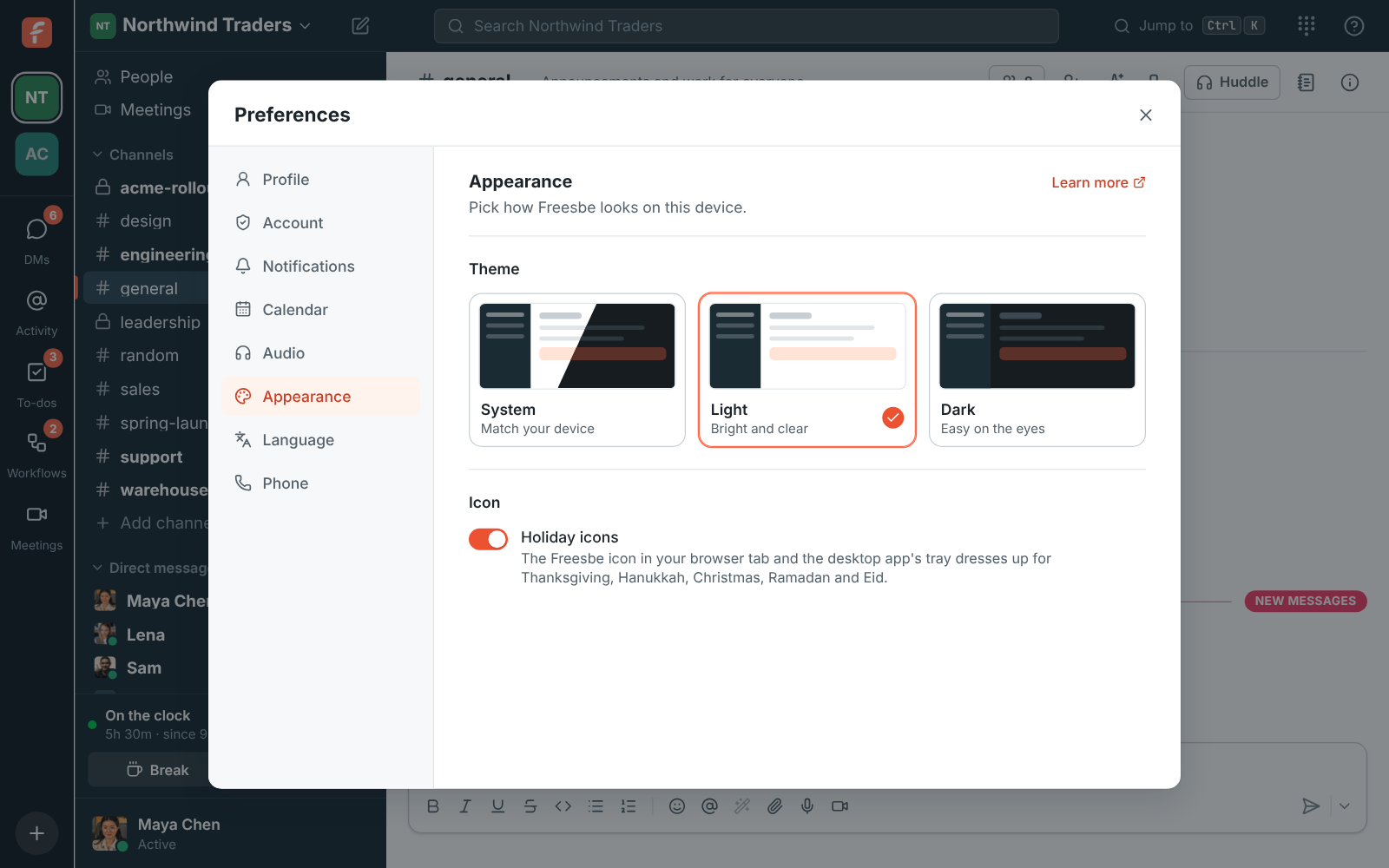
**System** is the default. It follows your computer's or phone's light or dark setting, and
switches the moment that changes, including when your computer goes dark automatically at
sunset. The sidebar stays dark teal in both themes; the messages, dialogs and menus change.
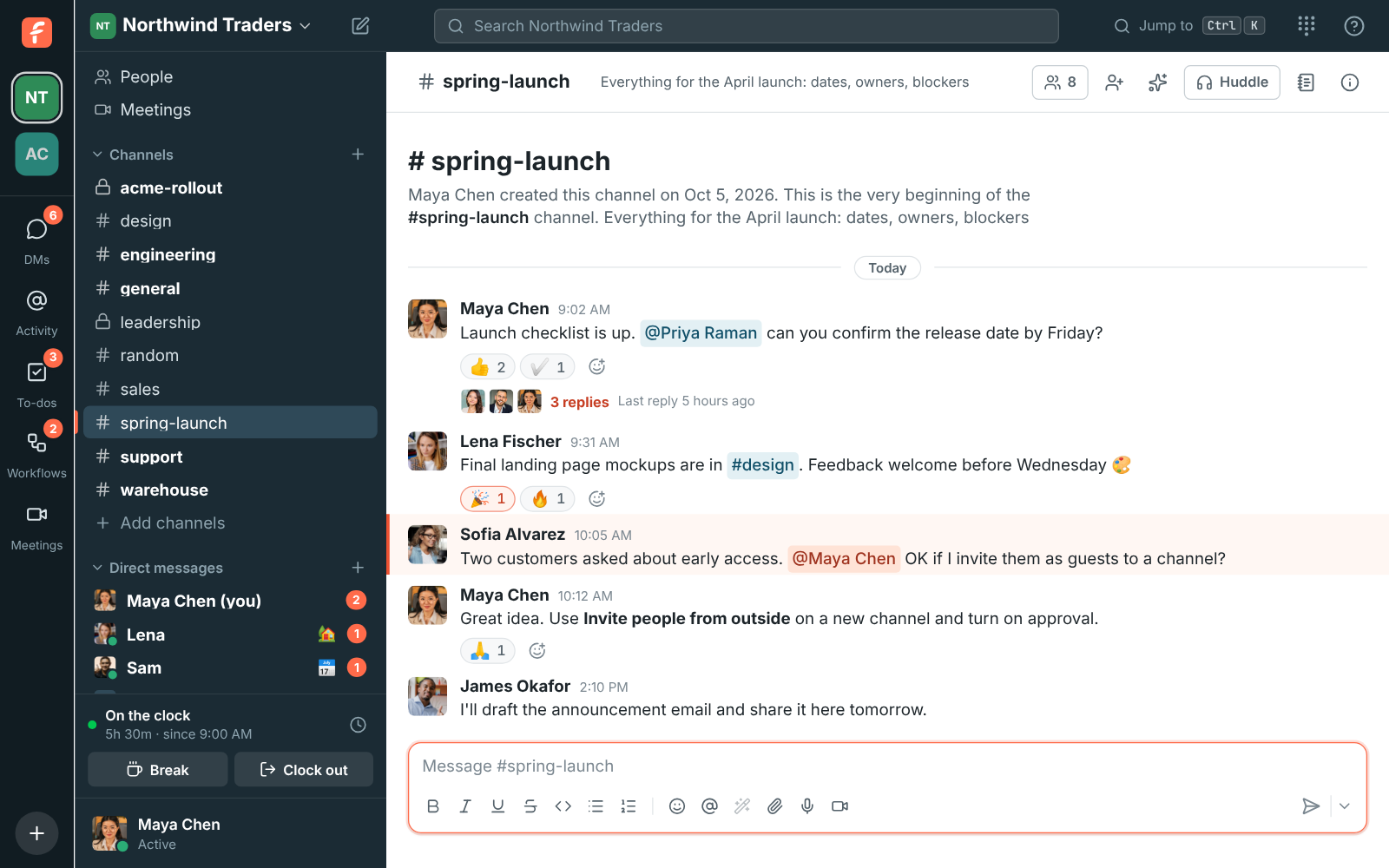
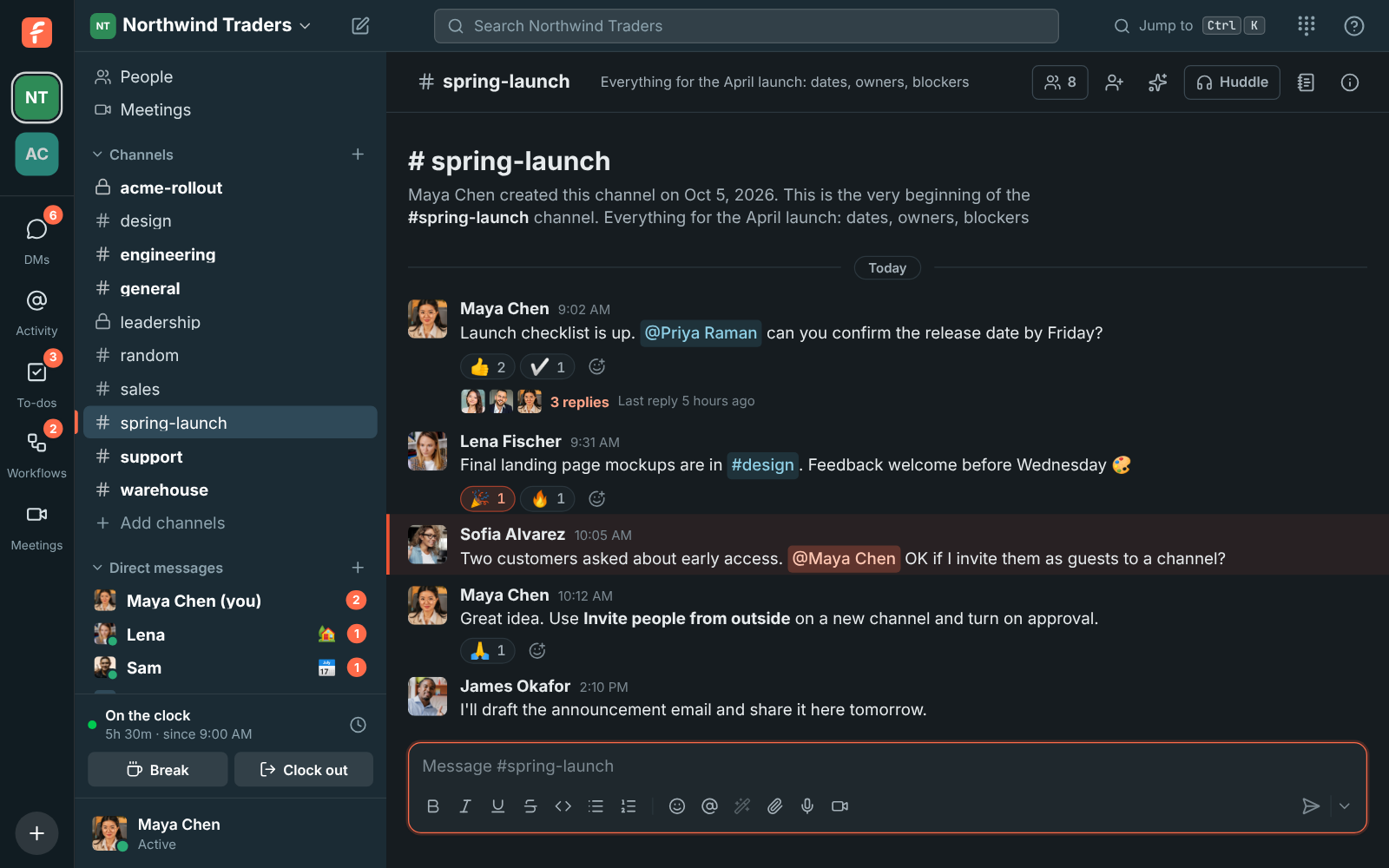
In the [desktop app](https://freesbe.net/docs/desktop-app/), the window buttons follow the theme too, and on a Mac so
do the right-click and spelling menus and the app's dialog boxes, even when your Mac is set to the
other look.
### Holiday icons
The Freesbe icon dresses up for the holidays: an autumn leaf for Thanksgiving week, a gold
menorah for the eight days of Hanukkah, a snowflake through December for Christmas, and a gold
crescent moon for Ramadan and the two Eids. You'll see it in your browser tab, on freesbe.net,
and in the desktop app's tray (the menu bar on a Mac) and window icon. The unread and mention
dots work as usual.

| Icon | When |
| ------------ | ------------------------------------------------------------------------ |
| Thanksgiving | Monday to Sunday of US Thanksgiving week |
| Hanukkah | From the evening of the first candle to the eighth day |
| Christmas | December 1 to 26. Hanukkah takes its own days, except December 24 and 25 |
| Ramadan | The whole month of Ramadan |
| Eid | The three days of Eid al-Fitr and the four days of Eid al-Adha |
The icons change at midnight on your own computer's clock. Hanukkah's dates come from the Hebrew
calendar and Ramadan's and Eid's from the Islamic (Umm al-Qura) calendar, so they're right every
year. Where the new moon is sighted locally, Ramadan and Eid can start a day earlier or later than
the icon. Don't want them? Turn off **Holiday icons** under **Appearance**. The desktop app follows
the setting from version 0.1.5.
## Language
Freesbe follows your computer's language (your browser's language on the web). To use a different
one, pick it under **Language on this device**, or choose **Match my computer** to go back. Freesbe
reloads to switch.
Freesbe supports 25 languages, including right-to-left languages like Hebrew and Arabic:
English, Español (Spanish), 简体中文 (Chinese, simplified), 繁體中文 (Chinese, traditional),
हिन्दी (Hindi), العربية (Arabic), Português (Brasil), Français (French), Deutsch (German),
日本語 (Japanese), Русский (Russian), עברית (Hebrew), Italiano (Italian), Nederlands (Dutch),
Polski (Polish), Türkçe (Turkish), 한국어 (Korean), Bahasa Indonesia (Indonesian),
Bahasa Melayu (Malay), Tiếng Việt (Vietnamese), ไทย (Thai), Українська (Ukrainian),
Svenska (Swedish), Čeština (Czech) and Română (Romanian).
If your computer uses a language that isn't on the list, Freesbe uses English. A close relative
counts: Portuguese from Portugal gets Brazilian Portuguese, and Chinese from Hong Kong or Macau gets
traditional Chinese.
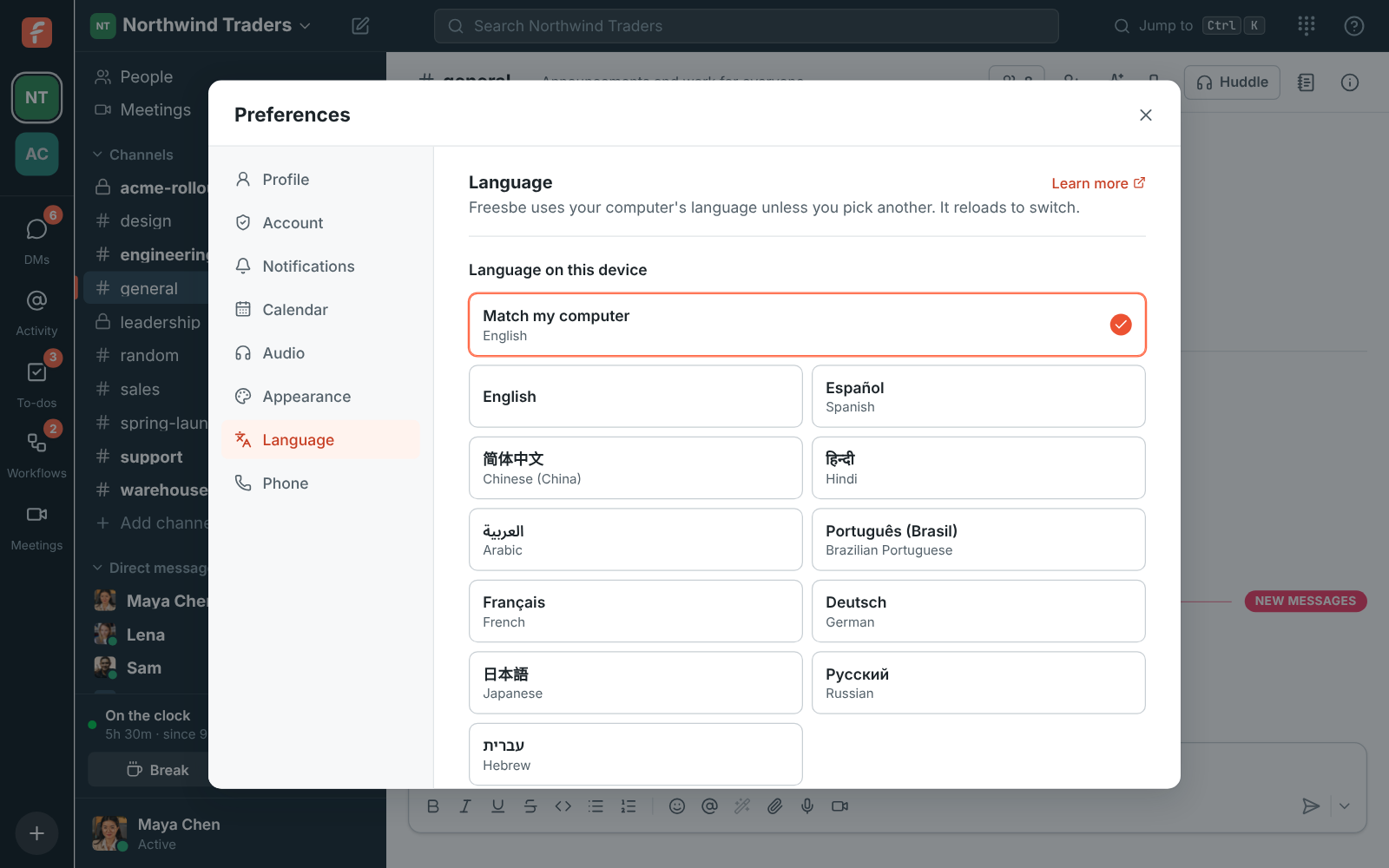
- **Right-to-left**: in Hebrew and Arabic the whole app flips, with the sidebar on the right.
Each message lines up by its own text, so English and Hebrew messages sit side by side
correctly.
- **Dates and times** use the format of the language you choose.
- **Emails** you ask for, such as sign-in codes, come in your language. Invitations come in the
language of the person who sends them.
- **In the desktop app**, the menus, tray (menu bar on a Mac) and jump list follow the same
choice.
- The choice is saved on each device, so your phone's browser and your laptop can differ.
- Messages stay in the language they were written in. To read one in your language, use
[Translate](https://freesbe.net/docs/ai-summaries/#translate-a-message).
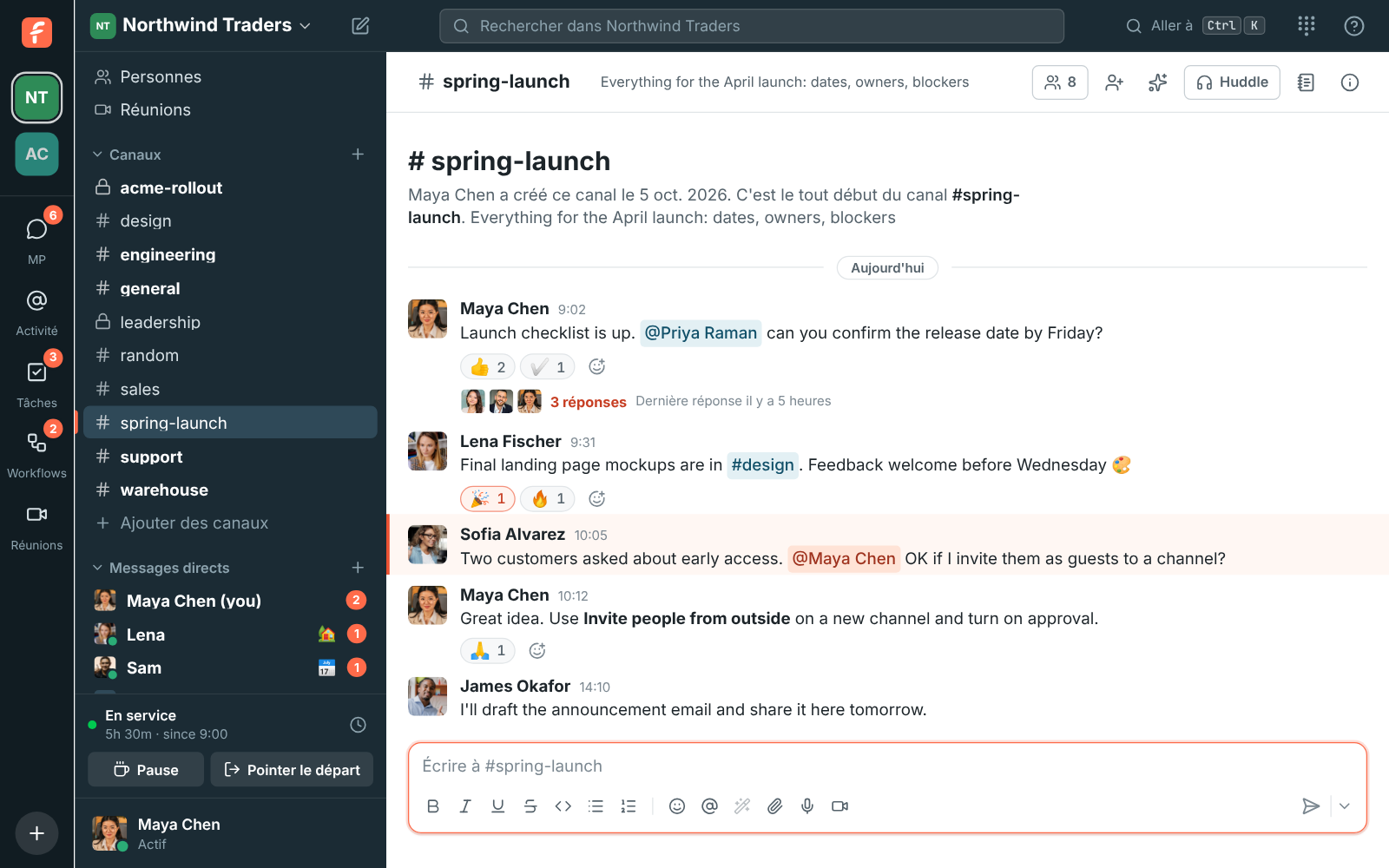
## Desktop app
Only in the [desktop app](https://freesbe.net/docs/desktop-app/).
- **Zoom** makes everything bigger or smaller, from 67% to 200%. Use **−** and **+**, pick a
level, or **Reset** to go back to 100%. Ctrl (⌘ on a Mac) with
+, - and 0, or with the mouse wheel, does the same anywhere in
the app. See [Zoom in and out](https://freesbe.net/docs/desktop-app/#zoom-in-and-out).
- On macOS and Windows, turn on **Open Freesbe when your computer starts** to have Freesbe start
in the tray (the menu bar on a Mac) when you sign in to your computer, without a window opening.

## Phone
Your SIP credentials for a desk phone or softphone. See [Phone](https://freesbe.net/docs/phone/).
---
# Sign-in and security
Source: https://freesbe.net/docs/sign-in-and-security/
> Sign in with a password, an emailed code, Google, Microsoft or a passkey, add a second step, see where you're signed in, and keep your account safe.
## Ways to sign in
On the [sign-in page](https://app.freesbe.net/login) you can use:
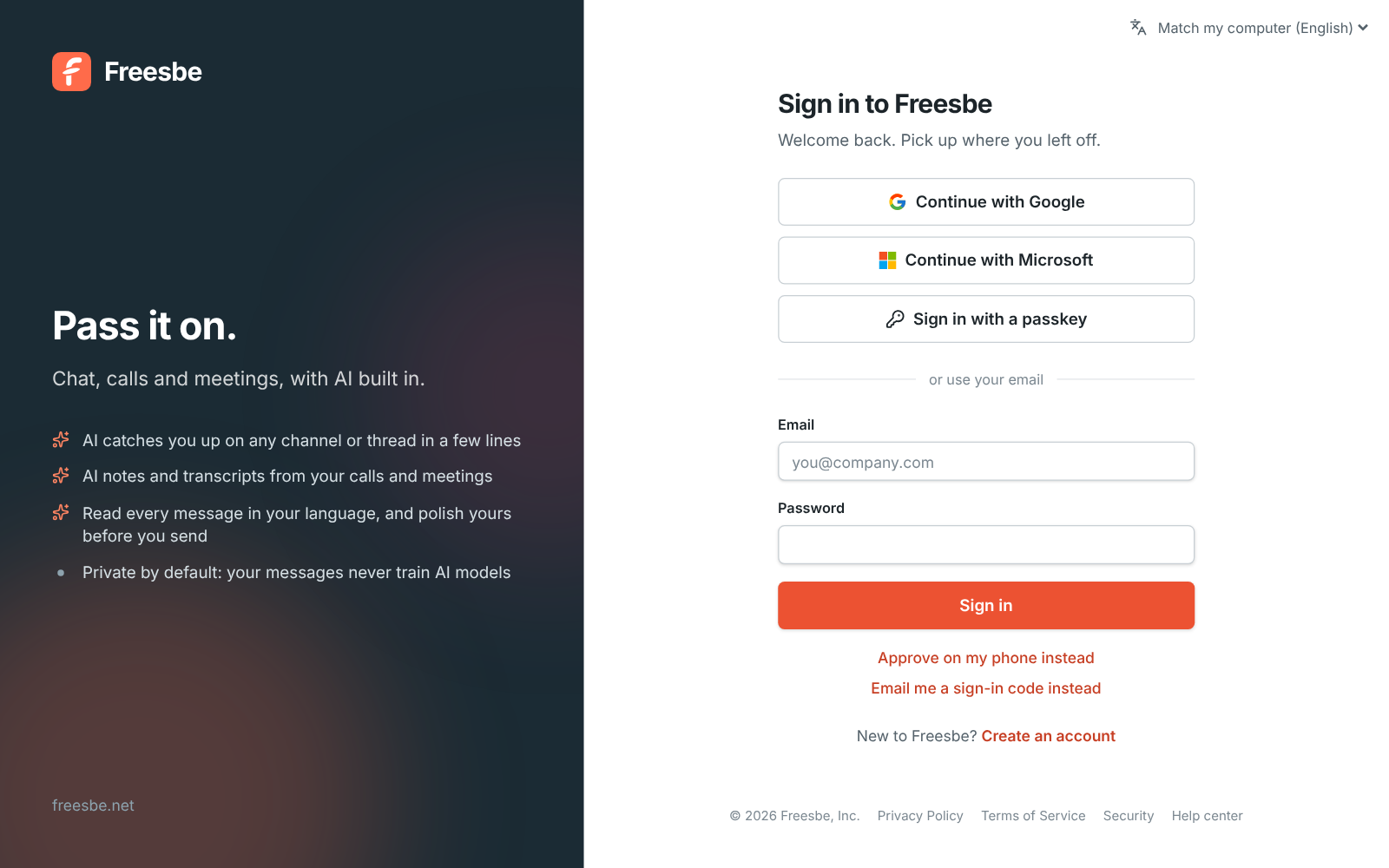
- **Email and password.**
- **Email me a sign-in code instead.** Freesbe emails you a 6-digit code. Codes last 10 minutes
and stop working after five wrong guesses.
- **Continue with Google** or **Continue with Microsoft.**
- **Sign in with a passkey**: your fingerprint, face or device PIN, with nothing to type.
- **Approve on my phone instead**: no password at all. Your phone approves the sign-in; see
[Sign in with just your phone](#sign-in-with-just-your-phone).
You can have several of these on one account and use whichever is handy.
## Link Google or Microsoft
The first time you continue with Google or Microsoft, Freesbe links it to the account with the same
email address, as long as Google or Microsoft confirms that address. After that the link holds
even if the address changes.
If your Google or Microsoft address is different from your Freesbe one, link it yourself:
1. Open **Preferences → My account → Sign-in → Google and Microsoft**.
2. Click **Connect** next to the provider and sign in.
In the desktop app, **Connect** opens your web browser and goes straight on to Google or
Microsoft. Sign in there, then come back to the app: the account shows up as connected. If your
browser is signed in to Freesbe as someone else, it opens Preferences there instead, so you can sign
in as yourself first.
You can disconnect a provider in the same place, as long as you have another way to sign in.
## Passkeys
In your web browser, a banner suggests adding a passkey until you have one. Click **Add a
passkey** on it, or click **Not now** to hide it for good.
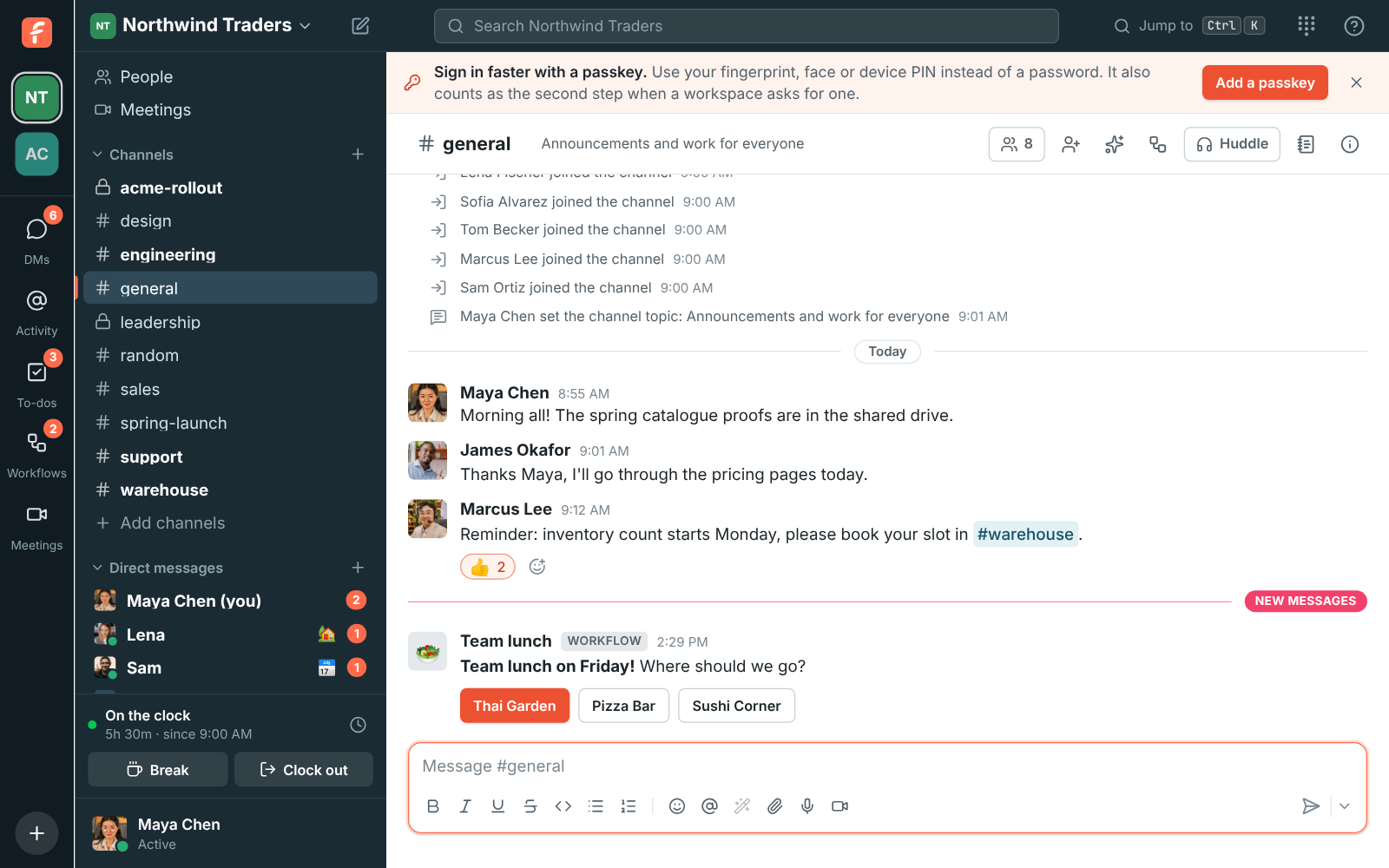
To add one from your settings:
1. Go to **Preferences → My account → Sign-in → Passkeys** and click **Add a passkey**.
2. Follow your browser's prompts.
Passkeys are added in your web browser. In the desktop app, click **Open in browser** under
Passkeys and Freesbe opens in your browser at the same page.
On your phone, tap **Add a passkey** on the **You** tab of the
[mobile app](https://freesbe.net/docs/mobile-app/#passkeys) and confirm with your fingerprint, face or phone PIN.
Passkeys marked **Synced** are backed up by your password manager or device account and work on
your other devices too. Remove a passkey you no longer use; you can't remove your only way to sign
in.
## Authenticator app
Some workspaces ask for a second step when you sign in. A code from an authenticator app on your
phone is one way to give it. Set it up in **Preferences → My account → Sign-in → Authenticator app**. See
[Multi-factor authentication](https://freesbe.net/docs/multi-factor-authentication/#set-up-an-authenticator-app).
## Approve sign-ins on your phone
Your phone can give the second step for you. When Freesbe asks you to verify it's you on a
computer, it sends a notification to your phone instead. You tap the number your computer shows
and confirm with your fingerprint or face. It works for the web app, the desktop app and the
[mobile app](https://freesbe.net/docs/mobile-app/#approve-sign-ins), on every plan.
To set it up, open the Freesbe app on your phone, go to the **You** tab and turn on **Approve
sign-ins**. The phone confirms with your fingerprint or face, then makes a key that never leaves
it.
Next time you're asked for a second step, your computer shows a two-digit number:
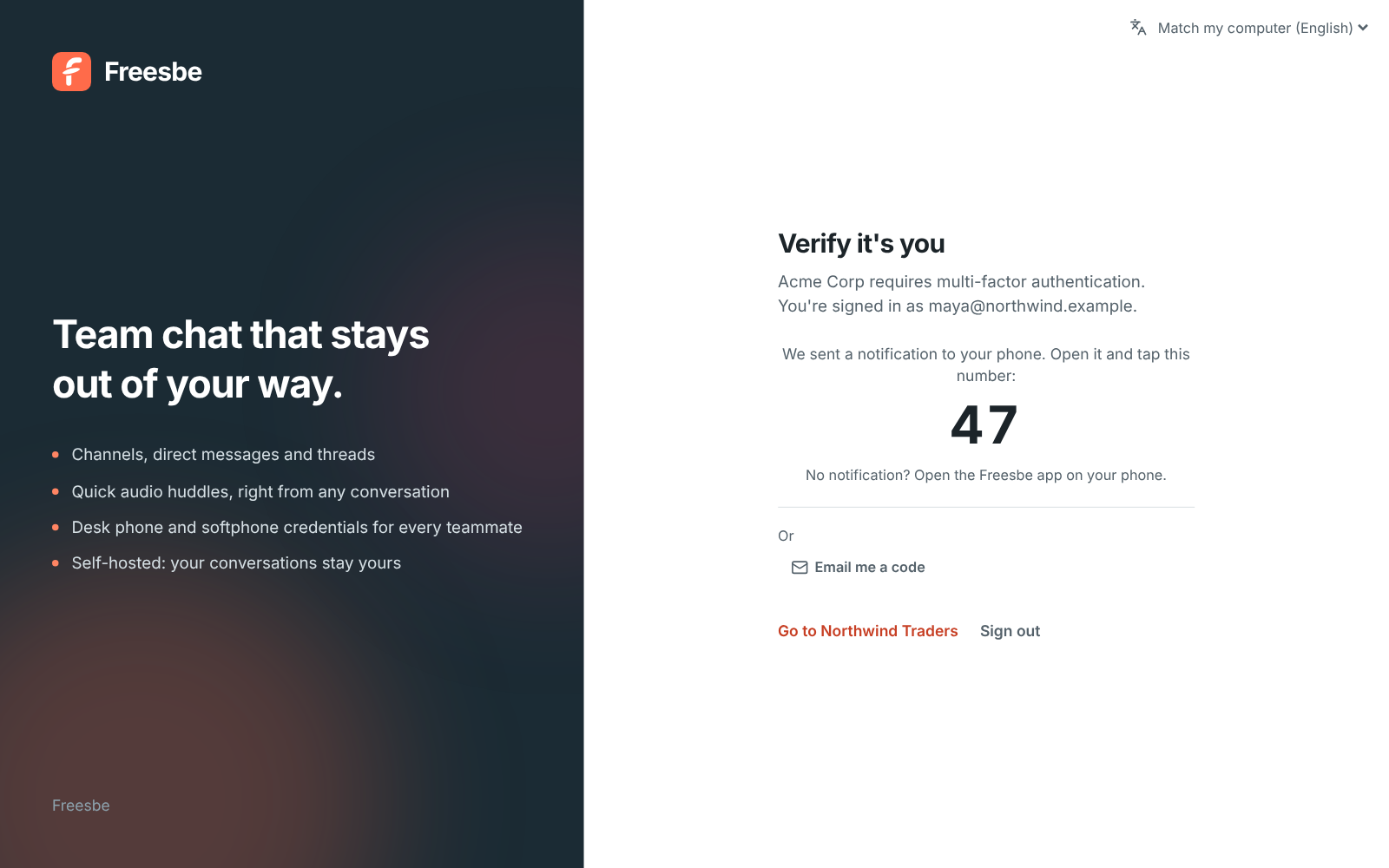
On your phone, open the notification. It shows where the sign-in is from and three numbers. Tap
the one on your computer and confirm with your fingerprint or face.

- **Didn't start this sign-in?** Tap **Deny**, then **This wasn't me**. Phone approval pauses for
15 minutes, so whoever has your password can't keep sending requests. Change your password.
- **No notification?** Open the Freesbe app; the request opens there. Requests last two minutes.
- **Tapping the wrong number** turns the request down. Click **Send again** on your computer.
- **Never approve a sign-in you didn't start**, even if someone asks you to on the phone or by
message. Freesbe staff will never ask.
Your phones are listed in **Preferences → My account → Sign-in → Approve sign-ins on your phone**. Remove one
there if you lose it, or sign it out under Your sessions; either way it stops approving. Your
authenticator app and emailed codes still work as other ways in.
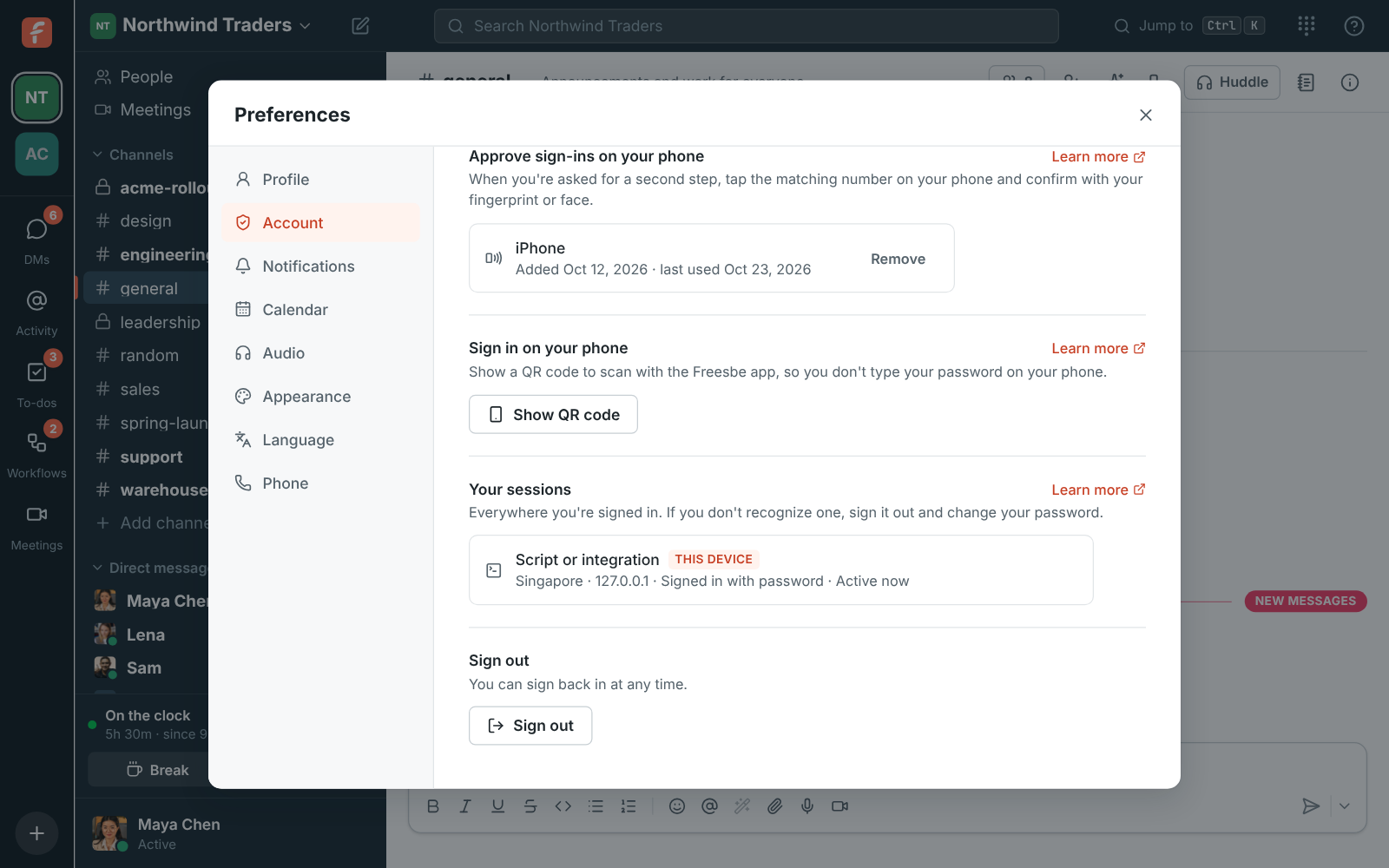
### Sign in with just your phone
Once your phone approves sign-ins, you can skip the password too. On the sign-in page, click
**Approve on my phone instead**, type your email and click **Send to my phone**. The page shows a
two-digit number; tap it on your phone and confirm with your fingerprint or face, and the page
signs you in.
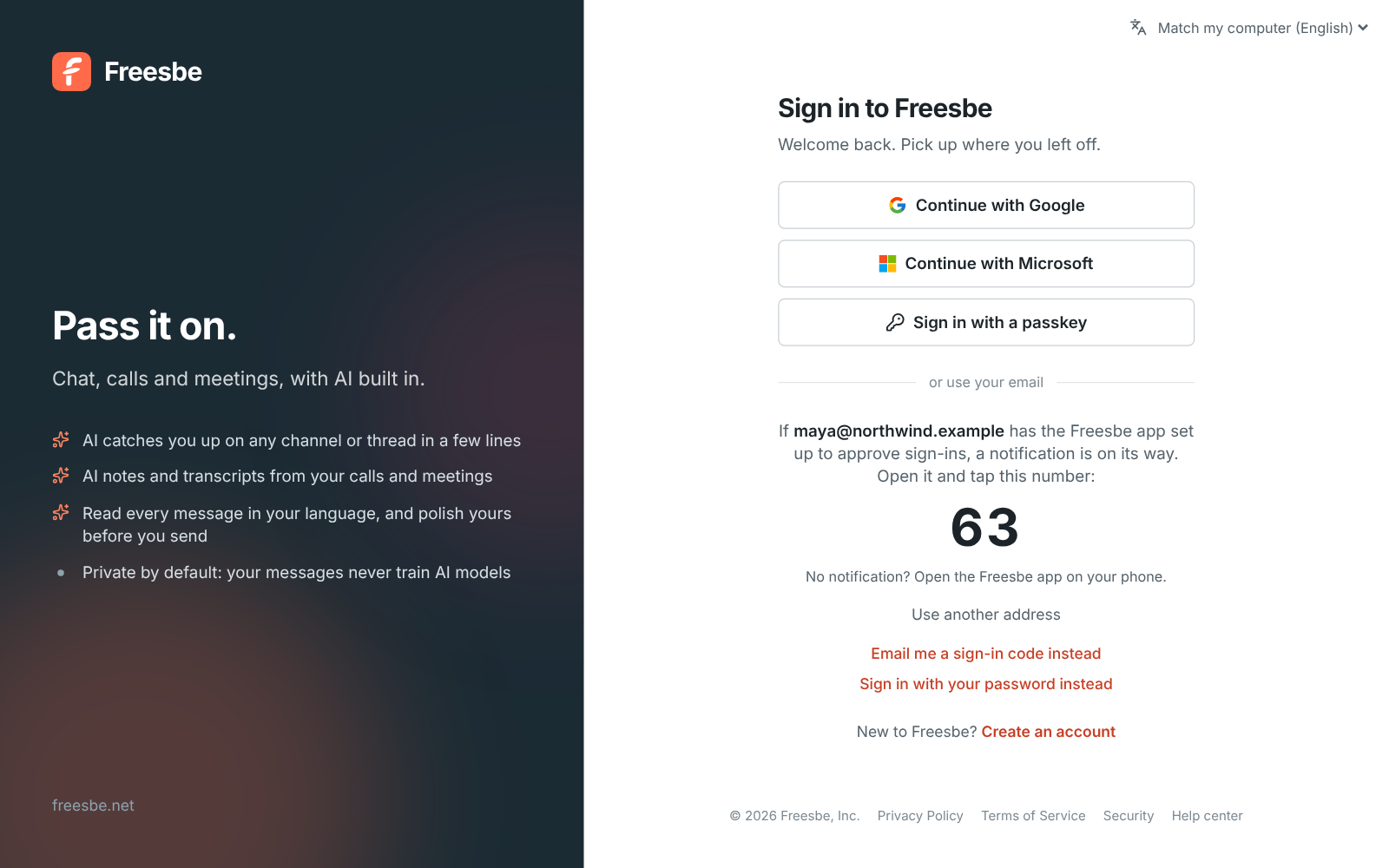
Your phone already proved it's you twice over (it's yours, and it took your fingerprint or face),
so this counts as the second step too: workspaces that require one let you straight in.
### Changes that ask again
If your phone approves sign-ins, Freesbe asks you to verify it's you again before changes that
could lock people out or open things up, unless you verified in the last 15 minutes:
- Changing someone's role, or deactivating them.
- Workspace security settings: the second step, single sign-on, file types, and remote control.
It's one more tap on your phone, so a computer someone else walked up to can't make those changes.
Scripts and apps using API tokens aren't asked.
## Your sessions
**Preferences → My account → Sessions and apps → Your sessions** lists everywhere you're signed in: the desktop app or
the browser and system, roughly where it signed in from and its address, how it signed in, and
when it was last used. The session you're using is marked **This device**.
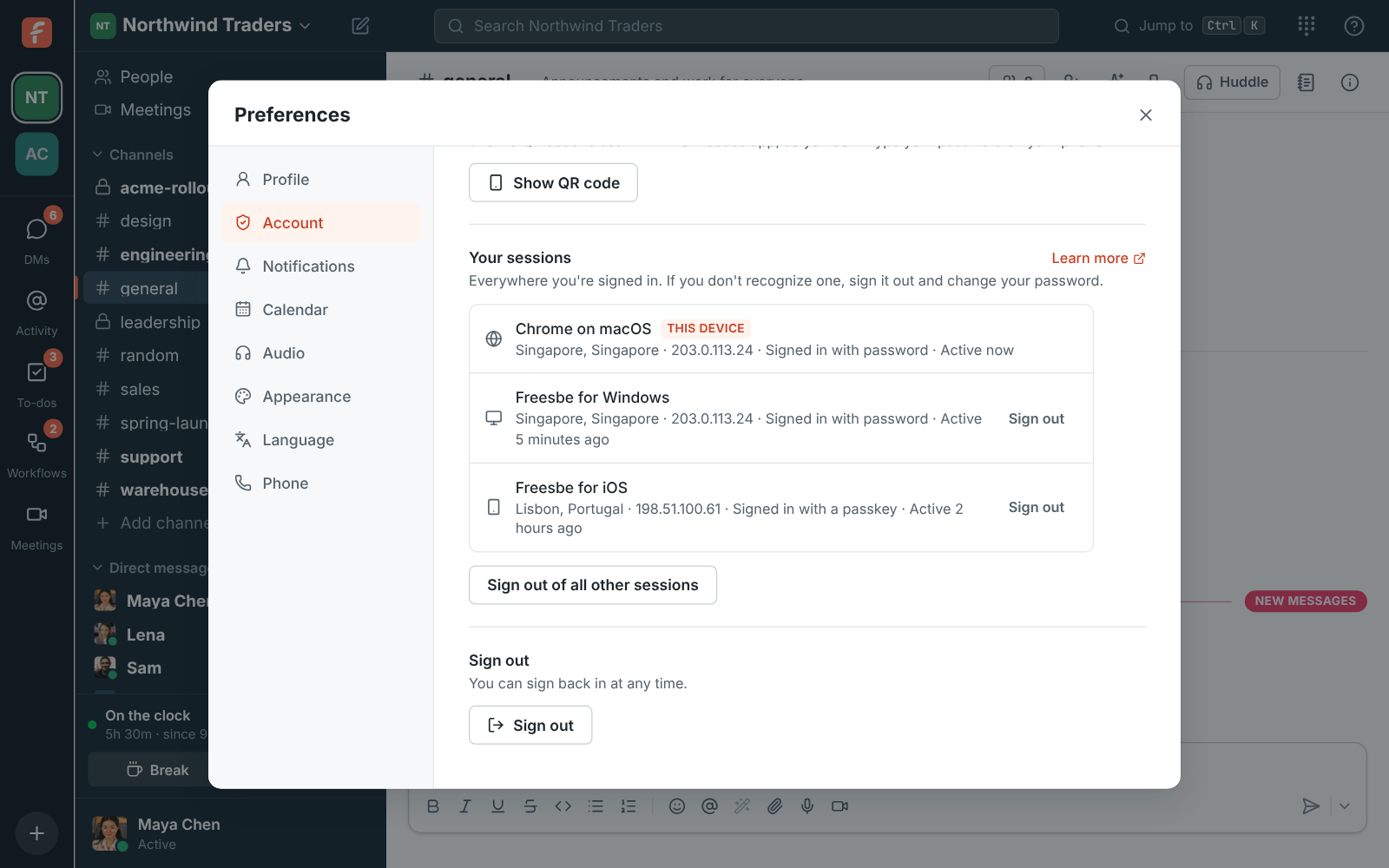
- Click **Sign out** next to a session to sign it out. It's signed out right away, including any
open app windows.
- Click **Sign out of all other sessions** to keep only the one you're using.
If you don't recognize a session, sign it out and change your password.
**Preferences → My account → Security activity** goes further back: every sign-in, wrong password
and change to how you sign in over the last year. See [Security activity](https://freesbe.net/docs/security-activity/).
## Signing in to the desktop app
The desktop app signs in with Google, Microsoft and passkeys through your web browser: it opens a
page in your browser, and once you're signed in there, one click hands the sign-in back to the
app. Email and password and sign-in codes work in the app directly.
Choosing Google or Microsoft always goes through that provider, even when your browser is already
signed in to Freesbe, so your profile picture stays up to date. If you're signed in to Google or
Microsoft in that browser, it passes straight through with the account you linked, without asking
for your password or which account to use.
## Signing in to the mobile app
The [mobile app](https://freesbe.net/docs/mobile-app/#sign-in) signs in with passkeys, email and password and
sign-in codes on its own screen. Quicker still, choose **Sign in on your phone** in your account
menu on your computer and scan the QR code with the app; see
[Sign in with a QR code](https://freesbe.net/docs/mobile-app/#sign-in-with-a-qr-code). Google, Microsoft and your company's single sign-on open in a
sign-in sheet inside the app and bring you back signed in. Your workspace's second-step rules apply
on your phone too.
## Verify your email
When you sign up with a password, Freesbe emails you a code to confirm your address. Until you
do, a banner asks for it. Any code Freesbe emails you proves the address too, so signing in with
an emailed code, or using one as your second step, verifies it and the banner goes away. If you
verify on another device or with the link in the email, the banner goes away when you come back
to the app. If someone else signs up with your address and never verifies it,
proving the address (with a sign-in code, Google or Microsoft) hands the account to you and signs
them out.
## Agreeing to the terms
Everyone agrees to Freesbe's [Terms of Service](https://freesbe.net/terms/) and
[Privacy Policy](https://freesbe.net/privacy/) when they create an account. The sign-up form says
what they come down to under the **I agree** box, with a link to
[the two-minute summary](https://freesbe.net/legal/#summary).
If your account is older than the terms, or the terms change in a way that needs your agreement,
Freesbe asks once, the next time you open it. The screen isn't a wall of legal text: it says what
the terms mean for you day to day (your work stays yours, your workspace sets its rules, play fair,
no surprises on billing, and the legal parts in one line), links the plain-English summary and all
the documents, and asks for one tick and **Agree and continue**. It takes about a minute, and
nothing changes in how you use Freesbe.

When the terms change, the screen says so, with the date and a **What changed** link to
[the list of changes](https://freesbe.net/legal/#history), in plain words.

Not ready to agree? **Sign out** and come back when you are; Freesbe asks again then. Questions go
to support@freesbe.net. Freesbe keeps a record of which version you agreed to and when. All of
Freesbe's legal documents, their short version and every change to them are at
[freesbe.net/legal](https://freesbe.net/legal/).

## Forgot your password?
Choose **Email me a sign-in code instead** on the sign-in page, sign in with the code, then set a
new password in **Preferences → My account → Account**.
## Workspaces that require a second step
Some workspaces require multi-factor authentication. After you sign in, Freesbe asks you to
verify with your phone, a passkey, your authenticator app or an emailed code before you can open that
workspace, and may ask again later. See
[Multi-factor authentication](https://freesbe.net/docs/multi-factor-authentication/).
## Workspaces that require single sign-on
Some workspaces require Google or Microsoft. If you signed in another way, Freesbe asks you to
continue with the required provider before you can use that workspace. Your account stays the
same. See [Single sign-on](https://freesbe.net/docs/single-sign-on/).
## Staying safe
- Freesbe staff will never ask for your password or sign-in code.
- Changing your password signs you out everywhere else.
- Check **Your sessions** now and then, and sign out of anything you don't recognize.
- If you leave a workspace or are deactivated, the messages cached on your devices for it can no
longer be read.
## Delete your account
**Preferences → My account → Account → Delete account** deletes your Freesbe account 30 days after you ask.
You can keep it by signing in before then. See [Delete your account](https://freesbe.net/docs/delete-account/).
---
# Security activity
Source: https://freesbe.net/docs/security-activity/
> See every sign-in, failed attempt and change to how you sign in, with the browser and address it came from. Admins see their whole team's.
Freesbe keeps a history of what happens to each account: every sign-in, every wrong password or
code, every second step, sign-outs, and every change to how the account signs in. Each event shows
when it happened, the browser or app it came from, and its address and country, so you can spot
something you don't recognize.
You see your own in Preferences. Owners and admins see everyone in their workspace, in Workspace
settings and the [Admin Center](https://freesbe.net/docs/admin-center/).
## Your security activity
Open **Preferences → My account → Security activity**.

Each row shows:
- **Date and time**, in your time zone.
- **Event**: what happened, like **Signed in with a passkey** or **Authenticator app added**.
Events worth a second look, like a wrong password or a passkey removed, are in amber.
- **Source**: the browser and system (**Chrome on macOS**), or the app (**Freesbe for Windows**,
**Freesbe for iOS**).
- **IP address**, with its country in brackets. Hover over it to see roughly where it is.
If you see a sign-in you don't recognize, [change your password](https://freesbe.net/docs/sign-in-and-security/#forgot-your-password)
and [sign out your other sessions](https://freesbe.net/docs/sign-in-and-security/#your-sessions).
## What's recorded
| Event | When |
| ------------------------------------- | ------------------------------------------------------------------------------------------------------------- |
| Signed in | With a password, an emailed code, a passkey, Google, Microsoft or your phone, in the app or the Admin Center. |
| Sign-in failed | Someone typed the wrong password for your email address. |
| Two-step verification | You confirmed a sign-in with an authenticator app, a passkey, an emailed code or your password. |
| Two-step verification failed | A wrong code or password at the second step. |
| Signed out | You signed out, or signed out another session, or all your other sessions. |
| Password set or changed | |
| Email changed | Shows the new address. |
| Authenticator app added or removed | |
| Passkey added or removed | Shows the passkey's name. |
| Google or Microsoft linked or removed | |
Events are kept for a year. Deleting your account deletes them too.
## Filter and export
Above the list:
- **All events** narrows it to one kind of event, like **Sign-in failed**.
- **Last 12 months** narrows it to one month.
- **Export filtered** saves what the filters show as a CSV file, up to the newest 5,000 events. It
opens in Excel, Numbers or Google Sheets.
## Your team's security activity
Owners and admins open **Workspace settings → Security & compliance → Security activity**, or the
same page in the [Admin Center](https://freesbe.net/docs/admin-center/) at manage.freesbe.net.

It has a **Member** column and a member filter, and shows each member's activity only from when
they joined the workspace: what they did before joining, or in another workspace's sign-in, isn't
yours to see. **Export filtered** adds each member's name and email to the file.

Things to look for:
- **Sign-in failed** several times on one account, especially from a country your team isn't in.
Ask the person to change their password and add a passkey or an authenticator app, or
[require a second step](https://freesbe.net/docs/multi-factor-authentication/) for everyone.
- **Passkey removed** or **Authenticator app removed** that the person didn't do.
- Sign-ins from a new country.
What admins change in the workspace itself, like settings, roles and invites, is in the
[audit log](https://freesbe.net/docs/admin-settings/) instead.
## In the API
`GET /api/me/security-activity` returns your own events, and admins can read their members' with
`GET /api/workspaces/{w}/security-activity`. Both take the same filters as the page; see the
[API reference](https://freesbe.net/docs/api/).
---
# Delete your account
Source: https://freesbe.net/docs/delete-account/
> Delete your Freesbe account - what happens right away, the 30 days you can change your mind, what we delete and what stays in your workspaces.
You can delete your Freesbe account yourself, at any time. Nothing disappears the moment you
click: you leave your workspaces and are signed out at once, and the account is deleted 30 days
later. Until then you can keep it by signing in.
Deleting your account is about you, not a workspace. The messages and files you shared belong to
the workspaces you shared them in, so they stay there, the way Slack and Microsoft Teams work.
## Before you start
If you own a workspace, it needs a new owner or has to be closed first:
- **A workspace with other people in it**: make someone else its owner in **Workspace settings →
People → Members**. See [Hand the workspace to a new owner](https://freesbe.net/docs/workspaces-and-invites/#hand-the-workspace-to-a-new-owner).
- **A workspace that's only you**: [close it](https://freesbe.net/docs/close-workspace/) in **Workspace settings →
General → Workspace** first. Once it's closing, it no longer stops you.
Admins, members and guests can delete their account straight away.
## Delete your account
1. Open **Preferences → My account → Account** and scroll to **Delete account**. It lists the workspaces you'll
leave, or what to do first.
2. Tell us why you're leaving, if you like.
3. Click **Delete my account** and confirm. Freesbe asks you to verify it's you first.

We email you the date the account will be deleted, and again a week before.
## What happens right away
- You're signed out on every device, and your passkeys stop working.
- Apps you signed in to with Freesbe and AI agents you connected lose access.
- You leave every workspace you're in. Each one shows you as **Deactivated**, and its
[audit log](https://freesbe.net/docs/admin-settings/#audit-log) records that you deleted your account. Seats you
used drop at the next renewal, as with anyone who leaves.
- Webhooks you created turn off, invite links you made stop working, and your phone line is
turned off.
## Change your mind
Sign in with your email, password, sign-in code, Google or Microsoft within the 30 days. Freesbe
shows **Your account is scheduled for deletion** and the date. Click **Keep my account** and
everything personal is as you left it.

Your workspaces don't come back by themselves: ask each workspace's admins to reactivate you in
**Workspace settings → People → Members**.
## What we delete and what stays
After 30 days:
| Data | What happens |
| ------------------------------------------------------------------------------------------------------------- | -------------------------------------------------------------------- |
| Your name, email address, profile picture, status and work details | Deleted |
| Your password, passkeys, authenticator app, Google or Microsoft link and sessions | Deleted |
| Your to-dos, drafts, scheduled messages, booking links, calendar connection, sounds and identity check result | Deleted |
| Exports you made | Deleted |
| Messages, files, reactions and time entries you left in workspaces | Stay in the workspace, under the name **Former member** |
| Meetings you organized and canvases you wrote | Stay in the workspace |
| A record that the account was deleted, and when | Kept 7 years, with no name or address: only a scrambled email (hash) |
Workspace admins can delete a former member's messages, as they can anyone's. Ask them if you want
something gone.
Your email address is free again, so you can sign up with it later. That's a new account: it
doesn't bring the old one back.
Backups roll off within 30 more days, so your data is gone from everywhere within 60 days of your
request. See the [privacy policy](https://freesbe.net/privacy/) for how long we keep data.
## Workspace data
To get a copy of a workspace's messages and files, its owners and admins can
[export the workspace](https://freesbe.net/docs/export-data/) before you leave.
---
# Workspaces and invites
Source: https://freesbe.net/docs/workspaces-and-invites/
> Create a workspace, invite your team by email or link, manage roles, and deactivate people who leave.
A workspace is where a team talks: its own channels, people and settings. You can belong to
several workspaces and switch between them from the rail on the left.
## Roles
| Role | Can do |
| ---------- | --------------------------------------------------------------------------------------------------------------------------------------------------------------------------- |
| **Owner** | Everything an admin can. Whoever creates the workspace is its owner, and can [hand it to someone else](#hand-the-workspace-to-a-new-owner). The owner can't be deactivated. |
| **Admin** | Change workspace settings, invite people, change roles, deactivate people, manage webhooks, the punch clock and the phone system, and delete anyone's message in a channel. |
| **Member** | Use channels, DMs, huddles and meetings, create channels, and invite [guests](https://freesbe.net/docs/guests/) into channels they're in. |
| **Guest** | Only the channels they were invited to, and the people in them. See [Guests](https://freesbe.net/docs/guests/). |
## The workspace name
The workspace name sits at the top of the sidebar, next to **New message**. Long names get a
slightly smaller font, and a name that still doesn't fit ends in "…": point at it to see it in
full. A wider window, or a shorter [workspace name](https://freesbe.net/docs/admin-settings/#workspace), shows more.
## Create a workspace
Open the workspace menu (click the workspace name at the top of the sidebar) and choose **Create a
new workspace**, or click **+** at the bottom of the workspace rail and choose **Create a workspace**.
Give it your company or team's name.
Anyone with a confirmed email address can create a workspace for their own team, up to two. Owners
and admins of an existing workspace can create more for their company. A [guest](https://freesbe.net/docs/guests/)
can create one for their own company from the guest callout in the sidebar. New workspaces start
on the Free plan, and their creator is the owner. See
[Sign up your team](https://freesbe.net/docs/getting-started/#sign-up-your-team).
## Invite people
Open the workspace menu and choose **Invite people** (or **Workspace settings → People → Invites**).
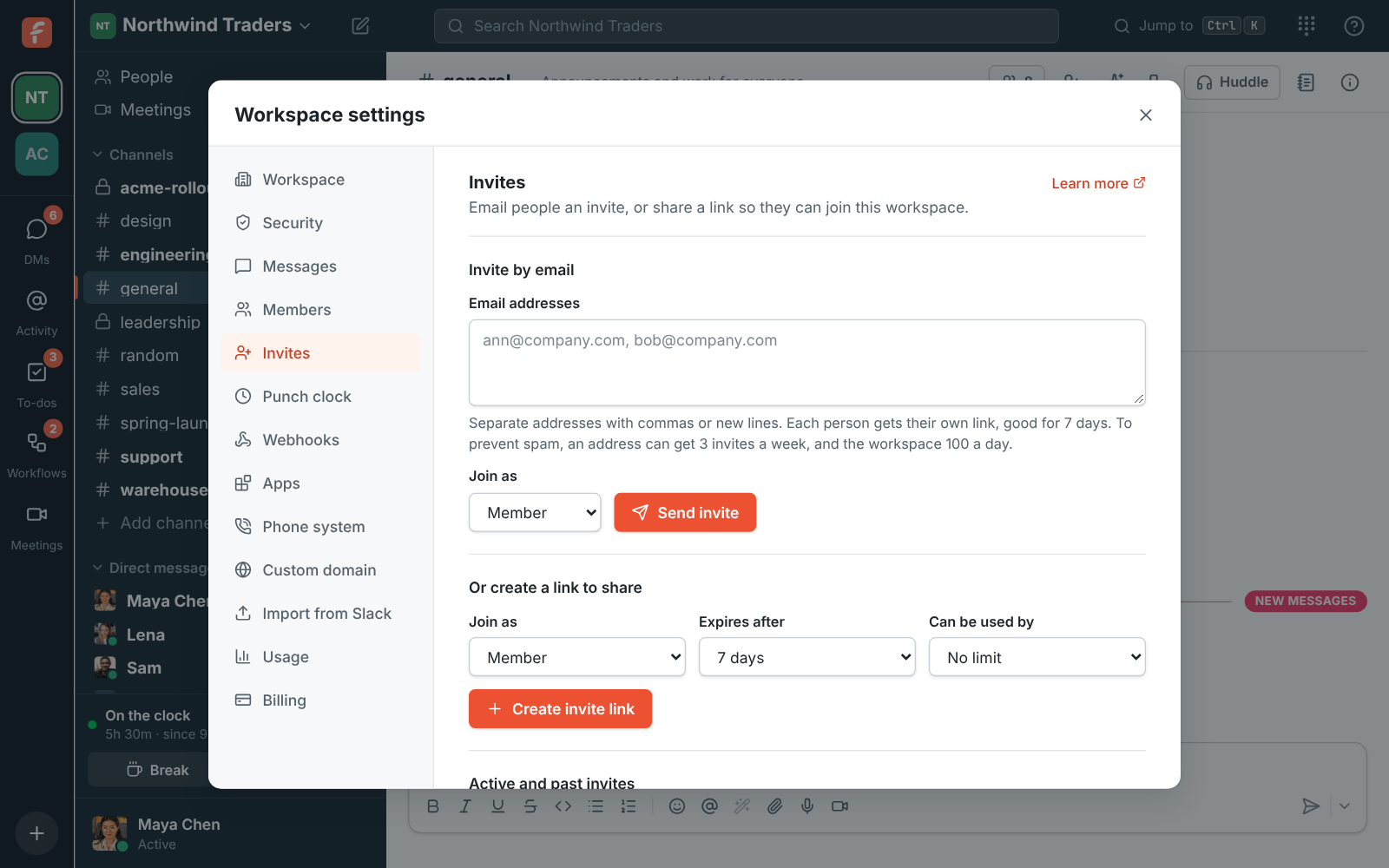
### By email
1. Enter one or more addresses, separated by commas or new lines (up to 50 at a time).
2. Choose whether they **Join as** a **Member** or an **Admin**.
3. Click **Send invite**.
Each person gets their own single-use link, good for 7 days, and replies to the email go to you.
The email also has **Get the desktop app** links that download the app for Mac, Windows or Linux
straight away, plus a link to the [install steps](https://freesbe.net/docs/desktop-app/), so nobody has to search for
it. People who open a link instead see a **Download for …** link for their computer under the
join form.
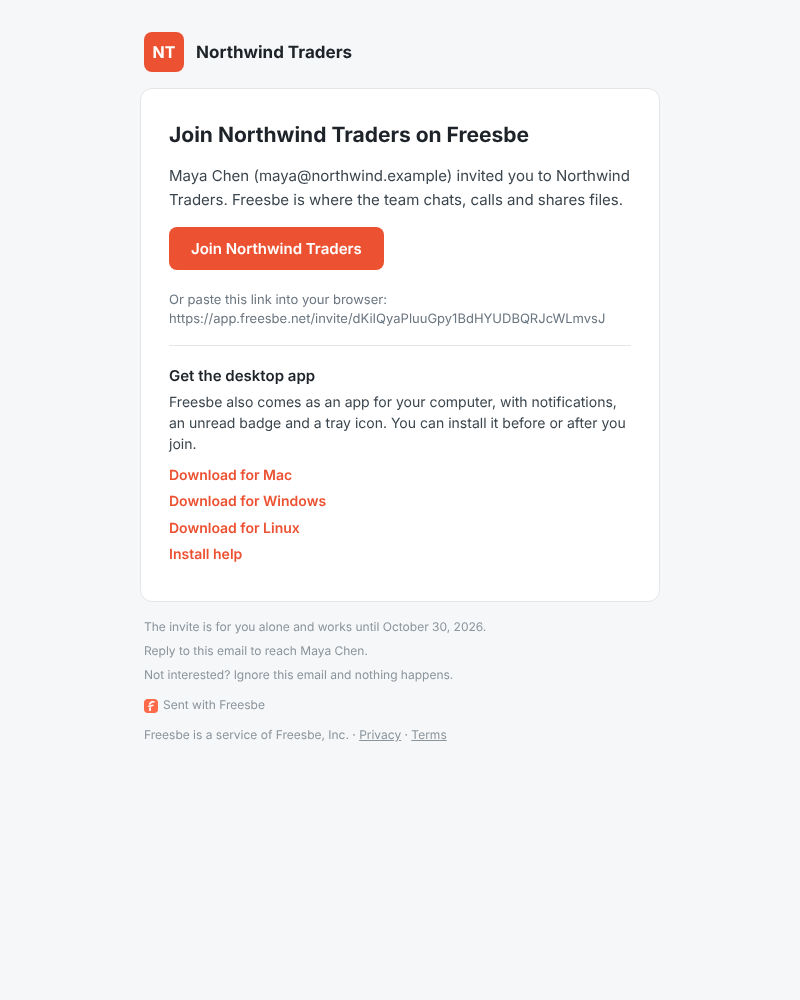
To prevent spam, one address can get 3 invites a week from a workspace, and a workspace can send
100 invite emails a day. Addresses over the limit are reported as held back.
### With a link
Under **Create a link to share**, choose:
- **Join as**: Member or Admin.
- **Expires after**: 1, 7, 14 or 30 days.
- **Can be used by**: 1, 5, 10, 25 or 100 people, or **No limit**.
Copy the **Invite link** and share it however you like. Anyone with the link can join until it
expires or is used up, so share it carefully.
People who open the link see the workspace's name and logo, who invited them, and a short sign-up
form:

On the Corporate and Enterprise plans, invite links can use your company's own address, like
`https://meetme.acme.com/invite/…`. See [Custom domains](https://freesbe.net/docs/custom-domains/#invite-links).
### Link previews
When you paste an invite link into Slack, Teams, WhatsApp, iMessage, LinkedIn or X, it unfurls
into a card with your workspace's name and logo (or its initials when it has no logo), so people
know who's inviting them. The preview shows nothing else: not who sent the invite, not your
channels or members. Guest invites and [meeting links](https://freesbe.net/docs/meetings/) get the same kind of
card. A revoked, expired or used-up link shows the plain Freesbe preview.
The card follows your [workspace name and logo](https://freesbe.net/docs/admin-settings/#workspace). Apps cache
previews, so a change can take a day to show in a link that was already shared.
### Manage invites
**Active and past invites** lists every invite with who created it and whether it's **Expired** or
**Used up**. **Revoke** an invite to stop its link working right away. People who already joined
stay.
## Join by email domain
Instead of inviting everyone one by one, let anyone with an address at your company's domain
join on their own, like Slack's approved domains. Open **Workspace settings → People → Email domains**.

### Add a domain
1. Under **Add a domain**, enter your company's email domain, the part after the @, like
`northwind.example`.
2. Choose whether people **Join as** a **Member** or an **Admin**.
3. Turn on **An admin approves each person** if you'd rather look at each person first. It's
always on for admins: nobody becomes an admin of your workspace without someone checking.
4. Click **Add domain**.
Freesbe then shows a TXT record. Add it where your domain's DNS is managed (GoDaddy, Namecheap,
Route 53, Microsoft 365 and so on):
| Type | Name | Value |
| ---- | ----------------------------------------- | ------------------------------------------------ |
| TXT | `_freesbe-verification.northwind.example` | `freesbe-verification=…` (copy it from the page) |
Freesbe looks for the record every few minutes for a week, or click **Check now**. Once it's
found, the domain shows **Verified** and you can remove the record. A domain that's still waiting
lets nobody in.
- Webmail domains like gmail.com, outlook.com or yahoo.com belong to everyone, so they can't be
added.
- A subdomain counts on its own: add `eu.northwind.example` as well if people have addresses
there. A workspace can have up to 20 domains.
- Several workspaces can verify the same domain, say one per team. People then pick which to join.
- Join by email domain works on every plan. People who join take a seat like anyone else, so a
workspace without free seats asks an admin to add some first.
### What people see
Someone who signs up with a confirmed address at a verified domain, with a password, a sign-in
code, Google or Microsoft, sees **Join your team** right after signing up: your workspace's name,
logo and size, and a **Join** button. One click and they're in #general.

- Addresses must be confirmed first. Someone who signed up with a password gets a code by email,
and only sees your workspace once they enter it. Google and Microsoft confirm the address
themselves. So nobody can type in someone else's work address and get in.
- They don't need an invite, even while sign-up on Freesbe is otherwise invite-only.
- They can still create a workspace of their own instead, if they're allowed to.
- Someone who already has an account sees the same list when they open **+ → Create a
workspace** from the workspace rail.
### Approve people
When **An admin approves each person** is on, the button says **Ask to join**. Every admin gets
an email with a **Review the request** link, and the person shows under **Waiting for approval**
in **Workspace settings → People → Email domains**. Click **Let in** or **Decline**; the first admin to
answer decides. The person gets an email when they're let in. Someone who was declined can't ask
again; send them an invite if you change your mind.
Both the email and the request show who is asking, so you can tell a new colleague from a
stranger:
- **Signed up**: when they made their account, how (a password, Google, Microsoft or single
sign-on), and that their email address is confirmed.
- **Asked from**: the city and country they asked from. **New country for your team** means
none of your members was last seen there, which is worth a second look.
- **Device**: the browser or Freesbe app they used, and whether it's a computer or a phone, like
_Chrome on Windows (browser on a computer)_.
- **Sign-up check**: **Passed**, or **Needs a closer look** when Freesbe's checks of new
accounts found something unusual. It doesn't say what; ask the person, or someone who knows
them, before you let them in.
- **IP address**: in Freesbe only, never in the email, since emails get forwarded.
Requests made before October 30, 2026 show only when and how the person signed up.
Adding and removing domains, changing them, and every approval or decline show in the
[audit log](https://freesbe.net/docs/admin-settings/#audit-log).
### Remove a domain
Click **Remove** next to the domain. New people at that domain need an invite again; everyone who
already joined stays.
## Manage members
**Workspace settings → People → Members** lists everyone, with search by name, email or title.
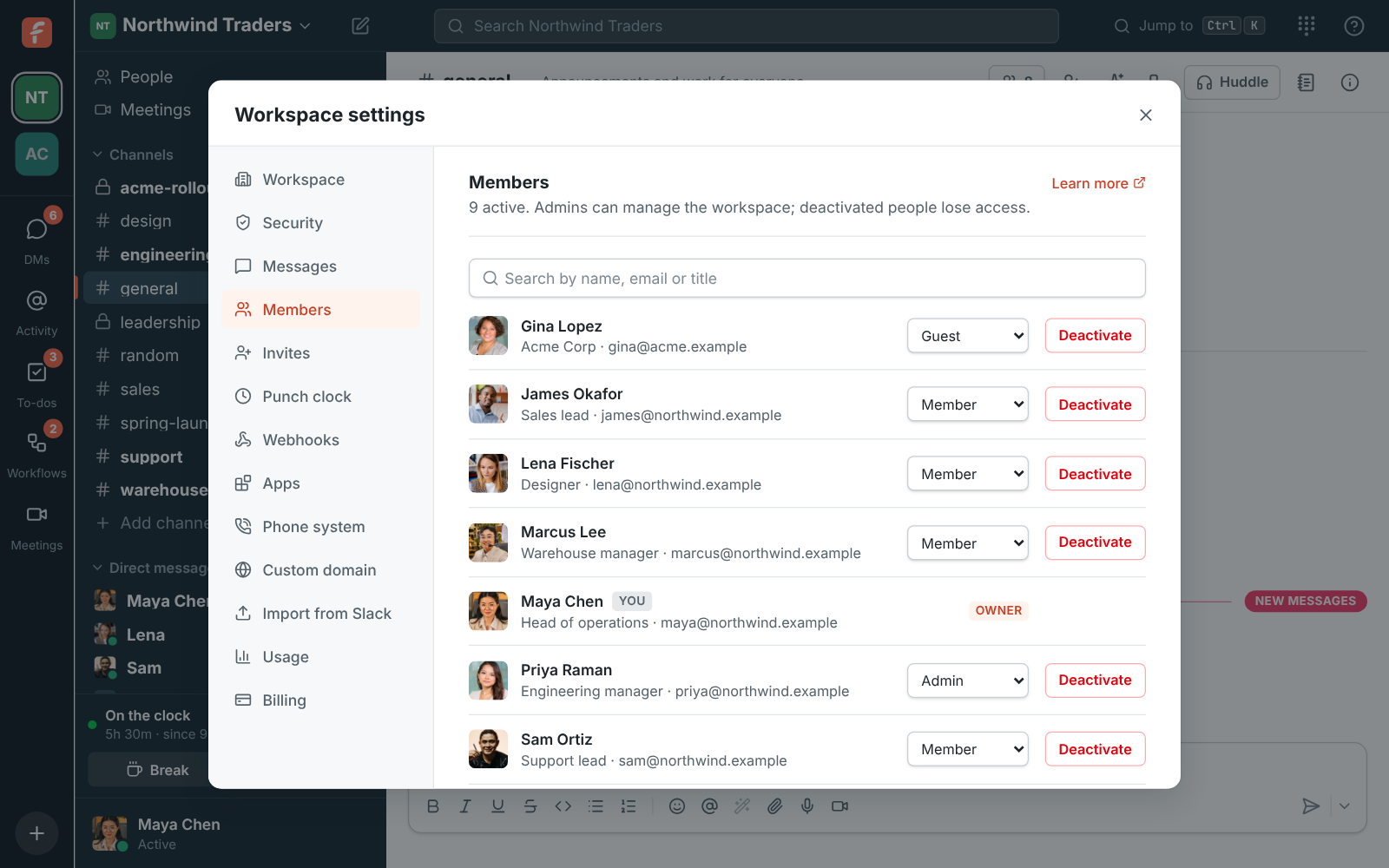
- **Change a role** with the dropdown next to someone's name: Member or Admin (or promote a
Guest).
- **Edit a profile** with the pencil next to someone's name: their title and work details,
including fields only admins fill in. See
[Profile fields](https://freesbe.net/docs/admin-settings/#profile-fields).
- **Deactivate** someone who leaves. They're signed out and lose access to the workspace at once.
Their messages stay. Webhooks they created turn off until another admin turns them back on,
and their phone device is turned off. **Reactivate** brings them back.
### Hand the workspace to a new owner
A workspace has one owner. To hand it over, for example before you leave the company or
[delete your Freesbe account](https://freesbe.net/docs/delete-account/), the owner picks **Owner** in the role
dropdown next to an admin or member and confirms. Freesbe asks the owner to verify it's them
first. The new owner gets full control, including billing and closing the workspace, and the old
owner becomes an admin. The [audit log](https://freesbe.net/docs/admin-settings/#audit-log) records it.
Only people who have signed in can become the owner: not guests, apps, AI agents, deactivated
people or people imported from Slack who haven't signed in yet.

## Rename the workspace or change its logo
See [Workspace settings](https://freesbe.net/docs/admin-settings/#workspace).
---
# Plans
Source: https://freesbe.net/docs/plans/
> What comes with Free, Business, Corporate and Enterprise, how many people each plan is for, and which features need which plan.
Freesbe has four plans. Prices and the full comparison are on the
[pricing page](https://freesbe.net/pricing/). What each plan includes and costs can change; the
Billing page in your workspace settings always shows what yours includes today. If you pay for a
plan, you keep your price when the list price changes, until you change plan. Every number for
every plan, from people to AI requests and webhooks, is on [Plan limits](https://freesbe.net/docs/plan-limits/).
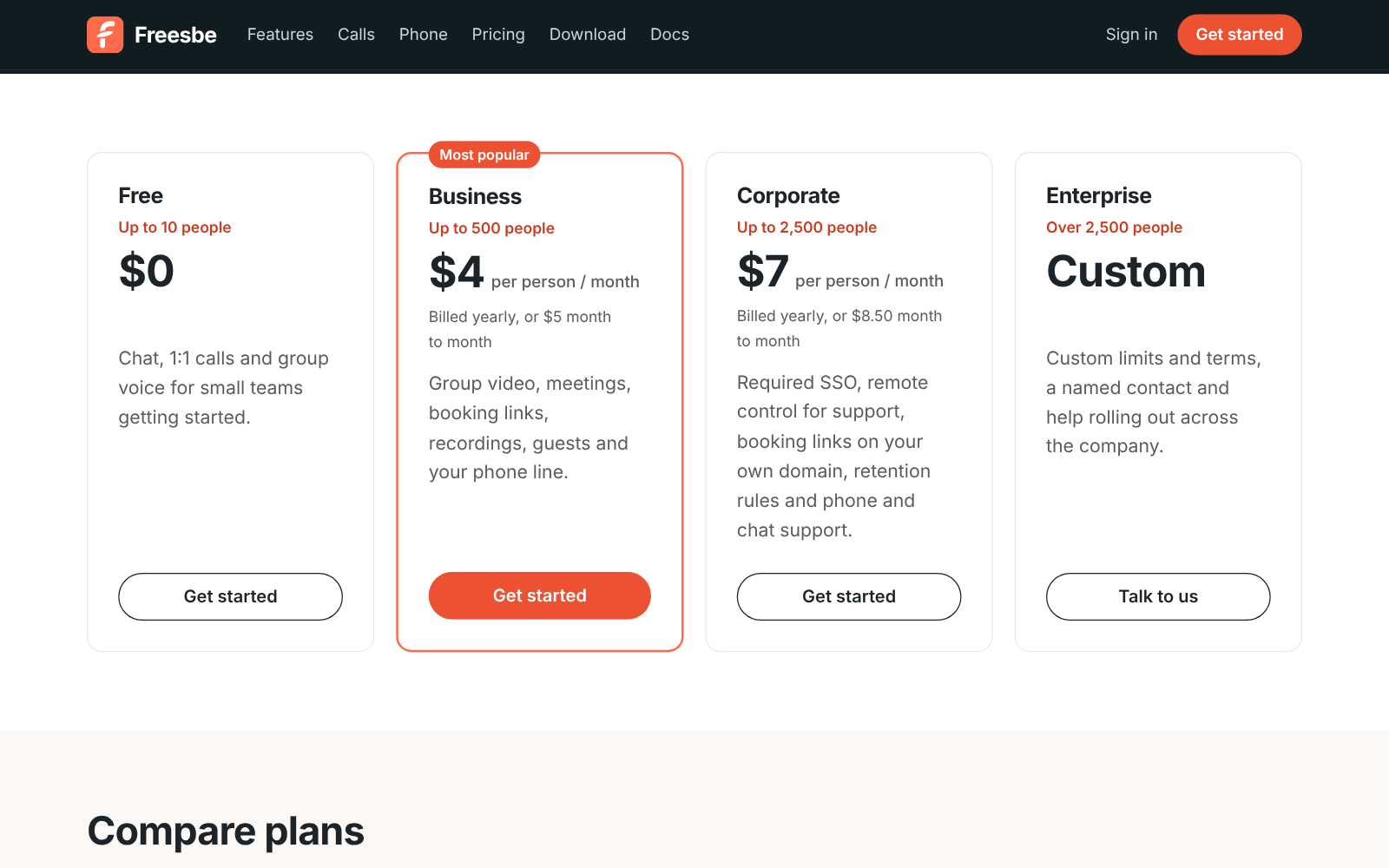
| Plan | Price | Sized for |
| -------------- | --------------------------------------------------------- | ------------------ |
| **Free** | $0 | Up to 10 people |
| **Business** | $4 per person a month billed yearly, $5 month to month | Up to 500 people |
| **Corporate** | $7 per person a month billed yearly, $8.50 month to month | Up to 2,500 people |
| **Enterprise** | Custom | Over 2,500 people |
:::note
Workspaces from [self-serve sign-up](https://freesbe.net/docs/getting-started/#sign-up-your-team) follow their plan
from the start: a [free trial](#free-trial), then Free unless you pick a plan. Workspaces Freesbe
set up for you can use every feature for now; their owners and admins get an email 30 days before
that changes. Admins can see their workspace's plan and how many people count
toward it under **Workspace settings → Billing**; see [Billing](https://freesbe.net/docs/billing/).
:::
## Options your plan doesn't include
A setting your plan doesn't include stays greyed out, with a padlock and a line saying which plan
it needs, like **Requires the Corporate plan**. The plan's name is a link: owners and admins go
straight to **Billing → Plans** to upgrade, and for Enterprise it opens an email to
sales@freesbe.net. Members see the same line and are asked to check with an admin.
## Free trial
A workspace you create by [signing up](https://freesbe.net/docs/getting-started/#sign-up-your-team) gets Business free
for 14 days, with no credit card. During the trial you can use everything in Business, with a few
limits so the trial stays free for everyone:
| During the trial | Up to |
| ------------------------------------------------------------------ | ----------------------------- |
| People in the workspace | 25 |
| Group video | About 5 hours of a 3-way call |
| [Transcripts and AI notes](https://freesbe.net/docs/recordings-and-notes/) | 1 recording |
| [AI summaries, translations and writing help](https://freesbe.net/docs/ai-summaries/) | 50 requests |
| Files | 5 GB |
Each person, email address and company gets one trial, so a second workspace you create starts on
Free. Admins see how many days are left under **Workspace settings → Billing**, and a reminder at
the top of the app in the last five days. Owners and admins also get an email three days before
the trial ends, and another when it has ended.
When the trial ends, the workspace moves to Free unless you [choose a plan](https://freesbe.net/docs/billing/).
Nothing is deleted: messages, files and recordings stay, and Business features come back as soon as
you upgrade. If you choose a plan during the trial, the rest of the trial stays free: your card is
first charged on the day the trial would have ended.
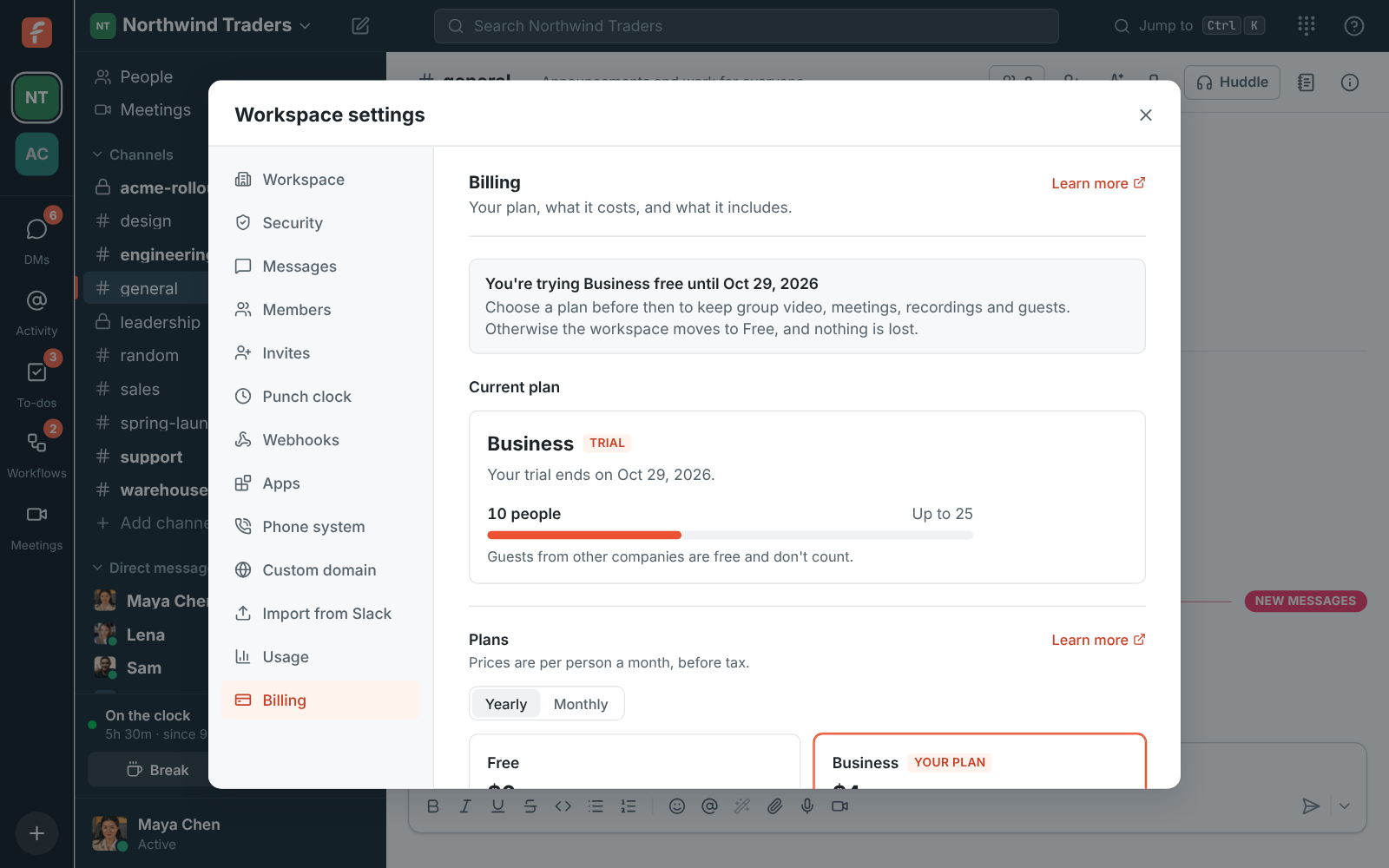

## Free
Channels, DMs, threads, search, 1:1 voice and video calls and group voice
[huddles](https://freesbe.net/docs/huddles/), with 90 days of history, 5 GB of files and one incoming webhook. Also
30 [AI summaries, translations and writing help](https://freesbe.net/docs/ai-summaries/) a month for the workspace.
Recording, scheduled meetings and guests need a paid plan.
## Business
Everything in Free, plus:
- Unlimited history and 10 GB of files per person.
- Group video and screen sharing, with 20 video hours per person a month pooled across the
workspace.
- [Meetings](https://freesbe.net/docs/meetings/) with guest links, [booking links](https://freesbe.net/docs/booking-links/) and
calendar free/busy, and [call recordings with transcripts and AI notes](https://freesbe.net/docs/recordings-and-notes/)
(10 hours of transcripts per person a month).
- [AI summaries, translations and writing help](https://freesbe.net/docs/ai-summaries/): 100 requests per person a month, pooled.
- [Guests](https://freesbe.net/docs/guests/) from other companies.
- Requiring [multi-factor authentication](https://freesbe.net/docs/multi-factor-authentication/).
- The [phone line and dialpad](https://freesbe.net/docs/phone/) and the [punch clock](https://freesbe.net/docs/punch-clock/).
- Outgoing webhooks, the [REST API](https://freesbe.net/docs/api-and-webhooks/) and [Slack import](https://freesbe.net/docs/slack-import/).
- [WhatsApp in the customer inbox](https://freesbe.net/docs/customer-inbox/#whatsapp), with photos, files and
templates. Meta bills WhatsApp's own fees to your WhatsApp Business account.
- Your own [profile fields](https://freesbe.net/docs/admin-settings/#profile-fields), like Region or Start date, and
fields only admins fill in. Every plan has the built-in ones: pronouns, department, location,
manager and phone.
- Email support.
## Corporate
Everything in Business, plus:
- Up to 2,500 people, 20 GB of files per person and 40 video hours per person a month.
- 300 [AI summaries, translations and writing help](https://freesbe.net/docs/ai-summaries/) per person a month, pooled.
- Requiring [single sign-on](https://freesbe.net/docs/single-sign-on/) for everyone.
- [File type rules](https://freesbe.net/docs/file-types/) that share only the kinds of file you pick, with always-allow
and always-block lists.
- Booking links on your own domain, like `meetme.acme.com/dana` (coming soon).
- Rules that [delete recordings](https://freesbe.net/docs/admin-settings/#recordings) after 30, 90 or 365
days.
- The [Salesforce app](https://freesbe.net/docs/salesforce/): opportunity, lead and case alerts, link previews,
`/salesforce` and Log to Salesforce.
- Phone and chat support in business hours, and help moving from Slack.
- Paying by invoice or purchase order.
## Enterprise
Everything in Corporate, with custom people, storage and video limits, a named contact with
priority response, your own contract and security review, and directory sync (SCIM) once it ships.
Email [sales@freesbe.net](mailto:sales@freesbe.net) to talk about Corporate or Enterprise.
## AI on every plan
Every plan comes with [AI summaries, translations and writing help](https://freesbe.net/docs/ai-summaries/),
[transcripts and AI notes](https://freesbe.net/docs/recordings-and-notes/) from huddles and meetings, and
[AI agents](https://freesbe.net/docs/ai-agents/) like Claude and ChatGPT. The plans differ in how much each month:
| Plan | AI requests a month | Transcripts and AI notes |
| -------------- | ---------------------- | --------------------------- |
| **Free** | 30 for the workspace | 3 a month |
| **Business** | 100 per person, pooled | 10 hours per person a month |
| **Corporate** | 300 per person, pooled | No set limit |
| **Enterprise** | No set limit | No set limit |

## Add-ons
The [phone system](https://freesbe.net/docs/phone/) is bought on top of any paid plan: $8 per person a month billed
yearly, or $10 month to month. It includes one local number and 1,000 minutes and 200 texts per
person a month. More local numbers, and toll-free numbers, are $5 a month each. Buying a number
needs the Phone system add-on and a one-time
[identity check](https://freesbe.net/docs/phone-number-verification/).
Adding seats or add-ons is prorated: you pay now for the rest of the period. Removing takes effect
at the end of the period, with no refund. See [Billing](https://freesbe.net/docs/billing/#add-ons).

## Who counts as a person
Everyone with an active account in the workspace. Guests from other companies and people who join
a meeting through a guest link are free. When a workspace grows past its plan's size, nothing
stops working; we'll get in touch about moving to the next plan.
---
# Plan limits
Source: https://freesbe.net/docs/plan-limits/
> Every limit on Free, Business, Corporate and Enterprise in one place, from people and storage to video hours, AI requests, transcripts, channels, webhooks and the phone system add-on.
This page lists how much of everything each [plan](https://freesbe.net/docs/plans/) includes. The same tables are on
[freesbe.net/pricing/limits](https://freesbe.net/pricing/limits/), which always shows the current
numbers. Admins see their own workspace's use of each one under **Workspace settings → Billing → Usage**.

Most of these numbers are set far above what a team of the plan's size uses: they stop runaway
scripts and integrations, not people. Freesbe can raise any of them for one workspace;
[email us](mailto:sales@freesbe.net) if yours needs more.
## People, history and files
| What | Free | Business | Corporate | Enterprise |
| ----------------------- | -------- | ---------------- | ---------------- | ---------- |
| People in the workspace | Up to 10 | Up to 500 | Up to 2,500 | Unlimited |
| Message history | 90 days | Unlimited | Unlimited | Unlimited |
| File storage | 5 GB | 10 GB per person | 20 GB per person | Custom |
On every plan, one file can be up to 50 MB and a message can have up to 10 files. A group DM has
up to 9 people, including you. Each person can have 500 open to-dos and 100 scheduled messages.
## Calls and meetings
| What | Free | Business | Corporate | Enterprise |
| -------------------------------- | -------- | --------------------- | --------------------- | ------------- |
| Group video hours | 1:1 only | 20 per person a month | 40 per person a month | Custom |
| Upcoming scheduled meetings | – | 2,000 | 10,000 | 50,000 |
| Active guest links to recordings | – | 200 | 1,000 | 5,000 |
| Booking links | – | 10 per person | 10 per person | 10 per person |
Video hours are pooled across the workspace. A video hour is one person with video on in a group
call for an hour; voice and 1:1 calls don't count. On every plan, up to 20 people can be in a
huddle or a meeting at once, and you can invite up to 50 people to one meeting.
## AI
AI is on every plan. See [AI summaries, translations and writing help](https://freesbe.net/docs/ai-summaries/),
[Recordings, transcripts and notes](https://freesbe.net/docs/recordings-and-notes/) and [AI agents](https://freesbe.net/docs/ai-agents/).

| What | Free | Business | Corporate | Enterprise |
| --------------------------------------- | -------------------- | --------------------------- | -------------- | ------------- |
| AI requests a month | 30 for the workspace | 100 per person | 300 per person | No set limit |
| Transcripts and AI notes | 3 a month | 10 hours per person a month | No set limit | No set limit |
| AI agent connections (Claude, ChatGPT…) | 5 per person | 5 per person | 10 per person | 50 per person |
Each summary, translation, suggested rewrite or photo touch-up is one AI request, pooled across
the workspace. Transcripts count whether you record the call or only
[transcribe it](https://freesbe.net/docs/recordings-and-notes/). Admins can turn AI features off for the whole
workspace in [Admin settings](https://freesbe.net/docs/admin-settings/#ai-features).
## Channels, apps and integrations
| What | Free | Business | Corporate | Enterprise |
| -------------------------------------------------------- | ---- | -------- | --------- | ---------- |
| Channels (not archived, not DMs) | 100 | 2,000 | 10,000 | 50,000 |
| Canvases | 50 | 5,000 | 25,000 | 100,000 |
| Workflows | 5 | 200 | 500 | 2,500 |
| Custom apps | 5 | 50 | 100 | 500 |
| Slack-compatible incoming webhooks | 1 | 100 | 500 | 2,500 |
| Outgoing webhooks | – | 50 | 200 | 1,000 |
| [Sign in with Freesbe](https://freesbe.net/docs/sign-in-with-freesbe/) apps | 2 | 20 | 50 | 250 |
| [News feeds](https://freesbe.net/docs/rss-feeds/) | 2 | 20 | 100 | 500 |
A dash means the plan doesn't include the feature at all: outgoing webhooks need Business, for
example.
## Phone system add-on
The [phone system](https://freesbe.net/docs/phone/) is an add-on for any paid plan. It includes, for each person,
pooled across the workspace:
| What | With the Phone system add-on |
| ------------- | ---------------------------- |
| Phone minutes | 1,000 per person a month |
| Texts | 200 per person a month |
| Local numbers | One per person |
Local numbers past those are $5 a month each, and so are toll-free numbers. Buying a number needs
the Phone system add-on and a one-time
[identity check](https://freesbe.net/docs/phone-number-verification/). Numbers are billed until you release them.

## How fast anyone can go
The same on every plan, for each person, bot or API token:
| What | A minute |
| ------------------------------------------------------- | -------- |
| Sending messages | 60 |
| Adding reactions | 120 |
| Making channels, meetings, webhooks, apps and workflows | 20 |
| Uploading files | 30 |
| Searching | 60 |
Workspaces that signed up on their own can also send 10,000 messages and make 200 channels,
meetings and other things a day while they're on Free or a trial.
## What happens at a limit
- **Nothing you have is removed.** At a count limit, like channels, you can't add another until
you're under it, with a message such as **This workspace has as many channels as its plan
allows**. Archiving a channel frees its place.
- **Allowances start again on the 1st.** On paid plans, extra AI requests and video hours keep
working and are added to your next bill; see
[Usage past what's included](https://freesbe.net/docs/billing/#usage-past-whats-included).
- **Growing past your plan's size doesn't stop anything.** We'll get in touch about moving to the
next plan.
[Usage limits](https://freesbe.net/docs/usage-limits/) has more on what each limit does when it's reached.
:::note
Billing isn't switched on yet, so workspaces your admins made can use every feature for now, and
video and storage follow the workspace-wide allowances on [Usage limits](https://freesbe.net/docs/usage-limits/).
Workspaces from self-serve sign-up follow their plan from the start.
:::
---
# Billing
Source: https://freesbe.net/docs/billing/
> How admins pay for a plan, change it, buy add-ons, how usage past the plan is charged, how seats are counted, and where invoices are.
Admins see the workspace's plan, what it costs and its invoices under **Workspace settings →
Billing**. Members don't see this page. What each plan includes is on [Plans](https://freesbe.net/docs/plans/).
:::note
On a [free trial](https://freesbe.net/docs/plans/#free-trial), the Billing page shows when it ends and a **Keep
Business** button to pay before then. Paying during the trial keeps the rest of it free: your card
is first charged on the day the trial would have ended.
Workspaces Freesbe set up for you, rather than ones made through sign-up, can use every feature
for now. Their owners and admins get an email 30 days before that changes.
:::
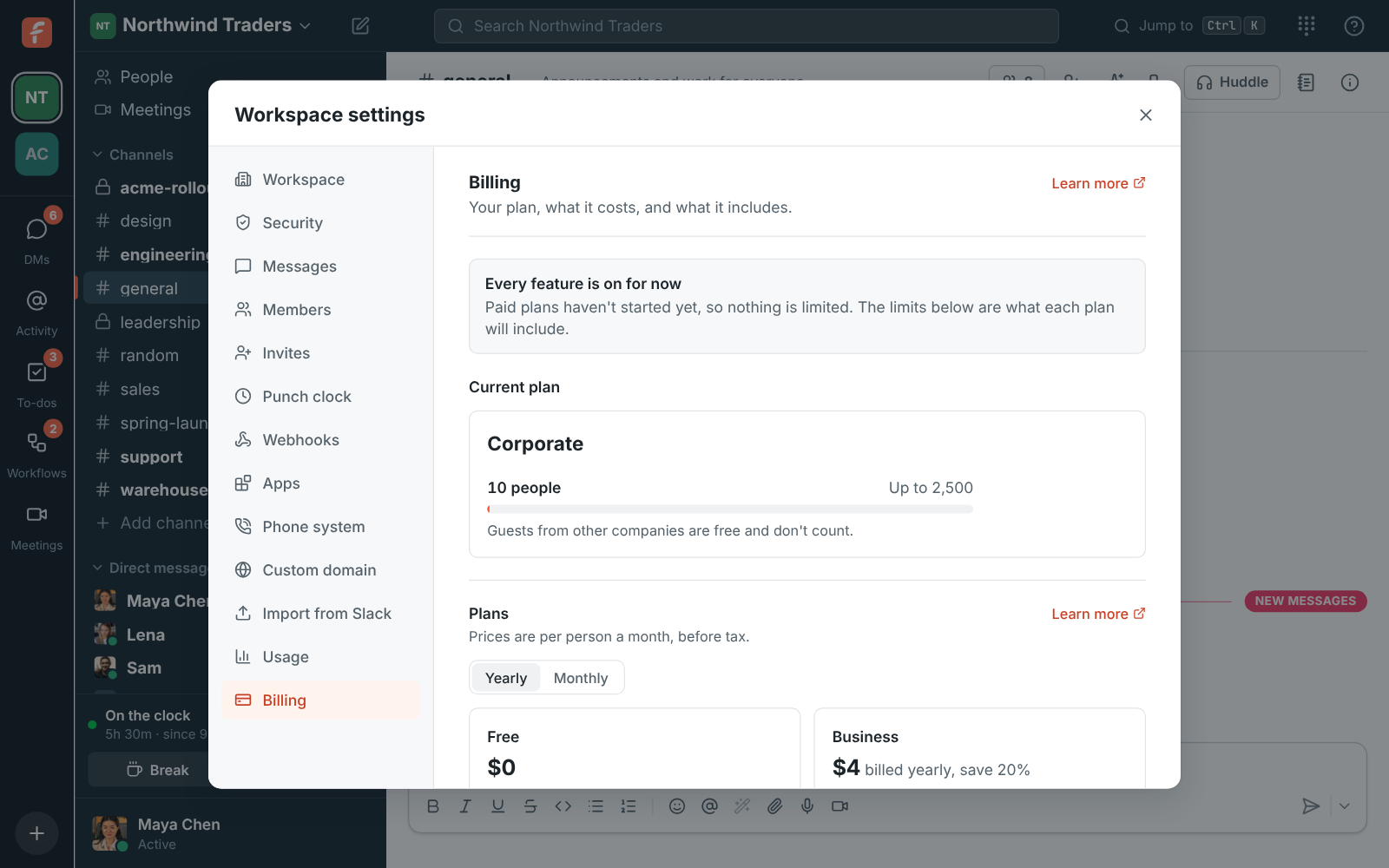
## Your plan
The top of the page shows:
- **The plan** and whether it's active, on a trial, or has a payment that didn't go through.
- **What you pay**: the price per person a month, and whether it's billed yearly or monthly.
- **When it renews**, or when a trial or a canceled plan ends.
- **People**: everyone who counts toward the plan, against the plan's limit.
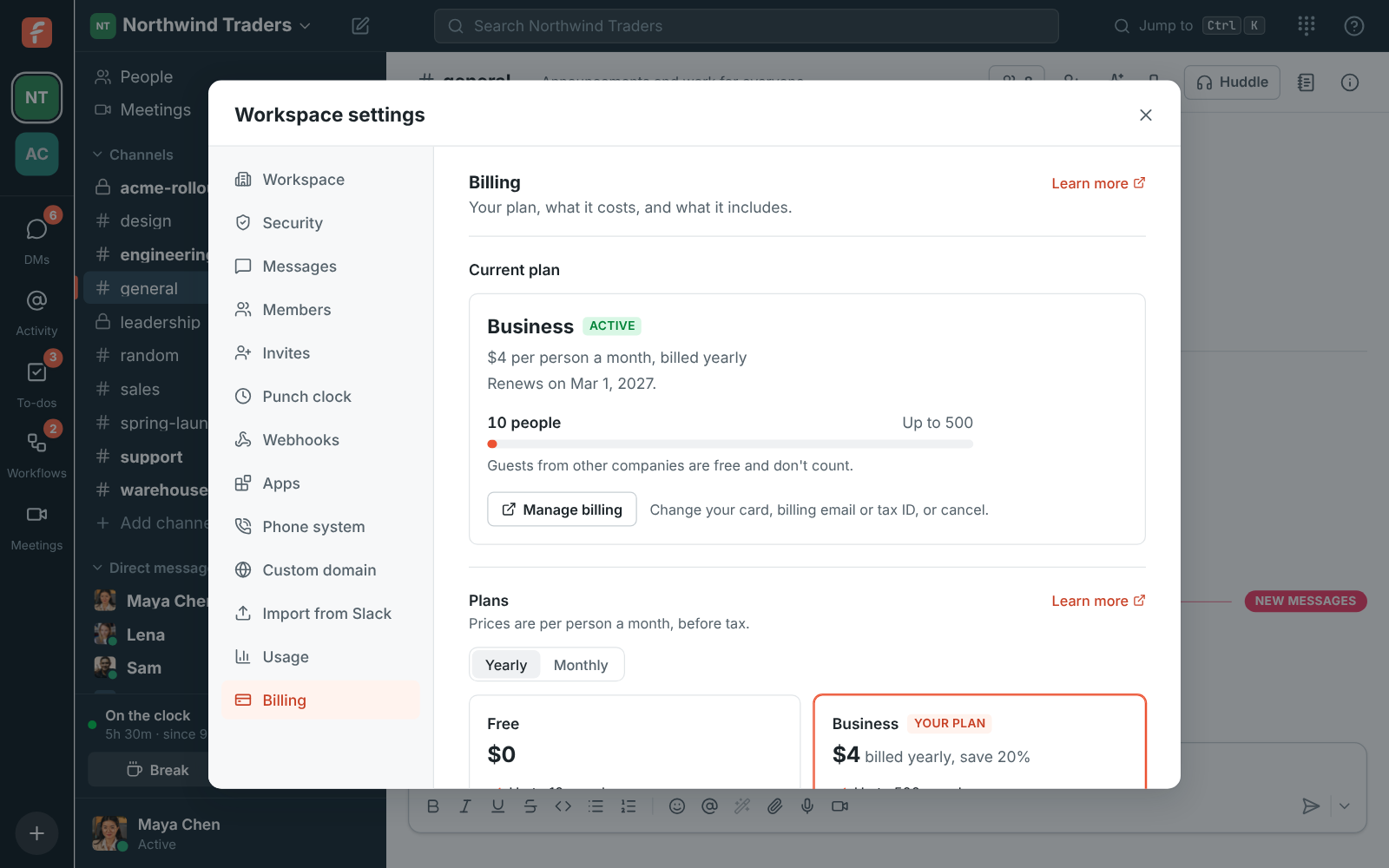
## Pay for a plan
1. Open **Workspace settings → Billing**.
2. Pick **Yearly** or **Monthly** above the plans, then **Upgrade to Business** or **Upgrade to
Corporate**.
3. Stripe's secure checkout opens with one seat for each person in the workspace. Enter your card,
billing address and, if you have one, your company's tax ID. Tax is added where it applies.
4. You come back to the Billing page, which shows the new plan within a few seconds.
Freesbe never sees your card number: Stripe keeps it. From the desktop app, checkout opens in
your web browser.
## Change plan, card or billing details
**Manage billing** opens Stripe's billing portal, where you can:
- Change the card the workspace pays with.
- Change the billing email, address or tax ID that appear on invoices.
- See and download every invoice.
- Cancel. The plan keeps working until the end of the period you paid for, then the workspace
moves to Free. Nothing is deleted. Free has no phone system: if you have phone numbers, see
[When the Phone system add-on ends](https://freesbe.net/docs/phone/#when-the-phone-system-add-on-ends).
To stop using Freesbe altogether and delete the workspace, [close it](https://freesbe.net/docs/close-workspace/)
instead: that cancels the plan for you.
To move between Business and Corporate, or between yearly and monthly, use the buttons on the
plans. Moving up (Business to Corporate, or monthly to yearly) happens right away, and you pay the
difference for the rest of the period. Moving down happens at the end of the period, so you keep
what you paid for.
## Add-ons
Some things are bought on top of a plan. When there are any for your plan, they're under
**Add-ons** on the Billing page, with what each costs a month before tax, on the same bill as your
plan.
- **Add** asks you to confirm the price, then turns the add-on on for the workspace straight away.
For things bought by the unit, like agents, choose how many first, and change the number any
time with **Save**.
- Some add-ons follow the workspace: one charged per person follows the people who count toward
the plan, and one charged for things the workspace has (like phone numbers) follows how many it
has. You don't change those yourself.
- Some need another add-on first. The card says which.
- **Remove** keeps the add-on working until the end of the period you've paid for, marked
**Ends** with the date, and it isn't charged after that. **Keep** undoes it at no cost.
Adding is charged like a new person: on a yearly plan in a small invoice right away, on a monthly
plan on the next invoice. Add-ons need a paid plan. When you change plan or switch between yearly
and monthly, your add-ons move with it, and the difference is charged or credited right away.
## Usage past what's included
Plans and add-ons include a monthly allowance of some things, like AI requests. Extra use isn't
charged: when the workspace reaches an allowance, that feature stops until the 1st of the next
month (UTC), and the rest of Freesbe keeps working. Your bill is only your plan and add-ons. See
[Plan limits](https://freesbe.net/docs/plan-limits/) for each plan's allowances.
## Adding and removing
Adding is prorated: you pay for the rest of the current period, then the full price at renewal.
Removing takes effect at the end of the period you've already paid for: what you removed isn't
charged after that, and nothing is refunded. Until then, what's paid for can be used again for
free. For example, when someone leaves, the next person who joins that period takes their seat
at no extra cost.
Yearly plans are a 12-month commitment. In the first 7 days after you buy one or it renews,
removing seats or add-ons comes back as a credit, so you can fix a mistake. After that, removing
takes effect at the next renewal.
## Who counts as a person
Every member with an active account. Guests from other companies, people who join a meeting
through a guest link and deactivated people are free.
You don't need to change the number of seats yourself: it follows the workspace within a few
minutes. Someone who joins is charged for the rest of the period: on a yearly plan in a small
invoice right away, on a monthly plan on the next invoice. Someone who leaves or is deactivated
stops being charged at renewal, and their seat goes to the next person who joins before then.
With the Phone system add-on, one local number comes with each person. When someone is deactivated
and the workspace has more local numbers than people, the ones past that are billed as the **Phone
number** add-on. **Deactivate** tells you what that adds a month before you confirm.
## Yearly or monthly
Paying yearly costs less: $4 instead of $5 a person a month for Business (20% less), and $7
instead of $8.50 for Corporate (18% less). The **Yearly** and **Monthly** switch above the plans
shows both prices. Prices are in US dollars, before tax.
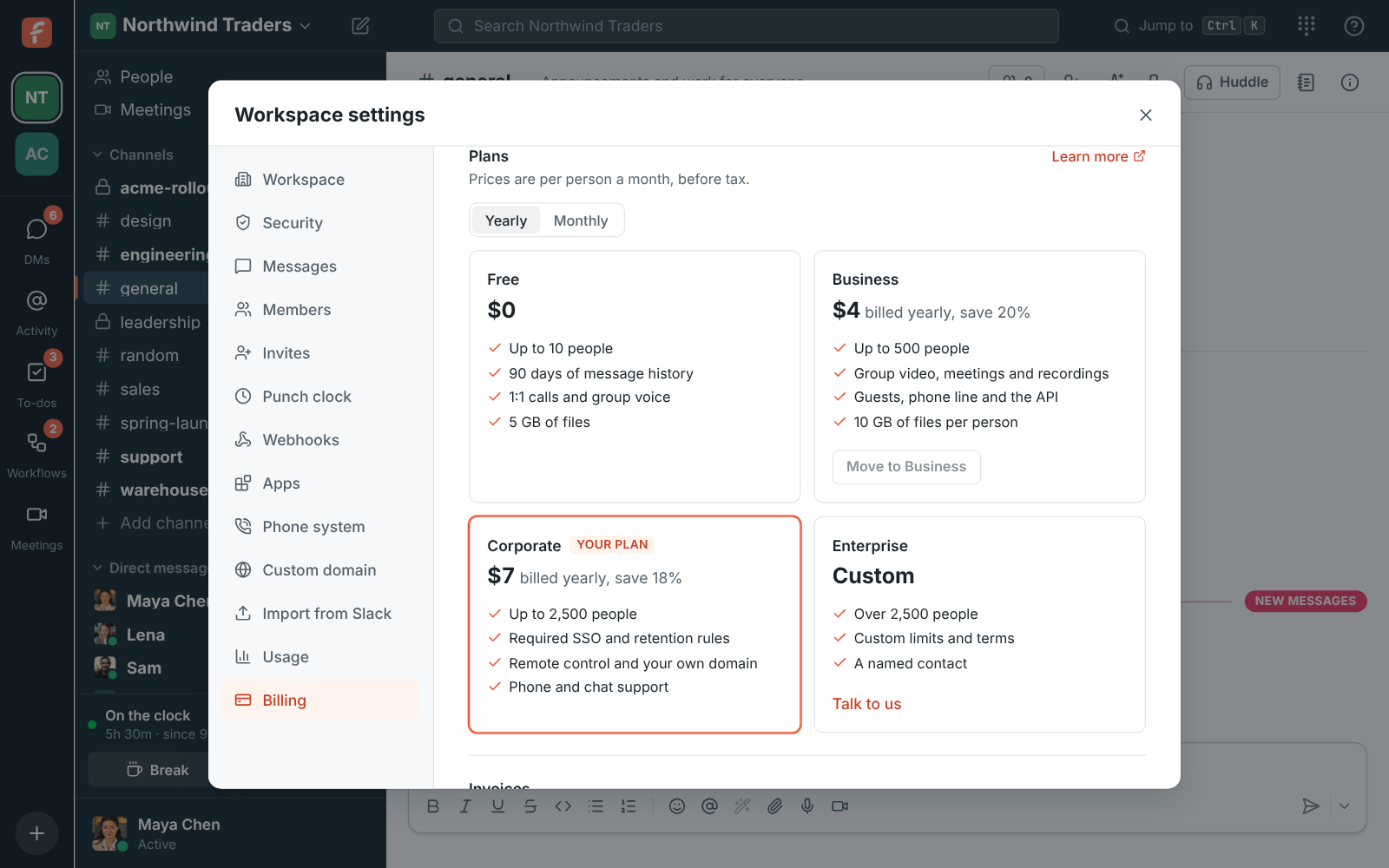
Enterprise has custom limits and terms: **Talk to us** emails
[sales@freesbe.net](mailto:sales@freesbe.net).
## Receipts and failed payments
Stripe emails a receipt to the billing email each time a payment goes through, and a reminder
before a yearly plan renews. If a payment fails, Stripe emails the billing email and tries the card
again over the next two weeks, and the Billing page shows **Payment failed** with a link to update
the card. If every try fails, the plan is canceled and the workspace moves to Free. Nothing is
deleted, and you can pay for a plan again at any time.
## Invoices
Every invoice is listed at the bottom of the page with its date, number, amount and whether it's
paid. **Download** opens the invoice, where you can save it as a PDF.
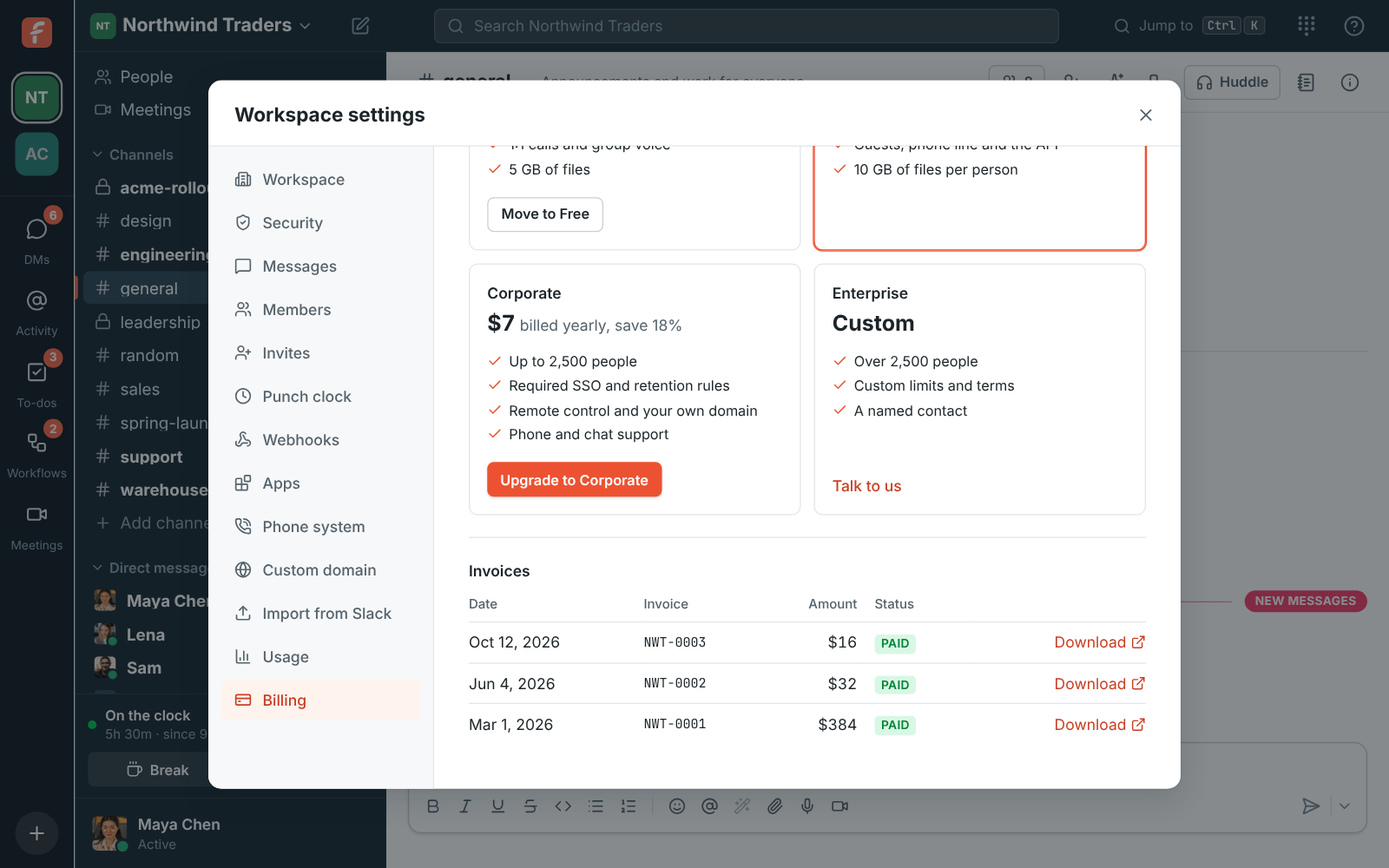
---
# Close a workspace
Source: https://freesbe.net/docs/close-workspace/
> Close a workspace for good - when it stops working, the 30 days it stays read-only, how to reopen it, and what we delete and keep.
The workspace's owner can close it at any time. Nothing disappears the moment you click: a paid
workspace keeps working until the end of the period you paid for, then it's read-only for 30 days,
and only then is everything in it deleted. Until the deletion starts, the owner can reopen it.
Closing a workspace is about the workspace, not the people in it. Everyone keeps their Freesbe
account and their other workspaces.
## Before you start
- **Export what you want to keep.** Owners and admins can
[export the workspace](https://freesbe.net/docs/export-data/), before closing or while it's read-only.
- **Only the owner can close it.** If that should be someone else, the owner can
[hand the workspace over](https://freesbe.net/docs/workspaces-and-invites/#hand-the-workspace-to-a-new-owner)
first.
## Close the workspace
1. Open **Workspace settings → General → Workspace** and scroll to **Close workspace**. It lists add-ons
that end with the plan and whether a phone system is turned off.
2. Type the workspace's name to confirm, and tell us why, if you like.
3. Click **Close workspace** and confirm. Freesbe asks you to verify it's you first.

The owner and admins get an email with the dates, and the owner gets one more a week before the
deletion.
## What happens, and when
| When | What happens |
| ------------------------------------------ | ------------------------------------------------------------------------------------------------------------------------------------------------------------------------- |
| Right away | The plan won't renew. Everyone sees a banner with the date. On Free, the workspace goes read-only now. |
| Until the paid period ends | Everything works as usual. Nothing is refunded for the rest of the period. |
| When the period ends (or right away, Free) | The workspace is **read-only**: everyone can read, search and download, admins can export, and nobody can post, call, upload or change settings. The phone is turned off. |
| 30 days later | Everything in the workspace is deleted, and its phone numbers are released. |
While it's read-only, webhooks, apps and integrations can't post to it either. An incoming
webhook answers `workspace_closed`.

## Reopen it
The owner can reopen the workspace in **Workspace settings → General → Workspace → Close workspace** any time
before the deletion starts:
- **Still in its paid period**: click **Reopen workspace**, and the plan renews as before.
- **Read-only**: click **Reopen workspace**. It's back on Free, with everything in it. Choose a
plan on the [Billing](https://freesbe.net/docs/billing/) page to get paid features back.
Renewing the plan in the billing portal before the period ends keeps it open too.
## What we delete and what we keep
After the 30 days:
| Data | What happens |
| ---------------------------------------------------------------------- | ---------------------------------------------------- |
| Channels, messages, threads, reactions, files and canvases | Deleted |
| Meetings, recordings, transcripts, huddles and call history | Deleted |
| Integrations, webhooks, apps, workflows, custom domain and settings | Deleted |
| Exports of the workspace | Deleted |
| Phone numbers | Released |
| People's Freesbe accounts and their other workspaces | Stay |
| People imported from Slack who never signed in | Their name and address are deleted |
| Invoices, and a record that the workspace was closed, by whom and when | Kept 7 years, as tax law asks. No messages or files. |
Backups roll off within 30 more days, so the workspace is gone from everywhere within 60 days of
the deletion. See the [privacy policy](https://freesbe.net/privacy/) for how long we keep data.
## Your own account
To delete your Freesbe account as well, see [Delete your account](https://freesbe.net/docs/delete-account/). A
workspace you're closing doesn't stop you.
---
# Account on hold, under review or suspended
Source: https://freesbe.net/docs/account-status/
> What it means when Freesbe's team holds your workspace - confirming who owns it, waiting for your documents, under review, or suspended - what still works, and how to reach us or appeal.
Now and then a workspace has to wait for us: to confirm who owns a new workspace, to check
documents you sent us, to look into something before deciding what to do, or because the workspace broke our
[Acceptable Use Policy](https://freesbe.net/acceptable-use/) or [Terms of Service](https://freesbe.net/terms/). When that happens,
everyone in the workspace sees a status screen instead of the app, with a reference number to quote
when you write to us. Nothing is deleted while a workspace is held.
## Verify the owner
Freesbe lets a workspace call, text, email and message its customers. To keep that safe for
everyone, we ask the owners of some new workspaces to confirm who they are before the team gets
started.
**Why we ask.** People answer calls and open messages because they trust who sent them. Knowing
who runs each workspace keeps scammers and spammers off Freesbe, so your calls get answered and
your messages delivered. It's the same reason we verify whoever buys a workspace's first
[phone number](https://freesbe.net/docs/phone-number-verification/#why-we-verify).
**When we ask.** Right after sign-up, when our automatic checks of a new account want a second
look. It isn't an accusation: plenty of real companies sign up from a shared office network or a
new email domain. Until it's done, the new workspace can't invite people, get phone numbers or
reply to customers.
**What it takes.** About two minutes, with your phone and a government photo ID: a picture of the
ID and a quick selfie. The owner clicks **Verify my identity** on the screen and follows the steps,
as in [phone number verification](https://freesbe.net/docs/phone-number-verification/#what-we-ask-for).

Scan the QR code with your phone, or open the link on the same device, and take the pictures. The
screen moves on by itself: as soon as the check passes, the workspace opens, your
[free trial](https://freesbe.net/docs/plans/#free-trial) starts, and we email you that you're all set. It also counts
for phone numbers, so you won't be asked again to buy one.

**Your ID stays private.** It's only used to confirm who you are. Nobody in your workspace sees
it, and Freesbe doesn't keep a copy, only that the check passed. See
[how your information is used](https://freesbe.net/docs/phone-number-verification/#how-your-information-is-used).
Everyone else who joins in the meantime sees that the owner is confirming who they are, and gets
in as soon as it's done.

If the check doesn't pass, we email you tips and you can try again from the same screen (see
[if the check doesn't pass](https://freesbe.net/docs/phone-number-verification/#if-the-check-doesnt-pass)). If it
still doesn't, or you'd rather not verify this way, write to support@freesbe.net with the reference
on the screen and someone from our team will look at it.
## Waiting for your documents
Some things, like phone numbers, need us to check who you are first (see
[phone number verification](https://freesbe.net/docs/phone-number-verification/)). While we check what you sent, the
workspace waits for us: you can read everything in it, but not post, call or change settings. Most
checks finish within one business day, and we email you when it's done.

To send us another document, click **Send another document**. It opens an email to
support@freesbe.net with your reference.
## Under review
When something on a workspace needs a closer look, we put it under review before deciding anything.
Chat, calls and meetings keep working. Until we finish, you can't invite people, add phone numbers
or reply to customers from the [customer inbox](https://freesbe.net/docs/customer-inbox/).

Click **Continue to Freesbe** to go on to the app. We usually email the workspace's owner about what
we're checking; replying is the fastest way to finish. Reviews usually take one to two business
days.
## Suspended
A workspace that broke the Acceptable Use Policy or the terms is suspended. Its people can sign in
and read what's there, but they can't send messages, make calls or change anything. The screen says
why, and we email the owner the details.

- **Appeal.** If you think we got it wrong, click **Appeal this decision** and tell us why. Quote
the reference on the screen.
- **Keep your data.** Owners and admins can still [export the workspace](https://freesbe.net/docs/export-data/).
## Other workspaces
A hold is on one workspace, not on you. If you're in other workspaces, click **Switch workspace**
on the status screen to go to them. Your Freesbe account and its other workspaces work as usual.
---
# Guests
Source: https://freesbe.net/docs/guests/
> Invite people from outside your organization into a channel, approve them before they join, and what guests can and can't see.
Guests are people from outside your organization, like clients, contractors or partners, who
work with you in specific channels. They only see what they're invited into.
## Invite a guest
Anyone in a channel (except guests) can invite guests into it.
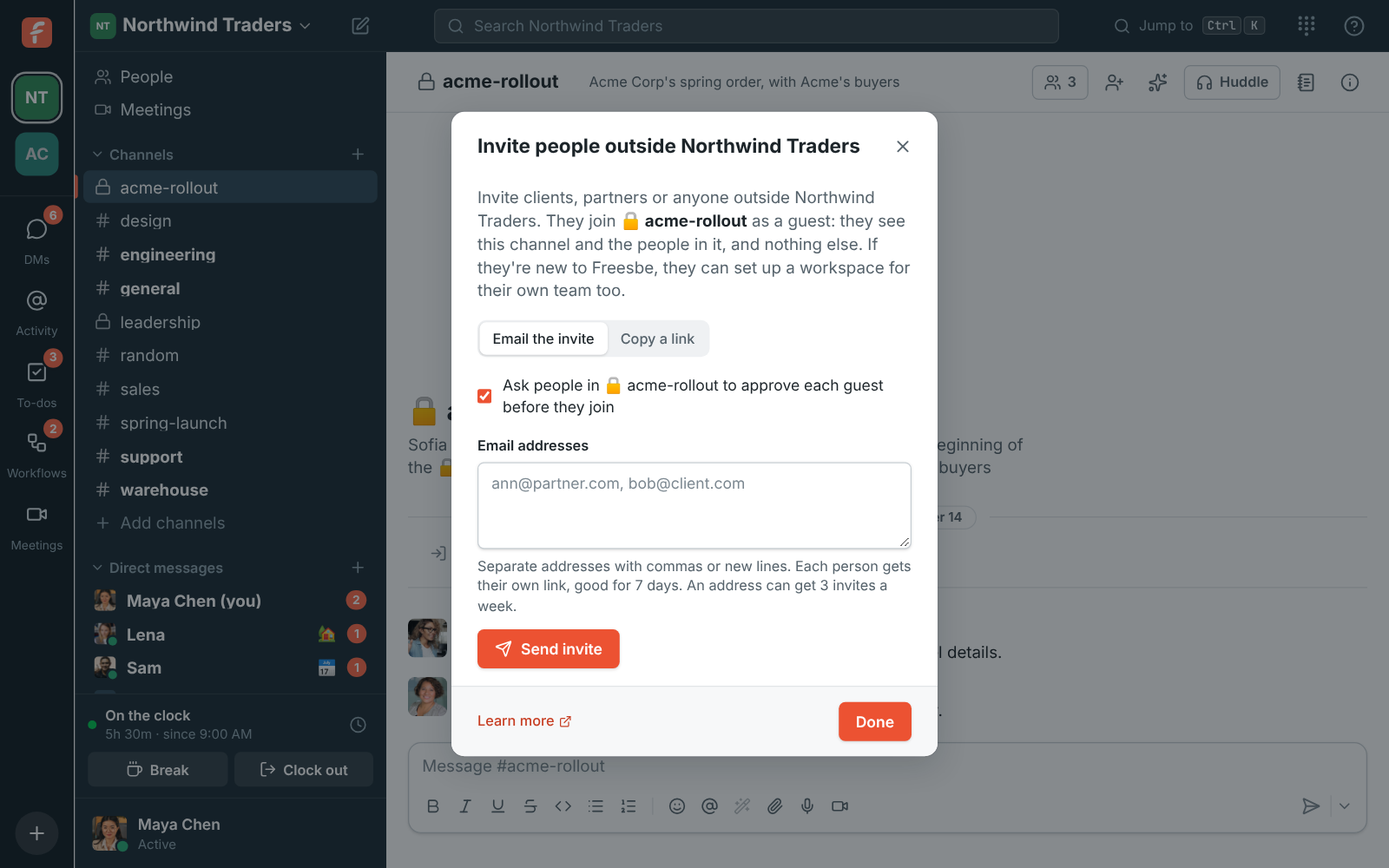
1. Open the channel and click **Invite people from outside** in its header.
2. Choose **Email the invite** and enter addresses, or **Copy a link** to share yourself.
3. Leave **Ask people in #channel to approve each guest before they join** on if you want someone
to check each person first.
Emailed guest invites are single-use and last 7 days. A guest link lasts 7 days too.
The guest sees which channel they're joining, who invited them, and that they'll only see that
channel:
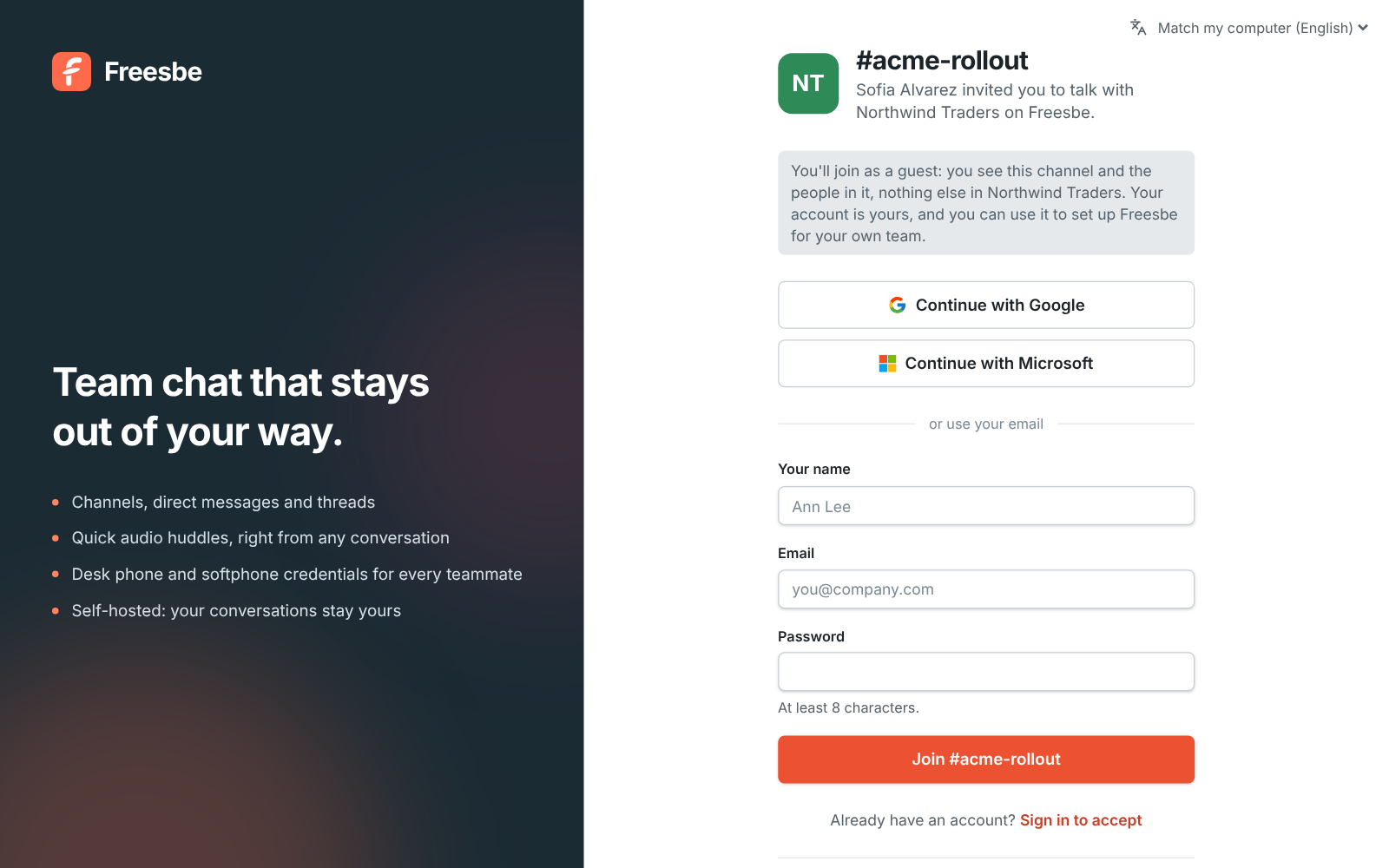
## Approving guests
With approval on, a guest who accepts the invite has an account but can't get in yet. The channel
shows "**Name (email)** wants to join as a guest, invited by **…**" with **Let in** and
**Decline**. Anyone in the channel who isn't a guest can answer. The guest's page moves on by itself
once someone lets them in, and they get an email too.
## What guests can do
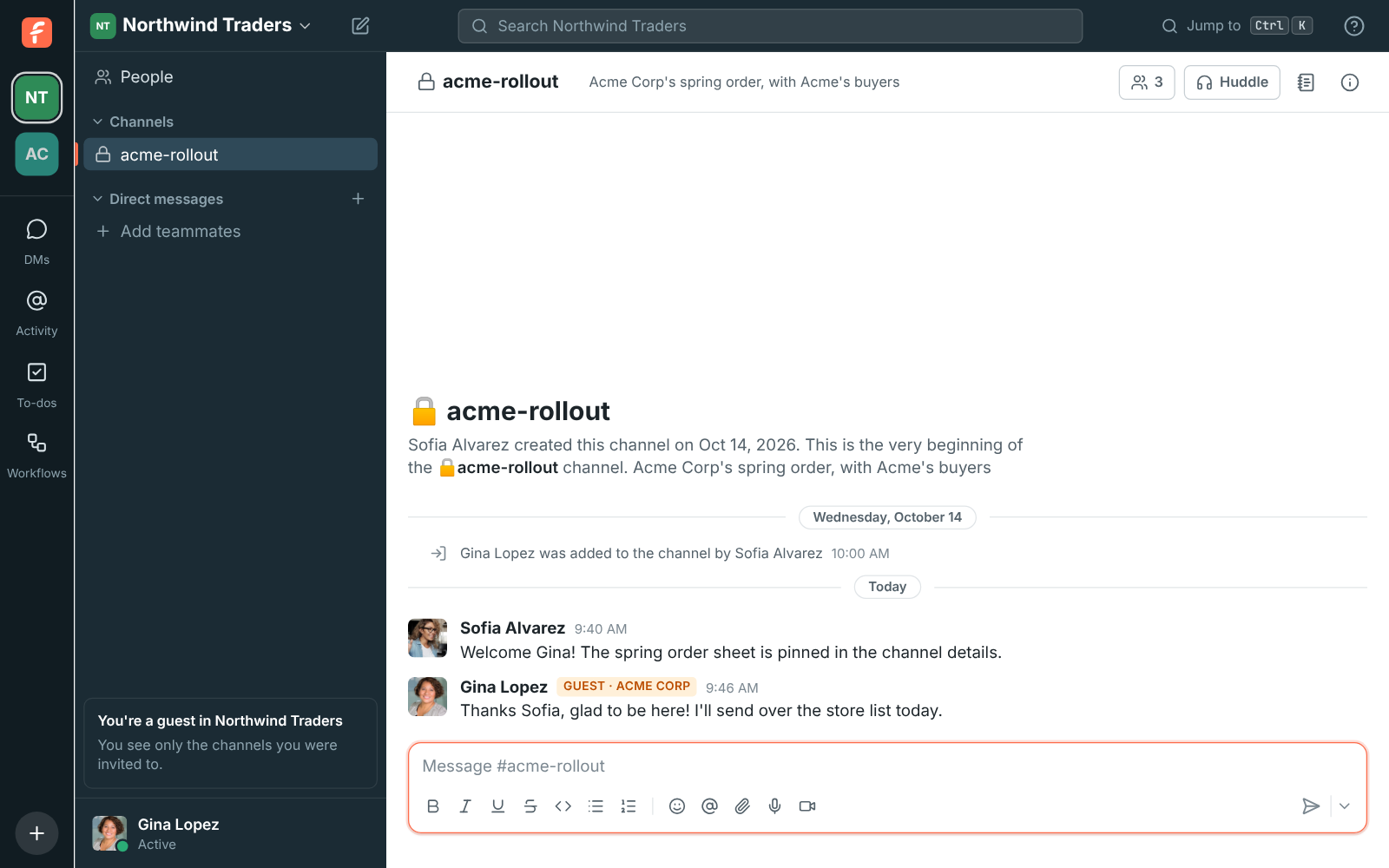
Guests:
- See only the channels they were invited to, and only the people in those channels.
- Can post, reply in threads, react, share files and join huddles in those channels. Out of the
box they can't share programs and scripts; admins choose in [File types](https://freesbe.net/docs/file-types/).
- Can send DMs to the people they share a channel with.
- Can't browse or join other channels, see the rest of the workspace's people, or invite anyone.
- See **You're a guest in Workspace** in the sidebar, and the workspace shows "(guest)" in their
workspace list.
Everyone else sees a **Guest** badge next to a guest's name:
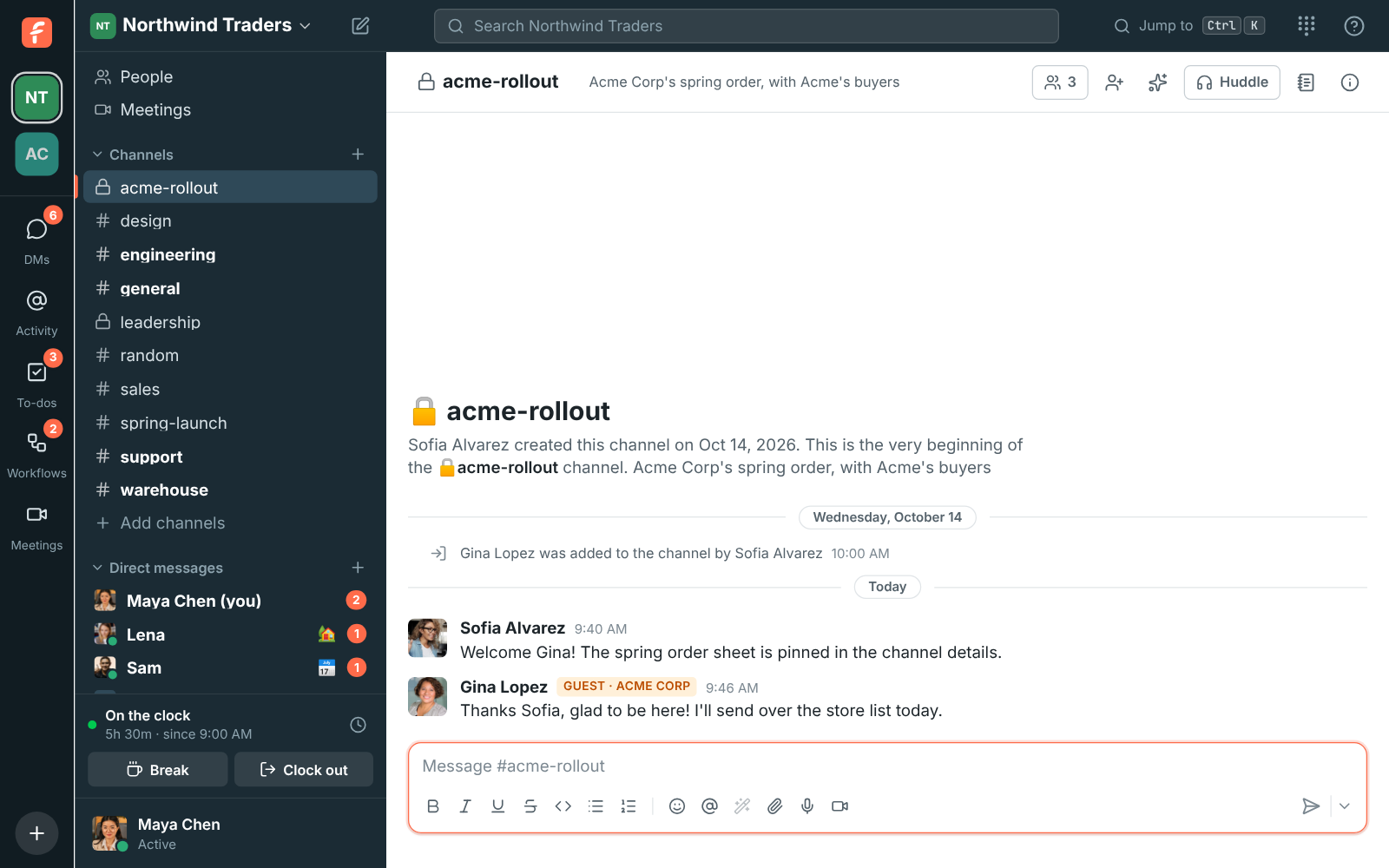
## Promote or remove a guest
In **Workspace settings → People → Members**, change a guest's role to Member or Admin to give them the
full workspace, or **Deactivate** them to remove their access. Removing a guest from a private
channel also takes them out of its huddle.
## Guests with their own team
A guest can set up Freesbe for their own company from **Set up Freesbe for your own team** in the
sidebar callout. They become the owner of the new workspace and can keep working with you as a
guest in yours.
---
# Workspace settings
Source: https://freesbe.net/docs/admin-settings/
> A tour of the admin settings, grouped into General, People, Security & compliance, Calls & meetings, Phone, Integrations & apps and Billing - workspace name and logo, security (single sign-on, multi-factor authentication, remote control and file types), the audit log, who can edit and delete messages, recordings and AI notes, members, profile fields, invites, punch clock, webhooks, apps, the phone system, data exports, usage and a custom domain for your links.
Admins and owners manage the workspace in **Workspace settings**: open the workspace menu (the
workspace name at the top of the sidebar) and choose **Workspace settings**. Other people can open
it but can't change anything.
The same settings are also on a full screen in the browser, in the [Admin Center](https://freesbe.net/docs/admin-center/)
at manage.freesbe.net: choose **Admin Center** in the workspace menu.
Setup, security, logs and billing are managed in the Admin Center. In the app, those tabs show
**Open in the Admin Center**, which opens the same page there: **Custom domain**, **Email
domains**, **Profile fields**, **Punch clock**, every **Security & compliance** tab, every
**Integrations & apps** tab and every **Billing** tab (**Plan** still shows your plan, with an
**Upgrade** button). The paths below work in both places. See
[Managed in the Admin Center](https://freesbe.net/docs/admin-center/#managed-in-the-admin-center).
The list on the left has seven groups. Each one opens with tabs across the top, so every page is
short:
| Group | Tabs |
| ------------------------- | ----------------------------------------------------------------------------------------------------------------------------------------------------------------------------------------------------------------------------------------- |
| **General** | **Workspace** (name, logo, your role and the workspace ID), **Data region**, **Messages** (who can edit and delete messages, read receipts, the log of what admins deleted), **AI & workflows** and **Custom domain** |
| **People** | **Members** (roles, editing profiles, deactivating and reactivating people), **Invites**, **Email domains** (people at your company join without an invite), **Profile fields** (work details and spreadsheet import) and **Punch clock** |
| **Security & compliance** | **Sign-in** (single sign-on and multi-factor authentication), **File types**, **Remote control**, **Audit log**, **Security activity** and **Export data** |
| **Calls & meetings** | **Recordings** (recordings, transcripts and AI notes) and **Waiting room** (alerts and music on hold) |
| **Phone** | **Phone system** (turn on Freesbe's phone system, or connect your own sip.io account), **Numbers** (buy numbers and choose who each one rings) and **Messaging** (texts and WhatsApp messages to your numbers, answered in a channel) |
| **Integrations & apps** | **Integrations** (by category: **Customer inbox**, **Finance**, **Calendar**, **Automation**, **Support** and **CRM**, with HubSpot, Salesforce and Pipedrive), **Apps**, **AI agents**, **Webhooks** and **Import from Slack** |
| **Billing** | **Plan** (your plan and people against its limit), **Plans**, **Add-ons**, **Invoices** and **Usage** (this month's video, storage and counts against the workspace's limits) |
A group opens on the tab you had open last. Below, a path like **Security & compliance → Sign-in**
means the group, then the tab.
| Section | What's there |
| ------------------ | --------------------------------------------------------------------------------------------------------------------------------------------------------------------------------------------------------------------------------------------------------------------------------------------------------------------------------------------------------------------------------------------------------------------------------------------------------------------------------------------------------------------------------------------------------------------------------------------- |
| **Workspace** | Name, logo, recordings and notes, your role and the workspace ID |
| **Security** | Single sign-on, multi-factor authentication, remote control and which file types people can share |
| **Audit log** | What owners and admins changed, who did it, when and from where |
| **Messages** | Who can edit and delete messages, and a log of the messages admins deleted |
| **Members** | Roles, editing profiles, deactivating and reactivating people |
| **Profile fields** | Work details on everyone's profile (department, location, manager, phone, your own fields) and spreadsheet import |
| **Invites** | Email invites, invite links, revoking them |
| **Punch clock** | Turning the time clock on, who it covers, timesheets and export |
| **Webhooks** | Incoming and outgoing webhooks |
| **Apps** | Your own integrations, each with a bot and a token limited to its scopes |
| **Integrations** | Tools your team already uses, by category. **Customer inbox**: a chat on your website and a shared email address. **Finance**: Mercury, Stripe and Airwallex payment alerts, Kraken, crypto wallets, and Zoho Books and Zoho Invoice. **Calendar**: Google Calendar and Outlook, and Freesbe meetings in Outlook and Google Calendar. **Automation**: Zapier, Make and n8n. **Support**: Zendesk, Zoho Desk and Freshdesk. **CRM**: HubSpot, Salesforce, Pipedrive and Zoho CRM. **Recruiting**: Zoho Recruit. **Monitoring**: Zabbix, Grafana, Alertmanager, PagerDuty, Opsgenie and Datadog |
| **Phone system** | Freesbe's own phone system, numbers and texts, or connecting your sip.io account |
| **Export data** | Download the workspace's messages and files as a zip. See [Export your data](https://freesbe.net/docs/export-data/) |
| **Usage** | This month's video and storage against the workspace's limits |
| **Billing** | The plan, how many people count toward it, prices monthly and yearly, and invoices |
| **Custom domain** | Your own address for booking, meeting and invite links, like meetme.acme.com/dana (Corporate and Enterprise) |
### Find a setting
Type in **Search settings** at the top of the list to find a section or a setting inside one.
It looks through section names, the headings in each section, the switches and options under
them and product names, so **record** finds **Recordings**, **sso** finds **Single sign-on**
**hubspot**, **salesforce**, **pipedrive** and **zoho** find the **CRM** integration **zendesk**, **zoho desk** and **freshdesk** find **Support**, **zoho books**, **kraken** and **bitcoin** find **Finance**. Search works in the language Freesbe is in, and
English words work too.

Click a result, or press Enter for the first one (↑ and ↓ move
between them). Freesbe opens it, scrolls to the setting and highlights it for a
moment, opening its group and tab. Under each result you see where it is, like **Security &
compliance › Sign-in**. The results stay put so you can try the next one; Esc clears the
search and brings back the list of groups. Press Ctrl+F (⌘+F
on a Mac) to jump to the search box.

## Workspace
- **Workspace name**: up to 80 characters. Everyone sees the change at once.
- **Logo**: **Upload logo**, then crop and zoom. It's shown in the workspace list, the sidebar, on
invite pages, meeting links, booking pages and at the top of invite emails. **Remove** goes back to the workspace's initials.
- **Data region**: where the workspace's data is stored, chosen when it was created. See
[Data residency](https://freesbe.net/docs/data-residency/).
- **Details**: the **Workspace ID** and **Slug**, handy for the [API](https://freesbe.net/docs/api-and-webhooks/).
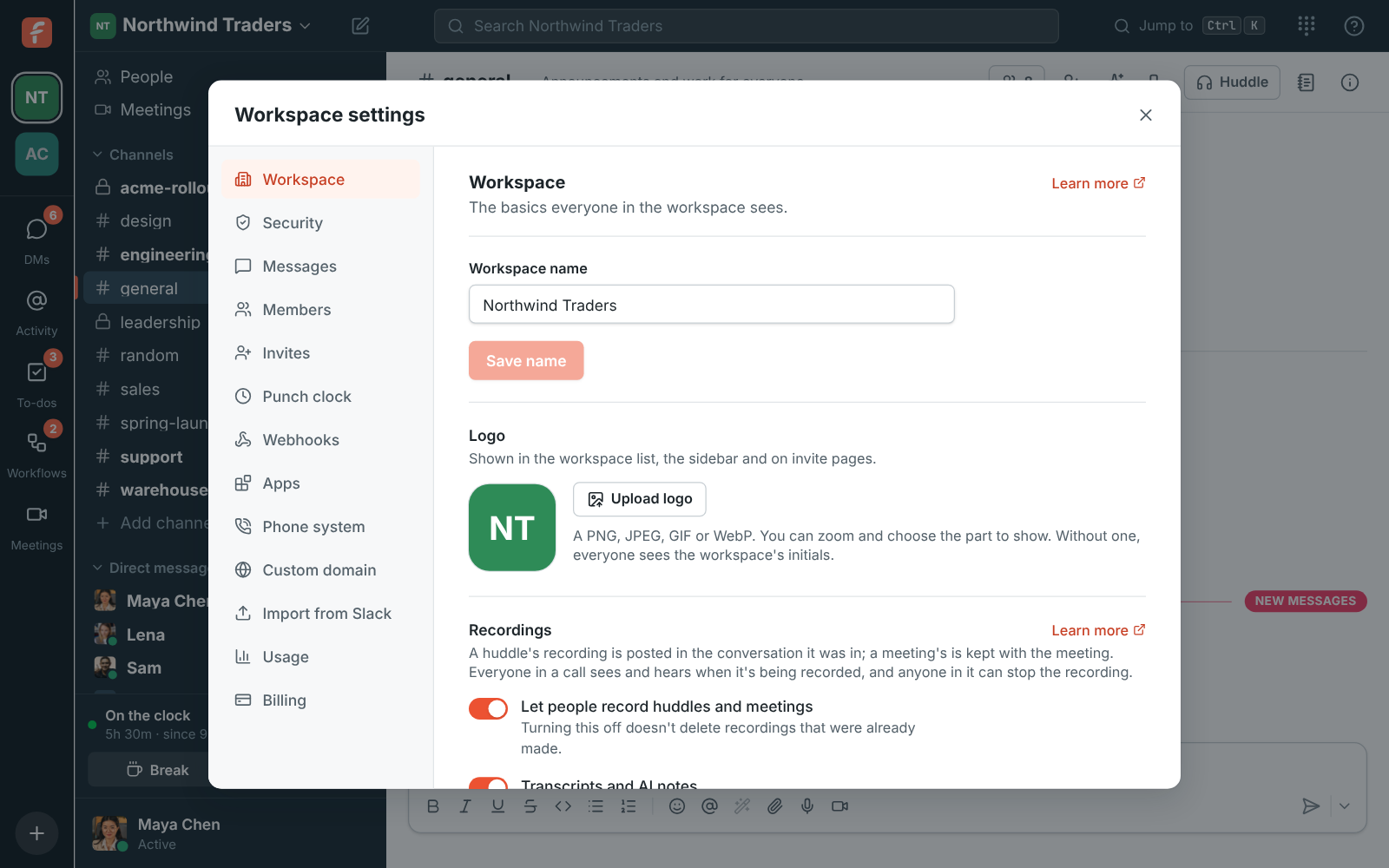
### Recordings
- **Let people record huddles and meetings**: on by default. Turning it off stops new recordings
but doesn't delete recordings already made. People can still transcribe huddles.
- **Who can start and stop recordings**: **Everyone in the call**, **Whoever started it, hosts and
co-hosts** (the default), or **Only hosts and co-hosts**. Hosts are a meeting's organizer and the
people it invites, and whoever started a huddle; they can make others co-hosts during the call.
Owners and admins always count as hosts, and guests can't record. See
[Who can start and stop recordings](https://freesbe.net/docs/recordings-and-notes/#who-can-start-and-stop-recordings).
- **Transcripts and AI notes**: on by default. Each recording gets a transcript with who said what,
and notes with a summary, decisions and action items. The audio is sent to xAI, our
speech-to-text provider. People can also transcribe a huddle without recording it. Turn it off
and new recordings are saved without them, and huddles can't be transcribed. See
[Recordings, transcripts and notes](https://freesbe.net/docs/recordings-and-notes/).
- **Transcribe every huddle**: off by default. Once two people are in a huddle, it's transcribed
without anyone asking and the notes are posted in the conversation. Everyone in it is told, and
the people who can stop recordings can stop it. Nothing is recorded. See
[Transcribe every huddle](https://freesbe.net/docs/recordings-and-notes/#transcribe-every-huddle).
- **Share meetings outside the workspace**: off by default. A meeting's organizer, whoever
recorded it and admins can share its notes and transcript with people outside the workspace,
with a private link to that meeting alone. Under it:
- **Email meeting guests the notes** (on): when a meeting's transcript is ready, the guests
from outside the workspace who joined with their invite link while it was recorded get an
email with their own link.
- **Links work for up to** **1**, **3**, **7**, **14** or **30 days** (7 by default).
- **Allow the recording**: links can play the meeting's recording too. Guests' emailed links
always include it; people sharing a link choose.
Turning these on asks you to approve on your phone, if you set one up. See
[Share a meeting outside the workspace](https://freesbe.net/docs/recordings-and-notes/#share-a-meeting-outside-the-workspace).
- **Delete recordings**: **Never** (keep them until someone deletes them), or after 30, 90 or 365
days. Automatic deletion comes with the Corporate and Enterprise [plans](https://freesbe.net/docs/plans/).
A huddle's recording is posted in the conversation the huddle was in; a meeting's is kept with the
meeting, under **Meetings → Recordings**.
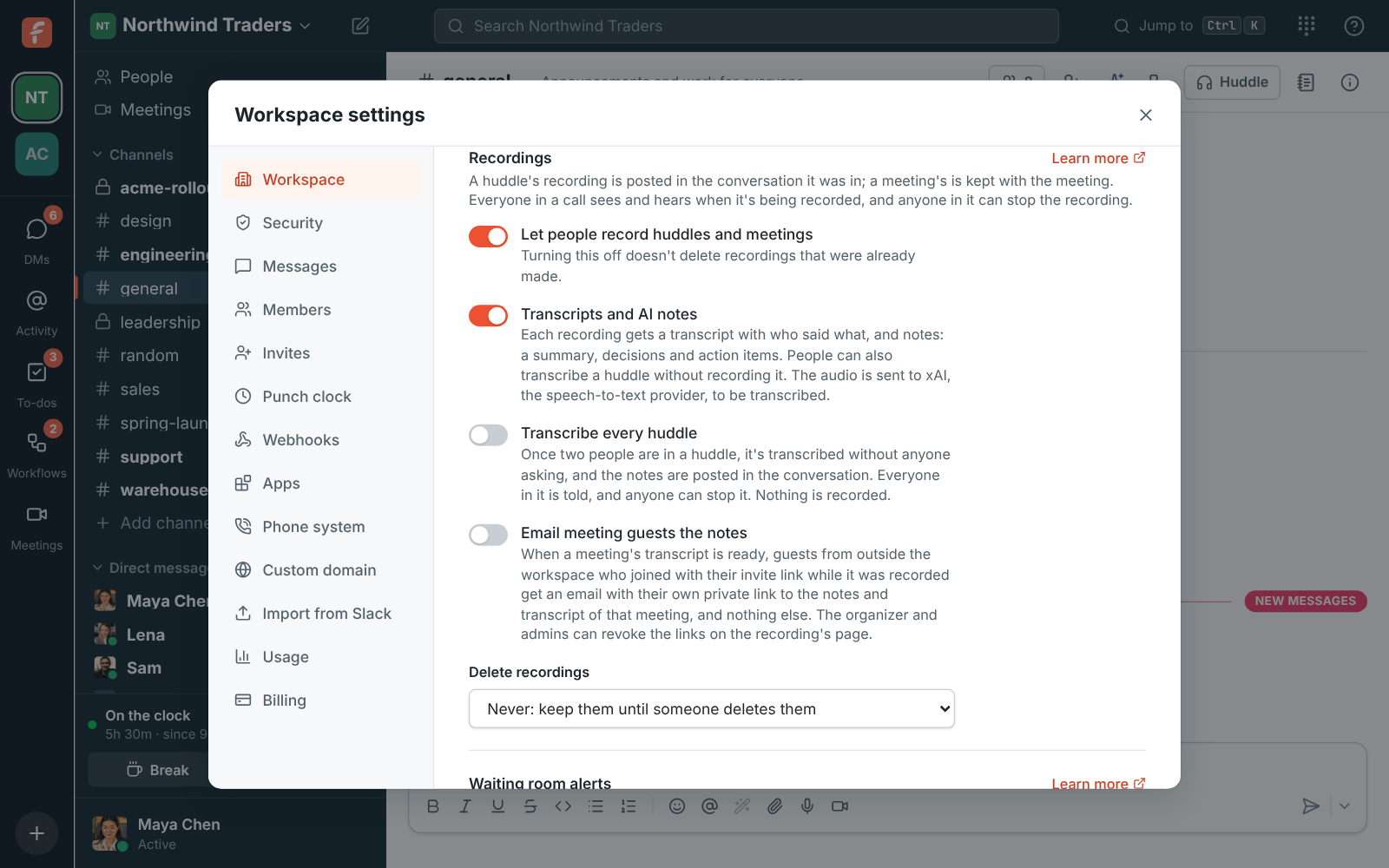
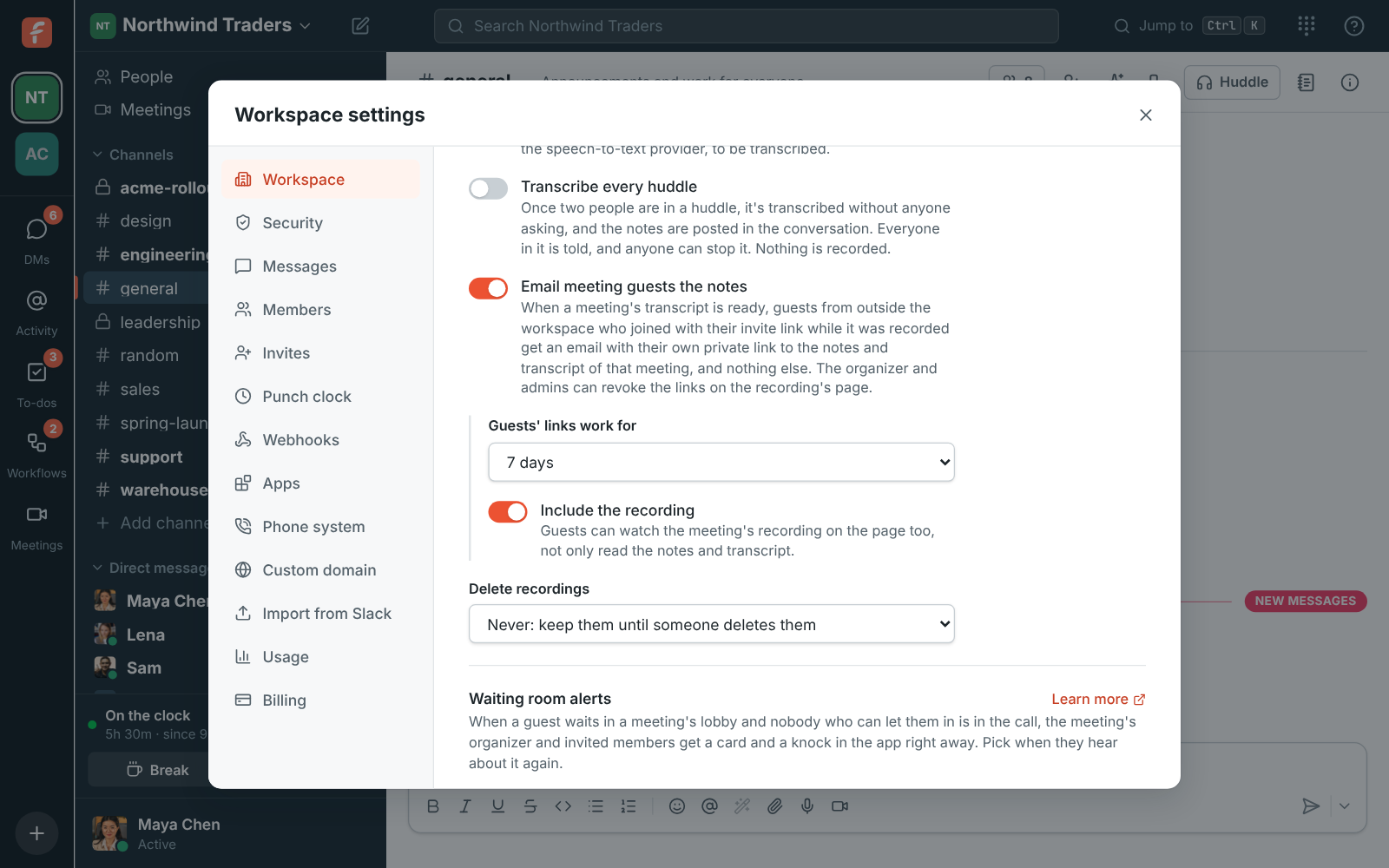
### AI features
- **Let people use AI summaries and translations**: on by default. People can summarize channels
and threads, translate messages and get help with what they write. AI only reads messages the
person asking can already see,
and only they see what it writes. Guests can't use it. Turn it off and the buttons go away for
everyone.
Below the switch is how many AI requests the workspace has used this month, out of what its
[plan](https://freesbe.net/docs/plans/) includes. See [AI summaries, translations and writing help](https://freesbe.net/docs/ai-summaries/).
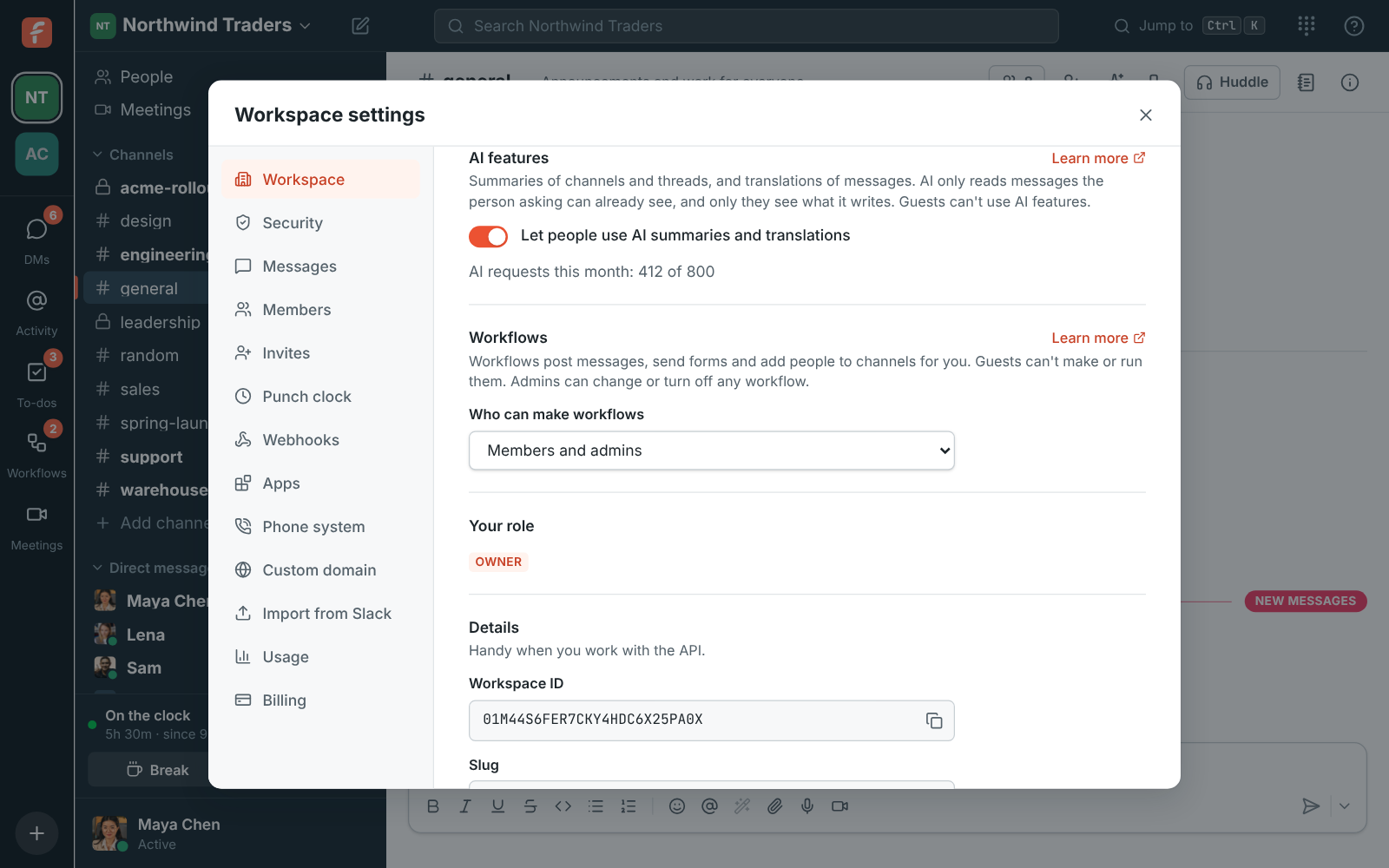
### Waiting room alerts
When a guest waits in a meeting's lobby and nobody who can let them in is in the call, the
meeting's organizer and invited teammates get a card and a knock in the app right away. Choose
when they hear about it again:
- **Louder alert and phone notification**: after 2 minutes by default (1, 2, 3, 5 or 10, or
**Off**). Every app they have open knocks until someone answers, and their phone gets a push.
- **Email hosts who are away**: after 5 minutes by default (5, 10, 15 or 30, or **Off**). Only
hosts who are away or don't have Freesbe open get it, with a link to let the guest in. Each
person can turn these emails off in **Preferences → Notifications**.
See [Waiting room alerts](https://freesbe.net/docs/meetings/#waiting-room-alerts).
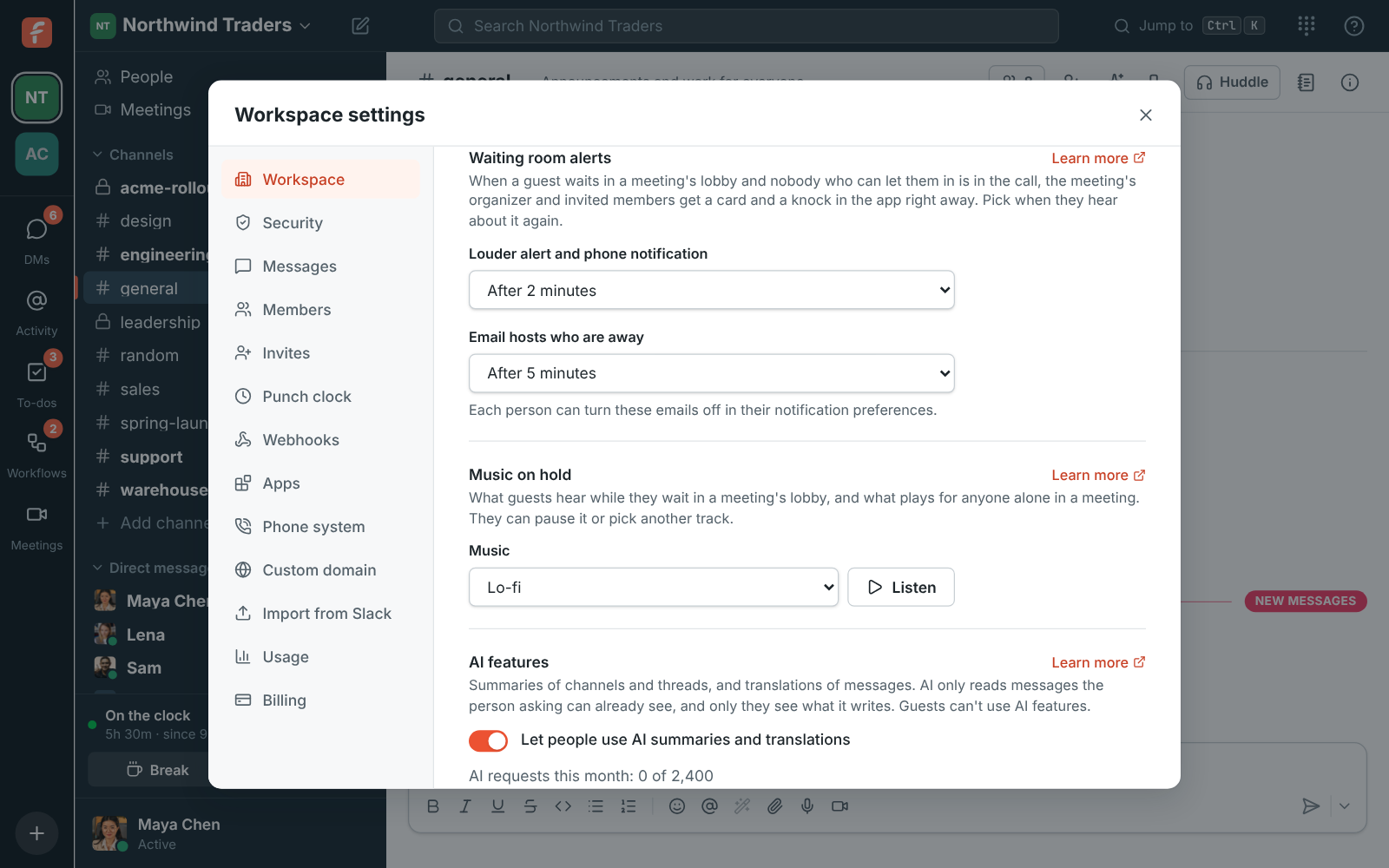
### Music on hold
What guests hear while they wait in a meeting's lobby, and what plays for anyone who's alone in
a meeting. Pick **Lo-fi** (the default), **Drift**,
**Sunny**, **Classic** or **Bossa**, and press **Listen** to hear it first. **Off** lets guests
wait in silence. Everyone can still pause the music or pick another track. See
[Music on hold](https://freesbe.net/docs/meetings/#music-on-hold).
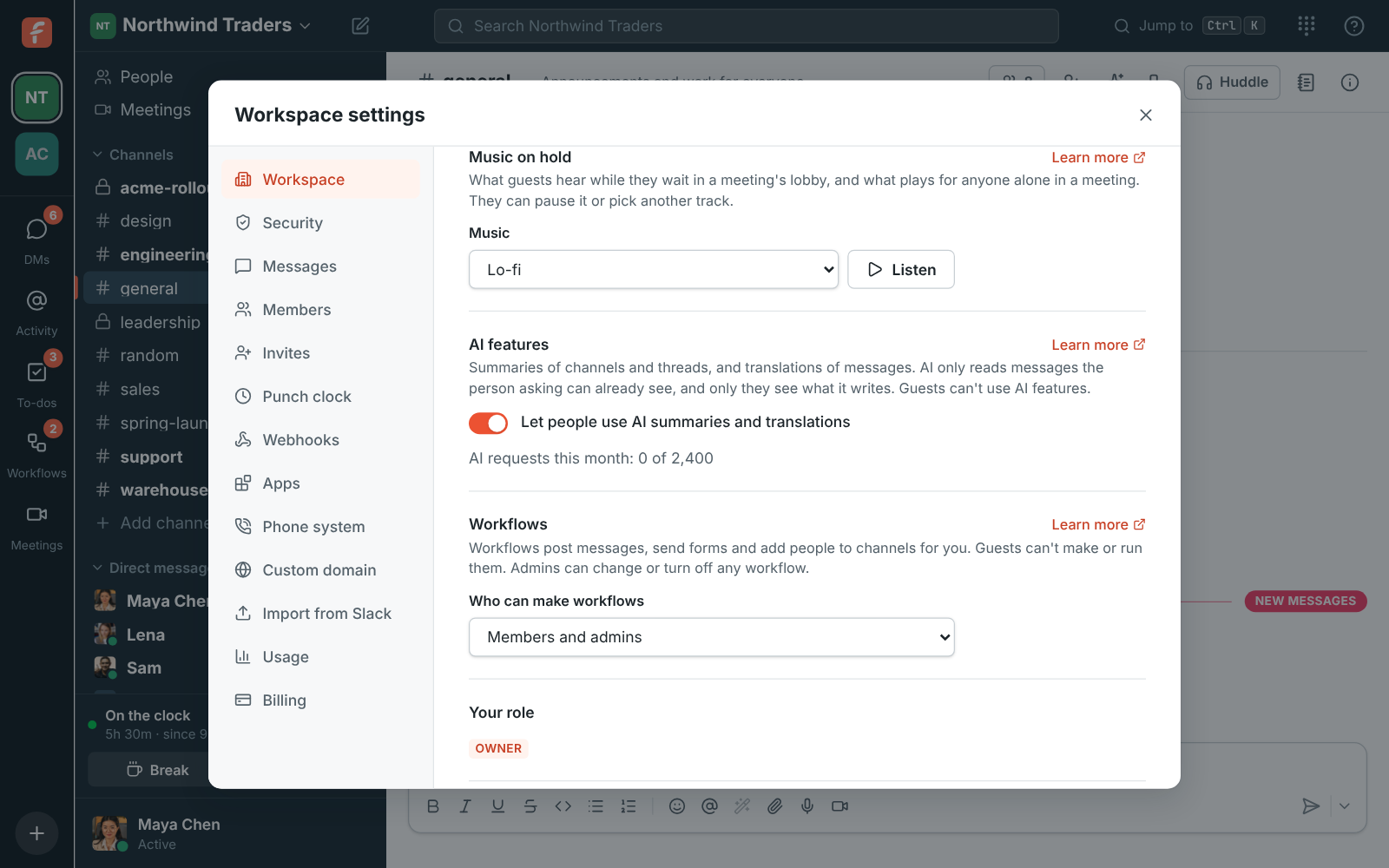
### Workflows
- **Who can make workflows**: **Members and admins** (the default) or **Admins only**. Guests
can never make or run workflows. Admins can change or turn off any workflow either way. See
[Workflows](https://freesbe.net/docs/workflows/#who-can-make-workflows).
### Close workspace
The owner can close the workspace for good: the plan stops renewing, the workspace goes
read-only when the paid period ends, and everything in it is deleted 30 days later. Admins see
when. See [Close a workspace](https://freesbe.net/docs/close-workspace/).
## Security
How people sign in to the workspace, and which files they can share.
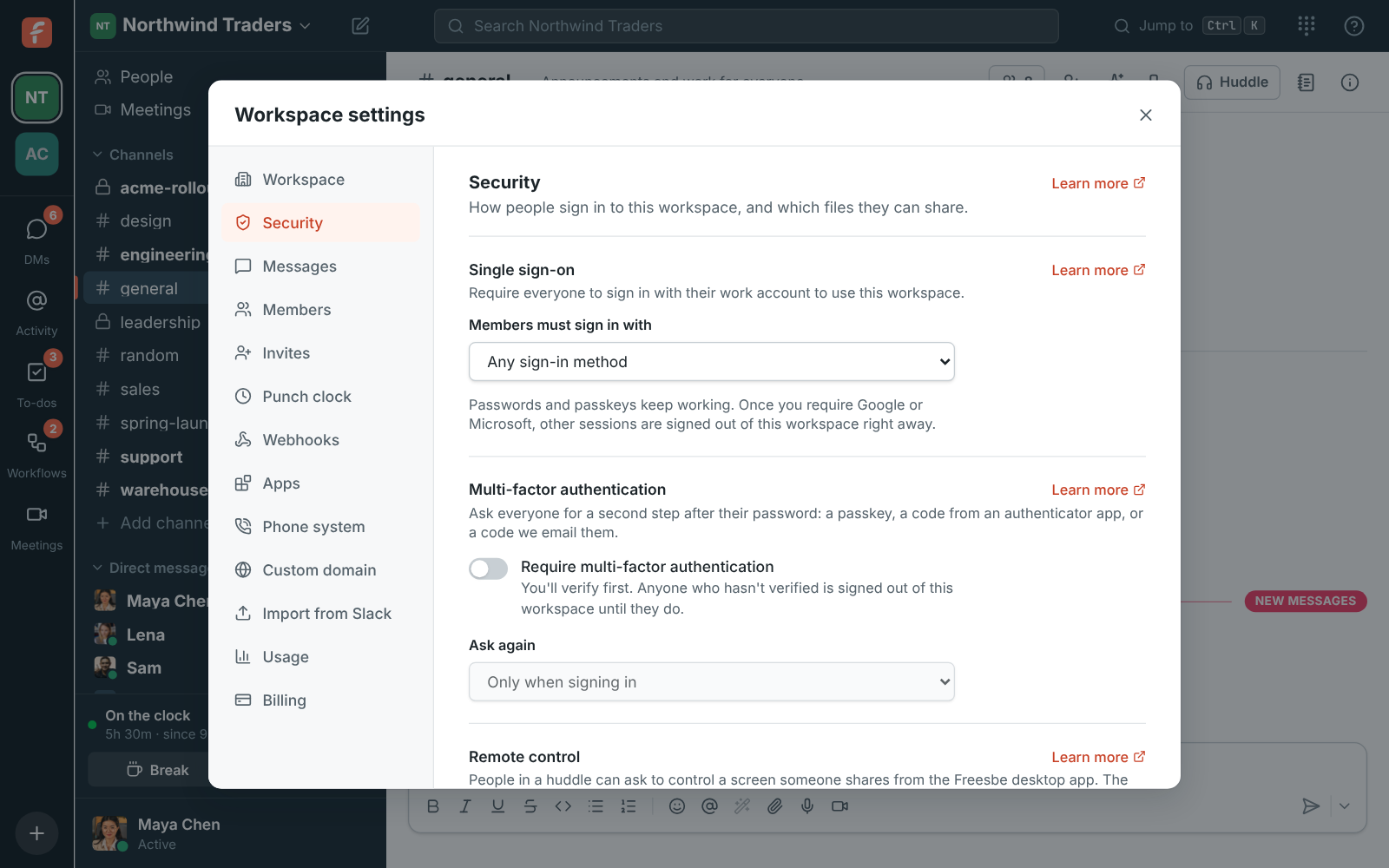
### Single sign-on
Require everyone to sign in with Google, Microsoft or either. See
[Single sign-on](https://freesbe.net/docs/single-sign-on/).
### Multi-factor authentication
- **Require multi-factor authentication**: everyone verifies a passkey, an authenticator app code
or an emailed code to use the workspace. You verify first, so you can't lock yourself out.
- **Ask again**: only when signing in, each time Freesbe opens, every 12 hours, every day or every
week.
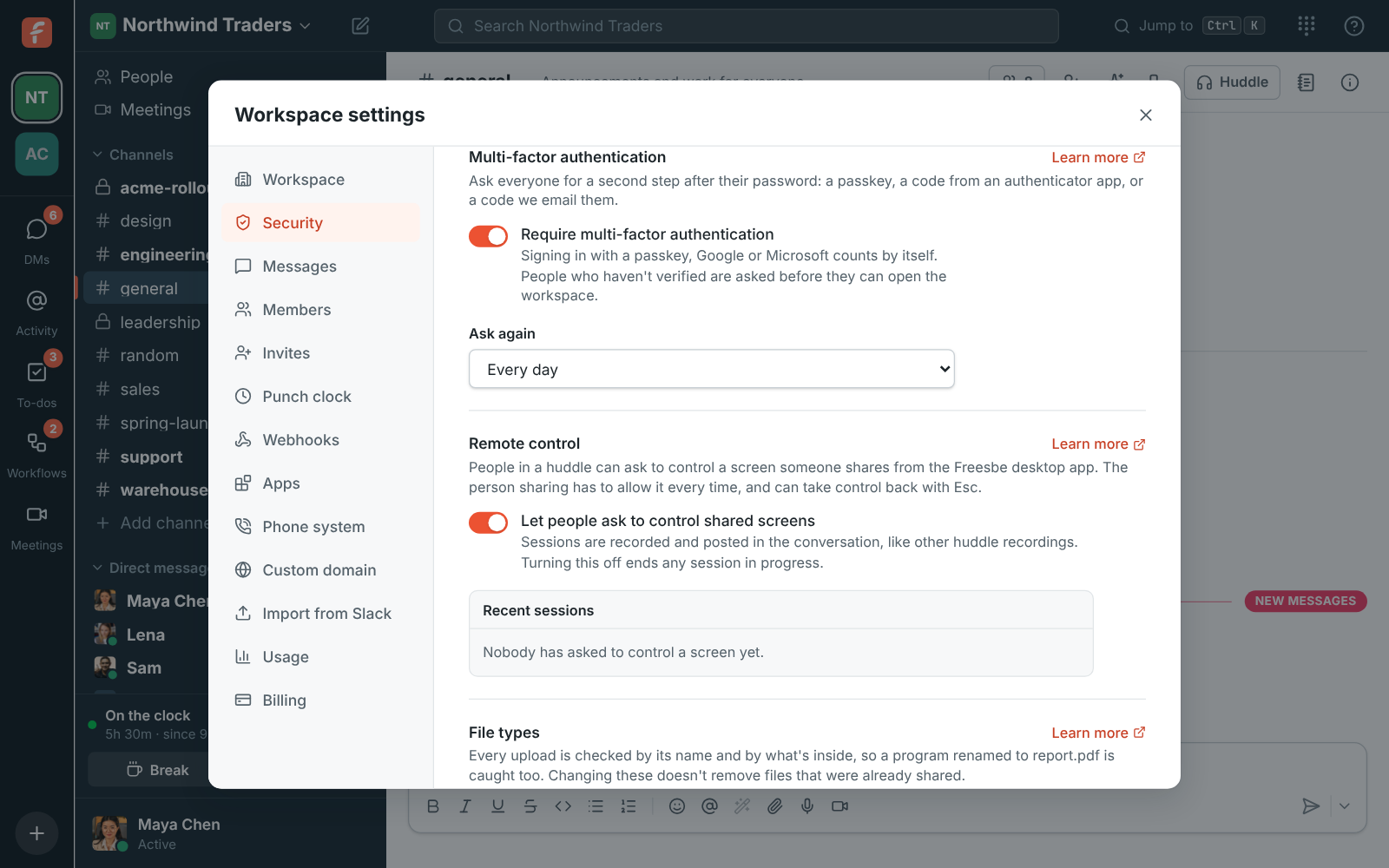
See [Multi-factor authentication](https://freesbe.net/docs/multi-factor-authentication/).
### Remote control
- **Let people ask to control shared screens**: off by default. When it's on, people in a huddle
can click **Request control** on a screen someone shares from the desktop app, and the person
sharing allows it or not, every time. Turning it off ends any session in progress.
- **Recent sessions** lists the last 100 requests: who asked, whose screen, whether it was
allowed, how long it lasted and who stopped it, and whether it was recorded.
For [support sessions](https://freesbe.net/docs/support-sessions/#what-the-customer-is-asked), **What they agreed
to** shows the exact words the customer was shown when they allowed it.

See [Remote control](https://freesbe.net/docs/remote-control/).
### File types
- **Files from members** and **Files from guests**: any type of file, anything except programs and
scripts, or only the kinds you pick. Out of the box, guests can't share programs and scripts.
- **Always allow** and **Always block** lists of extensions come with the Corporate and Enterprise
plans.
Every upload is checked by its name and by what's inside. See [File types](https://freesbe.net/docs/file-types/).
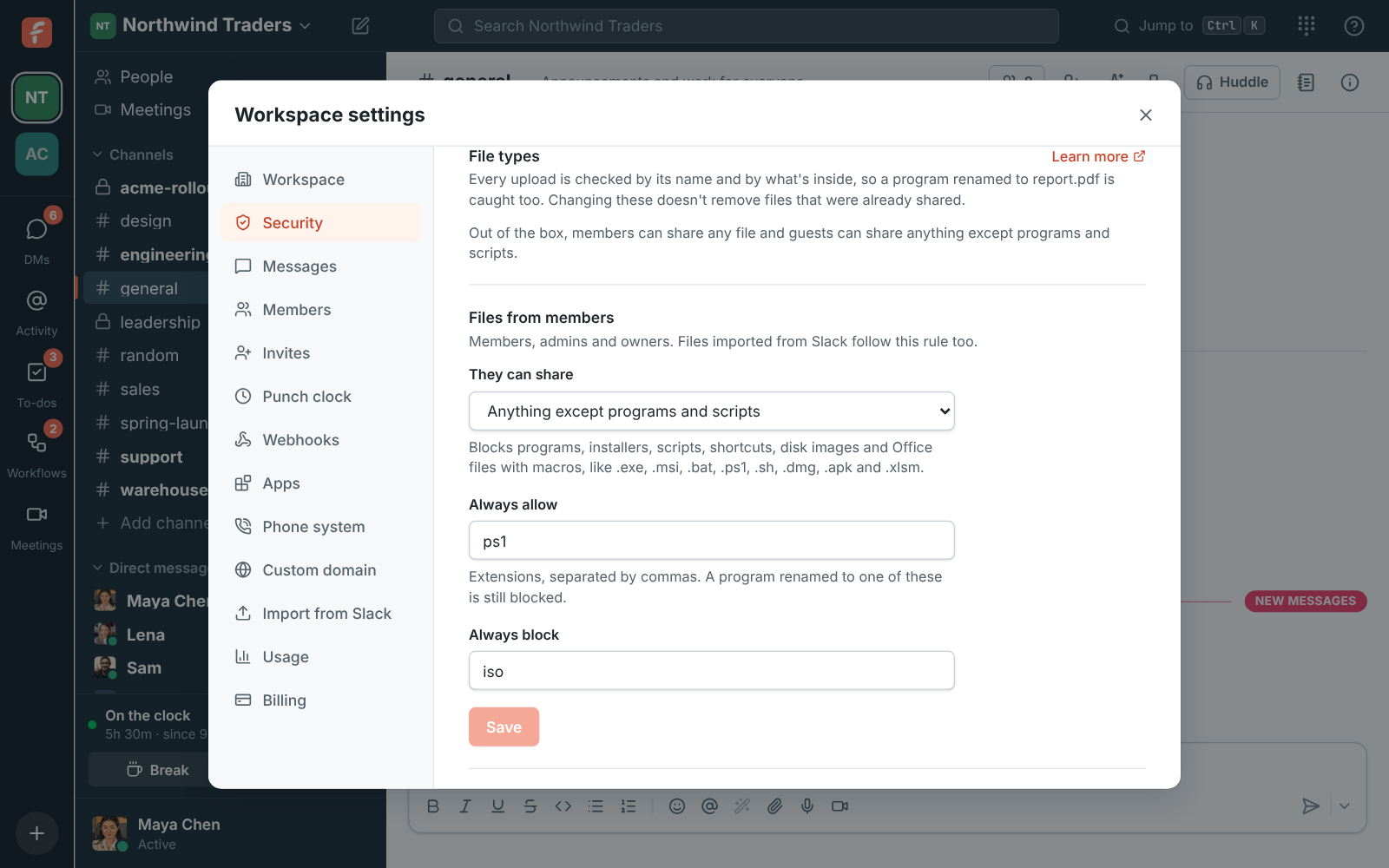
## Security activity
Every member's sign-ins, failed sign-ins, second steps and changes to how they sign in, from when
they joined, with the browser and address each came from. Filter by member, event or month, and
export what you see as a CSV file. See [Security activity](https://freesbe.net/docs/security-activity/).
## Audit log
A record of what owners and admins changed in the workspace, newest first, like the audit logs
in Slack and Microsoft 365. Each line says who did what and to whom, when, and the internet
address it came from. **Show older** goes further back.
It records:
- **Settings**: any change in Workspace settings, naming the settings that changed.
- **Members**: making someone an admin or a member, deactivating and reactivating people,
handing the workspace to a new owner, and people leaving because they deleted their Freesbe
account.
- **Invites**: invite links made, invites emailed (how many and as which role) and invites
revoked.
- **Email domains**: domains added, changed and removed, and each request to join that an admin
let in or declined.
- **Webhooks and apps**: added and deleted, by name.
- **Exports**: started (public channels, or everything) and downloaded. See
[Export your data](https://freesbe.net/docs/export-data/).
- **Closing**: the owner closing the workspace, and reopening it. See
[Close a workspace](https://freesbe.net/docs/close-workspace/).
Entries are kept for a year, then deleted. The log keeps who did something, not their name: if
someone deletes their Freesbe account, their lines show **Former member**. Messages admins
deleted are listed in [Messages](#messages), under **Deleted by admins**.

## Messages
Who can edit and delete messages, like the message editing and deletion settings in Slack and
Teams, and who sees [read receipts](#read-receipts). They apply everywhere in the workspace, in channels and DMs, and changing them doesn't touch
messages already sent.
- **People can edit their messages**: **Any time** (the default), **Never**, or up to 5 minutes, 1
hour, 1 day or 1 week after sending.
- **Members and guests can delete their own messages**: on by default. Turn it off and only owners
and admins can delete messages. Owners and admins can always delete their own.
- **Owners and admins can delete anyone's messages**: on by default. They do it from a message's
**More actions** menu, in public channels and in private channels they're in, but not in DMs.
The message and its files are deleted and **Message deleted by an admin** stays in its place.
See [Deleting someone else's message](https://freesbe.net/docs/channels-and-messages/#deleting-someone-elses-message-admins).
- **Deleted by admins** lists the last 100 messages owners and admins deleted for someone else:
who deleted it, whose it was, which channel, when, and whether it was in a thread or had files.
What the message said isn't kept.
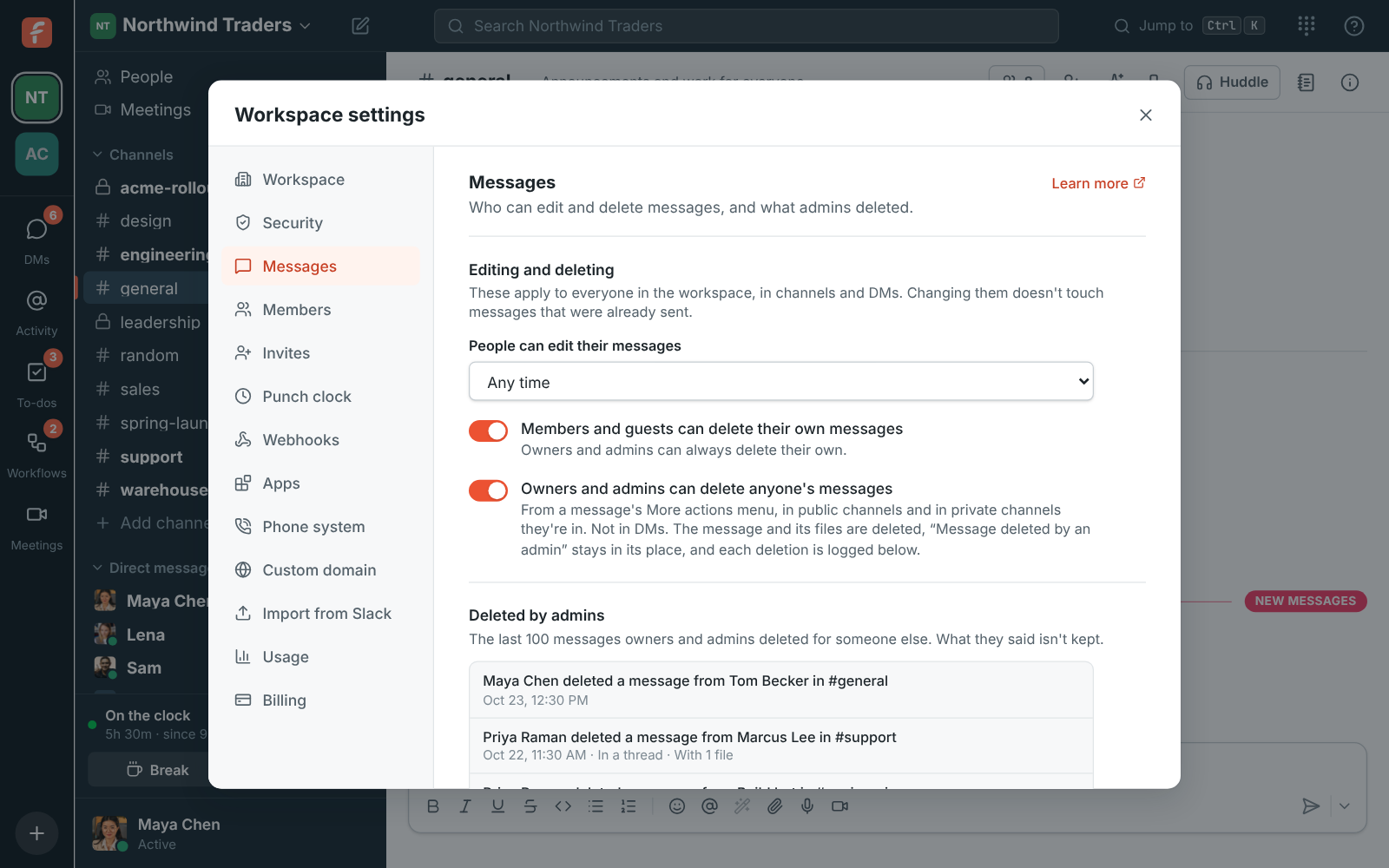
### Read receipts
Whether people see who has read their messages, like read receipts in Teams and WhatsApp. They
come from how far each person has read, so turning them on shows reads from before too. See
[Read receipts](https://freesbe.net/docs/channels-and-messages/#read-receipts) for what people see.
- **Show read receipts**: **Off** (the default), **In DMs and groups of up to 20 people**, or
**Everywhere**. Everywhere adds bigger channels, where people see how many saw a message but not
who.
- **People can turn their own read receipts off**: on by default. Each person then chooses in
**Preferences → Notifications**, or on the **You** tab of the mobile app. Turning them off works
both ways: others don't see when they read, and they don't see when others read. Turn this off
to have read receipts on for everyone.
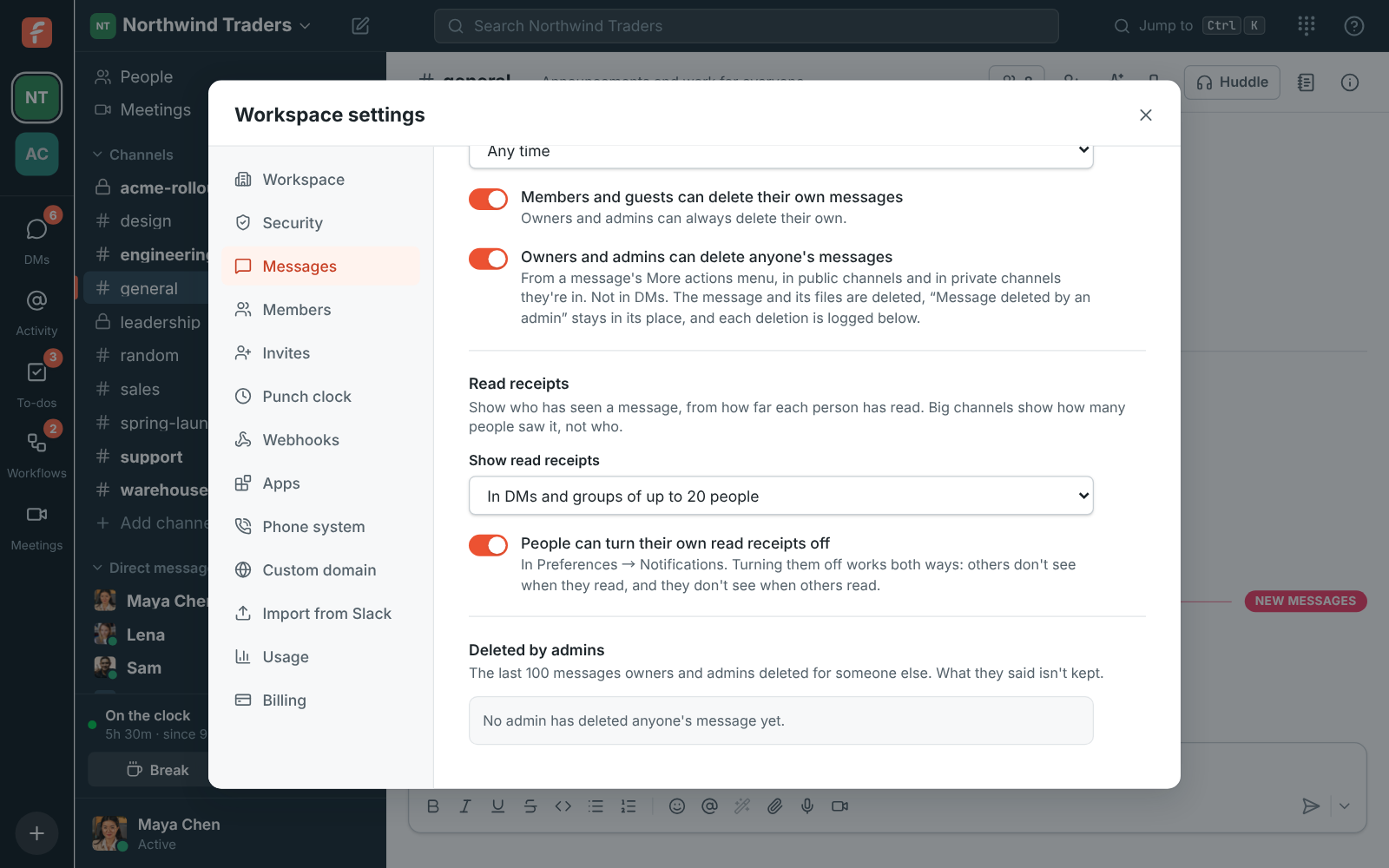
## Members and invites
See [Workspaces and invites](https://freesbe.net/docs/workspaces-and-invites/).
## Email domains
Let people with an address at your company's domains join without an invite, at once or after an
admin approves them. See
[Join by email domain](https://freesbe.net/docs/workspaces-and-invites/#join-by-email-domain).
## Profile fields
Profile fields are the work details on everyone's profile, so people can tell who's contacting
them: what department they're in, where they sit, who they report to and how to call them. People
fill in their own in **Preferences → My account → Profile**, and admins can fill them in for anyone.
Every workspace starts with five built-in fields: **Pronouns**, **Department**, **Location**,
**Manager** (a person in the workspace) and **Phone**. In **Workspace settings → People → Profile fields**
you can:
- **Rename** a field, by typing a new name over it (for example **Desk phone** or **Office**).
- **Reorder** fields with the arrows. Profiles show them in this order; pronouns always sit under
the name.
- **Delete** a field, with everyone's values in it. **Add a field → Built-in** brings a built-in one
back.
- **Hide from guests**: guests from other companies don't see the field on anyone's profile.
Department, location, manager and phone start hidden from guests; pronouns don't.
- **Add your own field** (Business, Corporate and Enterprise): **Add a field**, then pick what it
holds: **Text**, **Link**, **Date**, **Person**, **List of choices** or **Phone number**. Give
it a name, like **Region**, **Start date**, **Cost center** or **Team lead**. A list of choices
takes its choices separated by commas.
- **Only admins fill it in** (Business, Corporate and Enterprise): people see the field but can't
change their own, for details that come from HR, like department or cost center.
Click **Save changes** when you're done.

On the Free plan you can rename, reorder, hide and delete the built-in fields:

### Fill in profiles for someone
In **Workspace settings → People → Members**, click the pencil next to someone's name to change their title
and work details, including fields only admins fill in.

### Fill in everyone from a spreadsheet
For a whole company at once, use **Fill in from a spreadsheet** at the bottom of **Profile
fields**:
1. Click **Download spreadsheet**. It has a row for everyone (guests left out), with **Email**,
**Name** and a column for each field, filled in with what's there now.
2. Fill in the columns in Excel or Google Sheets, from your HR system's export for example. For
**Manager**, put the manager's email address (or full name). Dates look like 2026-04-30.
3. Save it as CSV and click **Upload CSV**. Freesbe shows how many people it will update, plus any
rows it can't use: an email that isn't in the workspace, a column that isn't a field, or a value
that doesn't fit (a manager it can't find, a choice that isn't on the list).
4. Click **Update profiles**.
Rows are matched by email, and columns by the field's name. Empty cells leave a value as it is, so
a spreadsheet with just **Email** and **Department** changes only departments.

Directory sync (SCIM) for Enterprise, which keeps these fields in step with your identity provider,
is planned.
## Punch clock
See [Punch clock](https://freesbe.net/docs/punch-clock/#for-admins).
## Webhooks
Webhooks connect Freesbe to other tools without writing a full integration.
- **Incoming** webhooks let other services post into a channel. Each has its own secret URL and
accepts the same JSON as Slack's incoming webhooks, so existing Slack integrations only need the
new URL.
- **Outgoing** webhooks send signed events to your own server when things happen, such as **New
message**, **Message edited**, **Message deleted**, **Reaction added**, **Reaction removed**,
**Channel created**, **Someone joined a channel** and **Someone left a channel**.
To add one, choose **Incoming** or **Outgoing**, click **Add incoming webhook** (or **Add outgoing
webhook**), and fill in the name and the channel (or, for outgoing, the **Payload URL** and
events). The URL or signing secret is shown **only once**, so copy it right away.
Each webhook card has **Deliveries** (the log of recent deliveries, kept for 14 days), **Send
test**, and a menu to **Edit**, **Make a new URL** (or secret), **Turn off** / **Turn on**, and
**Delete**.
Webhooks act for the admin who made them. A webhook turns off when that person is deactivated, or
leaves the private channel it's bound to; another admin can turn it back on. A webhook bound to a
private channel is only visible to admins in that channel.
The details of payloads and signatures are in [API and webhooks](https://freesbe.net/docs/api-and-webhooks/).
## Apps
Apps connect your own tools, or bots you built for Slack, to the workspace. Each app has a bot
that posts as itself and shows an **App** badge, and a bot token that can only do what the app's
scopes allow. Click **Create app** and pick scopes, or paste a Slack app manifest; the token is
shown **only once**. Each app's menu has **Edit**, **Make a new token**, **Turn off** / **Turn
on** and **Delete**. App bots aren't listed under Members and don't take a seat.
See [Apps](https://freesbe.net/docs/apps/) for the details.
## Integrations
Integrations connect the tools your team already uses, grouped by category. Click a category to
open it, and **Integrations** at the top to go back.
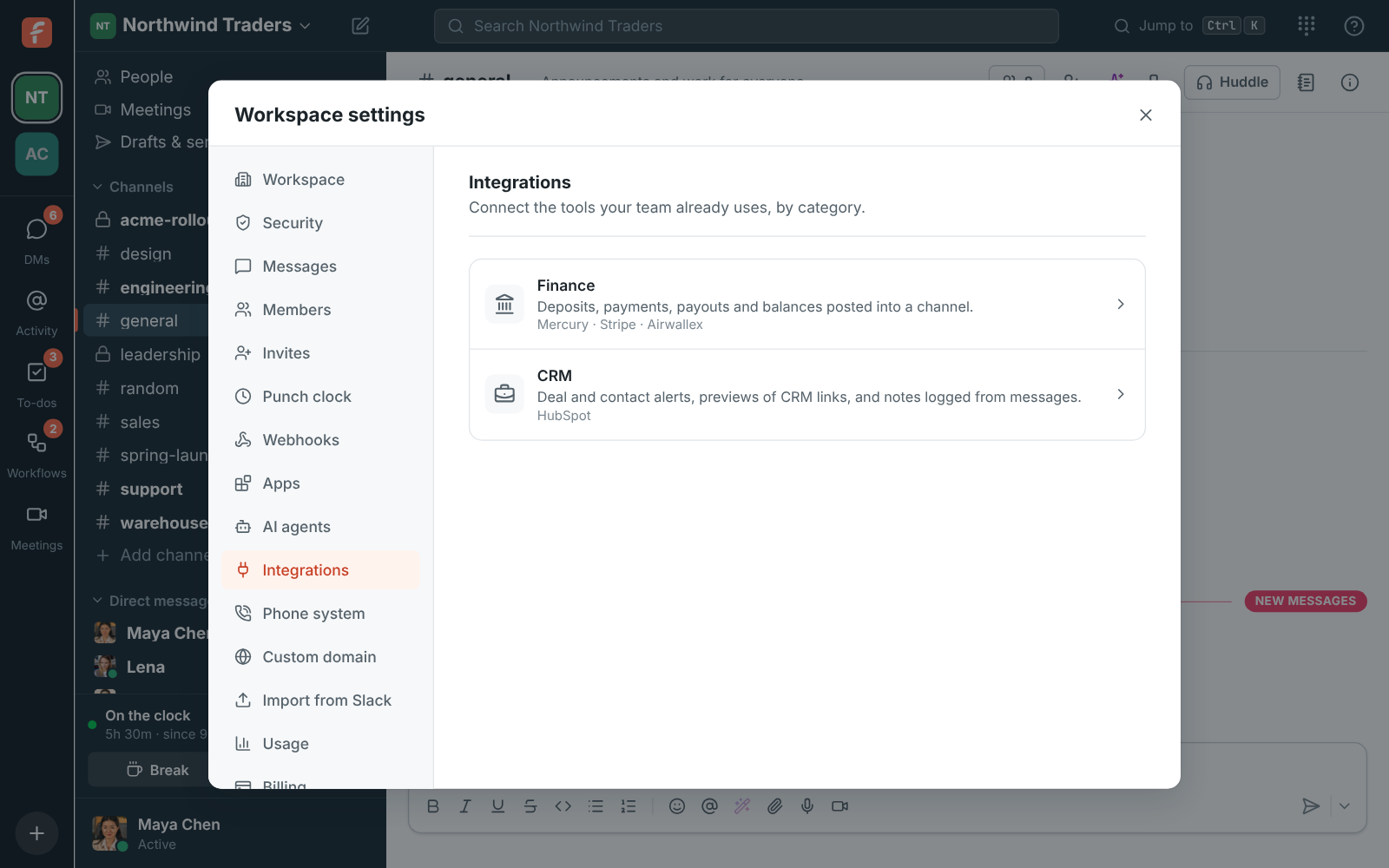
### Customer inbox
Put a chat on your website or forward your support email address here (texts and WhatsApp messages to your numbers are under **Phone → Messaging**): customers write, and every conversation gets its own thread in the
channel you pick, where your team answers, hands it off, writes internal notes and uses saved
replies. Each web chat has a snippet to paste into your site, **Try the chat**, and **Edit**,
**Turn off** / **Turn on** and **Delete** in its menu.
See [Customer inbox](https://freesbe.net/docs/customer-inbox/) for the details.
### Finance
Connect Mercury, Stripe or Airwallex to post deposits, payments, payouts and balances into a
channel as they happen. Pick the channel, which kinds of alerts to post and the smallest amount
worth posting. Mercury connects with an API token Freesbe uses once; Stripe and Airwallex take a
URL from Freesbe and give back a signing secret. Each account's menu has **Send a test alert**,
**Edit**, **Turn off** / **Turn on** and **Delete**.
See [Payment alerts](https://freesbe.net/docs/payment-alerts/) for the details.
**Kraken** sits under the payment alerts: paste a read-only API key and Freesbe checks the
account every minute (every five once it's quiet), posting deposits, withdrawals, trades, balance
alerts and a daily summary. See [Kraken](https://freesbe.net/docs/kraken/) for the details.
**Crypto wallets** sits under Kraken: add a wallet's public address on Bitcoin, Ethereum and other
EVM chains, Solana or Tron, and money in and out posts with its dollar value, plus balance alerts
and a daily summary of all wallets. See [Crypto wallets](https://freesbe.net/docs/crypto-wallets/) for the details.
Zoho Books and Zoho Invoice sit under the payment alerts, each connected on its own. **Connect
Zoho Books** signs in to Zoho, in whichever data center your account is in. Their alerts post
invoices sent, payments received, invoices paid in full and overdue invoices, with a smallest
amount for each alert; Freesbe checks Zoho every ten minutes. Invoice links get a preview. See
[Zoho Books and Zoho Invoice](https://freesbe.net/docs/zoho-books/) for the details.
### Calendar
The Calendar app sends each person their daily agenda, a reminder before each meeting and their
calendar invitations, from their own Google Calendar, Outlook or Zoho Calendar. It's on to start with; turn off
**Let people use the Calendar app in this workspace** to stop its messages here straight away. The
page also shows how many people get Calendar app messages in the workspace. People turn it on for
themselves in Preferences → Notifications → Calendar.
See [Calendar app](https://freesbe.net/docs/calendar-app/) for the details.
The same page has the calendar add-ins, which put **Freesbe meeting** in Outlook where Teams
usually is and in Google Calendar next to Google Meet. They're on to start with: turn off **Let
people add Freesbe meetings from Outlook and Google Calendar** to stop them here. The page has the
link to add the Outlook add-in in the Microsoft 365 admin center, the Google Calendar add-on's
files, and the steps to make Freesbe the default. See
[Freesbe meetings in Outlook](https://freesbe.net/docs/outlook/) and
[Freesbe meetings in Google Calendar](https://freesbe.net/docs/google-calendar/).
### Automation
Connect Zapier, Make, n8n or Zoho Flow to start their flows when something happens in Freesbe, and let them
post messages, react and make channels. **Connect** makes a bot for the tool and shows its API key
once, to paste into the tool; **New API key** replaces it. **Triggers listening** lists what each
flow is waiting for, with a button to stop one.
See [Zapier, Make, n8n and Zoho Flow](https://freesbe.net/docs/automation/) for the details.
### Support
Connect Zendesk to post ticket alerts into channels, show pasted ticket links as cards and add
**Create Zendesk ticket** to every message's menu. Sign in with Zendesk as a Zendesk admin, or use
an agent's API token. Each alert picks a channel, a Zendesk group or all of them, and which ticket
changes to post.
See [Zendesk](https://freesbe.net/docs/zendesk/) for the details.
Zoho Desk sits under Zendesk, on every plan. **Connect Zoho Desk** signs in to Zoho, in whichever
data center your account is in; connect as a Zoho Desk administrator so alerts can be turned on.
Its alerts post new tickets, status changes, customer replies, and priority and assignment
changes, for every department or one. It adds **Create Zoho Desk ticket** to every message's menu
and previews Zoho Desk ticket links. See [Zoho Desk](https://freesbe.net/docs/zoho-desk/) for the details.
Connect Freshdesk with an agent's API key to do the same for Freshdesk tickets, plus `/freshdesk`
to look tickets up and **Add to Freshdesk ticket** to add a message to a ticket as a private note.
Freesbe shows the webhook URL and the two automation rules to add in Freshdesk so ticket changes
reach it. See [Freshdesk](https://freesbe.net/docs/freshdesk/) for the details.
### CRM
Connect HubSpot to post new deals, stage changes, won and lost deals and new contacts into the
channels you pick, show a preview under HubSpot links, and add `/hubspot` and **Log to HubSpot**
for everyone. **Connect HubSpot** signs in to HubSpot and asks you to allow Freesbe; then turn
link previews on or off and add alerts, each with a channel, the kinds to post and the smallest
deal worth posting. **Disconnect** stops it all and keeps your alerts for next time.
See [HubSpot](https://freesbe.net/docs/hubspot/) for the details.
Salesforce sits under HubSpot on the same screen, on the Corporate and Enterprise plans. **Connect
Salesforce** signs in to your org (or a sandbox, with **Connect a sandbox** ticked) and asks you to
allow Freesbe. Its alerts post new opportunities, stage changes, won and lost opportunities, new
leads and new cases, checked every five minutes. It adds `/salesforce` and **Log to Salesforce**
for everyone and previews Salesforce links. See [Salesforce](https://freesbe.net/docs/salesforce/) for the details.
Pipedrive sits under Salesforce. **Connect Pipedrive** signs in to your Pipedrive company and asks
you to allow Freesbe; connect as a Pipedrive admin so alerts can be turned on. Its alerts post new
deals, stage changes, won and lost deals, and new leads as they happen. It adds `/pipedrive` and
**Log to Pipedrive** for everyone and previews Pipedrive links. See [Pipedrive](https://freesbe.net/docs/pipedrive/)
for the details.
Zoho CRM sits under Pipedrive, on every plan. **Connect Zoho CRM** signs in to Zoho, in whichever data
center your account is in, and asks you to accept Freesbe. Its alerts post new deals, stage
changes, won and lost deals, new leads and new contacts, as they happen. It adds `/zoho` and **Log
to Zoho CRM** for everyone and previews Zoho CRM links. See [Zoho CRM](https://freesbe.net/docs/zoho-crm/) for the
details.
### Recruiting
**Integrations → Recruiting** has Zoho Recruit, on every plan. **Connect Zoho Recruit** signs in
to Zoho, in whichever data center your account is in, and asks you to accept Freesbe. Its alerts
post new candidates, status changes, hires, new job openings and scheduled interviews, as they
happen, and it previews Zoho Recruit links. See [Zoho Recruit](https://freesbe.net/docs/zoho-recruit/) for the
details.
### Monitoring
**Integrations → Monitoring** has Zabbix, Grafana, Alertmanager, PagerDuty, Opsgenie, Datadog, Sentry, Better Stack, New Relic, Uptime Kuma and UptimeRobot, on every plan. **Connect** under Zabbix gives you a URL
to paste in Zabbix with Freesbe's media type, and problems then post into the channel you pick as
cards that turn green when they're resolved. Add Zabbix's address and an API token for
**Acknowledge** and **Close problem** buttons on the cards, and for **/zabbix host** and
questions. Each connection also pins a live problems board in its channel, and can post a report
every morning or every Monday. See [Zabbix](https://freesbe.net/docs/zabbix/) for the details.
**Grafana** and **Alertmanager** work the same way: paste the URL in a Grafana webhook contact
point or Alertmanager's `webhook_configs`, and each alert posts as a card. Add the address and an
API token for a **Silence for 1 hour** button. See [Grafana and Alertmanager](https://freesbe.net/docs/grafana/).
**PagerDuty** posts each incident from a Generic Webhooks (v3) subscription, with **Acknowledge**
and **Resolve** buttons once you add an API key. See [PagerDuty](https://freesbe.net/docs/pagerduty/). **Opsgenie**
posts each alert from a Webhook integration, with **Acknowledge** and **Close** buttons once you
add an API integration's key. See [Opsgenie](https://freesbe.net/docs/opsgenie/). **Datadog** posts monitor alerts
from a webhook with the payload Freesbe shows, with a **Mute for 1 hour** button once you add an
API key and an application key. See [Datadog](https://freesbe.net/docs/datadog/). **Sentry** posts issues and alerts
from an internal integration, with **Resolve** and **Archive for 1 hour** buttons once you add its
token. See [Sentry](https://freesbe.net/docs/sentry/). **Better Stack** posts uptime incidents from a webhook, with
**Acknowledge** and **Resolve** buttons once you add an API token. See
[Better Stack](https://freesbe.net/docs/better-stack/). **New Relic** posts alert issues from a workflow, with
**Acknowledge** and **Resolve** buttons once you add a user key. See [New Relic](https://freesbe.net/docs/new-relic/).
**Uptime Kuma** and **UptimeRobot** post monitors that go down, until they're back up. See
[Uptime Kuma](https://freesbe.net/docs/uptime-kuma/) and [UptimeRobot](https://freesbe.net/docs/uptimerobot/).
## Phone system
The **Phone** group has three tabs. **Phone system** turns on a phone system from Freesbe, or
connects your own sip.io account instead. **Numbers** is where you buy numbers for the workspace
and pick who each one rings. **Messaging** brings texts to your numbers and messages to your
WhatsApp Business number into a channel, one thread per customer, in test mode first; see
[texts to your Freesbe numbers](https://freesbe.net/docs/customer-inbox/#texts-to-your-freesbe-numbers) and
[WhatsApp](https://freesbe.net/docs/customer-inbox/#whatsapp). See
[a phone system from Freesbe](https://freesbe.net/docs/phone/#for-admins-a-phone-system-from-freesbe) and
[connect sip.io](https://freesbe.net/docs/phone/#for-admins-connect-sipio).
## Usage
How much video the workspace's calls and meetings used this month, and how much storage its files
and recordings take, each against its limit. If video is off because the allowance ran out, it
says so here. See [Usage limits](https://freesbe.net/docs/usage-limits/).
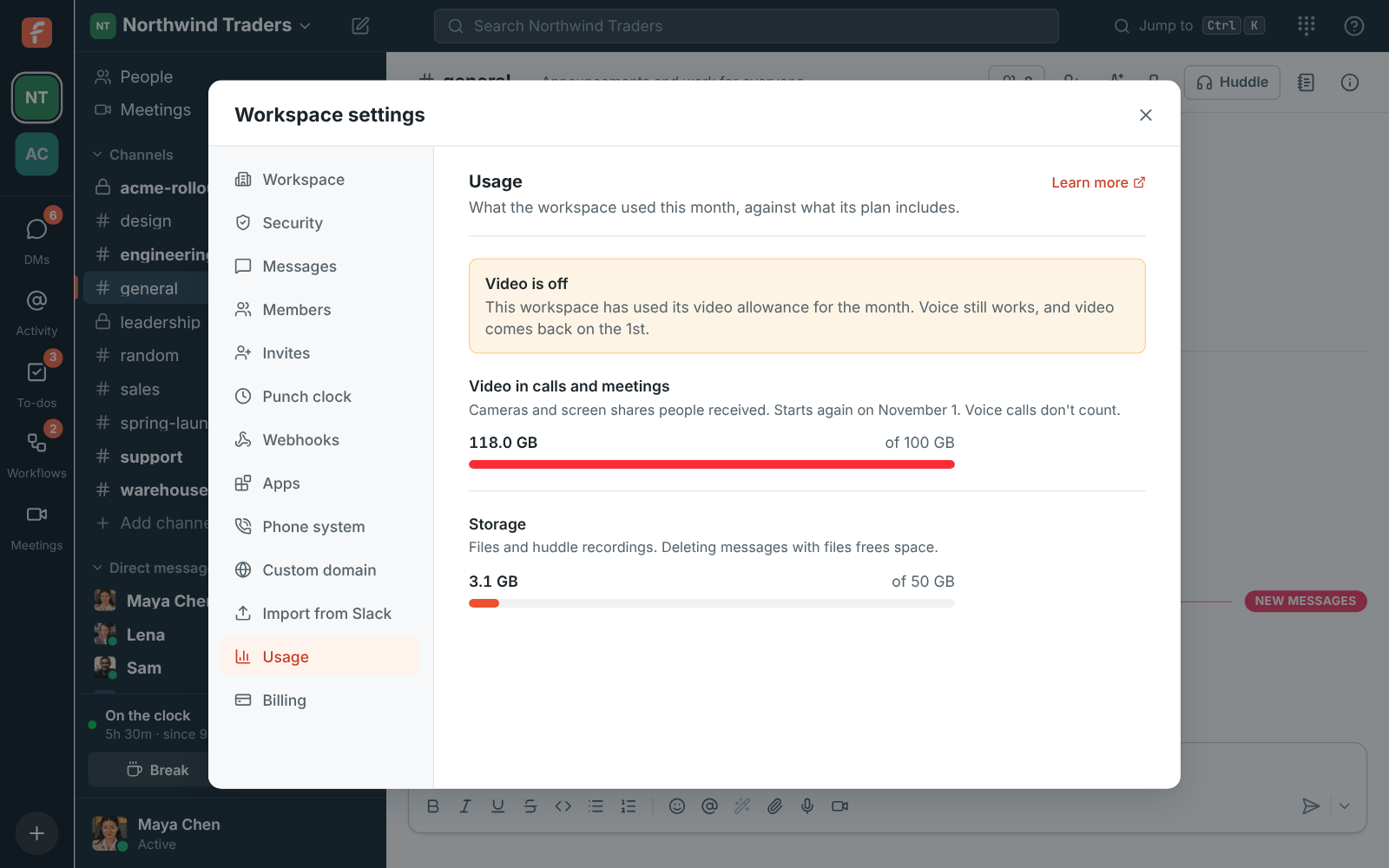
## Billing
The workspace's plan, how many people count toward it, what each plan costs yearly or monthly,
and the workspace's invoices. See [Billing](https://freesbe.net/docs/billing/).

## Custom domain
Put everyone's booking, meeting and invite links on your company's own address, like `meetme.acme.com/dana`. It
comes with the Corporate and Enterprise plans. See
[Custom domains](https://freesbe.net/docs/custom-domains/).
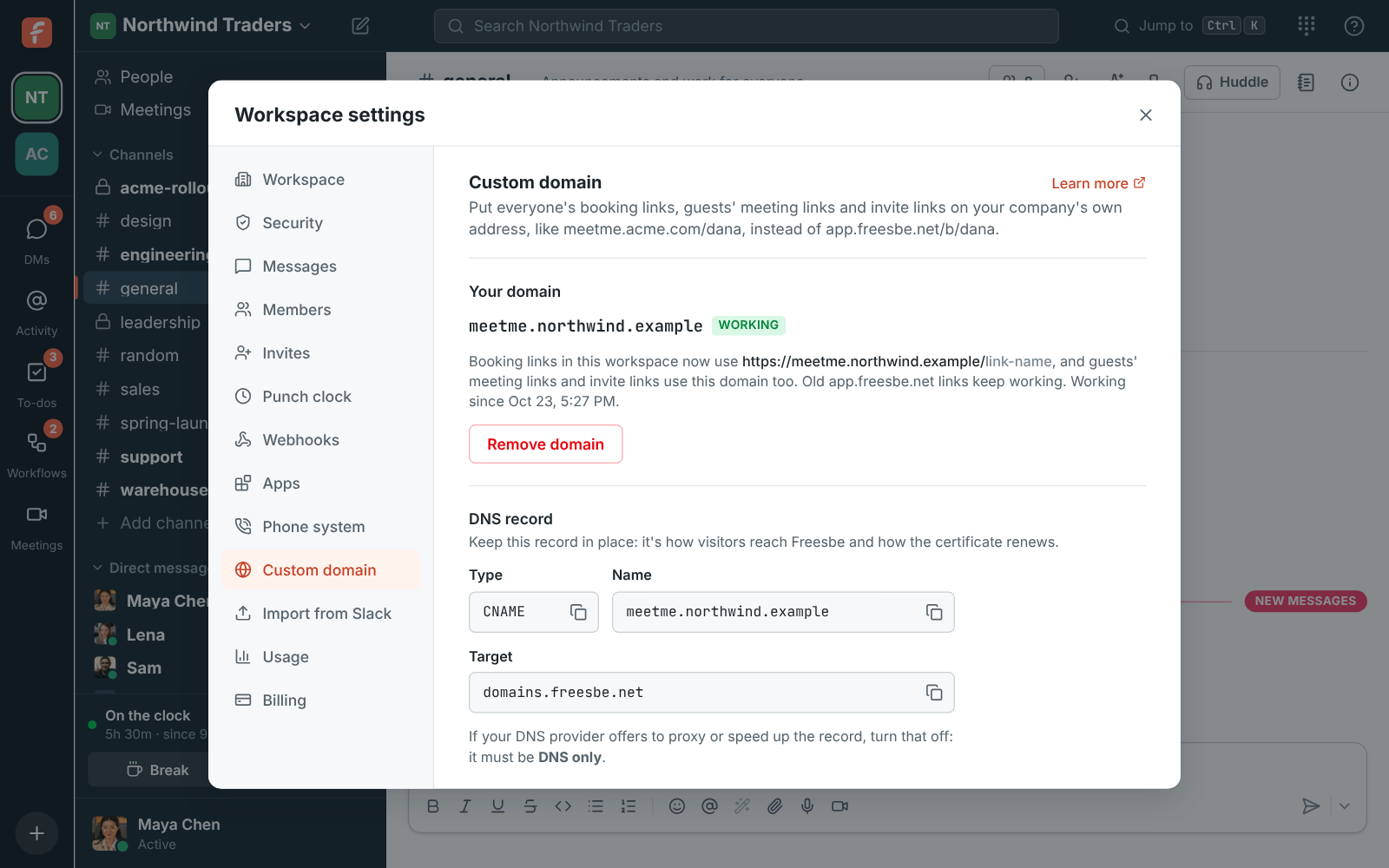
---
# Admin Center
Source: https://freesbe.net/docs/admin-center/
> Manage your workspace on a full screen at manage.freesbe.net - the same settings as Workspace settings in the app, with room for bigger jobs like the phone system, logs and integrations. For owners and admins.
The **Admin Center** at [manage.freesbe.net](https://manage.freesbe.net) is where owners and
admins manage a workspace on a full screen, in the browser. It has everything in
[Workspace settings](https://freesbe.net/docs/admin-settings/), with every section a page of its own in a list on
the left, grouped the same way: **General**, **People**, **Security & compliance**, **Calls &
meetings**, **Integrations & apps** and **Billing**.

The Admin Center always has every setting the app has. The app keeps the quick switches that
change what everyone sees day to day, like who can edit messages, AI, recordings, the waiting
room, invites and member roles: change those in either place, and a change in one shows in the
other.
## Managed in the Admin Center
Setup, security, logs, the phone system and billing are managed in the Admin Center. In the app, these tabs of
Workspace settings show **Open in the Admin Center**, which opens the same page here:
- **General:** Custom domain
- **People:** Email domains, Profile fields and Punch clock (clocking in and out stays in the app)
- **Reports:** [Hours](https://freesbe.net/docs/reports/#hours), from the punch clock
- **Security & compliance:** every tab: Sign-in, File types, Remote control, Audit log, Security
activity and Export data
- **Integrations & apps:** every tab: Integrations, Apps, AI agents, Webhooks and Import from Slack
- **Phone:** every tab: Phone system, Numbers and Messaging. [Phone menus](https://freesbe.net/docs/phone/#phone-menus)
are in the Admin Center only. Your own phone, under **Preferences → Calls & audio → Phone**,
stays in the app
- **Billing:** every tab. **Plan** in the app still shows your plan, with an **Upgrade** button
that opens the Admin Center's plans
- **Closing the workspace**, at the bottom of **General → Workspace**

Bigger jobs are in the Admin Center only, like [phone menus](https://freesbe.net/docs/phone/#phone-menus) under
**Phone → Phone menus** and [call queues](https://freesbe.net/docs/phone/#call-queues), with their break reasons
and [Call center supervisors](https://freesbe.net/docs/phone/#call-center-board), under **Phone → Call queues**, and
the [call log](https://freesbe.net/docs/phone/#call-log) of every call, under **Phone → Call log**. Building call flows
and reading message logs are coming here too.
## Open the Admin Center
- In the app, open the workspace menu (the workspace name at the top of the sidebar) and choose
**Admin Center**. It opens in your browser, on the workspace you were in.
- Or go to [manage.freesbe.net](https://manage.freesbe.net) and choose **Sign in**.

You sign in with your Freesbe account, the same way as in the app. The Admin Center always asks
for a second step, like a code we email you or your authenticator app, even when your workspace
doesn't require [multi-factor authentication](https://freesbe.net/docs/multi-factor-authentication/). A sign-in lasts
12 hours; after that, choose **Sign in** again.
Only owners and admins can use the Admin Center. Members and guests who sign in are told to ask an
admin.
## Find your way around
- **Switch workspace:** if you're an admin of more than one, pick it from the list under the
Freesbe logo. You stay on the same page.
- **Every page has its own address**, like `manage.freesbe.net//members`, so you
can bookmark it or send it to another admin.
- **Open Freesbe** at the bottom of the list goes back to the app; **Sign out** (the arrow next to
your email) ends the Admin Center's sign-in only, not the app's.
- On a phone, the list of pages becomes a menu at the top.

## Security
- The Admin Center has its own sign-in, separate from the app's, so someone using your computer
with Freesbe open still has to sign in, with a second step, to change workspace settings.
- Every Admin Center sign-in and sign-out shows in **Security activity**, for you and for the
other admins. See [Security activity](https://freesbe.net/docs/security-activity/).
- Apps, AI agents and API tokens can't use it.
- Every change made there is in the workspace's **Audit log**, the same as changes made in the app.
- [admin.freesbe.net](https://admin.freesbe.net) is not the Admin Center: it's for Freesbe's own
staff. Your workspace's Admin Center is always at manage.freesbe.net.
---
# Reports
Source: https://freesbe.net/docs/reports/
> See hours worked from the punch clock and how your call queues did in the Admin Center, filter by dates, people and queues, and download CSV.
**Reports** is a section of the [Admin Center](https://freesbe.net/docs/admin-center/), right under **People**. Workspace
owners and admins can open it. It has **Hours**, from the punch clock, and **Call center**, for
your call queues.
## Hours
**Reports → Hours** shows the time people recorded with the [punch clock](https://freesbe.net/docs/punch-clock/). The
punch clock has to be on: turn it on under **People → Punch clock**.

At the top are the totals for the dates and people you picked:
- **Hours worked**: work time, plus breaks when your breaks are paid.
- **Overtime**: time over the daily or weekly limit you set in the punch clock settings.
- **Breaks**, the **Average day** for each person who clocked in, and **Edited shifts**: shifts
someone changed after the fact.
Under them, **Hours per day** shows each day's regular time and overtime.
### Filters
- **Dates**: this week, last week, this month, last month, or **Custom dates** for any range up to
93 days.
- **People**: everyone the punch clock covers, or only the people you tick. Type to search.
- **Group by**: one row per **Person**, per **Day** (with each person's clock-in and clock-out
times), or per **Week**.
- **Show**: **All hours**, or **Overtime only** for just the people and days that went over.
**Reset filters** goes back to this month, everyone, by person.

### The table
Grouped by person, the table lists each person's days worked, hours, overtime, breaks, average day
and edited shifts, with a total at the bottom. Click a person to open their timesheet, where you
can fix an entry. Every change needs a reason and shows in the entry's history.

Hours count toward the day a shift started, in each person's timesheet time zone (see
[How hours are counted](https://freesbe.net/docs/punch-clock/#how-hours-are-counted)).
### How overtime is counted
Each day's time up to the daily limit is regular time, until the week's regular time reaches the
weekly limit. Everything past either limit is overtime, counted once. With the default limits (8
hours a day, 40 a week), a 10-hour Monday gives 2 hours of overtime, and a sixth 8-hour day in the
same week is all overtime. Weeks start on the day set in the punch clock settings, and a week cut
off by the dates you picked only counts the days inside them.
### Download CSV
**Download CSV** saves what the table shows: the same dates, people, grouping and **Show** filter,
with a total row. Hours are decimal (7.50 is seven and a half hours), ready for payroll.
For one row per shift or per day for everyone, use **Export** under **People → Punch clock**
instead.
## Call center
**Reports → Call center** shows how your [call queues](https://freesbe.net/docs/phone/#call-queues) did and how the
people in them spent their time. It comes with the **Call center** add-on. For what's happening
right now, use the [Call center board](https://freesbe.net/docs/phone/#call-center-board) in the app instead.

At the top are the totals for the dates and queues you picked:
- **Calls** into your queues, and how many were **Answered**.
- **Missed**: callers who hung up while waiting, or whom the queue gave up on after its longest
wait.
- **Service level**: the share of calls answered within the queue's target.
- **Average wait** before someone answered, with the longest wait and the average talk time.
Under them, **Calls per day** shows each day's answered and missed calls. Calls show up a few
minutes after they end.
### Filters
- **Dates**: this week, last week, this month, last month, or **Custom dates** for any range up to
90 days. Days start at midnight in your time zone.
- **Queues**: all of them, or only the ones you tick.
- **People**: everyone who took queue calls, or only the people you tick.
- **Show**: **Queues** or **People**.
- **Group by** (for queues): one row per **Queue**, per **Day** or per **Week**.
### Queues
One row per queue: calls, the share answered, missed calls (how many hung up and how many timed
out), service level, average and longest wait, average talk time, and how many people answered.
**All queues** at the bottom adds them up.
### People
One row per person: calls answered, **Missed** calls (ones that rang them and went unanswered),
average and total talk time, time **On break**, time **Signed in** to their queues, and how **Busy**
they were: the share of their signed-in time spent on calls or wrapping up, not counting breaks.
A red **over** tag counts breaks that ran past their reason's [time limit](https://freesbe.net/docs/phone/#breaks);
point at someone's break time to see it by reason.
With some queues picked, calls count only those queues. Time on break and signed in covers all of
a person's queues, since nobody's clock is per queue.
**Breaks by reason** under the table adds up break time for each [break reason](https://freesbe.net/docs/phone/#breaks),
how many people took one, and how many breaks went **Over limit**.

### Download CSV
**Download CSV** saves what the table shows. Times are in seconds, and service level and busy are
fractions (0.86 is 86%).
---
# Custom domains for booking, meeting and invite links
Source: https://freesbe.net/docs/custom-domains/
> Put everyone's booking links, guest meeting links and invite links on your company's own address, like meetme.acme.com/dana. Included with the Corporate and Enterprise plans.
Booking links normally live at `https://app.freesbe.net/b/dana`. With a custom domain, every
booking link in your workspace moves to your company's own address instead, such as
`https://meetme.acme.com/dana` or `https://book.acme.com/dana`. Links that guests get to join
your scheduled meetings move too, to `https://meetme.acme.com/m/…`, and so do invite links, to
`https://meetme.acme.com/invite/…`. The pages look the same, the
HTTPS certificate is free and renews on its own, and visitors never see app.freesbe.net in the
address bar.
Custom domains come with the **Corporate** and **Enterprise** plans. An admin sets one up once
for the whole workspace; everyone's links switch over by themselves.
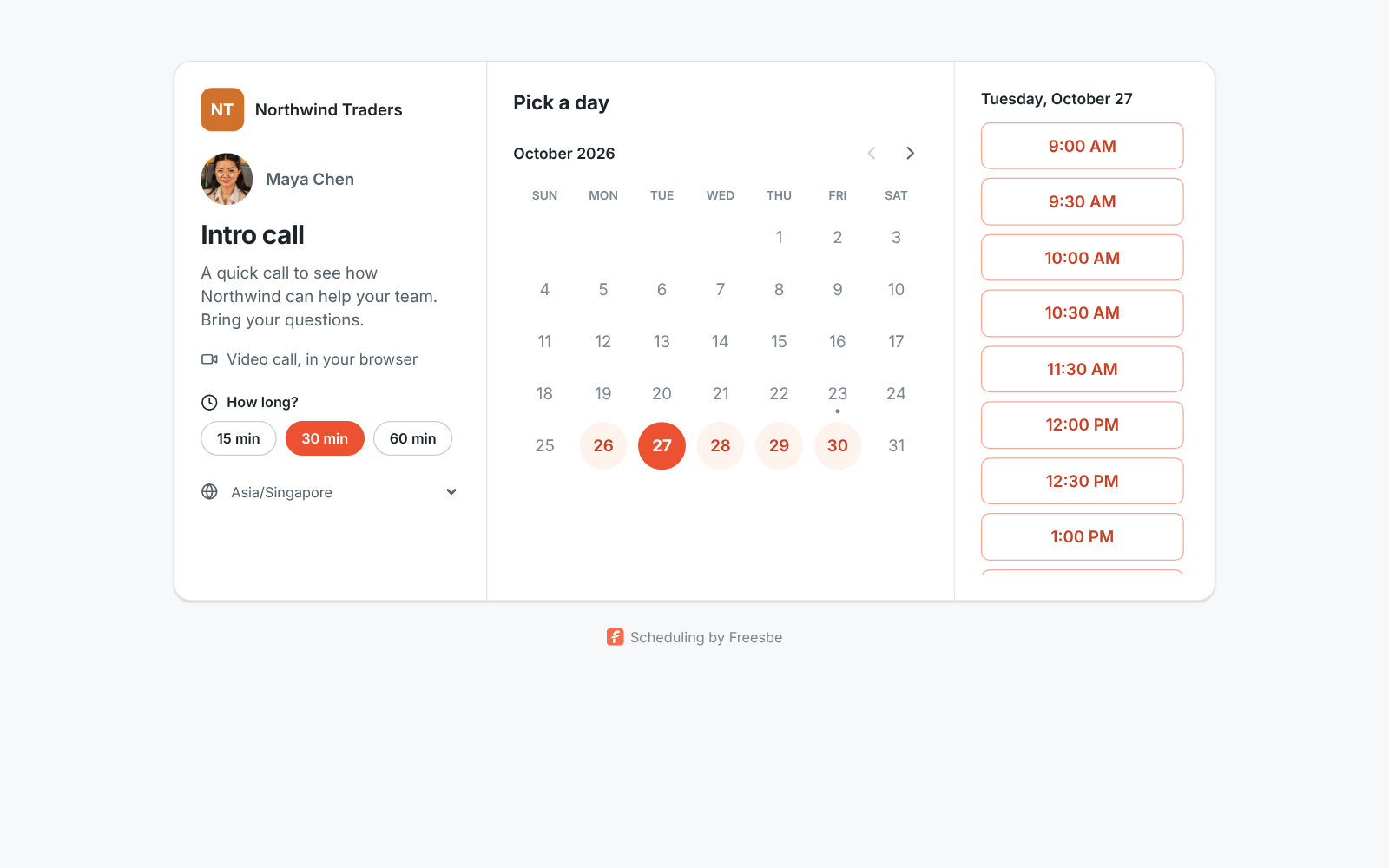
## Before you start
- You need to be an owner or admin of the workspace.
- Pick a **subdomain** you control, like `meetme.acme.com`. A bare domain such as `acme.com`
can't be used, because its root can't point somewhere else with a CNAME record.
- You (or whoever runs your company's DNS) need to add one DNS record.
If your workspace isn't on Corporate or Enterprise, **Workspace settings → General → Custom domain** says
it requires the Corporate plan, with a link to upgrade.
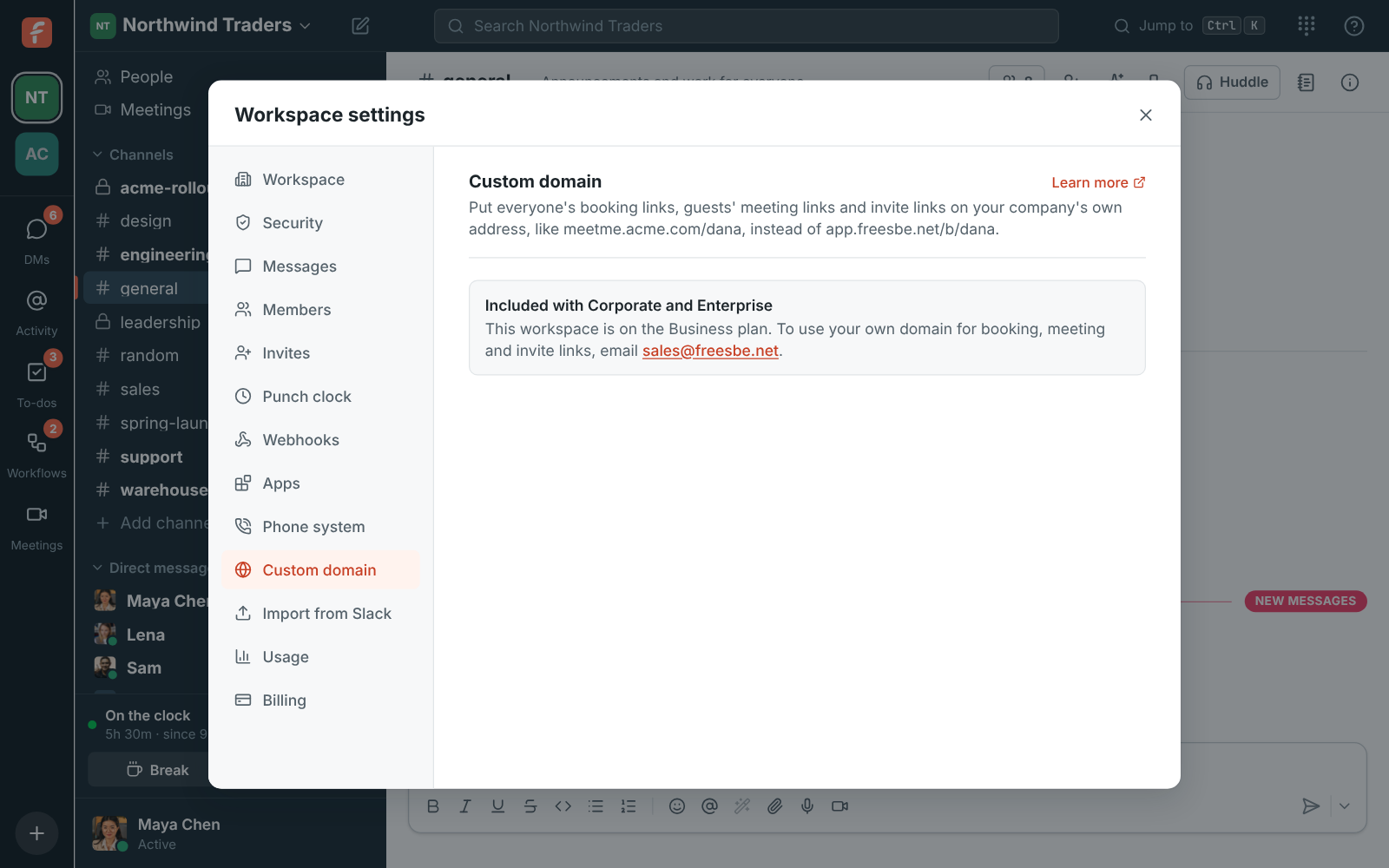
## Add your domain
1. Open the workspace menu (the workspace name at the top of the sidebar) and choose
**Workspace settings**, then **Custom domain**.
2. Type the domain, for example `meetme.acme.com`. Freesbe shows what the links will look like.
3. Click **Add domain**.
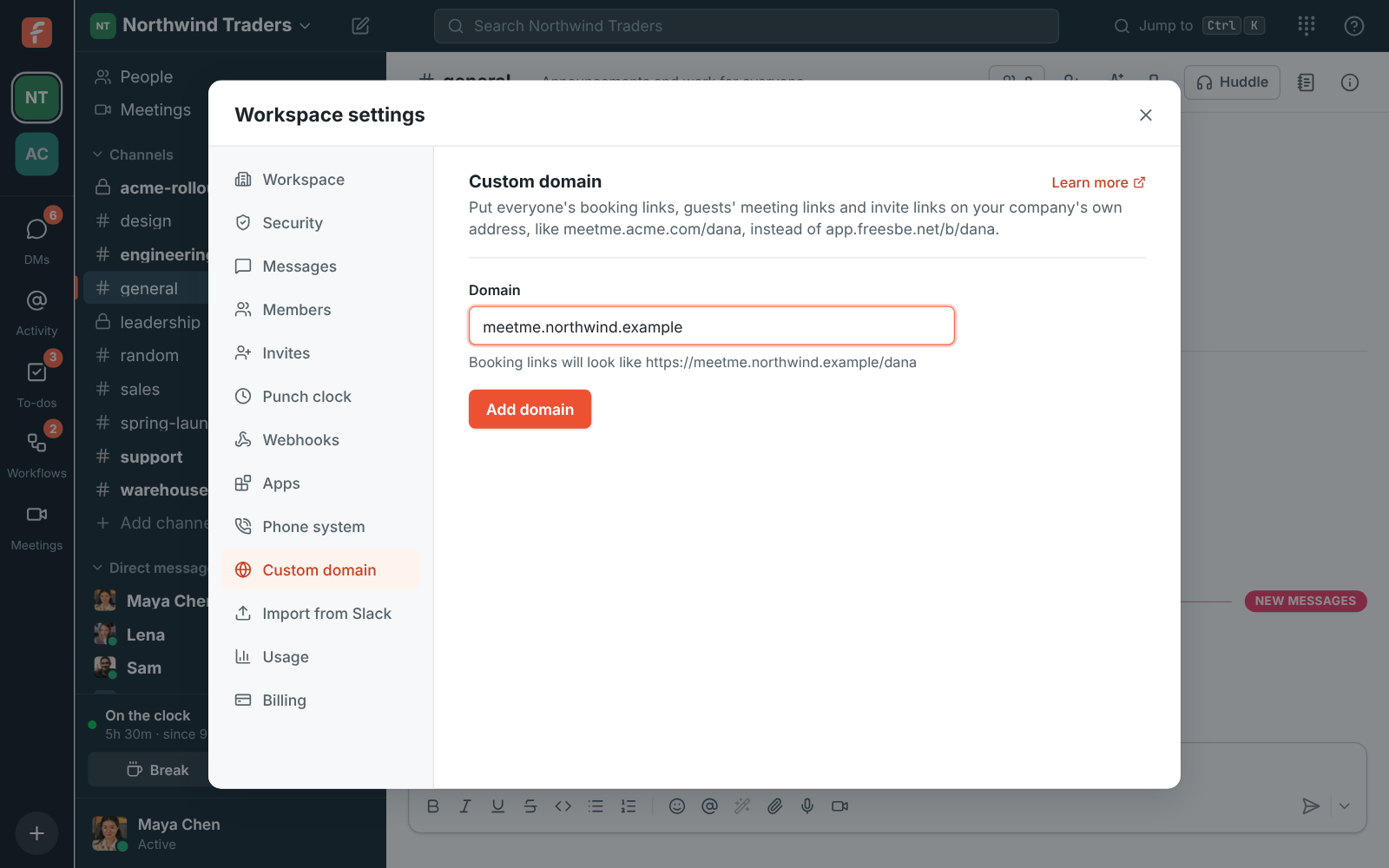
## Add the DNS record
Freesbe shows the record to add. At your DNS provider (GoDaddy, Namecheap, Route 53, Google
Cloud DNS and so on) create:
| Type | Name | Target |
| ----- | ------------------------- | --------------------- |
| CNAME | `meetme` (your subdomain) | `domains.freesbe.net` |
Some providers want the full name (`meetme.acme.com`), others only the part before your domain
(`meetme`). If your DNS provider offers to proxy or speed up the record, turn that off: it must be **DNS
only**.
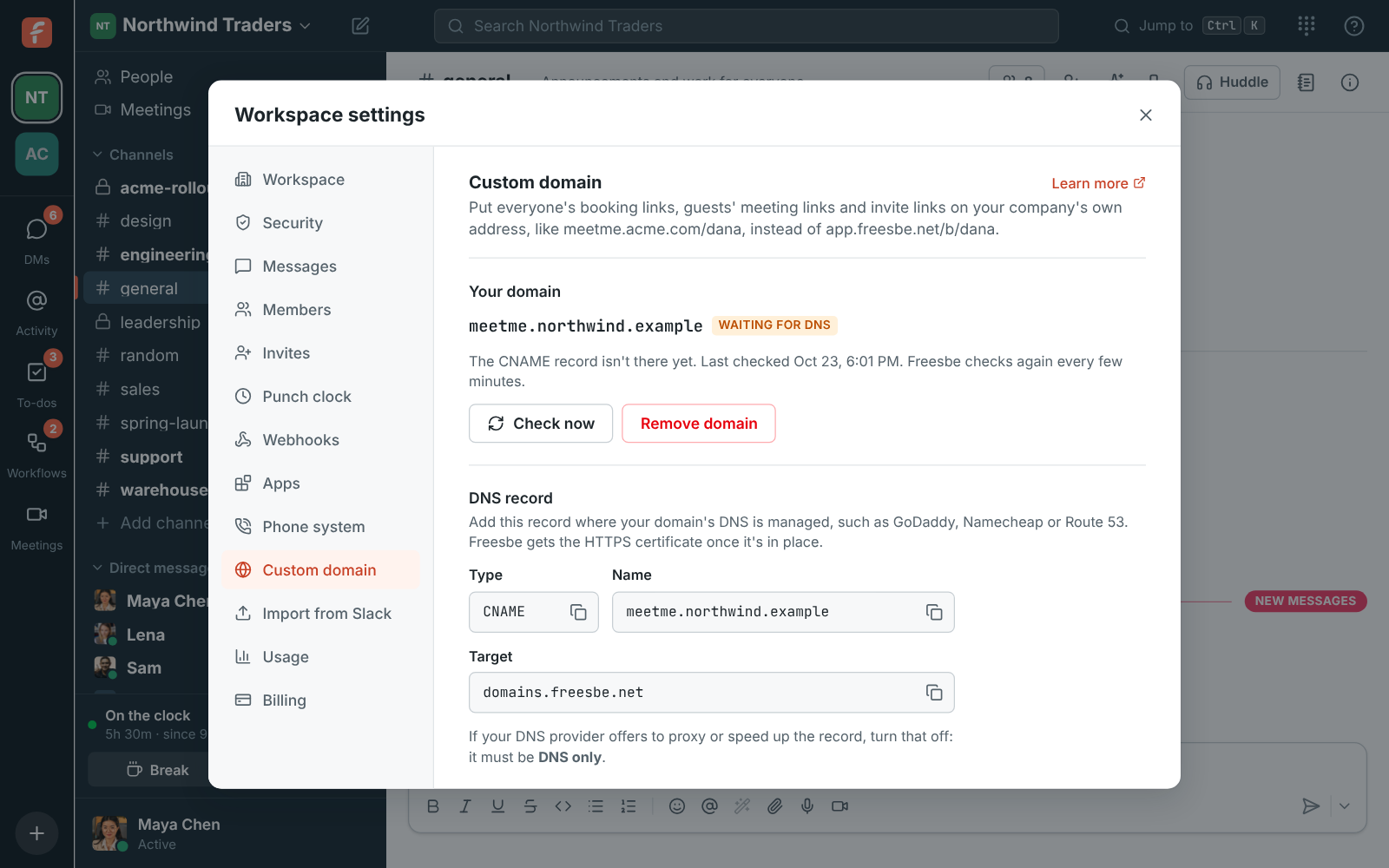
Freesbe checks every few minutes and gets the HTTPS certificate as soon as the record shows up.
That usually takes a few minutes, sometimes up to an hour while DNS catches up. Click **Check
now** to look straight away.
### Ownership record
Freesbe sometimes shows a second, **TXT** record under **Ownership record (only if asked)**. You
only need it when the domain is already in use somewhere else, or sits behind a CDN or
proxy: adding it proves the domain is yours before you switch the CNAME, so there's no gap.
Otherwise the CNAME is enough.
## When it's working
The status changes to **Working**. From then on:
- Everyone's booking links in the workspace use the new address, for example
`https://meetme.acme.com/dana`. **Copy**, **Copy for email signature** and the link preview
card all use it.
- Old `app.freesbe.net/b/…` links keep working, so signatures people already sent don't break.
- Guests' meeting links use it as well: invite emails, calendar invites, reminders and **Copy
link** on a meeting all point to `https://meetme.acme.com/m/…`. People who book through a
booking link get their call link on the same domain.
- Members of your workspace still get their usual `meet.freesbe.net/…` links in their own
invites, which take them into Freesbe signed in, with their name and the Freesbe app.
- Older `meet.freesbe.net/…` and `app.freesbe.net/m/…` meeting links keep working too.
- When someone pastes a `meetme.acme.com/m/…` link in a channel or DM, members who click it join
the meeting inside Freesbe, signed in as themselves, rather than as a guest on the web page.


Keep the DNS record in place. It's how visitors reach Freesbe and how the certificate renews
every few months.
Someone who opens just the domain, without a name after it, sees a short page that tells them to
ask for the person's link:
A guest who opens a meeting link on your domain sees the meeting page there, waits until it
opens and joins without a Freesbe account. A colleague with an account can click **Join from
Freesbe** to join signed in instead.
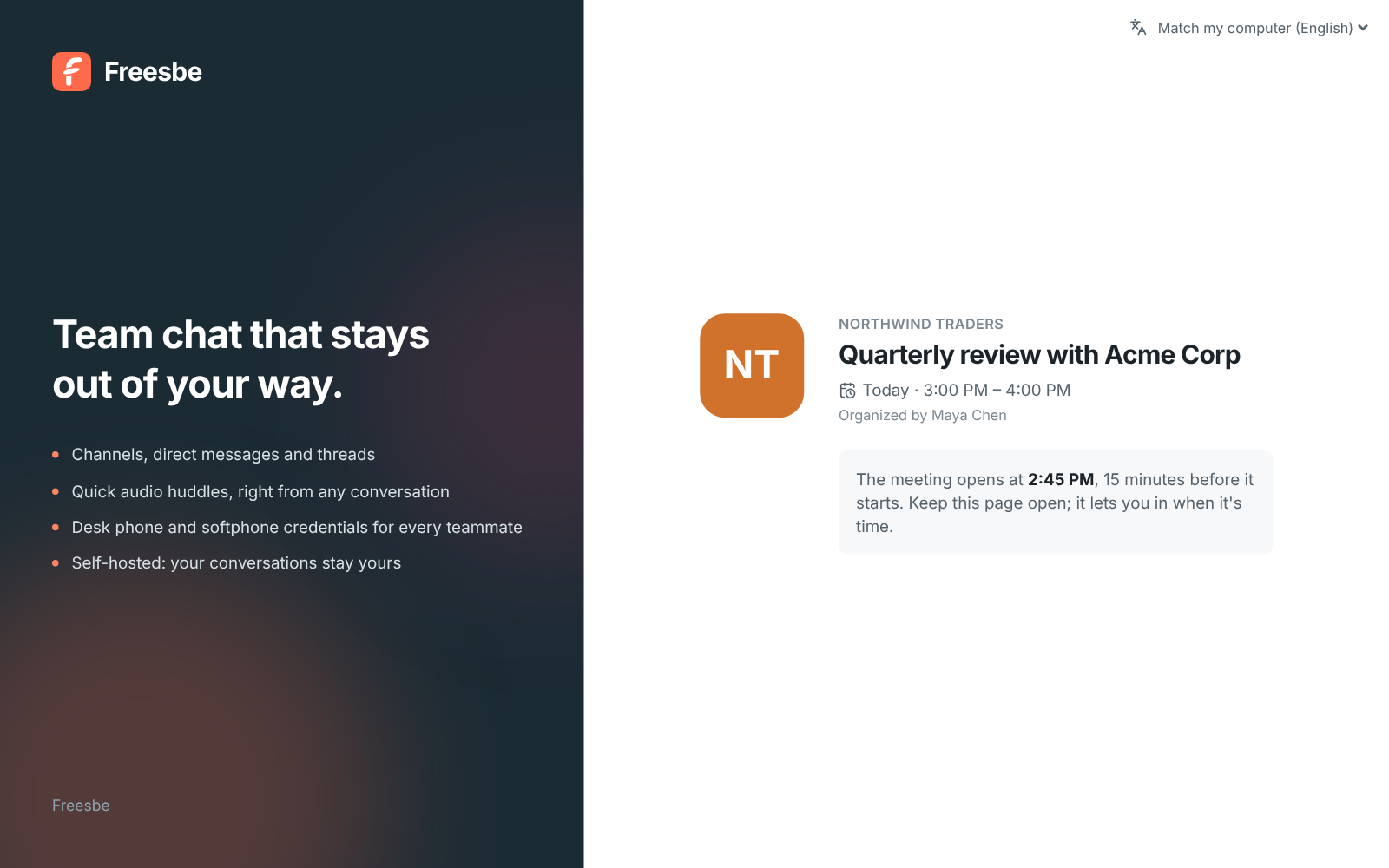
## Invite links
Invite links you create or email from then on use your domain too, for example
`https://meetme.acme.com/invite/…`, for both workspace invites and guest invites. When the link is
pasted into Slack, Teams or an email, its preview card shows your domain:
Opening the link takes people straight on to `app.freesbe.net`, where they create their account
or sign in and join the workspace. Signing in to Freesbe itself always happens on
`app.freesbe.net`. Invite links you made before the domain was working keep their old address
and still work.
## What the domain shows
Only your workspace's booking pages, its meetings for guests and its invite links. Nobody can sign in to Freesbe there, and no other part of
Freesbe or your workspace answers on it. A link name or meeting that belongs to another workspace
doesn't work on your domain.
## Change or remove the domain
Click **Remove domain** in **Workspace settings → General → Custom domain**. Links on that domain stop
working right away and everyone's links go back to `app.freesbe.net/b/…` and
`meet.freesbe.net/…`. Meeting invites and invite links already sent with the domain stop working too, so send the
meeting again or make a new invite link if needed. To move to another
subdomain, remove the current one and add the new one. A workspace has one custom domain.
If the workspace moves off Corporate or Enterprise, the domain stops answering and links go back
to `app.freesbe.net/b/…` until it moves back.
## Troubleshooting
- **Waiting for DNS for more than an hour.** Check the record is a CNAME (not an A record), that
its target is exactly `domains.freesbe.net`, and that it's **DNS only**, not proxied.
- **"A CAA record on the domain blocks the HTTPS certificate."** Your domain only allows certain
certificate authorities. Ask whoever runs your DNS to allow Let's Encrypt and Google Trust
Services, or remove the CAA record.
- **"That domain is already connected to Freesbe."** Another workspace uses it. Pick another
subdomain, or email support@freesbe.net.
---
# Usage limits
Source: https://freesbe.net/docs/usage-limits/
> What each workspace's plan includes each month for video and storage, how many channels, canvases and other things it can have, where admins see what's used, and what happens at the limit.
Chat, voice calls and meetings without cameras have no limit. Two things do, because they cost
the most to run: video in calls and meetings, and storage for files and recordings. Admins can see
both under **Workspace settings → Billing → Usage**.

| What | Included | Starts again |
| --------------------------- | -------------- | ------------------------ |
| Video in calls and meetings | 100 GB a month | On the 1st of each month |
| Storage (files, recordings) | 50 GB | When files are deleted |
For now every workspace has these limits whatever its plan; the per-person allowances on
[Plan limits](https://freesbe.net/docs/plan-limits/) come later. Enterprise workspaces can have their own limits.
[Contact us](mailto:sales@freesbe.net) if yours needs more.
## What counts as video
Video is the cameras and screen shares people **receive**. If three people have their cameras on
in a call with five people, each of the five receives up to three streams. As a guide, 100 GB is
about 150 hours of one camera received. A one-on-one video call uses two of those hours for
every hour it runs, so 100 GB covers about 75 hours of one-on-one video calls a month.
Voice doesn't count. Neither does your own camera preview.
## When the video allowance runs out
- Cameras and screen sharing turn off in every call and meeting in the workspace. Anyone sharing
sees **This workspace has used its video allowance for the month**.
- The **Turn on camera** and **Share screen** buttons stay off, and say why when you point at
them.
- Voice keeps working, and so does everything else: messages, files, huddles without video and
meetings.
- Video comes back on the 1st of the next month, on its own.
Admins see a **Video is off** notice under **Workspace settings → Billing → Usage**.
## Spending limits
Freesbe can agree a monthly spending limit with a workspace, for example on Enterprise. If the
workspace reaches it, video, screen sharing, recordings, transcripts and AI features stop until
the 1st, with **This workspace reached its spending limit for the month**. Voice, messages, files
and everything else keep working. Admins see a **Video is off** notice under **Workspace settings
→ Billing → Usage**. To change the limit, contact Freesbe.
## When storage is full
New uploads and new huddle recordings stop with **This workspace is out of storage**. Files that
are already there keep working. Deleting messages with large files, or old recordings, frees space
straight away. Admins can also have recordings deleted automatically after 30, 90 or 365 days in
[Workspace settings](https://freesbe.net/docs/admin-settings/#recordings).
## Channels, canvases and more
Each plan also has a fair-use limit on how many of some things a workspace can have. They're set
far above what a team of the plan's size uses, so they only stop runaway scripts and integrations.
Admins see each count against its limit under **Workspace settings → Billing → Usage**, with a warning once
one passes 80%.

| What | Free | Business | Corporate | Enterprise |
| -------------------------------------------------------- | ---- | -------- | --------- | ---------- |
| Channels (not archived, not DMs) | 100 | 2,000 | 10,000 | 50,000 |
| Canvases | 50 | 5,000 | 25,000 | 100,000 |
| Workflows | 5 | 200 | 500 | 2,500 |
| Custom apps | 5 | 50 | 100 | 500 |
| Incoming webhooks | 1 | 100 | 500 | 2,500 |
| Outgoing webhooks | 5 | 50 | 200 | 1,000 |
| Active guest links to recordings | 20 | 200 | 1,000 | 5,000 |
| Upcoming scheduled meetings | 100 | 2,000 | 10,000 | 50,000 |
| [Sign in with Freesbe](https://freesbe.net/docs/sign-in-with-freesbe/) apps | 2 | 20 | 50 | 250 |
| [News feeds](https://freesbe.net/docs/rss-feeds/) | 2 | 20 | 100 | 500 |
| [AI agent](https://freesbe.net/docs/ai-agents/) connections per person | 5 | 5 | 10 | 50 |
At a limit, making one more stops with a message such as **This workspace has as many channels as
its plan allows**. Nothing already there is removed, and a workspace that's over a limit keeps
everything; it just can't add more until it's under. Archiving a channel frees its place;
bringing it back needs one. Revoked and expired guest links, canceled meetings and meetings that
already started don't count.
Where a plan doesn't include a feature at all (for example outgoing webhooks on Free), the plan
decides that, not these numbers. If your workspace needs more of something,
[contact us](mailto:sales@freesbe.net): Freesbe can raise any of these for one workspace.
### Phone greetings
Each new greeting for a [phone menu](https://freesbe.net/docs/phone/#phone-menus) or
[call queue](https://freesbe.net/docs/phone/#call-queues), and each hold music file, counts toward a daily limit:
typed words read out by a voice when you save, a recording you make, or a file you upload. Playing
a saved greeting, trying a menu with **Try it**, and saving without changing the greeting don't
count.
| What | Free | Business | Corporate | Enterprise |
| -------------------------- | ---- | -------- | --------- | ---------- |
| Phone greetings made a day | 10 | 25 | 50 | 250 |
Past it, Freesbe answers **This workspace made 25 phone greetings today, as many as its plan
allows. Try again tomorrow.** The count starts again at midnight UTC.
## If Freesbe pauses video for everyone
Rarely, Freesbe may pause video, screen sharing and recordings for every workspace, for example
to stop abuse. You'll see **Video and screen sharing are paused on Freesbe**. Voice calls keep
working. In an emergency calls can be paused altogether (**Calls are paused on Freesbe right
now**); chat keeps working, and calls start again as soon as the pause ends.
## Going very fast
To stop scripts and runaway integrations, Freesbe slows down anyone doing the same thing very
fast. A person typing never gets near these. An app, bot or API token counts as its own person.
| What | Per person, a minute |
| ------------------------------------------------------- | -------------------- |
| Sending messages | 60 |
| Adding reactions | 120 |
| Making channels, meetings, webhooks, apps and workflows | 20 |
| Uploading files | 30 |
| Searching | 60 |
Past one, Freesbe answers **You're going very fast. Wait a minute, then try again.** (for
messages, **You're sending messages very fast**), with HTTP 429 for the
[API](https://freesbe.net/docs/api-and-webhooks/), and it works again within the minute.
Workspaces that signed up on their own and are on Free or a trial can also send 10,000 messages
and make 200 channels, meetings and other things a day. A team of ten rarely sends 2,000.
They start again at midnight UTC, or straight away after upgrading.
---
# Single sign-on
Source: https://freesbe.net/docs/single-sign-on/
> Require everyone in a workspace to sign in with Google or Microsoft, and what happens to people who signed in another way.
Admins can require everyone in a workspace to sign in with their work account from Google,
Microsoft or either. Requiring SSO comes with the Corporate and Enterprise [plans](https://freesbe.net/docs/plans/).
## Turn it on
1. Sign in with the provider you're about to require. Freesbe won't let you require Google while
you're signed in with a password, so you can't lock yourself out.
2. Open **Workspace settings → Security & compliance → Sign-in → Single sign-on**.
3. Under **Members must sign in with**, choose **Google**, **Microsoft** or **Google or
Microsoft**.
Choose **Any sign-in method** to turn it off again.
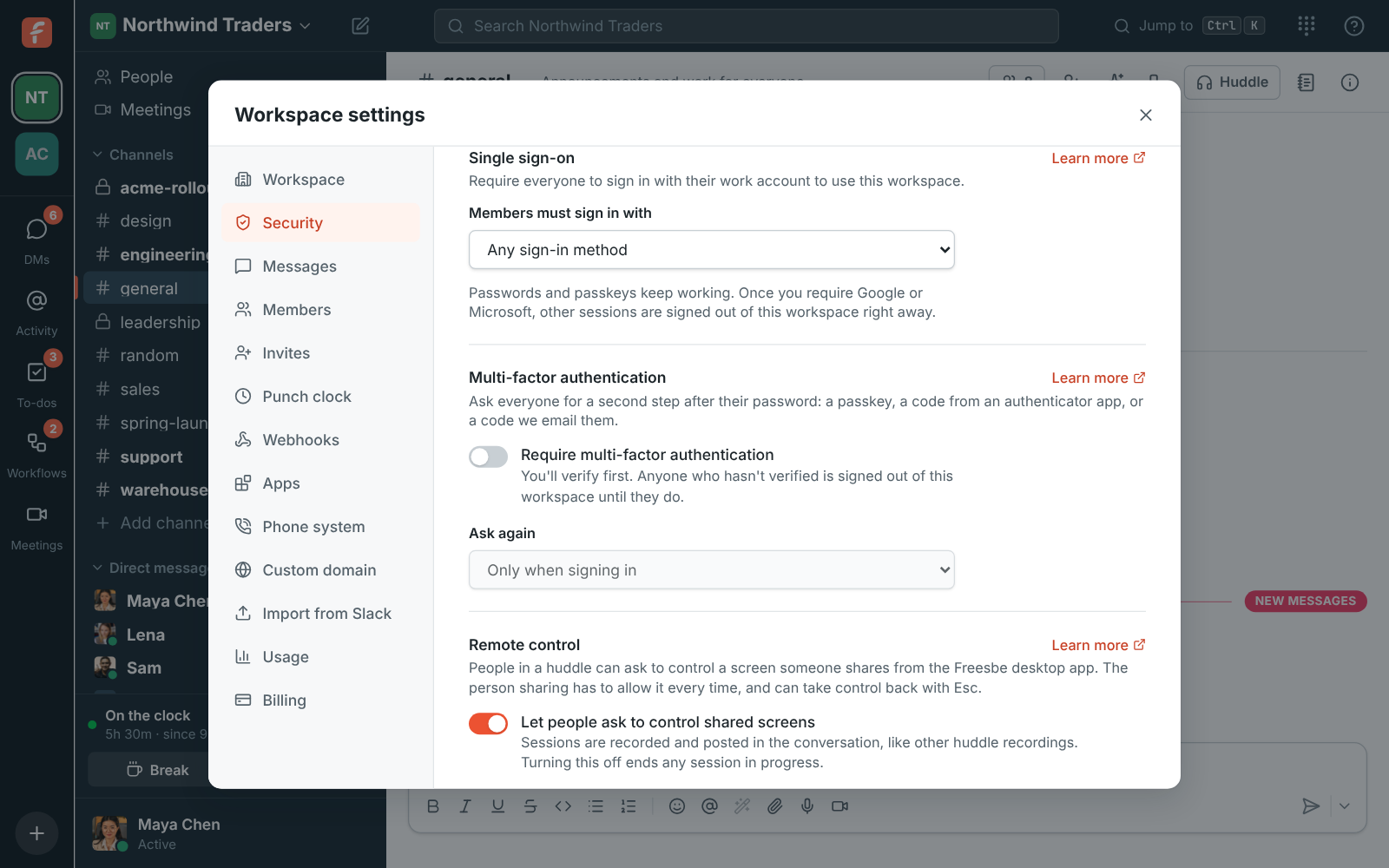
## What changes for people
- Anyone using the workspace with a password, a sign-in code or a passkey is signed out of **that
workspace** right away and asked to continue with the required provider. Their Freesbe account
stays the same: signing in with the provider links it to their account.
- Linking works when the provider's address matches their Freesbe email. If it doesn't, they can
connect the provider in **Preferences → My account → Sign-in → Google and Microsoft** first.
- Other workspaces they belong to aren't affected.
- Emailed sign-in codes don't open the workspace.
- Scripts that signed in with a password lose access to the workspace too. See
[API and webhooks](https://freesbe.net/docs/api-and-webhooks/).
## Which accounts can sign in
For Microsoft, work, school and personal accounts can sign in, unless your Freesbe server is set
up to accept only work and school accounts, or only your organization's directory. For Google,
any Google account with a confirmed address can sign in.
Requiring single sign-on decides **how** people sign in, not **who** can join: people need an
invite, or an address at one of the workspace's
[email domains](https://freesbe.net/docs/workspaces-and-invites/#join-by-email-domain). Together they cover a whole
company: everyone at your domain can join on their own, and has to sign in with your Microsoft or
Google work accounts.
---
# Multi-factor authentication
Source: https://freesbe.net/docs/multi-factor-authentication/
> Require everyone in a workspace to verify a second step when they sign in and when Freesbe starts, and set up a passkey or an authenticator app.
Admins can require everyone in a workspace to prove it's them with a second step, not just a
password. Members verify with whichever they have:
- **A passkey**: your fingerprint, face or device PIN.
- **An authenticator app**: a 6-digit code from Google Authenticator, Microsoft Authenticator,
1Password, Authy or similar.
- **A code we email you.**
Requiring multi-factor authentication comes with every paid [plan](https://freesbe.net/docs/plans/).
## Turn it on
1. Open **Workspace settings → Security & compliance → Sign-in → Multi-factor authentication**.
2. Switch on **Require multi-factor authentication**. If you haven't verified a second step in
this session yet, Freesbe asks you to first, so you can't lock yourself out.
3. Under **Ask again**, choose how often members verify:
- **Only when signing in**
- **Each time Freesbe opens**: every time someone starts the desktop app or opens Freesbe in a
new browser tab. Reloading the page doesn't count.
- **Every 12 hours**, **Every day** or **Every week**

Switch it off to stop asking. Changing **Ask again** to ask more often also needs your own
session to meet the new rule first.
## What changes for people
- Anyone using the workspace who hasn't verified is signed out of **that workspace** right away
and sees **Verify it's you** the next time they open it. Other workspaces aren't affected.
- **Signing in with a passkey, Google or Microsoft counts by itself.** Google and Microsoft apply
their own MFA rules to work accounts. When the time comes to verify again, these people verify
like everyone else.
- People who signed in with an **emailed sign-in code** can't use another emailed code as the
second step. They use their password, a passkey or the authenticator app instead.
- Someone with nothing else to verify with (no password, passkey or app, or a server that can't
send email) sets up a passkey or an authenticator app on the spot, and that counts.
- While they're signed in, adding or removing a passkey, the authenticator app or a phone that
approves sign-ins asks them to
verify again if they haven't in the last hour, so someone who only knows the password can't
add their own.
- Scripts that signed in with a password lose access to the workspace until they verify. See
[API and webhooks](https://freesbe.net/docs/api-and-webhooks/).
## Verify it's you
When a workspace asks, Freesbe shows your best option first, with the others under **Or**:
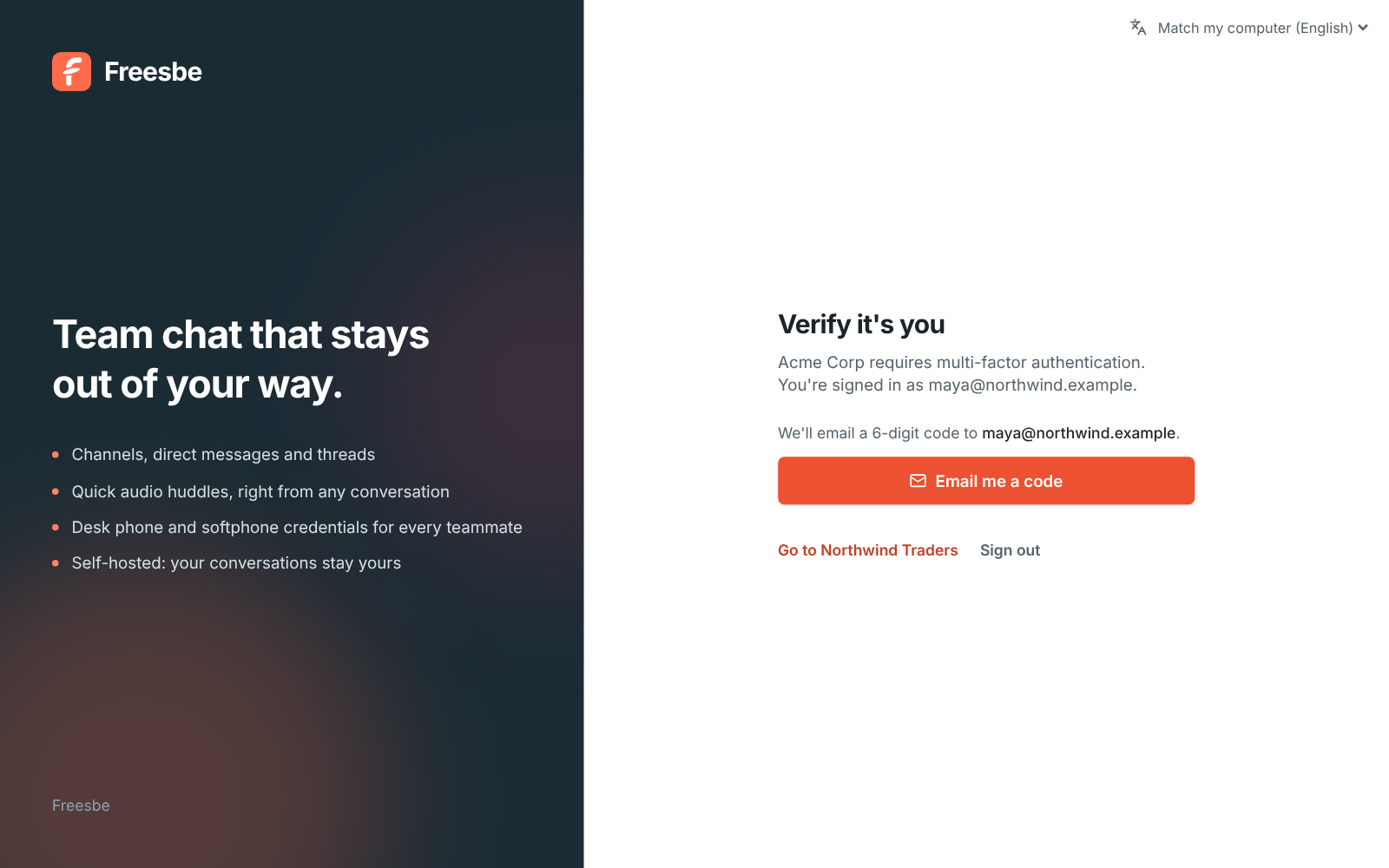
- **Approve on your phone** comes first once your phone is set up to approve sign-ins: your
computer shows a number, and you tap it on your phone and confirm with your fingerprint or face.
It counts as the second step on every plan. See
[Approve sign-ins on your phone](https://freesbe.net/docs/sign-in-and-security/#approve-sign-ins-on-your-phone).

- **Use a passkey** works in your web browser. The desktop app offers the authenticator app and
emailed codes.
- Emailed codes work for 10 minutes. Authenticator app codes change every 30 seconds, and each
one works once.
- An emailed code also confirms your email address, so you won't be asked to
[verify your email](https://freesbe.net/docs/sign-in-and-security/#verify-your-email) separately.
- Too many wrong codes in a day locks that way of verifying until tomorrow. Use another way, or
ask for a new emailed code.
## Set up an authenticator app
1. Open **Preferences → My account → Sign-in → Authenticator app** and click **Set up an authenticator app**.
2. Scan the QR code with the app, or type the key under it.
3. Enter the 6-digit code the app shows and click **Turn on**.
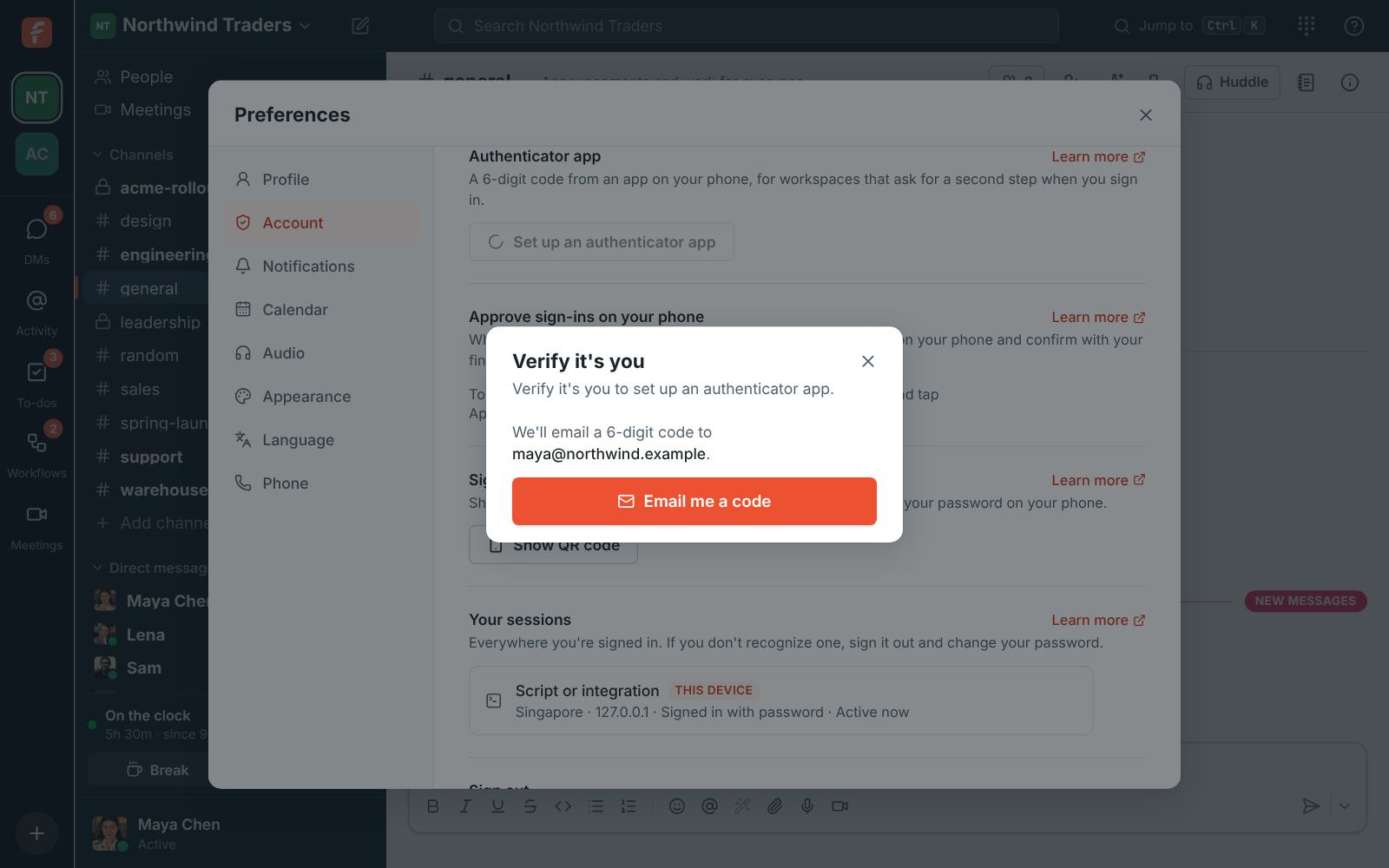
To move to a new phone, click **Remove** and set it up again. If you lose your phone, verify with
an emailed code instead, then set the app up again.
## Add a passkey
In your web browser, Freesbe suggests a passkey with a banner until you add one or dismiss it.
Click **Add a passkey** and follow your browser's prompts, or go to **Preferences → My account → Sign-in → Passkeys**. See [Sign-in and security](https://freesbe.net/docs/sign-in-and-security/#passkeys).
---
# File types
Source: https://freesbe.net/docs/file-types/
> Choose which kinds of file members and guests can share. Freesbe checks every upload by its name and by what's inside, so a renamed program is caught too.
Admins decide which kinds of file people can share in the workspace, with one rule for members and
another for [guests](https://freesbe.net/docs/guests/) from other companies. Open the workspace menu, choose
**Workspace settings → Security & compliance → File types**.

## What it does out of the box
- **Members** can share any type of file.
- **Guests** can share anything except programs and scripts.
Changing a rule only affects new uploads. Files that were already shared stay where they are.
## The choices
For each of **Files from members** and **Files from guests**, pick what **They can share**:
| Choice | What it allows |
| ---------------------------------------- | --------------------------------------------------------------------------------------------------------------------------------------- |
| **Any type of file** | Everything. |
| **Anything except programs and scripts** | Everything except programs, installers, scripts, shortcuts, disk images and Office files with macros. |
| **Only the kinds I pick** | Just the kinds you tick: **Documents**, **Images**, **Audio and video**, **Archives** and **Code and data** (Corporate and Enterprise). |
"Programs and scripts" covers files such as `.exe`, `.msi`, `.bat`, `.cmd`, `.ps1`, `.vbs`, `.js`,
`.lnk`, `.sh`, `.app`, `.pkg`, `.dmg`, `.deb`, `.jar`, `.apk`, `.iso` and macro-enabled Office files
like `.docm` and `.xlsm`. With **Only the kinds I pick** they stay blocked whichever kinds you tick.
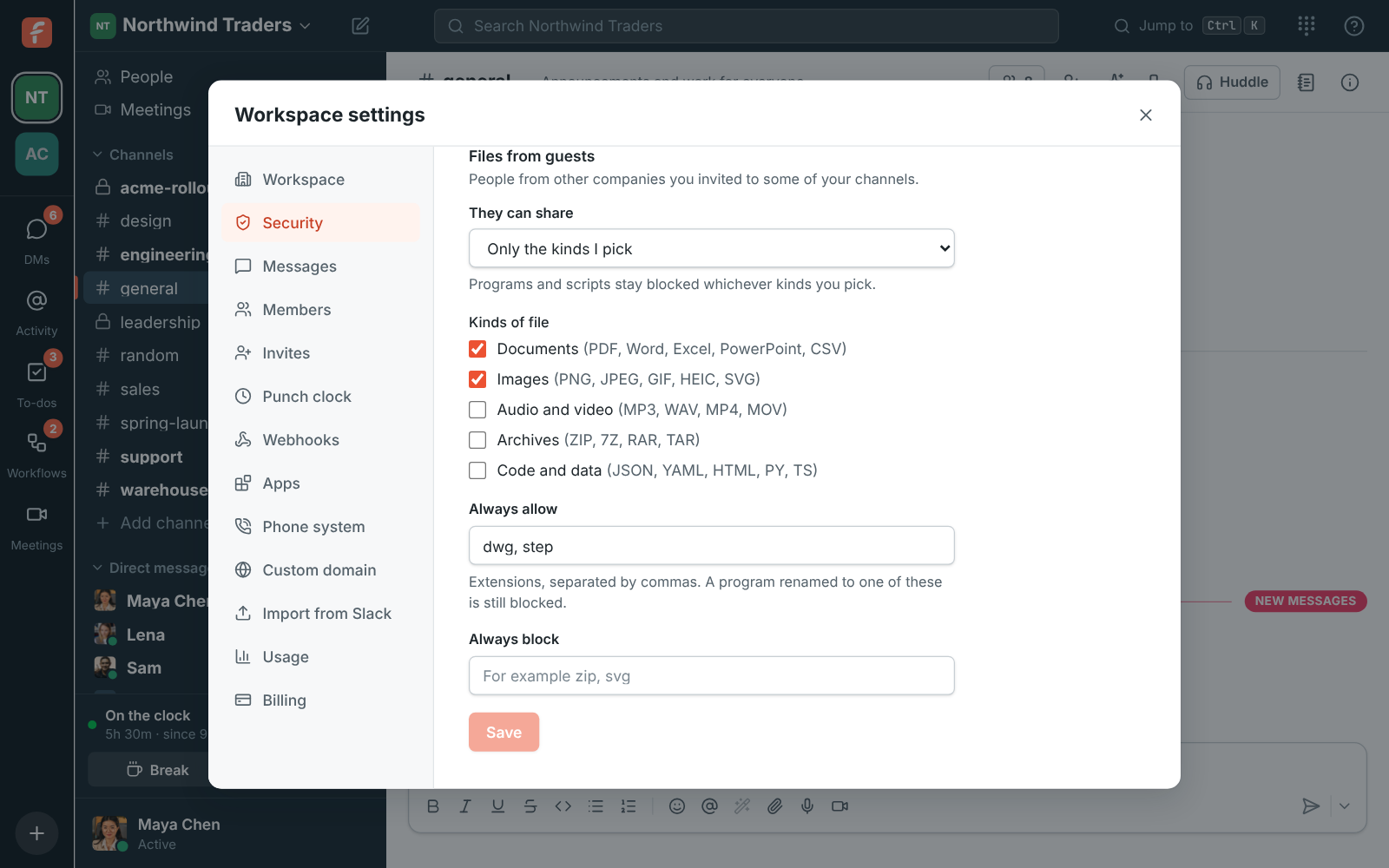
### Always allow and always block
On the Corporate and Enterprise [plans](https://freesbe.net/docs/plans/) you can also list extensions, separated by
commas:
- **Always allow**: extensions people can share whatever the choice above says, like `dwg, step`
for drawings your partners send.
- **Always block**: extensions nobody can share, even with **Any type of file**, like `zip`.
Type them with or without the dot; Freesbe tidies them up when you save.
## How files are checked
Freesbe checks every upload on the server, so the rule holds for the desktop app, the browser and
the [API](https://freesbe.net/docs/api-and-webhooks/) alike. Files sent in a [meeting's chat](https://freesbe.net/docs/meetings/#meeting-chat)
are checked too: guests from outside the workspace follow the rule for guests.
- **By name**: the last extension counts, so `invoice.pdf.exe` is an `.exe`.
- **By what's inside**: Freesbe reads the start of the file. A Windows, Mac or Linux program, a
Java or Android package, a shortcut or a disk image is recognised even when it's been renamed to
`report.pdf` or has no extension. An extension on **Always allow** doesn't let a program through
under someone else's name either.
- Plain-text scripts like `.bat` and `.vbs` look like any other text, so those are recognised by
name.
When a file isn't allowed, it isn't uploaded. The person sees why straight away, and the message
can still be sent without it.
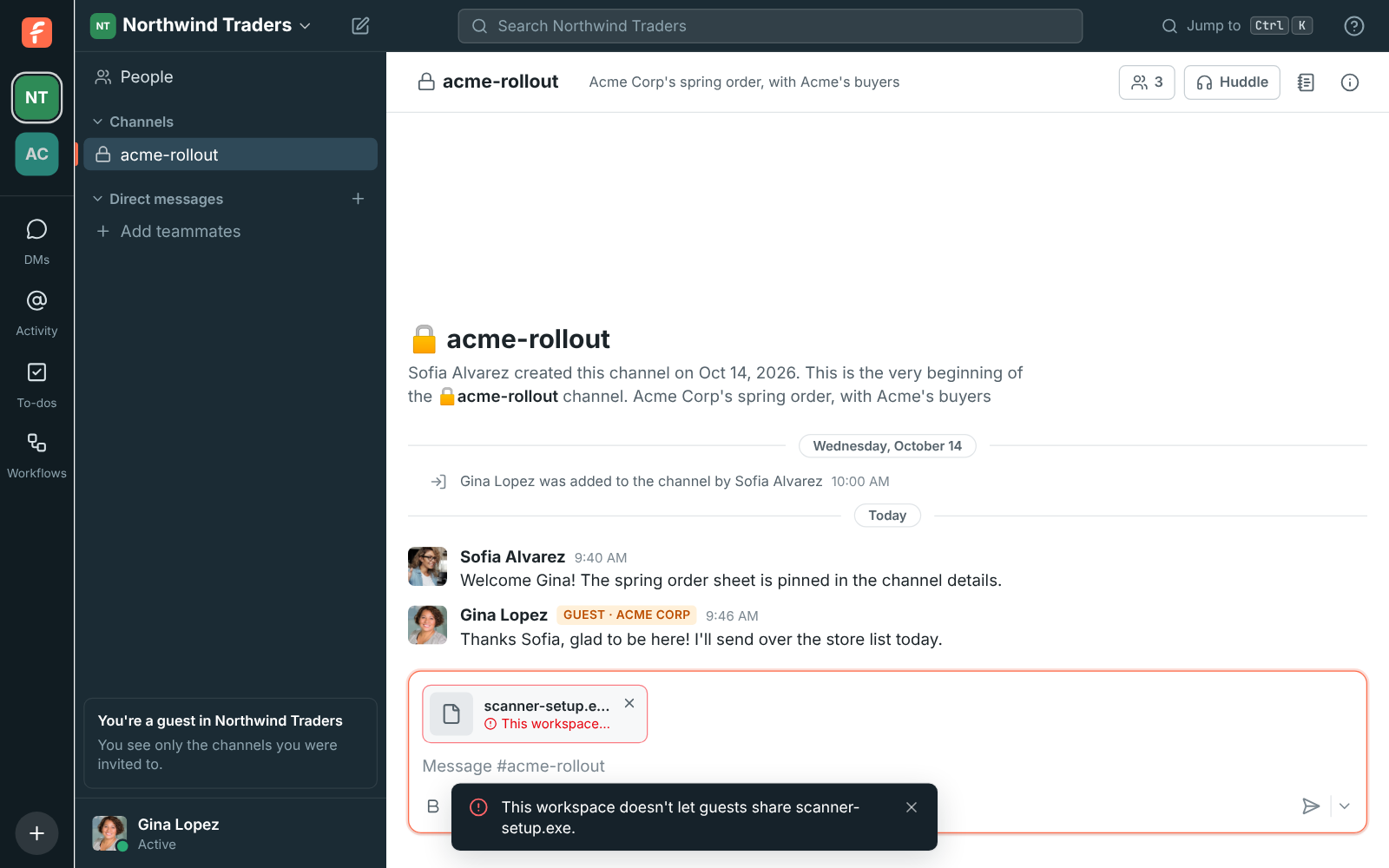
## Slack imports
Files in a [Slack import](https://freesbe.net/docs/slack-import/) follow the rule for members, since everyone imported
from Slack joins as a member. Files the rule turns away are left out of the imported messages and
counted as skipped.
## Plans
| Feature | Free | Business | Corporate | Enterprise |
| --------------------------------------------------------- | ---- | -------- | --------- | ---------- |
| Any type of file, or anything except programs and scripts | Yes | Yes | Yes | Yes |
| Only the kinds I pick | | | Yes | Yes |
| Always allow and always block lists | | | Yes | Yes |
On Free and Business, **Only the kinds I pick** and the lists are greyed out, each with **Requires
the Corporate plan** underneath. Click **Corporate plan** to upgrade under
[Billing → Plans](https://freesbe.net/docs/billing/).
If the workspace moves off Corporate or Enterprise, the lists stop counting and **Only the kinds I
pick** works like **Anything except programs and scripts**, so nothing becomes looser.
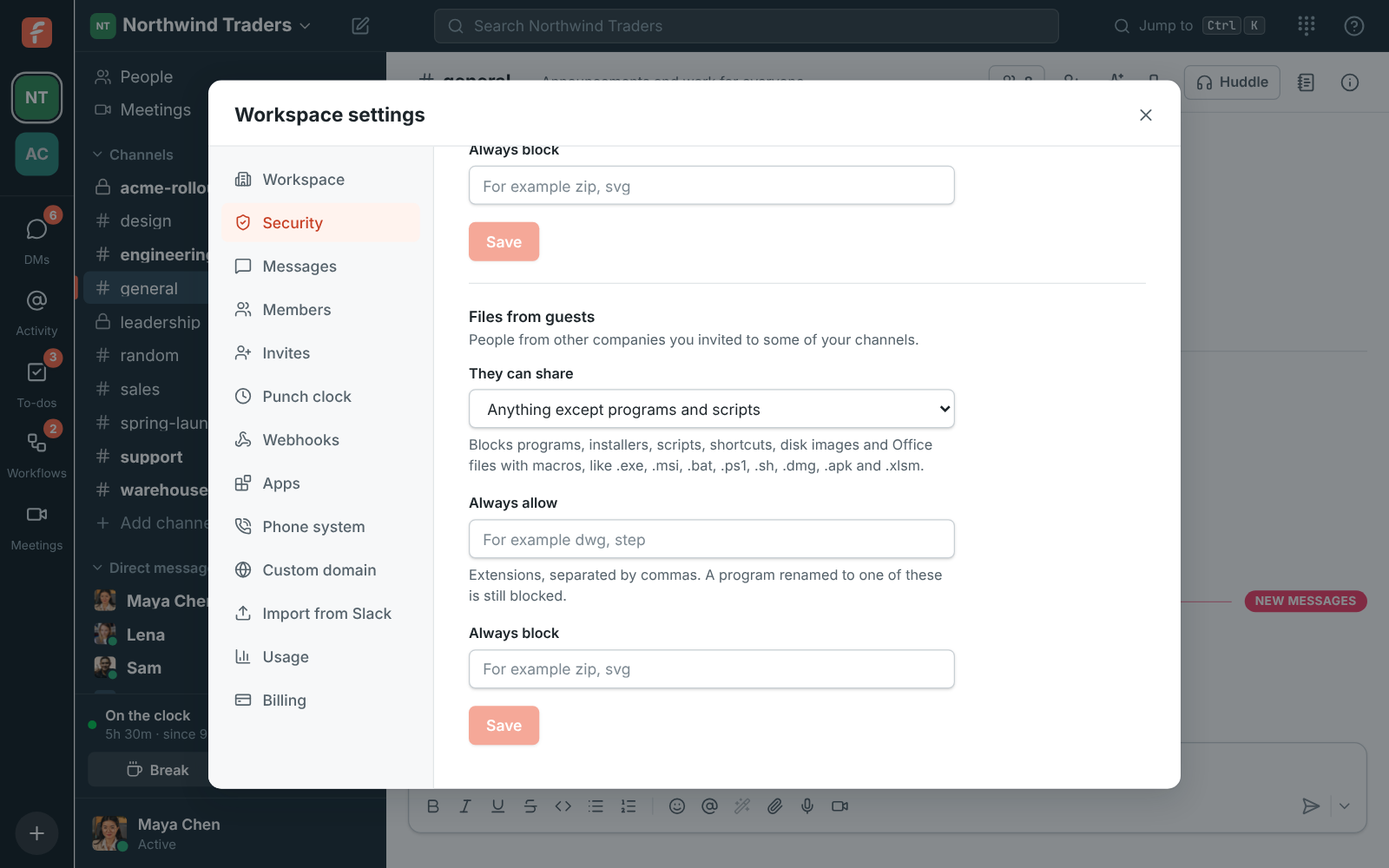
---
# Data residency
Source: https://freesbe.net/docs/data-residency/
> Choose where your workspace's data is stored, guaranteed in the European Union or the United States, or close to your team in Asia-Pacific or Oceania, and see exactly what stays there.
When you create a workspace, you choose where its data is stored. It's free on every
[plan](https://freesbe.net/docs/plans/).

## Choosing a region
Under **Where should we store your data?** on the page where you name a new workspace, pick a
region. Freesbe preselects the one closest to you, so most people can leave it as it is. The
regions come in two groups.
### Guaranteed to stay in the region
Choose one of these when you need data residency, for example for GDPR or a customer contract.
Your workspace's data is stored only in data centers in that region, and never leaves it.
| Region | Where your data is stored |
| ------------------ | ---------------------------- |
| **European Union** | Data centers in the EU only. |
| **United States** | Data centers in the US only. |
### Stored close to your team
Choose one of these when your team is far from Europe and the US and you want Freesbe to be as
fast as possible. Your workspace's data is placed in data centers in that part of the world, but
it isn't a residency guarantee: it can be stored elsewhere when needed.
| Region | Where your data is placed |
| ---------------- | ------------------------------------------ |
| **Asia-Pacific** | Data centers in Asia. |
| **Oceania** | Data centers in Australia and New Zealand. |
## Seeing your region
Owners and admins can see the region under **Workspace settings → General → Data region**.

## What stays in your region
- Messages, threads, reactions, mentions, drafts and scheduled messages
- Search across your messages and files
- Files and images people share, and the workspace logo
- Huddle and meeting recordings, transcripts and AI notes
- Meetings, meeting chat, canvases, and the live state of huddles
- Slack imports
- Backups of all of the above
## What doesn't
Some things work across regions by nature. We list them so there are no surprises:
- **Your account.** Your name, email address, sign-in details and the list of workspaces you belong
to are kept in one place, so you can be in workspaces in different regions with one account.
Billing details are kept with your account too.
- **Live calls.** The audio and video of a call travel through the server nearest to the people in
it, and are never stored there. A recording of the call is stored in your region.
- **AI.** When someone asks for a summary, a translation or AI notes, the text is sent to our AI
provider to be processed, and transcripts are made by our speech-to-text provider. Neither keeps
it. Admins can turn AI features and transcripts off under **Workspace settings → General → AI & workflows** and **Calls & meetings → Recordings**.
- **Getting to Freesbe.** Your connection reaches the nearest point of our network, wherever you
are, before it is passed on to your region. Nothing is stored along the way.
- **Services you connect.** Push notifications on phones, emails Freesbe sends, payments, phone
calls and the [apps](https://freesbe.net/docs/apps/) and integrations you turn on follow those services' own rules.
## Workspaces made before regions
Workspaces created before you could choose a region show **Not chosen** under **Data region**.
Contact support to move one to the region you want.
## Moving to another region
A workspace's region is set when it's created. To move it, the workspace owner can contact
support. We copy everything to the new region and check it, then switch the workspace over. While
it's being copied the workspace is read-only: everyone can still read messages and open files, but
sending, uploading and editing canvases wait. That usually takes a few minutes, longer for workspaces with
many hours of recordings. We agree on a time with you first.
Moving is free once a year on the Business and Corporate plans, and whenever you need it on
Enterprise.
---
# Import from Slack
Source: https://freesbe.net/docs/slack-import/
> Move your team from Slack to Freesbe with its people, channels, DMs, messages, threads, reactions and files, and how people take over their imported accounts.
An admin can bring a whole Slack workspace into Freesbe: people, public and private channels, DMs
and group DMs, messages, threads, reactions, mentions, files and profile pictures. Everyone who
isn't on Freesbe yet gets an account that waits for them, with their history already in it.
## 1. Export from Slack
1. In Slack, open **Workspace settings → Integrations & apps → Import from Slack/Export Data → Export**.
2. Choose the date range and start the export.
3. Download the zip Slack emails you.
Slack's file links in the export stop working after a while, so import it soon after downloading.
What's in the export depends on your Slack plan. A standard Slack export usually contains public
channels only; exports that include private channels and DMs are only available to owners on some
Slack plans. Freesbe imports whatever the zip contains.
## 2. Upload it to Freesbe
1. In Freesbe, open **Workspace settings → Integrations & apps → Import from Slack**.
2. Click **Upload Slack export** and pick the zip.
3. Wait for the upload to finish. After that you can close the window; the import keeps running.
The **Imports** list shows each import's progress: reading the export, adding people, creating
channels, importing messages, linking threads and copying files from Slack. **Stop import** keeps
what was brought over so far.
Importing the same export again is safe: nothing is duplicated.
A very large export (millions of messages) stops while reading the export with a note to email
support@freesbe.net. Nothing has been imported at that point, and we run those imports for you.
### How channels are matched
- A Slack public channel with the same name as an existing Freesbe public channel is merged into
it.
- Private channels are never merged; each comes in as its own private channel.
- People who already have a Freesbe account with the same email get their Slack history on that
account.
When an import finishes, everyone's app reloads to show it.
## 3. Get everyone signed in
Imported people who aren't on Freesbe yet show **Not signed in yet** in **Members**. Each person
takes over their account with a sign-in link, so nobody can claim someone else's messages just by
knowing their email.
Under **People waiting to sign in**, you can:
- **Email everyone their link**.
- **Download links (CSV)** with each person's name, email and link, to send them yourself.
- Copy one person's link from **Members**.
Links work for 30 days. People can also take over their account themselves, with the email address
Slack had for them, by:
- Signing in with an emailed sign-in code.
- Continuing with Google or Microsoft, when the provider confirms that address.
- Signing in or signing up with a password, which emails them their link.
Opening a link lets someone set their name and password. If they're already signed in to Freesbe
with another account, the link adds the Slack history to the account they have.
## After the move
- Point your Slack incoming webhooks at Freesbe's webhook URLs instead. See
[API and webhooks](https://freesbe.net/docs/api-and-webhooks/#incoming-webhooks).
- Install the [desktop app](https://freesbe.net/docs/desktop-app/) for everyone.
---
# Export your data
Source: https://freesbe.net/docs/export-data/
> Download a workspace's messages and files as a zip in Slack's export format - who can export what, how the download is protected, and how long it's kept.
Owners and admins can download the workspace's messages and files as a zip, in the same format
Slack uses for its exports. Keep it as a backup, search it with your own tools, or bring it into
another chat app. Open **Workspace settings → Security & compliance → Export data**.

## Start an export
1. Under **What to export**, pick **Public channels** or **All channels and direct messages**.
2. Under **Messages from**, pick **The beginning**, **The last 12 months** or **The last 90 days**.
3. Leave **Include files** on to add the photos, documents and call recordings shared in those
channels. Files over 1 GB are listed in the messages but left out of the zip.
4. Click **Start export**.
You can close Workspace settings: the export is made in the background, and the **Exports** list
shows how far it got. We email you when it's ready.
One export runs at a time, and a workspace can start one a day.
## Who can export what
| Export | Who can start it | Plans |
| -------------------------------- | ----------------- | --------------------- |
| Public channels | Owners and admins | All plans |
| All channels and direct messages | Owners | Corporate, Enterprise |
An export of all channels and direct messages includes private channels and everyone's DMs and
group DMs. When someone starts one, every owner of the workspace gets an email saying who did it.
## Download it
Click **Download** next to the export. Freesbe asks you to confirm it's you (a passkey, an
authenticator app code or a code by email) unless you did in the last 15 minutes, then the
download starts.
- Only the person who started the export can download it. Other admins can't.
- The email we send has no download link, only a link into Freesbe.
- Each download link works for 15 minutes.
- Starting and downloading an export are both recorded in the
[Audit log](https://freesbe.net/docs/admin-settings/#audit-log).
- The export is deleted 7 days after it's ready.
A big workspace's export comes in parts of up to 2 GB each, with a **Part 1**, **Part 2**… button for
each.
## What's in the zip
| File | What it holds |
| ------------------------- | --------------------------------------------------------------------- |
| `users.json` | Everyone in the workspace: name, email, title, time zone, deactivated |
| `channels.json` | Public channels: name, topic, members, archived |
| `groups.json` | Private channels (all channels and DMs only) |
| `dms.json`, `mpims.json` | DMs and group DMs (all channels and DMs only) |
| `general/2026-10-26.json` | A channel's messages for one day, with thread replies and reactions |
| `files/…` | The files, when **Include files** was on |
Deleted messages and messages Freesbe posts itself (like "joined the channel") aren't included.
You can import the zip into another Freesbe workspace with [Import from Slack](https://freesbe.net/docs/slack-import/):
people, channels, messages, threads and reactions come across. Files don't yet; they're in the
zip's `files` folder.
---
# Customer inbox
Source: https://freesbe.net/docs/customer-inbox/
> Put a chat on your website and bring your support email, texts and WhatsApp messages into Freesbe. Every customer gets their own thread in a channel, with hand-off, internal notes, saved replies and AI suggested answers.
The customer inbox brings the people who write to your company into Freesbe. Every customer gets
their own thread in a channel you pick, so the whole team can see it, answer it, or talk it over
first.
- **Web chat** puts a chat button on your website. Visitors write, your team answers from
Freesbe, and the visitor sees the answer in the chat.
- **A shared email address** brings mail to an address like support@ into a channel. Replies go
back to the customer by email, in the same email thread.
- **SMS** brings texts to your Freesbe phone numbers into a channel. For now it runs in test mode,
so you can try it before any text goes out.
- **WhatsApp** brings messages, photos and files sent to your WhatsApp Business number into a
channel. Replies go back on WhatsApp, and approved templates let you write first.
- **Hand-off** shows who's on each conversation and passes it to someone else in a click.
- **Internal notes** stay between the team: the customer never sees them.
- **Saved replies** keep the answers you give again and again one click away.
- **Suggest a reply** drafts an answer with AI, from the conversation and your saved replies.

## Put a chat on your website
Only owners and admins can add one.
1. Open **Workspace settings → Integrations & apps → Integrations → Customer inbox** and click **Add web chat**.
2. Give it a **Name** your team will recognize, like "Main website", and pick the channel
conversations go to. Everyone in that channel sees new chats and can answer, so a channel like
#support works well.
3. Set what visitors see: the **Title in the chat** (usually your company's name), a **Greeting**
and a **Colour** for the button.
4. Leave **Ask for a name and email first** on to know who you're talking to and follow up if they
leave. Turn it off to let visitors write straight away.
5. Under **Websites it can appear on**, put your site's addresses, one per line, like
`https://northwind.example`. The chat then only works on those sites. Leave it empty to allow
any site.
6. Click **Save**, then copy the line under **Paste this before </body> on your site** and add
it to every page that should show the chat.

The snippet looks like this:
```html
```
Click **Try the chat** to open the chat on its own page and send yourself a test message. To
change a web chat later, open its **⋯** menu: **Edit**, **Turn off** (the button disappears from
your site until you turn it back on) or **Delete**. Deleting a web chat keeps the conversations
already in the channel.
## Bring in your support email
Keep the address your customers already know, like support@northwind.example. Freesbe gives each
email inbox its own address, and you forward your address to it. Only owners and admins can add
one.
1. Open **Workspace settings → Integrations & apps → Integrations → Customer inbox** and, under **Shared email
address**, click **Add email address**.
2. Give it a **Name** and pick the channel emails go to.
3. Enter **Your team's address**, the one customers write to. Replies ask customers to answer it,
so their answers come back the same way.
4. Check the **Name on replies**. A reply Sam sends comes from "Sam at Northwind Traders".
5. Click **Add email address**, then copy the address under **Forward your team's address to this
one**.

Then set up forwarding where your email is hosted:
- **Google Workspace**: for a group like support@, add the Freesbe address as a member of the
group. For a mailbox, open its Gmail settings → **Forwarding and POP/IMAP** → **Add a forwarding
address**. Gmail sends a confirmation email to the Freesbe address: it shows up in your channel
as a conversation, so open the link in it to confirm.
- **Microsoft 365**: in the Exchange admin center, open the mailbox → **Mail flow settings** →
**Email forwarding**, turn it on and enter the Freesbe address. Tick **Deliver message to both
forwarding address and mailbox** to keep a copy. If your company blocks forwarding outside it, ask your Microsoft
365 admin to allow it for this mailbox.
- **Anywhere else**: look for "forwarding" in your email provider's settings.
The Freesbe address takes mail as soon as you add it, so you can try it by emailing it yourself.
### How email conversations work
- Each email from a new sender starts a conversation, with the email's subject on the card. Later
emails from the same person land in the same thread until you close it.
- Freesbe shows what the customer wrote this time: the quoted earlier emails and their signature
are left out.
- Your replies go out with the same subject (**Re: …**) and as replies to the customer's email, so
the customer sees one email thread.
- Attachments aren't brought over yet. The message lists their names, so you know to ask for them
another way.
- Turning an email inbox off, or deleting it, bounces mail sent to its Freesbe address. Turn off
the forwarding first.
## Texts to your Freesbe numbers
Put one of your [Freesbe phone numbers](https://freesbe.net/docs/phone/) in the inbox, and texts to it land in a
channel, one thread per customer. Only owners and admins can add one.
1. Open the [Admin Center](https://freesbe.net/docs/admin-center/), then **Phone → Messaging**, and click **Add number**.
2. Give it a **Name**, pick the channel texts go to, and pick the **Number customers text**.
3. Click **Add number**.

### Test mode
A texting inbox starts in **test mode**: nothing goes to or comes from the phone network.
- Type a message under **Send a test text** and click **Send**. It lands in the channel from a
made-up number, like a customer's text would.
- Reply in the thread as usual. The reply is kept and marked **Test mode: not sent**, so you can
see how working a conversation feels before anyone gets a text.
### Going live
When you're happy with it, click **Go live** under the number and confirm. From then on:
- Texts customers send to the number land in the channel, one thread per customer. Pictures sent
with a text are mentioned in the thread but not shown yet.
- Replies in the thread are texted back from the same number. Under each reply you see whether it
was **Sent**, **Delivered** or **Failed**, with the reason when it failed.
- A customer who texts **STOP** doesn't get texts from the number any more, and the thread says so.
They can text **START** to get them again.
The number has to be one of your workspace's own [phone numbers](https://freesbe.net/docs/phone/). In the US, a number
needs its business texting registration (A2P 10DLC) done before it can text customers; replies
say so until it is. To stop texting for real, open the number's **⋯** menu and choose **Back to
test mode**.
Texting for real is opening up gradually. Until it's on for your workspace, the number stays in
test mode and says it's coming.
## WhatsApp
Put your company's WhatsApp Business number in the inbox, and WhatsApp messages to it land in a
channel, one thread per customer. WhatsApp comes with the Business plan and up. Only owners and
admins can add one.
1. Open the [Admin Center](https://freesbe.net/docs/admin-center/), then **Phone → Messaging**, and, under **WhatsApp**, click **Add WhatsApp
number**.
2. Give it a **Name**, pick the channel messages go to, and type your **WhatsApp Business
number** with its country code.
3. Click **Add number**.

It starts in **test mode**, like a texting inbox: send a test message under **Send a test
message**, reply in the thread, and nothing goes to WhatsApp.
### Connect WhatsApp
1. Click **Connect WhatsApp** under the number.
2. Sign in with Facebook in the window that opens, pick your business, and pick (or create) the
WhatsApp Business account that has the number. Freesbe only asks to manage that account's
messages.
3. You're back in **Phone → Messaging**, and the inbox is live.
From then on:
- WhatsApp messages to the number land in the channel, one thread per customer, with the name the
customer uses on WhatsApp. Photos, videos, voice messages, stickers and files show in the thread
like any other file; locations show as an address.
- Replies in the thread go back on WhatsApp from your number. Attach a photo, video, voice
recording or file to a reply and it goes too, with your words as its caption. Under each reply
you see whether it was **Sent**, **Delivered**, **Read** or **Failed**, with the reason when it
failed.
- WhatsApp only takes free-form replies within **24 hours** of the customer's last message. After
that, the bar over the box says so and offers **Send a template**.

WhatsApp bills your WhatsApp Business account under Meta's own pricing: the charges come from
Meta, not on your Freesbe bill. Replies within 24 hours of a customer's message are free under
Meta's current pricing; templates are charged per message, and marketing ones cost more than
updates.
### Templates
A template is a message Meta approved ahead of time, with blanks like `{{1}}` for a name or an
order number. WhatsApp takes one any time: it's how you reach a customer after the 24 hours, and
how you write to someone who hasn't written to you. When they answer, you can reply freely for 24
hours again.
To send one in a conversation, click **Send a template** on the bar over the box (or
**Templates**, while the 24 hours are still running). Pick a template, fill in its blanks, check
**What they'll see**, and click **Send template**. It shows in the thread as your message.

To write to a customer first, open **Inbox** and click **Message on WhatsApp**. Type their number
with its country code (and their name, if you like), pick a template and fill it in. Their
conversation starts as a new thread in the inbox's channel, or carries on in the open one if they
already have one.

Templates live on your WhatsApp Business account. Owners and admins see them under the number in
**Phone → Messaging**, with whether Meta approved, is still reviewing, or turned down each one.
To make one there:
1. Click **New template**.
2. Give it a **Name** in lowercase with underscores, like `restock_alert`, and pick its
**Language**.
3. Pick its **Kind**: **Updates** for something the customer did or asked for (an order, a
booking, a ticket), **Marketing** for offers and news.
4. Write the **Message**, with `{{1}}`, `{{2}}` where something changes each time, and give an
example for each so Meta's reviewers can read it. Add a **Footer** if you like.
5. Click **Send for review**. Meta usually answers within a day; the template can be sent once
it's approved.

Until the inbox is connected to WhatsApp, three sample templates stand in for yours, so you can try
it all in test mode. Templates with a picture header or a link button that changes each time can
be made in WhatsApp Manager but not sent from Freesbe yet.
### Change or stop
A number used in the WhatsApp Business app on a phone moves to the inbox when you connect it.
To stop answering on WhatsApp, open the inbox's **⋯** menu and choose **Back to test mode**. If
replies stop going out (for example, someone removed Freesbe from your business on Facebook),
click **Connect again**.
## What visitors see
A round button sits in the bottom corner of your site. Clicking it opens the chat with your title
and greeting. The visitor's first message starts a conversation, and your team's answers show up in
the chat with the first name of whoever wrote them.

The chat remembers the visitor in their browser, so they can close the page and come back to the
same conversation. Visitors never see your channel, internal notes or anyone's email address.
## Answer a customer
When a customer writes, Customer inbox posts a card in the channel with their name, the inbox
they wrote to and who's on it. Their messages land in the card's thread. Click **Open
conversation**, or **Take it** to make it yours.
In the thread, a bar over the message box shows who you're talking to and what you can do:
- **Reply to customer** sends what you write to the customer. Under each reply, Freesbe shows
**Sent to the customer**, or what went wrong if it couldn't send it.
- **Internal note** keeps what you write between the team. The box turns amber so you can tell, and
the note is marked **Internal note**. Mention someone with `@` to bring them in.
- **Saved replies** drops one of your team's saved answers into the box, ready to change before you
send it.
- **Suggest a reply** writes a draft with AI from the conversation and your saved replies. It goes
in the box for you to read and change; nothing is sent until you send it.
When you reply and nobody is on the conversation yet, it becomes yours.
Changing or deleting a reply after you send it doesn't change what the customer already got.
## Hand off and close
The name on the bar is who's on the conversation. Click it to **Take it myself**, hand it to
anyone in the channel, or **Unassign** it. Customer inbox notes each change in the thread, like
"Sam handed this conversation to Marcus", so everyone can follow along.
Click **Close** when you're done. If the customer writes again later, a new conversation starts in
a new thread, and the old one stays as it was. Click **Reopen** to pick a closed one up again.
## The Inbox page
**Inbox** on the left, under your workspaces, opens every customer conversation in one list, newest
change first. Its number counts the open conversations that are yours or that nobody is on yet.

- **Open**, **Mine**, **Unassigned** and **Closed** filter the list.
- **Waiting on you** marks conversations where the customer wrote last.
- With more than one inbox, pick one to see only its conversations.
You see conversations in public channels and in private channels you're in.
## Saved replies
Saved replies are answers your team gives again and again, like shipping times, opening hours or
how returns work. Open them from **Saved replies** on the Inbox page or in a conversation, then
**Manage saved replies**.
Anyone on the team can add and change saved replies. Admins and the person who added one can delete
it.
**Suggest a reply** follows your saved replies, so they're also the place for your policies and
facts: the AI uses them instead of guessing.
## Good to know
- The inbox isn't open to [apps](https://freesbe.net/docs/apps/) and the API's app tokens; conversations can only be
answered by people in the channel.
- A workspace can have up to 20 inboxes of every kind together, for example one
per website or brand.
- Each number can be in one texting inbox and one WhatsApp inbox.
- A workspace can send 1,000 WhatsApp replies and templates a day.
- WhatsApp takes photos up to 5 MB, videos and voice messages up to 16 MB, and other files up to
100 MB.
- Each email inbox takes up to 2,000 emails a day, 100 of them from one sender, and a workspace
can send 500 emailed replies a day.
- A customer's message can be up to 4,000 characters.
- **Suggest a reply** shows when AI is on for your workspace, like summaries and translations.
---
# Payment alerts
Source: https://freesbe.net/docs/payment-alerts/
> Post deposits, payments, payouts and balances from Mercury, Stripe and Airwallex into a Freesbe channel, as they happen.
Payment alerts post money moving in your bank and payment accounts into a channel: a customer's
wire landing in Mercury, a Stripe payout reaching your bank, a deposit into an Airwallex global
account. Your finance team sees it the moment it happens, without logging in to each account.
Each alert is a card with the amount, who sent or received it, its status and an **Open in**
button that takes you to the transaction. The cards come from **Mercury**, **Stripe** or
**Airwallex**, so nobody's account is borrowed.
Only owners and admins can connect accounts, in **Workspace settings → Integrations & apps → Integrations → Finance**. Each
account posts to one channel; connect the same account twice to post to two channels.
## Choose what to post
When you connect an account, or later from its **⋯** menu → **Edit**, pick:
- **Post to channel.** Money is private, so a private channel for your finance team works best.
Alerts in a private channel are only visible to admins who are in it.
- **Alerts to post:**
- **Money in**: deposits, payments received and paid invoices.
- **Money out**: payments sent, transfers, payouts and refunds.
- **Balance changes**: the new balance after money moves, with how much it changed.
- **Problems and other news**: failed payments and transfers, disputes, and new or canceled
subscriptions.
- **Smallest amount to post.** Money in and out below it is left out, so a busy Stripe account
doesn't drown the channel in coffee-sized payments. Balances always post.
## Connect Mercury
1. In Mercury, open **Settings → API Tokens** and create a token with **read and write** access.
Mercury asks for an **IP whitelist** for these tokens: copy the list from the **IP whitelist**
box in Freesbe's Connect Mercury form and paste it there.
2. In Freesbe, open **Workspace settings → Integrations & apps → Integrations → Finance** and click **Connect** under
Mercury. Copy the **IP whitelist** for step 1 from here.
3. Paste the token, pick the channel and the alerts you want, and click **Connect Mercury**.
4. Back in Mercury, open **Settings → API Tokens** again and **delete the token**. Mercury doesn't
delete it for you, and Freesbe doesn't need it any more: alerts keep working without it.
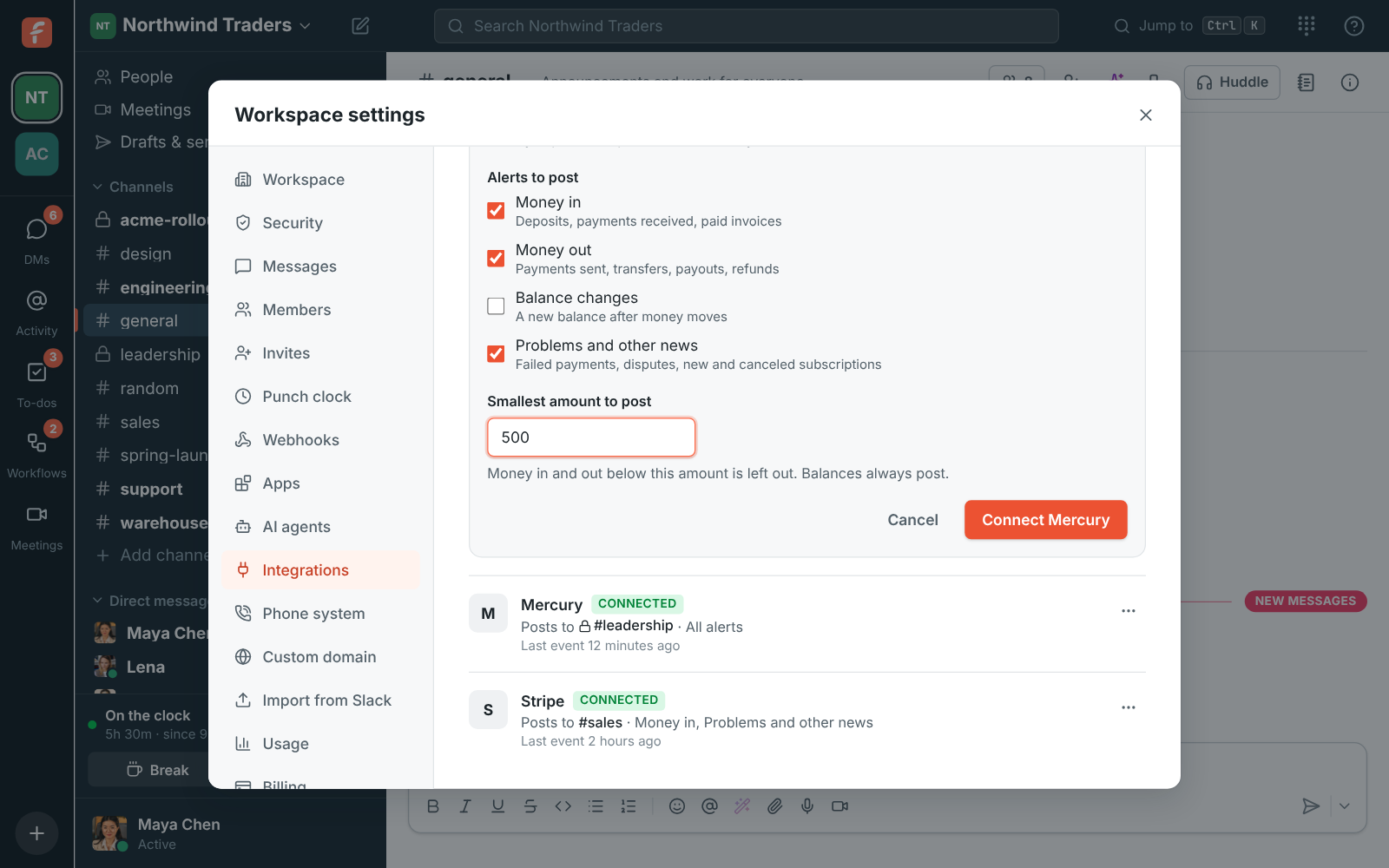
Freesbe uses the token once, to add a webhook to your Mercury account, and doesn't keep it. Mercury
then sends each new transaction and balance change to Freesbe, signed with a secret only the two
of them know. That's why you can delete the token as soon as Mercury is connected.
Mercury posts:
- **Money in** and **Money out** for every new transaction, with the counterparty, the type (for
example _Incoming wire_), the status and its description.
- **Transaction failed** or **Transaction canceled** when one doesn't go through.
- **Balance** for checking, savings, treasury and credit accounts.
## Connect Stripe
Stripe needs two steps: you give Stripe a URL, and Stripe gives you a secret.
1. In Freesbe, open **Workspace settings → Integrations & apps → Integrations → Finance**, click **Connect** under Stripe, pick
the channel and the alerts, and click **Next**. Freesbe shows the **Endpoint URL**.
2. In the Stripe Dashboard, open **Developers → Webhooks** and add an endpoint. Paste the URL as
the endpoint URL and pick these events: `payment_intent.succeeded`, `invoice.paid`,
`charge.refunded`, `payout.paid`, `payout.failed`, `charge.dispute.created`,
`invoice.payment_failed`, `customer.subscription.created`, `customer.subscription.deleted` and
`balance.available`. Leave out any you don't want.
3. Copy the endpoint's **signing secret** (it starts with `whsec_`), paste it into Freesbe and
click **Save secret**.
Until the secret is saved the account shows **Needs secret** and Freesbe turns Stripe's deliveries
away. Click **Paste signing secret** on it to finish. Copy the URL when it's shown: for your
security it is only shown once. If you lose it, delete the alert and connect again.
Stripe amounts are shown in each currency's own units, so ¥1,200 stays ¥1,200. Test-mode events
are marked **Mode: Test**.
## Connect Airwallex
Airwallex works like Stripe:
1. In Freesbe, click **Connect** under Airwallex, pick the channel and the alerts, and click
**Next** to get the **Endpoint URL**.
2. In the Airwallex web app, open **Developer → Webhooks** and add a webhook. Paste the URL as the
notification URL and pick the payment, deposit, transfer and refund events you want.
3. Copy the webhook's secret, paste it into Freesbe and click **Save secret**.
Airwallex posts payments received, deposits into global accounts, transfers sent, refunds and
balance updates, plus anything that fails or is reversed.
## Check that it works
From the account's **⋯** menu, choose **Send a test alert**. Freesbe posts a sample card into the
channel, marked **Sample alert**, so you can see where alerts land and what they look like. Under
each account, **Last event** says when the provider last sent something, which tells you the
connection is alive.
## Turn alerts off or disconnect
- **⋯ → Turn off** pauses an account's alerts. The provider's deliveries are turned away until you
turn it back on, and providers usually stop retrying after a while.
- **⋯ → Delete** disconnects it. Also remove the webhook in Mercury, Stripe or Airwallex so it
stops sending.
## Privacy and security
- Every delivery is checked against the provider's signature before anything is posted, and old
or replayed deliveries are refused. A delivery is only posted once, even when a provider sends
it twice.
- Freesbe keeps each provider's signing secret encrypted and never keeps your Mercury API token.
- Freesbe can't move money or read anything beyond what the provider sends to it.
- Payment alerts are separate from your [Freesbe billing](https://freesbe.net/docs/billing/): connecting Stripe here
shows your own customers' payments, not your Freesbe subscription.
Using Zoho Books or Zoho Invoice? See [Zoho Books and Zoho Invoice](https://freesbe.net/docs/zoho-books/) for invoice
and payment alerts.
For anything else that sends webhooks, use an [incoming webhook](https://freesbe.net/docs/api-and-webhooks/) or build
an [app](https://freesbe.net/docs/apps/).
---
# Kraken
Source: https://freesbe.net/docs/kraken/
> Post deposits, withdrawals, trades and balance alerts from a Kraken account into a Freesbe channel, with a read-only API key.
Connect your company's Kraken account and its activity posts into a channel: a customer's USDC
landing, bitcoin sold for dollars, a withdrawal to your bank, a balance running low. Your finance
team sees it within a minute, without logging in to Kraken.

Each card shows the amount, what it's worth in US dollars, and the details: the network and
transaction for a deposit, the price, fee and number of fills for a trade, the fee and new balance
for a withdrawal. The cards come from **Kraken**, so nobody's account is borrowed.
Only owners and admins can connect Kraken, in **Workspace settings → Integrations & apps →
Integrations → Finance → Kraken**.

## How it works
Kraken doesn't send webhooks, so Freesbe asks it. Every minute it reads the account's ledger, the
list of everything that moved, and posts what's new. When the account has been quiet for an hour,
Freesbe checks every five minutes instead, and goes back to every minute as soon as anything
happens. A deposit Kraken shows as on its way counts too, so the moment it's credited posts
promptly.
Nothing from before you connected posts, and each thing posts once.
## Make a read-only API key
Freesbe only reads your account, so give it a key that can't move money.
1. Sign in to Kraken and open **Settings → API**, then **Create API key**.
2. Name it **Freesbe** and tick only **Query Funds** and **Query Ledger Entries**.
3. Leave everything else unticked: anything that trades, deposits, withdraws or transfers. Freesbe
never needs it.
4. Click **Generate key** and keep the page open: Kraken shows the **private key** only once.
Kraken can't tell Freesbe what a key is allowed to do, which is why it's worth checking the boxes
yourself. Use a separate key for each channel you connect.
## Connect Kraken
1. In Freesbe, open **Workspace settings → Integrations & apps → Integrations → Finance** and
click **Connect Kraken**.
2. Paste the **API key** and the **Private key**.
3. Pick the channel and what to post (below), and click **Connect Kraken**.

Freesbe checks the key can read your balances and ledger before saving it, and keeps the private
key encrypted. Settings show only the key's last four characters.
## Choose what to post
When you connect, or later from the account's **⋯** menu → **Edit**, pick:
- **Post to channel.** Money is private, so a private channel for your finance team works best.
Alerts in a private channel are only visible to admins who are in it.
- **Alerts to post:**
- **Deposits**: **Deposit on the way** as soon as Kraken sees it, with the network and the
transaction, then **Deposit received** when it's credited, with the new balance.
- **Withdrawals**: **Withdrawal sent**, with the fee and the new balance.
- **Trades**: **Bought**, **Sold** or **Swapped**, with the average price and the fee. Fills of
the same order that land in the same minute are added up into one card.
- **Staking rewards and other activity**: staking and Earn rewards, transfers between your Kraken
wallets, and adjustments. Off at first, since staking rewards arrive often.
- **Smallest amount to post, in US dollars.** Activity worth less is left out. Freesbe values each
asset with Kraken's own dollar price; an asset with no dollar market always posts.
- **Balance alerts.** Up to ten, like **BTC drops below 0.5** or **USD goes above 100,000**. Each
posts once when the balance crosses the line, and again only after it has come back and crossed
again. Bitcoin held in Earn counts towards your BTC balance.
- **Daily balance summary.** Every holding with its dollar value and the total, once a day at the
hour you pick, in your time zone.
## Test, turn off and disconnect
From the account's **⋯** menu:
- **Send a test alert** posts a sample card, marked as a sample, into the channel.
- **Turn off** stops checking. When you turn it back on, Freesbe carries on from then, without
posting what happened while it was off.
- **Disconnect** stops checking and deletes the key from Freesbe. Then delete the key in Kraken
under **Settings → API** too.
## When something's wrong
If Kraken refuses the key, the account shows **Can't read the account** and says why, and
Freesbe tries again every 15 minutes. That happens when the key was deleted in Kraken or lost a
permission. Make a new key as above and click **Replace the key**. If Kraken is busy or down,
Freesbe simply tries again shortly; nothing is lost, because the next check reads everything since
the last one.
---
# Crypto wallets
Source: https://freesbe.net/docs/crypto-wallets/
> Post money in and out of your company's crypto wallets on Bitcoin, Ethereum and other EVM chains, Solana and Tron into a Freesbe channel. Only the public address is needed.
Watch your company's crypto wallets and every payment in or out posts into a channel: a customer's
USDT landing on Tron, bitcoin leaving the cold wallet, ETH moving to the payroll wallet. Freesbe
only needs each wallet's public address, never a key, a seed phrase or access to the wallet.

Each card shows the amount, what it's worth in US dollars, which of your wallets it touched, who
sent it or where it went, and a **View transaction** button that opens it on the network's block
explorer. When money moves between two of your own wallets, the card names them instead of showing
an address. The cards come from **Crypto wallets**, so nobody's account is borrowed.
Only owners and admins can add wallets, in **Workspace settings → Integrations & apps →
Integrations → Finance → Crypto wallets**.

## Networks
| Network | Coin and stablecoins followed | How quickly it posts |
| -------------------------------------------------- | ----------------------------- | -------------------- |
| **Bitcoin** | BTC | Within a minute |
| **Ethereum**, **Base**, **Arbitrum**, **Optimism** | ETH, USDC, USDT | As it happens |
| **Polygon**, **BNB Chain**, **Avalanche** | POL, BNB or AVAX, USDC, USDT | As it happens |
| **Solana** | SOL, USDC, USDT | As it happens |
| **Tron** | TRX, USDT, USDC | Within a minute |
Other tokens sent to a public address are mostly spam, so Freesbe leaves them out. USDC and USDT
count as dollars.
Bitcoin and Tron are checked every minute, and every five minutes once a wallet has been quiet for
an hour; anything new puts it back on every minute. A bitcoin payment posts as soon as it's seen,
marked **Waiting for a block**, and the same card changes to **Confirmed** once it's mined.
Nothing from before you added a wallet posts, and each payment posts once.
## Watch a wallet
1. In Freesbe, open **Workspace settings → Integrations & apps → Integrations → Finance** and,
under **Crypto wallets**, click **Watch a wallet**.
2. Pick the **Network** and paste the wallet's **Address**. Copy it from the wallet or the
exchange you withdraw to, so there's no typo.
3. Give it a **Name** people will recognize, like **Treasury cold wallet**.
4. Pick the channel and what to post (below), and click **Watch wallet**.

The same address can be watched on more than one network, like an Ethereum address on Base too:
add it once for each.
## Choose what to post
When you add a wallet, or later from its **⋯** menu → **Edit**, pick:
- **Post to channel.** Money is private, so a private channel for your finance team works best.
Wallets posting to a private channel are only visible to admins who are in it.
- **Alerts to post:** **Money in**, **Money out**, or both.
- **Smallest amount to post, in US dollars.** Leaves out dust. Freesbe values each coin with
Kraken's dollar price.
- **Balance alerts.** Up to five, like **USDT drops below 10,000** or **BTC goes above 5**. Each
posts once when the balance crosses the line, and again only after it has come back and crossed
again.
Under the list, **Daily summary of all wallets** posts one card a day at the hour you pick, in your
time zone: each wallet's balances with their dollar value, and the total.
## Test, turn off and stop watching
From the wallet's **⋯** menu:
- **Send a test alert** posts a sample card, marked as a sample, into the channel.
- **Turn off** stops posting. When you turn it back on, Freesbe carries on from then, without
posting what happened while it was off.
- **Stop watching** removes the wallet from Freesbe. Nothing changes in the wallet itself, and cards
already posted stay in the channel.
## When something's wrong
If a network's data provider is busy or down, the wallet shows **Can't read the wallet** and says
why, and Freesbe tries again shortly. Nothing is lost: the next check reads everything since the
last one. If a wallet never shows activity, check the address and the network: a USDT address on
Tron and one on Ethereum look nothing alike, and a wallet watched on the wrong chain stays quiet.
---
# Zoho Books and Zoho Invoice
Source: https://freesbe.net/docs/zoho-books/
> Connect Zoho Books or Zoho Invoice to Freesbe to post invoices sent, payments received, invoices paid and overdue invoices into channels, and preview invoice links.
The Zoho Books and Zoho Invoice apps bring your invoices into the conversation. They work the same
way, and each connects on its own, so use whichever your company has. Once an admin connects one:
- **Alerts** post invoices sent, payments received, invoices paid in full and overdue invoices
into the channels you pick.
- **Link previews** show an invoice's customer, amount, status, balance due and due date under
any link to it that someone posts.

Each app posts as its own member, **Zoho Books** or **Zoho Invoice**, so its cards are easy to
tell apart from people. They work with every Zoho data center: the United States, Europe, the
United Kingdom, India, Australia, Japan, Canada, Saudi Arabia and China. Freesbe talks to Zoho in
your own data center, so your invoices stay there. It's the same Zoho sign-in as
[Zoho CRM](https://freesbe.net/docs/zoho-crm/) and [Zoho Desk](https://freesbe.net/docs/zoho-desk/), but each app connects on its own.
## Connect Zoho Books or Zoho Invoice
Only owners and admins can connect them.
1. Open **Workspace settings → Integrations → Finance** and find **Zoho Books** or **Zoho
Invoice**, under the payment alerts.
2. Click **Connect Zoho Books** (or **Connect Zoho Invoice**). Zoho asks you to sign in. Zoho
finds your account's data center on its own, so sign in as you usually do.
3. Zoho lists what Freesbe asks for. Click **Accept**.
4. You're back in Freesbe with **Connected** next to the app, your organization's name and its
data center.

A workspace connects one organization per app: your default organization in Zoho, if you belong
to more than one. Freesbe works as the person who connected it, so it sees the invoices and
payments they can see. It only reads: it never makes, changes or sends anything in Zoho.
## Alerts
Under **Zoho Books alerts** (or **Zoho Invoice alerts**), click **Add alert**, then pick:
- **Post to channel.** Any channel, public or private. Alerts in a private channel are only
visible to admins who are in it.
- **Alerts to post:**
- **Invoices sent**: a new invoice that's been sent to the customer, not drafts.
- **Payments received**: each payment a customer makes, with its amount and the invoices it
pays.
- **Invoices paid in full.**
- **Overdue invoices**, when an invoice passes its due date unpaid.
- **Smallest amount to post.** Invoices and payments for less than this are left out. Leave it
empty to post them all.
Zoho Books and Zoho Invoice don't send changes to other apps as they happen, so Freesbe checks
your organization **every ten minutes** while an alert is on, and alerts arrive within about ten
minutes. Overdue invoices are checked once an hour. Each check uses a few of your organization's
daily Zoho API calls, about 300 a day in all, well inside every Zoho plan's limit.
Add more alerts to send different things to different channels: payments to #finance, overdue
invoices to the people who chase them. Each card shows the customer, the amount and status, the
balance due and due date, and an **Open in Zoho Books** button.
From an alert's **⋯** menu:
- **Send a test alert** posts a sample card, marked **Sample alert**, so you can see where alerts
land.
- **Edit** changes the channel, the kinds of alerts or the smallest amount.
- **Turn off** pauses it, and **Delete** removes it.
**Last alert** under each one says when it last posted. Alerts start with what happens after you
add the first one: Freesbe doesn't post older invoices or payments, and it posts each one once.
While every alert is off, Freesbe stops checking. After more than two hours off, it picks up from
when you turn one back on, without posting what happened in between.
## Link previews
When someone posts a link to an invoice in your connected organization, Freesbe adds a preview
under the message, for example `books.zoho.eu/app/20076543#/invoices/982000000567114`. Up to
three links in a message get a preview.
Everyone in the conversation sees the preview, including guests, so turn **Show a preview under
Zoho Books invoice links** off under **Zoho Books link previews** if amounts shouldn't be shared
that way. Links to other organizations are left alone.
## Disconnect
In **Integrations → Finance**, click **Disconnect** next to the app. Freesbe's access is removed
in Zoho, and alerts and previews stop. Your alerts are kept, so connecting again picks up where you
left off, from that moment.
If someone removes Freesbe in Zoho first (**My Account → Connected Apps**), or the person who
connected it leaves the organization, the app shows **Needs reconnecting**: click **Reconnect** to
bring it back.
## Privacy and security
- Freesbe signs in to Zoho with OAuth, keeps Zoho's access encrypted, and only asks to read your
organization, its invoices and the payments it receives. It doesn't copy your invoices: alerts
and previews are made from them when they're posted.
- Your Zoho account's data center is kept: Freesbe calls Zoho in that data center only.
- Disconnecting deletes Freesbe's access straight away.
Setting it up for a finance team? See
[Set up Zoho Books alerts for your finance team](https://freesbe.net/knowledge/set-up-zoho-books-for-your-finance-team/).
If something isn't working, see [Zoho Books alerts aren't posting](https://freesbe.net/knowledge/zoho-books-alerts-not-posting/).
For your bank and card payments, see [Payment alerts](https://freesbe.net/docs/payment-alerts/) for Mercury, Stripe
and Airwallex.
---
# HubSpot
Source: https://freesbe.net/docs/hubspot/
> Connect HubSpot to Freesbe to post deal and contact alerts into channels, preview HubSpot links, look people up with /hubspot and log messages to a contact's timeline.
The HubSpot app brings your CRM into the conversation. Once an admin connects your HubSpot
account:
- **Alerts** post new deals, deals moving stage, deals won and lost, and new contacts into the
channels you pick.
- **Link previews** show a deal's, contact's or company's details under any HubSpot link someone
posts.
- **/hubspot** finds a contact or deal without leaving the conversation.
- **Log to HubSpot** adds any message to a contact's timeline as a note, with a link back to it.
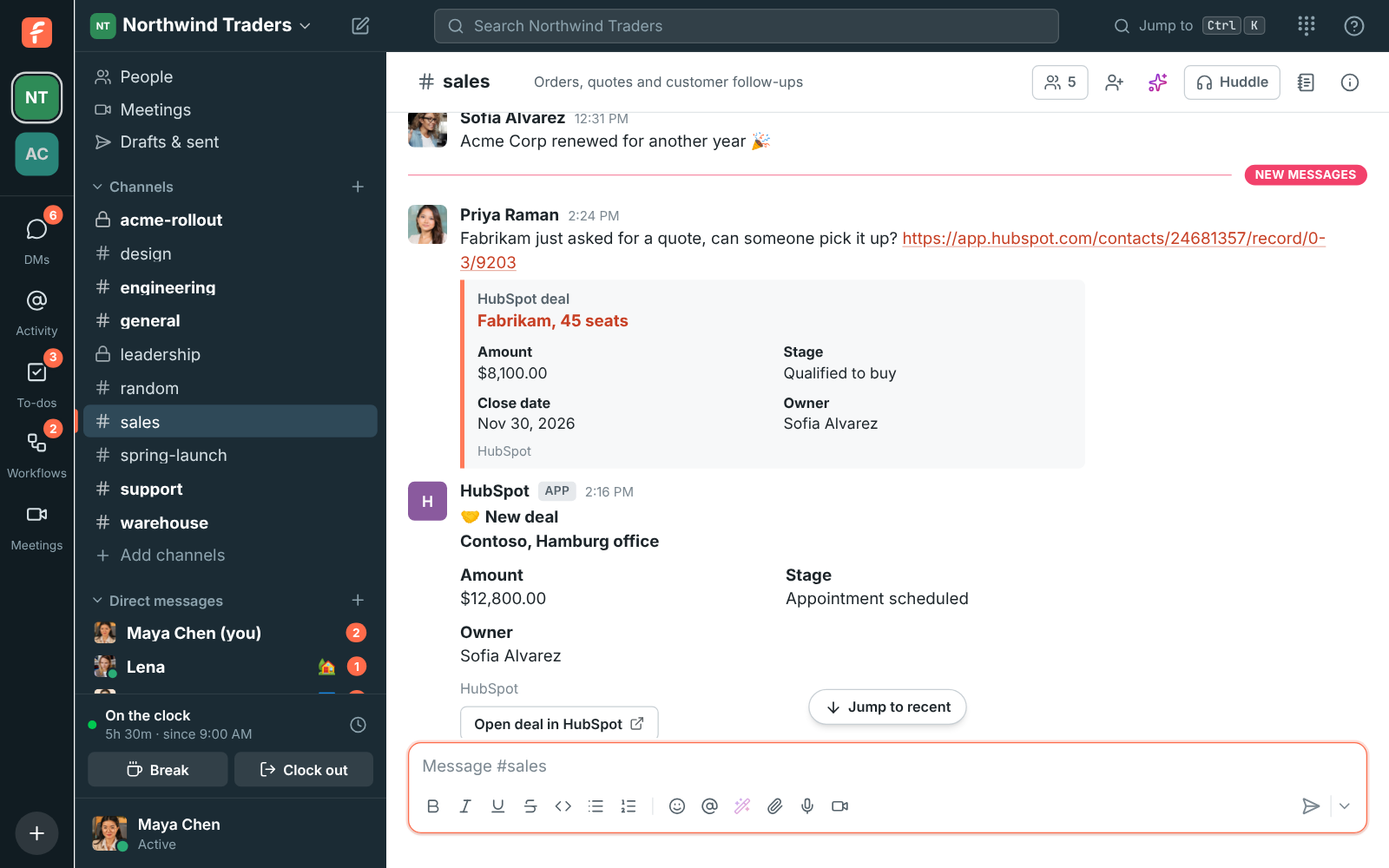
HubSpot posts as its own member, **HubSpot**, so its cards are easy to tell apart from people.
## Connect HubSpot
Only owners and admins can connect it.
1. Open **Workspace settings → Integrations & apps → Integrations → CRM** and click **Connect HubSpot**.
2. HubSpot asks you to sign in, pick the account to connect and allow Freesbe. Click
**Connect app**.
3. You're back in Freesbe with **Connected** next to HubSpot, and the account's domain.
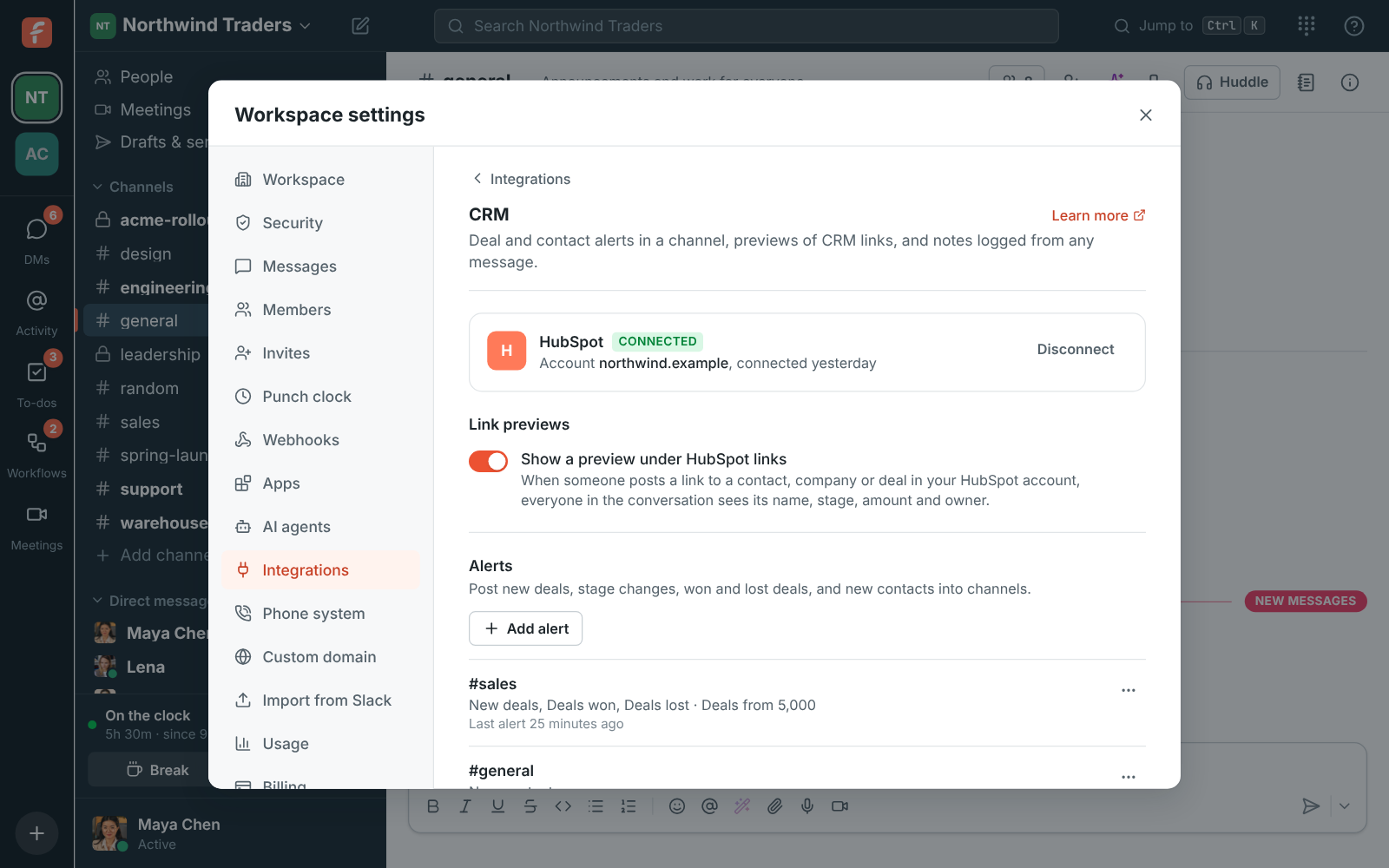
You can also start from HubSpot: install Freesbe from the HubSpot App Marketplace, allow it, and
Freesbe asks you to sign in and pick which of your workspaces to connect.
A workspace connects one HubSpot account. Freesbe asks HubSpot to read contacts, companies and
deals (and deal owners' names), and to add notes to contacts. It can't change or delete anything
else in HubSpot.
## Alerts
Under **HubSpot alerts**, click **Add alert**, then pick:
- **Post to channel.** Any channel, public or private. Alerts in a private channel are only
visible to admins who are in it.
- **Alerts to post:**
- **New deals**, as soon as one is created.
- **Deals moving stage**, for example from _Appointment scheduled_ to _Contract sent_.
- **Deals won** and **Deals lost**, when a deal moves to a closed won or closed lost stage.
- **New contacts**.
- **Smallest deal to post.** Deals worth less are left out. New contacts always post.
Add more alerts to send different things to different channels: big deals to #leadership, new
contacts to #sales. Each card shows the deal's amount, stage, close date and owner (or the
contact's email, company, job title and lifecycle stage) and an **Open in HubSpot** button.
From an alert's **⋯** menu:
- **Send a test alert** posts a sample card, marked **Sample alert**, so you can see where alerts
land.
- **Edit** changes the channel, the kinds of alerts or the smallest deal.
- **Turn off** pauses it, and **Delete** removes it.
**Last alert** under each one says when it last posted.
## Link previews
When someone posts a link to a contact, company or deal in your connected HubSpot account, Freesbe
adds a preview under the message: the record's name, and its amount, stage, close date and owner
for a deal, or its email, company and job title for a contact. Up to three links in a message get
a preview.
Everyone in the conversation sees the preview, including guests, so turn **Show a preview under
HubSpot links** off under **HubSpot link previews** in **Integrations → CRM** if your CRM details shouldn't be shared
that way. Links to other HubSpot accounts are left alone.
## Find a contact or deal with /hubspot
Type `/hubspot` and a name, an email address or a deal name in any conversation, for example
`/hubspot Contoso`. The answer is only visible to you: matching contacts and deals, each a link
that opens it in HubSpot.
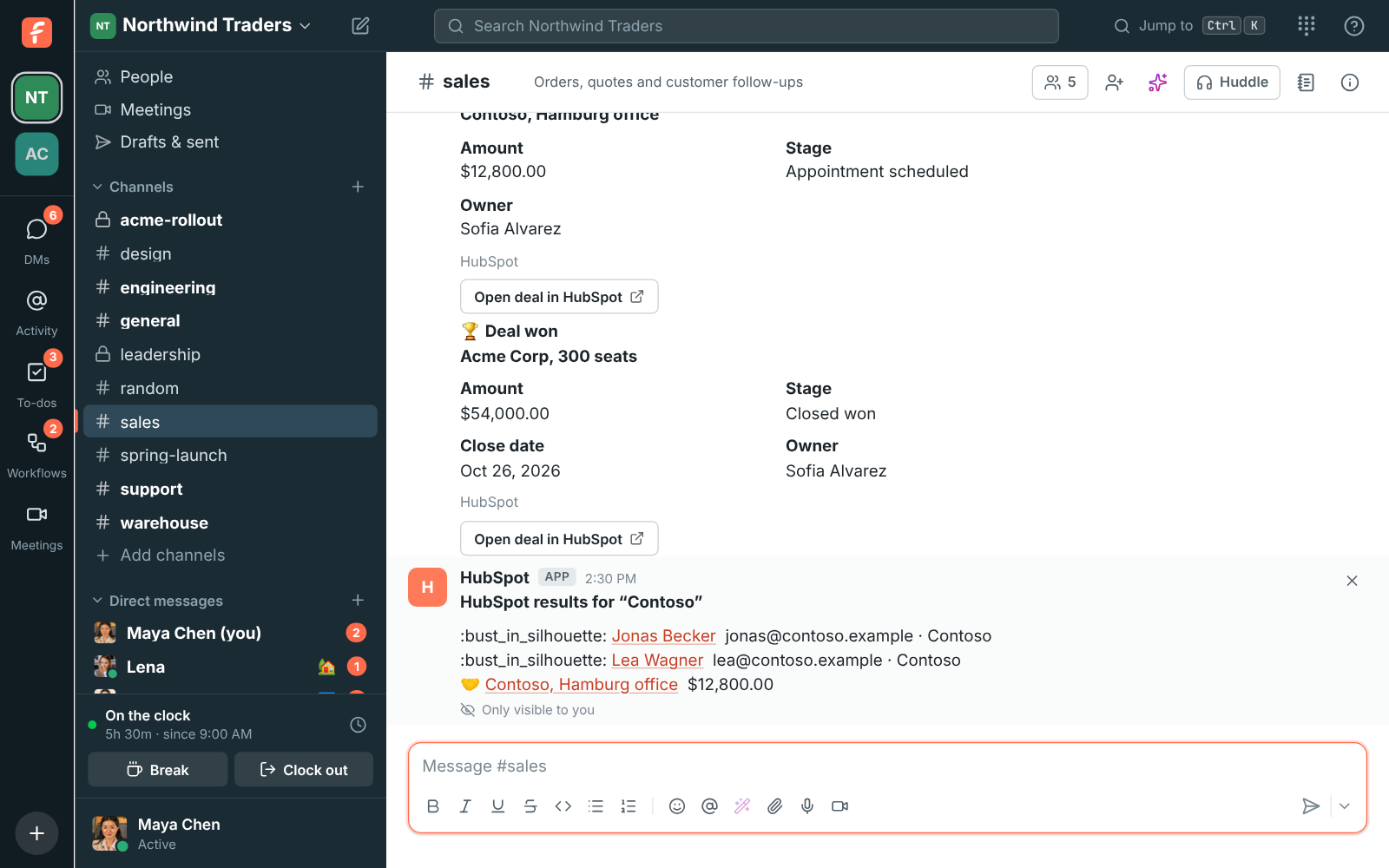
## Log a message to a contact
Hover over any message, click **⋯** and choose **Log to HubSpot**.
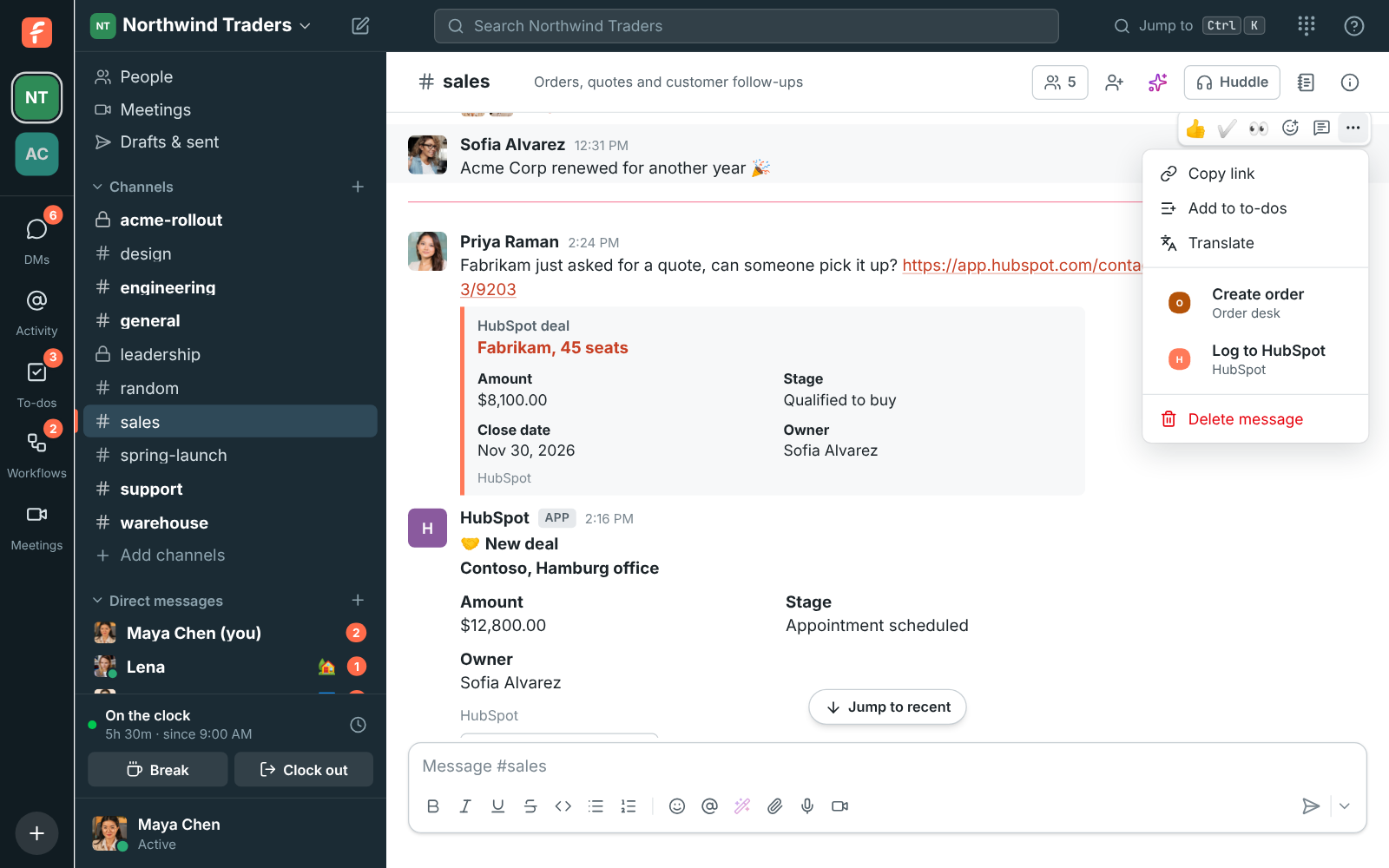
1. Type the contact's email address or name. When the message is from a guest, their email
address is already filled in.
2. Change the **Note** if you like. It starts as the message's text.
3. Click **Log note**. When more than one contact matches, pick the right one and click
**Log note** again.
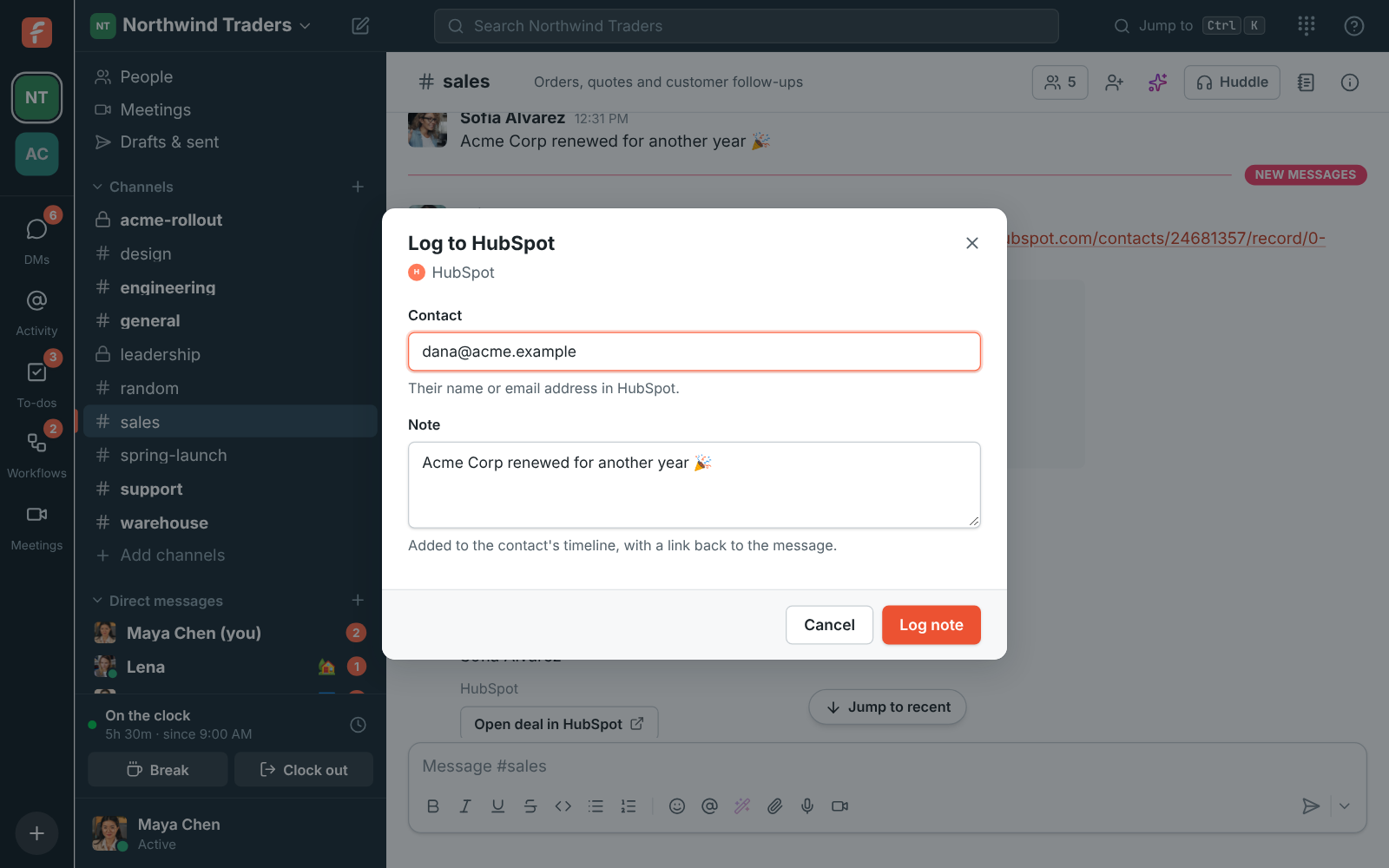
The note goes on the contact's timeline in HubSpot with who wrote it, the channel and a link back
to the message in Freesbe. You get a confirmation only you can see, with an **Open contact**
button.
## Disconnect
In **Integrations → CRM**, click **Disconnect**. Alerts and previews stop, and
`/hubspot` and **Log to HubSpot** go away. Your alerts are kept, so connecting again picks up where
you left off. To remove Freesbe from HubSpot too, open **Settings → Integrations → Connected apps**
in HubSpot and uninstall it.
If someone uninstalls Freesbe in HubSpot first, the HubSpot app shows **Needs reconnecting**:
click **Reconnect** to bring it back.
## Privacy and security
- Every alert HubSpot sends is checked against its signature, and old or replayed ones are
refused. Each is posted once, even when HubSpot sends it twice.
- Freesbe keeps HubSpot's access encrypted and only asks HubSpot for what it shows. It doesn't copy
your CRM: alerts and previews are made from the record when they're posted.
- Disconnecting deletes Freesbe's access straight away.
Using Salesforce, Pipedrive or Zoho CRM? See [Salesforce](https://freesbe.net/docs/salesforce/), [Pipedrive](https://freesbe.net/docs/pipedrive/) and [Zoho CRM](https://freesbe.net/docs/zoho-crm/). For other CRMs, use an [incoming webhook](https://freesbe.net/docs/api-and-webhooks/) or build an [app](https://freesbe.net/docs/apps/).
---
# Salesforce
Source: https://freesbe.net/docs/salesforce/
> Connect Salesforce to Freesbe to post opportunity, lead and case alerts into channels, preview Salesforce links, look records up with /salesforce and log messages to a contact or lead as tasks.
The Salesforce app brings your org into the conversation. Once an admin connects it:
- **Alerts** post new opportunities, opportunities moving stage, opportunities won and lost, new
leads and new cases into the channels you pick.
- **Link previews** show an account's, contact's, lead's, opportunity's or case's details under
any Salesforce link someone posts.
- **/salesforce** finds an account, contact, lead or opportunity without leaving the conversation.
- **Log to Salesforce** adds any message to a contact's or lead's activity as a completed task,
with a link back to it.

Salesforce posts as its own member, **Salesforce**, so its cards are easy to tell apart from
people.
The Salesforce app comes with the Corporate and Enterprise plans. On other plans, **Integrations →
CRM** greys out **Connect Salesforce** and says it requires the Corporate plan, with a link to
upgrade.
## Connect Salesforce
Only owners and admins can connect it.
1. Open **Workspace settings → Integrations & apps → Integrations → CRM** and find **Salesforce**, under HubSpot.
2. To connect a sandbox instead of your production org, tick **Connect a sandbox**.
3. Click **Connect Salesforce**. Salesforce asks you to sign in and allow Freesbe. Click
**Allow**.
4. You're back in Freesbe with **Connected** next to Salesforce, and your org's name.

A workspace connects one Salesforce org. Freesbe works as the person who connected it, so it sees
the records they can see. Pick someone whose access covers the opportunities, leads and cases your
alerts are about, such as a sales operations admin. Freesbe reads records and creates tasks when
someone chooses **Log to Salesforce**. It doesn't change or delete anything else.
If your org only lets approved apps connect, a Salesforce admin has to allow Freesbe first, in
**Setup → Connected Apps OAuth Usage**.
## Alerts
Under **Salesforce alerts**, click **Add alert**, then pick:
- **Post to channel.** Any channel, public or private. Alerts in a private channel are only
visible to admins who are in it.
- **Alerts to post:**
- **New opportunities**, as soon as one is created.
- **Opportunities moving stage**, for example from _Qualification_ to _Proposal/Price Quote_.
- **Opportunities won** and **Opportunities lost**, when an opportunity moves to a closed won
or closed lost stage.
- **New leads** and **New cases**.
- **Smallest opportunity to post.** Opportunities worth less are left out. Leads and cases always
post.
Freesbe checks Salesforce for changes every five minutes, so an alert arrives within about five
minutes of the change. There's nothing to set up in Salesforce for that.
Add more alerts to send different things to different channels: big opportunities to #leadership,
new leads to #sales, new cases to #support. Each card shows the opportunity's amount, stage, close
date, account and owner (or the lead's company, email and status, or the case's status and
priority) and an **Open in Salesforce** button.
From an alert's **⋯** menu:
- **Send a test alert** posts a sample card, marked **Sample alert**, so you can see where alerts
land.
- **Edit** changes the channel, the kinds of alerts or the smallest opportunity.
- **Turn off** pauses it, and **Delete** removes it.
**Last alert** under each one says when it last posted. Alerts start with what happens after you
add them: Freesbe doesn't post older records.
## Link previews
When someone posts a link to an account, contact, lead, opportunity or case in your connected
org, Freesbe adds a preview under the message. Lightning links
(`northwind.lightning.force.com/lightning/r/…`) and Classic links
(`northwind.my.salesforce.com/006…`) both work. Up to three links in a message get a preview.
Everyone in the conversation sees the preview, including guests, so turn **Show a preview under
Salesforce links** off in **Integrations → CRM** if your CRM details shouldn't be shared that way.
Links to other orgs are left alone.
## Find a record with /salesforce
Type `/salesforce` and a name, an email address or an opportunity name in any conversation, for
example `/salesforce Contoso`. The answer is only visible to you: matching accounts, contacts,
leads and opportunities, each a link that opens it in Salesforce.

## Log a message to a contact or lead
Hover over any message, click **⋯** and choose **Log to Salesforce**.

1. Type the contact's or lead's email address or name. When the message is from a guest, their
email address is already filled in.
2. Change the **Note** if you like. It starts as the message's text.
3. Click **Log task**. When more than one contact or lead matches, pick the right one and click
**Log task** again.

The message goes on the contact's or lead's **Activity** as a completed task, with who wrote it,
the channel and a link back to the message in Freesbe. You get a confirmation only you can see,
with an **Open contact** or **Open lead** button.
## Disconnect
In **Integrations → CRM**, click **Disconnect** next to Salesforce. Alerts and previews stop, and
`/salesforce` and **Log to Salesforce** go away. Your alerts are kept, so connecting again picks
up where you left off. To remove Freesbe's access in Salesforce too, open **Setup → Connected Apps
OAuth Usage** and revoke it.
If someone revokes Freesbe's access in Salesforce first, the Salesforce app shows **Needs
reconnecting**: click **Reconnect** to bring it back.
## Privacy and security
- Freesbe signs in to Salesforce with OAuth and PKCE, keeps Salesforce's access encrypted, and
only asks Salesforce for what it shows. It doesn't copy your CRM: alerts and previews are made
from the record when they're posted.
- Each change is posted once, even though Freesbe's checks overlap.
- Disconnecting deletes Freesbe's access straight away.
Setting it up for a sales team? See
[Set up Salesforce for your sales team](https://freesbe.net/knowledge/set-up-salesforce-for-your-sales-team/). If
something isn't working, see [Salesforce alerts aren't posting](https://freesbe.net/knowledge/salesforce-alerts-not-posting/)
and [Salesforce won't connect](https://freesbe.net/knowledge/salesforce-wont-connect/).
For other CRMs, see [HubSpot](https://freesbe.net/docs/hubspot/), [Pipedrive](https://freesbe.net/docs/pipedrive/) and [Zoho CRM](https://freesbe.net/docs/zoho-crm/), use an [incoming webhook](https://freesbe.net/docs/api-and-webhooks/)
or build an [app](https://freesbe.net/docs/apps/).
---
# Pipedrive
Source: https://freesbe.net/docs/pipedrive/
> Connect Pipedrive to Freesbe to post deal and lead alerts into channels as they happen, preview Pipedrive links, look records up with /pipedrive and add messages to a person as notes.
The Pipedrive app brings your pipeline into the conversation. Once an admin connects it:
- **Alerts** post new deals, deals moving stage, deals won and lost, and new leads into the
channels you pick, within seconds.
- **Link previews** show a deal's, person's or organization's details under any Pipedrive link
someone posts.
- **/pipedrive** finds a deal, person or organization without leaving the conversation.
- **Log to Pipedrive** adds any message to a person as a note, with a link back to it.

Pipedrive posts as its own member, **Pipedrive**, so its cards are easy to tell apart from people.
## Connect Pipedrive
Only owners and admins can connect it.
1. Open **Workspace settings → Integrations & apps → Integrations → CRM** and find **Pipedrive**, under Salesforce.
2. Click **Connect Pipedrive**. Pipedrive asks you to sign in and allow Freesbe. Click **Allow and
install**.
3. You're back in Freesbe with **Connected** next to Pipedrive, and your company's name.

A workspace connects one Pipedrive company. Freesbe works as the person who connected it, so it
sees the deals, people and organizations they can see. Freesbe reads records, adds notes when
someone chooses **Log to Pipedrive**, and sets up the notifications alerts need. It doesn't change
or delete anything else.
**Connect as a Pipedrive admin.** For alerts, Freesbe asks Pipedrive to tell it whenever a deal or
lead changes, and only Pipedrive admins can allow that. If someone else connects, previews,
`/pipedrive` and **Log to Pipedrive** work, and Freesbe shows **Alerts are off** until a Pipedrive
admin clicks **Reconnect**.
## Alerts
Under **Pipedrive alerts**, click **Add alert**, then pick:
- **Post to channel.** Any channel, public or private. Alerts in a private channel are only
visible to admins who are in it.
- **Alerts to post:**
- **New deals**, as soon as one is added.
- **Deals moving stage**, for example from _Qualified_ to _Proposal made_, or into another
pipeline.
- **Deals won** and **Deals lost**, when a deal is marked won or lost.
- **New leads**, as they arrive in the Leads Inbox.
- **Smallest deal to post.** Deals worth less are left out. New leads always post.
Add more alerts to send different things to different channels: big deals to #leadership, new
leads to #sales. Each card shows the deal's value, stage, expected close date, organization,
person and owner, and an **Open deal in Pipedrive** button.
From an alert's **⋯** menu:
- **Send a test alert** posts a sample card, marked **Sample alert**, so you can see where alerts
land.
- **Edit** changes the channel, the kinds of alerts or the smallest deal.
- **Turn off** pauses it, and **Delete** removes it.
**Last alert** under each one says when it last posted. Alerts start with what happens after you
add them: Freesbe doesn't post older deals.
## Link previews
When someone posts a link to a deal, person or organization in your connected company, such as
`northwind.pipedrive.com/deal/1503`, Freesbe adds a preview under the message. Up to three links
in a message get a preview.
Everyone in the conversation sees the preview, including guests, so turn **Show a preview under
Pipedrive links** off in **Integrations → CRM** if your CRM details shouldn't be shared that way.
Links to other Pipedrive companies are left alone.
## Find a record with /pipedrive
Type `/pipedrive` and a name, an email address or a deal's title in any conversation, for example
`/pipedrive Contoso`. The answer is only visible to you: matching deals, people and
organizations, each a link that opens it in Pipedrive.

## Add a message to a person
Hover over any message, click **⋯** and choose **Log to Pipedrive**.

1. Type the person's email address or name. When the message is from a guest, their email address
is already filled in.
2. Change the **Note** if you like. It starts as the message's text.
3. Click **Add note**. When more than one person matches, pick the right one and click **Add note**
again.

The message goes on the person in Pipedrive as a note, with who wrote it, the channel and a link
back to the message in Freesbe. You get a confirmation only you can see, with an **Open person**
button.
## Disconnect
In **Integrations → CRM**, click **Disconnect** next to Pipedrive. Freesbe removes the
notifications it set up in Pipedrive, alerts and previews stop, and `/pipedrive` and **Log to
Pipedrive** go away. Your alerts are kept, so connecting again picks up where you left off. To
remove Freesbe from Pipedrive too, open **Tools and apps → Marketplace apps** in Pipedrive and
uninstall it.
If someone uninstalls Freesbe in Pipedrive first, the Pipedrive app shows **Needs reconnecting**:
click **Reconnect** to bring it back.
## Privacy and security
- Freesbe signs in to Pipedrive with OAuth and keeps Pipedrive's access encrypted. Pipedrive's
notifications come to a private address with a password only Freesbe knows, and each one is
posted once.
- Freesbe doesn't copy your CRM: alerts and previews are made from the record when they're posted.
- Disconnecting deletes Freesbe's access straight away.
Setting it up for a sales team? See [Connect Pipedrive to Freesbe](https://freesbe.net/knowledge/connect-pipedrive/).
If alerts don't show up, see [Pipedrive alerts aren't posting](https://freesbe.net/knowledge/pipedrive-alerts-not-posting/).
For other CRMs, see [HubSpot](https://freesbe.net/docs/hubspot/) and [Salesforce](https://freesbe.net/docs/salesforce/), use an
[incoming webhook](https://freesbe.net/docs/api-and-webhooks/) or build an [app](https://freesbe.net/docs/apps/).
---
# Zoho CRM
Source: https://freesbe.net/docs/zoho-crm/
> Connect Zoho CRM to Freesbe to post deal, lead and contact alerts into channels as they happen, preview Zoho CRM links, look records up with /zoho and log messages to a contact or lead as notes.
The Zoho CRM app brings your Zoho CRM organization into the conversation. Once an admin connects
it:
- **Alerts** post new deals, deals moving stage, deals won and lost, new leads and new contacts
into the channels you pick, as soon as they happen in Zoho CRM.
- **Link previews** show an account's, contact's, lead's or deal's details under any Zoho CRM
link someone posts.
- **/zoho** finds an account, contact, lead or deal without leaving the conversation.
- **Log to Zoho CRM** adds any message to a contact or lead as a note, with a link back to it.

Zoho CRM posts as its own member, **Zoho CRM**, so its cards are easy to tell apart from people.
It works with every edition of Zoho CRM that has API access, and with every Zoho data center: the
United States, Europe, the United Kingdom, India, Australia, Japan, Canada, Saudi Arabia and China.
Freesbe talks to your organization in its own data center, so your CRM data stays there.
## Connect Zoho CRM
Only owners and admins can connect it.
1. Open **Workspace settings → Integrations & apps → Integrations → CRM** and find **Zoho CRM**.
2. Click **Connect Zoho CRM**. Zoho asks you to sign in. Zoho finds your account's data center on
its own, so sign in as you usually do.
3. Zoho lists what Freesbe asks for. Click **Accept**.
4. You're back in Freesbe with **Connected** next to Zoho CRM, your organization's name and its
data center.

A workspace connects one Zoho CRM organization. Freesbe works as the person who connected it, so it
sees the records they can see. Pick someone whose access covers the deals, leads and contacts your
alerts are about, such as a Zoho CRM administrator. Freesbe reads records, adds notes when someone
chooses **Log to Zoho CRM**, and asks Zoho CRM to send it changes. It doesn't change or delete
anything else.
## Alerts
Under **Zoho CRM alerts**, click **Add alert**, then pick:
- **Post to channel.** Any channel, public or private. Alerts in a private channel are only
visible to admins who are in it.
- **Alerts to post:**
- **New deals**, as soon as one is created.
- **Deals moving stage**, for example from _Qualification_ to _Proposal/Price Quote_.
- **Deals won** and **Deals lost**, when a deal moves to _Closed Won_ or _Closed Lost_ (or a
stage of yours with "won" or "lost" in its name).
- **New leads** and **New contacts**.
- **Smallest deal to post.** Deals worth less, or with no amount, are left out. Leads and contacts
always post.
Zoho CRM tells Freesbe about each change as it happens, so alerts arrive within seconds. There's
nothing to set up in Zoho CRM: Freesbe signs up for the changes itself when you connect, and keeps
that going.
Add more alerts to send different things to different channels: big deals to #leadership, new
leads to #sales, new contacts to #customer-success. Each card shows the deal's amount, stage,
closing date, account, contact and owner (or the lead's company, email and status) and an **Open
in Zoho CRM** button. Amounts show in your organization's home currency.
From an alert's **⋯** menu:
- **Send a test alert** posts a sample card, marked **Sample alert**, so you can see where alerts
land.
- **Edit** changes the channel, the kinds of alerts or the smallest deal.
- **Turn off** pauses it, and **Delete** removes it.
**Last alert** under each one says when it last posted. Alerts start with what happens after you
add them: Freesbe doesn't post older records.
## Link previews
When someone posts a link to an account, contact, lead or deal in your connected organization,
Freesbe adds a preview under the message, for example
`crm.zoho.eu/crm/org20012345/tab/Potentials/4876876000000123456`. Up to three links in a message
get a preview.
Everyone in the conversation sees the preview, including guests, so turn **Show a preview under
Zoho CRM links** off under **Zoho CRM link previews** in **Integrations → CRM** if your CRM details
shouldn't be shared that way. Links to other organizations are left alone.
## Find a record with /zoho
Type `/zoho` and a name, an email address or a deal name in any conversation, for example
`/zoho Contoso`. The answer is only visible to you: matching accounts, contacts, leads and deals,
each a link that opens it in Zoho CRM.

## Log a message to a contact or lead
Hover over any message, click **⋯** and choose **Log to Zoho CRM**.

1. Type the contact's or lead's email address or name. When the message is from a guest, their
email address is already filled in.
2. Change the **Note** if you like. It starts as the message's text.
3. Click **Add note**. When more than one contact or lead matches, pick the right one and click
**Add note** again.

The message goes on the contact's or lead's **Notes**, with who wrote it, the channel and a link
back to the message in Freesbe. You get a confirmation only you can see, with an **Open contact**
or **Open lead** button.
## Disconnect
In **Integrations → CRM**, click **Disconnect** next to Zoho CRM. Zoho CRM stops sending changes,
Freesbe's access is removed in Zoho, alerts and previews stop, and `/zoho` and **Log to Zoho CRM**
go away. Your alerts are kept, so connecting again picks up where you left off.
If someone removes Freesbe in Zoho first (**My Account → Connected Apps**), or the person who
connected it leaves the organization, the Zoho CRM app shows **Needs reconnecting**: click
**Reconnect** to bring it back.
## Privacy and security
- Freesbe signs in to Zoho with OAuth, keeps Zoho's access encrypted, and only asks Zoho CRM for
what it shows. It doesn't copy your CRM: alerts and previews are made from the record when
they're posted.
- Your Zoho account's data center is kept: Freesbe calls Zoho's API in that data center only.
- Zoho CRM's change notifications carry a secret only Freesbe and Zoho know, so nobody else can
post alerts into your channels. Each change is posted once, even if Zoho sends it twice.
- Disconnecting deletes Freesbe's access straight away.
Setting it up for a sales team? See
[Set up Zoho CRM for your sales team](https://freesbe.net/knowledge/set-up-zoho-crm-for-your-sales-team/). If
something isn't working, see [Zoho CRM alerts aren't posting](https://freesbe.net/knowledge/zoho-crm-alerts-not-posting/)
and [Zoho CRM won't connect](https://freesbe.net/knowledge/zoho-crm-wont-connect/).
For other CRMs, see [HubSpot](https://freesbe.net/docs/hubspot/) and [Salesforce](https://freesbe.net/docs/salesforce/), use an
[incoming webhook](https://freesbe.net/docs/api-and-webhooks/) or build an [app](https://freesbe.net/docs/apps/).
---
# Zendesk
Source: https://freesbe.net/docs/zendesk/
> Post Zendesk tickets into Freesbe channels, show ticket links as cards, and turn any message into a ticket.
Connect your Zendesk account and your support team can work tickets without leaving the
conversation:
- **Ticket alerts** post new tickets, status changes, public replies, priority changes and new
assignees into the channels you pick.
- **Ticket links** pasted in a message show as a card with the subject, status, priority,
requester and assignee.
- **Create Zendesk ticket** in any message's menu turns that message into a ticket.

Everything Zendesk posts comes from the **Zendesk** app, so nobody's account is borrowed.
## Connect Zendesk
Only owners and admins can connect Zendesk, in **Workspace settings → Integrations & apps → Integrations → Support**.
1. Type your Zendesk address, for example `northwind.zendesk.com`.
2. Click **Sign in with Zendesk** and approve Freesbe in Zendesk. You come back to Freesbe with
Zendesk connected.

Sign in as a **Zendesk admin**: Freesbe adds a webhook to your Zendesk account so it hears about
ticket changes, and only admins can do that. If you sign in as an agent, ticket cards and
**Create Zendesk ticket** work, but alerts stay off until an admin connects again.
### Connect with an API token instead
If you'd rather not sign in, click **Use an API token instead**:
1. In Zendesk's **Admin Center**, open **Apps and integrations → Zendesk API**, turn on **Token
access** and click **Add API token**. Copy the token.
2. In Freesbe, type your Zendesk address, the email of the agent the token belongs to (an admin,
for alerts) and paste the token.
3. Click **Connect Zendesk**.
Freesbe acts as that person in Zendesk: tickets it creates and notes it adds are theirs. The
token is stored encrypted. To stop Freesbe using it, delete it in Zendesk or click **Disconnect**.
## Ticket alerts
Once Zendesk is connected, click **Add alert**, pick:
- **Post to channel**: where the alerts go.
- **Tickets from**: **All groups**, or one Zendesk group. Send each group's tickets to its own
channel, for example Billing to #billing and Shipping to #shipping.
- **Alerts to post**:
- **New tickets**: every new ticket, with its requester and priority.
- **Status changes**: tickets solved, reopened, pending and on hold.
- **Public replies**: replies customers and agents can see. Internal notes aren't sent.
- **Priority changes**: a ticket's priority goes up or down.
- **Assignee changes**: a ticket gets a new assignee.

Each alert's **⋯** menu has **Send a test alert**, **Edit**, **Turn off** / **Turn on** and **Delete**.
**Send a test alert** posts a sample ticket so you can see how alerts look.
Alerts can't go to direct messages. In a private channel, only people in it see them.
### Assign to me and Solve
Ticket cards have buttons:
- **Assign to me** makes you the ticket's assignee. Your Freesbe email must belong to an agent in
Zendesk.
- **Solve** marks the ticket solved and adds an internal note in Zendesk saying who solved it
from Freesbe. The ticket needs an assignee first.
- **Open in Zendesk** opens the ticket.
The card changes to show who took the ticket or solved it, so the rest of the channel knows it's
handled.
## Ticket links
Paste a link to a ticket in your Zendesk, like
`https://northwind.zendesk.com/agent/tickets/1038`, and Freesbe adds a card under the message
with the ticket's subject, status, priority, requester and assignee. Links to requests in your
help center work too. Up to three tickets are shown per message.
Only links to the connected Zendesk account show as cards; other links stay as they are.
## Create a ticket from a message
Hover over any message, open **⋯ → Create Zendesk ticket**, and fill in:
- **Subject**: starts with the first line of the message.
- **Description**: the message. Freesbe adds a line saying who created it from Freesbe.
- **Requester**: you, or the person who wrote the message.
- **Priority** and **Type**.
Click **Create**. The ticket is made in Zendesk, tagged `freesbe`, and a reply in the message's
thread says who created it with a link to the ticket.
Anyone in the workspace can create tickets this way. They're made by the person who connected
Zendesk, with the requester you picked.
## Disconnect
Open the connection's **⋯** menu → **Disconnect**. Alerts stop, ticket links show as plain
links and **Create Zendesk ticket** leaves the message menu. Freesbe removes its webhook from your
Zendesk account.
If the connection shows **Connect again**, Zendesk stopped accepting Freesbe's sign-in, for
example because the token was deleted or the person who connected left. Alerts, cards and
**Create Zendesk ticket** pause until an admin connects again from the **⋯** menu.
## For developers
Freesbe receives ticket changes from Zendesk at its own webhook address, signed by Zendesk. You
don't need to set anything up in Zendesk: connecting adds the webhook, and disconnecting removes
it. See [API and webhooks](https://freesbe.net/docs/api-and-webhooks/) for building your own integrations.
Using Zoho Desk? See [Zoho Desk](https://freesbe.net/docs/zoho-desk/).
---
# Zoho Desk
Source: https://freesbe.net/docs/zoho-desk/
> Connect Zoho Desk to Freesbe to post ticket alerts into channels as they happen, preview Zoho Desk ticket links and turn any message into a ticket.
The Zoho Desk app brings your help desk into the conversation. Once an admin connects it:
- **Alerts** post new tickets, status changes (including closed and reopened tickets), customer
replies, and priority and assignment changes into the channels you pick, as they happen.
- **Link previews** show a ticket's subject, status, priority, contact and assignee under any
Zoho Desk ticket link someone posts.
- **Create Zoho Desk ticket** turns any message into a ticket, with a link back to the message.

Zoho Desk posts as its own member, **Zoho Desk**, so its cards are easy to tell apart from people.
It works with every Zoho data center: the United States, Europe, the United Kingdom, India,
Australia, Japan, Canada, Saudi Arabia and China. Freesbe talks to your help desk in its own data
center, so your tickets stay there. It's the same Zoho sign-in as [Zoho CRM](https://freesbe.net/docs/zoho-crm/), but
each connects on its own, so you can use one without the other.
## Connect Zoho Desk
Only owners and admins can connect it.
1. Open **Workspace settings → Integrations → Support** and find **Zoho Desk**.
2. Click **Connect Zoho Desk**. Zoho asks you to sign in. Zoho finds your account's data center on
its own, so sign in as you usually do.
3. Zoho lists what Freesbe asks for. Click **Accept**.
4. You're back in Freesbe with **Connected** next to Zoho Desk, your help desk's name and its data
center.

A workspace connects one help desk: your default Zoho Desk organization, if you belong to more
than one. Freesbe works as the person who connected it, so it sees the tickets they can see.
Connect as a **Zoho Desk administrator**: only administrators can add the webhook that sends
ticket changes to Freesbe. If someone else connects, previews and **Create Zoho Desk ticket** still
work, but Zoho Desk shows a note that alerts can't arrive yet. Freesbe tries adding the webhook
again every hour, or reconnect as an administrator.
Freesbe reads tickets and departments, makes tickets when someone chooses **Create Zoho Desk
ticket**, and adds one webhook, named **Freesbe**, under **Setup → Developer Space → Webhooks** in
Zoho Desk. It doesn't change or delete anything else.
## Alerts
Under **Zoho Desk alerts**, click **Add alert**, then pick:
- **Post to channel.** Any channel, public or private. Alerts in a private channel are only
visible to admins who are in it.
- **Alerts to post:**
- **New tickets**, from any channel: email, web form, phone or chat.
- **Status changes, closed and reopened tickets.**
- **Customer replies**, when a customer writes on a ticket. Your agents' answers and comments
aren't posted.
- **Priority changes** and **Assignment changes**.
- **Department.** Only tickets in one department, or in all of them.
Zoho Desk sends each change to Freesbe as it happens, so alerts arrive within seconds. Add more
alerts to send different things to different channels: **Billing** tickets to #billing, customer
replies to the team that answers them. Each card shows the ticket's number and subject, status,
priority, contact, assignee, department and channel, a customer's reply quoted under it, and an
**Open in Zoho Desk** button.
From an alert's **⋯** menu:
- **Send a test alert** posts a sample card, marked **Sample alert**, so you can see where alerts
land.
- **Edit** changes the channel, the kinds of alerts or the department.
- **Turn off** pauses it, and **Delete** removes it.
**Last alert** under each one says when it last posted. Alerts start with what happens after you
add them: Freesbe doesn't post older tickets.
## Link previews
When someone posts a link to a ticket in your connected help desk, Freesbe adds a preview under the
message, for example `desk.zoho.eu/agent/northwind/support/tickets/details/1234000000101001`. Up
to three links in a message get a preview.
Everyone in the conversation sees the preview, including guests, so turn **Show a preview under
Zoho Desk ticket links** off under **Zoho Desk link previews** if your ticket details shouldn't be
shared that way. Links to other help desks are left alone.
## Create a ticket from a message
Hover over any message, click **⋯** and choose **Create Zoho Desk ticket**.

1. Check the **Subject** and **Description**. They start as the message's first line and its
text.
2. Type the **Customer's email**, who the ticket is for. When the message is from a guest, their
email address is already filled in. Leave it empty to make the ticket yours.
3. Pick the **Department**, and a **Priority** if you like.
4. Click **Create**.

The ticket's card is posted in the message's thread, so everyone there sees it was made, with an
**Open in Zoho Desk** button. The ticket's description ends with who made it, the channel and a
link back to the message in Freesbe. Zoho Desk adds the customer as a contact if they're new.
## Disconnect
In **Integrations → Support**, click **Disconnect** next to Zoho Desk. Freesbe removes its webhook
from Zoho Desk, Freesbe's access is removed in Zoho, alerts and previews stop, and **Create Zoho
Desk ticket** leaves the message menu. Your alerts are kept, so connecting again picks up where you
left off.
If someone removes Freesbe in Zoho first (**My Account → Connected Apps**), or the person who
connected it leaves the help desk, the Zoho Desk app shows **Needs reconnecting**: click
**Reconnect** to bring it back.
## Privacy and security
- Freesbe signs in to Zoho with OAuth, keeps Zoho's access encrypted, and only asks Zoho Desk for
what it shows. It doesn't copy your tickets: alerts and previews are made from the ticket when
they're posted.
- Your Zoho account's data center is kept: Freesbe calls Zoho Desk in that data center only.
- The webhook's address has a long random secret that only Freesbe and Zoho Desk know, so nobody
else can post alerts into your channels, and Freesbe only takes changes for your help desk. Each
change is posted once, even if Zoho Desk sends it twice.
- Disconnecting deletes Freesbe's access straight away.
Setting it up for a support team? See
[Set up Zoho Desk for your support team](https://freesbe.net/knowledge/set-up-zoho-desk-for-your-support-team/). If
something isn't working, see [Zoho Desk alerts aren't posting](https://freesbe.net/knowledge/zoho-desk-alerts-not-posting/).
Using Zendesk? See [Zendesk](https://freesbe.net/docs/zendesk/). For other help desks, use an
[incoming webhook](https://freesbe.net/docs/api-and-webhooks/) or build an [app](https://freesbe.net/docs/apps/).
---
# Freshdesk
Source: https://freesbe.net/docs/freshdesk/
> Post Freshdesk tickets into Freesbe channels, show ticket links as cards, look tickets up with /freshdesk, and turn any message into a ticket or a note.
Connect your Freshdesk helpdesk and your support team can work tickets without leaving the
conversation:
- **Ticket alerts** post new tickets, status changes, replies, priority changes and new agents
into the channels you pick, with **Assign to me** and **Resolve** buttons.
- **Ticket links** pasted in a message show as a card with the subject, status, priority,
requester and agent.
- **/freshdesk** finds a ticket by its number, the requester's email, or a customer's or
company's name.
- **Create Freshdesk ticket** in any message's menu turns that message into a ticket, and **Add to
Freshdesk ticket** adds it to a ticket as a private note.

Everything Freshdesk posts comes from the **Freshdesk** app, so nobody's Freesbe account is
borrowed.
## Connect Freshdesk
Only owners and admins can connect Freshdesk, in **Workspace settings → Integrations → Support**.
You need a Freshdesk agent's API key; Freesbe acts as that agent in Freshdesk.
1. In Freshdesk, click your profile picture in the top right, then **Profile settings**, and copy
**Your API key**.
2. In Freesbe, click **Connect Freshdesk** under Freshdesk.
3. Type your Freshdesk address, for example `northwind.freshdesk.com`, paste the API key and click
**Connect Freshdesk**.

Tickets Freesbe creates, notes it adds and changes made with **Assign to me** and **Resolve** are
made through that agent's key; the note or ticket says who in Freesbe did it. The key is stored
encrypted. To stop Freesbe using it, reset it in Freshdesk or click **Disconnect**.
Use the key of someone who can see every group whose tickets you want in Freesbe. An admin's key
works best.
## Send ticket changes to Freesbe
Freshdesk tells Freesbe about tickets through two **automation rules** that you add once in
Freshdesk. After you connect, Freesbe shows the **Webhook URL** and the two bodies to paste, each
with a copy button, under **Send ticket changes to Freesbe**. You need to be a Freshdesk admin to
add automation rules.

In Freshdesk, open **Admin → Workflows → Automations**.
**Rule 1, on the Ticket creation tab:**
1. Click **New rule** and name it `Freesbe: new tickets`.
2. Under conditions, pick one every ticket matches, for example **Priority is any of** Low, Medium,
High and Urgent.
3. Under actions, pick **Trigger webhook**: request type **POST**, the **Webhook URL** from
Freesbe, encoding **JSON**, **Advanced** content, and paste the **Body for new tickets**.
4. Save and turn the rule on.
**Rule 2, on the Ticket updates tab:**
1. Click **New rule** and name it `Freesbe: ticket changes`.
2. Under **When an action performed by** pick **Anyone**, and add these events: **Status is
changed**, **Priority is changed**, **Agent is updated** and **Reply is sent**.
3. Under actions, pick **Trigger webhook** as above, and paste the **Body for ticket changes**.
4. Save and turn the rule on.
When the first change arrives, the connection shows **Last ticket change** with the time.
The rule only tells Freesbe the ticket's number. Freesbe then reads the ticket from Freshdesk with
the API key, and compares it with what it saw last, so it knows what changed and never posts the
same change twice. Keep the webhook URL to yourself: it's how Freshdesk reaches your workspace.
Connecting again with a new key keeps the same URL, so the rules keep working.
## Ticket alerts
Click **Add alert** under **Freshdesk alerts** and pick:
- **Post to channel**: where the alerts go.
- **Tickets from**: **All groups**, or one Freshdesk group. Send each group's tickets to its own
channel, for example Billing to #billing and Shipping to #shipping.
- **Alerts to post**:
- **New tickets**: every new ticket, with what the customer wrote.
- **Status changes**: tickets resolved, closed, reopened, pending and waiting.
- **Replies**: replies from customers and agents. Private notes aren't sent.
- **Priority changes**: a ticket's priority goes up or down.
- **Agent changes**: a ticket gets a new agent, or loses one.

Each alert's **⋯** menu has **Send a test alert**, **Edit**, **Turn off** / **Turn on** and
**Delete**. **Send a test alert** posts a sample ticket so you can see how alerts look.
Alerts can't go to direct messages. In a private channel, only people in it see them.
### Assign to me and Resolve
Ticket cards have buttons:
- **Assign to me** makes you the ticket's agent. Your Freesbe email must belong to an agent in
Freshdesk.
- **Resolve** marks the ticket resolved and adds a private note in Freshdesk saying who resolved
it from Freesbe.
- **Open in Freshdesk** opens the ticket.
The card changes to show who took the ticket or resolved it, so the rest of the channel knows it's
handled. Freesbe doesn't post a second alert for a change made with these buttons.
## Ticket links
Paste a link to a ticket in your helpdesk, like `https://northwind.freshdesk.com/a/tickets/1038`,
and Freesbe adds a card under the message with the ticket's subject, status, priority, requester
and agent. Links to tickets in your customer portal (`/support/tickets/…`) work too. Up to three
tickets are shown per message.
Only links to the connected helpdesk show as cards; other links stay as they are.
## Look tickets up with /freshdesk
Type `/freshdesk` and:
- a ticket number, like `/freshdesk 1042`, to see that ticket's card with its buttons;
- an email address, like `/freshdesk maria@alfreds.example`, to see that requester's latest
tickets;
- a name, like `/freshdesk Alfreds`, to see the latest tickets of matching customers and
companies.
Only you see the answer.
## Create a ticket from a message
Hover over any message, open **⋯ → Create Freshdesk ticket**, and fill in:
- **Subject**: starts with the first line of the message.
- **Description**: the message. Freesbe adds a line saying who created it from Freesbe.
- **Requester**: you, or the person who wrote the message.
- **Priority**.
Click **Create**. The ticket is made in Freshdesk, tagged `freesbe`, and a reply in the message's
thread says who created it, with a link to the ticket.
## Add a message to a ticket
Open **⋯ → Add to Freshdesk ticket** on any message. Type the ticket's number, or paste a link to
it (if the message links to a ticket, it's filled in for you), check the note and click **Add
note**. The message is added to the ticket as a **private note**, which only agents see, with who
added it, the channel and a link back to the message. Freesbe tells you when it's done.
## Disconnect
Open the connection's **⋯** menu → **Disconnect**. Alerts stop, ticket links show as plain links,
and **/freshdesk** and the two message actions go away. Delete the two Freesbe rules in
Freshdesk's **Automations** too; until then, Freesbe ignores what they send.
If the connection shows **Connect again**, Freshdesk stopped accepting the API key, for example
because it was reset or the agent left. Alerts, cards and the Freshdesk actions pause until an
admin connects again from the **⋯** menu with a new key.
## For developers
Freesbe receives ticket changes at `/hooks/support/freshdesk/`. See
[API and webhooks](https://freesbe.net/docs/api-and-webhooks/) for building your own integrations.
---
# Zoho Recruit
Source: https://freesbe.net/docs/zoho-recruit/
> Connect Zoho Recruit to Freesbe to post new candidates, status changes, hires, new job openings and scheduled interviews into channels as they happen, and preview Zoho Recruit links.
The Zoho Recruit app brings your hiring into the conversation. Once an admin connects it:
- **Alerts** post new candidates, candidates changing status, hires, new job openings and
scheduled interviews into the channels you pick, as soon as they happen in Zoho Recruit.
- **Link previews** show a candidate's, job opening's or interview's details under any Zoho
Recruit link someone posts.

Zoho Recruit posts as its own member, **Zoho Recruit**, so its cards are easy to tell apart from
people. It works with every edition of Zoho Recruit that has API access, for staffing agencies and
corporate HR teams alike, and with every Zoho data center: the United States, Europe, the United
Kingdom, India, Australia, Japan, Canada, Saudi Arabia and China. Freesbe talks to your
organization in its own data center, so candidate data stays there.
## Connect Zoho Recruit
Only owners and admins can connect it.
1. Open **Workspace settings → Integrations & apps → Integrations → Recruiting** and find **Zoho
Recruit**.
2. Click **Connect Zoho Recruit**. Zoho asks you to sign in. Zoho finds your account's data center
on its own, so sign in as you usually do.
3. Zoho lists what Freesbe asks for. Click **Accept**.
4. You're back in Freesbe with **Connected** next to Zoho Recruit, your organization's name and its
data center.

A workspace connects one Zoho Recruit organization. Freesbe works as the person who connected it,
so it sees the records they can see. Pick someone whose access covers the candidates and job
openings your alerts are about, such as a Zoho Recruit administrator. Freesbe reads candidates,
job openings and interviews, and asks Zoho Recruit to send it changes. It doesn't change or delete
anything.
If you also use [Zoho CRM](https://freesbe.net/docs/zoho-crm/), [Zoho Desk](https://freesbe.net/docs/zoho-desk/) or
[Zoho Books](https://freesbe.net/docs/zoho-books/), each connects on its own, with the same Zoho sign-in.
## Alerts
Under **Zoho Recruit alerts**, click **Add alert**, then pick:
- **Post to channel.** Any channel, public or private. Alerts in a private channel are only
visible to admins who are in it. Candidate details are personal, so a private channel for the
hiring team is usually the right place.
- **Alerts to post:**
- **New candidates**, as soon as one is added, by hand, from a job board or from your careers
page.
- **Candidates changing status**, for example from _New_ to _Interview-Scheduled_.
- **Candidates hired**, when a candidate's status becomes _Hired_, _Joined_ or _Offer-Accepted_
(or a status of yours with "hired" or "joined" in its name).
- **New job openings**.
- **Interviews scheduled**.
Zoho Recruit tells Freesbe about each change as it happens, so alerts arrive within seconds.
There's nothing to set up in Zoho Recruit: Freesbe signs up for the changes itself when you
connect, and keeps that going.
Add more alerts to send different things to different channels: hires to #general to welcome
people, interviews to #hiring, new job openings to #recruiters. Each card shows the candidate's
status, title, employer and owner (or the job opening's client, location, positions and
recruiter, or the interview's candidate, job opening and time) and an **Open in Zoho Recruit**
button.
From an alert's **⋯** menu:
- **Send a test alert** posts a sample card, marked **Sample alert**, so you can see where alerts
land.
- **Edit** changes the channel or the kinds of alerts.
- **Turn off** pauses it, and **Delete** removes it.
**Last alert** under each one says when it last posted. Alerts start with what happens after you
add them: Freesbe doesn't post older records.
## Link previews
When someone posts a link to a candidate, job opening or interview in your connected organization,
Freesbe adds a preview under the message, for example
`recruit.zoho.eu/recruit/org20055555/EntityInfo.do?module=Candidates&id=3876876000000123456`. Up to
three links in a message get a preview.
Everyone in the conversation sees the preview, including guests, so turn **Show a preview under
Zoho Recruit links** off under **Zoho Recruit link previews** in **Integrations → Recruiting** if
candidate details shouldn't be shared that way. Links to other organizations are left alone.
## Disconnect
In **Integrations → Recruiting**, click **Disconnect** next to Zoho Recruit. Zoho Recruit stops
sending changes, Freesbe's access is removed in Zoho, and alerts and previews stop. Your alerts are
kept, so connecting again picks up where you left off.
If someone removes Freesbe in Zoho first (**My Account → Connected Apps**), or the person who
connected it leaves the organization, the Zoho Recruit app shows **Needs reconnecting**: click
**Reconnect** to bring it back.
## Privacy and security
- Freesbe signs in to Zoho with OAuth, keeps Zoho's access encrypted, and only asks Zoho Recruit
for what it shows. It doesn't copy your candidates: alerts and previews are made from the record
when they're posted.
- Your Zoho account's data center is kept: Freesbe calls Zoho Recruit in that data center only.
- Zoho Recruit's change notifications carry a secret only Freesbe and Zoho know, so nobody else
can post alerts into your channels. Each change is posted once, even if Zoho sends it twice.
- Disconnecting deletes Freesbe's access straight away.
Setting it up for a hiring team? See
[Set up Zoho Recruit for your hiring team](https://freesbe.net/knowledge/set-up-zoho-recruit-for-your-hiring-team/).
If something isn't working, see
[Zoho Recruit alerts aren't posting](https://freesbe.net/knowledge/zoho-recruit-alerts-not-posting/).
For other hiring tools, use an [incoming webhook](https://freesbe.net/docs/api-and-webhooks/), connect them through
[Zapier, Make or n8n](https://freesbe.net/docs/automation/), or build an [app](https://freesbe.net/docs/apps/).
---
# Zabbix
Source: https://freesbe.net/docs/zabbix/
> Connect Zabbix to Freesbe to post problems into a channel as cards that stay up to date, pin a live problems board, ask about hosts with /zabbix, get daily or weekly reports, and acknowledge or close problems from the card.
The Zabbix integration brings your monitoring into the conversation. Once an admin connects it:
- **Problems** from your Zabbix triggers post into the channel you pick, as one card per problem,
with its severity, host, value and tags.
- **The same card stays current.** When someone acknowledges or comments in Zabbix, the card says
who and what. When the problem is resolved, the card turns green and says how long it lasted,
and a reply under it lets everyone following the thread know.
- **Acknowledge** and **Close problem** buttons on the card act in Zabbix, when you give Freesbe
an API token. Zabbix records who pressed them.
- **A live problems board** pinned in the channel lists everything open right now, worst first.
- **/zabbix** shows what's open, a host's health, and a report, and answers questions like _how
was CPU on db-01 this week?_ with AI.
- **Reports** post on their own every morning or every Monday.

Zabbix posts as its own member, **Zabbix**, so its cards are easy to tell apart from people. It
works with Zabbix 6.0 and later, on your own servers or in the cloud.
## Connect Zabbix
Only owners and admins can connect it. You need a Zabbix administrator for the steps in Zabbix.
1. Open **Workspace settings → Integrations & apps → Integrations → Monitoring** and click
**Connect** under **Zabbix**.
2. Give the connection a name, like **Production Zabbix**, and pick the channel it posts to.
3. Pick which problems to post under **Problems to post**. **Warning and up** is a good start;
**High and up** keeps a busy channel quiet.
4. For the buttons, fill in **Zabbix address** and **API token** (see
[Acknowledge and close from the card](#acknowledge-and-close-from-the-card)). You can add them
later.
5. Click **Connect Zabbix**. Freesbe shows the **Freesbe URL** that Zabbix sends problems to. Copy
it now: it's only shown once.

Then, in Zabbix:
1. Click **Download media type** (or get it from
[freesbe.net/downloads/zabbix/media_freesbe.yaml](https://freesbe.net/downloads/zabbix/media_freesbe.yaml)), and
import it in **Alerts → Media types → Import**. It adds a media type called **Freesbe**.
2. Open the user Zabbix should send as, in **Users → Users**. Many teams make a user called
_Freesbe_ that can read the hosts they want alerts about. On its **Media** tab, add the
**Freesbe** media type and paste the Freesbe URL in **Send to**.
3. In **Alerts → Actions → Trigger actions**, make an action (or open one you have) and send to
that user on the **Operations**, **Recovery operations** and **Update operations** tabs. The
recovery and update operations are what keep the card current.
4. Back in Freesbe, open the connection's **⋯** menu and click **Send a test alert** to see a card
in the channel. Real problems show up as Zabbix sends them.

To post different problems to different channels, connect Zabbix again with another channel, and
give each URL to its own user (or its own media on one user) with the action conditions you want,
such as a host group or a tag.
Set the global macro **{$ZABBIX.URL}** in Zabbix (**Administration → Macros**) to your frontend's
address if you don't fill in **Zabbix address** in Freesbe: cards then link to each problem.
## The cards
Each card shows:
- The severity, with Zabbix's own names: 🔵 Information, 🟡 Warning, 🟠 Average, 🔴 High and 🚨
Disaster, and whether it's open, acknowledged or resolved.
- The problem's name, linked to the problem in Zabbix, the host, and its value (Zabbix's
operational data, like _Free: 6.4 %_).
- Its tags, and the latest update from Zabbix, like _Tom Becker acknowledged, commented: Rotating
the order export logs now_.
- **Acknowledge**, **Close problem** and **Open in Zabbix** buttons.
Updates and recoveries always follow their problem, whatever the severity filter, so a card never
stays red after Zabbix resolves it. A recovery for a problem Freesbe never posted (one below the
filter, or from before you connected) is skipped. If Zabbix sends the same problem twice, it's
posted once.
Turn off **Reply when a problem is resolved** in the connection's settings if you'd rather the
card change color quietly.
## Acknowledge and close from the card
With an API token, everyone in the channel can press **Acknowledge** or **Close problem** on a
card. Freesbe does it in Zabbix with a message saying who pressed it (_Acknowledged from Freesbe
by Maya Chen_), and the card changes right away.
1. In Zabbix, open **Users → API tokens** and click **Create API token**. Pick a user who can
acknowledge and close problems on the hosts you want (they need read-write access to them).
Zabbix shows the token once.
2. In Freesbe, open the connection's **⋯** menu, click **Edit**, and fill in **Zabbix address**
(where you open the Zabbix frontend, like `https://zabbix.example.com`) and **API token**.
Freesbe checks the token with Zabbix before saving it, and keeps it encrypted.
Freesbe calls Zabbix's API from the internet, so the frontend must be reachable over HTTPS from
outside your network. If it isn't, you still get every card; the buttons just aren't shown.
**Close problem** only works on triggers where **Allow manual close** is on in Zabbix; otherwise
Freesbe says so, and the problem closes when Zabbix sees it's fixed.

## The live problems board
The board is one card, pinned at the top of the alert channel, that lists every problem open right
now, worst first: its severity, host, how long it's been open, and who acknowledged it. Its top
line counts problems by severity and how many hosts they affect, and it says **All clear** when
nothing is open.

The board changes in place with every problem, update and recovery Zabbix sends, and every
button pressed on a card, so it never adds to the channel's messages. It works from what Zabbix
sends, so it needs no API token. Open the channel's pins to get back to it.
It's on for every connection. To turn it off, open the connection's **⋯** menu, click **Edit**,
and untick **Pin a live problems board**: the board comes off the pins and stays as it last was.
If someone deletes it, Freesbe posts a new one with the next problem.
## Ask with /zabbix
Anyone in a channel can type **/zabbix** to see what Zabbix sees. Only they see the answer, except
for reports.
| Type | To get |
| ---------------------------- | -------------------------------------------------------------------------- |
| `/zabbix` | The problems open in Zabbix right now, worst first |
| `/zabbix host web-02` | A host's open problems and key values: CPU, memory, disks, uptime and ping |
| `/zabbix report` | A report on the last 7 days, posted for everyone in the channel |
| `/zabbix report day` | The same for the last 24 hours |
| `/zabbix ask` and a question | An answer written from Zabbix's data with AI |

**/zabbix host** and the full history behind reports and questions need the connection's
**Zabbix address** and **API token** (see
[Acknowledge and close from the card](#acknowledge-and-close-from-the-card)). Without them,
**/zabbix** lists the problems Zabbix sent to Freesbe, and reports and questions use those. When
the workspace has more than one Zabbix connection, **/zabbix** uses the one posting to the channel
you're in.
### Questions
Ask about your servers in your own words, in any language:
- `/zabbix ask which hosts had the most problems this week?`
- `/zabbix ask how was CPU on db-01 today?`
- `/zabbix ask is anything still open from last night?`
Freesbe reads the problems open now and those from the period you ask about (the last day, week
or month), and for each host named in the question, its key values hour by hour. The AI answers
only from that data, and says so when it doesn't hold the answer. Each question counts as one AI
request toward your workspace's monthly allowance.

## Reports
A report covers the last day or week: how many problems by severity, how many are still open,
total problem time, the typical time to resolve, the noisiest problems and the busiest hosts.

Post one any time with **/zabbix report**, or have it post on its own: open the connection's
**⋯** menu, click **Edit**, and pick **Every morning at 9:00** or **Monday mornings at 9:00**
under **Reports**. The time is in the time zone of the admin who saved it. Reports post to the
connection's channel.
## Change or remove a connection
From a connection's **⋯** menu:
- **Send a test alert** posts a sample card.
- **Edit** changes the name, channel, severity filter, reply setting, board, reports, address and
token. Tick **Remove the saved token** to take the buttons (and **/zabbix host**) away.
- **Turn off** stops posting until you turn it back on. Zabbix's messages fail while it's off, so
you'll see them in Zabbix's **Reports → Action log**.
- **Delete** disconnects it. Cards already posted stay. Also remove the Freesbe media from the
user in Zabbix.
The list shows how many problems are open for each connection and when Zabbix last sent
something.
## Questions
**Does Freesbe need to reach my Zabbix server?** Only for the buttons, **/zabbix host**, and the
full history in reports and questions. Zabbix sends the problems
to Freesbe, so cards work with a Zabbix server that can reach the internet but isn't reachable from
it. Use the media type's **http_proxy** parameter if Zabbix goes out through a proxy.
**Who can see the cards?** Everyone in the channel. Use a private channel for problems only some
people should see.
**Is the URL a secret?** Yes: anyone with it can post problems into the channel. Keep it in Zabbix
only. If it leaks, delete the connection and connect again for a new URL.
**What about other tools?** [Grafana and Prometheus Alertmanager](https://freesbe.net/docs/grafana/),
[PagerDuty](https://freesbe.net/docs/pagerduty/), [Opsgenie](https://freesbe.net/docs/opsgenie/), [Datadog](https://freesbe.net/docs/datadog/),
[Sentry](https://freesbe.net/docs/sentry/), [Better Stack](https://freesbe.net/docs/better-stack/), [New Relic](https://freesbe.net/docs/new-relic/),
[Uptime Kuma](https://freesbe.net/docs/uptime-kuma/) and [UptimeRobot](https://freesbe.net/docs/uptimerobot/) are in the same Monitoring
category. Any other tool can post to an
[incoming webhook](https://freesbe.net/docs/api-and-webhooks/#incoming-webhooks).
---
# Grafana and Alertmanager
Source: https://freesbe.net/docs/grafana/
> Connect Grafana alerting or Prometheus Alertmanager to Freesbe to post alerts into a channel as cards that turn green when resolved, pin a live problems board, get daily or weekly reports, and silence alerts from the card.
Freesbe takes alerts from **Grafana** (Grafana alerting, in Grafana Cloud or on your own servers)
and from **Prometheus Alertmanager**. Once an admin connects one:
- **Each alert** posts into the channel you pick as one card, with its severity, summary, where
it's firing (the `instance`, `host` or `node` label), its description and its other labels.
- **The same card stays current.** When the alert resolves, the card turns green and says how
long it lasted, and a reply under it lets everyone following the thread know. Grafana and
Alertmanager repeat an alert while it's firing; Freesbe posts it once.
- **Silence for 1 hour** on the card silences the alert in Grafana or Alertmanager, when you give
Freesbe an API token. The silence says who pressed it.
- **A live problems board** pinned in the channel lists every alert firing right now, worst
first, and **reports** post on their own every morning or every Monday.

Grafana and Alertmanager post as their own members, **Grafana** and **Alertmanager**, so their
cards are easy to tell apart from people.
## Connect Grafana
Only owners and admins can connect it. You need someone who can edit contact points in Grafana.
1. Open **Workspace settings → Integrations & apps → Integrations → Monitoring** and click
**Connect** under **Grafana**.
2. Give the connection a name, like **Grafana Cloud**, and pick the channel it posts to.
3. Pick which alerts to post under **Alerts to post** (see [Severities](#severities)).
4. For the **Silence for 1 hour** button, fill in **Grafana address** and **API token** (see
[Silence from the card](#silence-from-the-card)). You can add them later.
5. Click **Connect Grafana**. Freesbe shows the **Freesbe URL** that Grafana sends alerts to. Copy
it now: it's only shown once.

Then, in Grafana:
1. Open **Alerting → Contact points** and click **Add contact point**. Name it _Freesbe_, pick
the **Webhook** integration, and paste the Freesbe URL in **URL**. Leave the rest as it is.
2. Click **Test** to see a card in the channel, then **Save contact point**.
3. In **Alerting → Notification policies**, send the alerts you want to the _Freesbe_ contact
point (or pick it as the contact point on each alert rule). Keep **Disable resolved message**
off, so cards turn green.
## Connect Alertmanager
1. In Freesbe, click **Connect** under **Alertmanager**, name it (**Production Prometheus**),
pick the channel, and click **Connect Alertmanager**. Copy the **Freesbe URL**.
2. In `alertmanager.yml`, add a receiver with the URL, and route alerts to it:
```yaml
receivers:
- name: freesbe
webhook_configs:
- url: "https://api.freesbe.net/hooks/monitoring/alertmanager/…"
send_resolved: true
route:
receiver: freesbe
```
To send only some alerts, add the receiver under a child route with `matchers`, such as
`team = "storefront"`, instead of making it the default.
3. Reload Alertmanager (`curl -X POST http://localhost:9093/-/reload`, or restart it). The next
alert that fires posts a card.
Cards from Alertmanager link to the alert's source (Prometheus's graph of its expression) with
**Open source**. Add a `runbook_url` annotation to your rules and cards without a source link
use it instead.
## Severities
Freesbe reads each alert's `severity` label (or `priority`), with the values people usually use:
| Label value | On the card | Icon |
| ---------------------------------------------- | ----------- | ---- |
| `critical`, `page`, `emergency`, `fatal`, `p1` | Critical | 🚨 |
| `high`, `error`, `major`, `p2` | High | 🔴 |
| `minor`, `medium`, `average`, `p3` | Minor | 🟠 |
| `warning`, `warn`, `p4` | Warning | 🟡 |
| `info`, `low`, `none`, `p5` | Info | 🔵 |
| no severity label | High | 🔴 |
**Alerts to post** leaves out alerts below the severity you pick. Their recoveries always follow
the alert, so a card never stays red after the alert resolves.
## The cards
Each card shows:
- The severity, and whether the alert is firing, silenced or resolved.
- The alert's **summary** annotation (or its `alertname`), linked to the Grafana panel or the
alert's source, and where it's firing.
- Its **description** annotation, or for Grafana its values, like _B: 97.3_.
- Its other labels, like `team: storefront`, and the **Silence for 1 hour** and **Open in
Grafana** (or **Open source**) buttons.
Every alert in a notification is its own card, so a group of five alerts posts five cards. An
alert that fires again after it resolved is a new card.
## Silence from the card
With an API token, everyone in the channel can press **Silence for 1 hour** on a firing alert.
Freesbe adds a silence matching all of the alert's labels, for an hour, with a comment saying who
pressed it (_Silenced from Freesbe by Maya Chen_). The card shows who silenced it, and the board
lists it as silenced. To silence for longer or end it early, use Grafana or Alertmanager.
- **Grafana:** open **Administration → Users and access → Service accounts**, add one with the
**Editor** role (or a role with alerting silence permissions), and click **Add service account
token**. Fill in **Grafana address** (where you open Grafana, like
`https://northwind.grafana.net`) and paste the token in **API token**.
- **Alertmanager:** Alertmanager has no sign-in of its own, so it's usually behind a proxy that
asks for one. Fill in **Alertmanager address** and, in **API token**, what the proxy accepts: a
bearer token, or a user name and password as `user:password`.
Freesbe checks the token before saving it, and keeps it encrypted. It calls the API from the
internet, so the address must be reachable over HTTPS from outside your network. If it isn't, you
still get every card; the button just isn't shown.
## The board and reports
Like Zabbix, each connection pins a **live problems board** in its channel, listing the alerts
firing right now, worst first, with how long and who silenced them. Turn it off with **Pin a live
problems board** in the connection's settings.
**Reports** count the alerts Freesbe got over the last day or week: by severity, still firing,
total firing time, the typical time to resolve, the noisiest alerts and the busiest hosts. Pick
**Every morning at 9:00** or **Monday mornings at 9:00** under **Reports**. See
[The live problems board](https://freesbe.net/docs/zabbix/#the-live-problems-board) and
[Reports](https://freesbe.net/docs/zabbix/#reports) for more.
## Questions
**Does Freesbe need to reach my Grafana or Alertmanager?** Only for **Silence for 1 hour**. They
send alerts to Freesbe, so cards work with a server that can reach the internet but isn't
reachable from it.
**Who can see the cards?** Everyone in the channel. Use a private channel for alerts only some
people should see.
**Is the URL a secret?** Yes: anyone with it can post alerts into the channel. If it leaks,
delete the connection and connect again for a new URL.
**Can I use both?** Yes. Connect each tool, or the same tool several times for different
channels, each with its own URL.
---
# PagerDuty
Source: https://freesbe.net/docs/pagerduty/
> Connect PagerDuty to Freesbe to post incidents into a channel as cards that keep up with PagerDuty, acknowledge and resolve them from the card, pin a live problems board and get daily or weekly reports.
Freesbe takes incidents from **PagerDuty**. Once an admin connects it:
- **Each incident** posts into the channel you pick as one card, with its severity, title, the
service it's on, who it's assigned to, its number, priority, urgency and team.
- **The card keeps up with PagerDuty.** Acknowledgements, reassignments, escalations, priority
changes and notes change the same card, and when the incident is resolved it turns green and
says how long it lasted. A reply under it lets everyone following the thread know.
- **Acknowledge** and **Resolve** on the card act in PagerDuty, as the person who pressed them,
when you give Freesbe an API key.
- **A live problems board** pinned in the channel lists every open incident, worst first, and
**reports** post on their own every morning or every Monday.

Incidents post as their own member, **PagerDuty**, so their cards are easy to tell apart from
people.
## Connect PagerDuty
Only owners and admins can connect it. You need someone who can add webhooks in PagerDuty (a
Manager, Admin or Account Owner there).
1. Open **Workspace settings → Integrations & apps → Integrations → Monitoring** and click
**Connect** under **PagerDuty**.
2. Give the connection a name, like **PagerDuty: storefront**, and pick the channel it posts to.
3. Pick which incidents to post under **Incidents to post** (see [Severities](#severities)).
4. For the **Acknowledge** and **Resolve** buttons, fill in **PagerDuty address** and **API token**
(see [Acknowledge and resolve from the card](#acknowledge-and-resolve-from-the-card)). You can
add them later.
5. Click **Connect PagerDuty**. Freesbe shows the **Freesbe URL** that PagerDuty sends incidents
to. Copy it now: it's only shown once.

Then, in PagerDuty:
1. Open **Integrations → Generic Webhooks (v3)** and click **New Webhook**.
2. Paste the Freesbe URL in **Webhook URL**. Under **Scope Type**, pick the **Service** or
**Team** whose incidents should post.
3. Under **Event Subscription**, keep the incident events ticked: triggered, acknowledged,
unacknowledged, reassigned, escalated, priority updated, annotated and resolved.
4. Click **Add Webhook**, then **Send Test Event**. Nothing posts for the test, but the
connection's **Last event** in Freesbe changes to _just now_.
## Severities
PagerDuty incidents have a **priority**, when your account uses them, and always an
**urgency**. Freesbe goes by the priority first:
| In PagerDuty | On the card | Icon |
| ----------------------------------- | ----------- | ---- |
| P1 (or SEV1) | Critical | 🚨 |
| P2, or no priority and high urgency | High | 🔴 |
| P3 | Minor | 🟠 |
| P4, or no priority and low urgency | Warning | 🟡 |
| P5 | Info | 🔵 |
**Incidents to post** leaves out incidents below the severity you pick. When someone raises an
incident's priority later, its card changes severity too.
## The cards
Each card shows:
- The severity, and whether the incident is triggered, acknowledged (and by whom) or resolved.
- Its title, linked to the incident in PagerDuty, and the **service** it's on.
- Who it's **assigned to**, and its number, priority, urgency and team.
- The latest change, like _Escalated to Tom Becker_ or _Tom Becker added a note: Rolled back the
14:02 deploy_.
- **Acknowledge**, **Resolve** and **Open in PagerDuty**.
## Acknowledge and resolve from the card
With an API key, everyone in the channel can press **Acknowledge** on a triggered incident and
**Resolve** on an open one. PagerDuty records it as the person who pressed it: Freesbe sends their
Freesbe email, so it must be their email in PagerDuty too. If it isn't, Freesbe tells them, and
nothing changes.
To set it up:
1. In PagerDuty, open **Integrations → API Access Keys** and click **Create New API Key**. Give it
a description, like _Freesbe_, and leave **Read-only API Key** unticked.
2. In the connection's settings in Freesbe, fill in **PagerDuty address**, where you sign in to
PagerDuty (like `https://northwind.pagerduty.com`, or `https://northwind.eu.pagerduty.com` for
the EU service region), and paste the key in **API token**.
Freesbe checks the key before saving it, and keeps it encrypted.
## The board and reports
Like Zabbix, each connection pins a **live problems board** in its channel, listing the open
incidents, worst first, with how long and who acknowledged them. Turn it off with **Pin a live
problems board** in the connection's settings.
**Reports** count the incidents Freesbe got over the last day or week: by severity, still open,
total time open, the typical time to resolve, the noisiest incidents and the busiest services.
Pick **Every morning at 9:00** or **Monday mornings at 9:00** under **Reports**. See
[The live problems board](https://freesbe.net/docs/zabbix/#the-live-problems-board) and
[Reports](https://freesbe.net/docs/zabbix/#reports) for more.
## Questions
**Does Freesbe page people?** No. PagerDuty still pages whoever is on call; Freesbe shows the
whole team what's going on, in the channel where they already talk.
**Who can see the cards?** Everyone in the channel. Use a private channel for incidents only some
people should see.
**Is the URL a secret?** Yes: anyone with it can post incidents into the channel. If it leaks,
delete the connection and connect again for a new URL.
**Can different services go to different channels?** Yes. Connect PagerDuty once per channel, and
add a webhook for each in PagerDuty, scoped to its service or team.
---
# Opsgenie
Source: https://freesbe.net/docs/opsgenie/
> Connect Opsgenie to Freesbe to post alerts into a channel as cards that keep up with Opsgenie, acknowledge and close them from the card, pin a live problems board and get daily or weekly reports.
Freesbe takes alerts from **Opsgenie**. Once an admin connects it:
- **Each alert** posts into the channel you pick as one card, with its severity, message, entity,
description, number, priority, team and tags.
- **The card keeps up with Opsgenie.** Acknowledgements, notes, new owners and priority changes
change the same card, and when the alert is closed it turns green and says how long it was open.
A reply under it lets everyone following the thread know.
- **Acknowledge** and **Close** on the card act in Opsgenie, saying who pressed them, when you give
Freesbe an API key.
- **A live problems board** pinned in the channel lists every open alert, worst first, and
**reports** post on their own every morning or every Monday.

Alerts post as their own member, **Opsgenie**, so their cards are easy to tell apart from people.
## Connect Opsgenie
Only owners and admins can connect it. You need an Opsgenie admin (or a team admin, to connect a
team's alerts).
1. Open **Workspace settings → Integrations & apps → Integrations → Monitoring** and click
**Connect** under **Opsgenie**.
2. Give the connection a name, like **Opsgenie: storefront**, and pick the channel it posts to.
3. Pick which alerts to post under **Alerts to post** (see [Severities](#severities)).
4. Fill in **Opsgenie address**, where you open Opsgenie (like
`https://northwind.app.opsgenie.com`), so cards link to each alert. For the **Acknowledge** and
**Close** buttons, also paste an **API token** (see
[Acknowledge and close from the card](#acknowledge-and-close-from-the-card)).
5. Click **Connect Opsgenie**. Freesbe shows the **Freesbe URL** that Opsgenie sends alerts to.
Copy it now: it's only shown once.

Then, in Opsgenie:
1. Open **Settings → Integrations** (or a team's **Integrations** tab, for only that team's
alerts), click **Add integration** and pick **Webhook**.
2. Paste the Freesbe URL in **Webhook URL**, and keep **Add Alert Description to Payload** on.
3. Under **Alert actions**, tick when an alert is created, acknowledged, closed, and a note is
added. Add owner assigned and priority changed too, if you'd like the card to show them.
4. Click **Save Integration**, then **Turn on integration**. The next alert posts a card.
## Severities
Every Opsgenie alert has a priority, P3 unless whoever sends it says otherwise:
| Priority | On the card | Icon |
| -------- | ----------- | ---- |
| P1 | Critical | 🚨 |
| P2 | High | 🔴 |
| P3 | Minor | 🟠 |
| P4 | Warning | 🟡 |
| P5 | Info | 🔵 |
**Alerts to post** leaves out alerts below the severity you pick. When someone changes an alert's
priority later, its card changes severity too.
## Acknowledge and close from the card
With an API key, everyone in the channel can press **Acknowledge** on an open alert and **Close**
on one that isn't closed yet. Opsgenie applies it a moment later, with the person's name as the
user and _Freesbe_ as the source, so the alert's log says who did it.
To get a key, open **Settings → Integrations** in Opsgenie, add an **API** integration, and give
it **Read**, **Create and Update** access. Copy its **API Key** and paste it in **API token** in
the connection's settings. Freesbe checks the key before saving it, and keeps it encrypted.
## The board and reports
Like Zabbix, each connection pins a **live problems board** in its channel, listing the open
alerts, worst first, with how long and who acknowledged them. Turn it off with **Pin a live
problems board** in the connection's settings.
**Reports** count the alerts Freesbe got over the last day or week: by severity, still open, total
time open, the typical time to close, the noisiest alerts and the busiest entities. See
[The live problems board](https://freesbe.net/docs/zabbix/#the-live-problems-board) and
[Reports](https://freesbe.net/docs/zabbix/#reports) for more.
## Questions
**Does Freesbe notify people on call?** No. Opsgenie still notifies whoever is on call; Freesbe
shows the whole team what's going on.
**Who can see the cards?** Everyone in the channel. Use a private channel for alerts only some
people should see.
**Is the URL a secret?** Yes: anyone with it can post alerts into the channel. If it leaks,
delete the connection and connect again for a new URL.
**Can different teams' alerts go to different channels?** Yes. Connect Opsgenie once per channel,
and add the Webhook integration to each team in Opsgenie with its own URL.
---
# Datadog
Source: https://freesbe.net/docs/datadog/
> Connect Datadog to Freesbe to post monitor alerts into a channel as cards that turn green when the monitor recovers, mute a monitor for an hour from the card, pin a live problems board and get daily or weekly reports.
Freesbe takes monitor alerts from **Datadog**. Once an admin connects it:
- **Each alert** posts into the channel you pick as one card, with its severity, the monitor's
title, the host, the message and the monitor's tags.
- **The same card stays current.** When the monitor recovers, the card turns green and says how
long it was alerting, and a reply under it lets everyone following the thread know. Datadog's
re-notifications don't post again.
- **Mute for 1 hour** on the card mutes the monitor for the host or group that alerted, when you
give Freesbe an API key and an application key.
- **A live problems board** pinned in the channel lists every monitor alerting right now, worst
first, and **reports** post on their own every morning or every Monday.

Alerts post as their own member, **Datadog**, so their cards are easy to tell apart from people.
## Connect Datadog
Only owners and admins can connect it. You need someone who can manage integrations in Datadog.
1. Open **Workspace settings → Integrations & apps → Integrations → Monitoring** and click
**Connect** under **Datadog**.
2. Give the connection a name, like **Datadog: production**, and pick the channel it posts to.
3. Pick which alerts to post under **Alerts to post** (see [Severities](#severities)).
4. For the **Mute for 1 hour** button, fill in **Datadog site** and **API token** (see
[Mute from the card](#mute-from-the-card)). You can add them later.
5. Click **Connect Datadog**. Freesbe shows the **Freesbe URL** and the **Payload** for Datadog.
Copy the URL now: it's only shown once.

Then, in Datadog:
1. Open **Integrations**, find **Webhooks** and open it. Under **Webhooks**, click **New**.
2. Name it `freesbe`, paste the Freesbe URL in **URL**, and replace what's in **Payload** with the
payload Freesbe showed you. Save it.
3. Add `@webhook-freesbe` to the message of each monitor that should post, or to a notification
rule that covers them. The next time one alerts, a card shows up.
The payload is the same for every connection:
```json
{
"cycle": "$ALERT_CYCLE_KEY",
"monitor": "$ALERT_ID",
"transition": "$ALERT_TRANSITION",
"type": "$ALERT_TYPE",
"priority": "$ALERT_PRIORITY",
"title": "$EVENT_TITLE",
"message": "$TEXT_ONLY_MSG",
"status": "$ALERT_STATUS",
"host": "$HOSTNAME",
"scope": "$ALERT_SCOPE",
"tags": "$TAGS",
"link": "$LINK",
"date": "$DATE"
}
```
## Severities
Freesbe goes by the monitor's **priority** when it has one:
| In Datadog | On the card | Icon |
| ---------------------------------- | ----------- | ---- |
| P1 | Critical | 🚨 |
| P2, or no priority and an alert | High | 🔴 |
| P3, or no priority and **No Data** | Minor | 🟠 |
| P4, or no priority and a warning | Warning | 🟡 |
| P5 | Info | 🔵 |
**Alerts to post** leaves out alerts below the severity you pick. A monitor that goes from warning
to alert changes the same card's severity.
## Mute from the card
With keys, everyone in the channel can press **Mute for 1 hour** on an alerting card. Freesbe
mutes the monitor for the scope that alerted (like `host:web-02`), or the whole monitor when it
isn't grouped, until an hour from now. The card shows who muted it, and the board lists it as
muted. To mute for longer or unmute early, use Datadog.
To set it up, open **Organization Settings** in Datadog:
1. Under **API Keys**, copy a key (or make one for Freesbe).
2. Under **Application Keys**, make a key with the **monitors_read** and **monitors_downtime**
scopes.
3. In the connection's settings in Freesbe, fill in **Datadog site**, where you open Datadog (like
`https://app.datadoghq.com`, `https://us5.datadoghq.com` or `https://app.datadoghq.eu`), and in
**API token** paste both keys with a colon between them: `API key:application key`.
Freesbe checks the keys before saving them, and keeps them encrypted.
## The board and reports
Like Zabbix, each connection pins a **live problems board** in its channel, listing the monitors
alerting right now, worst first, with how long and who muted them. **Reports** count the alerts
Freesbe got over the last day or week: by severity, still alerting, total time, the typical time
to recover, the noisiest monitors and the busiest hosts. See
[The live problems board](https://freesbe.net/docs/zabbix/#the-live-problems-board) and
[Reports](https://freesbe.net/docs/zabbix/#reports) for more.
## Questions
**Which monitors post?** The ones whose message or notification rule mentions
`@webhook-freesbe`. Use a different webhook name for each connection (`@webhook-freesbe-db`, say)
to send different monitors to different channels.
**Who can see the cards?** Everyone in the channel. Use a private channel for alerts only some
people should see.
**Is the URL a secret?** Yes: anyone with it can post alerts into the channel. If it leaks,
delete the connection and connect again for a new URL.
---
# News feeds (RSS)
Source: https://freesbe.net/docs/rss-feeds/
> Post new articles from blogs, news sites, status pages and release notes into a Freesbe channel with RSS, Atom and JSON feeds.
News feeds post new items from any site with a feed into a channel: a trade paper's articles, a
partner's status page, a supplier's release notes or your own company blog. Freesbe checks each
feed for you and posts what's new as a card, so your team reads it where they already talk about
it.

Each card has the headline as a link to the article, a short summary, the article's picture when
it has one, and who wrote it. The cards post under the feed's own name and icon, so they're easy
to tell apart from people, and anyone can reply in a thread to talk about the story.
## Add a feed
Only owners and admins can add feeds.
1. Open **Workspace settings → Integrations & apps → Integrations → News feeds** and click **Add
feed**.
2. Paste the feed's address, or just the website's (like `blog.acme.example`): Freesbe finds the
feed the site links to. Click **Find feed** to see its title and newest items.
3. Pick the channel it posts to, and change its name if you like.
4. Optionally, fill in **Only post items about** (see [Keywords](#keywords)).
5. Leave **Post the newest item now** on to see a card right away, and click **Add feed**.

Freesbe reads **RSS**, **Atom** and **JSON Feed**. Everything already in the feed when you add it
counts as seen, so the channel isn't flooded with old articles; from then on, each new item posts
once.

To post the same feed into two channels, add it twice.
## Keywords
A busy feed can post only what matters to the channel. In **Only post items about**, list words
separated by commas, like `singapore, maintenance`. An item posts when one of them is in its title
or summary, whatever the capitals; the rest are skipped. Leave it empty to post everything.
## How often feeds are checked
- Freesbe checks each feed **every 15 minutes**, and asks the site for changes only, so a feed that
hasn't changed costs it almost nothing.
- **Quiet feeds** are checked less often: each check that finds nothing waits twice as long, up to
every 2 hours. As soon as something new posts, it's back to every 15 minutes.
- At most **5 cards** post from one check. When more came out at once, one more message says how
many, with a link to the site.
- To see a new item sooner, open the feed's **⋯** menu and click **Check now**.
## When a feed stops answering
When a site is down or its feed moved, the feed shows **Not answering** in settings with the reason,
and Freesbe tries again less and less often, up to every 6 hours. After **3 days** without an
answer it's paused (**Paused: not answering**) and says so once in its channel. Fix the address on
the site's side, then **Check now** or save the feed to try again. If the feed moved for good,
delete it and add the new address.
## Turn a feed off or delete it
From the feed's **⋯** menu:
- **Edit** changes its name, channel and keywords.
- **Turn off** stops checking it until you **Turn on** again. Items that came out in the meantime
post when it's back on, up to 5 at once.
- **Delete** stops it for good. Cards already posted stay in the channel.
## How many feeds you can have
| Plan | Feeds |
| ---------- | ----- |
| Free | 2 |
| Business | 20 |
| Corporate | 100 |
| Enterprise | 500 |
Settings show how many your workspace has used. See [Plans](https://freesbe.net/docs/plans/).
## Questions
**Does the site see who's reading?** No. Freesbe fetches the feed itself, as FreesbeBot, so the
site only sees Freesbe. Pictures on the cards load from the site, like any image on the web.
**Can I add a feed that needs a password?** Not yet. Freesbe reads public feeds only.
**Where do I find a site's feed?** Most blogs and news sites have one, often at `/feed`, `/rss` or
`/atom.xml`. Pasting the site's own address usually works, because its pages link to it.
---
# GitHub
Source: https://freesbe.net/docs/github/
> Install the Freesbe app on your GitHub organization to post pull requests, issues, releases and deployments into channels as cards that stay up to date, preview GitHub links, subscribe channels with /github, and open issues from any message.
The GitHub integration brings your repositories into the conversation. Once an admin installs the
Freesbe app on your GitHub organization:
- **Channels subscribe to repositories** and get a card for each pull request, issue, release and
deployment, and, if you pick them, reviews, comments, commits and workflow runs.
- **The same card stays current.** When checks pass or fail, someone approves, or the pull request
is merged or closed, its card changes in place instead of adding another message.
- **Close issue**, **Reopen** and **Comment** buttons on the cards act in GitHub.
- **Links show a preview.** Paste a link to a pull request, issue, commit or lines of code, and
everyone in the conversation sees what it is, even in a private repository.
- **/github** subscribes a channel from the chat, and **Create GitHub issue** in any message's
**⋯** menu turns the message into an issue.

GitHub posts as its own member, **GitHub**, so its cards are easy to tell apart from people. It
works with organizations and personal accounts on github.com.
## Connect GitHub
Only owners and admins can connect it. You need to be an owner of the GitHub organization, or be
allowed to install apps on it.
1. Open **Workspace settings → Integrations & apps → Integrations → Dev tools** and click
**Connect GitHub**.
2. GitHub asks where to install the **Freesbe** app. Pick your organization, then pick **All
repositories** or **Only select repositories**. Freesbe only sees the repositories you pick
here, and you can change them in GitHub later.
3. Click **Install**. GitHub brings you back to Freesbe, which says **GitHub connected**.

A workspace connects one GitHub organization or account. To stop, click **Disconnect**: cards,
previews, **/github** and **Create GitHub issue** stop, and your subscriptions are kept for when
you connect again. To take the app off your organization too, uninstall it in GitHub under
**Settings → GitHub Apps**. If someone uninstalls or suspends it in GitHub, Freesbe shows
**Needs reconnecting** until it's installed again.
## Subscribe a channel
A subscription says which repository posts into which channel, and what about. Add one in either
place:
- **In settings:** under **Channel subscriptions**, click **Subscribe a channel**, pick the
repository and the channel, and tick what to post.
- **In the channel:** type `/github subscribe northwind-traders/storefront`. Anyone in the channel
can do it, for a repository the app can see.
A new subscription posts **pull requests**, **issues**, **releases** and **deployments**, like
GitHub's app for other chat tools. You can also pick:
| Pick | Posts |
| ------------- | ------------------------------------------------------------------------ |
| Pull requests | A card when one is opened, ready for review, merged or closed |
| Reviews | A reply under the pull request's card for each review |
| Issues | A card when one is opened, closed or reopened |
| Comments | A reply under the card for each comment on an issue or pull request |
| Commits | Pushes to the default branch, or the branch you name |
| Releases | Each published release, with its notes |
| Deployments | A card per deployment that follows it from pending to success or failure |
| Workflow runs | Each finished GitHub Actions run on the default branch or yours |
Two filters keep a busy repository quiet:
- **Only these labels:** issues and pull requests with one of the labels you list, like `bug,
customer`. In the channel, add `label:bug` to the command.
- **Branch:** commits and workflow runs on that branch instead of the default one. In the channel,
add `branch:release`.
Draft pull requests wait until they're ready for review. Open a subscription's **⋯** menu to
**Post a sample card**, **Edit** it, turn it off for a while, or delete it.
## The cards
A pull request's card shows its title, number and author, the branches, how many lines it adds
and removes, its labels, and who's asked to review. As GitHub tells Freesbe more, the card adds:
- **Checks:** running, passed or failed.
- **Reviews:** who approved and who asked for changes.
- **The end:** merged by whom, or closed without merging.
Issue cards show the labels and who it's assigned to, and turn grey when the issue is closed.
Deployment cards say which environment, and change from pending to success or failure.
When the same delivery comes from GitHub twice, it's posted once. Cards stay current for 90 days;
after that, a new event about an old pull request posts a new card.
## Act from the card
- **Close issue** and **Reopen**, on issue cards, change the issue in GitHub with a comment
saying who pressed it (_Closed from Freesbe by Maya Chen_), and the card changes right away.
- **Comment**, on issue and pull request cards, asks for a comment and adds it in GitHub, signed
with your name.
- **Open on GitHub** opens it in your browser.
GitHub records these as the Freesbe app, with your name in the comment, so anyone in the channel
can use them without a GitHub account.
## Create an issue from a message
In any message's **⋯** menu, click **Create GitHub issue** (or type `/github open`). Pick the
repository, and Freesbe fills in the title and description from the message for you to change.
The repositories the channel is subscribed to come first.

The issue links back to the message, and its card is posted in the message's thread, so the
conversation and the issue point at each other.
## Link previews
When someone posts a link to a pull request, issue, commit or a few lines of code
(`…/blob/main/src/tax.ts#L10-L20`) in a repository the app can see, Freesbe adds a preview under
the message: its state, author and checks, or up to 20 lines of the code. A message gets up to
three previews.
Previews come from the app's access, so people see what's in a private repository the workspace
connected even if they have no GitHub account. Turn off **Show a preview under GitHub links** if
you'd rather they didn't. Links to repositories the app can't see get no preview.
## /github
| Command | Does |
| ------------------------------------------- | ----------------------------------------------------------- |
| `/github subscribe owner/repo [features]` | Subscribes the channel, optionally to the features you list |
| `/github unsubscribe owner/repo [features]` | Stops some or all of what it posts |
| `/github list` | Lists what this channel follows |
| `/github open` | Opens a new issue |
| `/github help` | Shows these |
The features are `pulls`, `reviews`, `issues`, `comments`, `commits`, `releases`, `deployments` and
`workflows`.
## Privacy
Freesbe keeps the installation's id and which repositories each channel follows. It reads pull
requests, issues, commits and file lines only to show cards and previews, and doesn't copy your
code anywhere else. GitHub's access token is kept encrypted and lasts an hour at a time.
## Troubleshooting
- **Connect GitHub is greyed out:** GitHub isn't set up on this server yet.
- **Nothing posts:** check the repository is one you gave the app in GitHub (**Settings → GitHub
Apps → Freesbe → Configure**), and that the subscription is on. **Post a sample card** checks the
channel side.
- **A link gets no preview:** the repository isn't one the app can see, or previews are off.
- **The install went to the wrong organization:** click **Disconnect**, uninstall the app there in
GitHub, and connect again.
---
# Jira
Source: https://freesbe.net/docs/jira/
> Connect your Jira Cloud site to post new issues and their moves into channels as cards that stay up to date, move and comment on issues from the card, preview Jira links, subscribe channels with /jira, and create issues from any message.
The Jira integration brings your Jira Cloud projects into the conversation. Once an admin connects
your Jira site:
- **Channels subscribe to projects** and get a card for each new issue, with a reply under it
when the issue moves or is assigned, and, if you pick them, its comments.
- **The same card stays current.** When the issue's status, assignee or summary changes, its card
changes in place instead of adding another message.
- **Move** and **Comment** buttons on the cards act in Jira.
- **Links show a preview.** Paste a link to an issue on your site, and everyone in the
conversation sees its status, type and assignee.
- **/jira** subscribes a channel from the chat, and **Create Jira issue** in any message's **⋯**
menu turns the message into an issue.

Jira posts as its own member, **Jira**, so its cards are easy to tell apart from people. It works
with Jira Cloud sites (`your-company.atlassian.net`). Jira Data Center and Server aren't supported.
## Connect Jira
Only owners and admins can connect it. Freesbe acts in Jira as the person who connects it, so
connect with an Atlassian account that can browse the projects your channels will follow, and
create issues and comments in them.
1. Open **Workspace settings → Integrations & apps → Integrations → Dev tools** and click
**Connect Jira**.
2. Atlassian asks you to allow Freesbe. If your account is on more than one site, pick the one to
connect, then click **Accept**.
3. Atlassian brings you back to Freesbe, which says **Jira connected**.

A workspace connects one Jira site. Changes made from Freesbe show in Jira under the connecting
person's name, and the comment says who in Freesbe made them. To stop, click **Disconnect**:
Freesbe removes its webhook from your site, and cards, previews, **/jira** and **Create Jira
issue** stop. To remove Freesbe's access in Atlassian too, open your Atlassian account's
**Connected apps**. If the access is removed there first, Freesbe shows **Needs reconnecting**
until someone connects again.
## Subscribe a channel
A subscription says which project posts into which channel, and what about. Add one in either
place:
- **In settings:** under **Channel subscriptions**, click **Subscribe a channel**, pick the project
and the channel, and tick what to post.
- **In the channel:** type `/jira subscribe OPS`, with the project's key. Anyone in the channel can
do it, for a project the connecting person can browse.
A new subscription posts new issues, status changes and assignments. You can also pick comments:
| Pick | Posts |
| -------------- | ----------------------------------------------------------------- |
| New issues | A card when an issue is created |
| Status changes | A reply under the issue's card when it moves, like _To Do → Done_ |
| Assignments | A reply under the card when someone is assigned |
| Comments | A reply under the card for each comment |
To keep a busy project quiet, list labels under **Only these labels**, like `customer, urgent`:
only issues with one of them post. In the channel, add `label:customer` to the command.
An issue that moves before it has a card in the channel gets one then. Open a subscription's **⋯**
menu to **Post a sample card**, **Edit** it, turn it off for a while, or delete it.
## The cards
An issue's card shows its key and summary, its status, type, priority, assignee and reporter,
and its labels. The dot by the status says where it is: ⚪ to do, 🔵 in progress, ✅ done.
When the same delivery comes from Jira twice, it's posted once. Cards stay current for 90 days;
after that, a new event about an old issue posts a new card.
## Act from the card
- **Move** asks where to move the issue, from the moves its workflow allows (**Start**, **Done**
and so on). The issue moves in Jira with a comment saying who moved it (_Moved from Freesbe by
Maya Chen_), and the card changes right away.
- **Comment** asks for a comment and adds it in Jira, signed with your name.
- **Open in Jira** opens it in your browser.
Anyone in the channel can use them, without a Jira account of their own.
## Create an issue from a message
In any message's **⋯** menu, click **Create Jira issue** (or type `/jira create`). Pick the
project and the issue type, and Freesbe fills in the summary and description from the message for
you to change. The projects the channel is subscribed to come first.

The issue's description links back to the message, and its card is posted in the message's
thread, so the conversation and the issue point at each other. Projects with required fields
beyond these, like a component, say so in the dialog; create those issues in Jira.
## Link previews
When someone posts a link to an issue on your connected site
(`https://your-company.atlassian.net/browse/OPS-7`), Freesbe adds a preview under the message
with its summary, status, type, assignee and labels. A message gets up to three previews. Links to
other Jira sites get none.
Previews come from the connecting person's access, so people see issues they might not be able to
open in Jira. Turn off **Show a preview under Jira links** if you'd rather they didn't.
## /jira
| Command | Does |
| ---------------------------------- | --------------------------------------------------------- |
| `/jira subscribe KEY [features]` | Subscribes the channel, optionally to the features listed |
| `/jira unsubscribe KEY [features]` | Stops some or all of what it posts |
| `/jira list` | Lists what this channel follows |
| `/jira create` | Opens a new issue |
| `/jira help` | Shows these |
The features are `created`, `status`, `assigned` and `comments`.
## Privacy
Freesbe keeps your site's address, which projects each channel follows, and the access Atlassian
gives it, encrypted. It reads issues only to show cards and previews. Jira sends Freesbe changes
through one webhook on your site, for the projects your channels follow, to an address that
doesn't name your workspace.
## Troubleshooting
- **Connect Jira is greyed out:** Jira isn't set up on this server yet.
- **Nothing posts:** check the connecting person can browse the project, and that the subscription
is on. **Post a sample card** checks the channel side.
- **A link gets no preview:** it's on another Jira site, or previews are off.
- **Move doesn't offer the status you want:** the issue's workflow doesn't allow that move from
where it is; move it in steps, or in Jira.
- **Wrong site:** click **Disconnect** and connect again, picking the other site on Atlassian's
page.
---
# GitLab
Source: https://freesbe.net/docs/gitlab/
> Connect GitLab.com or your own GitLab server to post merge requests, issues, pipelines and deployments into channels as cards that stay up to date, preview GitLab links, subscribe channels with /gitlab, and open issues from any message.
The GitLab integration brings your projects into the conversation, on GitLab.com or on a GitLab
server you run yourself. Once an admin connects GitLab:
- **Channels subscribe to projects** and get a card for each merge request, issue, release and
deployment, and, if you pick them, comments, pushes, tags and pipelines.
- **The same card stays current.** When a pipeline passes or fails, someone approves, or the merge
request is merged or closed, its card changes in place instead of adding another message.
- **Close issue**, **Reopen** and **Comment** buttons on the cards act in GitLab.
- **Links show a preview.** Paste a link to a merge request, issue or commit, and everyone in the
conversation sees what it is, even in a private project.
- **/gitlab** subscribes a channel from the chat, and **Create GitLab issue** in any message's
**⋯** menu turns the message into an issue.

GitLab posts as its own member, **GitLab**, so its cards are easy to tell apart from people.
## Connect GitLab
Only owners and admins can connect it. Freesbe acts in GitLab as the person who connects it, so
connect with a GitLab account that's a member of the projects your channels will follow. Adding
Freesbe's webhook to a project needs the **Maintainer** role on it.
### GitLab.com
1. Open **Workspace settings → Integrations & apps → Integrations → Dev tools** and click
**Connect GitLab.com**.
2. GitLab asks you to authorize **Freesbe**. Click **Authorize**.
3. GitLab brings you back to Freesbe, which says **GitLab connected**.
### Your own GitLab server
A self-managed server connects through an application you make on it, so Freesbe never needs an
admin password or token.
1. In Freesbe, click **Self-managed** next to **Connect GitLab.com**, and pick **Yes, it's on the
internet**. Copy the **redirect URI** it shows.
2. On your GitLab server, open **Admin area → Applications** (or a group's **Settings →
Applications**) and click **Add new application**. Name it Freesbe, paste the redirect URI,
tick **Confidential** and the **api** scope, and save.
3. Back in Freesbe, enter your server's address (`https://gitlab.northwind.example`), the
**Application ID** and the **Secret**, and click **Continue to GitLab**.
4. Click **Authorize** on your server. Freesbe says **GitLab connected**.
This needs your server to be reachable from the internet over https, so Freesbe can call it.
### A private server behind your firewall
If only your own network or VPN reaches your GitLab, connect it as a private server. Freesbe never
calls it: your server's webhooks send Freesbe the events, and everything else opens GitLab in the
person's browser, which is on your network.
1. In Freesbe, click **Self-managed**, pick **No, it's private**, enter your server's address,
and click **Connect**. There's no sign-in.
2. Freesbe shows a **Webhook for your projects**: a URL and a secret token.
3. In GitLab, for each project you'll subscribe a channel to, open **Settings → Webhooks → Add new
webhook**. Paste the URL and the secret token, tick **Push**, **Tag push**, **Comments**,
**Issues**, **Merge request**, **Pipeline**, **Deployment** and **Releases** events, and save.
Leave confidential issues and comments unticked. You can add it to a group instead, on GitLab
Premium.
Your server needs to be able to send to Freesbe over the internet (most can; if yours can't,
allow `api.freesbe.net`). On a private server:
- Cards post and stay current just the same.
- The cards' only button is **Open in GitLab**.
- **Create GitLab issue** and `/gitlab open` give you a link per project that opens GitLab's new
issue page with the title and description already filled in from the message.
- Links get no previews, and you type a project's path when subscribing, since Freesbe can't look
your projects up.


A workspace connects one GitLab server. Changes made from Freesbe show in GitLab under the
connecting person's name, and the comment says who in Freesbe made them. To stop, click
**Disconnect**: Freesbe takes its webhooks off your projects, and cards, previews, **/gitlab**
and **Create GitLab issue** stop. To remove Freesbe's access in GitLab too, revoke it under
**Preferences → Applications**. If the access is revoked there first, Freesbe shows **Needs
reconnecting** until someone connects again.
## Subscribe a channel
A subscription says which project posts into which channel, and what about. Add one in either
place:
- **In settings:** under **Channel subscriptions**, click **Subscribe a channel**, pick the
project and the channel, and tick what to post.
- **In the channel:** type `/gitlab subscribe northwind/storefront`, with the project's path.
Anyone in the channel can do it, for a project the connecting person is a member of.
When a channel first subscribes to a project, Freesbe adds a webhook to it in GitLab (you'll see
it under the project's **Settings → Webhooks**). If the connecting person isn't a Maintainer
there, the subscription says **Nothing posts yet** and why; ask a Maintainer to connect GitLab, or
turn the subscription off and on again once you have the role.
A new subscription posts **merge requests**, **issues**, **releases** and **deployments**. You can
also pick:
| Pick | Posts |
| -------------- | ------------------------------------------------------------------------ |
| Merge requests | A card when one is opened, ready, merged or closed |
| Issues | A card when one is opened, closed or reopened |
| Comments | A reply under the card for each comment on an issue or merge request |
| Pushes | Commits pushed to the default branch, or the branch you name |
| Tags | Each new tag |
| Releases | Each new release, with its notes |
| Deployments | A card per deployment that follows it from running to success or failure |
| Pipelines | Each finished pipeline on the default branch or yours |
Two filters keep a busy project quiet:
- **Only these labels:** issues and merge requests with one of the labels you list, like `bug,
customer`. In the channel, add `label:bug` to the command.
- **Branch:** pushes and pipelines on that branch instead of the default one. In the channel, add
`branch:release`.
Draft merge requests wait until they're ready. Confidential issues and internal comments never
post. Open a subscription's **⋯** menu to **Post a sample card**, **Edit** it, turn it off for a
while, or delete it.
## The cards
A merge request's card shows its title, number and author, the branches, its labels and
reviewers. As GitLab tells Freesbe more, the card adds:
- **Pipeline:** running, passed, failed or canceled.
- **Approvals:** who approved.
- **The end:** merged by whom, or closed without merging.
Issue cards show the labels and who it's assigned to. Deployment cards say which environment, and
change from running to success or failure.
When the same delivery comes from GitLab twice, it's posted once. Cards stay current for 90 days;
after that, a new event about an old merge request posts a new card.
## Act from the card
- **Close issue** and **Reopen**, on issue cards, change the issue in GitLab with a comment saying
who pressed it (_Closed from Freesbe by Maya Chen_), and the card changes right away.
- **Comment**, on issue and merge request cards, asks for a comment and adds it in GitLab, signed
with your name.
- **Open in GitLab** opens it in your browser.
Anyone in the channel can use them, without a GitLab account of their own.
## Create an issue from a message
In any message's **⋯** menu, click **Create GitLab issue** (or type `/gitlab open`). Pick the
project, and Freesbe fills in the title and description from the message for you to change. The
projects the channel is subscribed to come first.

The issue links back to the message, and its card is posted in the message's thread, so the
conversation and the issue point at each other.
## Link previews
When someone posts a link to a merge request, issue or commit on your connected GitLab, Freesbe
adds a preview under the message: its state, author, branches and pipeline. A message gets up to
three previews. Links to other GitLab servers get none.
Previews come from the connecting person's access, so people see what's in a private project even
if they have no GitLab account. Turn off **Show a preview under GitLab links** if you'd rather they
didn't.
## /gitlab
| Command | Does |
| ---------------------------------------------- | ----------------------------------------------------------- |
| `/gitlab subscribe group/project [features]` | Subscribes the channel, optionally to the features you list |
| `/gitlab unsubscribe group/project [features]` | Stops some or all of what it posts |
| `/gitlab list` | Lists what this channel follows |
| `/gitlab open` | Opens a new issue |
| `/gitlab help` | Shows these |
The features are `merge_requests`, `issues`, `comments`, `pushes`, `tags`, `releases`,
`deployments` and `pipelines`.
## Privacy
Freesbe keeps your server's address, which projects each channel follows, and the access GitLab
gives it, encrypted, along with a self-managed application's ID and secret. It reads merge
requests, issues and commits only to show cards and previews, and doesn't copy your code anywhere.
Each project's webhook sends to an address that doesn't name your workspace, with a secret token
Freesbe checks on every delivery.
## Troubleshooting
- **A private server's cards don't arrive:** check the project's webhook in **Settings → Webhooks**
and click **Test** next to it. A failure there usually means your server can't send to the
internet, or the URL or secret token was pasted wrong.
- **Connect GitLab.com is greyed out:** GitLab.com isn't set up on this server yet. A self-managed
server can still connect.
- **GitLab says the redirect URI is invalid:** the application on your server needs exactly the
redirect URI Freesbe shows.
- **Nothing posts:** check the subscription doesn't say **Nothing posts yet**, that it's on, and
that the webhook is listed under the project's **Settings → Webhooks**. **Post a sample card**
checks the channel side.
- **A link gets no preview:** it's on another GitLab server, the connecting person can't see the
project, or previews are off.
---
# Sentry
Source: https://freesbe.net/docs/sentry/
> Connect Sentry to Freesbe to post issues and alerts into a channel as cards that turn green when they're resolved, resolve or archive an issue from the card, pin a live problems board and get daily or weekly reports.
Freesbe takes issues and alerts from **Sentry**. Once an admin connects it:
- **Each issue** posts into the channel you pick as one card, with its level, the error, the
project, where it happened and the issue's short id. Issue alerts post the issue they're about,
with the environment and release, and **metric alerts** (like a slow checkout) post cards of
their own.
- **The same card stays current.** When the issue is resolved, the card turns green and says how
long it was open, and a reply under it lets everyone following the thread know. Archiving and
assigning show on the card. An issue that comes back after it was resolved gets a new card.
- **Resolve** and **Archive for 1 hour** on the card change the issue in Sentry, when you give
Freesbe the integration's token.
- **A live problems board** pinned in the channel lists every issue that's unresolved right now,
worst first, and **reports** post on their own every morning or every Monday.

Issues post as their own member, **Sentry**, so their cards are easy to tell apart from people.
## Connect Sentry
Only owners and admins can connect it. You need someone who's a manager or owner of your Sentry
organization.
1. Open **Workspace settings → Integrations & apps → Integrations → Monitoring** and click
**Connect** under **Sentry**.
2. Give the connection a name, like **Sentry: storefront**, and pick the channel it posts to.
3. Pick which issues to post under **Issues to post** (see [Levels](#levels)).
4. For the **Resolve** and **Archive for 1 hour** buttons, fill in **Sentry organization address**
and **API token** (see [Resolve and archive from the card](#resolve-and-archive-from-the-card)).
You can add them later.
5. Click **Connect Sentry**. Freesbe shows the **Freesbe URL** for Sentry. Copy it now: it's only
shown once.

Then, in Sentry:
1. Open **Settings → Custom Integrations** (under Developer Settings) and click **Create New
Integration**, then **Internal Integration**.
2. Name it `Freesbe` and paste the Freesbe URL in **Webhook URL**. Turn on **Alert Rule Action**.
3. Under **Permissions**, give **Issue & Event** Read & Write. Under **Webhooks**, tick **issue**.
Save it.
4. To post alerts too, open an issue or metric alert rule and add the action **Send a notification
via Freesbe**.
With **issue** ticked, every new issue in the organization posts. To post only what your alert
rules pick, leave **issue** unticked and use the alert action.
## Levels
Freesbe goes by the issue's **level**:
| In Sentry | On the card | Icon |
| ---------------------------------- | ----------- | ---- |
| fatal | Fatal | 🚨 |
| error, or a critical metric alert | Error | 🔴 |
| warning, or a warning metric alert | Warning | 🟡 |
| info and debug | Info | 🔵 |
**Issues to post** leaves out issues below the level you pick.
## Resolve and archive from the card
With the token, everyone in the channel can press **Resolve** or **Archive for 1 hour** on an
issue's card. Archiving hides the issue in Sentry for an hour, and it comes back on its own if it
keeps happening after that. The card shows who did it. Metric alerts resolve themselves, so their
cards only link to Sentry.
To set it up, open your Freesbe integration's page in Sentry (**Settings → Custom
Integrations → Freesbe**):
1. Check **Issue & Event** has Read & Write under **Permissions**.
2. Under **Tokens**, copy the token.
3. In the connection's settings in Freesbe, fill in **Sentry organization address**, where you open
Sentry (like `https://northwind.sentry.io`), and paste the token in **API token**. If you host
Sentry yourself, include your organization: `https://sentry.example.com/organizations/northwind`.
Freesbe checks the token before saving it, and keeps it encrypted.
## The board and reports
Like Zabbix, each connection pins a **live problems board** in its channel, listing the issues
unresolved right now, worst first, with how long and who archived them. **Reports** count the
issues Freesbe got over the last day or week: by level, still unresolved, total time, the typical
time to resolve, the noisiest issues and the busiest projects. See
[The live problems board](https://freesbe.net/docs/zabbix/#the-live-problems-board) and
[Reports](https://freesbe.net/docs/zabbix/#reports) for more.
## Questions
**Can different projects go to different channels?** Yes. Connect Sentry once per channel, make an
internal integration for each, and add each one's alert action to the rules of the projects it's
for (leave **issue** unticked, since it covers the whole organization).
**Who can see the cards?** Everyone in the channel. Use a private channel for issues only some
people should see.
**Is the URL a secret?** Yes: anyone with it can post issues into the channel. If it leaks, delete
the connection and connect again for a new URL.
---
# Better Stack
Source: https://freesbe.net/docs/better-stack/
> Connect Better Stack to Freesbe to post uptime incidents into a channel as cards that turn green when the monitor is back up, acknowledge and resolve them from the card, pin a live problems board and get daily or weekly reports.
Freesbe takes uptime incidents from **Better Stack**. Once an admin connects it:
- **Each incident** posts into the channel you pick as one card, with the monitor's name, what
it checks, why it failed (like `Status 503` or a timeout) and the regions that saw it.
- **The same card stays current.** Acknowledging shows who did it, and when the monitor is back
up, the card turns green and says how long it was down, with a reply under it for everyone
following the thread.
- **Acknowledge** and **Resolve** on the card change the incident in Better Stack, when you give
Freesbe an API token.
- **A live problems board** pinned in the channel lists every monitor that's down right now, and
**reports** post on their own every morning or every Monday.

Incidents post as their own member, **Better Stack**, so their cards are easy to tell apart from
people.
## Connect Better Stack
Only owners and admins can connect it. You need someone who's an admin of your Better Stack team.
1. Open **Workspace settings → Integrations & apps → Integrations → Monitoring** and click
**Connect** under **Better Stack**.
2. Give the connection a name, like **Better Stack: production**, and pick the channel it posts to.
3. For links to each incident and the **Acknowledge** and **Resolve** buttons, fill in **Better
Stack team address** and **API token** (see
[Acknowledge and resolve from the card](#acknowledge-and-resolve-from-the-card)). You can add
them later.
4. Click **Connect Better Stack**. Freesbe shows the **Freesbe URL** for Better Stack. Copy it
now: it's only shown once.

Then, in Better Stack:
1. Open **Uptime → Integrations**, and add a **Webhook**.
2. Name it `Freesbe` and paste the Freesbe URL in **Webhook URL**. Keep incident started,
acknowledged and resolved on, and save it.
3. If your monitors alert through an escalation policy, add the webhook to it. The next incident
posts a card.
## Severities
Better Stack's incidents have no severity of their own, so each card is **High** (🔴), or
**Critical** (🚨) when the monitor sends critical alerts to phones. **Incidents to post** leaves
out what's below the severity you pick.
## Acknowledge and resolve from the card
With a token, everyone in the channel can press **Acknowledge** and **Resolve** on an incident's
card. Better Stack records the person's name, stops escalating, and the card shows who did it.
To set it up:
1. In Better Stack, open **Settings → API tokens** and copy an **Uptime** token for the team the
monitors are in (or make one for Freesbe).
2. In the connection's settings in Freesbe, fill in **Better Stack team address** with any page
of your team, like `https://uptime.betterstack.com/team/123456/monitors`, and paste the token
in **API token**.
Freesbe checks the token before saving it, and keeps it encrypted.
## The board and reports
Like Zabbix, each connection pins a **live problems board** in its channel, listing the monitors
down right now, worst first, with how long and who acknowledged them. **Reports** count the
incidents Freesbe got over the last day or week: by severity, still open, total downtime, the
typical time to recover and the monitors down most. See
[The live problems board](https://freesbe.net/docs/zabbix/#the-live-problems-board) and
[Reports](https://freesbe.net/docs/zabbix/#reports) for more.
## Questions
**Does it post heartbeats too?** Yes. A missed heartbeat is an incident in Better Stack, so it
posts like a monitor that's down.
**Can different monitors go to different channels?** Yes. Connect Better Stack once per channel,
add a webhook for each, and put each in the escalation policy of the monitors it's for.
**Is the URL a secret?** Yes: anyone with it can post incidents into the channel. If it leaks,
delete the connection and connect again for a new URL.
---
# New Relic
Source: https://freesbe.net/docs/new-relic/
> Connect New Relic to Freesbe to post alert issues into a channel as cards that turn green when they close, acknowledge and resolve them from the card, pin a live problems board and get daily or weekly reports.
Freesbe takes alert issues from **New Relic**. Once an admin connects it:
- **Each issue** posts into the channel you pick as one card, with its priority, title, the
entities it's about, the condition that opened it and the policy.
- **The same card stays current.** When the issue is acknowledged in New Relic, the card says so,
and when it closes, the card turns green and says how long it was open, with a reply under it
for everyone following the thread.
- **Acknowledge** and **Resolve** on the card change the issue in New Relic, when you give Freesbe
your account ID and a user key.
- **A live problems board** pinned in the channel lists every issue open right now, worst first,
and **reports** post on their own every morning or every Monday.

Issues post as their own member, **New Relic**, so their cards are easy to tell apart from people.
## Connect New Relic
Only owners and admins can connect it. You need someone who can manage alert workflows in New
Relic.
1. Open **Workspace settings → Integrations & apps → Integrations → Monitoring** and click
**Connect** under **New Relic**.
2. Give the connection a name, like **New Relic: production**, and pick the channel it posts to.
3. Pick which issues to post under **Issues to post** (see [Priorities](#priorities)).
4. For the **Acknowledge** and **Resolve** buttons, fill in **New Relic address** and **API token**
(see [Acknowledge and resolve from the card](#acknowledge-and-resolve-from-the-card)). You can
add them later.
5. Click **Connect New Relic**. Freesbe shows the **Freesbe URL** and the **Payload** for New
Relic. Copy the URL now: it's only shown once.

Then, in New Relic:
1. Open **Alerts → Destinations** and add a **Webhook**. Name it `Freesbe` and paste the Freesbe
URL in **Endpoint URL**. Save it.
2. Open **Alerts → Workflows**, pick or add the workflow for the issues that should post, and add
the Freesbe webhook as a channel.
3. Replace the channel's payload with the one Freesbe showed you, keep notifications for
acknowledged and closed issues on, and save the workflow. **Send test notification** posts a
card right away.
The payload is the same for every connection:
```handlebars
{ "id":
{{json issueId}}, "url":
{{json issuePageUrl}}, "title":
{{json annotations.title.[0]}}, "priority":
{{json priority}}, "state":
{{json state}}, "entities":
{{json entitiesData.names}}, "conditions":
{{json accumulations.conditionName}}, "policies":
{{json accumulations.policyName}}, "createdAt":
{{createdAt}}, "updatedAt":
{{updatedAt}}
}
```
## Priorities
Freesbe goes by the issue's **priority**:
| In New Relic | On the card | Icon |
| ------------ | ----------- | ---- |
| Critical | Critical | 🚨 |
| High | High | 🔴 |
| Medium | Minor | 🟠 |
| Low | Warning | 🟡 |
**Issues to post** leaves out issues below the priority you pick. An issue whose priority changes
changes the same card.
## Acknowledge and resolve from the card
With a key, everyone in the channel can press **Acknowledge** and **Resolve** on an open issue's
card. The card shows who pressed it. New Relic records the change as the person whose key it is,
so a key made for Freesbe, or a shared on-call user's, reads best there.
To set it up:
1. In New Relic, open **API keys** (from your name, bottom left), and create a **User** key
(`NRAK-…`) for the account the alerts are in.
2. Copy the account ID from the same page.
3. In the connection's settings in Freesbe, fill in **New Relic address** with where you open New
Relic (`https://one.newrelic.com`, or `https://one.eu.newrelic.com` for an EU account), and in
**API token** paste the account ID and the key with a colon between them: `1234567:NRAK-…`.
Freesbe checks the key can see the account before saving it, and keeps it encrypted.
## The board and reports
Like Zabbix, each connection pins a **live problems board** in its channel, listing the issues
open right now, worst first, with how long and whether they're acknowledged. **Reports** count the
issues Freesbe got over the last day or week: by priority, still open, total time, the typical
time to close, the noisiest conditions and the busiest entities. See
[The live problems board](https://freesbe.net/docs/zabbix/#the-live-problems-board) and
[Reports](https://freesbe.net/docs/zabbix/#reports) for more.
## Questions
**Can different issues go to different channels?** Yes. Connect New Relic once per channel, with a
destination for each, and add each one to the workflows whose issues belong there.
**Who can see the cards?** Everyone in the channel. Use a private channel for issues only some
people should see.
**Is the URL a secret?** Yes: anyone with it can post issues into the channel. If it leaks, delete
the connection and connect again for a new URL.
---
# Uptime Kuma
Source: https://freesbe.net/docs/uptime-kuma/
> Connect Uptime Kuma to Freesbe to post monitors that go down into a channel as cards that turn green when they're back up, pin a live problems board and get daily or weekly reports.
Freesbe takes down and up alerts from **Uptime Kuma**, the self-hosted monitoring tool. Once an
admin connects it:
- **Each monitor that goes down** posts into the channel you pick as one card, with the monitor's
name, what it checks and why it's down.
- **The same card turns green** when the monitor is back up, with how long it was down and a reply
under it for everyone following the thread. If it goes down again later, that's a new card.
- **A live problems board** pinned in the channel lists every monitor down right now, and
**reports** post on their own every morning or every Monday.

Alerts post as their own member, **Uptime Kuma**, so their cards are easy to tell apart from
people. Uptime Kuma has no acknowledging, so its cards have no buttons.
## Connect Uptime Kuma
Only owners and admins can connect it. You need an admin of your Uptime Kuma.
1. Open **Workspace settings → Integrations & apps → Integrations → Monitoring** and click
**Connect** under **Uptime Kuma**.
2. Give the connection a name, like **Uptime Kuma**, and pick the channel it posts to.
3. Optional: fill in **Uptime Kuma address**, where you open it (like
`https://uptime.example.com`), so each card links to its monitor.
4. Click **Connect Uptime Kuma**. Freesbe shows the **Freesbe URL**. Copy it now: it's only shown
once.

Then, in Uptime Kuma:
1. Open **Settings → Notifications** and click **Setup Notification**.
2. Pick **Webhook**, name it `Freesbe`, paste the Freesbe URL in **Post URL**, and keep the request
body as **application/json**.
3. Tick **Apply on all existing monitors**, or turn the notification on in each monitor that should
post, and save. **Test** checks Uptime Kuma can reach Freesbe, but posts nothing: only real
down and up alerts make cards.
## What the card shows
Every monitor that goes down is **High** (🔴). The card shows the monitor's name, the address or
host it checks under **Checking**, Uptime Kuma's message under **Why** (like
`connect ECONNREFUSED` or `Request failed with status code 503`) and the monitor's type. A monitor
going into maintenance or pending posts nothing.
## The board and reports
Like Zabbix, each connection pins a **live problems board** in its channel, listing the monitors
down right now, with how long. **Reports** count the alerts Freesbe got over the last day or week:
down now, total time down, the typical time to recover and the monitors that went down most. See
[The live problems board](https://freesbe.net/docs/zabbix/#the-live-problems-board) and
[Reports](https://freesbe.net/docs/zabbix/#reports) for more.
## Questions
**Can different monitors go to different channels?** Yes. Connect Uptime Kuma once per channel,
make a webhook notification for each, and turn each one on in the monitors that belong there.
**Does Freesbe need to reach my Uptime Kuma?** No. Uptime Kuma sends to Freesbe, so it can stay on
your own network. The address is only for links.
**Is the URL a secret?** Yes: anyone with it can post alerts into the channel. If it leaks, delete
the connection and connect again for a new URL.
**Using UptimeRobot too?** See [UptimeRobot](https://freesbe.net/docs/uptimerobot/). Both can post to the same
channel.
---
# UptimeRobot
Source: https://freesbe.net/docs/uptimerobot/
> Connect UptimeRobot to Freesbe to post monitors that go down into a channel as cards that turn green when they're back up, pin a live problems board and get daily or weekly reports.
Freesbe takes down and up alerts from **UptimeRobot**. Once an admin connects it:
- **Each monitor that goes down** posts into the channel you pick as one card, with the monitor's
name, the address it checks and why it's down, linked to the monitor in UptimeRobot.
- **The same card turns green** when the monitor is back up, with how long it was down and a reply
under it for everyone following the thread. If it goes down again later, that's a new card.
- **A live problems board** pinned in the channel lists every monitor down right now, and
**reports** post on their own every morning or every Monday.

Alerts post as their own member, **UptimeRobot**, so their cards are easy to tell apart from
people. UptimeRobot has no acknowledging, so its cards have no buttons.
## Connect UptimeRobot
Only owners and admins can connect it. You need an UptimeRobot plan with webhook alert contacts.
1. Open **Workspace settings → Integrations & apps → Integrations → Monitoring** and click
**Connect** under **UptimeRobot**.
2. Give the connection a name, like **UptimeRobot**, and pick the channel it posts to.
3. Click **Connect UptimeRobot**. Freesbe shows the **Freesbe URL** and the **Payload**. Copy the
URL now: it's only shown once.

Then, in UptimeRobot:
1. Open **Integrations & API** and add a **Webhook**.
2. Paste the Freesbe URL in **URL to notify**, turn on **Send as JSON**, and paste the payload in
**POST value**.
3. Turn on notifications for both down and up, and add the webhook to the monitors that should
post.
The payload is the same for every connection:
```json
{
"monitorID": "*monitorID*",
"name": "*monitorFriendlyName*",
"url": "*monitorURL*",
"alertType": "*alertType*",
"details": "*alertDetails*",
"duration": "*alertDuration*",
"time": "*alertDateTime*"
}
```
## What the card shows
Every monitor that goes down is **High** (🔴). The card shows the monitor's name, the address it
checks under **Checking** and UptimeRobot's reason under **Why** (like `Connection Timeout` or
`503 Service Unavailable`). SSL expiry reminders post nothing.
## The board and reports
Like Zabbix, each connection pins a **live problems board** in its channel, listing the monitors
down right now, with how long. **Reports** count the alerts Freesbe got over the last day or week:
down now, total time down, the typical time to recover and the monitors that went down most. See
[The live problems board](https://freesbe.net/docs/zabbix/#the-live-problems-board) and
[Reports](https://freesbe.net/docs/zabbix/#reports) for more.
## Questions
**Can different monitors go to different channels?** Yes. Connect UptimeRobot once per channel,
with a webhook for each, and add each webhook to the monitors that belong there.
**Is the URL a secret?** Yes: anyone with it can post alerts into the channel. If it leaks, delete
the connection and connect again for a new URL.
**Using Uptime Kuma too?** See [Uptime Kuma](https://freesbe.net/docs/uptime-kuma/). Both can post to the same
channel.
---
# Apps
Source: https://freesbe.net/docs/apps/
> Connect your own tools to Freesbe with apps. Each app gets a bot that posts as itself and a token that can only do what its scopes allow. Apps take Slack app manifests.
An app is an integration your workspace makes for itself: an order system that posts new orders,
a script that files tickets, a bot you built for Slack. Each app gets two things:
- **A bot.** It shows up in the people list with an **App** badge and posts the app's messages
under its own name, so nobody's account is borrowed. Add it to a channel like a person.
- **A bot token.** Your tool sends it with each call to the [API](https://freesbe.net/docs/api/#apps). It can only
do what the app's scopes allow, and it keeps working when the workspace requires
[single sign-on](https://freesbe.net/docs/single-sign-on/) or [multi-factor authentication](https://freesbe.net/docs/multi-factor-authentication/),
so it doubles as an API key.
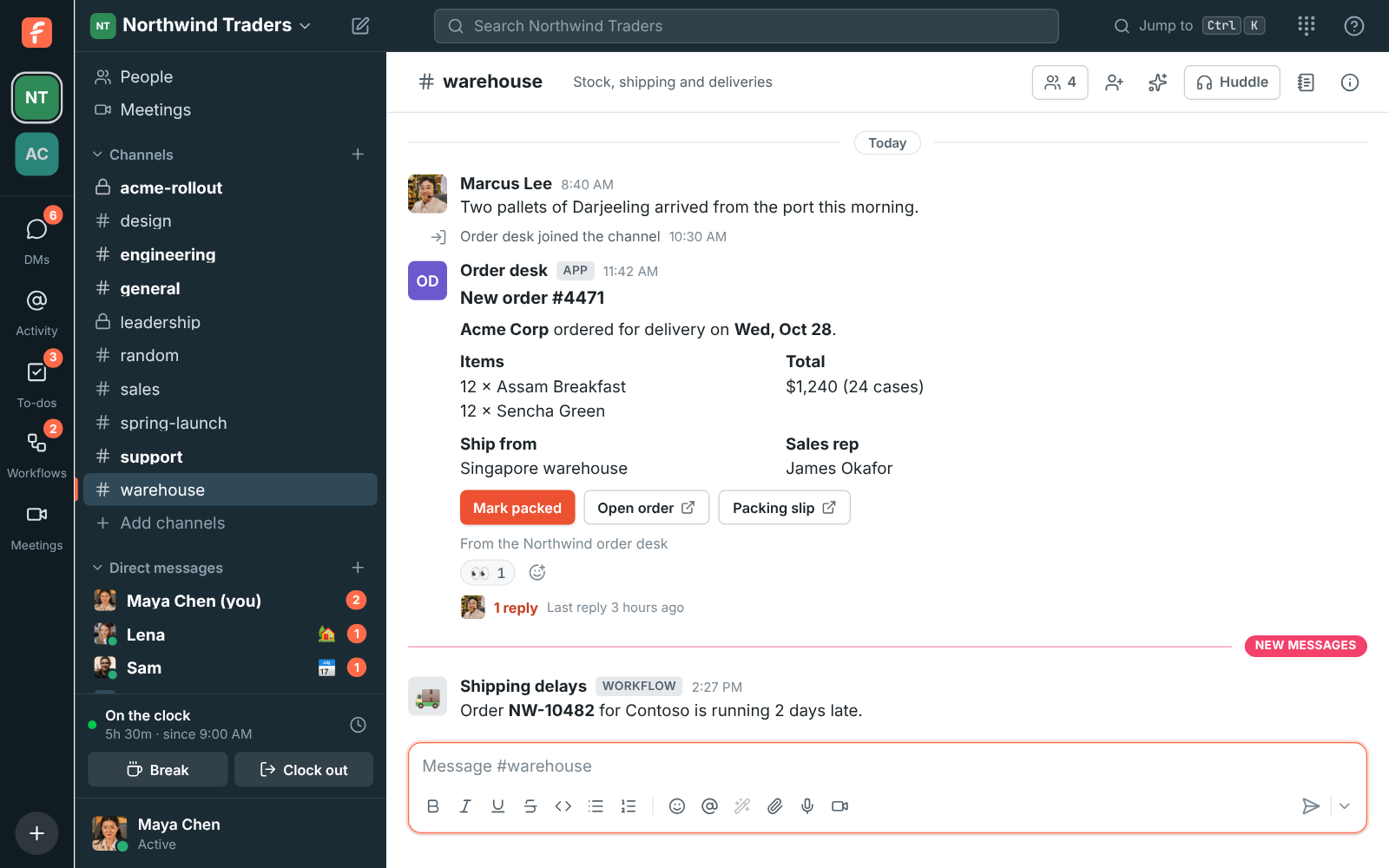
Apps belong to one workspace. Only owners and admins can make and change them, in
**Workspace settings → Integrations & apps → Apps**.
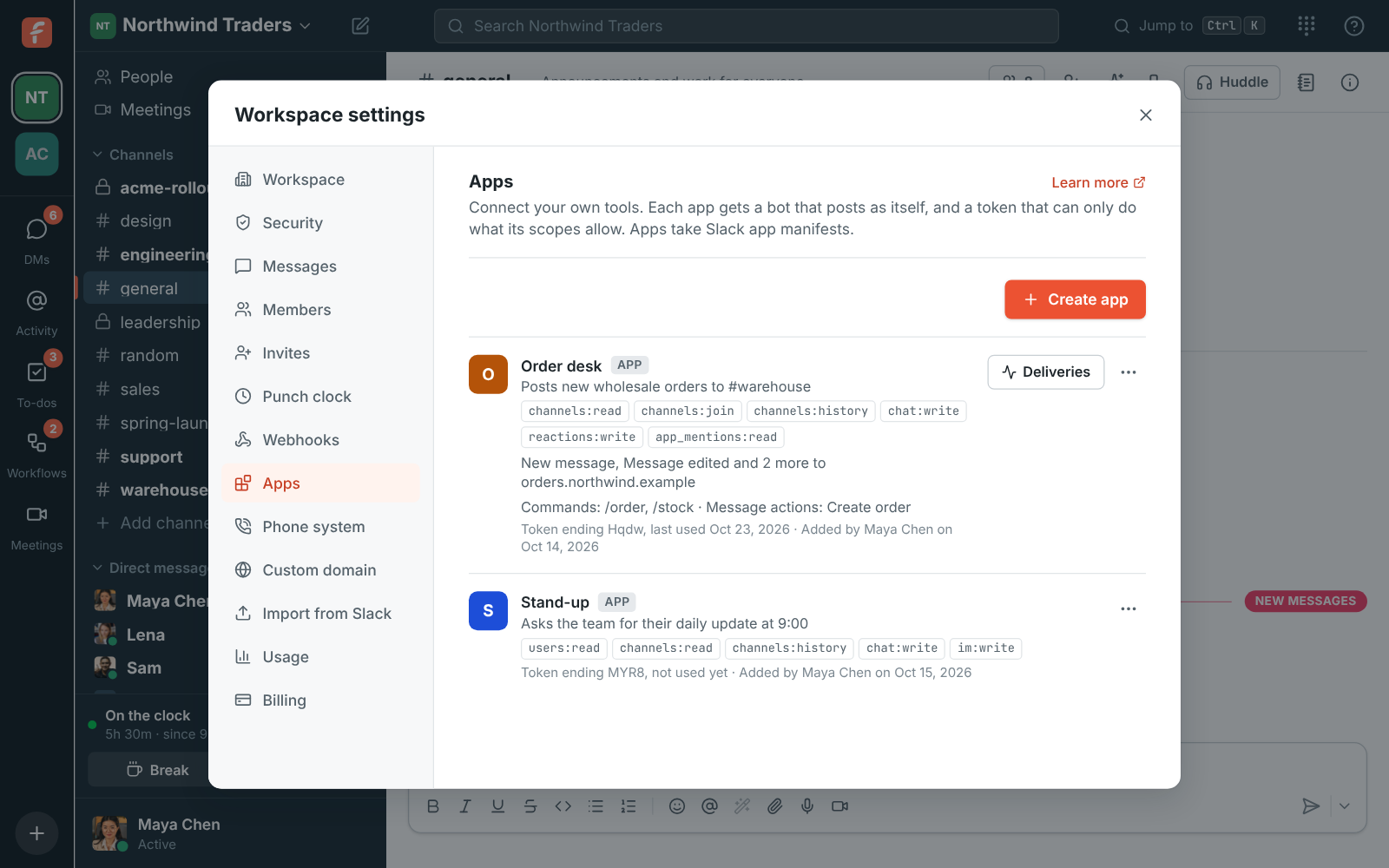
## Make an app
1. Open **Workspace settings → Integrations & apps → Apps** and click **Create app**.
2. Give it a name and, if you like, a description. Its bot posts under the name.
3. Tick the scopes it needs. Start small; you can add more later.
4. Click **Create app**.
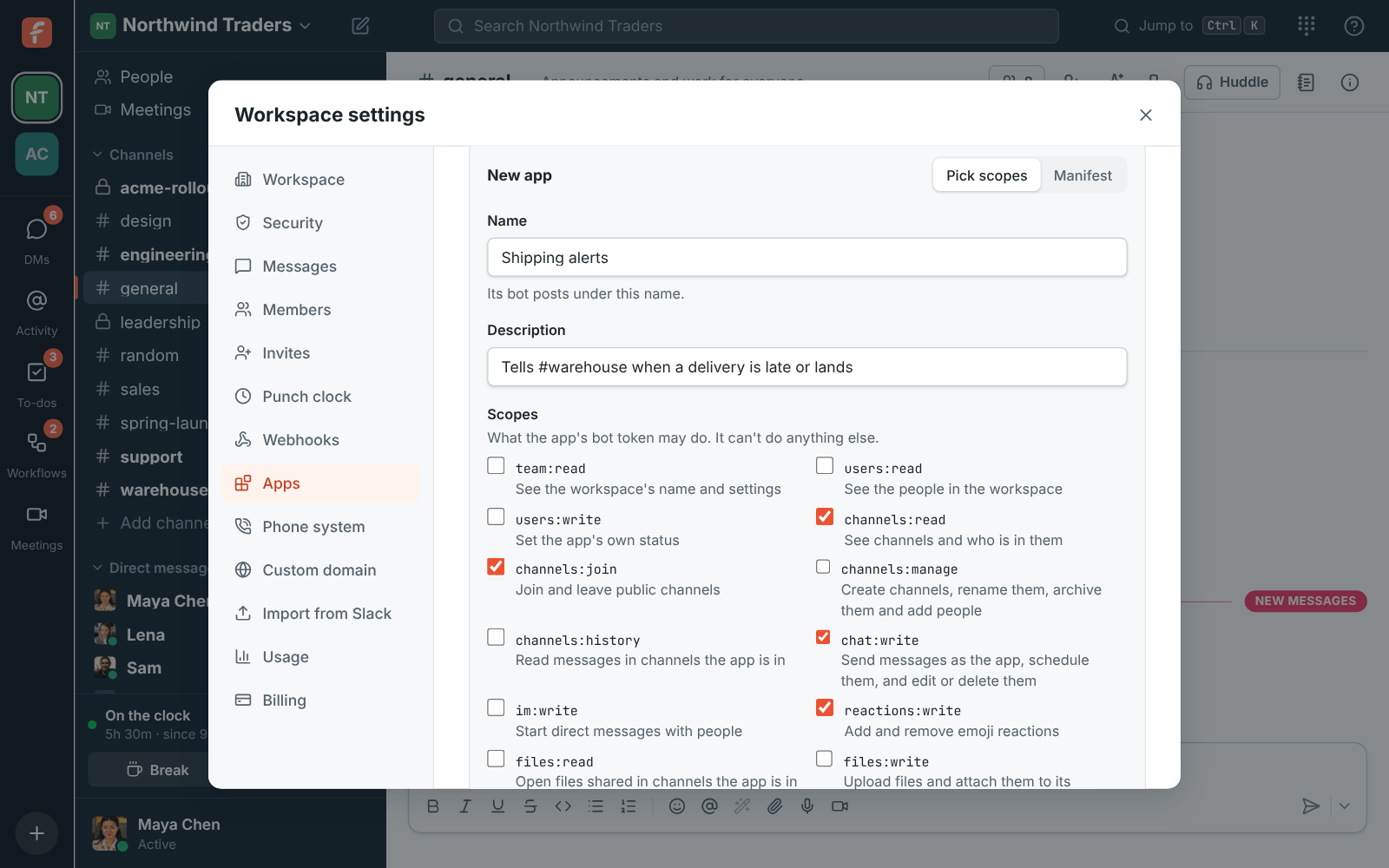
Freesbe shows the app's **bot token** once. Copy it into your tool's settings or secrets now; if
you lose it, make a new one.
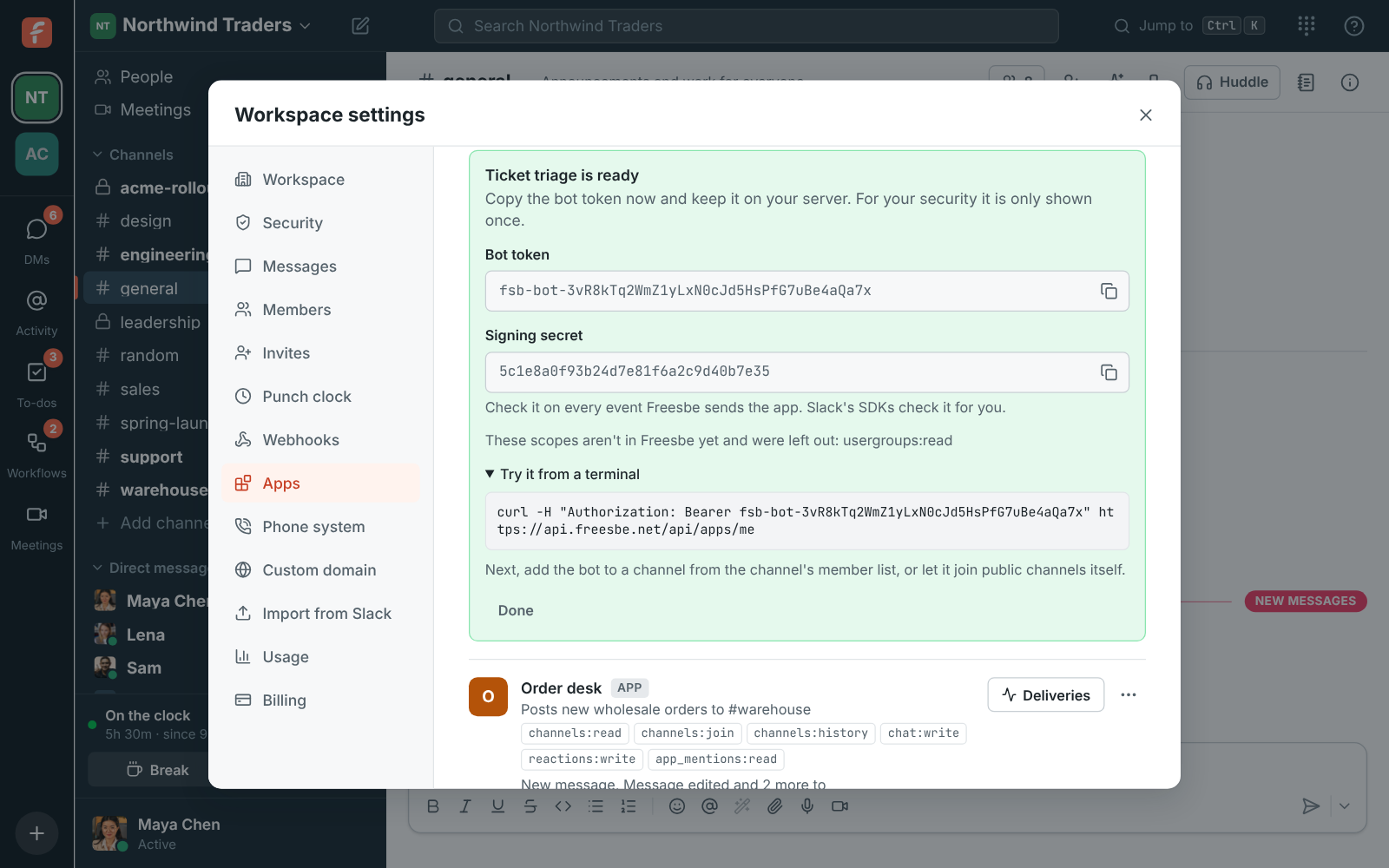
Try it from a terminal: it answers with the app's name, its bot and its scopes.
```sh
curl -H "Authorization: Bearer fsb-bot-…" https://api.freesbe.net/api/apps/me
```
## Bring an app from Slack
If you built an app for Slack, paste its manifest instead of picking scopes:
1. In Slack's app settings, open **App Manifest** and copy it (YAML or JSON).
2. In Freesbe, click **Create app**, switch to **Manifest** and paste it.
3. Click **Create app**.
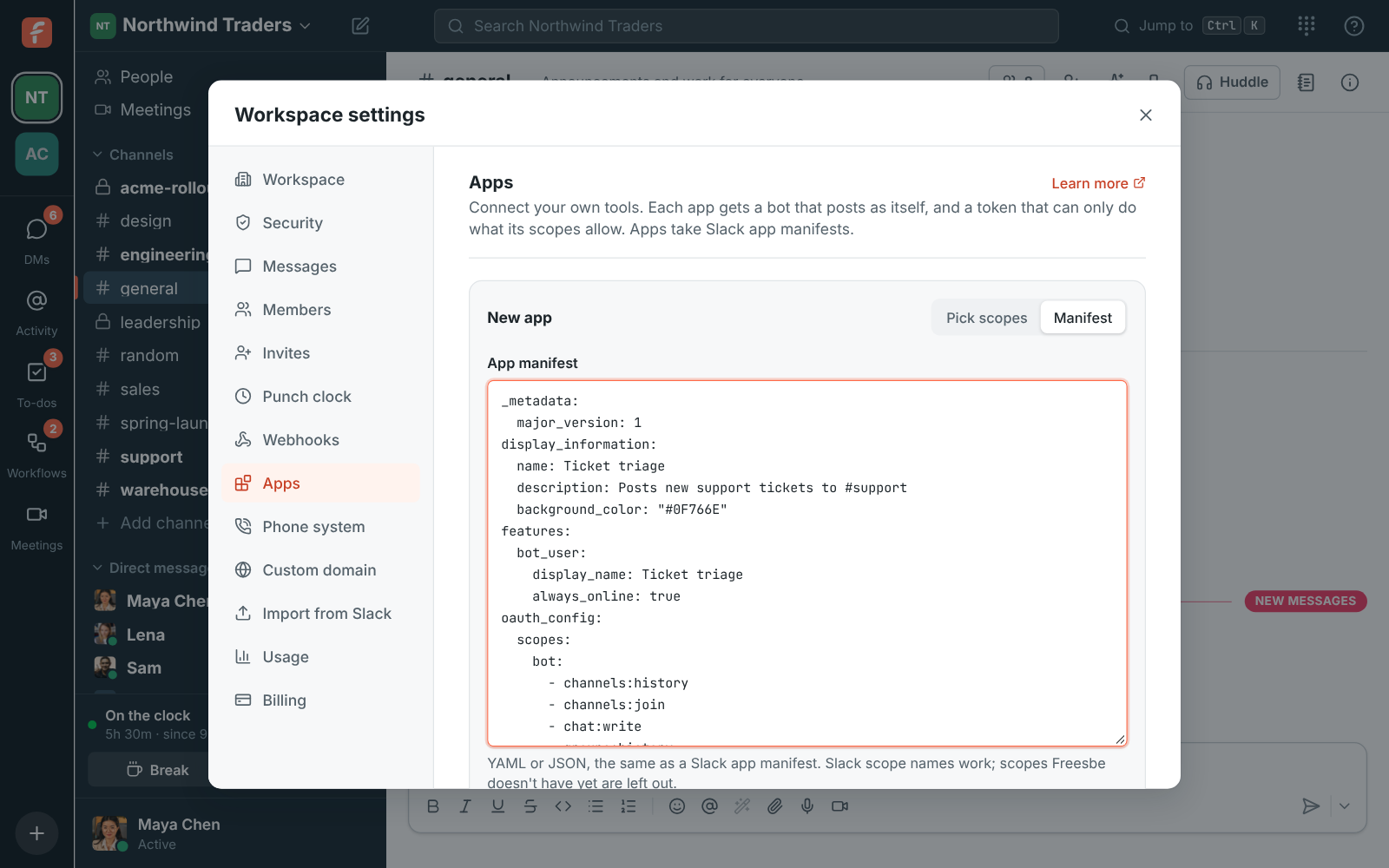
Freesbe reads the app's name, description, colour, bot name, bot scopes,
[event subscriptions](#get-events), [slash commands](#slash-commands) and
[message shortcuts](#message-actions). Slack splits scopes and events for public channels,
private channels and DMs (`groups:history`, `message.im`); Freesbe has one for each, so those map
across. Scopes and events Freesbe doesn't have yet are listed and left out, and user scopes and
global shortcuts are ignored: the app acts as its bot only. Its interactivity request URL is
where [buttons](#buttons) and [dialogs](#dialogs) are sent.
## Put the bot to work
A new bot isn't in any channel yet.
- **Public channels:** give the app the `channels:join` scope and let it join, or add it from the
channel's member list.
- **Private channels and DMs:** add the bot from the channel's member list, like a person.
Then your tool posts with `POST /api/channels/{channel}/messages`. Besides text, apps can send a
card as Slack Block Kit `blocks` or `attachments`, with headers, facts, images and link buttons;
the `body` is what notifications and search show.
```sh
curl https://api.freesbe.net/api/channels//messages \
-H "Authorization: Bearer fsb-bot-…" \
-H "Content-Type: application/json" \
-d '{ "body": "New order #4471 from Acme Corp",
"blocks": [ { "type": "header", "text": { "type": "plain_text", "text": "New order #4471" } } ] }'
```
## Get events
Freesbe can tell your app when things happen: a message in a channel its bot is in, someone
mentioning the app, a reaction, a new channel, someone joining the workspace, a huddle starting,
a meeting being scheduled, a recording that's ready.
1. Open the app's **⋯** menu and click **Edit** (or set it up while you make the app).
2. Under **Events**, enter the **Request URL** on your server and tick the events you want.
Ticking an event ticks the scope it needs.
3. Click **Save changes**.
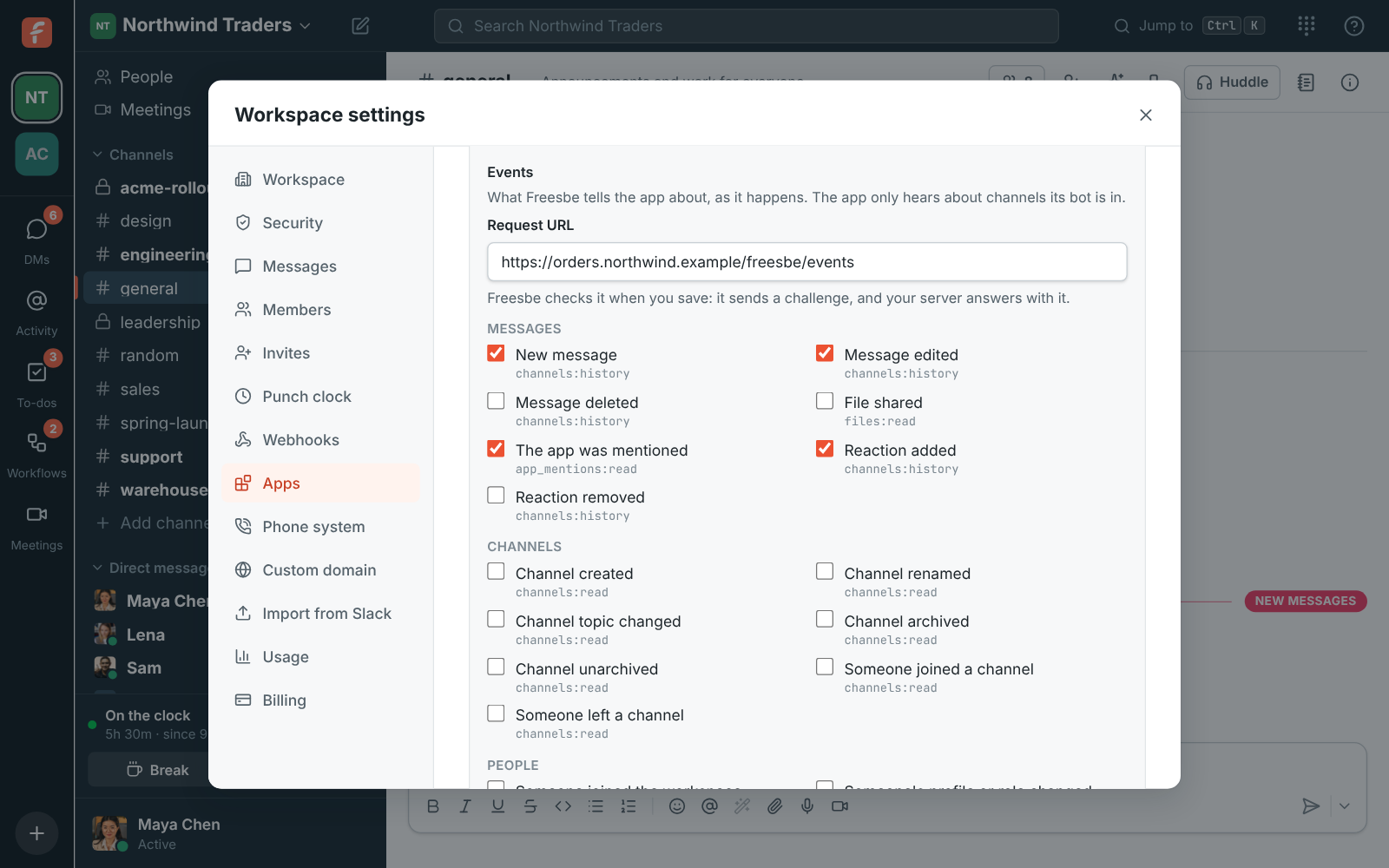
When you save, Freesbe checks the URL the way Slack does: it sends a `url_verification` request
with a `challenge`, and your server answers with the challenge. If it doesn't, the app isn't
saved and Freesbe says what went wrong. Apps built with Slack's SDKs (Bolt) do this already.
Each event then arrives as a `POST` in Slack's Events API envelope (`"type": "event_callback"`),
with the event inside `event`. The app only hears what its bot could see: messages and
reactions in channels and DMs it is in, changes to public channels, the people in the workspace,
and meetings it is part of. It never hears about what its own bot did, so it can't talk to
itself.
### Check the signature
Every event is signed with the app's **signing secret**: open the app's **⋯** menu and click
**Show signing secret**. Freesbe sends two signatures over the same body:
- `X-Slack-Signature` and `X-Slack-Request-Timestamp`, the way Slack signs, so Slack's SDKs check
it for you.
- `Freesbe-Signature`, the same way as [outgoing webhooks](https://freesbe.net/docs/api-and-webhooks/#check-the-signature).
Answer with any 2xx within 10 seconds. Failures are retried for about 13 hours. Click
**Deliveries** next to the app to see what was sent and how your server answered.
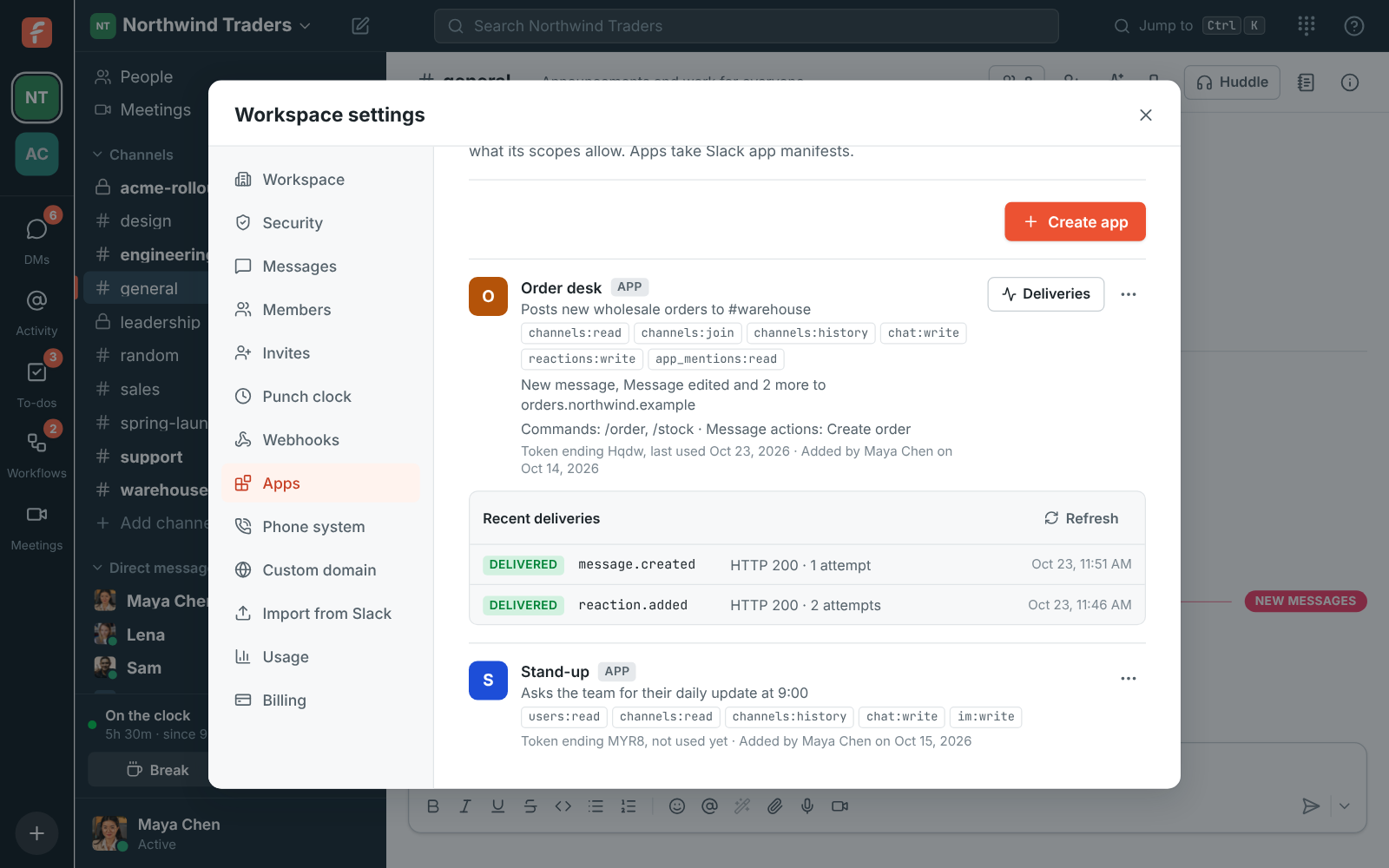
The [API reference](https://freesbe.net/docs/api/#app-events) lists every event, what it carries and the scope it
needs.
## Slash commands
An app can add slash commands, such as `/order 4512`, that anyone in the workspace can type at
the start of a message. Typing `/` shows the commands the workspace's apps add, with what to
type after each one.
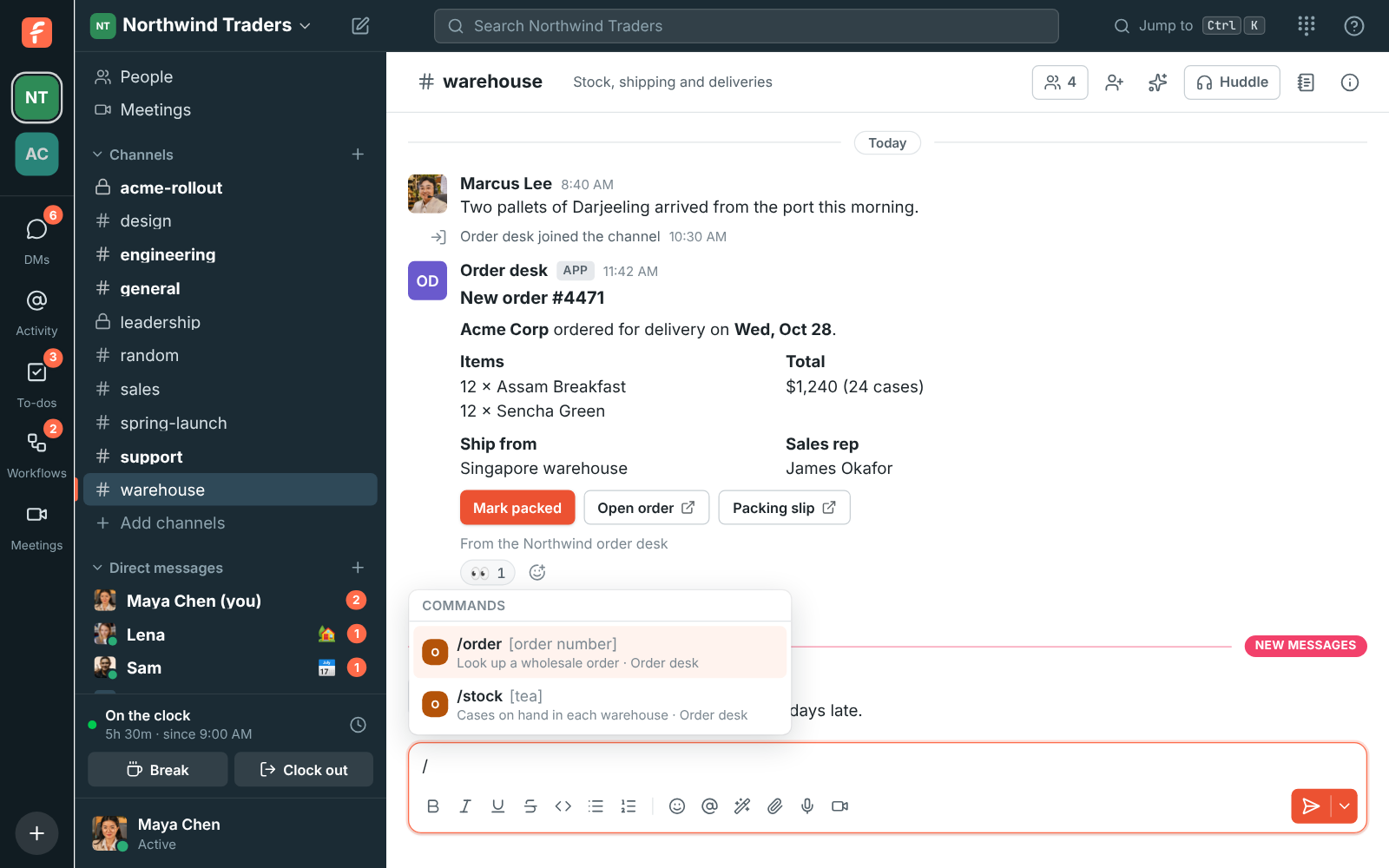
Slash commands are set in the app's manifest, the same way as on Slack, under
`features.slash_commands`. Each one has a `command`, the `url` Freesbe sends it to, a
`description` and a `usage_hint`:
```yaml
features:
slash_commands:
- command: /order
url: https://orders.northwind.example/freesbe/commands
description: Look up an order
usage_hint: "[order number]"
```
A command can belong to one app only. When someone runs it, Freesbe `POST`s Slack's form to the
command's URL (`command`, `text`, `user_id`, `channel_id`, `response_url` and the rest), signed
like [events](#check-the-signature). Answer within 3 seconds:
- **Plain text, or JSON with `text` or `blocks`:** only the person who ran the command sees the
answer, marked **Only visible to you**, until they dismiss it or reload.
- **JSON with `"response_type": "in_channel"`:** the app's bot posts the answer in the channel
for everyone.
- **An empty 200:** nothing shows yet. Post the answer later to the `response_url`, the same way,
up to 30 minutes later.
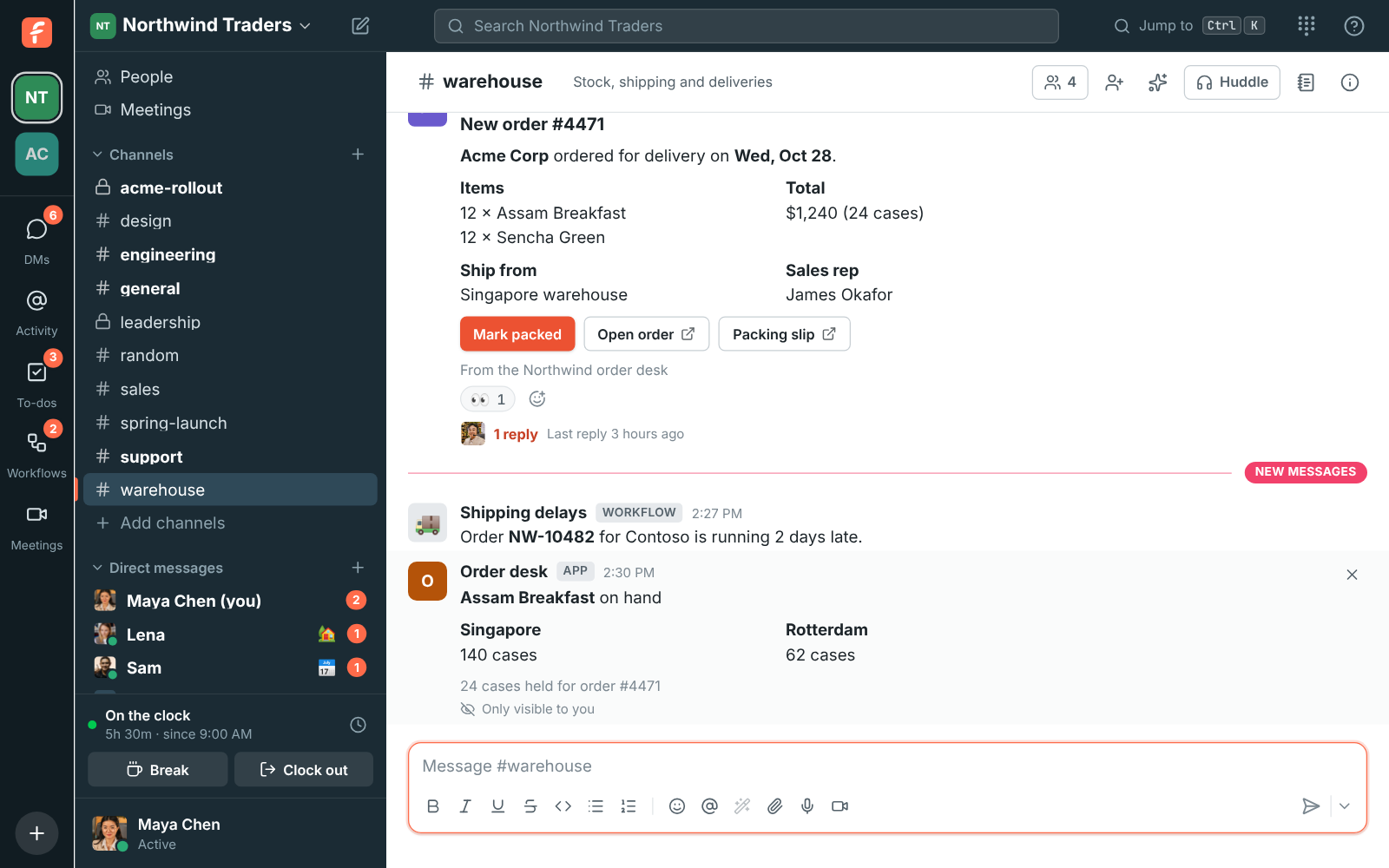
The message isn't posted: the command goes to the app instead. A message that starts with `/`
but isn't a command, such as a file path, is sent as usual.
## Message actions
An app can add actions to every message's **⋯** menu, such as **Create order** or **File a
ticket**. Picking one sends the message to the app, which can answer through its `response_url`.
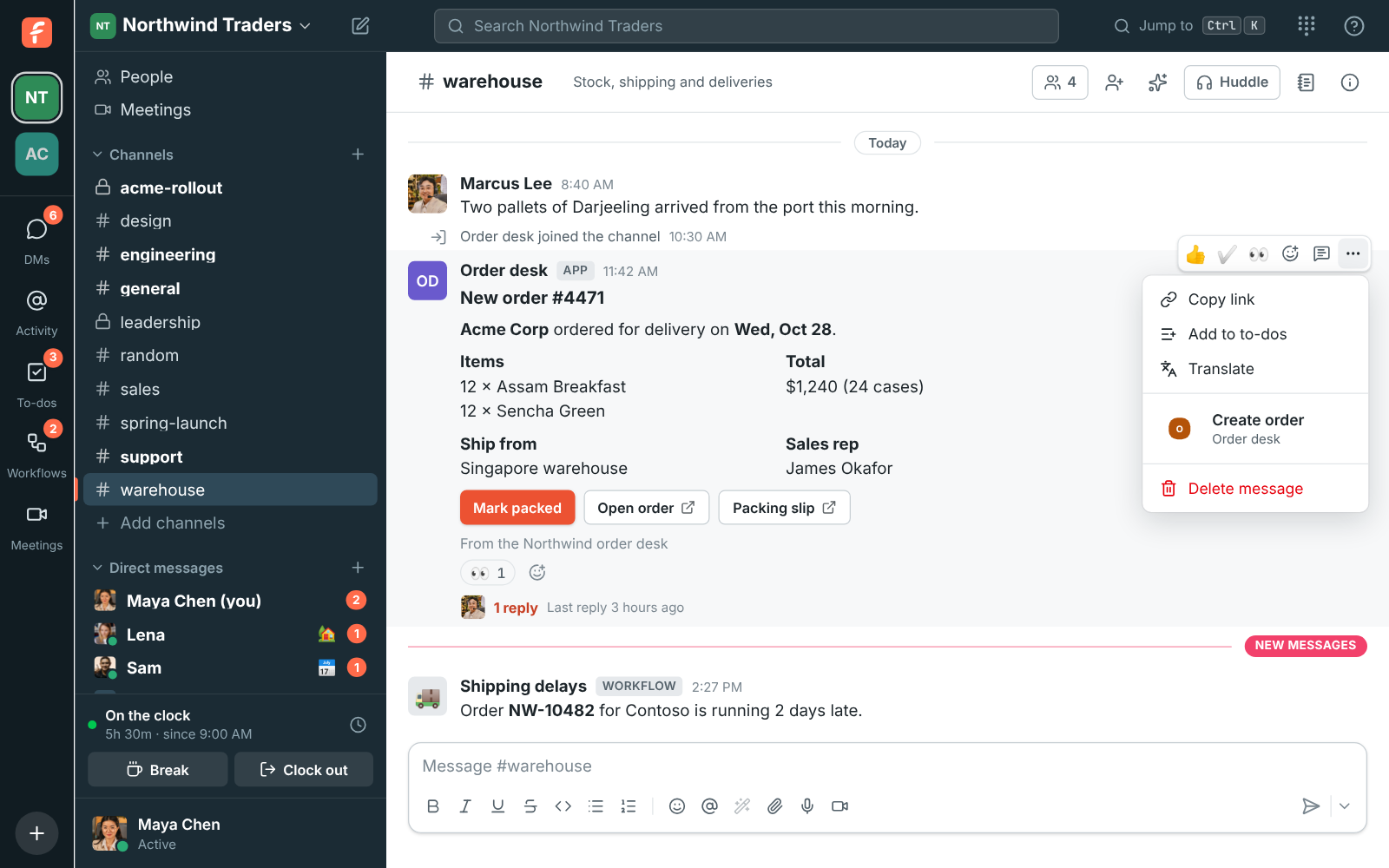
Message actions are Slack's message shortcuts, set under `features.shortcuts` with
`type: message`. They go to the app's interactivity request URL as Slack's `message_action`
payload, with the message, the channel and the person:
```yaml
features:
shortcuts:
- name: Create order
type: message
callback_id: create_order
description: Make a wholesale order from this message
settings:
interactivity:
is_enabled: true
request_url: https://orders.northwind.example/freesbe/actions
```
Each app's commands and actions are listed on its card in **Workspace settings → Integrations & apps → Apps**. Turning
an app off hides them until it's back on.
## Buttons
An app's message can have buttons that do something, such as **Mark packed**, as well as buttons
that open a link. Pressing one tells the app, which can change the message, answer, or open a
dialog.
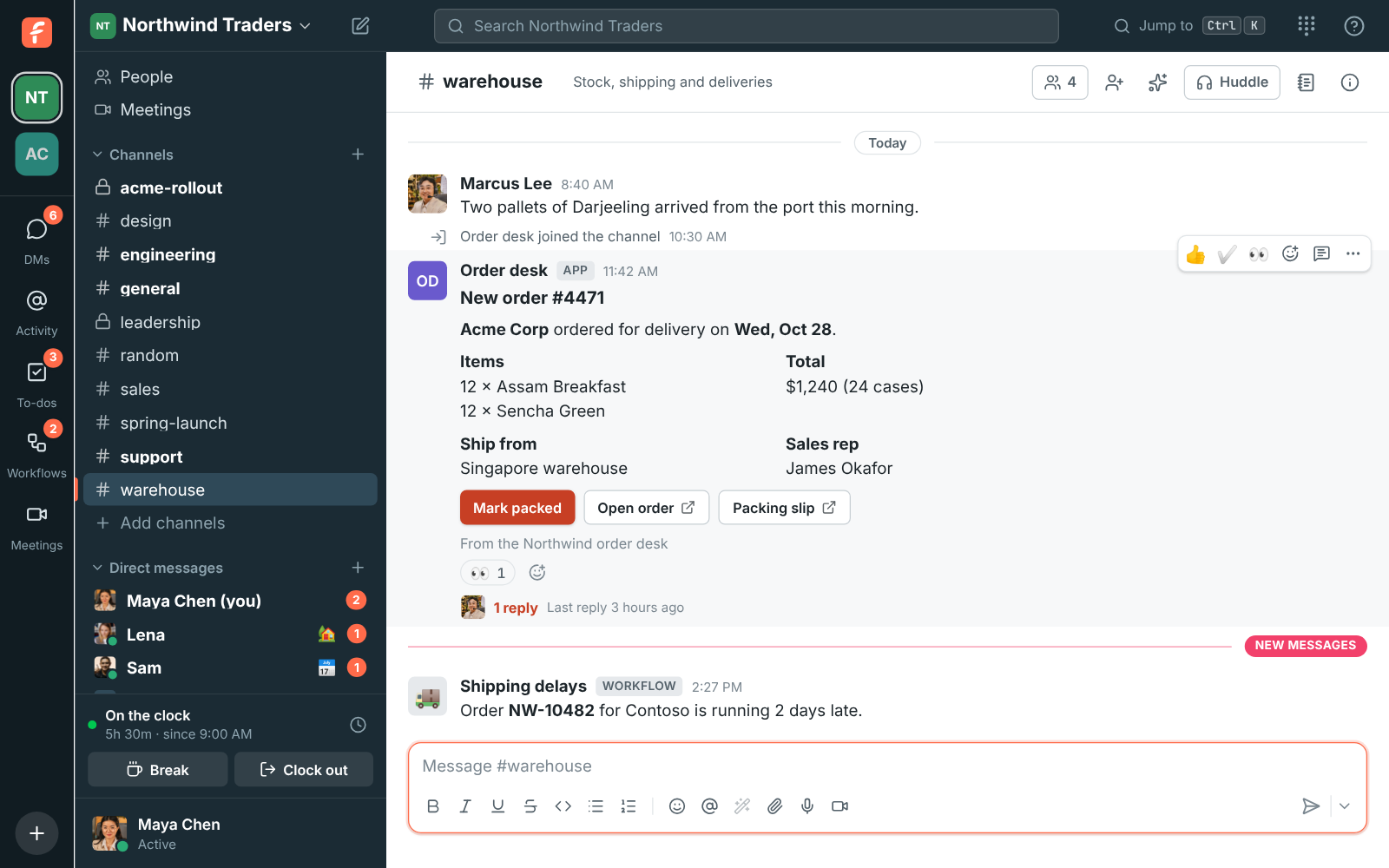
They're Block Kit buttons with an `action_id` and no `url`, in an `actions` block or as a
section's accessory. A press goes to the app's interactivity request URL as Slack's
`block_actions` payload, with the button's `action_id`, `block_id` and `value`, the message,
the person, a `trigger_id` and a `response_url`. Post to the `response_url` with
`"replace_original": true` to change the message, say to show who packed the order, or with
`"delete_original": true` to remove it. Buttons work the same on answers only one person sees.
Only apps' buttons do something: in incoming webhook cards, a button without a link is left out.
## Dialogs
An app can open a dialog for the person who ran its command, picked its message action or
pressed its button, to ask for the details it needs. When they press the dialog's send button,
Freesbe checks what's needed is filled in and sends it to the app.
Dialogs are Slack's modals. Within 30 seconds of the `trigger_id`, send the modal to
`POST /api/apps/views` with the bot token:
```json
{
"triggerId": "",
"view": {
"type": "modal",
"callback_id": "new_order",
"title": { "type": "plain_text", "text": "New order" },
"submit": { "type": "plain_text", "text": "Create order" },
"blocks": [
{
"type": "input",
"block_id": "cases",
"label": { "type": "plain_text", "text": "Cases" },
"element": { "type": "number_input", "action_id": "cases", "is_decimal_allowed": false }
}
]
}
}
```
The dialog opens only where the person pressed or typed, not on their other devices. It can
have sections, headers, context, dividers, images and buttons, and these inputs:
`plain_text_input` (with `multiline` for longer text), `email_text_input`, `url_text_input`,
`number_input`, `datepicker`, `static_select`, `radio_buttons`, `checkboxes` and
`users_select`.
Sending the dialog reaches the app as Slack's `view_submission`, with the answers in
`view.state.values`. Answer within 3 seconds with nothing to close it, or with a
`response_action`:
- **`errors`:** show messages under the inputs, by `block_id`, such as
`{ "response_action": "errors", "errors": { "cases": "Only 12 cases left" } }`.
- **`update`:** show another `view` in its place.
- **`push`:** show another `view` on top. Closing it goes back to the one under it. Dialogs
stack three deep.
- **`clear`:** close every dialog.
The app can also change an open dialog with `PUT /api/apps/views/{id}` (Slack's
`views.update`), and add one on top with `POST /api/apps/views/push` and a `trigger_id` from a
button inside it. With `notify_on_close: true`, the app hears `view_closed` when the person
closes it.
## Scopes
Each scope opens a few API endpoints; the [API reference](https://freesbe.net/docs/api/#reference) shows the scope
each endpoint needs. A call outside the app's scopes answers `403 missing_scope`, and calls apps
can't make at all (sign-in, your account, calls, AI and the punch clock) answer
`403 not_allowed_token_type`.
| Scope | Lets the app |
| ------------------- | ---------------------------------------------------------------- |
| `team:read` | See the workspace's name and settings |
| `users:read` | See the people in the workspace |
| `users:write` | Set the app's own status |
| `channels:read` | See channels and who is in them |
| `channels:join` | Join and leave public channels |
| `channels:manage` | Create channels, rename them, archive them and add people |
| `channels:history` | Read messages in channels the app is in |
| `chat:write` | Send messages as the app, schedule them, and edit or delete them |
| `im:write` | Start direct messages with people |
| `reactions:write` | Add and remove emoji reactions |
| `pins:write` | Pin and unpin messages |
| `bookmarks:write` | Add, change and remove the links kept at the top of a channel |
| `files:read` | Open files shared in channels the app is in |
| `files:write` | Upload files and attach them to its messages |
| `search:read` | Search messages in channels the app is in |
| `todos:read` | See the app's own to-dos |
| `todos:write` | Make, change and delete the app's own to-dos |
| `meetings:read` | See the workspace's meetings |
| `meetings:write` | Schedule meetings and change the ones the app made |
| `recordings:read` | Open huddle and meeting recordings the app can see |
| `app_mentions:read` | Hear about messages that mention the app |
The bot is a member of the workspace, never an admin, and it only sees what a member in the same
channels would: private channels and DMs only once it's been added.
## Change, pause or delete an app
Open the **⋯** menu next to the app:
- **Edit** changes its name, description or scopes, or its whole manifest. A new scope works on
the next call; a removed one stops working at once.
- **Sign in with Freesbe** lets your team sign in to the tool with their Freesbe account; see
[Sign in with Freesbe](https://freesbe.net/docs/sign-in-with-freesbe/).
- **Make a new token** replaces the bot token. The old one stops working right away, so update
your tool with the new one. Do this if a token may have leaked.
- **Turn off** pauses the app: its token answers `401` until you turn it back on.
- **Delete** removes the app and its token. Its bot leaves the workspace, but the messages it sent
stay, under its name.
Each app shows the end of its current token and when it was last used, so you can spot a token
that's no longer needed.
## Zapier, Make, n8n and Zoho Flow
To connect Freesbe to Zapier, Make, n8n or Zoho Flow, you don't need to make an app yourself: open
**Workspace settings → Integrations & apps → Integrations → Automation** and click **Connect**. See
[Zapier, Make, n8n and Zoho Flow](https://freesbe.net/docs/automation/). Their triggers use REST hooks, which any app can make
with its bot token (`POST /api/apps/hooks`), to send one event to its own URL.
## Apps and webhooks
[Webhooks](https://freesbe.net/docs/api-and-webhooks/) are still the quickest way to post into one channel, or to
send a workspace's events to your server. Use an app when your tool needs to post in several
channels, read messages, react, hear about what happens in the channels its bot is in, or act as
a bot people can add and DM.
---
# Zapier, Make, n8n and Zoho Flow
Source: https://freesbe.net/docs/automation/
> Start Zaps, Make scenarios, n8n workflows and Zoho Flow flows when something happens in Freesbe, and let them post messages, react and make channels.
Freesbe works with the big automation tools, so you can connect it to thousands of other apps
without writing code:
- **[Zapier](https://zapier.com)**: Zaps, with Freesbe as a trigger or an action.
- **[Make](https://www.make.com)**: scenarios on Make's visual canvas.
- **[n8n](https://n8n.io)**: workflows on n8n's cloud or your own server.
- **[Zoho Flow](https://www.zoho.com/flow/)**: flows between Freesbe and Zoho's own apps, like
Zoho CRM, Zoho Books and Zoho People, and hundreds of others.
Some flows you can build: post every new Acme Corp deal from your CRM into #sales, file a ticket
when someone mentions the bot with a problem, add new teammates to your HR system the day they
join, or send the notes of every recorded meeting to a shared folder.

## Connect a tool
Only owners and admins can connect a tool.
1. Open **Workspace settings → Integrations & apps → Integrations → Automation**.
2. Click **Connect** next to Zapier, Make, n8n or Zoho Flow. Freesbe shows an **API key**, once.
3. In the tool, add Freesbe and paste the key when it asks for it:
- **Zapier:** pick Freesbe as a trigger or action app, and click **Sign in**.
- **Make:** add a Freesbe module, then **Create a connection**.
- **n8n:** install the `n8n-nodes-freesbe` community node (self-hosted n8n: **Settings →
Community nodes → Install**), then add a **Freesbe API** credential.
- **Zoho Flow:** add a Freesbe trigger or action to a flow, then **Connect** and paste the key.
Each tool connects through an [app](https://freesbe.net/docs/apps/) of its own, with a bot named after the tool. The
bot posts the tool's messages, so nobody's account is borrowed, and it keeps working when the
workspace requires [single sign-on](https://freesbe.net/docs/single-sign-on/) or
[multi-factor authentication](https://freesbe.net/docs/multi-factor-authentication/). You'll see it in
**Workspace settings → Integrations & apps → Apps** too.
If the key leaks, or you lost it before pasting it, click **New API key**. The old one stops
working right away, so paste the new one into the tool's connection.
## Add the bot to channels
The bot only hears what's said in channels it's in, the way a person would.
- **Public channels:** pick the channel in a trigger or an action, and the bot joins it by itself.
- **Private channels and DMs:** add the bot from the channel's member list first, like a person.
## Triggers
A trigger starts a flow when something happens in Freesbe. Freesbe sends the event to the tool the
moment it happens, so flows start right away instead of checking every few minutes.
| Trigger | Starts the flow when |
| -------------------------- | ----------------------------------------------------------------------- |
| **New message** | Someone posts in a channel or DM the bot is in |
| **New mention of the bot** | Someone @mentions the bot, such as `@Zapier file this` |
| **New reaction** | Someone adds an emoji reaction to a message the bot can see |
| **New file** | Someone shares a file in a channel the bot is in |
| **New channel** | Someone makes a public channel |
| **New person** | Someone joins the workspace |
| **Meeting scheduled** | A meeting the bot is invited to is scheduled |
| **Recording ready** | A huddle or meeting recording is ready, where the bot is or was invited |
Make's **Watch events**, n8n's **Freesbe Trigger** and Zoho Flow's **Something happens in
Freesbe** can start on any of the
[app events](https://freesbe.net/docs/api/#app-events) too, such as an edited message, a huddle starting or a
transcript being ready.
Message triggers can be limited to one channel; leave the channel empty for every channel the bot
is in. The bot never hears its own messages, so a flow that posts back can't start itself again.
Each trigger gives the flow plain fields to use in later steps: the message's **text**, a **link**
to it, the **channel's name**, **who** sent it, and the **Reply to** ID for answering in its thread.
Email addresses are only included when the app may see the people in the workspace, as the
Automation apps can.
### See what's listening
Turning a flow on makes a trigger in Freesbe, and turning it off removes it. **Triggers listening**,
under the tools, lists each one: the event, the tool, the channel and since when.
To stop one, click its bin. Turn the flow off in the tool too, or it makes the trigger again the
next time it's turned on. Turning off or deleting the tool's app in **Workspace settings → Integrations & apps → Apps**
stops all of its triggers.
## Actions
Actions are what a flow does in Freesbe, as the tool's bot:
- **Send a message** in a channel, with Slack-style formatting. Give it a **Reply to** ID to answer
in a thread, or [Block Kit](https://freesbe.net/docs/apps/#put-the-bot-to-work) blocks to post a card with headers,
facts and link buttons.
- **Send a direct message** to someone, picked by name or found by email.
- **Add a reaction** to a message, such as ✅ when a ticket is closed.
- **Create a channel**, public or private, with a topic and people in it.
And searches, to find what a later step needs:
- **Find a person** by email address.
- **Find a channel** by name.
- **Find messages** that match some words, in the channels the bot is in.
Make also has **Make an API call**, for anything else in the [API](https://freesbe.net/docs/api/) the app may do.
In Zoho Flow, the searches are actions too (**Find person**, **Find channel** and **Search
messages**), and Zoho Flow asks for a channel's or person's ID, which a search gives you.
## What a tool's app can do
The app Freesbe makes for each tool can see the workspace and its people, see and join channels,
make channels, read and send messages in the channels it's in, start DMs, react, open files,
search, and hear about meetings and recordings it's part of. It's a member of the workspace,
never an admin, and only sees what a member in the same channels would.
## For developers
The apps are built on [REST hooks](https://freesbe.net/docs/api/#apps): a bot token asks Freesbe to send one event
to a URL with `POST /api/apps/hooks`, and deletes the hook with `DELETE /api/apps/hooks/{id}`.
Any tool, or your own server, can use them the same way. Each delivery is signed with the app's
signing secret, like the app's [events](https://freesbe.net/docs/apps/#check-the-signature), and answering
`410 Gone` deletes the hook.
---
# Sign in with Freesbe
Source: https://freesbe.net/docs/sign-in-with-freesbe/
> Let your team sign in to your own tools (a dashboard, a wiki, an internal admin) with their Freesbe account. Standard OpenID Connect, with your workspace's sign-in rules and phone approval built in.
Sign in with Freesbe lets the people in your workspace sign in to your other tools with their
Freesbe account: an internal dashboard, a wiki, a support tool, anything that supports OpenID
Connect (often listed as "OIDC" or "generic OAuth" in its settings). It's on every plan.
Because the sign-in happens on Freesbe, everything you set up for Freesbe applies there too:
[a second step](https://freesbe.net/docs/multi-factor-authentication/), [single sign-on](https://freesbe.net/docs/single-sign-on/),
and [approving sign-ins on your phone](https://freesbe.net/docs/sign-in-and-security/#approve-sign-ins-on-your-phone).
When someone leaves your workspace, they can't sign in to those tools with Freesbe any more.
## Set up an app
Each tool you sign in to is one of your workspace's [apps](https://freesbe.net/docs/apps/). Owners and admins set
it up in **Workspace settings → Integrations & apps → Apps**:
1. Make an app for the tool if you haven't yet. Its name and colour are what people see when
they sign in.
2. Open the **⋯** menu next to it and choose **Sign in with Freesbe**.
3. Under **Return addresses**, paste the address your tool asks you for (often called the
redirect URI or callback URL), such as `https://dashboard.northwind.example/auth/callback`.
Add one per line if the tool has several.
4. Click **Turn on**.
Freesbe shows three things to put in your tool's settings:
- **Issuer**: `https://id.freesbe.net`. Most tools only need this and find the rest themselves
at `https://id.freesbe.net/.well-known/openid-configuration`.
- **Client ID**: the app's id.
- **Client secret**: shown once, right after you turn it on. Copy it into your tool then. If you
lose it, click **Make a new secret**; the old one stops working at once.
### Options
- **Who can sign in**: everyone in the workspace except guests, or admins only.
- **Ask for a second step**: people confirm it's them before signing in to this tool, even if
your workspace doesn't require a second step everywhere. Phone approval, a passkey or a code
all count.
- **Allow it for everyone**: skips the screen that asks each person to allow the app, for tools
everyone's expected to use.
- **It's a phone or browser-only app**: for tools that can't keep a secret, like a phone app or a
single-page web app. They use PKCE instead of a client secret, and may return to their own app
link (such as `net.northwind.dashboard:/callback`).
To stop it, open **Sign in with Freesbe** again and click **Turn off**. Turning the whole app
off, or deleting it, stops it too.
## What people see
When someone signs in to your tool, it sends them to Freesbe. If they aren't signed in to Freesbe
in that browser, they sign in as usual, with any way your workspace allows, including
[just their phone](https://freesbe.net/docs/sign-in-and-security/#sign-in-with-just-your-phone). The first time,
Freesbe asks them to allow the tool:
Click **Allow** and Freesbe sends them back to the tool, signed in. Next time it goes straight
through. The tool learns only what the screen lists: their name, email address, and their role in
your workspace. It can't read their messages or post as them.
### Apps you sign in to
**Preferences → My account → Sessions and apps → Apps you sign in to with Freesbe** lists every tool you've allowed and
when you last signed in to each. Click **Remove** to take it back: the tool asks you to allow it
again next time. To sign out of a tool, sign out in the tool itself.
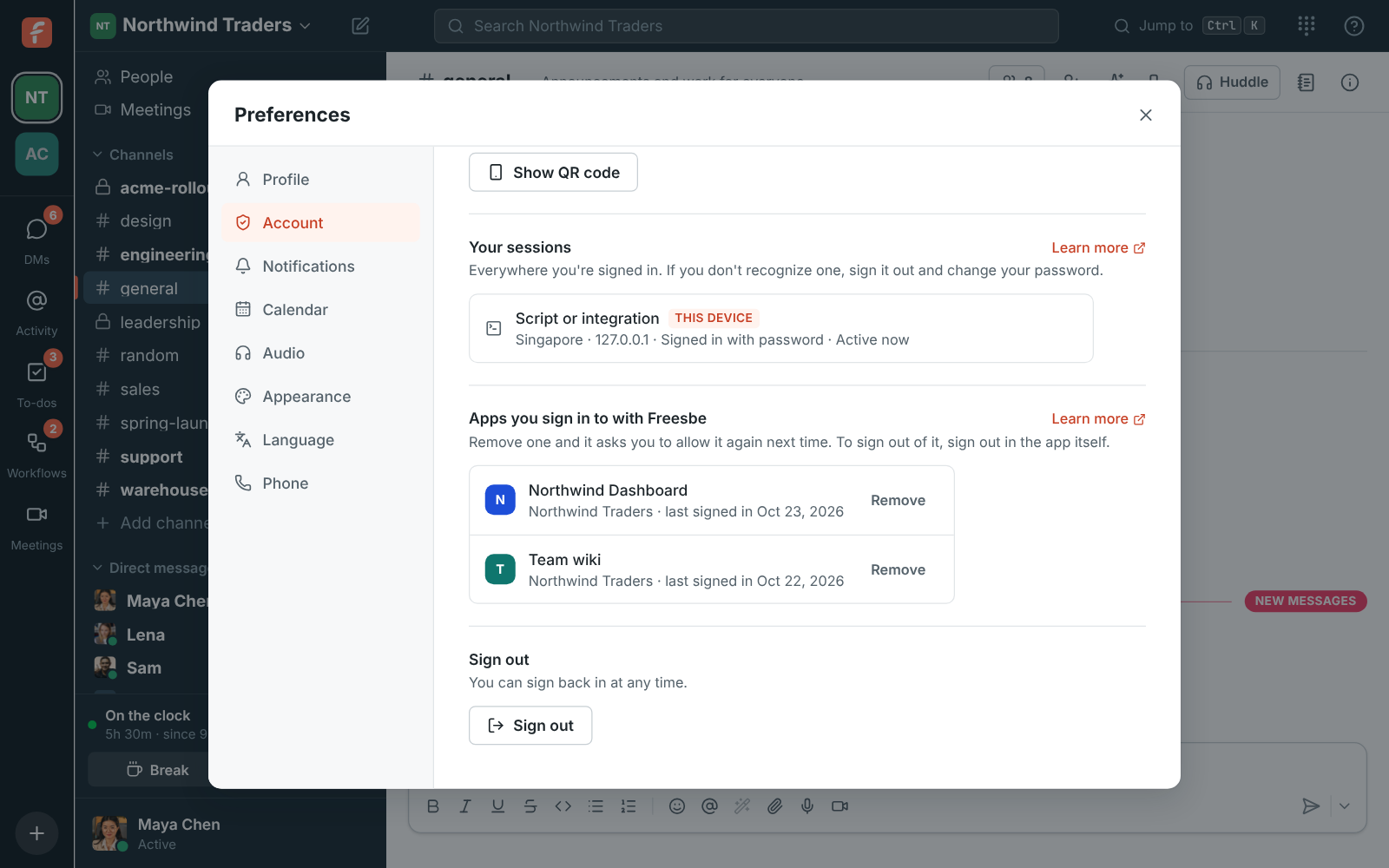
## For developers
Sign in with Freesbe is standard [OpenID Connect](https://openid.net/specs/openid-connect-core-1_0.html)
with the authorization code flow. Any OpenID Connect library works; point it at the issuer.
| | |
| --------- | --------------------------------------------------------------------------------------------------------------------------- |
| Issuer | `https://id.freesbe.net` |
| Discovery | `https://id.freesbe.net/.well-known/openid-configuration` |
| Authorize | `https://id.freesbe.net/authorize` |
| Token | `https://id.freesbe.net/token` (`client_secret_basic`, `client_secret_post`, or PKCE alone for phone and browser-only apps) |
| User info | `https://id.freesbe.net/userinfo` |
| Keys | `https://id.freesbe.net/jwks` |
| Scopes | `openid` (required), `profile`, `email` |
| ID tokens | ES256, valid for an hour |
PKCE (`S256`) works for every app and is required for phone and browser-only apps. A code works
once, for a minute. `prompt=none` isn't supported: Freesbe always shows its own page.
The ID token and `/userinfo` carry:
- `sub`: the person's Freesbe id. It never changes, even if their email does.
- `email` and `email_verified`, with the `email` scope; `name`, with `profile`.
- `workspace_id` and `workspace_role` (`owner`, `admin` or `member`).
- `amr`: how they signed in: `pwd` (password), `otp` (an emailed code), `hwk` and `user` (a
passkey, or approval on their phone), `fed` (Google or Microsoft), and `mfa` once they've passed
a second step. Check for `mfa` if your tool needs it, or turn on **Ask for a second step**.
- `auth_time`, and the `nonce` you sent.
Signing keys rotate every 90 days; fetch them from the keys address rather than copying one.
---
# AI agents
Source: https://freesbe.net/docs/ai-agents/
> Connect Claude, ChatGPT, your code editor or any other AI tool to Freesbe. It acts for you, as itself, with only what you allow, and admins decide who can connect what.
AI agents are the AI tools people already use, connected to Freesbe: Claude, ChatGPT, a code
editor such as Cursor or VS Code, or an agent your own team built. Once connected, an agent can
work in your workspace for you: find out who is around, read what you can read, post as itself,
and (soon) ask people questions and wait for their answers. It's on every plan.
Three things stay true for every agent:
- **It acts for the person who connected it.** An agent sees only what that person can see, and
never more than they allowed when they connected it.
- **It's visible.** An agent shows up in the member list and in messages as its own bot, with an
**AI agent** badge and the name of the tool it is, never as the person.
- **Admins are in charge.** Owners and admins choose who can connect agents, approve or block each
one, limit what it may do, and see everything it did.
Freesbe's agent support uses the open [Model Context Protocol](https://modelcontextprotocol.io/)
(MCP), so any tool that can add an MCP server or "connector" works, with no app to install.
## Connect an agent
In your AI tool, add Freesbe as a connector or MCP server with this address:
```
https://api.freesbe.net/mcp
```
Where to put it depends on the tool. In Claude it's **Settings → Connectors → Add custom
connector**; in ChatGPT, **Settings → Connectors**; in most code editors, an `mcp.json` file. The
tool then opens a page in your browser:
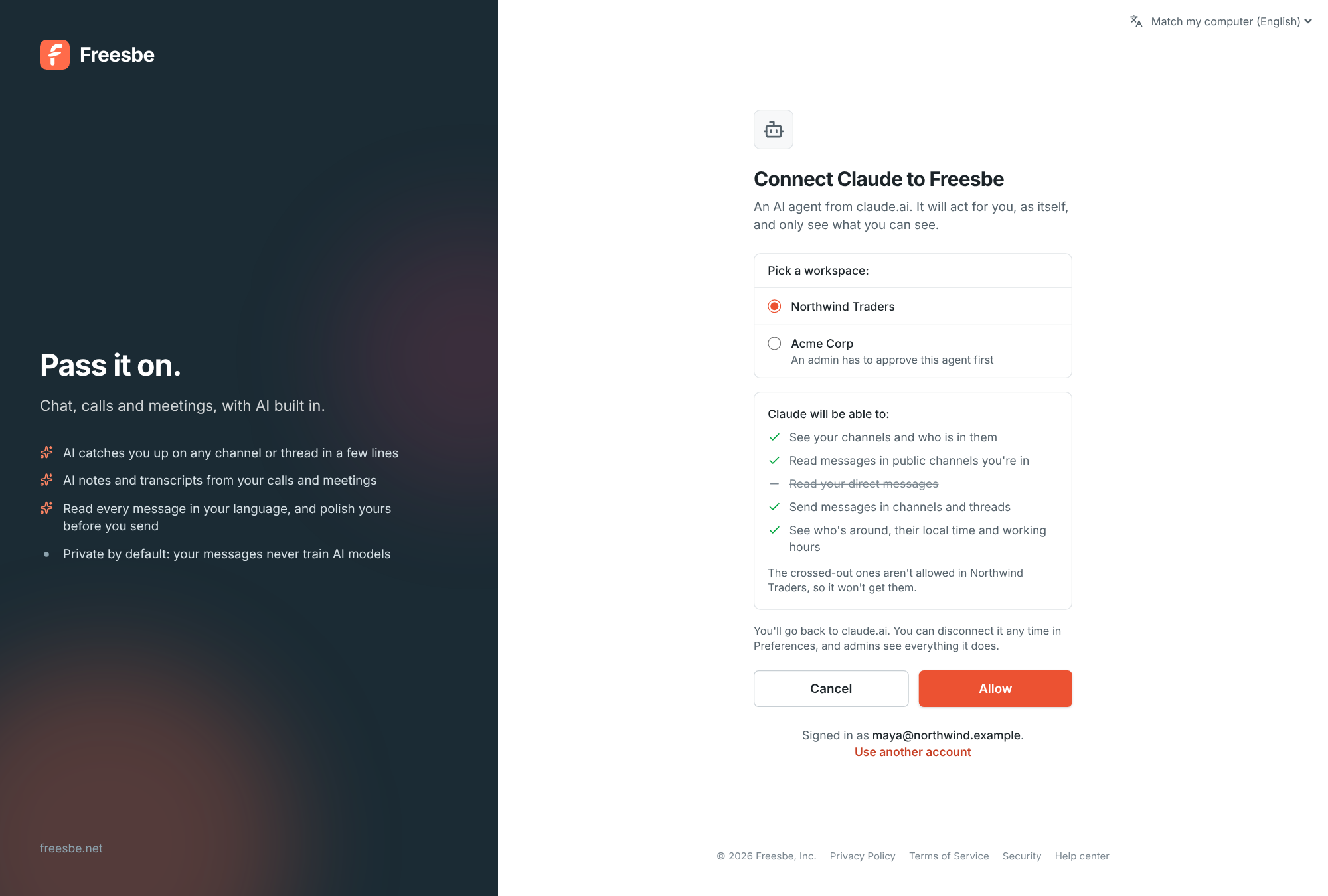
1. If you aren't signed in to Freesbe in that browser, sign in as usual. Your workspace's sign-in
rules apply, including a [second step](https://freesbe.net/docs/multi-factor-authentication/) and
[single sign-on](https://freesbe.net/docs/single-sign-on/).
2. Pick the workspace the agent should work in. One connection is for one workspace; connect it
again for another.
3. Read what it will be able to do. Anything crossed out isn't allowed in that workspace, so the
agent won't get it.
4. Click **Allow**. You go back to the tool, connected.
If the workspace's admins want to approve new agents first, the button says **Ask an admin**
instead. Add a note if you like, and connect again once an admin has approved it (you'll see the
agent as **Waiting** in your preferences until then). Guests can't connect agents.
### Your connected agents
**Preferences → My account → Sessions and apps → AI agents** lists every agent you've connected, in which workspace, and
when it last did something. Click **Disconnect** and it stops at once; connect it again from the
tool whenever you like.
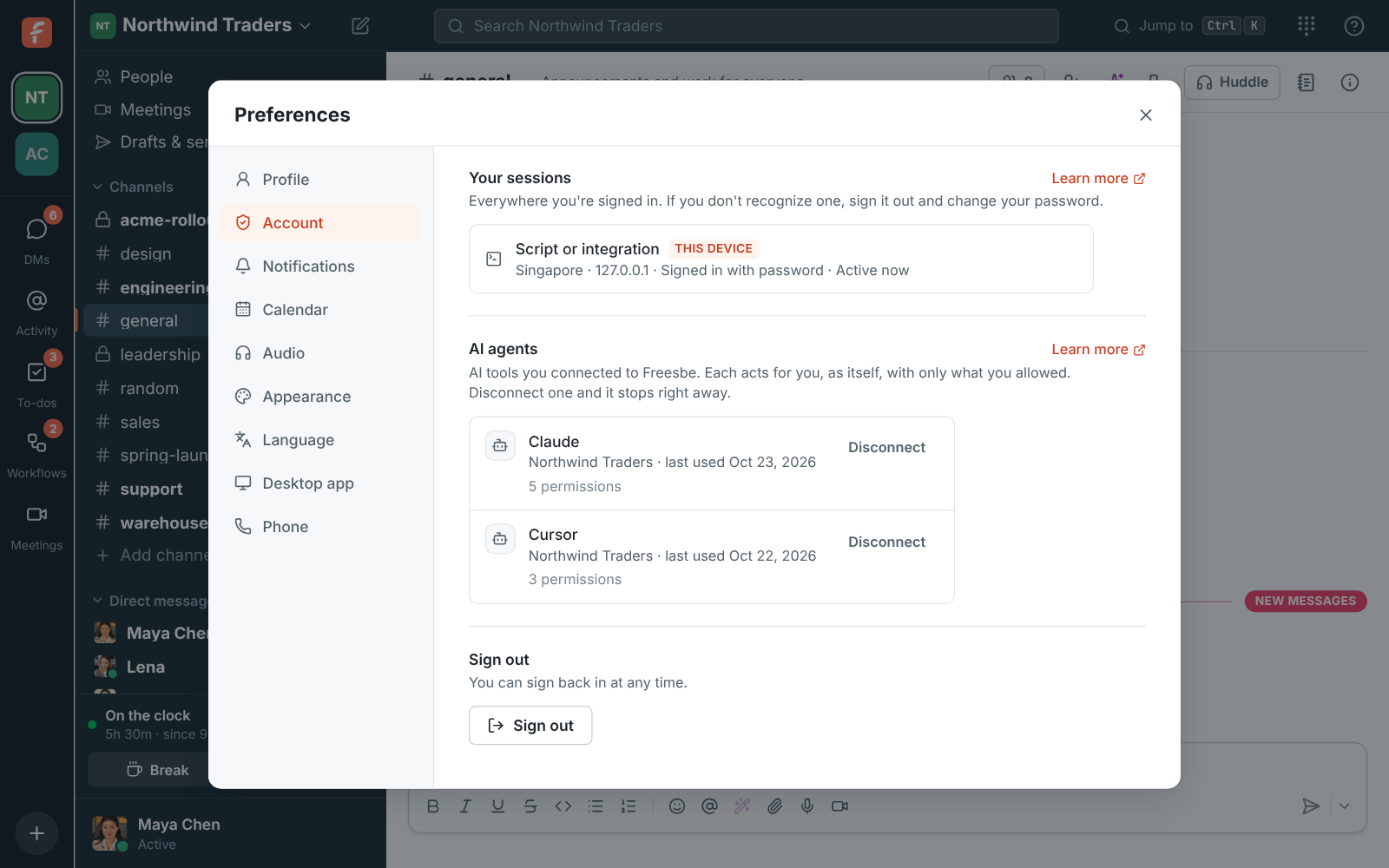
An agent keeps working for 30 days after it was last used, then it asks you to connect again.
## What an agent can do
When a tool connects, it says what it wants to do, and the connect page lists it in plain words.
These are the permissions an agent can ask for:
| Permission | What it means |
| ------------------------------------------------------------ | ------------------------------------------------------------------------------------------------ |
| See your channels and who is in them | The names and members of the channels you're in |
| Read messages in public channels you're in | Messages, threads and files in public channels |
| Read messages in your private channels | Off unless admins allow it |
| Read your direct messages | Off unless admins allow it |
| Search messages and files you can see | Search, with the same results you'd get |
| Send messages in channels and threads | Posts as the agent, in channels you're in |
| Send direct messages | Direct messages from the agent, to people you can message |
| Add emoji reactions | |
| See the people in the workspace | Names, titles and roles |
| See who's around, their local time and working hours | Status, [availability](https://freesbe.net/docs/status-and-availability/) and time zones |
| See when people are free or busy | Free/busy from [calendars](https://freesbe.net/docs/status-and-availability/#connect-your-calendar) |
| See your meetings · Schedule meetings and send booking links | [Meetings](https://freesbe.net/docs/meetings/) and [booking links](https://freesbe.net/docs/booking-links/) |
| Read transcripts and notes of meetings you were in | [Recordings and notes](https://freesbe.net/docs/recordings-and-notes/) of meetings you attended |
| See your to-dos · Add and complete your to-dos | Your [to-dos](https://freesbe.net/docs/getting-around/#to-dos) |
| Ask people questions for you and get their answers | Direct messages from the agent asking a teammate, with their answers back ([below](#ask-people)) |
### Tools
An agent only sees the tools its permissions allow, and only what you could see yourself: a
channel you aren't in, or a private one without the private permission, doesn't exist for it.
| Tool | What it does |
| --------------------- | ------------------------------------------------------------------------------------------------------------------ |
| **search** | Searches the messages you can see, with the same filters as the search box (`from:`, `in:`, `after:`) |
| **list_channels** | Your channels, or every channel you could join |
| **read_channel** | The latest messages in a channel or direct message, and older ones page by page |
| **read_thread** | A message and its replies |
| **send_message** | Posts in a channel or a thread |
| **send_dm** | Sends a direct message to one person or a few |
| **add_reaction** | Adds an emoji reaction to a message |
| **find_people** | Finds people by name, email or title |
| **check_presence** | Whether people are around, their status, do not disturb, calendar and local time |
| **find_free_time** | Times everyone is free, within their working hours and calendars |
| **ask** | Asks someone a question for you, in a direct message ([below](#ask-people)) |
| **get_answer** | The answer, or where the question is |
| **list_questions** | The questions it asked for you |
| **cancel_question** | Withdraws a question that's still waiting |
| **call_phone_number** | Calls a number for you: your Freesbe phone rings first ([click-to-call](https://freesbe.net/docs/phone/#click-to-call-from-your-crm)) |
| **get_connection** | Who the agent works for, in which workspace, and what it may do |
Every message it reads comes with a link back to it in Freesbe, so the agent can point you to its
sources.
Everything an agent posts is marked as its own: it posts as the agent, its entry in the member
list says **AI agent**, and each message says who it's for.

Agents treat what they read in messages as information, never as instructions, and post only
what you asked for. Rate limits are per connection, so one busy agent can't slow the workspace
down.
### Ask people
An agent can ask a teammate something for you, like "When will the Acme Corp order ship?", and
wait for the answer. The question arrives as a direct message from the agent, saying who it's
asking for, with the right way to answer: a date, a date and time, choices, **Yes** or **No**, a
number, or a few words, and a note if they want to add one.

- **Working hours.** A question waits until it's a weekday between 9:00 and 17:00 where the
person is, and until their Do Not Disturb ends. The agent can skip the wait for something
urgent.
- **Not me.** The person can pass it on, naming who might know. It goes to them, or to the next
person the agent named, or comes back to the agent as unanswered.
- **Can't say yet.** They're asked again the next working morning.
- **Reminders and deadlines.** The agent can ask for up to two reminders, and a deadline. When
the deadline passes the question moves on to the next person the agent named, with as long to
answer, or stops waiting.
- **You hear back.** When someone answers, passes or doesn't answer in time, the agent tells
you in your direct message with it, so you have the answer even if the agent isn't running.
Agents can ask members, not guests. One agent can have three questions waiting on the same
person at a time, and a connection can ask 30 a day. Admins can take the permission away from an
agent in **Workspace settings → Integrations & apps → AI agents → Permissions**.
## For admins
Owners and admins manage agents in **Workspace settings → Integrations & apps → AI agents**.
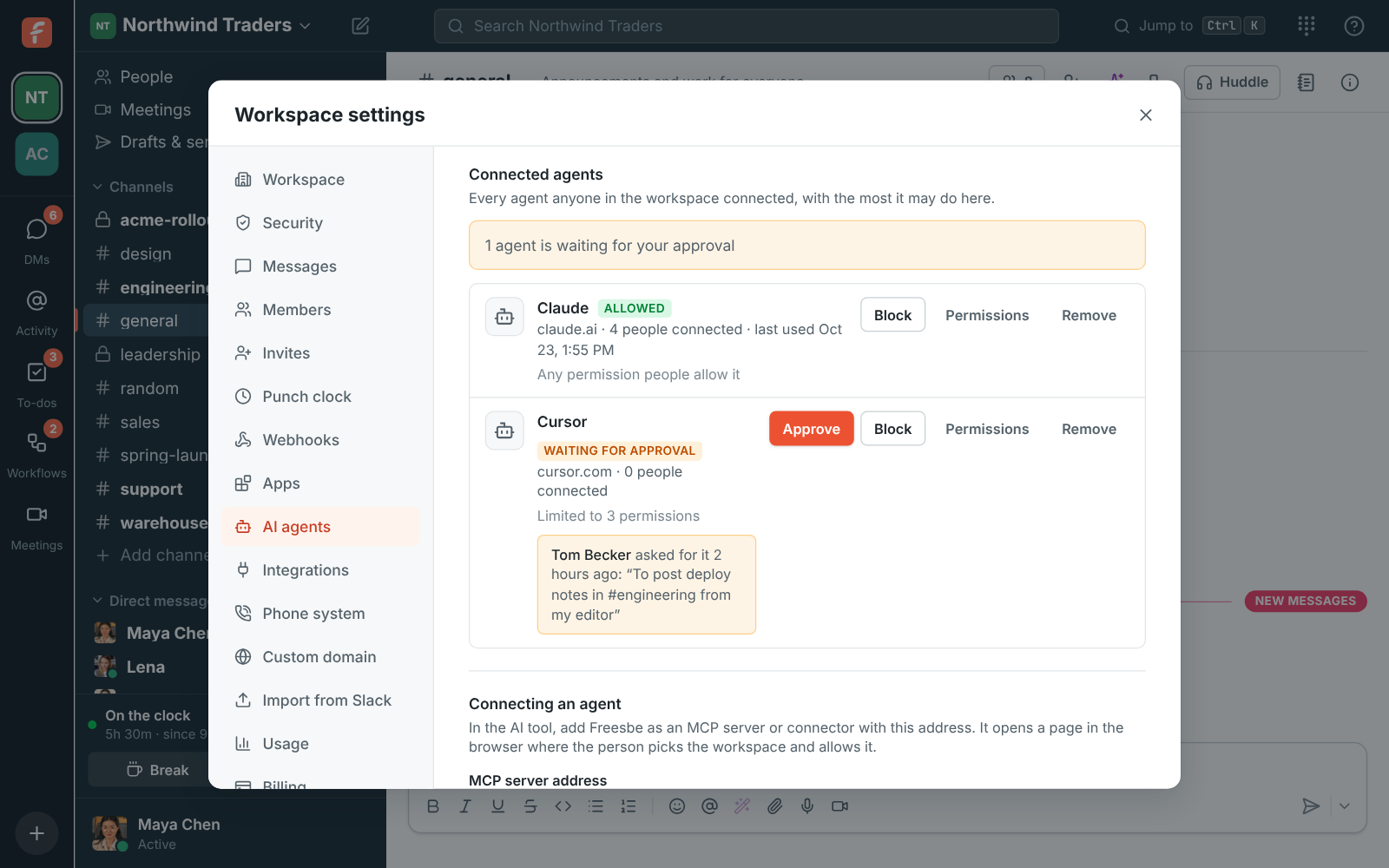
### Who can connect AI agents
- **Nobody**: agents can't connect to this workspace, and the ones already connected stop
working until you turn it back on.
- **Agents an admin approved**: the first person to connect a new agent asks you to approve it.
You see the request on this page, with their note. Once approved, anyone can connect that agent.
Admins' own connections are approved as they make them.
- **Anyone** (the default): anyone but guests can connect any agent. Each one shows up on this
page as soon as someone connects it, where you can limit or block it.
**Let agents read private channels and direct messages** is off by default. When it's on, an
agent can ask for those permissions, and still only reads the private conversations of the person
who connected it. Turning it off takes those permissions away from every connection at once.
### Each agent
Every agent anyone connected is listed with how many people connected it and when it last did
something:
- **Approve** or **Allow** lets it in; **Block** stops every connection to it at once, and nobody
can connect it until you allow it again.
- **Permissions** sets the most it may do in this workspace. People who connect it get what they
asked for, within that. Unticking a permission takes it away from everyone who already connected
the agent.
- **Remove** deletes the agent from the workspace and all its connections. Its messages stay, as
a removed member's do. If someone connects it again later, it comes back as a new agent, subject
to your approval setting.
### Activity
The bottom of the page shows what agents did, newest first: who connected or disconnected what,
approvals and blocks, and every tool call with whether it worked. It stays for 90 days.
## For developers
Freesbe's MCP server speaks the current [MCP specification](https://modelcontextprotocol.io/specification/latest)
over streamable HTTP, and uses OAuth 2.1 exactly as the specification's authorization section
describes, so a standard MCP client connects with no Freesbe-specific code.
| | |
| ----------------------------- | ---------------------------------------------------------------------- |
| MCP server | `POST https://api.freesbe.net/mcp` (JSON responses; no SSE stream yet) |
| Protected resource metadata | `https://api.freesbe.net/.well-known/oauth-protected-resource/mcp` |
| Authorization server | `https://id.freesbe.net` |
| Authorization server metadata | `https://id.freesbe.net/.well-known/oauth-authorization-server` |
| Authorize | `https://id.freesbe.net/authorize` |
| Token | `https://id.freesbe.net/token` |
| Registration | `https://id.freesbe.net/register` |
| Revocation | `https://id.freesbe.net/revoke` |
How a client identifies itself:
- **Client ID metadata documents** (preferred): use an `https` URL you control as the `client_id`.
It serves a JSON document with `client_id` (the same URL), `client_name`, `redirect_uris`, and
optionally `client_uri` and `logo_uri`. Freesbe fetches it when a person connects and shows the
name and logo on the connect page. `token_endpoint_auth_method` must be `none`.
- **Dynamic registration** (fallback): `POST /register` with `client_name` and `redirect_uris`
returns a `client_id`. Only public clients are registered.
Every client is a public client using PKCE (`S256`), and must send the `resource` parameter
(`https://api.freesbe.net/mcp`) on the authorize and token requests. Access tokens last an hour;
the refresh token works once and comes back renewed, for 30 days. A request without a valid token
gets `401` with a `WWW-Authenticate` header pointing at the resource metadata, as the
specification requires; a tool the connection lacks the scope for gets `403` with
`error="insufficient_scope"`.
Scopes are the permissions above, by their short names (`channels:read`, `channels:history`,
`groups:history`, `im:history`, `search:read`, `chat:write`, `im:write`, `reactions:write`,
`users:read`, `presence:read`, `calendar:read`, `meetings:read`, `meetings:write`,
`recordings:read`, `todos:read`, `todos:write`, `questions:write`, `phone:call`). Ask for what
you need; a client that asks for nothing gets everything but the two private ones and
`phone:call`, which places calls on your workspace's phone bill.
The settings pages' own endpoints are in the [API reference](https://freesbe.net/docs/api/#ref-ai-agents).
---
# API and webhooks
Source: https://freesbe.net/docs/api-and-webhooks/
> Post messages from other tools with incoming webhooks, get events with signed outgoing webhooks, and script Freesbe with the REST API.
There are three ways to connect Freesbe to other tools:
| You want to… | Use |
| ------------------------------------------------------- | ----------------------------------------- |
| Post alerts, deploys or form submissions into a channel | An [incoming webhook](#incoming-webhooks) |
| Run a bot that posts, reads and reacts in many channels | An [app](https://freesbe.net/docs/apps/) |
| Tell your own server when something happens in Freesbe | An [outgoing webhook](#outgoing-webhooks) |
| Read and write anything a person can | The [REST API](#the-rest-api) |
| Follow everything as it happens, DMs included | The [realtime WebSocket](#live-events) |
The [API reference](https://freesbe.net/docs/api/) lists every endpoint, grouped like the app: messages, channels and
DMs, people and invites, guests, meetings, booking links, calendar free/busy, the punch clock,
workspace settings, sign-in security and more. Each one says who may call it (anyone, members,
channel members or admins) and has an example request and answer.
## Incoming webhooks
An incoming webhook gives you a secret URL that posts into one channel. It accepts the same JSON
as Slack's incoming webhooks, so a Slack integration only needs the new URL.
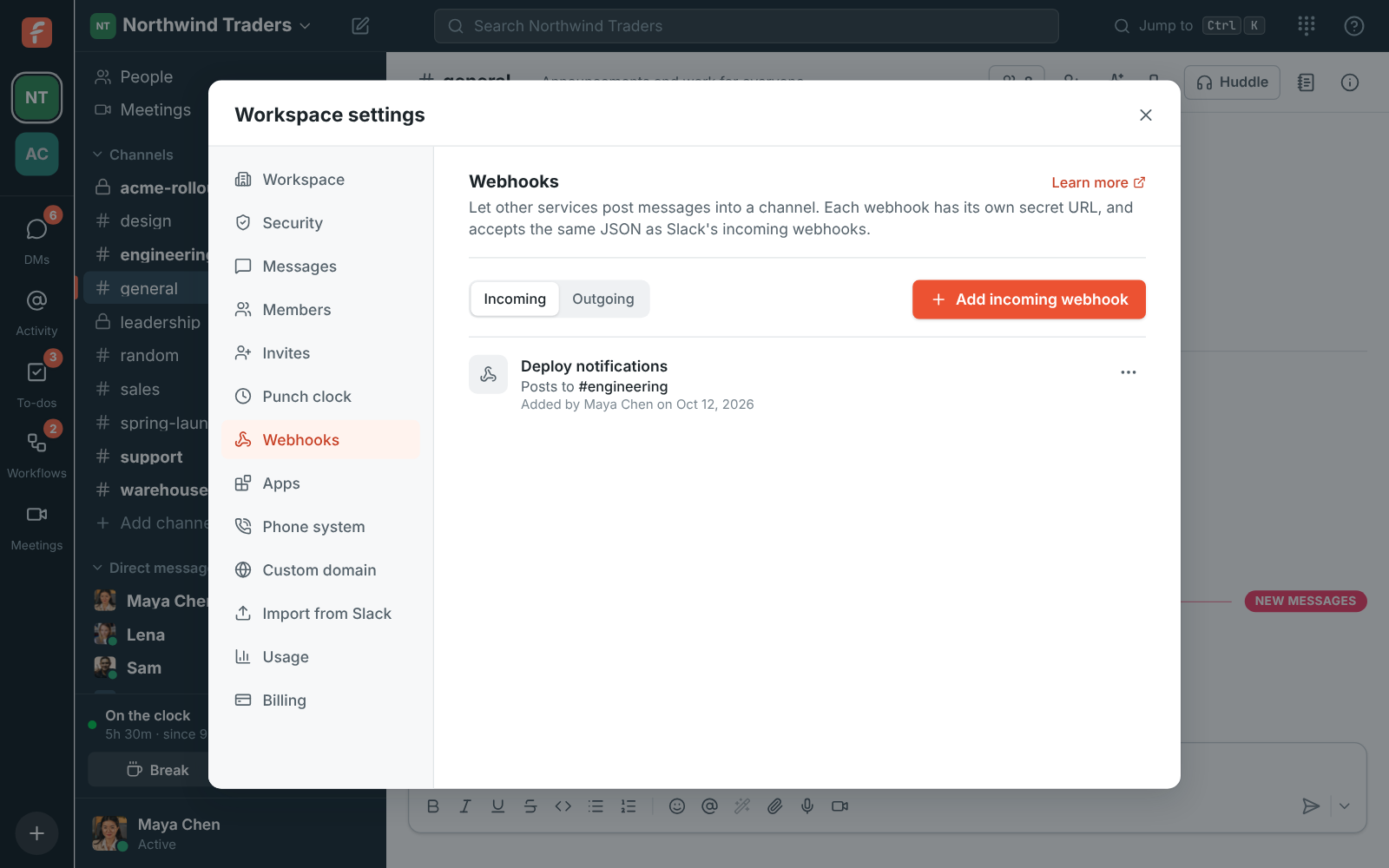
1. An admin opens **Workspace settings → Integrations & apps → Webhooks → Incoming** and clicks **Add incoming
webhook**.
2. Give it a name, such as "Deploy notifications", and pick the channel it posts to.
3. Copy the URL. It's shown once; if you lose it, use **Make a new URL**.
Then post to it:
```sh
curl -X POST -H 'Content-Type: application/json' \
-d '{"text": "Deploy finished :rocket:", "username": "CI"}' \
https://api.freesbe.net/hooks/custom//
```
Freesbe reads `text`, `blocks`, `attachments`, `username`, `icon_emoji` and `icon_url`, from a
JSON body or a form with a `payload` field, and answers `ok` like Slack. Messages show under the
webhook's name, or the `username` you send. Each of the `attachments` shows like it does in Slack:
its text, fields and pictures beside a bar in the attachment's `color`, with no box around it, so
alerts from monitoring tools stay easy to scan.
### Cards
`blocks` in Slack's Block Kit format show as a card: headers, sections with fields and a small
picture beside them, context lines, dividers, images and buttons that open a link. As in Slack,
`text` is what notifications and search use; leave it out and Freesbe writes it from the blocks.
Interactive elements without a link, such as menus or buttons that call back a Slack app, are
left out.
The same URL also takes the cards tools send to Microsoft Teams, so a tool set up for a Teams
channel can post to Freesbe instead: an Adaptive Card (on its own, or in the `attachments` of a
`"type": "message"` payload, as Teams' Workflows webhooks expect) or an older Office 365
connector `MessageCard`. Freesbe shows their text, facts, images and **Open URL** buttons.
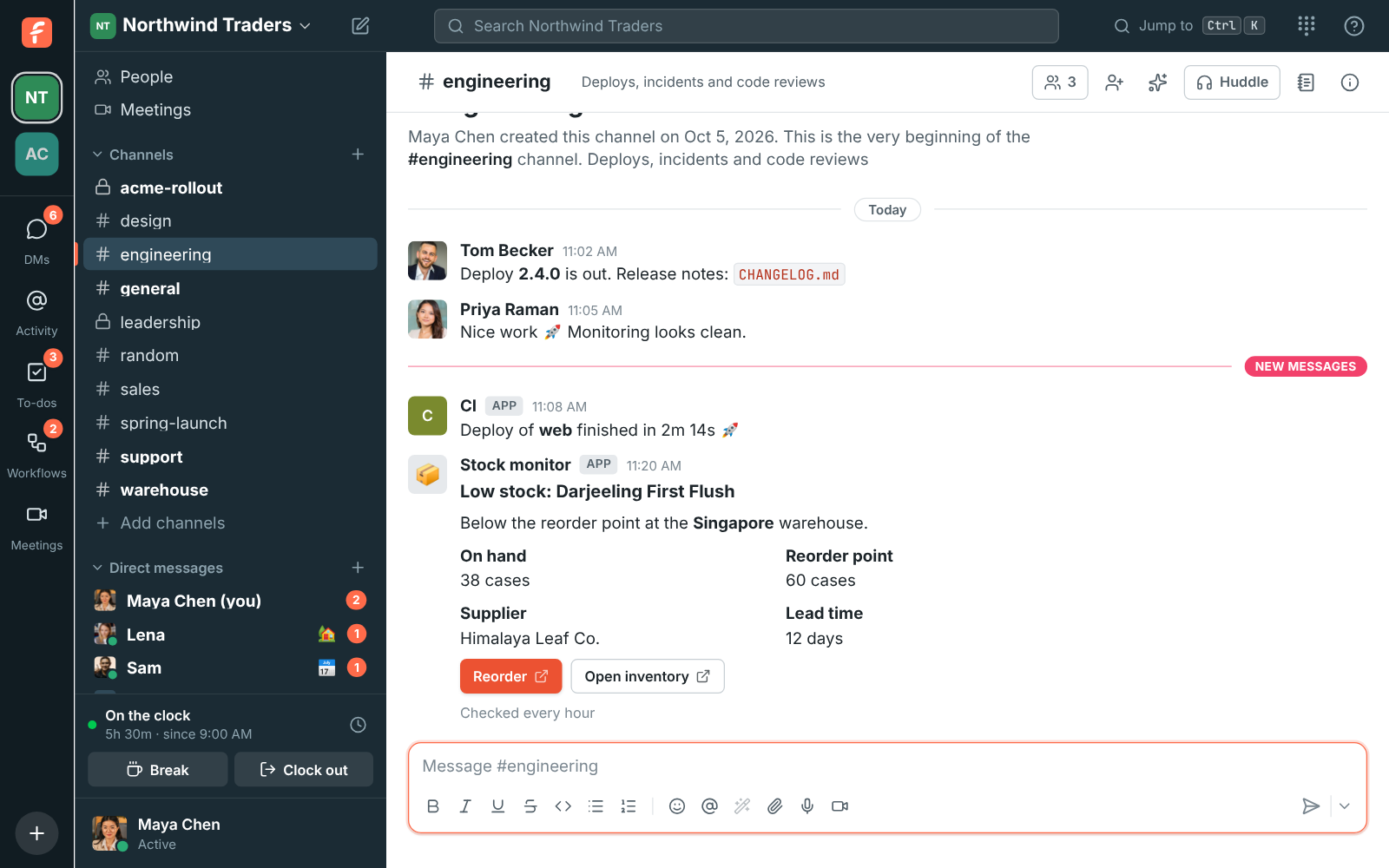
The URL holds the webhook's ID and a secret token, and nothing about your workspace. URLs made before October 2026, `https://api.freesbe.net/hooks/` or
`https://app.freesbe.net/hooks/`, keep working.
## Outgoing webhooks
An outgoing webhook sends a signed `POST` to your server for the events you choose.
1. An admin opens **Workspace settings → Integrations & apps → Webhooks → Outgoing** and clicks **Add outgoing
webhook**.
2. Enter a name and the **Payload URL**.
3. Leave **Channel** on **All public channels**, or pick one channel to only get its events.
4. Pick the events and click **Create webhook**. Copy the signing secret; it's shown once.
There are 30 events, in five groups:
- **Messages:** new, edited and deleted messages, files shared, and reactions added or removed.
- **Channels:** channels made, renamed, given a new topic, archived or unarchived, and people
joining or leaving them.
- **People:** someone joining the workspace, their profile or role changing, being deactivated,
and status changes.
- **Huddles and meetings:** huddles starting and ending and people joining or leaving them;
meetings scheduled, changed or canceled; a guest waiting to be let in; bookings through a
booking link; recordings and transcripts that are ready.
- **Punch clock:** someone clocking in or out.
Channel events come from public channels, or from the one channel you picked. The workspace's
own events (people, meetings, bookings and the punch clock) go to webhooks on **All public
channels**. **Send test** sends a `webhook.test` event. The [API reference](https://freesbe.net/docs/api/#outgoing)
lists each event's name and what it carries.
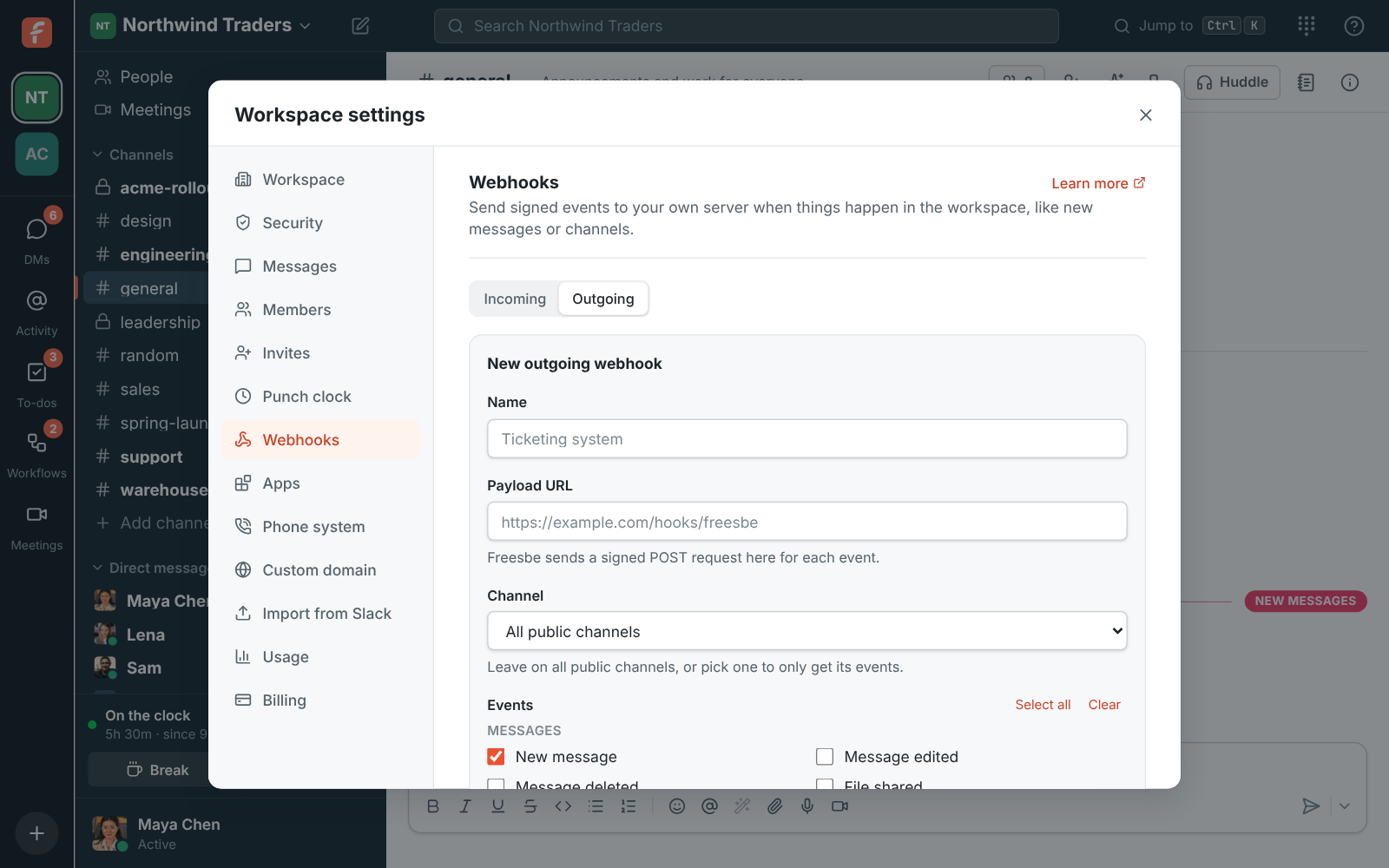
To get events in your own app instead, with Slack's event format, see
[Apps](https://freesbe.net/docs/apps/#get-events).
### Check the signature
Each request carries `Freesbe-Event`, `Freesbe-Delivery` and
`Freesbe-Signature: t=,v1=`. `v1` is the HMAC-SHA256 of `.` under
the webhook's secret. In Node.js:
```js
import { createHmac, timingSafeEqual } from "node:crypto";
function verify(secret, header, rawBody) {
const { t, v1 } = Object.fromEntries(header.split(",").map((part) => part.split("=")));
const expected = createHmac("sha256", secret).update(`${t}.${rawBody}`).digest("hex");
const fresh = Math.abs(Date.now() / 1000 - Number(t)) < 300;
return (
fresh &&
v1?.length === expected.length &&
timingSafeEqual(Buffer.from(v1), Buffer.from(expected))
);
}
```
### Retries
A delivery that fails, or gets a 5xx, 408 or 429 answer, is retried 8 more times, from 30 seconds
up to 8 hours apart. Any other 4xx stops it. **Deliveries** on the webhook's card shows the last 14
days of attempts.
## The REST API
The API lives at `https://api.freesbe.net`. It takes and returns JSON, and every request carries a
bearer token.
### Get a token
For an integration, [make an app](https://freesbe.net/docs/apps/): its bot token posts as the app, only does what
its scopes allow, doesn't expire and isn't held to single sign-on or MFA. Send it as
`Authorization: Bearer fsb-bot-…`.
A script can also act as a person. Sign in with their account:
```sh
curl -X POST https://api.freesbe.net/api/auth/login \
-H 'Content-Type: application/json' \
-d '{"email": "bot@example.com", "password": "…", "wantToken": true}'
```
The answer includes a `token`. Send it as `Authorization: Bearer `. It lasts 30 days from
the last time it was used, so a script that runs at least monthly stays signed in. Signing out
with `POST /api/auth/logout`, or changing the account's password, ends it.
If the workspace requires [single sign-on](https://freesbe.net/docs/single-sign-on/), password tokens can't use it.
If it requires [multi-factor authentication](https://freesbe.net/docs/multi-factor-authentication/), set up an
authenticator app for the script's account, and after signing in send a code from it:
```sh
curl -X POST https://api.freesbe.net/api/me/mfa/totp \
-H "Authorization: Bearer $FREESBE_TOKEN" \
-H 'Content-Type: application/json' \
-d '{"code": "123456"}'
```
Until then, workspace requests answer 403 `mfa_required`. When the workspace asks again after a
while, do the same.
### Post a message
```sh
curl -X POST https://api.freesbe.net/api/channels/$CHANNEL/messages \
-H "Authorization: Bearer $FREESBE_TOKEN" \
-H 'Content-Type: application/json' \
-d '{"body": "Release *2.4* is out :tada:"}'
```
Message text uses Slack-style formatting: `*bold*`, `_italic_`, `` `code` ``,
`` and `:emoji:` shortcodes. Freesbe also shows `__underline__`, and
lines starting with `• ` or `- ` (bullets) or `1. ` (numbers) as lists, nested four spaces per
level. Slack shows those as the plain text they are, so the same message reads well in both. Add `threadRootId` to reply in a thread.
Find workspace and channel IDs with `GET /api/workspaces` and
`GET /api/workspaces/{w}/channels`, or copy the workspace ID from **Workspace settings →
Workspace → Details**.
### What a script can do
Anything the account could do in the app. A member account can post, edit and delete its own
messages, reply in threads, react, upload files, open DMs, create and join channels, set its
status, search and schedule meetings. An admin account can also invite people, change roles,
deactivate people, change workspace settings and manage webhooks. A few things need the app
itself, such as adding a passkey or joining a call; the reference marks them **App only** and
lists [what isn't in the API yet](https://freesbe.net/docs/api/#gaps).
### Live events
To react to messages in DMs and private channels, presence, statuses or huddles, open the
workspace's WebSocket at `wss://api.freesbe.net/api/workspaces/{w}/rt` with the same bearer token.
See [Realtime events](https://freesbe.net/docs/api/#realtime) for the frames and the full list of events.
### From a browser
`api.freesbe.net` only accepts bearer tokens, never the app's sign-in cookie, so any website can
call it (CORS is open). Keep tokens on a server if the page is public.
### Errors
Errors come back as `{ "error": { "code": "forbidden", "message": "Only admins can do that" } }`
with a matching HTTP status. See [Errors and limits](https://freesbe.net/docs/api/#errors) in the reference.
---
# Getting help
Source: https://freesbe.net/docs/getting-help/
> Find the right guide from inside Freesbe, look up keyboard shortcuts, see what's new and contact support.
Help is one click away wherever you are in Freesbe. You don't need to leave the app to find
the guide for the screen in front of you.
## The Help menu
Click **?** at the right end of the top bar.
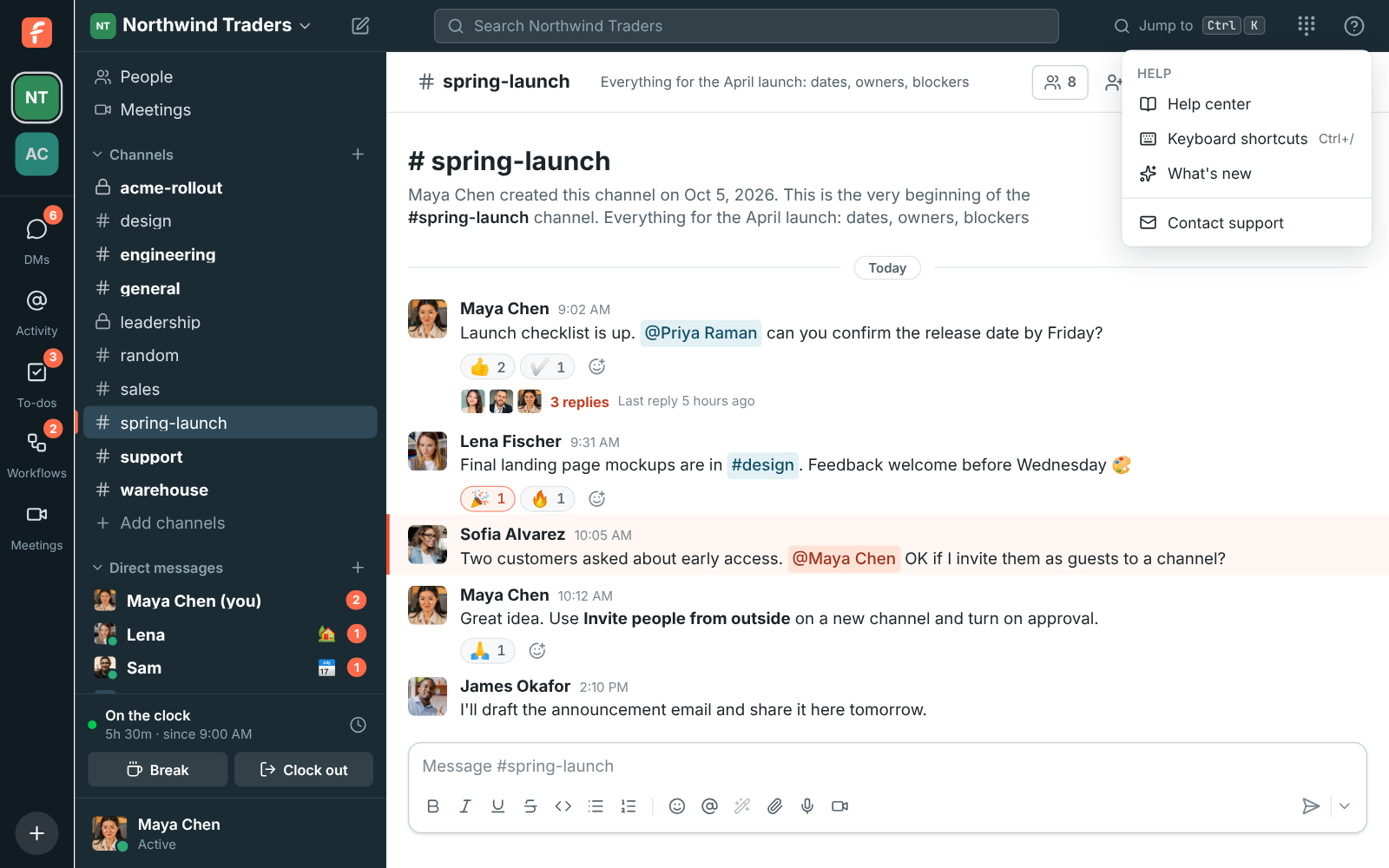
- **Help center** opens these guides.
- **Keyboard shortcuts** lists every shortcut. You can also press Ctrl+/
(⌘+/ on a Mac) from anywhere.
- **What's new** shows the latest changes, right in the app. See
[What's new after an update](#whats-new-after-an-update).
- **Freesbe status** opens [freesbe.net/status](https://freesbe.net/status/): whether everything is working right
now, the last 90 days, and anything our team is fixing or has planned. See
[Freesbe isn't loading or something stopped working](https://freesbe.net/knowledge/freesbe-isnt-working/).
- **Contact support** starts an email to [support@freesbe.net](mailto:support@freesbe.net).
**Help center** and **What's new** are also in your account menu at the bottom of the sidebar,
next to **Preferences**.
## What's new after an update
Freesbe updates itself. The first time you open it after an update, on the web, in the desktop
app or on your phone, a **What's new in Freesbe** card lists the changes you haven't seen yet,
newest first, each with a picture or a short animation and a **Learn more** link to the details.
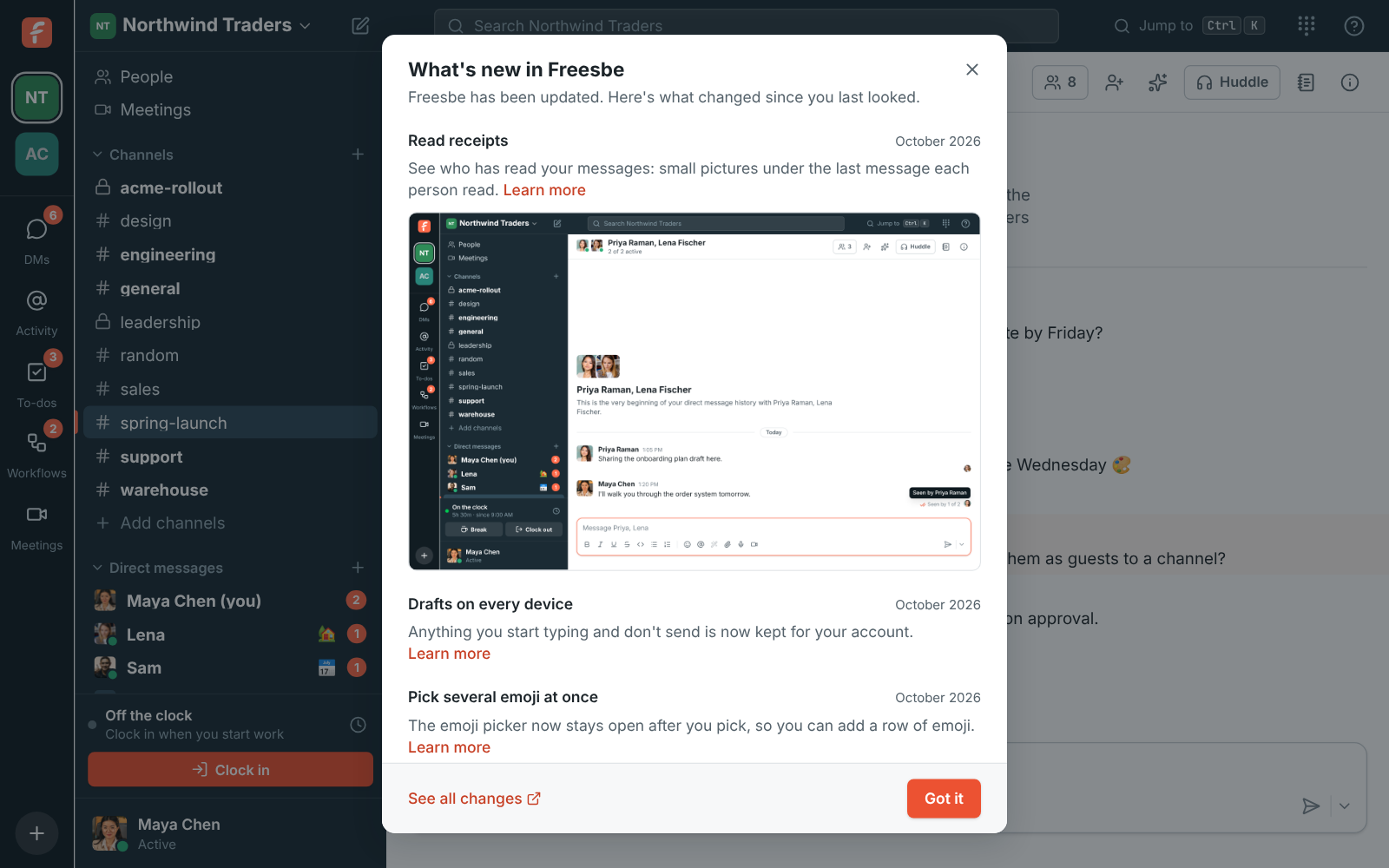
Click **Got it** to put it away until the next update, or **See all changes** for the full list
on the [What's new](https://freesbe.net/docs/whats-new/) page. To see the latest changes again later, choose
**What's new** in the **?** menu or in your account menu at the bottom of the sidebar. Each computer and phone remembers what it showed you,
so a change you saw on your computer shows once on your phone too. The very first time you use
Freesbe on a device there's no card: everything is new then.
On your phone, the card slides up from the bottom, and **You → What's new** opens it any time.
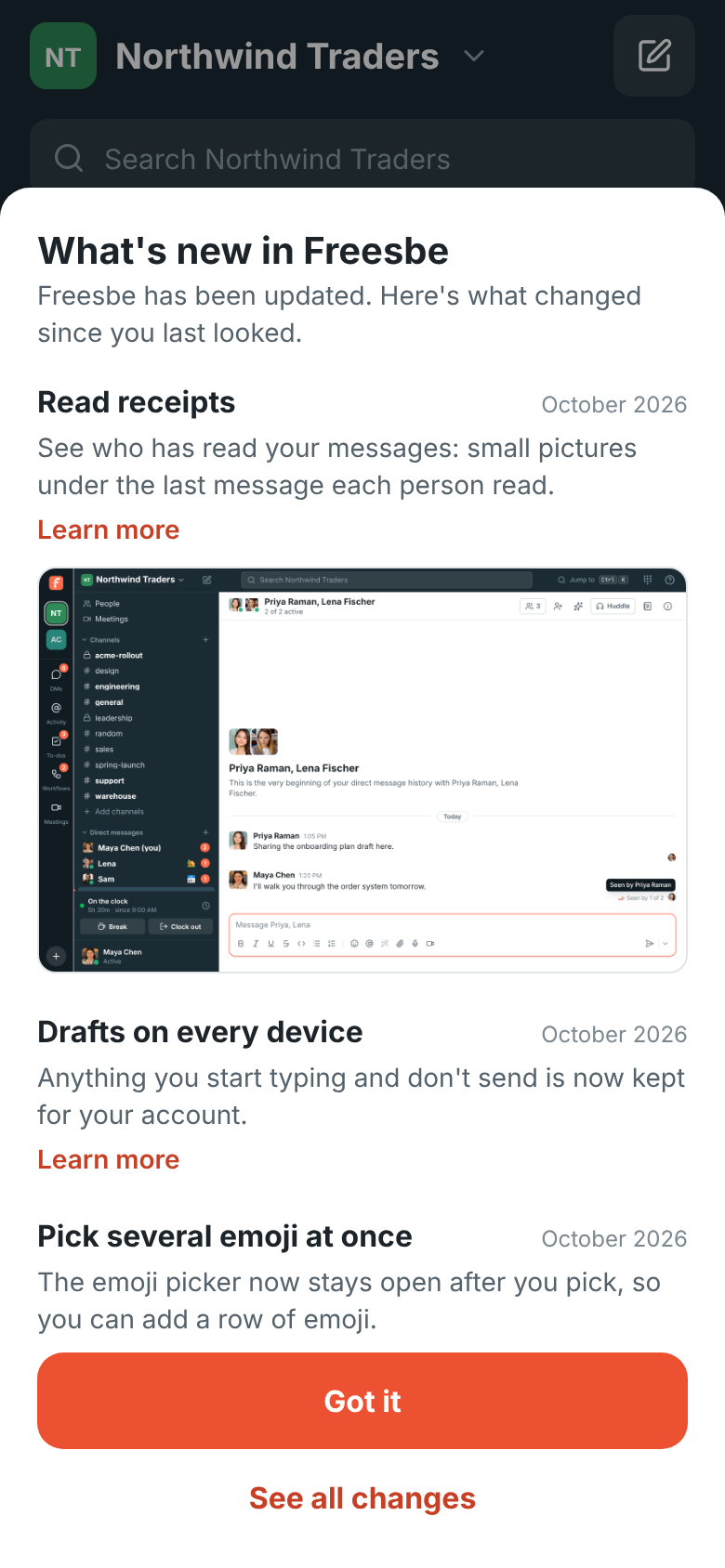
To follow the changes without opening Freesbe, add the [RSS feed](https://freesbe.net/docs/whats-new.xml) to a feed
reader, or to a channel with any app that posts RSS feeds.
## Learn more links
Settings and dialogs have a **Learn more** link that opens the guide for that screen, at the
right section. You'll find them on every page of **Preferences** and **Workspace settings**,
next to single sign-on, multi-factor authentication and recordings, on the **Meetings**
page and when you schedule a meeting, and in the dialogs for adding people to a channel and
inviting guests.
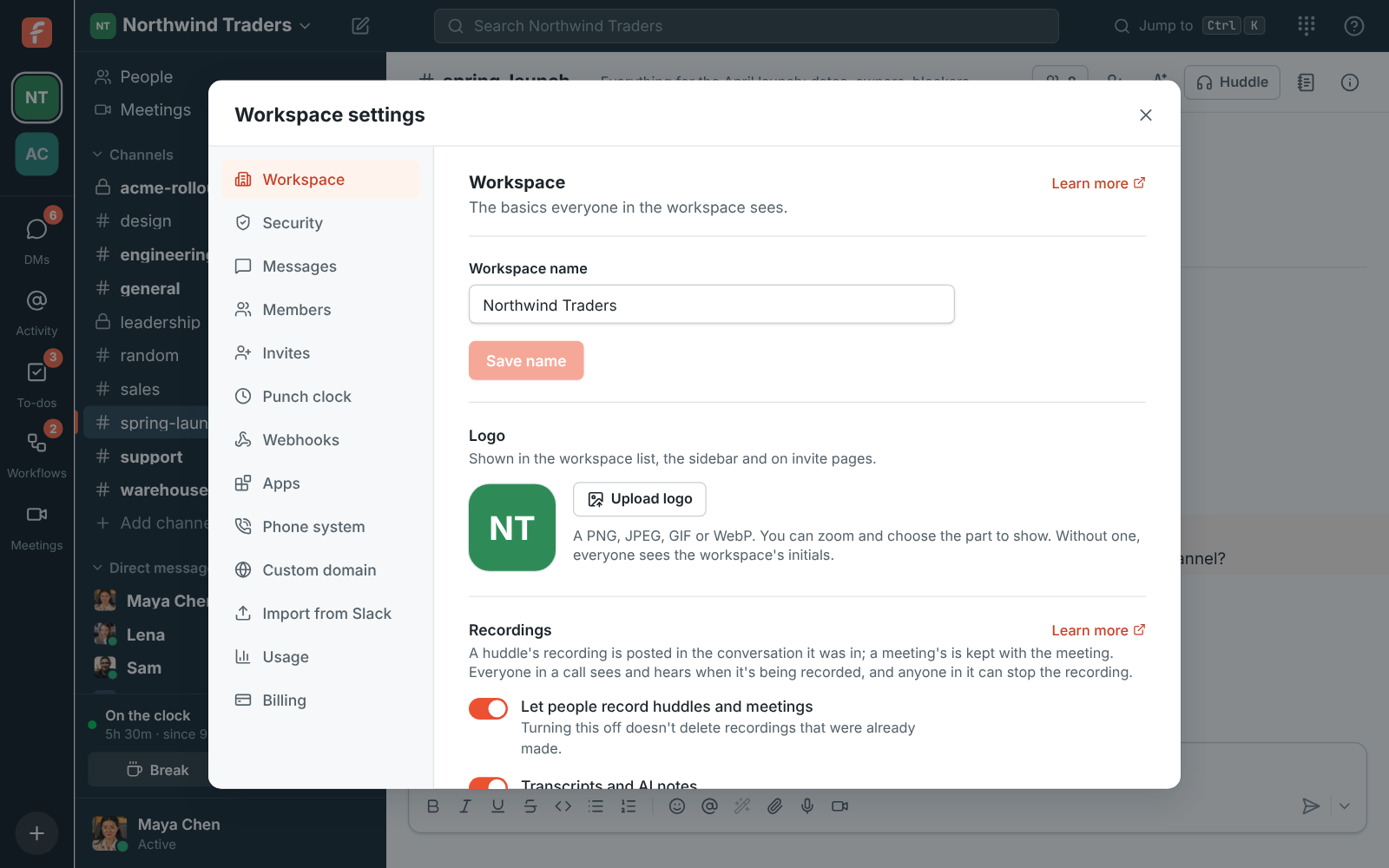
If your microphone stops working during a huddle, the warning in the huddle card has a
**Troubleshoot** link to [the fixes for sound problems](https://freesbe.net/docs/huddles/#if-you-cant-hear-or-be-heard).
## Keyboard shortcuts

The full list is also in [Search and shortcuts](https://freesbe.net/docs/search-and-shortcuts/#keyboard-shortcuts).
## In the desktop app
Help links open in your usual web browser, not inside Freesbe, so you can read a guide next to
the app. **Contact support** opens your mail app and also copies support@freesbe.net, in case
your computer doesn't have a mail app set up.
## When we look into a problem you reported
Sometimes our support team needs to see a problem the way you see it. We never try things out
in your workspace. Instead we make a copy of it on a separate test system, which only Freesbe
staff can open, and work on that:
- **Masked by default.** Names, messages, file names and file contents in the copy are replaced
with made-up look-alikes, so we see how your workspace is set up and behaves, not what's in
it. We copy your real content only if you agree to it for that problem.
- **It can't reach you.** Nothing in the copy can send email, call your webhooks or connected
apps, post to your channels, or contact your customers. Integrations, apps, phone numbers and
billing aren't copied at all.
- **It stays in your data region.** A copy of a workspace in the EU stays in the EU, and one in
the US stays in the US. See [Data residency](https://freesbe.net/docs/data-residency/).
- **It's deleted after 14 days**, or sooner once the problem is solved. Every copy is logged
with who made it and why.
## Ask the docs
On any guide or [knowledge base](https://freesbe.net/knowledge/) article, click **Ask the docs** at the bottom right
and type your question in plain words. The answer comes from the guides and the knowledge base,
with links to the sections it used, so you can read more or check the details. If the guides don't cover it, you'll see **Contact support** instead.
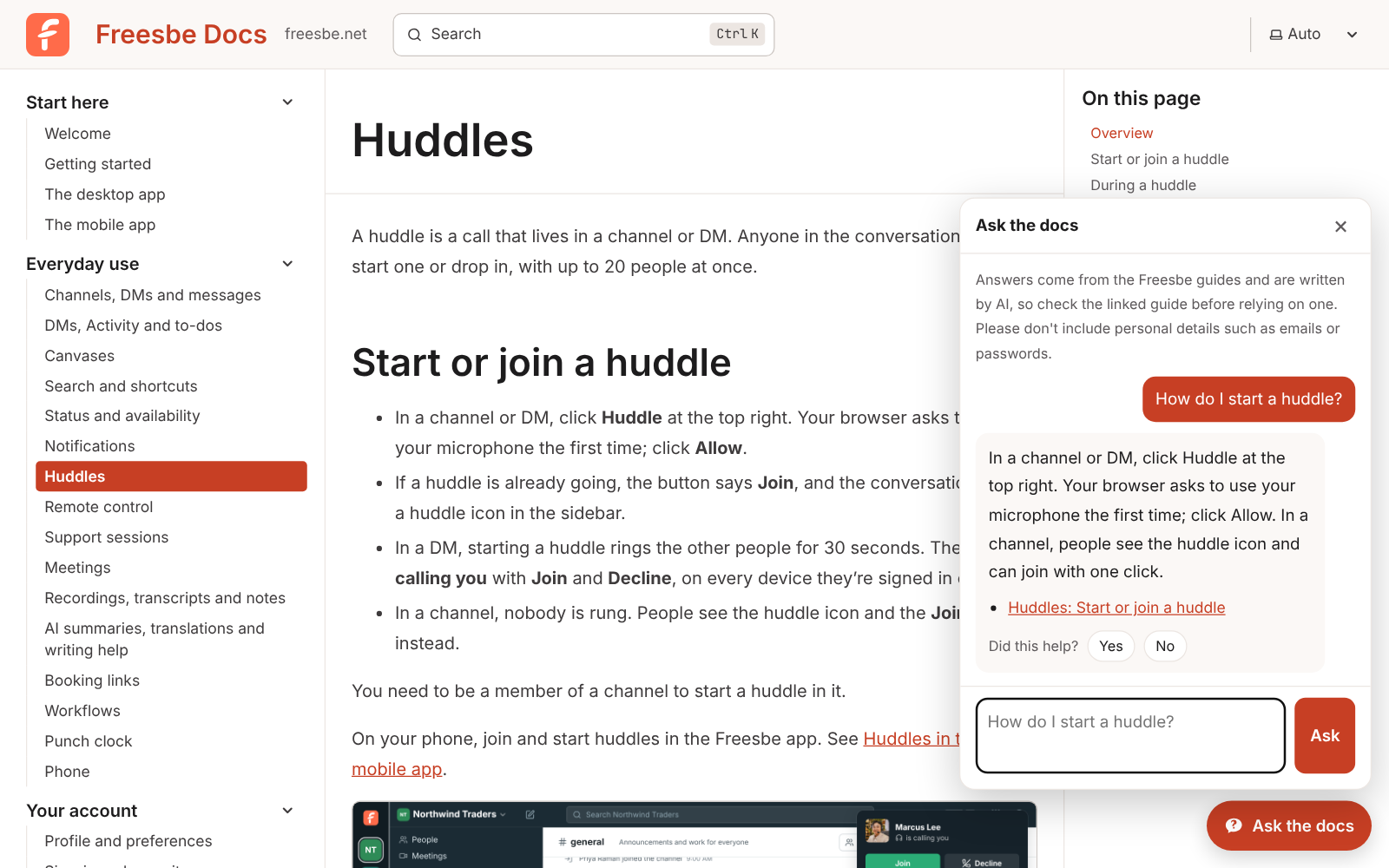
Answers are written by AI, so check the linked guide before relying on one, and don't include
personal details such as emails or passwords. Click **Yes** or **No** under an answer to tell us
whether it helped. If you don't see the button, the assistant is taking a break; search the
guides with Ctrl+K instead.
## Ask your own AI assistant
These guides are also published as plain text for AI assistants such as ChatGPT, Claude or
Perplexity. Give yours [freesbe.net/llms.txt](https://freesbe.net/llms.txt), a short map of every guide, or
[freesbe.net/llms-full.txt](https://freesbe.net/llms-full.txt), the full text of all of them, and ask it anything
about Freesbe.
## Still stuck?
Search the [knowledge base](https://freesbe.net/knowledge/) first: it has an article for each common problem. Your workspace admins can help with
settings, invites and access. For anything else, email
[support@freesbe.net](mailto:support@freesbe.net) and tell us what you were doing and what you
saw. A screenshot helps.
---
# What's new
Source: https://freesbe.net/docs/whats-new/
> The latest changes to Freesbe, newest first.
The newest changes are at the top. After an update, Freesbe shows you the changes you haven't
seen yet, and you can open them any time from **? → What's new** in the app (**You → What's
new** on your phone). To follow along without opening Freesbe, subscribe to the
[RSS feed](https://freesbe.net/docs/whats-new.xml) in any feed reader. [freesbe.net/changelog](https://freesbe.net/changelog) brings
you here too.
## October 2026
### Admin Center: a call log of every call
- **Phone → Call log** in the Admin Center lists every call on your phone system: in, out and
between colleagues, with who called, who it rang, who answered, how long they talked, and missed
calls in red. See [Call log](https://freesbe.net/docs/phone/#call-log).
- Search for any number or name, pick dates on a calendar, and narrow to calls in,
out or between colleagues, answered or missed, longer calls, or certain people. **Download CSV**
saves the calls you see.
- Recorded calls have a play button: listen right under the call, at up to 2× speed, and open the
transcript with a summary, the caller's mood, key points and next steps.

### Missed calls, ringing and cancelling a transfer
- The phone's **Recent** tab has **All** and **Missed**, to see only the calls you missed. See
[Your calls](https://freesbe.net/docs/phone/#your-calls).
- Calling out, the phone says **Ringing…** once their phone rings, instead of **Calling…** the
whole time.
- Passing a call on, **Cancel** stops the transfer while their phone rings and keeps the caller
with you. A 3-way call after **Talk first** lists both people on it. See
[Passing a call on](https://freesbe.net/docs/phone/#passing-a-call-on).

### Make a shared screen bigger
- A shared screen now fills the call, with people in a narrow column beside it. **Layout** at the
top moves them into a row under it, or hides them with **Screen only**: whoever is talking stays
small in a corner. **People size** makes the tiles smaller, and F goes full screen.
- When two people share at once, each screen gets a tab above it to switch between them, and
**Show both** puts them side by side. The same works in a huddle made bigger. See
[Make the shared screen bigger](https://freesbe.net/docs/meetings/#make-the-shared-screen-bigger).

### Reports: call center
- **Reports → Call center** in the Admin Center shows how your call queues did over any dates you
pick: calls, answered and missed, service level, waits and talk time, per queue and per day or
week. It comes with the **Call center** add-on. See [Reports](https://freesbe.net/docs/reports/#call-center).
- Switch to **People** for each person's answered and missed calls, talk time, breaks (with breaks
past their time limit marked), time signed in and how busy they were, with break time added up
by reason.
- Filter by queues and people, and **Download CSV** saves what the table shows.

### See who's asking to join
- When an admin approves each person who joins by email domain, the email and the request under
**Waiting for approval** now show who is asking: when and how they signed up, the city and
country they asked from (flagged when it's new for your team), their browser or app and device,
and whether they passed Freesbe's sign-up checks. The IP address is in Freesbe only, never in
the email. See [Approve people](https://freesbe.net/docs/workspaces-and-invites/#approve-people).

### Reports: hours worked
- The Admin Center has a new **Reports** section under **People**, starting with **Hours**: hours
worked from the punch clock, with overtime, breaks, the average day and shifts edited after the
fact. See [Reports](https://freesbe.net/docs/reports/).
- Pick the dates (this week, last week, this month, last month or your own), everyone or a few
people, and group the table by person, day or week. **Overtime only** shows just the people and
days that went over.
- **Download CSV** saves exactly what the table shows, with decimal hours ready for payroll.

### Locked settings say which plan they need
- A setting your plan doesn't include no longer just sits there greyed out. It now says which plan
it needs, like **Requires the Corporate plan**, and the plan's name takes admins straight to
**Billing → Plans** to upgrade. This covers file types, profile fields, remote control, data
export, the custom domain, Salesforce and WhatsApp. See [Plans](https://freesbe.net/docs/plans/).

### Undock a meeting into its own window
- **Undock** at the top of a meeting moves it to a window of its own, so you can watch it beside
Freesbe or on another screen while you keep working in your channels. **Dock** brings it back.
- **Minimize** and **Maximize** now do just that: Minimize shrinks the meeting to a card in the
corner, and Maximize on the card brings back the full meeting, as it was. In the desktop app,
undocking needs version 0.1.12. See
[Undock the meeting into its own window](https://freesbe.net/docs/meetings/#undock-the-meeting-into-its-own-window).

### A live Call center board
- With the **Call center** add-on, admins and the supervisors they pick get a **Call center** page:
callers waiting and for how long, each queue's numbers for today, and who's taking calls, on a
call or on a break. A break past its time limit turns red.
- **Nudge** sends someone a direct message from you or from the Call center bot, and **Wall
mode** puts the board on a TV in large type. See [Call center board](https://freesbe.net/docs/phone/#call-center-board).

### Uptime Kuma and UptimeRobot alerts in a channel
- Admins can connect **Uptime Kuma** and **UptimeRobot** in **Workspace settings → Integrations →
Monitoring**. Each monitor that goes down then posts into the channel you pick as one card with
what it checks and why, and turns green when it's back up. See [Uptime Kuma](https://freesbe.net/docs/uptime-kuma/)
and [UptimeRobot](https://freesbe.net/docs/uptimerobot/).

## Earlier
### Freesbe meetings in Google Calendar
- The new Freesbe add-on for Google Calendar puts **Freesbe meeting** next to Google Meet in an
event's video conferencing menu. The event gets a **Join with Freesbe** button, and the meeting
shows up in Freesbe marked **From Google Calendar**. Change the event and the meeting follows.
- Google Workspace admins can make it everyone's default by turning off Google Meet. Install it
from the files in the Admin Center, under **Integrations → Calendar**, while its Marketplace
listing is on its way. See [Freesbe meetings in Google Calendar](https://freesbe.net/docs/google-calendar/).

### Android notifications: one per conversation
- On Android, each conversation now has one notification that shows its newest messages and how
many came, instead of one per message. It rings once for a burst, and stays quiet for messages
that arrive late after your phone was offline.
- Read a conversation on your computer and its notification on your phone goes away. See
[Notifications](https://freesbe.net/docs/mobile-app/#notifications).

### Cleaner edges around you on camera
- Behind a blur or a picture, a second AI model now looks at the whole frame a few times a second
and puts back into the room what the first one took for part of you: the chair, shelf, plant or
window right behind your head or shoulder. Your hair, hands and headset stay in.
- It works in Chrome, Edge, Safari and Firefox on computers with WebGPU (most from the last few
years); the first time, it downloads about 20 MB, kept for next time. The Mac app uses the Mac's
own person detection instead, from its next update. See [Video](https://freesbe.net/docs/profile-and-preferences/#video).

### New Relic issues in a channel
- Admins can connect **New Relic** in **Workspace settings → Integrations → Monitoring**. Each
alert issue from a workflow then posts into the channel you pick as one card with its priority,
entities and condition, and turns green when it closes.
- With a user key, **Acknowledge** and **Resolve** on the card change the issue in New Relic. See
[New Relic](https://freesbe.net/docs/new-relic/).

### Transfer calls, talk first, or make it a 3-way call
- **Transfer** during a call now finds colleagues by name, extensions, call queues and numbers.
Pass the call on as soon as they answer, or **Talk first** while the caller waits on hold, then
**Complete**, **Merge** everyone into a 3-way call, or **Go back** to the caller. See
[Passing a call on](https://freesbe.net/docs/phone/#passing-a-call-on).
- **Add call** puts a call on hold and calls someone else. Click the call on hold to switch, then
**Transfer** to connect the two, or **Merge** them into a 3-way call. See
[Two calls at once](https://freesbe.net/docs/phone/#two-calls-at-once).
- The phone has two new tabs: **People**, your colleagues with their extensions, and
**Voicemail**, to play your voicemails, call back and delete them. See
[Your colleagues](https://freesbe.net/docs/phone/#your-colleagues) and [Voicemail](https://freesbe.net/docs/phone/#voicemail).

### Better Stack incidents in a channel
- Admins can connect **Better Stack** in **Workspace settings → Integrations → Monitoring**. Each
uptime incident then posts into the channel you pick as one card with the monitor, what it
checks and why it failed, and turns green when the monitor is back up.
- With an API token, **Acknowledge** and **Resolve** on the card change the incident in Better
Stack. See [Better Stack](https://freesbe.net/docs/better-stack/).

### Sentry issues in a channel
- Admins can connect **Sentry** in **Workspace settings → Integrations → Monitoring**. Each issue
then posts into the channel you pick as one card with its level, project and where it happened,
and turns green when it's resolved. Issue and metric alerts post too.
- With the integration's token, **Resolve** and **Archive for 1 hour** on the card change the issue
in Sentry. See [Sentry](https://freesbe.net/docs/sentry/).

### Draw on a shared screen
- While someone shares their screen in a meeting or huddle, anyone in the call, guests included,
can click the pencil and draw over it to point something out. Lines fade away about 2 seconds
after you let go.
- Everyone draws in their own colour, with their name next to the line, and keeps it for the whole
call. Several people can draw at once, and the person sharing sees the lines too.
- Hosts can turn drawing off for everyone for the rest of the call, and back on. See
[Draw on a shared screen](https://freesbe.net/docs/meetings/#draw-on-a-shared-screen).

### Crypto wallets in a channel
- Admins can watch the company's wallets in **Workspace settings → Integrations → Finance →
Crypto wallets**, with just the public address: Bitcoin, Ethereum, Base, Arbitrum, Optimism,
Polygon, BNB Chain, Avalanche, Solana and Tron. Money in and out posts into the channel you pick,
with its dollar value and a button to the transaction.
- USDC and USDT count as dollars, spam tokens stay out, and money moved between your own wallets
shows their names. Add **balance alerts** and a **daily summary** of every wallet. See
[Crypto wallets](https://freesbe.net/docs/crypto-wallets/).

### Datadog alerts in a channel
- Admins can connect **Datadog** in **Workspace settings → Integrations → Monitoring**. Each
monitor alert then posts into the channel you pick as one card with its severity, host, message
and tags, and turns green when the monitor recovers.
- With an API key and an application key, **Mute for 1 hour** on the card mutes the monitor for
the host that alerted. See [Datadog](https://freesbe.net/docs/datadog/).

### Freesbe meetings in Outlook
- With the new Outlook add-in, **Freesbe meeting** sits where Teams usually does when you create an
event, in Outlook on the web, Windows, Mac, iPhone and Android. Turn it on and Outlook puts the
Freesbe link in the invitation; the meeting shows up in Freesbe marked **From Outlook**.
- Make it your default in Outlook's settings, and every new event gets a Freesbe meeting. Admins add
the add-in for everyone from the Microsoft 365 admin center, with the link in the Admin Center
under **Integrations → Calendar**. See [Freesbe meetings in Outlook](https://freesbe.net/docs/outlook/).

### Come back to a meeting's link for 30 days
- A meeting's link now keeps working until 30 days after its last call, like Zoom and Teams.
Opening it again, or **Join** on the meeting under **Recent**, starts a new call of the same
meeting.
- **Recent** lists each call under the meeting: when it was, who was in it, and its
**Recording**. See [Joining](https://freesbe.net/docs/meetings/#joining).

### WhatsApp templates, photos and files
- Reach a WhatsApp customer after the 24 hours, or write to someone first: **Send a template** on
the bar over the box, or **Message on WhatsApp** on the Inbox page, sends one of your approved
templates with its blanks filled in.
- Admins can make templates under **Phone → Messaging** and send them to Meta for review, and see
which ones are approved.
- Photos, videos, voice messages and files customers send now show in the thread, and the ones you
attach to a reply go to the customer on WhatsApp. See
[WhatsApp](https://freesbe.net/docs/customer-inbox/#whatsapp).
- WhatsApp comes with the Business plan and up.

### The phone stays open while you work
- The phone in the top bar is now a panel you can keep open: **pin it to the side** of Freesbe, or
**pop it out** into a small window that stays on top of your other apps. Make that window short
during a call and it shrinks to one line with mute, hold and hang up. See
[Keep the phone open](https://freesbe.net/docs/phone/#keep-the-phone-open).
- During a call the phone becomes the call, and the top bar shows who you're talking to and for
how long. Your calls moved to a **Recent** tab next to the **Keypad**. See
[Calls in Freesbe](https://freesbe.net/docs/phone/#calls-in-freesbe).

### Never miss a call
- When someone calls you in a DM and you don't pick up, the DM now shows a red **Missed huddle
from …** card with **Call back**. It makes the DM unread and counts on your badge, like a
mention, and the caller sees **You called … · no answer** with **Call again**.
- A **Missed huddle** notification stays until you deal with it, with **Call back** and
**Message** in Chrome and Edge. On Android, the ringing notification turns into a missed one with
the same buttons.
- **Activity → Calls** lists the huddles in your DMs, missed, taken and made, with your phone
system calls if you have them. See [Missed calls](https://freesbe.net/docs/huddles/#missed-calls).

### Lists stay lists when you paste them
- Bulleted and numbered lists you copy from Word, Google Docs, Outlook, Notion, Slack or a web
page now paste into the message box as lists, nested items included, instead of plain lines.
See [Lists](https://freesbe.net/docs/channels-and-messages/#lists).
- It works in threads, when you edit a message, in to-do notes, in the desktop app and on your
phone.

### Take a break from queue calls in two clicks
- People in a call queue now see their status in the top bar: **Taking calls**, a break, or
**Signed out**. Click it and pick a reason, like Lunch, and queue calls stop until you click
**I'm back**. Calls to your own number still ring. See [Queue calls](https://freesbe.net/docs/phone/#queue-calls).
- Admins add break reasons with an optional time limit under **Phone → Call queues** in the Admin
Center. When a break runs over, Freesbe tells the person and their pill turns red. See
[Breaks](https://freesbe.net/docs/phone/#breaks). Part of the Call center add-on.

### Change your background during a call, with sharper edges
- **Backgrounds and effects** is now a button in a meeting's controls, on your own tile and in the
huddle video's header. Turn a blur off or pick another picture without leaving the call. See
[In the call](https://freesbe.net/docs/meetings/#in-the-call).
- Backgrounds run on your graphics card on every frame, and their edges follow your hair and
shoulders closely, so a window behind you no longer shows through and the outline keeps up when
you move. See [Video](https://freesbe.net/docs/profile-and-preferences/#video).

### Bring in your Google or Microsoft photo
- Signed in with Google or Microsoft? **Preferences → My account → Profile** now has **Import from
Google** (or **Import from Microsoft**) next to **Take photo** and **Use phone**, and clicking
your picture uploads a new one. It opens that account's photo in the crop step, even if you use
another picture now. If Freesbe doesn't have the photo yet, it goes through Google or Microsoft
for it and comes straight back, and if that account still sends none, it says why.
- Signing in with Google picks up your photo more reliably when you don't have a picture yet. See
[Your profile picture](https://freesbe.net/docs/profile-and-preferences/#your-profile-picture).

### Hear when someone joins a call
- Huddles and meetings now play a soft chime for everyone else when someone joins, member or
guest, and a quieter one when someone leaves, so you know who just arrived without looking.
- It's quiet for your own comings and goings and in calls of more than 8 people, and a few people
joining together make one chime. Turn it off in **Preferences → Calls & audio → Audio → In
calls**, or on Android with **You → Join and leave sounds**. See
[Audio](https://freesbe.net/docs/profile-and-preferences/#audio).

### Everyone in a huddle can share their screen
- In a huddle, only the first person to share their screen could be seen. When someone else
shared after them, the others saw nothing. Now anyone can share, one after another, as often as
they like.
- If a shared screen or camera doesn't come through, Freesbe asks for it again by itself until
it shows.
- **Copy call details** in a huddle now lists the cameras and screens showing on your device, and
any it's still waiting for. See [If you can't hear or be heard](https://freesbe.net/docs/huddles/#if-you-cant-hear-or-be-heard).

### Floating call window with all the controls
- When a huddle or meeting floats in its own window, the video inside Freesbe now steps aside, so
you see one call window instead of two.
- The floating window has the call's controls: share screen, reactions and raise hand next to
mute, camera and leave, and a **More options** (⋯) menu with **In-call messages**,
**Backgrounds and effects**, **Copy joining info** for meetings and **Transcribe the call**.
- **In-call messages** opens the conversation beside the video, which shrinks to one tile so you
can read and reply without going back to Freesbe.
- The desktop app floats the call on its own when you minimize or hide it, so it no longer has a
pop-out button. See [Keep the call in view](https://freesbe.net/docs/huddles/#keep-the-call-in-view).

### Share a whole screen from the Mac app
- On a Mac, **Share screen** in the desktop app only let you pick a single window. It now shows the
same picker as on Windows, with a picture of each screen and window, so you can share a whole
screen again. See [Choose what to share](https://freesbe.net/docs/desktop-app/#choose-what-to-share).

### News from any site, in a channel
- Add a blog, a news site, a partner's status page or release notes as a **news feed**, and its
new items post into a channel as cards with the headline, a short summary and the picture.
Freesbe reads RSS, Atom and JSON Feed, and finds the feed from a site's address.
- Keep busy feeds quiet with keywords: only items about them post. Admins add feeds in
**Workspace settings → Integrations & apps → Integrations → News feeds**. See
[News feeds](https://freesbe.net/docs/rss-feeds/).

### Call queues: callers wait their turn
- Admins can now set up call queues in the [Admin Center](https://freesbe.net/docs/admin-center/) under **Phone →
Call queues**. Callers hear a greeting, then hold music and their place in line, until someone
in the queue is free.
- Choose who takes the calls and how they're shared out: whoever's been free longest, everyone at
once, in turns or from the top of the list. Set the longest wait and where callers go after it,
and where calls go when nobody is signed in.
- Answer a number with a queue under **Answers with**, or send a phone menu key to one. Queues
come with the Call center add-on. See [Call queues](https://freesbe.net/docs/phone/#call-queues).

### Conversations open instantly on your phone
- The iPhone and Android apps now keep the newest messages of your recent conversations on your
phone, encrypted, like the desktop app does. Tapping a conversation or a notification shows it
right away, and new messages arrive a moment later.
- Unread conversations load as soon as the app opens, so they're ready before you tap them. See
[Saved on your phone](https://freesbe.net/docs/mobile-app/#saved-on-your-phone).

### See what needs you on your phone
- **Home** on your phone now starts with a row of tiles for what needs you: **Catch up**,
**Threads**, **Huddles**, **Meetings**, **To-dos**, **Later** and **Drafts & sent**, each with
a count. Swipe it sideways and tap one to go there.
- **Catch up** goes through your unread conversations one at a time, DMs and mentions first: read
the newest messages, then mark it read, reply or skip.
- **Threads** lists replies in threads you started or joined, with the new ones outlined, and
**Huddles** shows who's talking right now with a **Join** button.
- Messages are a little bigger on phones, and **You → Text size** makes them bigger or smaller.
See [Mobile app](https://freesbe.net/docs/mobile-app/#home).

### Pay for Business or Corporate by card
- Admins can now pay for Business or Corporate under **Workspace settings → Billing**, monthly or
yearly, through Stripe's secure checkout. Tax is added where it applies, and every invoice is on
the Billing page. See [Pay for a plan](https://freesbe.net/docs/billing/#pay-for-a-plan).
- Paying during a free trial keeps the rest of the trial free: your card is first charged on the
day the trial would have ended.
- Owners and admins get an email three days before a trial ends, and another when it has ended,
so a workspace doesn't move to Free by surprise. See [Free trial](https://freesbe.net/docs/plans/#free-trial).

### Phone menus: "press 1 for sales"
- Admins can answer a Freesbe phone number with a menu: a greeting, then a key for each team. Build
menus in the [Admin Center](https://freesbe.net/docs/admin-center/) under **Phone → Phone menus**. Type the greeting
and pick a voice to read it, record it with your microphone, or upload a file.
- **Try it** calls a menu without a phone: hear the greeting, press keys, and see where the call
goes.
- Each key rings people, takes a voicemail, opens another menu or hangs up, and you choose where
callers go when they don't press anything. Then pick the menu under **Answers with** next to the
number. See [Phone menus](https://freesbe.net/docs/phone/#phone-menus).

### Blur your background or put a picture behind you
- In huddles and meetings, your camera can blur the room behind you or show something else
instead: rain on a window, falling snow, a forest or a busy office moving behind you (you can
pause it), one of twelve places like a coworking space, a home office or a kitchen, or one of
your own pictures.
- Pick one in **Preferences → Video** with a live preview, during a call from the call's settings
button, or before you join a meeting with **Check your camera and background**.
- It runs on your computer, in the browser and the desktop app, so your video isn't sent anywhere
to be changed. See [Video](https://freesbe.net/docs/profile-and-preferences/#video).

### Ended meetings and recordings show up right away
- When everyone leaves a call, the meeting moves to **Recent** on the **Meetings** page at once,
instead of a few minutes later. Its link still works for 5 minutes, and **Rejoin** takes you
back into the same call.
- Meetings and their recordings say who else was in the call, like **With James Okafor, Sofia
Alvarez +1**, so you can tell one instant meeting from another. A meeting you joined by its
link shows under your **Recent** too.
- A meeting's recording is listed the moment it stops, marked **Saving…**, then **Transcribing**
and **Notes**, and the page updates by itself. If a recording couldn't be saved, it's listed as
**Couldn't save** instead of not showing up. See
[Where recordings go](https://freesbe.net/docs/recordings-and-notes/#where-recordings-go).

### Kraken alerts in a channel
- Admins can connect **Kraken** in **Workspace settings → Integrations → Finance** with a
read-only API key. Deposits (on the way, then received), withdrawals and trades post into the
channel you pick, each with what it's worth in dollars, within a minute of happening.
- Add **balance alerts**, like BTC dropping below 0.5, and a **daily balance summary** at the hour
you choose. See [Kraken](https://freesbe.net/docs/kraken/).

### Setup, security and billing in the Admin Center
- The [Admin Center](https://freesbe.net/docs/admin-center/) at manage.freesbe.net is now where admins manage setup,
security, logs and billing: custom domain, email domains, profile fields, punch clock rules and
timesheets, every Security & compliance tab, integrations, apps, webhooks, the phone system
(numbers, business hours, 911 and texts) and billing.
- In the app, those tabs of **Workspace settings** show **Open in the Admin Center**. Quick
switches, like who can edit messages, AI, recordings, invites and member roles, stay in the app
too. **Plan** still shows your plan, with an **Upgrade** button. See
[Managed in the Admin Center](https://freesbe.net/docs/admin-center/#managed-in-the-admin-center).

### Opsgenie alerts in a channel
- Admins can connect **Opsgenie** in **Workspace settings → Integrations → Monitoring**. Each
alert then posts into the channel you pick as one card with its priority, message, entity and
tags, and the card keeps up with acknowledgements and notes until it's closed.
- With an API key, **Acknowledge** and **Close** on the card act in Opsgenie, with your name in
the alert's log. See [Opsgenie](https://freesbe.net/docs/opsgenie/).

### Noise cancellation: Off, Standard or Advanced AI
- The noise cancellation choices are now **Off**, **Standard** and **Advanced AI**, from least to
most filtering, in **Preferences → Calls & audio → Audio** and in a call's **Audio and video
devices**. **Advanced AI** is the option that was called **AI**: a small neural network that
runs on your computer and removes keyboards, dogs and traffic as well as steady hum. See
[Noise cancellation](https://freesbe.net/docs/profile-and-preferences/#audio).

### A way back from a meeting that's over
- A link to a meeting that has ended, was canceled or can't be found now shows **Back to Freesbe**,
so the desktop app no longer gets stuck on that page. The join page has it too.
- In the desktop app, Alt+← (⌘+[ on a Mac) and your
mouse's back button go back a page, in the next version of the app. See
[Go back](https://freesbe.net/docs/desktop-app/#go-back).

### Alerts read clearly in notifications
- Notifications for alerts and other app messages now say what happened. An alert that a
monitoring tool posts as a coloured box, with no text of its own, used to arrive on your phone
with just the sender's name. Now it leads with the alert's title, with a 🔴, 🟠, 🟡, 🔵 or ✅
for its colour, followed by details such as the host and severity.
- On Android, expand the notification to see the details. Cards from apps like Zabbix show their
fields the same way, and desktop and browser notifications show the details too.
- An app named after its channel, such as **ops-alerts** posting in **#ops-alerts**, no longer has
its name repeated in front of every alert. See
[What a notification says](https://freesbe.net/docs/notifications/#what-a-notification-says).

### Share a meeting's recording and notes
- **Share** on a recording's page sends it to teammates who weren't in the call: pick people or
channels, add a message, and it's posted in your DM with each person or in the channel, as a
card with the summary and a **Watch** button. They get the video, notes and transcript.
- With an admin's OK, a meeting's organizer, the recorder and admins can share its notes and
transcript outside the workspace too: a link for anyone who has it, or emailed to an address,
with the video if you like. Links run out, show how often they were opened, and can be revoked.
See [Share a recording](https://freesbe.net/docs/recordings-and-notes/#share-a-recording).

### Voicemails written out
- Voicemails now come with what the caller said, written out under the recording, so you can read
them in a meeting or on the go without playing them. See [Voicemail](https://freesbe.net/docs/phone/#voicemail).

### More of Freesbe on your phone
- **You → Later** lists the messages you saved and your reminders, the same as Later on your
computer. Mark them done, change a reminder or take one off.
- Tap a conversation's name for its details: the topic, **Mute** and **Notify me about**, its
pinned messages, who's in it, **Add people** and **Leave**. **Browse channels** on **Home** finds
channels to join, and **+** creates one.
- Tap someone's name or picture for their profile, with their local time, status and profile
fields, and **Home → People** lists everyone. Edit your own name, title and profile fields from
your profile.
- Reply to a message, or mark it read, right from its notification. On iPhone, the app's icon
counts your unread DMs and mentions, and links to Freesbe messages open in the app.
- Your workspace's own emoji show as pictures in messages and reactions, and you can react with
them. See [Mobile app](https://freesbe.net/docs/mobile-app/#conversation-details).

### PagerDuty incidents in a channel
- Admins can connect **PagerDuty** in **Workspace settings → Integrations → Monitoring**. Each
incident then posts into the channel you pick as one card with its severity, service, who it's
assigned to and its priority, and the card keeps up with acknowledgements, escalations and notes
until it turns green.
- With an API key, **Acknowledge** and **Resolve** on the card act in PagerDuty as the person who
pressed them. See [PagerDuty](https://freesbe.net/docs/pagerduty/).

### Our terms, in plain words
- The one-time **A quick look at our terms** screen now says what the terms mean for you day to
day before it asks you to agree: your work stays yours, your workspace sets its rules, play
fair, no surprises on billing, and the legal parts in one line. When the terms change, it says
what changed and when.
- Every legal document now opens with **The short version**, and each section of the Terms of
Service has an **In plain English** note. [freesbe.net/legal](https://freesbe.net/legal/) has
the two-minute summary of all of them and lists every change. See
[Agreeing to the terms](https://freesbe.net/docs/sign-in-and-security/#agreeing-to-the-terms).

### See which screen you're sharing
- In the desktop app, **Share screen** now shows a picture of each of your screens and windows,
like Google Meet, so you know which screen is which before you share. Pick one and click
**Share**. See [Choose what to share](https://freesbe.net/docs/desktop-app/#choose-what-to-share).

### Sign up on your phone
- Start Freesbe for your team from the iPhone or Android app: create your account with Google,
Microsoft or an email and password, confirm your email, then name your workspace and choose
where its data is stored, all without leaving the app.
- Invite your team from your phone by email, or share an invite link by text, WhatsApp or any
app. Invite links opened on your phone now show the workspace and let you join right in the app.
See [Create an account](https://freesbe.net/docs/mobile-app/#create-an-account).

### Phone numbers stay safe when you downgrade
- You can now remove the **Phone system** add-on, or move to Free, while you still have numbers.
Freesbe says first what happens to them: the phone system turns off when the add-on ends, and
the numbers are kept for 30 days before they're released.
- **Phone system** shows the date the add-on ends, and adding it back turns the phone system on by
itself, as it was.
- **Deactivate** says what it adds a month when it leaves more local numbers than people. See
[When the Phone system add-on ends](https://freesbe.net/docs/phone/#when-the-phone-system-add-on-ends).

### Grafana and Prometheus Alertmanager alerts
- Admins can connect **Grafana** and **Prometheus Alertmanager** in **Workspace settings →
Integrations → Monitoring**. Each alert then posts into the channel you pick as one card with
its severity, summary, where it's firing and its labels, and turns green when it resolves.
- With an API token, **Silence for 1 hour** on the card silences the alert, saying who pressed it.
- The live problems board and daily or weekly reports work for them too. See
[Grafana and Alertmanager](https://freesbe.net/docs/grafana/).

### Know when someone won't see your DM yet
- After you send a direct message to someone who has paused notifications, a line above the
message box says they'll see it when they're back. Click **Notify anyway?** if it can't wait:
they get the notification even though they're paused.
- It also tells you when they're away or offline, so you know not to expect an answer right away.
See [When the person you message is away](https://freesbe.net/docs/status-and-availability/#when-the-person-you-message-is-away).

### Talk in huddles and meetings from your Android phone
- The Android app now asks to use your microphone when you join a huddle or a meeting. Before,
the microphone stayed off and others couldn't hear you.
- If the microphone is off, tap it to be asked again. If you turned it down for good, the app
takes you to Settings to allow it. See [Mobile app](https://freesbe.net/docs/mobile-app/#huddles).
### Notifications on Android phones
- The Android app now gets push notifications, with your phone's notification sound: new DMs,
mentions and thread replies, and a ring when someone calls you in a huddle. Messages and calls
are separate kinds of notification, so you can give each its own sound in your phone's settings.
See [Notifications](https://freesbe.net/docs/mobile-app/#notifications).

### Say who's talking in a transcript
- Click **Speaker 1**, **Speaker 2** or any name in a recording's transcript to say who it is:
someone from your workspace, or a name you type. Every line that voice said, and the action
items for it, take the new name. See
[Say who a speaker is](https://freesbe.net/docs/recordings-and-notes/#say-who-a-speaker-is).
- Speakers' names are kept even when the recorder closes the app right after the meeting.

### Waiting music in huddles on your phone
- While you're alone in a huddle on your Android phone, the same waiting music as on your computer
plays until someone joins. It plays through the call, never into it.
- Tap the music button under the huddle's name to pick **Lo-fi**, **Drift**, **Sunny**,
**Classic**, **Bossa** or **Off**. Your phone remembers your pick. See
[During a huddle](https://freesbe.net/docs/mobile-app/#during-a-huddle).

### Calls make sure you're heard
- If you're talking in a huddle or meeting but your microphone sends the others silence, Freesbe
now notices within about 10 seconds and repairs it. With Advanced AI noise cancellation on, the call
switches to **Standard** for the rest of the call and tells you. Your setting stays as you
chose it.
- **Advanced AI** noise cancellation now works as it should. Before this fix, it could send the others
silence while you talked.
- If someone's sound arrives but doesn't play on your side, Freesbe plays it the plain way.
- The ring around your name now shows the sound the others get, not just what your microphone
hears. See [If you can't hear or be heard](https://freesbe.net/docs/huddles/#if-you-cant-hear-or-be-heard).

### Terms of Service and a legal center
- Freesbe now has full [Terms of Service](https://freesbe.net/terms/), [Website Terms of Use](https://freesbe.net/terms-of-use/) and a
more detailed [Privacy Policy](https://freesbe.net/privacy/), all in one place at [freesbe.net/legal](https://freesbe.net/legal/).
- Creating an account now needs a tick in **I agree to the Terms of Service and Privacy
Policy**. If you already have an account, Freesbe asks you to agree once, the next time you open
it. See [Agreeing to the terms](https://freesbe.net/docs/sign-in-and-security/#agreeing-to-the-terms).

### Zabbix: a live problems board, /zabbix and reports
- A **live problems board** is pinned in your Zabbix alert channel: one card listing everything
open right now, worst first, with how long and who's on it. It changes as problems come and go.
- Type **/zabbix** to see what's open, `/zabbix host web-02` for a host's health, or `/zabbix ask`
and a question, like _how was CPU on db-01 this week?_, for an answer from Zabbix's data.
- Daily or weekly **reports** of problems, problem time and the busiest hosts post on their own.
See [Zabbix](https://freesbe.net/docs/zabbix/#the-live-problems-board).

### Security activity
- **Preferences → My account → Security activity** shows every sign-in to your account, every
wrong password or code, and every change to how you sign in, with the browser or app and the
address and country it came from.
- Owners and admins see the whole team's in **Workspace settings → Security activity** and in
the Admin Center, filter it by member, event or month, and export it as a CSV file. See
[Security activity](https://freesbe.net/docs/security-activity/).

### Freshdesk app
- Admins can connect Freshdesk in **Workspace settings → Integrations → Support** with an agent's
API key. Freesbe then posts new tickets, status changes, replies, priority changes and new
agents into the channels you pick, with **Assign to me** and **Resolve** right on the card. See
[Freshdesk](https://freesbe.net/docs/freshdesk/).
- Freshdesk ticket links show as cards, and `/freshdesk` finds a ticket by number, email or name.
- **Create Freshdesk ticket** on any message makes a ticket, and **Add to Freshdesk ticket** adds
the message to a ticket as a private note.

### Emergency addresses for 911 calls
- Admins can now add the workspace's emergency addresses under **Phone → Numbers → Emergency
calling (E911)**, pick the default, and choose a channel to tell when someone dials 911.
- Everyone picks where they work from in **Preferences → Calls & audio → Phone**: an office, or a
place of their own like home. Addresses are sent to the carrier as soon as emergency registration
turns on. See [Emergency calling](https://freesbe.net/docs/phone/#emergency-calling-e911).

### Long-press menus on your phone
- Press and hold a message on your phone for the same actions as the right-click menu on your
computer: **Quote in reply**, **Save for later**, **Remind me about this**, **Pin**,
**Forward**, **Mark unread** and **Translate** join reply, copy, to-dos, edit and delete.
- Press and hold a conversation to mark it read, mute it, copy its link or leave it, and press and
hold someone's name or picture to message them or start a huddle. See
[React, edit and delete](https://freesbe.net/docs/mobile-app/#react-edit-and-delete).

### Right-click menus
- Right-click a message for all its actions in one menu: quick reactions, reply, quote, copy,
save, remind, pin, forward, **Mark unread**, **Ask Freesbe about this** and more. Select some
text first and **Copy**, **Quote selection** and **Search** come to the top.
- Names, links, pictures, files and the conversations in your sidebar have menus of their own. See
[Right-click menus](https://freesbe.net/docs/channels-and-messages/#right-click-menus).

### Zabbix problems in a channel
- Admins can connect Zabbix in a new **Workspace settings → Integrations → Monitoring** category.
Each problem posts as one card with its severity, host and value, and the card keeps up: it
shows who acknowledged it and turns green when the problem is resolved.
- Add a Zabbix API token, and **Acknowledge** and **Close problem** buttons on the card act in
Zabbix. See [Zabbix](https://freesbe.net/docs/zabbix/).

### Click-to-call for your CRM and other apps
- A Call button in your CRM or your own app can now call through Freesbe: your Freesbe phone rings
first, and once you answer, Freesbe dials the customer from your workspace's number. Apps use
the new **phone:call** permission, and AI agents can call for you when you allow it.
- When the call ends, the `phone.call_ended` event tells the app whether the customer answered and
how long you talked, so it can log the call. See
[Click-to-call from your CRM](https://freesbe.net/docs/phone/#click-to-call-from-your-crm).

### Click a phone number to call it
- On a phone system from Freesbe, clicking a phone number on someone's profile or a phone link in
a message now calls it right in Freesbe, with no dialpad and no other app. See
[Calls in Freesbe](https://freesbe.net/docs/phone/#calls-in-freesbe).

### Make the sidebar and threads wider or narrower
- Drag the divider beside the sidebar, or beside a thread or any side panel, to resize it, like in
Slack. Double-click a divider to go back to the default width.
- Freesbe remembers your widths on each computer, and the dividers work with the keyboard too. See
[Resize the sidebar and side panel](https://freesbe.net/docs/channels-and-messages/#resize-the-sidebar-and-side-panel).

### Hover buttons no longer cover Hebrew and Arabic messages
- When a message reads the other way from your Freesbe language, like a Hebrew message in English
Freesbe, the buttons that show when you point at it now sit on the side where its text ends,
so they don't hide its first words.
- The buttons also go away as soon as you move the pointer off the message. Before, they stayed
on after you reacted to a message or clicked one of them.
### Calls keep the sound first on a weak connection
- When your connection stays weak in a huddle or meeting, Freesbe pauses other people's cameras
and sends your camera and sound leaner, so voices keep getting through. Shared screens keep
showing, and **Show video anyway** brings the cameras back. Everything returns by itself once
your connection recovers. See [Call quality](https://freesbe.net/docs/huddles/#call-quality).

### A tidier reply box in threads
- The reply box in a thread no longer spills its buttons onto a second row. Emoji, mentions,
Improve writing, files and clips sit on one row with Send.
- The formatting buttons are behind **Aa** there: click it to show them above what you're typing.
The main message box keeps them in view when it's wide enough. See
[Formatting](https://freesbe.net/docs/channels-and-messages/#formatting).

### The Admin Center: your workspace settings on a full screen
- Owners and admins can now manage a workspace in the browser at
[manage.freesbe.net](https://freesbe.net/docs/admin-center/), with every settings page in one list on the left.
Choose **Admin Center** in the workspace menu to open it on the workspace you're in.
- It has its own sign-in with a second step, and switches between the workspaces you manage.
Workspace settings in the app work as before.

### Zoho Recruit app
- Admins can connect Zoho Recruit in a new **Workspace settings → Integrations → Recruiting**
category, whichever Zoho data center your account is in. Freesbe then posts new candidates,
status changes, hires, new job openings and scheduled interviews into the channels you pick, as
they happen.
- Links to a candidate, job opening or interview show its status and owner. See
[Zoho Recruit](https://freesbe.net/docs/zoho-recruit/).

### Answer WhatsApp messages in Freesbe
- Add your WhatsApp Business number in **Workspace settings → Phone → Messaging**, and WhatsApp
messages to it land in a channel, one thread per customer. Replies in the thread go back on
WhatsApp, with **Delivered** and **Read** under each one.
- It starts in test mode with made-up messages. **Connect WhatsApp** signs you in with Facebook
to pick your WhatsApp Business account, and takes it live. See
[WhatsApp](https://freesbe.net/docs/customer-inbox/#whatsapp).

### Pin messages and bookmark links in every conversation
- Pin a message from its **More actions** menu so everyone in the channel or DM can find it again.
The strip under the conversation's name counts the pins and opens them beside it.
- Keep links at the top of a conversation with **Add a bookmark**: the price list, the launch
plan, the shared drive. See [Pins and bookmarks](https://freesbe.net/docs/channels-and-messages/#pins-and-bookmarks).

### Business hours for your phone numbers
- Set when your phones are answered in **Workspace settings → Phone → Numbers → Business hours**:
a time zone, hours for each day and closed days like holidays.
- Turn on **Voicemail after hours** for a number and, outside those hours, callers leave a
voicemail instead of ringing everyone. It comes to you in Freesbe. See
[Business hours](https://freesbe.net/docs/phone/#business-hours).

### Zoho Flow
- Admins can connect Zoho Flow in **Workspace settings → Integrations → Automation**, next to
Zapier, Make and n8n. Flows can start when something happens in Freesbe, and post messages, send
DMs, add reactions and make channels, linking Freesbe with Zoho CRM, Zoho Books, Zoho People and
hundreds of other apps. See [Connect Freesbe to Zoho Flow](https://freesbe.net/knowledge/connect-zoho-flow/).

### AI noise cancellation in calls
- Turn on **AI** noise cancellation in **Preferences → Calls & audio → Audio**, or from
**Audio and video devices** during a call. It takes keyboards, fans, barking dogs and traffic
out of your sound in huddles and meetings.
- It runs on your own computer, so nothing extra is sent anywhere. **Standard** keeps your
browser's own filter, and **Off** is there for music. See [Audio](https://freesbe.net/docs/profile-and-preferences/#audio).

### Zoho Calendar
- Connect your Zoho Calendar in **Preferences → Notifications → Calendar**, next to Google and
Microsoft, whichever Zoho data center your account is in. Teammates then see when you're busy
while they find a time, and your status says 📅 In a meeting while you're in one.
- Turn on the Calendar app for your day's agenda, reminders with the join link, and new
invitations, which open in Zoho Calendar to answer. See [Zoho Calendar](https://freesbe.net/docs/zoho-calendar/).

### Keyword alerts
- Add words you care about, like a customer's name or "price list", in **Preferences →
Notifications → My keywords**. A message with one of them in your channels notifies you, counts
toward the mention badge and shows in **Activity**, as if you'd been mentioned. See
[Keyword alerts](https://freesbe.net/docs/notifications/#keyword-alerts).

### Voicemail in Freesbe
- On a phone system from Freesbe, callers you don't answer can leave a voicemail, and it comes to
you in Freesbe as a message from **Phone** in your own DM, with the recording to play right
there. See [Voicemail](https://freesbe.net/docs/phone/#voicemail).

### Phone numbers that ring several people
- A number on Freesbe's phone system can now ring up to 20 people at once, for a sales or support
line. In **Workspace settings → Phone → Numbers**, choose the first person in **Rings**, then
**Also ring** to add more. Whoever answers first takes the call. See
[A phone system from Freesbe](https://freesbe.net/docs/phone/#for-admins-a-phone-system-from-freesbe).

### A gentle chime for raised hands
- When someone raises a hand in a huddle or meeting, everyone else now hears a soft chime, so you
notice even while looking at a document. Your own hand stays silent, and a room full of hands
chimes once, not over and over.
- Prefer quiet? Turn off **Play a sound when someone raises a hand** in **Preferences → Calls &
audio → Audio**. See [Reactions and raised hands](https://freesbe.net/docs/meetings/#reactions-and-raised-hands).

### Zoho Books and Zoho Invoice apps
- Admins can connect Zoho Books or Zoho Invoice in **Workspace settings → Integrations →
Finance**, whichever Zoho data center your account is in. Freesbe then posts invoices sent,
payments received, invoices paid in full and overdue invoices into the channels you pick, with a
smallest amount for each alert.
- Links to an invoice show its customer, amount, status and due date. See
[Zoho Books and Zoho Invoice](https://freesbe.net/docs/zoho-books/).

### Everyone at the same volume in calls
- Huddles and meetings now even out voices: someone on a quiet laptop microphone is turned up and
someone shouting into a headset turned down. Recordings and transcripts get the same even
levels.
- Right-click anyone in a call to hear them louder or quieter, from 0% to 200%. Freesbe remembers
it for that person. See [Everyone at the same volume](https://freesbe.net/docs/meetings/#everyone-at-the-same-volume).

### See when someone's connection is weak in a call
- In huddles and meetings, a small signal icon now shows next to the name of anyone whose sound
reaches you choppy. On your own face or tile it means the call is losing some of your sound, so
you know to move closer to the Wi-Fi before people ask you to repeat yourself.
- After some calls, Freesbe asks **How did the call sound?** One click answers it, and it helps us
find what makes calls sound bad. See [Call quality](https://freesbe.net/docs/huddles/#call-quality).

### Find a time that works for everyone
- Click the calendar button at the top of any DM, group DM or channel to schedule a meeting with
its people, and post the time and link there when it's scheduled.
- **Find a time** lines up everyone's day: working hours in their own time zone, their Freesbe
meetings, their connected calendar and Do Not Disturb. Freesbe suggests times over the next week
that suit everyone.
- Mark people **Optional**: they're invited, but times don't have to suit them, and their calendar
invite says so. Set your own **Working hours** in **Preferences → Profile**. See
[Find a time that works](https://freesbe.net/docs/meetings/#find-a-time-that-works).

### See what you're sharing
- When you share your screen or a window from the desktop app, a coral frame now goes around what
everyone sees, and a **You're sharing** bar at the top of the screen has a **Stop sharing**
button. On Windows the frame follows a shared window as you move it, and neither shows up in
the share itself. See [See what you're sharing](https://freesbe.net/docs/desktop-app/#see-what-youre-sharing).

### Forward messages
- **More actions → Forward message** sends a copy of any message to another channel, a group DM or
a person, with a note of your own above it. The copy shows who wrote it and where, with a link
back. See [Forward a message](https://freesbe.net/docs/channels-and-messages/#forward-a-message).

### Zoho Desk app
- Admins can connect Zoho Desk in **Workspace settings → Integrations → Support**, whichever Zoho
data center your account is in. Freesbe then posts new tickets, status changes, customer replies,
and priority and assignment changes into the channels you pick as they happen, for every
department or one, and shows a preview under Zoho Desk ticket links.
- Choose **Create Zoho Desk ticket** in any message's **⋯** menu to turn it into a ticket, with a
link back to the message. See [Zoho Desk](https://freesbe.net/docs/zoho-desk/).

### AI agents can ask your teammates for you
- An [AI agent](https://freesbe.net/docs/ai-agents/#ask-people) like Claude can now ask someone a question for you,
such as when an order ships, and wait for the answer. They get a direct message from the agent
with a date picker, choices, **Yes** or **No**, a number or a text box.
- Questions wait for the person's working hours, can remind them, and move on to someone else
when they choose **Not me** or don't answer in time. The agent tells you what they said.

### Shorter settings, in groups with tabs
- **Workspace settings** now has seven groups instead of eighteen sections: **General**,
**People**, **Security & compliance**, **Calls & meetings**, **Phone**, **Integrations & apps** and
**Billing**. Each group opens with tabs across the top, and long pages are split up, so
recordings, the waiting room, file types and remote control each have a tab of their own, and
the phone system has its own group with **Phone system** and **Numbers** tabs. See
[Workspace settings](https://freesbe.net/docs/admin-settings/).
- **Preferences** has four groups: **My account**, **Notifications**, **Calls & audio** and
**Appearance**. Sign-in methods and your sessions moved out of **Account** into tabs of their
own. See [Profile and preferences](https://freesbe.net/docs/profile-and-preferences/).
- **Search settings** works as before and now says where each result is, like **Security &
compliance › Sign-in**. Links to a section still open it.
### AI agents can read, search and post for you
- An AI tool you [connected](https://freesbe.net/docs/ai-agents/) to Freesbe, like Claude, can now search and read
the conversations you can see, post in channels, threads and direct messages, add reactions,
find people, see who's around and find a time everyone is free.
- It only sees what you could see yourself, and everything it posts says it's from an AI agent
and who it's for. See [AI agents](https://freesbe.net/docs/ai-agents/#tools).

### Previews for any link
- Paste a link to a web page and a preview shows under your message: the site, the title, a short
description and the page's picture. Links to pictures show the picture.
- Point at a preview on your own message and click **×** to remove it. See
[Link previews](https://freesbe.net/docs/channels-and-messages/#link-previews).

### See whether Freesbe is up at freesbe.net/status
- [freesbe.net/status](https://freesbe.net/status/) shows whether everything is working right now, the last 90 days
for the app and messages, files, calls and meetings, AI features, and email, and any incident
our team is working on, with updates as it goes. Planned maintenance shows there ahead of time.
- Open it from **? → Freesbe status** in the app, or from the site's footer. See
[Freesbe isn't loading or something stopped working](https://freesbe.net/knowledge/freesbe-isnt-working/).

### Ask Freesbe: answers with sources, right in search
- Type a question into the search box, like _When is the spring launch?_, and Freesbe answers it
from the messages you can see, with a numbered link after each sentence to the message it came
from. When the messages don't say, it tells you instead of guessing.
- Ask in plain words, in your own language: _files Dana shared in #sales last week_ looks in
#sales, from Dana, with files, last week, and shows what it understood.
- Search also takes filters you type: `from:@maya`, `in:#sales`, `after:`, `before:`, `on:` and
`has:file`. See [Search and shortcuts](https://freesbe.net/docs/search-and-shortcuts/#ask-freesbe).

### Your own custom emoji
- Add your logo, your team's faces or an inside joke as an emoji: open the emoji picker and click
**Add emoji**. Everyone in the workspace can use it in messages and as a reaction, and it comes
up first when you type `:` and its name.
- Admins can remove any of them in **Workspace settings → Messages → Custom emoji**. See
[Custom emoji](https://freesbe.net/docs/channels-and-messages/#custom-emoji).

### Zoho CRM app
- Admins can connect Zoho CRM in **Workspace settings → Integrations → CRM**, whichever Zoho data
center your account is in. Freesbe then posts new deals, stage changes, won and lost deals, new
leads and new contacts into the channels you pick as they happen, shows a preview under Zoho CRM
links, finds records with `/zoho`, and adds **Log to Zoho CRM** to every message's **⋯** menu,
which adds the message to a contact or lead as a note. See [Zoho CRM](https://freesbe.net/docs/zoho-crm/).

### Save messages for later, with reminders
- Click the bookmark on any message to keep it in **Later**, a new place in the sidebar that
only you see. Mark things done as you go, and find them under **Completed**.
- **More actions → Remind me about this** brings a message back at the time you pick, with a
notification on your computer or phone. See
[Save for later and reminders](https://freesbe.net/docs/channels-and-messages/#save-for-later-and-reminders).

### A Files tab in every conversation, and PDFs that open in the app
- Click **Files** at the top of any channel or DM to see everything shared there, in threads too,
newest first. Find a file by name, or show just images, documents, or video and audio.
**Show in conversation** takes you to the message it came with.
- PDFs, text and code files, and CSV spreadsheets now open right in Freesbe when you click them,
no download needed. See [Files](https://freesbe.net/docs/channels-and-messages/#files).

### Sidebar sections
- Group channels and DMs into sections of your own, like **Customers** or **Launch**: click **+**
next to **Channels** and choose **Create a section**.
- Right-click a conversation, or use its **⋯**, to move it to a section. Only you see your
sections, on all your devices. See [Sidebar sections](https://freesbe.net/docs/channels-and-messages/#sidebar-sections).

### A customer inbox, with a chat on your website and your support email
- Admins can put a chat on your website in **Workspace settings → Integrations → Customer inbox**:
paste one line into your site, pick a channel, and every customer who writes gets their own
thread there.
- Bring your support email into the same inbox: forward an address like support@ to the one
Freesbe gives you, and every email lands in the channel. Replies go back by email, in the same
email thread.
- Texts to your Freesbe numbers come into the customer inbox too: add a number in **Workspace settings → Phone → Messaging**, try
it in test mode with **Send a test text**, then click **Go live** to answer customers' texts from
the thread.
- Reply in the thread and the customer gets it in the chat or by email. Switch to **Internal note** to talk it
over with the team first, hand the conversation to someone, and close it when you're done.
- **Saved replies** keep your team's usual answers one click away, and **Suggest a reply** drafts
an answer with AI from the conversation and your saved replies. See
[Customer inbox](https://freesbe.net/docs/customer-inbox/).

### Close a workspace, with 30 days to change your mind
- The owner can close a workspace in **Workspace settings → Workspace → Close workspace**. The
plan stops renewing and the workspace keeps working until the period you paid for ends.
- Then it's read-only for 30 days: everyone can still read and search, and admins can export
everything. After that everything in it is deleted, and its invoices are kept as tax law asks.
- The owner can reopen it until then. See [Close a workspace](https://freesbe.net/docs/close-workspace/).

### Pipedrive app
- Admins can connect Pipedrive in **Workspace settings → Integrations → CRM**. Freesbe then posts
new deals, stage changes, won and lost deals, and new leads into the channels you pick, as they
happen, and shows a preview under Pipedrive links. See [Pipedrive](https://freesbe.net/docs/pipedrive/).
- Type `/pipedrive` and a name to find a deal, person or organization, and choose **Log to
Pipedrive** on any message to add it to a person as a note.

### Shorter meeting links on meet.freesbe.net
- New meeting links are short and easy to read out, like `meet.freesbe.net/abc-defg-hij`. Invite
emails, calendar invites, reminders and **Copy link** all use them. See
[Meetings](https://freesbe.net/docs/meetings/).
- Links you already sent, like `app.freesbe.net/m/abc-defg-hij`, keep working, and workspaces
with their [own domain](https://freesbe.net/docs/custom-domains/) keep giving guests links on it.
- Clicking a `meet.freesbe.net` link in a channel or DM opens the meeting right in Freesbe. On
an Android phone, the link offers **Open in the Freesbe app** or **Continue in the browser**.

### Salesforce app
- Admins on Corporate and Enterprise can connect Salesforce in **Workspace settings →
Integrations → CRM**. Freesbe then posts new opportunities, stage changes, won and lost
opportunities, new leads and new cases into the channels you pick, shows a preview under
Salesforce links, finds records with `/salesforce`, and adds **Log to Salesforce** to every
message's **⋯** menu, which logs the message to a contact or lead as a completed task. See
[Salesforce](https://freesbe.net/docs/salesforce/).

### Delete your account, and hand a workspace to a new owner
- Delete your Freesbe account yourself in **Preferences → Account → Delete account**. You leave
your workspaces and are signed out at once, and the account is deleted 30 days later. Sign in
before then to keep it. Messages and files you shared stay in their workspaces as **Former
member**. See [Delete your account](https://freesbe.net/docs/delete-account/).
- Owners can hand their workspace to another admin or member: pick **Owner** in the role dropdown
in **Workspace settings → Members**. See
[Hand the workspace to a new owner](https://freesbe.net/docs/workspaces-and-invites/#hand-the-workspace-to-a-new-owner).

### Your team joins with their work email, no invite needed
- Admins can add the company's email domains in **Workspace settings → Email domains**. Freesbe
checks a TXT record in your DNS to make sure the domain is yours.
- From then on, anyone who signs up with a confirmed address at that domain, with a password,
Google or Microsoft, sees your workspace under **Join your team** and is in with one click. No
more chasing invite links for every new hire.
- Prefer to look first? Turn on **An admin approves each person**: they ask to join, admins get
an email and let them in from the same page. Choose whether people join as members or admins.
See [Join by email domain](https://freesbe.net/docs/workspaces-and-invites/#join-by-email-domain).

### More than one person can share in a meeting, and the microphone works on first join
- In a meeting, several people can share their screens at once. The newest share goes up front,
and a row under it shows every shared screen: click one to see it big. Before, only the first
person's screen showed, so a second share looked like it didn't work. Recordings show the
newest share too. See [In the call](https://freesbe.net/docs/meetings/#in-the-call).
- Recordings keep showing the shared screen while the recorder's window is hidden or covered,
for example behind the window they're presenting.
- Joining a call for the first time on a new phone or browser, your microphone now works as soon
as you allow it, with no need to reload the page.
- **Copy call details** in a meeting also lists the cameras and screens showing on your device.

### Any emoji as a reaction on your phone
- Pressing and holding a message in the mobile app now shows six quick reactions that fit any
phone's width, plus a smiley button at the end that opens every emoji, with search. Before, the
row ran off the edge of the screen and there was no way to pick another emoji. See
[React, edit and delete](https://freesbe.net/docs/mobile-app/#react-edit-and-delete).
- The bottom of the menu no longer sits under Android's navigation buttons.

### Add-ons, AI and every limit on the pricing page
- [freesbe.net/pricing](https://freesbe.net/pricing/) now shows the add-ons: the Phone system,
with a local number per person included, and extra local and toll-free numbers at $5 a month
each. It also says how adding and removing are billed.
- The plan comparison has an **AI** section: summaries, translations and writing help on every
plan, and how many AI requests, transcripts and agent connections each plan includes.
- New [freesbe.net/pricing/limits](https://freesbe.net/pricing/limits/) lists every limit of
every plan in one table. See [Plan limits](https://freesbe.net/docs/plan-limits/).

### Make and take phone calls in Freesbe
- On a phone system from Freesbe, calls to your number now ring right in Freesbe, in the browser
or the desktop app, with **Answer** and **Decline** and your ringtone. Calls from the dialpad go
out from Freesbe too, with no phone or softphone to set up.
- During a call you can mute, put the caller on hold, press keys for menus and transfer the call
to a colleague or another number. See [Calls in Freesbe](https://freesbe.net/docs/phone/#calls-in-freesbe).
- The dialpad lists your calls from the last 30 days, with missed calls in red and call back
one click away. See [Your calls](https://freesbe.net/docs/phone/#your-calls).

### Everyone fits in the meeting, and clearer share and record buttons
- Meeting tiles now size themselves to the window, so everyone in a meeting shows in full
without scrolling, names included. Two people sit side by side, four make a 2×2 grid, and the
tiles shrink to fit as more people join.
- **Share screen** keeps the same icon and lights up while you're sharing; click it again to
stop. Everyone sees a screen icon next to the name of whoever is sharing. See
[In the call](https://freesbe.net/docs/meetings/#in-the-call).
- The record button works the same way in meetings and huddles: it keeps its icon and lights up
red while the call is being recorded.

### Shared meeting links open in Freesbe, with your picture on your tile
- Clicking a meeting link that someone shared in a channel or DM now opens the meeting right in
Freesbe, in the desktop app or the tab you're in, and you join as yourself. Before, a link on
your company's own domain opened in the browser as a guest. See [Meetings](https://freesbe.net/docs/meetings/).
- In meetings, members' tiles and the **People** list show their profile picture while their
camera is off, as in huddles. Guests still show their initials.
### Reactions that rise from the corner, each with its own move
- Reactions in meetings and huddles now rise from the bottom corner of the call with the
sender's name under them, and pop up on that person's tile so you can see whose they were.
- Each one moves its own way on the way up: the heart beats, the hands clap, the party popper
bursts open, the laughing face shakes and the thumbs down dips. With reduced motion turned on,
they line up in the corner and fade instead. See
[Reactions and raised hands](https://freesbe.net/docs/meetings/#reactions-and-raised-hands).

### Recorded support sessions, with clearer consent before you take control
- In a support session, the customer's desktop app now says who is asking and for which company:
**You're about to give Sam Ortiz from Northwind Traders control of your screen**, with your
custom domain when you have one. It spells out what they'll be able to do, warns them to allow
it only if they asked you for help, and says how to stop. **Don't allow** is the default.
- The red bar names your company too, and when control ends the customer is told who had it and
for how long. The Freesbe app on Android phones asks the same way.
- Support sessions are now recorded by themselves once the customer is in, wherever the workspace
allows recordings, so you have the whole session to look back on. Nobody can stop the recording
until the call ends. See
[Who can start one](https://freesbe.net/docs/support-sessions/#who-can-start-one).
- Admins can open **What they agreed to** on a support session in the remote control log, to see
the exact words the customer was shown and allowed. See
[What the customer is asked](https://freesbe.net/docs/support-sessions/#what-the-customer-is-asked).

### Export your data
- Owners and admins can download the workspace's messages and files as a zip in **Workspace
settings → Export data**, in Slack's export format. Admins export public channels; owners on
Corporate and Enterprise can include private channels and DMs, and every owner is told. Only
the person who started it can download it, after confirming it's them, and it's deleted after 7
days. See [Export your data](https://freesbe.net/docs/export-data/).

### Choose where your data is stored
- When you create a workspace, pick where its data is stored. The **European Union** and the
**United States** are guaranteed: messages, files, recordings, transcripts and backups never
leave the region. **Asia-Pacific** and **Oceania** keep your data close to your team, for speed.
Freesbe preselects the one closest to you.
- Owners and admins see the region under **Workspace settings → Workspace → Data region**. See
[Data residency](https://freesbe.net/docs/data-residency/).

### Audit log
- **Workspace settings → Audit log** shows what owners and admins changed, newest first: settings,
roles, deactivations, invites, webhooks and apps, with who did it, when and from which internet
address. Entries are kept for a year. See [Audit log](https://freesbe.net/docs/admin-settings/#audit-log).

### Reactions and raised hands in calls
- In a meeting, click **Send a reaction** under the call and tap 💖 👍 🎉 👏 😂 😮 😢 🤔 or 👎:
it floats up over your tile for everyone in the call, guests included. Pick your skin tone with
the round button beside the bar.
- **Raise hand** puts a ✋ on your tile and tells the others, without interrupting. Hosts can
lower it for you from **People**. Huddles have both too, under **Reactions and raise hand**.
See [Reactions and raised hands](https://freesbe.net/docs/meetings/#reactions-and-raised-hands).

### Steadier meetings with more people
- In calls and meetings with several people, everyone's voice comes through even while
someone is rejoining or switching networks. Before, one person reconnecting could briefly
cut out the others' audio.
- If the connection drops, a meeting keeps trying to reconnect for up to 30 seconds before it
gives up, so a short blip no longer takes you out of the call.
- If your connection to the call server stops working, the meeting starts it over by itself
within about 20 seconds, without leaving the call. Before, the only fix was to leave and join
again.
- The Freesbe app on your phone reconnects a meeting by itself after moving between Wi-Fi and
mobile data, and keeps trying until the others can hear you. See
[If you can't hear or be heard](https://freesbe.net/docs/huddles/#if-you-cant-hear-or-be-heard).
### Chat and share files in meetings
- Meetings have a **Chat** button. Everyone in the call can write to each other and send files,
guests from outside the workspace too, following the workspace's file rules for guests. A badge
counts new messages while the chat is closed, and the minimized meeting card has the button too.
- The chat is kept with the meeting: **Chat** on the meeting's row under **Meetings**, and the
recording's page, show what was said and the files afterwards. See
[Meeting chat](https://freesbe.net/docs/meetings/#meeting-chat).

### Usage shows channels, canvases and more against the plan
- **Workspace settings → Usage** now lists how many channels, canvases, workflows, apps,
webhooks, guest links and upcoming meetings the workspace has, against what its plan allows,
and warns admins once one passes 80%. The limits are far above what a team of the plan's size
uses; archived channels don't count, and nothing is ever removed at a limit. See
[Channels, canvases and more](https://freesbe.net/docs/usage-limits/#channels-canvases-and-more).

### Search your settings
- **Workspace settings** and **Preferences** have a **Search settings** box at the top of the
list. Type a word like **recordings**, **sso** or **sound** and pick a result: Freesbe opens
the right section, scrolls to the setting and highlights it. It works in all 25 languages, and
English words find things too. Ctrl+F (⌘+F on a
Mac) jumps to the box. See [Find a setting](https://freesbe.net/docs/admin-settings/#find-a-setting).

### Take your profile picture with your camera or phone, and touch it up with AI
- In **Preferences → Profile**, **Take photo** uses your computer's camera, and **Use phone**
shows a QR code that opens your phone's camera with no app or sign-in. The photo comes back to
your computer to crop.
- Then **Improve with AI** centres your face and fixes the light and colour, without redrawing
you. Compare before and after with a slider and keep the one you like. See
[Your profile picture](https://freesbe.net/docs/profile-and-preferences/#your-profile-picture).

### Zendesk
- Connect Zendesk in **Workspace settings → Integrations → Support** to post new tickets, status
changes and replies into the channels you pick, with **Assign to me** and **Solve** buttons.
Pasted ticket links show as cards, and **Create Zendesk ticket** in a message's menu turns any
message into a ticket. See [Zendesk](https://freesbe.net/docs/zendesk/).

### Calendar app: your day, reminders and invitations
- Turn on the **Calendar app** in **Preferences → Calendar** and your Google Calendar or Outlook
sends you a **Your day** agenda each morning, a reminder with a **Join** button before each
meeting, and new invitations you can answer **Yes**, **Maybe** or **No** right in Freesbe. You
pick the time, the reminder and whether weekends count. Admins can turn it off in
**Workspace settings → Integrations → Calendar**. See [Calendar app](https://freesbe.net/docs/calendar-app/).

### Work details on profiles
- Profiles now show who someone is at work: **Department**, **Location**, **Manager**, **Phone**
and **Pronouns**, plus the people who report to them. Fill yours in under **Preferences →
Profile**. See [See who someone is](https://freesbe.net/docs/profile-and-preferences/#see-who-someone-is).
- Admins rename, reorder or hide these fields from guests, add their own (like **Region** or
**Start date**) on paid plans, and fill in everyone at once from a spreadsheet. See
[Profile fields](https://freesbe.net/docs/admin-settings/#profile-fields).
- The **People** directory shows each person's department and location and can show one department
at a time.
### Zapier, Make and n8n
- Admins can connect Zapier, Make or n8n in **Workspace settings → Integrations → Automation**.
Flows start the moment someone posts, mentions the bot, reacts, shares a file, makes a channel,
joins the workspace or schedules a meeting, and they can post messages, send DMs, react and make
channels as the tool's bot. **Triggers listening** shows what every flow is waiting for. See
[Zapier, Make and n8n](https://freesbe.net/docs/automation/).

### AI help for to-dos
- Click **AI** under a to-do's notes. **Help me write** turns the title into clear notes,
**Plan it** breaks it into steps and finds the due date when the to-do says one, and **Sum up
the conversation** adds what the message it came from and its thread say. You can also make
the notes clearer or shorter. The answer appears as it's written. In the mobile app, the same
buttons are in the to-do editor. See
[Help with your to-dos](https://freesbe.net/docs/ai-summaries/#help-with-your-to-dos).

### Add-ons and usage on the Billing page
- Admins of a paying workspace see **Usage in** (this month) on **Workspace settings →
Billing**: how much of the plan's monthly allowance is used, like AI requests and video hours,
and what anything past it adds to the bill so far. Past the allowance, AI keeps working and the
extra is billed at the start of next month. See
[Usage past what's included](https://freesbe.net/docs/billing/#usage-past-whats-included).
- Extras bought on top of a plan show under **Add-ons**, where admins add, change or remove them.
See [Add-ons](https://freesbe.net/docs/billing/#add-ons).

### AI agents
- Connect Claude, ChatGPT, your code editor or any other AI tool that speaks MCP to Freesbe. Add
`https://api.freesbe.net/mcp` as a connector, pick a workspace and allow it. The agent acts for
you, as its own bot with an **AI agent** badge, with only what you allowed. Admins choose who
can connect agents, approve or block each one, limit what it may do, and see everything it did,
in **Workspace settings → AI agents**. Reading, searching and posting tools follow over the next
releases. See [AI agents](https://freesbe.net/docs/ai-agents/).

### Choose who can stop recordings, and name co-hosts
- Admins choose who can start and stop recordings and transcripts in **Workspace settings →
Workspace → Who can start and stop recordings**: everyone in the call, whoever started it plus
hosts and co-hosts (the new default), or only hosts and co-hosts. Owners and admins always count
as hosts, and guests can't record.
- A call's hosts can make someone a co-host: click their face on the huddle card, or **…** next to
them under **People** in a meeting, and choose **Make co-host**. See
[Who can start and stop recordings](https://freesbe.net/docs/recordings-and-notes/#who-can-start-and-stop-recordings).

### HubSpot app
- Admins can connect HubSpot in **Workspace settings → Integrations → CRM**. Freesbe then
posts new deals, stage changes, won and lost deals and new contacts into the channels you pick,
shows a preview under HubSpot links, finds contacts and deals with `/hubspot`, and adds
**Log to HubSpot** to every message's **⋯** menu, which puts the message on a contact's timeline.
See [HubSpot](https://freesbe.net/docs/hubspot/).

### See who's talking on every tile
- The green frame around the person talking now shows in full on every tile in meetings, huddles
and the floating call window. It used to be cut off on the tiles at the left and right edges of
a wide window. See [In the call](https://freesbe.net/docs/meetings/#in-the-call).

### See what's new after each update
- The first time you open Freesbe after an update, on the web, the desktop app or your phone,
a **What's new in Freesbe** card lists what changed since you last looked, with a picture or a
short animation of each change and a **Learn more** link to the details. **Got it** puts it
away until the next update.
- **? → What's new** in the top bar, or **What's new** in your account menu next to
**Preferences** (**You → What's new** on the phone), shows the latest changes any time. See [What's new after an update](https://freesbe.net/docs/getting-help/#whats-new-after-an-update).
- Follow Freesbe's changes from a feed reader with the [What's new RSS feed](https://freesbe.net/docs/whats-new.xml).

### Payment alerts from Mercury, Stripe and Airwallex
- Admins can connect a Mercury bank account, a Stripe account or an Airwallex account in
**Workspace settings → Integrations → Finance**, and Freesbe posts deposits, payments, payouts, refunds
and balances into the channel they pick, as cards with an **Open in** button. Choose which kinds
of alerts to post and the smallest amount worth a message. See
[Payment alerts](https://freesbe.net/docs/payment-alerts/).
### 14 more languages
- Freesbe now speaks 25 languages. New: Italian, Dutch, Polish, Turkish, Korean, Indonesian,
Malay, Vietnamese, Thai, Ukrainian, Swedish, Czech, Romanian and traditional Chinese, in the
web, desktop and mobile apps and in the emails Freesbe sends. See
[Language](https://freesbe.net/docs/profile-and-preferences/#language).
### Bookers can reschedule or cancel
- People who book through your [booking link](https://freesbe.net/docs/booking-links/) can now move or cancel the
meeting themselves, from the **Reschedule or cancel** link in their invite email or on the
confirmation page. They pick from the same free times, and you get an email either way. See
[When they need another time](https://freesbe.net/docs/booking-links/#when-they-need-another-time).
### Try Business free for 14 days
- A workspace you create by signing up gets a free 14-day trial of Business, with no credit card:
group video, meetings, recordings with AI notes, guests and more. It then moves to Free unless you
choose a plan, and nothing is deleted. See [Free trial](https://freesbe.net/docs/plans/#free-trial).
### Drafts & sent
- Drafts and scheduled messages now share one page, **Drafts & sent**, under **Meetings** in the
sidebar, with a tab for each and a new **Sent** tab: your own messages and replies, newest first.
Click one to jump back to it. On the phone it's under **You → Drafts & sent**. See
[Drafts & sent](https://freesbe.net/docs/channels-and-messages/#drafts--sent).
### AI buttons stand out
- Every AI button now has purple-to-pink sparkles, in light and dark mode, so it's easy to spot:
channel and thread summaries, **Improve writing** and AI meeting notes. See
[AI summaries](https://freesbe.net/docs/ai-summaries/).
### Faster AI summaries
- Summaries of busy channels are much quicker. Alerts and bot messages that repeat are read once,
with how often they came, and the summary says which problems are still open.
- You see the summary as it's written, after a short "Reading 240 messages…" while Freesbe
reads.
- Freesbe keeps summaries. Asking again with nothing new is instant, and new messages are added
to the kept summary instead of reading everything again. See
[AI summaries](https://freesbe.net/docs/ai-summaries/#while-its-written).
### Meeting links open in the desktop app
- A meeting link, an invite or a link to a message that you open in your browser now goes to the
desktop app when you have it, with **Opening Freesbe…** and a way to stay in the browser. Your
choice is remembered, and you can change it in **Preferences → Desktop app**. Freesbe links
posted in messages open right in the app instead of in your browser. See
[Open links in the app](https://freesbe.net/docs/desktop-app/#open-links-in-the-app).
### Read receipts
- See who has read your messages: small pictures under the last message each person read, and
**Seen by 2 of 5** under your newest message, with their names when you hover. It updates live,
on the web, the desktop app and phones.
- Admins turn them on in **Workspace settings → Messages**, for DMs and groups of up to 20 people
or everywhere (big channels show a count, not names), and choose whether people can turn their
own off. Off works both ways. See [Read receipts](https://freesbe.net/docs/channels-and-messages/#read-receipts).
### Desktop app 0.1.6
- The full screen button on a recording's video now works in the desktop app. Before, it did
nothing there, while it worked in a browser. The app updates itself; on a Mac, download the new
version from the [download page](https://freesbe.net/download/). See
[Recordings, transcripts and notes](https://freesbe.net/docs/recordings-and-notes/).
### Meeting notes for your guests
- Admins can have a recorded meeting's notes and transcript emailed to the guests from outside the
workspace who joined with their invite link. Each guest gets a private link of their own, in
their language, that works for 7 days (or what the admin picks) and can be revoked any time. See
[Share the notes with meeting guests](https://freesbe.net/docs/recordings-and-notes/#share-the-notes-with-meeting-guests).
### Notes on to-dos
- To-dos now have a title and notes. Click a to-do to open the editor, and write as much as you
need underneath: steps, links, @mentions, with the same formatting as messages. Long titles
wrap instead of running off in one long line, and long notes fold under **Show more**. See
[Notes](https://freesbe.net/docs/getting-around/#notes).
- Turning a long message into a to-do keeps the whole message in the notes.
- In the mobile app, tap a to-do and tap **Edit to-do and notes**.
### Calls keep everyone's sound flowing
- In huddles and meetings, if someone's audio stops reaching you, or your own audio didn't get
through after your network changed (a VPN turning on or off, Wi-Fi switching), Freesbe notices
within seconds and fixes it without anyone leaving the call.
- New: **Copy call details** in **Audio and video devices** copies what your app is sending and
receiving, so a sound problem can be tracked down. See
[If you can't hear or be heard](https://freesbe.net/docs/huddles/#if-you-cant-hear-or-be-heard).
### Drafts on every device
- Anything you start typing and don't send is now kept for your account, so a message you start on
your computer is waiting on your phone, and the other way round.
- A new **Drafts** page, under **Meetings** in the sidebar, lists them all. Send one, finish it,
edit it in place, schedule it for later or delete it. On the phone it's under **You → Drafts**.
Conversations with a draft show a pencil. See [Drafts](https://freesbe.net/docs/channels-and-messages/#drafts).
### Pick several emoji at once
- The emoji picker now stays open after you pick, in the message box and for reactions, so you can
add a row of emoji or leave several reactions without reopening it. Close it with **Done**,
Esc or a click outside. On your phone, the reactions at the top of a message's menu
work the same way. See [Emoji](https://freesbe.net/docs/channels-and-messages/#emoji).
### Several pictures in one message
- Pick several pictures at once, drop them together, or paste one after another, and send them in
one message. They show as a gallery, on the web, the desktop app and phones. Pasted screenshots
get their own names, and you can paste while looking at the conversation, not only in the
message box. See [Files](https://freesbe.net/docs/channels-and-messages/#files).
### Music while you're alone in a meeting
- When you're the only one in a meeting, before others join or after they leave, the workspace's
music on hold plays just for you, and stops as soon as someone joins. Pause it or pick another
track under your tile. See
[While you're alone in a meeting](https://freesbe.net/docs/meetings/#while-youre-alone-in-a-meeting).
### Search finds part of a word
- Search now finds what you type anywhere in a message, not just whole words: **voice** finds
"invoice", and **list** finds "checklist". It works in Hebrew and Arabic too, where words often
carry a prefix. Search also looks at the names of shared files. See
[What counts as a match](https://freesbe.net/docs/search-and-shortcuts/#what-counts-as-a-match).
### Sign up on your own
- Any team can now sign up at [app.freesbe.net/signup](https://app.freesbe.net/signup) and get a
workspace on the Free plan, with no credit card and no invite needed. Confirm your email, name the
workspace, then add your logo, invite your team and get the apps in three short steps. It works
from the mobile app too. See [Sign up your team](https://freesbe.net/docs/getting-started/#sign-up-your-team).
- The sign-in and sign-up screens have a new look: **Pass it on.** Chat, calls and meetings, with AI
built in. They show what AI does for you, and link to Freesbe, Inc.'s Privacy Policy, Terms of
Service and Security pages.
### Buttons and dialogs for apps
- Apps' messages can have buttons that do something, such as **Mark packed**. The app can then
change the message, answer you, or open a dialog. See [Buttons](https://freesbe.net/docs/apps/#buttons).
- Apps can open dialogs to ask for what they need, with text, numbers, dates, choices and
people, and check the answers before they're sent. See [Dialogs](https://freesbe.net/docs/apps/#dialogs).
- They take Slack's Block Kit buttons and modals, so a Slack app's buttons and modals carry
across.
### Plans that keep up
- The Billing page and freesbe.net/pricing now show each plan's current price, limits and
features as soon as they change. If you pay for a plan, you keep your price until you change
plan. See [Plans](https://freesbe.net/docs/plans/).
### Slash commands and message actions for apps
- Apps can add slash commands, such as `/order 4512`. Type `/` at the start of a message to see
them. The app answers in the channel, or just to you, marked **Only visible to you**. See
[Slash commands](https://freesbe.net/docs/apps/#slash-commands).
- Apps can add actions to a message's **⋯** menu, such as **Create order**, which send the
message to the app. See [Message actions](https://freesbe.net/docs/apps/#message-actions).
- Both come from the app's manifest in Slack's format, so a Slack app's commands and message
shortcuts carry across.
### Approvals and choices in workflows
- Workflows can ask for approval: one person or several, with reminders, and a time limit that
rejects, approves or passes the request to someone else.
- **If… otherwise…** runs different steps depending on a decision, a form answer or anything else
the workflow knows. Questions with buttons let a channel pick an answer in one click, and a step
can set someone's status.
- New triggers start a workflow when you clock in or out, someone books time with you, a meeting
or huddle ends, you miss a call, or a to-do from another workflow is done.
- New templates for time-off requests, expense approvals, new bookings and missed calls. See
[Approvals](https://freesbe.net/docs/workflows/#approvals).
### Workflows
- Workflows take care of routine work: welcome people who join a channel, post a reminder on a
schedule, collect requests with a form, or post what another tool sends to a webhook.
- They start from a button, a schedule, an emoji reaction, someone joining a channel, a message
with certain words, or a webhook. Steps send messages and forms, add people to channels, give
to-dos and wait, and later steps can use what earlier ones collected.
- Start from a template on the new **Workflows** page in the rail. Admins choose whether members
or only admins can make them. See [Workflows](https://freesbe.net/docs/workflows/).
### To-dos in the mobile app
- Press and hold a message in the mobile app and tap **Add to to-dos** to make a to-do from it,
as **⋯ → Add to to-dos** does on your computer.
- Your to-dos are under **You → To-dos**: add them, tick them off, give them a due date or delete
them. See [The mobile app](https://freesbe.net/docs/mobile-app/#to-dos).
### Ramadan and Eid icons
- The holiday icons now include a gold crescent moon on night blue for the month of Ramadan,
Eid al-Fitr and Eid al-Adha. See [Holiday icons](https://freesbe.net/docs/profile-and-preferences/#holiday-icons).
### Avatars stay next to the name
- In a long message, the sender's picture now sits at the top, beside their name, instead of
drifting down to the middle of the text.

### Events for apps, and 30 webhook events
- Apps can now hear about what happens: messages and reactions in channels their bot is in,
mentions of the app, channel changes, people joining, huddles, meetings and recordings. Set a
request URL and pick events when you edit an app, or paste a Slack manifest with
`event_subscriptions`. Freesbe sends them in Slack's Events API format and signs them so
Slack's SDKs can check them. See [Get events](https://freesbe.net/docs/apps/#get-events).
- Outgoing webhooks grew from 8 events to 30, in groups: messages, channels, people, huddles and
meetings, and the punch clock. See [Outgoing webhooks](https://freesbe.net/docs/api-and-webhooks/#outgoing-webhooks).
### Apps
- Connect your own tools with apps, in **Workspace settings → Apps**. Each app gets a bot that
posts as itself, with an **App** badge, and a bot token that can only do what its scopes allow.
- Bring a bot you built for Slack: paste its app manifest and Freesbe maps Slack's scopes.
- Bot tokens don't expire and keep working when the workspace requires single sign-on or MFA, so
they work as API keys. Apps can post cards with Slack Block Kit. See [Apps](https://freesbe.net/docs/apps/).
### Billing page for admins
- Admins now have **Workspace settings → Billing**: the workspace's plan, how many people count
toward it, every plan's price yearly and monthly, and invoices. Paid plans haven't started yet,
so nothing is limited for now. See [Billing](https://freesbe.net/docs/billing/).
- Once paid plans open, admins upgrade from the same page through Stripe's secure checkout,
and **Manage billing** changes the card, billing details or plan. Seats follow the workspace on
their own. See [Pay for a plan](https://freesbe.net/docs/billing/#pay-for-a-plan).
### Freesbe reloads itself after an update
- When a new version of Freesbe goes live, the app in your browser and the desktop app show
**Freesbe has been updated** and reload into it after ten seconds. Click **Reload now** to go
straight away, or **Snooze** it for 15 minutes, an hour or four hours.
- It never reloads during a huddle, a meeting, an upload or a recording, or while you're typing:
it waits until you're done. Anything you'd typed but not sent is still there afterwards. See
[Updates](https://freesbe.net/docs/desktop-app/#updates).
- The desktop app also installs a new version of itself as soon as it finds one when it starts,
instead of asking, from version 0.1.5.

### Music on hold for guests
- Guests waiting in a meeting's lobby now hear soft music until they're let in. They can pause it
or pick another track.
- Admins choose the track guests hear first, or turn it off, under **Workspace settings →
Workspace → Music on hold**. See [Music on hold](https://freesbe.net/docs/meetings/#music-on-hold).
- A fifth track, **Bossa**, joins the waiting music in huddles too.
### Canvases
- Every channel and DM now has a canvas: a shared document beside the conversation for notes,
playbooks and FAQs. Click the canvas button at the top of the conversation to open it.
Everyone in the conversation can edit it at the same time and sees each other's cursors. See
[Canvases](https://freesbe.net/docs/canvases/).
- Start an empty canvas from a template: a support playbook, an FAQ, an account plan, meeting notes
or a project brief. See [Start from a template](https://freesbe.net/docs/canvases/#start-from-a-template).
### Switch devices during a call
- Move a huddle or meeting between your phone, the desktop app and a browser without hanging up.
Open Freesbe on the other device and choose **Join here**; the device you left hangs up on its
own. See [Move a huddle to another device](https://freesbe.net/docs/huddles/#move-a-huddle-to-another-device) and
[Move a meeting to another device](https://freesbe.net/docs/meetings/#move-a-meeting-to-another-device).

### Meetings in the mobile app
- The mobile app has a **Meetings** tab: today's and upcoming meetings, who's in the call, and
anyone waiting to join, with **Admit** and **Deny**. **Start now** starts a meeting from your
phone. See [The mobile app](https://freesbe.net/docs/mobile-app/#meetings).
- Join a meeting from the tab or its link, with your microphone and camera on or off, and talk,
share your camera or screen and let people in from the call.
- When a guest is waiting in a meeting you host, a card on your phone lets you admit them from
anywhere in the app.
### Zoom the desktop app in and out
- Press Ctrl (⌘ on a Mac) with + or -, or hold it and
scroll the mouse wheel, to make everything in the desktop app bigger or smaller.
Ctrl+0 goes back to actual size.
- Freesbe remembers the level, and **Preferences → Desktop app** has it too. Needs desktop app
0.1.5. See [Zoom in and out](https://freesbe.net/docs/desktop-app/#zoom-in-and-out).
### Admins can delete any message
- Workspace owners and admins can delete anyone's message, thread reply or app message from
**More actions → Delete message**, in public channels and private channels they're in. Everyone
sees **Message deleted by an admin** in its place. See
[Deleting someone else's message](https://freesbe.net/docs/channels-and-messages/#deleting-someone-elses-message-admins).
- A new **Messages** page in Workspace settings sets how long people can edit their messages,
whether members can delete their own, and whether admins can delete anyone's, with a log of
every message admins deleted. See [Messages](https://freesbe.net/docs/admin-settings/#messages).
### Schedule messages
- Write a message now and send it later: click the arrow next to **Send** and pick later today,
tomorrow morning, Monday morning or any time up to 120 days ahead. Works in channels, DMs and
threads.
- **Scheduled** in the sidebar lists them, where you can send one now, reschedule, edit or delete
it. See [Schedule a message](https://freesbe.net/docs/channels-and-messages/#schedule-a-message).
- In the mobile app, press and hold **Send** to schedule, and find them under **You → Scheduled
messages**. See [The mobile app](https://freesbe.net/docs/mobile-app/#schedule-a-message).
### Holiday icons
- The Freesbe icon in your browser tab, on freesbe.net and in the desktop app's tray now dresses
up for Thanksgiving, Hanukkah and Christmas, switching on its own on the right dates.
- Prefer the everyday icon? Turn off **Preferences → Appearance → Holiday icons**. See
[Holiday icons](https://freesbe.net/docs/profile-and-preferences/#holiday-icons). The desktop app's tray and window
icon change from version 0.1.5.

### Copy a picture without downloading it
- A picture open full size now has a **Copy** button next to **Download** and **Close**. It puts
the picture itself on your clipboard, ready to paste into another app. See
[Files](https://freesbe.net/docs/channels-and-messages/#files).
- In the desktop app, right-click a picture for **Copy Image**, **Save Image As…** and **Copy
Image Address** (desktop app 0.1.5 and later).
### Edit and delete messages in the mobile app
- Press and hold a message in the mobile app to react, reply in a thread, copy its text or link,
and edit or delete your own. Tap a reaction under a message to add yours. See
[The mobile app](https://freesbe.net/docs/mobile-app/#react-edit-and-delete).
- Opening the app after a while no longer plays a sound for every message you missed. Only new
messages make a sound, once for a burst.
### AI summaries, translations and writing help
- Catch up fast: click the sparkles at the top of a channel or thread for a summary of what you
missed, since you last read, or over the last day or week. Each point links to the message it
came from.
- Read any message in your language: **More actions → Translate**.
- Polish a message before you send it: **Improve writing** under the message box fixes spelling
and grammar, or makes it clearer, shorter, friendlier or more formal.
- Only you see what AI writes, and it only reads messages you can already see. Admins can turn it
off in Workspace settings. See [AI summaries, translations and writing help](https://freesbe.net/docs/ai-summaries/).
### Cards from webhooks
- Incoming webhooks now show Slack Block Kit as a card, with headers, facts, images and link
buttons, instead of plain text.
- They also take the cards tools send to Microsoft Teams (Adaptive Cards and Office 365
connector cards), so a tool set up for Teams can post to Freesbe with a new URL. See
[Cards](https://freesbe.net/docs/api-and-webhooks/#cards).
### Transcribe a huddle without recording it
- A new **Transcribe** button in huddles writes the transcript and notes without recording a
video. The notes are posted in the conversation when the huddle's transcript stops.
- Admins can turn on **Transcribe every huddle**, so every huddle with two or more people gets
notes without anyone asking. See
[Recordings, transcripts and notes](https://freesbe.net/docs/recordings-and-notes/#transcribe-a-huddle-without-recording-it).
### Know when a guest is waiting
- When a guest waits in a meeting's lobby and nobody from the workspace is in the call, the
organizer and invited teammates get a card with **Admit**, **Deny** and **Join**, and a knock.
- Still waiting after 2 minutes: it knocks on every device and your phone gets a notification.
After 5 minutes, hosts who are away get an email with a link to let them in.
- Admins can change both times or turn them off, and anyone can turn the email off. See
[Waiting room alerts](https://freesbe.net/docs/meetings/#waiting-room-alerts).
### Closing a picture no longer closes the app
- A picture you open full size now has **Download** and **Close** in a bar at the bottom, with
their names on them, instead of two small buttons next to the desktop app's own window buttons.
Press **Esc** or click beside the picture to close it.
- Dialogs in the desktop app open a little lower, so their close button never sits near the
window's close button. See [The window](https://freesbe.net/docs/desktop-app/#the-window).
- Tooltips near the top of the desktop app, such as **Leave huddle**, now open below their button
instead of hiding under the window buttons.
### Pin Freesbe to your taskbar or Dock
- The first time the desktop app opens on Windows or a Mac, it shows how to pin Freesbe to the
taskbar and keep its tray icon showing, or keep it in the Dock. Apps can't pin themselves, so
it takes one right-click. See it again any time in **Preferences → Desktop app**. See
[The desktop app](https://freesbe.net/docs/desktop-app/#pin-freesbe-to-the-taskbar-or-dock).
### Audio and video clips
- Record a short audio or video clip from the message box, up to 5 minutes. Video clips can show
your camera, your screen, or your screen with your camera in a circle in the corner.
- Clips play right in the conversation, and so do other audio files now, with a play button and
a bar to jump around. See [Audio and video clips](https://freesbe.net/docs/channels-and-messages/#audio-and-video-clips).
### Freesbe in your phone's browser
- Phones and tablets no longer show **Open in desktop app**, since the desktop app can't open
there.
- Alerts for new messages stay on your computer while Freesbe is open there, even if you last
used your phone's browser. See [Notifications](https://freesbe.net/docs/notifications/#using-several-devices).
### Photos, files and screenshots in the mobile app
- Send photos, videos, camera shots and any file from the mobile app with the **+** next to the
message box. Copied a screenshot? Tap **Paste image**. Pictures show in the conversation, and
you can tap any file to open it. Messages you send show at once. See [The mobile app](https://freesbe.net/docs/mobile-app/#send-photos-files-and-screenshots).
- On Android, the conversation now moves up above the keyboard, so you can see what you type.
### No more missing messages after sleep
- The conversation you have open now checks in with the server whenever the app reconnects, for
example after your computer wakes up, and when you come back to the window. Messages that
arrived while the connection was down show up without a reload. See
[Troubleshooting](https://freesbe.net/docs/troubleshooting/#a-message-shows-on-one-device-but-not-another).
### Meeting recordings, transcripts and AI notes
- Record meetings, not just huddles: **Record the meeting** in the call. Meeting recordings are
kept under **Meetings → Recordings**.
- Every recording gets a transcript with who said what, and notes: a summary, the decisions and
the action items, with who they're for. Add an action item to your to-dos in one click.
- Huddle notes are posted in the recording's thread. Admins can turn transcripts off in
Workspace settings. See [Recordings, transcripts and notes](https://freesbe.net/docs/recordings-and-notes/).
### Your logo on meeting links
- Meeting links show your workspace's logo beside the meeting's title, time and organizer, also
while guests wait to be let in. Workspaces without a logo show their initials. Booking pages
show the logo bigger too. See [Meetings](https://freesbe.net/docs/meetings/#joining).
### Change who's in a group DM
- Add people to a group DM, remove someone, or leave it, from the conversation's details. People
you add see the earlier messages; to keep those private, start a new group DM instead.
- See who's active in a group DM: green dots on everyone's picture at the top, "2 of 3 active", and
a dot on the group in the sidebar.
- The details of any DM now list everyone with their status and job title, and clicking a person
opens their profile, with a back arrow to return. See [Group DMs](https://freesbe.net/docs/channels-and-messages/#group-dms).
### A clearer download page
- [freesbe.net/download](https://freesbe.net/download/) now shows the Windows, macOS and Linux logos, marks the
desktop app as **Beta**, and lists the iPhone and Android apps as **Coming soon**. See
[The desktop app](https://freesbe.net/docs/desktop-app/).
### DMs, Activity and to-dos on the left
- New buttons on the left of the window: **DMs** for every direct message, **Activity** for
mentions and thread replies, **To-dos** for your own list, and **Meetings**. Each shows a count
when something needs you.
- The **+** at the bottom starts a message, channel, meeting or to-do.
- Keep a private to-do list with due dates, and turn any message into a to-do with
**⋯ → Add to to-dos**. See [DMs, Activity and to-dos](https://freesbe.net/docs/getting-around/).
- The dialpad button in the top bar now looks like a phone keypad.
### Huddles on your phone
- Join or start a huddle from any channel or DM in the mobile app, and answer huddle calls from
your phone. See [Huddles in the mobile app](https://freesbe.net/docs/mobile-app/#huddles).
- Mute, turn on your camera, see everyone's cameras and shared screens, and on Android share your
screen and pick the speaker, earpiece, headphones or a Bluetooth headset.
- On Android the call keeps going while you use other apps.
- With the app open, new messages play your phone's notification sound and calls ring with your
ringtone.
### Support sessions
- Help a customer from **Meetings → Support session**: you get a one-hour link and a code they
can type at app.freesbe.net/join. They join without an account, and you let them in.
- The page they open shows your workspace's name and logo and walks them through sharing their
screen.
- If they join from the desktop app, click **Request control** to work their computer once they
allow it. See [Support sessions](https://freesbe.net/docs/support-sessions/).
- Customers on Android join from the Freesbe app with the code, share their screen, and can let
you control the phone, with **Back**, **Home** and **Recent apps** under their screen. See
[Help someone on an Android phone](https://freesbe.net/docs/support-sessions/#help-someone-on-an-android-phone).
### Freesbe on your phone
- A Freesbe app for iPhone and Android is in testing, with your channels, DMs, threads, Activity
and search. See [The mobile app](https://freesbe.net/docs/mobile-app/).
- Push notifications reach your phone while you're away from your computer, by the same rules as
desktop notifications, and **Quiet mode** pauses them for an hour.
- Sign in with a passkey on your phone, or add one from the app.
- Sign the app in by scanning a QR code: choose **Sign in on your phone** in your account menu on
your computer. See [Sign in with a QR code](https://freesbe.net/docs/mobile-app/#sign-in-with-a-qr-code).
### More room for your workspace name
- The sidebar is wider on larger windows, and long workspace names step down a size before they
get cut off. Point at a cut-off name to see all of it. See
[The workspace name](https://freesbe.net/docs/workspaces-and-invites/#the-workspace-name).
- In Hebrew and Arabic on Windows and Linux, the desktop app's window buttons no longer cover the
workspace name. See [Desktop app](https://freesbe.net/docs/desktop-app/#the-window).
### Choose which file types people can share
- Workspace settings has a new **Security** section with single sign-on, multi-factor
authentication, remote control and the new **File types** rules.
- Pick what members and guests can share: any file, anything except programs and scripts, or only
the kinds you pick. Guests can't share programs and scripts unless you allow them.
- Freesbe checks every upload by its name and by what's inside, so a program renamed to
`report.pdf` is caught. See [File types](https://freesbe.net/docs/file-types/).
### Find Freesbe in search and AI assistants
- freesbe.net and these docs now tell search engines and AI assistants what each page is about,
with a sitemap at [freesbe.net/sitemap.xml](https://freesbe.net/sitemap.xml) and a plain-text guide map at
[freesbe.net/llms.txt](https://freesbe.net/llms.txt). See
[Ask your own AI assistant](https://freesbe.net/docs/getting-help/#ask-your-own-ai-assistant).
- Your workspace stays private: pages in the app, meeting links and booking links are never
listed in search results.
### Remote control
- [Remote control](https://freesbe.net/docs/remote-control/): during a huddle, click **Request control** on a screen
someone shares from the desktop app. Once they allow it, your mouse and keyboard work their
computer, which is handy for IT help and supporting customers. They can take control back with
Esc at any time, sessions are recorded where recordings are on, and admins see a log. Admins turn
it on in Workspace settings → Security.
### Side panels in a narrow desktop window
- In the desktop app on Windows and Linux, a profile or other side panel opened in a narrow window
no longer puts its close button under the window's close button, which closed the window instead.
Panels now open below the top bar. See [The window](https://freesbe.net/docs/desktop-app/#the-window).
### Open in browser from the desktop app
- Settings that only work in a web browser, like connecting a calendar, linking Google or
Microsoft, or adding a passkey, now have a button in the desktop app that opens Freesbe in your
browser at the right page in Preferences.
### Freesbe in your language
- Freesbe now speaks 11 languages: English, Spanish, Chinese (simplified), Hindi, Arabic,
Brazilian Portuguese, French, German, Japanese, Russian and Hebrew.
- It follows your computer's language, and you can pick another in
[Preferences → Language](https://freesbe.net/docs/profile-and-preferences/#language).
- Hebrew and Arabic are fully right to left, including the desktop app's menus.
### Usage limits
- Admins can see this month's video and storage in **Workspace settings → Usage**. See
[Usage limits](https://freesbe.net/docs/usage-limits/).
- When a workspace uses its monthly video allowance, cameras and screen sharing turn off until
the 1st and the buttons say why. Voice calls keep working.
### Keep chatting during calls
- **Minimize** a meeting to keep using your channels and DMs while you're in it. The call stays in
a small card in the corner, and **Open the meeting** brings it back over the conversation. See
[Meetings](https://freesbe.net/docs/meetings/#chat-while-youre-in-a-meeting).
- A huddle video made bigger now leaves the sidebar free, and shrinks back when you pick another
conversation. See [Huddles](https://freesbe.net/docs/huddles/#keep-the-call-in-view).
### Notification sounds
- Pick from eight built-in [notification sounds](https://freesbe.net/docs/notifications/#notification-sounds), or
none, for your messages.
- Give a channel or DM its own sound from its details, and a person their own sound from their
profile, so you know who's messaging you before you look.
### Dark mode everywhere
- In the Mac desktop app, the [theme](https://freesbe.net/docs/profile-and-preferences/#appearance) you pick now
also covers right-click and spelling menus and dialog boxes, so **Dark** on a light Mac no
longer leaves light menus behind. **System**, the default, still follows your computer.
### Plans
- A new **Corporate** plan for teams of up to 2,500, with required SSO, booking links on your own
domain, recording retention rules and phone and chat support. Business is now for up to 500
people. See [Plans](https://freesbe.net/docs/plans/).
### Help inside the app
- A **?** Help menu in the top bar with the help center, keyboard shortcuts, this page and
support. See [Getting help](https://freesbe.net/docs/getting-help/).
- **Learn more** links in Preferences, Workspace settings, Meetings and the invite dialogs open
the matching guide.
- Ctrl+/ (⌘+/ on a Mac) shows every keyboard
shortcut.
### Security
- Admins can require [multi-factor authentication](https://freesbe.net/docs/multi-factor-authentication/) for a
workspace: a passkey, an authenticator app or an emailed code.
- **Preferences → Account** lists [your sessions](https://freesbe.net/docs/sign-in-and-security/#your-sessions), so
you can sign out a device you don't recognize.
- [Single sign-on](https://freesbe.net/docs/single-sign-on/) with Google or Microsoft for a whole workspace.
### Calls and meetings
- [Booking, guest meeting and invite links on your own domain](https://freesbe.net/docs/custom-domains/), like
`meetme.acme.com/dana`, on the Corporate and Enterprise plans.
- Pick your microphone, call speaker and ringtone speaker in
[Preferences → Audio](https://freesbe.net/docs/profile-and-preferences/#audio).
- Calls [float over other tabs and apps](https://freesbe.net/docs/huddles/#keep-the-call-in-view) so you can keep
an eye on them.
- [Huddle recordings](https://freesbe.net/docs/huddles/#recordings), when your admin turns them on.
- [Scheduled meetings](https://freesbe.net/docs/meetings/) with a link anyone can open, email invites and a
waiting room.
- Waiting music while you're alone in a huddle, and a warning before a reload drops your call.
### Working with others
- Invite [guests](https://freesbe.net/docs/guests/) from outside your organization into a single channel.
- Invite links show the workspace's name and logo when you paste them into chat apps.
- Invite emails carry your workspace's logo and links to the desktop app.
### Desktop app and notifications
- The [desktop app](https://freesbe.net/docs/desktop-app/) updates itself, and asks before it installs an update.
- Unread counts on the tray, dock, taskbar and browser tab.
- Only the device you're using alerts you for new messages, while calls ring everywhere.
- Answer or decline calls straight from the notification.
- The [punch clock](https://freesbe.net/docs/punch-clock/) for clocking in and out, breaks and timesheets.
- Crop and zoom profile pictures and workspace logos.
---
# Troubleshooting
Source: https://freesbe.net/docs/troubleshooting/
> Fixes for common problems - sign-in, missing notifications, microphone and camera, desktop app warnings, invites and emails. Each one has its own article in the knowledge base.
Each problem has its own article in the [knowledge base](https://freesbe.net/knowledge/#troubleshooting), with the
cause and the steps to fix it.
## I can't sign in
Forgot your password, no code arrived, or Freesbe asks for single sign-on or an invite. See
[I can't sign in](https://freesbe.net/knowledge/cant-sign-in/).
## My invite link doesn't work
"This invite is no longer valid" means it expired, was revoked or was used up. Ask whoever invited
you for a new one. See [My invite link doesn't work](https://freesbe.net/knowledge/invite-link-not-working/).
## I'm not getting notifications
Check **Preferences → Notifications**, your browser or computer's settings, and whether you
paused notifications or muted the conversation. See
[I'm not getting notifications](https://freesbe.net/knowledge/not-getting-notifications/).
## People can't hear me, or I can't hear them
Check your devices and microphone permissions, and send **Copy call details** to whoever is
helping. See [People can't hear me, or I can't hear them](https://freesbe.net/knowledge/cant-hear-or-be-heard/).
## The Mac app "can't be opened"
Go to **System Settings → Privacy & Security** and click **Open Anyway**. See
[The Mac app "can't be opened"](https://freesbe.net/knowledge/mac-app-cant-be-opened/).
## Windows says "Windows protected your PC"
Click **More info**, then **Run anyway**. See
[Windows says "Windows protected your PC"](https://freesbe.net/knowledge/windows-protected-your-pc/).
## The app is out of date
Reload with **Ctrl+R** (**Cmd+R** on a Mac). See [Freesbe is out of date](https://freesbe.net/knowledge/app-out-of-date/).
## Freesbe says "Something went wrong"
Click **Reload**, then **Clear saved data and reload** if it comes back. See
[Freesbe says "Something went wrong"](https://freesbe.net/knowledge/something-went-wrong/).
## A message shows on one device but not another
Reload with **Ctrl+R** (**Cmd+R** on a Mac) to load the conversation again from the server. See
[A message shows on one device but not another](https://freesbe.net/knowledge/message-missing-on-another-device/).
## Emails from Freesbe don't arrive
Check spam and filters, and ask IT to allow `mail.freesbe.net`. See
[Emails from Freesbe don't arrive](https://freesbe.net/knowledge/emails-not-arriving/).
## My phone won't register
Check the SIP details in **Preferences → Calls & audio → Phone** match your phone exactly. See
[My phone won't register](https://freesbe.net/knowledge/phone-wont-register/).
## Still stuck?
Ask a workspace admin. Admins can check settings, invites and webhooks in **Workspace settings**.
You can also choose **? → Contact support** in the top bar, or email
[support@freesbe.net](mailto:support@freesbe.net). See [Getting help](https://freesbe.net/docs/getting-help/).
---
# A message shows on one device but not another
Source: https://freesbe.net/knowledge/message-missing-on-another-device/ (knowledge base, troubleshooting)
> A message you can see on your computer is missing on your phone or another window. Freesbe fills it in when it reconnects; a reload fixes it at once.
A message shows in one place, such as the desktop app, but not in another, such as a browser tab
or your phone.
## Why it happens
The device was offline or asleep when the message arrived. Freesbe checks the conversation you
have open with the server every time the app reconnects (for example after your computer wakes up)
and when you come back to the window after a minute away, so a missed message usually fills in by
itself.
## Fix it
Reload: **Ctrl+R** (**Cmd+R** on a Mac). That loads the conversation again from the server.
If it's still missing after a reload, check you're in the same workspace on both devices, then
email [support@freesbe.net](mailto:support@freesbe.net) with the channel and roughly when the
message was sent.
---
# Emails from Freesbe don't arrive
Source: https://freesbe.net/knowledge/emails-not-arriving/ (knowledge base, troubleshooting)
> Invites, sign-in codes or meeting emails never show up. Check spam and filters, allow mail.freesbe.net, and know the invite limits.
An invite, a sign-in code, a meeting invite or another email from Freesbe never reached the
inbox.
## Fix it
1. **Check spam and any filters.** Freesbe sends from `mail.freesbe.net`.
2. **Ask your IT team to allow that domain**, especially if your company screens incoming mail.
3. **Wait a minute and ask again.** For a sign-in code, click **Send a new code**.
## Limits that hold emails back
To prevent spam, a workspace can send 100 invite emails a day, and one address can get 3 invites a
week from a workspace. Addresses over the limit are reported as held back when the invite is sent,
and can be invited again later. An address can get 10 sign-in codes a day.
Can't wait? An admin can create an invite link in **Workspace settings → People → Invites** and share it
another way. See [With a link](https://freesbe.net/docs/workspaces-and-invites/#with-a-link).
---
# Freesbe is out of date
Source: https://freesbe.net/knowledge/app-out-of-date/ (knowledge base, troubleshooting)
> A teammate sees a feature you don't. How Freesbe updates itself, and how to get the latest version right away in the browser and the desktop app.
Someone else has a button or a feature you don't, or [What's new](https://freesbe.net/docs/whats-new/) mentions
something you can't find.
## How Freesbe updates
Freesbe reloads itself a few minutes after a new version goes live: you see **Freesbe has been
updated** and the window reloads after ten seconds. It waits while you're in a call, while a file
uploads or a recording saves, and while you're typing. If you clicked **Snooze**, it waits 15
minutes, an hour or four hours.

## Get it right away
Reload the page: **Ctrl+R** (**Cmd+R** on a Mac).
## Update the desktop app itself
The desktop app's window, tray and menus update separately from what's inside the window.
- **Windows and Linux**: it checks when it starts and every four hours. Choose
**Check for Updates…** in the tray menu to check now.
- **Mac**: download the latest version from [freesbe.net/download](https://freesbe.net/download/) and replace the old
app in Applications.
See [Updates](https://freesbe.net/docs/desktop-app/#updates).
---
# Freesbe isn't loading or something stopped working
Source: https://freesbe.net/knowledge/freesbe-isnt-working/ (knowledge base, troubleshooting)
> The app won't open, messages don't send, or calls drop for everyone. How to tell whether it's Freesbe or your connection, and where we post what's going on.
The app shows a spinner and never opens, messages stay grey, files won't upload, or calls drop
for everyone in the room. First find out whether it's Freesbe or just you.
## Check the status page
Open [freesbe.net/status](https://freesbe.net/status/). It shows, at a glance:
- whether everything is working right now, or what isn't;
- the last 90 days for the app and messages, files, calls and meetings, AI features, and email;
- any incident our team is working on, with updates as it goes, and planned maintenance ahead of
time.
The app, messages and files are checked automatically every five minutes. If the page says
**All systems working** and the problem is only yours, keep reading.
If the status page itself says **We can't reach Freesbe from here right now**, either Freesbe is
down or your connection can't reach it. Try the page on your phone's mobile data: if it loads
there, the problem is the network you're on.
## When it's only you
1. Reload the page, or quit and reopen the desktop app.
2. Check that other sites load. A company VPN or firewall may block `app.freesbe.net` or its
live connection: ask your IT team to allow `*.freesbe.net`.
3. Make sure you have the latest version: see [Freesbe is out of date](https://freesbe.net/knowledge/app-out-of-date/).
4. For calls, see [I can't hear or be heard](https://freesbe.net/knowledge/cant-hear-or-be-heard/).
Still stuck? Write to [support@freesbe.net](mailto:support@freesbe.net) with what you see and the
time it started.
---
# Freesbe says "Something went wrong"
Source: https://freesbe.net/knowledge/something-went-wrong/ (knowledge base, troubleshooting)
> Freesbe shows an error screen instead of your workspace. Reload, clear the saved data on this device, and send the error details to support.
Freesbe hit an unexpected error and shows this screen instead of a blank page.
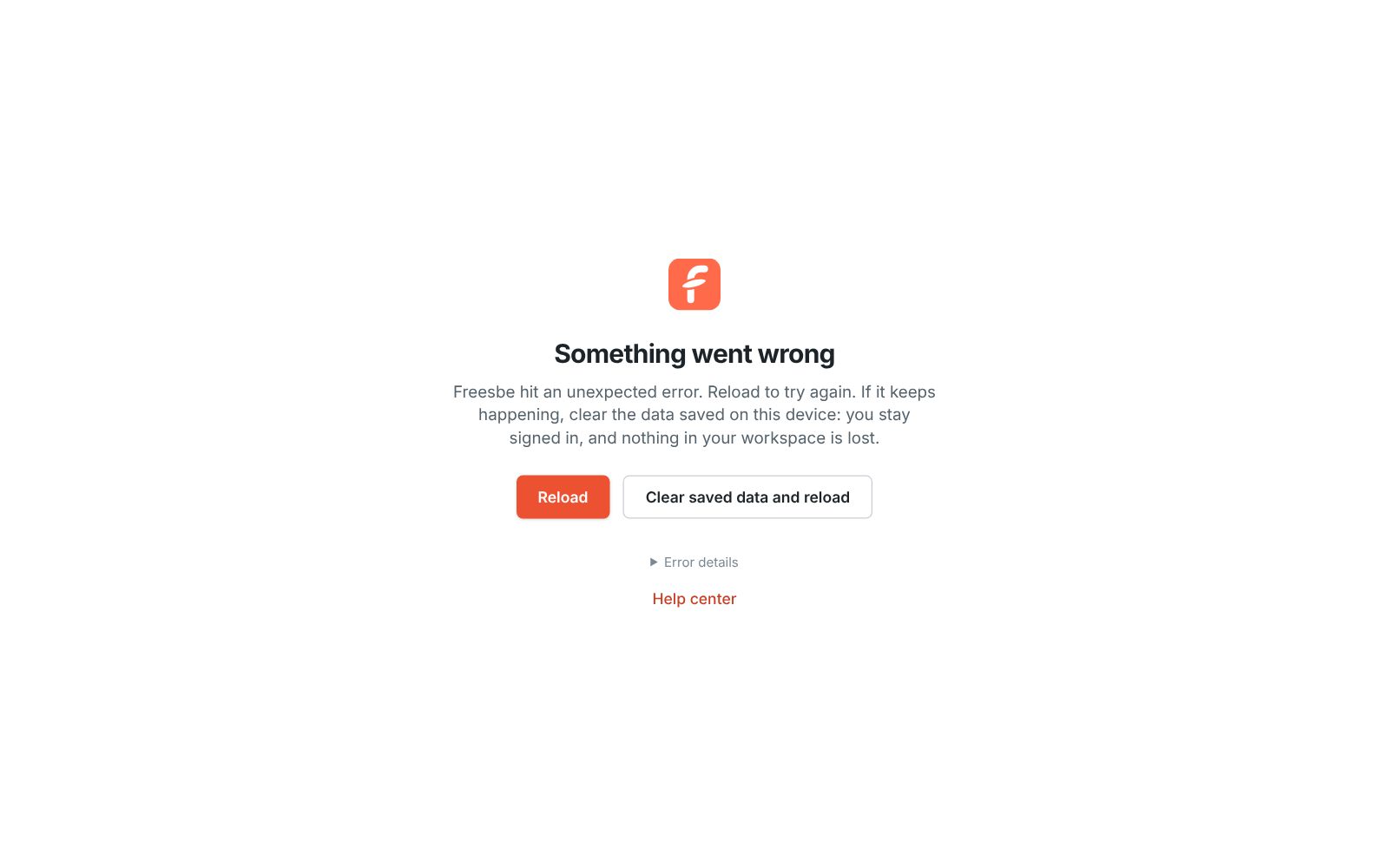
## Fix it
1. Click **Reload**. Most of the time that's all it takes.
2. If the same screen comes back, click **Clear saved data and reload**. It deletes the copy of
your workspaces that Freesbe keeps on this device to open faster, then loads everything fresh
from the server. You stay signed in and nothing in your workspace is lost.
3. Still there? Open **Error details**, copy what it says, and send it to
[support@freesbe.net](mailto:support@freesbe.net) with what you were doing when it happened.
---
# Freshdesk alerts aren't posting
Source: https://freesbe.net/knowledge/freshdesk-alerts-not-posting/ (knowledge base, troubleshooting)
> Tickets change in Freshdesk but nothing shows up in the channel. Check the two automation rules, the alert's filters and the API key.
A ticket was created or changed in Freshdesk, but no alert shows up in the channel you picked.
## Fix it
- **Look at Last ticket change in Integrations → Support.** If Freshdesk says **No ticket
changes yet**, Freshdesk isn't calling Freesbe. Check the next point.
- **Check the two automation rules.** In Freshdesk, open **Admin → Workflows → Automations**. On
**Ticket creation** and on **Ticket updates** there should be a Freesbe rule, turned on, whose
**Trigger webhook** action posts to the **Webhook URL** shown in Freesbe, with the matching
body. Compare them with **Send ticket changes to Freesbe** in Freesbe; the copy buttons give you
the exact text. Freshdesk runs only the first matching rule on a tab unless it's set to run all
matching rules, so move the Freesbe rules to the top or change that setting.
- **Check the rule's events.** The **Ticket updates** rule needs **Status is changed**, **Priority
is changed**, **Agent is updated** and **Reply is sent**, performed by **Anyone**. A reply only
posts if **Reply is sent** is there.
- **Check the alert takes that change.** Open the alert's **⋯ → Edit**: is the kind of change
ticked, and is the ticket in the group the alert is for?
- **Check the alert is on.** An alert marked **Off** doesn't post. Choose **⋯ → Turn on**.
- **Check the channel.** Alerts don't post into archived channels. Pick another with **⋯ → Edit**.
- **Check what the API key can see.** Freesbe reads each ticket with the key you connected. If
that agent can't see a group's tickets, they don't post. Connect again with an admin's key.
- **Send a test alert.** Choose **⋯ → Send a test alert**. If the sample card shows up, the
channel is fine and the rules or the key are the reason.
## Which changes post
- **Replies** posts replies from customers and agents. Private notes never post.
- A change made with **Assign to me** or **Resolve** in Freesbe doesn't post again: the card
already says who did it.
- Changes to a ticket's subject, tags, type or other fields don't post on their own.
## Still stuck?
If the connection shows **Connect again**, Freshdesk stopped accepting the API key. Connect again
from the connection's **⋯** menu with a new key; the webhook URL stays the same. Otherwise, email
[support@freesbe.net](mailto:support@freesbe.net) with the ticket's link and when it changed.
---
# I can't sign in
Source: https://freesbe.net/knowledge/cant-sign-in/ (knowledge base, troubleshooting)
> Forgot your password, no sign-in code arrived, or Freesbe asks for single sign-on or an invite. What each message means and how to get in.
You're stuck on the sign-in page, or Freesbe signs you in but won't open your workspace. Find what
you see below.

## Forgot your password
Choose **Email me a sign-in code instead** on the sign-in page and sign in with the code. Then set
a new password in **Preferences → My account → Account**. Changing your password signs you out everywhere else.
## No sign-in code arrived
1. Check your spam folder and any mail filters. Freesbe sends from `mail.freesbe.net`.
2. Wait a minute, then click **Send a new code**.
3. An address can get 10 sign-in codes a day. If you've hit that, sign in with your password, a
passkey, Google or Microsoft instead, or try again tomorrow.
Codes still not arriving? See [Emails from Freesbe don't arrive](https://freesbe.net/knowledge/emails-not-arriving/).
## "This workspace needs single sign-on"
Your admin requires everyone to sign in with Google or Microsoft. Continue with that provider. Your
Freesbe account stays the same: signing in with the provider links it, as long as the provider's
address matches your Freesbe email. If it doesn't, connect the provider in
**Preferences → My account → Sign-in → Google and Microsoft** first. See
[Single sign-on](https://freesbe.net/docs/single-sign-on/#what-changes-for-people).
## "Verify it's you"
Your workspace requires a second step. Approve on your phone, use a passkey, enter the code from
your authenticator app, or ask for an emailed code. If you signed in with an emailed code, you
can't use another emailed code as the second step. See
[Multi-factor authentication](https://freesbe.net/docs/multi-factor-authentication/#verify-its-you).

Too many wrong codes in a day locks that way of verifying until tomorrow. Use another way.
## "You need an invite"
Workspaces are invitation-only. Ask a teammate or your admin for an invite link, or start a
workspace for your own team at [app.freesbe.net/signup](https://app.freesbe.net/signup). If you
have an invite that doesn't work, see
[My invite link doesn't work](https://freesbe.net/knowledge/invite-link-not-working/).
## Still stuck?
Ask a workspace admin, or email [support@freesbe.net](mailto:support@freesbe.net). Freesbe staff
will never ask for your password or a sign-in code.
---
# I'm not getting notifications
Source: https://freesbe.net/knowledge/not-getting-notifications/ (knowledge base, troubleshooting)
> Desktop or phone notifications don't arrive for new messages. Check Freesbe's settings, your browser and computer, paused or muted conversations, and which device alerts you.
Messages arrive in Freesbe, but you aren't alerted: no pop-up, no sound, or nothing on your phone.
## Fix it
Work down the list. Most people are sorted by the first two steps.
1. **Turn notifications on in Freesbe.** Open **Preferences → Notifications**, check **Show
notifications for new messages** is on, and click **Send a test notification**.

2. **Allow them on your device.** If Freesbe says notifications are blocked, allow them for
app.freesbe.net in your browser's site settings, or for Freesbe in your computer's notification
settings. Focus or Do Not Disturb can hide them too.
3. **Check you haven't paused them.** Your account menu says **Resume notifications** while
they're paused.
4. **Check the conversation isn't muted.** Open the channel's details and look at
**Notifications**. Channels only notify you about mentions by default; choose **Every message**
if you want them all.

5. **Keep Freesbe running.** In a browser, notifications only arrive while a Freesbe tab is open.
The [desktop app](https://freesbe.net/docs/desktop-app/) keeps notifying with its window closed, and the
[mobile app](https://freesbe.net/docs/mobile-app/#notifications) covers you when you're away from your computer.
## Why one device stays quiet
If Freesbe is open in several places, only one of them alerts you: the one you used last, or the
desktop app once you've been idle everywhere. Your phone gets a notification only while you
aren't active in Freesbe anywhere else. So a quiet phone while you're at your computer is
expected. Incoming huddle calls are the exception: they ring everywhere. See
[Using several devices](https://freesbe.net/docs/notifications/#using-several-devices).
## Still stuck?
Send a test notification and note what Freesbe says, then email
[support@freesbe.net](mailto:support@freesbe.net) with that and which device and browser you use.
---
# My invite link doesn't work
Source: https://freesbe.net/knowledge/invite-link-not-working/ (knowledge base, troubleshooting)
> The message This invite is no longer valid means the invite expired, was revoked or was used up. How to get a new one, and how admins can check.
You open an invite to a workspace or a channel and see **This invite is no longer valid**.
## Why it happens
An invite stops working when it:
- **Expired**. Emailed invites last 7 days. Shared links last 1, 7, 14 or 30 days, as the admin
chose. Guest invites and guest links last 7 days.
- **Was used up**. Emailed invites work once. A shared link works for the number of people the
admin chose.
- **Was revoked** by an admin.
## Fix it
Ask whoever invited you for a new invite. If you already joined with an earlier invite, you don't
need a new one: just [sign in](https://app.freesbe.net/login).
## For admins
Open **Workspace settings → People → Invites**. **Active and past invites** lists every invite with who
created it and whether it's **Expired** or **Used up**. Send a new invite by email, or create a
link that lasts longer or can be used by more people. See
[Invite people](https://freesbe.net/docs/workspaces-and-invites/#invite-people).

If the person never got the invite email at all, see
[Emails from Freesbe don't arrive](https://freesbe.net/knowledge/emails-not-arriving/).
---
# My phone won't register
Source: https://freesbe.net/knowledge/phone-wont-register/ (knowledge base, troubleshooting)
> A desk phone or softphone won't register with your Freesbe phone line. Check the SIP details, Test mode and your phone password.
Your desk phone or softphone shows an error or "not registered" instead of your Freesbe line.
## Fix it
- **Check the details match exactly.** The SIP server, username and password in
**Preferences → Calls & audio → Phone** must match what's in your phone, character for character.
- **Look for Test mode.** If **Preferences → Calls & audio → Phone** says **Test mode**, your admin hasn't
connected the phone system yet, so the details won't work on a real phone. Ask your admin.
- **Changed your phone password?** Enter the new one on every phone that uses it.

See [Phone](https://freesbe.net/docs/phone/). Admins set up the phone system in
[Workspace settings → Phone → Phone system](https://freesbe.net/docs/admin-settings/#phone-system).
---
# People can't hear me, or I can't hear them
Source: https://freesbe.net/knowledge/cant-hear-or-be-heard/ (knowledge base, troubleshooting)
> Fix microphone, speaker and connection problems in huddles and meetings, from device permissions to strict office networks, and how to send call details to support.
You're in a huddle or a meeting and there's no sound one way or the other, Freesbe says there's a
problem with your microphone, or the call never connects.
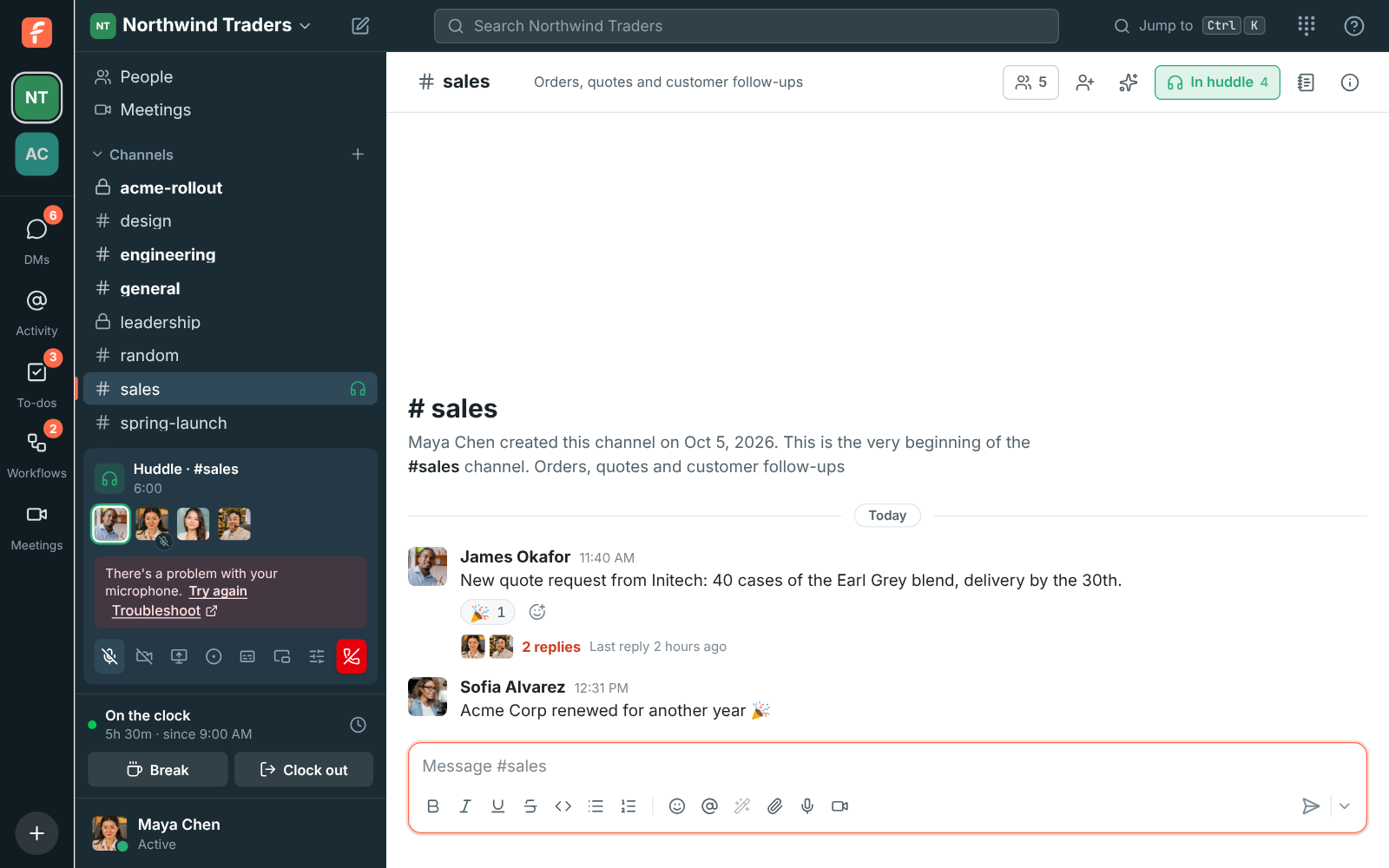
## Check your devices
- Pick the right microphone and speaker in the call's **Audio and video devices**, or test them
in [Preferences → Calls & audio → Audio](https://freesbe.net/docs/profile-and-preferences/#audio).
- Close other apps that might be using the microphone, such as another call.
## Allow the microphone
- **In a browser**, allow microphone access for app.freesbe.net in the browser's site settings,
then click **Try again**.
- **On a Mac with the desktop app**, allow Freesbe under **System Settings → Privacy & Security →
Microphone**. Allow **Camera** for video and **Screen & System Audio Recording** to share your
screen, then reopen Freesbe. See [Permissions on macOS](https://freesbe.net/docs/desktop-app/#permissions-on-macos).
## If they can't hear you, but your name lights up
The ring around your name shows that your microphone hears you. If the others still hear nothing,
wait about 10 seconds while you keep talking: Freesbe checks that your voice actually leaves your
computer and repairs it when it doesn't. With Advanced AI noise cancellation on, it switches to
**Standard** for the rest of the call and says **The others couldn't hear you, so noise
cancellation switched to Standard for this call**. If it happens again, set **Noise cancellation**
to **Standard** in [Preferences → Calls & audio → Audio](https://freesbe.net/docs/profile-and-preferences/#audio)
and send call details (below).

## If the call won't connect
On strict office networks, calls go through a relay automatically. If you still can't connect,
try another network, or ask your IT team to allow WebRTC traffic.
If the connection drops for a moment, the call shows **Reconnecting** and keeps trying for up to
30 seconds, so you don't have to leave and join again. A VPN turning on or off mid-call reconnects
by itself too.
## If someone keeps cutting out
A small signal icon next to someone's name means their connection is weak: their sound reaches
you with gaps. If the icon is on your own face or tile, it's your connection. Move closer to the
Wi-Fi, use a cable, or pause big downloads and other video calls. See
[Call quality](https://freesbe.net/docs/huddles/#call-quality).

## Send call details to whoever is helping
If one person can't hear another, both of them open **Audio and video devices** in the call and
click **Copy call details**. It copies what each app is sending and receiving: whose audio
arrives, how much, and any errors from the call server. Paste both into a message to your admin or
to [support@freesbe.net](mailto:support@freesbe.net). Together they show exactly where the sound
stops. If someone has already left the call, tell support which huddle or meeting it was and when:
each app saves these details as it leaves, for 90 days.

---
# Pipedrive alerts aren't posting
Source: https://freesbe.net/knowledge/pipedrive-alerts-not-posting/ (knowledge base, troubleshooting)
> Deals or leads change in Pipedrive but nothing shows up in the channel. Check who connected Pipedrive, the alert's filters and what Pipedrive lets them see.
Something changed in Pipedrive, but no alert shows up in the channel you picked.
## Fix it
- **Look for "Alerts are off" in Integrations → CRM.** Only a Pipedrive admin can let Freesbe hear
about deals and leads. Ask an admin in your Pipedrive company to click **Reconnect** next to
Pipedrive and sign in as themselves.
- **Check the alert takes that change.** Open the alert's **⋯ → Edit**: is the kind of change
ticked (for example **Deals moving stage**), and is the deal worth at least the **Smallest deal
to post**? A deal with no value is left out when a smallest deal is set.
- **Check the alert is on.** An alert marked **Off** doesn't post. Choose **⋯ → Turn on**.
- **Check the channel.** Alerts don't post into archived channels. Pick another channel with
**⋯ → Edit**.
- **Check what the person who connected can see.** Freesbe hears about the deals and leads that
person can see in Pipedrive. If their visibility settings hide a pipeline, its deals don't
post. Reconnect as someone who sees everything, such as a Pipedrive admin.
- **Send a test alert.** Choose **⋯ → Send a test alert**. If the sample card shows up, the
channel is fine and the filters or Pipedrive's side are the reason.
## Which changes post
- **Deals moving stage** posts when an open deal moves to another stage. Moving a deal to another
pipeline counts.
- **Deals won** and **Deals lost** post when a deal is marked won or lost, not when it's reopened.
- Changes to a deal's value, owner or notes don't post on their own.
- Deleted deals and leads, and leads converted to deals, don't post.
## Still stuck?
Check **Pipedrive** in **Integrations → CRM**: if it says **Needs reconnecting**, Freesbe was
uninstalled in Pipedrive. Click **Reconnect**. Otherwise, email [support@freesbe.net](mailto:support@freesbe.net) with the
deal's link and when it changed.
---
# Salesforce alerts aren't posting
Source: https://freesbe.net/knowledge/salesforce-alerts-not-posting/ (knowledge base, troubleshooting)
> Opportunities, leads or cases change in Salesforce but nothing shows up in the channel. Check the connection, the alert's filters, timing and who connected Salesforce.
Something changed in Salesforce, but no alert shows up in the channel you picked.
## Fix it
- **Give it five minutes.** Freesbe checks Salesforce for changes every five minutes, so an alert
can arrive up to about five minutes after the change.
- **Check the connection.** In **Workspace settings → Integrations & apps → Integrations → CRM**, Salesforce should say
**Connected**. If it says **Needs reconnecting**, someone revoked Freesbe's access in Salesforce
or the connecting user was turned off: click **Reconnect**.
- **Check the alert is on, and takes that change.** An alert marked **Off** doesn't post. Open
**Edit** from its **⋯** menu and check **Alerts to post** includes it: a new lead needs
**New leads**, a deal moving to Closed Won needs **Opportunities won**.
- **Check the smallest opportunity.** Opportunities worth less than **Smallest opportunity to
post**, or with no amount, are left out.
- **Check who connected it.** Freesbe sees only the records the connecting Salesforce user can see.
If they can't see an opportunity, its alerts don't post. Reconnect as a user with wider access.
- **Was it before the alert?** Alerts start with what happens after you add or turn on the alert.
Older records aren't posted.
- **Check the channel.** Alerts don't post into an archived channel. Use **Send a test alert**:
if it says the channel is archived or gone, edit the alert and pick another.
- **Check your plan.** Salesforce comes with Corporate and Enterprise. If the workspace moved to
another plan, alerts stop.

See [Salesforce](https://freesbe.net/docs/salesforce/#alerts).
---
# Salesforce won't connect
Source: https://freesbe.net/knowledge/salesforce-wont-connect/ (knowledge base, troubleshooting)
> Connect Salesforce is greyed out, Salesforce refuses Freesbe, or you come back to an error. Check the plan, your role, your org's app rules and the sandbox setting.
You click **Connect Salesforce** in **Workspace settings → Integrations & apps → Integrations → CRM** and it doesn't
finish.
## Fix it
- **Connect Salesforce is greyed out.** The Salesforce app comes with the Corporate and Enterprise
[plans](https://freesbe.net/docs/plans/). The CRM screen says which plans include it.
- **You don't see Integrations at all.** Only owners and admins can connect Salesforce.
- **Salesforce says the app is blocked or needs approval.** Your org only lets approved apps
connect. Ask your Salesforce admin to allow Freesbe in **Setup → Connected Apps OAuth Usage**,
or to give your profile access to it, then try again.
- **You signed in but landed on the wrong org.** To connect a sandbox, tick **Connect a sandbox**
before you click **Connect Salesforce**; leave it unticked for production. If Salesforce signs you
in to the wrong org automatically, sign out of Salesforce in that browser first.
- **"That Salesforce link expired."** The connection has to finish within 15 minutes, in the same
browser and as the same Freesbe admin who started it. Start again from Integrations.
- **"The request was cancelled."** Someone clicked **Deny** on Salesforce's page. Start again and
click **Allow**.
- **"Salesforce didn't accept the connection."** Try again. If it keeps happening, check that your
Salesforce user can use the API (the **API Enabled** permission) and isn't locked out.
See [Salesforce](https://freesbe.net/docs/salesforce/#connect-salesforce). Still stuck? Choose **? → Contact
support** in Freesbe's top bar.
---
# The Mac app "can't be opened"
Source: https://freesbe.net/knowledge/mac-app-cant-be-opened/ (knowledge base, troubleshooting)
> macOS says Freesbe can't be opened or can't be checked for malicious software. Allow it once in Privacy & Security.
The first time you open the Freesbe desktop app on a Mac, macOS says it can't be opened, or that
it can't check it for malicious software.
## Why it happens
The Mac app isn't signed by Apple yet, so macOS asks you to confirm you trust it. You only need to
do this once.
## Fix it
1. Click **Done** or **OK** on the warning.
2. Open **System Settings → Privacy & Security**.
3. Scroll to the message about Freesbe and click **Open Anyway**. Confirm with your password or
Touch ID.
Freesbe opens. See [Install on macOS](https://freesbe.net/docs/desktop-app/#install-on-macos).
Because the Mac app is unsigned, it can't update itself either. When a new version is out it
offers to open the download page: download the new `.dmg` from
[freesbe.net/download](https://freesbe.net/download/) and drag Freesbe to Applications again, replacing the old one.
Rather not install anything? Freesbe works the same in your browser at
[app.freesbe.net](https://app.freesbe.net).
---
# The web chat doesn't show on your website
Source: https://freesbe.net/knowledge/web-chat-not-showing/ (knowledge base, troubleshooting)
> You added the snippet but no chat button appears, or visitors see "This chat isn't taking messages right now". Check the snippet, the websites list and whether the chat is on.
You pasted the web chat's snippet into your site, but no chat button appears, or the chat opens and
says **This chat isn't taking messages right now**.
## Fix it
- **Check the chat is on.** In **Workspace settings → Integrations & apps → Integrations → Customer inbox**, a web chat
marked **Off** doesn't show. Choose **⋯ → Turn on**.
- **Check the websites list.** Open **⋯ → Edit** and look at **Websites it can appear on**. The
address must match how visitors open your site, including `https://` and `www.` when you use it:
`https://www.northwind.example` and `https://northwind.example` are different sites. Add both if
your site opens on both.
- **Check the snippet is on the page.** Open your site, right-click and choose **View page
source**, and search for `widget.js`. If it isn't there, your website builder may not have
published the change, or the code went on one page only.
- **Check the channel.** If the channel the web chat posts to was archived or deleted, the chat
stops taking messages. Edit the web chat and pick another channel.
- **Try the chat on its own.** Click **Try the chat** in Integrations. If it works there, the
problem is on your site's side: the snippet, the websites list or a content security policy that
blocks `app.freesbe.net`.
## Still stuck
Ask in [Getting help](https://freesbe.net/docs/getting-help/) and tell us your website's address and what you see.
---
# Windows says "Windows protected your PC"
Source: https://freesbe.net/knowledge/windows-protected-your-pc/ (knowledge base, troubleshooting)
> The Freesbe installer shows a SmartScreen warning the first time. Click More info, then Run anyway.
You run `Freesbe-Setup.exe` and Windows shows a blue **Windows protected your PC** box.
## Why it happens
The installer isn't signed yet, so Windows asks you to confirm. It appears once.
## Fix it
1. Click **More info**.
2. Click **Run anyway**.
Freesbe installs, opens, and updates itself from then on. See
[Install on Windows](https://freesbe.net/docs/desktop-app/#install-on-windows).
If your company's IT policy blocks unsigned installers, use Freesbe in your browser at
[app.freesbe.net](https://app.freesbe.net) until IT allows it.
---
# Zabbix problems aren't posting
Source: https://freesbe.net/knowledge/zabbix-problems-not-posting/ (knowledge base, troubleshooting)
> Zabbix has problems but nothing shows up in the Freesbe channel, cards don't turn green, or the Acknowledge button fails. Check the media, the action and the token.
Zabbix shows problems, but the channel you picked stays quiet, or the cards don't keep up.
## Nothing posts
- **Look at Zabbix's action log.** In **Reports → Action log**, find the problem and the
**Freesbe** media. Its status and error say what happened.
- _Freesbe doesn't know this URL_: the connection was deleted or turned off. Turn it on, or
connect again and paste the new URL in the user's media.
- _Put the Freesbe URL … in the user media "Send to" field_: **Send to** is empty or holds
something else.
- A timeout or "couldn't connect": the Zabbix server can't reach the internet. Set the media
type's **http_proxy** parameter if it goes out through a proxy.
- **No entry at all?** The action didn't run. Check the action is enabled, its conditions match
the problem, and it sends to the user with the Freesbe media. Check the user's media is enabled
and its **When active** and **Use if severity** settings include the problem.
- **Check the severity.** Problems below the connection's **Problems to post** are left out on
purpose. Open **Edit** from the connection's **⋯** menu to lower it.
- **Check the user can see the host.** Zabbix only sends to users who can read the host.
## Cards don't turn green, or don't show acknowledgements
The action needs **Recovery operations** (for green cards) and **Update operations** (for
acknowledgements and comments) that send to the same user. Without them, Zabbix only tells
Freesbe about new problems.
## The Acknowledge or Close button fails
Freesbe tells the person who pressed it what Zabbix said.
- _Zabbix didn't accept the API token_: it expired or was deleted. Make a new one in **Users → API
tokens** and paste it in **Edit**.
- _Couldn't reach Zabbix_: the frontend isn't reachable from the internet, or the address is
wrong. Use the address you open Zabbix at, starting with `https://`.
- _This trigger doesn't allow manual close_: turn on **Allow manual close** on the trigger, or let
Zabbix close it once it's fixed.
- _No permissions_: the token's user needs read-write access to the host.
No buttons at all? The connection has no API token; the list says **No buttons (add an API
token)**.
---
# Zoho Books alerts aren't posting
Source: https://freesbe.net/knowledge/zoho-books-alerts-not-posting/ (knowledge base, troubleshooting)
> A payment or invoice shows in Zoho Books or Zoho Invoice but not in the channel. Check the connection, the alert's kinds and smallest amount, the timing and the channel.
A payment came in or an invoice changed in Zoho Books or Zoho Invoice, but no alert shows up in the
channel you picked.
## Fix it
- **Give it ten minutes.** Zoho doesn't tell Freesbe about changes as they happen, so Freesbe checks
every ten minutes, and overdue invoices once an hour. Under the app in **Workspace settings →
Integrations → Finance**, the alert's **Last alert** says when it last posted.
- **Check the connection.** The app should say **Connected**. If it says **Needs reconnecting**,
someone removed Freesbe under **Connected Apps** in Zoho, or the person who connected it left the
organization: click **Reconnect**.
- **Check it's the right app.** Zoho Books and Zoho Invoice are separate apps with their own
alerts. An alert under Zoho Invoice doesn't post what happens in Zoho Books.
- **Check the alert is on, and takes that change.** An alert marked **Off** doesn't post. Open
**Edit** from its **⋯** menu and check **Alerts to post**: a customer paying part of an invoice
needs **Payments received**, since **Invoices paid in full** waits for the whole amount.
- **Check the smallest amount.** Invoices and payments for less than it are left out.
- **Drafts don't post.** **Invoices sent** waits until the invoice is sent to the customer.
- **Was it before the alert?** Alerts start with what happens after you add the first one. Older
invoices and payments aren't posted, and an invoice that was overdue before isn't either.
- **Check who connected it.** Freesbe sees only what the connecting person can see in Zoho.
- **Check the channel.** Alerts don't post into an archived channel. Use **Send a test alert**:
if it says the channel is archived or gone, edit the alert and pick another.

See [Zoho Books and Zoho Invoice](https://freesbe.net/docs/zoho-books/#alerts).
---
# Zoho Calendar won't connect
Source: https://freesbe.net/knowledge/zoho-calendar-wont-connect/ (knowledge base, troubleshooting)
> You come back from Zoho with an error, Freesbe asks you to connect again, or your busy times don't show. Check your Zoho account, its data center and Connected Apps.
You click **Connect Zoho Calendar** in **Preferences → Notifications → Calendar** and it doesn't
finish, or it stops working later.
## You come back with an error
- **You clicked Reject on Zoho's page.** Click **Connect Zoho Calendar** again and click
**Accept**.
- **The sign-in took too long.** Zoho's page is good for 15 minutes. Start again from Preferences.
- **You switched Freesbe accounts in another tab.** The connection has to finish in the same
browser, signed in to the same Freesbe account that started it. Sign back in and start again.
## Zoho asks you to sign in to the wrong account
Zoho remembers the last account you used. On Zoho's sign-in page, click your name and choose
**Sign in with a different account**, or sign out at accounts.zoho.com first. Your Zoho account
can be a different one from your Freesbe account.
## "Connect your calendar again"
Zoho stopped accepting Freesbe's access. That happens when someone removes Freesbe in Zoho
(**My Account → Connected Apps**), when your Zoho account is closed, or when your company's Zoho
admin blocks the app. Click **Reconnect** in Preferences. If your company blocks it, ask your Zoho
admin to allow Freesbe.
## Busy times or meetings are missing
- Freesbe reads your **default** Zoho calendar. Meetings on other calendars you made in Zoho don't
count. Move them to your default calendar, or make that calendar your default in Zoho Calendar.
- A canceled meeting disappears from your calendar in Zoho, so it drops off your agenda too, with
no message about it.
- Changes can take up to five minutes to show in your status and Calendar app messages.
## No Yes, Maybe and No buttons
That's expected with Zoho Calendar: Zoho doesn't let other apps answer invitations for you. Click
**Open in calendar** on the invitation to answer it in Zoho Calendar.
See [Connect Zoho Calendar](https://freesbe.net/knowledge/connect-zoho-calendar/) and the
[Zoho Calendar guide](https://freesbe.net/docs/zoho-calendar/).
---
# Zoho CRM alerts aren't posting
Source: https://freesbe.net/knowledge/zoho-crm-alerts-not-posting/ (knowledge base, troubleshooting)
> Deals, leads or contacts change in Zoho CRM but nothing shows up in the channel. Check the connection, the alert's filters and who connected Zoho CRM.
Something changed in Zoho CRM, but no alert shows up in the channel you picked.
## Fix it
- **Check the connection.** In **Workspace settings → Integrations & apps → Integrations → CRM**, Zoho CRM should say
**Connected**. If it says **Needs reconnecting**, someone removed Freesbe under **Connected
Apps** in Zoho, or the connecting user was deactivated: click **Reconnect**.
- **Just connected?** If Zoho CRM's card says Freesbe is still asking Zoho CRM to send it changes,
give it a few minutes. Freesbe keeps trying until Zoho takes it.
- **Check the alert is on, and takes that change.** An alert marked **Off** doesn't post. Open
**Edit** from its **⋯** menu and check **Alerts to post** includes it: a new lead needs **New
leads**, a deal moving to Closed Won needs **Deals won**.
- **Check the stage's name.** **Deals won** and **Deals lost** go by the stage: _Closed Won_,
_Closed Lost_, or one of your own with "won" or "lost" in its name. A deal moving to any other
stage is a **Deals moving stage** alert.
- **Check the smallest deal.** Deals worth less than **Smallest deal to post**, or with no amount,
are left out.
- **Check who connected it.** Freesbe sees only the records the connecting Zoho CRM user can see.
If they can't see a deal, its alerts don't post. Reconnect as a user with wider access.
- **Was it before the alert?** Alerts start with what happens after you add or turn on the alert.
Older records aren't posted.
- **Check the channel.** Alerts don't post into an archived channel. Use **Send a test alert**:
if it says the channel is archived or gone, edit the alert and pick another.

See [Zoho CRM](https://freesbe.net/docs/zoho-crm/#alerts).
---
# Zoho CRM won't connect
Source: https://freesbe.net/knowledge/zoho-crm-wont-connect/ (knowledge base, troubleshooting)
> Zoho refuses Freesbe, you sign in to the wrong account, or you come back to an error. Check your role, your Zoho account and the organization you picked.
You click **Connect Zoho CRM** in **Workspace settings → Integrations & apps → Integrations → CRM** and it doesn't
finish.
## Fix it
- **You don't see Integrations at all.** Only owners and admins can connect Zoho CRM.
- **You signed in to the wrong Zoho account.** If Zoho signs you in automatically, sign out of
Zoho in that browser first (or use a private window), then connect again.
- **Your Zoho account has more than one CRM organization.** Freesbe connects the one Zoho opens
for you. Switch to the right organization in Zoho CRM first, then connect again.
- **"That Zoho link expired."** The connection has to finish within 15 minutes, in the same
browser and as the same Freesbe admin who started it. Start again from Integrations.
- **"The request was cancelled."** Someone clicked **Reject** on Zoho's page. Start again and
click **Accept**.
- **"Zoho didn't accept the connection."** Try again. If it keeps happening, check that your
Zoho CRM edition includes API access and that your user's profile can use it.
See [Zoho CRM](https://freesbe.net/docs/zoho-crm/#connect-zoho-crm). Still stuck? Choose **? → Contact support** in
Freesbe's top bar.
---
# Zoho Desk alerts aren't posting
Source: https://freesbe.net/knowledge/zoho-desk-alerts-not-posting/ (knowledge base, troubleshooting)
> Tickets change in Zoho Desk but nothing shows up in the channel. Check who connected Zoho Desk, the webhook, the alert's filters and the channel.
A ticket was created or changed in Zoho Desk, but no alert shows up in the channel you picked.
## Fix it
- **Check the connection.** In **Workspace settings → Integrations → Support**, Zoho Desk should
say **Connected**. If it says **Needs reconnecting**, someone removed Freesbe under **Connected
Apps** in Zoho, or the person who connected it left the help desk: click **Reconnect**.
- **Check the webhook.** If Zoho Desk's card says Freesbe couldn't add its webhook, the person who
connected it isn't a Zoho Desk administrator. Click **Disconnect**, then connect again as an
administrator. In Zoho Desk, **Setup → Developer Space → Webhooks** should list one named
**Freesbe**, turned on. If someone deleted it, reconnect and Freesbe adds it again.
- **Check the alert is on, and takes that change.** An alert marked **Off** doesn't post. Open
**Edit** from its **⋯** menu and check **Alerts to post** includes it: a customer's email on a
ticket needs **Customer replies**, a ticket being closed needs **Status changes, closed and
reopened tickets**.
- **Check the department.** An alert for one department leaves out tickets in the others, and a
ticket moved to another department follows its new one.
- **Agent answers don't post.** **Customer replies** are what customers write. Your agents'
answers and private comments stay in Zoho Desk.
- **Check who connected it.** Freesbe sees only the tickets the connecting person can see. Reconnect
as an administrator to cover every department.
- **Was it before the alert?** Alerts start with what happens after you add or turn on the alert.
Older tickets aren't posted.
- **Check the channel.** Alerts don't post into an archived channel. Use **Send a test alert**:
if it says the channel is archived or gone, edit the alert and pick another.

See [Zoho Desk](https://freesbe.net/docs/zoho-desk/#alerts).
---
# Zoho Recruit alerts aren't posting
Source: https://freesbe.net/knowledge/zoho-recruit-alerts-not-posting/ (knowledge base, troubleshooting)
> Candidates, job openings or interviews change in Zoho Recruit but nothing shows up in the channel. Check the connection, the alert's kinds and who connected Zoho Recruit.
Something changed in Zoho Recruit, but no alert shows up in the channel you picked.
## Fix it
- **Check the connection.** In **Workspace settings → Integrations & apps → Integrations →
Recruiting**, Zoho Recruit should say **Connected**. If it says **Needs reconnecting**, someone
removed Freesbe under **Connected Apps** in Zoho, or the connecting user was deactivated: click
**Reconnect**.
- **Just connected?** If Zoho Recruit's card says Freesbe is still asking Zoho Recruit to send it
changes, give it a few minutes. Freesbe keeps trying until Zoho takes it.
- **Check the alert is on, and takes that change.** An alert marked **Off** doesn't post. Open
**Edit** from its **⋯** menu and check **Alerts to post** includes it: a new applicant needs
**New candidates**, a new interview needs **Interviews scheduled**.
- **Check the status's name.** **Candidates hired** goes by the candidate's status: _Hired_,
_Joined_, _Offer-Accepted_, or one of your own with "hired" or "joined" in its name. Any other
status change is a **Candidates changing status** alert. Changes to other fields, like a
candidate's email address, don't post.
- **Check who connected it.** Freesbe sees only the records the connecting Zoho Recruit user can
see. If they can't see a candidate, its alerts don't post. Reconnect as a user with wider access.
- **Was it before the alert?** Alerts start with what happens after you add or turn on the alert.
Older records aren't posted.
- **Check the channel.** Alerts don't post into an archived channel. Use **Send a test alert**: if
it says the channel is archived or gone, edit the alert and pick another.
If Zoho Recruit won't connect at all, the steps in
[Zoho CRM won't connect](https://freesbe.net/knowledge/zoho-crm-wont-connect/) apply too: it's the same Zoho sign-in.
See [Zoho Recruit](https://freesbe.net/docs/zoho-recruit/#alerts).
---
# Add Freesbe meetings to Outlook for everyone
Source: https://freesbe.net/knowledge/add-freesbe-to-outlook/ (knowledge base, how-to)
> Roll out the Freesbe add-in from the Microsoft 365 admin center, so everyone can add a Freesbe meeting to Outlook events instead of Teams, and make it the default.
Outlook only shows meeting add-ins that a Microsoft 365 admin added for the organization. Once
you've added Freesbe, everyone sees **Freesbe meeting** where Teams usually is, in Outlook on the
web, Windows, Mac, iPhone and Android.
You need to be an admin in Freesbe and a Microsoft 365 admin who can manage integrated apps (or
work with one).
## 1. Copy the manifest link from Freesbe
1. Open the [Admin Center](https://freesbe.net/docs/admin-center/) and go to **Integrations → Calendar**.
2. Under **Outlook add-in**, make sure **Let people add Freesbe meetings from Outlook** is on.
3. Copy the **Manifest link**.

## 2. Add it in the Microsoft 365 admin center
1. In the [Microsoft 365 admin center](https://admin.microsoft.com), open **Settings**, then
**Integrated apps**.
2. Choose **Upload custom apps**, then **Office Add-in**.
3. Choose **Provide link to the manifest file**, paste the link and click **Validate**.
4. Pick who gets it: everyone, or some users and groups. Accept the permissions and **Deploy**.
It can take up to a day before the add-in shows in everyone's Outlook.
## 3. Tell your team
Each person signs in to Freesbe once, the first time they turn on **Freesbe meeting** in an event,
and picks the workspace their meetings go in. Guests in your Freesbe workspace can't connect it.
Where Teams isn't set up, Outlook uses Freesbe on its own. Where it is, each person makes Freesbe
their default once: see [Make Freesbe your Outlook meeting](https://freesbe.net/knowledge/make-freesbe-your-outlook-meeting/).
## Turning it off
Turn off **Let people add Freesbe meetings from Outlook** to stop it in your workspace at once.
Outlook then tells people the add-in is turned off. Meetings already made keep working. To take
the button out of Outlook too, remove the add-in in **Integrated apps**.
More in [Freesbe meetings in Outlook](https://freesbe.net/docs/outlook/).
---
# Answer texts to your Freesbe number
Source: https://freesbe.net/knowledge/answer-texts-in-freesbe/ (knowledge base, how-to)
> Bring texts to one of your Freesbe phone numbers into a channel and answer them as a team. Try it first in test mode with a made-up text, then go live. Set up in Workspace settings, Phone, Messaging.
Texts to your business number can land in a channel, one thread per customer, where anyone on the
team can pick them up. You need to be a Freesbe owner or admin.

## 1. Add the number
1. Open **Workspace settings → Phone → Messaging** and click **Add number**.
2. Pick the channel texts go to, like #support, and the **Number customers text**.
3. Click **Add number**. It starts in **test mode**.
## 2. Try it in test mode
1. Under the number, type a message in **Send a test text**, like "Are you open on Saturday?", and
click **Send**.
2. Open the channel: a card shows the text from a made-up number, with the text in its thread.
3. Reply in the thread. Your reply is marked **Test mode: not sent**: nothing goes to the phone
network in test mode.
Hand the conversation to someone, write an internal note, use a saved reply or **Suggest a reply**,
the same way as for web chat and email.
## 3. Go live
1. Under the number, click **Go live** and confirm. The number has to be one of your workspace's
own phone numbers.
2. Text the number from your own phone. The text lands in the channel, in its own thread.
3. Reply in the thread. The reply is texted back, and shows **Delivered** once it reaches the
phone.
If a reply shows **Failed**, its reason says why: the customer texted STOP, or in the US the number's
business texting registration (A2P 10DLC) isn't done yet. To stop texting for real, choose **Back
to test mode** in the number's **⋯** menu.
Texting for real is opening up gradually: until it's on for your workspace, the number stays in
test mode and says it's coming.
See [Customer inbox](https://freesbe.net/docs/customer-inbox/#texts-to-your-freesbe-numbers) for everything the inbox
does.
---
# Answer WhatsApp messages in Freesbe
Source: https://freesbe.net/knowledge/answer-whatsapp-in-freesbe/ (knowledge base, how-to)
> Bring messages to your WhatsApp Business number into a channel and answer them as a team. Try it first in test mode, then connect your WhatsApp Business account. Set up in Workspace settings, Phone, Messaging.
WhatsApp messages to your business number can land in a channel, one thread per customer, where
anyone on the team can pick them up. It comes with the Business plan and up. You need to be a
Freesbe owner or admin, and an admin of your business on Facebook to connect it.

## 1. Add the number
1. Open **Workspace settings → Phone → Messaging** and, under **WhatsApp**, click **Add WhatsApp
number**.
2. Pick the channel messages go to, like #support, and type your **WhatsApp Business number**
with its country code.
3. Click **Add number**. It starts in **test mode**.
## 2. Try it in test mode
1. Under the number, type a message in **Send a test message**, like "Do you ship to Lyon?", and
click **Send**.
2. Open the channel: a card shows the message from a made-up number, with the message in its
thread.
3. Reply in the thread. Your reply is marked **Test mode: not sent**: nothing goes to WhatsApp in
test mode.
## 3. Connect WhatsApp
1. Under the number, click **Connect WhatsApp**.
2. Sign in with Facebook, pick your business, and pick the WhatsApp Business account that has the
number (or create one and add the number there).
3. Back in Freesbe, the inbox is live. Message the number from your own WhatsApp: the message
lands in the channel, in its own thread.
4. Reply in the thread. The reply arrives on WhatsApp, and shows **Delivered**, then **Read**.
If connecting says the account doesn't have the inbox's number, pick the WhatsApp Business account
that has it, or edit the inbox's number. If a reply shows **Failed**, its reason says why: most
often the customer's last message was more than 24 hours ago, and WhatsApp only takes a template
then (see [Send a WhatsApp template](https://freesbe.net/docs/knowledge/send-a-whatsapp-template/)). To stop
answering for real, choose **Back to test mode** in the inbox's **⋯** menu.
Photos, voice messages and files customers send show in the thread, and files you attach to a
reply go to them on WhatsApp. WhatsApp bills your WhatsApp Business account under Meta's pricing,
not on your Freesbe bill.
See [Customer inbox](https://freesbe.net/docs/customer-inbox/#whatsapp) for everything the inbox does.
---
# Ask Zabbix about your servers and get weekly reports
Source: https://freesbe.net/knowledge/ask-zabbix-about-your-servers/ (knowledge base, how-to)
> How the team uses the live problems board, /zabbix and scheduled reports to see what's down, check a host, and review the week without opening Zabbix.
Once an admin has connected Zabbix (see
[Set up Zabbix alerts for your ops team](https://freesbe.net/knowledge/set-up-zabbix-alerts-for-your-ops-team/)),
everyone in the alert channel can see what's going on without opening Zabbix.
## See what's down right now
Open the channel's pins: the **Live problems** board lists every open problem, worst first, with
the host, how long it's been open and who acknowledged it. It says **All clear** when nothing is
open. It keeps itself current, so there's nothing to refresh.
For the same list somewhere else, type `/zabbix` in any channel. Only you see the answer.
## Check one host
Type `/zabbix host` and part of the host's name, like `/zabbix host db-01`. You get its open
problems and its key values from Zabbix: CPU, memory, disk space, uptime and whether it answers
pings, with a button to open it in Zabbix.
If Freesbe says it needs Zabbix's API, ask an admin to add **Zabbix address** and **API token** to
the connection in **Workspace settings → Integrations → Monitoring**.
## Ask a question
Type `/zabbix ask` and your question in your own words:
- `/zabbix ask which hosts had the most problems this week?`
- `/zabbix ask how was CPU on web-02 today?`
- `/zabbix ask what's been flapping since Monday?`
Name the host when the question is about one: Freesbe then reads its values hour by hour as well
as its problems. Say "today", "this week" or "this month" to set how far back it looks (a week
if you don't). The answer comes from Zabbix's data only, and says so when the data doesn't
answer it. Each question counts as one AI request.
## Review the week
Type `/zabbix report` to post the last 7 days into the channel for everyone, or
`/zabbix report day` for the last 24 hours. A report shows problems by severity, how many are
still open, total problem time, the typical time to resolve, the noisiest problems and the
busiest hosts.
To get one without asking, an admin can pick **Every morning at 9:00** or **Monday mornings at
9:00** under **Reports** in the connection's settings. A weekly report on Monday morning makes a
good start for the team's ops review.
## Related
- [Zabbix](https://freesbe.net/docs/zabbix/) in the docs
- [Zabbix problems aren't posting](https://freesbe.net/knowledge/zabbix-problems-not-posting/)
---
# Bring your support email into Freesbe
Source: https://freesbe.net/knowledge/bring-support-email-into-freesbe/ (knowledge base, how-to)
> Forward support@ to Freesbe and answer customer emails from a channel, with hand-off, internal notes, saved replies and AI suggested answers. Set up in Integrations, Customer inbox.
Bring the address your customers already write to, like support@northwind.example, into a Freesbe
channel. Every email starts or continues a thread there, your team answers in the thread, and the
customer gets the answer by email. You need to be a Freesbe owner or admin, and able to change
forwarding for the address where your email is hosted.

## 1. Add the email inbox
1. Open **Workspace settings → Integrations & apps → Integrations → Customer inbox** and, under **Shared email
address**, click **Add email address**.
2. Pick the channel emails go to, like #support. Everyone in it can see and answer them.
3. Enter **Your team's address** (support@northwind.example) and check the **Name on replies**.
4. Click **Add email address** and copy the address Freesbe gives you.
## 2. Forward your address to Freesbe
- **Google Workspace group**: add the Freesbe address as a member of the group.
- **Gmail or Google Workspace mailbox**: Gmail settings → **Forwarding and POP/IMAP** → **Add a
forwarding address**. The confirmation email Gmail sends shows up in your channel: open its link
to confirm.
- **Microsoft 365**: Exchange admin center → the mailbox → **Mail flow settings** → **Email
forwarding**.
## 3. Try it
Send an email to your support address from your own email. Within a few seconds, a card shows up
in the channel with your subject, and your email is in its thread. Reply in the thread: the answer
arrives in your mailbox as a reply to your email.
## 4. Tell your team how to answer
- Reply in the thread to email the customer. Switch to **Internal note** to talk it over first.
- Click the name on the bar to hand the email to someone else, and **Close** it when it's done.
- **Saved replies** and **Suggest a reply** work for email the same way as for web chat.
See [Customer inbox](https://freesbe.net/docs/customer-inbox/#bring-in-your-support-email) for everything email
inboxes do.
---
# Connect Freesbe to Make
Source: https://freesbe.net/knowledge/connect-make/ (knowledge base, how-to)
> Use Freesbe in Make scenarios, as a trigger or an action. Make an API key in Freesbe, add a Freesbe module in Make and create a connection with the key.
Make lets you build scenarios on a visual canvas: watch for something in Freesbe and update
another app, or the other way round. You need to be a Freesbe owner or admin to connect it.
## Connect Make
1. In Freesbe, open **Workspace settings → Integrations & apps → Integrations → Automation** and click **Connect** next
to Make.
2. Copy the **API key** Freesbe shows. It starts with `fsb-bot-` and is only shown once.
3. In Make, add a **Freesbe** module to a scenario and click **Create a connection**.
4. Paste the key and save. Make checks it with Freesbe straight away.

Connecting makes an [app](https://freesbe.net/docs/apps/) with a bot called **Make**, which posts your scenarios'
messages under its own name.
## Let the bot into your channels
- **Public channels:** pick the channel in a module and the bot joins by itself.
- **Private channels and DMs:** add **Make** from the channel's member list first.
## Build a scenario: react when an order ships
1. Start with your shop's "Order shipped" module.
2. Add Freesbe → **Find messages** to find the order's message in #orders, for example by its
order number.
3. Add Freesbe → **Add a reaction** with 📦 on the message it found.
4. Run it once to test, then schedule it on.
Freesbe's **Watch events** module starts a scenario on any Freesbe event the bot can see: new and
edited messages, reactions, files, new channels and people, huddles starting, meetings scheduled,
recordings and transcripts ready. Freesbe sends each one the moment it happens, so the scenario
doesn't have to check every few minutes.
The actions are **Send a message**, **Send a direct message**, **Add a reaction** and **Create a
channel**, the searches **Find a person**, **Find a channel** and **Find messages**, and **Make an
API call** for anything else in the [API](https://freesbe.net/docs/api/) the app may do.
## See and stop what's listening
Turning a scenario on adds it under **Triggers listening** in **Integrations → Automation**.
Click its bin to stop it, and turn the scenario off in Make too.
## If something's wrong
- **Make can't create the connection.** Copy the key again, or click **New API key** in Freesbe
and use the new one. The old key stops working at once.
- **Watch events never fires.** Check the bot is in the channel and the scenario is on.
- **Stop everything:** turn off or delete the Make app in **Workspace settings → Integrations & apps → Apps**.
See [Zapier, Make, n8n and Zoho Flow](https://freesbe.net/docs/automation/) for more.
---
# Connect Freesbe to n8n
Source: https://freesbe.net/knowledge/connect-n8n/ (knowledge base, how-to)
> Use Freesbe in n8n workflows on n8n's cloud or your own server. Install the Freesbe community node, then add a Freesbe API credential with a key from Freesbe.
n8n runs workflows on its cloud or on your own server. Freesbe's community node gives it a
**Freesbe Trigger** and a **Freesbe** node for actions. You need to be a Freesbe owner or admin
to connect it, and able to install community nodes in n8n.
## Install the Freesbe node
Install the `n8n-nodes-freesbe` community node. On self-hosted n8n, open **Settings → Community
nodes → Install**, type `n8n-nodes-freesbe` and install it.
## Connect it
1. In Freesbe, open **Workspace settings → Integrations & apps → Integrations → Automation** and click **Connect** next
to n8n.
2. Copy the **API key** Freesbe shows. It starts with `fsb-bot-` and is only shown once.
3. In n8n, add a **Freesbe API** credential and paste the key into **API Key**. Leave **API URL**
as it is.
4. Save. n8n checks the key with Freesbe.

Connecting makes an [app](https://freesbe.net/docs/apps/) with a bot called **n8n**, which posts your workflows'
messages under its own name.
## Let the bot into your channels
- **Public channels:** pick the channel in a node and the bot joins by itself.
- **Private channels and DMs:** add **n8n** from the channel's member list first.
## Build a workflow: file a ticket when someone asks the bot
1. Start with **Freesbe Trigger** on **New mention of the bot**.
2. Add your help desk's "Create ticket" node, with the message's **text** and **link**.
3. Add a **Freesbe** node to **Send a message** with the ticket number, using the trigger's
**Reply to** ID so it answers in the message's thread.
4. Activate the workflow. Now `@n8n the printer is jammed again` files a ticket.
**Freesbe Trigger** can start on any Freesbe event the bot can see, such as an edited message, a
huddle starting or a transcript being ready. Freesbe sends each event the moment it happens.
## See and stop what's listening
Activating a workflow adds it under **Triggers listening** in **Integrations → Automation**.
Click its bin to stop it, and deactivate the workflow in n8n too.
## If something's wrong
- **The credential test fails.** Copy the key again, or click **New API key** in Freesbe and paste
the new one. The old key stops working at once.
- **The trigger never fires.** Check the bot is in the channel and the workflow is active. A
self-hosted n8n must be reachable from the internet for Freesbe to send it events.
- **Stop everything:** turn off or delete the n8n app in **Workspace settings → Integrations & apps → Apps**.
See [Zapier, Make, n8n and Zoho Flow](https://freesbe.net/docs/automation/) for more.
---
# Connect Freesbe to Zapier
Source: https://freesbe.net/knowledge/connect-zapier/ (knowledge base, how-to)
> Start Zaps when something happens in Freesbe, and let Zaps post messages, send DMs, react and make channels. Make an API key in Freesbe and paste it into Zapier.
With Zapier you can connect Freesbe to thousands of other apps without writing code: post every
new deal from your CRM into #sales, add a ✅ when a ticket closes, or send each meeting recording's
notes to a shared folder. You need to be a Freesbe owner or admin to connect it; after that,
anyone with the Zapier account can build Zaps.
## Connect Zapier
1. In Freesbe, open **Workspace settings → Integrations & apps → Integrations → Automation** and click **Connect** next
to Zapier.
2. Freesbe shows an **API key**, starting with `fsb-bot-`. Copy it: it's only shown once.
3. In Zapier, make a Zap and pick **Freesbe** as the trigger or action app, then click **Sign
in**.
4. Paste the key into **API Key** and continue. Zapier names the connection after your workspace.

Connecting makes an [app](https://freesbe.net/docs/apps/) with a bot called **Zapier**. Everything your Zaps post
comes from that bot, so nobody's account is borrowed, and it keeps working when the workspace
requires single sign-on or a second sign-in step.
## Let the bot into your channels
The bot only hears and posts where it's a member, like a person.
- **Public channels:** pick the channel in the Zap's trigger or action, and the bot joins by
itself.
- **Private channels and DMs:** add **Zapier** from the channel's member list first.
## Build a Zap: new deals into #sales
1. **Trigger:** your CRM's "New deal".
2. **Action:** Freesbe → **Send a message**. Pick #sales and write the message with the deal's
fields, for example `New deal: *{{Deal name}}* for {{Amount}}`.
3. Test the step, then turn the Zap on.
Freesbe triggers you can start a Zap with: **New message**, **New mention of the bot**, **New
reaction**, **New file**, **New channel**, **New person**, **Meeting scheduled** and **Recording
ready**. Actions: **Send a message**, **Send a direct message**, **Add a reaction** and **Create a
channel**, plus searches to **Find a person**, **Find a channel** and **Find messages**. Freesbe
sends each event the moment it happens, so Zaps start right away.
## See and stop what's listening
Each Zap that starts with a Freesbe trigger shows under **Triggers listening** in
**Integrations → Automation**, with its channel and since when. Click a trigger's bin to stop it,
and turn the Zap off in Zapier too, or it comes back the next time the Zap is turned on.
## If something's wrong
- **Zapier says the key doesn't work.** It was copied wrong, or someone clicked **New API key**,
which stops the old one at once. Click **New API key** and paste the new one into the Zapier
connection.
- **A Zap never starts.** Check the bot is in the channel, and that the Zap is on. The bot never
hears its own messages, so a Zap that posts can't start itself.
- **You want to stop everything.** Turn off or delete the Zapier app in **Workspace settings →
Integrations & apps → Apps**. All its triggers stop.
See [Zapier, Make, n8n and Zoho Flow](https://freesbe.net/docs/automation/) for every trigger's fields.
---
# Connect Freesbe to Zoho Flow
Source: https://freesbe.net/knowledge/connect-zoho-flow/ (knowledge base, how-to)
> Use Freesbe in Zoho Flow, as a trigger or an action, to link it with Zoho CRM, Zoho Books, Zoho People and hundreds of other apps. Make an API key in Freesbe and connect it in Zoho Flow.
Zoho Flow connects the apps your company runs on, Zoho's own and hundreds of others, without code.
With Freesbe in it, a flow can start when something happens in Freesbe, or post into Freesbe when
something happens elsewhere. You need to be a Freesbe owner or admin to connect it.
## Connect Zoho Flow
1. In Freesbe, open **Workspace settings → Integrations & apps → Integrations → Automation** and
click **Connect** next to Zoho Flow.
2. Copy the **API key** Freesbe shows. It starts with `fsb-bot-` and is only shown once.
3. In Zoho Flow, make a flow and pick **Freesbe** as its trigger, or add a Freesbe action to a
flow. Click **Connect**, paste the key and save. Zoho Flow checks it with Freesbe straight away.

Connecting makes an [app](https://freesbe.net/docs/apps/) with a bot called **Zoho Flow**, which posts your flows'
messages under its own name.
## Let the bot into your channels
- **Public channels:** give a trigger or an action the channel's ID and the bot joins by itself.
- **Private channels and DMs:** add **Zoho Flow** from the channel's member list first.
Zoho Flow asks for IDs rather than names. Put a **Find channel** or **Find person** action first
in the flow, and use the ID it finds in the next step.
## Build a flow: tell #sales when a deal closes in Zoho CRM
1. Make a flow that starts with Zoho CRM → **Deal updated**, with a condition that the stage is
Closed Won.
2. Add Freesbe → **Find channel** with the name `sales`.
3. Add Freesbe → **Send channel message** with the channel ID it found, and a message with the
deal's name and amount from the trigger, such as 🎉 Acme Corp renewal closed for $18,400.
4. Test the flow, then switch it on.
Freesbe's **Something happens in Freesbe** trigger starts a flow on any Freesbe event the bot can
see: new and edited messages, mentions of the bot, reactions, files, new channels and people,
huddles, meetings scheduled, recordings and transcripts ready. Freesbe sends each one the moment it
happens, so the flow doesn't have to check every few minutes.
The actions are **Send channel message**, **Send direct message**, **Add reaction** and **Create
channel**, and **Find person**, **Find channel** and **Search messages** to look things up.
## See and stop what's listening
Switching a flow on adds it under **Triggers listening** in **Integrations → Automation**. Click
its bin to stop it, and switch the flow off in Zoho Flow too.
## If something's wrong
- **Zoho Flow can't connect.** Copy the key again, or click **New API key** in Freesbe and use the
new one. The old key stops working at once.
- **The trigger never fires.** Check the bot is in the channel and the flow is switched on.
- **"The app's bot can't see that channel."** Add **Zoho Flow** to the private channel first.
- **Stop everything:** turn off or delete the Zoho Flow app in **Workspace settings → Integrations
& apps → Apps**.
See [Zapier, Make, n8n and Zoho Flow](https://freesbe.net/docs/automation/) for more.
---
# Connect Freshdesk to Freesbe
Source: https://freesbe.net/knowledge/connect-freshdesk/ (knowledge base, how-to)
> Post Freshdesk tickets into channels, show ticket links as cards and look tickets up with /freshdesk. Connect with an API key, add two automation rules in Freshdesk, then add alerts per channel.
Connect Freshdesk and your support team works tickets where they already talk: new tickets and
changes post into channels, ticket links show as cards, `/freshdesk` finds tickets, and any
message can become a ticket or a note on one. You need to be a Freesbe owner or admin, and a
Freshdesk admin to add the automation rules. It takes about ten minutes.

## 1. Connect your helpdesk
1. In Freshdesk, click your profile picture, then **Profile settings**, and copy **Your API key**.
2. In Freesbe, open **Workspace settings → Integrations → Support** and click **Connect
Freshdesk**.
3. Type your Freshdesk address, for example `northwind.freshdesk.com`, paste the key and click
**Connect Freshdesk**.

Freesbe acts as the agent whose key you pasted, so use a key that sees every group you want in
Freesbe.
## 2. Add two automation rules in Freshdesk
Freesbe now shows **Send ticket changes to Freesbe**, with a **Webhook URL** and two bodies, each
with a copy button. In Freshdesk, open **Admin → Workflows → Automations**:
1. On **Ticket creation**, add a rule named `Freesbe: new tickets`. Pick a condition every ticket
matches, such as **Priority is any of** Low, Medium, High, Urgent. Add the action **Trigger
webhook**: **POST** to the Webhook URL, encoding **JSON**, **Advanced** content, and paste the
**Body for new tickets**. Save it.
2. On **Ticket updates**, add a rule named `Freesbe: ticket changes`, performed by **Anyone**, with
the events **Status is changed**, **Priority is changed**, **Agent is updated** and **Reply is
sent**. Add the same **Trigger webhook** action with the **Body for ticket changes**. Save it.

## 3. Send tickets to channels
1. Click **Add alert** under **Freshdesk alerts**.
2. Pick **Post to channel**, for example #support.
3. Under **Tickets from**, keep **All groups** or pick one Freshdesk group.
4. Tick the **Alerts to post**: New tickets, Status changes, Replies, Priority changes, Agent
changes.
5. Click **Add alert**, then choose **⋯ → Send a test alert** to see a sample ticket in the
channel.
Add one alert per group to split them: Billing to #billing, Shipping to #shipping.

## 4. Tell your team what they can do
- **Assign to me** and **Resolve** on a ticket card work the ticket from Freesbe. Each agent's
Freesbe email must match their Freshdesk agent email.
- **Paste a ticket link**, like `https://northwind.freshdesk.com/a/tickets/1038`, to show a card.
- **`/freshdesk 1042`**, **`/freshdesk maria@alfreds.example`** or **`/freshdesk Alfreds`** finds
tickets. Only you see the answer.
- **⋯ → Create Freshdesk ticket** on any message makes a ticket, tagged `freesbe`.
- **⋯ → Add to Freshdesk ticket** adds the message to a ticket as a private note.
If alerts don't show up, see [Freshdesk alerts aren't posting](https://freesbe.net/knowledge/freshdesk-alerts-not-posting/).
See [Freshdesk](https://freesbe.net/docs/freshdesk/) for more.
---
# Connect GitHub and subscribe your team's channels
Source: https://freesbe.net/knowledge/connect-github/ (knowledge base, how-to)
> Step by step for admins - install the Freesbe app on your GitHub organization, pick its repositories, and send each repository's pull requests, issues and deploys to the right channel.
Connecting GitHub takes about five minutes. You need a Freesbe admin who can also install apps on
your GitHub organization (an organization owner, or someone an owner allowed).
## Before you start
- **Make the channels first**, such as `#storefront-dev` for one repository's pull requests and
`#deploys` for every deployment. Make a channel private if its repository is private and not
everyone in the workspace should see it.
- **Decide which repositories Freesbe sees.** You pick them when installing. Only those can post,
show link previews, or get issues from Freesbe.
## In Freesbe
1. Open **Workspace settings → Integrations & apps → Integrations → Dev tools** and click
**Connect GitHub**.
2. GitHub opens. Pick your organization, then **Only select repositories** and the ones you want
(or **All repositories**), and click **Install**.
3. You're back in Freesbe, and it says **GitHub connected**.
## Subscribe the channels
1. Under **Channel subscriptions**, click **Subscribe a channel**.
2. Pick the repository and the channel. The default posts pull requests, issues, releases and
deployments; tick **Reviews**, **Comments**, **Commits** or **Workflow runs** for more.
3. Optional: list labels under **Only these labels** (`bug, customer`) to leave the rest out, or
name a **Branch** for commits and workflow runs.
4. Click **Subscribe**, then open its **⋯** menu and click **Post a sample card** to see one in
the channel.
People can do the same from the channel itself: `/github subscribe northwind-traders/storefront`.
## Split one repository across channels
Subscribe the same repository more than once, each to its own channel with its own picks: for
example pull requests and reviews to `#storefront-dev`, and only deployments to `#deploys`.
See [GitHub](https://freesbe.net/docs/github/) for everything the cards and previews show. If nothing arrives, check
the repository is one you picked in GitHub (**Settings → GitHub Apps → Freesbe → Configure**) and
that the subscription is on.
---
# Connect GitLab and subscribe your team's channels
Source: https://freesbe.net/knowledge/connect-gitlab/ (knowledge base, how-to)
> Step by step for admins - connect GitLab.com or your own GitLab server, then send each project's merge requests, pipelines and deploys to the right channel.
Connecting GitLab takes about five minutes on GitLab.com, and ten on your own server. You need a
Freesbe admin with a GitLab account that's a Maintainer of the projects you want: Freesbe adds a
webhook to each one, and acts in GitLab as that account.
## Before you start
- **Make the channels first**, such as `#storefront-dev` for one project's merge requests and
`#deploys` for every deployment. Make a channel private if its project is private and not
everyone in the workspace should see it.
- **On your own server**, check whether it's reachable from the internet over https. If it's
not, connect it as a private server (below).
## Connect GitLab.com
1. Open **Workspace settings → Integrations & apps → Integrations → Dev tools** and click
**Connect GitLab.com**.
2. GitLab opens. Click **Authorize**.
3. You're back in Freesbe, and it says **GitLab connected**.
## Or connect your own server
1. In Freesbe, click **Self-managed** and copy the redirect URI it shows.
2. On your server, open **Admin area → Applications**, click **Add new application**, name it
Freesbe, paste the redirect URI, tick **Confidential** and **api**, and save.
3. In Freesbe, enter the server's address, the **Application ID** and the **Secret**, and click
**Continue to GitLab**, then **Authorize**.
## Or connect a private server
If Freesbe can't reach your server because it's behind your firewall or VPN:
1. In Freesbe, click **Self-managed**, pick **No, it's private**, enter the address and click
**Connect**.
2. Copy the webhook **URL** and **Secret token** Freesbe shows.
3. In each project's **Settings → Webhooks**, add a webhook with both, ticking Push, Tag push,
Comments, Issues, Merge request, Pipeline, Deployment and Releases events.
Cards post the same way; buttons and **Create GitLab issue** open GitLab in your browser.
## Subscribe the channels
1. Under **Channel subscriptions**, click **Subscribe a channel**.
2. Pick the project and the channel. The default posts merge requests, issues, releases and
deployments; tick **Comments**, **Pushes**, **Tags** or **Pipelines** for more.
3. Optional: list labels under **Only these labels** (`bug, customer`) to leave the rest out, or
name a **Branch** for pushes and pipelines.
4. Click **Subscribe**, then open its **⋯** menu and click **Post a sample card** to see one in
the channel.
People can do the same from the channel itself: `/gitlab subscribe northwind/storefront`.
If a subscription says **Nothing posts yet**, the connecting account isn't a Maintainer of that
project. See [GitLab](https://freesbe.net/docs/gitlab/) for everything the cards and previews show.
---
# Connect Google Calendar or Outlook
Source: https://freesbe.net/knowledge/connect-your-calendar/ (knowledge base, how-to)
> Connect your Google or Microsoft 365 (Outlook) calendar to show when you're busy, set "In a meeting" for you, and get a daily agenda, reminders and invitations in Freesbe.
Connecting your calendar does two things, and you choose how far to go:
- **Free/busy.** Teammates see when you're busy while they schedule a meeting, and your status
says 📅 In a meeting while you're in one. Freesbe only sees busy times, never what the meetings
are.
- **The Calendar app**, if you turn it on: a daily agenda, a reminder with the join link before
each meeting, and invitations you can answer **Yes**, **Maybe** or **No** without leaving
Freesbe.
It works the same way for Google Calendar and for Outlook (Microsoft 365). Using Zoho Calendar?
See [Connect Zoho Calendar](https://freesbe.net/knowledge/connect-zoho-calendar/).
## 1. Connect your calendar
1. Open **Preferences** from your account menu and choose **Calendar**.
2. Click **Connect Google Calendar** or **Connect Microsoft Calendar**, and sign in. It can be a
different account from the one you use for Freesbe.
3. Allow Freesbe to see when you're busy.

Leave **Show "In a meeting" while I'm in one** on if you want your status set for you. A status
you set yourself always wins.
In the desktop app, **Connect** opens Freesbe in your web browser; connect there and the app picks
it up.
## 2. Turn on the Calendar app (optional)
1. In **Preferences → Notifications → Calendar**, under **Calendar app**, click **Turn on the Calendar app**.
2. Google or Microsoft asks again, this time to let Freesbe see your events and answer
invitations. Allow it.
3. Pick what you get: the **Daily agenda** and when it comes (8:00 AM to start with, in your own
time zone), **Remind me before meetings** (1 to 30 minutes, or not at all) and **Invitations and
changes**.
4. Click **Send today's agenda now** to see what it looks like.

Messages come from **📅 Calendar** in your DM with yourself, in the workspace you were in when you
turned it on. Only you see them. To move them, open Preferences → Notifications → Calendar in the other workspace
and click **Send them to … instead**.

## If something's wrong
- **Google or Microsoft says an admin must approve Freesbe.** Your company's Microsoft 365 or Google
Workspace only allows approved apps. Ask your IT admin to approve Freesbe for your organization.
- **The Calendar app stays off.** You unticked the permission to see and answer events. Click
**Turn on the Calendar app** again and allow it.
- **"Connect your calendar again."** Your calendar stopped accepting Freesbe's access, for example
after a password change. Click **Reconnect**.
- **No agenda this morning.** Days with nothing on your calendar get no message, and weekends
only get one with **On weekends too** on.
- **Calendar app messages stopped for everyone.** An admin may have turned the Calendar app off
for the workspace. Ask them to check **Workspace settings → Integrations & apps → Integrations → Calendar**.
## For admins
The Calendar app is on in every workspace to start with. Turn it off, or see how many people use
it, in **Workspace settings → Integrations & apps → Integrations → Calendar**. Guests can't use it.
## Stop it
**Turn off the Calendar app** stops the messages and keeps free/busy. **Disconnect** removes
Freesbe's access to your calendar, and everything the Calendar app remembered.
See [Calendar app](https://freesbe.net/docs/calendar-app/) and
[Status and availability](https://freesbe.net/docs/status-and-availability/#connect-your-calendar) for more.
---
# Connect HubSpot to Freesbe
Source: https://freesbe.net/knowledge/connect-hubspot/ (knowledge base, how-to)
> Post HubSpot deals and new contacts into channels, preview HubSpot links, search with /hubspot and log messages to a contact's timeline. Connect in Integrations, CRM.
Connect HubSpot and your sales team sees new deals, stage changes, wins and losses in a channel,
gets a preview under every HubSpot link, finds contacts with `/hubspot` and logs conversations to
a contact's timeline. You need to be a Freesbe owner or admin, and able to install apps in your
HubSpot account.

## 1. Connect your HubSpot account
1. Open **Workspace settings → Integrations & apps → Integrations → CRM** and click **Connect HubSpot**.
2. Sign in to HubSpot, pick the account to connect and click **Connect app**.
3. You're back in Freesbe with **Connected** next to HubSpot.

You can start from HubSpot's App Marketplace too: install Freesbe there and Freesbe asks which of
your workspaces to connect. A workspace connects one HubSpot account.
## 2. Add alerts
1. Under **Alerts**, click **Add alert**.
2. Pick **Post to channel**, for example #sales.
3. Tick the **Alerts to post**: New deals, Deals moving stage, Deals won, Deals lost, New contacts.
4. Set a **Smallest deal to post** if you only want the big ones.
5. Click **Add alert** to save it, then choose **⋯ → Send a test alert** to see a sample card.
Add more alerts for different channels: deals over $50,000 to #leadership, new contacts to #sales.
## 3. Decide on link previews
**Show a preview under HubSpot links** is on to start with. Everyone in the conversation sees a
preview, guests included, so turn it off in **Integrations → CRM** if your CRM details shouldn't be
shared that way.
## 4. Tell your team what they can do
- Type `/hubspot Contoso` to find contacts and deals. Only you see the answer.
- Hover over a message, click **⋯ → Log to HubSpot**, pick the contact and click **Log note**. The
note goes on the contact's timeline with a link back to the message.

## If something's wrong
- **HubSpot shows Needs reconnecting.** Someone uninstalled Freesbe in HubSpot. Click
**Reconnect**.
- **A deal didn't post.** Check the alert covers that kind of change, it isn't turned off, and the
deal is worth at least the **Smallest deal to post**. **Last alert** shows when it last posted.
- **No preview under a link.** Previews only show for the connected HubSpot account, up to three
links per message, and only while previews are on.
- **Log to HubSpot finds several contacts.** Pick the right one and click **Log note** again.
## Disconnect
Click **Disconnect** in **Integrations → CRM**. Your alerts are kept for when you connect again. To
remove Freesbe from HubSpot too, uninstall it in HubSpot under **Settings → Integrations → Connected
apps**.
See [HubSpot](https://freesbe.net/docs/hubspot/) for more.
---
# Connect Jira and send each project to the right channel
Source: https://freesbe.net/knowledge/connect-jira/ (knowledge base, how-to)
> Step by step for admins - connect your Jira Cloud site, then send each project's new issues and moves to the channel that works on them.
Connecting Jira takes about five minutes. You need a Freesbe admin with an Atlassian account that
can browse the projects you want, and create issues and comments in them. Freesbe acts in Jira as
that account, so a shared admin account works well.
## Before you start
- **Make the channels first**, such as `#ops` for the Operations project and `#storefront-dev`
for the Storefront project. Make a channel private if not everyone in the workspace should see
its project.
- **Note each project's key**, the letters before an issue's number (`OPS` in `OPS-7`).
## In Freesbe
1. Open **Workspace settings → Integrations & apps → Integrations → Dev tools** and click
**Connect Jira**.
2. Atlassian opens. Pick your site if you have more than one, and click **Accept**.
3. You're back in Freesbe, and it says **Jira connected**.
## Subscribe the channels
1. Under **Channel subscriptions**, click **Subscribe a channel**.
2. Pick the project and the channel. The default posts new issues, status changes and
assignments; tick **Comments** for more.
3. Optional: list labels under **Only these labels** (`customer, urgent`) to leave the rest out.
4. Click **Subscribe**, then open its **⋯** menu and click **Post a sample card** to see one in
the channel.
People can do the same from the channel itself: `/jira subscribe OPS`.
## Split one project across channels
Subscribe the same project more than once, each to its own channel with its own picks: for
example everything to `#ops`, and only issues labelled `customer` to `#support`.
See [Jira](https://freesbe.net/docs/jira/) for everything the cards and previews show. If nothing arrives, check the
connecting account can browse the project in Jira and that the subscription is on.
---
# Connect Pipedrive to Freesbe
Source: https://freesbe.net/knowledge/connect-pipedrive/ (knowledge base, how-to)
> Post Pipedrive deals and new leads into channels, preview Pipedrive links, search with /pipedrive and add messages to a person as notes. Connect in Integrations, CRM.
Connect Pipedrive and your sales team sees new deals, deals moving stage, wins, losses and new
leads in a channel as they happen, gets a preview under every Pipedrive link, finds deals and
people with `/pipedrive` and adds conversations to a person's notes. You need to be a Freesbe
owner or admin, and for alerts, an admin in your Pipedrive company.

## 1. Connect your Pipedrive company
1. Open **Workspace settings → Integrations & apps → Integrations → CRM** and find **Pipedrive**, under Salesforce.
2. Click **Connect Pipedrive**. Sign in to Pipedrive if it asks, then click **Allow and install**.
3. You're back in Freesbe with **Connected** next to Pipedrive, and your company's name.

Connect as a Pipedrive admin. Freesbe asks Pipedrive to tell it about deals and leads, and
Pipedrive only lets admins set that up. If you connect as someone else, previews, `/pipedrive` and
**Log to Pipedrive** work, but Freesbe shows **Alerts are off** until an admin clicks
**Reconnect**.
Freesbe sees what the person who connected can see in Pipedrive. A workspace connects one
Pipedrive company.
## 2. Add alerts
1. Under **Pipedrive alerts**, click **Add alert**.
2. Pick **Post to channel**, for example #sales.
3. Tick the **Alerts to post**: New deals, Deals moving stage, Deals won, Deals lost, New leads.
4. Set a **Smallest deal to post** if you only want the big ones. New leads always post.
5. Click **Add alert** to save it, then choose **⋯ → Send a test alert** to see a sample card.
Alerts arrive within seconds of the change in Pipedrive. Add more alerts for different channels:
deals over $50,000 to #leadership, new leads to #sales.
## 3. Decide on link previews
**Show a preview under Pipedrive links** is on to start with. Everyone in the conversation sees a
preview, guests included, so turn it off in **Integrations → CRM** if your CRM details shouldn't be
shared that way.
## 4. Tell your team what they can do
- Type `/pipedrive Contoso` to find deals, people and organizations. Only you see the answer.
- Hover over a message, click **⋯ → Log to Pipedrive**, type the person's email address and click
**Add note**. The note goes on the person in Pipedrive with a link back to the message.

## If something's wrong
See [Pipedrive alerts aren't posting](https://freesbe.net/knowledge/pipedrive-alerts-not-posting/).
- **Pipedrive shows Needs reconnecting.** Someone uninstalled Freesbe in Pipedrive. Click
**Reconnect**.
- **No preview under a link.** Previews only show for deals, people and organizations in the
connected company, up to three links per message, and only while previews are on.
- **Log to Pipedrive finds several people.** Pick the right one and click **Add note** again.
## Disconnect
Click **Disconnect** in **Integrations → CRM**. Freesbe removes what it set up in Pipedrive, and
your alerts are kept for when you connect again. To remove Freesbe from Pipedrive too, open
**Tools and apps → Marketplace apps** in Pipedrive and uninstall it.
See [Pipedrive](https://freesbe.net/docs/pipedrive/) for more.
---
# Connect your own tool with an app
Source: https://freesbe.net/knowledge/build-an-app/ (knowledge base, how-to)
> Make a Freesbe app so your own tool or script can post, read and react as a bot, get events and add slash commands. Or bring a Slack app across by pasting its manifest.
An app is how your own tool talks to Freesbe: an order system that posts new orders, a script
that files tickets, a bot you built for Slack. It gets a bot, which posts under its own name with
an **App** badge, and a bot token that only does what the app's scopes allow. An owner or admin
makes the app; a developer wires up the tool.

Only need to post into one channel? An [incoming webhook](https://freesbe.net/knowledge/set-up-an-incoming-webhook/)
is quicker.
## 1. Make the app
1. Open **Workspace settings → Integrations & apps → Apps** and click **Create app**.
2. Give it a name, such as "Order desk". Its bot posts under that name.
3. Tick only the scopes it needs, for example `chat:write` to post and `channels:join` to join
public channels. You can add more later.
4. Click **Create app** and copy the **bot token** (it starts with `fsb-bot-`). It's only shown
once; keep it in your tool's secrets.

Check the token works:
```sh
curl -H "Authorization: Bearer fsb-bot-…" https://api.freesbe.net/api/apps/me
```
### Moving from Slack?
In Slack's app settings, open **App Manifest** and copy it. In Freesbe, click **Create app**,
switch to **Manifest**, paste it and click **Create app**. Freesbe reads the name, bot scopes,
events, slash commands and message shortcuts, and lists anything it doesn't support yet. Apps
built with Slack's SDKs (Bolt) check Freesbe's signatures without changes.

## 2. Add the bot to channels
A new bot isn't in any channel. With `channels:join` it can join public channels itself; for
private channels and DMs, add it from the channel's member list like a person.
## 3. Post a message
```sh
curl https://api.freesbe.net/api/channels//messages \
-H "Authorization: Bearer fsb-bot-…" \
-H "Content-Type: application/json" \
-d '{ "body": "New order #4471 from Acme Corp" }'
```
Add Slack Block Kit `blocks` for a card with headers, facts, images and buttons.
## 4. Get events (optional)
1. Open the app's **⋯** menu → **Edit**.
2. Under **Events**, enter your server's **Request URL** and tick the events you want.
3. Click **Save changes**. Freesbe sends a `url_verification` challenge first, the way Slack does,
and only saves when your server answers with it.
Events arrive in Slack's Events API format, signed with the app's signing secret (**⋯ → Show
signing secret**). Answer with a 2xx within 10 seconds. **Deliveries** shows what was sent and
how your server answered.

## If something's wrong
- **`401`.** The token is wrong, was replaced with **Make a new token**, or the app is turned off.
- **`403 missing_scope`.** The call needs a scope the app doesn't have. Add it with **⋯ → Edit**;
it works on the next call.
- **`403 not_allowed_token_type`.** Apps can't do that at all, for example sign in or join calls.
- **The bot can't post in a channel.** It isn't a member. Add it, or give it `channels:join`.
- **The request URL won't save.** Your server didn't answer the `url_verification` challenge with
the `challenge` value. Freesbe says what went wrong.
- **The token leaked.** Choose **⋯ → Make a new token**. The old one stops working at once.
See [Apps](https://freesbe.net/docs/apps/) for slash commands, message actions, buttons, dialogs and every scope.
---
# Connect Zendesk to Freesbe
Source: https://freesbe.net/knowledge/connect-zendesk/ (knowledge base, how-to)
> Post Zendesk tickets into channels, show ticket links as cards, and turn any message into a ticket. Sign in with Zendesk as an admin, then add alerts per channel.
Connect Zendesk and your support team works tickets where they already talk: new tickets and
changes post into channels, ticket links show as cards, and **Create Zendesk ticket** turns any
message into a ticket. You need to be a Freesbe owner or admin, and a Zendesk admin for ticket
alerts.

## 1. Connect your Zendesk account
1. Open **Workspace settings → Integrations & apps → Integrations → Support**.
2. Type your Zendesk address, for example `northwind.zendesk.com`.
3. Click **Sign in with Zendesk**, sign in as a Zendesk admin and approve Freesbe.
You're back in Freesbe with Zendesk connected. Freesbe adds its own webhook to Zendesk, so there's
nothing to set up there.

Prefer an API token? Click **Use an API token instead**. In Zendesk's **Admin Center**, open
**Apps and integrations → Zendesk API**, turn on **Token access**, click **Add API token** and copy
it. Then type your Zendesk address, the email of the admin the token belongs to, paste the token
and click **Connect Zendesk**.
## 2. Send tickets to channels
1. Click **Add alert**.
2. Pick **Post to channel**, for example #support.
3. Under **Tickets from**, keep **All groups** or pick one Zendesk group.
4. Tick the **Alerts to post**: New tickets, Status changes, Public replies, Priority changes,
Assignee changes.
5. Click **Add alert** to save it, then choose **⋯ → Send a test alert** to see a sample ticket in the channel.
Add one alert per group to split them: Billing to #billing, Shipping to #shipping.

## 3. Tell your team what they can do
- **Assign to me** and **Solve** on a ticket card work the ticket from Freesbe. Each agent's
Freesbe email must match their Zendesk agent email.
- **Paste a ticket link**, like `https://northwind.zendesk.com/agent/tickets/1038`, to show a
card with its subject, status, priority, requester and assignee.
- **⋯ → Create Zendesk ticket** on any message makes a ticket, tagged `freesbe`, and replies in
the thread with its link.
## If something's wrong
- **Ticket cards work but no alerts post.** Zendesk was connected by an agent, not an admin. A
Zendesk admin needs to connect again from the connection's **⋯** menu.
- **The connection shows Connect again.** Zendesk stopped accepting Freesbe's sign-in, for example
because the token was deleted or the person who connected left. Connect again from **⋯**.
- **Assign to me fails.** Your Freesbe email isn't an agent in Zendesk. Ask your Zendesk admin to
add it, or change it in your Freesbe profile.
- **Solve fails.** The ticket needs an assignee first. Click **Assign to me**, then **Solve**.
- **A link doesn't turn into a card.** Only links to the connected Zendesk account do, up to three
per message.
## Disconnect
Open the connection's **⋯** menu → **Disconnect**. Freesbe removes its webhook from Zendesk, alerts
stop and **Create Zendesk ticket** leaves the message menu.
See [Zendesk](https://freesbe.net/docs/zendesk/) for more.
---
# Connect Zoho Calendar
Source: https://freesbe.net/knowledge/connect-zoho-calendar/ (knowledge base, how-to)
> Connect your Zoho Calendar to show teammates when you're busy, set "In a meeting" for you, and get a daily agenda, reminders and invitations in Freesbe, in any Zoho data center.
Your company runs on Zoho? Connect your own Zoho Calendar and Freesbe uses it the way it uses a
Google or Microsoft calendar:
- **Free/busy.** Teammates see when you're busy while they schedule a meeting, booking links skip
your busy times, and your status says 📅 In a meeting while you're in one. Freesbe only sees busy
times, never what the meetings are.
- **The Calendar app**, if you turn it on: a daily agenda, a reminder with the join link before
each meeting, and a message for each new invitation.
Each person connects their own calendar; there's nothing for an admin to set up first.
## 1. Connect your calendar
1. Open **Preferences** from your account menu and choose **Calendar**.
2. Click **Connect Zoho Calendar** and sign in to Zoho as you usually do. Zoho finds your data
center on its own: the United States, Europe, the United Kingdom, India, Australia, Japan,
Canada, Saudi Arabia or China.
3. Click **Accept** on Zoho's page. It asks for your name and email address and your free/busy
times.

Leave **Show "In a meeting" while I'm in one** on if you want your status set for you. In the
desktop app, **Connect Zoho Calendar** opens Freesbe in your web browser; connect there and the
app picks it up.
## 2. Turn on the Calendar app (optional)
1. Under **Calendar app**, click **Turn on the Calendar app**.
2. Zoho asks again, this time to read your calendars and events. Click **Accept**.
3. Pick what you get: the **Daily agenda** and when it comes, **Remind me before meetings** and
**Invitations and changes**.
4. Click **Send today's agenda now** to see what it looks like.
Messages come from **📅 Calendar** in your DM with yourself, in the workspace you were in when you
turned it on. The Calendar app reads your default Zoho calendar.
## Answering invitations
Zoho Calendar doesn't let other apps answer invitations for you. An invitation in Freesbe has
**Open in calendar** instead of Yes, Maybe and No: click it to answer in Zoho Calendar. Join
buttons, reminders and the agenda work just as they do with Google and Microsoft.
## Stop it
**Turn off the Calendar app** stops the messages and keeps free/busy. **Disconnect** gives
Freesbe's access back to Zoho and forgets everything the Calendar app remembered.
See [Zoho Calendar](https://freesbe.net/docs/zoho-calendar/) and [Calendar app](https://freesbe.net/docs/calendar-app/) for more. If it
won't connect, see [Zoho Calendar won't connect](https://freesbe.net/knowledge/zoho-calendar-wont-connect/).
---
# Follow industry news in a channel
Source: https://freesbe.net/knowledge/follow-industry-news-in-a-channel/ (knowledge base, how-to)
> Step by step for admins - add news sites, partners' status pages and release notes as RSS feeds, send each to the right channel, and keep busy feeds quiet with keywords.
A channel that collects the news your team cares about saves everyone checking a dozen sites.
Setting one up takes a few minutes.
1. **Make the channel.** Create a public channel such as **#industry-news**, and add the people
who should follow it. A partner's status page fits better in the channel where your team
handles shipping or support, like **#ops**.
2. **Find the feeds.** Most news sites, blogs and status pages have one. You don't need the exact
feed address: the website's address is enough when its pages link to their feed.
3. **Add each feed.** In **Workspace settings → Integrations & apps → Integrations → News feeds**,
click **Add feed**, paste the address and click **Find feed**. Check the newest items look
right, pick the channel and click **Add feed**.
4. **Quiet the busy ones.** A trade paper posting thirty stories a day drowns the channel. Edit
the feed and fill in **Only post items about** with the words that matter to you, like
`assam, darjeeling, freight`. Only stories with one of them post.
5. **Talk about it in threads.** When a story matters, reply under its card: the conversation
stays next to the article.
Feeds are checked every 15 minutes, less often while they're quiet. To see a new item right
away, use **Check now** from the feed's **⋯** menu. See [News feeds](https://freesbe.net/docs/rss-feeds/) for the
details.
## If a feed stops posting
- **Settings say Not answering.** The site is down or the feed moved. Freesbe keeps trying, less
often, and pauses the feed after 3 days. Once the site is back, click **Check now**.
- **The feed is fine but nothing posts.** Check its keywords: items without one of them are
skipped. Clear **Only post items about** to post everything again.
- **It's turned off.** The feed shows **Off**; open its **⋯** menu and click **Turn on**.
---
# Make Freesbe your Google Calendar meeting
Source: https://freesbe.net/knowledge/make-freesbe-your-google-calendar-meeting/ (knowledge base, how-to)
> Add a Freesbe meeting to Google Calendar events instead of Google Meet, and what it takes to make it the default.
Once the Freesbe add-on is installed, you can use Freesbe for your Google Calendar meetings the
way you'd use Google Meet: pick it in the event, and guests get a link they open in any browser.
## Add Freesbe to an event
1. In Google Calendar, create an event and add the people to invite.
2. Open the menu next to **Add Google Meet video conferencing** and choose **Freesbe meeting**.
3. The first time, sign in to Freesbe when Calendar asks, pick your workspace and click
**Connect Google Calendar**. Then choose **Freesbe meeting** again.
4. Save the event.
The event gets a **Join with Freesbe** button, and the meeting shows up in Freesbe under
**Meetings**, marked **From Google Calendar**.
## Make it the default
Google Calendar adds Google Meet to new events unless a Google Workspace admin turns Meet off, so
ask your admin. With Meet off and **Automatically add video calls to events users create** on in
the Google Admin console, every new event gets a Freesbe meeting.
## If you don't see Freesbe meeting
The add-on has to be installed first: see
[Freesbe meetings in Google Calendar](https://freesbe.net/docs/google-calendar/#install-the-add-on). If Calendar
can't add the meeting, check **Preferences → Calendar → Freesbe meetings in Google Calendar** in
Freesbe: disconnect, then choose Freesbe meeting in Calendar again to sign in afresh. If it still
fails, your workspace's admins may have turned the calendar add-ins off.
---
# Make Freesbe your Outlook meeting
Source: https://freesbe.net/knowledge/make-freesbe-your-outlook-meeting/ (knowledge base, how-to)
> Add a Freesbe meeting to Outlook events instead of Teams, and make it the default so every new event gets one.
Once your admins have added Freesbe to Outlook, you can use Freesbe for your Outlook meetings the
way you'd use Teams: a switch in the event, and a link in the invitation that guests open in any
browser.
Don't see **Freesbe meeting** in Outlook? Your admins add it for everyone: send them
[Add Freesbe meetings to Outlook for everyone](https://freesbe.net/knowledge/add-freesbe-to-outlook/).
## 1. Add one to an event
1. In Outlook, create an event with a title, a time and the people to invite.
2. Turn on **Freesbe meeting** where the Teams meeting switch usually is (a **Freesbe meeting**
button on the ribbon in classic Outlook for Windows).
3. The first time, sign in to Freesbe in the window that opens, pick your workspace and click
**Connect Outlook**.
4. The link and the meeting code are now at the end of the invitation. Send it.

The meeting is in Freesbe's **Meetings** too, marked **From Outlook**.
## 2. Make it your default
1. In Outlook, open **Settings**, then **Calendar**, then **Events and invitations**.
2. Turn on **Add online meeting to all meetings**.
3. Choose **Freesbe** as the meeting provider.
Every event you create from then on gets a Freesbe meeting, on all your devices.
## Disconnect it
In Freesbe, open **Preferences → Calendar**. Under **Freesbe meetings in Outlook**, click
**Disconnect**. Meetings you already made keep working.

More in [Freesbe meetings in Outlook](https://freesbe.net/docs/outlook/).
---
# Post Airwallex payments into a channel
Source: https://freesbe.net/knowledge/connect-airwallex/ (knowledge base, how-to)
> Send Airwallex deposits, payments received, transfers and refunds into a Freesbe channel. Add Freesbe's URL as an Airwallex webhook and paste its secret back.
Connect Airwallex and deposits into your global accounts, payments received, transfers sent,
refunds and balance updates post into a channel, plus anything that fails or is reversed. Like
Stripe, it's a URL one way and a secret the other. You need to be a Freesbe owner or admin and
able to add webhooks in Airwallex.
## 1. Get the endpoint URL from Freesbe
1. Open **Workspace settings → Integrations & apps → Integrations → Finance** and click **Connect** under Airwallex.
2. Pick **Post to channel**, tick the **Alerts to post** and, if you like, a **Smallest amount to
post**.
3. Click **Next** and copy the **Endpoint URL**. It's only shown once.
## 2. Add the webhook in Airwallex
1. In the Airwallex web app, open **Developer → Webhooks** and add a webhook.
2. Paste the URL as the notification URL.
3. Pick the payment, deposit, transfer and refund events you want.
4. Save it and copy the webhook's secret.
## 3. Paste the secret into Freesbe
Paste the secret and click **Save secret**. The account shows **Needs secret** until you do; if
you closed the window, click **Paste signing secret** on the account.
## Check it works
Choose **⋯ → Send a test alert** for a sample card in the channel. **Last event** under the
account shows when Airwallex last sent something.

## If something's wrong
- **Airwallex shows failed deliveries.** Paste the secret again with **Paste signing secret**,
copied from the same webhook.
- **You lost the URL.** Delete the account in Freesbe, connect again and update the webhook in
Airwallex.
- **Small deposits are missing.** They're below your **Smallest amount to post**. Change it with
**⋯ → Edit**.
## Stop the alerts
**⋯ → Turn off** pauses them, and **⋯ → Delete** disconnects Airwallex. Remove the webhook in
Airwallex too.
See [Payment alerts](https://freesbe.net/docs/payment-alerts/) for more.
---
# Post Better Stack incidents to a channel
Source: https://freesbe.net/knowledge/post-better-stack-incidents-to-a-channel/ (knowledge base, how-to)
> Step by step for admins - add a Freesbe webhook in Better Stack, so each uptime incident posts a card, and let the team acknowledge and resolve incidents from the card.
Connecting Better Stack takes about five minutes. You need a Freesbe admin and an admin of your
Better Stack team.
## Before you start
- **Make the channel first**, such as `#uptime`, and add the people on call.
- **For the buttons**, you'll need an Uptime API token from **Settings → API tokens** in Better
Stack, and your team's address (`https://uptime.betterstack.com/team/123456`).
## In Freesbe
1. Open **Workspace settings → Integrations & apps → Integrations → Monitoring** and click
**Connect** under **Better Stack**.
2. Name it (**Better Stack: production**) and pick the channel.
3. Optional: fill in **Better Stack team address** and **API token**.
4. Click **Connect Better Stack** and copy the **Freesbe URL** (it's shown once).
## In Better Stack
1. Open **Uptime → Integrations** and add a **Webhook**.
2. Name it `Freesbe`, paste the URL in **Webhook URL**, keep incident started, acknowledged and
resolved on, and save it.
3. If your monitors alert through an escalation policy, add the webhook to it.
## Split monitors across channels
Connect Better Stack once per channel, with a webhook for each, and put each webhook in the
escalation policy of the monitors it's for.
See [Better Stack](https://freesbe.net/docs/better-stack/) for everything the cards show. If nothing arrives, check
the webhook is in the monitor's escalation policy, then that **Incidents to post** isn't set to
**Critical only**.
---
# Post into a channel from another tool
Source: https://freesbe.net/knowledge/set-up-an-incoming-webhook/ (knowledge base, how-to)
> Make an incoming webhook to post alerts, deploys and form submissions into a Freesbe channel. It takes Slack and Microsoft Teams webhook messages, so most tools just need the new URL.
An incoming webhook is a secret URL that posts into one channel. Use it when a tool can "send to a
webhook" or "post to Slack": monitoring alerts, deploy notices, form submissions, low-stock
warnings. It accepts the same messages as Slack's incoming webhooks and Microsoft Teams' webhooks,
so a tool already set up for either only needs the new URL. You need to be a Freesbe owner or admin
to make one.

## 1. Make the webhook
1. Open **Workspace settings → Integrations & apps → Webhooks → Incoming** and click **Add incoming webhook**.
2. Give it a name people will recognize, such as "Deploy notifications". Messages show under it.
3. Pick the channel it posts to.
4. Copy the **Webhook URL**. It looks like `https://api.freesbe.net/hooks/custom/…/…` and is only shown once.

Treat the URL like a password: anyone who has it can post into the channel.
## 2. Paste it into your tool
- **A tool with a Slack option:** choose Slack (or "Slack-compatible webhook") and paste the
Freesbe URL where it asks for the Slack webhook URL.
- **A tool with a Microsoft Teams option:** choose Teams and paste the Freesbe URL. Adaptive Cards
and the older message cards both show.
- **A generic webhook:** have it send a `POST` with a JSON body containing `text`.
## 3. Try it
From a terminal:
```sh
curl -X POST -H 'Content-Type: application/json' \
-d '{"text": "Deploy finished :rocket:", "username": "CI"}' \
https://api.freesbe.net/hooks/custom//
```
Freesbe answers `ok`, and the message appears in the channel. Add Slack Block Kit `blocks` for a
card with headers, facts, pictures and link buttons.
## If something's wrong
- **The tool gets `404 no_service`.** The URL was copied wrong, the webhook is turned off, or
someone made a new URL. Check the webhook isn't **Off** (**⋯ → Turn on**), or choose **⋯ → Make
a new URL** and paste the new one into the tool.
- **The tool gets `410 channel_is_archived`.** The channel was archived. Unarchive it, or choose
**⋯ → Edit** and pick another channel.
- **The tool gets `400 no_text`.** The message had nothing to show. Send `text`, `blocks` or
`attachments`.
- **The URL leaked.** Choose **⋯ → Make a new URL**. The old one stops working right away.
- **Buttons are missing from a card.** Only buttons that open a link show. Buttons and menus that
call back a Slack app are left out.
- **An old URL like `https://api.freesbe.net/hooks/`.** It still works; there's no need to
change it.
For a bot that posts in many channels, reads and reacts, [build an app](https://freesbe.net/knowledge/build-an-app/)
instead. See [API and webhooks](https://freesbe.net/docs/api-and-webhooks/#incoming-webhooks) for every field.
---
# Post Mercury payments into a channel
Source: https://freesbe.net/knowledge/connect-mercury/ (knowledge base, how-to)
> Connect your Mercury bank account so deposits, payments and balance changes post into a Freesbe channel. Make a token, paste it, then delete the token.
Connect Mercury and every deposit, payment and balance change in your business bank account
posts into a channel as it happens, as a card with the amount, the counterparty, its status and
an **Open in Mercury** button. It takes about five minutes, and you need to be a Freesbe owner or
admin and able to make API tokens in Mercury.

## Before you start
Pick the channel. Money is private, so a private channel for your finance team, like
#finance, works best. Make it first if you need to.
## Connect it
1. In Freesbe, open **Workspace settings → Integrations & apps → Integrations → Finance** and click **Connect** under
Mercury. Leave this form open.
2. Copy the list in the **IP whitelist** box.
3. In Mercury, open **Settings → API Tokens** and create a token with **read and write** access.
When Mercury asks for an IP whitelist, paste the list you copied.
4. Copy the new token, and paste it into **Mercury API token** in Freesbe.
5. Pick **Post to channel**, tick the **Alerts to post** (Money in, Money out, Balance changes,
Problems and other news) and, if you like, a **Smallest amount to post**, such as 500.
6. Click **Connect Mercury**.
7. Back in Mercury, open **Settings → API Tokens** again and **delete the token**.

Deleting the token in step 7 is safe and recommended. Freesbe used it once, to set up Mercury's
webhook to Freesbe, and didn't keep it. Alerts keep coming without it.
## Check it works
From Mercury's **⋯** menu in **Integrations → Finance**, choose **Send a test alert**. A card
marked **Sample alert** appears in the channel. After your next real transaction, **Last event**
under the account shows when Mercury last sent something.

## If something's wrong
- **"Mercury didn't accept that API token."** The token needs **read and write** access and the
IP whitelist from Freesbe's form. Make a new one with both and paste it again.
- **"Couldn't reach Mercury" or "Mercury couldn't add the webhook."** Mercury was busy. Wait a
minute and click **Connect Mercury** again.
- **Nothing posts.** Check the account isn't **Off** (**⋯ → Turn on**), and that the amount is
above your **Smallest amount to post**. Balances always post.
- **You want alerts in a second channel.** Connect Mercury again and pick the other channel.
## Stop the alerts
**⋯ → Turn off** pauses them. **⋯ → Delete** disconnects the account; also remove Freesbe's
webhook in Mercury so it stops sending.
See [Payment alerts](https://freesbe.net/docs/payment-alerts/) for everything Mercury posts. Using Stripe or
Airwallex too? See [Post Stripe payments into a channel](https://freesbe.net/knowledge/connect-stripe/) and
[Post Airwallex payments into a channel](https://freesbe.net/knowledge/connect-airwallex/).
---
# Post New Relic issues to a channel
Source: https://freesbe.net/knowledge/post-new-relic-issues-to-a-channel/ (knowledge base, how-to)
> Step by step for admins - add a Freesbe webhook destination in New Relic, use it in a workflow with Freesbe's payload, and let the team acknowledge and resolve issues from the card.
Connecting New Relic takes about ten minutes. You need a Freesbe admin and someone who can manage
alert workflows in New Relic.
## Before you start
- **Make the channel first**, such as `#observability`, and add the people on call.
- **Pick the workflow.** Issues post from the workflows you add Freesbe to, so decide which ones
are worth a card.
- **For the buttons**, you'll need your account ID and a user key (`NRAK-…`) from **API keys**.
## In Freesbe
1. Open **Workspace settings → Integrations & apps → Integrations → Monitoring** and click
**Connect** under **New Relic**.
2. Name it (**New Relic: production**), pick the channel and **Issues to post**.
3. Optional: fill in **New Relic address** (`https://one.newrelic.com`) and, in **API token**,
`account ID:user key`.
4. Click **Connect New Relic**. Copy the **Freesbe URL** (it's shown once) and the **Payload**.
## In New Relic
1. Open **Alerts → Destinations**, add a **Webhook**, paste the URL in **Endpoint URL**, and save.
2. Open **Alerts → Workflows**, pick the workflow, and add the Freesbe webhook as a channel.
3. Replace the payload with Freesbe's, keep acknowledged and closed notifications on, and save.
**Send test notification** posts a card right away.
## Split issues across channels
Connect New Relic once per channel, with a destination for each, and add each to the workflows
whose issues belong in its channel.
See [New Relic](https://freesbe.net/docs/new-relic/) for everything the cards show. If nothing arrives, check the
workflow's filter matches the issue, then that its priority is at or above **Issues to post**.
---
# Post Opsgenie alerts to a channel
Source: https://freesbe.net/knowledge/post-opsgenie-alerts-to-a-channel/ (knowledge base, how-to)
> Step by step for admins - connect Opsgenie with a Webhook integration, send each team's alerts to its own channel, and let people acknowledge and close alerts from the card.
Connecting Opsgenie takes about five minutes. You need a Freesbe admin and an Opsgenie admin (or
a team admin, for one team's alerts).
## Before you start
- **Make the channel first**, such as `#ops-alerts`, and add the people who should follow along.
- **Decide what's worth a card.** Opsgenie gives alerts P3 unless the tool that sends them says
otherwise, so **Minor and up** posts nearly everything; **High and up** posts P1 and P2.
- **For the buttons**, you'll add an **API** integration in Opsgenie too, with Read, Create and
Update access.
## In Freesbe
1. Open **Workspace settings → Integrations & apps → Integrations → Monitoring** and click
**Connect** under **Opsgenie**.
2. Name it (**Opsgenie: storefront**), pick the channel and **Alerts to post**.
3. Fill in **Opsgenie address** (`https://northwind.app.opsgenie.com`) so cards link to each alert,
and optionally the API integration's key in **API token** for **Acknowledge** and **Close**.
4. Click **Connect Opsgenie** and copy the **Freesbe URL**. It's shown once.
## In Opsgenie
1. Open **Settings → Integrations**, or a team's **Integrations** tab, and add a **Webhook**
integration.
2. Paste the URL in **Webhook URL** and keep **Add Alert Description to Payload** on.
3. Under **Alert actions**, tick created, acknowledged, closed and note added. Save it and turn it
on.
## Split alerts across channels
Connect Opsgenie once per channel, and add a Webhook integration to each team with its own URL:
for example the _Storefront_ team to `#ops-alerts` and _Data_ to `#data-team`.
See [Opsgenie](https://freesbe.net/docs/opsgenie/) for everything the cards show. If nothing arrives, check the
integration is turned on and its alert actions are ticked, then that the alerts' priority is at
or above **Alerts to post**.
---
# Post PagerDuty incidents to a channel
Source: https://freesbe.net/knowledge/post-pagerduty-incidents-to-a-channel/ (knowledge base, how-to)
> Step by step for admins - connect PagerDuty, send each service's incidents to the right channel, and let the team acknowledge and resolve them from the card as themselves.
Connecting PagerDuty takes about five minutes. You need a Freesbe admin and a PagerDuty Manager,
Admin or Account Owner (or one person who's both).
## Before you start
- **Make the channel first**, such as `#incidents`, and add the people who should follow along.
Make it private if incident titles shouldn't be seen by everyone.
- **Decide what's worth a card.** PagerDuty already pages whoever is on call; the channel is for
everyone else. **High and up** (P1, P2, and high urgency without a priority) suits most teams.
- **For the buttons**, check that the people who'll press them sign in to PagerDuty with the same
email they use in Freesbe. PagerDuty records the action as them.
## In Freesbe
1. Open **Workspace settings → Integrations & apps → Integrations → Monitoring** and click
**Connect** under **PagerDuty**.
2. Name it (**PagerDuty: storefront**), pick the channel and **Incidents to post**.
3. Optional: fill in **PagerDuty address** (`https://northwind.pagerduty.com`) and **API token**
for the **Acknowledge** and **Resolve** buttons. Make the key in PagerDuty under
**Integrations → API Access Keys**, and leave **Read-only API Key** unticked.
4. Click **Connect PagerDuty** and copy the **Freesbe URL**. It's shown once.
## In PagerDuty
1. Open **Integrations → Generic Webhooks (v3)** and click **New Webhook**.
2. Paste the URL in **Webhook URL**, and scope it to the **Service** or **Team** whose incidents
should post.
3. Keep the incident events ticked, including **annotated** (notes) and **resolved**. Click **Add
Webhook**, then **Send Test Event**: the connection's **Last event** in Freesbe changes to
_just now_.
## Split incidents across channels
Connect PagerDuty once per channel, and add a webhook for each in PagerDuty, scoped to its
service or team: for example _Checkout API_ to `#incidents` and _Data pipeline_ to `#data-team`.
See [PagerDuty](https://freesbe.net/docs/pagerduty/) for everything the cards show. If nothing arrives, check the
webhook's scope and that its incident events are ticked, then that the incidents' priority is at
or above **Incidents to post**.
---
# Post Sentry issues to a channel
Source: https://freesbe.net/knowledge/post-sentry-issues-to-a-channel/ (knowledge base, how-to)
> Step by step for admins - make a Freesbe internal integration in Sentry, pick the issues and alerts that post, and let the team resolve or archive an issue from the card.
Connecting Sentry takes about ten minutes. You need a Freesbe admin and a manager or owner of your
Sentry organization.
## Before you start
- **Make the channel first**, such as `#app-errors`, and add the developers who fix them.
- **Pick what posts.** Every new issue in the organization, or only what your alert rules pick.
For a busy organization, start with alert rules.
- **For the buttons**, the internal integration needs **Issue & Event** Read & Write.
## In Freesbe
1. Open **Workspace settings → Integrations & apps → Integrations → Monitoring** and click
**Connect** under **Sentry**.
2. Name it (**Sentry: storefront**), pick the channel and **Issues to post**.
3. Click **Connect Sentry** and copy the **Freesbe URL** (it's shown once).
## In Sentry
1. Open **Settings → Custom Integrations**, click **Create New Integration**, then **Internal
Integration**.
2. Name it `Freesbe`, paste the URL in **Webhook URL**, and turn on **Alert Rule Action**.
3. Under **Permissions**, give **Issue & Event** Read & Write. To post every new issue, tick
**issue** under **Webhooks**. Save it.
4. To post alerts, add **Send a notification via Freesbe** to your issue and metric alert rules.
5. Copy the token under **Tokens**, and paste it in the connection's settings in Freesbe with your
organization's address (`https://northwind.sentry.io`). **Resolve** and **Archive for 1 hour**
then show on the cards.
## Split projects across channels
Connect Sentry once per channel, with an internal integration for each, and add each one's alert
action to the rules of its projects. Leave **issue** unticked, since it covers every project.
See [Sentry](https://freesbe.net/docs/sentry/) for everything the cards show. If nothing arrives, check the alert
rule has the Freesbe action, then that the issue's level is at or above **Issues to post**.
---
# Post Stripe payments into a channel
Source: https://freesbe.net/knowledge/connect-stripe/ (knowledge base, how-to)
> Send your Stripe payments, payouts, refunds and disputes into a Freesbe channel. Give Stripe Freesbe's endpoint URL, then paste Stripe's signing secret back.
Connect Stripe and your team sees customers' payments, paid invoices, payouts, refunds, failed
payments and disputes in a channel the moment they happen. It takes two trips between Freesbe and
Stripe: you give Stripe a URL, and Stripe gives you a secret. You need to be a Freesbe owner or
admin and able to add webhooks in the Stripe Dashboard.
This shows your own customers' payments. It has nothing to do with your
[Freesbe subscription](https://freesbe.net/docs/billing/).
## 1. Get the endpoint URL from Freesbe
1. Open **Workspace settings → Integrations & apps → Integrations → Finance** and click **Connect** under Stripe.
2. Pick **Post to channel**, tick the **Alerts to post** and, if you like, a **Smallest amount to
post**, so coffee-sized payments stay out of the channel.
3. Click **Next**. Freesbe shows the **Endpoint URL**, which looks like
`https://api.freesbe.net/hooks/finance/stripe/…`. Copy it now: it's only shown once.
Keep this window open for step 3.
## 2. Add the endpoint in Stripe
1. In the Stripe Dashboard, open **Developers → Webhooks** and add an endpoint.
2. Paste the URL as the endpoint URL.
3. Pick these events, leaving out any you don't want: `payment_intent.succeeded`,
`invoice.paid`, `charge.refunded`, `payout.paid`, `payout.failed`, `charge.dispute.created`,
`invoice.payment_failed`, `customer.subscription.created`, `customer.subscription.deleted` and
`balance.available`.
4. Save the endpoint, then reveal and copy its **signing secret**. It starts with `whsec_`.
## 3. Paste the secret into Freesbe
Paste the signing secret into **Signing secret** and click **Save secret**. Until you do, the
account shows **Needs secret** and Freesbe turns Stripe's deliveries away. If you closed the
window, click **Paste signing secret** on the account.
## Check it works
Choose **⋯ → Send a test alert** to see a sample card in the channel. You can also send a test
event from Stripe's webhook page. Events from Stripe's test mode are marked **Mode: Test**.

## If something's wrong
- **Stripe shows failed deliveries.** The secret is probably missing or wrong. Copy the signing
secret from the same endpoint again, and paste it with **Paste signing secret**.
- **You lost the URL.** It can't be shown again: delete the account in Freesbe, connect again,
and update the endpoint URL in Stripe.
- **Some kinds of payment never post.** Check that the event is ticked on Stripe's endpoint and
the alert kind is ticked in Freesbe (**⋯ → Edit**).
## Stop the alerts
**⋯ → Turn off** pauses them, and **⋯ → Delete** disconnects Stripe. Delete the endpoint in
Stripe too, so it stops sending.
See [Payment alerts](https://freesbe.net/docs/payment-alerts/) for more.
---
# Post Uptime Kuma and UptimeRobot alerts to a channel
Source: https://freesbe.net/knowledge/post-uptime-monitor-alerts-to-a-channel/ (knowledge base, how-to)
> Step by step for admins - send down and up alerts from Uptime Kuma or UptimeRobot to a Freesbe channel, one card per outage that turns green when the monitor is back up.
Connecting either tool takes about five minutes. You need a Freesbe admin and an admin of the
uptime tool.
## Before you start
- **Make the channel first**, such as `#status-checks`, and add the people who fix outages.
- **Pick the monitors.** Only the monitors you add Freesbe's webhook to post, so decide which ones
are worth a card.
## In Freesbe
1. Open **Workspace settings → Integrations & apps → Integrations → Monitoring** and click
**Connect** under **Uptime Kuma** or **UptimeRobot**.
2. Name it and pick the channel. For Uptime Kuma, you can fill in its address so the cards link to
their monitors.
3. Click **Connect**. Copy the **Freesbe URL** (it's shown once), and for UptimeRobot the
**Payload** too.
## In Uptime Kuma
1. Open **Settings → Notifications → Setup Notification** and pick **Webhook**.
2. Paste the URL in **Post URL**, keep the body as **application/json**, tick **Apply on all
existing monitors** if every monitor should post, and save.
## In UptimeRobot
1. Open **Integrations & API** and add a **Webhook**.
2. Paste the URL in **URL to notify**, turn on **Send as JSON**, paste the payload in **POST
value**, turn on down and up notifications, and add it to your monitors.
## Check it works
Pause a test monitor, or point one at an address that doesn't answer: a card posts when it goes
down, and turns green when you fix it. Uptime Kuma's own **Test** button posts nothing.
See [Uptime Kuma](https://freesbe.net/docs/uptime-kuma/) and [UptimeRobot](https://freesbe.net/docs/uptimerobot/) for everything the
cards show.
---
# Put a chat on your website
Source: https://freesbe.net/knowledge/set-up-web-chat/ (knowledge base, how-to)
> Add a chat button to your website and answer visitors from a Freesbe channel, with hand-off, internal notes, saved replies and AI suggested answers. Set up in Integrations, Customer inbox.
A web chat puts a chat button on your website. Every visitor who writes gets their own thread in a
channel you pick, your team answers there, and the visitor sees the answer in the chat. You need
to be a Freesbe owner or admin, and able to add a line to your website's pages.

## 1. Pick the channel
Conversations go into one channel, and everyone in it can see and answer them. Use the channel
your support or sales team already works in, like #support, or make a new one. Add the people who
should answer to it.
## 2. Add the web chat
1. Open **Workspace settings → Integrations & apps → Integrations → Customer inbox** and click **Add web chat**.
2. Give it a **Name**, pick the channel, and set the **Title in the chat**, **Greeting** and
**Colour** visitors see.
3. Leave **Ask for a name and email first** on to know who you're talking to.
4. Under **Websites it can appear on**, put your site's addresses, one per line, like
`https://northwind.example`.
5. Click **Save**.

## 3. Add it to your site
Copy the line under **Paste this before </body> on your site** and add it to every page that
should show the chat, just before ``. Most website builders have a place for code that goes
on every page, often called "custom code", "footer code" or "scripts".
Then click **Try the chat** and send a test message. It shows up in your channel within seconds.
## 4. Save your usual answers
Open **Saved replies** on the Inbox page and add the answers your team gives most, like shipping
times or how returns work. Anyone can drop them into a reply, and **Suggest a reply** follows them
when it drafts an answer, so put your policies and facts there.
## 5. Tell your team how to answer
- Reply in the conversation's thread to answer the customer. The person who replies first becomes
the one on it.
- Switch to **Internal note** to talk it over without the customer seeing it.
- Click the name on the bar to hand the conversation to someone else, and **Close** it when you're
done.
- **Inbox** on the left shows every conversation, with the ones waiting on a reply marked.
See [Customer inbox](https://freesbe.net/docs/customer-inbox/) for everything the inbox does.
---
# Roll out Freesbe to your team
Source: https://freesbe.net/knowledge/roll-out-freesbe-to-your-team/ (knowledge base, how-to)
> A step-by-step plan for admins moving a team to Freesbe - set up the workspace, bring your Slack history, invite people with the apps, and set up channels and calls before day one.
A rollout goes best when people open Freesbe on day one and find their channels, their history
and their apps already there. Here's the order that works, from creating the workspace to the
first week.
## Set up the workspace
1. [Sign up](https://app.freesbe.net/signup) and name the workspace after your company. Your first
workspace gets a free 14-day trial of Business, with no credit card needed.
2. **Add your logo**. It shows in the sidebar, on invites and on meeting pages, so customers you
meet know who they're talking to.
3. Decide on sign-in and security before anyone joins. See
[Secure your workspace](https://freesbe.net/knowledge/secure-your-workspace/).

## Bring your Slack history
Moving from Slack? [Import your Slack export](https://freesbe.net/docs/slack-import/) before you invite people, so
channels and messages are waiting for them.
## Create the channels people need
Make the handful of channels each team works in, such as `#support`, `#sales` and
`#support-escalations`, so the first thing people see is where to talk. Add a channel per customer
or partner you work with closely, and invite their people as [guests](https://freesbe.net/docs/guests/).
## Invite everyone, with the apps
Open the workspace menu and choose **Invite people**. Paste up to 50 addresses at a time and
choose whether they join as a **Member** or an **Admin**.

Each invite email has **Get the desktop app** links for Mac, Windows and Linux, so nobody has to
search for it. Ask people to install the [desktop app](https://freesbe.net/docs/desktop-app/), which keeps notifying
with its window closed, and the [mobile app](https://freesbe.net/docs/mobile-app/) for when they're away.

A workspace can send 100 invite emails a day. For a big team, also share an invite link from the
same page.
## Give people a short first-day list
- Install the desktop app and the phone app.
- Turn on notifications and send a test one. See
[Keep notifications under control](https://freesbe.net/knowledge/keep-notifications-under-control/).
- Add a photo and title to your profile.
- Join your team's channels from **Browse channels**.
- Start a huddle with a teammate to check your microphone and speaker.
## Help them in the first week
Point people to the [docs](https://freesbe.net/docs/) and this [knowledge base](https://freesbe.net/knowledge/), and to **? → Contact
support** in Freesbe's top bar. Most first-week questions are answered in
[Troubleshooting](https://freesbe.net/knowledge/#troubleshooting).
---
# Send a WhatsApp template
Source: https://freesbe.net/knowledge/send-a-whatsapp-template/ (knowledge base, how-to)
> Reach a WhatsApp customer more than 24 hours after their last message, or write to someone first, with a template Meta approved. Make templates in Phone, Messaging.
WhatsApp only takes free-form replies within 24 hours of a customer's last message, and a business
can't write to someone first with a free-form message at all. Both take a **template**: a message
Meta approved ahead of time, with blanks you fill in. When the customer answers, you can reply
freely for another 24 hours.

## Reply after the 24 hours
1. Open the conversation's thread. The bar over the box says the 24 hours are up.
2. Click **Send a template**.
3. Pick a template, fill in each blank, and check **What they'll see**.
4. Click **Send template**. It shows in the thread as your message, with whether it was
delivered and read.

## Write to a customer first
1. Open **Inbox** and click **Message on WhatsApp**.
2. Type their WhatsApp number with its country code, and their name if you like.
3. Pick a template, fill it in and click **Send template**.
Their conversation opens as a thread in the WhatsApp inbox's channel. Only write first to
customers who agreed to hear from you on WhatsApp: Meta can limit numbers that people block or
report.
## Make a template (owners and admins)
1. Open **Workspace settings → Phone → Messaging**. Templates are listed under the WhatsApp
number.
2. Click **New template**, give it a lowercase name like `restock_alert`, and pick its language.
3. Pick **Updates** for messages about something the customer did or asked for, or **Marketing**
for offers and news.
4. Write the message with `{{1}}`, `{{2}}` for the parts that change, give an example for each,
and click **Send for review**.
Meta usually reviews a template within a day. It's listed as **In review** until then, and as
**Approved** or **Turned down** (with Meta's reason) after. Until the number is connected to
WhatsApp, sample templates stand in, and sending one is a test.
Templates are charged per message by Meta, on your WhatsApp Business account, not on your Freesbe
bill. See [Customer inbox](https://freesbe.net/docs/customer-inbox/#templates) for more.
---
# Send Alertmanager alerts to a channel
Source: https://freesbe.net/knowledge/send-alertmanager-alerts-to-a-channel/ (knowledge base, how-to)
> Step by step for admins - add Freesbe as a webhook receiver in Prometheus Alertmanager, route each team's alerts to its own channel, and optionally turn on the Silence button.
Alertmanager sends alerts to Freesbe through a webhook receiver. You need a Freesbe admin and
someone who can edit `alertmanager.yml` and reload Alertmanager.
## Before you start
- **Make the channel first**, such as `#infra-alerts`, and add the people on call.
- **Check your alerting rules** have a `severity` label and a `summary` annotation. Add a
`description` for the card's details and `runbook_url` for a link.
## In Freesbe
1. Open **Workspace settings → Integrations & apps → Integrations → Monitoring** and click
**Connect** under **Alertmanager**.
2. Name it (**Production Prometheus**), pick the channel and **Alerts to post**.
3. Click **Connect Alertmanager** and copy the **Freesbe URL**. It's shown once.
## In Alertmanager
Add a receiver and route alerts to it:
```yaml
receivers:
- name: freesbe-infra
webhook_configs:
- url: "https://api.freesbe.net/hooks/monitoring/alertmanager/…"
send_resolved: true
route:
receiver: default
routes:
- receiver: freesbe-infra
matchers:
- team = "infra"
continue: true
```
`send_resolved: true` turns cards green. `continue: true` keeps sending the alerts to your other
receivers too. Then reload Alertmanager (`curl -X POST http://localhost:9093/-/reload`).
## Turn on the Silence button (optional)
Freesbe silences alerts through Alertmanager's API, so it needs Alertmanager reachable over HTTPS
from the internet, usually behind a proxy that asks for a sign-in. In the connection's settings,
fill in **Alertmanager address** and, in **API token**, the proxy's bearer token or
`user:password`. Freesbe checks it before saving.
## Check it works
Open the connection's **⋯** menu and click **Send a test alert** for a sample card, or fire a real
test alert with `amtool alert add test_alert severity=warning --annotation=summary="Test from
Prometheus"`.
See [Grafana and Alertmanager](https://freesbe.net/docs/grafana/#connect-alertmanager) for everything the cards show.
---
# Send Datadog alerts to a channel
Source: https://freesbe.net/knowledge/send-datadog-alerts-to-a-channel/ (knowledge base, how-to)
> Step by step for admins - add a Freesbe webhook in Datadog, mention it in the monitors that should post, and let the team mute a monitor for an hour from the card.
Connecting Datadog takes about ten minutes. You need a Freesbe admin and someone who can manage
integrations and edit monitors in Datadog.
## Before you start
- **Make the channel first**, such as `#app-alerts`, and add the people on call.
- **Pick the monitors.** Only monitors that mention the webhook post, so decide which ones are
worth a card. Giving them a priority (P1 to P5) sets each card's severity.
- **For the Mute button**, you'll need an API key and an application key with the
**monitors_read** and **monitors_downtime** scopes.
## In Freesbe
1. Open **Workspace settings → Integrations & apps → Integrations → Monitoring** and click
**Connect** under **Datadog**.
2. Name it (**Datadog: production**), pick the channel and **Alerts to post**.
3. Optional: fill in **Datadog site** (`https://app.datadoghq.com`) and, in **API token**, both
keys as `API key:application key`.
4. Click **Connect Datadog**. Copy the **Freesbe URL** (it's shown once) and the **Payload**.
## In Datadog
1. Open **Integrations → Webhooks** and click **New** under **Webhooks**.
2. Name it `freesbe`, paste the URL in **URL** and the payload in **Payload**, and save.
3. In each monitor that should post, add `@webhook-freesbe` to its message. A test notification
from the monitor's **Test Notifications** posts a card right away.
## Split alerts across channels
Connect Datadog once per channel, and give each its own webhook name in Datadog, such as
`freesbe-db` for `#dba`. Each monitor mentions the webhook of the channel it belongs in.
See [Datadog](https://freesbe.net/docs/datadog/) for everything the cards show. If nothing arrives, check the
monitor's message mentions the webhook, then that its priority is at or above **Alerts to post**.
---
# Send Freesbe events to your server
Source: https://freesbe.net/knowledge/set-up-an-outgoing-webhook/ (knowledge base, how-to)
> Make an outgoing webhook so your own server gets a signed POST when messages, channels, people, meetings or the punch clock change. Pick the events, then check each signature.
An outgoing webhook tells your server when something happens in Freesbe: a new message in
#orders, someone joining the workspace, a meeting being booked, a recording that's ready, someone
clocking in. Each event arrives as a signed `POST`. An owner or admin makes the webhook; you need a
server that can take HTTPS requests.
If you'd rather not run a server, use [Zapier](https://freesbe.net/knowledge/connect-zapier/),
[Make](https://freesbe.net/knowledge/connect-make/) or [n8n](https://freesbe.net/knowledge/connect-n8n/).
## 1. Make the webhook
1. Open **Workspace settings → Integrations & apps → Webhooks → Outgoing** and click **Add outgoing webhook**.
2. Give it a name, such as "Ticketing system", and enter the **Payload URL** on your server.
3. Leave **Channel** on **All public channels**, or pick one channel to only get its events.
4. Tick the events you want and click **Create webhook**.
5. Copy the **Signing secret**. It's only shown once.

There are 30 events, in five groups: messages, channels, people, huddles and meetings, and the
punch clock. Workspace-wide events (people, meetings, bookings and the punch clock) only go to
webhooks on **All public channels**.
## 2. Check each request's signature
Every request has these headers:
- `Freesbe-Event`: the event's name.
- `Freesbe-Delivery`: an ID for this delivery. Use it to skip one you've already handled.
- `Freesbe-Signature: t=