I can't sign in
You’re stuck on the sign-in page, or Freesbe signs you in but won’t open your workspace. Find what you see below.
Forgot your password
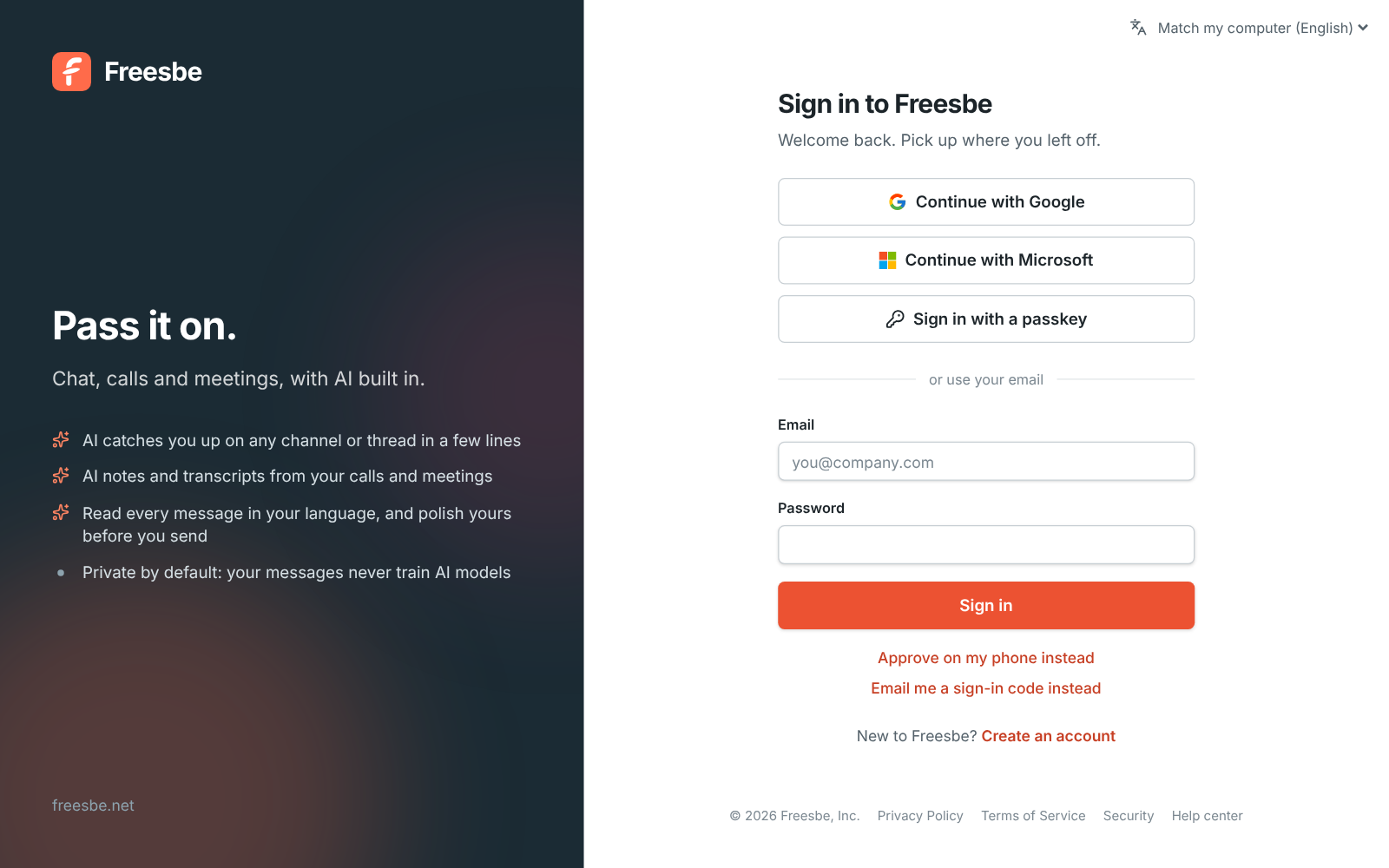
Section titled “Forgot your password”Choose Email me a sign-in code instead on the sign-in page and sign in with the code. Then set a new password in Preferences → My account → Account. Changing your password signs you out everywhere else.
No sign-in code arrived
Section titled “No sign-in code arrived”- Check your spam folder and any mail filters. Freesbe sends from
mail.freesbe.net. - Wait a minute, then click Send a new code.
- An address can get 10 sign-in codes a day. If you’ve hit that, sign in with your password, a passkey, Google or Microsoft instead, or try again tomorrow.
Codes still not arriving? See Emails from Freesbe don’t arrive.
“This workspace needs single sign-on”
Section titled ““This workspace needs single sign-on””Your admin requires everyone to sign in with Google or Microsoft. Continue with that provider. Your Freesbe account stays the same: signing in with the provider links it, as long as the provider’s address matches your Freesbe email. If it doesn’t, connect the provider in Preferences → My account → Sign-in → Google and Microsoft first. See Single sign-on.
“Verify it’s you”
Section titled ““Verify it’s you””Your workspace requires a second step. Approve on your phone, use a passkey, enter the code from your authenticator app, or ask for an emailed code. If you signed in with an emailed code, you can’t use another emailed code as the second step. See Multi-factor authentication.
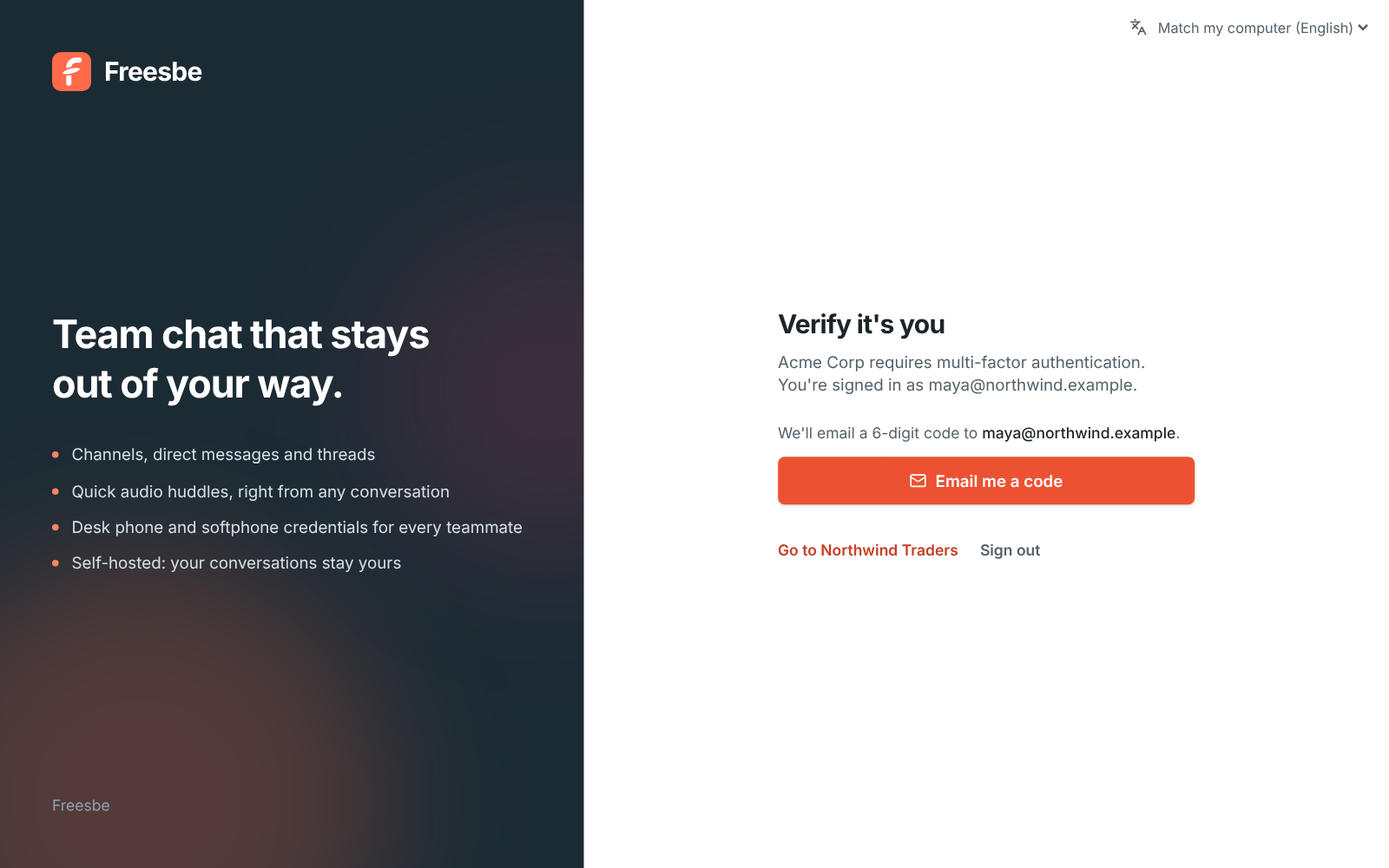
Too many wrong codes in a day locks that way of verifying until tomorrow. Use another way.
“You need an invite”
Section titled ““You need an invite””Workspaces are invitation-only. Ask a teammate or your admin for an invite link, or start a workspace for your own team at app.freesbe.net/signup. If you have an invite that doesn’t work, see My invite link doesn’t work.
Still stuck?
Section titled “Still stuck?”Ask a workspace admin, or email support@freesbe.net. Freesbe staff will never ask for your password or a sign-in code.
Answers come from the Freesbe guides and are written by AI, so check the linked guide before relying on one. Please don't include personal details such as emails or passwords.