
Post Stripe payments into a channel
Connect Stripe and your team sees customers’ payments, paid invoices, payouts, refunds, failed payments and disputes in a channel the moment they happen. It takes two trips between Freesbe and Stripe: you give Stripe a URL, and Stripe gives you a secret. You need to be a Freesbe owner or admin and able to add webhooks in the Stripe Dashboard.
This shows your own customers’ payments. It has nothing to do with your Freesbe subscription.
1. Get the endpoint URL from Freesbe
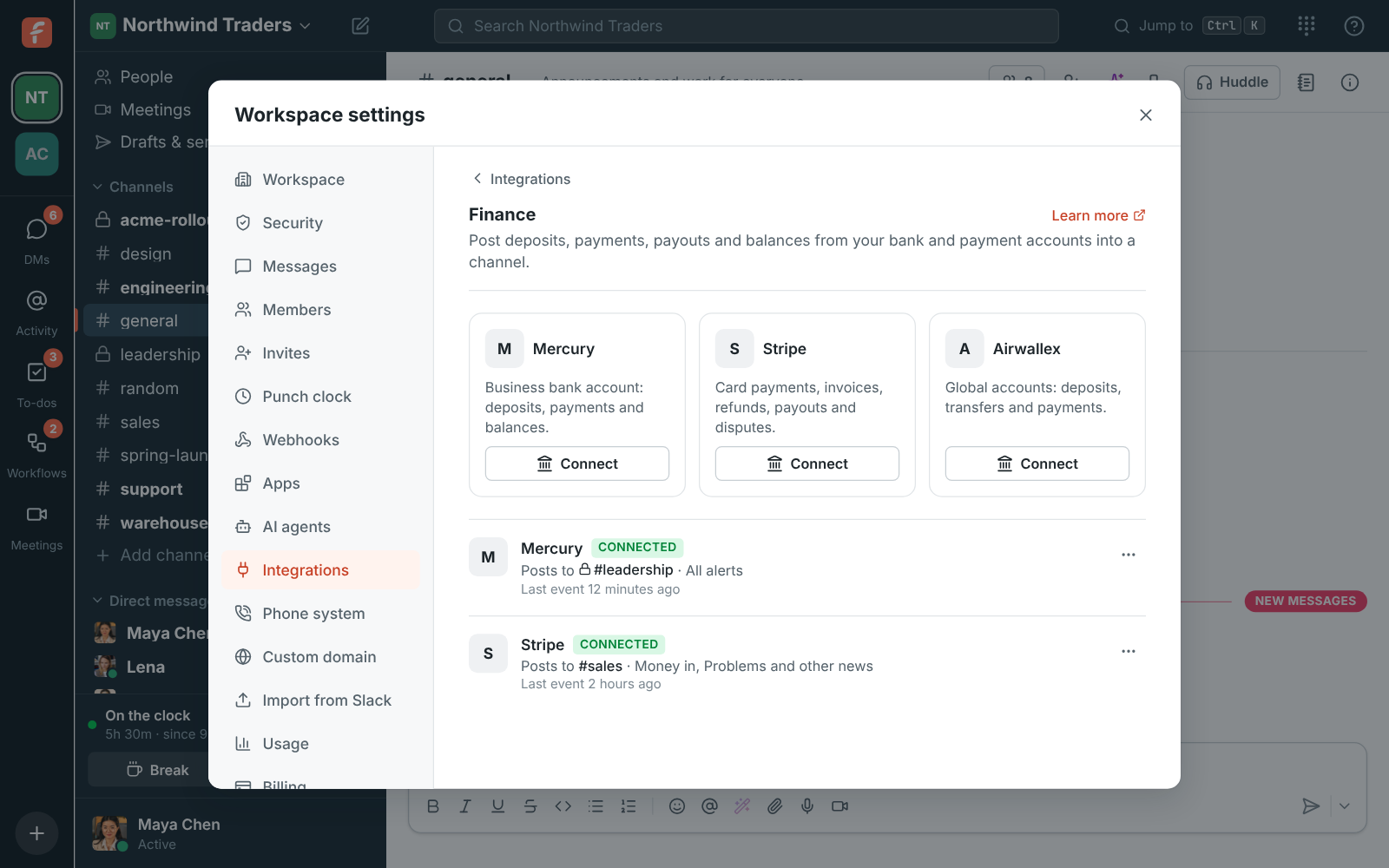
Section titled “1. Get the endpoint URL from Freesbe”- Open Workspace settings → Integrations & apps → Integrations → Finance and click Connect under Stripe.
- Pick Post to channel, tick the Alerts to post and, if you like, a Smallest amount to post, so coffee-sized payments stay out of the channel.
- Click Next. Freesbe shows the Endpoint URL, which looks like
https://api.freesbe.net/hooks/finance/stripe/…. Copy it now: it’s only shown once.
Keep this window open for step 3.
2. Add the endpoint in Stripe
Section titled “2. Add the endpoint in Stripe”- In the Stripe Dashboard, open Developers → Webhooks and add an endpoint.
- Paste the URL as the endpoint URL.
- Pick these events, leaving out any you don’t want:
payment_intent.succeeded,invoice.paid,charge.refunded,payout.paid,payout.failed,charge.dispute.created,invoice.payment_failed,customer.subscription.created,customer.subscription.deletedandbalance.available. - Save the endpoint, then reveal and copy its signing secret. It starts with
whsec_.
3. Paste the secret into Freesbe
Section titled “3. Paste the secret into Freesbe”Paste the signing secret into Signing secret and click Save secret. Until you do, the account shows Needs secret and Freesbe turns Stripe’s deliveries away. If you closed the window, click Paste signing secret on the account.
Check it works
Section titled “Check it works”Choose ⋯ → Send a test alert to see a sample card in the channel. You can also send a test event from Stripe’s webhook page. Events from Stripe’s test mode are marked Mode: Test.
If something’s wrong
Section titled “If something’s wrong”- Stripe shows failed deliveries. The secret is probably missing or wrong. Copy the signing secret from the same endpoint again, and paste it with Paste signing secret.
- You lost the URL. It can’t be shown again: delete the account in Freesbe, connect again, and update the endpoint URL in Stripe.
- Some kinds of payment never post. Check that the event is ticked on Stripe’s endpoint and the alert kind is ticked in Freesbe (⋯ → Edit).
Stop the alerts
Section titled “Stop the alerts”⋯ → Turn off pauses them, and ⋯ → Delete disconnects Stripe. Delete the endpoint in Stripe too, so it stops sending.
See Payment alerts for more.
Answers come from the Freesbe guides and are written by AI, so check the linked guide before relying on one. Please don't include personal details such as emails or passwords.