
Billing
Admins see the workspace’s plan, what it costs and its invoices under Workspace settings → Billing. Members don’t see this page. What each plan includes is on Plans.
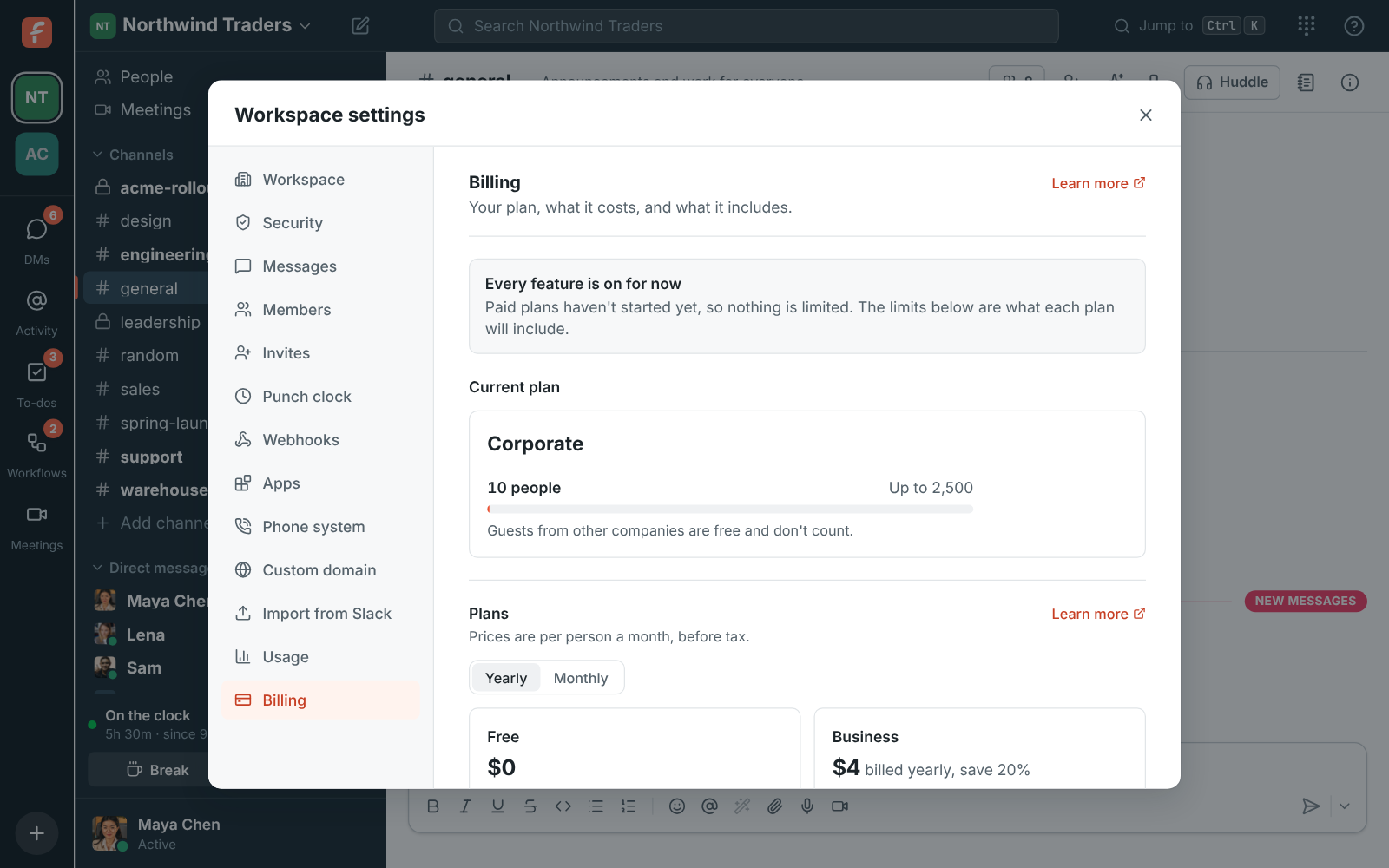
Your plan
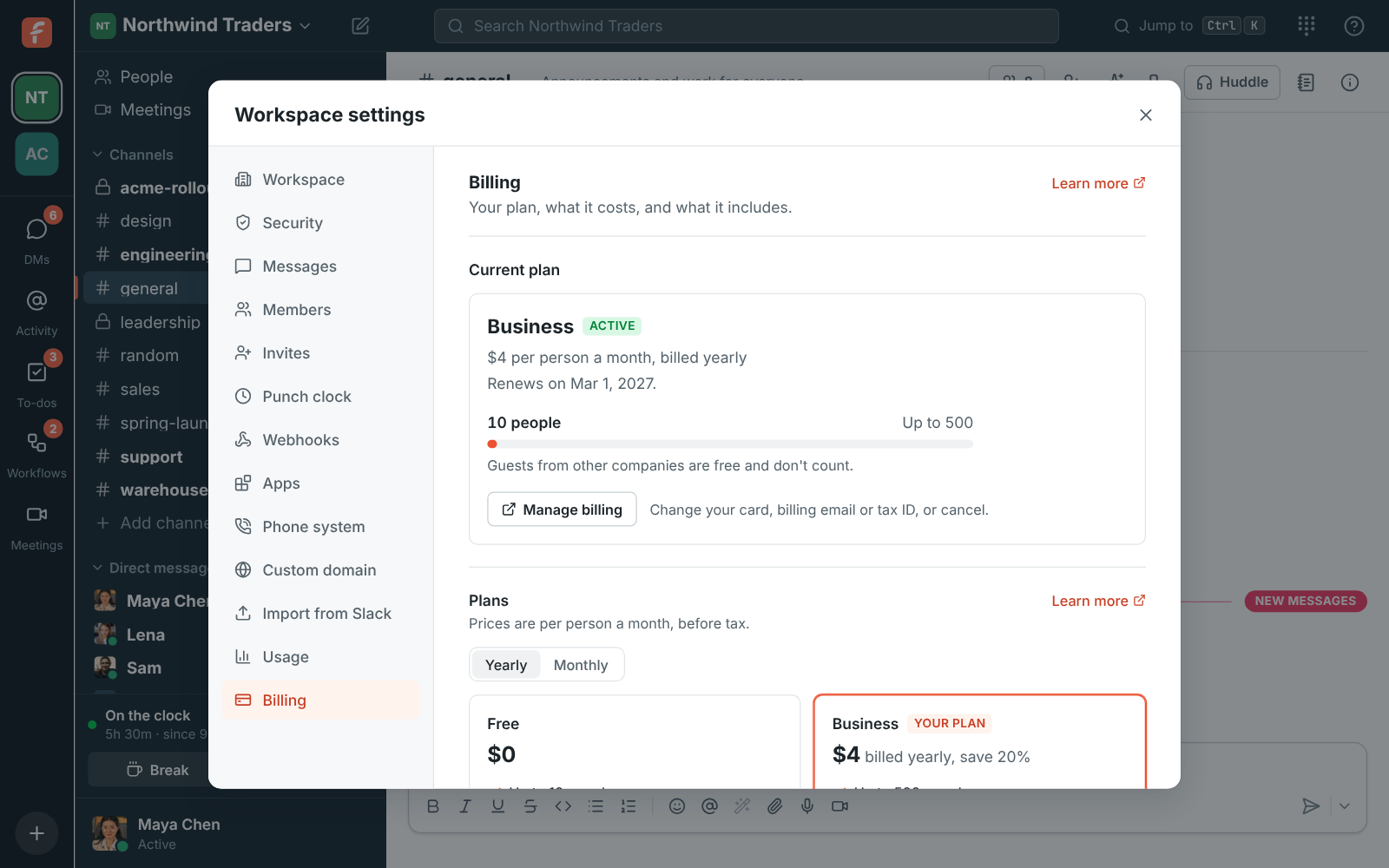
Section titled “Your plan”The top of the page shows:
- The plan and whether it’s active, on a trial, or has a payment that didn’t go through.
- What you pay: the price per person a month, and whether it’s billed yearly or monthly.
- When it renews, or when a trial or a canceled plan ends.
- People: everyone who counts toward the plan, against the plan’s limit.
Pay for a plan
Section titled “Pay for a plan”- Open Workspace settings → Billing.
- Pick Yearly or Monthly above the plans, then Upgrade to Business or Upgrade to Corporate.
- Stripe’s secure checkout opens with one seat for each person in the workspace. Enter your card, billing address and, if you have one, your company’s tax ID. Tax is added where it applies.
- You come back to the Billing page, which shows the new plan within a few seconds.
Freesbe never sees your card number: Stripe keeps it. From the desktop app, checkout opens in your web browser.
Change plan, card or billing details
Section titled “Change plan, card or billing details”Manage billing opens Stripe’s billing portal, where you can:
- Change the card the workspace pays with.
- Change the billing email, address or tax ID that appear on invoices.
- See and download every invoice.
- Cancel. The plan keeps working until the end of the period you paid for, then the workspace moves to Free. Nothing is deleted. Free has no phone system: if you have phone numbers, see When the Phone system add-on ends.
To stop using Freesbe altogether and delete the workspace, close it instead: that cancels the plan for you.
To move between Business and Corporate, or between yearly and monthly, use the buttons on the plans. Moving up (Business to Corporate, or monthly to yearly) happens right away, and you pay the difference for the rest of the period. Moving down happens at the end of the period, so you keep what you paid for.
Add-ons
Section titled “Add-ons”Some things are bought on top of a plan. When there are any for your plan, they’re under Add-ons on the Billing page, with what each costs a month before tax, on the same bill as your plan.
- Add asks you to confirm the price, then turns the add-on on for the workspace straight away. For things bought by the unit, like agents, choose how many first, and change the number any time with Save.
- Some add-ons follow the workspace: one charged per person follows the people who count toward the plan, and one charged for things the workspace has (like phone numbers) follows how many it has. You don’t change those yourself.
- Some need another add-on first. The card says which.
- Remove keeps the add-on working until the end of the period you’ve paid for, marked Ends with the date, and it isn’t charged after that. Keep undoes it at no cost.
Adding is charged like a new person: on a yearly plan in a small invoice right away, on a monthly plan on the next invoice. Add-ons need a paid plan. When you change plan or switch between yearly and monthly, your add-ons move with it, and the difference is charged or credited right away.
Usage past what’s included
Section titled “Usage past what’s included”Plans and add-ons include a monthly allowance of some things, like AI requests. Extra use isn’t charged: when the workspace reaches an allowance, that feature stops until the 1st of the next month (UTC), and the rest of Freesbe keeps working. Your bill is only your plan and add-ons. See Plan limits for each plan’s allowances.
Adding and removing
Section titled “Adding and removing”Adding is prorated: you pay for the rest of the current period, then the full price at renewal. Removing takes effect at the end of the period you’ve already paid for: what you removed isn’t charged after that, and nothing is refunded. Until then, what’s paid for can be used again for free. For example, when someone leaves, the next person who joins that period takes their seat at no extra cost.
Yearly plans are a 12-month commitment. In the first 7 days after you buy one or it renews, removing seats or add-ons comes back as a credit, so you can fix a mistake. After that, removing takes effect at the next renewal.
Who counts as a person
Section titled “Who counts as a person”Every member with an active account. Guests from other companies, people who join a meeting through a guest link and deactivated people are free.
You don’t need to change the number of seats yourself: it follows the workspace within a few minutes. Someone who joins is charged for the rest of the period: on a yearly plan in a small invoice right away, on a monthly plan on the next invoice. Someone who leaves or is deactivated stops being charged at renewal, and their seat goes to the next person who joins before then.
With the Phone system add-on, one local number comes with each person. When someone is deactivated and the workspace has more local numbers than people, the ones past that are billed as the Phone number add-on. Deactivate tells you what that adds a month before you confirm.
Yearly or monthly
Section titled “Yearly or monthly”Paying yearly costs less: $4 instead of $5 a person a month for Business (20% less), and $7 instead of $8.50 for Corporate (18% less). The Yearly and Monthly switch above the plans shows both prices. Prices are in US dollars, before tax.
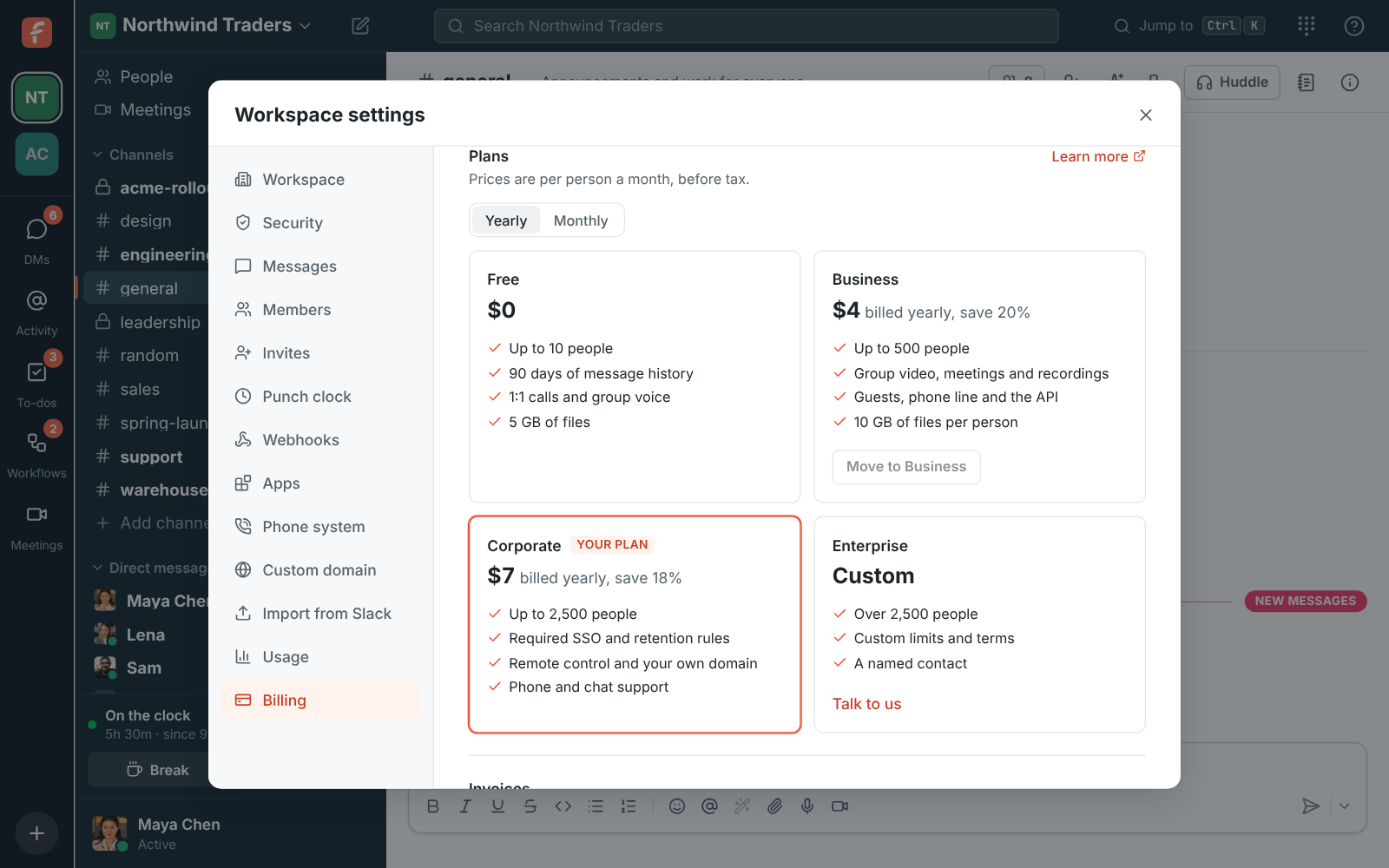
Enterprise has custom limits and terms: Talk to us emails sales@freesbe.net.
Receipts and failed payments
Section titled “Receipts and failed payments”Stripe emails a receipt to the billing email each time a payment goes through, and a reminder before a yearly plan renews. If a payment fails, Stripe emails the billing email and tries the card again over the next two weeks, and the Billing page shows Payment failed with a link to update the card. If every try fails, the plan is canceled and the workspace moves to Free. Nothing is deleted, and you can pay for a plan again at any time.
Invoices
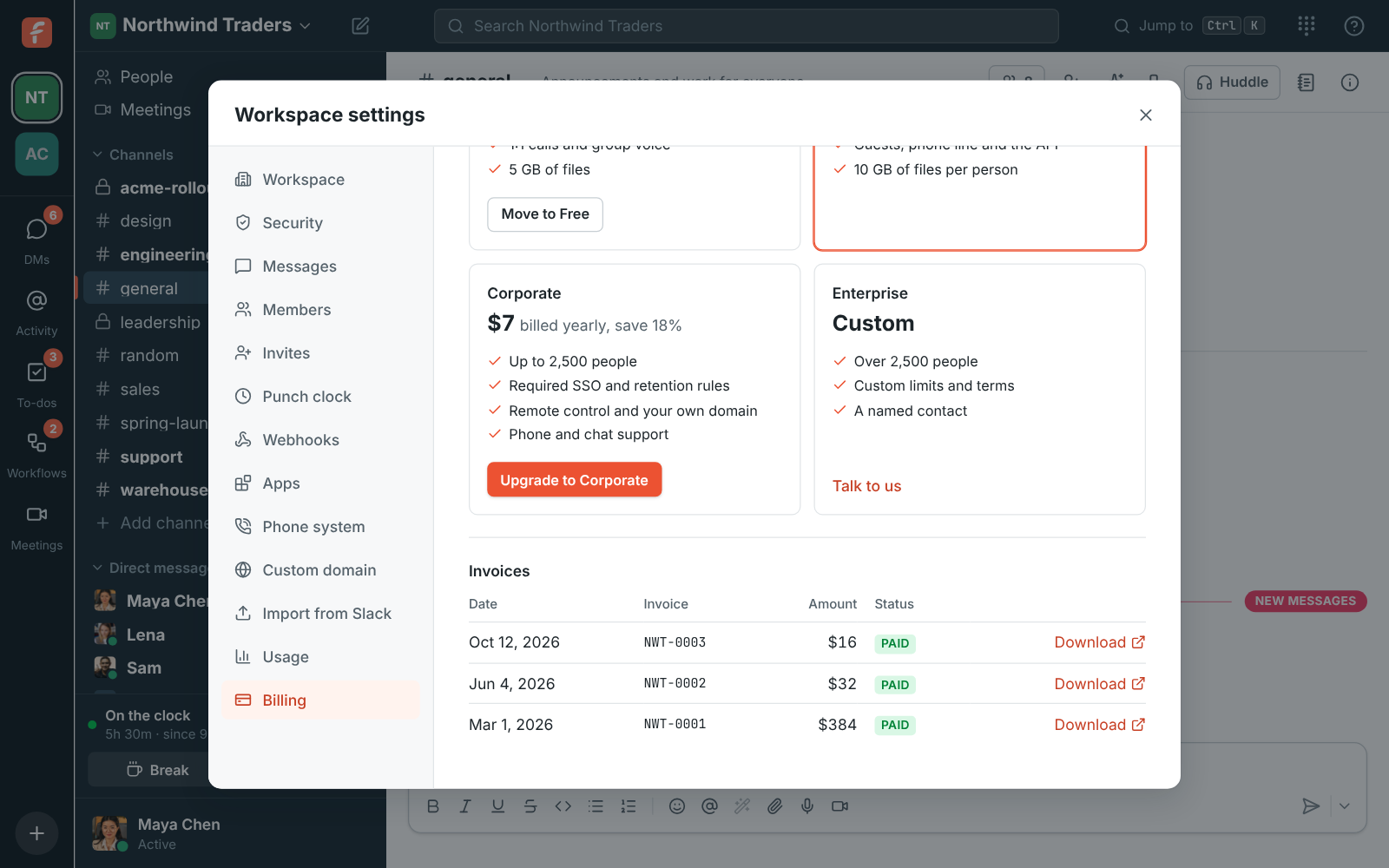
Section titled “Invoices”Every invoice is listed at the bottom of the page with its date, number, amount and whether it’s paid. Download opens the invoice, where you can save it as a PDF.
Answers come from the Freesbe guides and are written by AI, so check the linked guide before relying on one. Please don't include personal details such as emails or passwords.