
Canvases
Every channel and direct message can have a canvas: one document that sits beside the conversation. Use it for what people keep asking about, such as a support playbook, a price list, the agenda for this week or a customer’s account plan. Everyone in the conversation can edit it at the same time and sees the others’ changes as they type.
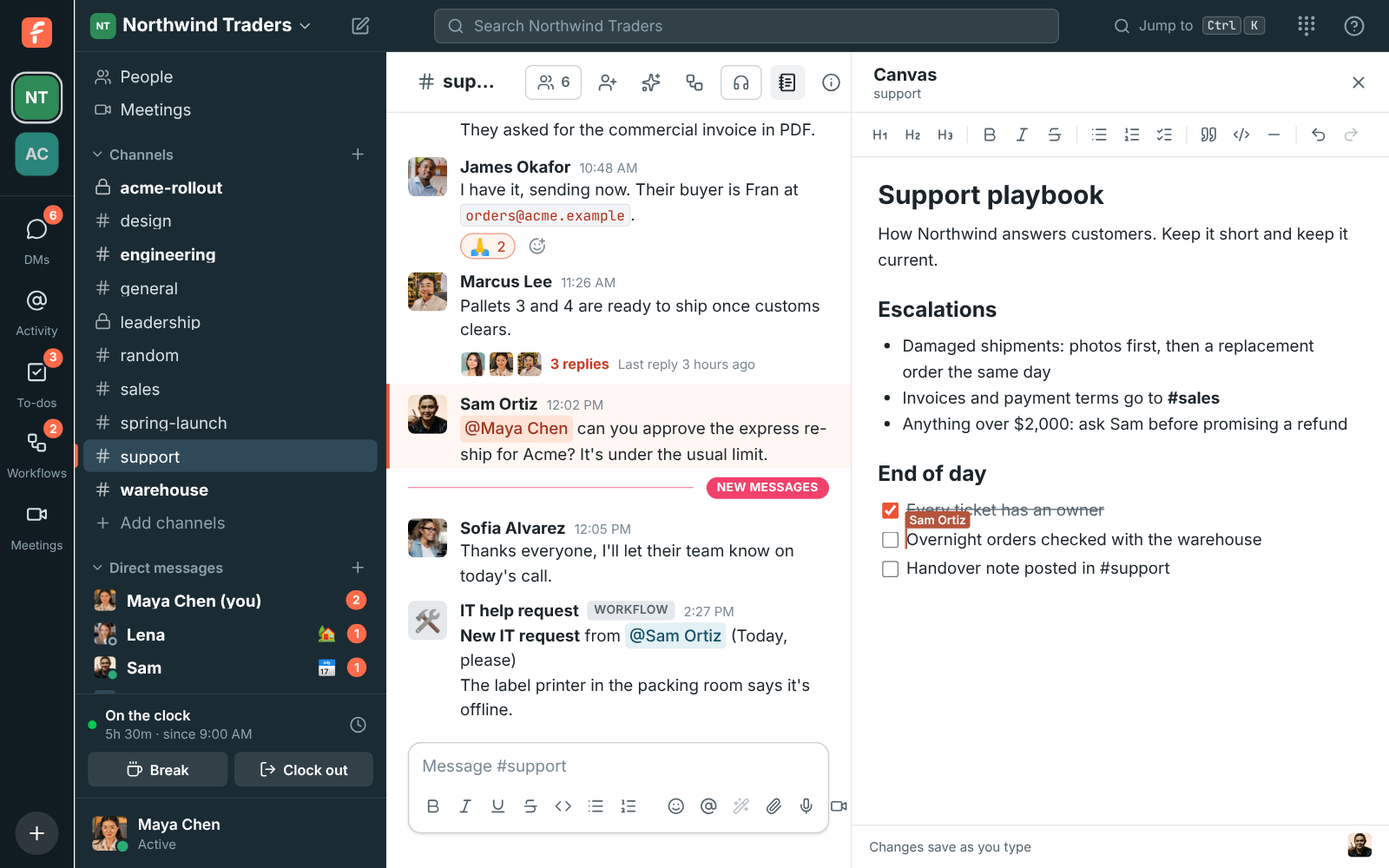
Open a conversation’s canvas
Section titled “Open a conversation’s canvas”Click the canvas button at the top of a channel or DM, next to the huddle button. The canvas opens on the right, beside the messages. Click the button again, or the ×, to close it.
The first time a member opens it, the canvas is empty and ready to write in, or to start from a template. There’s nothing to set up or save: changes are kept as you type, and Changes save as you type shows at the bottom.
Start from a template
Section titled “Start from a template”While a canvas is empty, a few ready-made starts show under the first line. Click one to fill the canvas with its headings, lists and checklists, then replace the prompts with your own details.
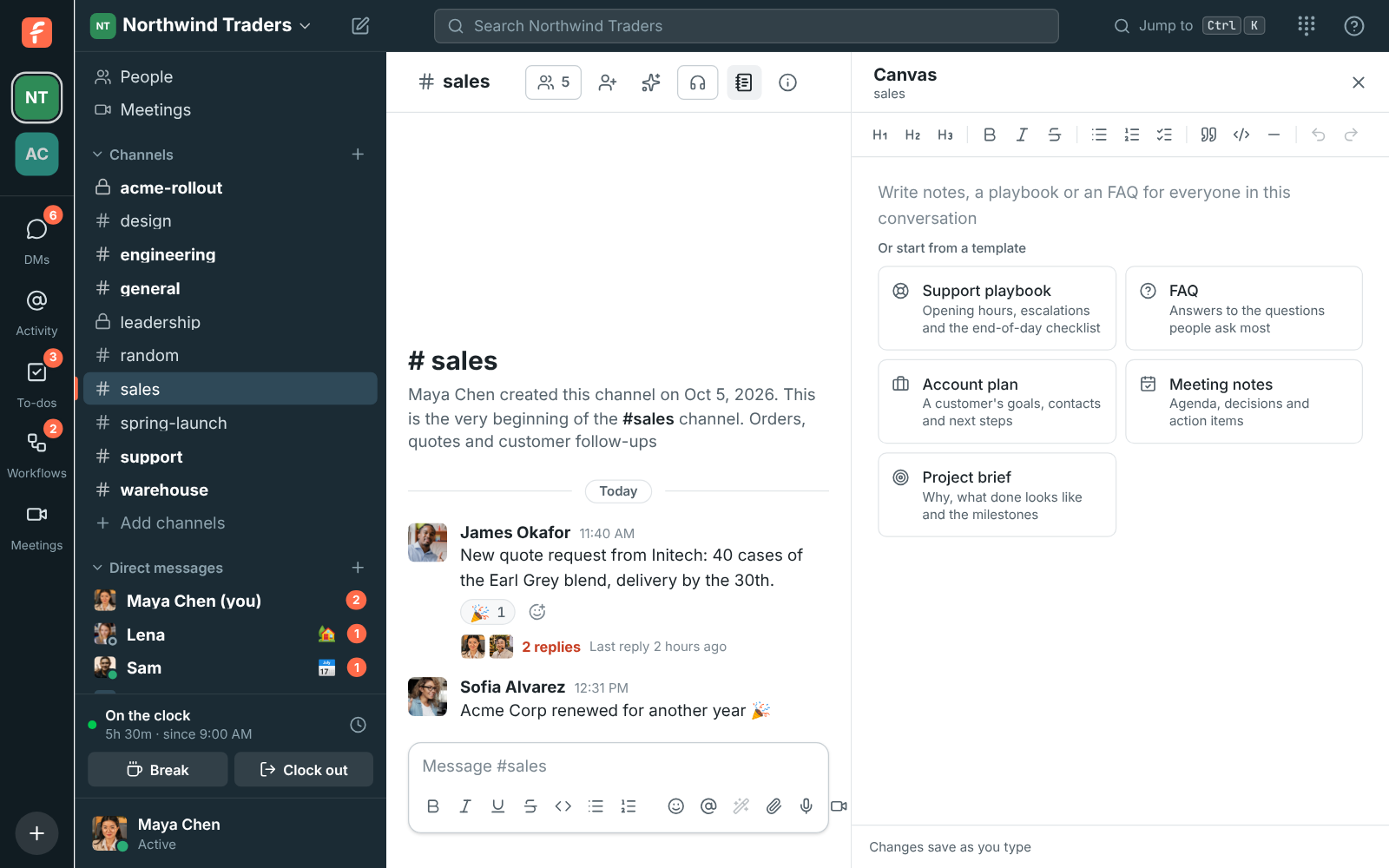
| Template | What’s in it |
|---|---|
| Support playbook | Opening hours and response times, who to escalate to, an end-of-day checklist |
| FAQ | Questions grouped by topic, each with its answer |
| Account plan | The customer, owner and renewal date, their goals, key contacts and next steps |
| Meeting notes | Date and attendees, the agenda, decisions and action items |
| Project brief | Why you’re doing it, what done looks like, and the milestones |
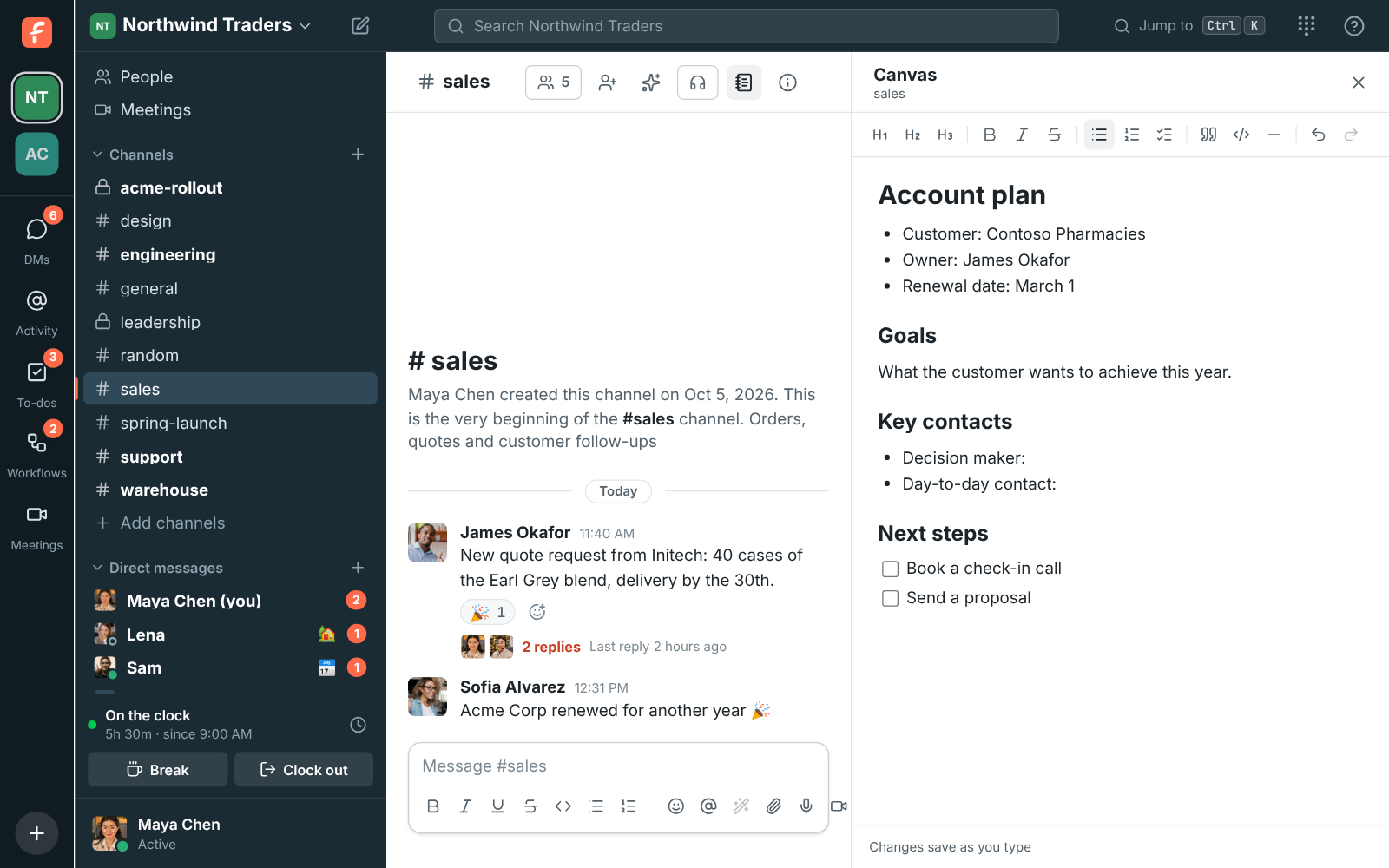
Templates are written in the language you use Freesbe in. Once the canvas has anything in it, the templates go away, so they never replace someone’s work. Changed your mind straight after picking one? Undo takes the canvas back to empty.
Write and format
Section titled “Write and format”Type straight into the canvas. The bar at the top formats the text:
- Headings in three sizes, bold, italic and
strikethrough. - Bulleted and numbered lists, and checklists you can tick off.
- Quotes, code blocks and a divider line.
- Undo and Redo undo your own changes, never someone else’s.
You can also type shortcuts at the start of a line:
| Type | To get |
|---|---|
# + space |
A large heading |
##, ### |
Smaller headings |
- + space |
A bulleted list |
1. + space |
A numbered list |
[ ] + space |
A checklist item |
> + space |
A quote |
``` + space |
A code block |
Ctrl+B, Ctrl+I and Ctrl+Shift+S (⌘ on a Mac) make text bold, italic or struck through. Pasted links become clickable. Hebrew and Arabic lines are written right to left on their own.
Edit together
Section titled “Edit together”When someone else has the same canvas open, their cursor shows with their name, and their picture appears at the bottom of the canvas. Everyone’s changes merge as they type, even in the same paragraph, so nobody has to wait their turn.
If your connection drops, keep writing. The bottom of the canvas says you’re offline, and your changes are sent as soon as you’re back.
Who can see and edit a canvas
Section titled “Who can see and edit a canvas”A canvas follows its conversation:
- Members of a channel or DM can edit its canvas.
- People who can read a channel without being in it, such as anyone browsing a public channel, can read the canvas but not change it. Join the channel to edit.
- A private channel’s or DM’s canvas is only visible to the people in it.
- An archived channel’s canvas is read-only.
A canvas can hold a long document, about a book’s worth of text. If one is ever full, start a new channel or move part of it elsewhere.
Coming next
Section titled “Coming next”Canvases are new. Next come canvases you can create on their own and share with anyone, embedded messages, files and meetings, version history, more templates, your own templates, and answers from your canvases in search.
Answers come from the Freesbe guides and are written by AI, so check the linked guide before relying on one. Please don't include personal details such as emails or passwords.