
Notifications
What notifies you
Section titled “What notifies you”By default, Freesbe notifies you about:
- Every message in a direct message or group DM.
- Mentions of you, including
@here,@channeland@everyone. - Messages with one of your keywords in your channels.
- Replies in threads you started or replied in.
- Huddles in your DMs that you missed. The notification stays until you deal with it.
- Every message in a channel you’ve set to Every message.
Other channel messages just make the channel bold in the sidebar.
What a notification says
Section titled “What a notification says”A notification shows where the message is and who sent it, then the message itself. When a message has more than one line, such as an alert with its details, you see the first line straight away and the rest when you expand the notification on your phone, or in your computer’s notification.
Messages from apps and incoming webhooks say what they’re about too:
- Cards, like the ones Zabbix, Freshdesk or your CRM post, lead with the card’s text, followed by its fields on a line each, such as Host: web-02.
- Alerts with only a coloured box, the way many monitoring tools post to Slack, lead with the box’s title, followed by its text and fields. A dot shows the box’s colour: 🔴 red, 🟠 orange, 🟡 yellow, 🔵 blue, or ✅ green for something resolved.
- When an app has the same name as its channel, such as ops-alerts in #ops-alerts, its name isn’t repeated in front of each message.
Turn on desktop notifications
Section titled “Turn on desktop notifications”- Open Preferences → Notifications.
- Turn on Show notifications for new messages. Your browser asks for permission; click Allow.
- Click Send a test notification to see what one looks like.
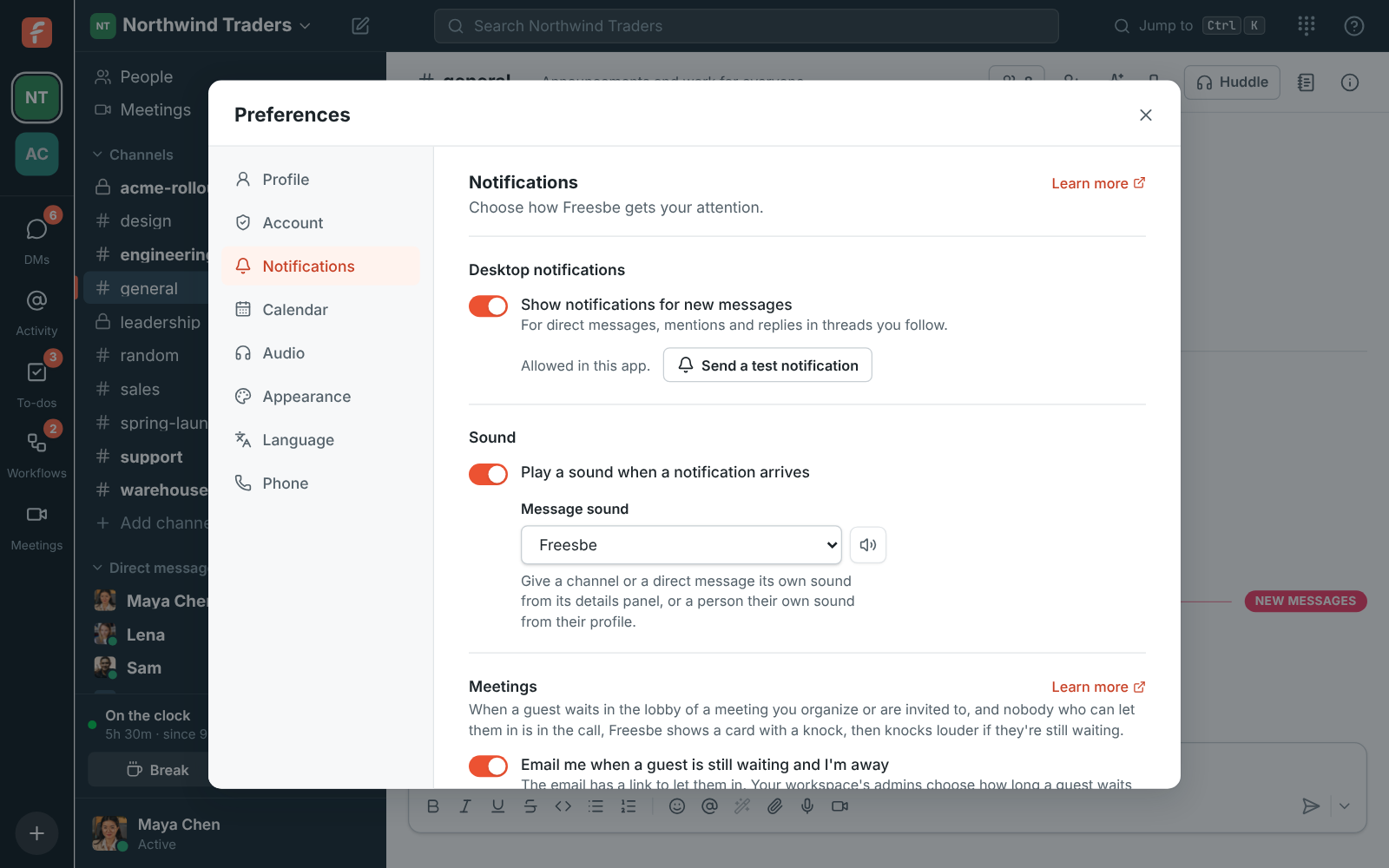
Turn Play a sound when a notification arrives on or off in the same place, and pick your Message sound. To play the ringtone and message sounds on a different speaker than your calls, see Audio.
If notifications are blocked, Freesbe says so. Allow them in your browser’s site settings for app.freesbe.net, or in your computer’s notification settings for the desktop app.
Keyword alerts
Section titled “Keyword alerts”Hear about the words you care about, like your product, a customer or your team’s name, even when nobody mentions you. Open Preferences → Notifications, type them under My keywords, separated by commas, and click Save keywords.
A message in one of your channels with a keyword counts as a mention: it notifies you (on your
phone too), adds to the channel’s mention badge, shows in Activity, and is tinted like a
mention. Keywords match whole words and phrases, and capital letters don’t matter: launch matches
“Launch day” but not “relaunched”. Only you see your keywords. You can have up to 50 in each
workspace.
Per-channel settings
Section titled “Per-channel settings”Open a channel’s details (click its name at the top) and go to Notifications:
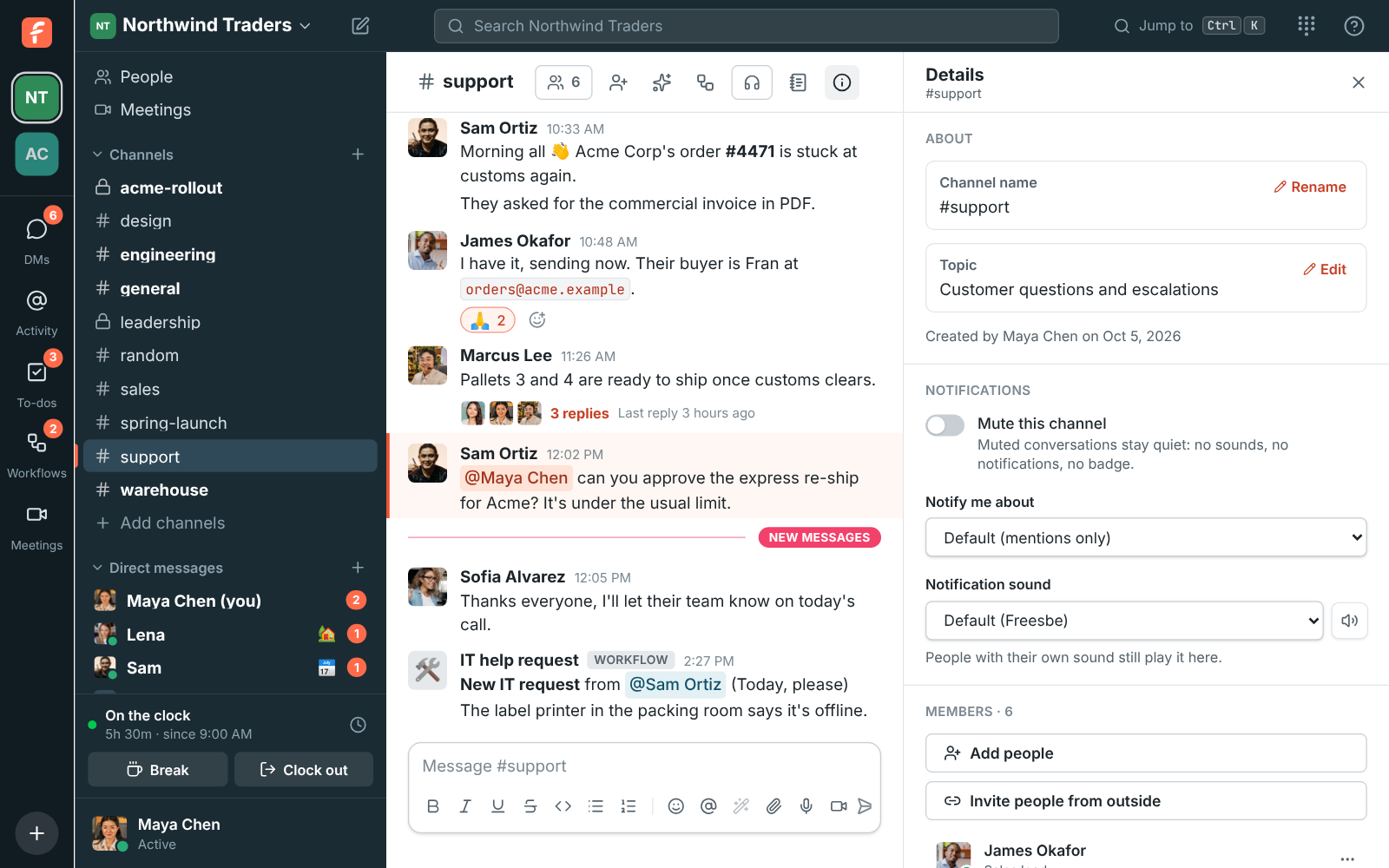
- Notify me about: Default, Every message, Mentions only or Nothing. The default is mentions only for channels and every message for DMs.
- Notification sound: a sound of its own for this conversation, so you can tell
#support-escalationsapart without looking. Default plays your message sound. - Mute this channel keeps it quiet: no sounds, no notifications and no badge. You’ll still see it in bold when there’s something new.
DMs have the same settings.
Notification sounds
Section titled “Notification sounds”Freesbe has eight built-in sounds: Freesbe, Ding, Pop, Knock knock, Bell, Bubble, Chord and Marimba, plus No sound for a conversation you want to see but not hear. Click the speaker button next to any sound picker to hear it.
You can pick a sound in three places:
- Your message sound, in Preferences → Notifications. Everything plays it unless you’ve picked something more specific.
- A conversation’s sound, in a channel’s or DM’s details, as above.
- A person’s sound, on their profile. Click someone’s name or picture, then pick a Notification sound. It plays whenever they message you, mention you or reply in a thread you follow, in any channel.
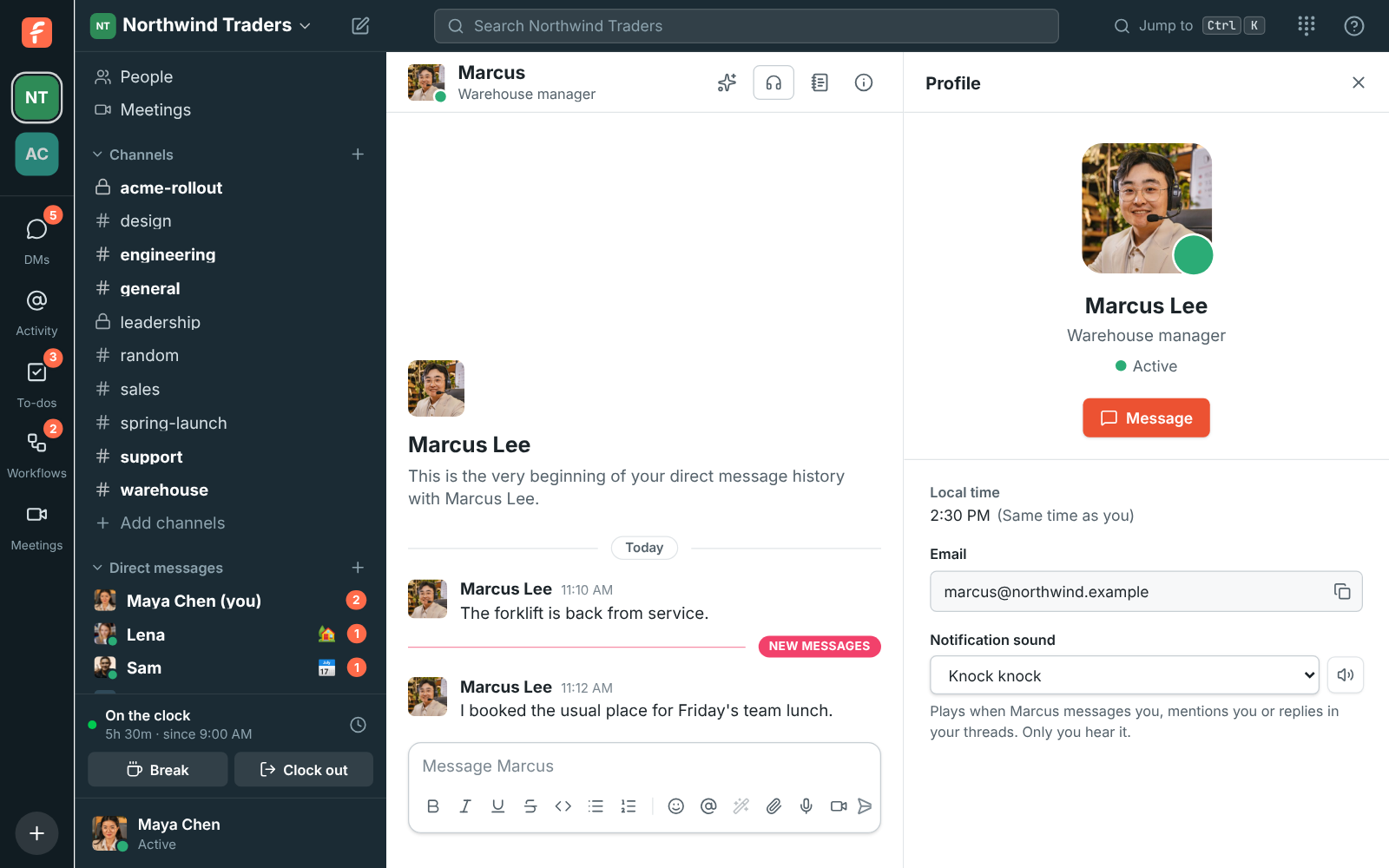
When more than one applies, the person’s sound wins, then the conversation’s, then your message
sound. So if you give your manager Knock knock and #sales Marimba, a mention from your
manager in #sales knocks.
Sounds only change what you hear: nobody else is told which sounds you picked. Conversation and person sounds follow you to every device you sign in on; your message sound is set on each device. Only the device that’s alerting you plays the sound (see Using several devices), through your alerts speaker.
Guests waiting in your meetings
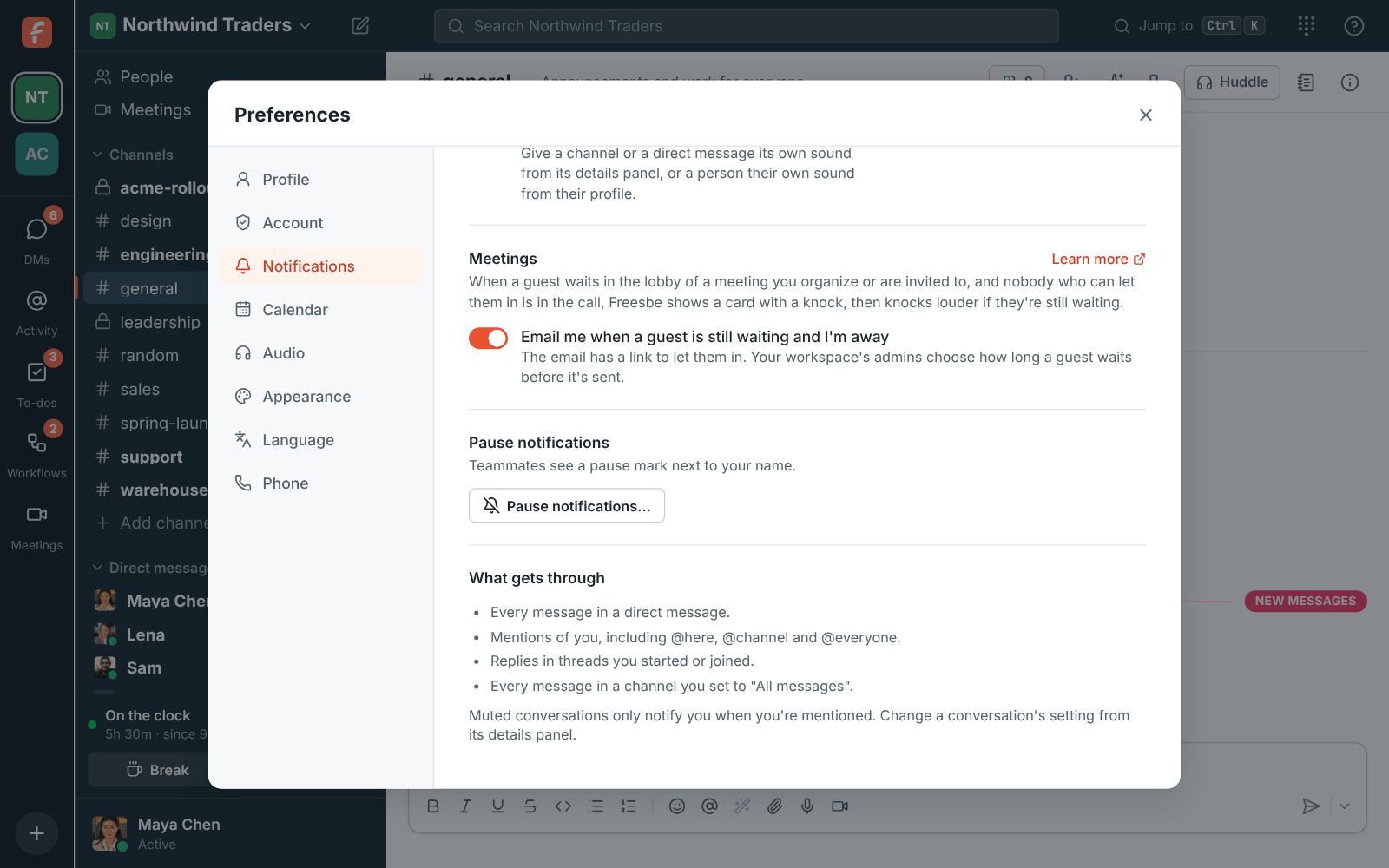
Section titled “Guests waiting in your meetings”When a guest waits in the lobby of a meeting you organize or are invited to, and nobody from the workspace is in the call, Freesbe shows a card with Admit, Deny and Join and plays a knock. If they’re still waiting a couple of minutes later, it knocks on every device until someone answers, and if you’re away you get an email with a link to let them in. Turn the email off in Preferences → Notifications → Meetings. See Waiting room alerts.
Pausing notifications
Section titled “Pausing notifications”To go quiet for a while, choose Pause notifications… from your account menu. See Status and availability.
Read receipts
Section titled “Read receipts”When your workspace shows read receipts, Preferences → Notifications has Share and see read receipts, which you can turn off if your admins allow it. See Read receipts.
Using several devices
Section titled “Using several devices”If you have Freesbe open in more than one place, such as the desktop app and a browser tab, only one of them alerts you for new messages: the one you used last, or the desktop app once you’ve been idle everywhere. You won’t get the same notification twice.
Freesbe in your phone’s browser is the exception: a phone browser can’t alert you once you switch away from it, so while Freesbe is open anywhere else, that’s where your alerts go, even if you last used your phone. The phone tab still plays its sound while you’re looking at it.
The mobile app works the same way: your phone gets a notification only while you aren’t active in Freesbe anywhere else, so it takes over when you step away from your computer.
Incoming huddle calls are different: they ring on every device, and stop everywhere as soon as you answer or decline on one. If you don’t, a missed call notification takes their place.
Unread badge
Section titled “Unread badge”The desktop app shows the number of unread mentions and DMs on its dock or taskbar icon.
Answers come from the Freesbe guides and are written by AI, so check the linked guide before relying on one. Please don't include personal details such as emails or passwords.