
Status and availability
Active, away and offline
Section titled “Active, away and offline”A green dot next to someone’s name means they’re active. Freesbe sets you to away after ten minutes without using it on any of your devices, and back to active as soon as you do. People who aren’t connected at all show as offline.
To stay away regardless, open your account menu at the bottom of the sidebar and choose Set yourself as away. Choose Set yourself as active to undo it.
Set a status
Section titled “Set a status”A status tells people what you’re up to, such as “Heads down” or “Off sick”.
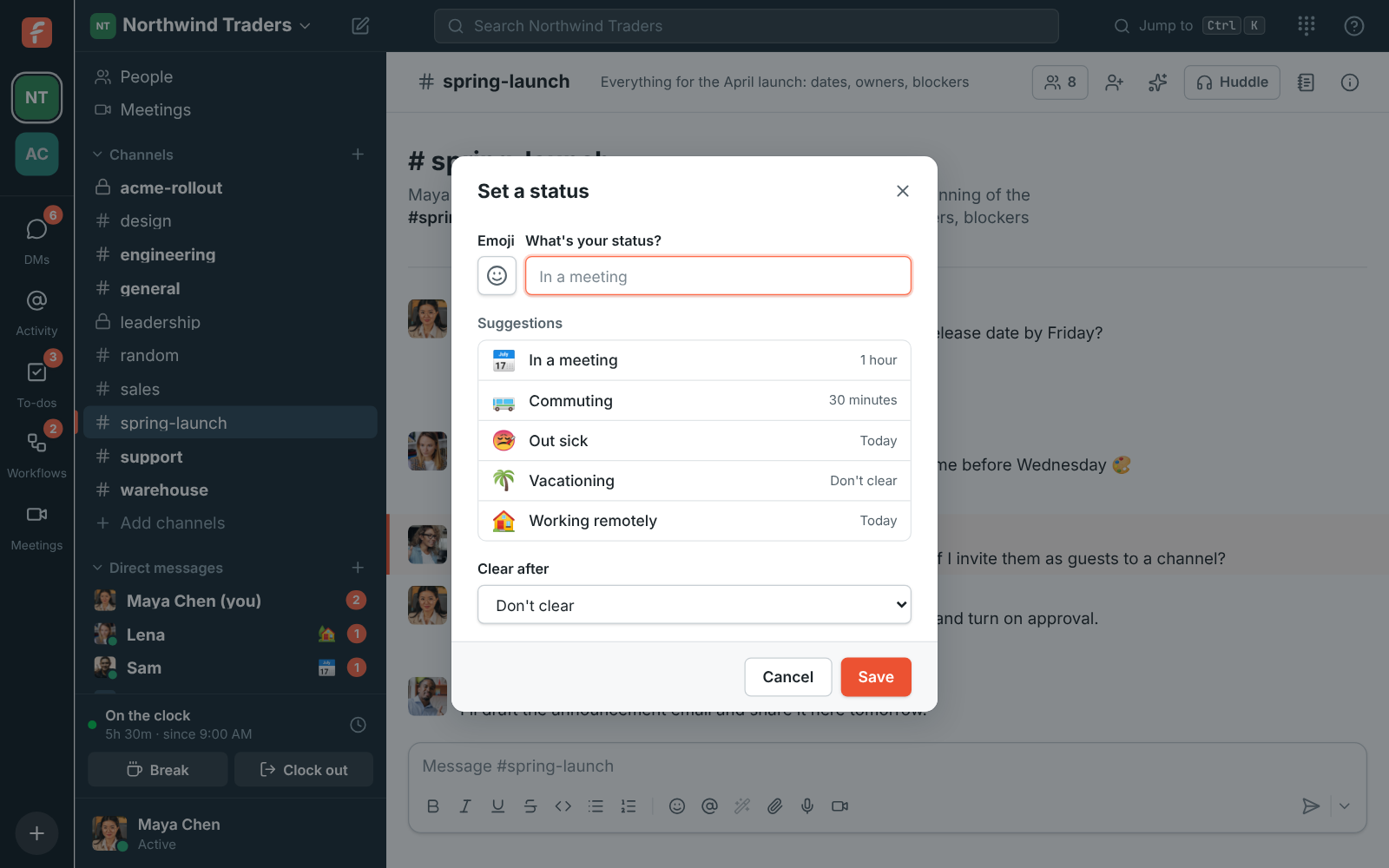
- Open your account menu at the bottom of the sidebar and choose Set a status.
- Pick an emoji and type what you’re doing, or choose a suggestion: Heads down, On a call, Lunch break, On the road, Off sick or Away on holiday.
- Under Clear after, choose when it should go away: Don’t clear, 30 minutes, 1 hour, 4 hours, Today or This week.
Your status shows next to your name in the sidebar, in DMs and on your profile. To remove it, choose Clear status in the same menu.
Connect your calendar
Section titled “Connect your calendar”Connect your Google, Microsoft or Zoho calendar so teammates can see when you’re busy while they schedule a meeting, and so your status says you’re in a meeting while you are.
- Open Preferences from your account menu and choose Calendar.
- Click Connect Google Calendar, Connect Microsoft Calendar or Connect Zoho Calendar, and sign in to that account. It can be a different account from the one you sign in to Freesbe with.
- Allow Freesbe to see when you’re busy. If you untick that permission, Freesbe can’t connect.
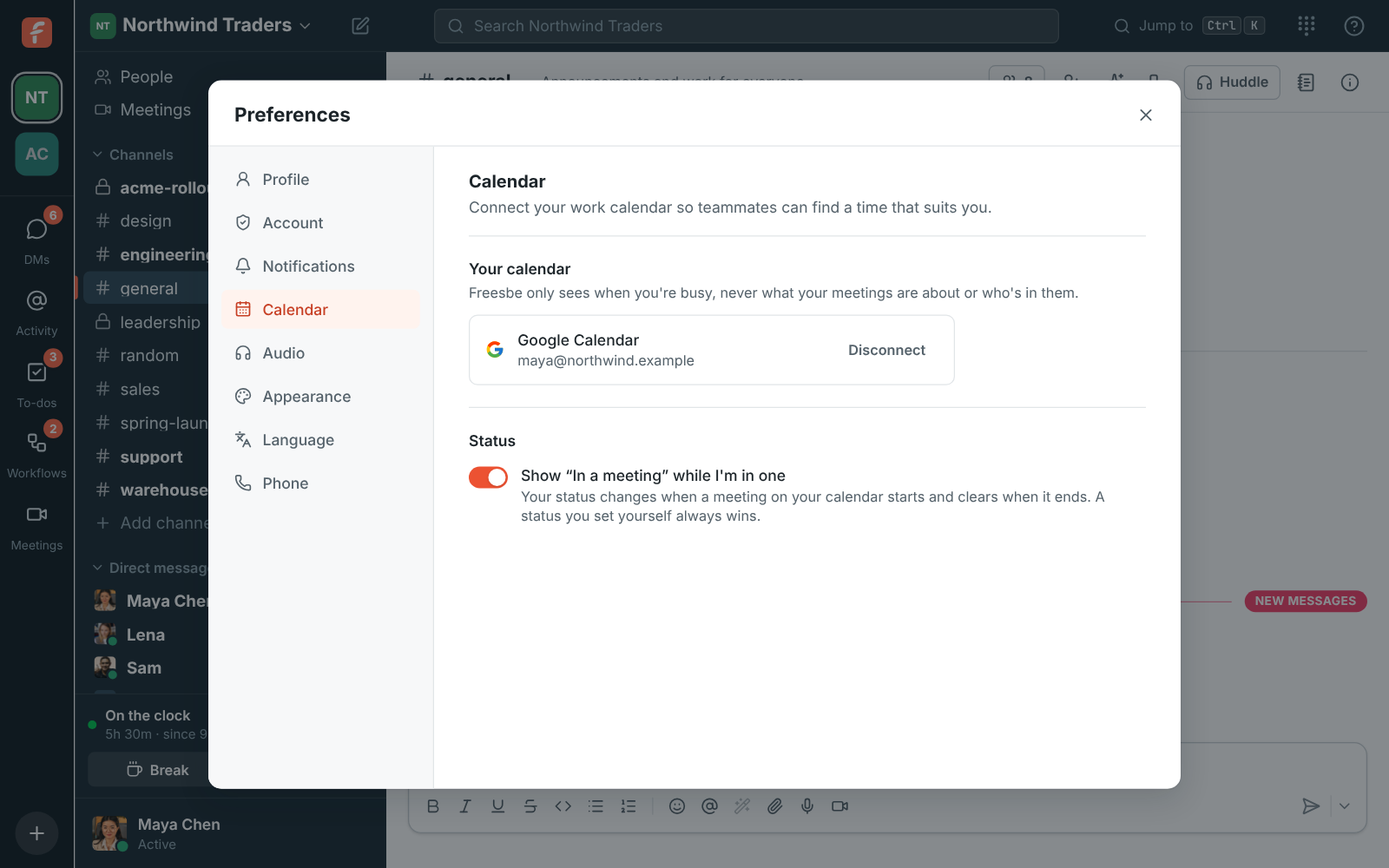
Freesbe only sees when you’re busy, never your meetings’ titles, places or who’s in them, unless you turn on the Calendar app for a daily agenda, reminders and invitations you can answer in Freesbe. Events marked free or cancelled don’t count. In the desktop app, Connect opens Freesbe in your web browser at Preferences → Notifications → Calendar; connect there and the app picks it up. Disconnect removes Freesbe’s access.
If your work account says it needs an admin’s approval, ask your IT admin to approve Freesbe for your organization.
“In a meeting” automatically
Section titled ““In a meeting” automatically”With a calendar connected, Show “In a meeting” while I’m in one sets your status to 📅 In a meeting when a meeting on your calendar starts, and clears it when it ends. Back-to-back meetings keep it on until the last one ends. It can take up to five minutes to change.
- A status you set yourself always wins: Freesbe doesn’t replace it.
- If you clear the automatic status, it stays off until that meeting ends.
- Turn the setting off to stop it, which clears it straight away.
Pause notifications
Section titled “Pause notifications”Pausing notifications (Do Not Disturb) stops sounds and desktop notifications until the pause ends. Teammates see a pause mark next to your name, so they know you may not answer.
- Open your account menu and choose Pause notifications….
- Pick 30 minutes, 1 hour, 2 hours, or until 9 the next morning.
Choose Resume notifications to end it early. Messages still arrive while you’re paused; you’ll see them, unread, when you look. While you’re paused, people finding a time for a meeting see it, and Freesbe doesn’t suggest times before the pause ends.
People who send you a direct message while you’re paused can still choose Notify anyway when it can’t wait. Then you get that one notification, and the pause carries on for everything else.
When the person you message is away
Section titled “When the person you message is away”After you send a direct message, Freesbe tells you above the message box if the other person won’t see it right away:
- They’ve paused notifications: “They’ll see your message when they’re back.” Click Notify anyway? to alert them about your message all the same. They get a notification on their computer, or on their phone if they’re not using Freesbe. You can do it once for each message.
- They’re away or offline: they still get notified as usual, so there’s nothing to do. The line is there so you don’t expect an answer straight away.
The line goes away when they’re back, or when you close it with ×. It shows for one-to-one DMs only, not for group DMs or channels.
Your local time
Section titled “Your local time”Set your time zone in Preferences → My account → Profile. Other people see your local time next to your name in direct messages, so they know if it’s late where you are. Set your working hours there too, so meetings land when you’re working.
Answers come from the Freesbe guides and are written by AI, so check the linked guide before relying on one. Please don't include personal details such as emails or passwords.