
AI summaries, translations and writing help
Back from a day off, or dropped into a thread with 40 replies? Ask Freesbe for a summary. It reads the conversation for you and gives you the gist in a few lines: what was decided, what’s still open, and who’s waiting on whom. Each point links to the message it came from.
Someone wrote in a language you don’t read? Translate the message in place. Writing to a customer in a hurry? Let Freesbe tidy up your message before you send it.
Summaries, translations and suggested rewrites are only for you. Nobody else sees that you asked, and nothing is posted to the conversation.
Every AI button in Freesbe has purple-to-pink sparkles (or a purple-to-pink magic wand), so you can tell at a glance which buttons use AI.
Summarize a channel
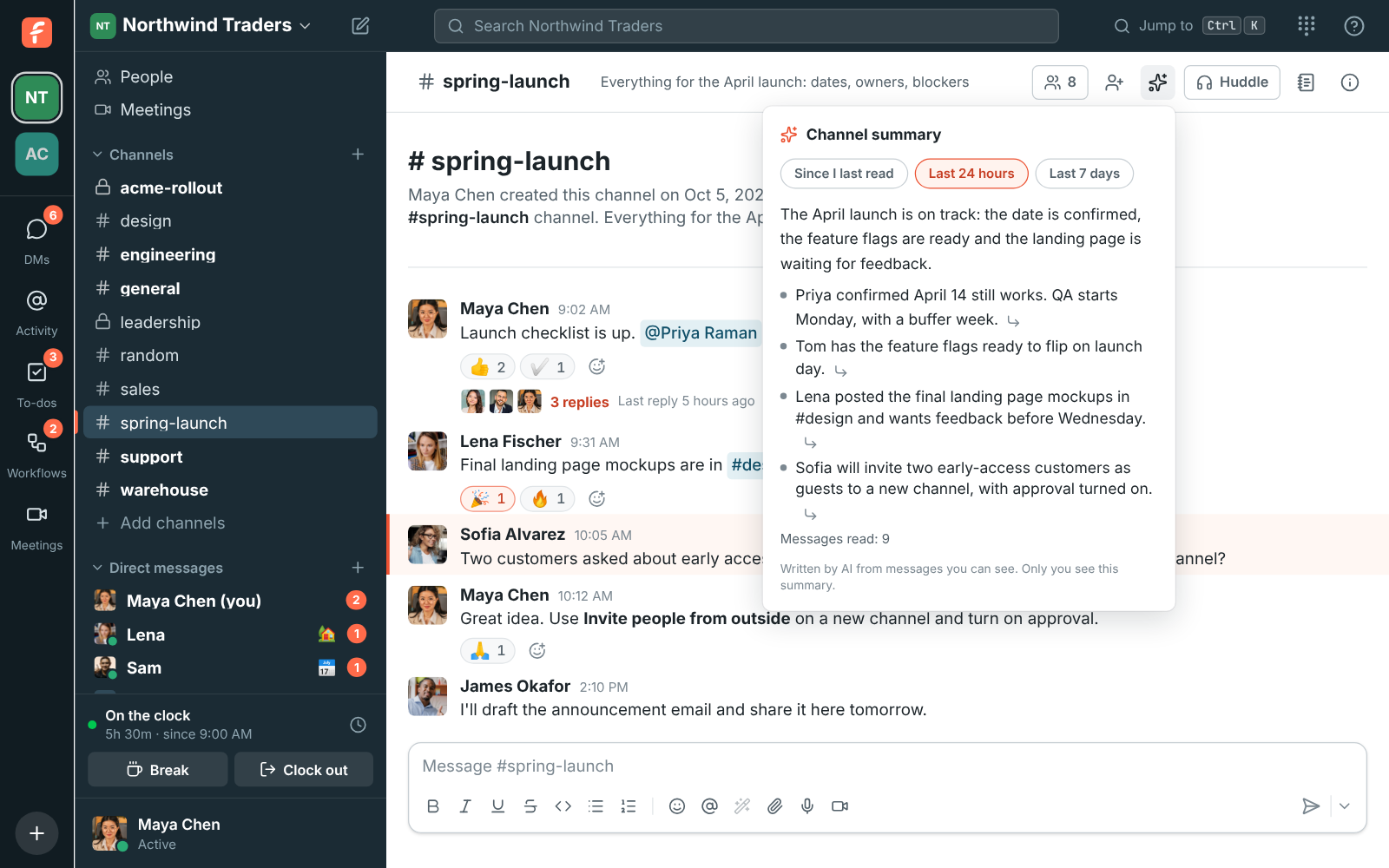
Section titled “Summarize a channel”- Open the channel and click the Summarize channel button (the purple sparkles) at the top.
- Pick how far back to read:
- Since I last read: everything new since you were last here.
- Last 24 hours
- Last 7 days
The summary starts with a sentence or two on where things stand, followed by the main points. Click the arrow after a point to jump to the message it came from, even when that message is a reply in a thread.
The summary works in direct messages and group DMs too.
While it’s written
Section titled “While it’s written”You see what Freesbe is doing as it works. First, how many messages it’s reading:
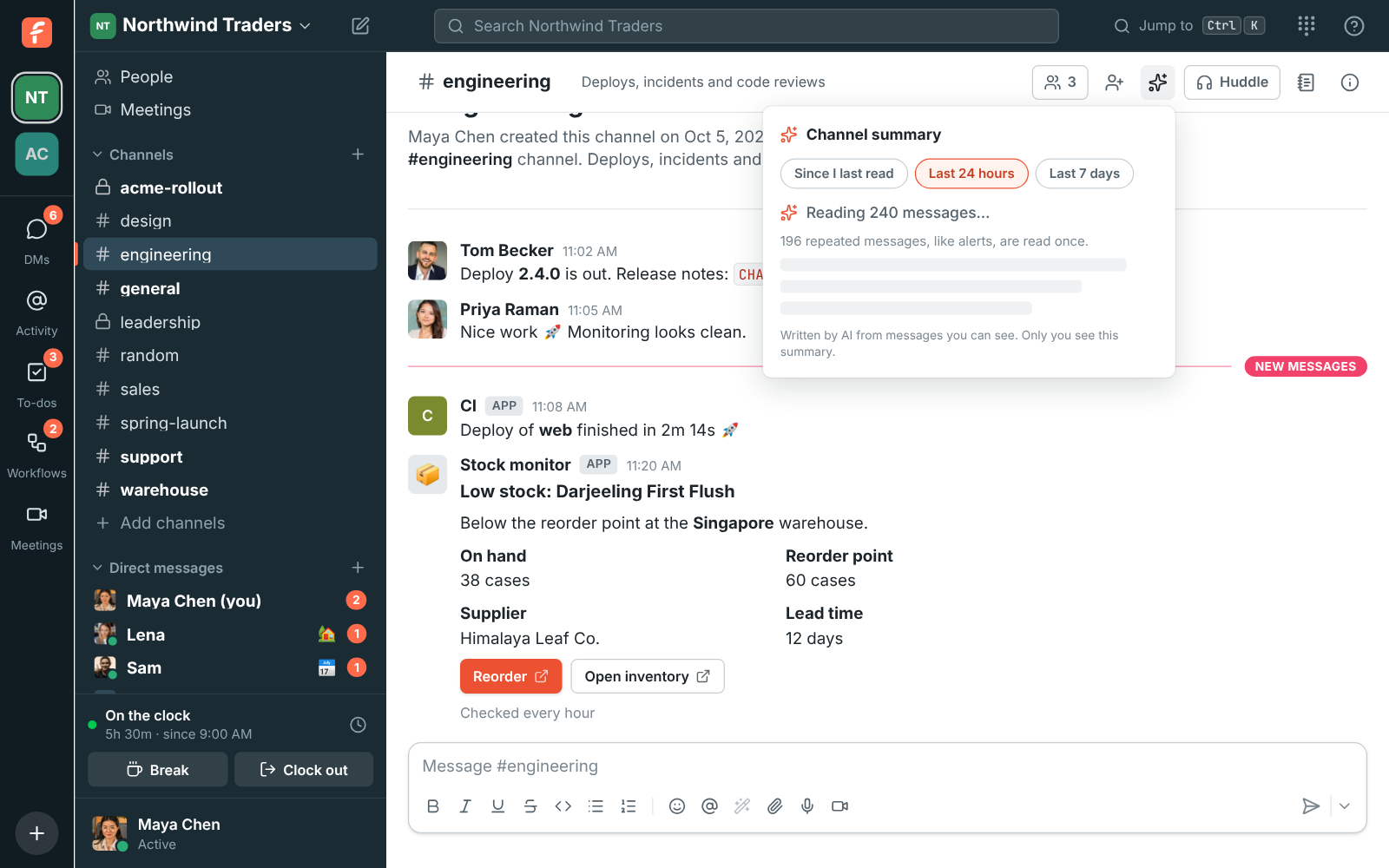
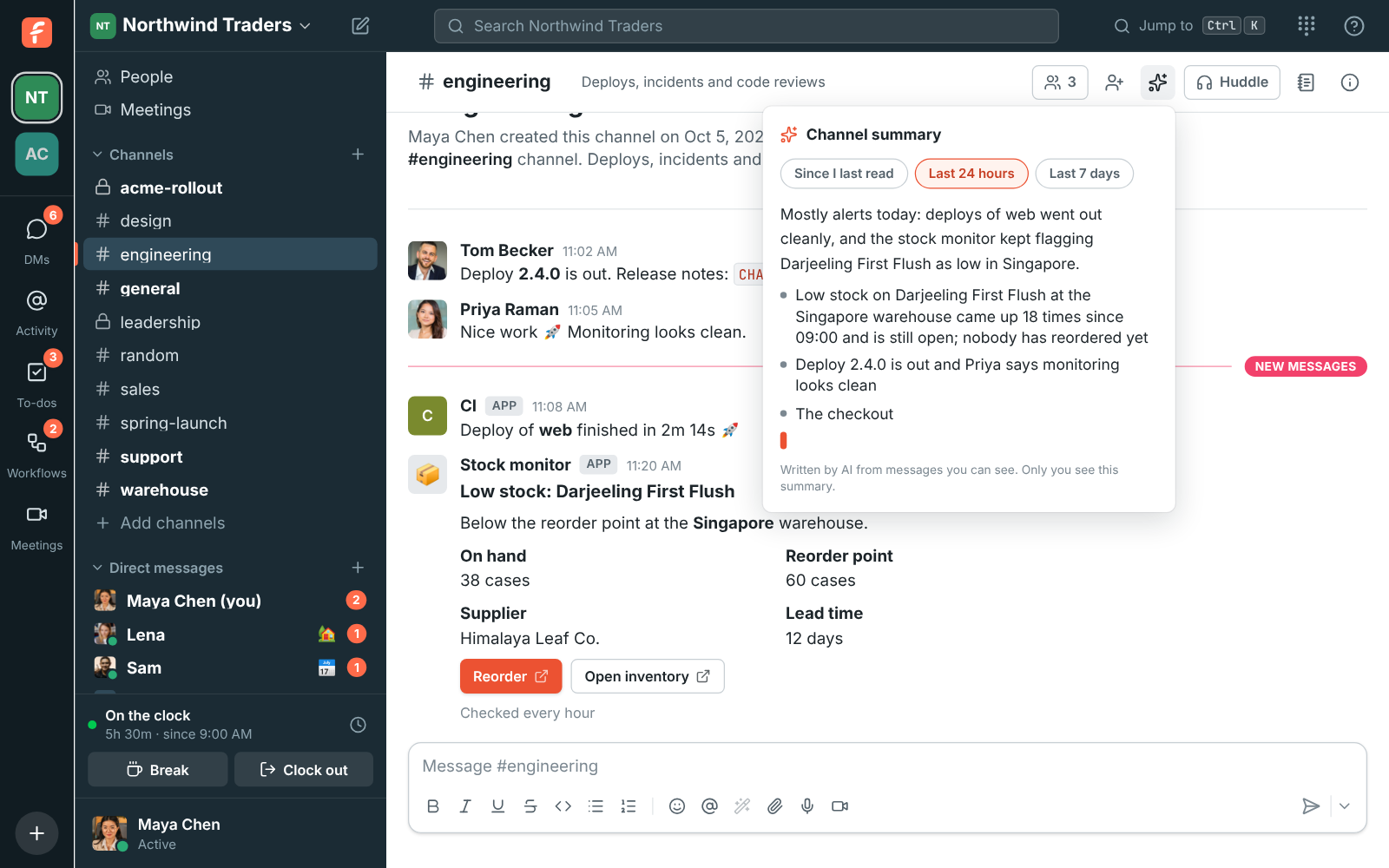
Then the summary itself, as it’s written. You can start reading before it’s done.
Busy channels and alerts
Section titled “Busy channels and alerts”Channels where monitoring tools and bots post the same alert again and again are quick to summarize too. Freesbe reads a message that’s posted over and over, with only numbers or times changing, once, and notes how many times it came and for how long. The summary says which problems are still open and which were resolved.
Asking again
Section titled “Asking again”Freesbe keeps the summary. Ask again with nothing new in the channel and you get it at once, marked Up to date. When there are new messages, Freesbe reads only those and adds them to the summary, which is much quicker than reading everything again. A summary that’s kept doesn’t count as another AI request.
If a message the summary read is edited or deleted, Freesbe reads the conversation again the next time you ask.
Summarize a thread
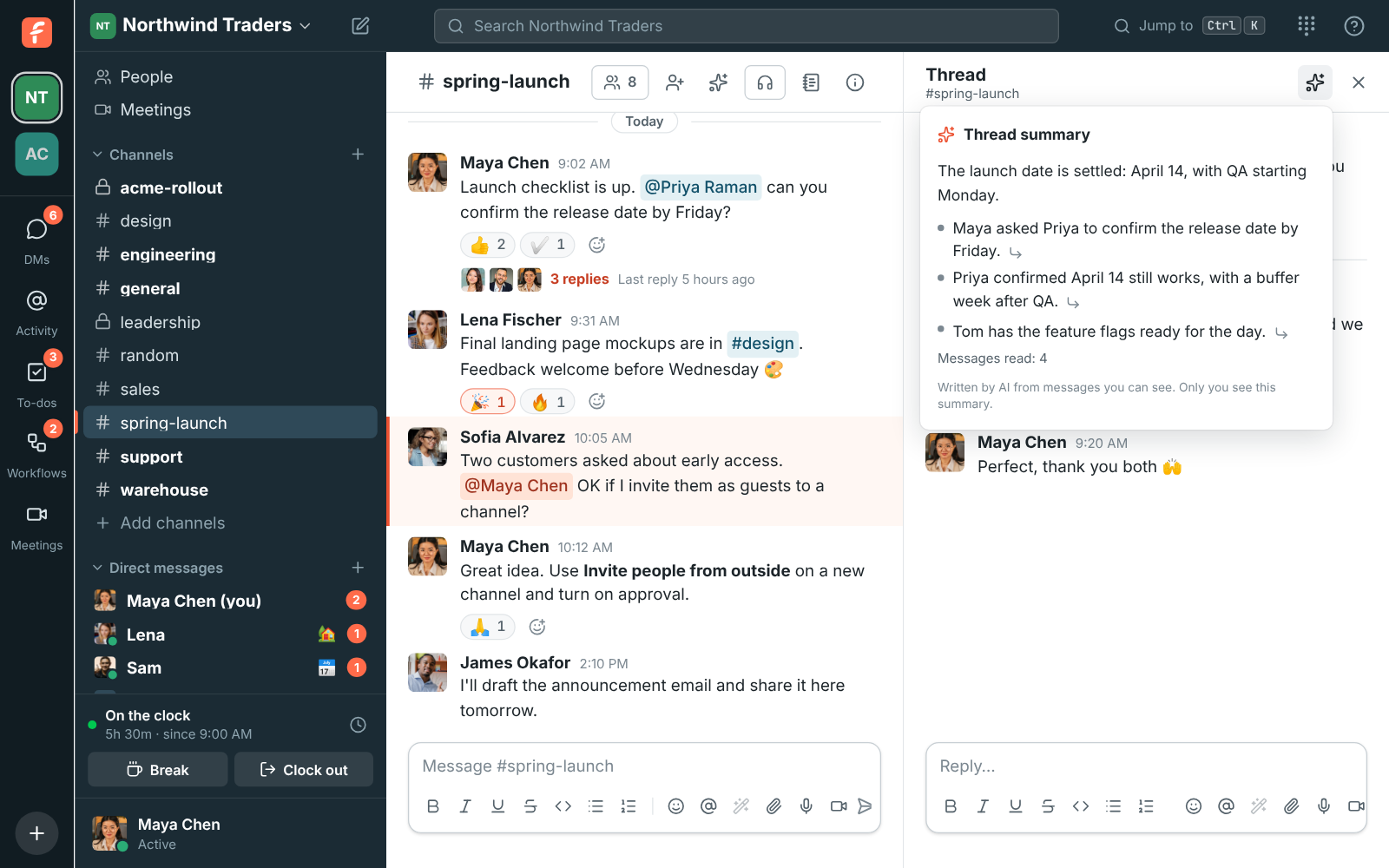
Section titled “Summarize a thread”Open the thread and click Summarize thread (the sparkles at the top of the thread), then Summarize. The summary covers the message that started the thread and every reply.
Translate a message
Section titled “Translate a message”Point at the message, click More actions (⋯) and choose Translate. The translation shows under the message, in the language you use Freesbe in (see Profile and preferences). Click Hide to put it away.
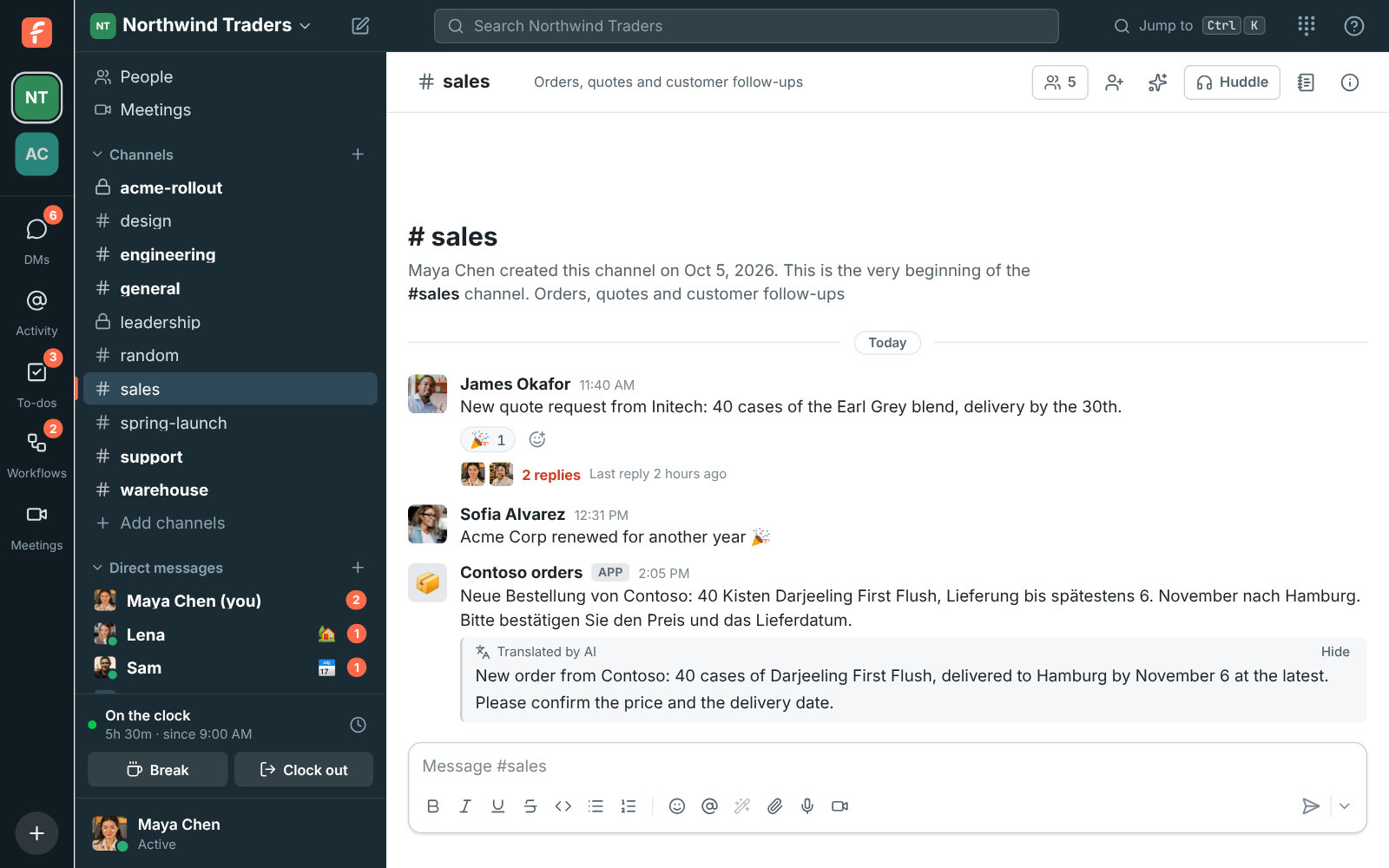
Names, @mentions, #channels, links and emoji stay as they were. If the message is already in your language, Freesbe says so.
Improve what you write
Section titled “Improve what you write”Type your message, then click Improve writing (the purple magic wand under the message box) and pick what you want:
- Fix spelling and grammar: keeps your words, fixes the mistakes.
- Make it clearer
- Make it shorter
- Make it friendlier
- Make it more formal: for customers and partners.
You see the suggested version first. Click Replace to put it in the message box, where you can still change it before sending, or Keep mine to leave your message as it was. Nothing is sent until you send it.
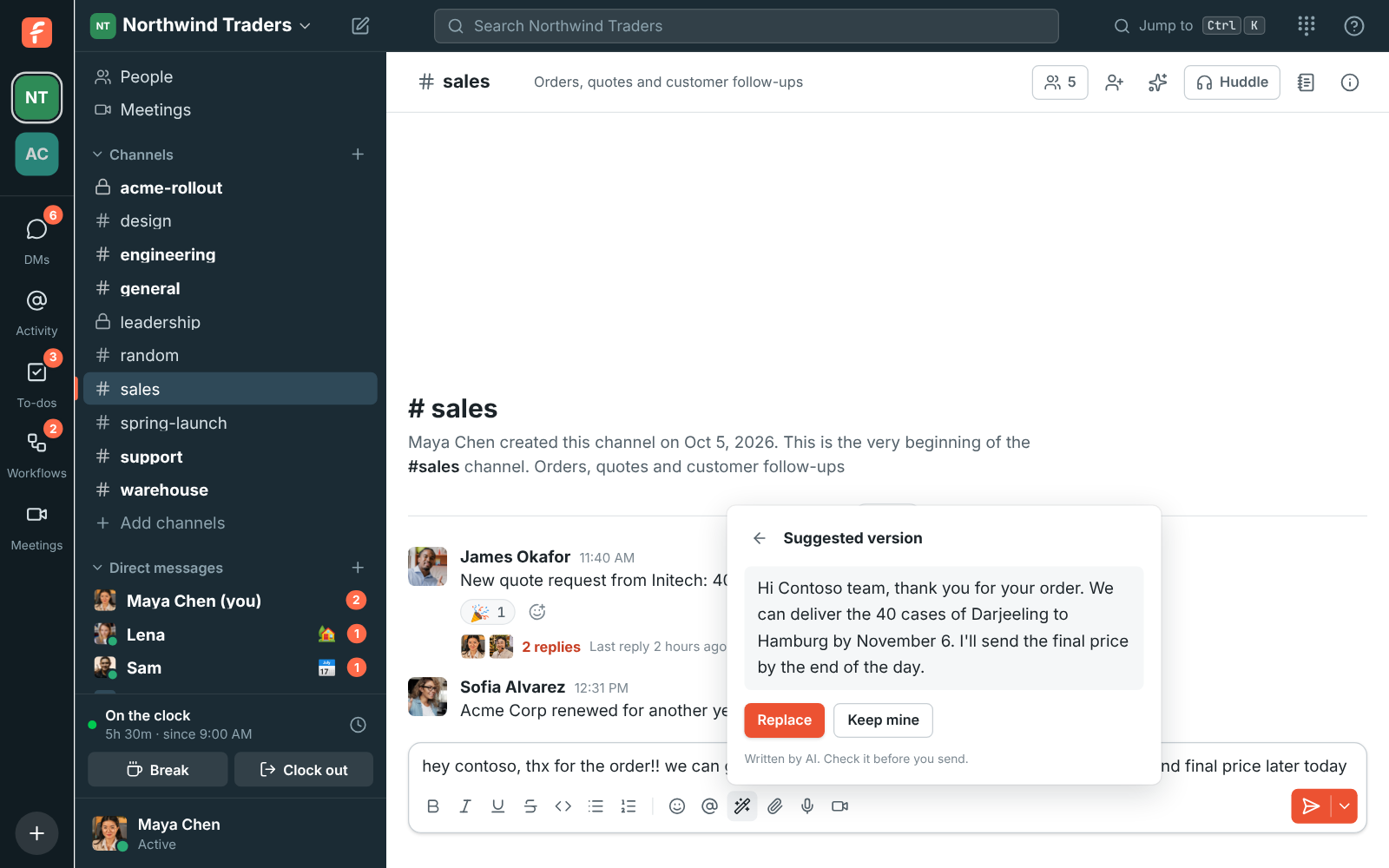
Writing help keeps @mentions, #channels, links, emoji and code as they are, and answers in the language you wrote in. It works on messages up to 4,000 characters.
Help with your to-dos
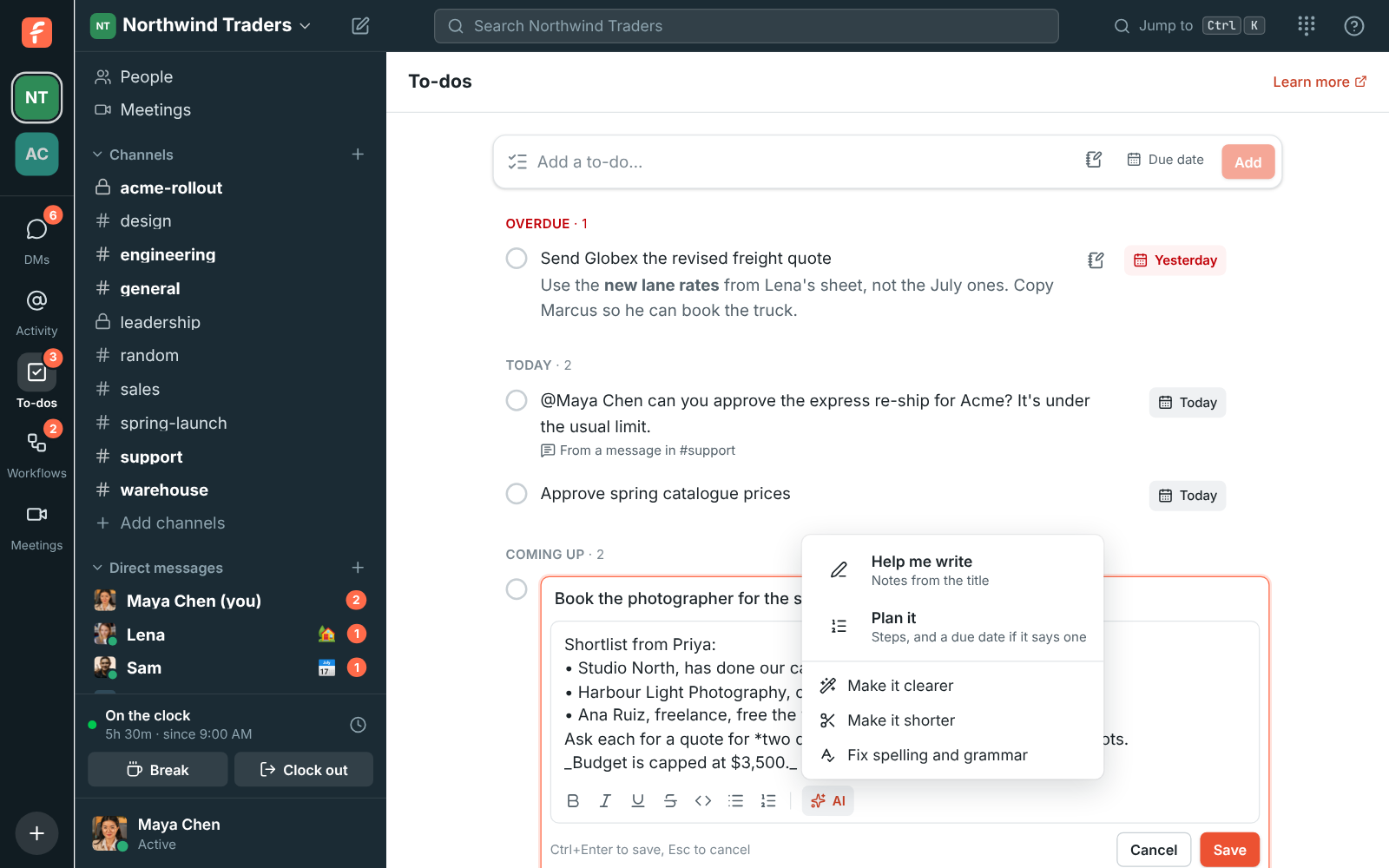
Section titled “Help with your to-dos”When you write a to-do’s notes, click AI under the notes box:
- Help me write turns the title into notes: what done looks like, what to remember, and the questions to answer first. Anything it doesn’t know becomes a question, such as “Which supplier?”, instead of a guess.
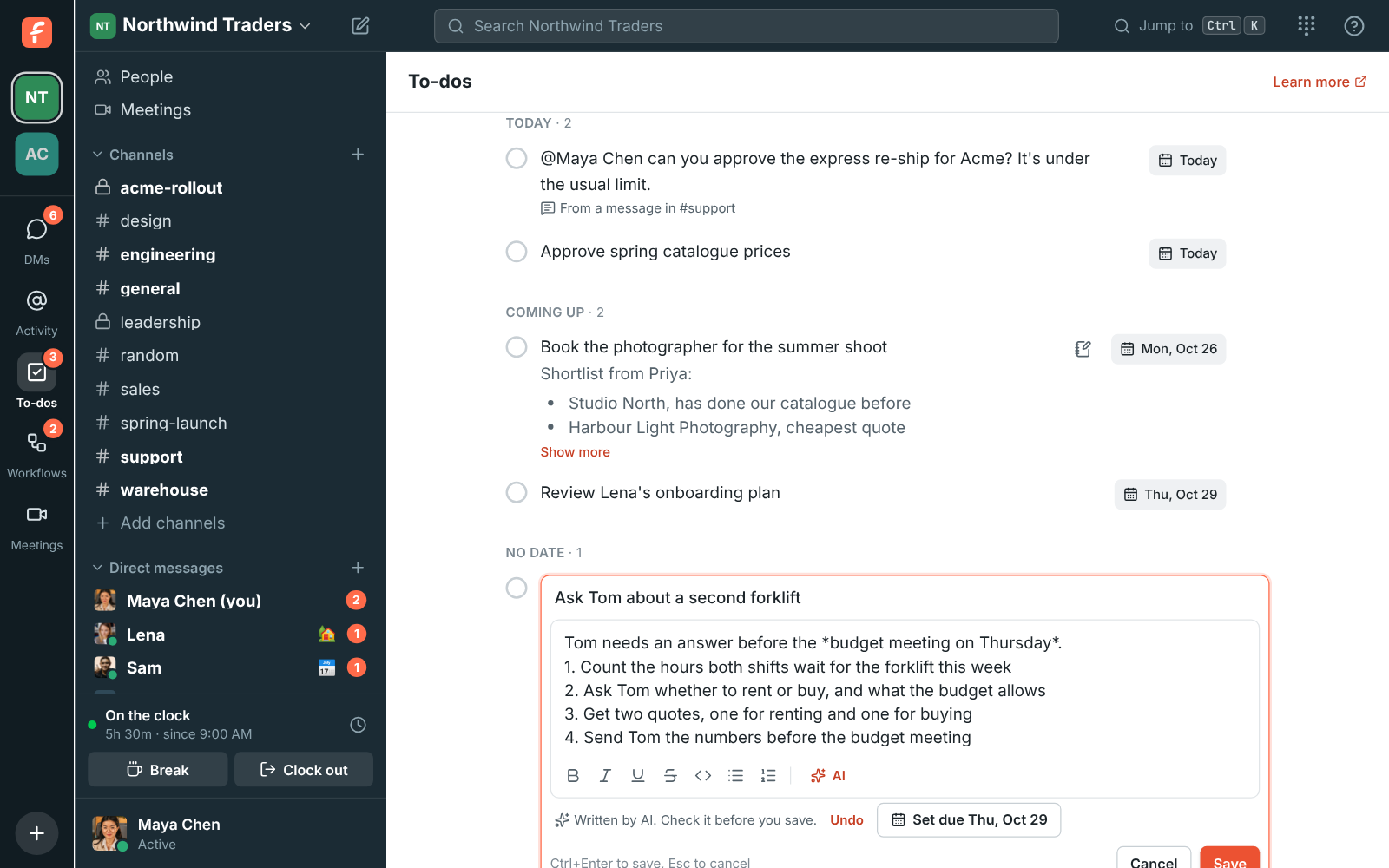
- Plan it breaks the to-do into numbered steps. If the to-do or its notes say when it’s needed, such as “before the budget meeting Thursday”, it offers Set due with that date.
- Sum up the conversation, on a to-do made from a message, adds what that message and its thread say you need to know.
- Make it clearer, Make it shorter and Fix spelling and grammar work on the notes you’ve written.
The answer appears in the notes as it’s written, so you can change it, and Undo puts back what was there. Nothing is saved until you click Save. See To-dos.
Touch up your profile photo
Section titled “Touch up your profile photo”When you set a profile picture, Improve with AI centres your face and fixes the light and colour, without redrawing anything. You compare before and after and pick one. It works only on a photo of a person with their face showing, 3 times a day per person. See Your profile picture.
Ask Freesbe a question
Section titled “Ask Freesbe a question”Type a question into the search box, such as What did Priya say about pricing?, and Freesbe answers it from the messages you can see, with a numbered link to each message it used. See Ask Freesbe.
What AI can see
Section titled “What AI can see”- Only what you can already read. Writing help reads only the message you’re writing, and to-do help only the to-do you’re editing (and, to sum one up, the conversation it came from). A summary reads the channel or thread you asked about, and only if you can open it yourself. It never reads other channels, private channels you’re not in, or other people’s DMs. Ask Freesbe searches only the conversations you can search yourself, and reads each message again as it is now before answering, so a deleted message is never used.
- Only you see the result. Summaries, translations and suggestions appear on your screen and nobody sees that you asked. Freesbe keeps a channel’s or thread’s summary so the next person who can read that conversation and asks for the same summary gets it at once. It’s made only from messages they can read too. “Since I last read” summaries are kept for you alone.
- Not used for training. The AI provider processes the messages to answer your request and doesn’t use them to train its models.
- Instructions in messages are ignored. If a message tells the AI to do something, the summary reports it as something that person wrote and doesn’t act on it. Writing help rewrites a question or request in your draft; it doesn’t answer it.
AI can get things wrong. Use the arrows to check the original messages before acting on something important.
Who can use it
Section titled “Who can use it”Everyone in the workspace except guests. Admins can turn AI features off for the whole workspace in Workspace settings → General → AI & workflows → AI features (see Admin settings).
Each summary, translation, suggested rewrite, photo touch-up or Ask Freesbe answer counts as one AI request. A kept summary with nothing new to read doesn’t count. Every plan comes with requests each month, shared by the whole workspace:
| Plan | AI requests a month |
|---|---|
| Free | 30 for the workspace |
| Business | 100 per person, pooled |
| Corporate | 300 per person, pooled |
| Enterprise | No set limit (fair use) |
When the workspace has used them, AI features stop until the 1st of the next month. Admins see how many are left under AI features in Workspace settings.
Answers come from the Freesbe guides and are written by AI, so check the linked guide before relying on one. Please don't include personal details such as emails or passwords.