
Getting help
Help is one click away wherever you are in Freesbe. You don’t need to leave the app to find the guide for the screen in front of you.
The Help menu
Section titled “The Help menu”Click ? at the right end of the top bar.
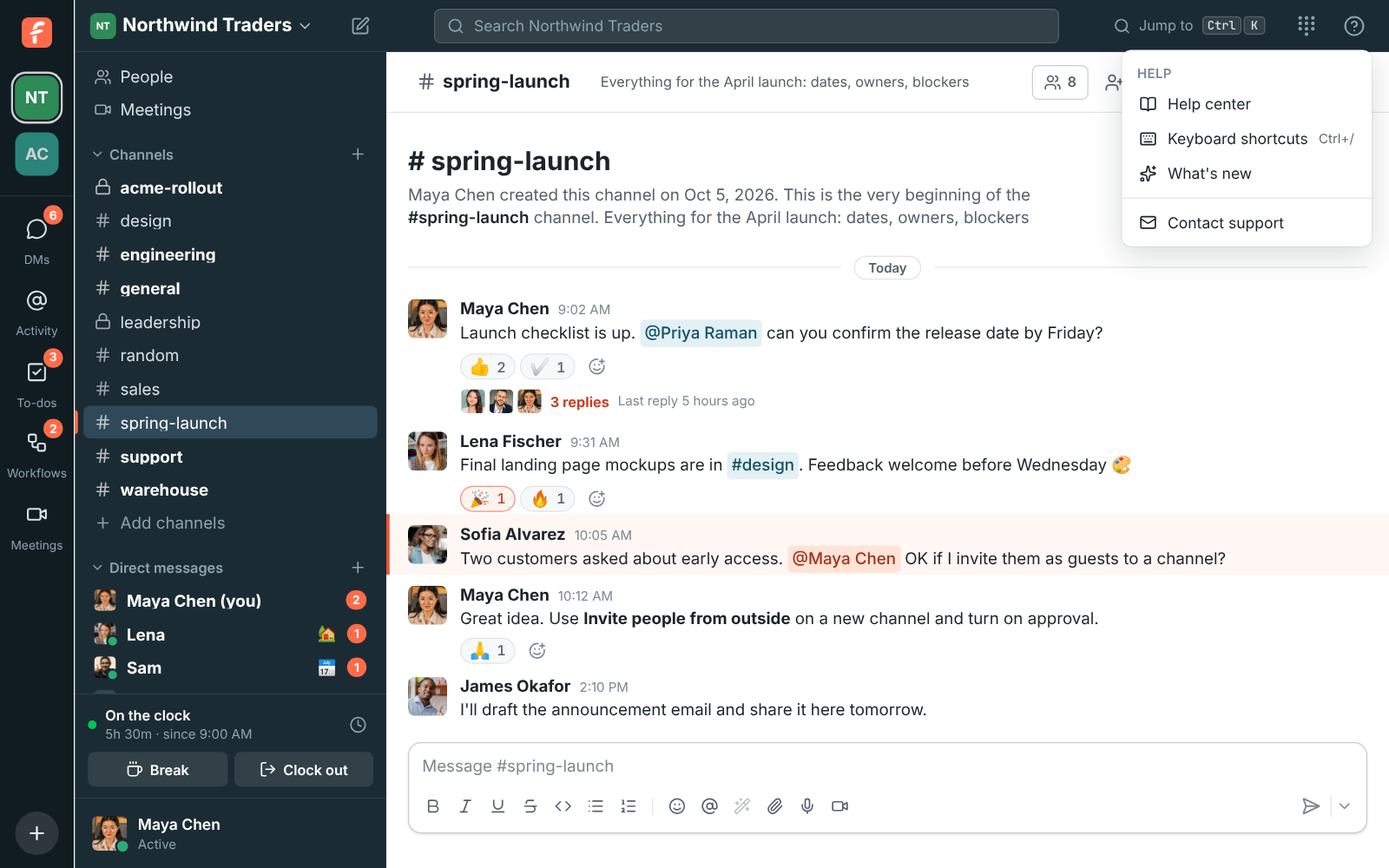
- Help center opens these guides.
- Keyboard shortcuts lists every shortcut. You can also press Ctrl+/ (⌘+/ on a Mac) from anywhere.
- What’s new shows the latest changes, right in the app. See What’s new after an update.
- Freesbe status opens freesbe.net/status: whether everything is working right now, the last 90 days, and anything our team is fixing or has planned. See Freesbe isn’t loading or something stopped working.
- Contact support starts an email to support@freesbe.net.
Help center and What’s new are also in your account menu at the bottom of the sidebar, next to Preferences.
What’s new after an update
Section titled “What’s new after an update”Freesbe updates itself. The first time you open it after an update, on the web, in the desktop app or on your phone, a What’s new in Freesbe card lists the changes you haven’t seen yet, newest first, each with a picture or a short animation and a Learn more link to the details.
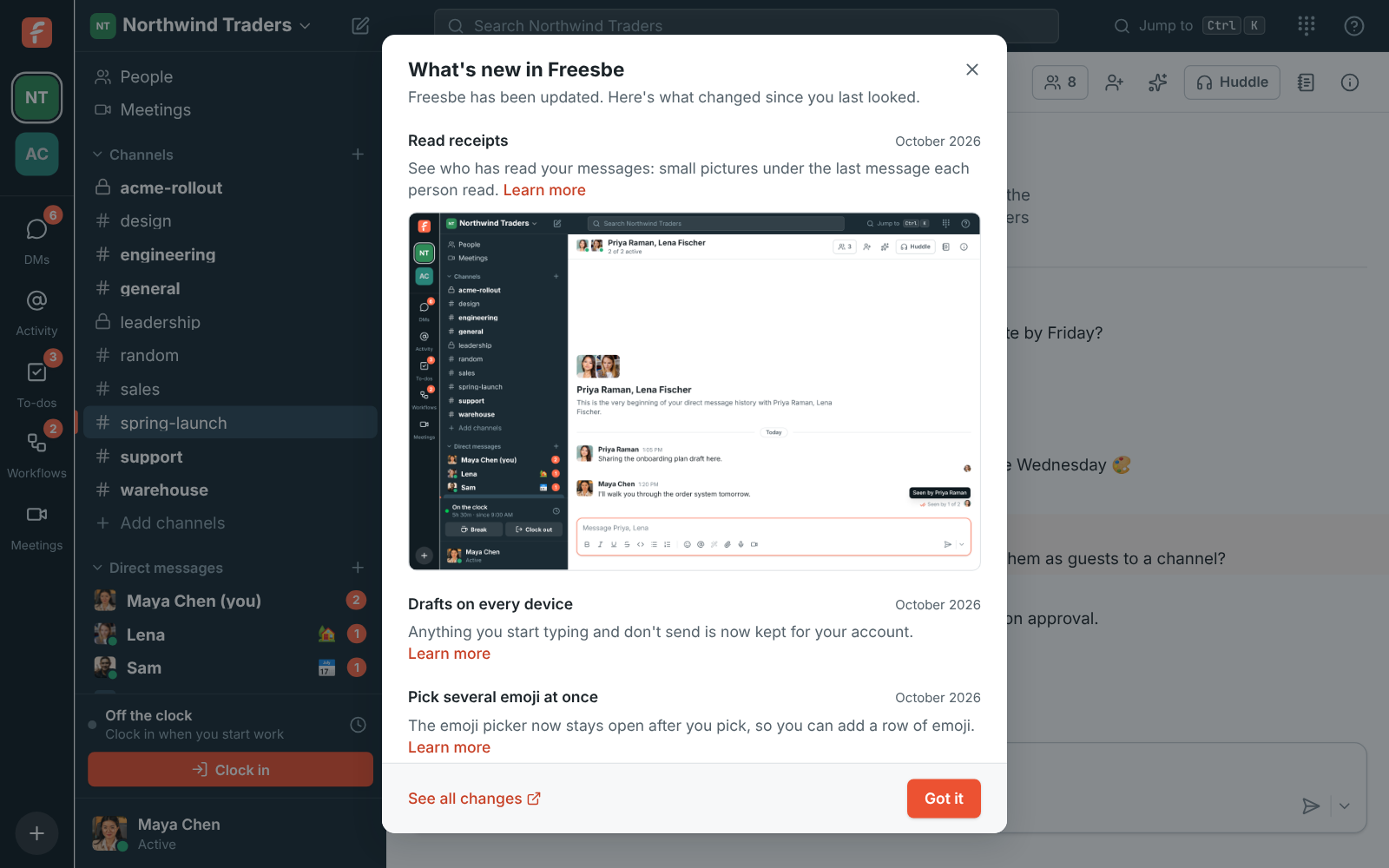
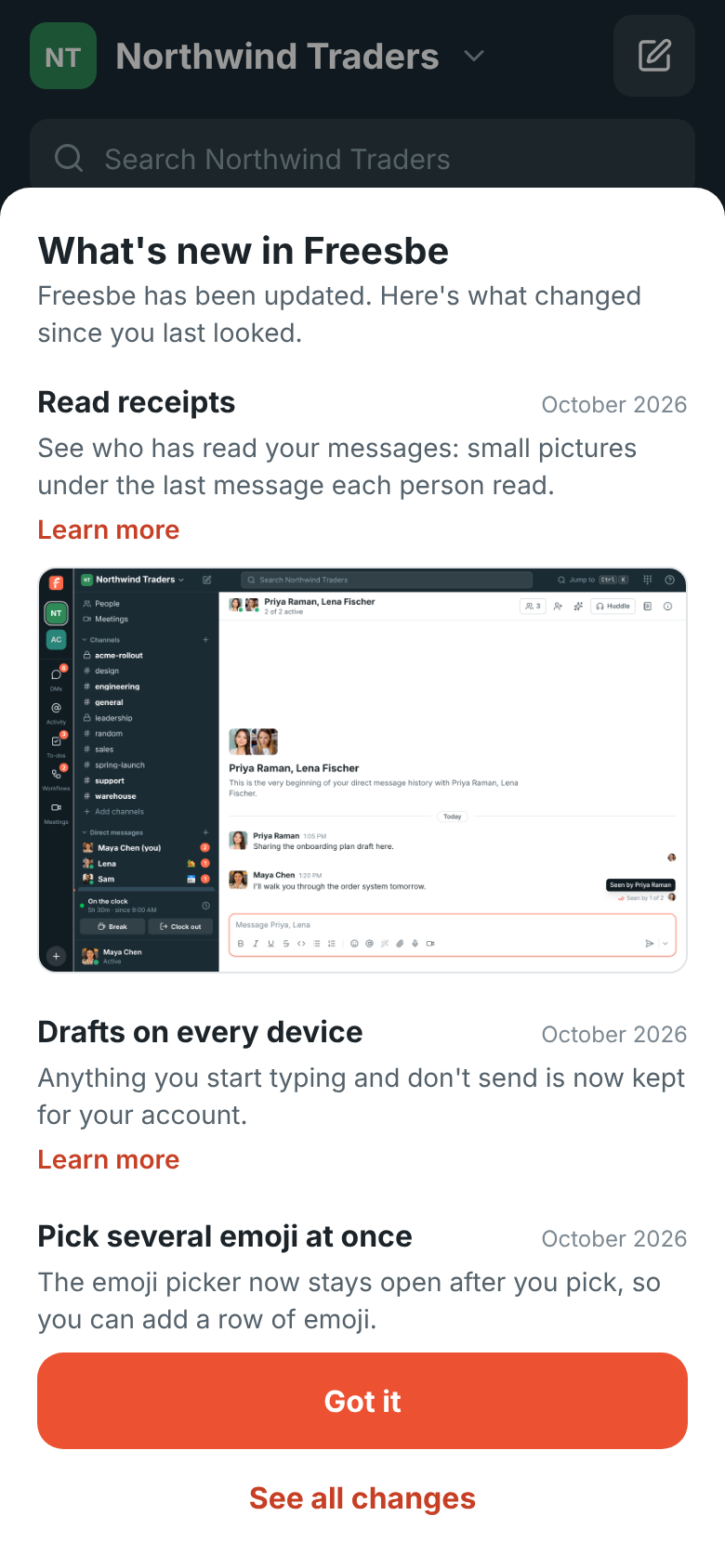
Click Got it to put it away until the next update, or See all changes for the full list on the What’s new page. To see the latest changes again later, choose What’s new in the ? menu or in your account menu at the bottom of the sidebar. Each computer and phone remembers what it showed you, so a change you saw on your computer shows once on your phone too. The very first time you use Freesbe on a device there’s no card: everything is new then.
On your phone, the card slides up from the bottom, and You → What’s new opens it any time.
To follow the changes without opening Freesbe, add the RSS feed to a feed reader, or to a channel with any app that posts RSS feeds.
Learn more links
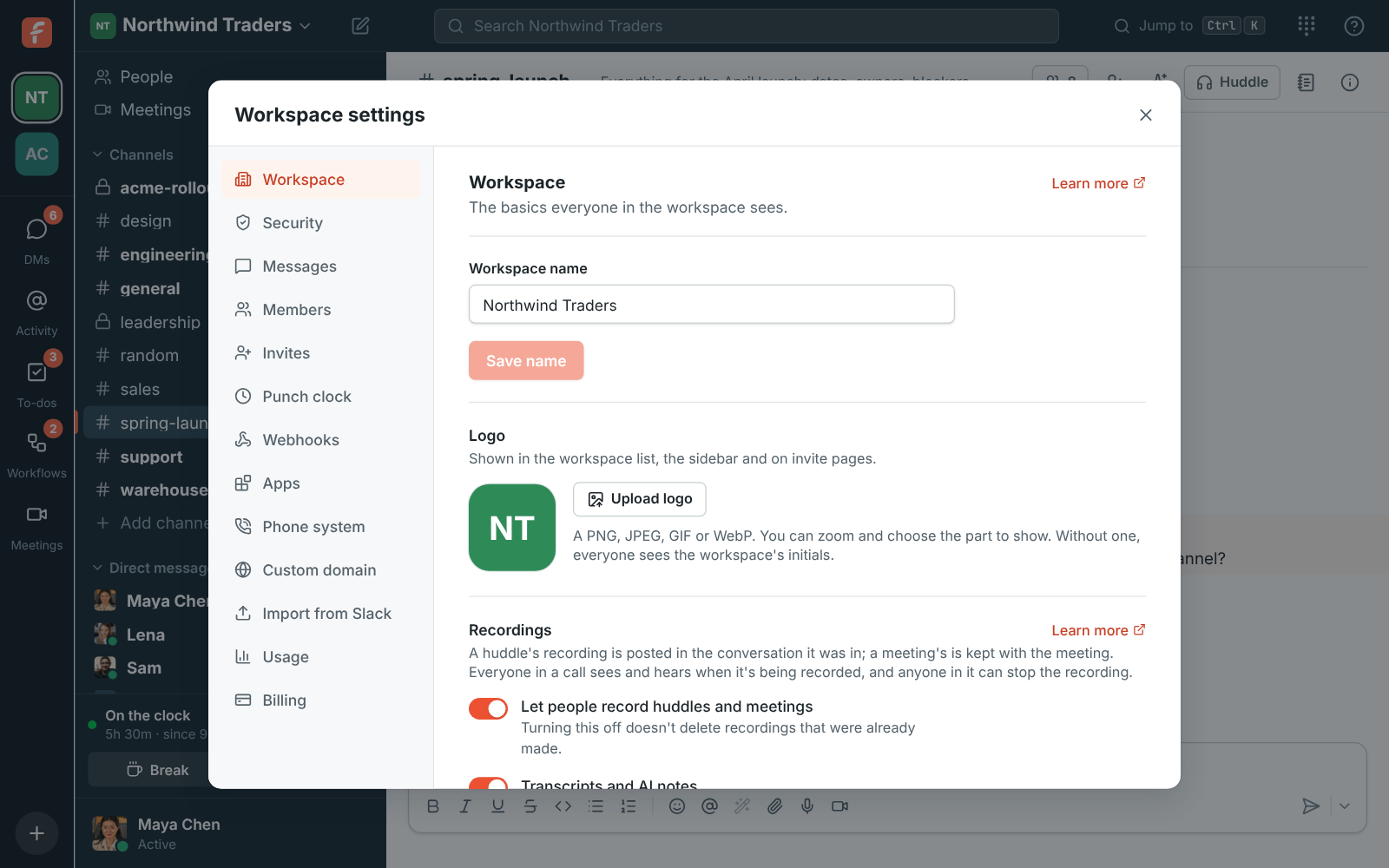
Section titled “Learn more links”Settings and dialogs have a Learn more link that opens the guide for that screen, at the right section. You’ll find them on every page of Preferences and Workspace settings, next to single sign-on, multi-factor authentication and recordings, on the Meetings page and when you schedule a meeting, and in the dialogs for adding people to a channel and inviting guests.
If your microphone stops working during a huddle, the warning in the huddle card has a Troubleshoot link to the fixes for sound problems.
Keyboard shortcuts
Section titled “Keyboard shortcuts”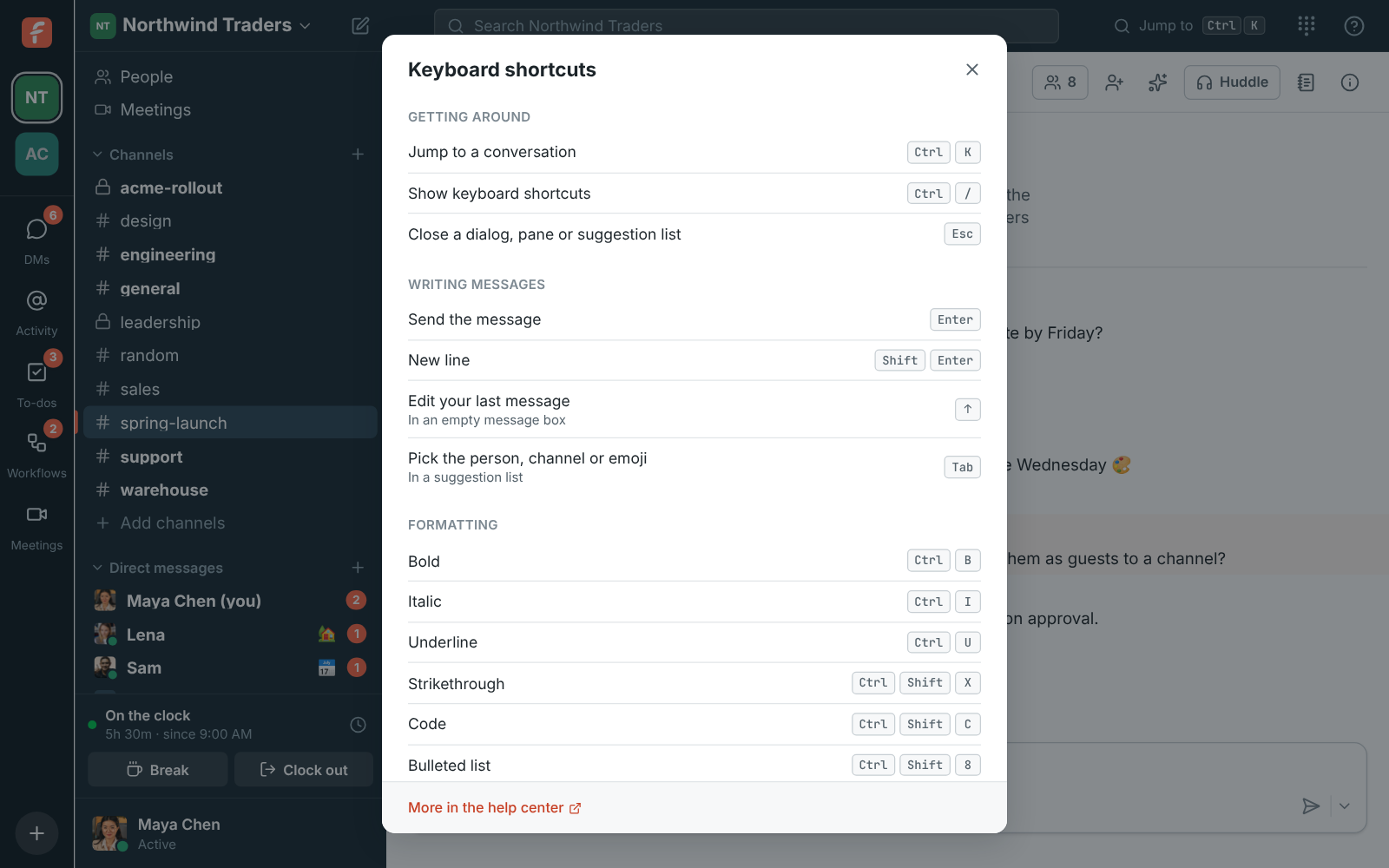
The full list is also in Search and shortcuts.
In the desktop app
Section titled “In the desktop app”Help links open in your usual web browser, not inside Freesbe, so you can read a guide next to the app. Contact support opens your mail app and also copies support@freesbe.net, in case your computer doesn’t have a mail app set up.
When we look into a problem you reported
Section titled “When we look into a problem you reported”Sometimes our support team needs to see a problem the way you see it. We never try things out in your workspace. Instead we make a copy of it on a separate test system, which only Freesbe staff can open, and work on that:
- Masked by default. Names, messages, file names and file contents in the copy are replaced with made-up look-alikes, so we see how your workspace is set up and behaves, not what’s in it. We copy your real content only if you agree to it for that problem.
- It can’t reach you. Nothing in the copy can send email, call your webhooks or connected apps, post to your channels, or contact your customers. Integrations, apps, phone numbers and billing aren’t copied at all.
- It stays in your data region. A copy of a workspace in the EU stays in the EU, and one in the US stays in the US. See Data residency.
- It’s deleted after 14 days, or sooner once the problem is solved. Every copy is logged with who made it and why.
Ask the docs
Section titled “Ask the docs”On any guide or knowledge base article, click Ask the docs at the bottom right and type your question in plain words. The answer comes from the guides and the knowledge base, with links to the sections it used, so you can read more or check the details. If the guides don’t cover it, you’ll see Contact support instead.
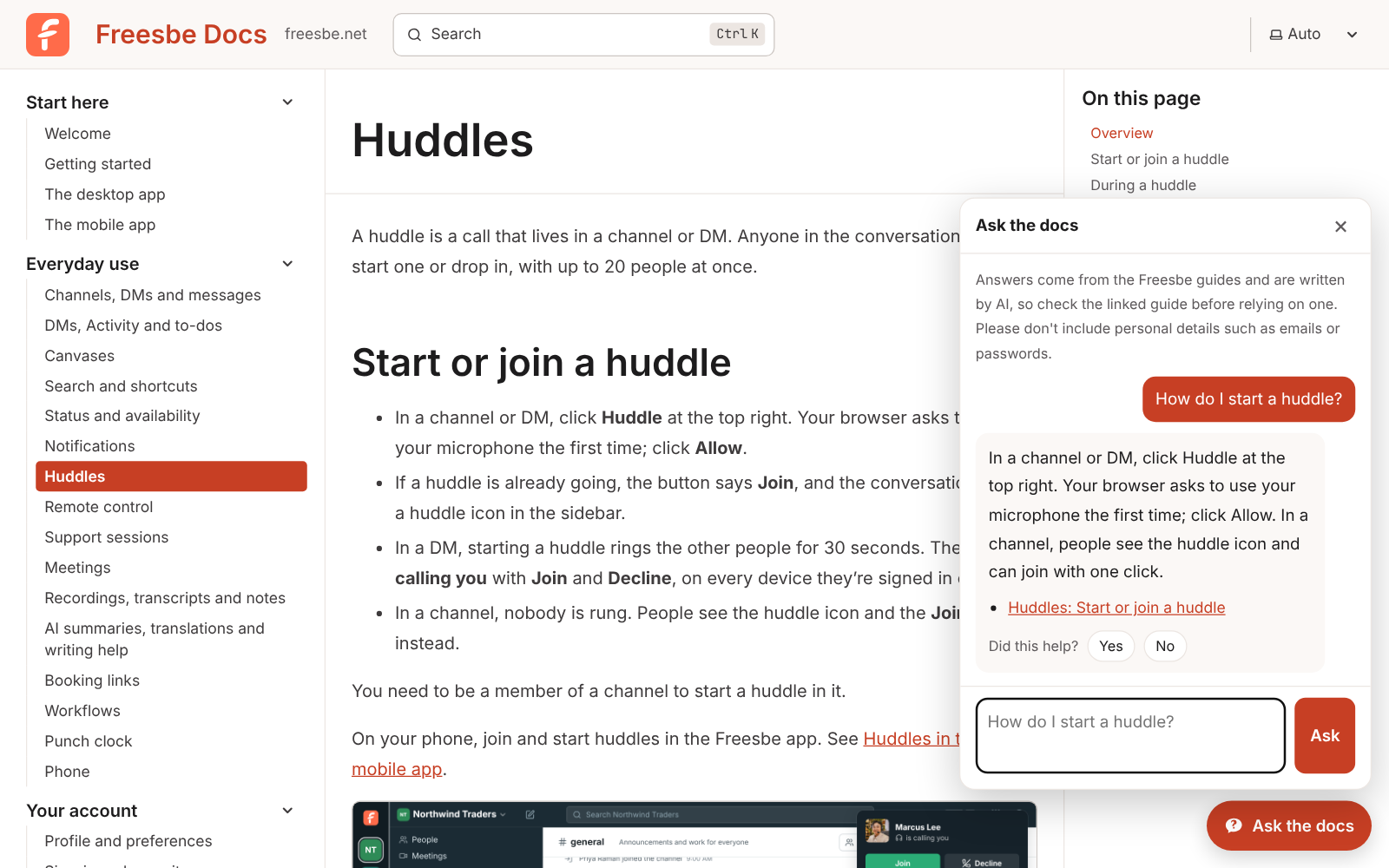
Answers are written by AI, so check the linked guide before relying on one, and don’t include personal details such as emails or passwords. Click Yes or No under an answer to tell us whether it helped. If you don’t see the button, the assistant is taking a break; search the guides with Ctrl+K instead.
Ask your own AI assistant
Section titled “Ask your own AI assistant”These guides are also published as plain text for AI assistants such as ChatGPT, Claude or Perplexity. Give yours freesbe.net/llms.txt, a short map of every guide, or freesbe.net/llms-full.txt, the full text of all of them, and ask it anything about Freesbe.
Still stuck?
Section titled “Still stuck?”Search the knowledge base first: it has an article for each common problem. Your workspace admins can help with settings, invites and access. For anything else, email support@freesbe.net and tell us what you were doing and what you saw. A screenshot helps.
Answers come from the Freesbe guides and are written by AI, so check the linked guide before relying on one. Please don't include personal details such as emails or passwords.