Multi-factor authentication
Admins can require everyone in a workspace to prove it’s them with a second step, not just a password. Members verify with whichever they have:
- A passkey: your fingerprint, face or device PIN.
- An authenticator app: a 6-digit code from Google Authenticator, Microsoft Authenticator, 1Password, Authy or similar.
- A code we email you.
Requiring multi-factor authentication comes with every paid plan.
Turn it on
Section titled “Turn it on”- Open Workspace settings → Security & compliance → Sign-in → Multi-factor authentication.
- Switch on Require multi-factor authentication. If you haven’t verified a second step in this session yet, Freesbe asks you to first, so you can’t lock yourself out.
- Under Ask again, choose how often members verify:
- Only when signing in
- Each time Freesbe opens: every time someone starts the desktop app or opens Freesbe in a new browser tab. Reloading the page doesn’t count.
- Every 12 hours, Every day or Every week
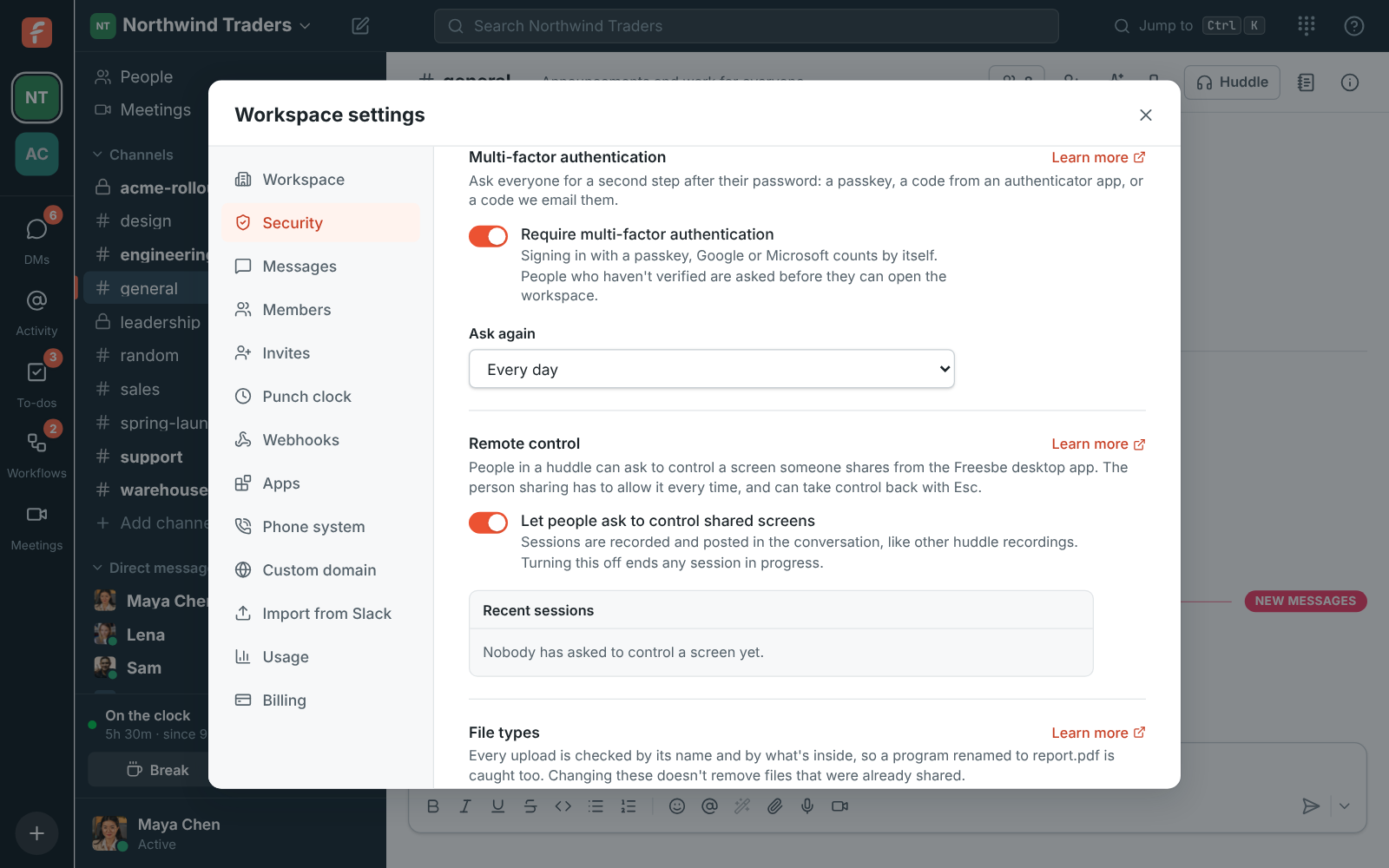
Switch it off to stop asking. Changing Ask again to ask more often also needs your own session to meet the new rule first.
What changes for people
Section titled “What changes for people”- Anyone using the workspace who hasn’t verified is signed out of that workspace right away and sees Verify it’s you the next time they open it. Other workspaces aren’t affected.
- Signing in with a passkey, Google or Microsoft counts by itself. Google and Microsoft apply their own MFA rules to work accounts. When the time comes to verify again, these people verify like everyone else.
- People who signed in with an emailed sign-in code can’t use another emailed code as the second step. They use their password, a passkey or the authenticator app instead.
- Someone with nothing else to verify with (no password, passkey or app, or a server that can’t send email) sets up a passkey or an authenticator app on the spot, and that counts.
- While they’re signed in, adding or removing a passkey, the authenticator app or a phone that approves sign-ins asks them to verify again if they haven’t in the last hour, so someone who only knows the password can’t add their own.
- Scripts that signed in with a password lose access to the workspace until they verify. See API and webhooks.
Verify it’s you
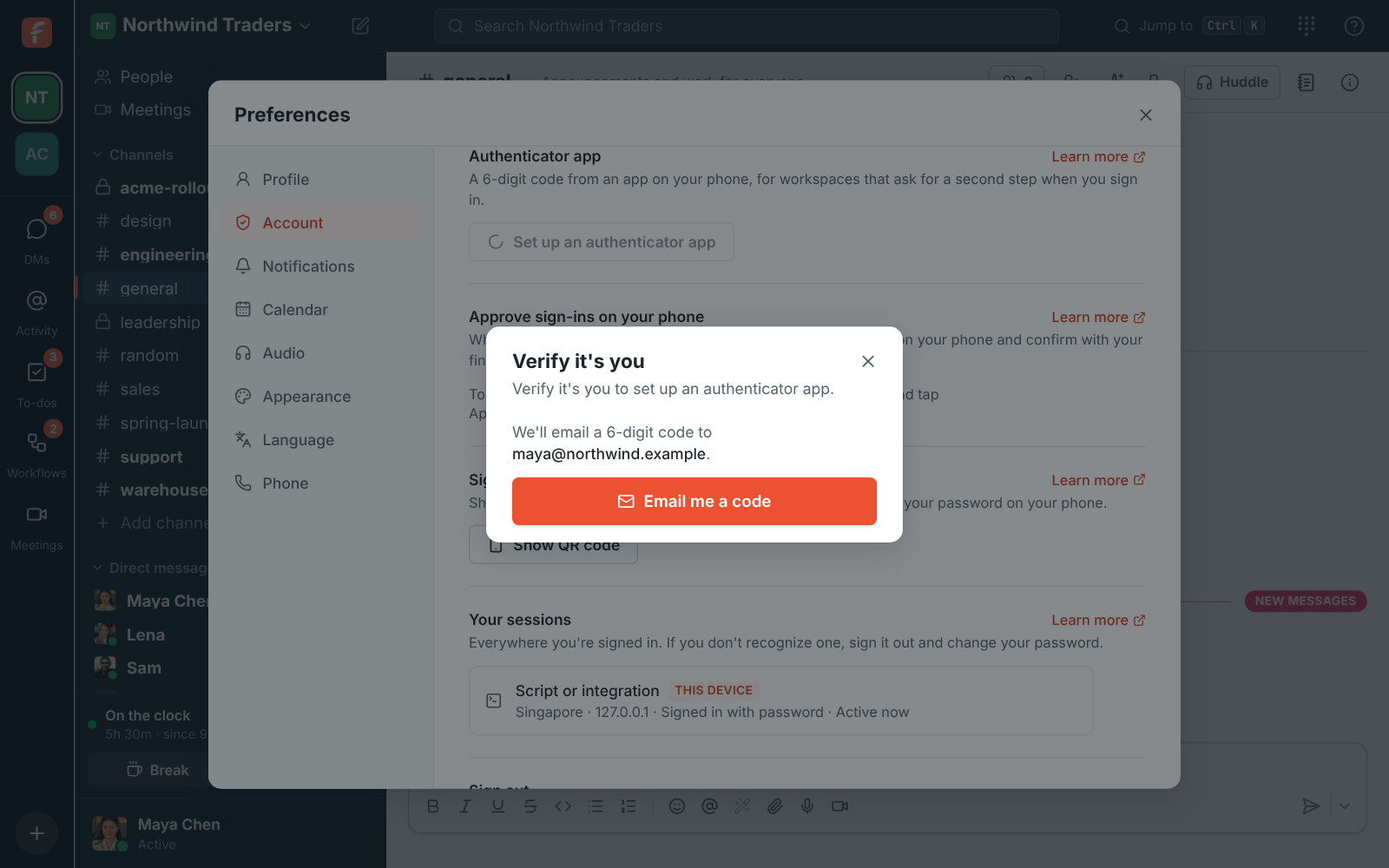
Section titled “Verify it’s you”When a workspace asks, Freesbe shows your best option first, with the others under Or:
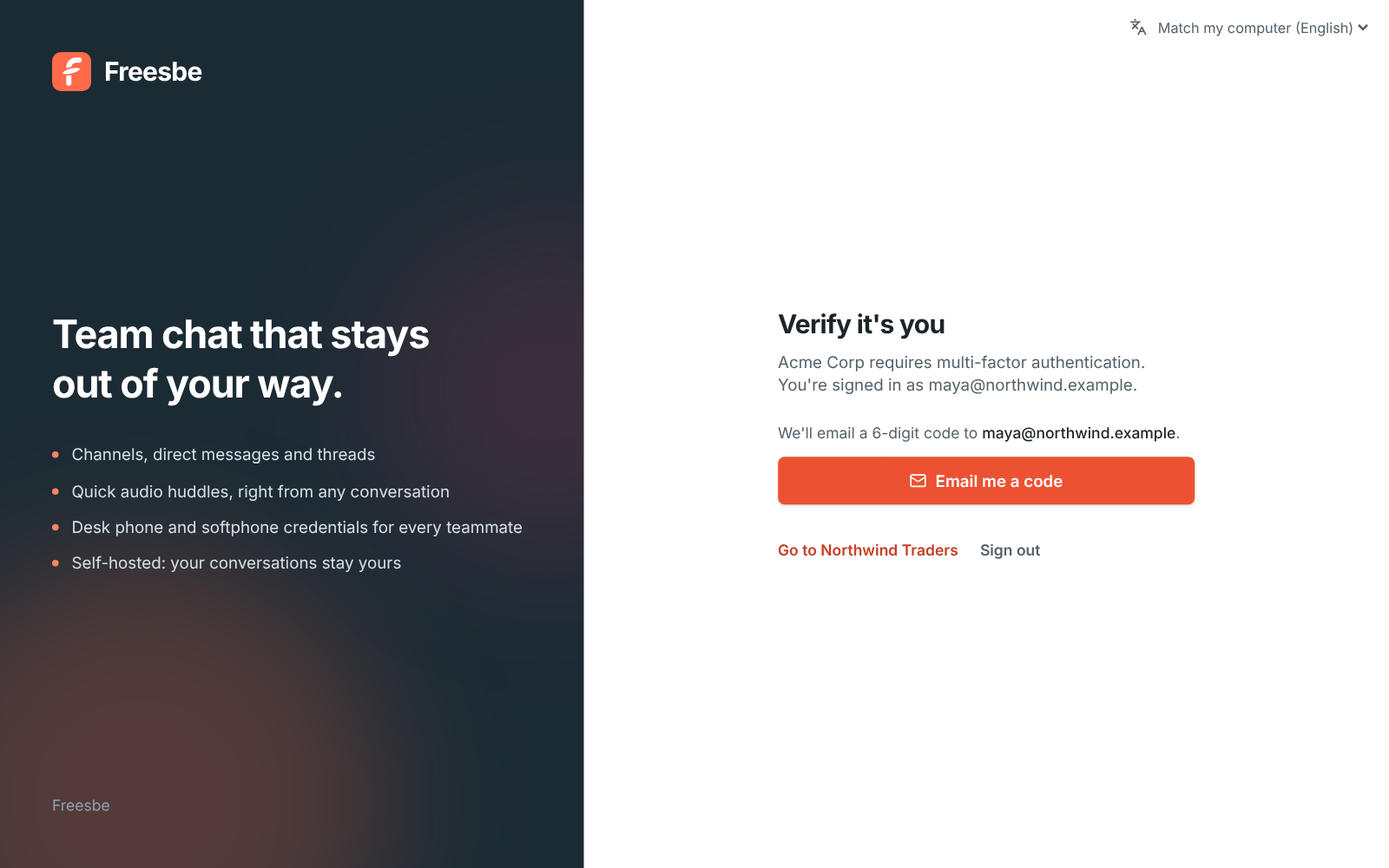
- Approve on your phone comes first once your phone is set up to approve sign-ins: your computer shows a number, and you tap it on your phone and confirm with your fingerprint or face. It counts as the second step on every plan. See Approve sign-ins on your phone.
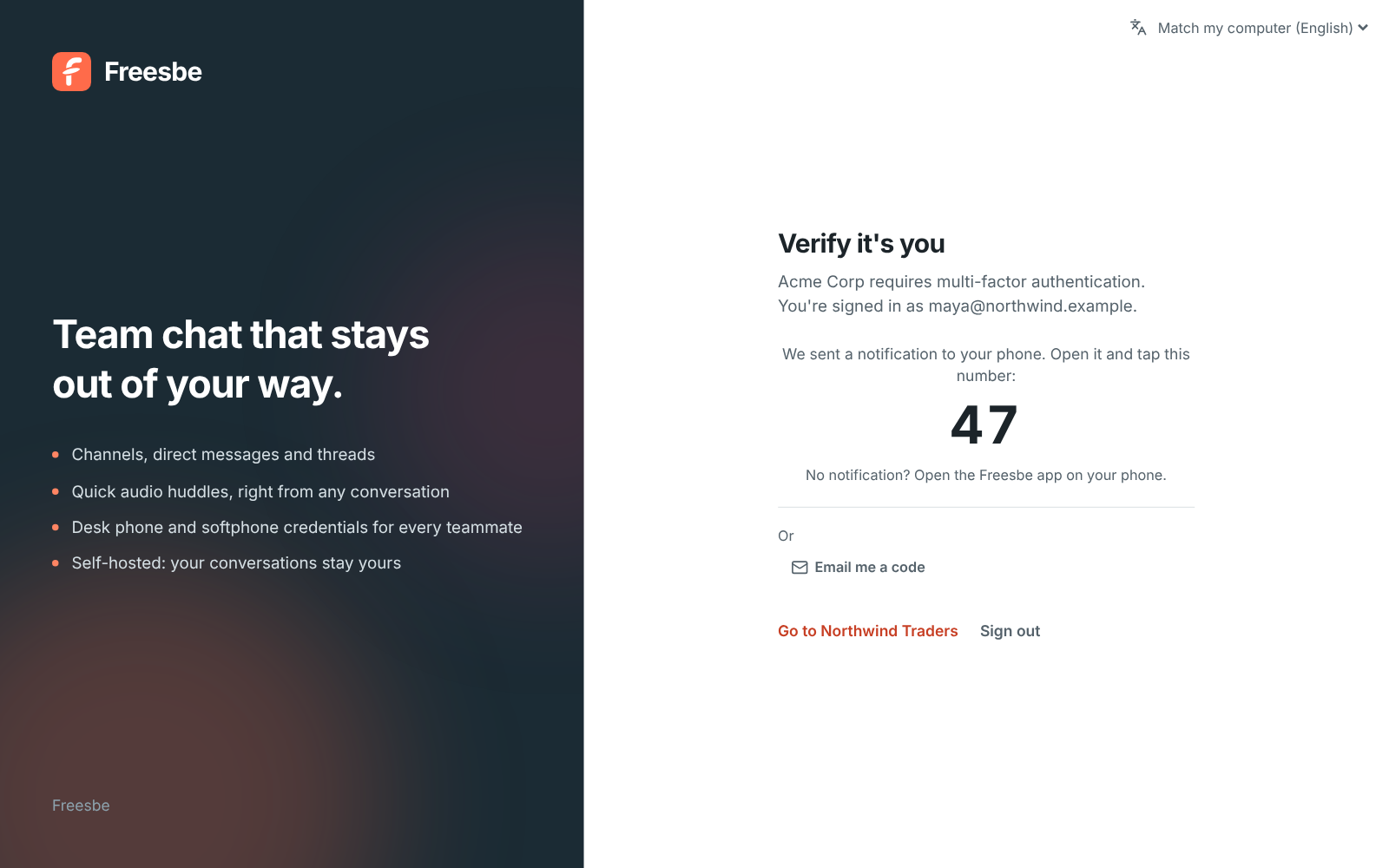
- Use a passkey works in your web browser. The desktop app offers the authenticator app and emailed codes.
- Emailed codes work for 10 minutes. Authenticator app codes change every 30 seconds, and each one works once.
- An emailed code also confirms your email address, so you won’t be asked to verify your email separately.
- Too many wrong codes in a day locks that way of verifying until tomorrow. Use another way, or ask for a new emailed code.
Set up an authenticator app
Section titled “Set up an authenticator app”- Open Preferences → My account → Sign-in → Authenticator app and click Set up an authenticator app.
- Scan the QR code with the app, or type the key under it.
- Enter the 6-digit code the app shows and click Turn on.
To move to a new phone, click Remove and set it up again. If you lose your phone, verify with an emailed code instead, then set the app up again.
Add a passkey
Section titled “Add a passkey”In your web browser, Freesbe suggests a passkey with a banner until you add one or dismiss it. Click Add a passkey and follow your browser’s prompts, or go to Preferences → My account → Sign-in → Passkeys. See Sign-in and security.
Answers come from the Freesbe guides and are written by AI, so check the linked guide before relying on one. Please don't include personal details such as emails or passwords.