API and webhooks
There are three ways to connect Freesbe to other tools:
| You want to… | Use |
|---|---|
| Post alerts, deploys or form submissions into a channel | An incoming webhook |
| Run a bot that posts, reads and reacts in many channels | An app |
| Tell your own server when something happens in Freesbe | An outgoing webhook |
| Read and write anything a person can | The REST API |
| Follow everything as it happens, DMs included | The realtime WebSocket |
The API reference lists every endpoint, grouped like the app: messages, channels and DMs, people and invites, guests, meetings, booking links, calendar free/busy, the punch clock, workspace settings, sign-in security and more. Each one says who may call it (anyone, members, channel members or admins) and has an example request and answer.
Incoming webhooks
Section titled “Incoming webhooks”An incoming webhook gives you a secret URL that posts into one channel. It accepts the same JSON as Slack’s incoming webhooks, so a Slack integration only needs the new URL.
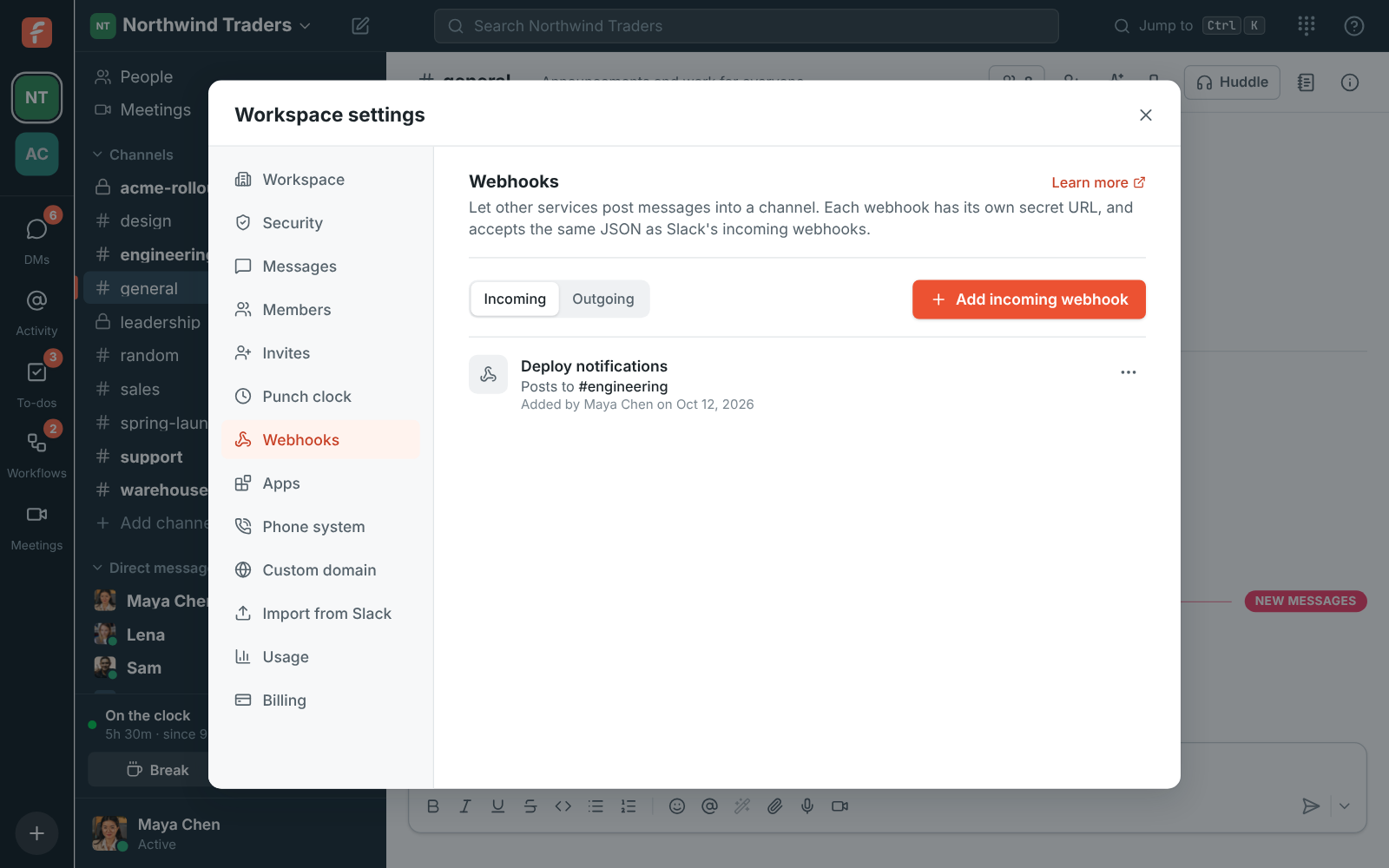
- An admin opens Workspace settings → Integrations & apps → Webhooks → Incoming and clicks Add incoming webhook.
- Give it a name, such as “Deploy notifications”, and pick the channel it posts to.
- Copy the URL. It’s shown once; if you lose it, use Make a new URL.
Then post to it:
curl -X POST -H 'Content-Type: application/json' \ -d '{"text": "Deploy finished :rocket:", "username": "CI"}' \ https://api.freesbe.net/hooks/custom/<id>/<token>Freesbe reads text, blocks, attachments, username, icon_emoji and icon_url, from a
JSON body or a form with a payload field, and answers ok like Slack. Messages show under the
webhook’s name, or the username you send. Each of the attachments shows like it does in Slack:
its text, fields and pictures beside a bar in the attachment’s color, with no box around it, so
alerts from monitoring tools stay easy to scan.
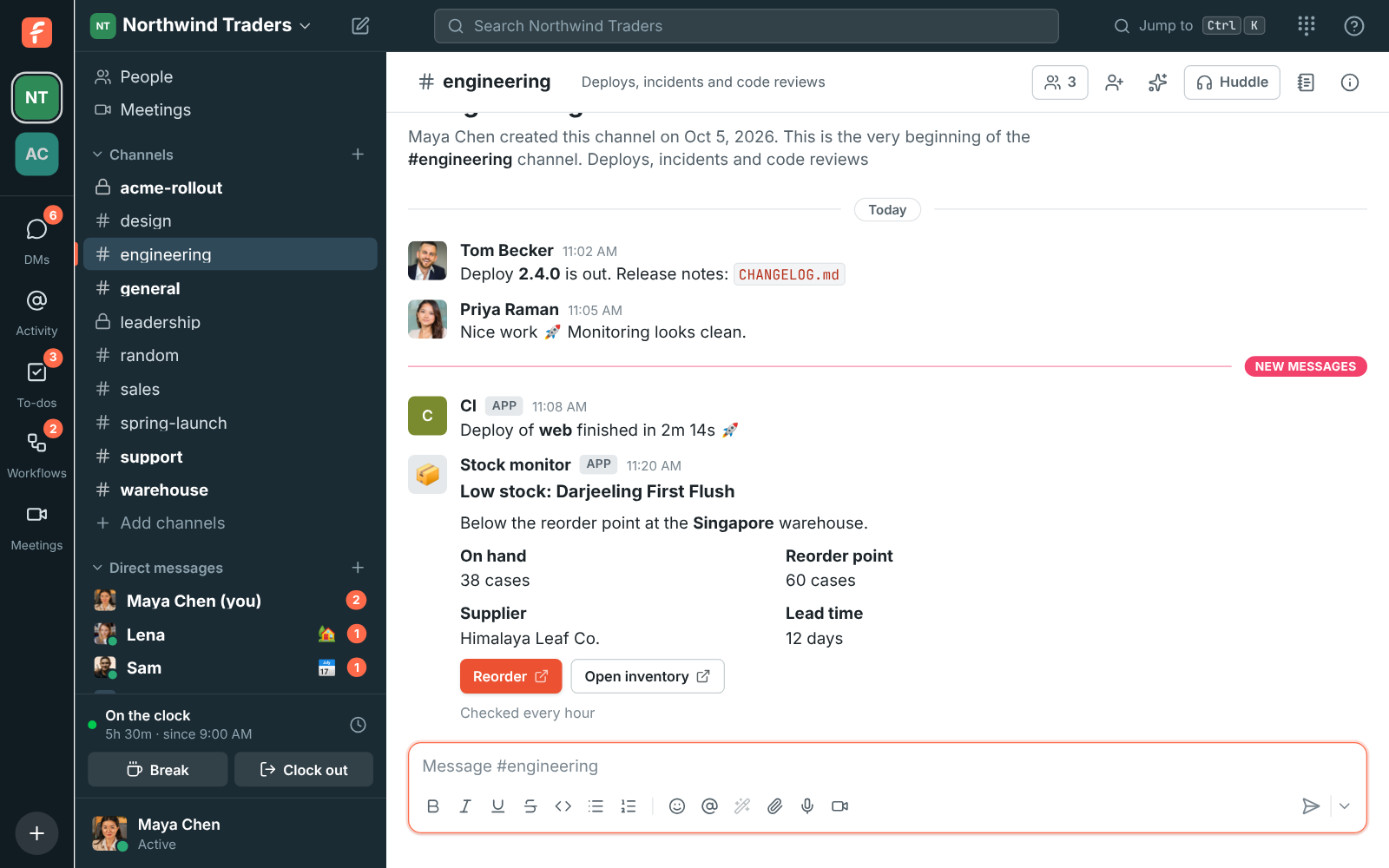
blocks in Slack’s Block Kit format show as a card: headers, sections with fields and a small
picture beside them, context lines, dividers, images and buttons that open a link. As in Slack,
text is what notifications and search use; leave it out and Freesbe writes it from the blocks.
Interactive elements without a link, such as menus or buttons that call back a Slack app, are
left out.
The same URL also takes the cards tools send to Microsoft Teams, so a tool set up for a Teams
channel can post to Freesbe instead: an Adaptive Card (on its own, or in the attachments of a
"type": "message" payload, as Teams’ Workflows webhooks expect) or an older Office 365
connector MessageCard. Freesbe shows their text, facts, images and Open URL buttons.
The URL holds the webhook’s ID and a secret token, and nothing about your workspace. URLs made before October 2026, https://api.freesbe.net/hooks/<token> or
https://app.freesbe.net/hooks/<token>, keep working.
Outgoing webhooks
Section titled “Outgoing webhooks”An outgoing webhook sends a signed POST to your server for the events you choose.
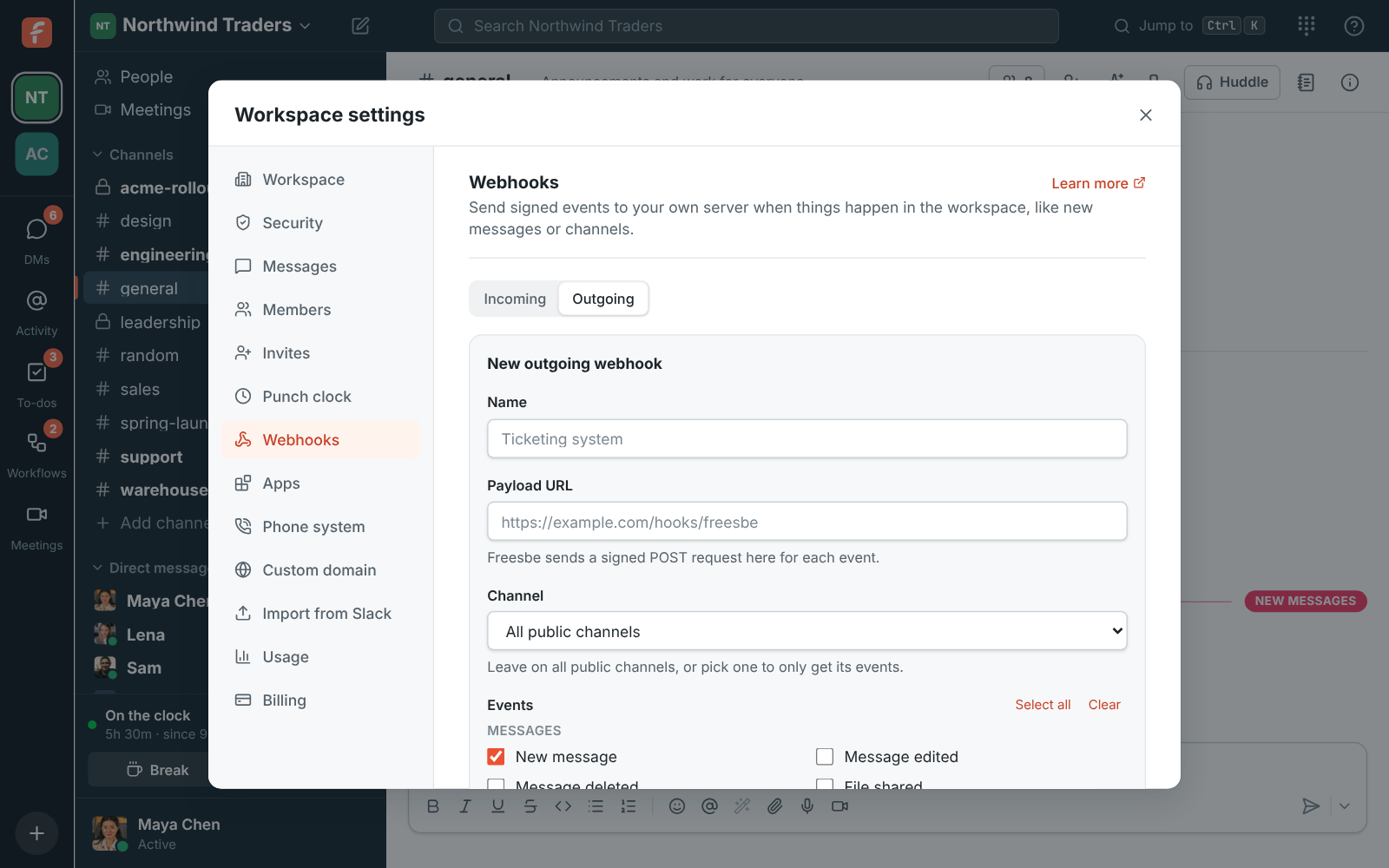
- An admin opens Workspace settings → Integrations & apps → Webhooks → Outgoing and clicks Add outgoing webhook.
- Enter a name and the Payload URL.
- Leave Channel on All public channels, or pick one channel to only get its events.
- Pick the events and click Create webhook. Copy the signing secret; it’s shown once.
There are 30 events, in five groups:
- Messages: new, edited and deleted messages, files shared, and reactions added or removed.
- Channels: channels made, renamed, given a new topic, archived or unarchived, and people joining or leaving them.
- People: someone joining the workspace, their profile or role changing, being deactivated, and status changes.
- Huddles and meetings: huddles starting and ending and people joining or leaving them; meetings scheduled, changed or canceled; a guest waiting to be let in; bookings through a booking link; recordings and transcripts that are ready.
- Punch clock: someone clocking in or out.
Channel events come from public channels, or from the one channel you picked. The workspace’s
own events (people, meetings, bookings and the punch clock) go to webhooks on All public
channels. Send test sends a webhook.test event. The API reference
lists each event’s name and what it carries.
To get events in your own app instead, with Slack’s event format, see Apps.
Check the signature
Section titled “Check the signature”Each request carries Freesbe-Event, Freesbe-Delivery and
Freesbe-Signature: t=<unix seconds>,v1=<hex>. v1 is the HMAC-SHA256 of <t>.<raw body> under
the webhook’s secret. In Node.js:
import { createHmac, timingSafeEqual } from "node:crypto";
function verify(secret, header, rawBody) {  const { t, v1 } = Object.fromEntries(header.split(",").map((part) => part.split("=")));  const expected = createHmac("sha256", secret).update(`${t}.${rawBody}`).digest("hex");  const fresh = Math.abs(Date.now() / 1000 - Number(t)) < 300;  return (    fresh &&    v1?.length === expected.length &&    timingSafeEqual(Buffer.from(v1), Buffer.from(expected))  );}
Retries
Section titled “Retries”A delivery that fails, or gets a 5xx, 408 or 429 answer, is retried 8 more times, from 30 seconds up to 8 hours apart. Any other 4xx stops it. Deliveries on the webhook’s card shows the last 14 days of attempts.
The REST API
Section titled “The REST API”The API lives at https://api.freesbe.net. It takes and returns JSON, and every request carries a
bearer token.
Get a token
Section titled “Get a token”For an integration, make an app: its bot token posts as the app, only does what
its scopes allow, doesn’t expire and isn’t held to single sign-on or MFA. Send it as
Authorization: Bearer fsb-bot-….
A script can also act as a person. Sign in with their account:
curl -X POST https://api.freesbe.net/api/auth/login \ -H 'Content-Type: application/json' \ -d '{"email": "bot@example.com", "password": "…", "wantToken": true}'The answer includes a token. Send it as Authorization: Bearer <token>. It lasts 30 days from
the last time it was used, so a script that runs at least monthly stays signed in. Signing out
with POST /api/auth/logout, or changing the account’s password, ends it.
If the workspace requires single sign-on, password tokens can’t use it.
If it requires multi-factor authentication, set up an authenticator app for the script’s account, and after signing in send a code from it:
curl -X POST https://api.freesbe.net/api/me/mfa/totp \ -H "Authorization: Bearer $FREESBE_TOKEN" \ -H 'Content-Type: application/json' \ -d '{"code": "123456"}'Until then, workspace requests answer 403 mfa_required. When the workspace asks again after a
while, do the same.
Post a message
Section titled “Post a message”curl -X POST https://api.freesbe.net/api/channels/$CHANNEL/messages \ -H "Authorization: Bearer $FREESBE_TOKEN" \ -H 'Content-Type: application/json' \ -d '{"body": "Release *2.4* is out :tada:"}'Message text uses Slack-style formatting: *bold*, _italic_, `code`,
<https://example.com|links> and :emoji: shortcodes. Freesbe also shows __underline__, and
lines starting with • or - (bullets) or 1. (numbers) as lists, nested four spaces per
level. Slack shows those as the plain text they are, so the same message reads well in both. Add threadRootId to reply in a thread.
Find workspace and channel IDs with GET /api/workspaces and
GET /api/workspaces/{w}/channels, or copy the workspace ID from Workspace settings →
Workspace → Details.
What a script can do
Section titled “What a script can do”Anything the account could do in the app. A member account can post, edit and delete its own messages, reply in threads, react, upload files, open DMs, create and join channels, set its status, search and schedule meetings. An admin account can also invite people, change roles, deactivate people, change workspace settings and manage webhooks. A few things need the app itself, such as adding a passkey or joining a call; the reference marks them App only and lists what isn’t in the API yet.
Live events
Section titled “Live events”To react to messages in DMs and private channels, presence, statuses or huddles, open the
workspace’s WebSocket at wss://api.freesbe.net/api/workspaces/{w}/rt with the same bearer token.
See Realtime events for the frames and the full list of events.
From a browser
Section titled “From a browser”api.freesbe.net only accepts bearer tokens, never the app’s sign-in cookie, so any website can
call it (CORS is open). Keep tokens on a server if the page is public.
Errors
Section titled “Errors”Errors come back as { "error": { "code": "forbidden", "message": "Only admins can do that" } }
with a matching HTTP status. See Errors and limits in the reference.
Answers come from the Freesbe guides and are written by AI, so check the linked guide before relying on one. Please don't include personal details such as emails or passwords.