
Phone
Freesbe gives each person SIP credentials (a server, username and password) for a desk phone or a softphone app. Your phone registers directly with your company’s phone system, sip.io, so calls don’t go through Freesbe.
Set up your phone
Section titled “Set up your phone”- Open Preferences → Calls & audio → Phone.
- Click Set up my phone. Freesbe shows your SIP server, Username and Password. Click the eye icon to reveal the password, and copy each value.
- On your desk phone or softphone, add a new SIP account and enter those three values.
- Save it and wait for the phone to show as registered.
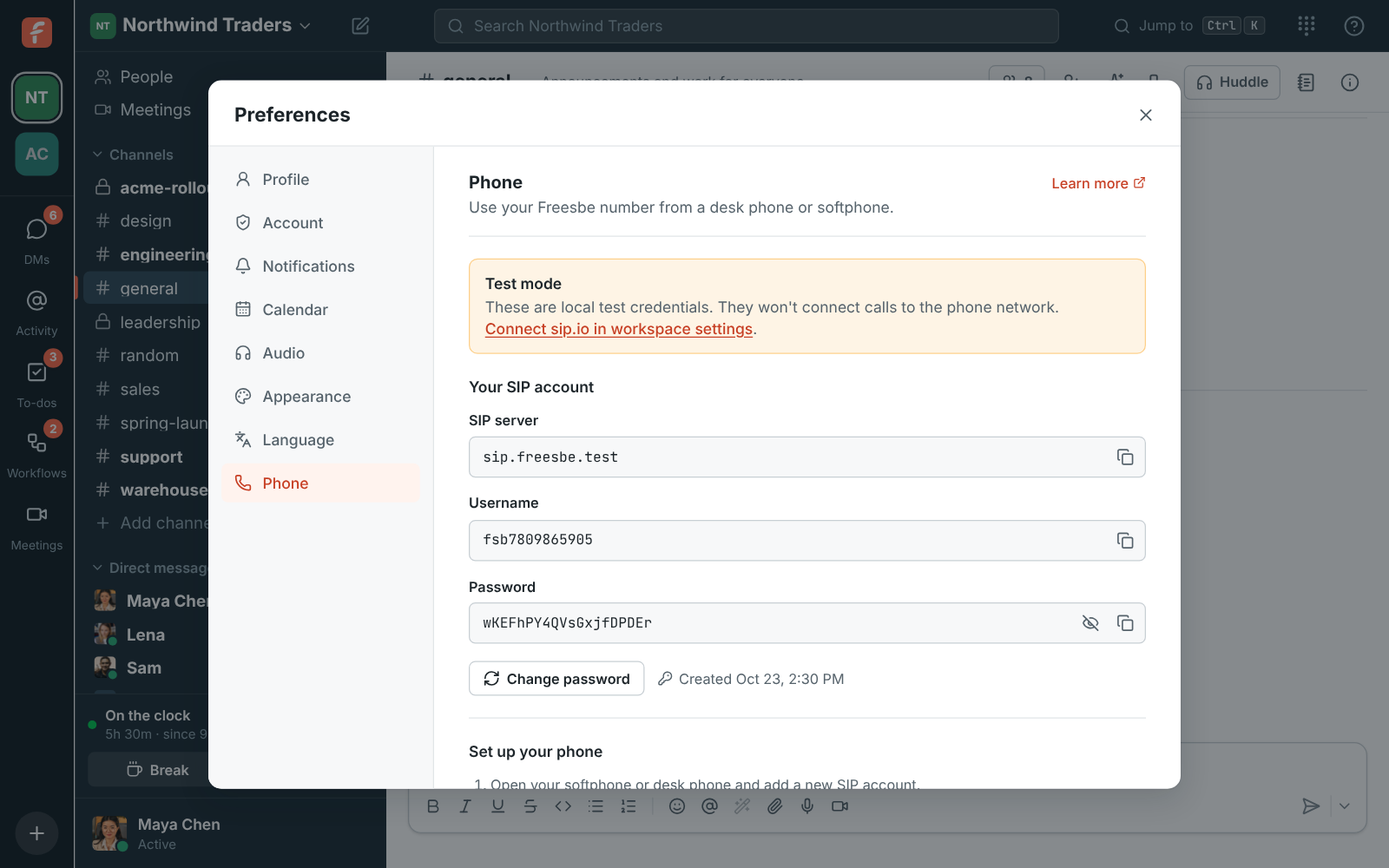
If Test mode shows at the top, your workspace hasn’t connected its sip.io account yet. The credentials are placeholders for trying the setup; ask your admin to connect sip.io before you rely on them.
Change your phone password
Section titled “Change your phone password”Click Change password in Preferences → Calls & audio → Phone. The new password works at once, and any phone using the old one stops working until you enter the new one.
The phone
Section titled “The phone”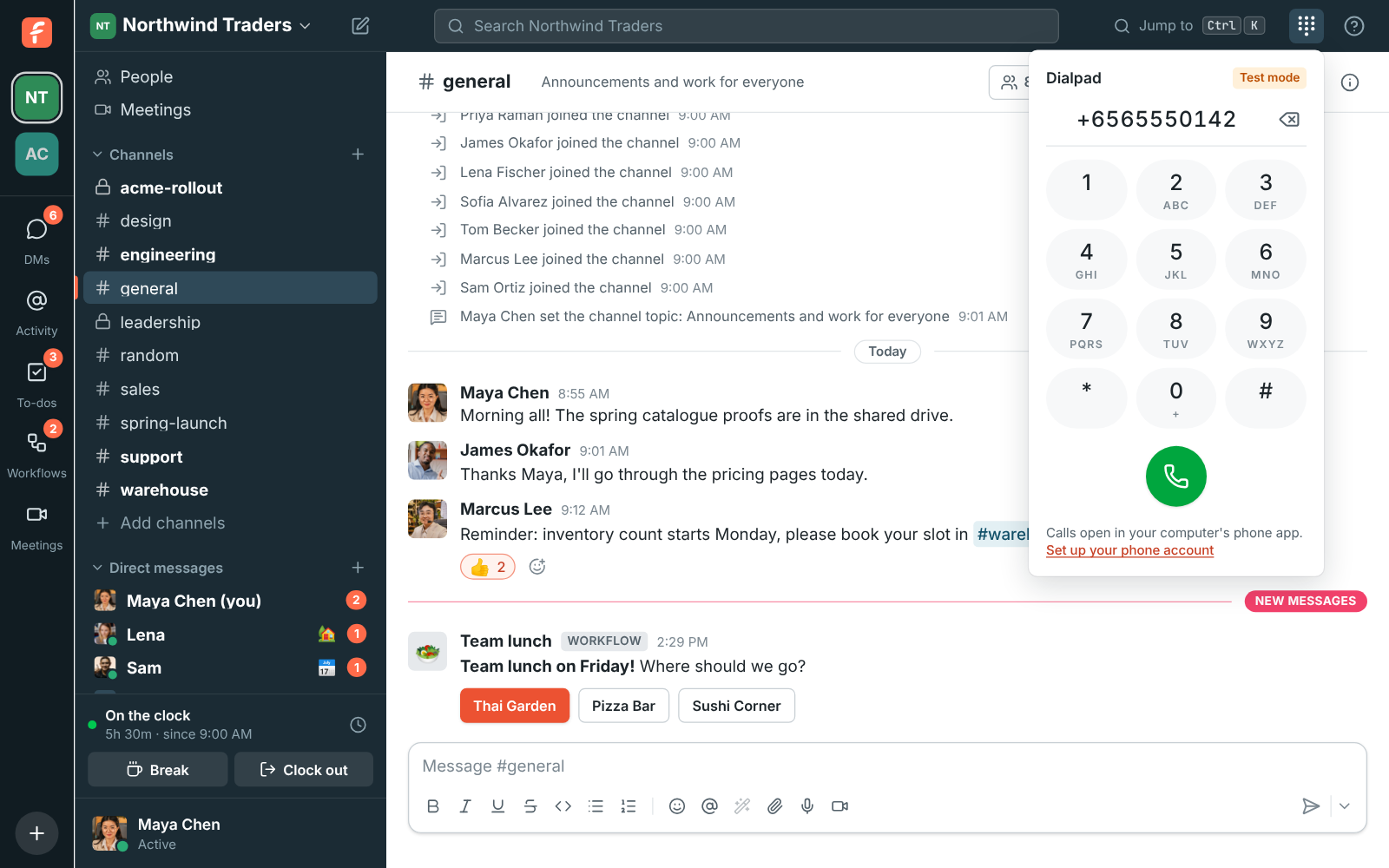
Click the phone button (a phone keypad) in the top bar to open the phone and dial a number. When
your workspace’s phone system is from Freesbe, the call goes out from Freesbe itself (see
Calls in Freesbe). Otherwise pressing call hands the number to your
computer’s phone app (any app registered for tel: links, such as your softphone). The tabs at
the bottom switch between the Keypad and your Recent calls. With a phone system from
Freesbe there are two more: People and Voicemail (see Your colleagues
and Voicemail).
If you don’t have a phone account yet, the phone links to Set up your phone account.
Keep the phone open
Section titled “Keep the phone open”The phone opens under the top bar and closes when you click elsewhere. If you’re on the phone a lot, keep it open:
- Pin it to the side: click the pin button at the top of the phone. It stays beside the conversation, and chat keeps working next to it. Freesbe remembers this on each computer. Click it again, or the phone button, to put it away.
- Pop it out: click the pop-out button. In the desktop app the phone gets a small window of its own that stays on top of your other apps, where you put it. Make it short during a call and it shrinks to one line with mute, hold and hang up. In Chrome and Edge it floats the same way; other browsers open it in a small window. Your calls keep going if you close it; click the button at its top to put the phone back in Freesbe.
Calls in Freesbe
Section titled “Calls in Freesbe”When your workspace has a phone system from Freesbe, you make and take phone calls right in Freesbe, in the browser or the desktop app, with no phone or softphone to set up. Your browser asks once to use your microphone.
- Taking a call: when one of your numbers rings, a card shows who’s calling, with Answer and Decline, and your ringtone plays. If Freesbe is in the background, you also get a notification. A call that comes in while you’re already on one isn’t put through, so it goes on as if you didn’t answer.
- Making a call: open the phone, type a number or a colleague’s extension, and press call. The call says Calling… until their phone starts to ring, then Ringing…. Or click a phone number on someone’s profile, or a phone link in a message: it calls from Freesbe instead of opening another app. (Hold Ctrl or ⌘ while clicking to hand it to your computer’s phone app.)
- During a call: the phone shows the call, with Mute, Hold, Keypad (for menus that say “press 1”), Transfer (see Passing a call on), Add call (see Two calls at once) and Hang up. The top bar shows who you’re talking to and for how long, from anywhere in Freesbe: click it to open the call. The microphone and speakers are the ones you chose in Preferences → Calls & audio → Audio.
Passing a call on
Section titled “Passing a call on”Click Transfer during a call and type a colleague’s name, an extension, a call queue or a phone number. Each match has two buttons:
- Transfer: the caller waits on hold while their phone rings, and goes to them when they answer. Your side of the call ends then. If nobody answers, the caller stays with you. Changed your mind while it rings? Cancel stops it and keeps the caller with you.
- Talk first: you talk to them while the caller waits on hold, to say who’s calling and why. Then choose Complete to hand the caller over and leave, Merge to bring the caller in for a 3-way call (the phone lists both people; hang up to leave the two of them talking), or Go back to hang up on them and go back to the caller.
A call queue always takes the call straight away: its next free agent answers it. Some calls can’t be passed on yet, such as one that’s already a 3-way call; the phone says so.
Two calls at once
Section titled “Two calls at once”Click Add call during a call to call someone else: type a colleague’s name, an extension or a number. The first call waits on hold at the top of the phone; click it to switch to it, which puts the other one on hold. Switch as often as you like. With two calls up, the phone offers:
- Transfer: connects the two people to each other, and you leave.
- Merge: a 3-way call, where all three of you hear each other. Each person has their own hang up button, to drop just them. Transfer leaves the two of them talking; hanging up ends the call for both.
Your colleagues
Section titled “Your colleagues”The phone’s People tab lists your colleagues who have a phone, with their extension and whether they’re around. Type a name or an extension to find someone, and click the phone next to them to call.
Your calls
Section titled “Your calls”The phone’s Recent tab lists your calls from the last 30 days, newest first. Missed calls are in red, and each call shows when it was and how long you talked. Click the phone next to a number to call it back, and Show older calls for more. Calls with colleagues show their name. Click Missed at the top to see only the calls you missed, and All to see everything again.
Voicemail
Section titled “Voicemail”When you don’t answer, callers can leave you a voicemail. The phone’s Voicemail tab lists yours, newest first, with a count of the ones you haven’t played on the tab. Play one right there (that marks it heard), call the person back, or delete it.
Each voicemail also comes to you in Freesbe as a message from Phone in your own DM, Voicemail from (415) 555-0142 (0:42), with the recording to play right there. Under it is what the caller said, written out, so you can read it without playing it. You get a notification like for any message, and the recording stays with your files.
Voicemails are written out by the same speech to text as meeting transcripts. When an admin turns transcripts off in Workspace settings → Calls & meetings → Recordings, voicemails come with the recording only.
Queue calls
Section titled “Queue calls”When you’re in a call queue, the top bar shows whether you take the queue’s calls right now, next to the dialpad button:
- Taking calls (green): calls from your queues ring you. You’re signed in to a queue when an admin adds you to it.
- A break (amber): click the pill and pick the reason, like Lunch or Training, or Break, no reason. Queue calls stop until you click I’m back. The pill shows the reason and how long you’ve been away.
- Signed out (gray): click the pill, then Sign out of queues, for example at the end of your day. Pick Take queue calls to come back.
Calls straight to your number keep ringing you either way. When an admin gave a break reason a time limit, it shows next to the reason, and Freesbe tells you when your break runs over: a notification on your computer, and the pill turns red until you’re back. The pill also turns red when you’re taking calls but your Freesbe phone isn’t open anywhere, so queue calls can’t reach you.
Where you work from (911)
Section titled “Where you work from (911)”If you call 911 from Freesbe, emergency services are sent to the address you work from. Pick it in Preferences → Calls & audio → Phone → Working from: one of your workspace’s offices, or Add a place, like home for an address only you see. Change it when you work somewhere else, because Freesbe’s phone goes wherever your computer goes. Until you pick one, your calls use the workspace’s default address.
One window at a time
Section titled “One window at a time”Calls ring in one Freesbe window at a time: the last one you opened. With several tabs open in the same browser, the first one rings, and another takes over when you close it. If you open Freesbe on another computer, calls ring there instead, and the phone here says Calls ring in another Freesbe window with Ring here to bring them back. Your desk phone or softphone, if you set one up, keeps ringing as well.
For admins: a phone system from Freesbe
Section titled “For admins: a phone system from Freesbe”Instead of bringing your own phone provider, you can get phone numbers and calling straight from Freesbe. There’s nothing to sign up for elsewhere: people’s phone accounts are made for them. Admins set it up in the Admin Center, under Phone: the phone system, numbers, business hours, 911 and texts. In the app, those tabs of Workspace settings show Open in the Admin Center.
-
Open the Admin Center, then Phone → Phone system.
-
Under Phone system from Freesbe, pick the Country (the United States or Canada for now) and click Turn on phone system.
-
Open the Numbers tab and click Buy a number. The first time, you’ll verify your identity, which phone regulations require (see identity verification for phone numbers). Numbers for sale show right away. Change the Country, choose Local or Toll-free, or type an Area code (like
415) to narrow them down. Show other numbers brings up a fresh set. -
Pick a number, choose Who should it ring?, and click Get with the number on it.
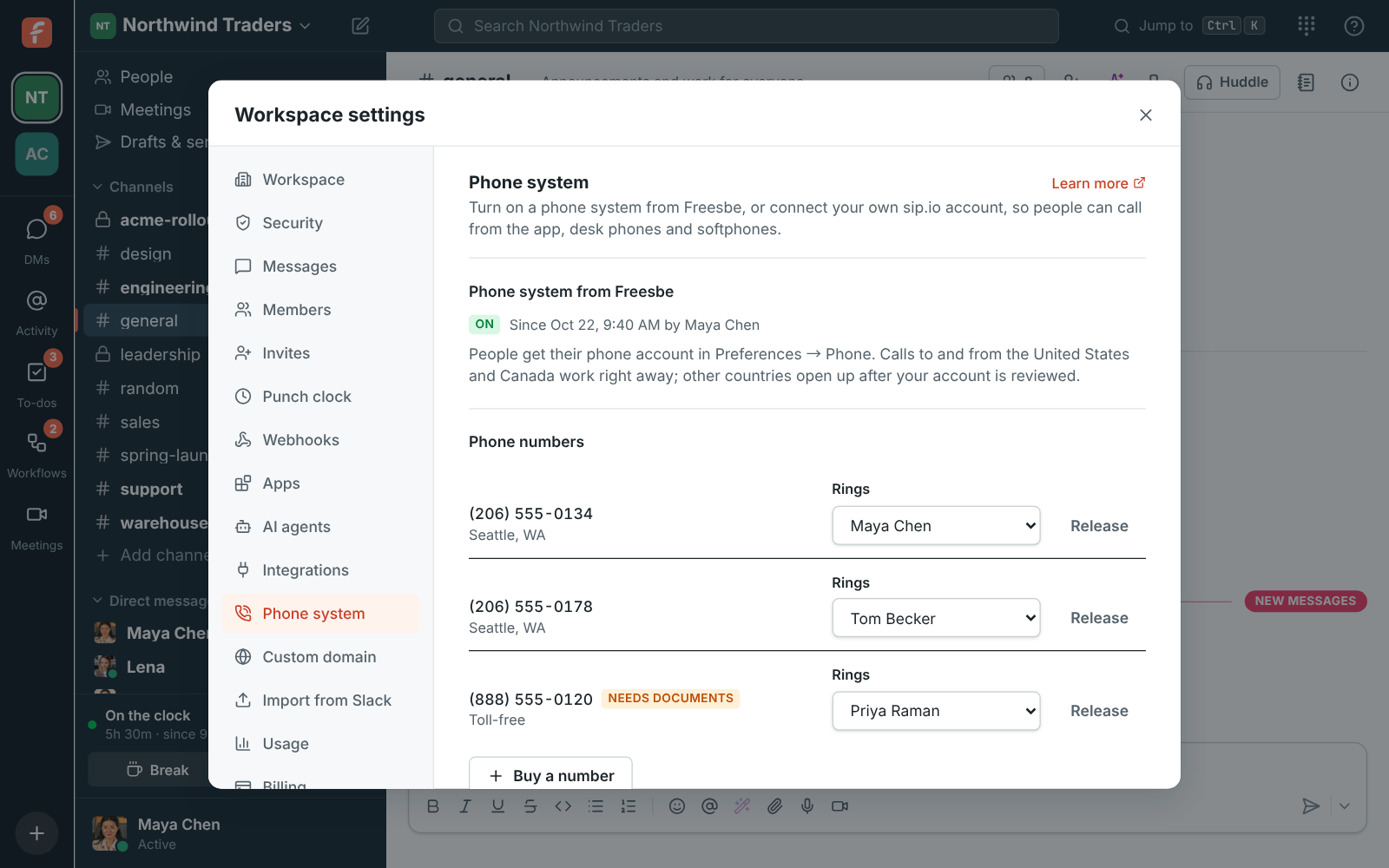
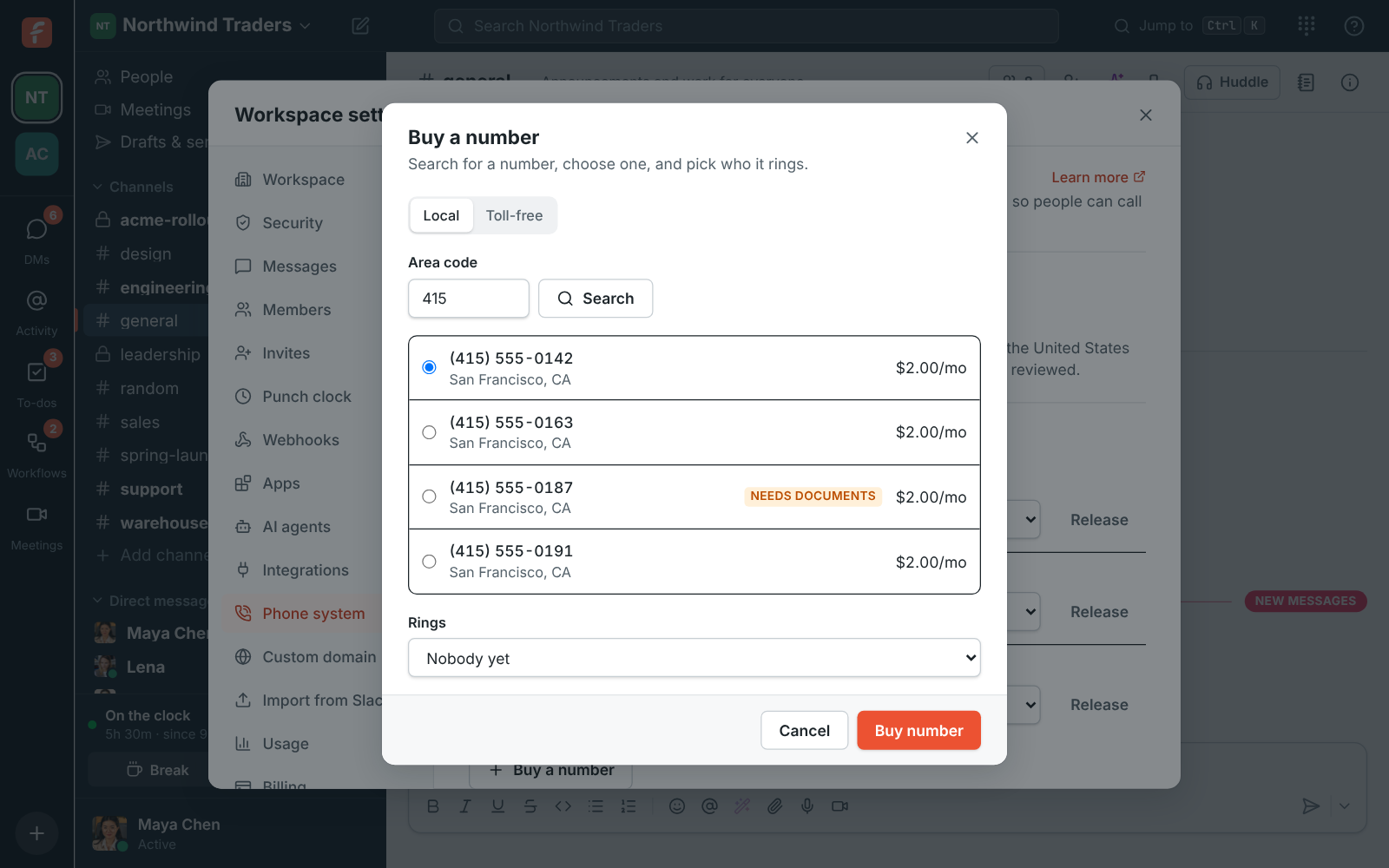
One local number comes with each person on the Phone system add-on, so while the workspace has some left, local numbers show Included instead of a price. Past that, and for toll-free numbers, each number shows its monthly price before you buy it. Some numbers need documents before the carrier turns them on; they’re marked Needs documents and stay that way in the list until they’re approved. To send a number’s calls to someone else, change Rings next to it. The first time a number rings someone, Freesbe makes their phone account, which they find in Preferences → Calls & audio → Phone.
A number can ring up to 20 people at once, like a sales or support line: choose the first person in Rings, then Also ring to add more. Everyone’s phone rings together and the first to answer takes the call. The × next to a name stops ringing them; down to one person, it’s back to the Rings list.
Phone menus
Section titled “Phone menus”A phone menu answers a number with a greeting, then lets callers press a key to reach the right people: “For orders, press 1. For deliveries, press 2.” It’s also called an IVR or auto attendant. Phone menus are built in the Admin Center, where there’s room for the greeting and every key.
-
Open the Admin Center, then Phone → Phone menus, and click Add a menu. Give it a Name.
-
Set the Greeting:
- Type it and pick a Voice to have it read out. Listen plays it for you first.
- Record it: click Start recording, say the greeting into your microphone, and click Stop. Play it back below, or record it again.
- Upload a file: an MP3, M4A or WAV file.
- None skips straight to waiting for a key.
Recordings and files can be up to 5 minutes. New greetings count toward a daily limit.
-
Under Keys, choose what each key does. Ring people rings one person or several at once, Voicemail takes a message for someone, Another menu plays a second menu (like a Deliveries menu under key 2), Call queue puts the caller on hold in a call queue, and Hang up ends the call. Add a key adds up to 12: the digits, * and #.
-
Under If nobody presses a key, choose how long to Wait for a key. The greeting plays twice, then the call goes where you choose.
-
Click Try it to hear the menu as a caller would, then Save menu.
Try a menu
Section titled “Try a menu”Try it, next to a menu in the list or at the bottom of the editor, calls the menu without a phone. The greeting plays, and the keypad presses keys as a caller would: you see each step and where the call ends up, like The call rings Priya Raman. Nobody’s phone rings. It works like a real call: when nobody presses a key, the greeting plays a second time before the call goes where If nobody presses a key says, and so does a third key that isn’t a choice. Start over calls again, and Sound off follows the steps without playing the greeting.
Then point a number at the menu: in Phone → Numbers, in the Admin Center or in the app’s Workspace settings, change Answers with next to the number from Ringing people to the menu. Callers to that number hear the menu from then on, and Voicemail after hours doesn’t apply to it. To go back, choose Ringing people and pick who it rings. A menu can’t be deleted while a number answers with it or another menu sends calls to it.
Call queues
Section titled “Call queues”A call queue holds callers on the line until someone is free, instead of ringing out or going to voicemail when everyone’s busy: callers hear a greeting, then hold music and their place in line. It’s for a sales or support line that gets more calls than people. Call queues come with the Call center add-on and are set up in the Admin Center.
-
Open the Admin Center, then Phone → Call queues, and click Add a queue. Give it a Name.
-
Under Who takes its calls, Add someone for each person who answers. They’re signed in to the queue when you save it, and its calls ring their Freesbe phone.
-
Under Who gets the next call, choose how calls are shared out:
- Whoever’s been free longest spreads calls evenly.
- Everyone at once rings every free person, and the first to answer takes the call.
- Take turns goes round the list.
- In order, from the top rings the first free person in the list. Use the arrows to put the main people at the top.
- Whoever took the fewest calls and Anyone, at random do what they say.
Ring each phone for is how long one person’s phone rings before the call tries the next, and Time for notes after a call gives people a moment before their next queue call.
-
Set the Greeting callers hear when they join, typed, recorded or uploaded like a menu’s, or None.
-
Under Hold music, keep Standard music or upload your own file.
-
Tell callers their place in line announces it every 30 seconds to 5 minutes, when it changes.
-
Under If the wait runs long, choose the Longest wait and the Most callers waiting. Past either, callers go where Then says: voicemail, other people, a menu, another queue, or hanging up.
-
Under If nobody is signed in, choose where calls go straight away when no one in the queue can take them. Click Save queue.
Then send calls to the queue: choose it under Answers with next to a number in Phone → Numbers, or pick Call queue for a key in a phone menu. A queue can’t be deleted while a number, a menu or another queue sends calls to it.
Breaks
Section titled “Breaks”People in a queue take a break or sign out from the status pill in their top bar (see Queue calls). Under Break reasons on the Call queues page, add the reasons they pick from, like Lunch, Training or Meeting. Click Add a break reason, type its Name, choose a Time limit if the break shouldn’t run longer than that, pick a color, and click Save. When a break runs over its limit, Freesbe tells the person and their pill turns red. People can take a break without a reason too.
Call center board
Section titled “Call center board”The Call center page in the app shows your queues as they happen: callers waiting and for how long, each queue’s numbers for today, and what everyone in a queue is doing, whether that’s taking calls, on a call, wrapping up, on a break, or signed out. It comes with the Call center add-on. Admins see it, and so do the Supervisors they choose.
To choose supervisors, open the Admin Center, then Phone → Call queues, and under Supervisors pick each person from Add a supervisor. Take someone off with the × next to their name.
Admins and supervisors open it from Call center in the bar on the far left.
- Callers waiting lists everyone on hold, longest wait first, with their queue and place in line. A wait past two minutes turns red.
- Each queue’s card shows how many are waiting, the longest wait, how many calls today were answered in time, and who’s free, on calls or on a break. Nobody free means callers are waiting and nobody can answer; Long waits means waits are running long.
- People shows each person’s status and how long they’ve been in it. A break past its reason’s time limit turns red.
- With more than one queue, pick one at the top to see only its callers and people.
To nudge someone, click Nudge next to them, pick or type a message, and choose whether it comes From me or From the Call center bot. They get it as a direct message, with a notification.
For a TV on the wall, click Wall mode: the board fills the screen in large type, and keeps up on its own. Click Leave wall mode or press Esc to go back.
For numbers over days or weeks, such as calls answered, waits and each person’s breaks, see Reports → Call center in the Admin Center.
Call log
Section titled “Call log”Every call on your phone system is listed in the Admin Center under Phone → Call log, newest first: calls in from outside, calls out, and calls between colleagues. Each line says when the call started, who called (a colleague, the caller ID or the number), the number or person it rang, who answered, and how long they talked. Missed calls are marked in red.
- Search: type any number, or part of one (three digits or more), to find calls from or to it on either end, or a colleague’s or caller’s name.
- Dates: pick a range on the calendar, or this week, last week, this month or last month, up to 90 days at a time. Calls are kept for 90 days.
- Direction: calls in, calls out or calls between colleagues, each with its own icon.
- Result: only answered calls, or only missed ones. Length keeps calls over 1, 5 or 10 minutes.
- People: only the calls those people made, took or were rung for. Clear filters starts over.
- Show older loads more, and Download CSV saves every call the filters show, up to the newest 5,000, with times in UTC and talk time in seconds.
Play a recorded call
Section titled “Play a recorded call”A call that was recorded has a play button. It opens a player under the call: play, pause, jump anywhere, play faster (1.5× or 2×) or download the recording. Transcript opens what was said, line by line, with a summary of the call, the caller’s mood, the key points and what to do next. Click a line to hear it, or search the transcript for a word.
A recording without a transcript yet has Make a transcript, which writes one and the summary in a minute or so. It needs transcripts turned on under Phone → Call recording, where you also choose which calls are recorded and how long recordings are kept.
Calls show up a few minutes after they end. Each person still sees their own calls in the phone’s Calls tab (see Your calls). For totals per queue and per person, see Reports → Call center.
Business hours
Section titled “Business hours”Under the numbers, Business hours sets when your phones are answered: the time zone, the hours for each day of the week, and Closed days like holidays, when nobody answers all day. Then turn on Voicemail after hours next to a number. During business hours it rings as usual. The rest of the time, and on closed days, callers go straight to voicemail: the voicemail of the first person the number rings, which comes to them in Freesbe like any other voicemail. Numbers with it off ring at any hour.
Release gives a number back to the carrier. Calls and texts to it stop, and you may not get the same number again.
The phone system comes with the Phone system add-on, which includes one local number for each person. Local numbers past those are billed as the Phone number add-on, and every toll-free number as the Toll-free number add-on, counted when you buy or release one; a number being released isn’t billed.
A new phone system can call the United States and Canada right away. Other countries open up once your account has been reviewed.
Texts to your numbers
Section titled “Texts to your numbers”The Messaging tab brings texts customers send to your numbers into a channel, one thread per customer, and your team’s replies go back as texts. Your WhatsApp Business number can go there too, with replies on WhatsApp. Each number starts in test mode. See texts to your Freesbe numbers and WhatsApp.
Emergency calling (E911)
Section titled “Emergency calling (E911)”Under the numbers, Emergency calling (E911) keeps the addresses emergency services are sent to when someone calls 911: add your offices, with the street number and suite or floor. The first one is the Default address, used for everyone who hasn’t picked a place; with more than one, you can pick another default. Each address shows whether the carrier Confirmed it, or that it Needs fixing. An address people work from, or the default, can’t be removed until they pick another.
When someone calls 911, tell picks who hears about it right away, as US law asks: a channel like #front-desk, or every admin in a message from Phone. The message says who called, from which address, and the number to call them back on.
Emergency addresses can be in the United States and Canada. Addresses are saved now and sent to the carrier as soon as emergency registration turns on; until then they show as Saved.
Click-to-call from your CRM
Section titled “Click-to-call from your CRM”A Call button in your CRM, help desk or your own app can call through Freesbe. The person’s Freesbe phone rings first, in the app on their computer or phone; once they answer, Freesbe dials the customer from your workspace’s number, so the call shows up in their calls like any other.
- From the other system’s server: make an app with the phone:call
permission and send
POST /api/workspaces/{w}/phone/callswith its token, the number into, and whose phone rings inuserIdoremail. - As a person: an AI agent you connect with the phone:call permission can call for you with its call_phone_number tool. It never gets that permission unless it asks for it.
- How it went: the
phone.call_endedevent says whether the customer answered and how long you talked, with theleadIdandvarsthe call was started with, so the CRM can log it. Apps with phone:call and outgoing webhooks can subscribe to it.
The person has to be signed in to Freesbe’s phone somewhere; if not, or if they’re on another call, the call isn’t started and the answer says why. The details are in the API reference.
Turning the phone system off
Section titled “Turning the phone system off”Turn off phone system stops calls, texts and everyone’s phone logins right away. Your numbers aren’t released yet: they’re kept for 30 days. Click Turn phone system back on before then and everything comes back as it was: numbers, who they ring and people’s phones.
While it’s off, the Phone system add-on (and Call center, if you have it) isn’t charged from your next renewal; what’s already paid isn’t refunded (see Adding and removing). The numbers you keep are still billed, and none are included, so each local number counts as a Phone number add-on. Turning it back on before the renewal costs nothing extra; after it, the add-on is charged again for the rest of the period.
Admins get an email when it turns off, nine days before the numbers are released and again two days before. On the release date the numbers go back to the carrier, and you may not get them again. To keep a number with another provider, contact support@freesbe.net to port it out before then.
When the numbers are released, the Phone system add-on ends with them, so there’s nothing to remove on the Billing page.
When the Phone system add-on ends
Section titled “When the Phone system add-on ends”You can remove the Phone system add-on on the Billing page while you still have numbers. Freesbe tells you first what happens to them, and nothing is released by surprise:
- Until the end of the period you’ve paid for, the phone system keeps working. Phone system shows the date it ends, with Open Billing to keep the add-on.
- On that date the phone system turns off, like turning it off yourself, and admins get an email. The numbers are kept for 30 days, billed as usual with none included, then released.
- Add the Phone system add-on again before then and the phone system comes back on by itself, as it was.
The same happens when you cancel and the workspace moves to Free, which has no phone system: the Move to Free button says so first. On Free there’s no bill, so the 30 days cost nothing. To keep a number with another provider, contact support@freesbe.net to port it out before the release date.
A plan that doesn’t come with the phone system can’t be chosen while the workspace has one. Turn the phone system off and let its numbers go first, or stay on your plan.
Deactivating someone lowers the number of local numbers that come included. If the workspace then has more local numbers than people, Freesbe says what the extra numbers add a month before you confirm. See Who counts as a person.
If a payment is overdue
Section titled “If a payment is overdue”- After 7 days, outgoing calls and texts pause. Incoming calls still ring, so customers can still reach you.
- After 14 days, the phone system turns off, and the 30 days before the numbers are released start.
- Once you pay, everything turns back on by itself.
If you don’t see Phone system from Freesbe, your workspace doesn’t have the Phone system add-on, or it isn’t offered on your server yet. A workspace uses either Freesbe’s phone system or its own sip.io account, not both: disconnect sip.io before turning Freesbe’s on.
For admins: connect sip.io
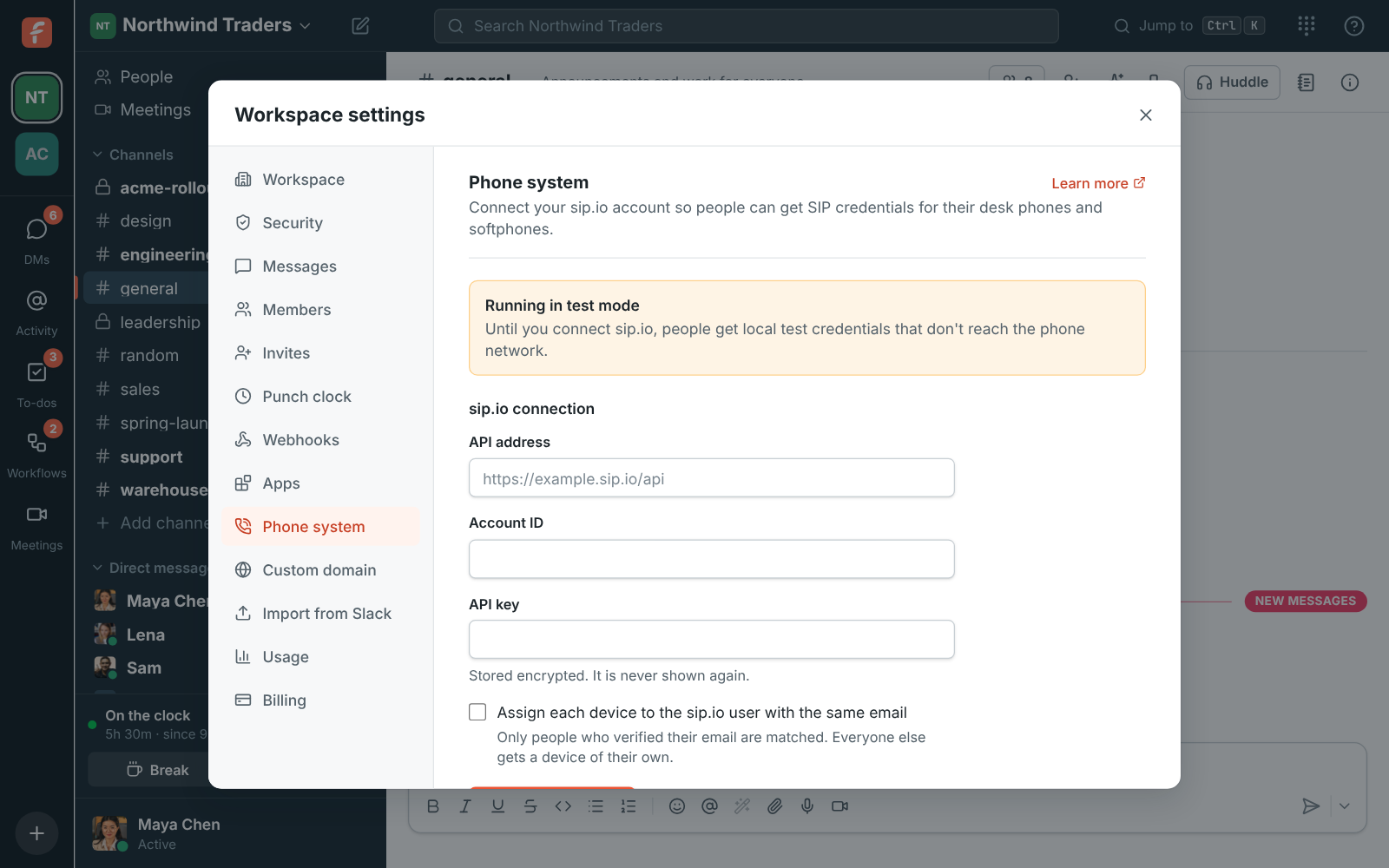
Section titled “For admins: connect sip.io”- Open the Admin Center, then Phone → Phone system.
- Enter the sip.io API address (like
https://example.sip.io/api), your Account ID and your API key. The key is stored encrypted and never shown again. - Click Connect sip.io.
From then on, Freesbe creates one sip.io device for each person who sets up their phone. Passwords are read from sip.io when someone asks to see theirs; Freesbe never stores them.
Assign each device to the sip.io user with the same email links each device to the matching PBX user (and extension). Only addresses people have verified are matched, but only tick it if you trust that every account’s email belongs to that person.
When someone leaves the workspace, their device is turned off and its password scrambled. Disconnect turns off every device Freesbe made on sip.io and scrambles their passwords, so nobody keeps a working line by accident; new phone accounts go back to test credentials. Connecting a different sip.io account does the same to the old account’s devices. Connecting the same account again with a new key keeps everyone’s devices.
If your workspace doesn’t use phones, the Phone section says Phone calling is off.
Answers come from the Freesbe guides and are written by AI, so check the linked guide before relying on one. Please don't include personal details such as emails or passwords.