
Secure your workspace
Freesbe’s defaults are safe for most teams, but a few settings are worth deciding on deliberately, especially when your team talks to customers all day. Work through this list once when you set up the workspace, and again when your team or your customers’ expectations change. Everything here is in Workspace settings → Security & compliance unless it says otherwise.
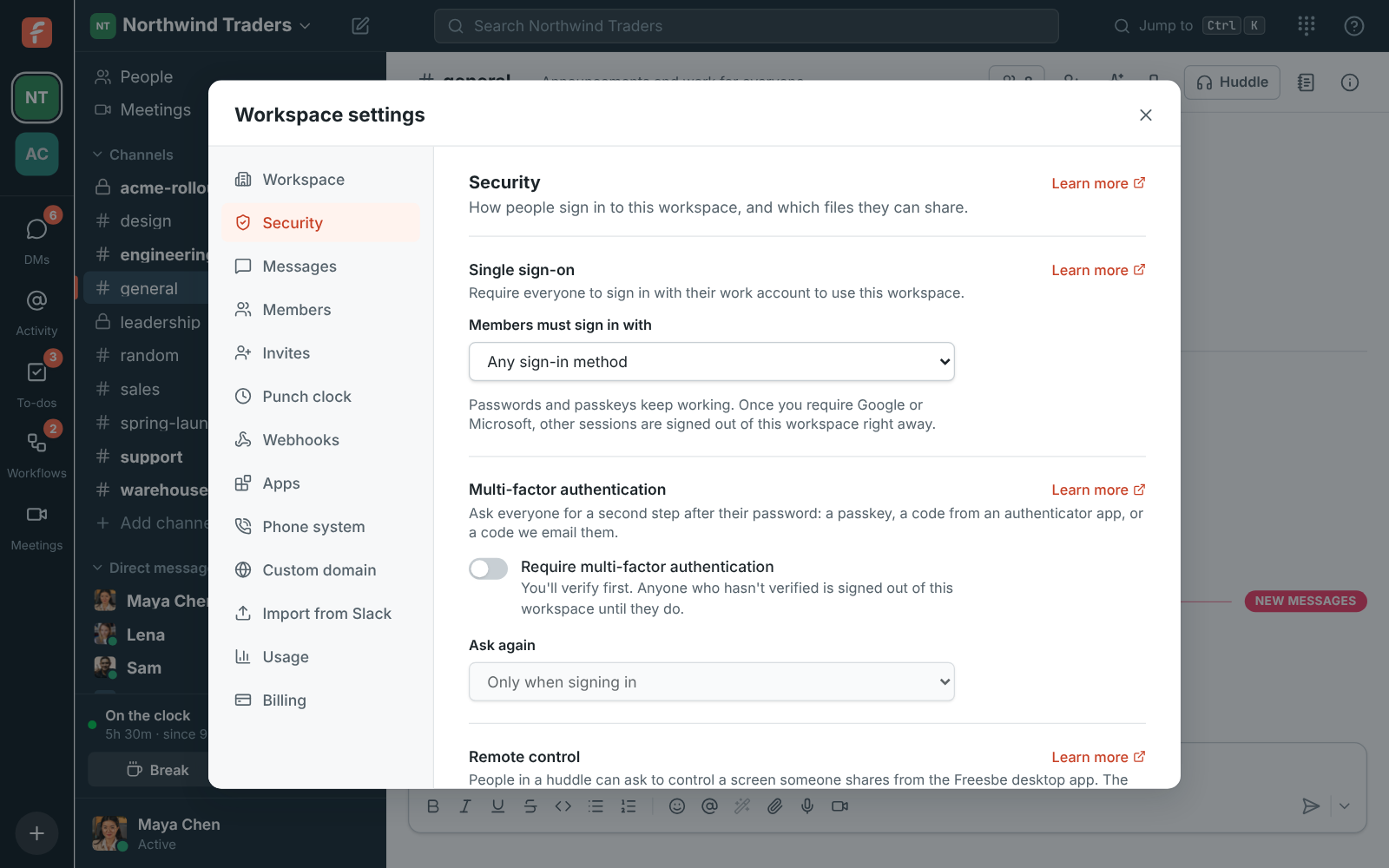
Decide how people sign in
Section titled “Decide how people sign in”If your company already uses Google Workspace or Microsoft 365, require it. Then people sign in with the accounts your IT team already manages, under its rules for passwords and second steps.
- Open Single sign-on and under Members must sign in with, choose Google, Microsoft or Google or Microsoft.
- Sign in with that provider yourself first. Freesbe won’t let you lock yourself out.
- Requiring single sign-on comes with the Corporate and Enterprise plans.
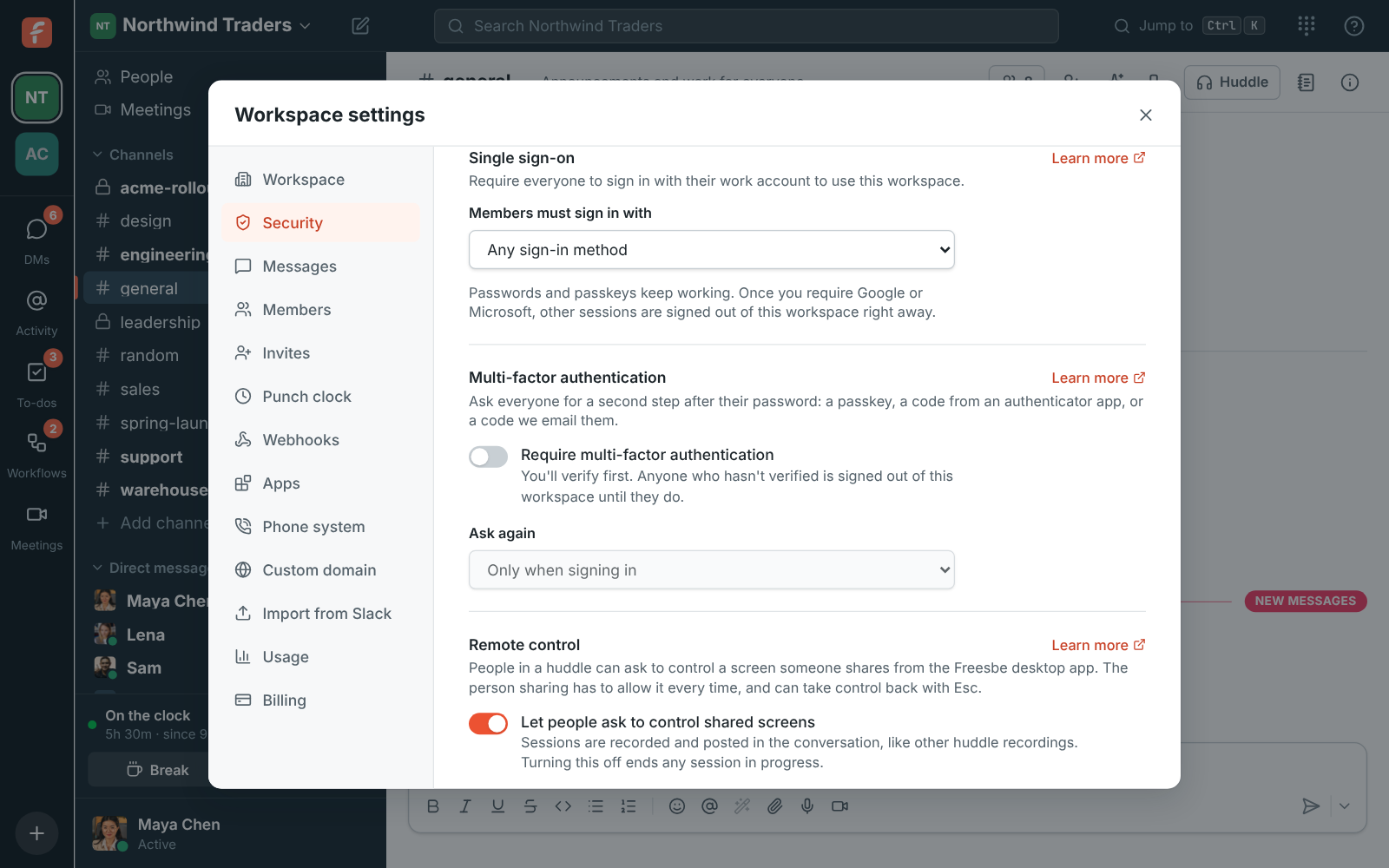
SSO decides how people sign in, not who joins: people still need an invite. See Single sign-on.
Require a second step
Section titled “Require a second step”Passwords get reused and phished. Requiring multi-factor authentication means a stolen password alone doesn’t open your workspace.
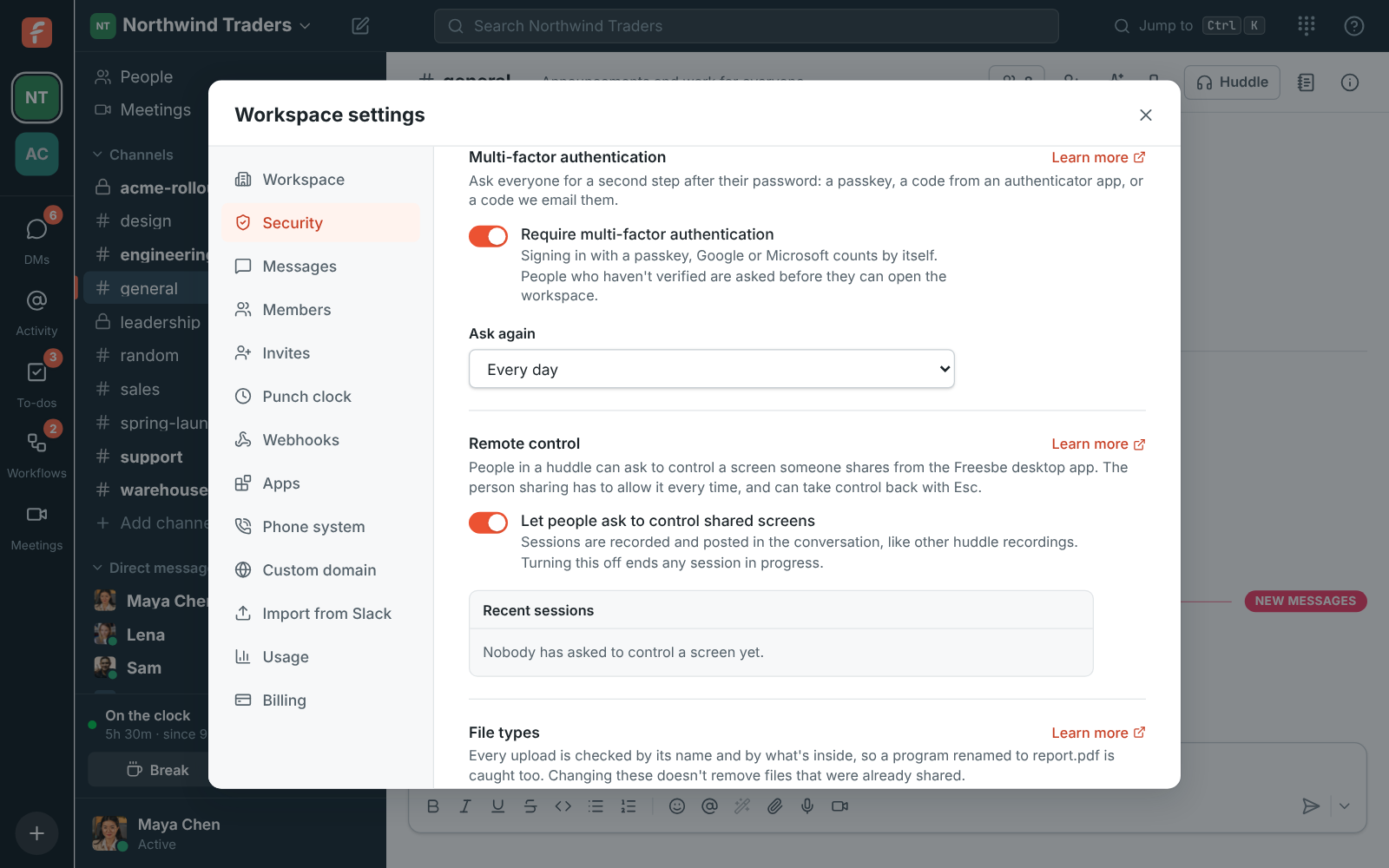
- Switch on Require multi-factor authentication. It comes with every paid plan.
- Pick how often under Ask again. Every day is a good balance for most teams; choose Each time Freesbe opens if people share computers.
- Signing in with a passkey, Google or Microsoft counts as the second step by itself, so people who use them see no extra prompt when they sign in.
Encourage everyone to add a passkey or set up Approve on your phone: it’s quicker than typing codes. See Multi-factor authentication.
Choose which files people can share
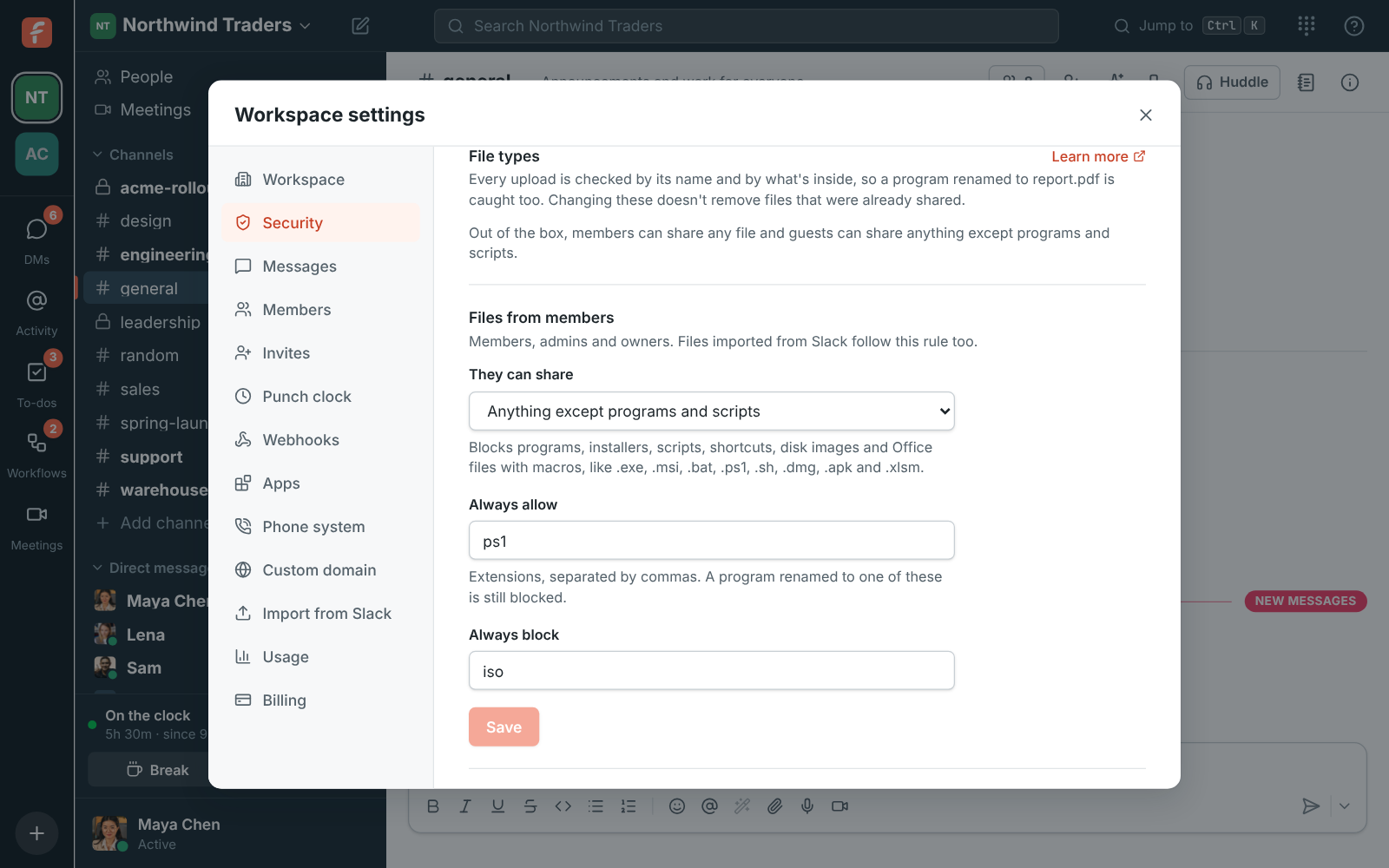
Section titled “Choose which files people can share”Out of the box, members can share any file and guests can share anything except programs and
scripts. Freesbe checks every upload by its name and by what’s inside, so a program renamed to
report.pdf is still caught.
- If your team never needs to send programs, set Files from members to Anything except programs and scripts too.
- For guests, consider Only the kinds I pick, with just Documents and Images.
- On Corporate and Enterprise, add Always allow for the odd file type your partners send, like
dwg, and Always block for anything you never want, likezip.
See File types.
Keep guests where they belong
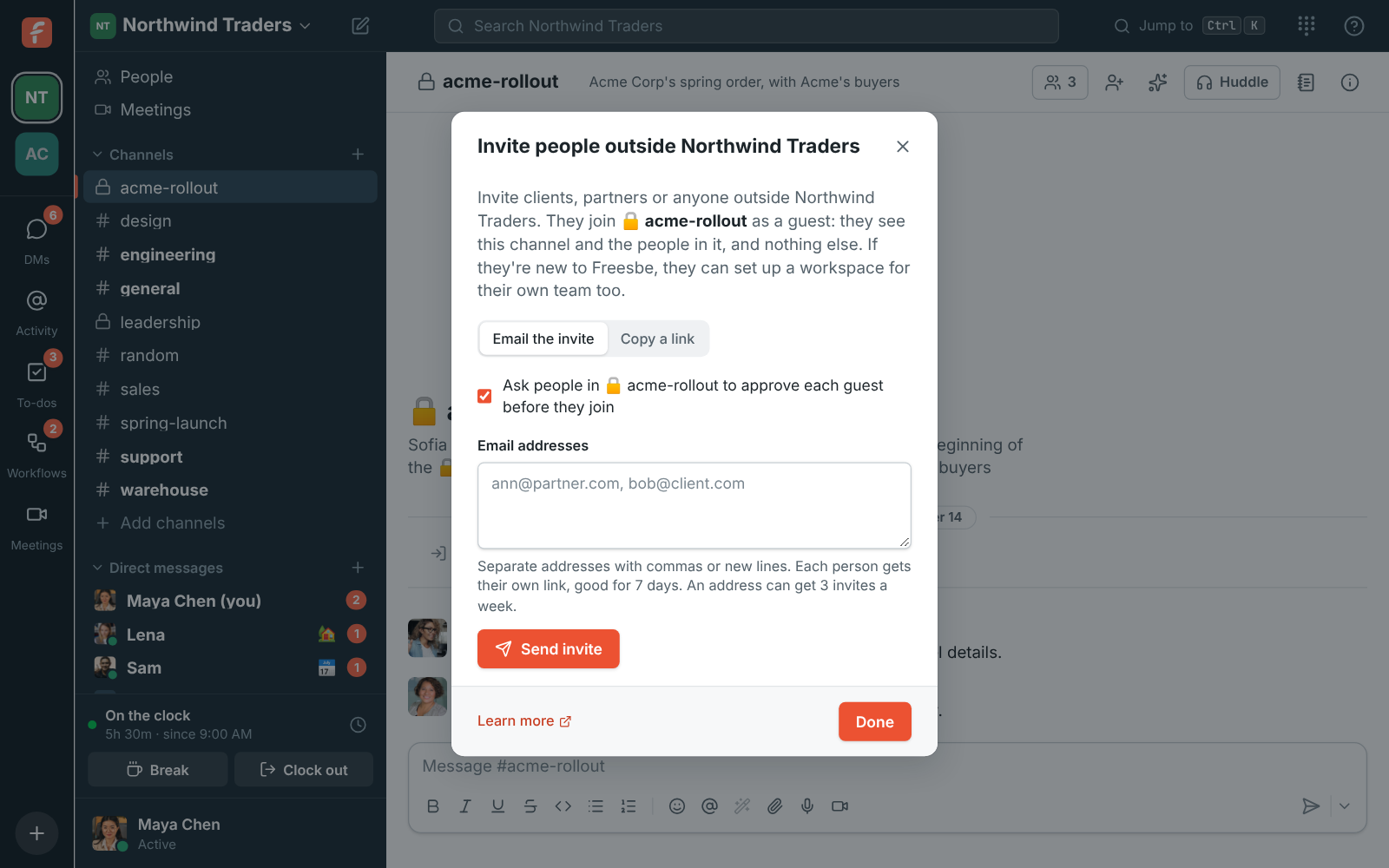
Section titled “Keep guests where they belong”Guests only see the channels they’re invited to and the people in them. To stay in control:
- Leave Ask people in #channel to approve each guest before they join on when inviting, so someone checks each person first.
- Make one channel per customer or partner, like
#acme-rollout, rather than adding guests to internal channels. - When a project ends, Deactivate the guest in Workspace settings → People → Members.
See Guests.
Decide on remote control
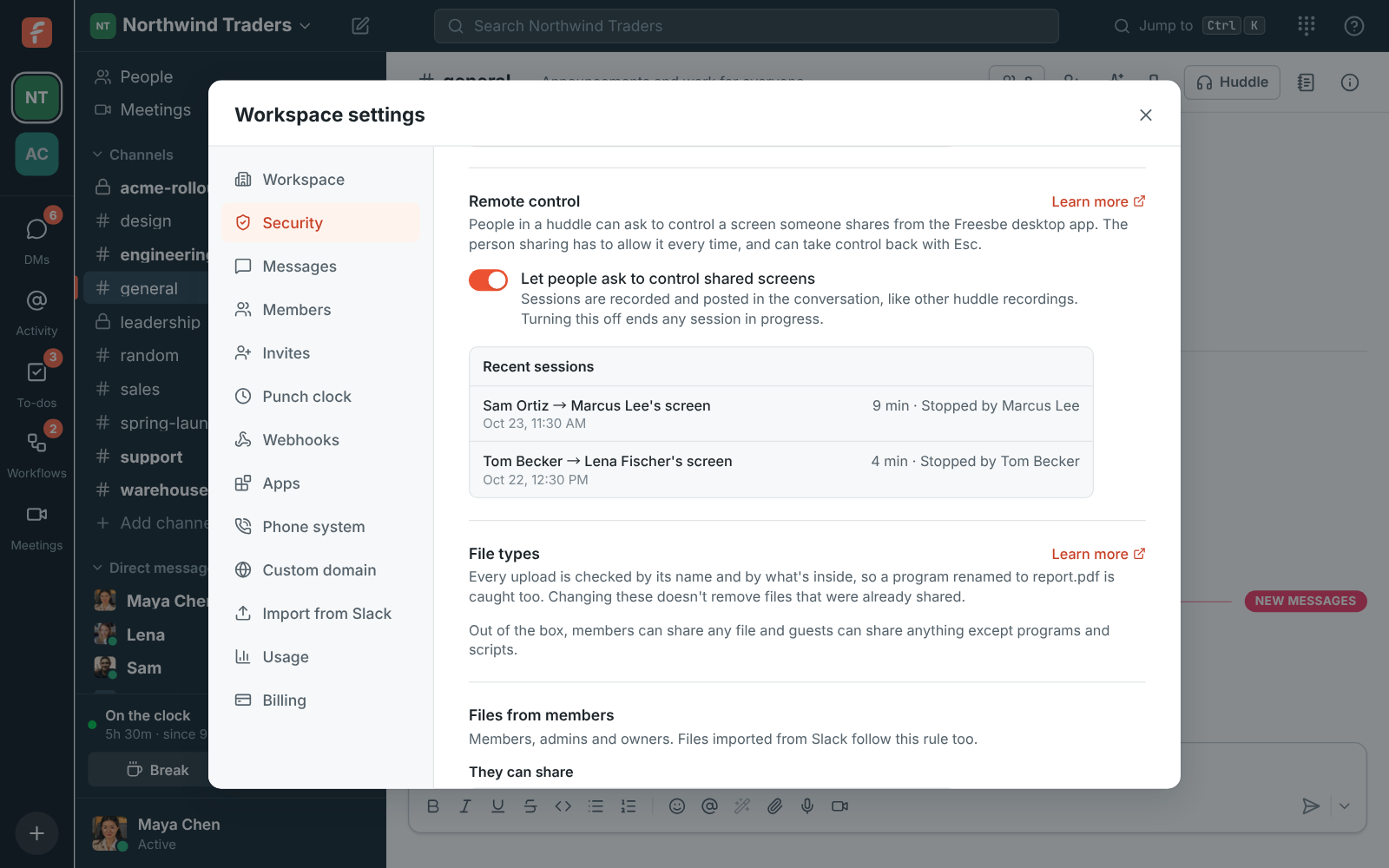
Section titled “Decide on remote control”Let people ask to control shared screens is off by default. Turn it on only if your team helps customers or each other by taking control of a screen. The person sharing always decides, every time, and Recent sessions shows the last 100 requests: who asked, whose screen and how long it lasted.
See Remote control.
Clean up when people leave
Section titled “Clean up when people leave”- Deactivate people who leave in Workspace settings → People → Members. They’re signed out at once, their messages stay, and their webhooks and phone device are turned off.
- Revoke invite links you no longer need in Workspace settings → People → Invites.
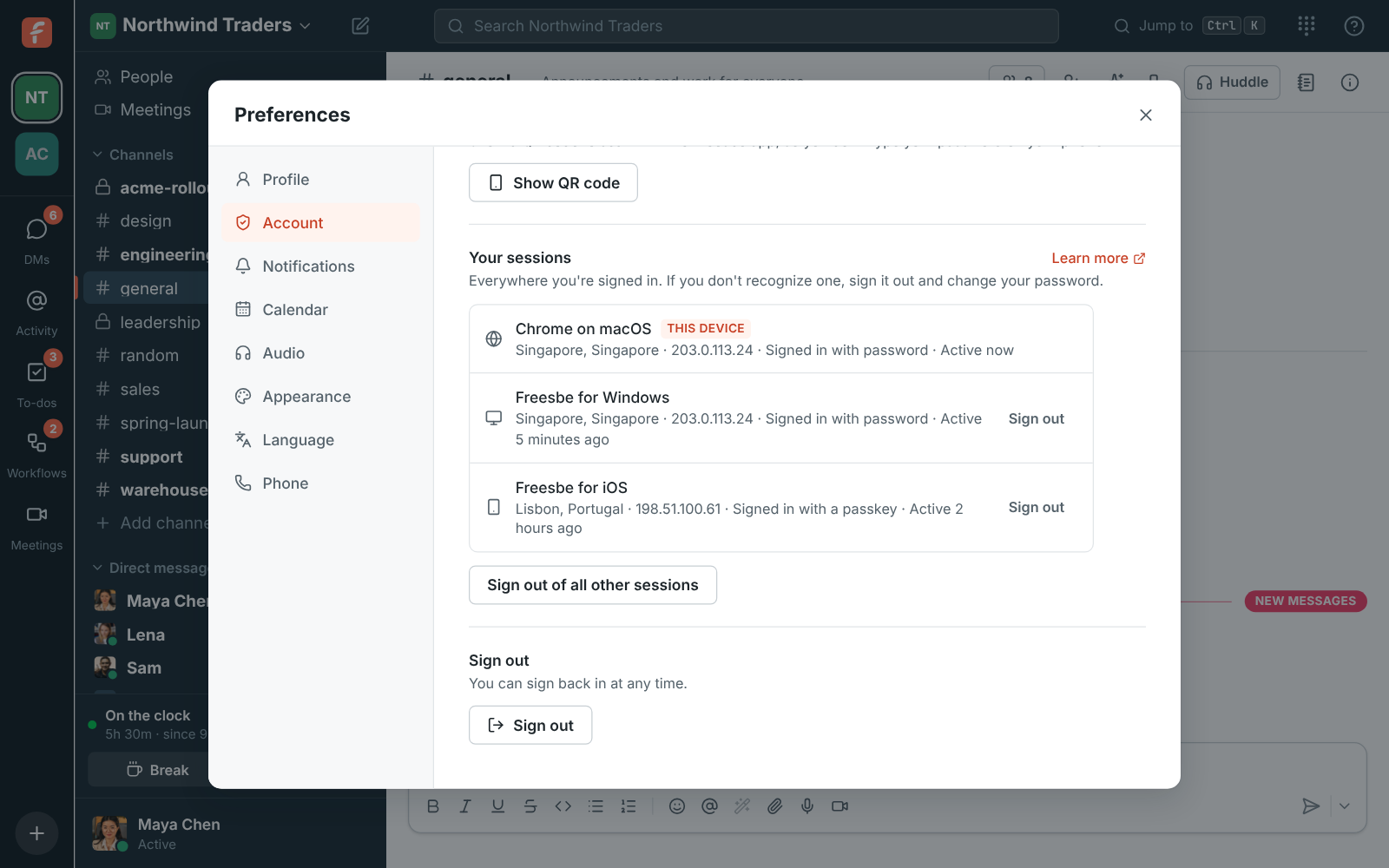
- Ask everyone to check Preferences → My account → Sessions and apps → Your sessions now and then, and sign out of anything they don’t recognize.
Answers come from the Freesbe guides and are written by AI, so check the linked guide before relying on one. Please don't include personal details such as emails or passwords.